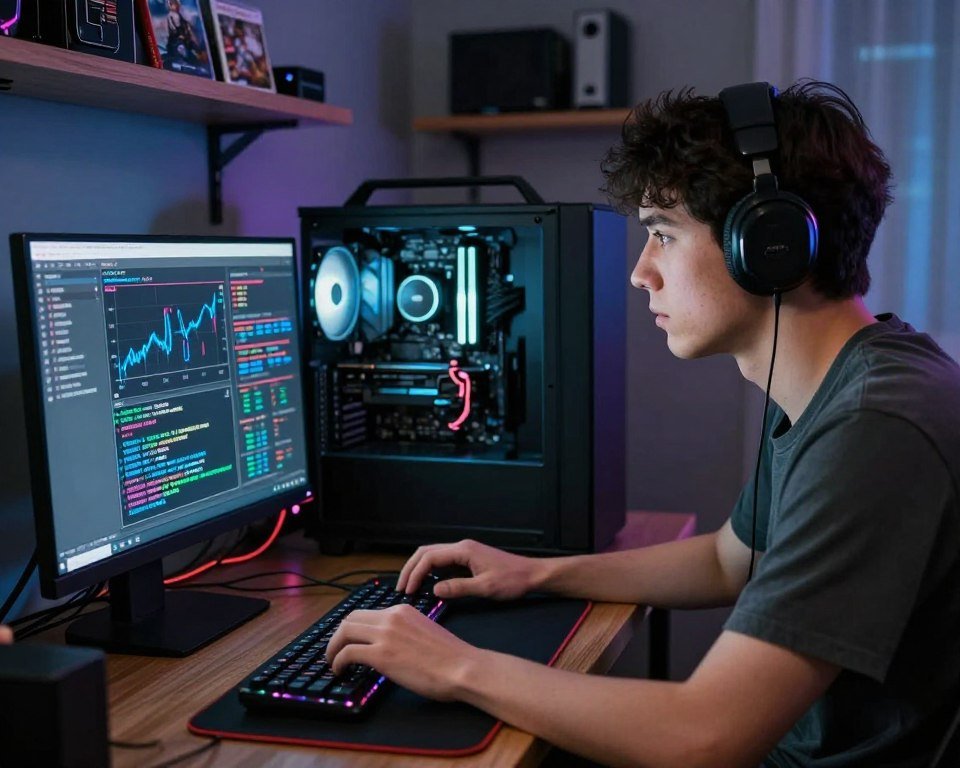
Why My PC Restarts While Gaming: Community Tips
Ever been in the middle of a big game, and then your screen goes dark? It’s really frustrating when your computer stops working when you need it most. Losing your progress because of a sudden shutdown is a big annoyance.
This guide is here to help you figure out why your PC restarts. We’ll show you key troubleshooting steps that our community uses. With these tips, you can trust your computer again and enjoy your games without worry.
Key Takeaways
- Identify common hardware triggers for sudden power loss.
- Learn how to monitor internal temperatures during intense gameplay.
- Discover effective software fixes to stabilize your system.
- Understand when to check your power supply unit for faults.
- Gain confidence in maintaining a reliable gaming environment.
Common Causes of Sudden PC Restarts
When your screen goes black in the middle of a match, it’s a sign your system is actively protecting itself. These sudden interruptions are not random. They are often due to internal safety protocols triggering a shutdown.
Overheating and Its Impact on Performance
Overheating is a common cause of unexpected reboots. When your CPU or GPU temperatures get too high, the system slows down to cool down.
If the heat keeps rising, the motherboard will shut down to prevent damage. Keeping your cooling fans clean and ensuring proper airflow is essential for a stable gaming environment.
Power Supply Issues Explained
A reliable power supply is key for your gaming rig. If your unit is failing or lacks power, it can’t handle high-end components.
When power demand spikes, a weak unit may fail, leading to an immediate restart. We recommend checking if your hardware requirements exceed your current unit’s capacity for long-term stability.
Software Conflicts That Cause Restarts
Sometimes, the issue is not hardware-based but software conflicts. Corrupted system files or incompatible background applications can cause instability, forcing your computer to reboot without warning.
Keeping your operating system and background software updated helps minimize these interruptions. Below is a summary of how these different factors typically manifest during your gaming sessions.
| Issue Type | Primary Symptom | Common Solution |
|---|---|---|
| Overheating | High fan noise | Clean dust/Improve airflow |
| Power Supply | Random blackouts | Upgrade or replace unit |
| Software Conflict | Error messages | Update drivers/OS |
How Hardware Fails and Triggers Restarts
When your gaming session ends in a sudden reboot, the culprit is often hiding deep within your hardware. Losing progress during a match can be frustrating. But effective troubleshooting can help you find the problem. By checking your internal components, you can often fix these issues yourself.
Faulty RAM: Signs and Symptoms
Random Access Memory, or RAM, is key for smooth gaming. When RAM fails, your system may struggle to store data right. This can lead to unpredictable behavior, like frequent crashes or the Blue Screen of death.
If you think RAM is the problem, try a memory diagnostic tool. These tools scan for errors that might be causing restarts. Replacing a bad module can often fix the issue and make your machine stable again.
Graphics Card Overload: What to Look For
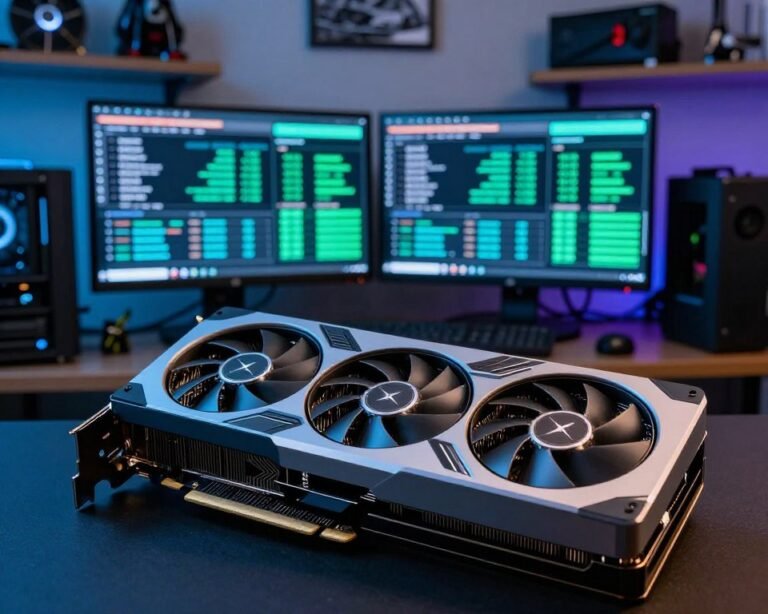
Your graphics card is the heart of your gaming setup. But it can only take so much stress. If it gets too hot or uses too much power, your system might shut down to avoid damage.
Watch your temperatures during long gaming sessions. If your card is always near its thermal limit, you might need better airflow or to adjust your graphics settings. Proper troubleshooting of your GPU settings keeps your hardware safe and your gaming smooth.
The Role of Drivers in PC Stability
Drivers are key to a stable gaming rig. When they’re outdated or corrupted, they can’t talk to your hardware right. This often causes crashes in the middle of games.
Importance of Up-to-Date Drivers
Your graphics card and motherboard need updates to work well with new system patches. It’s important to check for these updates often. This keeps your hardware running at its best.
Keeping drivers updated helps your hardware and games work together smoothly. This simple step can stop your system from restarting suddenly during games.
How to Identify Driver-Related Issues
If you think software is causing problems, start by checking your system logs. You can find the Event Viewer in Windows. Look for error codes that show up before your system shuts down.
These logs can point to a specific driver that’s not working. Once you find the problem, you can install a new version. This should fix the crashes for good.
We think it’s vital to keep your drivers clean for gaming. Regularly checking and fixing these issues will help your PC stay stable for a long time.
Checking Power Settings for Optimal Gaming
Did you know your Windows power settings might cause gaming crashes? The OS might manage your power supply too much. This can lead to sudden voltage drops, causing your system to restart during games.
Optimal Power Settings for Performance
To keep your system stable, switch your Windows power plan to “High Performance.” This ensures your CPU and GPU get a steady flow of energy. It prevents the system from cutting the power supply to important parts during intense scenes.
“A stable gaming rig is built on the foundation of consistent energy delivery and thermal management.”
Not sure which plan you’re on? Check your Control Panel under Power Options. Here’s a quick guide to help you see how these settings affect your hardware:
| Power Plan | Performance Level | Power Supply Impact |
|---|---|---|
| Power Saver | Low | Minimal |
| Balanced | Medium | Moderate |
| High Performance | Maximum | High |
Adjusting Advanced Power Options
For more control, explore advanced settings to stop low-power states. Find the “PCI Express” section and turn “Link State Power Management” to “Off.” This keeps your graphics card’s power supply steady.
Also, check your processor’s power management. Make sure the minimum state is 100%. This stops the CPU from down-clocking during short pauses. By keeping your power supply settings at max, you ensure your hardware runs smoothly without interruptions.
Gaming Settings That Might Be Causing Restarts
Playing games with ultra-high graphics settings can cause your PC to restart suddenly. This is because your hardware works too hard, leading to a lot of heat. Managing your settings can help prevent overheating and keep your gaming sessions going without interruptions.
Graphics Settings That Strain the System
Many modern games have presets that push your components to their limits. Features like ray tracing and ultra-high texture resolution require a lot of power from your GPU. If your cooling system can’t handle this, your computer might restart to protect itself.
It’s a good idea to lower these demanding settings to match your hardware’s capabilities. You might be surprised to find that high or medium settings can look great while putting less strain on your system. Lowering the strain on your graphics card is often the best way to keep your system stable during long gaming sessions.
Frame Rate Caps and Stability
Running games without a frame rate cap can make your GPU work too hard. This leads to high power consumption and heat buildup, causing instability. By setting a frame rate cap, you keep your hardware usage consistent and predictable.
Using a cap helps keep your system at a steady temperature. This reduces the risk of overheating during intense gaming. Most games let you set this limit in the video options menu. Start with a cap that matches your monitor’s refresh rate for a smooth experience without overloading your components.
Community Solutions We’ve Discovered
We’ve found reliable ways to keep your gaming rig stable through testing. Our community members work hard to make troubleshooting easier for everyone. Sharing these lessons helps make gaming smoother for all.
Tips from Gamers: What Works for Us
Simple solutions often work best. Always check your physical connections first. A loose power cable or a bad GPU seat can cause system instability.
If that doesn’t fix it, try these community-approved steps:
- Make sure your power cables are securely connected.
- Update your BIOS to the latest version for better compatibility.
- Turn off aggressive overclocking to avoid overloading your components.
Tools and Utilities to Monitor Performance
Monitoring your system is key to avoiding crashes. Watching your system’s health can help you catch problems early. We use trusted tools to track temperature and voltage in real-time.
These tools show how your hardware handles gaming loads. If your CPU or GPU gets too hot, adjust your fans or improve airflow. This proactive approach is vital for stable performance.
For troubleshooting, we recommend using HWMonitor or MSI Afterburner. They give clear data on power supply and cooling issues. Being informed helps prevent crashes and keeps your gaming sessions going.
When to Seek Professional Help
Your gaming rig is a key spot for fun and creativity. Even with careful upkeep, a Blue Screen error can pop up during long gaming sessions.
Identifying When to Consult a Technician
Parts like the motherboard or power supply might wear out over time. If you keep getting a Blue Screen, it might mean you need new parts, not just software fixes. If your system crashes even after checking drivers and power settings, it’s time to call a repair shop.
Making the Most of Our Support Network
Join our community forums to share your error logs. Other gamers might spot patterns that help you avoid costly mistakes. By sharing, we all learn more and can fix problems together. It turns a tough situation into a chance to grow and improve your gaming setup.
FAQ
Why does my computer shut down or restart suddenly while I am playing games?
Often, it’s to protect your system from Overheating. If your CPU or graphics card gets too hot, it restarts to avoid damage. Make sure your cooling fans are working and your case has good airflow to prevent this.
How can I tell if my Power Supply is the reason for these unexpected restarts?
If your PC restarts right away without showing any error, it might be your Power Supply. High-demand games can cause power spikes. Older or lower-tier PSUs, like some EVGA or Corsair units, can’t handle this and reboot your system.
What should I do if I see a Blue Screen before my system reboots?
A Blue Screen of Death (BSOD) often means a software or hardware issue, like with your RAM. Try running the Windows Memory Diagnostic tool. It can help find out if your memory modules are failing and causing problems.
Are outdated drivers really a major cause of gaming instability?
Yes, they are. Keeping your graphics and motherboard drivers updated is key. Outdated drivers can cause communication problems between your hardware and the operating system, leading to sudden crashes.
Can changing my Windows power settings improve my PC’s stability?
Absolutely. Go to your Control Panel and choose the “High Performance” power plan. This stops Windows from cutting power to essential components too early during gaming.
Should I lower my in-game graphics settings to prevent my PC from restarting?
It’s a good start. High graphics settings can push your hardware too hard, leading to Overheating and high power draw. Try reducing graphics features or setting a frame rate cap to prevent over-stressing your system.
What tools do we recommend for monitoring performance and temperatures?
We often use MSI Afterburner and HWMonitor. These tools help us monitor temperatures and voltages in real-time. They make it easier to catch and fix issues before they cause a crash.
When is it time to give up on DIY fixes and seek professional help?
If you’ve tried all our suggestions and are facing a persistent Blue Screen, it’s time to get help. A professional can diagnose complex motherboard issues or failing components that need special tools.