Updating Graphics Drivers: A Step-by-Step Guide
Ever wondered why your computer slows down during important gaming or video editing? Keeping your machine running smoothly is key for everyone.
Outdated software often causes these slowdowns. By Updating Graphics Drivers, you can fix these issues and enjoy a faster computer.
We make sure keeping your system up-to-date is easy for all. This guide will show you how to Update Graphics Drivers for better performance. Let’s get your PC running at its best.
Key Takeaways
- Improved system stability and fewer crashes.
- Enhanced performance for gaming and creative software.
- Simple, step-by-step instructions for all skill levels.
- Prevention of common visual glitches and errors.
- A smoother, more responsive user experience.
Why Updating Graphics Drivers Matters
Keeping your hardware in top shape means paying attention to the software that connects it to your computer. Whether you have an NVIDIA or AMD card, updating your drivers is key to better system Performance. Many users overlook these updates, which can cause slow downs or visual problems.
The Importance of Performance
Your graphics driver is a critical link between your software and hardware. By installing the latest updates, you make sure your computer runs smoothly. Without these updates, your system might struggle with modern tasks.
Enhancing Gaming Experience
For gamers, updated drivers are essential for smooth visuals. They help your NVIDIA or AMD hardware handle complex graphics well. This leads to better frame rates and a more immersive gaming experience.
Fixing Bugs and Compatibility Issues
Developers often release updates to Fix Bugs that could crash your apps. These patches keep your hardware working well with the latest operating system changes. By keeping up with updates, you can Fix Bugs before they ruin your work or gaming time.
| Benefit Category | Impact on System | User Outcome |
|---|---|---|
| System Speed | High | Faster response times |
| Visual Quality | Medium | Better rendering accuracy |
| Stability | High | Fewer application crashes |
How to Identify Your Current Graphics Driver
Let’s explore how to find your current graphics driver info quickly and accurately. Before we upgrade, we need to check the driver software version on your computer. Knowing this helps us avoid problems during the install.
Checking via Device Manager
The Windows Device Manager is a great tool for checking your hardware. To start, right-click the Start button and choose Device Manager from the menu. Then, expand the “Display adapters” section to find your graphics card.
Right-click your graphics card and select “Properties.” Go to the “Driver” tab to see the current version and release date. This step is important before we move forward.
Using System Information Tool
If you want more details, the System Information tool is a good choice. Press the Windows key, type “msinfo32,” and hit Enter to open it. This tool gives you a detailed look at your system.
Go to “Components” and then “Display” to find your adapter info. You’ll see the driver version clearly. Having this info ready makes updating easier.
| Method | Ease of Use | Detail Level | Primary Software Data |
|---|---|---|---|
| Device Manager | High | Moderate | Driver Version |
| System Information | Medium | High | Full Configuration |
| Third-Party Tools | Very High | Very High | Automated Reports |
Step-by-Step Guide to Updating Graphics Drivers
Updating your graphics drivers is easy and boosts your PC’s performance. Keeping your drivers current ensures your hardware works well with your operating system. We suggest trying these three main methods to keep your system in top shape.
Using the Manufacturer’s Website
Getting the best performance means downloading from the source. If you have NVIDIA or AMD hardware, their websites have the latest drivers. This way, you get a version that fits your model perfectly.
Just go to the support section of the manufacturer’s website and enter your product details. Find the right driver, download it, and follow the instructions. Gamers often prefer this method for getting new features fast.
Automatic Updates via Windows
Windows can update your graphics drivers for you. It checks your system for missing or outdated parts. This is a great way to keep your PC running smoothly without doing anything yourself.
To see if there are updates, open your system settings and go to the update menu. While easy, this method might not always have the newest drivers. It’s best for users who value simplicity over the latest software.
Utilizing Third-Party Driver Updater Tools
Some people use third-party tools to update their drivers. These tools scan your computer and suggest updates. But, be careful when using these tools to avoid security risks.
Make sure the tool is trustworthy before using it. While these tools can save time, they’re not always needed for graphics hardware. The table below compares the different methods to help you choose.
| Method | Reliability | Ease of Use | Speed |
|---|---|---|---|
| Manufacturer Website | High | Moderate | Fast |
| Windows Update | High | Very High | Moderate |
| Third-Party Tools | Variable | High | Fast |
Troubleshooting Common Issues After Update
Running into tech problems after an update can be really annoying. We always try to make updates smooth, but sometimes things don’t go as planned. It is important to stay calm, as most issues are simple to fix.
Black Screen or Crashing Games
Seeing a black screen or games crashing? It might mean the new driver doesn’t work well with your hardware. Try going back to an older version to Fix Bugs. This usually fixes the problem right away.
To roll back, go to your device settings and choose to go back to the old driver. This removes the bad files and makes your system work like before. Taking this step is a reliable way to keep your gaming smooth.
Inconsistent Graphics Quality
Graphics that keep changing can mean a problem with the new driver and your system. You might see flickering or weird colors. This usually happens when the software can’t talk right to your monitor or graphics card.
Check your display settings to make sure they match the new driver. Sometimes, just changing your resolution or refresh rate can Fix Bugs with visuals. If it doesn’t work, try installing the driver again to get top-notch graphics.
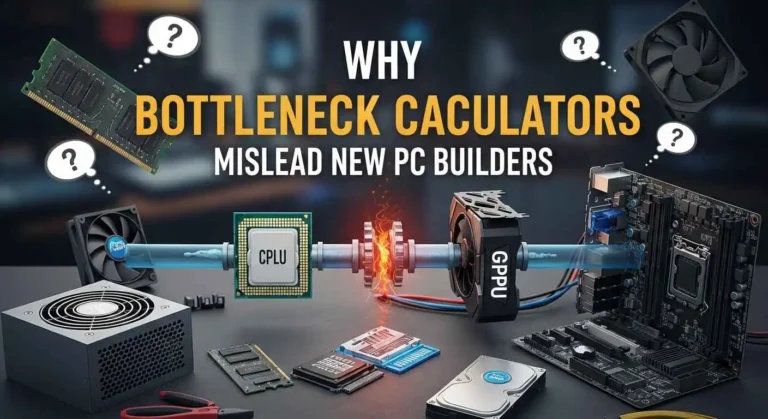
Can Updating Graphics Drivers Help in Fixing a GPU Bottleneck?
Updating graphics drivers can significantly improve your GPU’s performance by optimizing compatibility with new games and applications. This process plays a vital role in solving common GPU performance issues effectively, ensuring your hardware runs at its best and reducing the likelihood of bottlenecks during demanding tasks.
Maintaining Your Graphics Drivers
Keeping your PC running smoothly depends on regular updates to your graphics Software. It’s a good idea to set up automatic notifications. This way, you’ll always know when a new version is out.
Enable Automatic Alerts
NVIDIA GeForce Experience or AMD Software: Adrenalin Edition can alert you to updates right away. These tools make keeping your system up to date easy. You’ll have peace of mind, knowing your system is always current.
Track System Health
Regularly checking your system’s health can prevent big problems. Watch your frame rates and visual quality during everyday tasks. Even small changes might mean it’s time for an update.
Master Manual Updates
Knowing when to update manually is key to keeping your system top-notch. Sometimes, specific games need a fresh install to work right. Check the official support pages for Intel, AMD, or NVIDIA if you see odd behavior. Being proactive ensures a smooth experience every time you turn on your PC.
FAQ
Why is it important for us to regularly update our graphics drivers?
Updating drivers is key because it fixes bugs and boosts system stability. It also improves Performance. By using the latest Software for NVIDIA or AMD, games and apps run smoothly. This means no crashes or lag.
How can we identify which graphics card and driver version we are currently using?
To check our hardware, we go to the Windows Device Manager. Look under “Display adapters.” For more details, we use the System Information tool. It shows our driver version and hardware status.
Is it better to use Windows Update or the manufacturer’s website for updates?
While Windows can update automatically, we often suggest going to NVIDIA or AMD’s websites. Getting updates directly from the source ensures the best Performance. It also gives us the latest features.
What should we do if we experience a black screen or game crashes after an update?
If an update causes problems, try rolling back to a previous driver. This fixes bugs that might have caused issues. It keeps our system stable.
How can we stay on top of future updates without constantly checking manually?
To keep up with updates easily, set up automatic notifications in NVIDIA GeForce Experience or AMD Radeon Software. These tools alert us to new updates. This way, our machine stays at its best with little effort from us.