What Is a CPU Bottleneck & How to Fix It
You’re probably experiencing a CPU bottleneck if your computer feels like it’s holding back your graphics card, your games stutter, or your frame rate drops for no apparent reason. It’s a common performance issue—and once you understand what’s occurring behind the hood, it becomes much easier to address.
What Exactly Is a CPU Bottleneck?
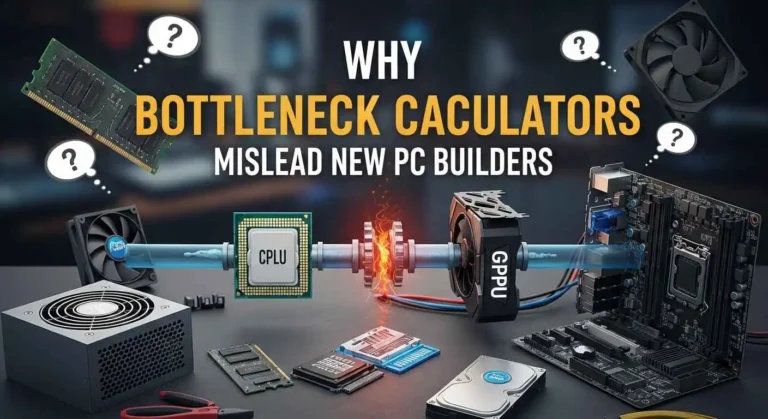
A CPU bottleneck comes when your processor can’t keep up with the amount of work your GPU or the rest of your system is ready to handle. Picture a high-speed sports car stranded behind a slow-moving vehicle—the automobile might drive faster, but something ahead is restricting its potential.
Practically speaking, even with great hardware, your system slows down, your GPU is waiting for data, and you experience lag, micro-stutters, or inconsistent performance.
How to Tell If Your CPU Is Holding You Back
You don’t need deep technical knowledge to spot the signs. Most users notice the same patterns:
- GPU usage drops while the CPU stays close to 90–100%.
- Uneven frame times, even if your FPS seems decent.
- Lower-than-expected FPS in CPU-heavy titles like open-world or strategy games.
- Your CPU fan spikes during intense scenes, while the GPU is barely breaking a sweat.
If your processor is constantly maxed out while your graphics card sits comfortable, you’re looking at a classic CPU bottleneck.
Why CPU Bottlenecks Happen
In my experience, bottlenecks usually trace back to one of these core issues:
- Old or entry-level processors paired with a stronger GPU
Modern GPUs push a lot of frames, and not every CPU can keep pace. - Background processes eating CPU cycles
Browser tabs, launchers, updates, and overlays are often the silent performance killers. - Games designed to demand heavy CPU work
Large simulations, physics-heavy environments, and massive AI systems rely more on the processor than the GPU. - Improper in-game settings
Some settings, like shadows or draw distance, lean heavily on your CPU—not your GPU.
Proven Ways to Reduce or Fix CPU Bottlenecks
Here are practical, real-world steps that actually move the needle:
1. Close Background Tasks
Disable anything unnecessary—browsers, game launchers, recording tools, RGB software, anything that adds CPU load. You’d be surprised how much performance you regain.
2. Lower CPU-Heavy Game Settings
Adjust:
- Draw distance
- Shadows
- Physics
- Density of NPCs or vegetation
These settings often shift workload off the CPU without hurting visuals much.
3. Enable or Adjust Game Mode & Power Settings
Set Windows to High Performance or Ultimate Performance so your processor isn’t being throttled.
4. Update BIOS, Chipset Drivers & Windows
Outdated firmware and chipset drivers can limit how efficiently your CPU handles threads.
5. Upgrade to Faster RAM or Enable XMP/EXPO
Your CPU relies on your memory speed. Slow or misconfigured RAM chains your processor down more than most people realize.
6. Consider a CPU Upgrade (If Your GPU Is Too Far Ahead)
If you’re pairing a modern high-end graphics card with an older processor, no software tweaks will completely remove the bottleneck. A balanced system always performs better.
The Final Score
You don’t need to be a tech expert to fix a CPU bottleneck. Once you understand where the slowdown is happening, small adjustments can make your system feel faster, smoother, and far more responsive. Take a few minutes to optimize your setup—you’ll notice the difference immediately.
Explore us more: