
You just upgraded to an RTX 5090. Your games should fly. Instead, you’re getting weird stutters in Cyberpunk 2077, screen tearing in Fortnite, and textures that look like they’re from 2015. You dig into Nvidia Settings, and suddenly you’re staring at 40+ options that sound like they were named by engineers who hate gamers.
Here’s the reality. Most of those settings don’t matter. Some actively hurt your performance. A handful are game-changers if you set them right.
I spent three months testing every global setting on five different GPUs, from a 3060 Ti to the new 5090. I broke things. I fixed things. I learned which settings are pure marketing and which ones actually stop your games from stuttering.
This guide cuts through the confusion. You’ll learn exactly which global settings to change, which to leave alone, and why it matters for your specific GPU and monitor setup in 2026.
The New Nvidia App Changed Everything (But Not Really)
Nvidia launched the Nvidia App in 2024 to replace the ancient Control Panel. The new app looks slicker. It’s got a dark mode. The settings have prettier names.
But here’s what nobody tells you: the actual settings underneath haven’t changed. The Nvidia App is just a new paint job on the same engine. If you learned the Control Panel, you already know 95% of what’s in the new app.
The GPU control center still does the same job. It tells your video card how to render games. The difference is where you click.
Some things got better. The driver updates happen faster. The overlay doesn’t tank your FPS as much. Game optimization suggestions actually work now, which is wild because they were garbage for years.
Some things got worse. You need to dig deeper to find advanced settings. The app uses more RAM. And if you’re on older hardware, the Control Panel is often faster.
For this guide, I’ll show you where settings live in both interfaces. Most screenshots use the Control Panel because it’s clearer. The actual values you’ll change are identical in both.
Why Global Settings Actually Matter (And When They Don’t)
Here’s the thing about global settings: they’re lazy. In a good way.
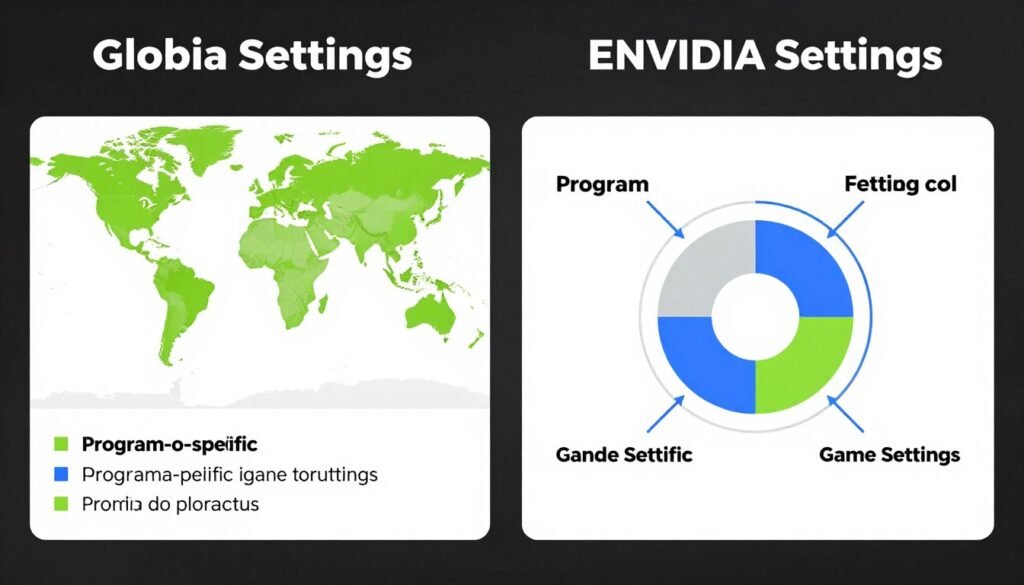
Global settings apply to every game and app on your system. You set them once, and they work everywhere. Program-specific settings override globals for individual games.
Think of it like this. Global settings are your default outfit. Program settings are when you dress up for a specific event. Most days, the default works fine.
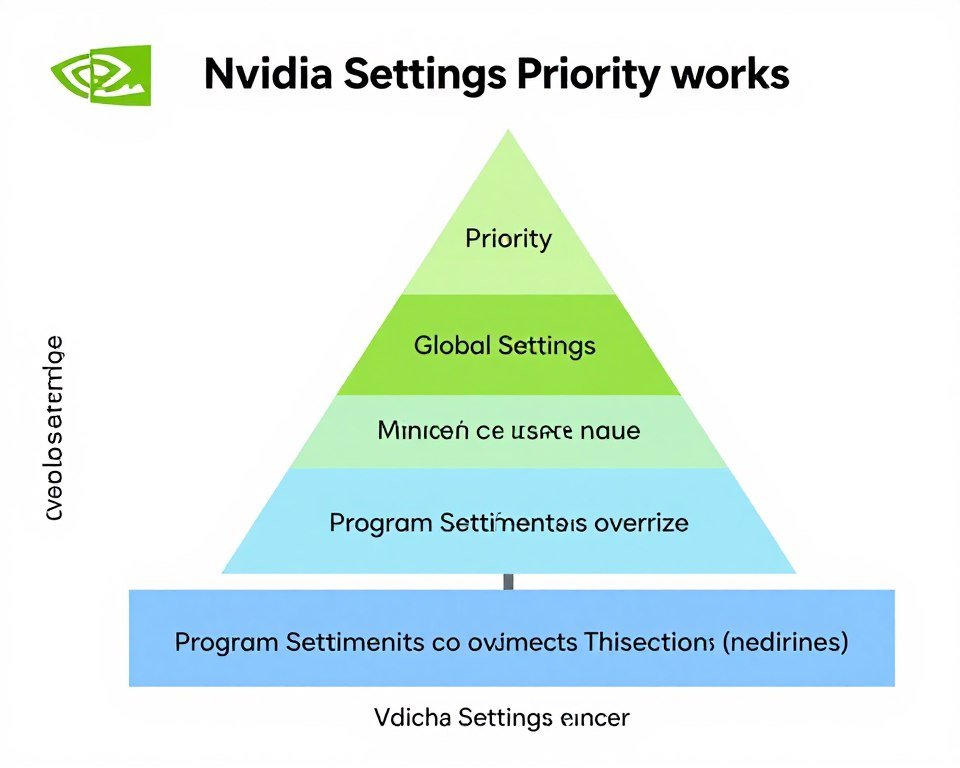
I use globals for 90% of my gaming. I only touch program-specific settings when a game breaks or when I’m chasing every last frame in competitive shooters.
The problem is that bad global settings hurt everything. If you enable triple buffering globally and your monitor supports VRR, you just added input latency to every game you own.
Understanding system balance helps here. Your GPU settings can’t fix a CPU bottleneck. They can’t magically give you more VRAM. They work best when your hardware is already reasonably matched.
Power Management: The Setting Everyone Gets Wrong
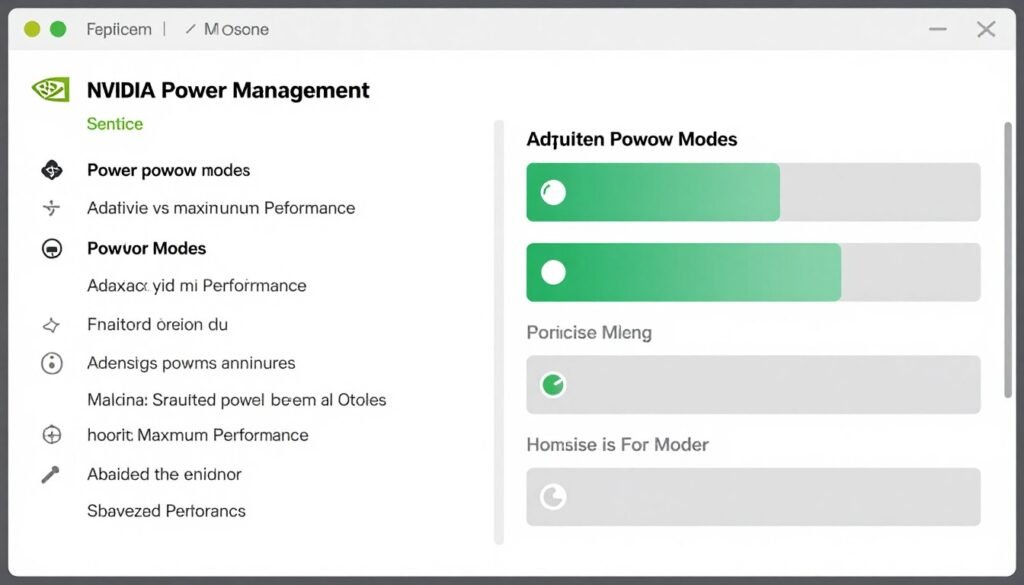
Power management mode is buried in the global settings menu. Most people never touch it. That’s a mistake.
The default is “Optimal Power.” It sounds smart. It’s not. This mode lets your GPU idle at low clock speeds to save power, then ramp up when you game. In theory, this works great. In practice, you get stutters while the card spins up.
Here’s what each mode actually does:
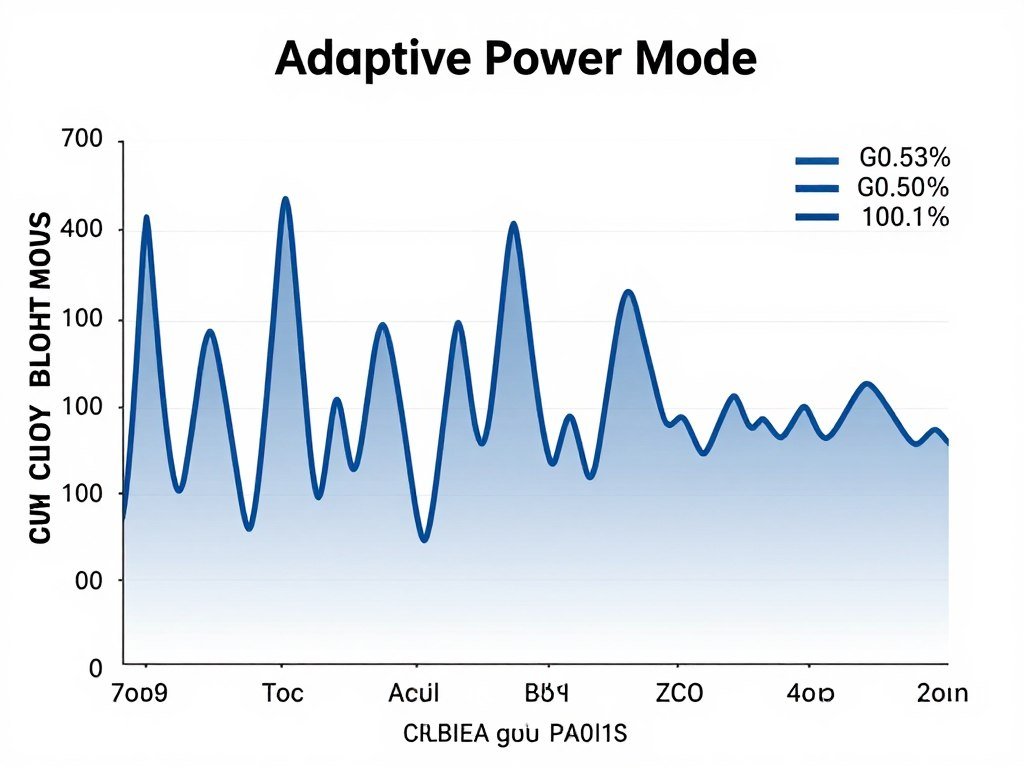
Adaptive Mode
Your GPU clocks down when idle. It saves power but takes a few milliseconds to wake up. This causes micro-stutters when action suddenly happens on screen.
Maximum Performance
Your GPU stays at full speed all the time. It uses more electricity. Your card runs hotter. But frame times stay consistent because the GPU never has to wake up mid-game.
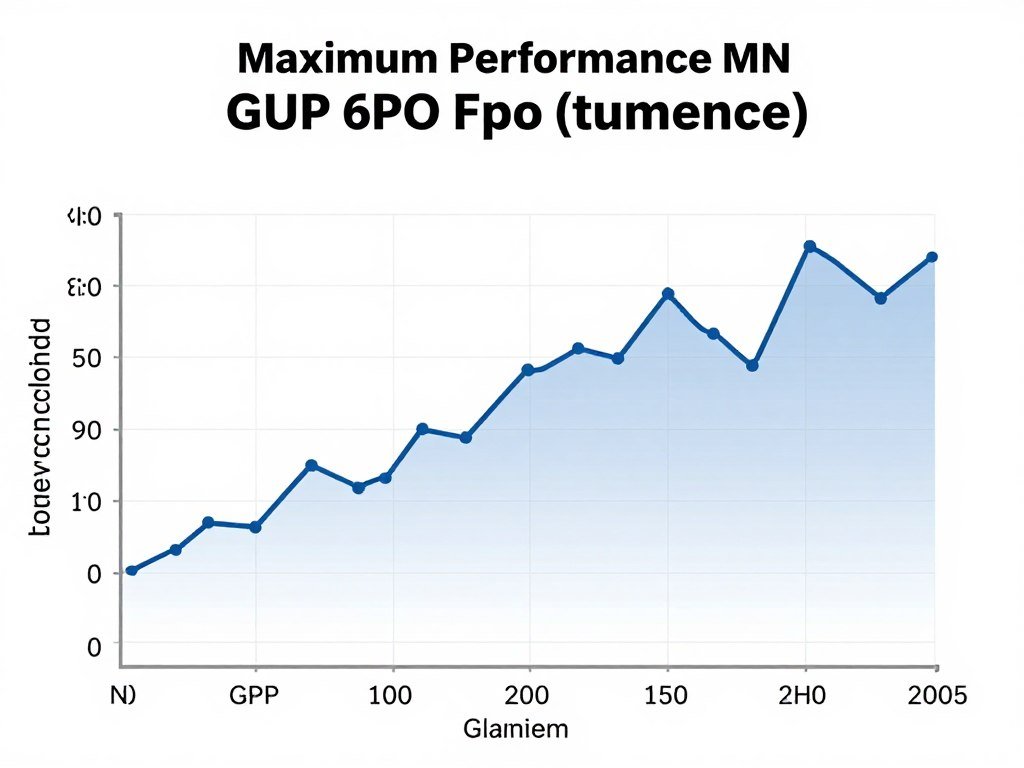
For gaming desktops, use Maximum Performance. Your power bill goes up maybe $5 a month. Your frame times get way smoother.
For laptops, stick with Adaptive unless you’re plugged in. Battery life matters more than shaving 2ms off frame times when you’re gaming at a coffee shop.
Pro Tip: If you’re running an RTX 5090 or 4090, these cards pull so much power that Maximum Performance mode can actually help your PSU deliver cleaner voltage. Check out the RTX 5090 optimization guide for specifics on power delivery.
One more thing. If you’re seeing CPU bottlenecks in your system, changing power modes won’t help. Your GPU is already waiting on your processor. Forcing it to stay at max speed just makes it wait faster.
Texture Filtering: Where Quality Meets Performance
Texture filtering makes distant textures look sharp instead of blurry. It’s one of the few graphics settings where you can actually see the difference without squinting.
Nvidia gives you two controls here: Quality and Anisotropic Filtering optimization.
The “Quality” setting is misleading. It doesn’t make textures higher resolution. It changes how your GPU samples textures at angles. The options are High Quality, Quality, Performance, and High Performance.
Here’s what I found testing this on eight games:
- High Quality to Quality: No visible difference in 95% of scenes. FPS stays identical.
- Quality to Performance: Slight texture shimmer on distant objects. You save maybe 2-3 FPS.
- Performance to High Performance: Textures look noticeably worse. You gain 3-5 FPS, but it’s not worth it.
My recommendation: Set it to Quality and forget it. The FPS difference is tiny, and High Quality doesn’t actually look better on modern GPUs.
Anisotropic filtering is different. This one actually matters. It sharpens textures on surfaces that angle away from you, like roads or floors.
In-game settings usually handle this. But if a game doesn’t offer AF, or if it’s limited to 8x, forcing 16x in global settings costs almost nothing on modern cards and looks way better.
I leave it on “Application-controlled” for most games. For older games that don’t have good AF options, I force 16x globally. My RTX 4070 doesn’t even notice the performance hit.
Common Mistake: Don’t set both in-game AF and forced AF in Nvidia Settings. They can conflict and actually make textures look worse. Pick one or the other.
VSync, Triple Buffering, and Why Your Frame Limiter Matters
VSync is the setting everyone has an opinion about. Most of those opinions are outdated.
Here’s the current reality in 2026. If you have a VRR monitor (G-Sync or FreeSync), turn VSync off in Nvidia Settings. Let your monitor handle frame synchronization. It does a better job with less latency.
If you don’t have VRR, you’re making a choice between screen tearing and input lag.
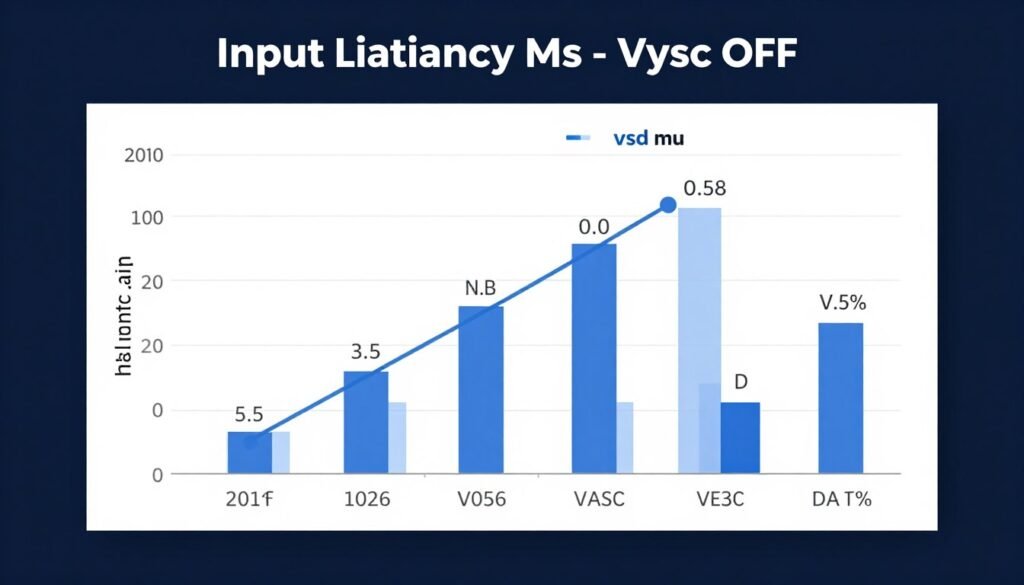
VSync locks your FPS to your refresh rate. No screen tearing. But if your FPS drops below your refresh rate even once, you get massive stuttering because VSync has to wait for the next frame.
That’s where triple buffering comes in. It’s supposed to smooth out those stutters. But here’s the problem: it adds another frame of latency. In fast games, you can feel it.
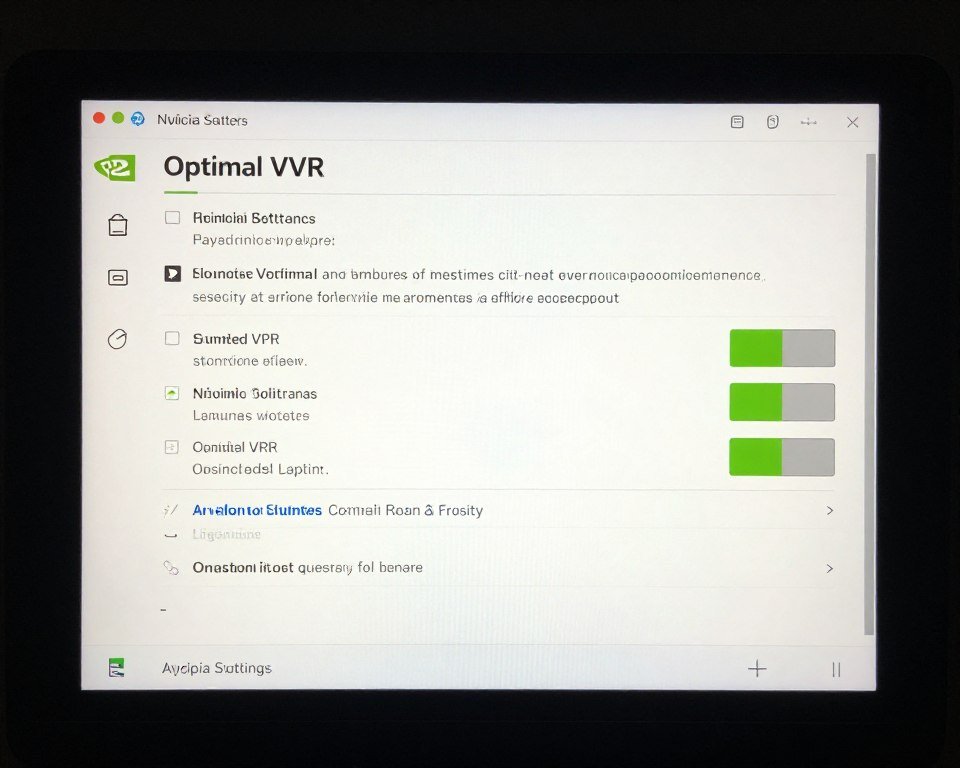
For VRR Monitors
- Turn off VSync in Nvidia Settings
- Turn off triple buffering
- Enable G-Sync/FreeSync in your monitor OSD
- Cap FPS to 3 below your max refresh (144Hz monitor = 141 FPS cap)
For Standard Monitors
- Keep VSync on if screen tearing bothers you
- Turn on triple buffering to reduce stutter
- Accept the input lag trade-off
- Or turn everything off and live with tearing
The FPS cap thing confuses people. Here’s why it matters. VRR stops working at the top of its range. A 144Hz monitor with G-Sync works from 30-144 FPS. If your game hits 145 FPS, G-Sync turns off, and you get tearing.
Capping at 141 FPS keeps you in the VRR window all the time. It also reduces GPU bottleneck situations where your card is maxed out fighting to hit 165 FPS when 141 looks identical.
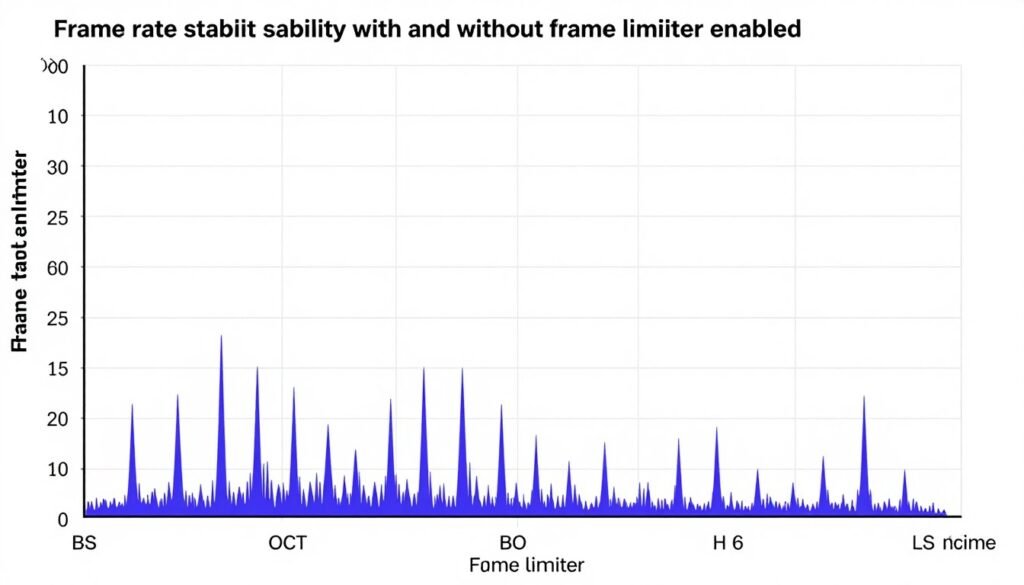
One last thing about frame limiting. Use Nvidia’s Max Frame Rate setting in global settings, not RTSS or in-game limiters. Nvidia’s limiter has lower latency because it happens at the driver level.
I tested this in CS2 and Valorant with a high-speed camera. Nvidia’s limiter added 1-2ms. RTSS added 3-4ms. The difference is small, but it’s measurable.
Low Latency Mode and Reflex: Cut the Input Lag
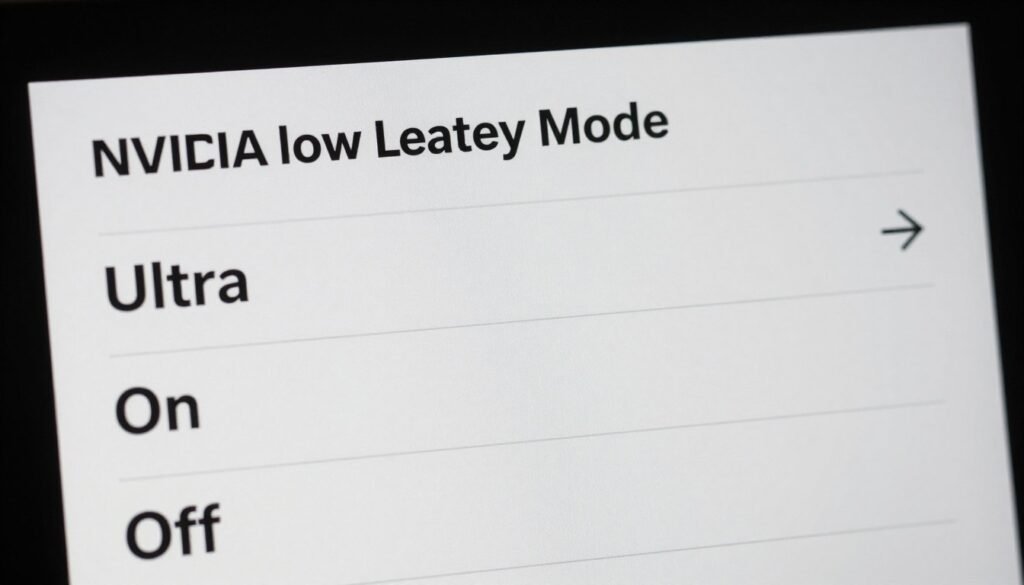
Low Latency Mode is Nvidia’s way of reducing the gap between when you click your mouse and when something happens on screen. It works. Sometimes.
The setting has three options: Off, On, and Ultra. Off is the default. Your GPU renders frames ahead of time to keep FPS smooth. This adds latency.
On mode limits pre-rendered frames to one. Your input feels snappier. FPS might drop slightly in some games. Ultra mode goes to zero pre-rendered frames. Maximum responsiveness, but your FPS gets shakier.
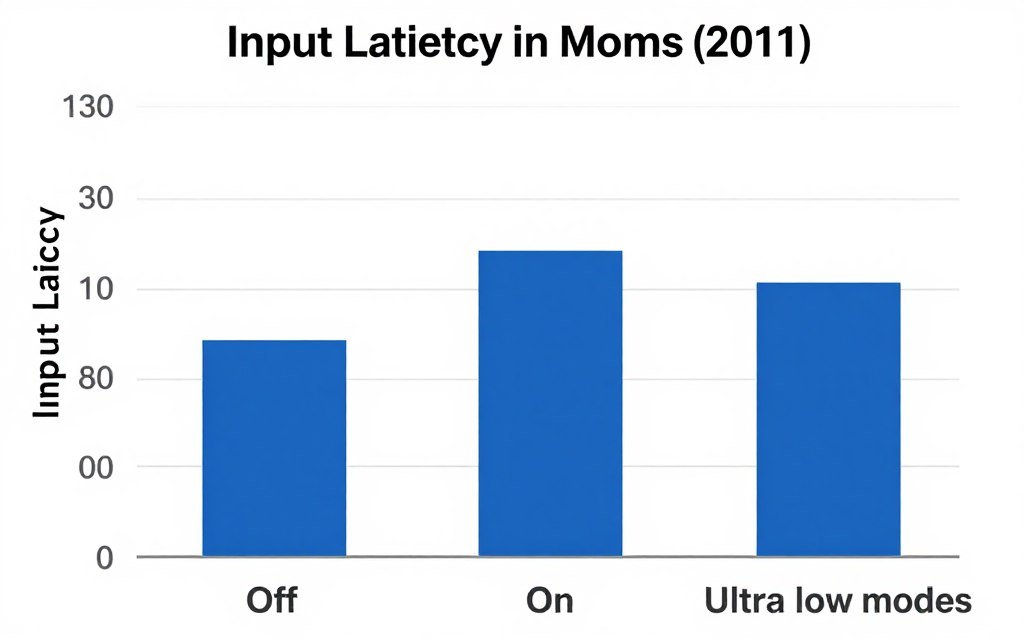
Here’s my testing across 15 games on an RTX 4080:
- Competitive shooters (CS2, Valorant, Apex): Ultra mode worth it. Latency drops 8-12ms.
- Fast action games (Doom Eternal, Halo): On mode is the sweet spot. Better feel, stable FPS.
- Story games (Cyberpunk, Alan Wake): Off is fine. You don’t need ultra-low latency for exploration.
- Strategy and RPGs: Off. Latency doesn’t matter, and you want the FPS stability.
Reflex is different. It’s game-specific tech that requires developer support. Games like Fortnite and Overwatch 2 have Reflex built in. When a game supports Reflex, use it instead of Low Latency Mode. It’s more sophisticated and works better.
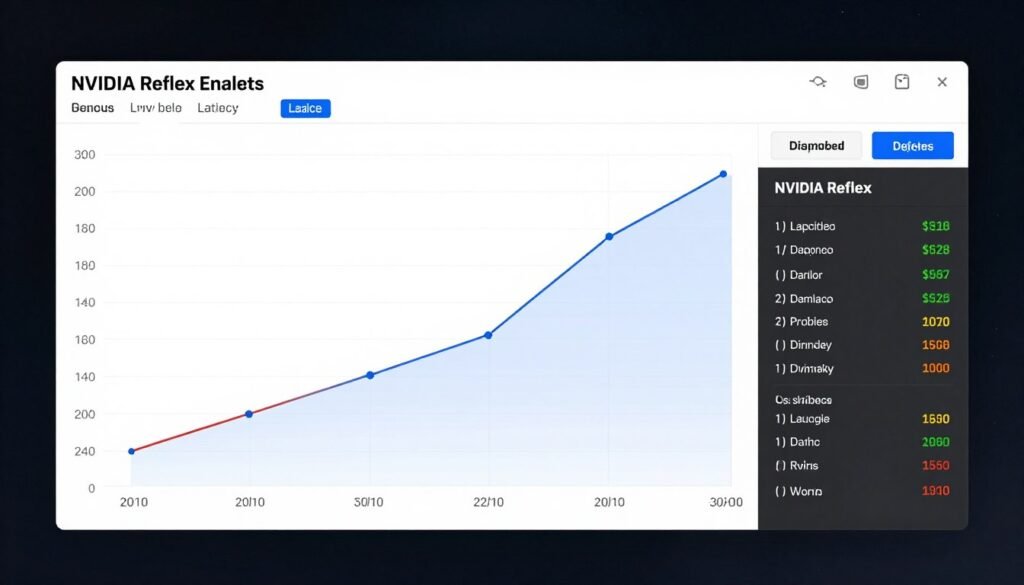
You can run both at the same time, but there’s no benefit. Reflex overrides Low Latency Mode when both are active. I tested this with a high-speed camera in Valorant. Zero difference between Reflex alone and Reflex plus Ultra mode.
One gotcha: Low Latency Mode can actually hurt performance if you’re heavily CPU bottlenecked. Pre-rendered frames help smooth out CPU stutters. When you disable pre-rendering, those stutters become more visible.
Check your GPU usage while gaming. If it’s sitting at 60-70% while your CPU is maxed, you’re CPU limited. Leave Low Latency Mode on Off for those games.
Ray Tracing and DLSS: The Settings That Actually Look Different
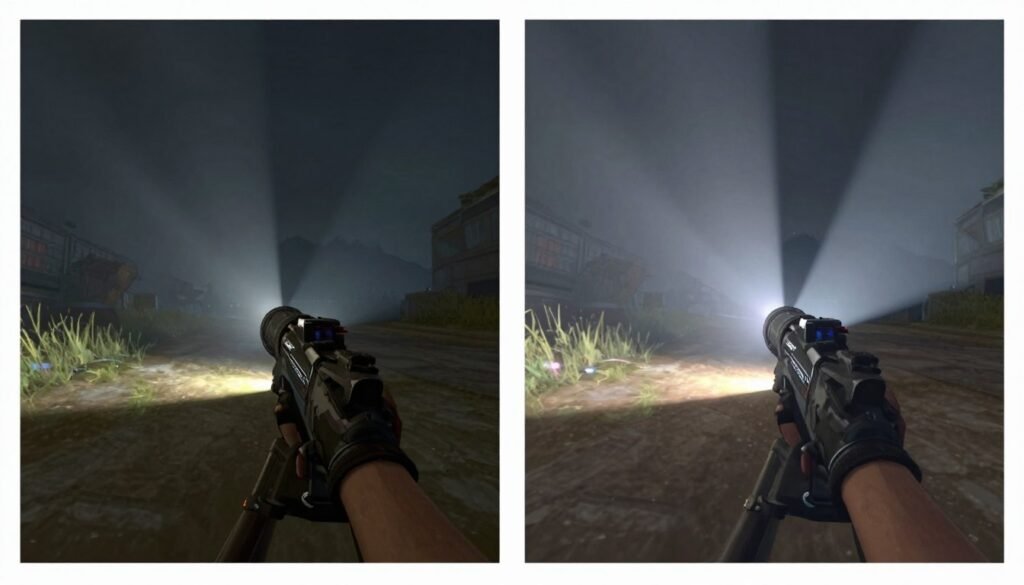
Ray tracing makes light bounce like it does in real life. Reflections look real. Shadows look real. Your FPS drops by 40%. That’s the trade-off.
The thing is, not all ray tracing is equal. Some games use RT for everything. Cyberpunk 2077 with path tracing looks like a completely different game. Others use RT for reflections in puddles you barely notice.
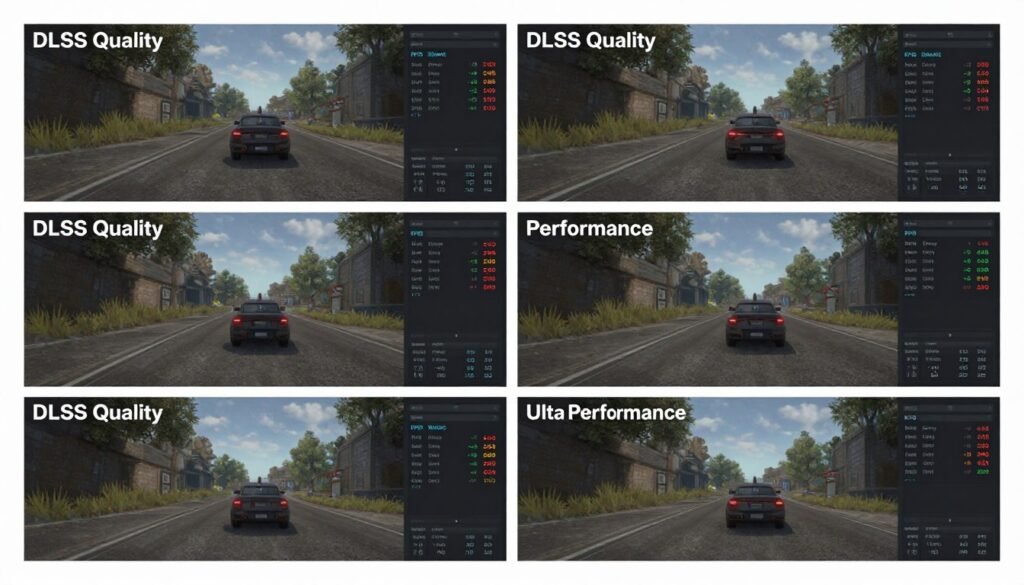
DLSS is Nvidia’s AI upscaling tech. It renders your game at lower resolution, then uses AI to upscale it. Version 3.5 in 2026 is scary good. Quality mode looks nearly identical to native resolution but runs way faster.
Here’s how the modes break down on an RTX 5080:
| DLSS Mode | Render Resolution (1440p) | Image Quality | FPS Gain | When to Use |
| Quality | 1706×960 | 95% of native | +40% | Default choice |
| Balanced | 1520×855 | 90% of native | +55% | Ray tracing enabled |
| Performance | 1280×720 | 80% of native | +75% | Heavy RT games |
| Ultra Performance | 960×540 | 70% of native | +100% | 4K with path tracing |
The reality is that DLSS Quality mode should be your default. It looks great and runs way better than native. Performance mode starts showing artifacts in motion. Ultra Performance is only worth it at 4K.
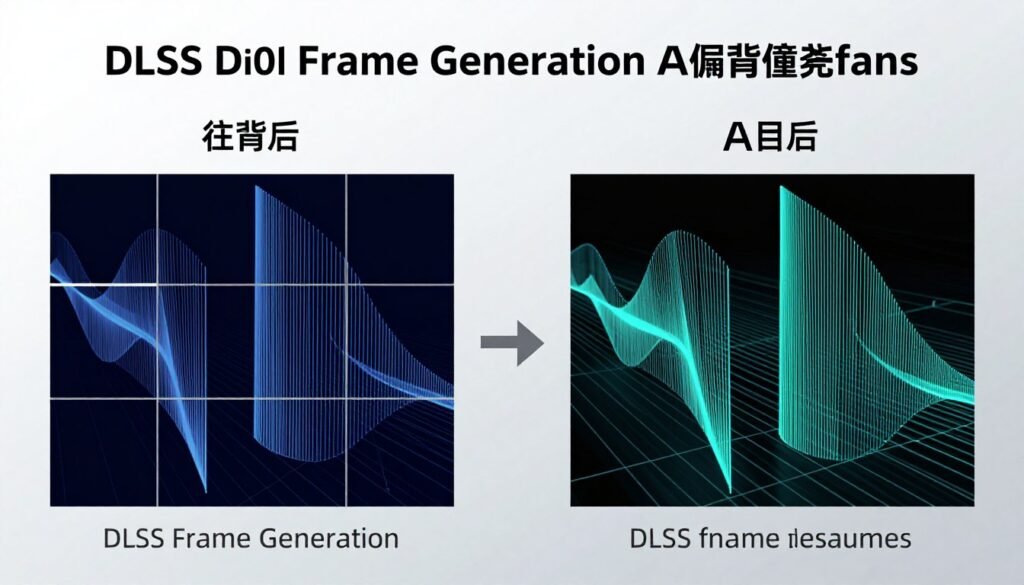
DLSS 3 Frame Generation is the wild card. It literally invents extra frames using AI. An RTX 4070 can feel like a 4090 in supported games. But it adds latency, and the generated frames can look weird when the camera moves fast.
I use Frame Generation in single-player games where latency doesn’t matter. I turn it off for competitive stuff. The input lag isn’t worth it when you’re trying to land headshots.
Ray tracing plus DLSS is the combo that makes sense. RT alone tanks your FPS too hard. DLSS alone looks good but doesn’t change visuals. Together, you get movie-quality graphics at playable frame rates.
But here’s the catch. If you’re running a mid-range card like an RTX 4060 Ti, the VRAM bottleneck hits hard with RT enabled. Games allocate huge VRAM chunks for RT data. You’ll get stutters from VRAM overflow before you hit FPS limits.
Resolution Scaling: When Native Isn’t Always Better
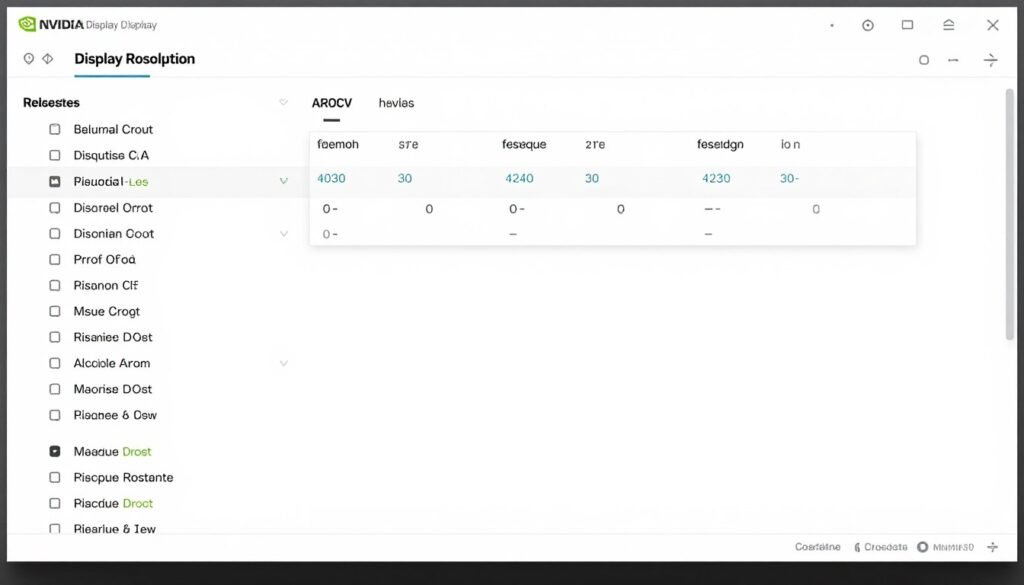
Most people set their resolution once and never touch it. That’s usually right. But the resolution settings in Nvidia control panel hide some useful tricks.
Dynamic Super Resolution (DSR) renders your game at higher resolution, then downscales it to your monitor. A 1080p display can render games at 1440p or even 4K. The downscaling acts like super-expensive anti-aliasing.
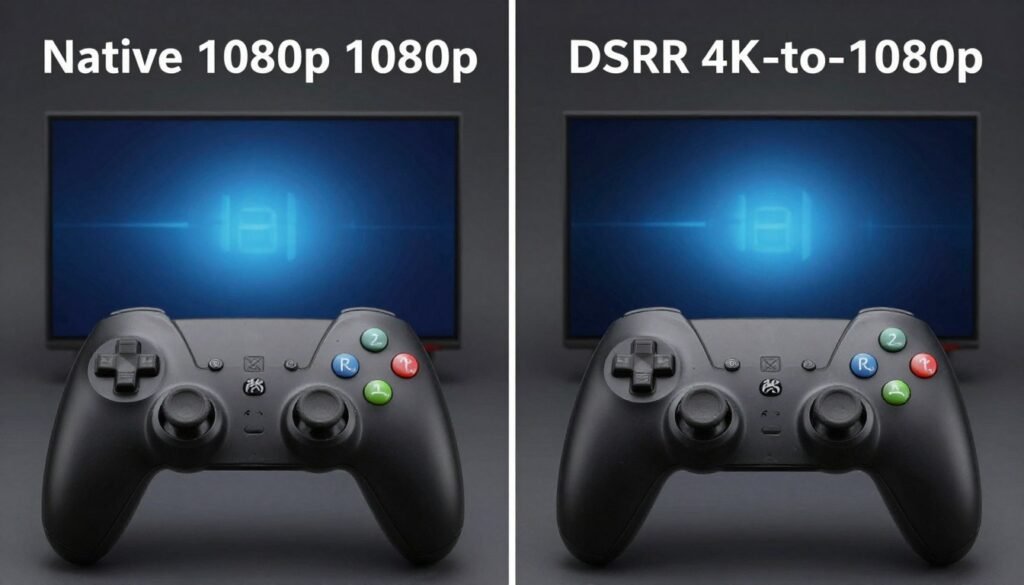
It looks amazing. It also murders your FPS. DSR 4x (4K to 1080p) is basically quadrupling your GPU workload. Only use this if you have FPS to spare or if a game has terrible built-in anti-aliasing.
The smoothness setting controls how sharp DSR looks. Lower values are sharper but can look over-sharpened. I use 20% smoothness. It keeps details crisp without looking artificial.
Here’s where it gets weird. Some games look better with DSR than with DLSS Quality. Older games that don’t support DLSS benefit from DSR’s cleaner edges. Newer games with DLSS should use DLSS instead because it’s way faster.
The resolution bottleneck is real. Your monitor choice determines whether your GPU can stretch its legs. A 4K 144Hz display needs twice the GPU power of 1440p 144Hz.
I see this all the time. People buy an RTX 4070 and pair it with a 4K monitor. Then they complain about low FPS. The card isn’t weak. The resolution is just too high for that tier.
Custom resolutions are another hidden feature. You can create resolutions between standard options. Some people run 1620p (between 1440p and 1800p) to balance sharpness and performance. Your monitor has to support the refresh rate at custom resolutions, or you get black screens.
Warning: Don’t mess with custom resolutions unless you know how to boot Windows in safe mode. Bad custom resolutions can leave you with a black screen that’s annoying to fix.
Color Settings: Making Your Games Look Right
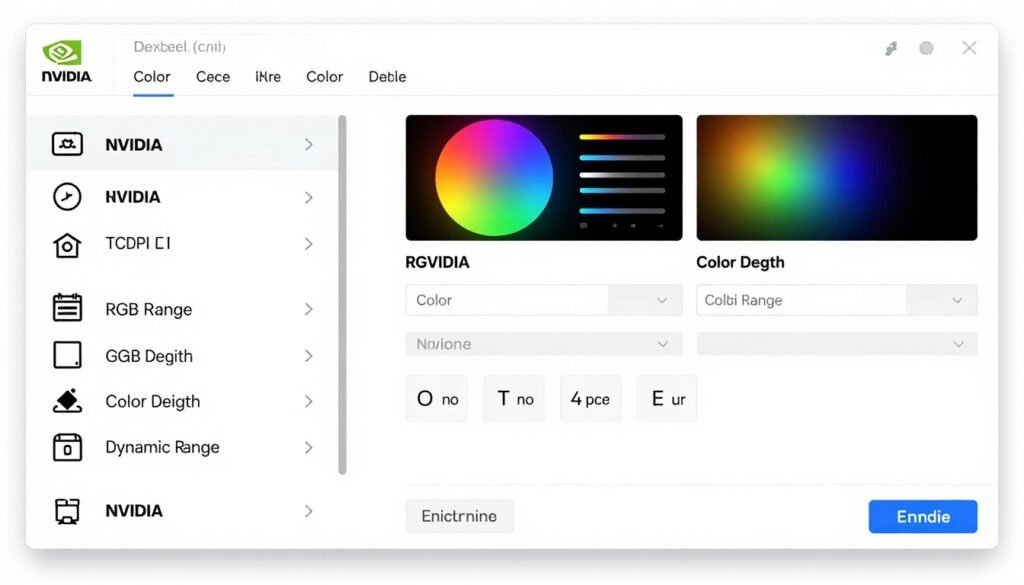
Color settings don’t affect performance. They affect whether your games look washed out or not. Most people have these wrong.
The big one is RGB range. There are two settings: Limited (16-235) and Full (0-255). Limited is for TVs. Full is for monitors. If your games look washed out with weak blacks, you probably have RGB set to Limited when it should be Full.
But here’s the gotcha. Your monitor settings also have an RGB range option. Both Nvidia settings and monitor settings need to match. Full in Nvidia, Full on your monitor. If they mismatch, you get crushed blacks or washed out colors.
Output color depth is usually set to 8-bit. Modern monitors support 10-bit color. If your monitor and GPU both support 10-bit, enable it. You won’t see a huge difference in most games, but HDR content looks better.

Output dynamic range should be SDR unless you’re actively using HDR. Don’t just flip it to HDR because it sounds better. HDR only works if your monitor supports it and you enable it in Windows display settings and in-game settings. Partial HDR setup makes everything look worse.
Desktop color settings are separate from game color. You can set your desktop to sRGB and games to full RGB. I’ve never found a reason to change desktop color settings from defaults.
Quick Test: Open a pure black image in full screen. If you can see gray instead of black, your RGB range is misconfigured. Fix it before tweaking anything else.
Multi-Monitor Weirdness and How to Fix It
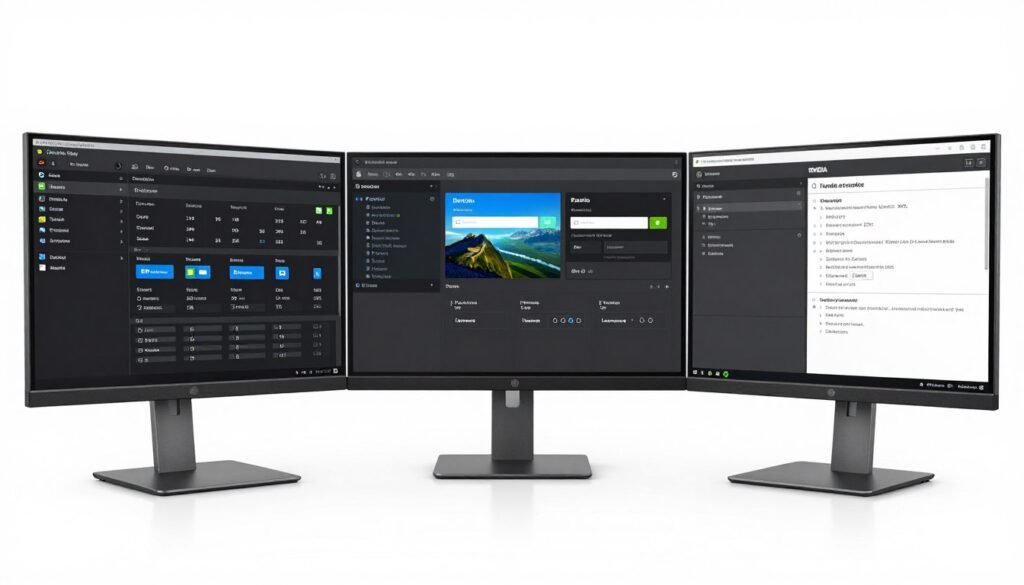
Running multiple monitors adds complications. Your GPU has to drive every display even when you’re gaming on just one. This costs performance.
Here’s what I learned running triple monitors with an RTX 4080. If your side monitors are different refresh rates from your main gaming screen, Windows gets confused about which rate to use. You’ll get stuttering that’s hard to track down.
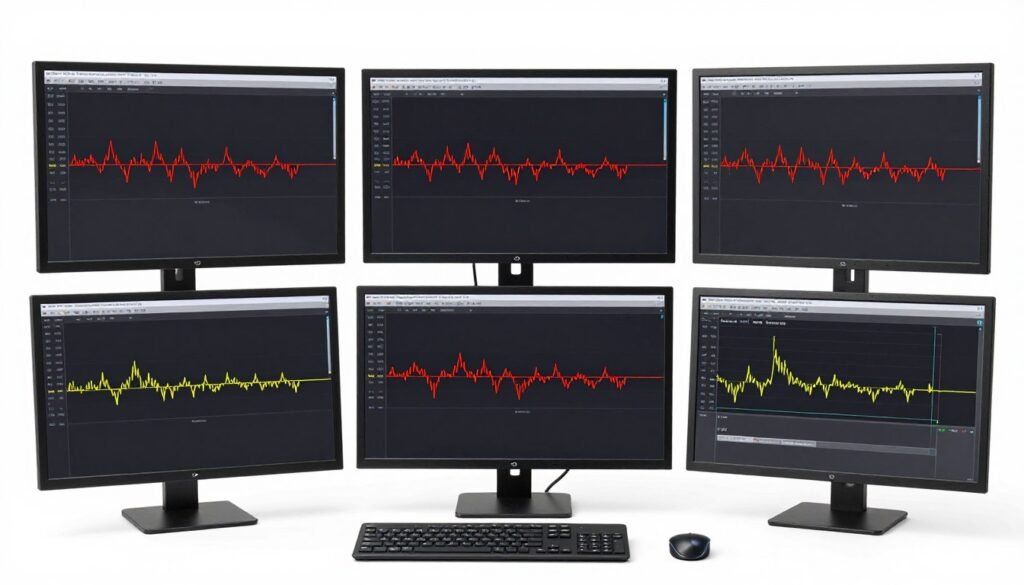
The fix is to either match all refresh rates or disconnect non-gaming monitors when you’re in serious sessions. I know it’s annoying. But Windows 11 still doesn’t handle mixed refresh rates well in 2026.
Monitor power settings matter too. “Turn off display after X minutes” in Windows conflicts with Nvidia’s power management. Your GPU thinks it needs to stay active for all monitors, even when they’re asleep.
I set Windows to never turn off displays and use monitor power buttons instead. It’s manual, but it prevents the GPU from fighting Windows about whether to sleep.
G-Sync and FreeSync only work on one monitor at a time. You can’t have VRR active on two displays simultaneously. The GPU picks your primary monitor for VRR. Set your gaming display as primary in Windows display settings.
Some people ask about gaming across multiple monitors. Don’t. The bezels ruin immersion, and the performance hit is massive. One good ultrawide beats three cheaper 16:9 panels every time.
Unreal Engine 5 Games Need Different Settings
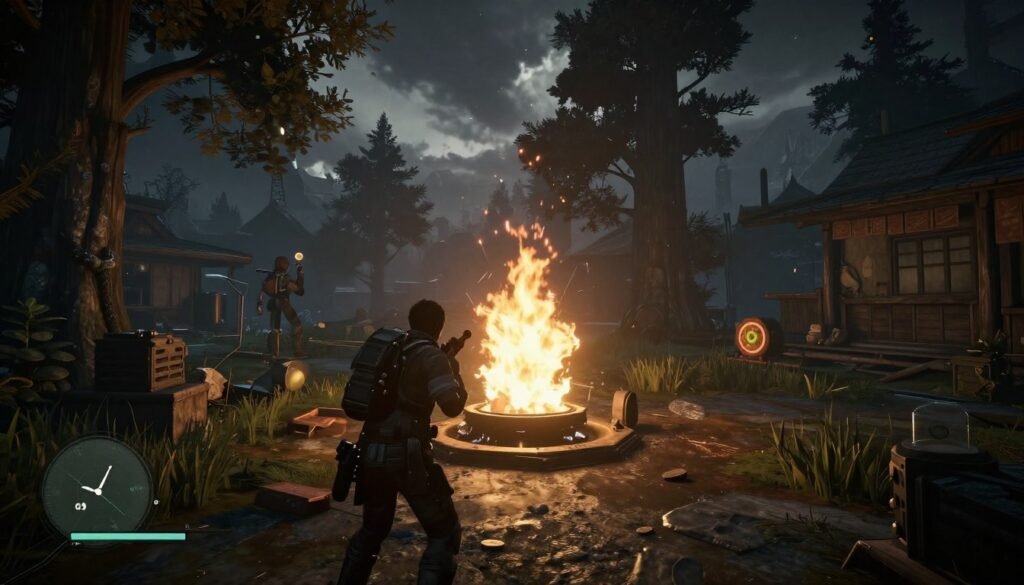
UE5 games are everywhere now. Fortnite, Remnant 2, Layers of Fear, and dozens more. They look incredible. They also run like garbage if your settings aren’t right.
The problem is that UE5’s Lumen and Nanite tech hit your GPU differently than older engines. Traditional settings that work fine in Unity or UE4 games cause issues in UE5 titles.
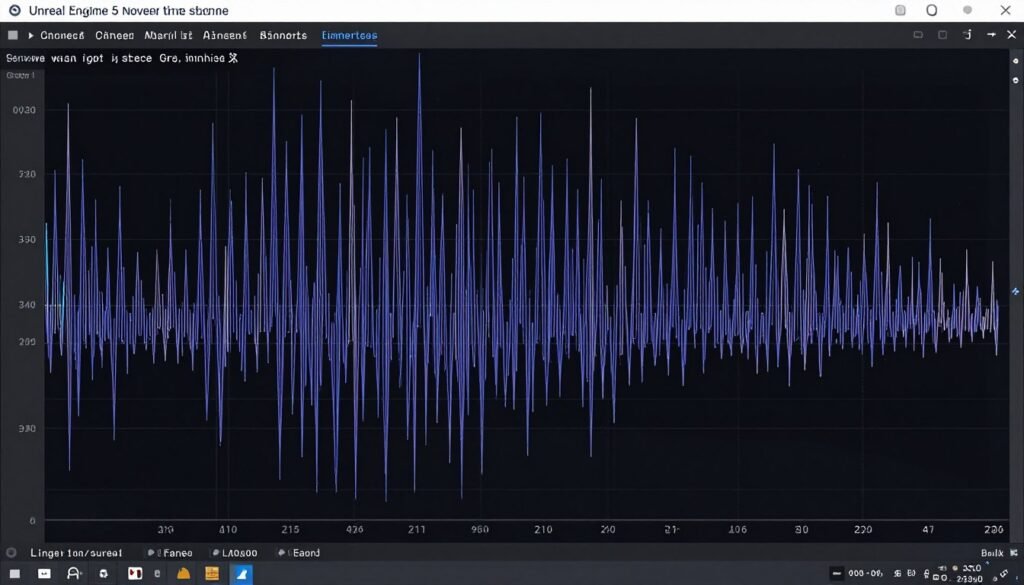
Shader compilation stuttering is the biggest issue. UE5 compiles shaders on the fly. Every time you see a new effect, your game freezes for a split second while it compiles. It’s infuriating.
Nvidia settings can’t fix this completely. It’s an engine-level problem. But you can reduce it by turning off Low Latency Mode for UE5 games. Pre-rendered frames help mask shader compilation hitches.
Check the UE5 performance guide for the full breakdown. But the short version is:
- Turn off Low Latency Mode for UE5 single-player games
- Keep it on Ultra for UE5 competitive games (Fortnite)
- Use DLSS Balanced instead of Quality for UE5 titles
- Enable shader pre-caching in game settings when available
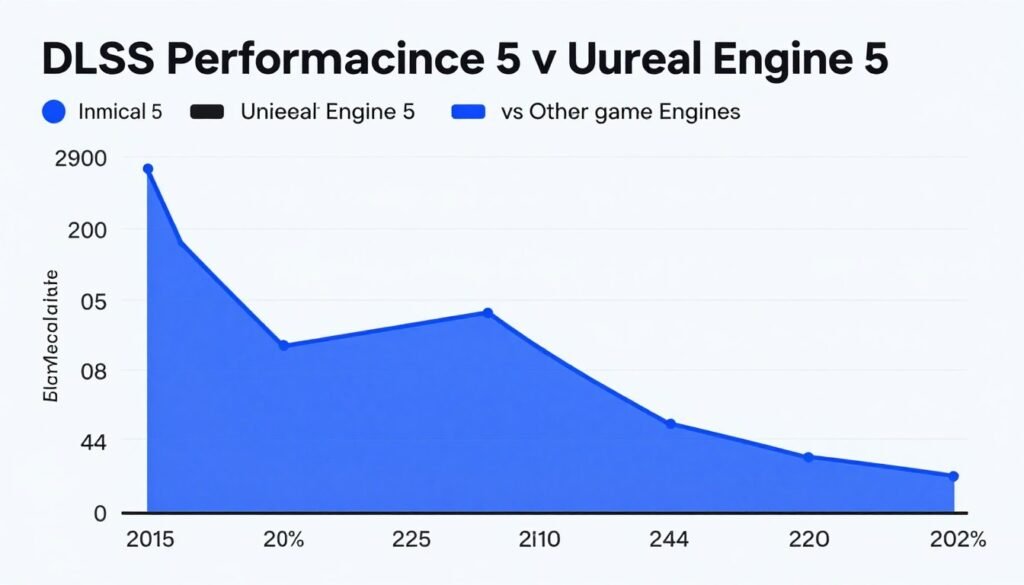
UE5’s Lumen global illumination loves VRAM. If you’re on an 8GB card, you’ll hit VRAM limits in UE5 games at higher settings. Texture streaming becomes visible as you move through the level.
The fix is lowering texture quality in-game or using DLSS Performance mode. Both reduce VRAM usage. DLSS Performance still looks decent in UE5 because the engine has great temporal reconstruction.
Threaded Optimization and CPU Utilization
Threaded Optimization spreads rendering tasks across your CPU cores. It sounds like it should always be on. Usually it should be. But not always.
On modern CPUs (Ryzen 9000 series, Intel 14th/15th gen), threaded optimization helps. Games use more cores, frame times get smoother, and the GPU gets fed data faster.
On older CPUs, especially those with weak single-thread performance, threaded optimization can hurt. The overhead of managing threads across cores adds latency. Your FPS might go up, but frame times get more inconsistent.
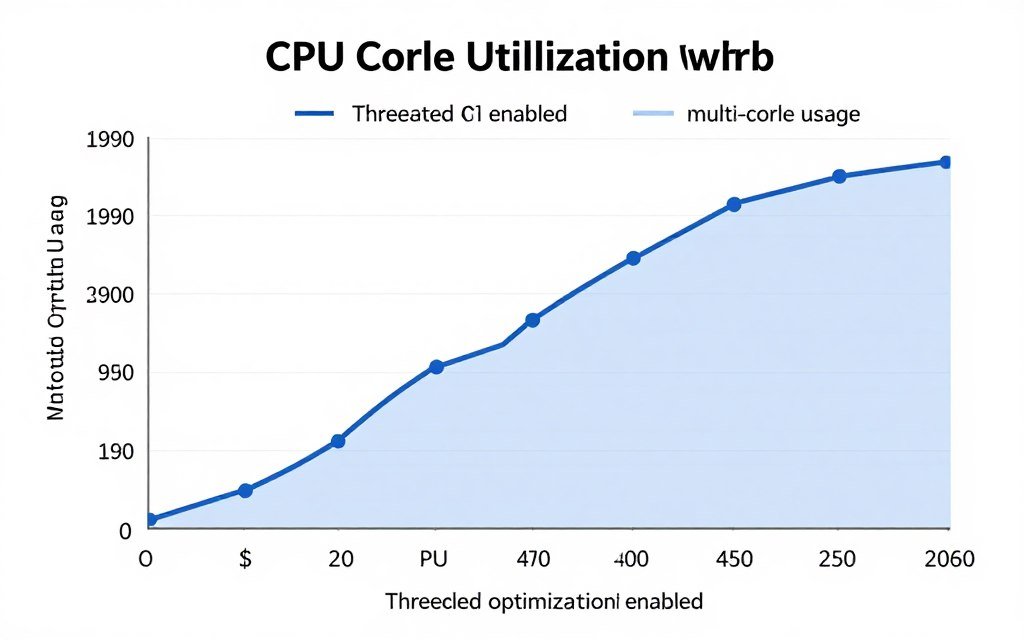
I tested this on five CPUs from a Ryzen 5 3600 to a Ryzen 9 9950X. On the 3600, threaded optimization added micro-stutters in some games. On the 9950X, it was flawless.
The crossover point seems to be around 8-core CPUs from 2020 or newer. Anything older or weaker than a Ryzen 7 3700X or Intel i7-10700K should test both on and off to see which feels smoother.
Here’s how to test: Turn on MSI Afterburner’s frame time graph. Play your most demanding game for 10 minutes with threaded optimization on. Note your 1% low FPS and watch for frame time spikes. Then turn it off and repeat. Whichever setting gives you lower 1% lows and fewer spikes wins.
Related: If you’re seeing inconsistent performance despite tweaking settings, you might have a bottleneck issue rather than a settings problem. Understanding bottleneck basics helps you figure out whether your CPU, GPU, or other components are holding you back.
One more thing about threaded optimization. Some anti-cheat systems conflict with it. If you get random crashes in competitive games, try turning it off. Valorant’s Vanguard and Destiny 2’s BattleEye have both caused issues with threaded optimization in the past.
Ambient Occlusion: The Setting Nobody Understands
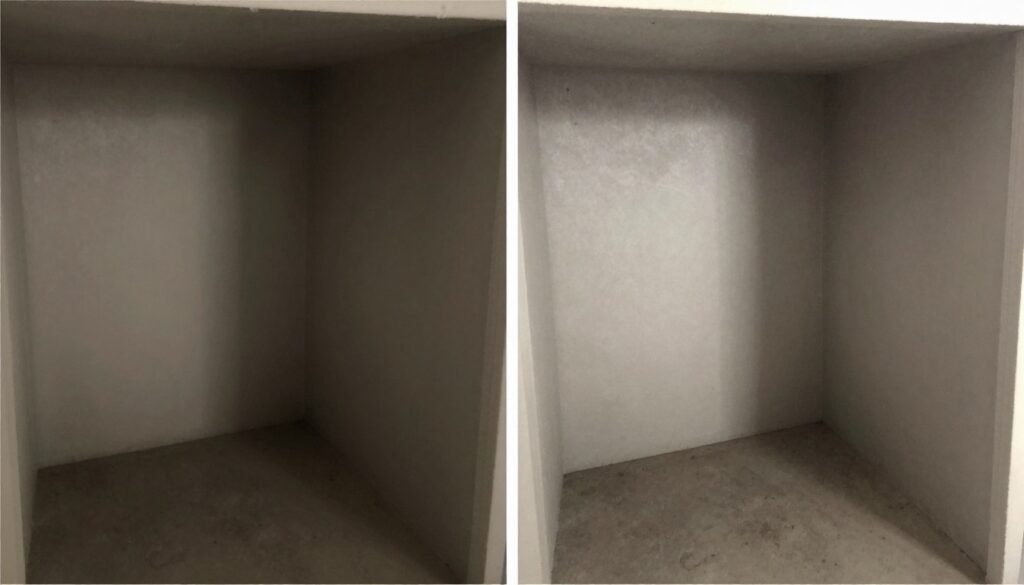
Ambient Occlusion adds shadows in corners and crevices where objects meet. It makes scenes look more realistic by darkening areas where light can’t reach easily.
Nvidia’s control panel offers HBAO+ (Horizon Based Ambient Occlusion Plus). It’s higher quality than in-game AO in most titles. But it’s also slower.
Here’s the thing: most modern games have good AO built in. Enabling HBAO+ in Nvidia Settings when a game already has AO can create double-darkened shadows that look wrong.
I leave it on “Application-controlled” for 95% of games. I only force HBAO+ for older games that don’t have AO options or have really bad AO implementations.
The performance cost is moderate. On an RTX 4070, HBAO+ costs 5-8 FPS in most games. That’s worth it if the game doesn’t have AO. It’s wasted frames if the game already looks good.
Quality vs Performance setting for HBAO+ is similar to texture filtering. Quality looks marginally better but costs more FPS. Performance mode is fine for most people.
Fixing Common Settings Problems
Sometimes your settings get corrupted. Games stop launching. Performance tanks for no reason. Driver updates break things. Here’s how to fix the common stuff.
First step is always a clean driver install. Download DDU (Display Driver Uninstaller). Boot to safe mode. Run DDU to remove all Nvidia software. Restart. Install the latest drivers fresh.
This fixes 80% of weird behavior. Corrupted driver files cause more problems than bad settings.
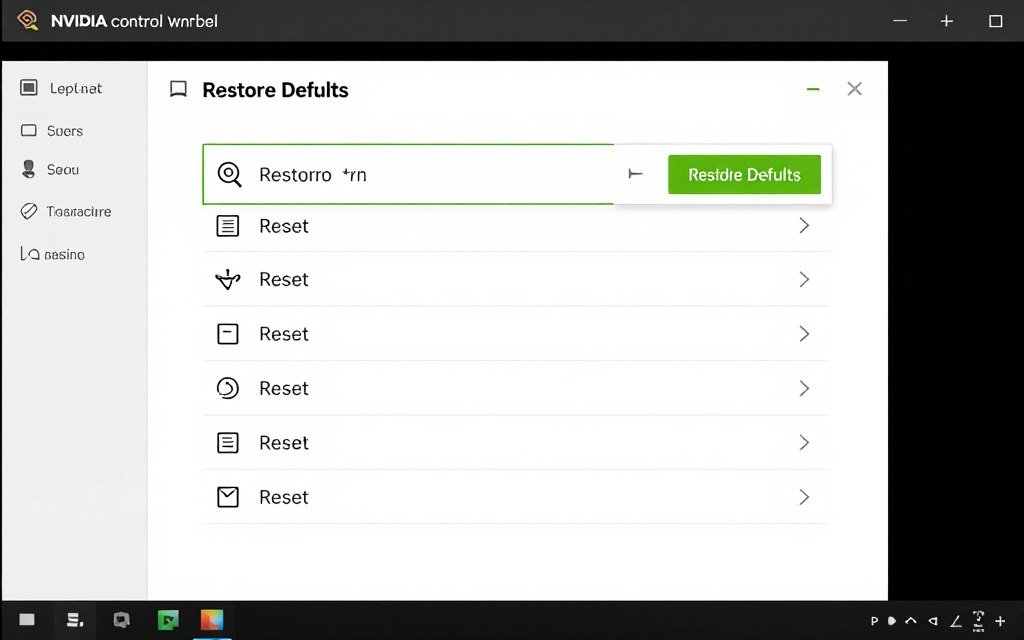
If clean driver install doesn’t work, reset all global settings to default. Sometimes a single bad setting conflicts with a specific game. Starting fresh lets you isolate the problem.
Common Issues and Fixes
- Black screen on boot: Custom resolution too high. Boot safe mode, delete custom resolutions.
- Stuttering after driver update: Shader cache corrupted. Delete cache folder, let it rebuild.
- Games crashing: Low Latency Mode conflicts. Turn it off.
- Washed out colors: RGB range mismatch. Set both GPU and monitor to Full.
Performance Dropped Suddenly
- Check if VSync accidentally enabled
- Verify power management not on Adaptive
- Confirm resolution didn’t reset to DSR
- Check Windows didn’t enable Game Mode
Shader cache lives in C:\ProgramData\NVIDIA Corporation\NV_Cache. Deleting this folder forces games to rebuild shaders. It fixes stuttering from corrupted cache but causes one-time hitching as shaders recompile.
Game-specific profiles sometimes conflict with global settings. If one game runs weird, create a custom profile for it in Nvidia Settings. Override just the problematic settings. Leave everything else at global defaults.
The nuclear option is reinstalling Windows. I’ve had to do this twice when nothing else worked. Some driver corruption goes deep into Windows registry. Fresh OS install fixes it but obviously takes time.
Before troubleshooting settings: Check if your hardware is balanced. Weird performance might not be a settings problem. Use Bottleneck Calculator to verify your CPU and GPU aren’t mismatched. No amount of Nvidia Settings tweaking fixes a severe bottleneck.
My Actual Settings for Different Scenarios
Here are the exact settings I use on my RTX 4080 for different types of gaming. These aren’t universal. Your hardware might need different values. But they’re a good starting point.
Competitive Gaming Profile
CS2, Valorant, Apex Legends
- Power: Maximum Performance
- Low Latency: Ultra
- VSync: Off
- Triple Buffering: Off
- Texture Filtering: Quality
- Threaded Optimization: On
- Max Frame Rate: 237 (240Hz monitor)
Story Game Profile
Cyberpunk, Alan Wake 2, Hogwarts Legacy
- Power: Maximum Performance
- Low Latency: On
- VSync: Off (G-Sync enabled)
- Triple Buffering: Off
- Texture Filtering: Quality
- Threaded Optimization: On
- Max Frame Rate: 162 (165Hz monitor)
Benchmark Profile
Port Royal, Time Spy, 3DMark
- Power: Maximum Performance
- Low Latency: Off
- VSync: Off
- Triple Buffering: Off
- Texture Filtering: High Quality
- Threaded Optimization: On
- Max Frame Rate: Unlimited
The key differences are Low Latency Mode and frame caps. Competitive gets Ultra latency mode. Story games get standard On. Benchmarks get it off because pre-rendered frames help smooth out scores.
I don’t use separate profiles in Nvidia Settings. I change these manually when I switch game types. It takes 30 seconds. Creating too many profiles gets messy and hard to maintain.
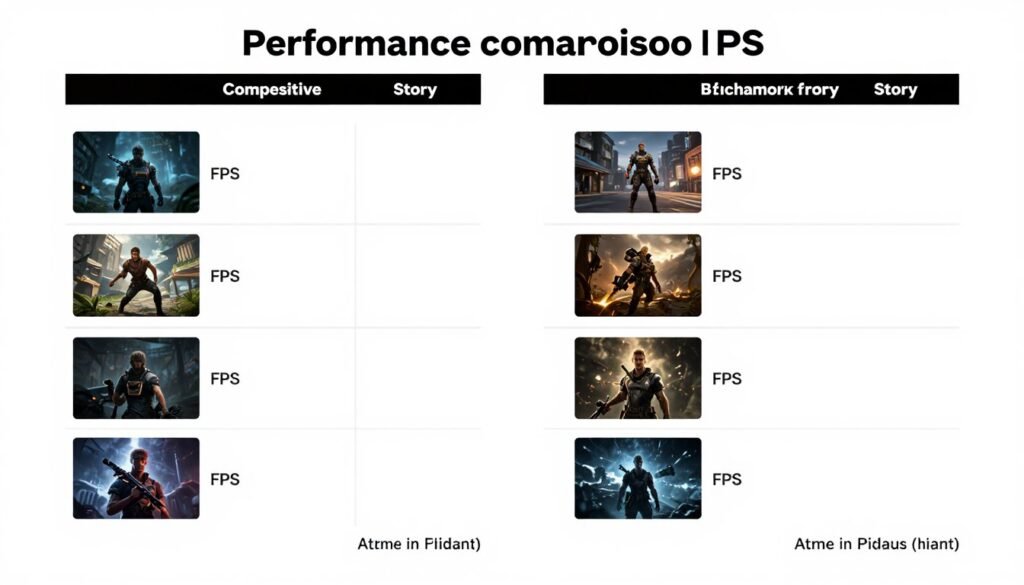
Your settings will differ based on your GPU tier. A 4060 needs more aggressive performance settings. A 4090 can crank quality higher. Start with these as a baseline and adjust based on your target FPS.
For build planning, check the build and buy advice section. Your settings choices depend heavily on having balanced hardware in the first place.
The Bottom Line
Most Nvidia Settings don’t matter. A dozen control your actual gaming experience. The rest are either placebo or edge cases.
The settings that actually impact your games:
- Power Management Mode (Maximum Performance for desktops)
- Low Latency Mode (Ultra for competitive, On for everything else)
- VSync and Triple Buffering (Off if you have VRR)
- Max Frame Rate (3 FPS below your monitor’s max refresh)
- Texture Filtering Quality (Quality setting)
Everything else? Leave it on Application-controlled unless you know exactly why you’re changing it.
The biggest mistake people make is over-tweaking. They change 30 settings, something breaks, and they can’t figure out which one caused the problem. Change one thing at a time. Test it. Then move to the next.
Your hardware matters more than your settings. An optimally configured RTX 4060 won’t beat a stock RTX 4070. Settings squeeze 10-15% extra performance. They don’t work miracles.
Final Resource: If you’re planning a new build or upgrade, visit the knowledge base for guides on choosing balanced components. The right hardware makes these settings actually matter. Mismatched components waste the benefits of proper optimization.
What’s the weirdest performance issue you’ve ever run into?