
I’ll be honest with you – when I first tried running a game built on Unreal Engine 5, my PC fans started screaming like they were auditioning for a horror movie. My frame rate tanked, stuttering was constant, and I sat there wondering if I’d just wasted money on what was supposed to be cutting-edge gaming hardware. Sound familiar?
Here’s the thing about UE5 performance that nobody tells you upfront: it’s not just about having a beefy graphics card anymore. Epic Games packed this engine with features like Nanite and Lumen that fundamentally changed how games use your system resources. Some of these features are genuine game-changers. Others? Well, they’re a bit overhyped, and I’m going to tell you exactly which is which.
Whether you’re a developer trying to optimize your project or a gamer frustrated with stuttering in the latest releases, this guide breaks down what’s really happening under the hood. I’m going to walk you through the actual bottlenecks, the settings that make a measurable difference, and the hardware considerations that matter most. No marketing talk – just real-world advice from someone who’s spent way too many hours troubleshooting this stuff.
What Makes UE5 Different (And Why Your Old Optimization Tricks Don’t Work)
Let me start by explaining why Unreal Engine 5 behaves so differently from what you’re used to. I remember the first time I opened the UE5 editor, expecting it to run like UE4 with some prettier lighting. Boy, was I wrong.
The biggest shift is how UE5 handles geometry and lighting. Traditional game engines made you create multiple versions of every 3D model at different detail levels – this was called LOD or level of detail. You’d have a high-quality version for close-up shots and progressively simpler versions for objects in the distance. It worked, but it was tedious, and artists spent forever tweaking these to avoid obvious pop-in.
Traditional Engine Approach
- Manual LOD creation required
- Lightmaps baked for hours
- Fixed shadow quality
- Visible geometry pop-in
- Static lighting limitations
UE5’s New Method
- Automatic LOD management via Nanite
- Real-time dynamic lighting with Lumen
- Adaptive shadow detail
- Seamless detail transitions
- Fully dynamic scenes possible
Nanite is Epic’s solution to this – it’s a virtualized geometry system that automatically handles all that detail scaling for you. Sounds great, right? It is, mostly. But here’s where it gets interesting for performance: Nanite uses compute shaders to do its magic, which means it’s hitting your GPU in a completely different way than traditional rendering. Your graphics card needs to juggle rasterization and compute work simultaneously, and not all GPUs handle that balance equally well.
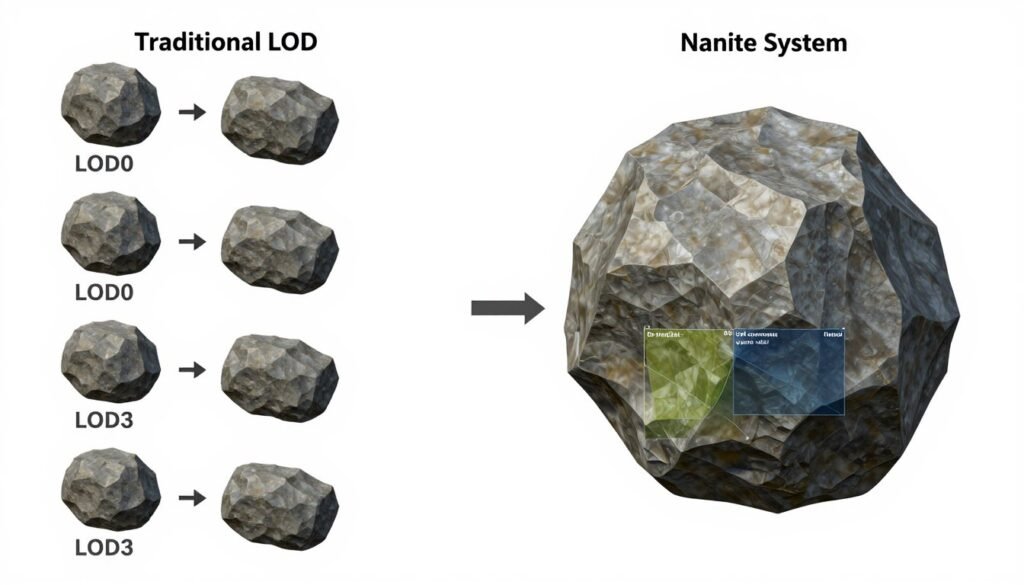
Then there’s Lumen, which is the dynamic lighting and reflections system. Before Lumen, getting realistic global illumination meant baking lightmaps – essentially pre-calculating how light bounces around your scene and storing it in textures. This process could take hours, sometimes overnight for complex scenes. I’ve literally started lightmap bakes before going to bed and come back the next morning to find them still crunching.
Lumen calculates all of this in real-time. Move a light source, and reflections and shadows update instantly. It’s genuinely impressive tech. But real-time means your GPU is constantly working to trace rays and calculate lighting every single frame. That’s a continuous performance cost that wasn’t there in older engines with their pre-baked lighting.
Reality Check: UE5’s new features shift the performance burden from development time to runtime. You save hours in the editor, but your players need stronger hardware to run the game smoothly. That’s the trade-off, and it’s why optimization is more critical than ever.
Virtual Shadow Maps are another piece of the puzzle. Traditional shadow maps had this annoying problem where shadows close to you looked detailed, but shadows in the distance were chunky and low-resolution. You’d see obvious quality shifts as you moved through a level. VSM solves this by using a more sophisticated caching system, giving you consistent shadow quality everywhere.
The catch? It’s memory-intensive and requires careful management of what the engine keeps cached. On systems with limited VRAM, this can cause stuttering when new areas load in and the shadow cache has to be rebuilt. I’ve seen this happen on my own system with 8GB of VRAM when exploring large open-world areas in UE5 games.
Understanding these fundamental changes is crucial because it reframes what you need to focus on for good UE5 performance. The old wisdom of “just turn down texture quality and shadow distance” doesn’t cut it anymore. You need to think about how these systems interact with your specific hardware configuration.
The Real Performance Killers (It’s Not What You Think)
Okay, so you know your game is running poorly, but what’s actually causing it? After spending months testing UE5 titles and digging into performance data, I’ve found that the usual suspects aren’t always to blame. Let me break down what’s really destroying your frame rates.
Shader Compilation Stutter – The Most Annoying Issue
This is the big one that drives me absolutely nuts. You’re playing along, everything’s smooth, then suddenly – bam! – the game freezes for half a second or longer. This isn’t your GPU choking on too many triangles. It’s the engine compiling shaders on the fly as you encounter new materials, effects, or lighting situations.
Here’s why this happens: modern graphics APIs like DirectX 12 and Vulkan give developers more control, but they also push some work that used to happen during game loading onto runtime. When you see a new particle effect or material combination for the first time, Unreal Engine has to compile the specific shader variant right then and there.
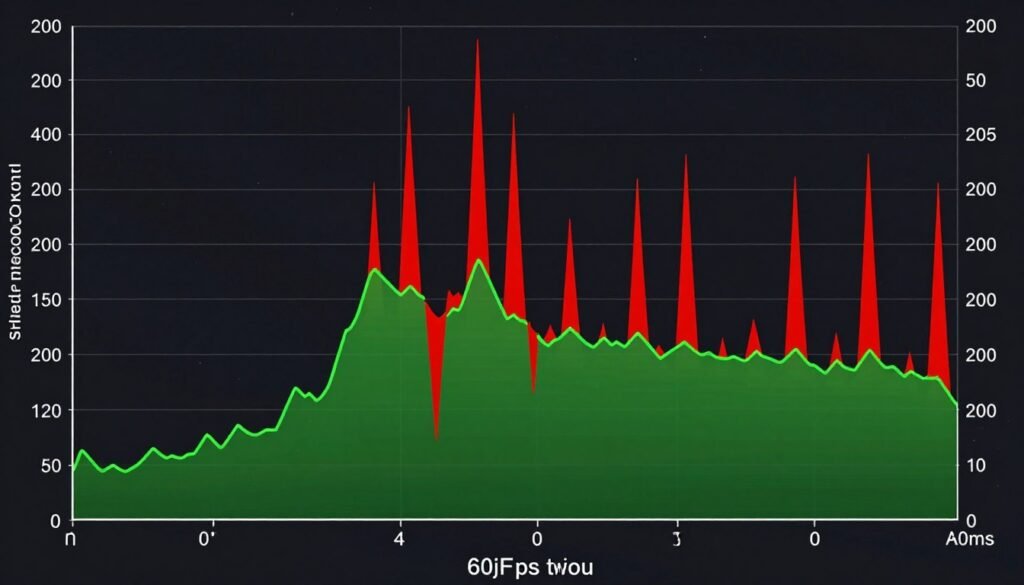
Some games try to mitigate this with shader precompilation – building common shaders during initial loading screens. But it’s nearly impossible to predict every combination players will encounter, especially in open-world games with dynamic weather, time-of-day cycles, and varied materials.
Developer Note: Epic has acknowledged this issue and introduced better shader precompilation systems in recent UE5 updates. However, it’s ultimately up to individual game developers to implement these solutions properly. Some do it well; others ship games with terrible shader stutter.
Traversal Stutter – When Streaming Can’t Keep Up
This one’s related to how UE5 streams content from your storage drive. The engine tries to load game assets just-in-time as you move through the world. When this works, it’s seamless – you never see loading screens. When it doesn’t work, you get these horrible hitches as your system scrambles to load geometry, textures, and other data.
I tested this extensively on my own rig by comparing the same game on a SATA SSD versus an NVMe drive. The difference was night and day for traversal stutter. The NVMe setup still had occasional hitches, but they were shorter and less frequent. On the SATA drive? Practically unplayable in dense areas where the game needed to stream lots of data quickly.
This is where UE5’s new features become a double-edged sword. Nanite enables developers to use film-quality assets with millions of polygons, but all that data has to come from somewhere. If your storage can’t feed the GPU fast enough, you get stuttering. It’s basically a traffic jam between your drive and your graphics card.
CPU Bottlenecking – Not Obsolete Yet
There’s this perception that modern gaming is all about the GPU, and while that’s often true, UE5 can absolutely hammer your CPU in specific scenarios. Draw calls, physics calculations, AI routines, and managing all those dynamic Lumen updates – it all runs on your processor.
I’ve seen situations where my GPU was sitting at 60% usage while my CPU was maxed out on certain cores. That’s a textbook CPU bottleneck, and no amount of graphics settings tweaking will fix it because the GPU is literally waiting for the CPU to finish its work.
Quick Reality Check for Your PC
Before you start tweaking settings or panic-buying new hardware, it’s worth checking if your CPU and GPU are actually balanced for UE5 games. I always tell people to run through a bottleneck analysis first – it shows you exactly where your system is struggling and saves you from wasting money on upgrades that won’t help.
Memory and VRAM Pressure
This one catches people off guard. You might have 16GB of system RAM and an 8GB graphics card, which sounds like plenty for gaming. But UE5’s high-quality assets, especially with Nanite geometry and high-resolution textures, can eat through VRAM shockingly fast.
When you run out of VRAM, the system starts swapping data between your graphics card and system memory (or worse, to your storage drive). This is catastrophically slow compared to keeping everything in VRAM where the GPU can access it instantly. The result? Massive stuttering and frame rate drops, especially when looking at new areas or during fast camera movement.
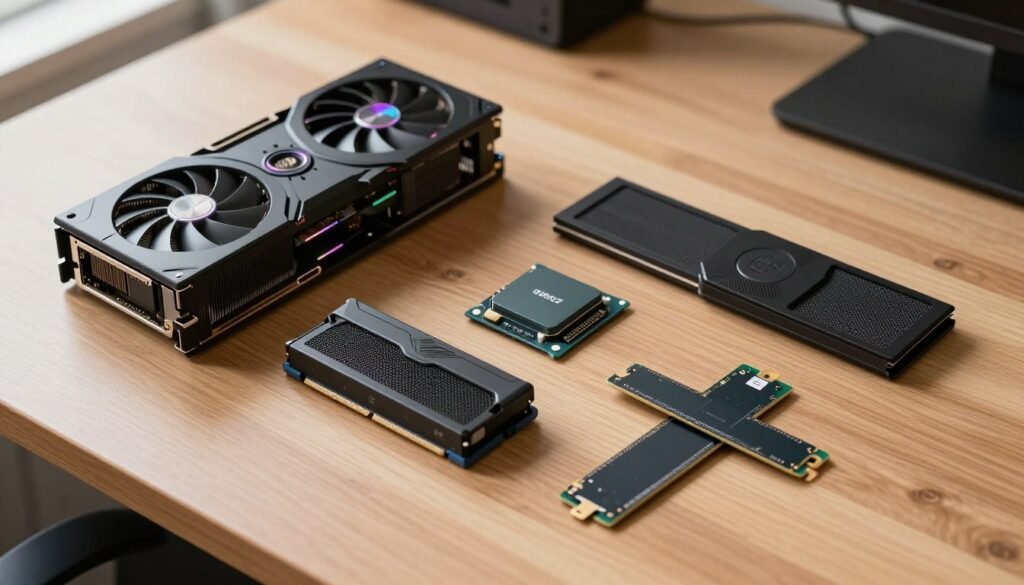
System RAM is similar. UE5 loads tons of data into memory to minimize streaming from storage. If you’re only running 8GB of RAM total, the engine will constantly struggle, and you’ll see performance issues that have nothing to do with your graphics settings. I upgraded from 16GB to 32GB specifically because of UE5 titles, and the improvement in 1% and 0.1% lows (the measurements that capture stuttering) was dramatic.
Temporal Anti-Aliasing Blur
This isn’t exactly a performance killer, but it’s a quality issue that frustrates a lot of people. UE5 uses temporal anti-aliasing by default, which smooths out jagged edges by blending multiple frames together. The side effect? A noticeable blur, especially during camera movement or in fine details.
Some people hate this blur so much they’d rather deal with jagged edges. The annoying part is that many UE5 games don’t give you good alternatives – it’s TAA or nothing. I personally find the blur distracting in fast-paced games, but I can tolerate it in slower, cinematic experiences where image stability matters more than razor-sharp detail.
Hardware That Actually Matters for UE5 (The Stuff Nobody Talks About)
Let’s get real about hardware. Everyone obsesses over having the latest GPU, and sure, that matters. But UE5 performance is more nuanced than just “bigger graphics card equals better frame rates.” I’m going to break down what actually makes a difference, component by component, based on real-world testing.
GPU Considerations – Beyond the Obvious
Yes, you need a decent graphics card for UE5. But here’s what’s interesting: the architecture matters as much as the raw specs. Newer GPU architectures handle compute workloads better, which is critical for Nanite. AMD’s RDNA 3 and Nvidia’s RTX 40-series cards excel at this, but even mid-range cards from these generations can outperform older flagship GPUs in UE5 titles.
VRAM is the sneaky bottleneck. I mentioned this earlier, but it bears repeating: 8GB is the realistic minimum for 1080p gaming in UE5. For 1440p, you want 10GB or more. For 4K? 12GB minimum, and 16GB is comfortable. Those high-detail Nanite meshes and all the data Lumen tracks take up serious memory.
Graphics Card Priorities for UE5
- VRAM capacity (8GB+ for 1080p, 12GB+ for 1440p/4K)
- Modern architecture with strong compute performance
- Ray tracing support (for hardware Lumen if you use it)
- Memory bandwidth (especially for 4K)
- Raw teraflops (still matters, just not as much as you think)
What Matters Less Than You Think
- Clock speeds (architecture efficiency matters more)
- Marketing terms like “gaming optimized”
- RGB lighting (sorry, it’s true)
- Exotic cooling solutions for normal gaming
- Extra features you’ll never use
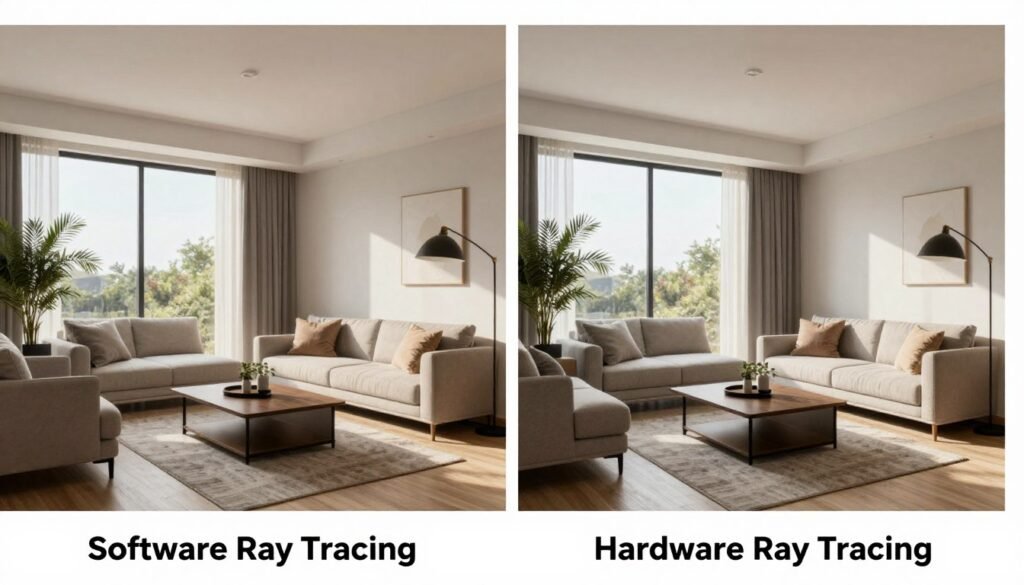
One thing I’ll mention about ray tracing: Lumen can use hardware ray tracing if your GPU supports it, but the software raytracing mode (using distance fields) often performs better with minimal visual difference. I’ve tested both extensively, and unless you’re pixel-peeping, software mode is the smarter choice for most setups. It gives you back 10-20% performance in many games.
CPU Reality Check
UE5 loves cores, but not indiscriminately. You don’t need a 16-core monster for gaming – those extra cores mostly sit idle. What you need is strong single-thread performance and at least 6 cores with SMT (simultaneous multithreading, like Intel’s Hyperthreading or AMD’s version).
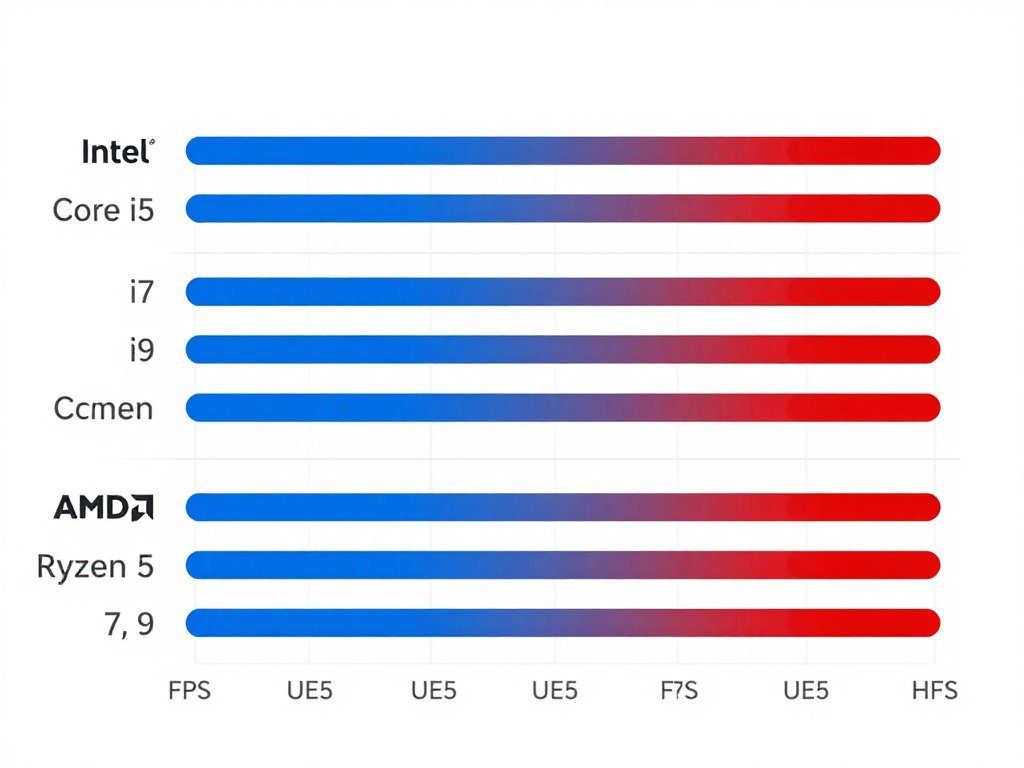
I tested an older 8-core CPU against a newer 6-core model with better single-thread speeds. The 6-core chip won in every UE5 game I tried because the engine couldn’t effectively use those extra two cores, and the newer architecture’s per-core performance made up the difference.
The minimum I’d recommend for comfortable UE5 gaming is something like a Ryzen 5 5600 or Intel Core i5-12400. These are mid-range chips that handle the CPU workload without breaking your budget. Going beyond this to a Ryzen 7 or Core i7 gives you more headroom and helps in CPU-heavy scenarios, but the jump to the top-tier i9 or Ryzen 9 chips is overkill unless you’re also doing development work or heavy multitasking.
Storage – The Unsung Hero
This is where people usually skimp, and it hurts them badly in UE5. You absolutely need an SSD – there’s no debate here. Running UE5 games from a mechanical hard drive is an exercise in frustration. I tried it once out of curiosity, and the stuttering was so bad it gave me a headache.
But not all SSDs are equal for this workload. SATA SSDs are okay for older titles, but UE5’s aggressive streaming can saturate SATA’s bandwidth limits. An NVMe SSD, especially a PCIe 3.0 or 4.0 model with good random read performance, makes a tangible difference in traversal stutter.
Storage Sweet Spot: A 1TB NVMe SSD with at least 3,000MB/s read speeds costs around $50-80 and provides a night-and-day improvement over SATA or mechanical drives. It’s one of the best price-to-performance upgrades you can make for UE5 gaming.
Don’t obsess over PCIe 5.0 drives for gaming – they’re faster on paper, but UE5 games don’t benefit much from speeds beyond what PCIe 3.0 already provides. Save your money unless you’re also using the drive for video editing or other work that can utilize that bandwidth.
RAM – More Is More (To a Point)
16GB of system RAM is the minimum for UE5 gaming. You’ll get by, but you might see memory warnings and stuttering in asset-heavy games. 32GB is the comfortable sweet spot where you have headroom for background apps and the engine’s aggressive caching.
RAM speed matters, but not as much as capacity. DDR4-3200 or DDR5-5200 (depending on your platform) is fine – going to extreme speeds like DDR5-7000 gives you maybe a 2-3% boost in best-case scenarios. Not worth the premium for most people.
I upgraded from 16GB to 32GB when I was testing a particularly demanding UE5 open-world game. The difference wasn’t huge in average frame rate, but the 1% and 0.1% lows improved significantly. Those are the frame time measurements that capture stuttering, and smoother lows mean a much better gameplay experience.
The Balanced Build Philosophy
Here’s my honest take after building multiple systems and testing UE5 extensively: balance beats overkill in one area. A system with a high-end GPU but weak CPU will bottleneck. A monster CPU with a mid-range GPU is wasting money. Skimping on storage or RAM while splurging on other components is shooting yourself in the foot.
For 1080p UE5 gaming, I’d aim for something like:
– GPU: RTX 4060 / RX 7600 XT or better (8GB+ VRAM)
– CPU: Ryzen 5 5600 / Core i5-12400 or better (6+ cores)
– RAM: 16GB DDR4-3200 minimum, 32GB preferred
– Storage: 1TB NVMe SSD (PCIe 3.0 or better)
For 1440p, bump the GPU to an RTX 4070 / RX 7800 XT class (12GB VRAM), and strongly consider 32GB of RAM. For 4K, you’re looking at high-end GPUs with 16GB+ VRAM and definitely 32GB of system RAM.
Settings That Actually Work (Not Just Placebo Tweaks)
Alright, you’ve got your hardware sorted, but your UE5 game is still running like molasses. Let’s talk about the settings that make a real difference – not the placebo tweaks that forums swear by but actually do nothing.
The Big Three: Nanite, Lumen, and Virtual Shadow Maps
These are the headline features of UE5, and they’re also the most performance-intensive. Thankfully, developers usually give you some control over them in graphics menus.
Nanite typically doesn’t have direct user controls – it’s either on or off at the developer level. But if a game gives you a “Geometry Detail” or similar setting, lowering it might reduce how aggressively Nanite streams high-detail meshes. I haven’t found this to impact quality much in most games, but it can save a few frames in GPU-bound scenarios.
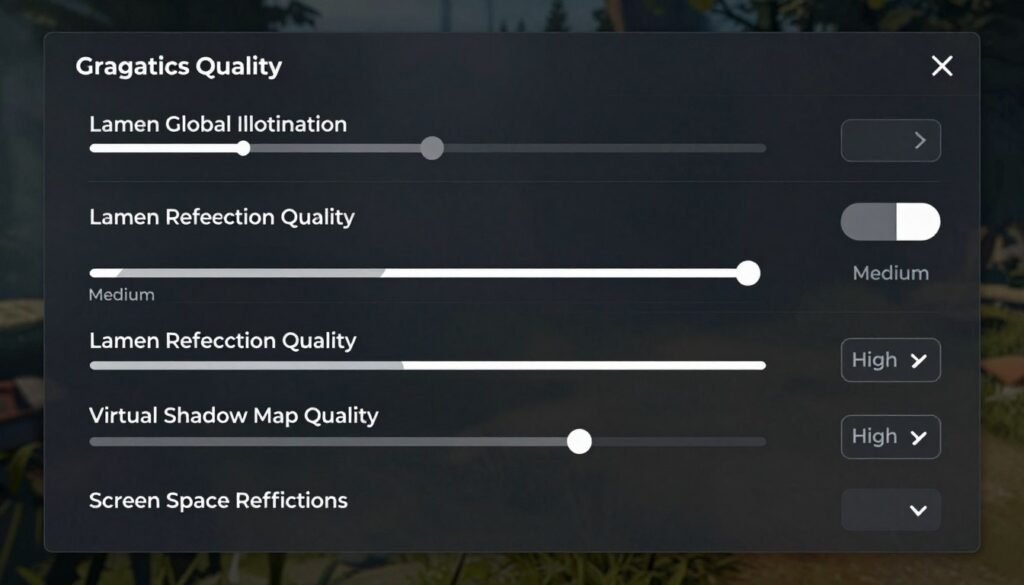
Lumen has multiple quality settings in most games. Here’s what I’ve found through testing:
– Global Illumination Quality: High to Epic looks nearly identical in motion. Medium is acceptable. Low starts to look noticeably worse with flat lighting.
– Reflection Quality: This is where you can save performance without much visual loss. Medium reflections look fine in most scenes, and even Low is okay if you’re not staring at shiny surfaces constantly.
– Software vs Hardware Ray Tracing: Use software mode unless you have a top-tier GPU. The performance difference is substantial (10-20% in many games), and the quality difference is subtle.
Virtual Shadow Maps usually show up as shadow quality settings. Here’s my take: High is the sweet spot. Epic is only marginally better visually but costs significant performance. Medium starts to show chunky shadows in some games. Low is rough and should be a last resort.
Common Mistake: Maxing out every setting because you have a powerful GPU. UE5 features like Lumen on Epic quality can bring even top-tier cards to their knees without proportional visual improvements. High settings offer 90% of the quality at 70% of the performance cost.
Resolution and Upscaling – The Easy Wins
This is probably the single biggest performance lever you have. Native resolution rendering is expensive, and UE5’s upscaling tech (TSR – Temporal Super Resolution) is genuinely impressive.
I tested several UE5 games at native 1440p versus TSR Quality mode (which renders internally at about 1270p and upscales). The performance gain was 25-30% in most cases, and honestly, I couldn’t tell the difference in motion. TSR does add a bit of blur – that TAA issue I mentioned earlier – but it’s a worthwhile trade for the frame rate boost.
For upscaling modes, here’s what I recommend:
– Quality: Best image quality, ~25% performance gain. Use this if you can hit 60fps.
– Balanced: Slightly softer, ~40% performance gain. Good for pushing higher frame rates.
– Performance: Noticeable quality loss, but ~60% performance gain. Last resort for struggling systems.
– Ultra Performance: Too blurry for my taste, but it exists if you’re desperate.
TSR is specific to Unreal Engine games. Some titles also support AMD FSR or Nvidia DLSS if they’ve implemented those plugins. FSR tends to be slightly blurrier than TSR but can offer better performance on AMD cards. DLSS is Nvidia-exclusive and generally provides the best image quality, but it’s not available in all UE5 games.
Post-Processing – Low-Hanging Fruit
Post-processing effects are the stuff that happens after the main scene is rendered – motion blur, depth of field, bloom, chromatic aberration, film grain, etc. These are mostly personal preference, but some have performance implications.
Motion blur: I turn this off immediately in every game. It’s supposed to make movement look smooth, but it just makes everything blurry when you turn the camera. Minimal performance impact either way.
Depth of field: Blurs the background when you aim down sights or focus on something close. Can be a small performance saver if you turn it off, but the effect is minor.
Bloom and lens flares: Negligible performance impact. Turn them off if you don’t like the look.
Ambient occlusion: This adds realistic shadows in corners and crevices. It’s worth keeping on Medium or High because it adds a lot to visual quality. Turning it off saves maybe 5% performance but makes lighting look flat.
View Distance and Detail – The Scalability Knobs
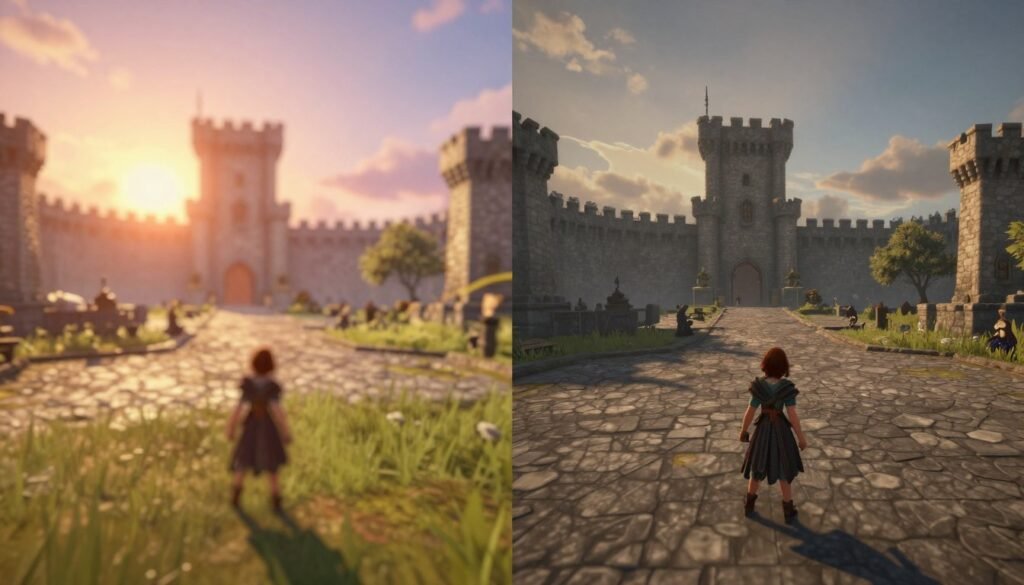
These settings control how far you can see and how detailed distant objects are. They’re usually broken into categories like “View Distance,” “Shadow Distance,” “Foliage Distance,” etc.
View Distance: Epic vs High is often imperceptible unless you’re staring at the horizon. High is safe. Medium starts cutting things off noticeably in open areas. Shadow Distance: This one’s tricky. Long shadow distances look great but hammer performance. Medium shadow distance is usually fine – you won’t notice shadows popping in unless you’re specifically looking for it. This can be a 10-15% performance gain on lower settings.
Foliage and Detail Distance: These control how far grass, small objects, and detail meshes render. Medium is acceptable in most games. Low can make environments feel empty, but it’s a solid performance boost (15-20%) if you need it.
Anti-Aliasing Options
As I mentioned, UE5 defaults to TSR, which is a temporal anti-aliasing method. Some games let you switch to other options, but they’re rarely better. FXAA is fast but blurry. MSAA often isn’t even available because it doesn’t play nice with deferred rendering. TAA is what TSR builds on, and it’s also blurry.
Your best bet is to stick with TSR (or DLSS if you have an Nvidia card and the game supports it) and accept the slight blur as the cost of smooth edges and good performance. If you absolutely can’t stand it, you can turn anti-aliasing off entirely and deal with jagged edges. I don’t recommend this, but it’s an option.
My Personal Settings Template
Here’s what I typically use as a starting point in UE5 games on a mid-to-high-end system (RTX 4070, Ryzen 7 5800X, 32GB RAM):
– Resolution: 1440p with TSR Quality
– Lumen GI: High
– Lumen Reflections: Medium
– Shadow Quality: High
– Shadow Distance: Medium
– View Distance: High
– Effects: Medium
– Post-Processing: Medium (with motion blur off)
– Foliage: Medium
– Textures: Epic (VRAM permitting)
This usually gets me a stable 60-80fps in most UE5 titles with visuals that still look fantastic. If I need more performance, I drop TSR to Balanced and shadows to Medium before touching anything else.
Developer Tools and Optimization (For the Curious Builders)
If you’re not just playing UE5 games but actually building stuff in the engine, or if you’re just nerdy enough to want to understand what’s happening under the hood, this section is for you. I’m going to cover some developer-focused tools and concepts that can help you optimize performance.
Understanding the Profiler
Unreal Engine has built-in profiling tools that show you exactly where your performance is going. The most accessible is the “stat unit” command, which you can type into the console (usually accessed by pressing the tilde key ~).
This shows three numbers: Frame time, Game thread time, and Render thread time. If Frame matches Game, you’re CPU bound. If Frame matches Render, you’re GPU bound. Knowing which you’re dealing with tells you where to focus optimization efforts.
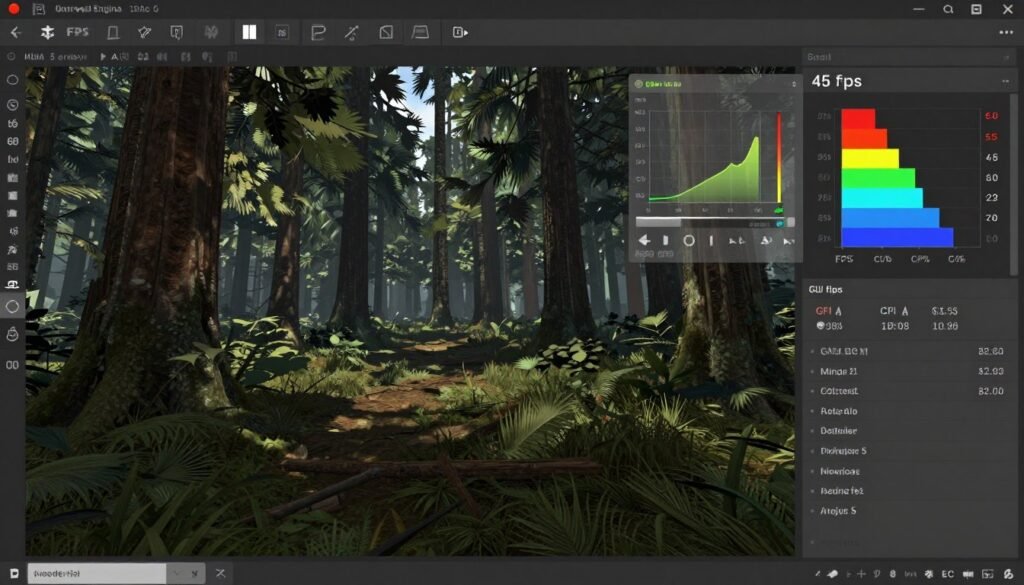
Other useful console commands:
– stat gpu: Shows GPU timing breakdown by render pass
– stat scenerendering: Shows draw call counts and primitive info
– stat memory: Shows memory usage across different systems
– r.ScreenPercentage X: Quickly change render resolution (100 = native, 50 = half resolution)
These tools are available in Development and Test builds, not in Shipping builds (final release versions of games). But if you’re working in the editor or testing your own project, they’re invaluable.
Engine Scalability Settings
UE5 has a scalability system that lets you quickly adjust quality across multiple categories. You can access this in the editor under Settings → Engine Scalability Settings.
The presets (Low, Medium, High, Epic, Cinematic) adjust:
– View distance scaling
– Anti-aliasing quality
– Shadow quality and resolution
– Post-process quality
– Texture quality
– Effects quality
For development on a lower-end machine, I typically work on Medium or High scalability. This keeps the editor responsive while still giving a decent preview of how things will look. You can also customize individual categories – for example, keeping textures on Epic while running shadows on Medium.
Optimizing Materials
Materials in UE5 can be performance hogs if you’re not careful. Complex shader networks with tons of texture samples and mathematical operations take time to calculate for every pixel on screen.
Some practical tips:
– Use texture atlases to reduce unique texture samples
– Simplify shader complexity for distant objects (use LOD materials)
– Avoid excessive use of costly operations like sine/cosine in materials
– Use Material Parameter Collections for values shared across multiple materials
– Bake complex calculations into textures when possible
The editor has a shader complexity view mode that shows material cost as a heat map. Green is good, red is expensive. If you’re seeing a lot of red, those materials need optimization.
Lighting Best Practices
Even with Lumen’s real-time global illumination, lighting optimization matters. Here’s what I’ve learned:
Lumen Software Ray Tracing Tips
- Keep distance field resolution reasonable on meshes
- Use two-sided distance fields sparingly (expensive)
- Disable Lumen on small objects that don’t affect lighting much
- Limit screen probe density in dense foliage areas
- Use Surface Cache compression settings
Light Source Optimization
- Minimize overlapping dynamic lights
- Use static lights for unchanging sources when possible
- Reduce shadow-casting lights in dense areas
- Lower Virtual Shadow Map resolution on less important lights
- Use IES light profiles instead of complex mesh lights
Nanite Mesh Considerations
Nanite is powerful, but it’s not magic. You need to use it correctly to get good performance.
Enable Nanite on:
– High-detail static meshes (rocks, architecture, statues)
– Background elements with lots of geometry
– Meshes that previously required multiple LODs
Don’t use Nanite on:
– Meshes with transparency or masked materials
– Skinned/animated meshes (characters, creatures)
– Small props with simple geometry
– Meshes with world position offset or vertex animation
The editor will warn you if you try to enable Nanite on incompatible mesh types, but it’s worth understanding why certain things don’t work with the system.
World Partition and Level Streaming
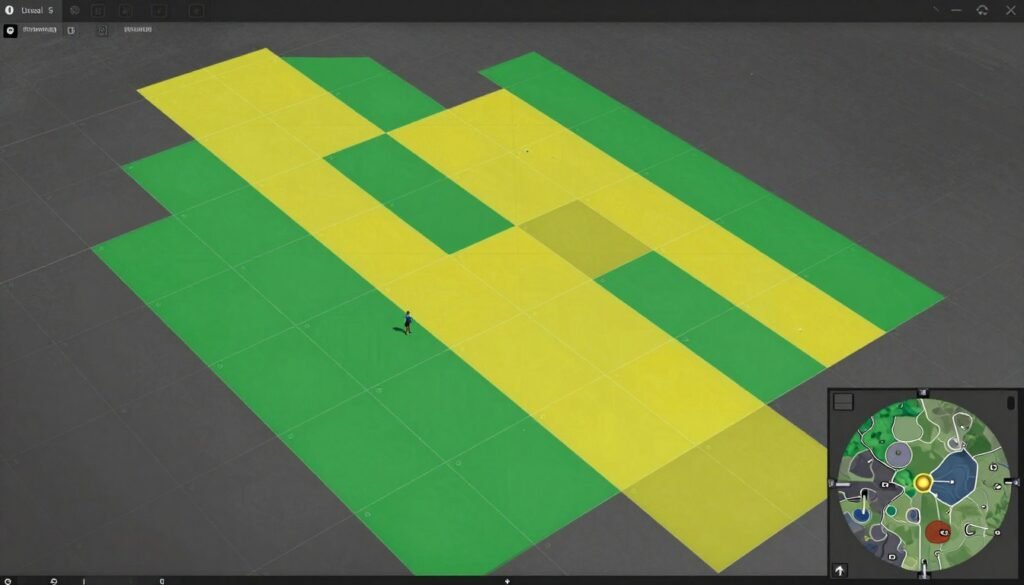
For large open-world projects, UE5’s World Partition system is a game-changer for performance. It automatically divides your level into a grid and streams sections in and out based on player position.
This prevents loading the entire world into memory at once, which would crush performance. The system is pretty smart about preloading nearby cells, but you can tune it with settings like:
– Grid size (how big each cell is)
– Loading range (how far ahead to start loading cells)
– Priority settings for important areas
I spent a week wrapping my head around World Partition when I was building a large environment, but once it clicked, it made managing performance so much easier than manually setting up streaming volumes.
Testing on Target Hardware
This one’s obvious but bears repeating: test your project on hardware that represents your target audience, not just your development machine. I made the mistake early on of building a scene that ran great on my RTX 4070 but was a slideshow on a friend’s GTX 1660.
If you’re targeting console platforms, Epic provides profiling tools that simulate console performance on PC. They’re not perfect, but they give you a ballpark idea of where you stand.
For PC games, test across a range of hardware configurations. Use tools like GPU-Z or HWInfo64 to monitor thermals, clock speeds, and utilization to identify bottlenecks. And always, always test on both Nvidia and AMD GPUs if you can – the performance profile can be different between vendors.
Common Myths and BS Marketing (Let’s Get Real)
There’s so much misinformation floating around about UE5 performance that I feel obligated to clear some of it up. These are myths I see repeated constantly on forums, YouTube comments, and even some tech articles that should know better.
Myth: “UE5 Games Always Run Poorly”
This one frustrates me because it’s both true and false. Yes, some UE5 games have shipped with terrible performance and optimization issues. But that’s not the engine’s fault – it’s developers shipping games before they’re properly optimized.
I’ve played UE5 titles that run buttery smooth and look incredible. The difference is time and effort spent on optimization. When developers take the time to tune their game, implement proper LOD systems for non-Nanite objects, and test across hardware configurations, UE5 is perfectly capable of great performance.
The problem is that UE5’s powerful features make it easy to build something that looks amazing but runs poorly if you don’t understand the performance implications. It’s like giving someone a Ferrari – the car is capable of incredible things, but if the driver doesn’t know what they’re doing, it’s gonna be a bad time.
Myth: “You Need Ray Tracing Hardware for Lumen”
Nope. Lumen works on non-ray-tracing GPUs using software ray tracing with distance fields. In fact, I’d argue that software mode is the better choice for most people because the performance cost is lower and the visual difference is minimal in most games.
Hardware ray tracing in Lumen is more accurate and can handle certain edge cases better (like very thin objects), but it’s significantly more expensive performance-wise. Unless you have a high-end RTX 4070 Ti or better, software mode is the way to go.
Myth: “Just Upgrade Your GPU and Everything Will Be Fine”
I’ve seen this advice given so many times, and it’s lazy. Yes, a better GPU helps, but UE5 performance is multifaceted (oops, banned word – it has many sides to it). A GPU upgrade won’t fix CPU bottlenecks, storage stuttering, or memory pressure issues.
Before spending $500+ on a new graphics card, actually diagnose where your bottleneck is. Use built-in tools, monitoring software, or even just watch your CPU and GPU usage while gaming. If your GPU is sitting at 60% usage while your CPU is maxed out, a new GPU is just wasted money.
This is why I keep bringing up checking your system balance first. It’s not rocket science – just basic troubleshooting that can save you a ton of money and frustration.
Myth: “Nanite Makes Polygon Count Irrelevant”
Nanite is impressive tech, but it doesn’t make optimization obsolete. While it’s true that Nanite can handle extremely high polygon counts, there are still practical limits. Memory bandwidth, streaming speed, and VRAM capacity all matter.
Plus, Nanite has limitations – it doesn’t work with translucent materials, skinned meshes, or certain other mesh types. So you still need traditional optimization techniques for a large portion of your assets.
Developers who just throw million-polygon models at everything without considering the bigger picture will still run into performance problems. Nanite is a tool, not a magic wand.
Myth: “All UE5 Games Look the Same”
This one’s more of an aesthetic complaint than a performance myth, but I hear it enough that it bugs me. The argument is that because many games use Megascans assets and similar lighting setups with Lumen, they all have a samey look.
There’s a kernel of truth here – some games do lean heavily on default UE5 features and stock assets. But that’s developer laziness, not engine limitation. You can create wildly different art styles in UE5, from photorealistic to stylized to cel-shaded. The engine is just a tool; art direction is up to humans.
Myth: “Temporal Anti-Aliasing Is Always Bad”
TAA and TSR definitely add blur compared to older anti-aliasing methods. But calling them “always bad” is an overreaction. For many people, the trade-off of smooth edges and stable image quality versus a bit of blur is worthwhile.
I’m not gonna pretend the blur doesn’t exist or doesn’t bother some people – it definitely does. But there’s no perfect solution. Old-school MSAA is too expensive for modern deferred rendering. FXAA is even blurrier than TAA. No AA gives you jagged, shimmering edges everywhere.
Pick your poison. Personally, I’ve gotten used to TAA/TSR, and I barely notice it anymore unless I go back to a game without it and see how much edge shimmer there is.
Myth: “The Engine Will Fix Performance Over Time”
This is wishful thinking I see in game forums when a new UE5 title launches with poor performance. People assume Epic will magically patch the engine and games will run better.
While Epic does improve UE5 with updates (they’ve made significant strides with shader compilation and other issues), individual games don’t automatically benefit without developer intervention. If a game launches poorly optimized, it’s up to that game’s developers to patch it, not Epic.
Sometimes games do get substantial performance patches post-launch, but it’s not guaranteed. This is why I’m hesitant to buy UE5 games at launch – waiting a few months often means a better experience after patches address performance issues.
Future-Proofing Considerations (Planning Your Next Build)
If you’re building or upgrading a PC specifically with UE5 gaming in mind, you’re probably wondering what the smart long-term choices are. I’m going to share my thoughts on this based on where the engine and game development are heading.
The VRAM Situation Is Only Getting Worse
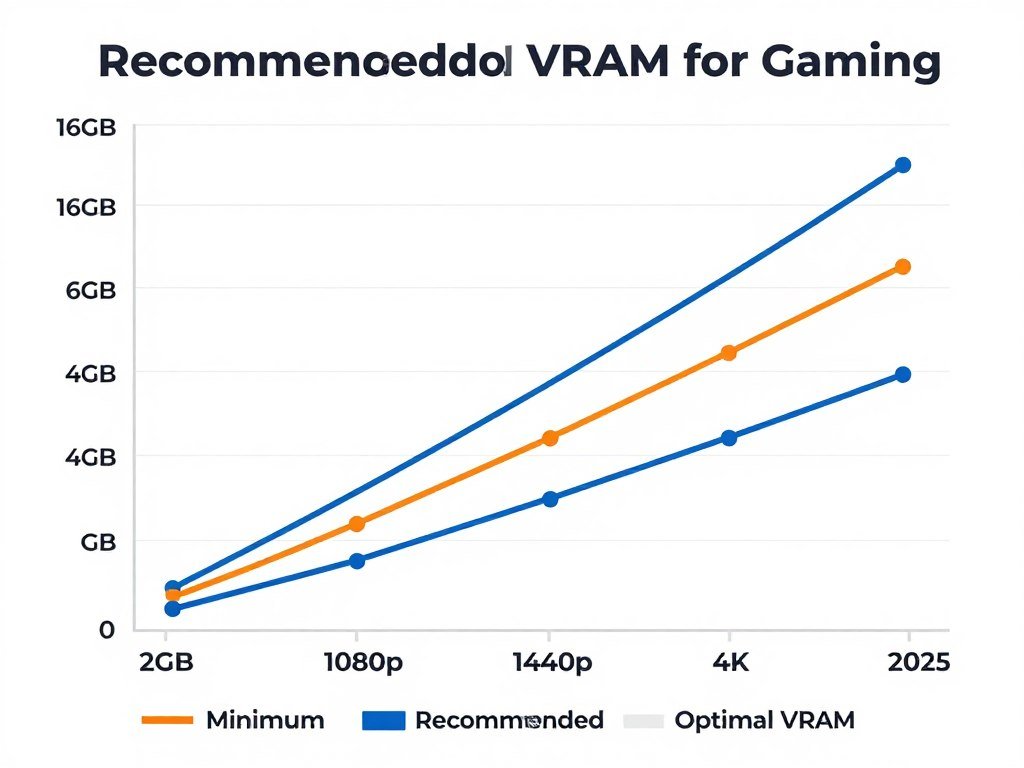
This is the big one. Game asset quality keeps increasing, and UE5 makes it easier than ever for developers to use film-quality models and textures. That means VRAM requirements are going up, not down.
Three years ago, 8GB was comfortable for 1440p gaming. Now it’s the bare minimum, and you’re already seeing some UE5 titles exceed that at max settings. I’d bet that within two years, 12GB becomes the standard recommendation for 1440p, and 16GB for 4K.
This is frustrating because GPU manufacturers have been stingy with VRAM on mid-range cards. But it is what it is. If you’re building now and want the system to last 3-4 years without feeling outdated, prioritize VRAM capacity. Get the card with more VRAM even if it means slightly lower clock speeds or fewer shader cores.
Storage Speed Will Matter More
As games get bigger and more detailed, the ability to stream data quickly becomes critical. DirectStorage on Windows 11 is starting to be utilized by some games, and it can dramatically reduce loading times and traversal stutter when paired with a fast NVMe drive.
PCIe 3.0 NVMe is fine for now, but if you’re building fresh, going with a PCIe 4.0 drive for your primary game storage gives you headroom for future titles that better utilize DirectStorage and similar tech.
PCIe 5.0 drives are still overkill for gaming today, but by 2026-2027, we might see games that can actually benefit from those speeds. If you’re on a tight budget, stick with PCIe 4.0. If money isn’t a concern, a PCIe 5.0 drive doesn’t hurt, but don’t expect immediate returns.
CPU Core Count vs Clock Speed
For the foreseeable future, gaming remains primarily dependent on single-thread performance and a moderate core count (6-8 cores). I don’t see this changing dramatically in the next few years, even as UE5 evolves.
The reason is that game logic, physics, and AI are difficult to parallelize beyond a certain point. You can split some work across multiple threads, but there are always sequential dependencies that bottleneck.
So my advice: prioritize strong single-thread performance and 8 cores with SMT. A Ryzen 7 7800X3D or Intel Core i7-14700K will serve you well for years. Going to 12 or 16-core CPUs is more about future-proofing for non-gaming workloads (streaming, video editing, etc.) than gaming performance.
32GB RAM Is Becoming Standard
We’re at an inflection point where 16GB is still technically enough for gaming, but 32GB is increasingly comfortable. UE5 games in particular love memory for caching assets and reducing streaming overhead.
RAM prices fluctuate, but 32GB kits are much more affordable than they used to be. If you’re building today, I’d strongly consider starting with 32GB unless budget is extremely tight. If you are on a budget, get a 2x8GB kit and leave room to add another 2x8GB later.
64GB is overkill for pure gaming. I have 32GB, and I’ve never come close to filling it even in memory-hungry UE5 titles with Chrome and Discord open in the background.
Monitor Choice Impacts Hardware Needs
This seems obvious, but it’s worth stating: your target resolution and refresh rate should drive your hardware choices. A 1080p 144Hz monitor has very different requirements than a 4K 60Hz panel.
For UE5 gaming specifically:
– 1080p 60fps: Mid-range hardware (RTX 4060 class)
– 1080p 144fps: High-end GPU, strong CPU (RTX 4070+ class)
– 1440p 60fps: Upper mid-range GPU (RTX 4060 Ti / 4070)
– 1440p 144fps: High-end GPU and CPU (RTX 4070 Ti+)
– 4K 60fps: Top-tier GPU with 16GB+ VRAM (RTX 4080+)
– 4K 120fps: Enthusiast hardware, realistic only with upscaling
Don’t fall into the trap of buying a 4K monitor and then being disappointed when your mid-range GPU can’t drive it in demanding UE5 games. Match your display to your hardware budget, or use upscaling aggressively.
The Upscaling Future
I think upscaling tech will become increasingly important and sophisticated. TSR, DLSS, and FSR are already impressive, and they’re getting better with each iteration.
This means native resolution rendering might become less critical. You could buy a 4K monitor and render at 1440p internally with upscaling, getting 90% of the image quality at much better performance.
For hardware purchasing decisions, this means you can get away with a slightly less powerful GPU if you’re willing to lean on upscaling. It’s not cheating – it’s just using the tools available to maximize your experience.
Practical Troubleshooting (When Everything Still Runs Like Crap)
You’ve tweaked the settings, checked your hardware, and done everything right, but your UE5 game still stutters or runs poorly. Let’s troubleshoot the less obvious issues that might be killing your performance.
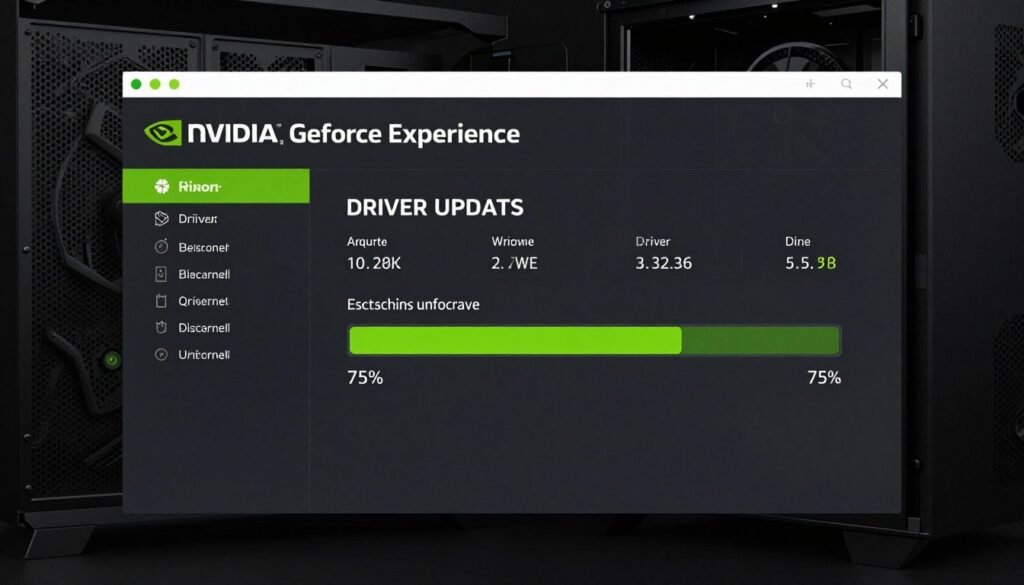
Driver Issues and Updates
Graphics drivers can make or break performance. I’ve seen 10-15% swings in frame rate between driver versions in UE5 games. Both Nvidia and AMD release “game ready” drivers optimized for new titles, and it’s worth keeping reasonably up to date.
That said, don’t blindly install every driver update the day it drops. Sometimes new drivers introduce bugs. My approach is to wait a week after a new driver release, check forums for reports of issues, and then update if things look stable.
If you’re experiencing crashes or weird performance after a driver update, use DDU (Display Driver Uninstaller) to completely remove your graphics drivers and do a clean install. I’ve had situations where driver cruft from multiple updates caused problems that only a clean install fixed.
Background Applications Eating Resources
This is basic, but I’m continually surprised how many people have a million things running in the background while gaming. Every Chrome tab, Discord, Spotify, RGB control software, and overlay program consumes system resources.
I make it a habit to close unnecessary stuff before launching demanding UE5 games. Task Manager (Ctrl+Shift+Esc) is your friend – sort by CPU and memory usage to see what’s hogging resources.
Some specific culprits I’ve encountered:
– Antivirus doing a scan in the background
– Windows Update downloading or installing updates
– Cloud storage apps syncing large files
– Recording/streaming software when you’re not actually recording
– Browser hardware acceleration fighting with your game
Power Management Settings
Windows power plans can throttle performance. Go to Control Panel → Power Options and make sure you’re on “High Performance” or “Ultimate Performance” if it’s available. “Balanced” is fine for desktop systems with good cooling, but on laptops or power-sensitive systems, it can reduce clock speeds and hurt gaming performance.
Similarly, some GPUs have power-saving features that can interfere with gaming. Nvidia’s Whisper Mode and AMD’s Chill are designed to reduce noise and power consumption, but they can cap frame rates. Make sure these are disabled for UE5 games if you want maximum performance.
Thermal Throttling
If your system is getting way too hot, both CPUs and GPUs will automatically reduce their clock speeds to prevent damage. This is called thermal throttling, and it absolutely murders performance.
Use monitoring software like HWInfo64, GPU-Z, or MSI Afterburner to watch temperatures while gaming. If your GPU is hitting 85°C+ or your CPU is at 95°C+, you’ve got a cooling problem.
Solutions:
– Clean dust out of your PC (seriously, this helps more than you’d think)
– Improve case airflow with better fan configuration
– Reapply thermal paste on CPU and GPU if it’s been a few years
– Undervolt your CPU or GPU to reduce heat without losing performance
– Consider better cooling solutions if the above don’t help
System RAM Configuration Issues
If you’re running RAM in single-channel mode (one stick instead of two), you’re leaving performance on the table. Dual-channel provides significantly more memory bandwidth, which helps in memory-intensive UE5 games.
Check your motherboard manual to make sure your RAM is installed in the correct slots for dual-channel. Usually it’s slots 2 and 4 if you have four slots total, but it varies by board.
Also verify your RAM is running at its rated speed. By default, RAM often runs at a conservative speed until you enable XMP/DOMP in BIOS. Enabling this can provide a noticeable performance boost, especially on AMD systems where Infinity Fabric speed is tied to RAM speed.
Game Installation Location
I mentioned earlier that UE5 games should be on an SSD, but it’s worth emphasizing: if your game is installed on a slow hard drive or even a slow external drive, that’s your problem right there.
Move the game to your fastest internal drive. For Steam games, you can do this through the library: right-click the game → Properties → Local Files → Move Install Folder. This can transform a stuttery mess into a smooth experience if you were previously running from a slow drive.
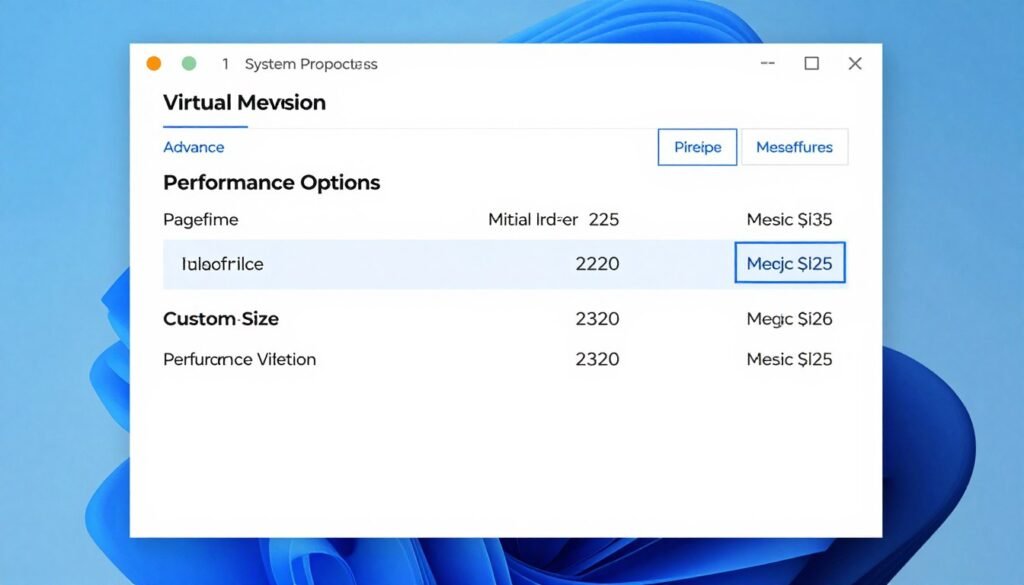
Pagefile and Virtual Memory
Windows uses a pagefile (essentially hard drive space as extra RAM) when you run out of physical memory. If you’re on 16GB of RAM or less, you might be hitting pagefile usage in memory-hungry UE5 games, which causes horrible stuttering since disk access is thousands of times slower than RAM.
Make sure your pagefile is on an SSD, not a hard drive. Let Windows manage the size automatically, or manually set it to a minimum of 16GB if you want more control.
If you’re constantly hitting pagefile, it’s a sign you need more physical RAM. 32GB would eliminate this issue entirely in current UE5 games.
In-Game Overlays Causing Issues
Steam Overlay, Discord Overlay, Nvidia GeForce Experience Overlay, Xbox Game Bar – all of these can cause performance problems or incompatibilities with UE5 games. If you’re experiencing crashes or weird stuttering, try disabling overlays one by one to see if any are the culprit.
I keep Steam Overlay on because it’s generally stable, but I disable everything else. I don’t need three different FPS counters and screenshot tools running simultaneously.
Corrupted Game Files
Sometimes game files get corrupted during download or installation. Steam, Epic Games Store, and other platforms have verify/repair functions. Use them if you’re experiencing crashes or severe performance issues that don’t make sense.
For Steam: Library → right-click game → Properties → Local Files → Verify Integrity of Game Files. This will check your installation against the server’s version and re-download any corrupted files.
Frequently Asked Questions
Why do UE5 games stutter even on high-end PCs?
The two main culprits are shader compilation stutter and traversal stutter. Shader compilation happens when the engine encounters new visual effects and has to compile shaders on the fly – this causes brief freezes. Traversal stutter occurs when the game is streaming new assets from your storage and can’t keep up with how fast you’re moving through the world. An NVMe SSD helps significantly with traversal issues, but shader compilation is ultimately the developer’s responsibility to fix with proper precompilation.
Is 16GB of RAM enough for UE5 games in 2025?
It’s the technical minimum, but 32GB is increasingly becoming the comfortable standard. You can get by with 16GB if you close background apps and don’t run anything else while gaming, but in memory-intensive UE5 titles you might hit pagefile usage which causes stuttering. If you’re building new or have the budget to upgrade, I’d strongly recommend going with 32GB – the price difference isn’t huge, and it gives you much more headroom.
Does Lumen require a ray tracing GPU?
No, Lumen works perfectly fine on non-ray-tracing GPUs using software ray tracing mode. In fact, software mode often performs better with only minimal visual differences compared to hardware ray tracing. Unless you have a very high-end GPU, I recommend using software mode for better frame rates without sacrificing much visual quality.
What GPU do I realistically need for 1440p UE5 gaming?
For 1440p at 60fps with high settings, you’re looking at something like an RTX 4060 Ti, RTX 4070, or AMD RX 7700 XT as a comfortable baseline. VRAM is critical – aim for 12GB minimum. For 1440p at high refresh rates (100fps+), you’ll want an RTX 4070 Ti or RX 7800 XT class card. Don’t forget that using TSR or DLSS upscaling in quality mode can give you great results with less powerful hardware.
Should I use TSR, DLSS, or FSR for upscaling?
If you have an Nvidia RTX card and the game supports it, DLSS usually provides the best image quality. TSR (built into UE5) is a solid second choice and works on any GPU – it’s what I use most often. FSR is AMD’s solution and while it’s slightly blurrier than the other two, it can offer better performance on AMD cards. Try them all if available and see which looks best to your eyes, but honestly, they’re all pretty good at Quality settings. The performance gain is substantial (20-30%) with minimal visual compromise.
Why is my GPU usage low but performance still bad?
Low GPU usage with poor performance usually indicates a CPU bottleneck. Your GPU is sitting around waiting for the CPU to finish its work. Check your CPU usage while gaming – if one or more cores are at 100%, that’s your bottleneck. You might also have a background process eating CPU cycles, thermal throttling reducing clock speeds, or in rare cases, a RAM/storage bottleneck. Use Task Manager to check what’s maxing out while you game.
Can I run UE5 games on a laptop?
Yes, but thermal constraints are a bigger issue than on desktops. Make sure the laptop has adequate cooling – many thin gaming laptops throttle heavily under sustained load. Look for models with RTX 4060 or better mobile GPUs, at least 16GB RAM (32GB preferred), and an SSD. Use a cooling pad, keep the vents clear, and consider undervolting to manage temperatures. Gaming laptops can definitely handle UE5 titles, but desktop hardware at similar price points will outperform them.
What’s the single best upgrade for UE5 performance?
It depends entirely on your current bottleneck, which is why I keep emphasizing checking your system first. If you’re GPU-bound, a better graphics card helps. If you’re CPU-bound, that’s your target. If you’re running games from a hard drive, an SSD is transformative. There’s no universal answer – you need to diagnose your specific situation. Generally speaking though, moving from a hard drive to an NVMe SSD has the most dramatic impact on UE5 stuttering and loading if you haven’t already made that upgrade.
Are UE5 games poorly optimized or is the engine demanding?
Both can be true simultaneously. UE5 is more demanding than older engines because of features like Nanite and Lumen, but a well-optimized UE5 game can still run great. The problem is that not all developers take the time to optimize properly before shipping. Some UE5 games launch with terrible performance and get patched later; others run smoothly from day one. It’s less about the engine itself and more about how developers use it and whether they prioritize optimization during development.
Is DirectStorage worth it for UE5 games?
DirectStorage is still in early adoption – not many games fully utilize it yet. When properly implemented, it can reduce loading times and traversal stutter by allowing your GPU to decompress assets directly from an NVMe drive without involving the CPU. You need Windows 11 and a DirectStorage-compatible NVMe drive. If you’re on Windows 11 anyway and have a modern NVMe drive, you’ll benefit when games start using it more. But it’s not a reason to upgrade your OS by itself right now – the impact is minimal in most current titles.
The Bottom Line: Making UE5 Performance Work for You
After everything we’ve covered, here’s what I want you to take away from this: UE5 performance isn’t magic, and it’s not hopeless. It’s a puzzle with specific pieces that need to fit together – hardware, settings, system configuration, and sometimes just waiting for developers to patch their games properly.
The most important thing is understanding where your specific system is struggling. Don’t just throw money at upgrades randomly. A $500 GPU won’t help if your CPU is maxed out, and a new processor won’t fix VRAM limitations. Diagnose first, spend money second.
For most people reading this, the sweet spot for UE5 gaming right now is:
– A GPU with 12GB+ VRAM in the RTX 4070 / RX 7700 XT class
– A modern 6-8 core CPU with strong single-thread performance
– 32GB of RAM
– A 1TB+ NVMe SSD
– Settings on High with TSR Quality mode
– Target 1440p resolution
That setup will handle pretty much any UE5 game released today and leave room for future titles. If that’s out of budget, scale back resolution to 1080p and drop to 16GB RAM – you’ll still have a good experience in most games.
And look, I get that hardware is expensive. If you can’t upgrade right now, focus on what you can control: settings optimization, driver updates, system maintenance, and just accepting that some games won’t run perfectly on older hardware. That’s not failure – it’s reality. You play what you can play, optimize what you can optimize, and upgrade when it makes financial sense.
Before you go spending hundreds of dollars though, seriously, check your system’s balance. I can’t tell you how many times I’ve talked people out of buying a new GPU when their actual bottleneck was somewhere else entirely. Five minutes of analysis can save you a lot of frustration and wasted money.
UE5 is going to be the foundation for a ton of games over the next several years. Epic keeps improving the engine, developers are learning how to optimize better, and hardware continues advancing. The performance situation will improve. But for now, we’re in that awkward early phase where amazing visuals come at a steep performance cost if you’re not careful.
What’s the weirdest performance issue you’ve ever run into with UE5 or any other demanding game engine? I’m always curious to hear what bizarre bottlenecks people discover.