
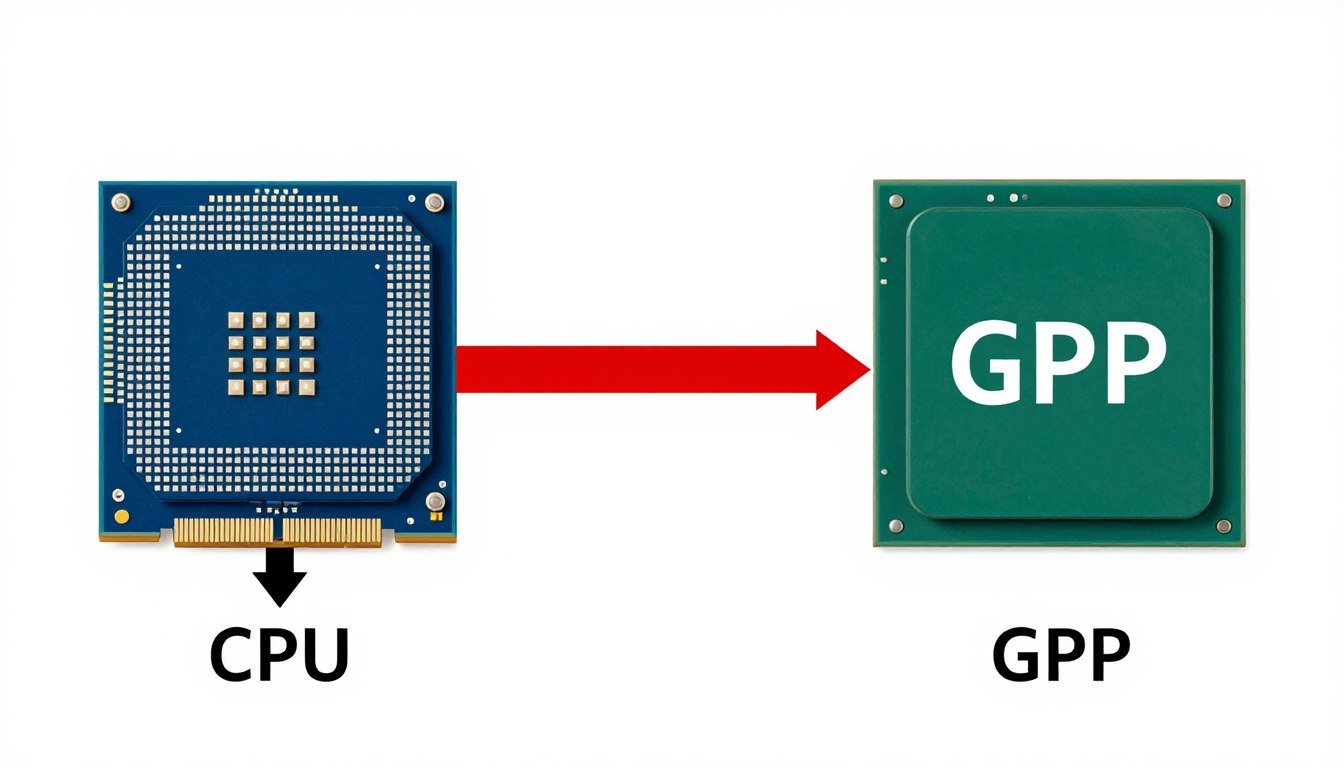
What Is a CPU Bottleneck?
A CPU bottleneck occurs when your processor becomes the limiting factor in your system’s performance. Think of your computer as an assembly line where the CPU prepares data for the GPU to render. If the CPU can’t process information quickly enough, the GPU sits partially idle, waiting for instructions. This creates a performance ceiling that prevents your system from reaching its full potential.
Visual representation of a CPU bottleneck: The processor creates a data flow restriction that limits GPU performance
Unlike other performance issues, a CPU bottleneck specifically means your processor’s logic processing capabilities can’t keep up with the demands of your workload. This bottleneck manifests differently depending on your specific hardware configuration and the applications you’re running.
Need to check your system for bottlenecks?
Use our recommended monitoring tools to identify performance issues in your PC.
How CPU Bottlenecks Work in Gaming
In gaming, the CPU and GPU perform distinct but complementary roles. The CPU handles game logic, physics calculations, AI behavior, and prepares frames for rendering. The GPU then takes this prepared data and renders the visual elements on your screen.
CPU Responsibilities:
- Game logic and mechanics
- Physics simulations and calculations
- AI and NPC behavior
- Input processing
- Networking (for multiplayer)
- Audio processing
- Preparing frame data for GPU
GPU Responsibilities:
- Rendering graphics and textures
- Shader processing
- Lighting and shadow effects
- Post-processing effects
- Anti-aliasing
- Resolution scaling
- Displaying the final image
When a CPU bottleneck occurs in gaming, your processor cannot prepare frame data quickly enough for your GPU to render. This creates a processing cycle where the GPU waits idly for the CPU to finish its calculations, resulting in lower frame rates, stuttering, and inconsistent performance.
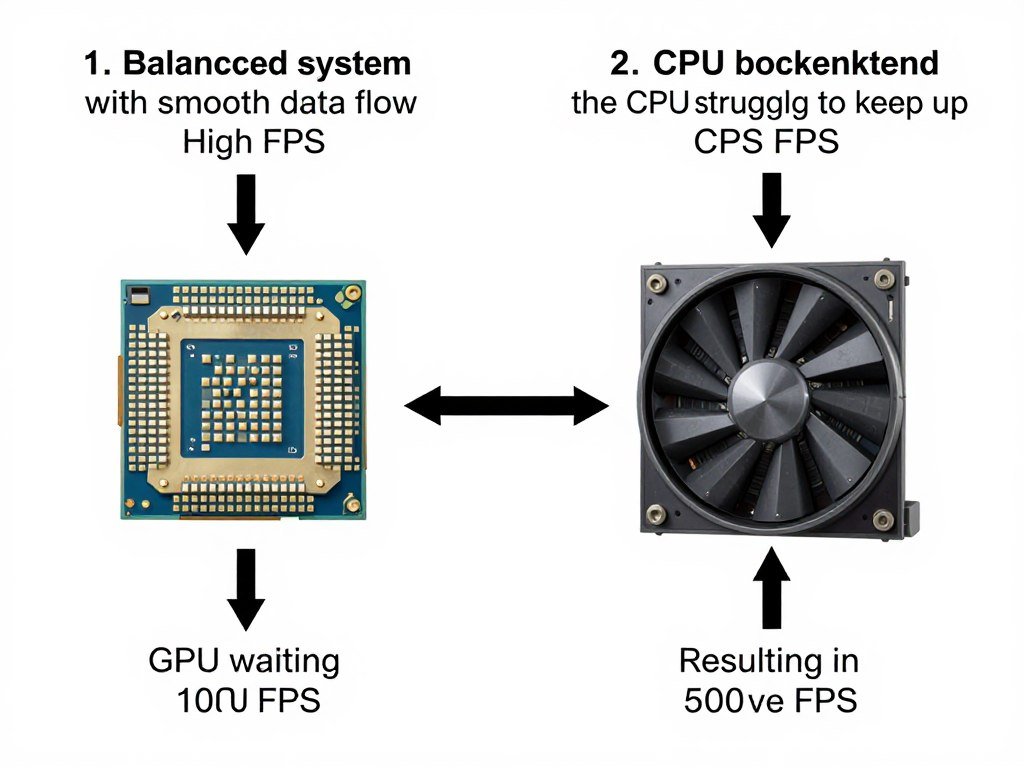
The CPU-GPU processing cycle: When bottlenecked, the GPU waits for the CPU to complete calculations
The severity of a CPU bottleneck depends on several factors, including the specific game’s optimization, your hardware configuration, and in-game settings. CPU-intensive games like open-world titles, strategy games, and simulation games are particularly susceptible to CPU bottlenecks due to their complex logic processing requirements.
5 Clear Signs of a CPU Bottleneck
Identifying a CPU bottleneck requires attention to specific performance indicators. Here are five telltale signs that your processor might be holding back your system:
1. High CPU Usage with Low GPU Usage
The most definitive sign of a CPU bottleneck is when your CPU usage consistently reaches 90-100% while your GPU usage remains significantly lower (below 80-90%). This imbalance indicates your processor can’t feed data to your graphics card fast enough.
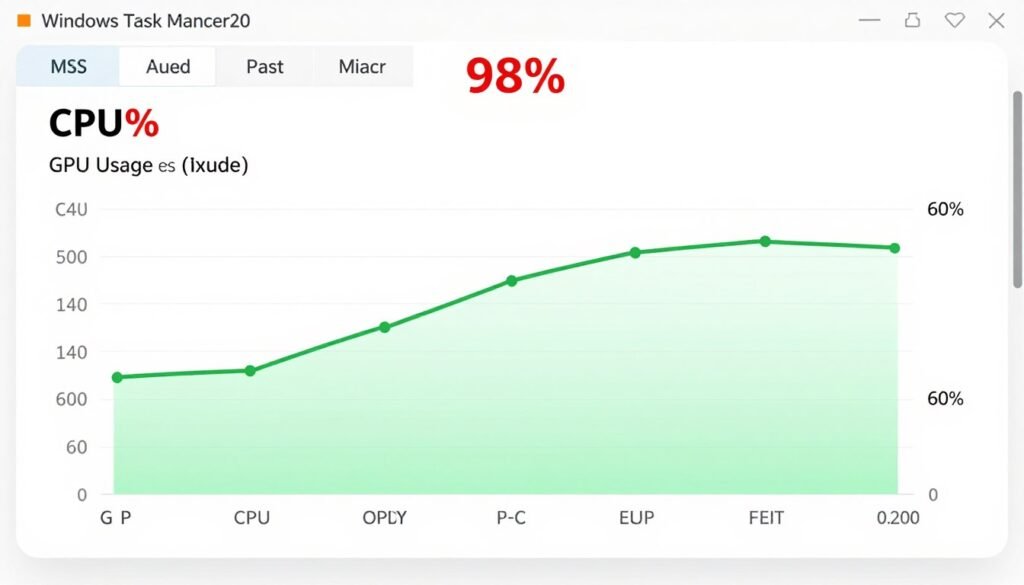
Task Manager showing the classic sign of a CPU bottleneck: high CPU usage with low GPU utilization
2. FPS Drops and Stuttering
Frequent FPS drops and stuttering, especially during complex scenes with many objects or characters, often indicate a CPU bottleneck. These performance issues occur when your CPU temporarily fails to keep up with processing demands, creating inconsistent frame delivery.
Key Indicator: If lowering graphics settings doesn’t significantly improve performance, you’re likely experiencing a CPU bottleneck rather than a GPU limitation.
3. Consistent Frame Rate Ceiling
If your games consistently hit the same maximum FPS regardless of graphics settings or resolution changes, your CPU is likely creating a performance ceiling. This happens because the processor can only prepare a certain number of frames per second, regardless of how quickly the GPU could potentially render them.
4. Poor Multitasking Performance
A bottlenecked CPU will struggle with multitasking. You might notice significant performance drops when running background applications while gaming, or general system sluggishness when switching between tasks. This occurs because the processor lacks the spare capacity to handle additional workloads.
5. Uneven Core Utilization
Modern games increasingly utilize multiple CPU cores, but not all applications distribute workloads evenly. A bottleneck might appear when one or two cores reach 100% utilization while others remain underutilized. This uneven distribution limits performance despite the processor having theoretical capacity available.
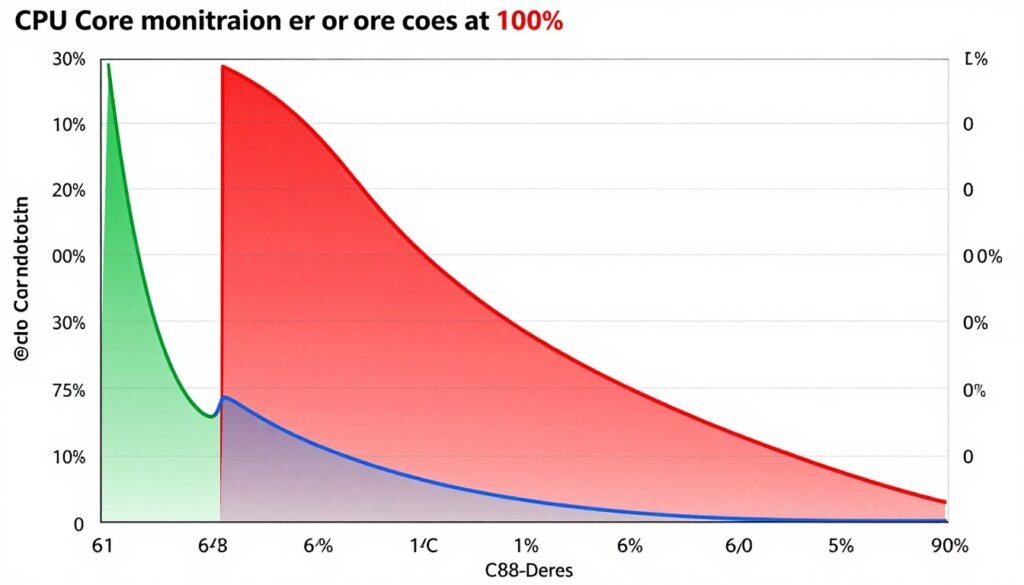
Uneven core utilization often indicates a CPU bottleneck in poorly optimized applications
Key Factors That Influence CPU Bottlenecks
Several technical factors determine whether your system will experience a CPU bottleneck and how severe it might be. Understanding these elements helps diagnose existing issues and make informed upgrade decisions.
Core Count and Thread Count
Modern games and applications increasingly utilize multiple CPU cores and threads. A processor with insufficient core count may bottleneck your system in these multi-threaded workloads. While some older games might run adequately on 4 cores, many recent titles benefit from 6 or more cores for optimal performance.
| Core/Thread Count | Best For | Potential Bottleneck Risk |
| 4 cores / 4 threads | Basic gaming, office work | High in modern games |
| 4 cores / 8 threads | Mainstream gaming, light multitasking | Medium in recent titles |
| 6 cores / 12 threads | Modern gaming, content creation | Low to medium |
| 8+ cores / 16+ threads | High-end gaming, streaming, professional work | Very low |
Instructions Per Cycle (IPC) and Clock Speed
IPC represents how efficiently a CPU executes instructions per clock cycle, while clock speed (measured in GHz) indicates how many cycles occur per second. Together, these factors determine a processor’s computational power. A CPU with higher IPC and clock speed can process game logic faster, reducing bottleneck potential.
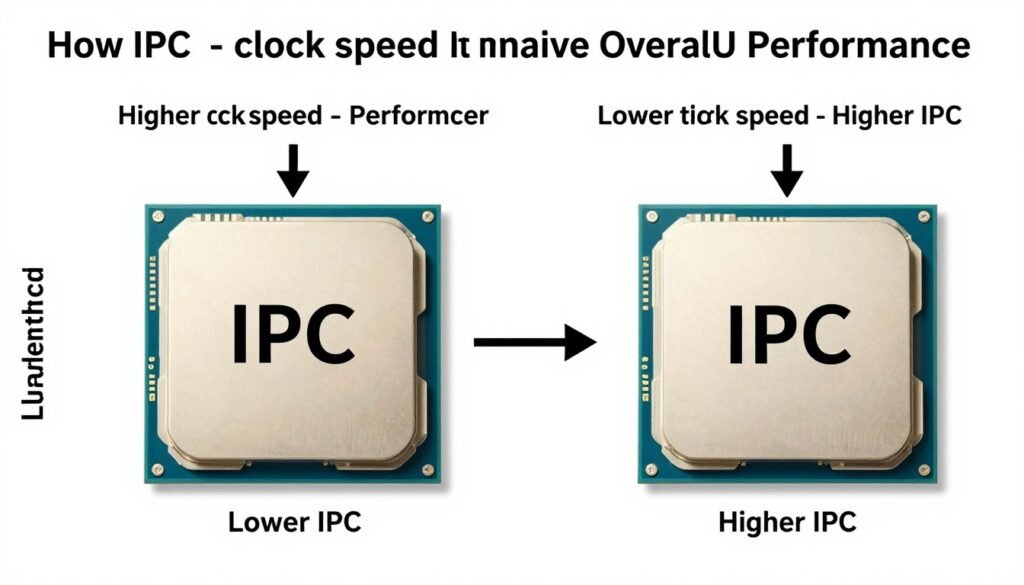
The relationship between IPC and clock speed in determining overall CPU performance
CPU Architecture and Generation
Newer CPU architectures typically offer improved IPC, better power efficiency, and enhanced instruction sets. A current-generation mid-range processor often outperforms a high-end CPU from several generations ago, despite potentially having fewer cores or lower clock speeds.
Ready to upgrade your processor?
Check out the latest generation CPUs that deliver excellent gaming performance.
Memory Speed and Latency
RAM performance directly impacts CPU efficiency. Slow memory creates a secondary bottleneck that prevents the processor from accessing data quickly, exacerbating CPU bottleneck issues. This is particularly relevant for AMD Ryzen processors, which benefit significantly from faster memory.
Game Engine and Optimization
Different game engines have varying levels of CPU utilization and multi-threading capabilities. Poorly optimized games may create artificial bottlenecks by inefficiently using available CPU resources or overloading single threads with excessive calculations.
How to Identify CPU Bottlenecks with Monitoring Tools
Accurately diagnosing a CPU bottleneck requires proper monitoring tools that provide real-time performance metrics. These applications help visualize resource utilization and identify performance limitations in your system.
MSI Afterburner
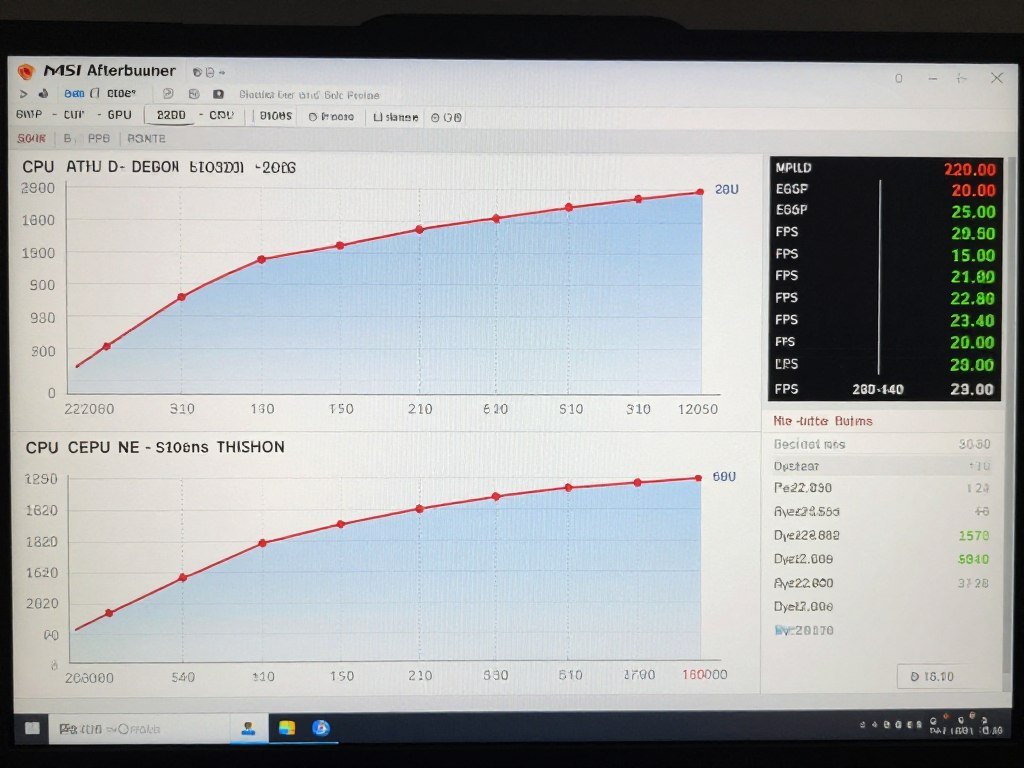
The most comprehensive gaming performance monitor that displays CPU usage per core, GPU usage, temperatures, frame rates, and frame times in a customizable on-screen display.
HWiNFO

Provides in-depth hardware information and real-time monitoring with extensive sensor readings for advanced users who need detailed system analytics.
Windows Task Manager
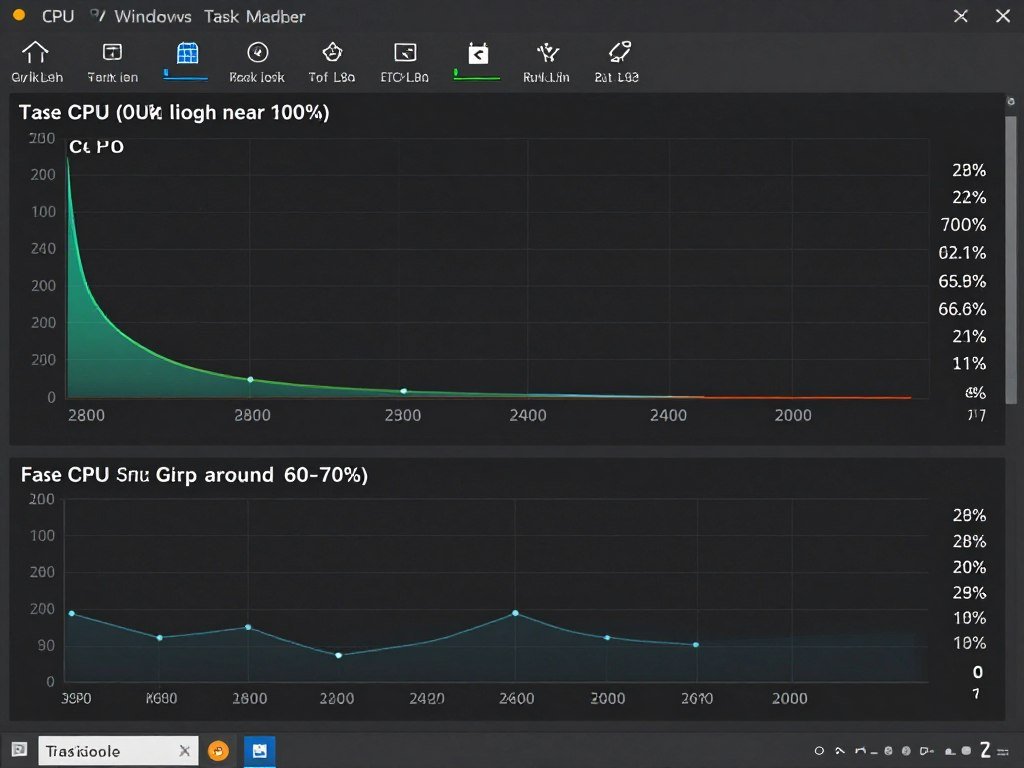
A built-in Windows utility that provides basic CPU, GPU, memory, and disk usage monitoring. Less detailed than specialized tools but convenient for quick checks.
How to Check for a CPU Bottleneck
Follow these steps to determine if your system is experiencing a CPU bottleneck:
- Install monitoring software like MSI Afterburner with RivaTuner Statistics Server for on-screen display.
- Configure the on-screen display to show CPU usage (overall and per-core), GPU usage, FPS, and frame times.
- Launch a demanding game that you regularly play and run it at your typical settings.
- Play for 10-15 minutes while monitoring the performance metrics.
- Analyze the results: If CPU usage consistently reaches 90-100% while GPU usage remains below 90%, you likely have a CPU bottleneck.
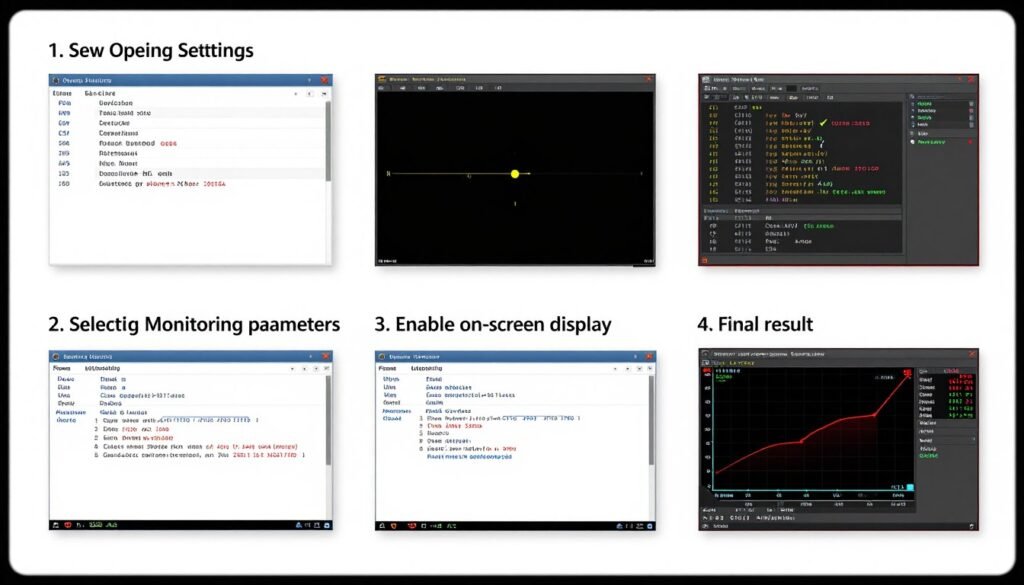
Setting up MSI Afterburner to monitor CPU and GPU usage for bottleneck detection
Pro Tip: Test multiple games, as bottlenecks can vary significantly between different titles. CPU-intensive games like strategy titles, open-world games, and simulation games are more likely to reveal processor limitations.
How to Fix or Reduce CPU Bottlenecks
Once you’ve identified a CPU bottleneck, several solutions can help alleviate the issue without necessarily requiring an immediate processor upgrade. These approaches range from simple software adjustments to hardware modifications.
Software Solutions
- Close background applications to free up CPU resources for gaming
- Update BIOS, chipset drivers, and game patches for improved optimization
- Adjust in-game settings that impact CPU load (view distance, physics, AI complexity)
- Enable technologies like NVIDIA DLSS or AMD FSR to reduce CPU overhead
- Use process priority settings to allocate more CPU resources to games
Hardware Solutions
- Upgrade your CPU to a model with better single-thread performance
- Increase core count for better multi-threaded performance in modern games
- Improve cooling solution to prevent thermal throttling
- Overclock your CPU (if supported) for additional performance
- Upgrade RAM to faster speeds to improve data access times
Optimizing In-Game Settings
Certain in-game settings have a greater impact on CPU load than others. Adjusting these options can help reduce processor strain:
| Setting | CPU Impact | Recommended Adjustment |
| Draw Distance / View Distance | High | Reduce to medium or low |
| Physics Quality | High | Lower to medium |
| Population Density / NPC Count | High | Reduce to medium |
| Shadow Quality | Medium to High | Lower shadow resolution and distance |
| Anti-Aliasing | Low to Medium | Use GPU-based methods (FXAA, TAA) |
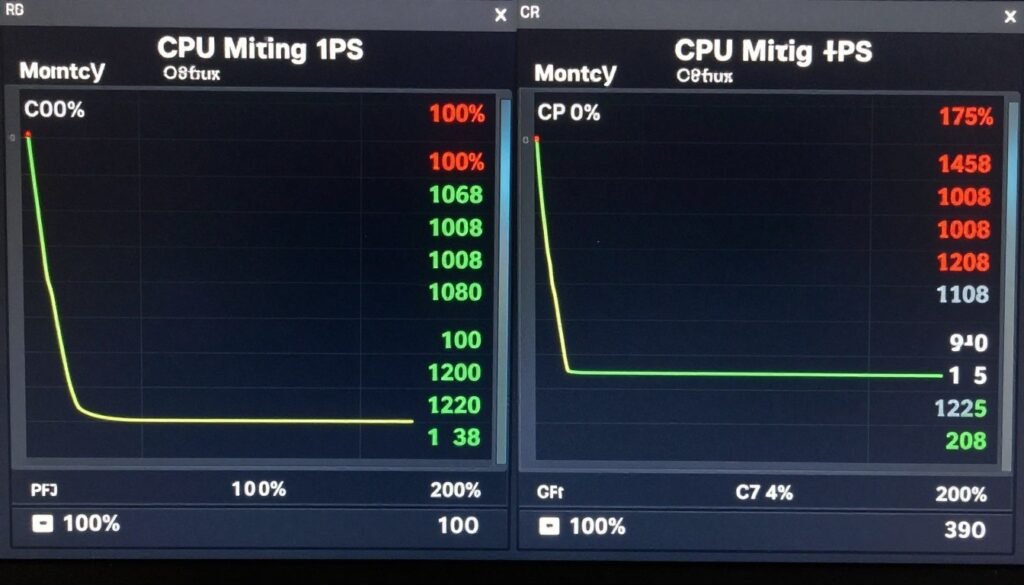
Before and after: Optimizing in-game settings can significantly reduce CPU load and improve performance
When to Consider a CPU Upgrade
If software optimizations don’t provide sufficient performance improvements, a hardware upgrade may be necessary. Consider upgrading your CPU if:
- Your processor is more than 4-5 generations old
- You consistently experience CPU bottlenecks across multiple games
- Your CPU has fewer than 6 cores and you play modern AAA titles
- You’ve already optimized software settings with minimal improvement
- You’ve upgraded your GPU but haven’t seen the expected performance gains
Recommended CPUs to Eliminate Bottlenecks
If you’ve determined that a CPU upgrade is necessary, these current-generation processors offer excellent gaming performance at various price points. Each recommendation balances core count, IPC, and clock speed to minimize bottlenecks with modern graphics cards.
Best Budget Option: AMD Ryzen 5 5600
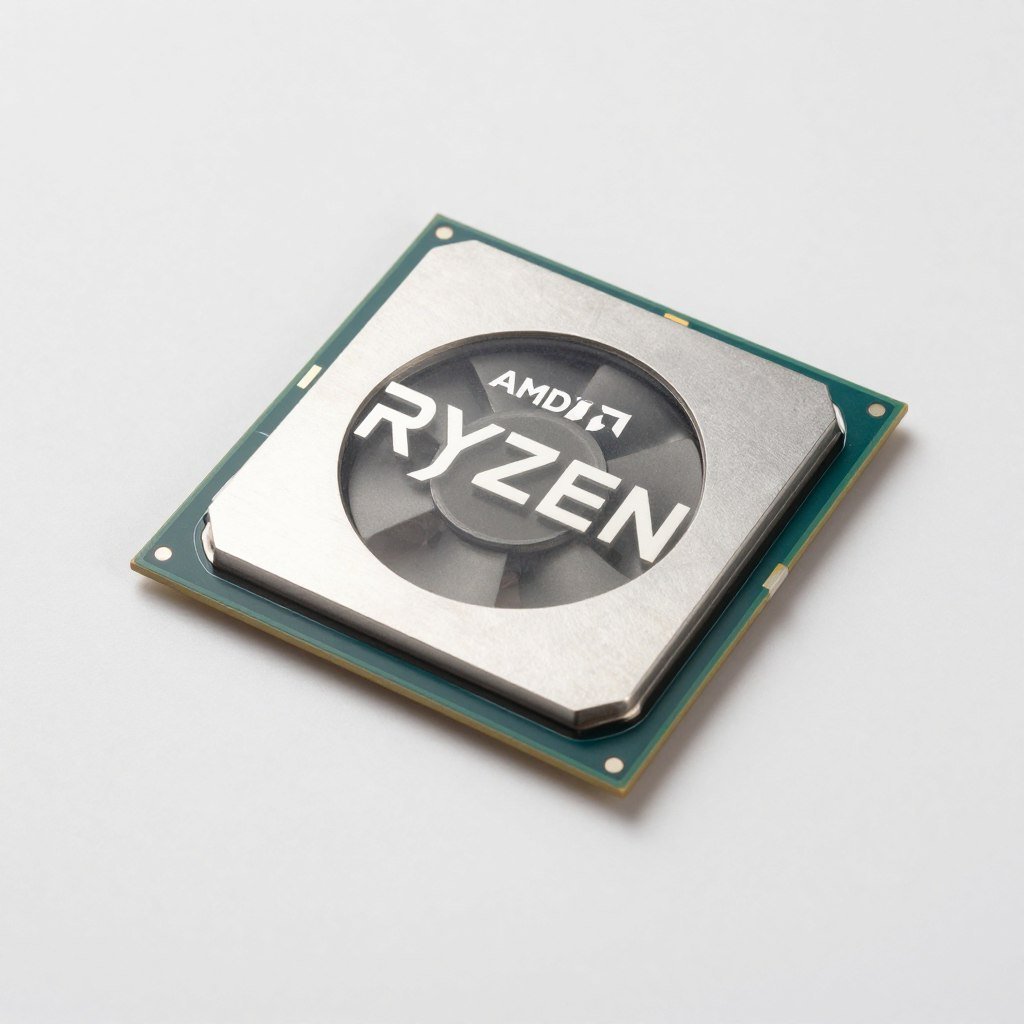
The Ryzen 5 5600 offers 6 cores and 12 threads with excellent single-thread performance, making it ideal for mainstream gaming. Despite being from the previous generation, it remains a strong performer that can handle modern games without bottlenecking mid-range GPUs.
- Cores/Threads: 6/12
- Base/Boost Clock: 3.5GHz / 4.4GHz
- Socket: AM4
- Best Paired With: GPUs up to RTX 3070 / RX 6700 XT
Best Mid-Range Option: Intel Core i5-13600K
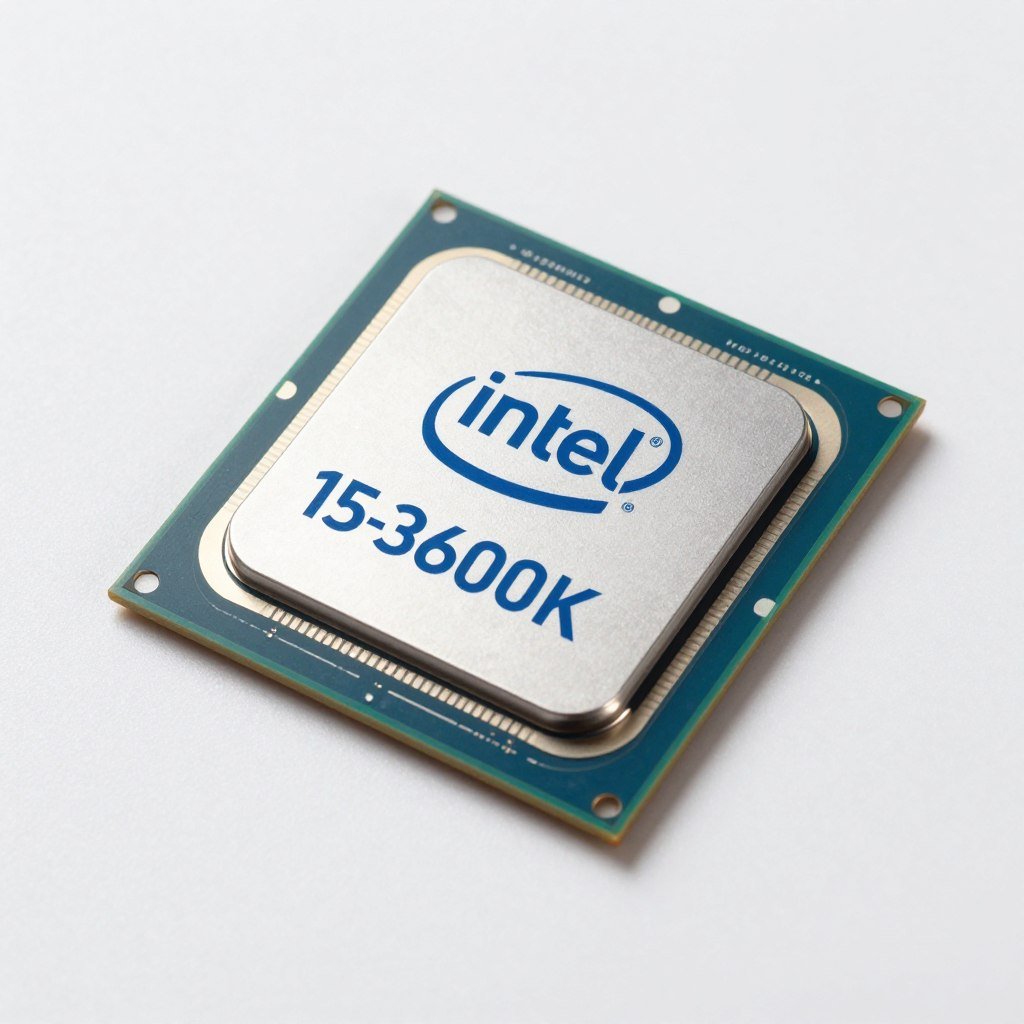
With its hybrid architecture featuring 6 performance cores and 8 efficiency cores, the i5-13600K delivers exceptional gaming performance and multitasking capabilities. The high core count and strong single-thread performance make it an excellent choice for eliminating CPU bottlenecks with high-end GPUs.
- Cores/Threads: 14 (6P+8E) / 20
- Base/Boost Clock: 3.5GHz / 5.1GHz
- Socket: LGA 1700
- Best Paired With: GPUs up to RTX 4080 / RX 7900 XT
Best High-End Option: AMD Ryzen 7 7800X3D
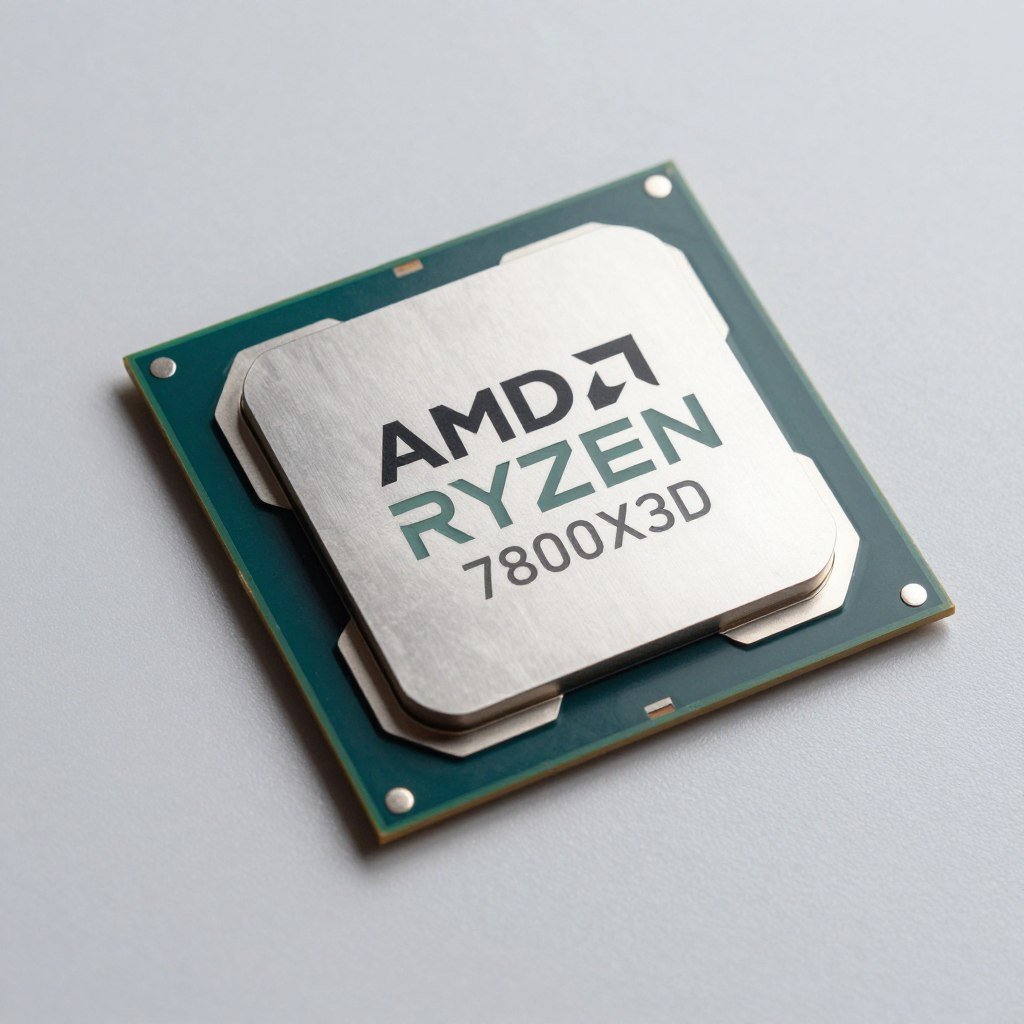
The Ryzen 7 7800X3D features AMD’s 3D V-Cache technology, providing an enormous L3 cache that dramatically improves gaming performance. This processor is currently considered the best gaming CPU on the market, capable of handling any modern game without bottlenecking even the most powerful GPUs.
- Cores/Threads: 8/16
- Base/Boost Clock: 4.2GHz / 5.0GHz
- Socket: AM5
- Best Paired With: Any GPU, including RTX 4090 / RX 7900 XTX
Achieving the Perfect CPU-GPU Balance
Creating a well-balanced system requires careful consideration of both CPU and GPU capabilities. The goal is to minimize bottlenecks while maximizing performance for your specific use case and budget.
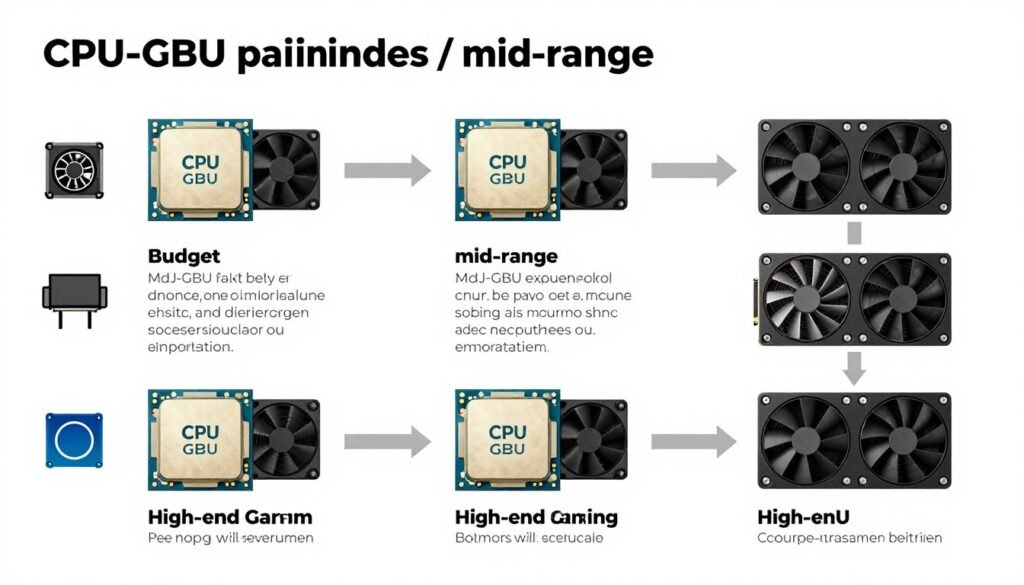
Recommended CPU-GPU pairings for optimal gaming performance at different budget levels
Resolution Considerations
The resolution at which you game significantly impacts the CPU-GPU balance in your system:
1080p Gaming
At 1080p, games are often more CPU-bound because the GPU can render frames quickly, putting more pressure on the processor to prepare frame data. A strong CPU is particularly important for high refresh rate 1080p gaming.
1440p Gaming
1440p represents a middle ground where both CPU and GPU are important. The increased pixel count puts more load on the GPU compared to 1080p, but the CPU still plays a significant role in high refresh rate scenarios.
4K Gaming
At 4K resolution, games become primarily GPU-bound as rendering the high pixel count demands significant graphics processing power. CPU requirements are relatively lower, though a capable processor is still necessary for consistent frame times.
“The ideal system has no severe bottlenecks in either direction. Your goal should be to create a balanced build where neither component significantly limits the other’s potential.”
Future-Proofing Considerations
When building or upgrading a system, consider these factors for better long-term performance:
- Prioritize CPU single-thread performance for gaming workloads
- Aim for at least 6 cores / 12 threads for modern gaming
- Consider platform longevity and upgrade paths
- Balance your budget between CPU and GPU based on your primary usage
- Don’t overspend on one component at the expense of overall system balance
Ready to upgrade your gaming setup?
Check out our recommended processors that deliver excellent performance for modern games.
Conclusion: Mastering CPU Bottleneck Management
Understanding and addressing CPU bottlenecks is essential for maximizing your system’s gaming performance. By recognizing the signs of processor limitations, using appropriate monitoring tools, and implementing targeted solutions, you can significantly improve your gaming experience without necessarily requiring expensive upgrades.
Remember that some level of bottlenecking is inevitable in any system—the goal is to minimize severe imbalances that significantly impact performance. Focus on creating a harmonious relationship between your CPU and GPU, where neither component severely restricts the other’s capabilities.
Whether you choose to optimize your current setup through software adjustments or invest in hardware upgrades, the knowledge you’ve gained about CPU bottlenecks will help you make informed decisions that deliver the best possible gaming experience for your budget and needs.
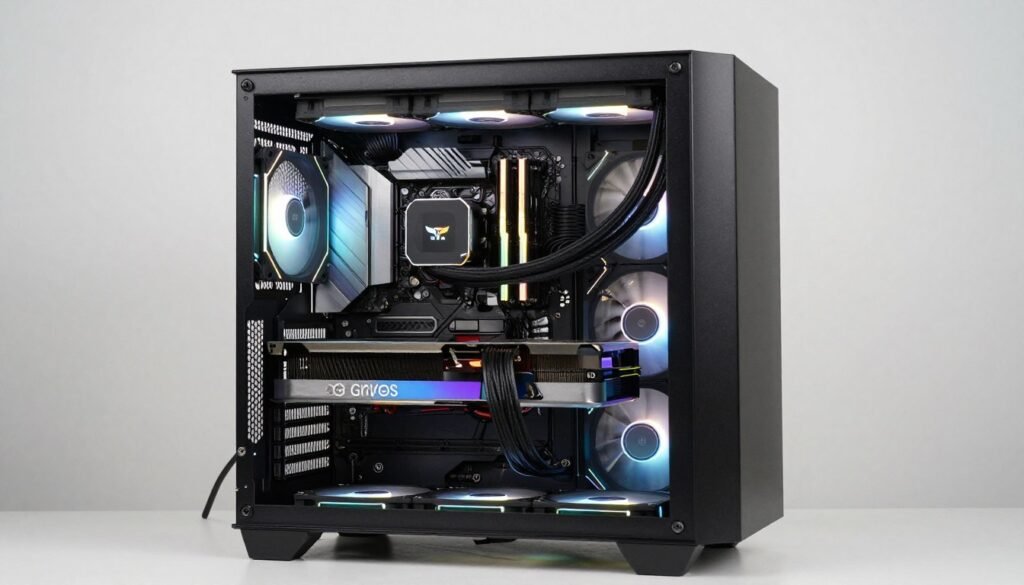
A well-balanced gaming PC minimizes bottlenecks for optimal performance across all applications
Frequently Asked Questions About CPU Bottlenecks
Can a CPU bottleneck damage my computer?
No, a CPU bottleneck cannot damage your hardware. It simply means your processor is operating at its maximum capacity while other components have unused potential. This creates a performance limitation but does not cause physical harm to any components.
Is 100% CPU usage always a sign of a bottleneck?
Not necessarily. 100% CPU usage only indicates a bottleneck if your GPU usage is simultaneously lower than expected (below 90%). High CPU usage can also occur in CPU-intensive applications where the processor is appropriately being utilized to its full capacity.
How much of a CPU bottleneck is acceptable?
Minor bottlenecks (under 10%) are generally acceptable and often unavoidable in balanced systems. A bottleneck becomes problematic when it significantly impacts performance, causing stuttering, inconsistent frame rates, or preventing you from achieving your desired FPS targets.
Will overclocking my CPU fix a bottleneck?
Overclocking can help reduce a CPU bottleneck by increasing the processor’s clock speed, allowing it to process data faster. However, the improvement is typically modest (5-15% at best) and depends on your cooling solution and the specific CPU model. Severe bottlenecks usually require a processor upgrade for significant improvement.
Do CPU bottlenecks affect all games equally?
No, CPU bottlenecks vary significantly between games. Titles with complex physics, AI, or large open worlds (like strategy games, simulation games, and open-world RPGs) tend to be more CPU-intensive and more likely to experience processor bottlenecks. Optimized esports titles and linear games typically place less strain on the CPU.