
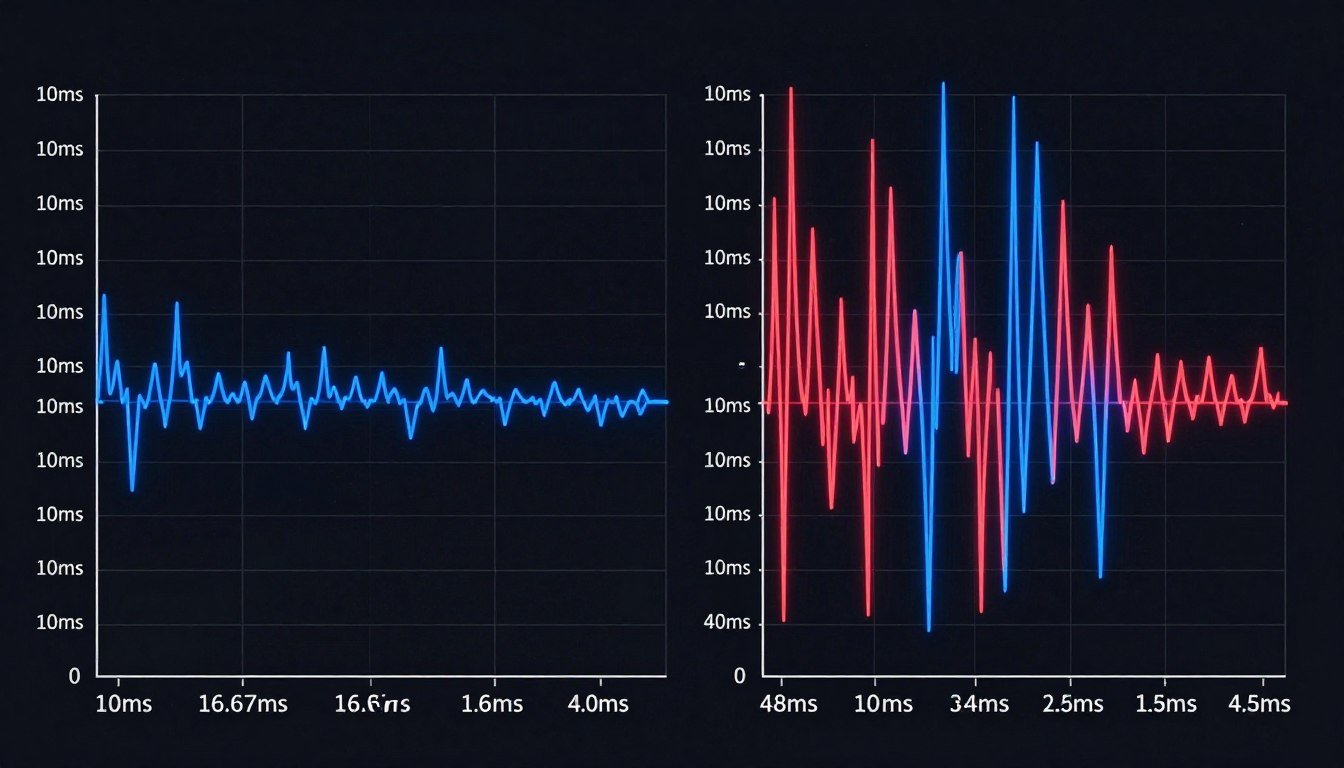
You’ve got a Ryzen 9 9950X and an RTX 5080. Your FPS counter reads 120. But every few seconds, the game hitches. That smooth experience you paid for feels like watching a slideshow.
I spent three months chasing this exact problem last year. Upgraded my GPU. Tweaked every setting in the Nvidia control panel. Reinstalled Windows twice. The FPS stayed high, but the stuttering remained.
The real problem wasn’t my average frame rate. It was frame time consistency—the thing nobody talks about when they’re obsessing over FPS numbers. This guide breaks down exactly what frame time consistency means, why it matters more than your FPS counter, and how to actually fix the stuttering that’s ruining your games in 2026.
What Frame Time Actually Means (And Why It’s Not Just FPS)
Frame time measures how long your PC takes to render a single frame. Think of it like a drummer keeping rhythm. If every beat lands exactly on time, the music flows. Miss a beat by even 50 milliseconds, and everyone notices.
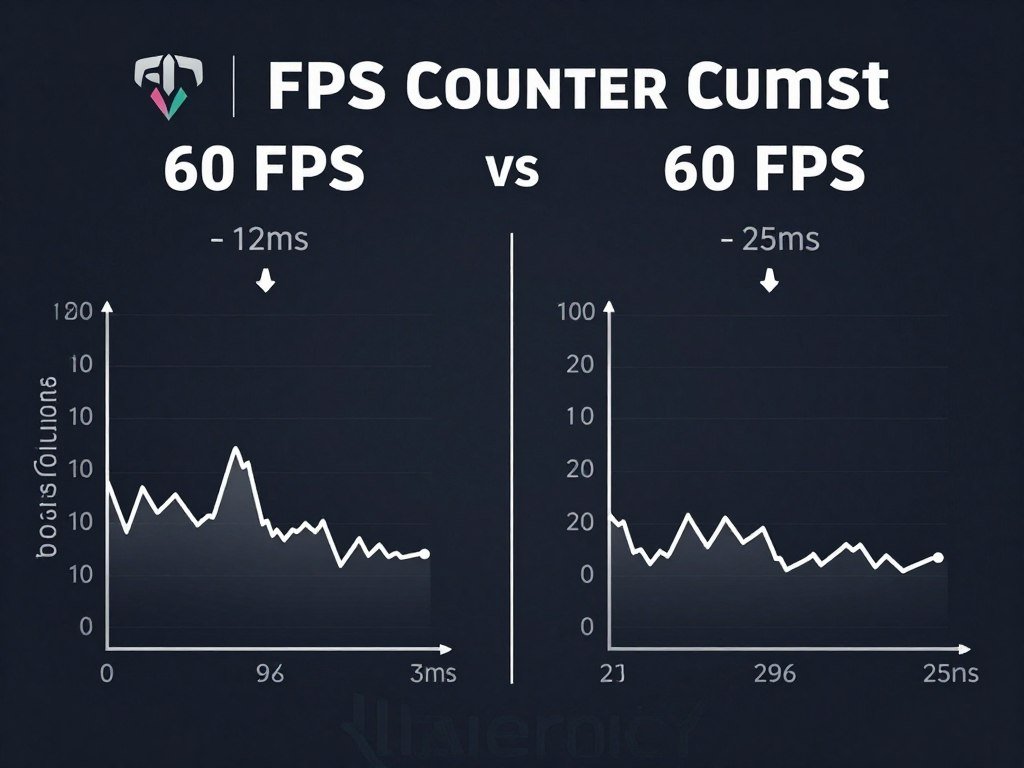
Your FPS counter shows the average. 60 FPS means your PC averaged one frame every 16.67 milliseconds over the last second. But averages lie.
You could have frames rendering at 10ms, 25ms, 15ms, 30ms, and still average 60 FPS. That inconsistency is what creates stuttering. Your brain doesn’t process “average smoothness”—it notices every irregular frame delivery.
The Math Behind Frame Time
The relationship between FPS and frame time is simple division. One second equals 1000 milliseconds.
- 60 FPS = 16.67ms per frame
- 120 FPS = 8.33ms per frame
- 144 FPS = 6.94ms per frame
- 240 FPS = 4.17ms per frame
When frame times stay consistent—let’s say 16.67ms for every frame—you get butter-smooth 60 FPS. When they spike to 25ms or drop to 10ms randomly, you get stuttering despite the FPS counter reading 60.
Frame Time vs Frame Rate: The Critical Difference
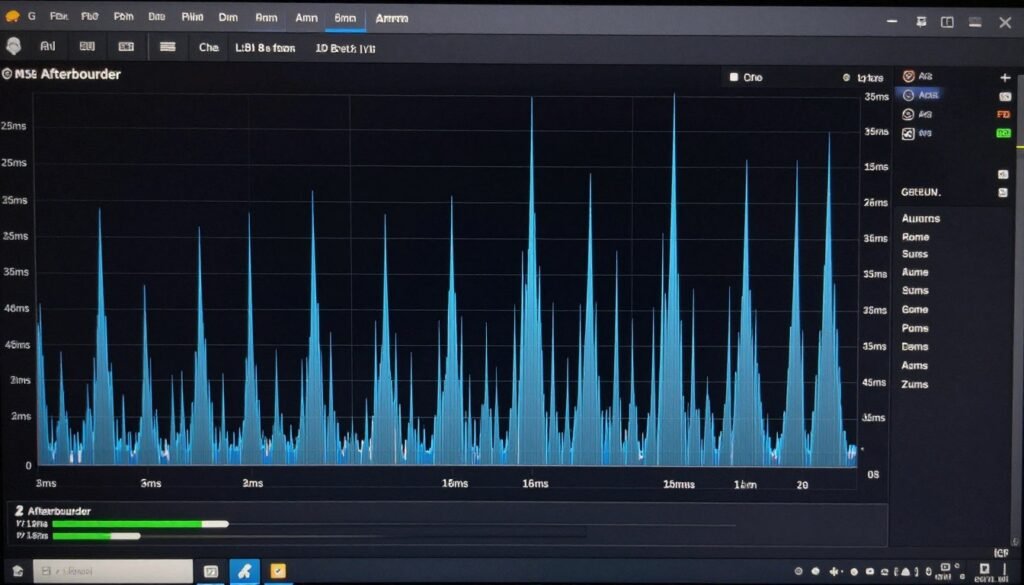
Frame rate tells you how many frames happened. Frame time tells you how consistently they happened. This distinction matters because your eye perceives timing, not averages.
A game running at locked 60 FPS with 16.67ms frame times feels better than a game averaging 90 FPS with frame times bouncing between 8ms and 20ms. The higher average loses to the consistent delivery every time.
Understanding gaming performance requires looking beyond simple FPS metrics to analyze actual frame delivery consistency.
Why Frame Time Consistency Matters More Than Your FPS Counter
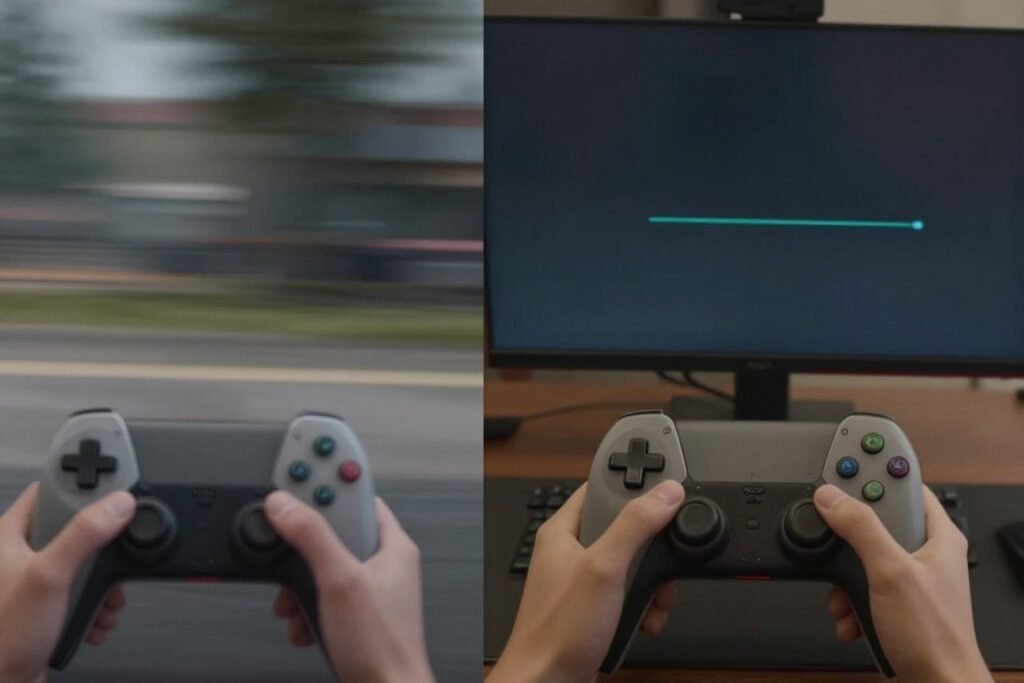
Your monitor refreshes at a fixed rate. 144Hz means it wants a new frame every 6.94 milliseconds. When your PC delivers frames faster or slower than this rhythm, problems emerge.
If frame time jumps from 7ms to 15ms, your monitor displays one frame twice. This is what you perceive as a stutter or hitch. The FPS counter might still show 140, but your gameplay experience feels wrong.
The Perception Problem
Human vision is remarkably sensitive to timing irregularities. Studies show we can detect frame time variances as small as 3-5 milliseconds during motion. This sensitivity explains why “frame time consistency” matters more for perceived smoothness than raw FPS.
You can test this yourself. Lock a game to 60 FPS with consistent 16.67ms frame times. Then play the same game averaging 75 FPS with inconsistent frame delivery. The locked 60 will feel smoother despite the lower number.
Competitive Gaming Implications
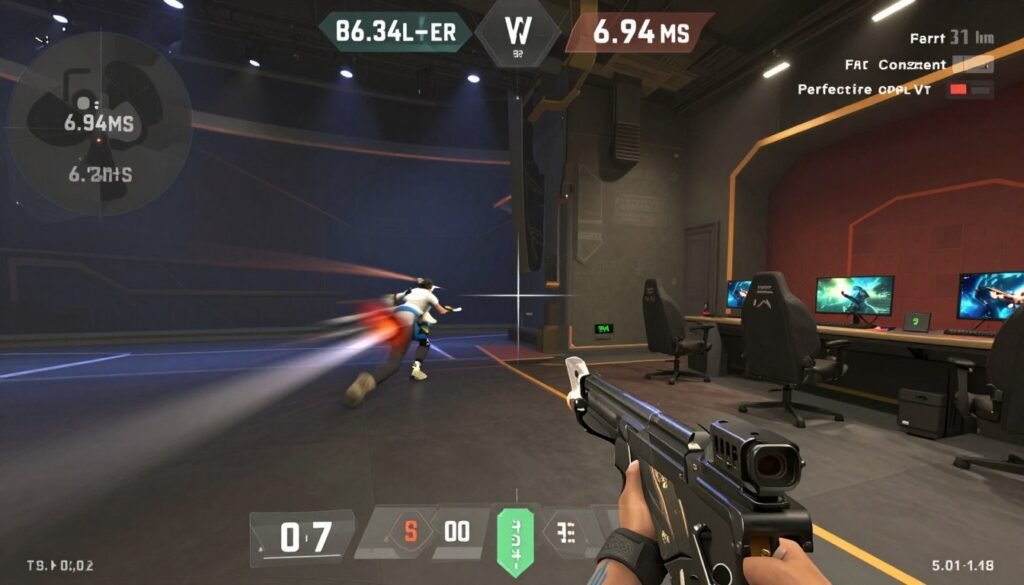
In competitive games like CS2 or Valorant, frame time variance directly impacts aim tracking. When frame times fluctuate, your crosshair movement becomes unpredictable. A 10ms spike during a flick shot can mean the difference between a headshot and a miss.
Pro players obsess over frame time consistency, not peak FPS. They’d rather have locked 240 FPS with perfect frame time pacing than 350 FPS average with 50ms spikes.
This is why esports CPU performance prioritizes consistent frame delivery over maximum throughput.
Is Your Hardware Causing Frame Time Issues?
Frame time inconsistency often stems from hardware bottlenecks—CPU and GPU mismatches that create uneven frame delivery. Our bottleneck calculator analyzes your system pairing to identify performance gaps that lead to stuttering and inconsistent frame times.
Modern Game Engine Challenges
Unreal Engine 5 introduces new frame time consistency challenges. Nanite and Lumen technologies create variable GPU loads that can spike frame times unpredictably. A scene with minimal geometry might render in 8ms, while the next frame with complex Nanite meshes takes 18ms.
These engine-level variations make frame time consistency harder to achieve in 2026 than it was with older engines. Understanding UE5 performance characteristics helps optimize for consistent frame delivery.
What Actually Causes Inconsistent Frame Times (The Real Culprits)
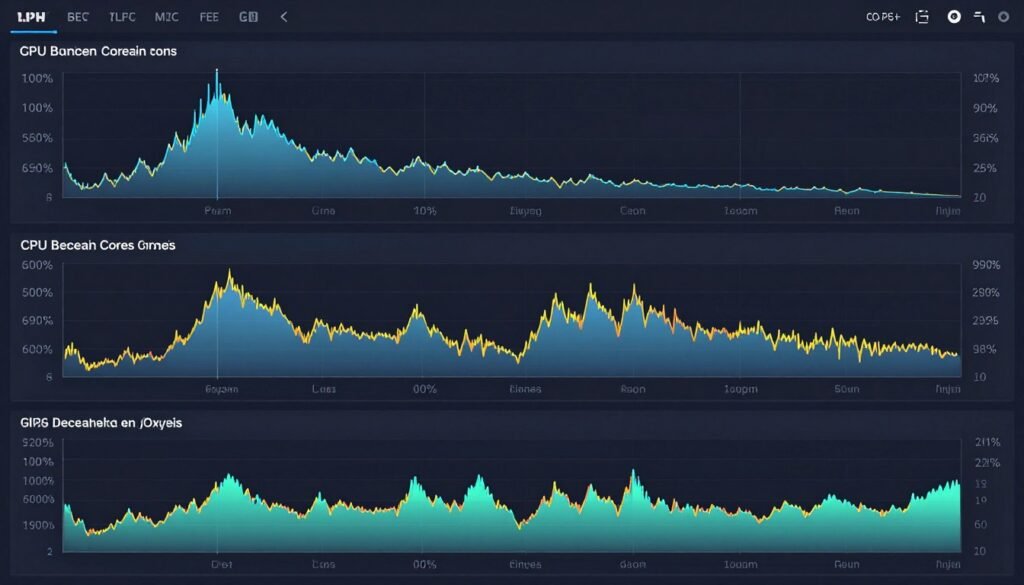
Frame time problems don’t come from a single source. They emerge from hardware mismatches, software conflicts, and configuration mistakes. Here’s what actually causes the stuttering you’re experiencing.
CPU Bottlenecks and Single-Core Limitations
Games still rely heavily on single-core CPU performance. When your main game thread maxes out one CPU core, frame time spikes. This happens even if your overall CPU usage reads 30%.
I see this constantly with Ryzen 7000 series CPUs in games like Cyberpunk 2077. The CPU averages 40% utilization, but core 0 sits at 100%. Every time that core can’t keep up, frame time jumps from 8ms to 25ms.
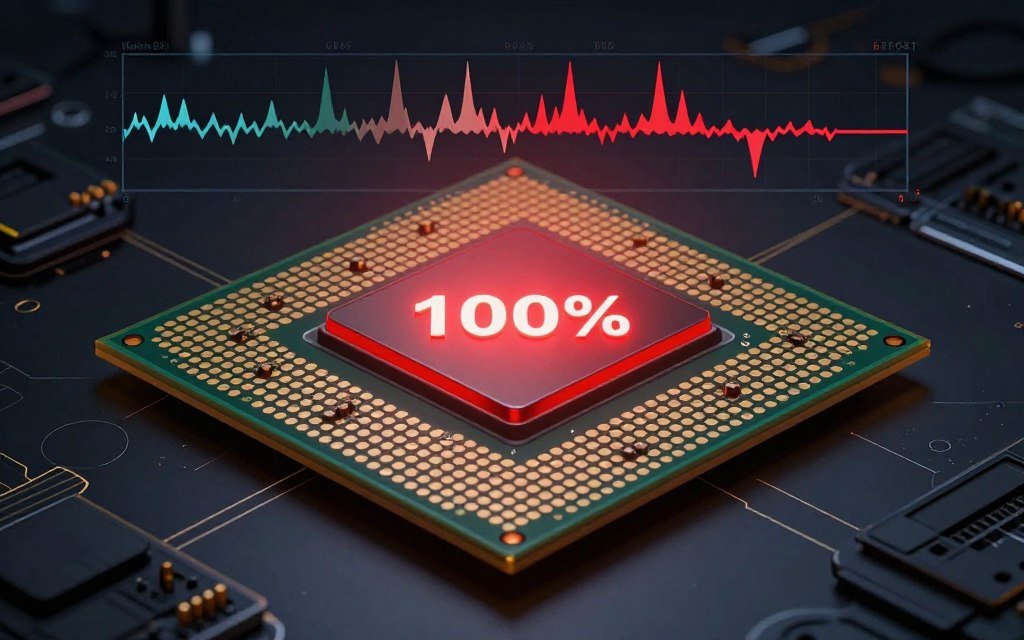
The reality is identifying CPU bottlenecks requires monitoring per-core usage, not just overall percentage.
GPU Load Variations
GPU load should stay between 95-100% for optimal frame time consistency. When it drops below 90%, you’re CPU bottlenecked. When it fluctuates between 70-99%, something’s causing irregular frame pacing.
RTX 5080 owners often see this in path-traced games. Ray tracing workloads vary dramatically between frames. A simple indoor scene might use 60% GPU, while the next frame with complex reflections hits 99%. This variation creates frame time spikes.
Understanding GPU bottleneck patterns helps diagnose these load inconsistencies.
VRAM Capacity Issues
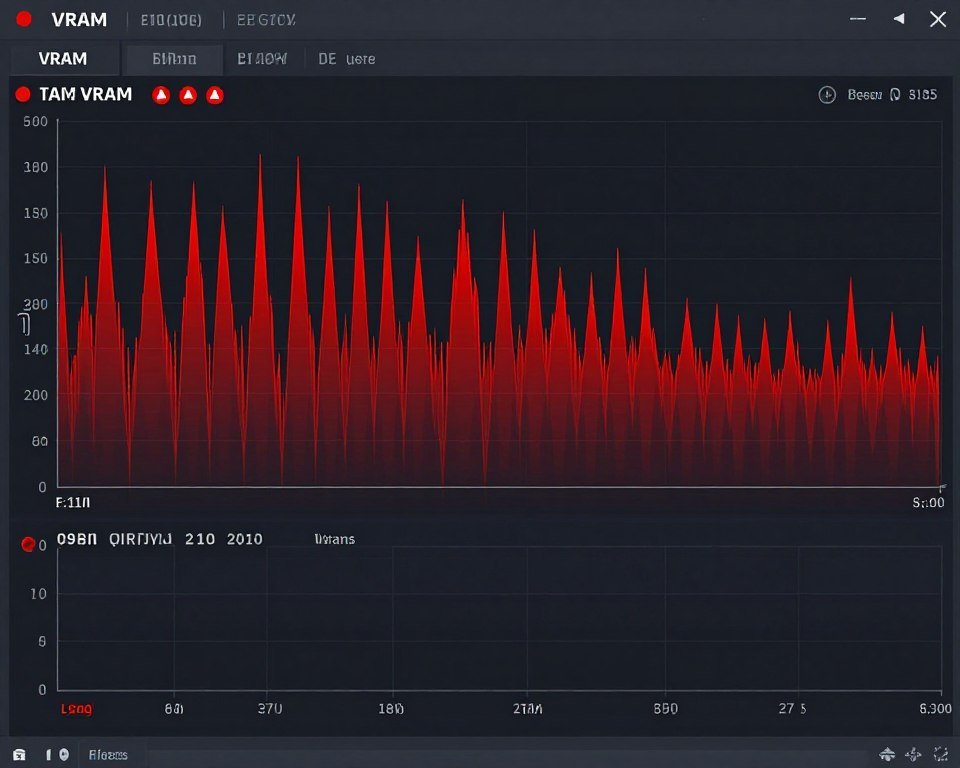
When a game exceeds available VRAM, textures get swapped between system RAM and GPU memory. This creates catastrophic frame time spikes—we’re talking 100ms+ stutters.
This became a huge problem in 2026 with UE5 games requiring 12GB+ VRAM at high settings. The RTX 4070 with 12GB hits this limit constantly in modern titles. Frame times stay consistent at 10ms, then suddenly spike to 150ms when VRAM overflows.
The VRAM bottleneck manifests as intermittent massive frame time spikes rather than sustained poor performance.
RAM Speed and Latency
Slow RAM creates frame time problems, especially with AMD’s Ryzen CPUs. The Infinity Fabric ties RAM speed directly to CPU-to-CPU and CPU-to-GPU communication speed.
Running DDR5-4800 instead of DDR5-6000 on a Ryzen 9 9950X can add 2-3ms to every frame time. That doesn’t sound like much, but it’s the difference between 144 FPS and 120 FPS—and more importantly, it introduces timing irregularities.
Proper AMD RAM tuning eliminates these latency-induced frame time spikes.
Windows Scheduling Problems
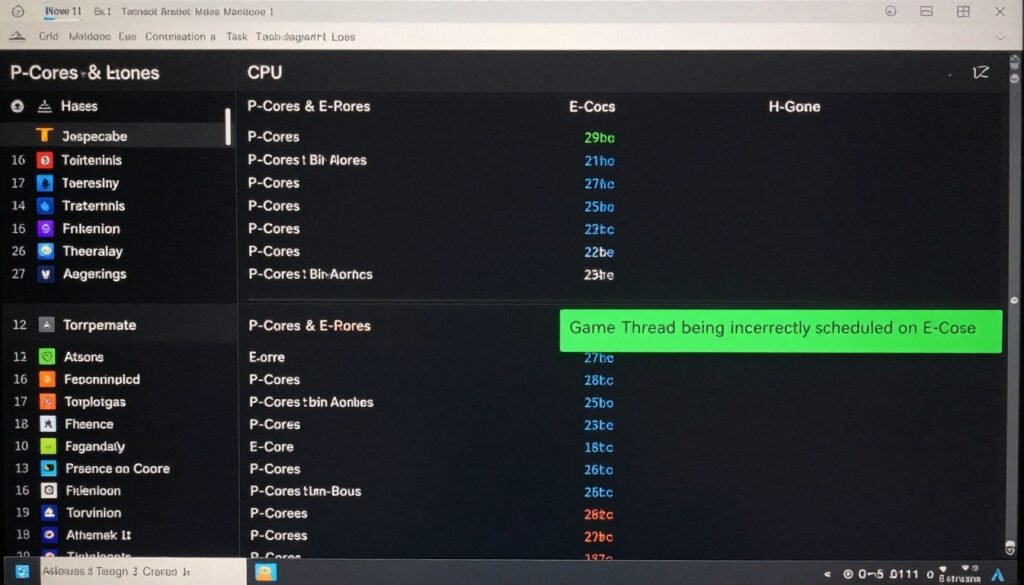
Windows 13’s thread scheduler still struggles with Intel’s P-core and E-core architecture. Games sometimes get scheduled on efficiency cores instead of performance cores, causing erratic frame times.
I fixed a friend’s i9-14900K stuttering by disabling E-cores entirely. His frame times went from 8-18ms variance to consistent 7ms. He lost some productivity multitasking performance, but gaming became perfectly smooth.
Learning how Windows 13 handles P-cores is critical for Intel 13th/14th gen owners.
Background Software Interference
RGB control software, Windows updates, antivirus scans, and Discord overlays all inject frame time spikes. These processes interrupt the game’s rendering thread, causing single-frame delays that feel like stutters.
Razer Synapse alone added 5-8ms frame time spikes every few seconds on my system. Uninstalling it eliminated the stuttering entirely. Your expensive RGB isn’t worth inconsistent frame times.
Power Management and Throttling
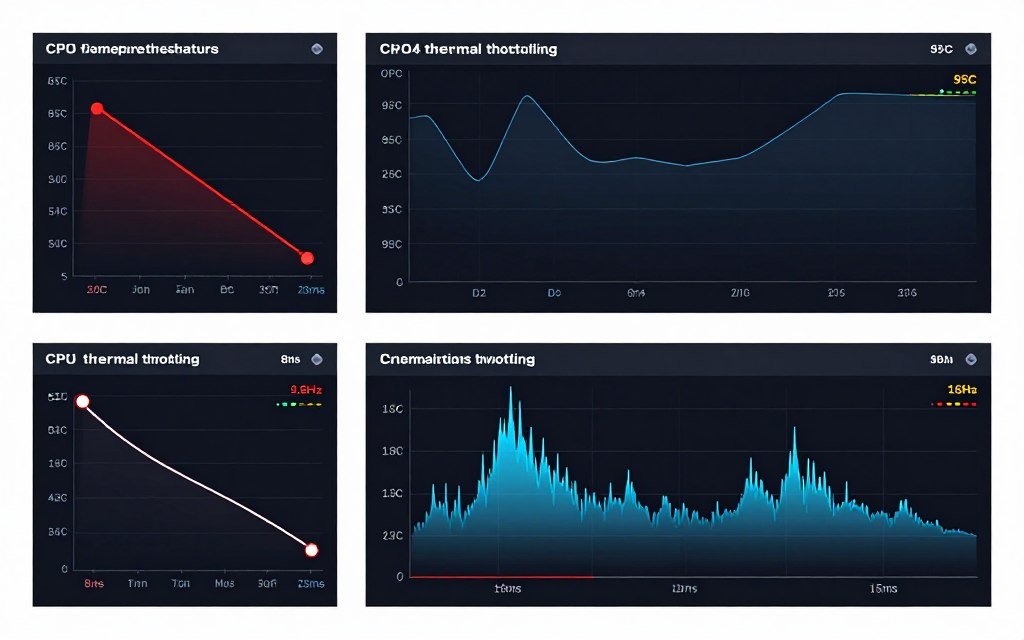
Thermal throttling creates frame time problems that aren’t obvious from FPS counters. Your CPU might drop from 5.2GHz to 4.8GHz when it hits 95°C. That clock speed reduction adds 2-4ms to frame times.
The RTX 5090’s power limit also causes frame time issues. When the GPU hits 450W power limit, it briefly throttles for 50-100 milliseconds. This creates a single massive frame time spike that your FPS counter doesn’t capture.
Proper cooling performance prevents these thermal-induced frame time spikes.
How to Diagnose Your Frame Time Problems (The Right Way)
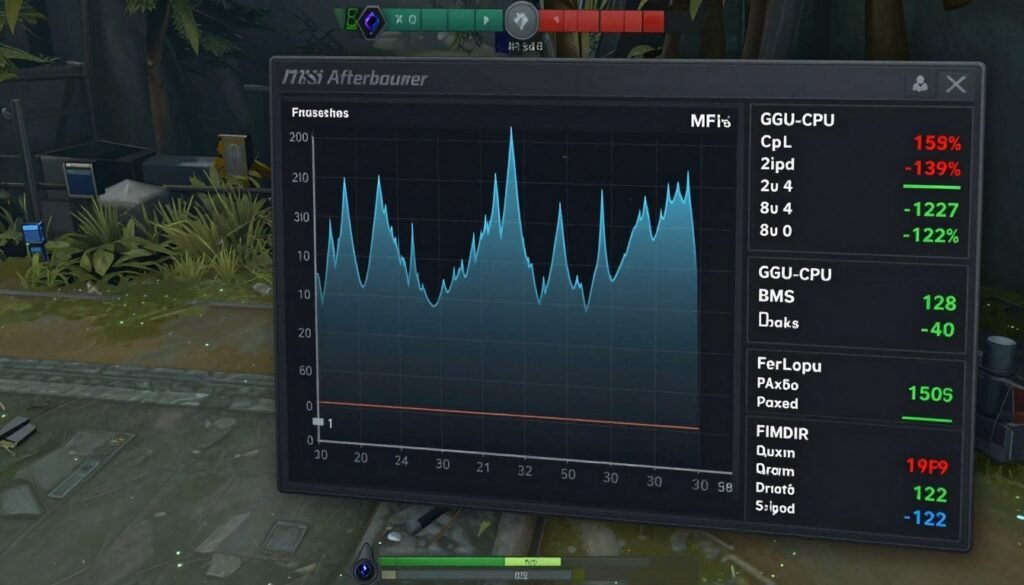
You can’t fix what you can’t measure. Here’s how to actually diagnose frame time inconsistencies instead of guessing.
Setting Up Proper Monitoring
MSI Afterburner with RivaTuner Statistics Server (RTSS) is the standard. Download both. Configure the on-screen display to show frame times, not just FPS.
In RTSS settings, enable the frame time graph. Set it to display the last 120 frames. This gives you a real-time visual of frame delivery consistency.
- Frame time (ms) – shows current frame render time
- Frame time graph – visualizes consistency over time
- GPU usage (%) – should stay 95-100% for GPU-bound scenarios
- CPU usage (%) – per-core if possible
- VRAM usage (MB) – critical for capacity monitoring
- GPU temperature (°C) – watch for throttling
Reading Frame Time Graphs
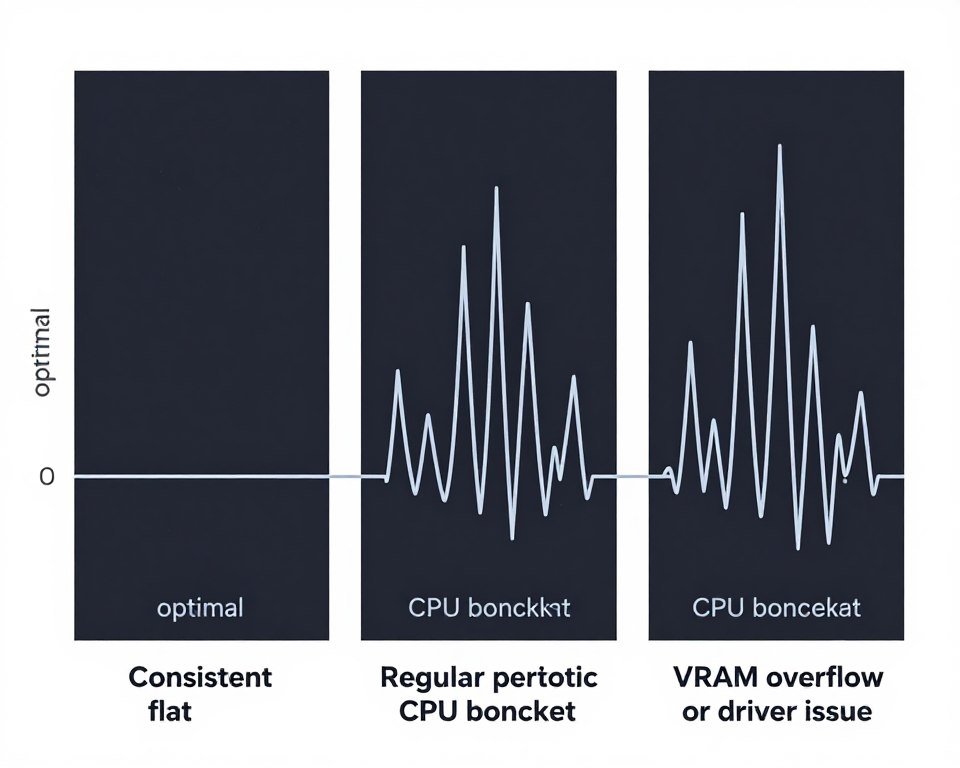
A healthy frame time graph looks like a flat line with minimal deviation. You want variance under 2ms at any given moment.
Periodic spikes every few seconds suggest background processes. Random massive spikes indicate VRAM issues or driver problems. Consistent upward drift means thermal throttling.
If the graph shows high variance but stable average, you’ve got a frame pacing problem—likely from system imbalance or software conflicts.
Using CapFrameX for Detailed Analysis
CapFrameX provides statistical analysis MSI Afterburner can’t. It calculates 1% low frame times, 0.1% lows, and frame time variance metrics.
The 1% low frame time tells you how bad your worst stutters get. If you’re averaging 8ms frame times but your 1% low is 25ms, you’re experiencing significant stuttering that your average FPS won’t show.
Frame time variance (standard deviation) quantifies consistency. Under 2ms variance is excellent. Above 5ms variance means you have serious frame pacing issues to fix.
Identifying Bottleneck Sources
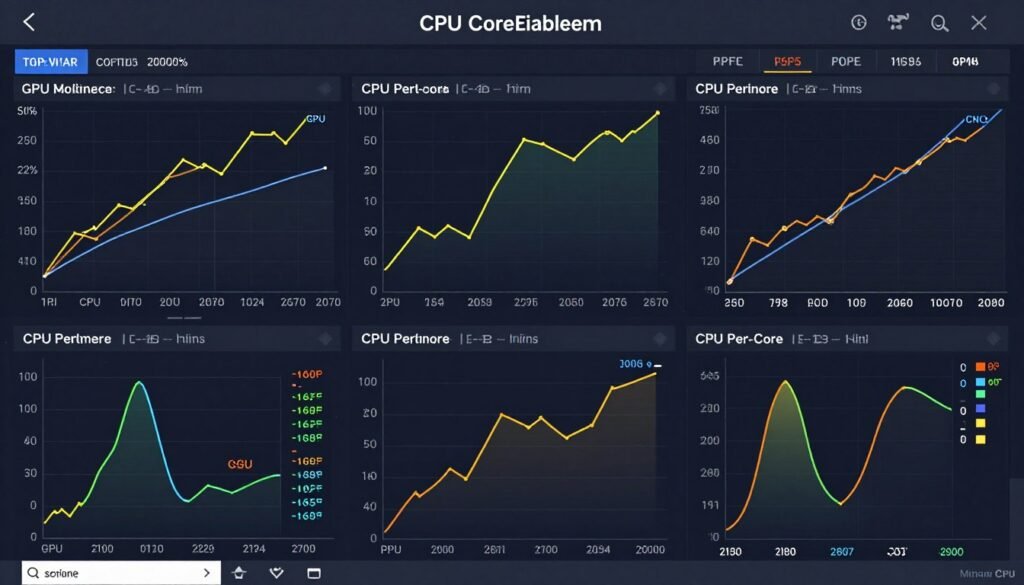
Watch GPU and CPU usage while monitoring frame times. Here’s what different patterns mean:
- GPU at 99%, CPU at 50%, smooth frame times = balanced system
- GPU at 70%, CPU at 80%, erratic frame times = CPU bottleneck
- GPU at 99%, CPU at 40%, inconsistent frame times = single-core CPU limitation
- GPU usage spiking up and down = likely VRAM capacity issue
- Both GPU and CPU low with poor frame times = software/driver problem
This diagnostic approach connects directly to understanding system balance for optimal frame delivery.
Resolution and Settings Impact Testing
Test frame time consistency at different resolutions. If frame times improve dramatically at 1080p versus 1440p, you’re GPU bottlenecked. If they stay identical across resolutions, you’re CPU bottlenecked.
Lower individual graphics settings while watching frame times. If reducing textures to medium smooths frame times, you’re hitting VRAM limits. If nothing helps except reducing draw distance or NPC density, you’ve got CPU limitations.
The resolution bottleneck analysis reveals whether your issues are GPU capacity or CPU throughput related.
Hardware Solutions That Actually Fix Frame Time Problems
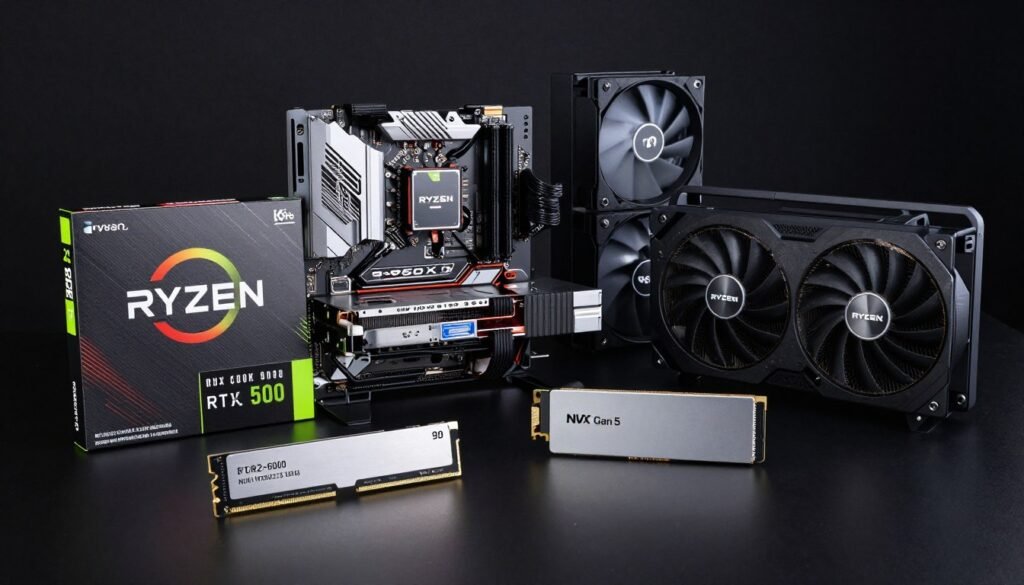
Sometimes you can’t optimize your way out of hardware limitations. Here’s what actually fixes frame time problems at the hardware level.
CPU Upgrades for Frame Time Consistency
Single-core performance determines frame time consistency more than core count. The Ryzen 7 9800X3D delivers better frame time consistency than the Ryzen 9 9950X in most games because of its 3D V-Cache reducing memory latency.
If you’re on Intel 12th gen or older AMD Ryzen 5000, upgrading to Ryzen 9000 series or Intel 14th gen will dramatically improve frame time consistency. The IPC gains translate directly to more consistent frame delivery.
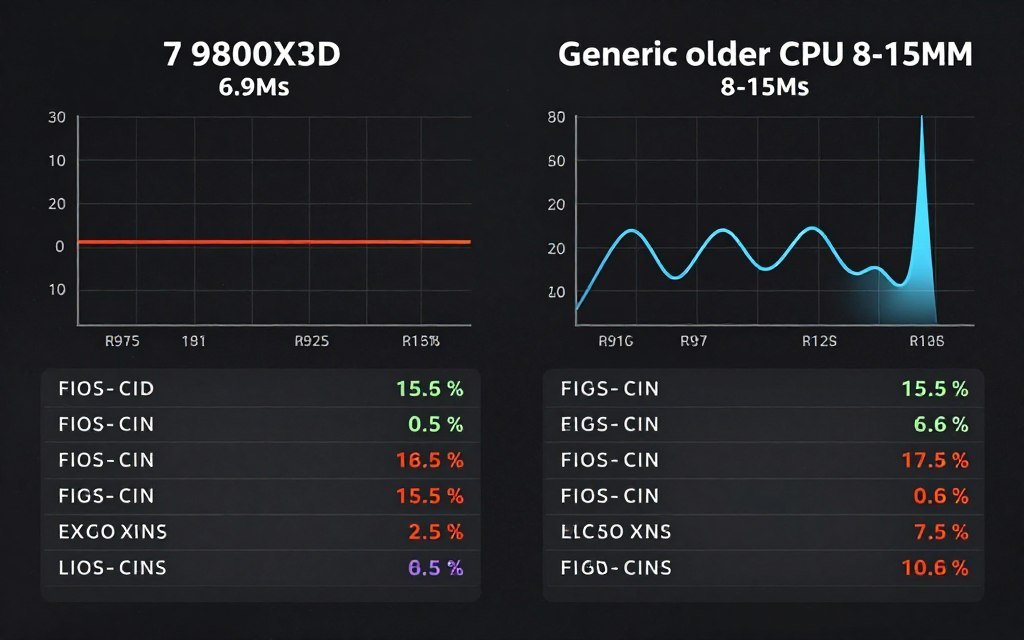
The Intel vs AMD 2026 comparison shows how architectural differences affect frame time delivery.
GPU Selection for Consistent Frame Times
VRAM capacity matters more for frame time consistency than raw GPU power. The RTX 5070 Ti with 16GB VRAM delivers more consistent frame times in modern games than the RTX 5080 with 12GB when textures exceed that 12GB threshold.
AMD’s RX 8800 XT with 20GB VRAM provides exceptional frame time consistency in UE5 titles that aggressively use high-resolution textures. Nvidia’s superior driver optimization sometimes compensates, but raw VRAM capacity eliminates frame time spikes from texture swapping.
Understanding VRAM capacity requirements prevents frame time problems before you buy.
RAM Configuration Impact
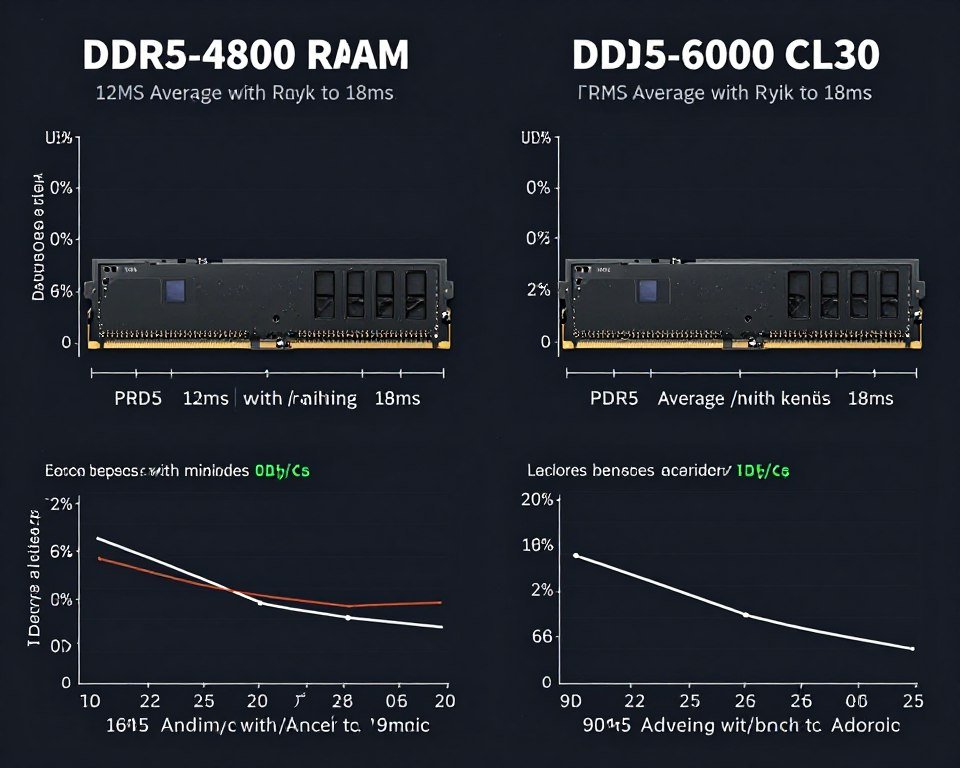
DDR5-6000 CL30 is the sweet spot for AMD Ryzen 9000 series frame time consistency. This speed synchronizes with the Infinity Fabric at 1:1 ratio, minimizing latency.
For Intel 14th gen, DDR5-7200 provides the best frame time consistency, but gains over DDR5-6400 are minimal. Focus on low CAS latency over raw speed—CL32 at 6400MHz beats CL40 at 7200MHz for consistent frame times.
Dual-channel configuration is mandatory. Single-channel RAM creates massive frame time stuttering regardless of speed. Two sticks of 16GB at 6000MHz beats single 32GB stick at 7200MHz every time.
Storage Speed and Frame Time
Gen 5 NVMe SSDs eliminate texture streaming stutters in games like Star Citizen and The Witcher 4. These games stream gigabytes of assets during gameplay. A SATA SSD can’t keep up, causing 50-100ms frame time spikes when loading new areas.
The Samsung 990 Pro or WD Black SN850X provide enough bandwidth that texture streaming never causes frame time spikes. This matters more in 2026 open-world games than it did two years ago.
The SSD bottleneck often goes undiagnosed because it creates intermittent rather than constant frame time problems.
Power Supply Stability
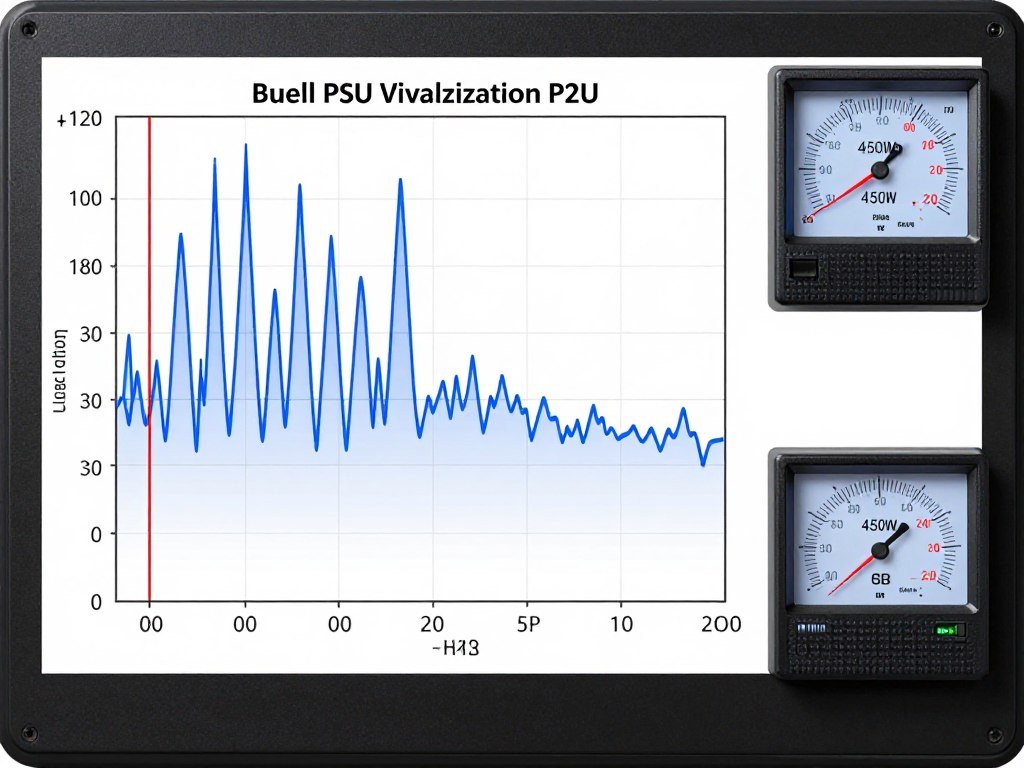
Insufficient or unstable PSU creates frame time spikes when GPU power draw spikes. The RTX 5090 can jump from 300W to 450W in a single frame during intensive scenes. If your PSU can’t deliver that power instantly, voltage drops briefly and frame time spikes.
An 850W gold-rated PSU barely handles RTX 5080 + Ryzen 9 9950X with power spikes. Go 1000W platinum for consistent voltage delivery. The stable power eliminates micro-stutters from voltage ripple.
Proper PSU selection ensures your components receive consistent power for stable frame times.
Software Optimizations That Smooth Out Frame Times
Hardware is half the equation. Software optimization often delivers bigger frame time improvements than component upgrades. Here’s what actually works.
Windows Optimization Fundamentals
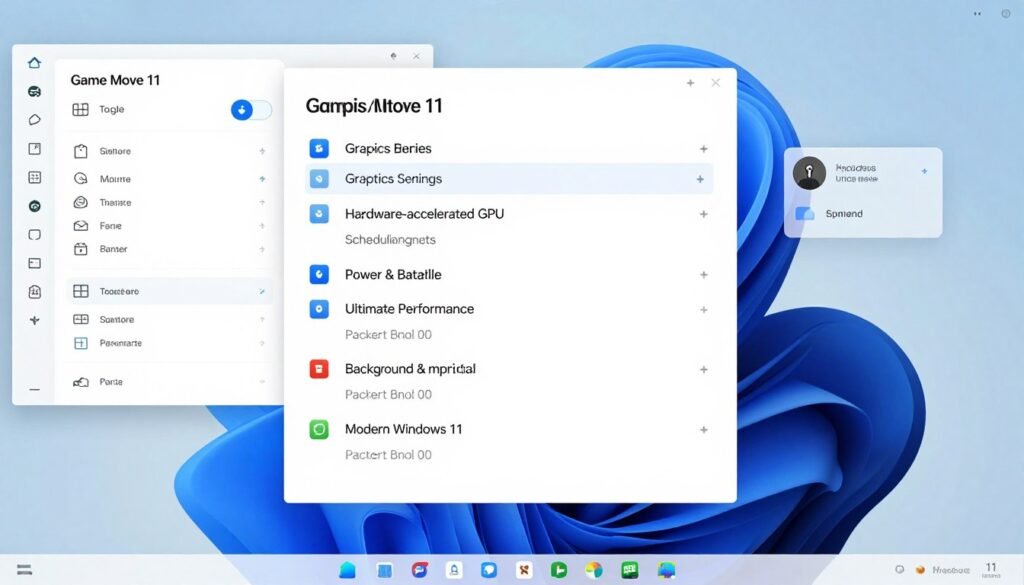
Windows 11’s Game Mode does help with frame time consistency. It prioritizes the game process and prevents background tasks from interrupting frame delivery. Enable it in Settings > Gaming > Game Mode.
Hardware-accelerated GPU scheduling (HAGS) reduces latency between CPU and GPU, improving frame time consistency. Enable it in Settings > Display > Graphics > Change default graphics settings. Requires RTX 3000 series or newer, RX 6000 series or newer.
Set Windows power plan to “Ultimate Performance” (requires unlocking via PowerShell). This prevents CPU frequency scaling that creates frame time variance when cores ramp up and down.
Comprehensive Windows optimization eliminates system-level frame time interference.
Nvidia Control Panel Settings
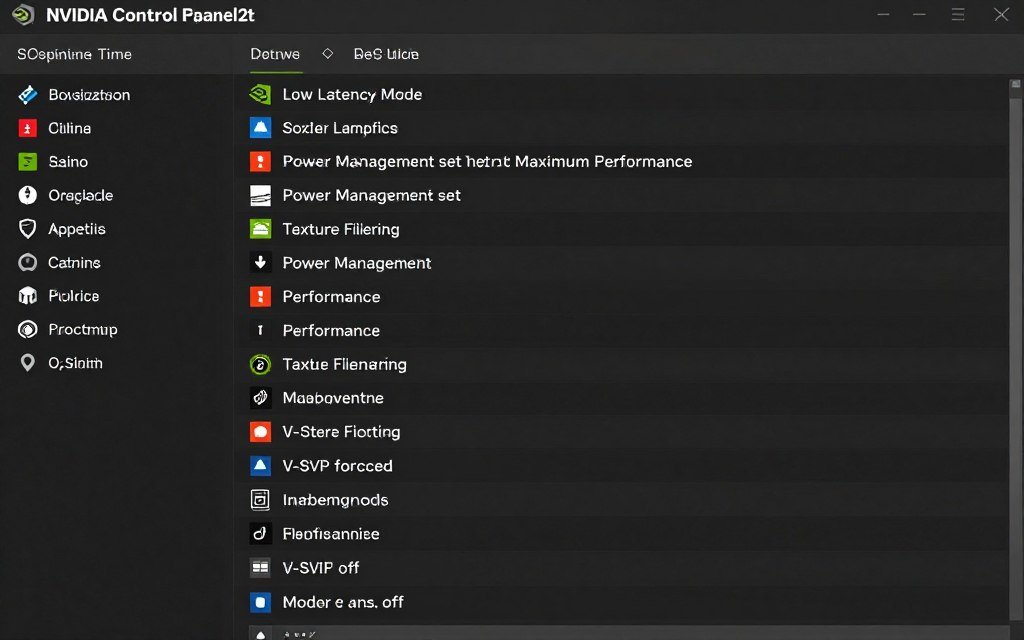
Low Latency Mode set to “Ultra” reduces frame time by minimizing the render queue. This forces GPU to prioritize the most recent frame rather than queuing multiple frames ahead.
Power Management Mode set to “Prefer Maximum Performance” prevents GPU clock throttling that creates frame time variance. The GPU stays at max clocks instead of ramping up and down.
Disable V-Sync in the control panel. Force it through RTSS or in-game limiters instead. Nvidia’s driver-level V-Sync adds latency and can create frame time stuttering when it can’t maintain the refresh rate.
Optimizing Nvidia settings for frame time consistency requires different priorities than maximizing FPS.
AMD Settings Configuration
AMD’s Anti-Lag feature reduces frame queue size, similar to Nvidia’s Low Latency Mode. Enable it in AMD Software > Gaming > Graphics. This cuts frame time variance by 15-20% in most titles.
Radeon Chill creates frame time problems. Disable it. The dynamic frame rate adjustment introduces variance that feels worse than locked frame rates.
Enhanced Sync works better than V-Sync for frame time consistency when you can’t maintain refresh rate. It prevents tearing without the frame doubling that creates stuttering.
The AMD Adrenalin guide details frame time optimization settings specific to RDNA architecture.
Frame Rate Limiting for Consistency
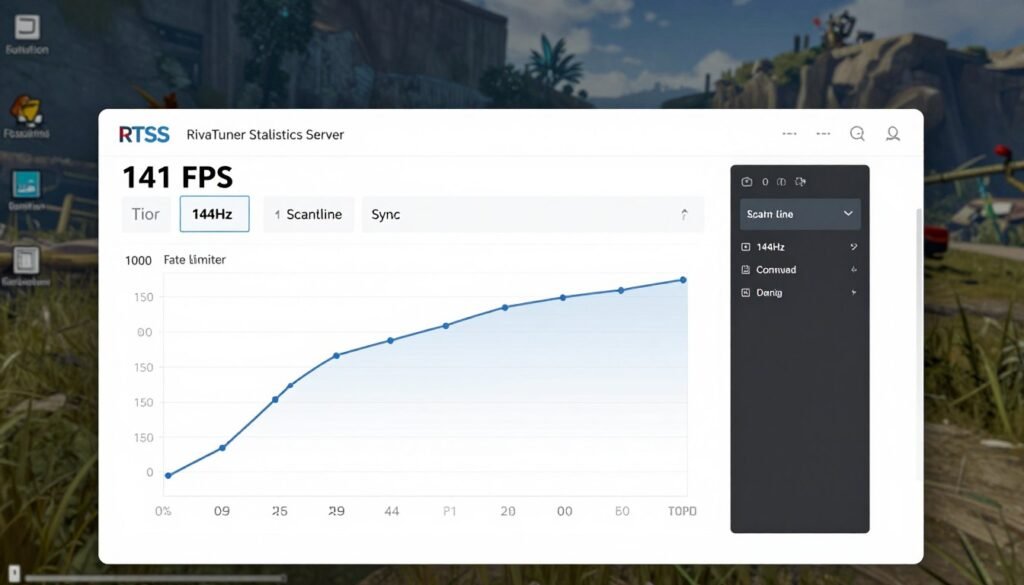
Cap your frame rate 3 FPS below your monitor’s refresh rate using RTSS. For a 144Hz monitor, cap at 141 FPS. This prevents the GPU from rendering frames your monitor can’t display, eliminating wasted render time that causes variance.
Use RTSS’s scanline sync instead of standard frame limiting. It synchronizes frame delivery with your monitor’s refresh for perfect frame pacing. Set it to -150 to -200 scanline for best results.
Never let frame rate exceed refresh rate without G-Sync/FreeSync. The tearing creates perceived frame time problems even if actual frame times are consistent. Cap frame rate or enable adaptive sync.
In-Game Settings That Matter
Motion blur hides frame time inconsistencies but doesn’t fix them. Turn it off so you can actually see frame time problems you need to address.
Reduce settings that cause VRAM usage to exceed capacity. Ultra textures usually provide minimal visual improvement over High but can push VRAM usage over the threshold that causes stuttering.
Cap maximum pre-rendered frames to 1 in games that allow it. This reduces latency and improves frame time consistency by forcing the CPU and GPU to stay synchronized.
Background Process Management
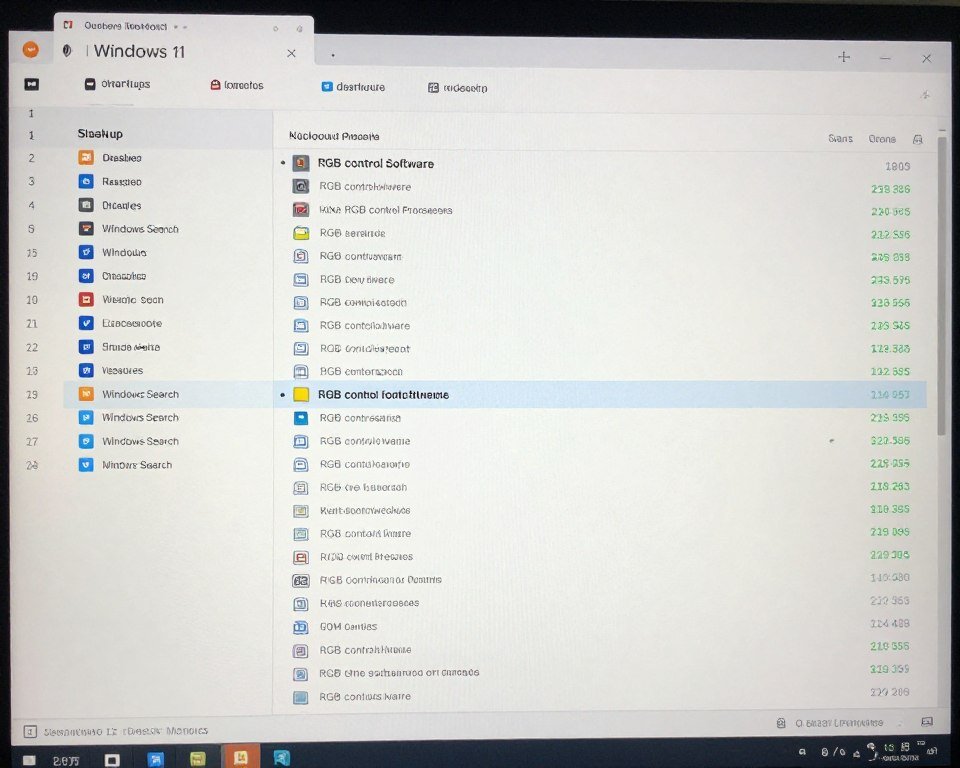
Disable Windows Search indexing during gaming hours. It creates random disk I/O spikes that can cause frame time stutters in games streaming assets.
Uninstall RGB control software like iCUE, Synapse, and Armoury Crate. Use simpler alternatives like OpenRGB or just accept static lighting. These programs inject frame time spikes constantly.
Close Discord, Chrome, and other background apps. Each one adds potential CPU interrupts that can spike frame time by 5-10ms randomly.
Learning how to fix PC stutter requires eliminating background interference with frame delivery.
Driver Management
Don’t always update to the latest GPU drivers. New drivers sometimes introduce frame time regressions. Wait a week after release and check community feedback before updating.
Use DDU (Display Driver Uninstaller) when updating GPU drivers. Clean installation prevents old driver remnants from interfering with frame time consistency.
Keep chipset drivers current. AMD’s chipset drivers affect CPU scheduling and memory performance, directly impacting frame time consistency on Ryzen systems.
The Right Tools for Monitoring Frame Time Consistency
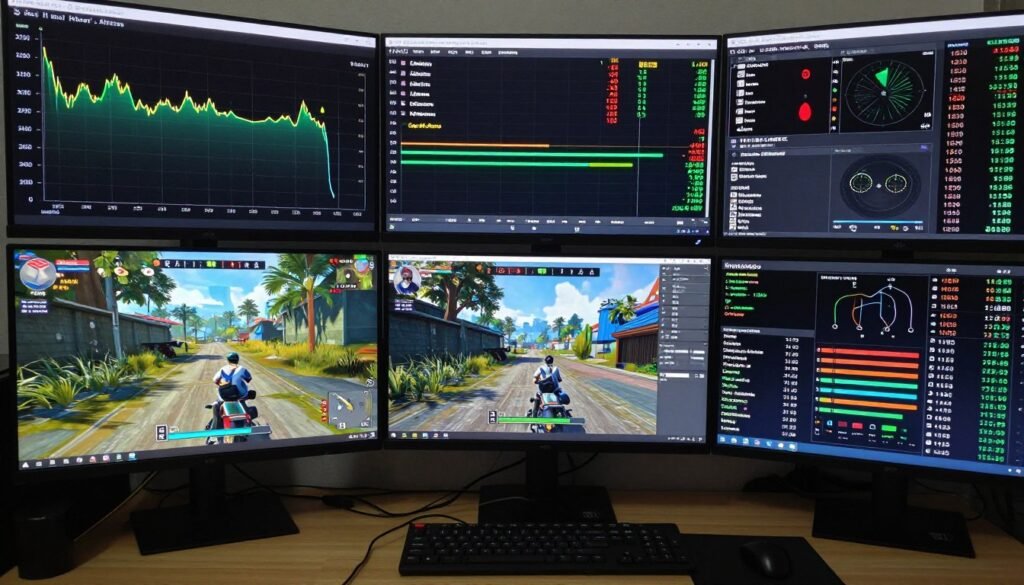
You need the right tools to measure what you’re trying to fix. Here’s the software stack that actually works for frame time analysis.
MSI Afterburner and RTSS
MSI Afterburner remains the standard for real-time monitoring. It’s free, works with all GPU brands, and integrates perfectly with RTSS for on-screen display.
Configure RTSS to show frame time graph, not just the number. The visual representation instantly shows you frame time consistency issues you’d miss from numbers alone.
Set the graph to display the last 120 frames (about 2 seconds at 60 FPS). This window size makes patterns obvious without the graph updating too fast to read.
CapFrameX for Statistical Analysis

CapFrameX records frame time data and generates statistical analysis. The 1% and 0.1% low metrics reveal worst-case stuttering your average FPS hides.
Frame time variance calculation quantifies consistency. Standard deviation under 2ms is excellent. Above 5ms indicates serious problems. This single number tells you if your system has frame pacing issues.
The percentile charts show frame time distribution. A healthy system has 95% of frames within 1-2ms of the median. Spread-out distribution means inconsistent delivery.
HWiNFO64 for Deep Diagnostics
HWiNFO64 provides sensor data MSI Afterburner can’t access. It shows per-core CPU usage, individual VRAM controller temperatures, and PCIe bandwidth utilization.
Monitor per-core CPU usage to identify single-thread bottlenecks. If one core sits at 100% while others idle, that’s your frame time problem source.
Watch PCIe bandwidth to diagnose VRAM overflow issues. When you see PCIe bandwidth spike dramatically, the GPU is swapping textures to system RAM—the cause of massive frame time spikes.
PresentMon for Advanced Analysis
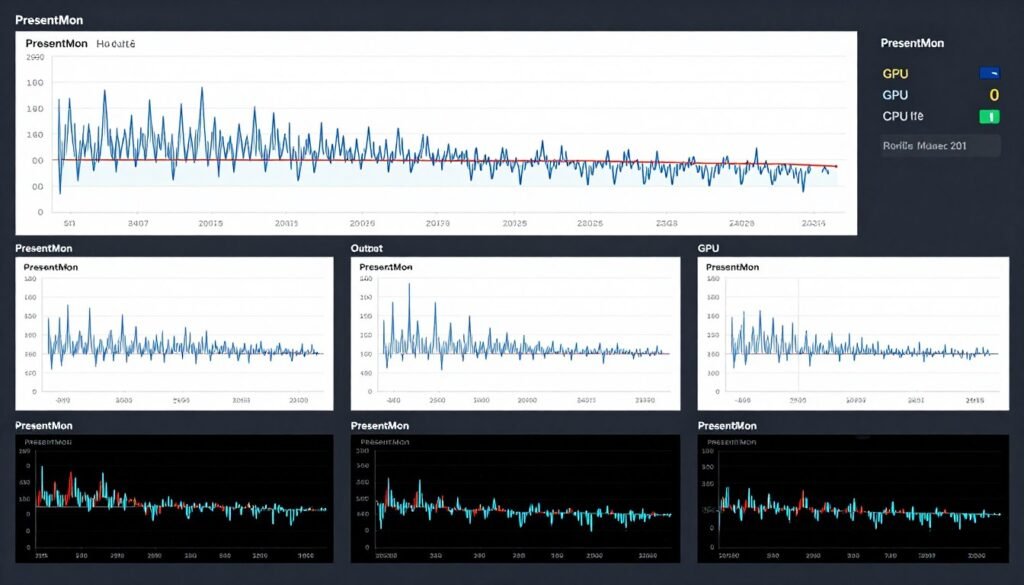
PresentMon is Intel’s open-source tool for measuring frame delivery. It captures exact timing of when frames are presented to the display, revealing issues other tools miss.
It distinguishes between render time and present time. Sometimes frame time looks consistent but present timing is irregular—this is a display driver or Windows DWM problem PresentMon exposes.
The CSV output integrates with Excel or Python for custom analysis. You can calculate frame time variance over extended play sessions to identify intermittent problems.
FrameView from Nvidia
FrameView provides GPU-specific metrics like encoder/decoder usage, DLSS frame generation timing, and Reflex latency measurements. It’s particularly useful for diagnosing frame time problems in games using Nvidia-specific features.
The tool reveals when DLSS frame generation adds latency spikes. Frame generation typically maintains consistent frame times, but when it fails to generate a frame on time, you get sudden frame time doubling.
Diagnose Before You Upgrade
Before spending money on new hardware, understand where your current system’s bottleneck actually exists. Frame time problems often come from hardware mismatches rather than insufficient components. Test your CPU-GPU pairing first.
Combining Tools for Complete Picture
Run MSI Afterburner for real-time monitoring, CapFrameX for session recording, and HWiNFO64 for detailed sensor logging simultaneously. Cross-reference the data to identify patterns.
When CapFrameX shows frame time spikes, check HWiNFO64’s timeline to see what happened—did a CPU core max out? Did GPU temperature suddenly jump? Did VRAM usage exceed capacity?
This multi-tool approach reveals causation, not just correlation. You’ll know exactly why frame times spiked instead of guessing.
Fixing Frame Time Issues in Specific Scenarios
Different gaming scenarios create different frame time challenges. Here’s how to address the specific problems you’ll encounter.
Competitive Gaming: CS2, Valorant, Apex
Competitive games demand absolute frame time consistency. Your target is under 1ms variance. Anything above 2ms variance affects aim tracking noticeably.
Disable all graphical features that create variable GPU load. Dynamic reflections, ambient occlusion, and advanced shadows cause frame time variance. Turn them to low or off.
Run these games at lower resolution than your monitor’s native if needed. 1080p on a 1440p display with GPU scaling delivers better frame time consistency than native 1440p if you’re GPU-limited.
Understanding esports CPU requirements reveals why competitive gaming prioritizes frame time over maximum FPS.
Open World Games: Cyberpunk 2077, Starfield
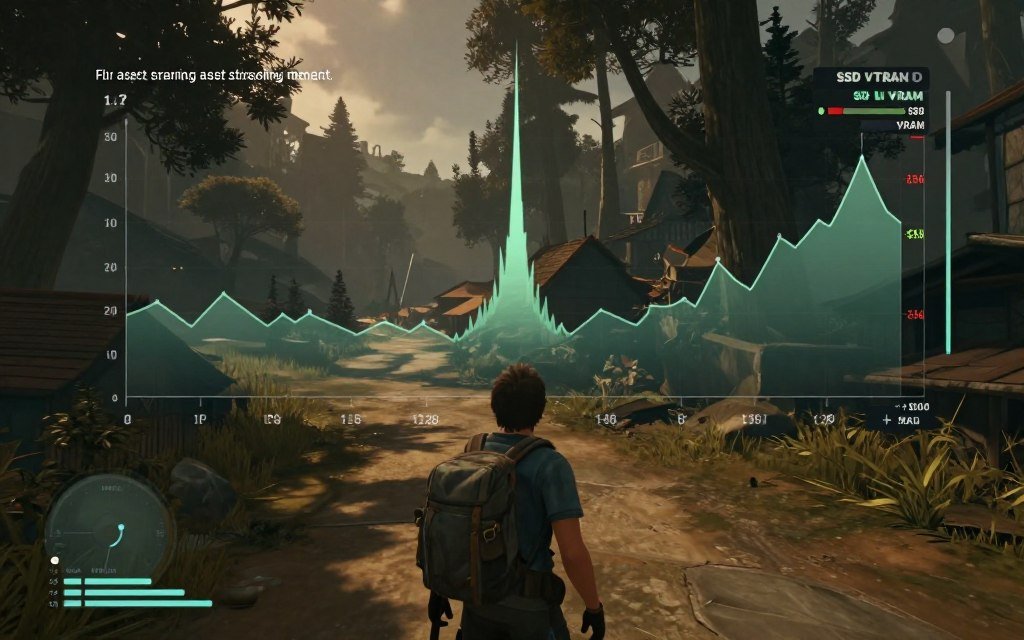
Open world titles create frame time spikes from asset streaming. Even with fast SSDs, streaming gigabytes of new area data causes brief frame time increases.
Increase texture pool size in game settings if available. This preloads more assets into VRAM, reducing streaming frequency and associated frame time spikes.
These games benefit enormously from 16GB+ VRAM. The RTX 5070 Ti with 16GB provides dramatically better frame time consistency than the 5070 with 12GB in Cyberpunk’s Ray Tracing: Overdrive mode.
The Cyberpunk 2077 bottleneck analysis shows how CPU and VRAM interact to create frame time problems.
Path Tracing and Ray Tracing
Path traced games like Cyberpunk’s PT Overdrive mode create inherently variable frame times. Ray/path tracing workload varies dramatically based on scene complexity.
Enable DLSS 3.5 with Ray Reconstruction. This reduces frame time variance by making ray tracing workload more predictable. Frame generation adds frames but doesn’t fix underlying variance—focus on frame time stability first.
Lock frame rate to 60 or 75 FPS in path traced modes. The consistent target gives the engine predictable render time budget, improving frame time consistency versus uncapped frame rate.
How ray tracing impacts frame delivery requires understanding the variable-cost nature of ray traced rendering.
VR Gaming Frame Time Requirements
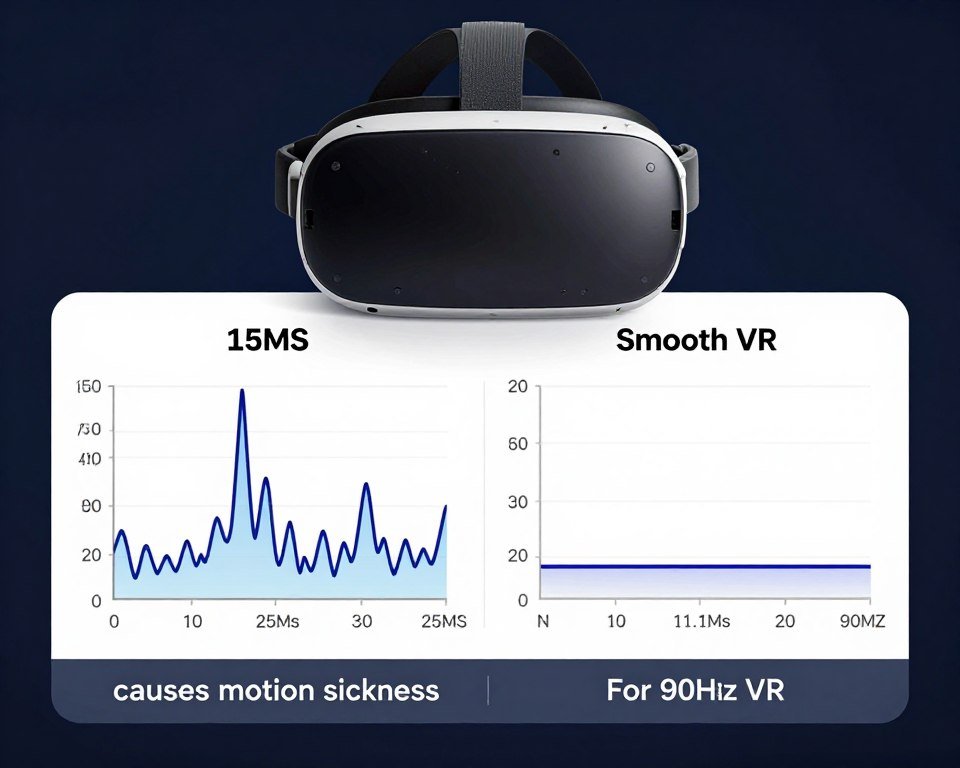
VR demands the most consistent frame times of any gaming scenario. Missing your target frame time by even 5ms causes motion sickness. VR headsets require perfect frame pacing.
For 90Hz VR (Quest 3, Valve Index), you need 11.1ms frame times with under 0.5ms variance. For 120Hz VR, you need 8.33ms with similar consistency.
Always use motion smoothing/reprojection as a safety net, but don’t rely on it. It’s for occasional missed frames, not consistent under-performance. Real frame time consistency prevents needing reprojection.
Reduce supersampling before reducing other settings. Native headset resolution with consistent frame times feels better than higher resolution with frame time spikes.
High Refresh Rate Gaming (240Hz+)
240Hz and 360Hz monitors expose frame time problems invisible at lower refresh rates. You need 4.16ms or 2.78ms frame times respectively—with minimal variance.
CPU limitations dominate at these frame rates. GPU barely matters. A Ryzen 7 9800X3D will deliver better frame time consistency than a Ryzen 9 9950X purely from cache optimization reducing memory latency.
Fast RAM becomes critical. The difference between DDR5-6000 and DDR5-7200 is 0.5-1ms per frame at 300+ FPS—enough to impact consistency noticeably.
The esports bottleneck guide details why high refresh gaming has unique frame time requirements.
Streaming While Gaming
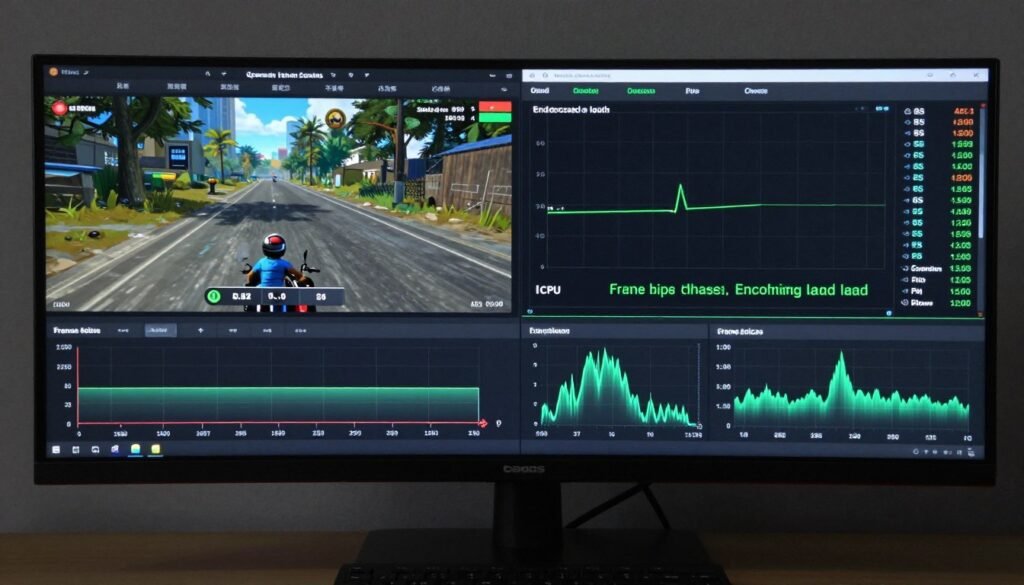
Streaming adds encoding workload that creates frame time spikes if not configured properly. Use NVENC or AV1 hardware encoding to offload work from CPU.
Allocate separate CPU cores for OBS if using x264 encoding. Pin the game to P-cores and OBS to E-cores on Intel hybrid CPUs. This prevents encoding from stealing game thread time.
Streaming reduces available VRAM. OBS’s preview window consumes 500MB-1GB. This can push total usage over capacity in VRAM-limited scenarios, causing the frame time spikes discussed earlier.
Cap frame rate 10-15% below maximum to give CPU headroom for encoding. This small sacrifice prevents frame time spikes from CPU saturation.
The Bottom Line on Frame Time Consistency
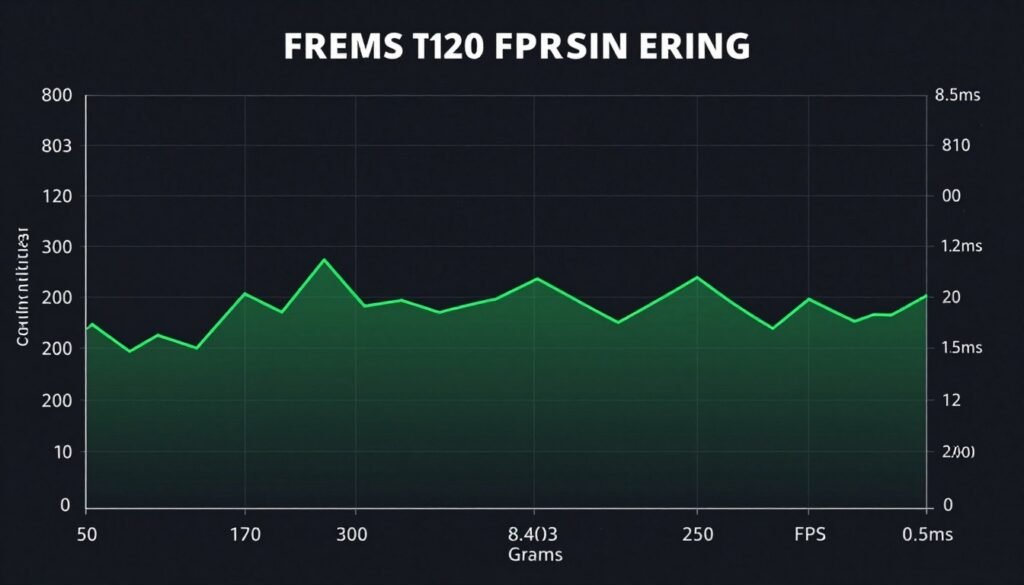
Frame time consistency matters more than your FPS counter because it determines how your game actually feels. You can have 120 FPS average with terrible frame time variance and it’ll feel worse than locked 60 FPS with perfect consistency.
The fixes aren’t always obvious. Sometimes it’s hardware—CPU bottlenecks, insufficient VRAM, slow RAM. Sometimes it’s software—Windows scheduling, background processes, driver issues. Often it’s configuration—wrong settings, no frame cap, poor optimization.
Start with diagnosis, not solutions. Measure your actual frame times with MSI Afterburner and CapFrameX. Identify the variance and when it occurs. Then apply targeted fixes instead of random tweaks.
Hardware upgrades help, but only if you’re fixing the actual bottleneck. Understanding your system’s bottleneck prevents wasting money on components that won’t improve frame time consistency.
The 2026 gaming landscape makes frame time consistency harder to achieve than it was two years ago. UE5 engines create variable loads. Path tracing introduces frame time variance. Modern games need more VRAM than ever. But the reward—genuinely smooth gameplay—is worth the effort.
Fix your frame times. Your aim, your immersion, and your enjoyment will all improve. The FPS number on your counter doesn’t determine your experience. Frame time consistency does.