
You’re in the final round. The enemy peeks around the corner. You click. They click. You’re dead. Again.
Your crosshair was on target. Your reaction was fast. But somehow, your shot registered 20 milliseconds too late.
This isn’t about skill. It’s about esports bottleneck – the hidden performance killer that’s costing you matches. I’ve built over 200 competitive gaming rigs, and I can tell you that most players are fighting their hardware, not just their opponents.
Three years ago, I lost a local tournament because my CPU was bottlenecking my system during crucial moments. The frame times were inconsistent. My inputs felt mushy. I had a $600 graphics card paired with a budget CPU, thinking the GPU was all that mattered for gaming.
I was wrong.
This guide breaks down exactly how bottlenecks create input lag in competitive gaming. You’ll learn which component is actually holding you back, how to identify the real problem, and what fixes actually work. No marketing nonsense. Just practical fixes from someone who’s been in your shoes.
By the end, you’ll know whether you need a hardware upgrade or if simple optimization will get you those extra frames. Let’s dig into what’s really causing that lag.
What Input Lag Actually Means for Esports
Input lag is the delay between your action and what happens on screen. You click your mouse, but your character shoots 30 milliseconds later. In games like Valorant or CS2, that’s the difference between winning and losing.
Most people confuse input lag with network latency. They’re different animals. Network latency is your ping – how long data takes to reach the game server and back. Input lag happens locally, on your PC, before any data even leaves your system.

Here’s what happens when you click: your mouse sends a signal to your motherboard. Your CPU processes that input. It tells your GPU to render the action. Your graphics card sends the frame to your monitor. Your display shows the result.
Every step adds delay. When one component can’t keep up, that’s a bottleneck. The entire chain slows down to match the slowest part. Think of it like a water pipe – if one section is narrower, less water flows through the whole system.
In competitive gaming, we measure this in frame times and input latency. A stable 240 FPS means each frame takes about 4.2 milliseconds to render. But if your CPU is bottlenecking, those frame times become inconsistent. One frame takes 4ms, the next takes 15ms, then 6ms. That inconsistency is what makes your aim feel off.
Not Sure Where Your Bottleneck Is?
I always check system balance before recommending upgrades. Run a quick analysis to see if your CPU, GPU, or another component is holding back your competitive performance. Takes 30 seconds, no signup required.
The reality is that esports bottleneck issues aren’t always obvious. Your FPS counter might show 200+ frames, but if those frames aren’t spaced evenly, your inputs will feel delayed. This is why pro players obsess over frame time graphs, not just average FPS.
CPU Bottleneck: The Usual Suspect in Competitive Games
Your processor is the brain of your gaming PC. In esports titles, it’s doing way more work than you think. Every player position, every bullet trajectory, every piece of network data – your CPU handles all of it before your GPU even starts rendering.
A cpu bottleneck happens when your processor can’t feed your graphics card fast enough. Your GPU sits there waiting for instructions while your CPU struggles to keep up. The result? Inconsistent frame times and input lag that’ll get you killed in clutch situations.
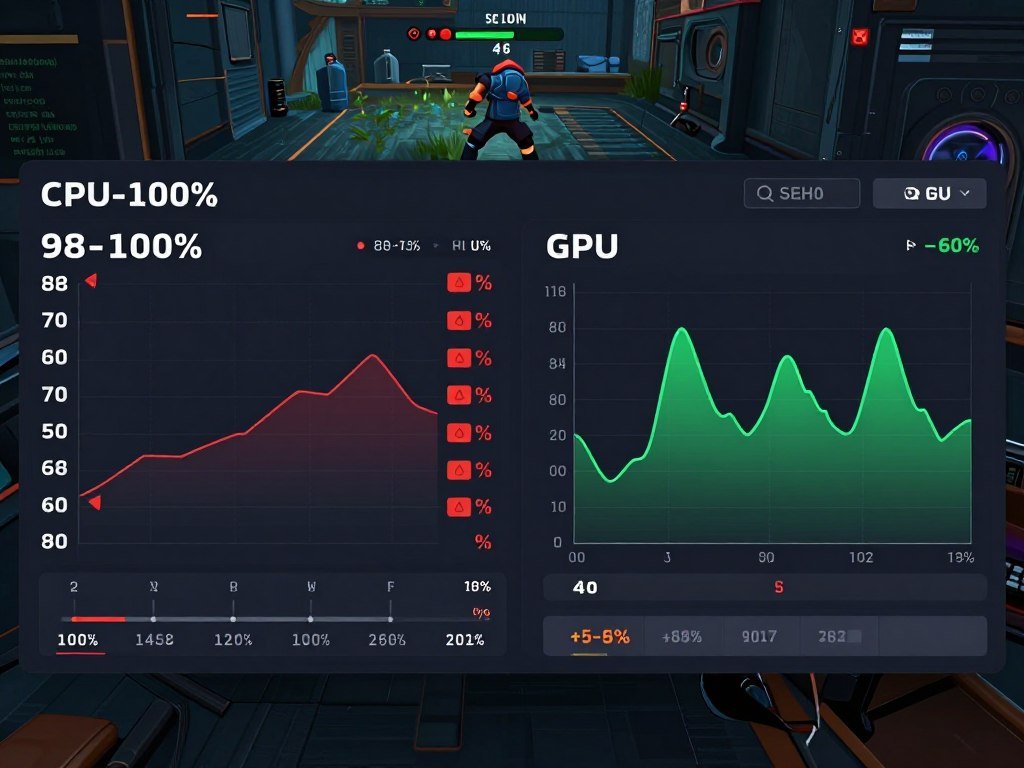
Here’s how to spot a cpu bottleneck in competitive titles: Open your task manager while playing. If your CPU usage is near 100% but your gpu usage sits around 50-70%, you’ve found your problem. Your processor is maxed out while your graphics card is barely breaking a sweat.
Modern games like Valorant and CS2 are heavily CPU-dependent. They need fast single-core performance to handle game logic and physics calculations. A slow CPU creates a chain reaction – it can’t prepare frames quickly enough, so your GPU waits. Those waiting periods create the stutters you feel during intense firefights.
Why Esports Games Love Fast CPUs
Competitive shooters process hundreds of calculations per second. Player positions update at 128 tick rates. Bullet trajectories need physics calculations. Network packets arrive constantly and need immediate processing.
Your CPU does all this before telling your GPU what to draw. A slow processor means delayed reactions, even if your graphics card could handle 500 FPS.
The Single-Core Speed Problem
Most esports engines don’t fully use all CPU cores. Valorant might use 4-6 cores effectively, but the main game thread runs on a single core. If that core is slow, nothing else matters.
This is why a Ryzen 9800X3D crushes older 16-core processors in competitive gaming. Clock speed and cache matter more than core count for these titles.
Want to see this in action? Drop your graphics settings to low in CS2 and check your FPS. If your frame rate barely changes from ultra to low settings, your cpu is the limiting factor. The gpu has extra capacity, but your processor can’t take advantage of it.
I’ve seen players with RTX 5090s getting worse input lag than someone with an RTX 4060 simply because their CPU was three generations old. The bottleneck wasn’t the GPU – it was the outdated processor creating frame time inconsistencies.
The fix isn’t always expensive. Sometimes, enabling Resizable BAR or optimizing Windows settings can reduce CPU overhead. But if you’re running a 6-core CPU from 2018, that might be your real bottleneck.
GPU Bottleneck: When Your Graphics Card Can’t Keep Up
A gpu bottleneck is the opposite problem. Your CPU is ready to send frame data, but your graphics card can’t render fast enough. This is less common in competitive esports titles, but it happens – especially at higher resolutions or with demanding visual effects enabled.
The telltale sign? Your GPU usage hits 95-100% while your CPU sits at 40-60%. Your processor is waiting for your graphics card to finish rendering before it can process the next frame. That waiting period adds input lag.
Modern competitive games usually aren’t GPU-heavy if you’re playing at 1080p with competitive settings. But crank that resolution to 1440p or 4K, and suddenly your graphics card becomes the weakest link. More pixels mean more work for your GPU, and that work takes time.
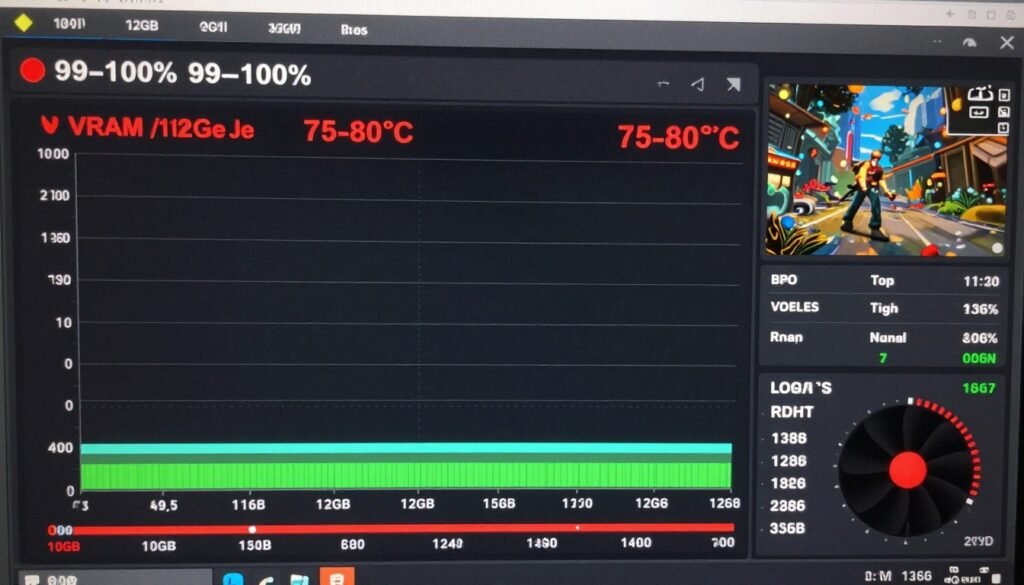
Here’s where it gets tricky: VRAM bottlenecks. Your graphics card has its own memory for storing textures and game assets. If a game needs 10GB of VRAM but your card only has 8GB, the GPU constantly swaps data with your system RAM. That swapping creates massive stutters and input lag spikes.
I once helped a player who swore his new RTX 5070 was slower than his old GTX 1080. Turned out he was using a cheap HDMI cable that maxed out at 120Hz. His monitor could do 240Hz, but the cable created an artificial bottleneck. Switched to DisplayPort, problem solved.
The weird thing about gpu bottleneck in esports? It’s actually the “good” kind of bottleneck. If your GPU is the limiting factor, your frame times stay consistent. You might get lower FPS, but those frames arrive evenly spaced. That consistency matters more for input feel than raw frame count.
Want to maximize your current GPU? Start with optimized driver settings. Nvidia and AMD both have competitive gaming profiles that prioritize latency over visual quality. These tweaks can buy you 10-20% better frame times without spending a dollar.
The Parts Nobody Talks About: RAM and Storage
Everyone obsesses over CPU and GPU, but your RAM and storage can create serious bottlenecks too. These are the stealth performance killers that most guides ignore. I’ve fixed input lag issues by upgrading RAM more times than I can count.
Your RAM is temporary storage for active game data. When you’re playing, your system keeps player positions, map data, and recent actions in memory for instant access. If you don’t have enough RAM, your PC starts using your SSD as overflow storage. That’s called paging, and it’s brutally slow compared to real memory.

Minimum RAM for competitive gaming in 2026? 16GB. But here’s the reality – if you’re running Discord, Spotify, a web browser, and your game simultaneously, you’re pushing that limit. One background Windows update can trigger paging and tank your frame times mid-match.
RAM speed matters too, especially for AMD Ryzen CPUs. Faster memory means your processor can access data quicker. The difference between DDR4-2666 and DDR4-3600 can be 10-15% more FPS in CPU-heavy games. That’s free performance sitting on the table.
RAM Bottleneck Signs
- Stuttering when alt-tabbing between applications
- Sudden FPS drops during intense fights with many players
- System feels sluggish with multiple programs open
- Texture pop-in or delayed asset loading
- Windows shows high memory usage in Task Manager
Storage Bottleneck Signs
- Long loading times entering matches or new areas
- Stuttering when new map sections load
- Hitching during shader compilation
- Slow game startup and level transitions
- Frame drops when streaming or recording gameplay
Your storage drive creates bottlenecks differently. A slow hard drive or cheap SATA SSD can cause stuttering when the game loads new assets. Modern titles stream textures and map data constantly during gameplay. If your drive can’t feed that data fast enough, you get hitching.
The best way to check for RAM issues? Open Task Manager while gaming and check your memory usage. If you’re consistently above 90%, you’re hitting the limit. Your system is already paging to disk, and that’s killing your performance.
I built a rig for a Valorant player last month. He had a Ryzen 9800X3D and RTX 5080 but complained about stuttering. Turned out he was running 16GB of slow DDR5-4800 RAM. Upgraded to 32GB DDR5-6000, and his 1% low FPS jumped by 40%. The high-end components were bottlenecked by budget memory.
Storage is easier to fix. Any modern NVMe SSD will handle gaming fine. The difference between a $80 Gen3 drive and a $200 Gen5 drive? Negligible for game performance. Save your money. Just avoid old SATA SSDs or hard drives for your game installation.
Want to optimize what you have? Close unnecessary background applications before gaming. Disable Windows visual effects. Use Windows Game Mode to prioritize your game. These tweaks free up RAM and reduce system overhead, which directly improves input latency.
System Balance: Why Matching Components Matters
Here’s the truth most build guides won’t tell you: there’s no such thing as a perfect PC without any bottleneck. Something is always the limiting factor. The goal isn’t eliminating bottlenecks – it’s balancing your system so the bottleneck doesn’t hurt your performance.
A balanced build means your components match each other’s capabilities. Pairing a $600 GPU with a $150 CPU is asking for trouble. One part will significantly outpace the other, creating a bottleneck that wastes your money and kills gaming performance.
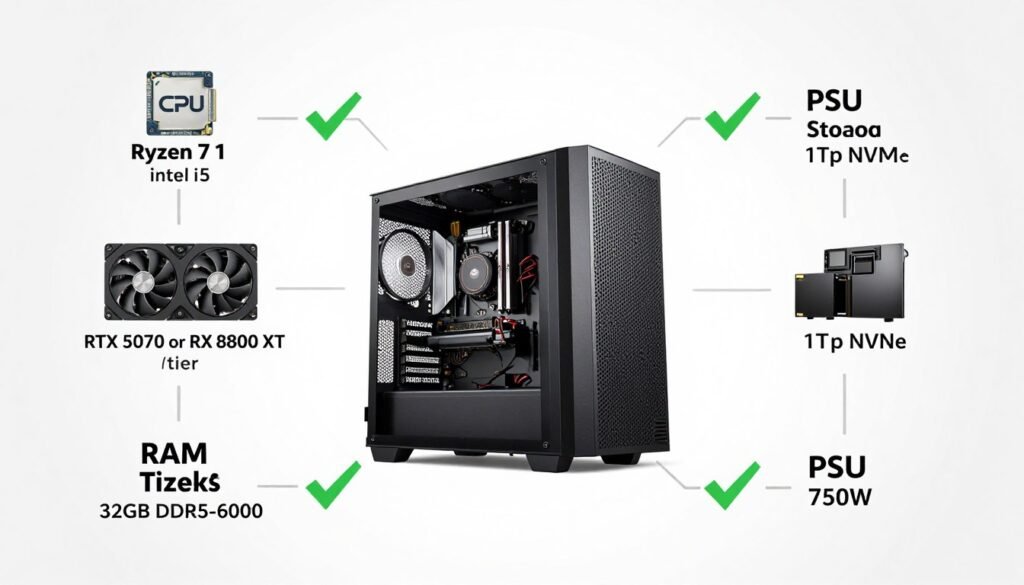
Think of it like a relay race. If one runner is significantly slower than the others, the whole team’s time suffers. In your PC, if your CPU can process 300 FPS worth of game logic but your GPU can only render 120 FPS, you’re leaving performance on the table.
The resolution you play at changes which component becomes the bottleneck. At 1080p, competitive games are almost always CPU-limited. Your processor is working hard while your GPU coasts. Bump up to 1440p or 4K, and suddenly your graphics card becomes the limiting factor.
Find Your Ideal System Balance
Before you upgrade anything, see where your current components stand. Our calculator shows you which parts match well together and where you’re losing performance. This is the same tool I use for client builds.
- CPU and GPU from similar price tiers
- Fast RAM (32GB DDR5-6000 or better)
- NVMe SSD for game installation
- Quality PSU with sufficient wattage
- Cooling that prevents throttling
- Monitor refresh rate your GPU can actually drive
Balanced Esports Build
- $700 GPU paired with 6-core budget CPU
- High-end CPU with entry-level GPU
- 16GB slow RAM in otherwise expensive system
- Games installed on mechanical hard drive
- Inadequate cooling causing thermal throttling
- 360Hz monitor with hardware that delivers 120 FPS
Unbalanced Problem Builds
I see this mistake constantly: players upgrade their GPU from an RTX 4060 to RTX 5080 but keep their old Ryzen 5600. They expect massive FPS gains in Valorant. Instead, they see maybe 10% improvement because their CPU was already the bottleneck. They just upgraded the wrong part.
The reality is that system balance changes based on your priorities. Playing at 1080p 500 FPS? Invest heavily in CPU. Playing at 4K 120 FPS? Your GPU matters more. Streaming while gaming? You need strong single-core CPU performance AND enough cores for encoding.
Want to learn more about matching components effectively? Check out our guides on system balance and CPU core scaling. Understanding these concepts prevents expensive upgrade mistakes.
Practical Fixes That Actually Work
Enough theory. Let’s talk about real fixes you can implement today. Some cost nothing. Others require strategic upgrades. All of them will improve your competitive gaming input lag if you’re currently dealing with bottleneck issues.
Free Software Optimizations
Start here before spending money. These tweaks reduce system overhead and free up resources for your game. I do this on every build I deliver, and it makes a measurable difference.
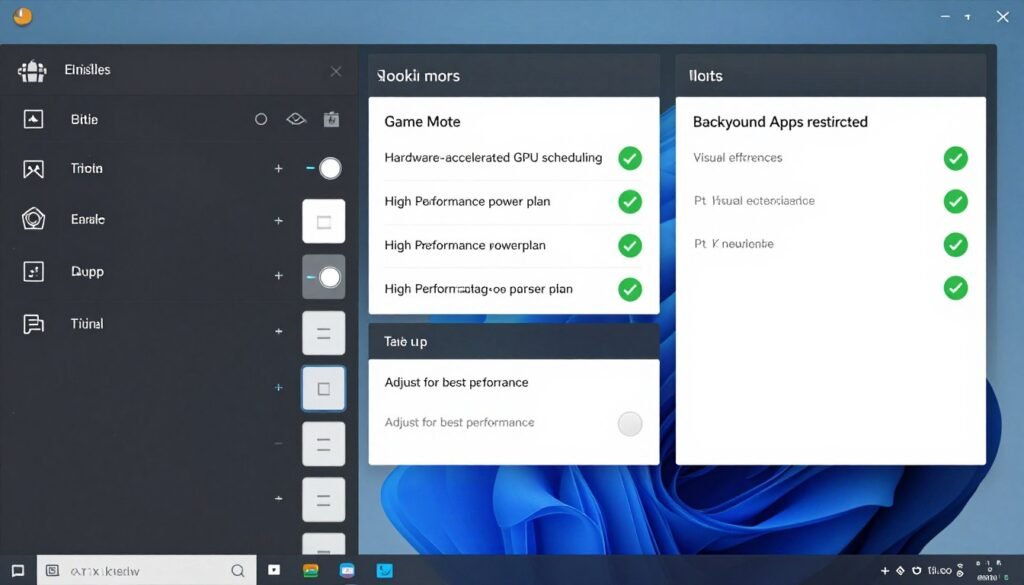
- Enable Windows Game Mode and Hardware-Accelerated GPU Scheduling in Windows settings
- Set your power plan to High Performance or Ultimate Performance in Control Panel
- Disable unnecessary startup programs in Task Manager to free up RAM and CPU resources
- Update your GPU drivers and use manufacturer optimization tools like Nvidia Control Panel or AMD Adrenalin
- Close background applications like Discord, Spotify, and web browsers during competitive matches
- Disable Windows visual effects and animations to reduce CPU overhead
In-Game Settings That Reduce Bottlenecks
Your graphics settings directly impact which component becomes the bottleneck. Knowing which settings affect CPU vs GPU lets you optimize without sacrificing visibility.
CPU-Heavy Settings to Lower
- View distance and render distance
- NPC/crowd density
- Physics simulation quality
- Particle effects quantity
- Shadow cascades and distance
GPU-Heavy Settings to Lower
- Anti-aliasing (MSAA/SSAA)
- Shadow quality and resolution
- Texture quality (if VRAM limited)
- Post-processing effects
- Ambient occlusion
Most competitive players run everything on low except texture quality. Textures don’t impact frame times much unless you’re running out of VRAM. Low shadows, low effects, low post-processing – these changes reduce both CPU and GPU load while keeping competitive visibility clear.
Hardware Upgrades That Make Sense
If software optimization isn’t enough, strategic hardware upgrades can eliminate your bottleneck. But upgrade the right part first. Running a bottleneck calculator helps identify which component needs replacement.

CPU Upgrade Priority
If you’re CPU-bottlenecked in esports titles, focus on high-frequency CPUs with strong single-core performance. The AMD Ryzen 9800X3D is the current king for competitive gaming.
Budget alternative? The Ryzen 7 7800X3D or Intel Core i5-14600K offer excellent esports performance without breaking the bank. Check Intel vs AMD comparisons for 2026.
GPU Upgrade Priority
If you’re GPU-bottlenecked or want to play at higher resolution, target mid-range cards first. The RTX 5070 or RX 8800 XT provide excellent value for competitive gaming at 1440p.
Playing 1080p only? Even an RTX 4060 Ti or RX 7700 XT will handle competitive titles at 240+ FPS. Save your budget for CPU or other components.
RAM and Storage Upgrades
16GB isn’t enough anymore. Upgrade to 32GB if you’re experiencing stuttering or running multiple applications while gaming. Faster RAM (DDR5-6000 or better) helps CPU-bound scenarios.
For storage, any modern NVMe SSD eliminates loading stutters. Don’t overpay for Gen5 drives – Gen3 or Gen4 provides identical game performance.
The best way to approach upgrades? Identify your specific bottleneck first. Don’t guess. Monitor your usage while gaming. Check which component maxes out. Upgrade that part, not the one with the best marketing.
If you’re building from scratch, spend proportionally. For esports at 1080p, allocate 35% to CPU, 30% to GPU, 15% to RAM, and 20% to everything else. For 1440p+ gaming, shift more budget toward the GPU. Check our resolution bottleneck guide for specific recommendations.
Monitoring and Testing Your System
You can’t fix what you can’t measure. Proper monitoring tells you exactly where your bottleneck is instead of guessing. These tools give you real data to make smart decisions about optimization and upgrades.

Essential Monitoring Tools
MSI Afterburner with RivaTuner is my go-to for real-time monitoring. It shows CPU usage, GPU usage, RAM usage, temperatures, and frame times as an overlay while you play. All the data you need without alt-tabbing.
Windows Task Manager works in a pinch. Open the Performance tab while gaming to see basic CPU and GPU utilization. If one consistently hits 95-100% while the other sits around 50-60%, you’ve found your bottleneck.
For deeper analysis, HWiNFO64 provides detailed sensor data. It logs everything to a file so you can review performance after your gaming session. This is helpful for finding intermittent issues that only appear during specific game scenarios.
What to Watch While Gaming
- CPU Usage: Should be under 90% on your fastest cores. Near 100% indicates CPU bottleneck.
- GPU Usage: Should be 95-100% in most scenarios. Lower usage with low FPS means CPU bottleneck.
- RAM Usage: Staying under 90% is ideal. Above that, you’re at risk of paging to disk.
- Frame Times: Should be consistent. Wild swings (4ms to 20ms) indicate bottleneck issues.
- Temperatures: CPU should stay under 85°C, GPU under 80°C. Higher temps cause throttling.

Testing Different Scenarios
Don’t just test in practice mode. Your bottleneck might only appear during intense matches with lots of players. Test in actual competitive scenarios to see real-world performance.
Try this: Run monitoring tools during a busy deathmatch or ranked game. Note when stuttering happens. Check which component maxed out at that moment. This tells you what needs fixing.
Change your graphics settings and retest. Drop settings to minimum and check your FPS. If FPS barely changes from ultra to low, your CPU is the bottleneck. If FPS jumps significantly, your GPU was limiting you.
Get a Complete System Analysis
Stop guessing which component is holding you back. Check your complete system balance and see specific recommendations for your hardware combination. This is the same process I use before every upgrade recommendation.
For esports specifically, the 500 FPS guide for Valorant and CS2 has detailed benchmarking methods. It shows exactly what to monitor and how to interpret the results for competitive titles.
Remember: one test isn’t enough. Performance changes based on map, player count, and in-game effects. Test multiple scenarios to identify consistent bottlenecks vs one-off issues.
Resolution and Refresh Rate Impact
Your monitor choice directly affects which component becomes your bottleneck. A 1080p 360Hz display stresses your CPU differently than a 4K 144Hz panel. Understanding this relationship prevents expensive mistakes when building or upgrading.
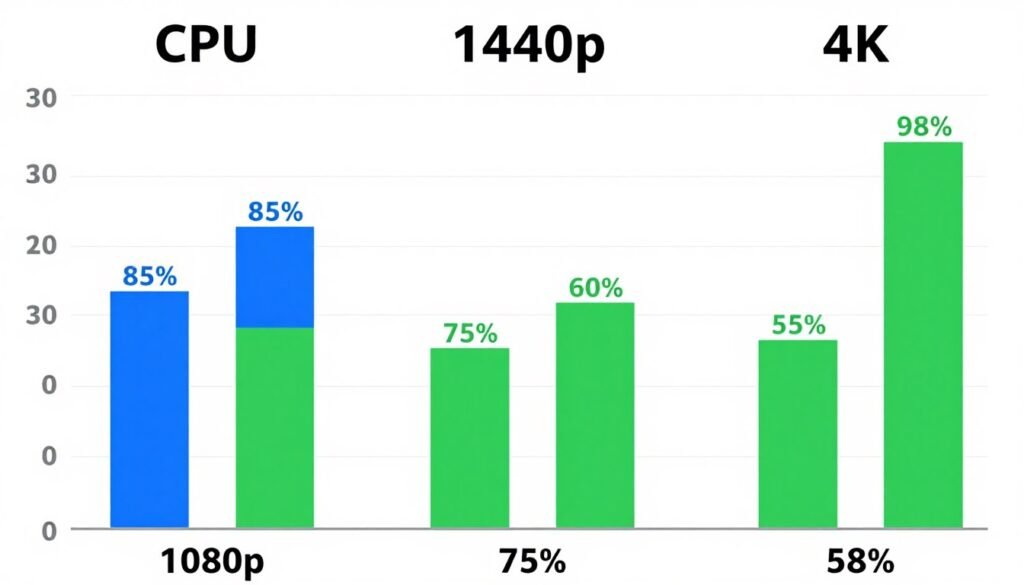
At 1080p, most competitive games are CPU-bound. Your processor is working hard to generate 300+ FPS while your GPU barely breaks a sweat. This is why you see pro players using high-end CPUs with mid-range graphics cards – the GPU isn’t the limiting factor at this resolution.
Bump up to 1440p and the balance shifts. Your GPU now renders 1.7x more pixels every frame. Suddenly, your graphics card is working harder and might become the bottleneck. Your CPU usage drops slightly because it’s waiting for the GPU to finish rendering.
At 4K, almost everything becomes GPU-limited. You’re rendering 4x the pixels of 1080p. Even a flagship graphics card struggles to push 144 FPS in demanding titles. Your CPU sits there waiting for the GPU to catch up.
Resolution Bottleneck Strategy
Choose your resolution based on your priorities. Want maximum FPS for competitive advantage? Stick with 1080p and invest in a strong CPU. Want better visual quality? Accept lower FPS and invest more in your GPU for 1440p or 4K.
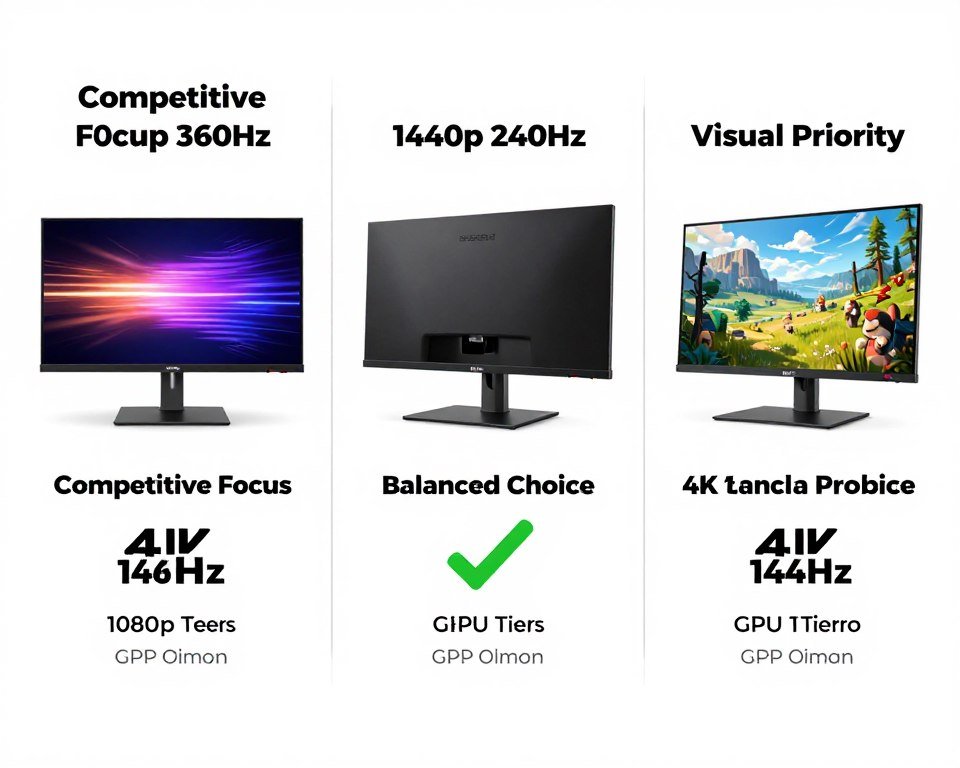
Don’t chase both. A 4K 240Hz monitor needs absolutely monstrous hardware to utilize fully. Most players are better off with 1440p 240Hz – it’s the sweet spot for visual quality and competitive performance.
Refresh Rate Reality Check
High refresh rate monitors are only useful if your system can drive them. A 360Hz display showing 120 FPS performs identically to a 144Hz display at 120 FPS. You’re not getting any benefit from the extra refresh rate capacity.
This is where bottlenecks matter. If your hardware can only deliver 180 FPS in your main game, buying a 360Hz monitor is wasted money. A 240Hz panel would serve you identically while costing less.
Match your monitor to your hardware capability, not your aspirations. Check your current FPS in competitive matches. If you’re averaging 200 FPS, a 240Hz monitor is perfect. If you’re getting 300+ FPS, then consider 360Hz.
Want to learn more about how resolution affects performance? Our resolution bottleneck guide breaks down the math and shows specific hardware recommendations for each resolution tier.
The Bottom Line on Esports Bottleneck
Input lag in competitive gaming comes down to system balance. Your CPU, GPU, RAM, and storage all need to work together without one component significantly holding back the others. That’s what esports bottleneck really means – when one weak link disrupts the entire performance chain.
Most competitive players are CPU-bottlenecked at 1080p. They’re trying to push 300+ FPS in games like Valorant and CS2, and their processor becomes the limiting factor. If this is you, GPU upgrades won’t help. You need faster single-core CPU performance.
If you’re playing at 1440p or higher resolution, the equation changes. Your GPU becomes more important. But even then, you need enough CPU to keep feeding your graphics card data. Balance matters more than raw specs.
Quick Fix Checklist
- Monitor your usage while gaming to identify actual bottleneck
- Optimize Windows and driver settings for performance
- Lower CPU-heavy game settings if CPU-bound
- Lower GPU-heavy settings if GPU-bound
- Upgrade the specific component that’s maxing out
- Match future upgrades to your resolution and refresh rate goals
Common Mistakes to Avoid
- Upgrading GPU when CPU is the actual bottleneck
- Buying high refresh rate monitors your hardware can’t drive
- Ignoring RAM speed and capacity
- Running games on slow storage drives
- Guessing which component to upgrade without testing
- Chasing maximum settings instead of competitive performance
Before you spend a dollar on upgrades, use a PC bottleneck calculator to check your system balance. It shows which components match well and where you’re losing performance. This prevents expensive mistakes like upgrading the wrong part.
The reality is that some bottleneck will always exist. The goal isn’t perfection – it’s building a system where the bottleneck doesn’t hurt your actual gaming experience. Consistent frame times matter more than raw FPS numbers. Smooth input response beats peak performance with stuttering.
Ready to Fix Your Competitive Gaming Performance?
Start by understanding your current system balance. Our free calculator analyzes your components and shows exactly where optimization or upgrades will have the biggest impact. Used by thousands of competitive gamers and system builders.
Stop Fighting Your Hardware
You can’t aim better if your system is fighting you. Input lag from bottlenecks kills your competitive edge before mechanical skill even matters. The good news? Once you identify and fix the actual problem, the difference is immediate and obvious.
I’ve seen players gain 50-100 FPS from simple software optimization. I’ve watched others go from inconsistent stuttering to smooth gameplay with a single component upgrade. The fix isn’t always expensive – it’s just about targeting the right issue.
Your next step depends on what you found while reading this guide. If you’re still not sure where your bottleneck is, start monitoring your usage while gaming. The data will tell you exactly which component needs attention.
If you know what’s holding you back but aren’t sure about the fix, explore our knowledge base for specific optimization guides and hardware recommendations. Whether you need stutter fixes or build advice, we’ve got detailed guides for every scenario.
The competitive advantage you’re looking for isn’t in a new mouse or more practice time. It’s in making your hardware actually work for you instead of against you. Fix the bottleneck, and you’ll finally see what your hands are actually capable of.
Now stop reading and go check your system. Your next rank-up is waiting.