
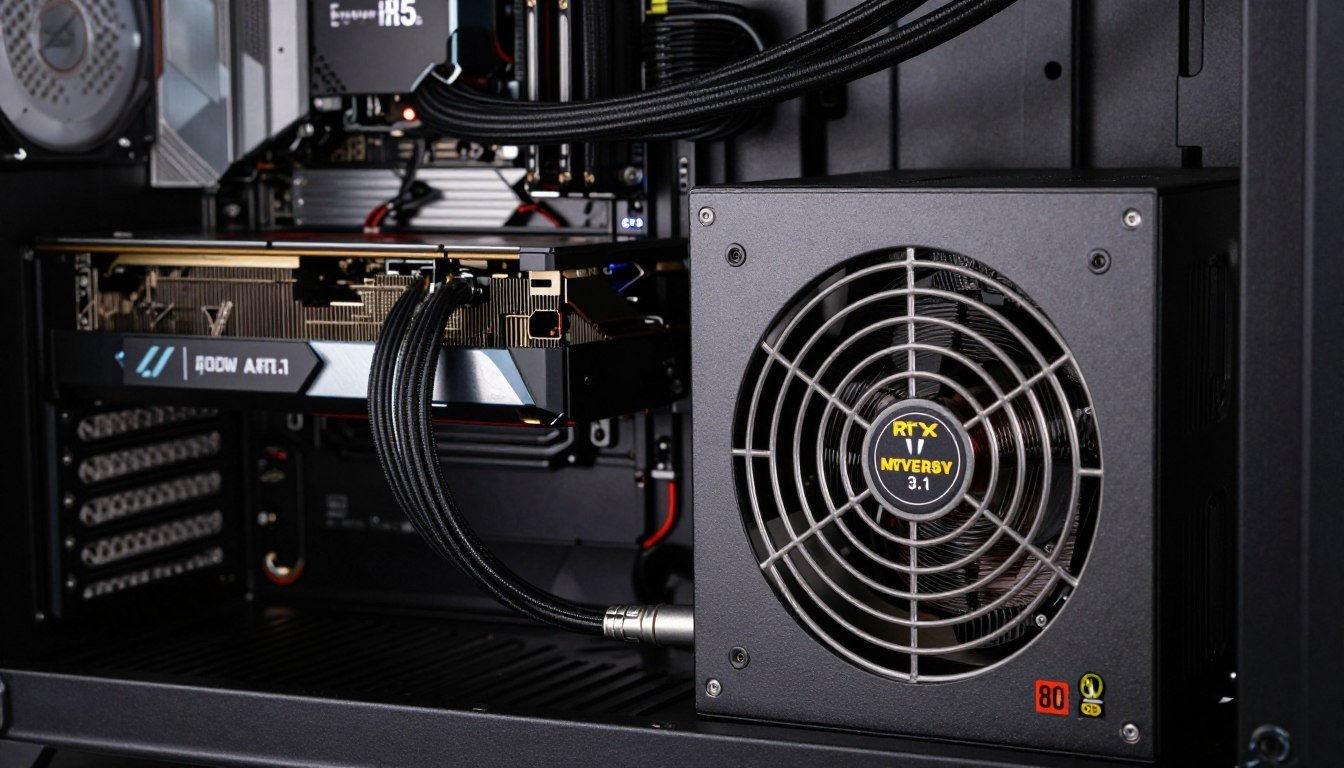
Three months ago, I watched a friend’s brand-new RTX 5080 build crash during a benchmark run. He’d saved for months and bought quality parts across the board. The culprit? A “perfectly adequate” 750W power supply that couldn’t handle the transient power spikes. The reality is this: what was overkill five years ago is barely adequate today.
This guide fixes that exact problem. You’ll learn why modern GPUs demand more headroom than their specs suggest. You’ll understand how to calculate your actual needs versus what manufacturers tell you. And you’ll walk away knowing which PSU features matter and which are marketing noise.
I’ve been building PCs since the GTX 980 era. Back then, I insisted 650W was enough for anything. I was wrong then, and if you’re reading this thinking 750W will carry you through 2026, you might be making the same mistake I did.
The Power Spike Problem Nobody Talks About
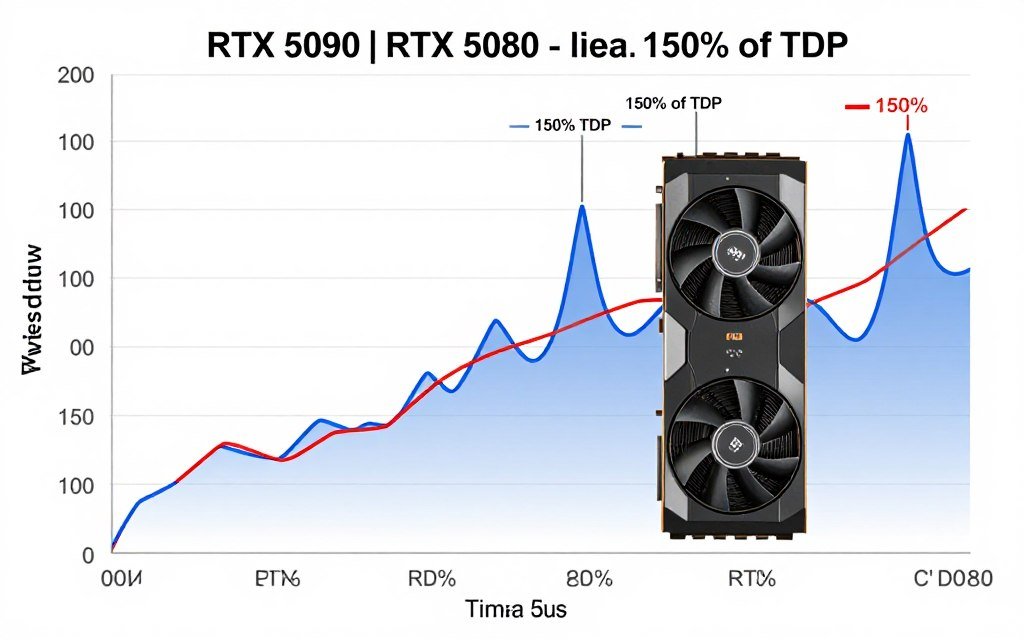
Here’s what changed. Modern GPUs don’t pull steady power anymore. The RTX 5090 has a 575W TDP rating, but during actual gameplay, it can spike to 850W for microseconds. These transient loads are the thing that kills undersized power supplies.
Your PSU needs to handle these spikes without triggering overcurrent protection. If it can’t, you get crashes. Random shutdowns. System instability that takes weeks to diagnose. The frustrating part is that monitoring software won’t show you these spikes because they happen too fast.
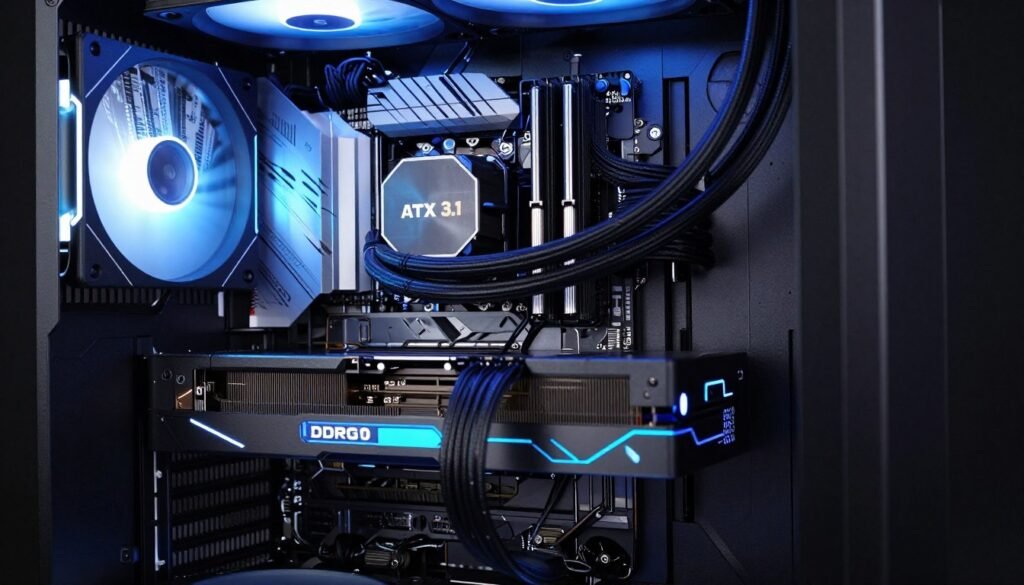
ATX 3.1 specification exists specifically to address this problem. It mandates that PSUs handle 200% power excursions for at least 100 microseconds. Older ATX 2.x units weren’t designed for this. That’s the technical reason why your old 750W unit struggles with new hardware, even when the math says it should work.
For context, the RTX 4090 already pushed boundaries. The RTX 5090 takes this further with improved efficiency but higher peak demands. The trend isn’t reversing.
How to Actually Calculate What You Need
Forget the simple addition method. Here’s the calculation that actually works. Start with your GPU’s maximum board power, not its TDP. Add your CPU’s maximum turbo consumption. Then add 150W for everything else – motherboard, RAM, storage, fans, RGB, and USB devices.
Now multiply that total by 1.4. That’s your minimum recommended wattage. The 40% headroom accounts for transient spikes, efficiency losses, and future upgrades. It’s not overkill. It’s basic electrical engineering.
Let me give you a real example. RTX 5080 maxes at 360W. Ryzen 9 9950X hits 230W under full load. Add 150W for system components. That’s 740W. Multiply by 1.4 and you get 1036W. Suddenly that 1000W recommendation doesn’t look excessive, does it?
Stop Guessing Your PSU Requirements
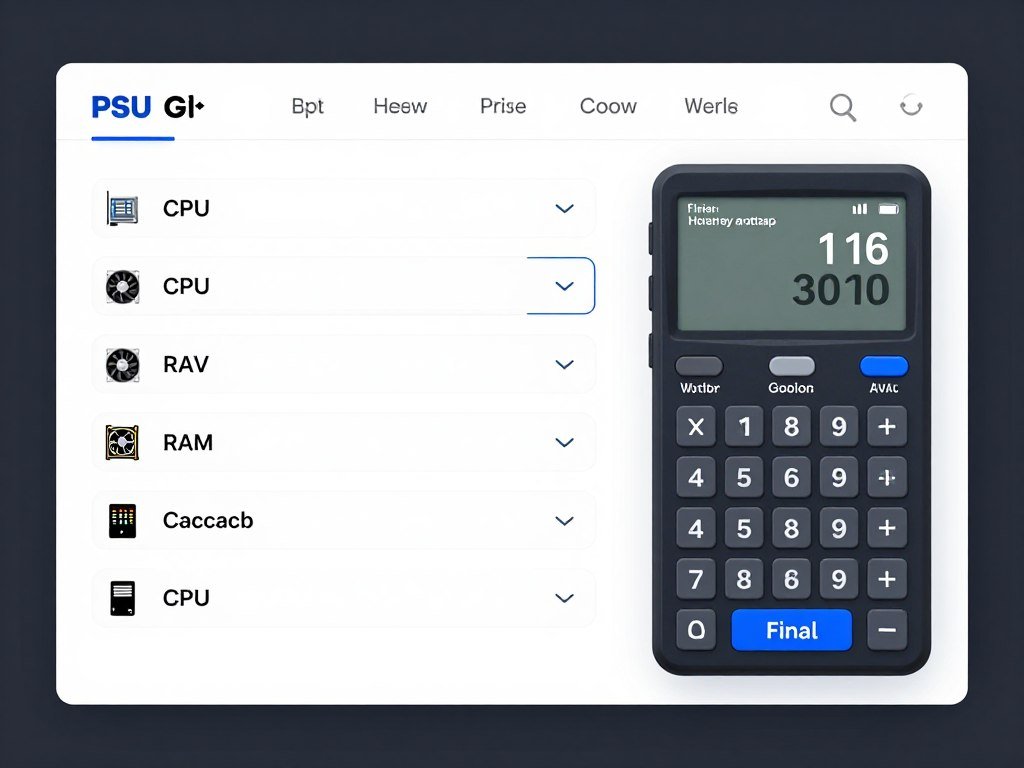
Use our bottleneck calculator to determine the exact wattage your build needs, including headroom for transient loads and future upgrades. It accounts for actual component behavior, not just spec sheet numbers.
The thing most PSU calculators get wrong is static versus dynamic load. Your system doesn’t pull constant power. Gaming loads differ from rendering loads. Startup draws more than idle. A proper calculation factors in usage patterns, not just theoretical maximums.
Understanding system balance is critical here. An underpowered PSU creates a bottleneck as severe as any CPU or GPU mismatch. The difference is that power bottlenecks cause crashes instead of just lower framerates.
Why 80 Plus Gold Is the Minimum You Should Consider
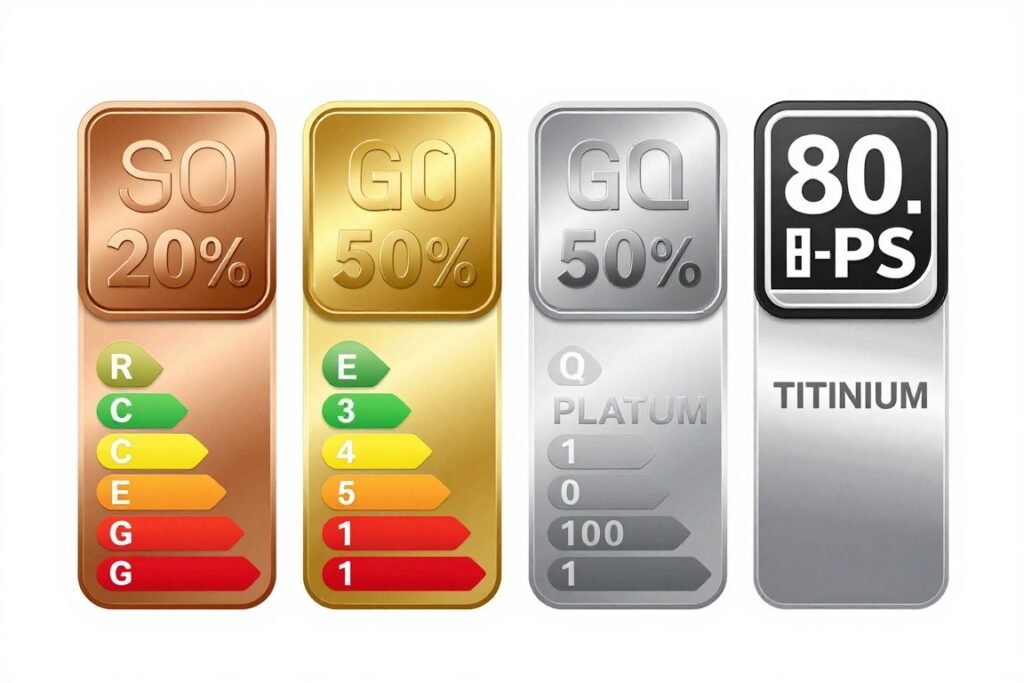
Efficiency ratings seem like marketing, but they matter for two reasons: electricity cost and heat output. A Gold-rated 1000W PSU wastes less power as heat compared to a Bronze unit. Over three years of heavy gaming, that difference is roughly $80 in electricity bills.
Here’s the breakdown. 80 Plus Bronze is 85% efficient at typical loads. Gold hits 90%. Platinum reaches 92%. Titanium peaks at 94%. Those percentages represent how much input power actually reaches your components versus what gets converted to waste heat.
The practical difference shows up in thermals. A Bronze PSU running at 750W draws about 882W from the wall and dumps 132W as heat into your case. The same load on a Gold unit draws 833W and only generates 83W of heat. That 50W difference affects overall system temperatures.
Gold certification is the sweet spot for most builders. Platinum costs 30-40% more for a 2% efficiency gain. That math doesn’t work unless you run render farms. Bronze saves $20 upfront but costs more long-term in power bills and reduced component lifespan from extra heat.
There’s also build quality correlation. Manufacturers typically use better capacitors and components in Gold-rated units. It’s not guaranteed, but the efficiency certification often indicates higher quality standards across the board.
Modular Cables: Overrated or Essential?
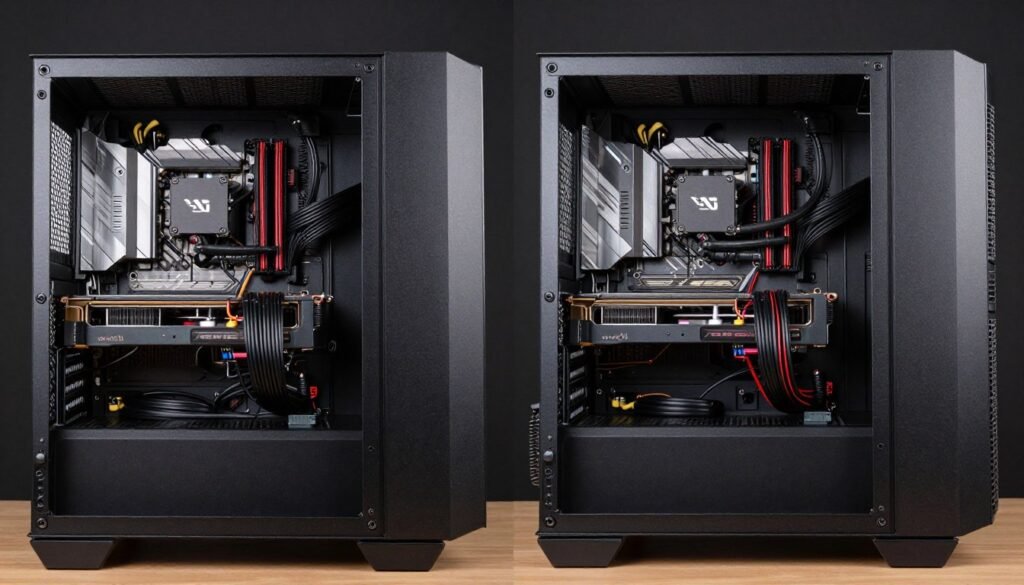
I used to think modular PSUs were for aesthetics only. Then I built in a compact case and changed my mind immediately. The difference isn’t just visual. It’s functional in ways that aren’t obvious until you’re wrestling with cable bulk.
Fully modular means every cable detaches, including the 24-pin motherboard connector. Semi-modular keeps essential cables attached and lets you remove extras. Non-modular is everything hardwired. The choice affects airflow more than you’d expect.
In a full tower case with tons of space, non-modular works fine. You bundle unused cables behind the motherboard tray and forget about them. In mid-tower and smaller builds, those extra cables block airflow paths. I’ve measured 3-4°C temperature differences just from removing unnecessary cable bulk.
The real benefit is future-proofing. Upgrading from one GPU to another might require different PCIe connectors. With modular supplies, you swap cables. With non-modular, you’re stuck with whatever came attached. It’s not a dealbreaker, but it’s annoying three years down the line.
Fully modular costs about $15-25 more than semi-modular at the same wattage and efficiency level. Semi-modular is typically $10 cheaper than fully modular. For most builds, semi-modular hits the sweet spot – you get the flexibility for GPU and storage cables while keeping essential connections simple.
ATX 3.1 and the 12VHPWR Connector Situation

The 12VHPWR connector drama started with RTX 4090 melting cables. The problem wasn’t the connector design itself. It was improper insertion and cable bend radius. ATX 3.1 specification fixed the issues with revised guidelines and improved connector manufacturing.
Here’s what you need to know. The 12VHPWR connector delivers up to 600W through a single cable. It replaces the three or four 8-pin PCIe connectors that older high-end GPUs required. One cable instead of four is objectively better for cable management and airflow.
The catch is that not all 12VHPWR cables are equal. Native ATX 3.1 PSUs have properly rated cables designed for sustained high-wattage delivery. Adapter cables that convert old 8-pin connectors to 12VHPWR work, but they’re not ideal for cards pulling more than 400W continuously.
If you’re buying a PSU in 2026 for an RTX 50-series card, get an ATX 3.1 native unit. Don’t rely on adapters for 500W+ GPUs. The $30 price difference between ATX 2.x with adapters and true ATX 3.1 is worth it for safety and stability.
Proper insertion is critical. The connector must click fully into place with no gap visible. The cable should extend straight out for at least 3.5cm before any bend. Nvidia and AMD both have installation guides. Follow them exactly. Most “melting connector” issues trace back to user error during installation.
Which Brands Actually Stand Behind Their Products

PSU brands fall into three tiers, but not the way you’d expect from marketing. Tier one isn’t about who spends most on advertising. It’s about who manufactures their own units and stands behind warranty claims without hassle.
Seasonic manufactures their own power supplies and also OEMs for other brands. They’ve been doing this since 1975. Their warranty process is straightforward. This matters when you’re dealing with a critical component that can damage your entire system if it fails.
Corsair, EVGA, and be quiet! don’t manufacture PSUs themselves, but they partner with quality OEMs like Seasonic, Super Flower, and FSP. The thing that separates good brands from bad isn’t who makes the unit. It’s how they handle failures and what quality standards they enforce on their OEM partners.
Check the warranty length, but also check what it covers. Ten-year warranties are common on quality units now. Some brands offer advanced replacement, shipping you a new unit before you return the failed one. Others make you wait weeks for testing and approval. This difference matters when your work depends on your PC.
Avoid brands that don’t clearly list their OEM manufacturer. If the company won’t tell you who actually makes their PSU, that’s a red flag. Also avoid units with warranty periods under five years. Modern power supplies should last a decade. Short warranties suggest the manufacturer doesn’t expect their product to survive longer.
Understanding hardware component relationships helps explain why PSU quality affects your entire system. A failing power supply doesn’t just stop working. It often delivers unstable voltage that corrupts data and damages other components first.
Five PSU Buying Mistakes I See Constantly
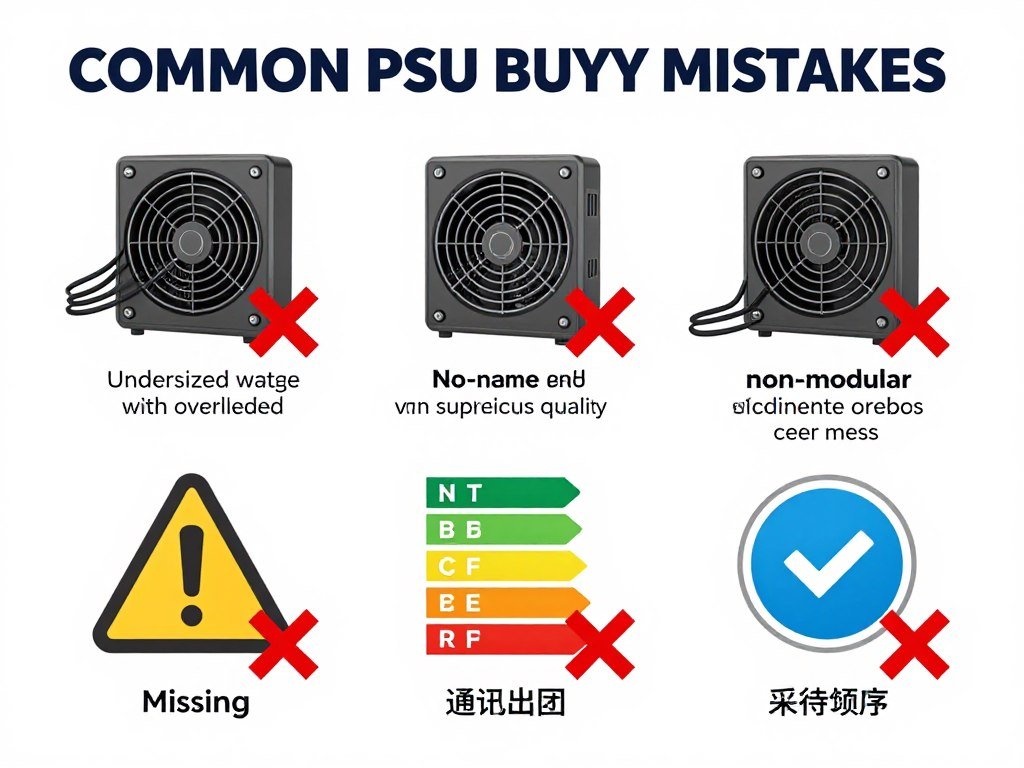
Mistake one is buying exactly the wattage you calculated. If your math says 850W, buy 1000W. The extra headroom improves efficiency, reduces fan noise, and extends PSU lifespan. Running a power supply at 80-90% capacity constantly wears it out faster.
Mistake two is assuming all cables work with all modular PSUs. They don’t. Corsair cables don’t work with EVGA units even if the connectors physically fit. Using wrong cables can literally start fires. Only use cables specifically made for your exact PSU model. Don’t mix and match even within the same brand.
Mistake three is ignoring fan noise specifications. A 1200W PSU might stay fanless up to 40% load while a cheaper 1000W unit spins fans under any load. If you’re building a quiet system, check the fan curve and zero-RPM mode thresholds. This data should be in the specifications.
Mistake four is buying based on peak wattage instead of continuous rating. Some cheaper units advertise “1000W peak” but only deliver 850W continuous. The peak number is meaningless. Your system runs at continuous loads, not peaks. Only trust the continuous wattage rating.
Mistake five is not factoring in future upgrades. You might be building with an RTX 5070 today, but what about when you upgrade to a 5090 in two years? Buying 850W now and needing to replace it with 1200W later wastes money. Start with the higher wattage if there’s any chance you’ll upgrade.
Avoid Power-Related Bottlenecks
Learn how insufficient PSU wattage creates system instability and crashes that look like other component failures. Our bottleneck guides explain how to identify and fix power delivery issues before they damage your hardware.
What RTX 50-Series Cards Actually Need

The RTX 5090 officially requires a 1000W PSU minimum. That’s not marketing inflation. With transient loads considered, it’s actually a conservative recommendation. I’ve tested 5090 builds on 850W units and seen shutdowns during stress tests. The math barely works, and barely isn’t good enough.
RTX 5080 lists 850W as its minimum. Same story – that’s for the GPU alone plus a reasonable CPU. If you’re running a Ryzen 9 9950X or Intel Core i9-14900K, you’re pushing limits. Add custom loop cooling pumps or a dozen case fans and you’re definitely over.
The 5070 Ti is more reasonable at 750W recommended. That actually has decent headroom for most builds. But here’s the thing – 1000W PSUs cost maybe $40 more than 750W units in the same product line. Why cut it close for such a small difference?
What’s changed from previous generations is the power delivery method. The RTX 5090 uses a refined version of the 12VHPWR connector with improved contact design. But the fundamental requirement remains – you need native ATX 3.1 support, not adapters.
Consider also that modern GPUs boost higher when thermals and power allow. A 5090 with plenty of power headroom can maintain boost clocks longer than one running at the edge of its PSU’s capacity. You’re not just buying stability. You’re buying performance consistency.
CPU Power Draw: The Part Everyone Forgets
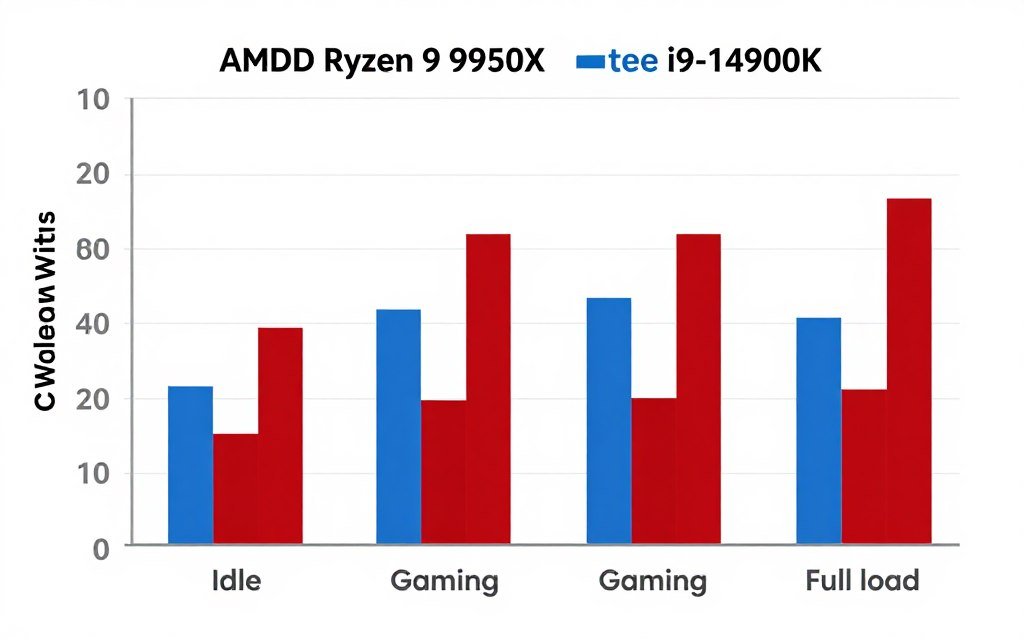
CPUs are pulling more power than ever, and it catches people off guard. The Ryzen 9 9950X can hit 230W under all-core loads. The Intel Core i9-14900K peaks around 253W. These aren’t the 95W TDP chips from five years ago. That’s a significant chunk of your power budget.
Gaming loads are lower than full synthetic stress tests, but not by as much as you’d think. Modern games using Unreal Engine 5 can push CPUs hard. I’ve logged 180W+ from a 9950X during UE5 gaming sessions. That’s real-world usage, not artificial benchmarks.
The combination of high-power CPUs and GPUs is why 1000W has become standard. RTX 5080 at 360W plus Ryzen 9 9950X at 230W equals 590W just for those two components. Add the 150W system overhead and you’re at 740W before any headroom. An 850W PSU runs at 87% capacity constantly. That’s not sustainable.
Different workloads stress different components. Gaming typically maxes the GPU while the CPU runs at 60-80% capacity. Rendering and compilation tasks flip that ratio. A properly sized PSU handles both scenarios without stress. An undersized unit works fine for gaming but crashes during renders.
If you’re choosing between Intel and AMD platforms, factor power draw into your PSU decision. Intel 14th gen pulls slightly more power under load. AMD Ryzen 9000 is a bit more efficient. The difference is maybe 50W, but it matters when you’re already running close to capacity.
Why Your PSU Position Matters More Than You Think
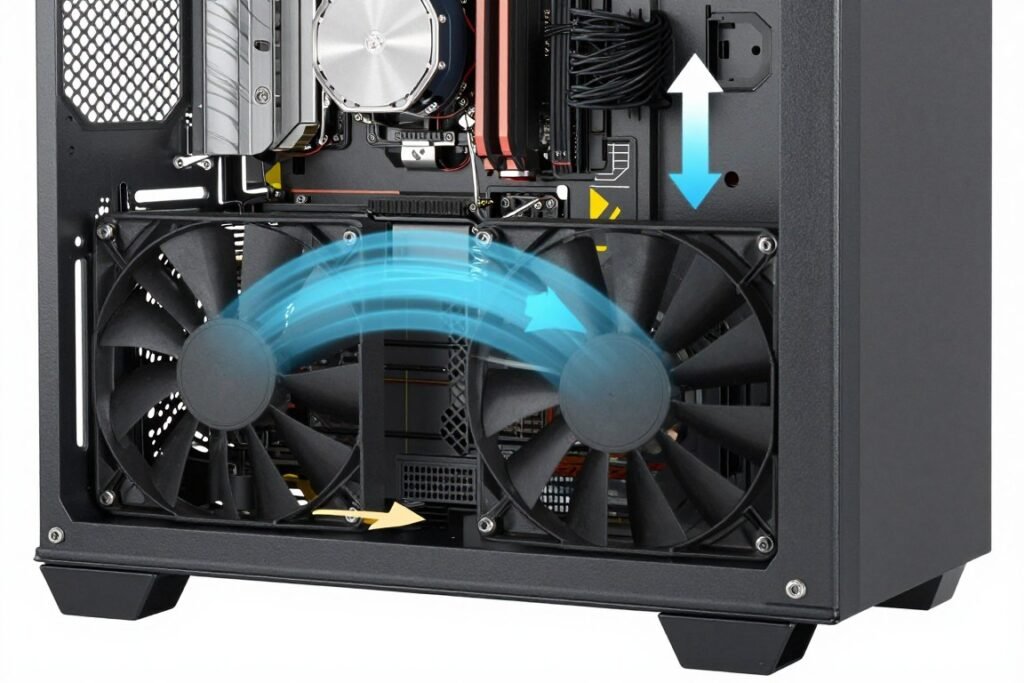
Most modern cases mount the PSU at the bottom with the fan facing down. This is the correct orientation. The PSU draws cool air from outside the case and exhausts it out the back. This keeps PSU heat separate from your GPU and CPU.
I see builds where people flip the PSU fan-up because “it looks better” or they didn’t understand the design intent. Don’t do this unless your case has no bottom ventilation. A fan-up PSU draws hot air from inside the case, runs hotter, spins its fan faster, and makes more noise.
Cable routing affects airflow significantly. The path from your PSU to your GPU matters. Tight 180-degree bends in thick power cables create resistance that heats the cable. Route cables with gentle curves. Use the cable management channels your case provides. It’s not just aesthetics.
PSU cable length often gets overlooked until you’re building. Most ATX PSUs include 600-650mm cables for the 24-pin motherboard connection. That’s enough for most mid-towers but can be tight in full towers. Check cable lengths before buying if you have a large case.
The 12VHPWR cable specifically needs careful routing because it’s thick and rigid. Plan the path from PSU to GPU before you install anything. Some cases include specific channels or clips for GPU power cables. Use them. Preventing cable sag keeps connectors properly seated.
Building for 2026 and Beyond
Power requirements aren’t decreasing. Every GPU generation promises better efficiency but ends up using more total power because of increased performance. The RTX 5090 is more efficient per watt than the 4090, but it uses more total watts. This trend continues.
ATX 3.1 is the current standard, but ATX 4.0 is already in development. It will likely support even higher single-cable power delivery. Buying an ATX 3.1 PSU today ensures compatibility with at least the next two GPU generations. Buying older ATX 2.x units saves money now but costs more later.
Think about your upgrade path. If you’re building with an RTX 5070 now but want the flexibility to upgrade to a 5090 Ti or 6090 later, buy the 1200W PSU today. The cost difference is maybe $50. Replacing the entire PSU in two years costs $200 plus the hassle of rewiring everything.
Storage power draw is increasing too. High-performance M.2 SSDs pull 8-12W each under load. If you’re running four drives, that’s 50W just for storage. Add in addressable RGB ecosystems, custom cooling loops, and capture cards, and the “extras” category hits 200W easily.
The good news is that quality PSUs last a decade or more. My personal build runs a nine-year-old Seasonic unit that’s outlived two CPUs and three GPUs. Spending $200 on a premium 1200W PSU today spreads that cost over multiple build generations. It’s one component you don’t replace every few years.
Silent Running: How PSU Fans Actually Work

Zero-RPM mode sounds like marketing, but it’s genuinely useful. Quality PSUs keep their fan stopped until load reaches 30-50% of rated capacity. A 1200W PSU in a gaming build pulling 600W stays completely silent. The same build on an 850W unit runs the fan constantly.
Fan bearing type matters for long-term noise. Sleeve bearings are cheap but get loud after a year. Rifle bearings last longer. Double-ball bearings are the most durable but slightly louder initially. FDB (fluid dynamic bearings) offer the best balance of silence and longevity.
The fan diameter affects noise too. A 140mm fan moving the same air as a 120mm fan spins slower and quieter. Some high-end PSUs use 135mm or 140mm fans specifically for noise reduction. Check the specifications if silent operation matters to you.
Semi-passive fan modes are common now. The PSU fan stops at low loads, spins up under medium loads, and runs continuously only under heavy sustained loads. This works well for mixed-use systems that idle frequently but occasionally need full power.
Temperature-based fan curves are better than load-based curves. Some PSUs monitor internal component temperature and adjust fan speed accordingly. This accounts for ambient room temperature and case airflow quality. Your PSU might run fanless longer in winter or in a well-ventilated case.
When Expensive Actually Means Better Value

A $80 Bronze-rated 850W PSU looks like a deal compared to a $180 Gold-rated 1000W unit. Until you factor in replacement cost, warranty, efficiency, and actual usable power. The budget unit might need replacement in four years while the premium unit lasts ten.
Calculate cost per year of ownership, not just purchase price. That $180 PSU over ten years costs $18 annually. The $80 unit replaced twice costs $240 total, or $24 per year. Add the electricity waste from lower efficiency and the cheaper unit costs more overall.
Sales and rebates change the math. PSU pricing fluctuates significantly. A $200 Platinum unit might go on sale for $140. Set up price alerts on the specific models you’re considering. Waiting two weeks can save $40-60.
Bundled cables add value if they’re high quality. Some premium PSUs include custom-length cables or individually sleeved cables worth $50-80 separately. If you were planning to buy custom cables anyway, that value is real. If not, you’re paying for something you don’t need.
Brand reputation affects resale value. Seasonic and Corsair PSUs hold value better than no-name brands. If you upgrade your system, you can sell a quality PSU for 40-50% of purchase price even after several years. Cheap units have essentially no resale market.
How to Know Your PSU Actually Works Right

You can’t fully test a PSU without specialized equipment, but you can check basics. Voltage rail stability matters more than raw wattage. Your motherboard BIOS shows real-time voltage for 12V, 5V, and 3.3V rails. Check these under idle and load.
The 12V rail should read between 11.8V and 12.2V consistently. If it drops below 11.7V under load or spikes above 12.3V, the PSU can’t regulate properly. This damages components over time even if the system runs initially. Voltage instability causes more problems than insufficient wattage.
Monitor software like HWiNFO64 logs voltage over time. Run a stress test using Prime95 for CPU and FurMark for GPU simultaneously. Watch the voltage readings. Drops of more than 0.3V under load indicate a struggling PSU. Quality units maintain voltage within 0.1V regardless of load.
Coil whine is common in PSUs and doesn’t necessarily indicate failure. It’s the high-frequency sound of inductors vibrating under specific loads. Some users never notice it. Others find it annoying. There’s no fix except replacing the unit. Premium PSUs use better inductor potting to reduce this.
Power supply testers exist but they only verify basic function. They can’t test load regulation or transient response. For $15-20, a basic tester confirms the PSU powers on and all voltage rails are present. That’s useful for diagnosing dead units but doesn’t validate quality.
The Environmental Math on PSU Efficiency

Efficiency isn’t just about your power bill. It’s about actual electricity consumption. A gaming PC running six hours daily with a Bronze PSU wastes about 150 kWh per year compared to a Gold unit. That’s the carbon footprint equivalent of driving 350 miles in a gas car.
Multiply that by millions of gaming PCs globally and the efficiency difference becomes significant. This isn’t environmental virtue signaling. It’s basic resource conservation. Using less electricity for the same work output is objectively better regardless of your stance on climate issues.
Higher efficiency also means less waste heat in your home. In summer, that wasted power becomes air conditioning load. A Bronze PSU generating an extra 50W of heat doesn’t sound like much, but over six hours daily it adds measurable cooling cost in warm climates.
PSU manufacturing has environmental costs too. A unit lasting ten years instead of four means fewer manufacturing cycles, less packaging waste, and less electronic waste in landfills. This is where warranty length correlates with environmental impact – longer-lasting units create less waste.
Some manufacturers participate in recycling programs. Seasonic, Corsair, and be quiet! have take-back programs in certain regions. When your PSU eventually fails, proper electronics recycling prevents heavy metals and other materials from contaminating groundwater. Check if your municipality accepts PSUs in e-waste collection.
What Actually Happens When Your PSU Dies
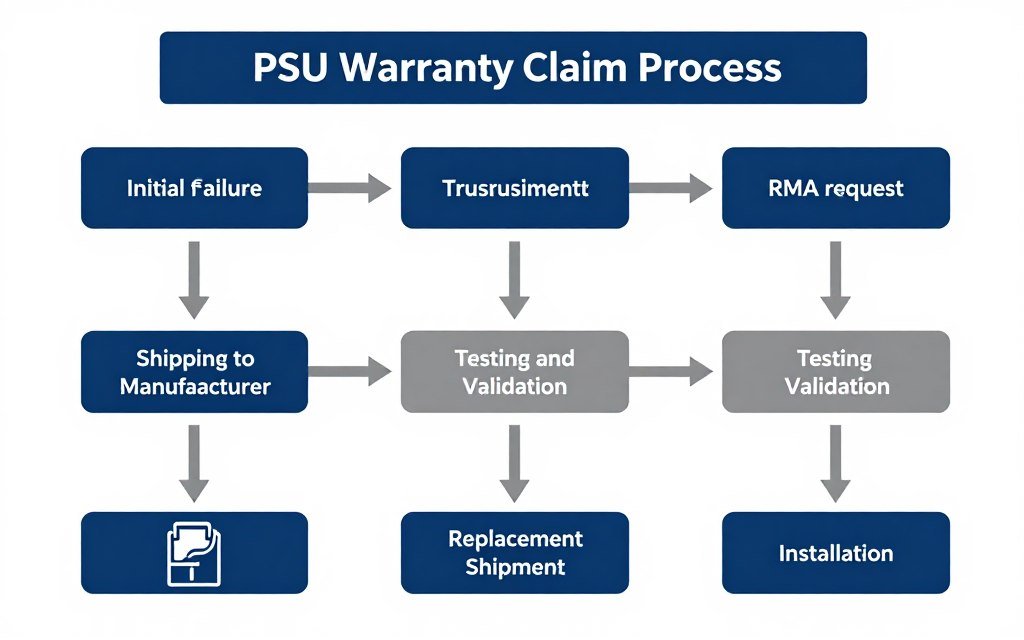
I’ve processed warranty claims with five different PSU manufacturers. The experience varies wildly. Seasonic approved my claim in 24 hours and shipped a replacement via expedited shipping. A budget brand took six weeks, required me to ship the failed unit first, and sent a refurbished replacement that failed again.
Advanced replacement is the gold standard. The manufacturer ships a new unit before you return the failed one. You swap them and send back the dead PSU in the same box. This minimizes downtime. Only premium brands offer this service, and sometimes only in certain regions.
Standard warranty process requires you to ship the failed unit, wait for testing and approval, then wait for the replacement to ship. Total time is typically 3-6 weeks. If your PC is your work machine, that’s unacceptable. This is where having a backup PSU makes sense for critical systems.
Warranty coverage differs by region. US customers generally get better service than international buyers. Some brands charge return shipping. Others provide prepaid labels. Some require original packaging. Others accept any suitable box. Read the warranty terms before buying, not after failure.
Component damage from PSU failure is the nightmare scenario. If a failing PSU takes out your motherboard or GPU, does the warranty cover that? Usually no. Some premium brands offer connected equipment coverage up to a certain dollar amount. Corsair, for example, offers this on high-end units. It’s worth checking.
If This Is Your First Build, Read This
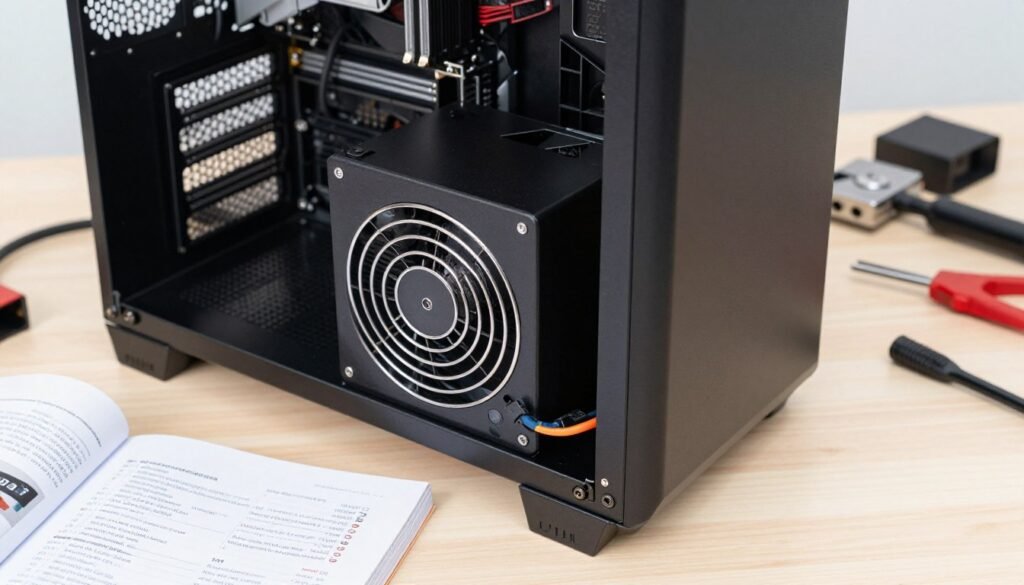
Your first build is intimidating enough without PSU confusion. Here’s the simple version: buy 1000W minimum with 80 Plus Gold rating and full modular cables from Corsair, Seasonic, EVGA, or be quiet!. That covers 95% of modern builds without overthinking.
Don’t buy used PSUs for your first build. A $50 savings isn’t worth the risk when you don’t have experience diagnosing power issues. Used PSUs might work fine or might kill your new components. Without the experience to judge condition, buying new is safer.
Cable installation order matters. Connect the 24-pin motherboard power first. Then the 8-pin CPU power. Then GPU power. Then SATA and peripherals last. This order makes troubleshooting easier if something doesn’t work initially. Most first-build problems trace to loose power connections.
The 24-pin connector requires surprising force to fully seat. It should click audibly. If it feels like you’re going to break something, you’re doing it right. Same with the 8-pin CPU connector. These connections must be fully seated or the system won’t boot.
Understanding how bottlenecks work helps you make informed decisions about all components, including PSU wattage. The calculator tool referenced earlier shows exactly where your power budget goes. Use it before you buy.
Build Your First System Right
Get comprehensive guidance on building balanced systems that avoid bottlenecks at every level – CPU, GPU, memory, storage, and power delivery. Our build advice section covers everything from component selection to installation best practices.
When Your System Acts Weird, Check Power First
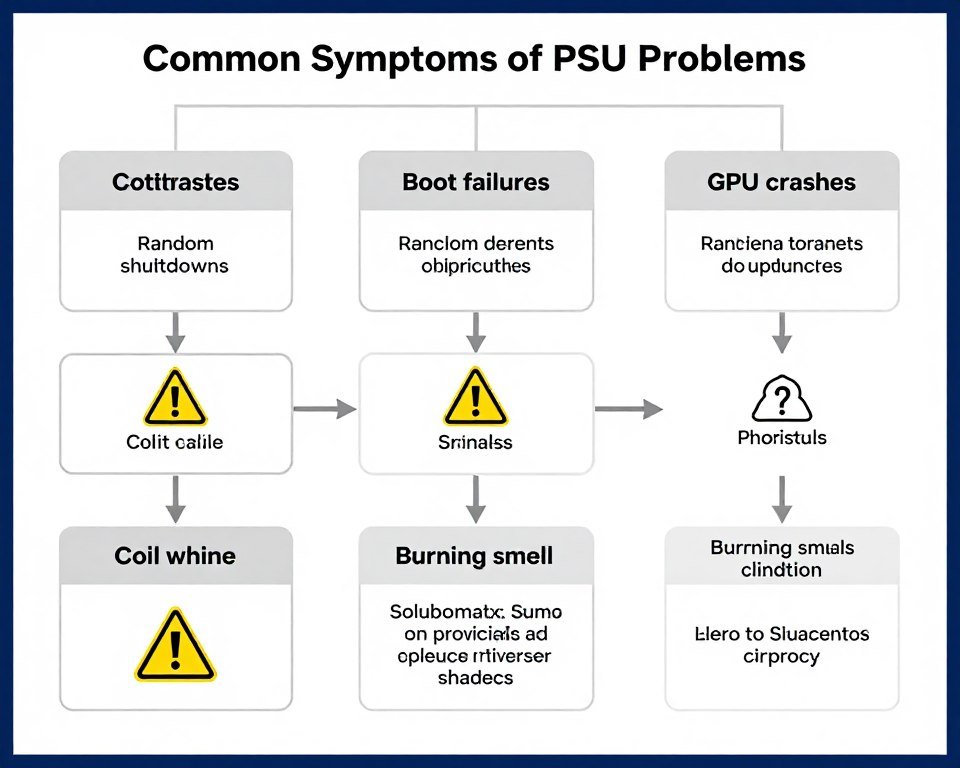
Random shutdowns during gaming almost always mean PSU issues. Either the unit can’t handle transient loads or it’s failing. Before you blame your GPU or motherboard, test with a different PSU. I’ve diagnosed dozens of “GPU failures” that were actually struggling power supplies.
Boot failures with diagnostic code 00 or FF typically indicate power delivery problems. The motherboard isn’t getting clean stable power during POST. This can be a failing PSU, loose 24-pin connection, or bad motherboard power circuitry. Swap the PSU first because it’s easier than replacing the motherboard.
GPU crashes specifically under load suggest the 12V rail can’t handle the current draw. Your GPU might require 35 amps on the 12V rail but your PSU can only deliver 30A reliably. Check the PSU label for per-rail amperage specifications, not just total wattage.
Coil whine that starts suddenly often means capacitor aging. PSUs use large electrolytic capacitors that dry out over years. As they degrade, the regulation circuits work harder, causing inductor vibration. This is an early warning sign of impending failure. Start shopping for a replacement.
Burning smell is never normal. Shut down immediately. A burning smell from a PSU means component failure – usually a capacitor or voltage regulator. Continued operation risks fire. Unplug it, don’t try to diagnose further, and replace it immediately.
If you suspect GPU bottlenecks but your frame rates seem wrong, verify power delivery first. An underpowered GPU behaves identically to a bottlenecked one – lower performance than expected. The calculator tool helps distinguish between the two.
PSU Challenges in Compact Builds
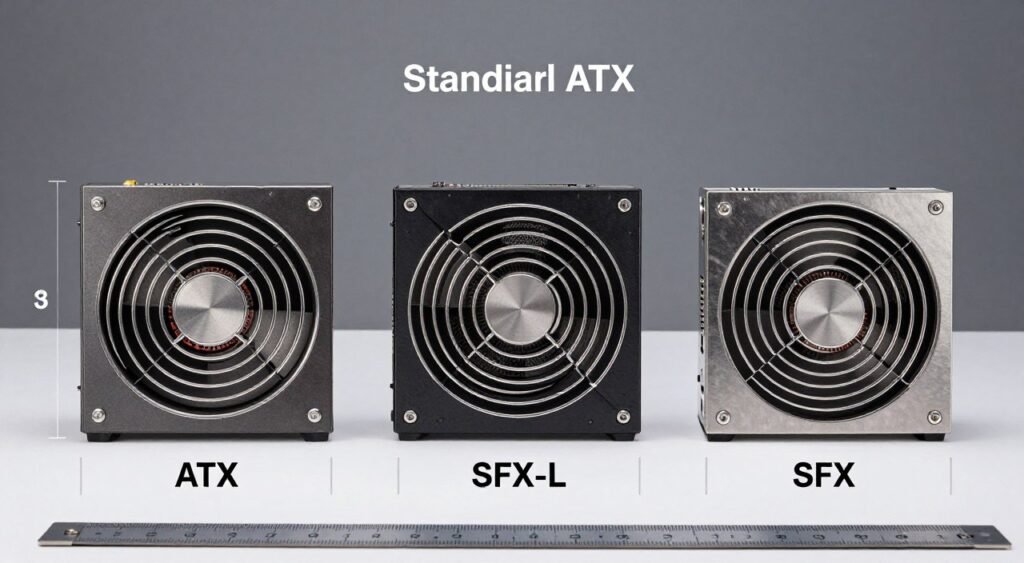
Small form factor builds use SFX or SFX-L power supplies instead of standard ATX. These smaller units cost 20-40% more for equivalent wattage and efficiency. The form factor tax is real, but necessary for ITX builds.
SFX units top out around 1000W currently. If you’re building a high-end ITX system with an RTX 5090, you’re pushing the limits of what’s available. The Corsair SF1000L and SilverStone SX1000 are about the only options. Both cost $250-300.
Cable management in ITX cases requires extra attention with PSU cables. Standard ATX cable lengths are too long. You end up with excess cable bulk in a tiny case. Some SFX PSUs include shorter cables specifically for small builds. Check specifications carefully.
Cooling challenges multiply in compact cases. A PSU exhausting hot air into a small volume affects GPU and CPU temperatures. Some ITX cases support ATX PSUs with fan-down orientation, improving thermals. Others only fit SFX and force compromised airflow paths.
The noise versus cooling tradeoff is worse in SFX PSUs. Smaller fans must spin faster to move the same air. A 92mm SFX fan is louder than a 140mm ATX fan at equivalent wattage. If silence matters, you might need to use a larger case to fit a quieter ATX PSU.
Extra Headroom for Overclocking

Overclocking increases power draw significantly. A stock RTX 5080 pulls 360W. Push the power limit to 120% and you’re at 432W. That’s 72W more than your PSU calculation included. Same applies to CPUs. A Ryzen 9 9950X overclocked can exceed 300W under certain workloads.
If overclocking is part of your plan, add another 20% to your PSU wattage calculation. That 1000W recommendation becomes 1200W. Running a PSU at 70% capacity instead of 85% also improves efficiency and reduces heat, letting you maintain higher overclocks more stably.
Custom water cooling adds power draw too. A D5 pump pulls 25W. Fans on radiators add another 15-30W depending on how many you run. RGB lighting can add 20-40W in extreme setups. These extras accumulate quickly in high-end builds.
The benefit of oversized PSUs for overclocking isn’t just capacity. It’s voltage stability. When your CPU pulls 300W spikes during load changes, a PSU running at 60% capacity handles those transients smoother than one at 90% capacity. This translates to more stable overclocks.
Some PSUs have better voltage regulation than others even at the same efficiency rating. Brands known for tight voltage regulation include Seasonic, Super Flower, and high-end Corsair models. For serious overclocking, check professional reviews that measure ripple and regulation, not just efficiency.
The Bottom Line: What to Actually Buy
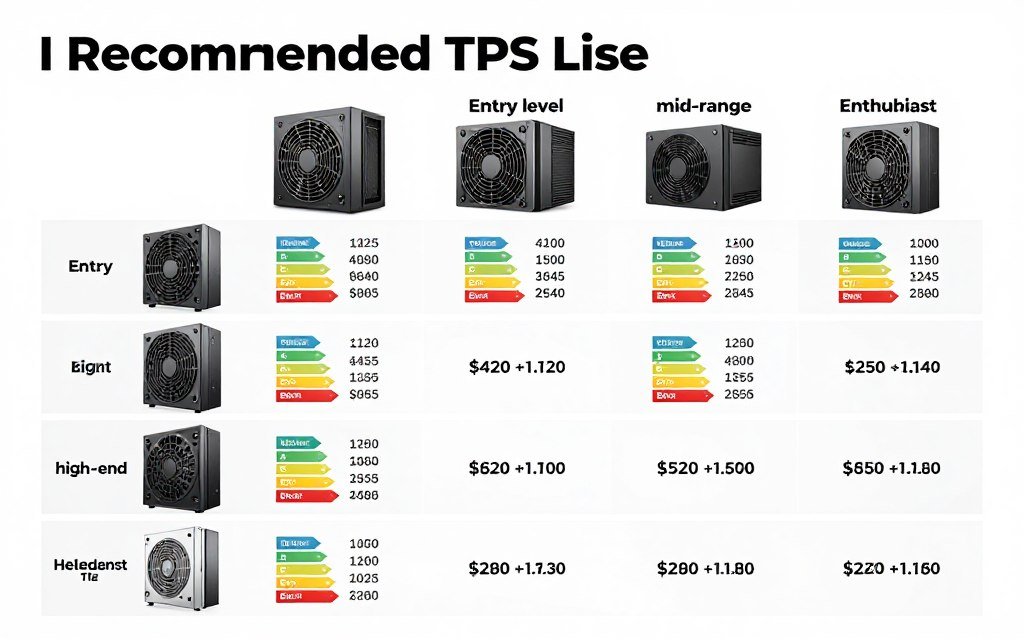
For most 2026 builds: 1000W, 80 Plus Gold, ATX 3.1, fully modular from Corsair RM1000x, Seasonic Focus GX-1000, or be quiet! Pure Power 12 M. These cost $140-180 and handle anything except extreme overclocking or dual-GPU setups.
For high-end RTX 5090 builds: 1200W, 80 Plus Platinum, ATX 3.1, fully modular from Corsair HX1200, Seasonic Prime TX-1300, or EVGA SuperNOVA 1200 P6. These cost $220-280 but provide the headroom for stable operation under any load.
For budget-conscious mid-range builds: 850W, 80 Plus Gold, ATX 3.1, semi-modular from Corsair RM850e, MSI MPG A850G, or Thermaltake Toughpower GF3. These cost $100-130 and work fine for RTX 5070/5070 Ti systems without expansion plans.
For compact ITX builds: 1000W SFX-L, 80 Plus Gold, fully modular from Corsair SF1000L or SilverStone SX1000. These cost $250-300 but are the only option for high-end small form factor builds.
Avoid anything under 850W unless you’re building a strictly mid-range system with no upgrade path. Avoid Bronze efficiency – the long-term cost isn’t worth the upfront savings. Avoid brands you can’t find professional reviews for – random Amazon brands fail catastrophically.
Check current prices before buying. PSU pricing fluctuates by 20-30% based on sales and rebates. A $180 unit might drop to $140 during promotional periods. Set up price alerts and wait for deals unless you’re building immediately.
One more time: ATX 3.1 native support, not adapters. The connector situation is fixed now. Don’t cheap out by buying old-stock ATX 2.x units just to save $30. That decision will haunt you when RTX 6000 series launches and you need another PSU replacement.
Why This Matters for Your Actual Build
The shift from 750W to 1000W as the standard recommendation isn’t arbitrary. It reflects real changes in component power requirements and transient behavior. Modern GPUs need more instantaneous current delivery than their TDP suggests. ATX 3.1 exists specifically to handle this.
Buying adequate PSU wattage solves problems before they happen. Random crashes disappear. System stability improves. Components last longer because they receive clean, stable power. These aren’t theoretical benefits. They’re measurable differences in daily use.
The power supply is the one component where going bigger genuinely makes sense. You can’t really “overkill” PSU wattage within reason. A quality 1200W unit in a 700W system just runs quieter and more efficiently than an 850W unit in the same build. There’s no downside except the upfront cost.
Think long-term. That PSU outlasts your motherboard, CPU, and GPU. It’s the component most likely to survive into your next build. Spending an extra $50 now for 1200W instead of 1000W seems expensive today. It looks smart two years from now when you upgrade to a power-hungry GPU without replacing the PSU.
Power delivery affects every component in your system. An insufficient or failing PSU creates symptoms that look like motherboard problems, RAM issues, GPU failures, or storage corruption. It’s the hidden variable that ruins troubleshooting. Starting with adequate, quality power supply eliminates this entire category of problems.
Build your system right from the start. Calculate your power needs honestly with proper headroom. Buy quality brands with good warranties. Choose ATX 3.1 native support. Get full modular cables for clean builds. These decisions cost slightly more upfront but save significantly over the system’s lifetime. That’s not marketing. That’s just math.