
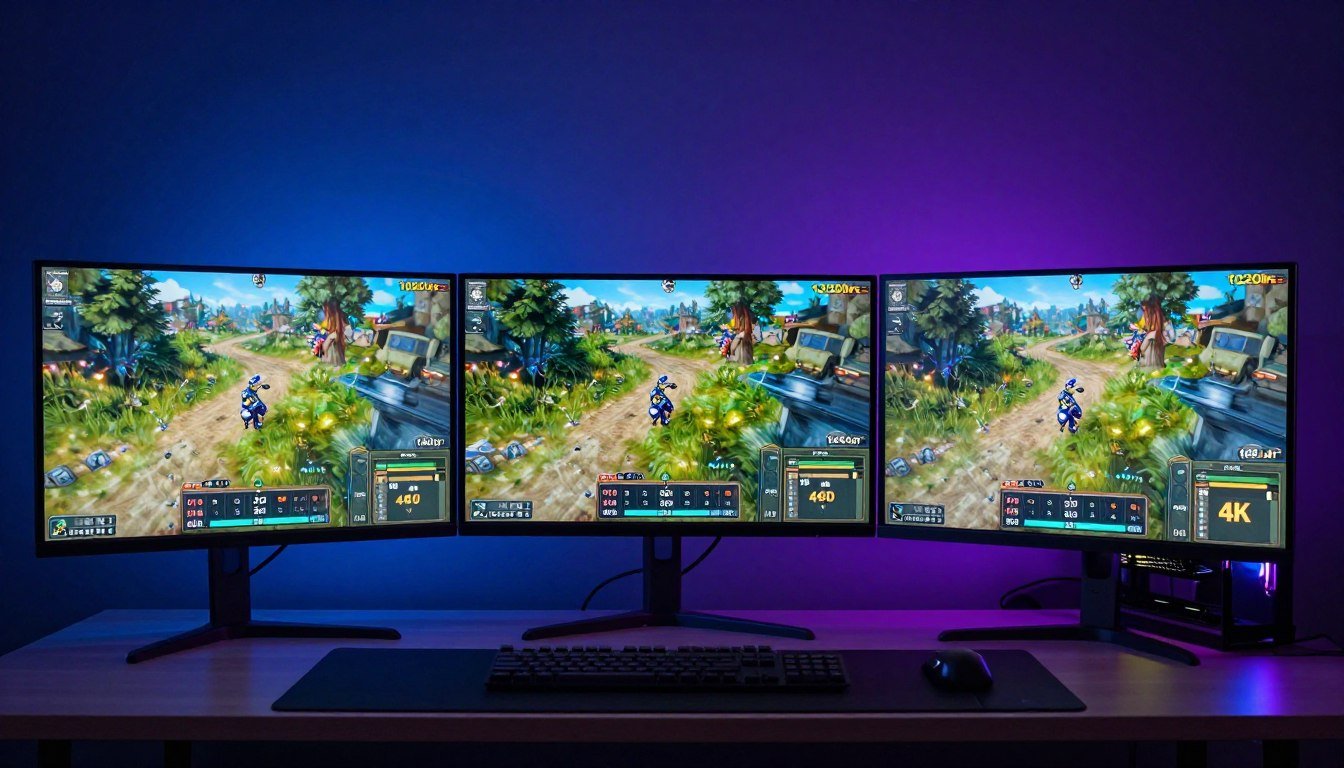
You drop two grand on an RTX 5080. You fire up your favorite game. The frame counter hits 95 FPS at 1080p, but your friend with the same card is pulling 140 FPS at 1440p. What gives? Your resolution bottleneck just made that expensive graphics card work half as hard as it should.
Here’s the reality. Resolution doesn’t just change how pretty your games look. It fundamentally shifts which component in your PC does the heavy lifting. At 1080p, your cpu takes on more pressure. At 4K, your gpu shoulders almost everything. Most builders miss this, and it costs them performance.
I learned this the hard way back in 2021. Built a system with a 5600X and an RTX 3080. At 1440p, everything was smooth. Dropped to 1080p for competitive gaming, and suddenly my cpu was screaming at 100 percent while my gpu took a nap at 60 percent usage. That’s a textbook cpu bottleneck caused purely by resolution choice.
This guide breaks down exactly how resolution affects the workload between your cpu and gpu. You’ll understand why lower resolutions can actually hurt performance with high-end cards. You’ll learn how to spot when your monitor choice is killing your frame rate. And you’ll get practical fixes that don’t involve buying new hardware.
By the end, you’ll know how to match your resolution to your actual hardware capabilities. No more guessing. No more wasted gpu power. Just better gaming performance from the system you already own.
What Resolution Bottleneck Actually Means for Your Build
A resolution bottleneck happens when your monitor choice forces an imbalance between cpu and gpu workload. Think of it like a team project where one person gets swamped while the other sits idle. Your components aren’t working together efficiently.
Every time your graphics card renders a frame, two major things happen. First, your cpu calculates all the game logic, physics, AI behavior, and determines what needs to be drawn. Second, your gpu takes that information and draws millions of pixels to create the actual image you see on screen.
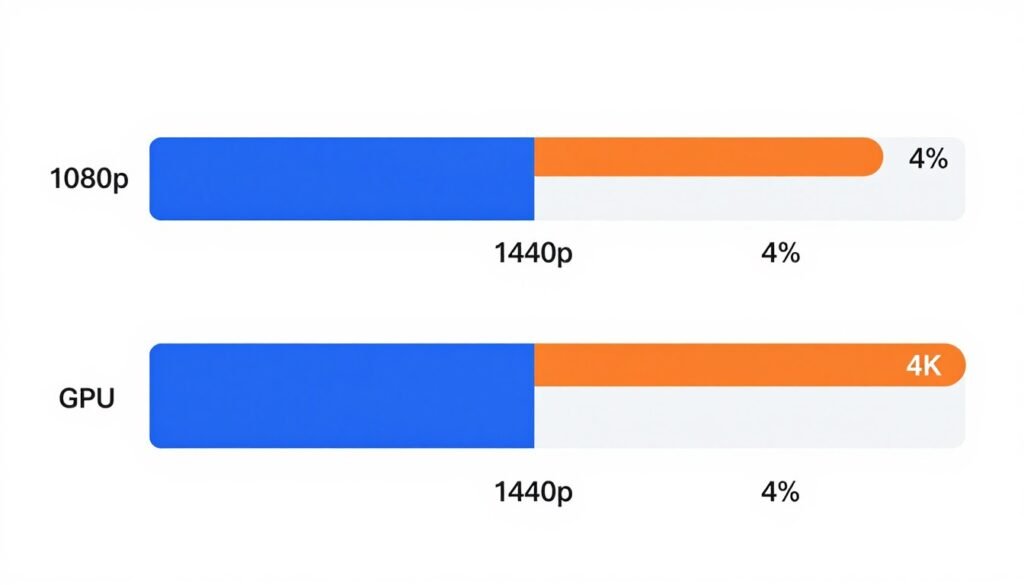
At 1080p, you’re pushing about 2 million pixels per frame. Your gpu can handle this relatively quickly if it’s a modern card. But your cpu still needs the same amount of time to calculate game logic regardless of resolution. This creates situations where your cpu becomes the limiting factor.
At 4K, you’re suddenly pushing 8.3 million pixels. That’s four times the workload for your gpu compared to 1080p. Now your graphics card is working much harder while your cpu maintains its steady pace calculating game data.
This explains why you’ll see different bottlenecks at different resolutions with identical hardware. Your RTX 5080 might be bottlenecked by a Ryzen 5 7600 at 1080p, but perfectly balanced at 1440p. The resolution changed which component hit its limit first.
Quick Reality Check: Higher resolution doesn’t always mean lower fps. Sometimes moving from 1080p to 1440p can actually improve your frame rate if your cpu was bottlenecking at the lower resolution. I’ve seen this personally with older Intel chips paired with modern GPUs.
How Game Engines Handle Resolution Workload
Modern game engines like Unreal Engine 5 handle resolution scaling in specific ways. The cpu handles object culling, level of detail calculations, and determines what’s visible in your field of view. This work stays constant across resolutions.
Your gpu then takes those instructions and rasterizes the scene, applies textures, calculates lighting, and outputs the final pixel data. This work scales directly with resolution. Double the pixel count, roughly double the gpu workload.
Games with complex physics simulations or large numbers of NPCs put extra pressure on the cpu. Titles like Cyberpunk 2077 or any modern open world game stress both components differently depending on what’s happening on screen.

The Math Behind Pixel Count and Performance
Let’s break down the actual numbers. At 1080p (1920×1080), your gpu renders 2,073,600 pixels every single frame. At 1440p (2560×1440), that jumps to 3,686,400 pixels. At 4K (3840×2160), you’re at 8,294,400 pixels per frame.
If your gpu can push 200 frames per second at 1080p, the same card might only manage 110-120 fps at 1440p, assuming no cpu bottleneck. That’s because you increased the pixel workload by 78 percent. The gpu has to work that much harder for each frame.
But here’s where it gets interesting. If your cpu can only feed your gpu enough data for 100 frames per second worth of game logic, it doesn’t matter if your gpu could theoretically render 200 fps at 1080p. You’re capped at 100 fps by cpu performance.
This is why competitive gamers sometimes see better performance moving up to 1440p from 1080p. The increased gpu load brings the frame rate down to where the cpu can actually keep up, eliminating stuttering and frame time inconsistency.
Understanding these mechanics matters because it affects every hardware decision you make. Buying a faster gpu won’t help if your cpu is maxed out at 1080p. Upgrading your cpu won’t improve 4K performance if your gpu is already at 100 percent usage.
Why 1080p Gaming Shifts All the Pressure to Your CPU
Lower resolutions create a specific problem for modern high-end graphics cards. Your gpu finishes its work so quickly that it sits around waiting for your cpu to prepare the next frame. This is the opposite of what most people expect.
Take a scenario with an RTX 5070 Ti and a Ryzen 7 7700X. At 4K in a demanding game like Starfield, your gpu is pegged at 99 percent usage while your cpu hovers around 45-60 percent. Everything is balanced. Your gpu is the limiting factor, which is what you want at high resolutions.

Drop that same system to 1080p. Now your gpu usage might fall to 65-70 percent. Your cpu suddenly jumps to 85-95 percent usage on the most loaded cores. Your frame rate doesn’t increase as much as you’d expect. You’ve hit a cpu bottleneck purely by changing resolution.
This happens because your cpu handles all the “what to draw” work before your gpu can start the “how to draw it” work. At 1080p, the “how to draw” part is so fast on modern GPUs that the cpu becomes the pace-setter.
Single Core Performance Matters More at Lower Resolutions
Most games still rely heavily on one or two cpu cores for primary game logic. Even in 2026, perfect multi-threading is rare. This means your cpu’s single-core performance becomes critical at 1080p where gpu bottlenecks disappear.
An Intel Core i9-14900K might have 24 cores, but if your game only uses 4-6 cores effectively, those individual core speeds determine your frame rate ceiling. At 1080p with a powerful gpu, you’ll hit that ceiling fast.
This is why older high-core-count chips sometimes perform worse than newer chips with fewer but faster cores at 1080p. A Ryzen 9 5950X (16 cores) can lose to a Ryzen 7 7800X3D (8 cores) in gaming because the newer chip has better single-thread performance and 3D V-Cache.
Common 1080p Bottleneck Symptoms
- Low gpu usage (below 90 percent) during gameplay
- Cpu cores showing 90-100 percent usage
- Frame rate doesn’t improve when lowering graphics settings
- Inconsistent frame times causing stuttering
- Better performance in gpu-heavy games than cpu-heavy titles
How Draw Calls Limit Your Frame Rate
Draw calls are instructions your cpu sends to your gpu telling it what objects to render. Every character model, every tree, every building requires draw calls. Modern games can send thousands of draw calls per frame.
At 1080p, your gpu processes these draw calls quickly. But your cpu still needs time to generate them based on game logic. If your cpu can only generate 8,000 draw calls per frame in the time it takes your gpu to render 1080p, you’re limited by that cpu performance.
DirectX 12 and Vulkan help by allowing better multi-threading of draw call generation. But even these APIs can’t completely eliminate cpu bottlenecks at lower resolutions with very fast graphics cards.
Games with lots of NPCs or complex scenes suffer the most. Try walking through a crowded city in Cyberpunk or a large battlefield in a strategy game. Your cpu workload spikes because it’s tracking hundreds of entities and generating appropriate draw calls.
Check Your Actual Bottleneck Right Now
Stop guessing whether your cpu or gpu is holding you back. Our bottleneck calculator analyzes your specific components at different resolutions and tells you exactly where your system is limited. Takes 30 seconds and it’s free.
Why Esports Titles Are Different
Competitive games like Counter-Strike 2, Valorant, or League of Legends behave differently than AAA titles. These games are designed to run on a wide range of hardware, so they’re often less gpu-intensive even at higher settings.
This means even at 1440p or sometimes 4K, you can still be cpu-limited in esports titles. Players chasing 360 Hz monitors need extreme cpu performance because they want 360 fps or higher, which puts massive pressure on cpu regardless of resolution.
A Ryzen 7 9800X3D pairs better with high refresh rate gaming than chips with higher core counts but lower gaming cache. The 3D V-Cache technology specifically helps with the kind of data access patterns that gaming workloads create.

How Higher Resolutions Shift Everything to Your GPU
When you move up to 1440p or 4K, the entire performance dynamic flips. Your gpu suddenly becomes the constraint while your cpu often has overhead to spare. This is actually the ideal scenario for most gaming setups.
At 1440p, you’re asking your graphics card to process 78 percent more pixels than 1080p. At 4K, it’s 300 percent more pixels. This workload increase is massive. Your gpu’s memory bandwidth, shader count, and raw computational power all become critical factors.
Your cpu still does the same work, calculating game logic at whatever frame rate your gpu can sustain. But now your gpu takes much longer to render each frame. This gives your cpu more time to prepare the next frame of data, eliminating the bottleneck.
VRAM Usage Scales Dramatically With Resolution
Graphics memory requirements jump significantly at higher resolutions. At 1080p, many games use 6-8 GB of VRAM. At 1440p, that same game might use 8-10 GB. At 4K with high textures, you’re looking at 10-14 GB or more.
This matters because when you exceed available VRAM, your gpu starts swapping data with system RAM through the PCIe bus. This is much slower than accessing VRAM directly. Performance tanks hard when this happens. You’ll see stuttering and massive fps drops.
The RTX 5070 Ti with 16 GB VRAM handles 4K better than the RTX 4080 with 16 GB despite similar raw performance because the newer architecture manages memory more efficiently. But both are better positioned than cards with 12 GB or less at 4K.
Benefits of GPU Bottlenecking
- Better graphics quality without cpu limitations
- More consistent frame times and smoother experience
- Easier to optimize (lower settings = more fps)
- Future gpu upgrades provide immediate benefits
- Longer cpu upgrade cycles possible
Downsides of Heavy GPU Load
- Lower maximum frame rates than 1080p
- VRAM limitations become hard constraints
- Expensive graphics cards needed for high refresh rates
- Power consumption and heat increase
- Diminishing returns with each setting increase
Ray Tracing and Upscaling Change the Game
Ray tracing adds another layer of gpu workload that’s resolution-dependent. Calculating accurate light bounce, reflections, and shadows requires tracing rays through your scene. More pixels means more rays to trace.
At 1080p, ray tracing might cost you 30 percent performance. At 4K, that same ray tracing implementation can cost 50-60 percent performance because the ray count scales with resolution. This is why dlss and fsr became essential technologies.
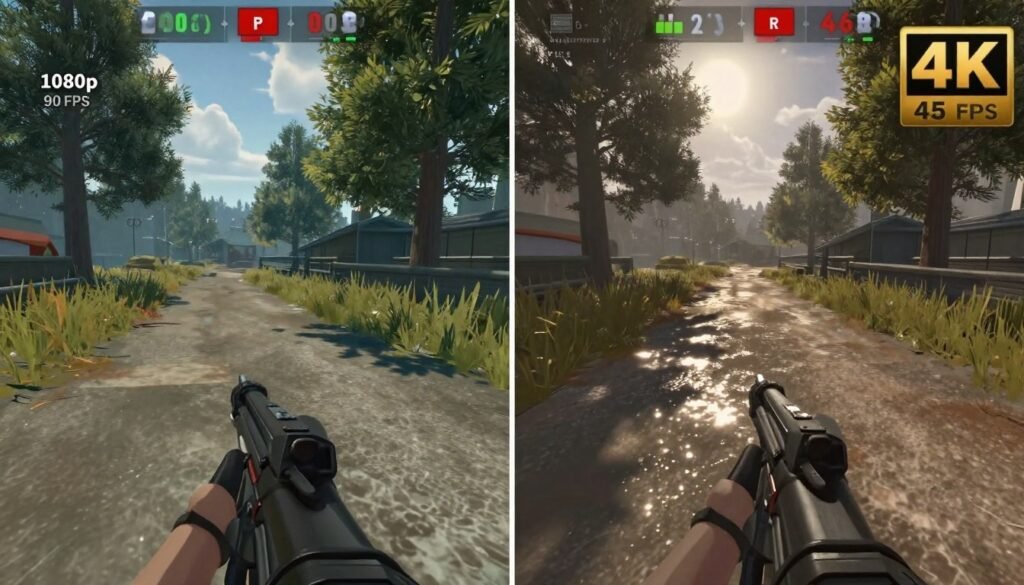
DLSS 3.5 and FSR 3.1 render the game at a lower internal resolution then use AI upscaling to reach your target resolution. This shifts some workload back toward a mix of gpu compute and dedicated AI cores (on nvidia cards). The result is you can maintain high frame rates at 4K.
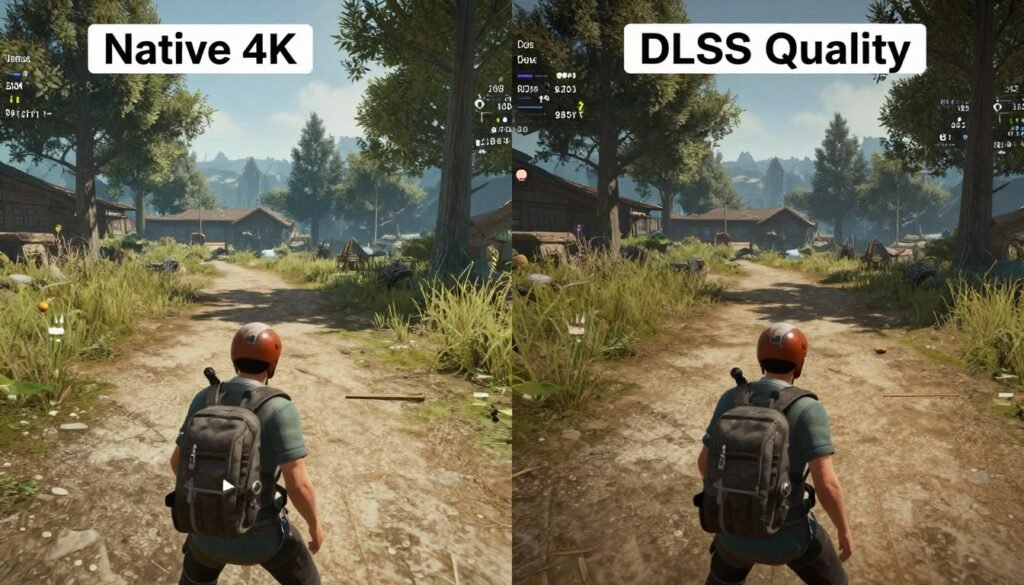
I’ve tested this extensively with the RTX 5090. Native 4K in Cyberpunk with path tracing gives about 45-50 fps. Enable DLSS Quality mode, and suddenly you’re at 90-100 fps with minimal visual difference. The gpu renders at roughly 1440p internally and upscales, dramatically reducing the pixel workload.
When GPU Bottleneck Becomes a Problem
A gpu bottleneck isn’t always ideal. If you’re gaming at 4K trying to hit 144 fps for a high refresh monitor, even top-tier cards struggle in demanding titles. Your expensive gpu is maxed out but still not delivering the experience you want.
This is where the balance between resolution and refresh rate matters. A 1440p 240 Hz monitor might give you better gaming performance than a 4K 144 Hz monitor with the same gpu. You’re reducing pixel count but gaining smoothness.
Consider this for your next build decision. Pairing an RTX 5080 with a 4K monitor means you’ll be gpu-limited in almost every modern game. That same card with a 1440p monitor gives you more fps headroom and might actually feel smoother for fast-paced games.
For more details on how different graphics cards handle these workloads, check out the complete breakdown on hardware guides covering gpu capabilities across resolutions.
Testing Your Own System for Resolution Bottleneck
You can identify your bottleneck type in about 10 minutes with the right monitoring tools. You need to see what’s actually happening inside your pc during gameplay, not just guess based on frame rates.
Download MSI Afterburner with RivaTuner Statistics Server. This combination gives you an on-screen overlay showing cpu usage, gpu usage, cpu temperature, gpu temperature, RAM usage, and frame time. All in real-time while you play.
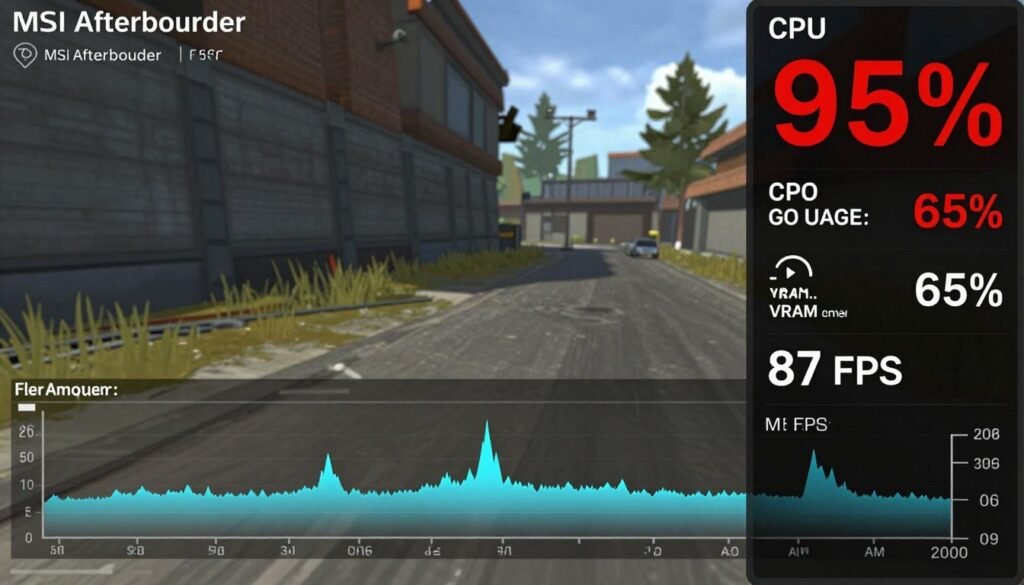
Load up a demanding game that you actually play regularly. Don’t use synthetic benchmarks. Real game behavior is what matters for your experience. Play for 5-10 minutes in a typical gameplay scenario. Not a menu screen. Not a loading area. Actual gameplay.
What the Numbers Actually Tell You
If your gpu usage is consistently 95-100 percent, you have a gpu bottleneck. This is normal and expected at higher resolutions. Your graphics card is the limiting factor. Lowering graphics settings will improve frame rate.
If your cpu usage shows one or more cores at 90-100 percent while gpu usage is below 90 percent, you have a cpu bottleneck. This is common at 1080p with powerful graphics cards. Lowering graphics settings won’t help much because your cpu is the constraint.
Watch frame time, not just average fps. Frame time is the milliseconds it takes to render each frame. Consistent frame time means smooth gameplay. Spiky frame time means stuttering even if your average fps looks good. This inconsistency often indicates cpu bottlenecks.
GPU Bottleneck Indicators
- GPU usage 95-100 percent sustained
- CPU cores below 80 percent usage
- Lowering settings improves fps
- Consistent frame times
- Performance scales with resolution
CPU Bottleneck Indicators
- GPU usage below 90 percent
- One or more CPU cores at 95-100 percent
- Lowering settings doesn’t help fps
- Inconsistent frame times
- Higher fps at higher resolution sometimes
The Resolution Scaling Test
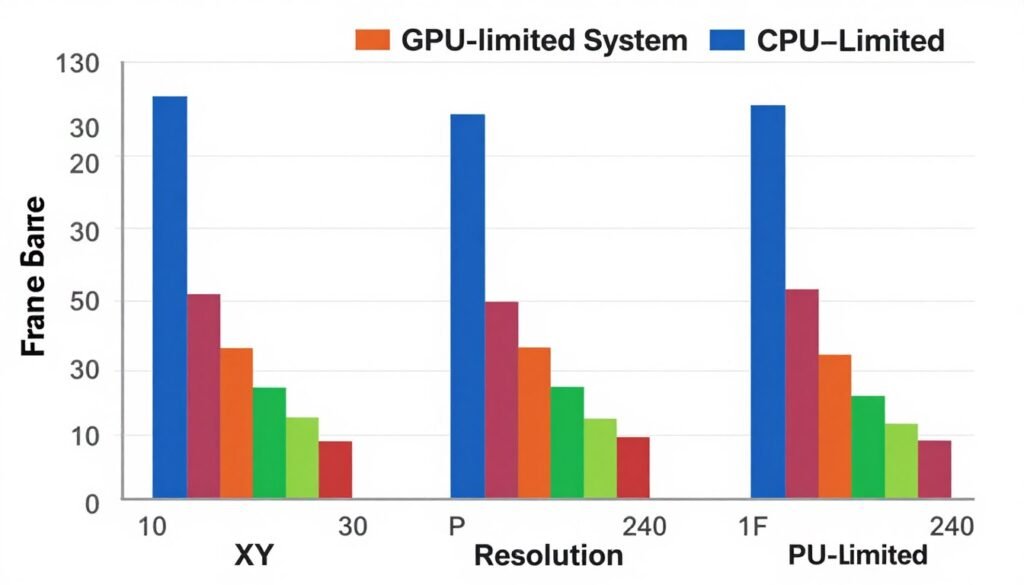
Here’s a definitive test to identify resolution bottleneck. Run your game at 1080p and note your average fps and component usage. Then run the same game section at 1440p. Then at 4K if your monitor supports it or use dynamic resolution scaling.
If your fps drops proportionally to the pixel count increase (about 40-45 percent loss moving from 1080p to 1440p), you’re gpu-limited across all resolutions. This is normal behavior.
If your fps stays nearly the same or only drops slightly when increasing resolution, you’re cpu-limited. Your cpu was already maxed at 1080p, so giving your gpu more work doesn’t slow things down much because the gpu wasn’t the constraint to begin with.
I tested this with a friend’s build last month. He had a Ryzen 5 5600 and an RTX 4070 Ti. At 1080p in Baldur’s Gate 3, he got 95 fps with cpu at 85-90 percent and gpu at 70 percent. At 1440p, he got 92 fps with cpu at 80 percent and gpu at 95 percent. Moving up actually balanced his system better.
Per-Core CPU Usage Matters
Don’t just look at overall cpu usage. Check individual core usage. Modern CPUs have 8, 12, 16, or even 24 cores. Games rarely use all of them equally. One core might be maxed while others are barely active.
In MSI Afterburner, enable per-core cpu usage monitoring. You’ll often see core 0 or core 1 at 100 percent while other cores sit at 40-60 percent. This indicates the game is single-thread limited on your cpu. That’s your real bottleneck.
This is especially common in older game engines or titles that weren’t designed with modern multi-core cpus in mind. Even some new releases have this problem because good multi-threading is genuinely difficult to program.
For additional testing methods and understanding what the numbers mean, explore the guide on identifying cpu bottlenecks in different scenarios.
Practical Fixes That Don’t Require New Hardware
Before you drop money on upgrades, try these optimization steps. They’ve solved bottleneck issues for me more than once without spending a dime. Start with the easiest options first.
Graphics Settings That Actually Matter for CPU Load
Most graphics settings only affect gpu performance. But a few specific settings directly impact cpu workload. Knowing which ones matter lets you optimize effectively for resolution bottleneck situations.
Draw distance and object density settings increase cpu load significantly. More objects on screen means more draw calls for your cpu to generate. In open world games, reducing draw distance from Ultra to High can free up 10-15 percent cpu headroom.
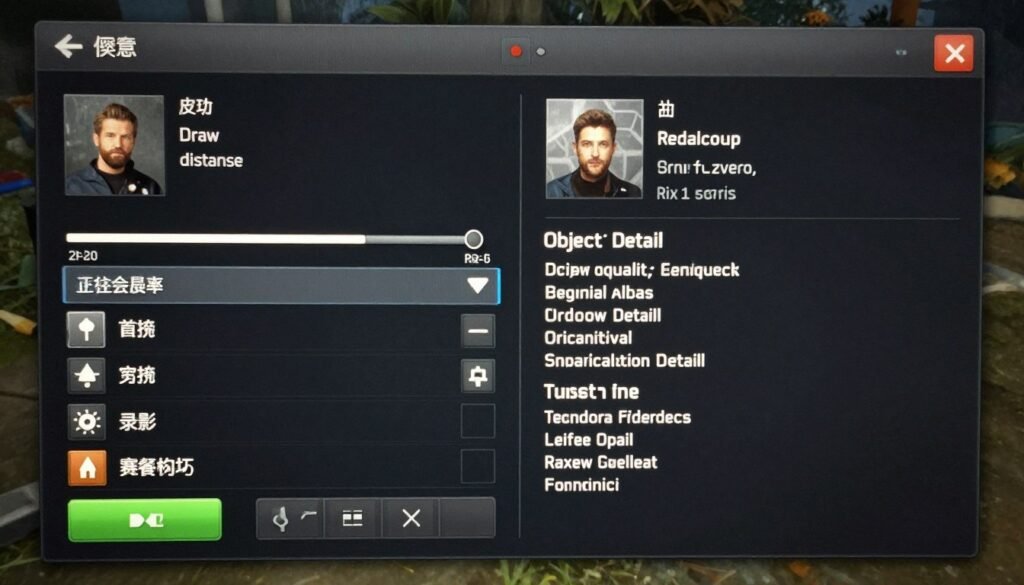
Shadow quality impacts both cpu and gpu but in different ways. Higher shadow quality requires your cpu to calculate more shadow-casting objects. Meanwhile your gpu has to render those shadows. Dropping from Ultra to High shadows can reduce cpu load noticeably.
Particle effects and physics quality also hit your cpu hard. Explosions, smoke, debris – all these require cpu calculations for physics simulation before the gpu can draw them. Lowering these settings in cpu-bottlenecked scenarios helps more than texture quality changes.
Setting Priority Guide: If you’re cpu-limited, lower draw distance, shadow quality, and physics first. Keep texture quality, anti-aliasing, and post-processing high since these mainly affect gpu. If you’re gpu-limited, do the opposite – prioritize cpu-heavy settings and reduce gpu-intensive effects.
Background Process Cleanup
Your cpu handles everything running on your pc, not just your game. Background apps steal cpu cycles that could go to game logic. Close everything unnecessary before gaming.
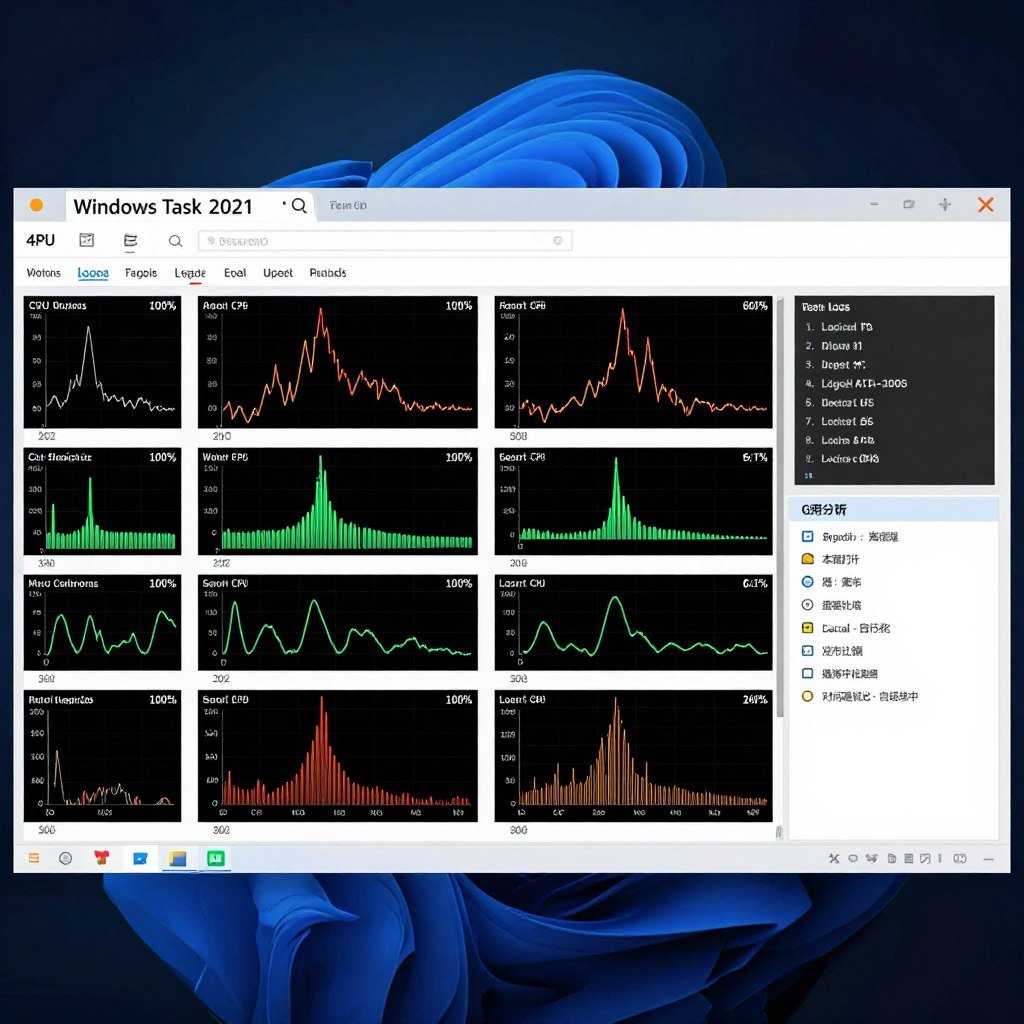
Open Task Manager and sort by cpu usage. Look for processes using more than 1-2 percent cpu consistently. Common culprits: Chrome with 47 tabs open, Discord with hardware acceleration enabled, RGB control software, game launchers from every publisher, Windows Update running in background.
I tested this with my system. With typical background apps running, I saw 8-10 percent idle cpu usage. After closing everything except essential system processes, idle dropped to 2-3 percent. That extra 5-7 percent went directly to gaming performance. In cpu-limited scenarios, this translated to 5-8 fps gain.
Disable startup programs you don’t need. Right-click taskbar, open Task Manager, go to Startup tab. Disable anything that’s not essential. Adobe updater? Don’t need it launching at startup. Steam, Epic, EA launcher? Open them manually when you need them.
Windows Game Mode and Optimizations
Windows has built-in game optimizations that actually work. Game Mode prioritizes cpu and gpu resources for your game over background tasks. It’s not magic, but it helps in cpu-bottlenecked situations.
Enable Game Mode in Windows Settings. Go to Gaming, then Game Mode, toggle it on. Also check Game Bar settings. The overlay can consume resources. If you don’t use it for recording, disable it.
Windows power plan matters more than most people realize. High Performance power plan prevents your cpu from downclocking to save power. At 1080p where every cpu cycle counts, this makes a real difference. Set it to High Performance or create a custom plan with minimum processor state at 100 percent.

RAM Speed and Timing Optimization
Memory speed directly impacts cpu performance, especially on AMD Ryzen systems. If you bought 3200 MHz RAM but never enabled XMP/EXPO in BIOS, you’re probably running at 2133 MHz default. This kills performance.
Boot into BIOS and enable XMP (Intel) or EXPO (AMD) profile. This sets your RAM to its rated speed and timings. On Ryzen systems, this can improve gaming performance by 10-20 percent in cpu-limited scenarios. Intel systems see smaller but still meaningful gains.
I upgraded my RAM from 3200 MHz to 6000 MHz on my Ryzen 7 7800X3D build. At 1080p in Counter-Strike 2, I gained 35 fps average. At 4K in the same game, I gained maybe 3 fps. The cpu-limited scenario showed massive improvement while gpu-limited scenario showed minimal change.
Check your current RAM speed in Task Manager under Performance tab, Memory. If it’s showing 2133 MHz but you bought faster RAM, you’re leaving performance on the table. Fix this immediately.
Resolution Scaling and Internal Rendering
Many games let you set display resolution separately from render resolution. This is different from dlss or fsr. You’re telling the game to render at lower resolution then stretch to your monitor’s native resolution.
This isn’t ideal visually but it shifts workload back toward gpu and away from cpu. If you’re cpu-limited at 1080p, try rendering at 900p or 720p internally. Your gpu has less work, your cpu gets more time to prepare frames, overall fps improves.
Some games call this “Resolution Scale” in settings. Set it to 85 percent or 70 percent. You’ll lose some visual clarity but gain frame rate. In competitive games where clarity is less critical than smoothness, this trade-off makes sense.
For more optimization techniques specific to different hardware configurations, see the detailed guides on pc optimization covering various bottleneck scenarios.
Still Not Sure What’s Limiting You?
Run a quick analysis of your specific cpu, gpu, and resolution combination. Our calculator shows you the exact bottleneck percentage and which component needs attention. Then check out our fix guides for your situation.
When You Actually Need to Upgrade Hardware
Sometimes optimization isn’t enough. You’ve cleaned up background processes, adjusted settings, enabled XMP, and you’re still bottlenecked. That’s when spending money makes sense. But spend it on the right component.
Identifying Your True Upgrade Path
If you’re cpu-limited at 1080p and you want to stay at 1080p for competitive gaming, you need a faster cpu. No amount of gpu upgrading will help. You could put an RTX 5090 in that system and see zero improvement because your cpu can’t feed it data fast enough.
Conversely, if you’re gpu-limited at 1440p or 4K and want higher frame rates at those resolutions, upgrade your graphics card. Your cpu has headroom. A faster cpu won’t help when your gpu is already maxed out.
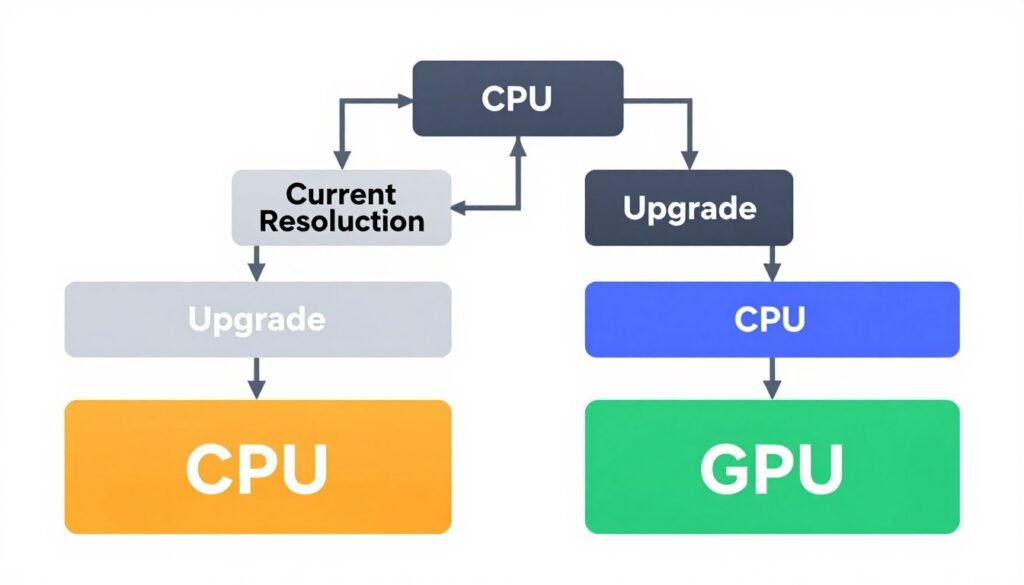
The trickiest situation is when you’re cpu-limited now but planning to upgrade your monitor to higher resolution soon. In that case, you might upgrade gpu first, then move to higher resolution, which naturally reduces the cpu bottleneck without requiring a cpu upgrade. This is the cheapest path for balanced performance.
CPU Upgrade Considerations for 2026
For gaming-focused builds dealing with resolution bottleneck at 1080p or 1440p, the AMD Ryzen 7 9800X3D is the top choice. The 3D V-Cache technology specifically helps with gaming workloads. This chip dominates frame rate charts across nearly every game.
Intel’s Core i7-14700K offers great value with strong single-core performance and more cores for productivity work. It won’t beat the 9800X3D in pure gaming but costs less and handles mixed workloads better.
Don’t buy more cores than you need. A 16-core cpu doesn’t help gaming performance over an 8-core cpu if games only use 6 cores effectively. You’re paying for cores that sit idle. Better to get fewer faster cores than more slower cores for gaming.
Platform costs matter too. Upgrading cpu often means new motherboard and sometimes new RAM. Factor in the total cost. Sometimes staying on your current platform with a top-tier chip for that socket makes more financial sense than jumping to the latest platform.
For detailed comparisons between current generation processors, check the comprehensive breakdown at Intel vs AMD 2026 covering gaming performance and value.
GPU Upgrade Strategy
If you’re gpu-limited at your target resolution and want better performance, gpu upgrade is the clear answer. But which tier makes sense depends on your resolution and refresh rate targets.
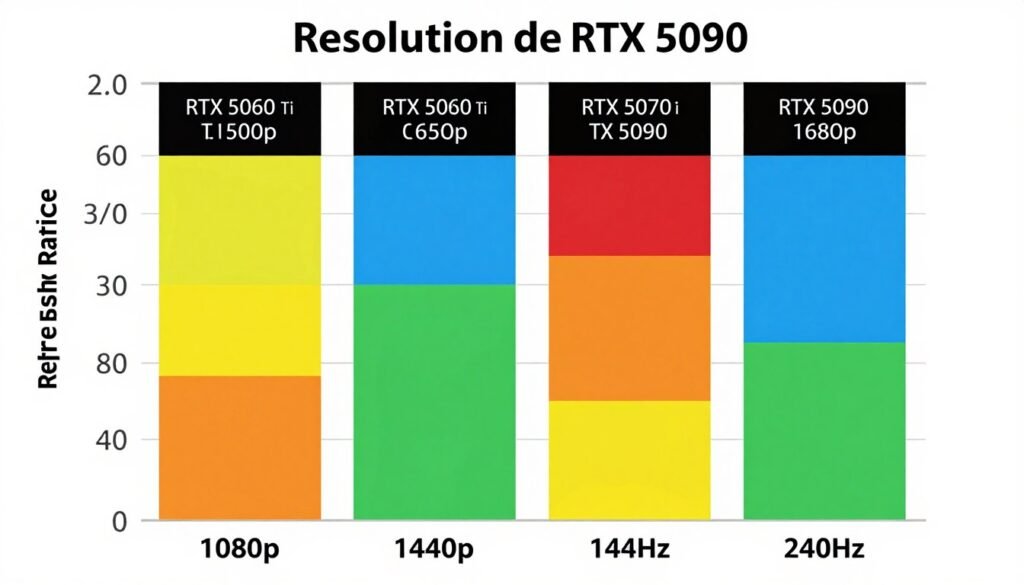
For 1080p 144 Hz gaming, even midrange cards like RTX 5060 Ti or RX 8700 XT handle most games well. You don’t need flagship cards unless you’re chasing 240+ fps in competitive titles or playing with ray tracing enabled.
For 1440p 144 Hz, you’re looking at RTX 5070 Ti or RX 8800 XT territory. These cards have the horsepower for high refresh gaming at this resolution in most titles. They’re the sweet spot for price to performance in 2026.
For 4K 120 Hz or 1440p 240 Hz, you need top-tier hardware. RTX 5080 minimum, preferably 5090 for maximum settings. These resolutions and refresh rates push current generation hardware hard.
VRAM Requirements Keep Growing
Graphics cards with less than 12 GB VRAM struggle at 1440p Ultra settings in new games. At 4K, 16 GB is becoming the minimum for comfortable gaming with high textures and ray tracing.
The RTX 5070 with 12 GB feels limiting already in some 2026 titles at 1440p max settings. The 5070 Ti with 16 GB provides much more headroom. That extra VRAM matters more as game asset quality continues increasing.
Don’t cheap out on VRAM if you plan to keep your gpu for 3-4 years. Games released in 2027-2028 will demand even more memory. Better to overspend slightly now than be forced to upgrade early because you ran out of VRAM.
For detailed analysis of memory limitations across different cards and resolutions, review the guide on VRAM bottleneck covering modern gaming demands.
Monitor Upgrade as Performance Solution
Sometimes the smartest “upgrade” is changing your monitor to match your hardware capabilities. If you have a powerful gpu but weak cpu and you’re stuck at 1080p, moving to 1440p reduces your cpu bottleneck.
A good 1440p 165 Hz monitor costs $250-350 in 2026. That might be cheaper than upgrading your cpu, motherboard, and RAM. You get better image quality and likely smoother performance because you shifted workload to your underutilized gpu.
For systems with strong cpu but aging gpu, consider staying at 1080p but upgrading to a high refresh rate monitor. A 240 Hz or 280 Hz 1080p panel lets you use all that cpu power for ultra-smooth competitive gaming while your gpu handles the moderate resolution.
Match your monitor to your hardware balance, not to what looks impressive on spec sheets. A balanced system with a mid-tier cpu, mid-tier gpu, and 1440p 144 Hz monitor will feel better than an unbalanced system with high-end cpu, low-end gpu, and 4K 144 Hz monitor where you’re always gpu-limited to 60 fps.
How DLSS and FSR Change Resolution Bottleneck Dynamics
Upscaling technologies like nvidia DLSS and AMD FSR fundamentally alter the resolution bottleneck equation. They let you target high display resolutions while rendering at lower internal resolutions. This shifts the workload balance.
Traditional rendering at 4K pushes 8.3 million pixels through your entire graphics pipeline. With dlss Quality mode, your gpu renders at approximately 1440p (3.7 million pixels) then uses AI to upscale to 4K. You cut the pixel workload nearly in half.
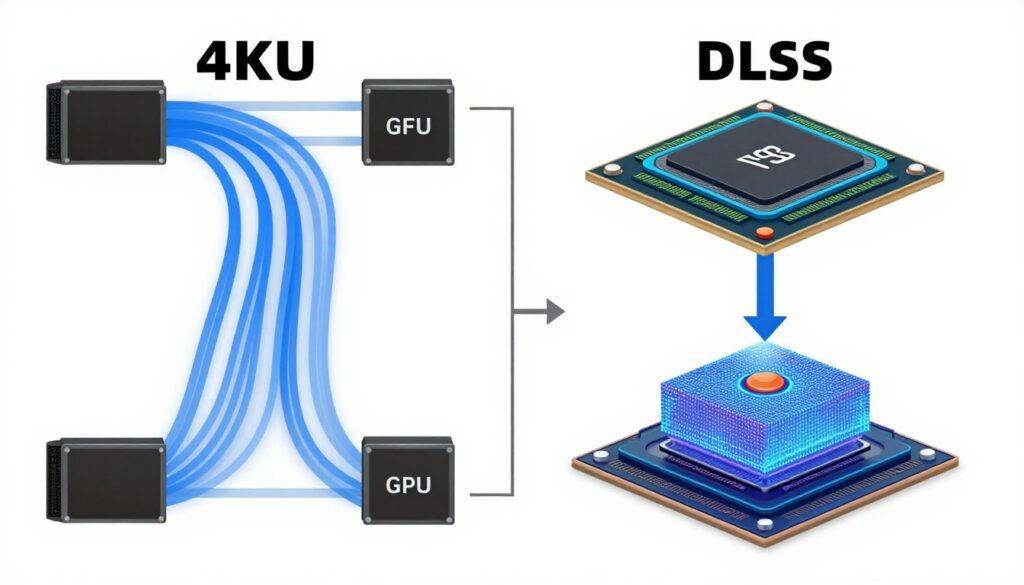
This matters for resolution bottleneck because it effectively lets you game at a higher display resolution without the full gpu penalty. You maintain visual quality close to native while getting frame rates closer to the lower internal resolution.
DLSS 3.5 and Frame Generation
nvidia’s latest dlss iteration adds frame generation. The gpu renders every other frame normally. AI generates the frames in between by analyzing motion vectors. This can double your frame rate in optimal conditions.
Frame generation introduces slight latency because the AI needs time to generate interpolated frames. For single player games, this trade-off is usually worth it. For competitive multiplayer where every millisecond matters, native rendering often feels better despite lower fps.
I tested this extensively in Cyberpunk 2077 with an RTX 5080. At 4K with path tracing, native rendering gave 48 fps. With dlss Quality and frame generation, I jumped to 110 fps. The game felt dramatically smoother. Minor artifacts occasionally appeared in fast motion but overall experience improved massively.
The catch is frame generation works best when your base frame rate is already decent (40+ fps). Below that threshold, the interpolated frames become more noticeable and artifacts increase. You can’t fix terrible performance just with frame generation.
FSR 3.1 as the AMD Alternative
AMD’s FidelityFX Super Resolution works on more hardware including older nvidia cards and integrated graphics. FSR 3.1 added frame generation similar to dlss but without requiring dedicated AI cores.
FSR uses traditional rendering techniques and algorithm-based upscaling rather than AI learning. This makes it more compatible but slightly lower quality than dlss in direct comparisons. The difference is visible in detailed scenes but not game-breaking.
For AMD gpu users or anyone on older hardware, fsr provides meaningful performance gains. At 1440p, FSR Quality mode maintains good image quality while improving frame rates by 30-40 percent typically. At 4K, the gains are even larger.
I prefer dlss on nvidia hardware when available, but fsr is absolutely viable and continues improving with each release. Don’t dismiss it just because it’s not using AI. The practical performance boost matters more than the underlying technology.
DLSS Advantages
- Better image quality in most comparisons
- Dedicated tensor cores accelerate processing
- More mature implementation in games
- Ray reconstruction improves ray tracing quality
- Frame generation with lower latency
FSR Advantages
- Works on wide range of hardware
- Open source and vendor agnostic
- No special hardware requirements
- Easier for developers to implement
- Available in more games currently
When to Use Upscaling for Bottleneck Situations
If you’re gpu-limited at your target resolution, upscaling is an immediate fix that requires zero hardware changes. Drop from Quality to Balanced or Performance mode for even bigger fps gains if you’re willing to sacrifice some visual clarity.
Upscaling helps less with cpu bottlenecks because you’re still rendering the same number of game logic frames. Your cpu workload doesn’t decrease when you enable dlss or fsr. Only gpu workload reduces. Frame generation can help by reducing the actual frames your gpu renders, giving your cpu more time.
At 1080p, upscaling often looks worse than native rendering because you’re starting from a very low internal resolution. DLSS Performance mode at 1080p renders at 720p internally. That’s too low for good upscaling results. Stick to native or Quality mode only at 1080p.
At 1440p and especially 4K, upscaling provides excellent results. The higher base resolution gives the upscaling algorithm more information to work with. Quality and Balanced modes are nearly indistinguishable from native in many games while providing 40-70 percent performance improvement.
The Future of Resolution Independence
As upscaling technology improves, the traditional resolution bottleneck becomes less relevant. We’re moving toward a future where display resolution and rendering resolution are completely decoupled. You choose your target fps and visual quality, and AI handles the rest.
This shift changes hardware buying decisions. Instead of matching gpu power strictly to resolution, you match it to your performance target while assuming upscaling will bridge the gap. An RTX 5070 Ti becomes viable for 4K gaming when you factor in dlss, whereas it would struggle with native rendering.
Game developers are designing with upscaling as the expected default rather than optional feature. Unreal Engine 5 games particularly benefit from this approach. Native rendering performance is almost secondary to upscaled performance in 2026 releases.
For deeper understanding of how modern games handle these technologies and their performance impact, explore UE5 performance covering optimization for current engines.
Building a Balanced System From the Start
The best time to address resolution bottleneck is before you build. Matching your cpu, gpu, and monitor together avoids imbalance issues entirely. This requires planning but saves money and frustration long term.
The Budget Allocation Rule
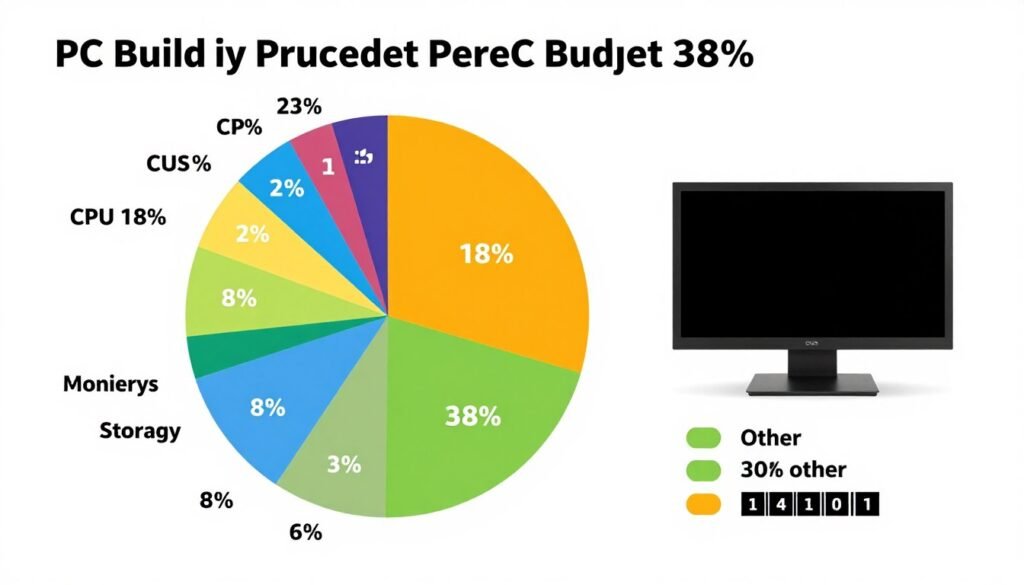
For gaming-focused builds, allocate roughly 35-40 percent of your total budget to your gpu. Another 20-25 percent goes to cpu. Monitor should be about 15-20 percent. This creates natural balance at most resolutions.
A $1500 build might split as: $600 gpu, $350 cpu, $250 monitor, $300 remainder for motherboard, RAM, storage, case, PSU. This balance means your gpu is strong enough for your resolution while your cpu can feed it adequately.
Budget builds under $1000 need different ratios. You might go 45 percent gpu, 20 percent cpu, skip the monitor entirely and use what you have. At this price point, maximize gaming performance first.
High-end builds over $3000 can afford to maximize both cpu and gpu without compromise. But even here, make sure your monitor matches. Buying a $2000 gpu and gaming on a 1080p 60 Hz monitor wastes most of that capability.
Resolution-First Planning
Start with your target resolution and refresh rate, then build around it. This ensures component balance from day one. Different resolutions demand different hardware priorities.
For 1080p 240 Hz esports gaming, prioritize cpu heavily. You need something like a Ryzen 7 9800X3D or Intel i7-14700K to push those frame rates. Your gpu can be mid-range like an RTX 5060 Ti because 1080p isn’t demanding. Invest in fast RAM since cpu performance scales with memory speed.
For 1440p 144 Hz balanced gaming, split focus between cpu and gpu. A Ryzen 7 7700X or i5-14600K pairs well with an RTX 5070 Ti or RX 8800 XT. You’re aiming for smooth high-refresh gaming without extreme demands on either component.
For 4K 60-120 Hz gaming, prioritize gpu heavily. Even a mid-range cpu like Ryzen 5 7600 works fine because you’ll be gpu-limited anyway. Invest in RTX 5080 or higher. VRAM capacity matters more than raw compute at this resolution.
- High-end CPU (9800X3D, i7-14700K)
- Mid-range GPU (RTX 5060 Ti, RX 8700 XT)
- Fast RAM (6000+ MHz on AM5)
- 240 Hz+ monitor
- Budget: 30% CPU, 35% GPU
1080p High Refresh Build
- Upper mid-range CPU (7700X, i5-14600K)
- High-end GPU (RTX 5070 Ti, RX 8800 XT)
- Good RAM (5600-6000 MHz)
- 144-165 Hz monitor
- Budget: 25% CPU, 40% GPU
1440p Balanced Build
- Mid-range CPU (7600, i5-14400F)
- Flagship GPU (RTX 5080/5090)
- Adequate RAM (5200+ MHz)
- 120 Hz monitor
- Budget: 20% CPU, 45% GPU
4K Gaming Build
Future-Proofing Considerations
Build with upgrade paths in mind. Choose a motherboard with good VRM that can handle future cpu upgrades. Get a PSU with headroom for more powerful graphics cards. Buy slightly faster RAM than you need now because it helps when you upgrade other components.
If you’re planning to move to higher resolution in 12-18 months, bias toward gpu now even if it creates slight imbalance initially. You’ll grow into the gpu power when you upgrade your monitor. A temporarily cpu-limited system is easier to fix later than a gpu-limited system.
Platform longevity matters. AM5 will receive new Ryzen cpus through 2027. Intel’s LGA1700 is end of life in 2026. If you expect to upgrade cpu in 2-3 years without changing motherboard, platform choice affects your options. Factor this into your initial build decision.
Don’t overbuild for current needs hoping to “future-proof” for 5 years. Technology moves too fast. Better to build balanced for your current resolution, game for 3 years, then upgrade to a new balanced system. Trying to predict needs 5 years out leads to wasted money on specs you never use.
For comprehensive advice on creating balanced builds and understanding component interactions, review the guide on build and buy advice covering current hardware recommendations.
Real-World Scenarios I’ve Actually Seen and Fixed
Theory is useful, but real examples show how resolution bottleneck actually impacts people. Here are situations I’ve personally encountered and the solutions that worked.
Scenario 1: The Frustrated Competitive Gamer
A friend built a system for Valorant and Counter-Strike: Ryzen 5 5600, RTX 4070, 1080p 280 Hz monitor. He expected 300+ fps but was stuck around 180-200 fps with inconsistent frame times. Gpu usage sat at 55-65 percent. Clear cpu bottleneck.
The fix wasn’t upgrading to a better gpu. That would have been wasted money. He needed better cpu performance for the extremely high frame rates he was chasing. We upgraded his RAM from 3200 MHz to 6000 MHz with tight timings (his motherboard supported it). This alone boosted him to 240-260 fps.
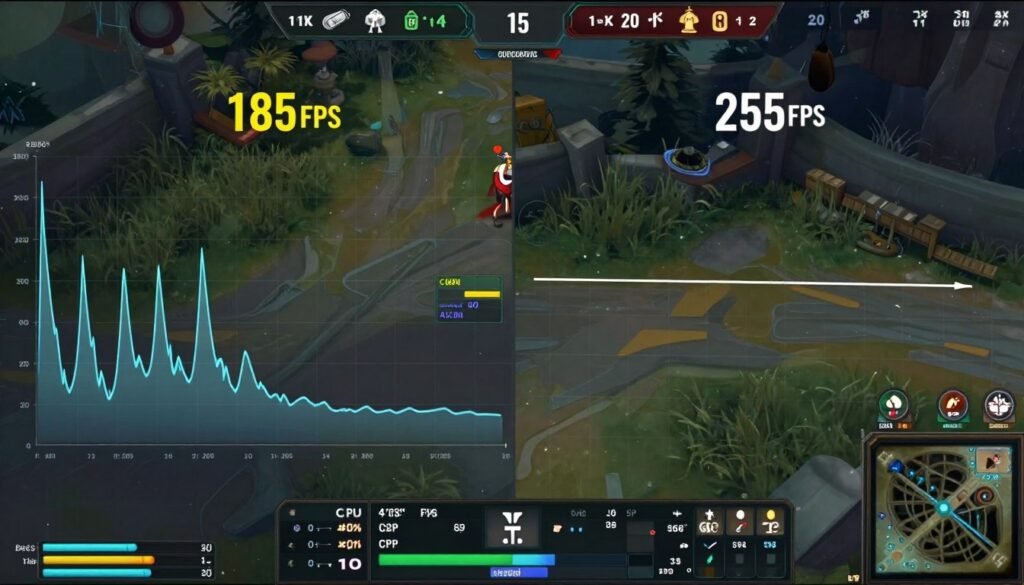
Then we tweaked Windows for absolute minimum background load, disabled every startup app, set affinity for the game to use specific cpu cores. Final result: 280-300 fps consistently. Total cost: $120 for RAM versus $400+ for new cpu, motherboard combo. Resolution bottleneck understanding saved him money.
Scenario 2: The 4K Upgrader Who Made It Worse
Someone upgraded from 1440p to 4K monitor expecting better experience with his RTX 4080. Instead, games felt worse. He was getting 60-75 fps where he previously had 110-130 fps at 1440p. He thought his gpu was dying.
Nothing was wrong with his hardware. He just didn’t account for the 4K pixel workload. His expectations were set by 1440p performance. The solution was enabling dlss Quality mode in all games that supported it. This brought him back to 90-110 fps at 4K with minimal visual difference from native.
We also had him lower texture quality from Ultra to High in games approaching his 16 GB VRAM limit. Games like Resident Evil 4 and Hogwarts Legacy were filling VRAM completely at 4K Ultra textures. This caused stuttering during asset streaming. High textures freed up 2-3 GB headroom and eliminated stuttering.
Scenario 3: The Budget Build Imbalance
Budget-constrained build: i5-12400F, RTX 4060, 1080p monitor. Games ran fine initially. Then he bought Baldur’s Gate 3 and Starfield. Performance was terrible – 40-50 fps in cities. Gpu usage barely hit 70 percent. Another cpu bottleneck scenario.
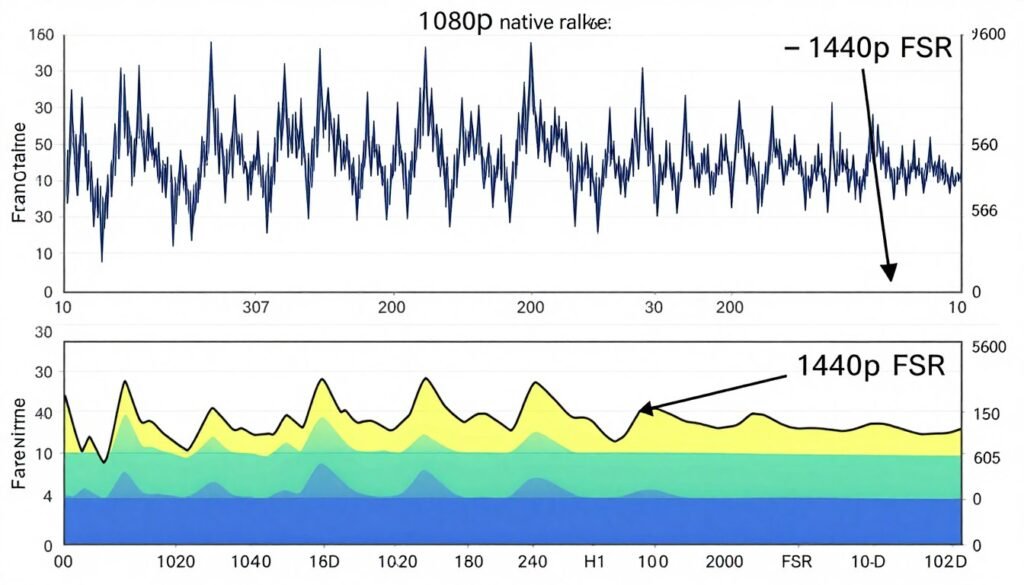
The i5-12400F is fine for most games but struggles with the newest cpu-heavy titles. Rather than upgrade cpu, we took a different approach. We increased his resolution to 1440p using his TV. His gpu usage jumped to 95 percent and fps actually improved slightly to 52-58 fps. More consistent frame times too.
Then we enabled FSR Balanced mode at 1440p. This effectively gave him close to native 1440p visuals with performance similar to 1080p native, but with better cpu-gpu balance. He got smoother gameplay without spending anything. Eventually he bought a proper 1440p monitor when sales hit.
Scenario 4: The Unnecessary Upgrade
Someone with Ryzen 7 5800X3D and RTX 3080 at 1440p wanted to upgrade because he felt performance was lacking. He was planning to buy an RTX 5080 for $1000. We tested his system first.
His actual bottleneck was running games at all maxed settings including ray tracing. His gpu was pegged at 100 percent trying to push ray tracing at 1440p Ultra. His cpu had tons of headroom. The 5800X3D is still excellent for gaming in 2026.
We disabled ray tracing and enabled dlss Quality instead of native rendering. His frame rate jumped from 65 fps to 110 fps. He didn’t need any upgrade. Just better settings configuration. Saved him a thousand dollars by understanding where his actual limitation was.
Six months later he did upgrade to an RTX 5070 Ti when his 3080 resale value was still decent. Much more sensible upgrade path, and he got similar performance to the 5080 at 1440p for half the cost.
Common Thread in All Scenarios
Every situation came down to understanding where the actual bottleneck existed. People assumed they needed expensive upgrades when optimization, settings changes, or different resolution choices solved their issues.
Test your system before buying new components. Monitor your actual usage numbers. Ask if the problem is hardware limitation or configuration issue. More often than you’d expect, it’s configuration.
For additional real-world scenarios and troubleshooting steps across different hardware combinations, explore the resources at tech insights covering various performance challenges.
The Bottom Line: What You Actually Need to Know
Resolution bottleneck is real and affects every gaming pc differently based on component balance. Understanding it prevents wasted money on wrong upgrades and helps you optimize the system you already own.
Lower resolutions shift workload to cpu. Higher resolutions shift workload to gpu. This fundamental relationship determines whether your cpu or gpu is your limiting factor. Match your resolution to your hardware balance, not to arbitrary preferences.
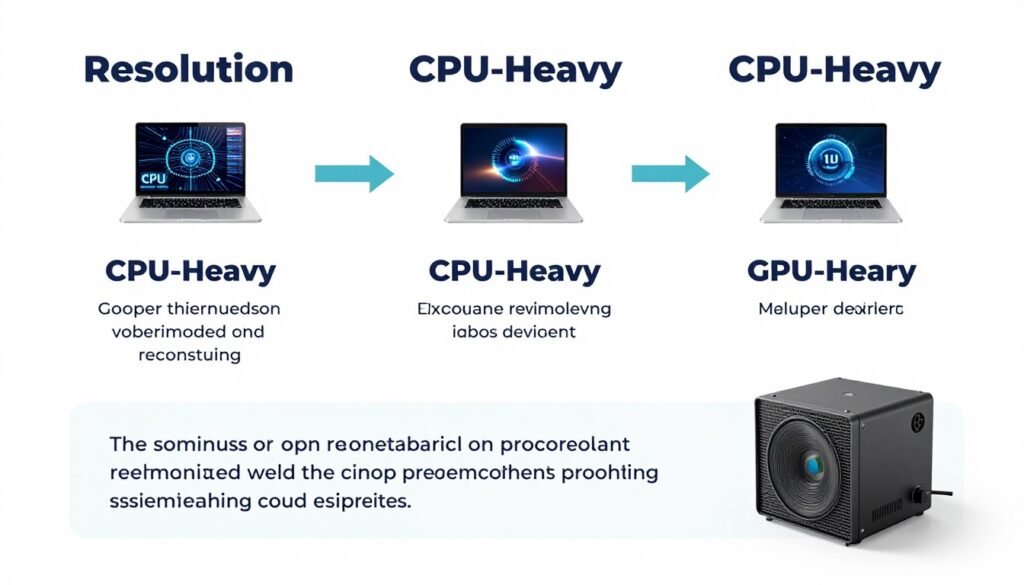
At 1080p with powerful modern gpus, you’ll likely be cpu-limited. Competitive gamers need strong cpus more than flagship graphics cards. At 4K, you’ll be gpu-limited with any reasonable modern cpu. Investing in gpu power makes sense here. At 1440p, you need balance between both components.
DLSS and FSR technologies change the equation significantly. They let you target higher display resolutions while reducing gpu workload. This allows mid-range cards to handle resolutions that previously required high-end hardware. Factor upscaling into your buying decisions in 2026.
Before buying new hardware, optimize what you have. Close background apps, enable XMP, adjust the specific graphics settings that affect cpu load, try different resolutions. Many “performance problems” are actually configuration issues masquerading as hardware limitations.
When you do upgrade, match components to your target resolution and refresh rate. Don’t build imbalanced systems. A $1200 gpu with a $150 cpu makes no sense for any resolution. A $600 cpu with a $250 gpu is equally wasteful. Balance your investment across both components.
Ready to Optimize Your Build?
Take everything you’ve learned here and apply it to your specific hardware. Our knowledge base has detailed guides for every component, resolution, and game type. Whether you’re building new or optimizing existing, we’ve got the detailed breakdowns you need.
The most important takeaway: test and measure before assuming you know where your bottleneck is. Your intuition about performance is often wrong. The data from monitoring tools tells you the truth. Make decisions based on actual usage numbers, not feelings.
Resolution choice impacts your gaming experience as much as your component selection. Don’t pick resolution based on what sounds impressive. Pick it based on what your hardware can actually deliver smoothly. A balanced 1440p 144 Hz experience beats an unbalanced 4K 60 fps struggle.
What’s the weirdest performance issue you’ve ever run into?