
I once spent two weeks chasing phantom performance issues on a new build. Frames were dropping in demanding games. Render times felt sluggish. I swapped RAM, tweaked BIOS settings, even reapplied thermal paste twice. The real problem? My RTX 4080 was running in a PCIe 3.0 slot at x8 bandwidth instead of the x16 PCIe 4.0 it needed.
That experience taught me something crucial. PCIe bandwidth isn’t just a spec sheet number. It’s the data highway connecting your most expensive components. When that highway gets congested, everything slows down. But here’s what nobody talks about: most people have no idea when PCIe actually becomes a bottleneck.
This guide cuts through the marketing noise. You’ll learn exactly when PCIe lanes matter, which generation you actually need, and how to spot a real PCIe bottleneck before it tanks your performance. We’re covering gaming rigs, content creation systems, and the new AI workloads that are pushing bandwidth limits harder than ever.
Is PCIe Limiting Your System Right Now?
Before we dig into the technical details, you can check your specific setup with our calculator to see if PCIe is actually limiting your system. It takes about 30 seconds and gives you real data instead of guesswork.
What Actually Is a PCIe Bottleneck and Why Should You Care?
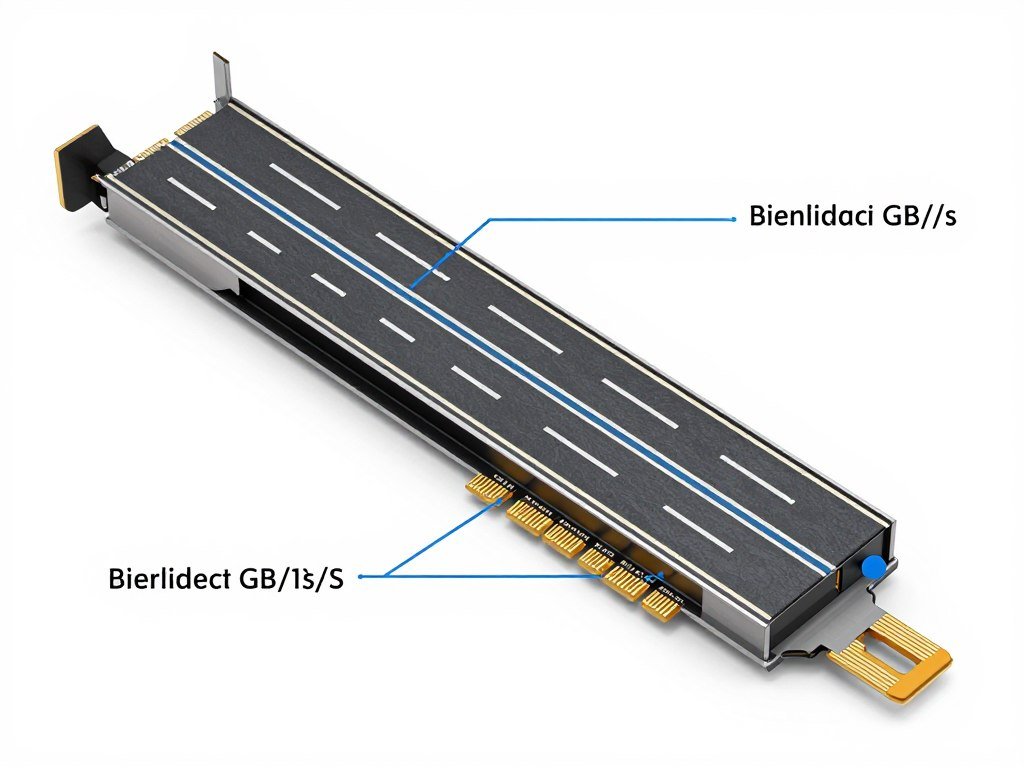
A PCIe bottleneck happens when your expansion card (usually a GPU or SSD) needs to move data faster than the PCIe slot can handle. Think of it like trying to pour a gallon of water through a coffee stir straw. The water’s there, but it’s not getting where it needs to go fast enough.
PCIe lanes are the physical connections between your motherboard and components. Each lane is a dedicated pathway for data. Modern GPUs typically use x16 slots (sixteen lanes), while NVMe SSDs use x4 slots (four lanes).
Here’s where it gets interesting. Not all lanes are created equal. PCIe generations determine the speed of each lane. PCIe 3.0 moves data at roughly 1 GB/s per lane. PCIe 4.0 doubles that to 2 GB/s. PCIe 5.0 doubles it again to 4 GB/s per lane.
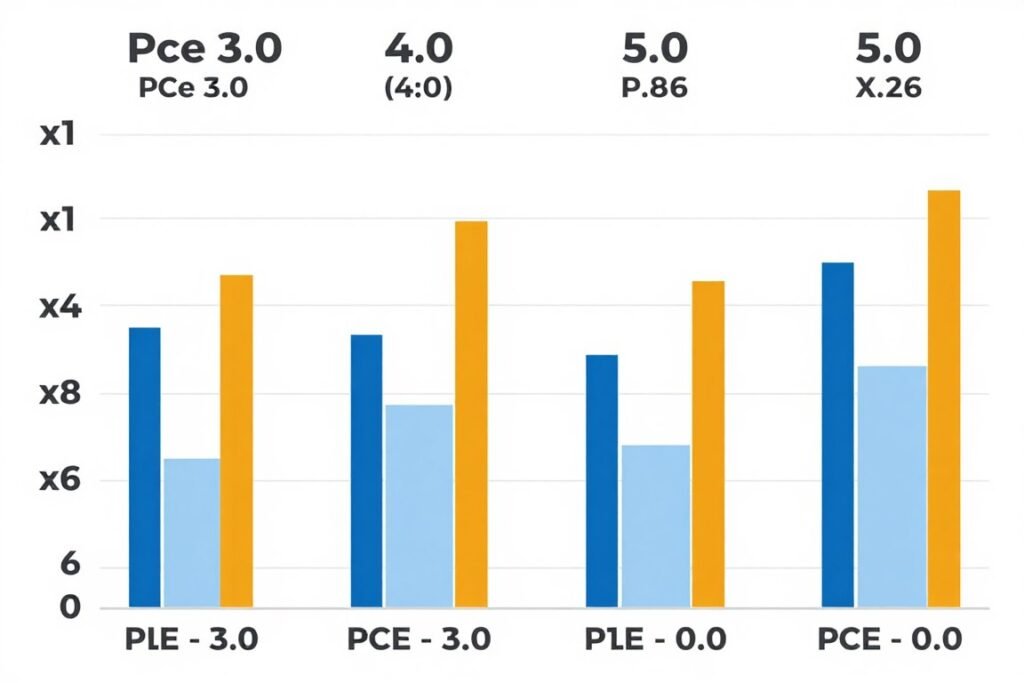
The math matters because a GPU running at PCIe 4.0 x8 gets the same bandwidth as PCIe 3.0 x16. That’s 16 GB/s either way. Understanding this relationship helps you spot potential issues before building or upgrading. For more foundational concepts, check out our guide on bottleneck basics.
PCIe 3.0 Bandwidth
- x1: 1 GB/s
- x4: 4 GB/s
- x8: 8 GB/s
- x16: 16 GB/s
PCIe 4.0 Bandwidth
- x1: 2 GB/s
- x4: 8 GB/s
- x8: 16 GB/s
- x16: 32 GB/s
The reality is most users never hit PCIe bandwidth limits in typical gaming scenarios. But specific workloads can slam into that ceiling fast. Content creators moving 8K video files between NVMe drives feel it immediately. Machine learning developers loading massive datasets see it every training session.
When Do PCIe Lanes Actually Start Choking Performance?
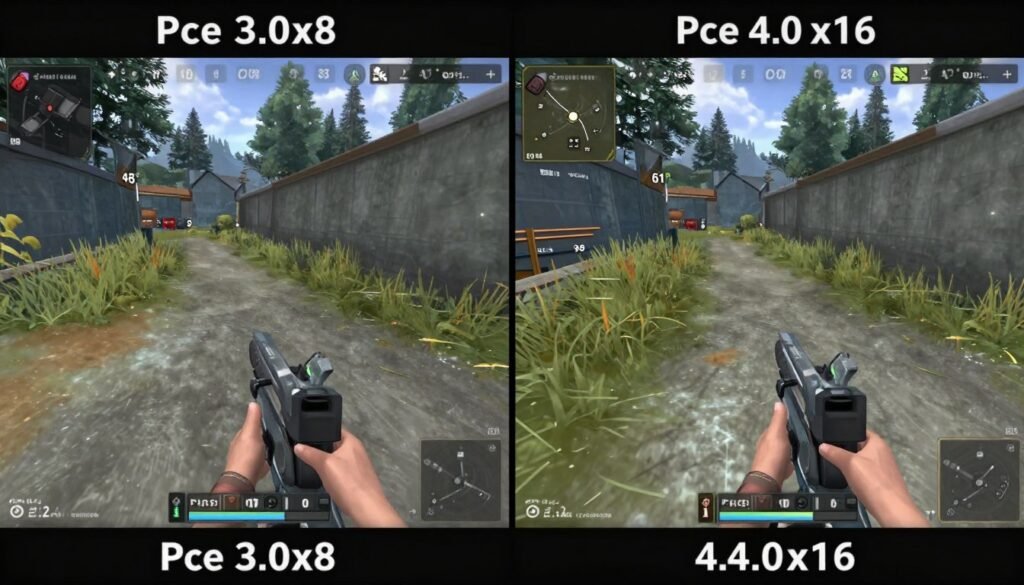
Let’s talk about where PCIe bandwidth actually impacts real-world use. Gaming is the most common concern, but it’s not always where you’d expect problems.
Gaming Workloads and PCIe Limitations
Most games at 1080p or 1440p barely touch PCIe bandwidth limits, even on PCIe 3.0. The GPU processes frames internally and only sends the final image through the bus. That’s not much data compared to the slot’s capacity.
Things change at 4K with maximum settings. High-resolution textures get swapped in and out of VRAM constantly. If your GPU has limited VRAM, it pulls textures from system RAM across the PCIe bus. That’s when you feel the squeeze.
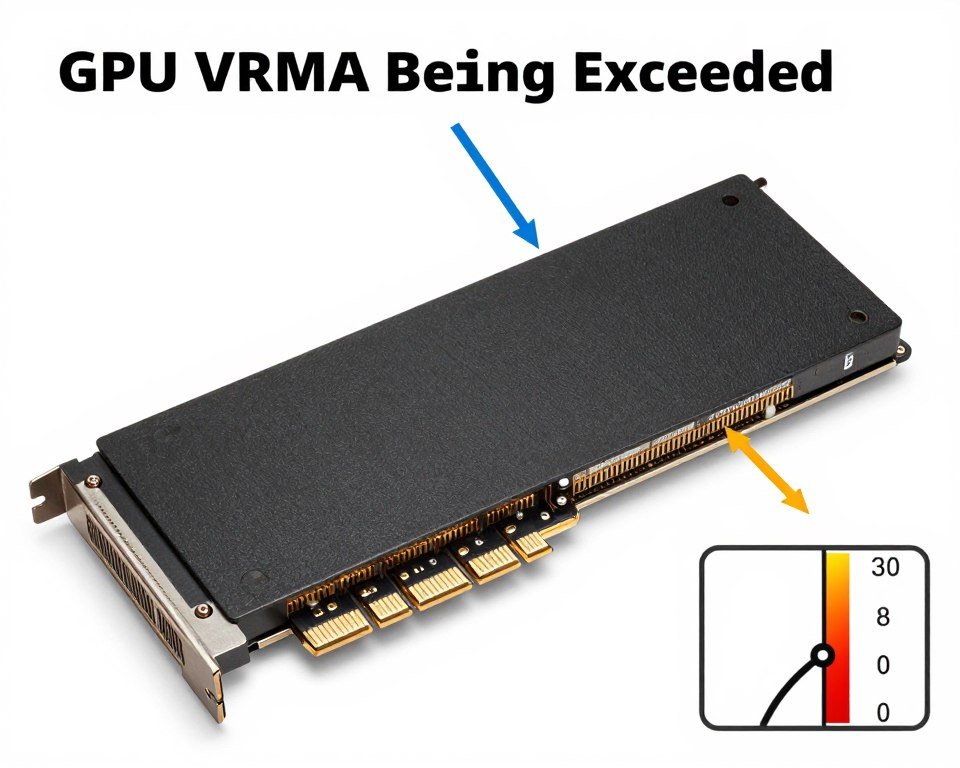
The RTX 5090 with its 32GB of VRAM rarely needs to page textures from system memory. But older cards with 8GB or 10GB? They’re constantly shuffling data when you crank up texture quality. Check out our VRAM bottleneck guide for deeper analysis on memory limitations.
Modern titles built on Unreal Engine 5 are particularly bandwidth-hungry. Nanite geometry and Lumen lighting stream massive amounts of data. If you’re experiencing stutters in UE5 games, our UE5 performance guide covers optimization strategies.
Content Creation Gets Hit Harder
Video editing slams PCIe bandwidth way harder than gaming. Adobe Premiere Pro reading multiple 4K or 8K video streams simultaneously from NVMe drives needs every bit of bandwidth available. Drop down to PCIe 3.0 on your storage drives and you’ll see playback stutter immediately.
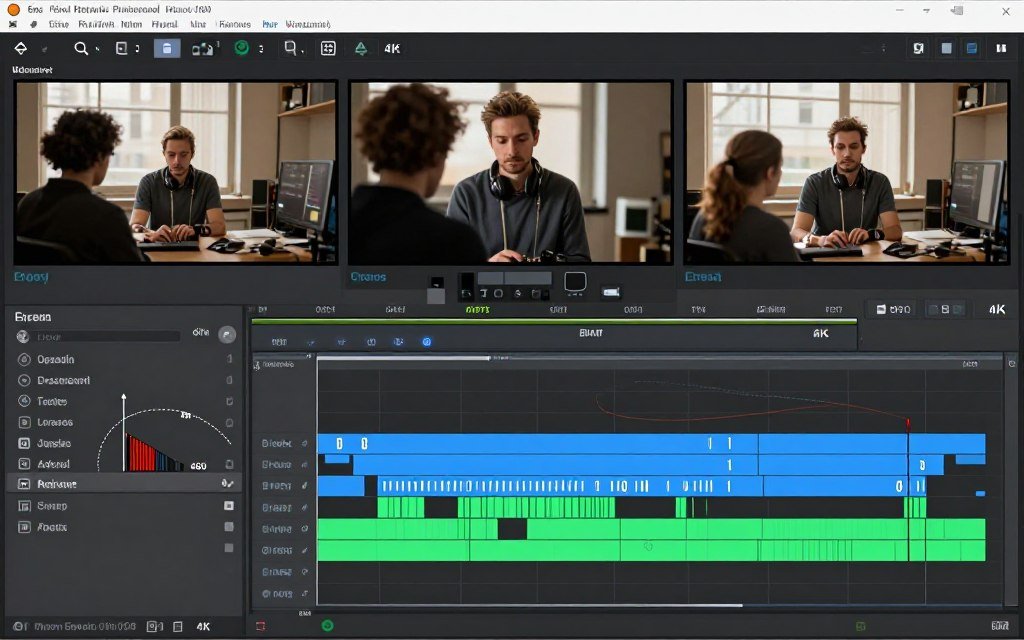
3D rendering and GPU compute tasks move data between GPU and CPU constantly. DaVinci Resolve Color grading with multiple nodes? You’re pushing frames back and forth across the PCIe bus the entire time. Same with Blender rendering complex scenes.
This is where PCIe 4.0 makes a measurable difference. Shaving 10-15% off render times isn’t trivial when you’re billing by the hour. Learn more about optimizing creative workflows in our PC optimization section.
AI and Machine Learning Workloads
Machine learning is the new bandwidth killer. Training models on consumer hardware involves constantly loading training data from storage into GPU memory. If your dataset doesn’t fit in VRAM, you’re pulling samples across PCIe every batch.

The RTX 5090 can process inference workloads insanely fast, but only if you can feed it data quickly enough. PCIe 3.0 x16 becomes the limiting factor faster than most people expect. Running local LLM models? PCIe bandwidth determines how quickly you can load model weights. For optimal AI performance setups, see our RTX 5090 optimization guide.
Not Sure If Your Workload Is PCIe-Limited?
Our bottleneck calculator analyzes your specific components and use case to identify whether PCIe bandwidth is holding you back. Gaming, content creation, or AI – get targeted recommendations for your actual workflow.
PCIe 3.0 vs 4.0 vs 5.0: What the Numbers Actually Mean for Your Build
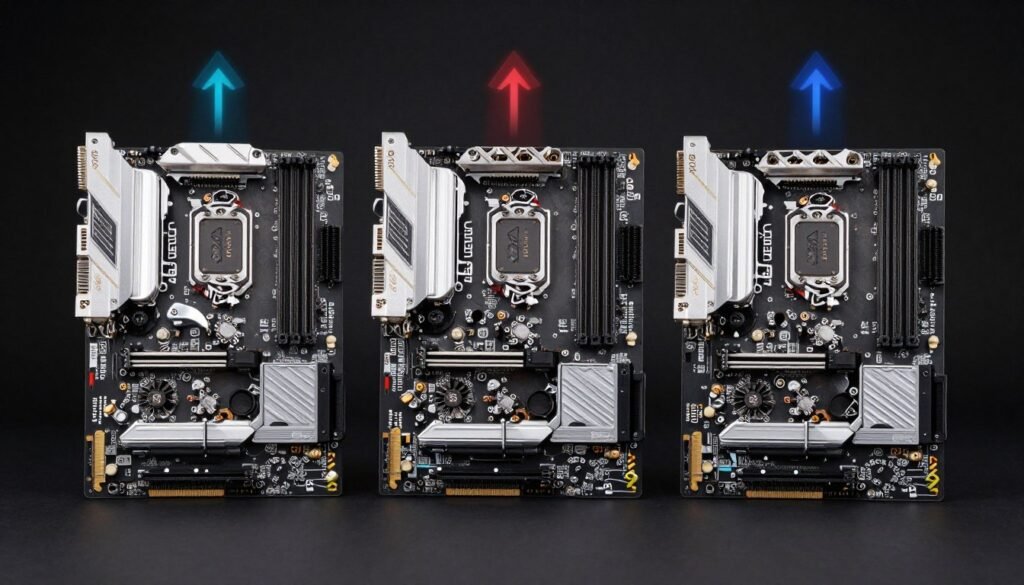
The jump between PCIe generations doubles bandwidth every time. But does doubling theoretical speed actually double real-world performance? Not usually.
PCIe 3.0: Still Relevant or Totally Outdated?
PCIe 3.0 launched in 2010. It’s old tech by any standard. Yet most gamers still wouldn’t notice a difference upgrading from PCIe 3.0 to 4.0 with mid-range GPUs.
Cards like the RTX 4060 or RX 7600 don’t saturate PCIe 3.0 x16 bandwidth. The GPU itself isn’t powerful enough to demand that much data throughput. You’re limited by GPU processing power, not the bus connection.
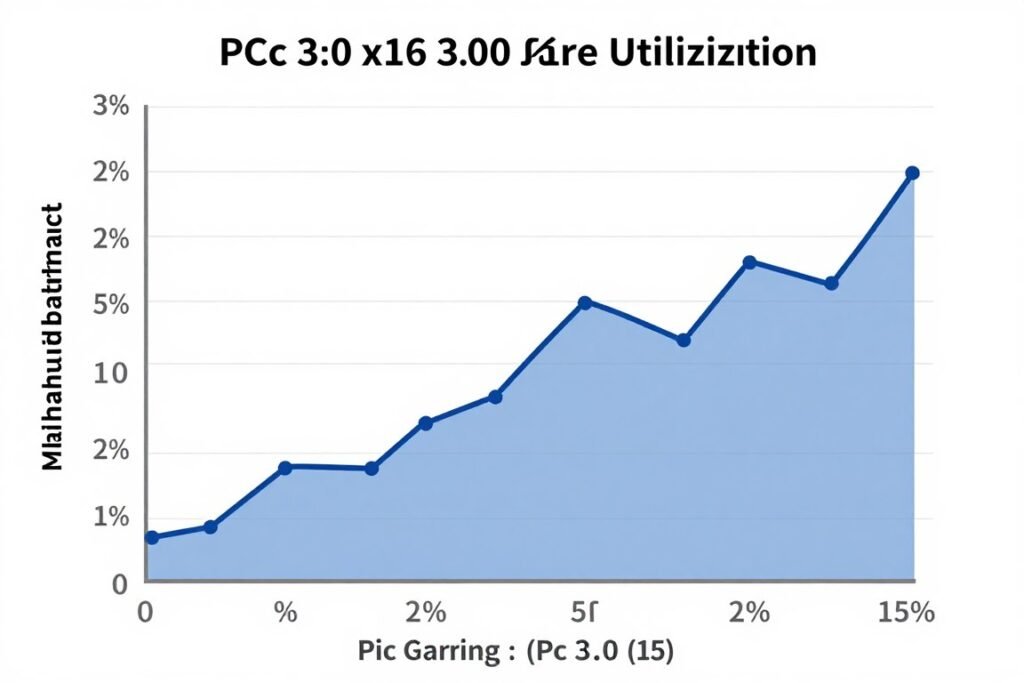
Where PCIe 3.0 shows its age is with high-end GPUs running at reduced lane counts. An RTX 4090 in a PCIe 3.0 x8 slot loses 5-10% performance in demanding games. That same card in PCIe 4.0 x8? No measurable loss.
PCIe 4.0: The Sweet Spot Right Now
PCIe 4.0 hit mainstream with AMD Ryzen 3000 CPUs in 2019. By 2026, it’s the standard configuration for most builds. The bandwidth headroom handles everything current GPUs can throw at it.
NVMe drives finally have room to breathe on PCIe 4.0. Gen 4 SSDs hitting 7,000 MB/s read speeds need that doubled bandwidth. PCIe 3.0 x4 maxes out at 4,000 MB/s, leaving performance on the table.
For most users building systems today, PCIe 4.0 is the target. It’s widely available, well-supported, and provides enough bandwidth for 2-3 GPU generations. Understanding component pairing is crucial – check our system balance guide for component matching strategies.
PCIe 5.0: Future-Proofing or Overkill?
PCIe 5.0 doubles bandwidth again to 128 GB/s at x16. That’s absurd bandwidth that literally nothing uses fully yet. Even the RTX 5090 doesn’t saturate PCIe 4.0 x16 in most workloads.
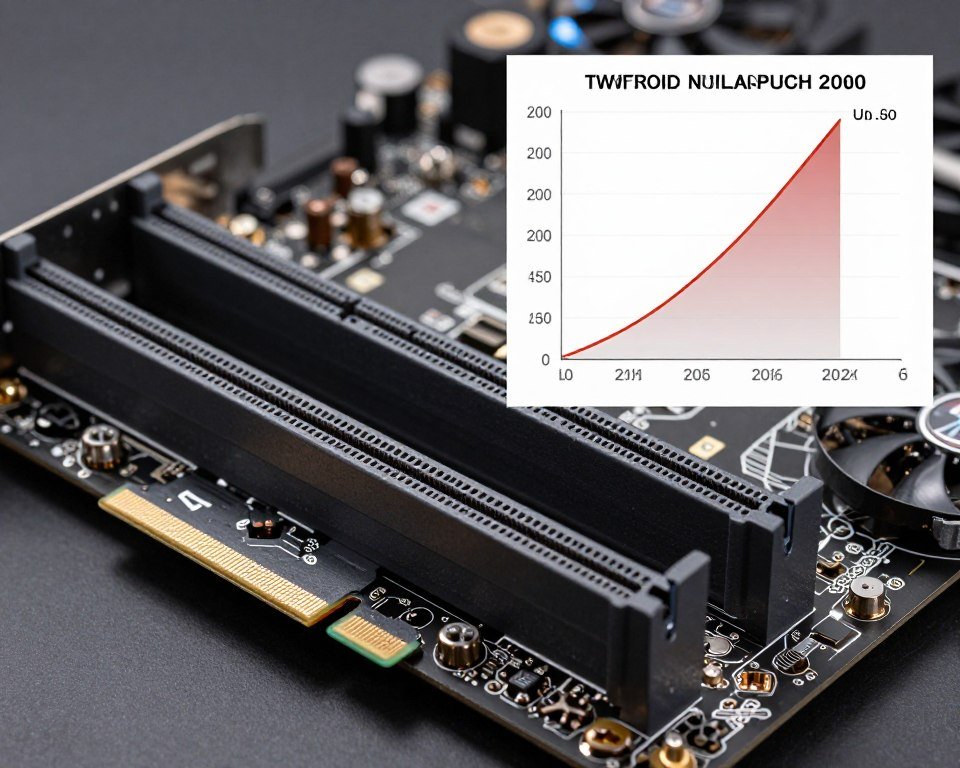
Where PCIe 5.0 matters today is storage. Gen 5 NVMe drives hitting 14,000 MB/s read speeds need that bandwidth. If you’re moving massive files constantly, PCIe 5.0 storage makes a difference.
But for GPUs? PCIe 5.0 is future-proofing for hardware that doesn’t exist yet. The RTX 6090 in 2027 might finally justify it. Today it’s a spec sheet checkbox with minimal real-world benefit. For CPU selection guidance, our Intel vs AMD guide covers platform differences including PCIe generation support.
When to Prioritize PCIe 4.0
- High-end GPU builds (RTX 4080 and up)
- Multi-GPU setups splitting lanes
- NVMe RAID configurations
- Content creation workstations
- Budget allows without compromise
When PCIe 3.0 Is Fine
- Mid-range gaming (RTX 4060, RX 7600)
- 1080p or 1440p gaming focus
- Older platform upgrades
- Tight budget builds
- Single SSD configurations
- Esports gaming primarily
Understanding x1, x4, x8, and x16: Why Slot Size Actually Matters

PCIe slots come in different physical sizes, but the physical size doesn’t always match the electrical connections. A slot might look like x16 but only have x8 lanes wired. This catches people off guard constantly.
How Lane Splitting Works on Your Motherboard
Your CPU has a limited number of PCIe lanes to distribute. An AMD Ryzen 9000 series provides 28 PCIe 4.0 lanes from the CPU. Intel Core processors typically offer 20 PCIe lanes. The motherboard chipset adds more lanes, but they share bandwidth back to the CPU.
When you install multiple devices, lanes get divided. Put a GPU in the top slot and an NVMe drive in the M.2 slot directly under it? That GPU might drop from x16 to x8, giving the SSD its x4 lanes.
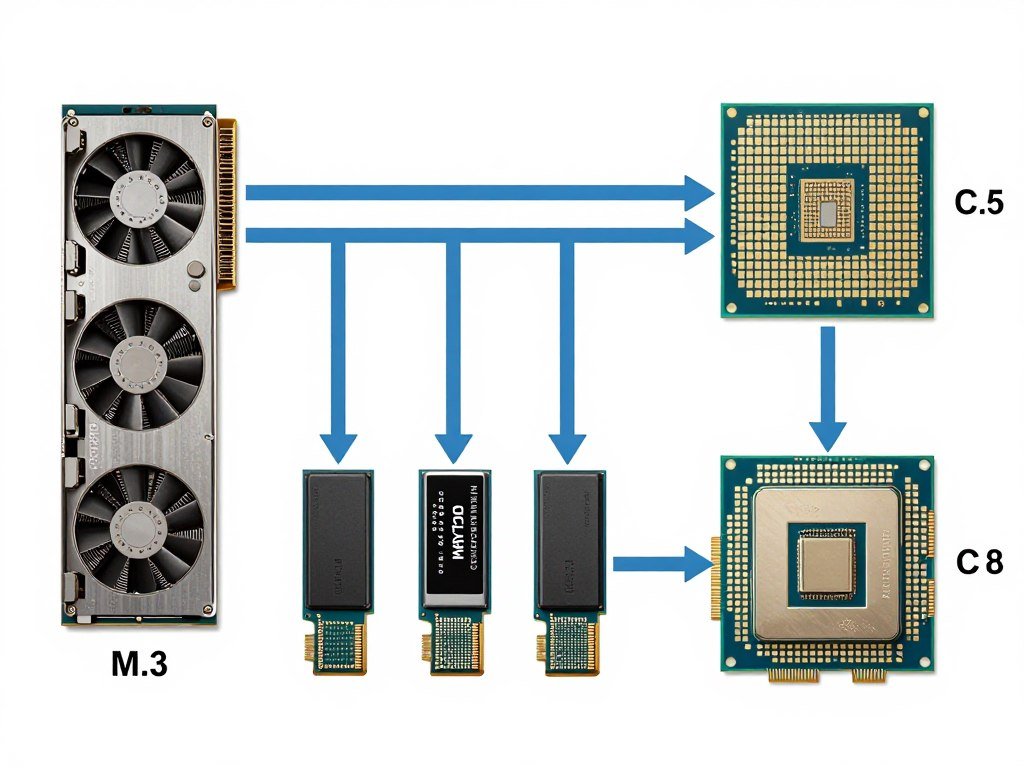
Read your motherboard manual. Seriously. It shows exactly which slots share lanes and which configurations disable specific slots. This matters more than most people think. Our hardware guides section covers platform-specific lane allocation patterns.
When x8 Is Actually Enough
Most modern GPUs handle PCIe 4.0 x8 without measurable performance loss. That’s 16 GB/s bandwidth – identical to PCIe 3.0 x16. For gaming, the difference between x8 and x16 at PCIe 4.0 is typically 1-3% at most.
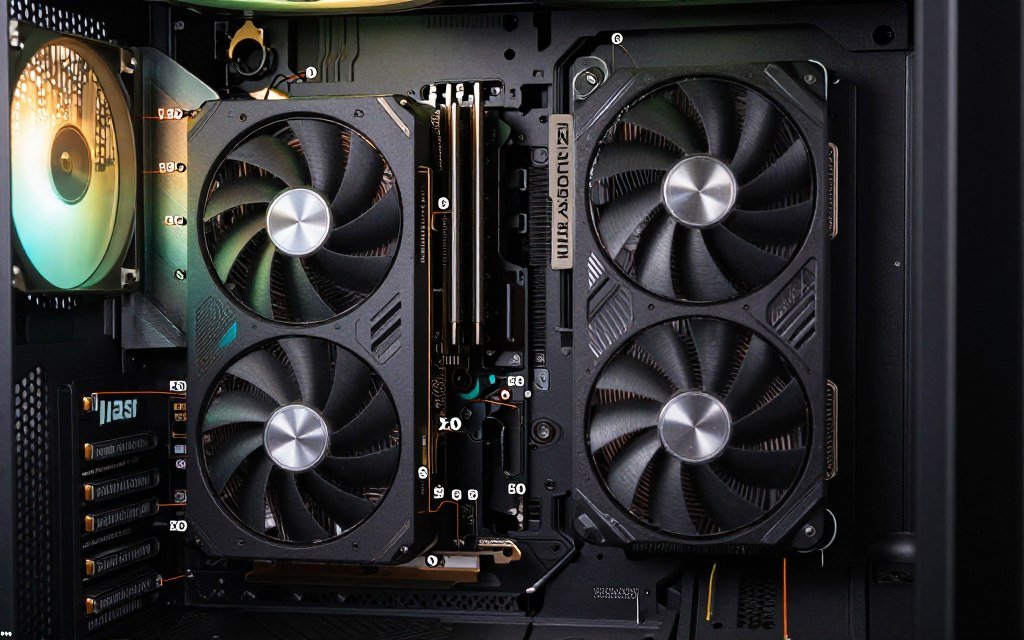
This opens up interesting configurations. Running two GPUs at x8/x8 on PCIe 4.0 gives each card full bandwidth for single-GPU workloads. Content creators rendering on multiple cards benefit significantly.
Small Form Factor Realities
Mini-ITX boards typically offer just one PCIe x16 slot and one or two M.2 slots. Lane management is simpler but more restrictive. You can’t add a capture card without using a riser cable or adapter.
Some ITX boards wire the M.2 slots through the chipset instead of direct CPU lanes. This adds latency and shares bandwidth with USB, SATA, and other devices. For a gaming-focused build it’s usually fine. For heavy storage workloads, it’s a bottleneck. Understanding these limitations is part of smart build planning.
How to Actually Spot a PCIe Bottleneck in Your System
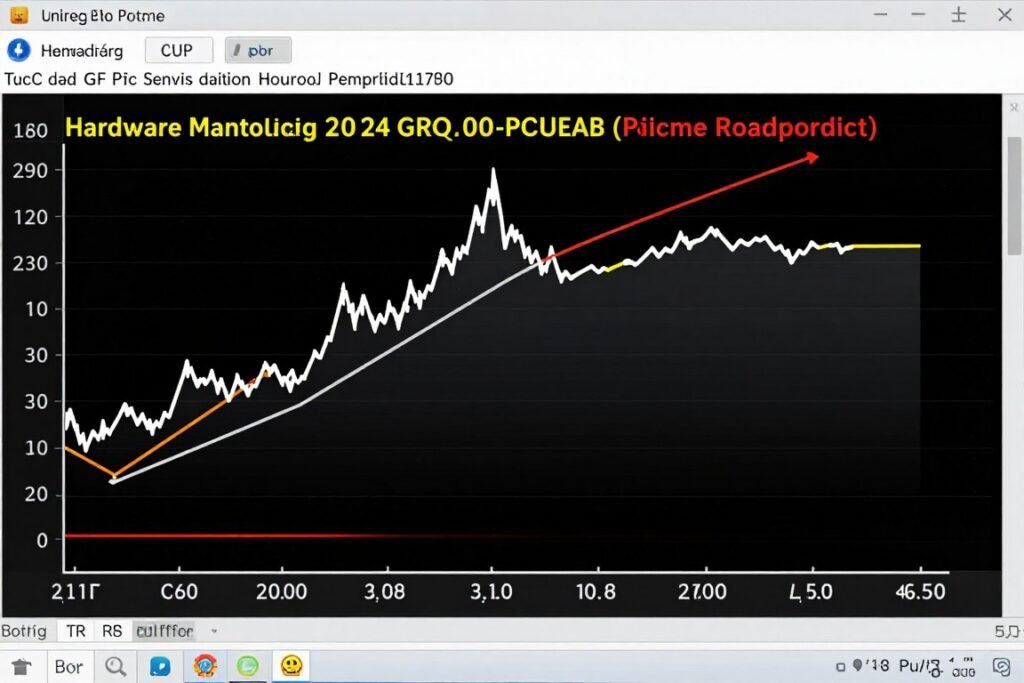
Suspecting a PCIe bottleneck is different from confirming one. Here’s how to test whether PCIe is actually limiting your performance.
Software Tools That Show Real Data
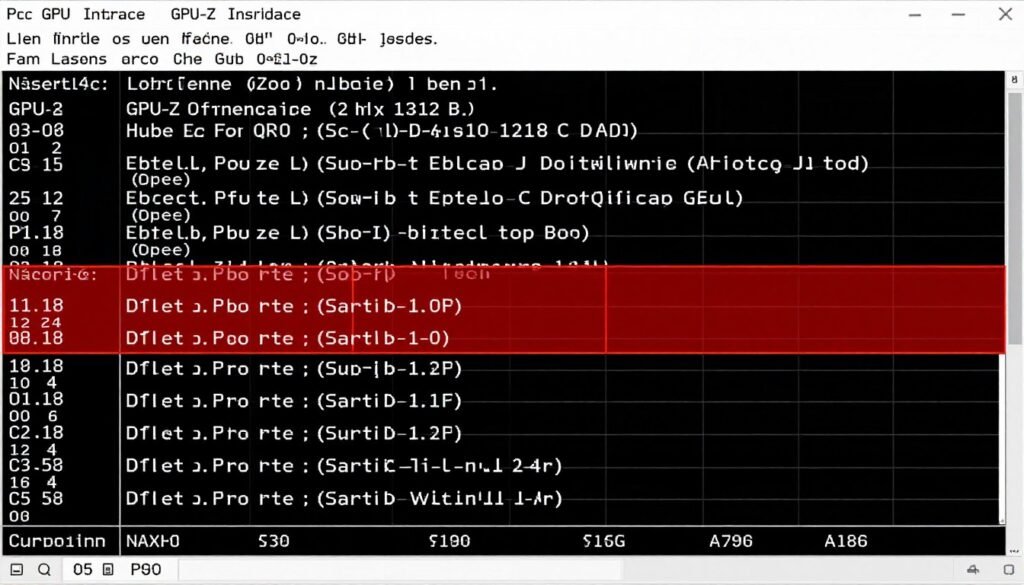
GPU-Z shows your current PCIe configuration. The “Bus Interface” section displays generation and active lane count. Run a GPU benchmark and watch whether it runs at the expected speeds. If it shows “PCIe 3.0 x8 @ x4”, you’ve got a problem.
HWiNFO64 tracks PCIe utilization over time. Monitor the “PCIe Link Speed” sensors during intensive workloads. If bandwidth usage consistently maxes out at 100%, you’ve found your bottleneck.
Practical Testing Methods
Compare benchmark scores with online results from identical hardware. If your RTX 4090 scores 15% lower than reviews showed, PCIe is a likely suspect. Check whether it’s running at the expected generation and lane count first.
For storage bottlenecks, run CrystalDiskMark on your NVMe drives. If a PCIe 4.0 drive maxes out at 4,000 MB/s instead of 7,000 MB/s, it’s likely running at PCIe 3.0 speeds. For more information on identifying performance limitations, see our guide on identifying CPU bottlenecks, which covers similar diagnostic approaches.
Common Causes of Unexpected PCIe Limitations
Incorrect slot usage is the most common issue. Installing your GPU in the second or third PCIe slot might limit it to x4 bandwidth. Always use the top x16 slot closest to the CPU for your primary GPU.
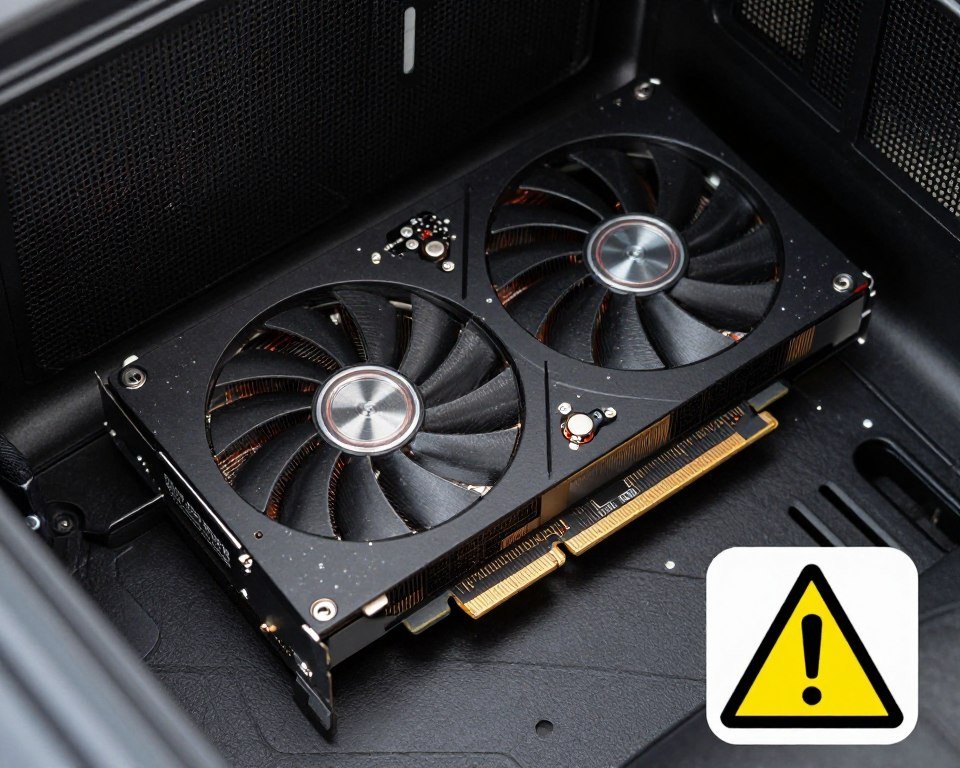
BIOS settings sometimes default to older PCIe generations for compatibility. Check your motherboard BIOS and verify PCIe is set to “Auto” or the maximum supported generation. Some boards default to PCIe 3.0 even when 4.0 is supported.
Riser cables in vertical GPU mounts often don’t support PCIe 4.0. Using a PCIe 3.0 riser forces your GPU to drop down a generation, cutting bandwidth in half. Always verify riser cable PCIe generation before buying.
Quick Check: If you’re experiencing unexplained performance issues, verify your PCIe configuration before assuming GPU or CPU bottlenecks. Many “slow” systems are just misconfigured.
What This Actually Means for Your Next Build or Upgrade

Let’s cut to practical advice based on your actual use case and budget.
Gaming-Focused Builds
For pure gaming, PCIe 4.0 is ideal but PCIe 3.0 rarely causes problems with proper component pairing. A mid-range GPU on PCIe 3.0 x16 performs identically to PCIe 4.0 in most games.
Prioritize PCIe 4.0 if you’re buying a high-end GPU (RTX 4080 or higher). The bandwidth headroom prevents future limitations as games become more demanding. Understanding how resolution affects bottlenecks is equally important – see our resolution bottleneck guide.
Don’t overspend on PCIe 5.0 for gaming. Put that budget toward a better GPU or more VRAM. PCIe 5.0 won’t improve gaming framerates measurably until at least 2027.
Content Creation Systems
Content creators should prioritize PCIe 4.0 across the board. Video editing, 3D rendering, and color grading workloads benefit measurably from the doubled bandwidth to GPUs and storage devices.
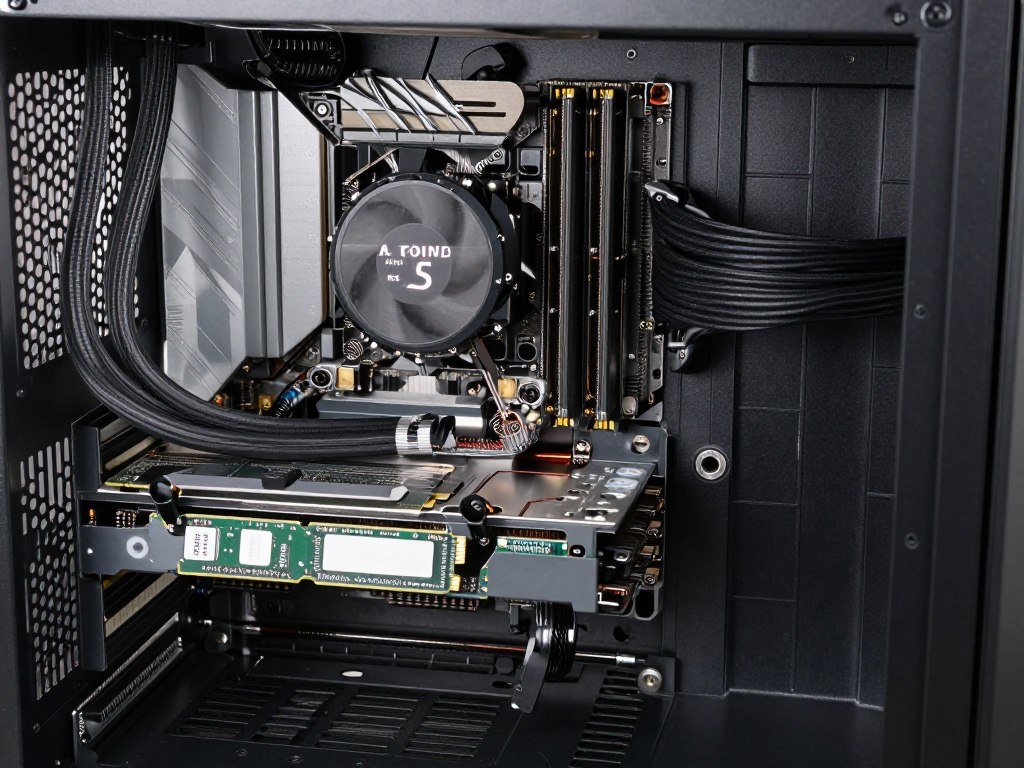
Consider PCIe 5.0 storage drives for primary scratch disks. The 14,000 MB/s speeds make a real difference when scrubbing through 8K timelines or loading massive Photoshop files. GPU can stay on PCIe 4.0 without issues.
Verify lane allocation carefully on workstation boards. Some configurations disable M.2 slots when certain PCIe slots are populated. Plan your storage and expansion card layout before buying.
AI and Development Workstations
Machine learning workloads saturate PCIe bandwidth faster than any other consumer use case. Prioritize PCIe 4.0 minimum, and consider PCIe 5.0 for GPUs if budget allows and motherboard supports it properly.
Multiple GPU setups need careful planning. Two GPUs at PCIe 4.0 x8 each works well for most training workloads. Just verify your motherboard and CPU support bifurcation correctly.
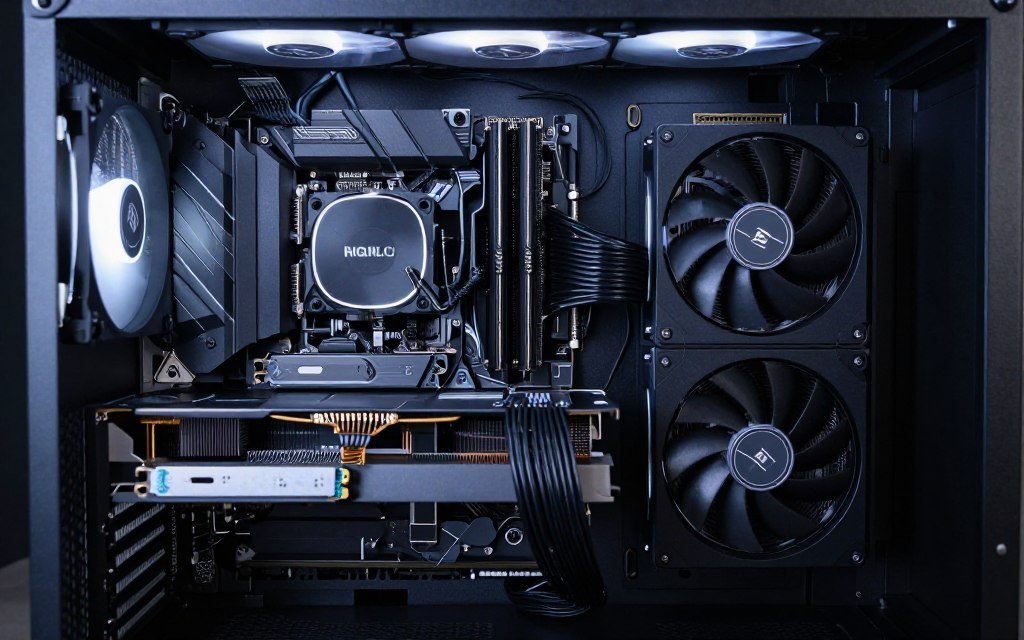
Fast storage matters as much as GPU bandwidth for ML work. Datasets need to load quickly into system memory before transferring to GPU VRAM. PCIe 4.0 NVMe drives in RAID 0 configuration provide excellent loading performance.
Budget Considerations
Upgrading from PCIe 3.0 to 4.0 often means replacing motherboard and CPU simultaneously. That’s expensive. If your current platform is PCIe 3.0, upgrading the GPU alone usually provides more performance per dollar spent.
For new builds, PCIe 4.0 adds minimal cost. AMD Ryzen 5000 and newer plus Intel 11th gen and newer all support PCIe 4.0. It’s essentially standard at this point. Check our tech insights section for current generation platform comparisons.
Build It Right the First Time
Use our bottleneck calculator to verify component compatibility and PCIe requirements before buying. Enter your planned components and get instant feedback on potential PCIe limitations and recommended configurations.
Where PCIe Technology Is Headed Next
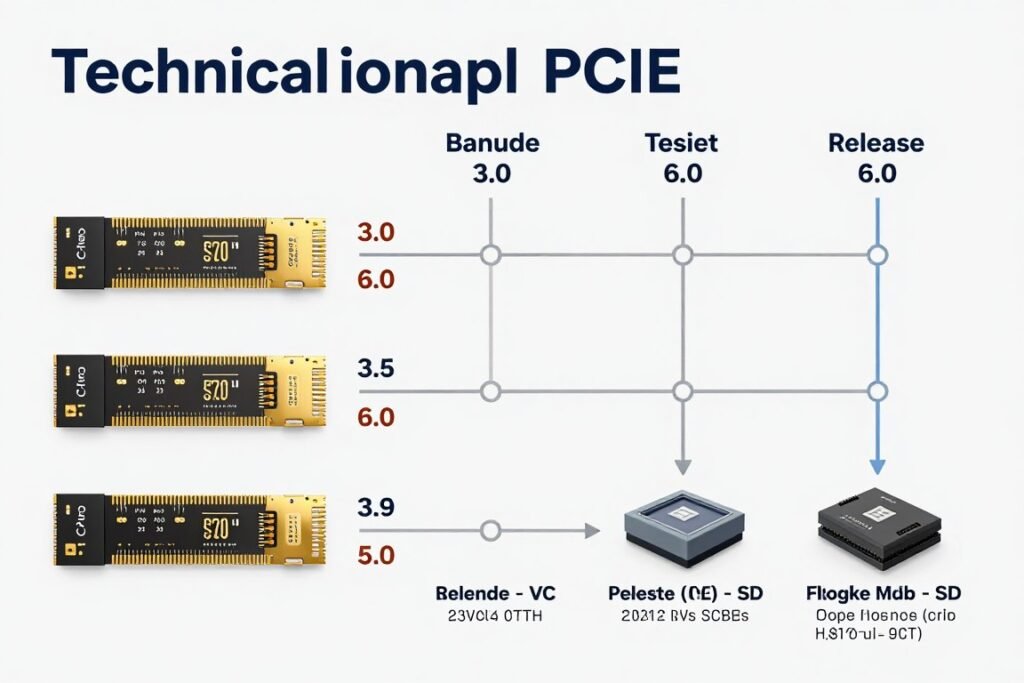
PCIe 6.0 is coming. The specification launched in 2022, but consumer hardware supporting it won’t arrive until 2027 at earliest. It doubles bandwidth again to 256 GB/s at x16. That’s genuinely absurd speed that no consumer hardware can justify yet.
What actually drives the need for more PCIe bandwidth is AI inference accelerators and data center workloads. Consumer users won’t see meaningful benefits until GPU architectures fundamentally change how they process and stream data.

The more interesting development is CXL (Compute Express Link) technology. It uses PCIe physical layers but adds memory coherency protocols. This lets CPUs and GPUs share memory pools more efficiently, reducing the need for constant data shuffling across the PCIe bus.
For practical purposes, PCIe 4.0 will remain the sweet spot for consumer hardware through 2026 and likely into 2027. PCIe 5.0 is available but largely unnecessary except for specific storage workloads. PCIe 6.0 is firmly in the “future-proofing that doesn’t exist yet” category.
The Bottom Line: Do PCIe Lanes Actually Matter?
Here’s the honest answer: PCIe lanes matter sometimes, for specific workloads, in particular configurations. They don’t matter most of the time for most people.
If you’re gaming at 1080p or 1440p with a mid-range GPU, PCIe 3.0 x16 is totally fine. You won’t gain anything upgrading to PCIe 4.0. Put that money toward a better GPU instead.
If you’re running a high-end GPU, doing content creation work, or pushing AI workloads, PCIe 4.0 makes a measurable difference. The bandwidth headroom prevents bottlenecks that PCIe 3.0 would hit immediately.
PCIe 5.0 is future-proofing for hardware that doesn’t fully utilize it yet. It’s nice to have for storage drives if you move massive files constantly. For GPUs, wait until the hardware actually needs it before paying the premium.
The most common PCIe bottleneck isn’t the generation – it’s misconfiguration. Installing your GPU in the wrong slot, using an incompatible riser cable, or not checking BIOS settings causes more problems than PCIe 3.0 versus 4.0 ever will.
Before upgrading anything, verify your current configuration is actually running at the speeds it should. A surprising number of “slow” PCs are just misconfigured systems running at reduced PCIe speeds unnecessarily. For comprehensive optimization strategies, browse our complete knowledge base.
Stop Guessing, Start Knowing
Our bottleneck calculator gives you specific answers for your exact hardware combination. No more wondering if PCIe is holding you back. Get real data in 30 seconds and make informed upgrade decisions based on your actual system configuration.
What’s the weirdest performance issue you’ve ever run into?