
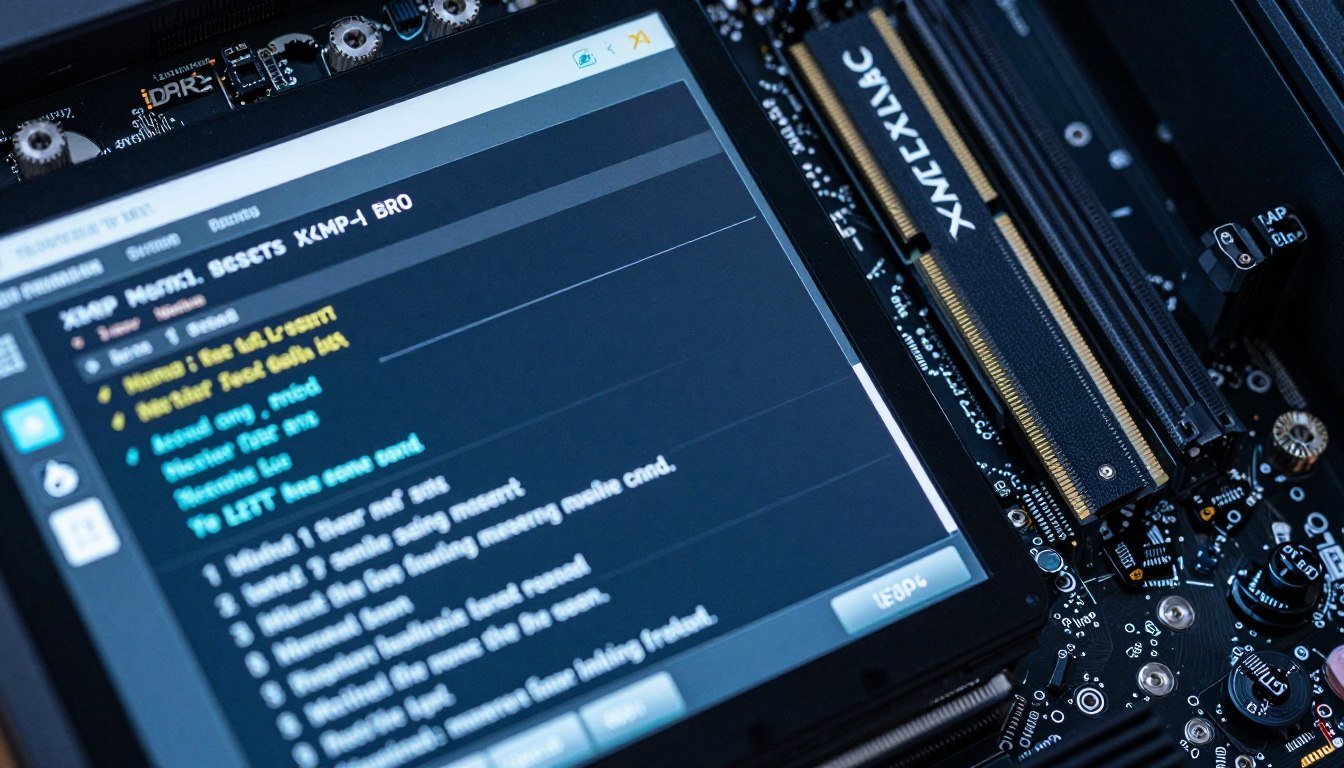
I bought a DDR5-6000 kit last month. Installed it, booted up, ran a quick test, and my RAM was running at 4800MHz. Not the 6000MHz I paid for. Classic mistake.
Your expensive memory sits there, underperforming, because you didn’t flip one switch in your motherboard BIOS. That switch is called a RAM profile, and if you’re running Intel, it’s XMP. If you’re running AMD, it’s EXPO.
This guide breaks down what these memory profiles actually do, how to enable them without breaking your system, and what to do when things go sideways. No marketing speak. Just the reality of getting your RAM to run at the speed you paid for.
What RAM Profiles Actually Do
Think of RAM profiles like preset boost modes for your memory. Your DDR4 or DDR5 sticks ship with a safe default speed built into the JEDEC standard. That’s usually 2133MHz for DDR4 or 4800MHz for DDR5.
But your kit is rated for much higher. Maybe 3200MHz. Maybe 6000MHz. The manufacturer tested it at those speeds and saved the settings into the RAM’s own memory chip. That saved setting is the profile.
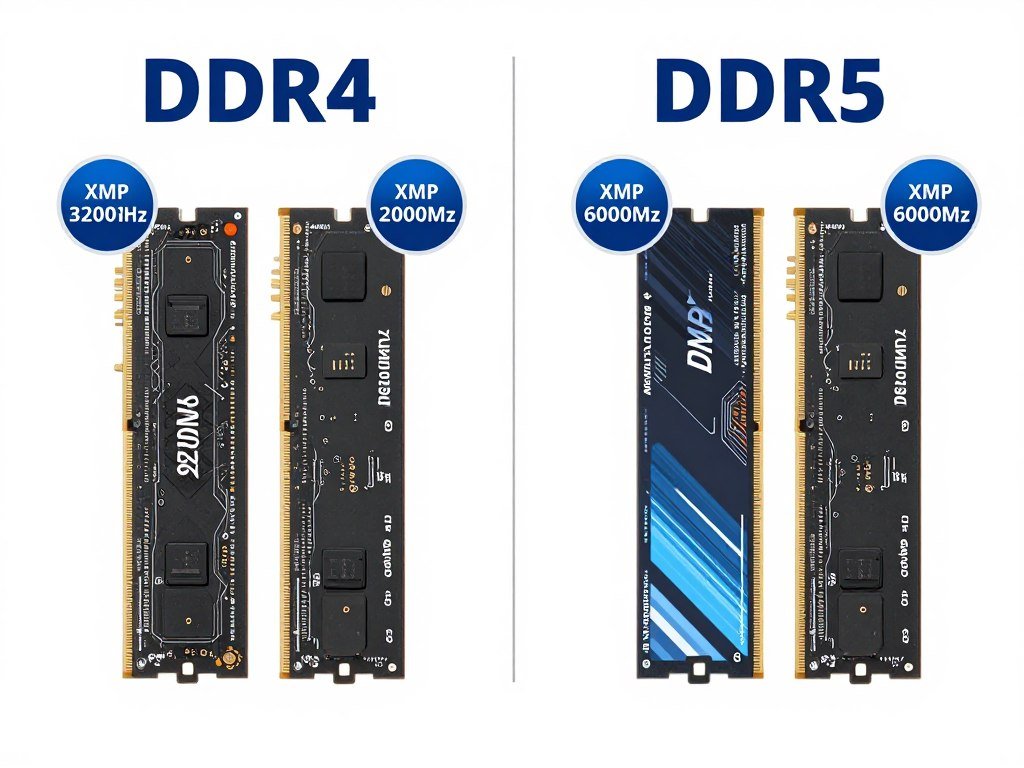
XMP stands for Extreme Memory Profile. Intel created it. EXPO stands for Extended Profiles for Overclocking. AMD made that one for DDR5. Both do the same job. They tell your motherboard, “Hey, run this RAM at the fast speed, not the slow default.”
Here’s the thing. These profiles are technically overclocking. You’re pushing the memory beyond the JEDEC baseline. That’s why it’s not enabled by default. Your motherboard plays it safe until you tell it otherwise.
Most people buy high-speed RAM and never enable the profile. They’re leaving performance on the table. If you’re running a Ryzen 9000 series or an Intel Core Ultra platform in 2026, that performance gap is noticeable. We’re talking 10-15% FPS differences in CPU-bound gaming scenarios.
Understanding system balance helps here. Your RAM speed affects how quickly your CPU can access data. Slow RAM creates a memory bottleneck that chokes even high-end processors.
XMP vs. EXPO: What’s Actually Different
XMP has been around since DDR3 days. Intel owns it. AMD systems used to support XMP through a compatibility mode called DOCP or EOCP, depending on your motherboard brand. It worked, but it was clunky.
EXPO launched with DDR5. AMD built it specifically for their Ryzen 7000 and 9000 series platforms. The goal was native support without the compatibility layer.
XMP (Intel)
- Works on Intel motherboards natively
- AMD boards support it through DOCP/EOCP modes
- Two versions: XMP 2.0 (DDR4) and XMP 3.0 (DDR5)
- Can store up to 5 profiles on DDR5 kits
- Industry standard since 2007
EXPO (AMD)
- Native AMD Ryzen 7000/9000 support
- DDR5 only (no DDR4 version)
- Optimized for AMD Infinity Fabric speeds
- Often includes tighter timings for Ryzen
- Some Intel boards support it now
The reality is, on a 2026 system, both work fine. If you have an Intel Core Ultra CPU, you’ll use XMP. If you have a Ryzen 9800X3D, EXPO is your go-to, but XMP probably works too through compatibility mode.
What matters more than the name is the actual speed and timings. A DDR5-6000 CL30 kit with EXPO will perform basically the same as a DDR5-6000 CL30 kit with XMP. The profile format is just the delivery method for those settings.
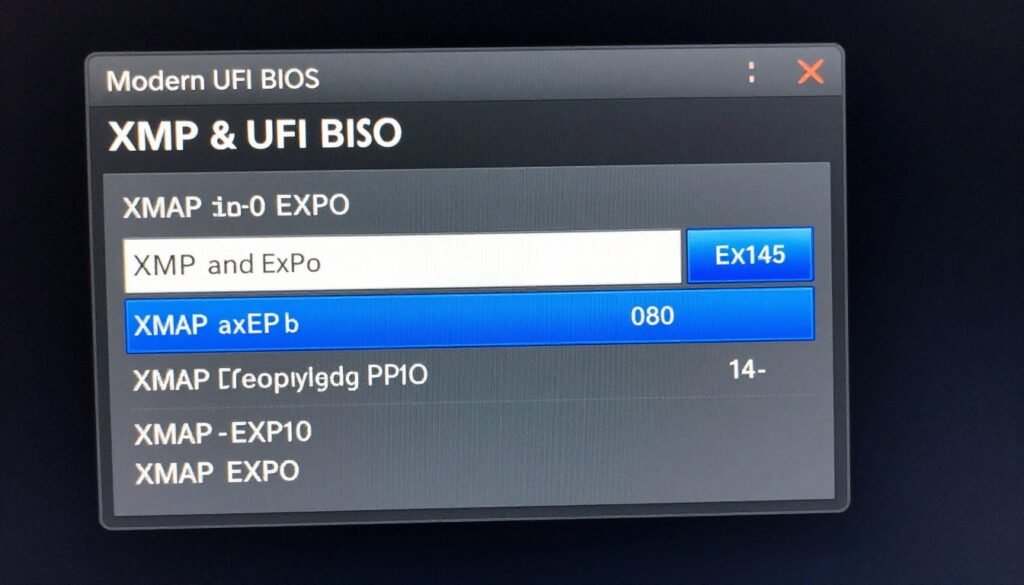
One gotcha: some kits ship with both XMP and EXPO profiles. You’ll see both options in your BIOS. Pick the one that matches your platform for best results, but either usually works.
How to Actually Enable XMP or EXPO
This is simpler than it sounds. Restart your computer. Spam the Delete key (or F2, depending on your motherboard) during the boot logo. You’ll land in the BIOS.
Modern UEFI BIOS interfaces from ASUS, MSI, Gigabyte, or ASRock usually put the XMP/EXPO setting right on the main page. Look for a dropdown or toggle labeled “XMP,” “EXPO,” “D.O.C.P,” or “A-XMP.”
Common BIOS Names for Memory Profiles:
- XMP: Intel boards (all brands)
- EXPO: AMD 600-series chipset boards
- D.O.C.P: ASUS boards (older AMD support for XMP)
- A-XMP: Gigabyte boards (AMD XMP compatibility)
- EOCP: MSI boards (AMD XMP compatibility)
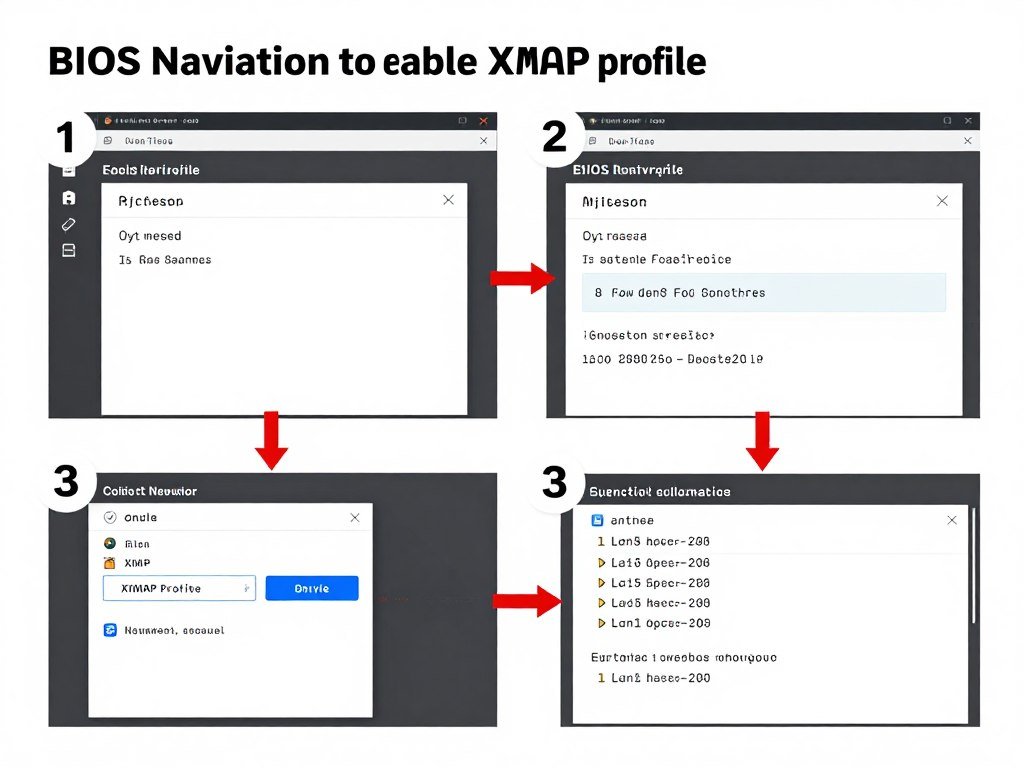
Click the dropdown. You’ll see profile options. Usually “Profile 1” or “Profile 2” if your kit has multiple options. Pick one. Profile 1 is typically the main rated speed. Save settings (usually F10), and let the system reboot.
Your motherboard will restart, apply the new memory settings, and boot into Windows. The first boot after enabling a profile sometimes takes longer. That’s normal. The memory controller is training the RAM at the new frequency.
Once you’re in Windows, verify it worked. Open Task Manager. Go to the Performance tab. Click Memory. Check the speed. It should show your RAM’s rated frequency, not the default JEDEC speed.
If you see the correct speed, you’re done. If you see the old default speed, or if the system won’t boot, you’ll need to troubleshoot. More on that in a minute.
Check If Your RAM Choice Matches Your System
Enabling XMP or EXPO is only half the story. Your RAM speed needs to match your CPU and GPU capabilities, or you’re creating a bottleneck somewhere else. Our calculator helps you identify whether your memory choice is balanced with the rest of your build.
When XMP or EXPO Doesn’t Work
Sometimes you enable the profile and the system won’t POST. Black screen. No boot. Feels like you broke something. You probably didn’t. This is common.
Your motherboard has a failsafe. If it tries to boot three times with the new settings and fails, it automatically resets to default. You’ll see a message on the fourth boot saying “CMOS settings reset” or “overclocking failed.”
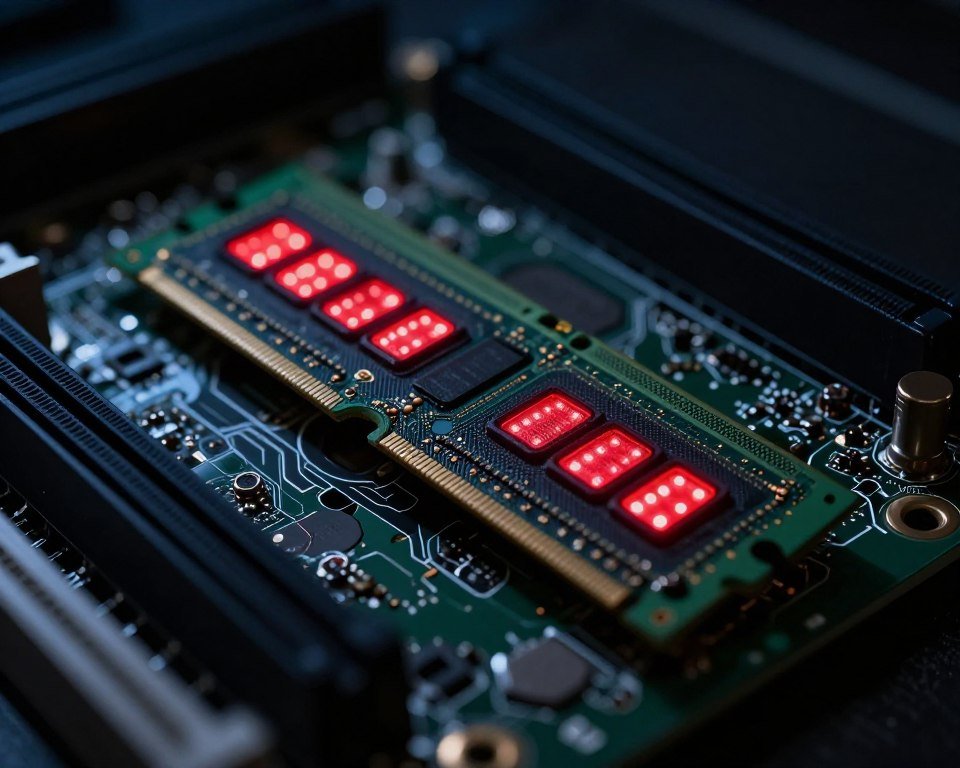
Why does this happen? Usually it’s one of three things.
Your Motherboard Doesn’t Support the Speed
Check your motherboard’s QVL (qualified vendor list). That’s the list of RAM kits the manufacturer actually tested. If your kit isn’t on there, or if the speed exceeds what your board supports, you’ll have issues.
Budget B-series boards (like B650 or B760) often max out at DDR5-6000 or DDR5-6400. High-end X-series or Z-series boards can hit DDR5-7200 or higher. If you bought DDR5-7600 RAM and stuck it in a cheap board, it won’t run at full speed.
Your CPU’s Memory Controller Can’t Handle It
CPU memory controllers have limits. Even with an unlocked platform, pushing memory too far can fail. Ryzen 9800X3D systems typically max out around DDR5-6000 to DDR5-6400 on most boards. Intel Core Ultra systems can go higher, but results vary.
If your kit is DDR5-7200 and your CPU struggles with it, you may need to manually tune the settings or use a slower profile. This is where RAM latency tuning comes in handy.
The Profile Has Multiple Options and You Picked the Wrong One
Some kits include multiple profiles. Profile 1 might be DDR5-6000 CL30. Profile 2 might be DDR5-6200 CL32. If Profile 2 won’t boot, try Profile 1.
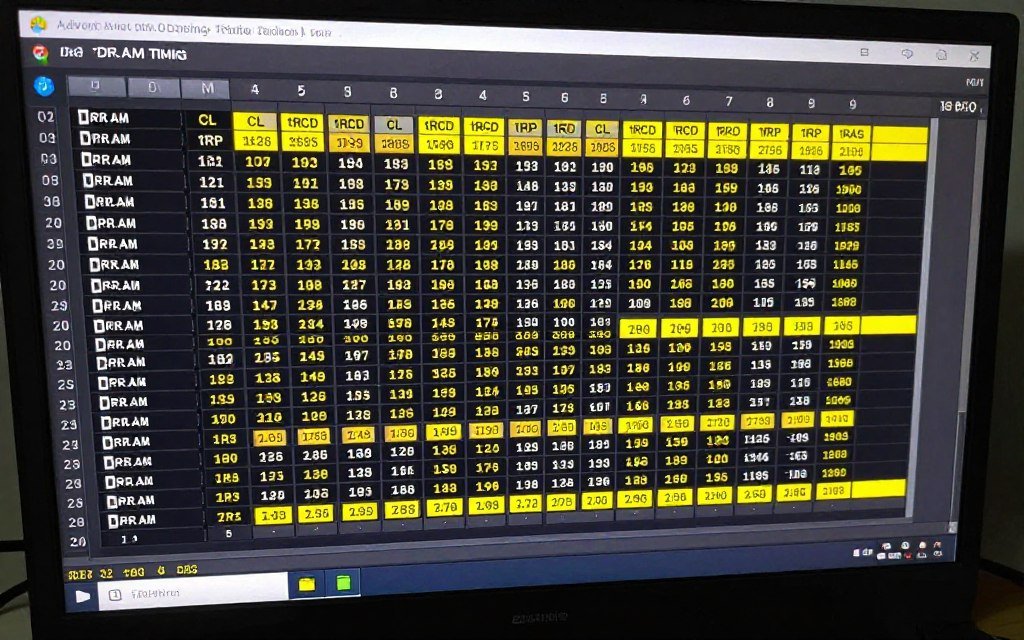
You can also try manual settings. Instead of selecting a profile, go into the advanced DRAM settings and manually type the frequency, voltage, and primary timings. Use the values printed on your RAM sticker.
Warning: If you’re pushing extreme speeds (DDR5-7000+), you may need to increase DRAM voltage slightly (1.35V to 1.40V for DDR5) and adjust secondary/tertiary timings. That’s advanced stuff. For most kits rated DDR5-6000 or below, the profile should just work.
How Much Performance You’re Actually Losing
Numbers talk. If you’re running DDR5-4800 instead of DDR5-6000 on a Ryzen 9800X3D, you’re leaving 8-12% FPS on the table in CPU-bound games. That’s the difference between 180 FPS and 200 FPS in CS2 or Valorant.
Intel systems see similar but slightly smaller gaps. DDR5-5600 vs DDR5-6400 on a Core Ultra 9 285K is about 5-8% in gaming workloads. Less dramatic, but still real.
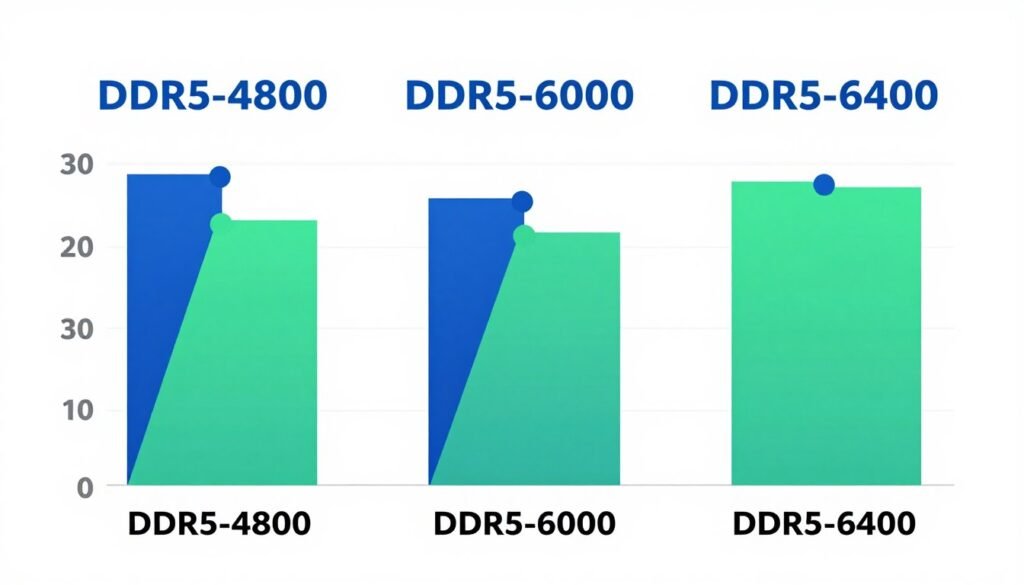
Where it matters most is in high-refresh gaming. If you’re running 1080p with a 360Hz monitor and an RTX 5080, you want every frame. Slow RAM creates a CPU bottleneck that stops you from hitting those high frame rates.
At 4K, RAM speed matters less. Your GPU is the limit. But if you’re running Unreal Engine 5 games or heavily modded open-world titles, memory bandwidth still affects minimum FPS and frame pacing.
For productivity work, RAM speed affects different things. Video editing in DaVinci Resolve cares about capacity and bandwidth. 3D rendering in Blender cares less. If you’re doing AI workloads on an RTX 5090, VRAM matters more than system RAM speed.
The bottom line: if you paid for fast RAM, use it. The performance gap is real in gaming. Less so in other tasks, but still worth enabling.
Manual Tuning vs. Just Using the Profile
Most people should just enable XMP or EXPO and call it done. The profile works. It’s stable. You get the performance you paid for.
But if you want to squeeze more, manual tuning exists. You can tighten timings, adjust voltages, and push frequency higher. This is where things get complicated.
AMD systems benefit more from manual tuning because of the Infinity Fabric. That’s the internal bus connecting CPU cores and memory. It runs at half your RAM speed (1:1 ratio). If you push DDR5-6000, your FCLK is at 3000MHz. Push too far and the ratio breaks, and performance tanks.
Intel systems are more forgiving. The memory controller isn’t tied to an internal fabric clock the same way. You can push higher speeds without worrying about a 1:1 ratio.
If you want to dive into manual tuning, start with these resources:
- Read the AMD RAM tuning guide if you’re on Ryzen
- Check the Intel vs AMD platform comparison to understand architectural differences
- Use tools like AIDA64 or MemTest86 to validate stability
- Increase voltage gradually (0.05V steps max)
Fair warning: manual tuning takes hours. You’ll spend time testing stability, rebooting after failed attempts, and tweaking dozens of sub-timings. For 99% of users, the XMP or EXPO profile is good enough.
Platform-Specific Weirdness
Intel and AMD handle memory differently. That affects how profiles work.
Intel Core Ultra (Arrow Lake / Nova Lake)
Intel’s 2026 platforms support insanely high RAM speeds. DDR5-8000+ is possible on high-end boards. The memory controller is strong. XMP profiles up to DDR5-7200 should work without issue on a Z890 or Z990 board.
Gear modes matter. Gear 1 is 1:1 memory-to-controller ratio. Gear 2 is 1:2. Below DDR5-6400, you want Gear 1. Above that, you’ll probably drop to Gear 2 automatically. Performance difference is small.
AMD Ryzen (Zen 5 / Zen 6)
Ryzen loves fast RAM, but there’s a ceiling. DDR5-6000 to DDR5-6400 is the sweet spot for Zen 5 chips like the Ryzen 9800X3D. You can push higher, but you’ll probably break the 1:1 Infinity Fabric ratio, and performance drops.
EXPO profiles are tuned for this. They typically target DDR5-6000 CL30 because AMD tested that speed extensively with Ryzen 7000 and 9000 series CPUs.
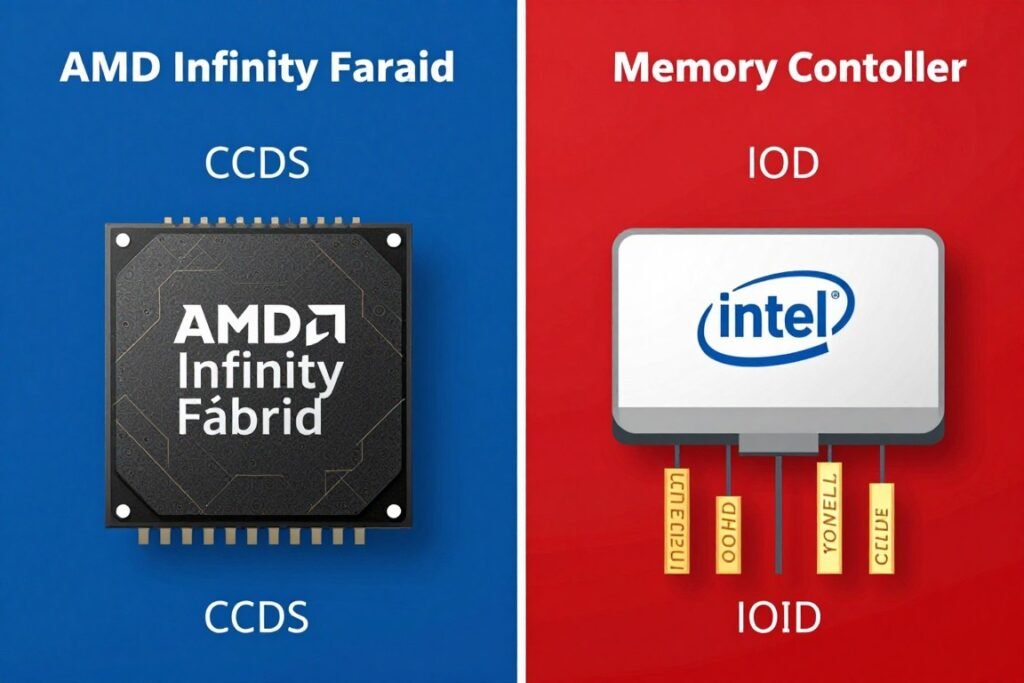
If you’re running Ryzen 9800X3D, stick with DDR5-6000 unless you know what you’re doing with manual tuning. Diminishing returns after that.
Motherboard Chipsets
Your chipset matters. X670E, X870E, Z790, Z890 boards handle high-speed RAM better than budget B650 or B760 boards. The VRM quality, trace layout, and memory topology all affect stability.
Don’t cheap out on the motherboard if you’re buying fast RAM. A $120 board won’t reliably run DDR5-7000, even if the CPU technically supports it. Learn more about chipset differences.
What People Get Wrong About RAM Profiles
There’s a lot of bad info out there. Let’s clear up the common myths.
Myth: Enabling XMP Voids Your Warranty
Not true for RAM. XMP and EXPO are advertised features. The manufacturer tested the kit at those speeds. That’s why they printed the speed on the box. Using the profile doesn’t void anything.
Your CPU or motherboard warranty is a different story. Technically, overclocking (which includes XMP/EXPO) can void those. But realistically, no one checks. And both Intel and AMD unofficially support it.
Myth: You Need to Manually Set Timings
No. The profile includes timings. When you enable XMP or EXPO, the motherboard reads the speed, voltage, and timings from the RAM and applies them automatically. You don’t need to touch anything else.
Myth: Higher Speed Always Means Better Performance
Not always. DDR5-7200 CL40 might perform worse than DDR5-6000 CL30 because latency matters. Speed is frequency. Latency is delay. Both matter. A profile with tight timings at moderate speed can outperform loose timings at high speed.
Myth: You Need Matching Kits from the Same Package
Mostly true. Mixing RAM kits is risky. Even if they’re the same brand, model, and speed, the memory chips might be from different batches. Your motherboard will try to find common settings, but stability isn’t guaranteed.
If you need more RAM, buy a matching kit or buy a new higher-capacity kit and sell the old one. Don’t mix unless you’re okay with potential instability.
Looking Ahead: DDR6 and Beyond
DDR6 is on the horizon. Expected around 2027-2028. Speeds will start at DDR6-8000 and scale up from there. That sounds impressive until you realize it’s just continuing the same trend.
The profile system will likely stay. Intel and AMD will probably keep XMP and EXPO (or evolve them). The JEDEC baseline will be higher, but the gap between baseline and rated speed will persist.
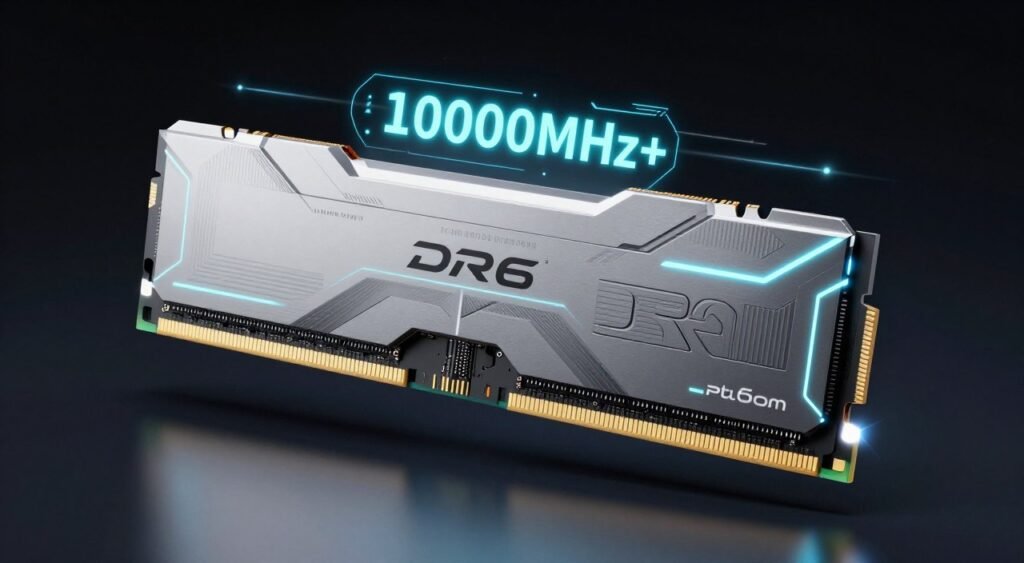
What changes is capacity. DDR6 will make 64GB and 128GB kits more affordable. For most gamers, that’s overkill. But for content creators and anyone running heavy multitasking workloads, it’s a big deal.
Learn more about DDR6’s future impact on system design.
The Bottom Line
XMP and EXPO are the same thing with different names. Enable the profile in your BIOS. Your RAM will run at the speed you paid for. It takes two minutes.
If it doesn’t work, check your motherboard’s QVL and verify your CPU supports the speed. Drop to a slower profile if needed, or manually tune settings if you’re comfortable with that.
Don’t overthink it. The profile exists so you don’t have to manually configure dozens of settings. Use it. Get the performance. Move on.
Take Your RAM Performance Further
Now that your memory is running at full speed, make sure the rest of your system is balanced. Slow RAM creates bottlenecks, but so do mismatched CPUs and GPUs. Our knowledge base has detailed guides on optimizing every component for maximum performance.
RAM profiles are one piece of the puzzle. Fast memory helps, but only if your CPU and GPU can keep up. Balance matters more than any single component. That’s the reality of building PCs that actually perform.