
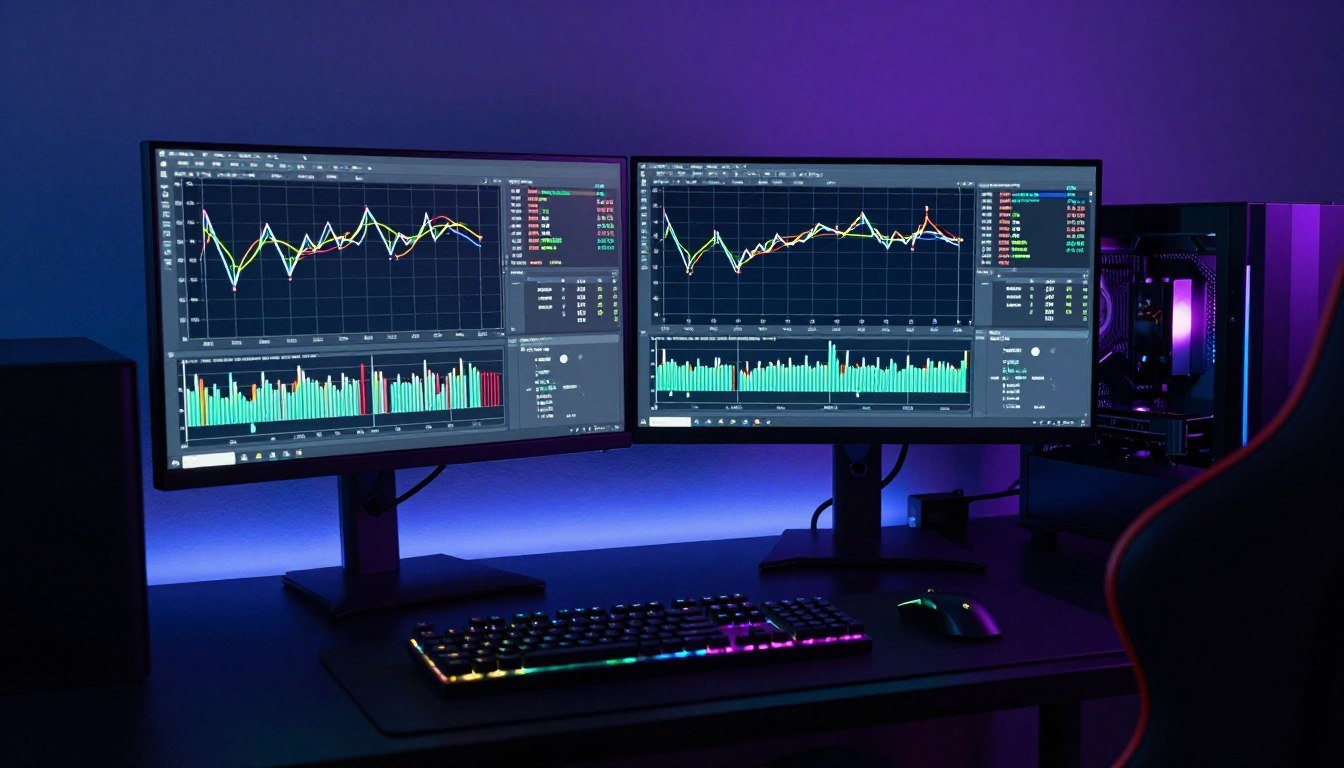
You’re in the middle of a ranked match. Your fps counter shows a solid 144 frames. Everything looks smooth on paper.
Then it hits. That split-second freeze that gets you killed.
Your frame rate didn’t drop. The game didn’t crash. But something felt wrong. That’s micro-stutter, and it’s one of the most frustrating performance issues you’ll face as a PC gamer.
I spent three months last year chasing phantom stuttering on a brand-new build. Ryzen 9 7950X, RTX 4090, 32GB of DDR5 RAM. On paper, this system should have destroyed every game I threw at it.
Instead, I got random hitches every few seconds in Cyberpunk 2077. Task Manager showed nothing unusual. GPU usage looked fine. CPU temps were perfect.
The reality is that stuttering rarely comes from obvious sources. This guide will walk you through the exact diagnostic process that finally fixed my system. We’ll dig into frame pacing, background processes, driver issues, and hardware bottlenecks.
No marketing fluff. Just the actual steps that work.
Quick Diagnostic Check: Before diving deep, verify your system balance. Mismatched components cause more stuttering than any single setting. Understanding system balance can save you hours of troubleshooting.
What Actually Causes Micro-Stutter in Games
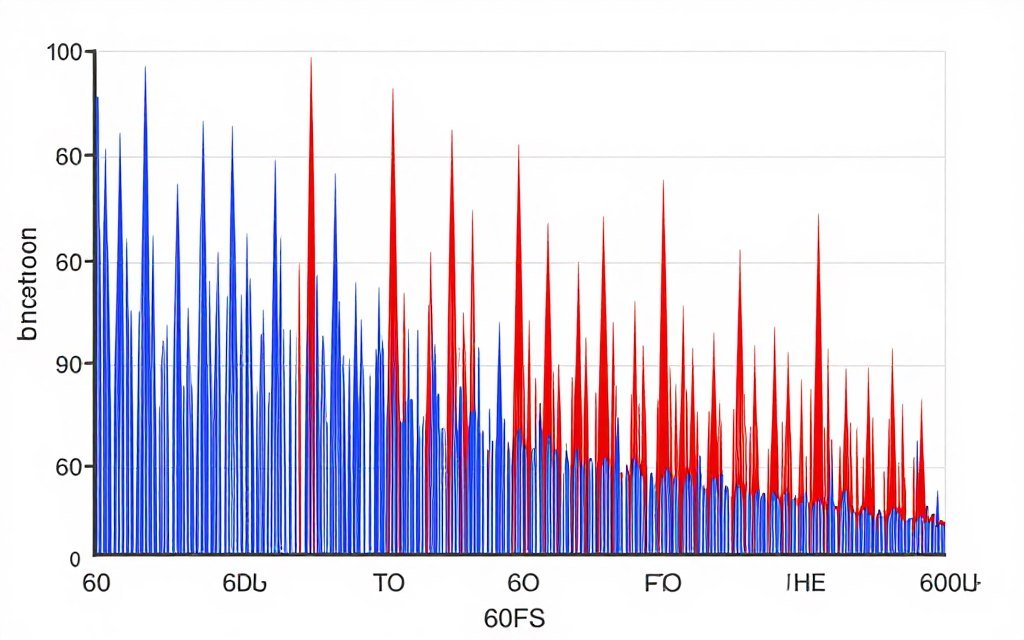
Micro-stutter isn’t about your average frame rate. You can have 100 fps and still experience terrible stuttering.
The problem is frame pacing. Think of it like a highway. If cars move at consistent speeds, traffic flows smoothly. But if one car suddenly slows down, then speeds up, then slows again, you get that stop-and-go feeling.
Your GPU delivers frames the same way. When frame times vary wildly, even slightly, your game feels choppy.
Frame Time vs Frame Rate
Frame rate measures frames per second. Frame time measures milliseconds per frame.
At 60 fps, each frame should take 16.67 milliseconds. If one frame takes 16ms and the next takes 25ms, you’ll feel a stutter even though your average is still 60 fps.
Modern games are incredibly complex. Hundreds of background processes can interfere with consistent frame delivery. That’s why stuttering affects even high-end systems.
Common Stutter Causes
- CPU bottlenecks during complex scenes
- VRAM overflow forcing texture streaming
- Driver shader compilation during gameplay
- Background Windows processes interrupting game threads
- Power management throttling components
- RAM running in single-channel mode
Less Common But Real Issues
- Thermal throttling on VRMs or memory chips
- Storage bottlenecks with texture streaming
- Motherboard PCIe configuration problems
- Game-specific shader cache issues
- Windows memory compression interference
- RGB software polling conflicts
The hardest part about fixing stuttering is that multiple small issues can combine. You might have slight CPU bottlenecking plus background process interference plus driver issues all contributing to the same problem.
That’s why we need a systematic diagnostic approach instead of random fixes.
Diagnosing Whether It’s CPU, GPU, or Memory Related
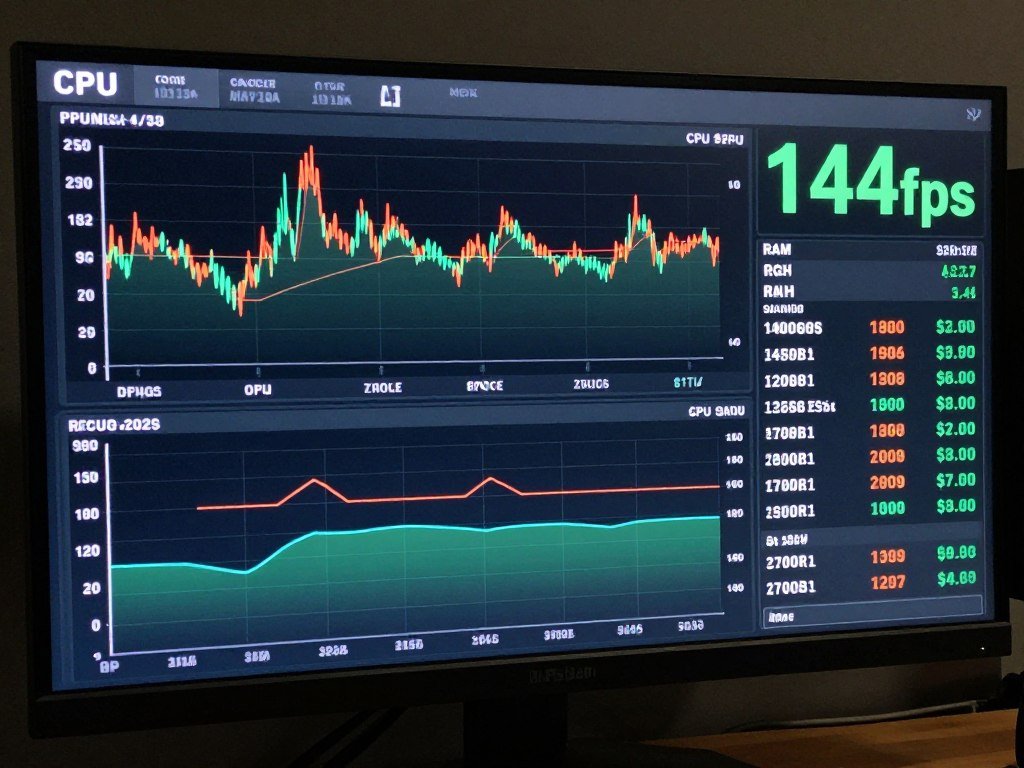
Hardware bottlenecks cause consistent patterns. That’s good news because patterns are easy to spot once you know what to look for.
CPU Bottleneck Symptoms
Your GPU sits at 60-80% usage while your CPU cores max out. Frame rates tank in cities or complex scenes with many NPCs.
Games like Starfield or Cities Skylines destroy CPUs. If you’re running an older six-core chip, you’ll see stuttering when the game tries to process too many AI calculations at once.
I learned this the hard way with my old Ryzen 5 3600. Great CPU for its time. Terrible for modern simulation games.
Check your per-core usage. Many games still can’t use more than four cores effectively. If core 0 and core 1 are pinned at 100% while others sit idle, you’ve found your problem.
Pro Tip: Task Manager lies about CPU usage in games. Use MSI Afterburner with RivaTuner Statistics Server for accurate in-game monitoring. It’s free and gives you real-time data where it matters.
GPU Bottleneck Reality Check
GPU bottlenecks are actually ideal in most scenarios. It means your CPU can deliver frames fast enough and your graphics card is the limiting factor.
You’ll see 95-99% GPU usage with relatively low CPU usage. Frame rates drop in graphically intense scenes but stay consistent.
The issue is when GPU usage fluctuates wildly. 99% one second, 60% the next, back to 99%. That’s not a GPU bottleneck. That’s something else interfering.
VRAM matters more than people think. If you’re gaming at 1440p or 4K with high textures, watch your VRAM allocation. When games exceed available VRAM, they start streaming from system RAM. That causes massive stuttering.
Modern games like Hogwarts Legacy or The Last of Us Part 1 can easily use 12GB+ of VRAM at max settings. An 8GB card will stutter no matter how powerful it is.
Need deeper insight into GPU limitations? Check out our complete GPU bottleneck guide for specific identification methods.
Memory Issues
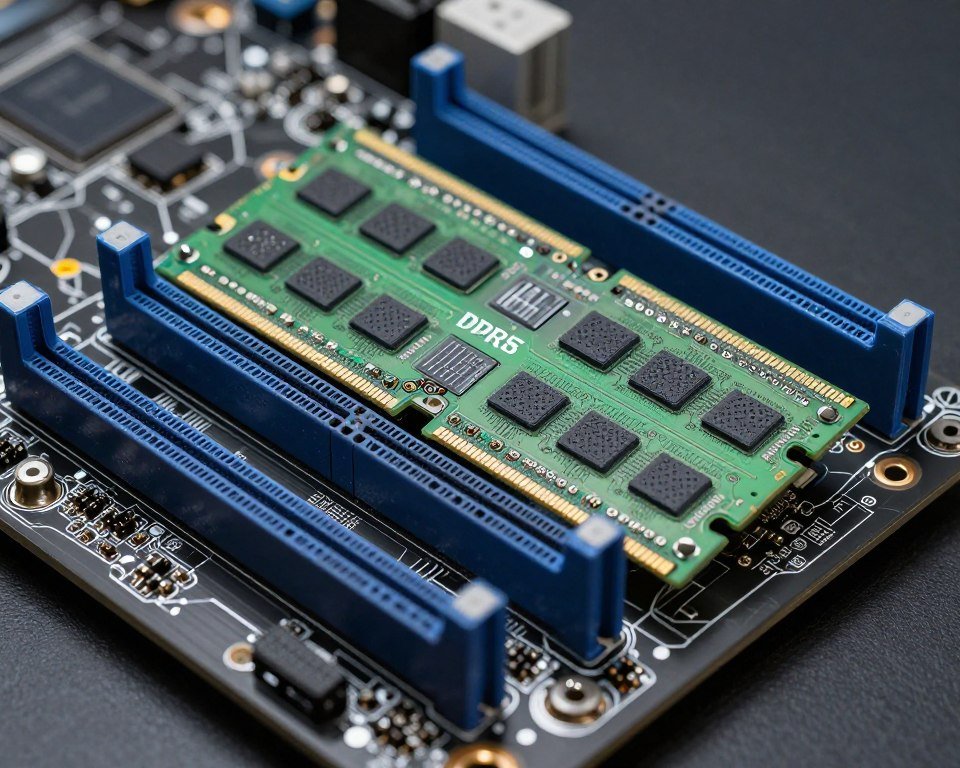
RAM causes two distinct types of stuttering. Configuration problems and capacity problems.
Single-channel RAM cuts memory bandwidth in half. You might have 32GB of RAM, but if it’s all in one stick, you’re crippling your system. Always run dual-channel. Four sticks is better if your motherboard supports quad-channel.
Capacity is straightforward. If Windows starts using page file heavily, you’ll get stutter. Modern games plus Chrome plus Discord plus Windows can easily eat 20GB of RAM.
Check Windows Resource Monitor during gameplay. If “Available” memory drops below 4GB and you see high page file activity, you need more RAM.
Not Sure What’s Causing Your Stutter?
Hardware bottlenecks create complex interaction patterns. Our bottleneck calculator analyzes your specific component combination to identify the weakest link.
Frame Pacing Issues and How to Fix Them
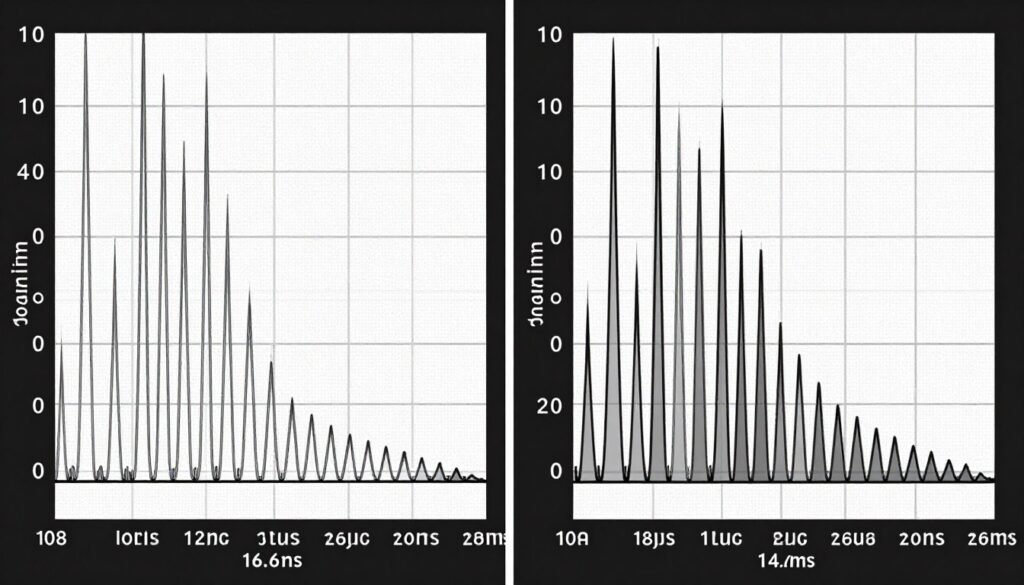
Frame pacing is where theory meets reality. You can have perfect hardware and still get terrible frame delivery.
VSync and Its Consequences
VSync forces your GPU to wait for your monitor’s refresh cycle. At 60Hz, your GPU delivers a frame exactly every 16.67 milliseconds.
The problem happens when your GPU can’t maintain that timing. If a frame takes 17 milliseconds, VSync makes you wait for the next refresh cycle. That 1ms delay turns into a 16ms delay.
You get instant stuttering. Your frame rate tanks from 60 to 30 fps for a single frame.
G-Sync and FreeSync solve this by letting your monitor’s refresh rate match your GPU’s frame delivery. But they introduce their own issues.
G-Sync Range Problems
Most G-Sync monitors have a working range. Often 48-144Hz or similar. If your frame rate drops below that range, you get stuttering again.
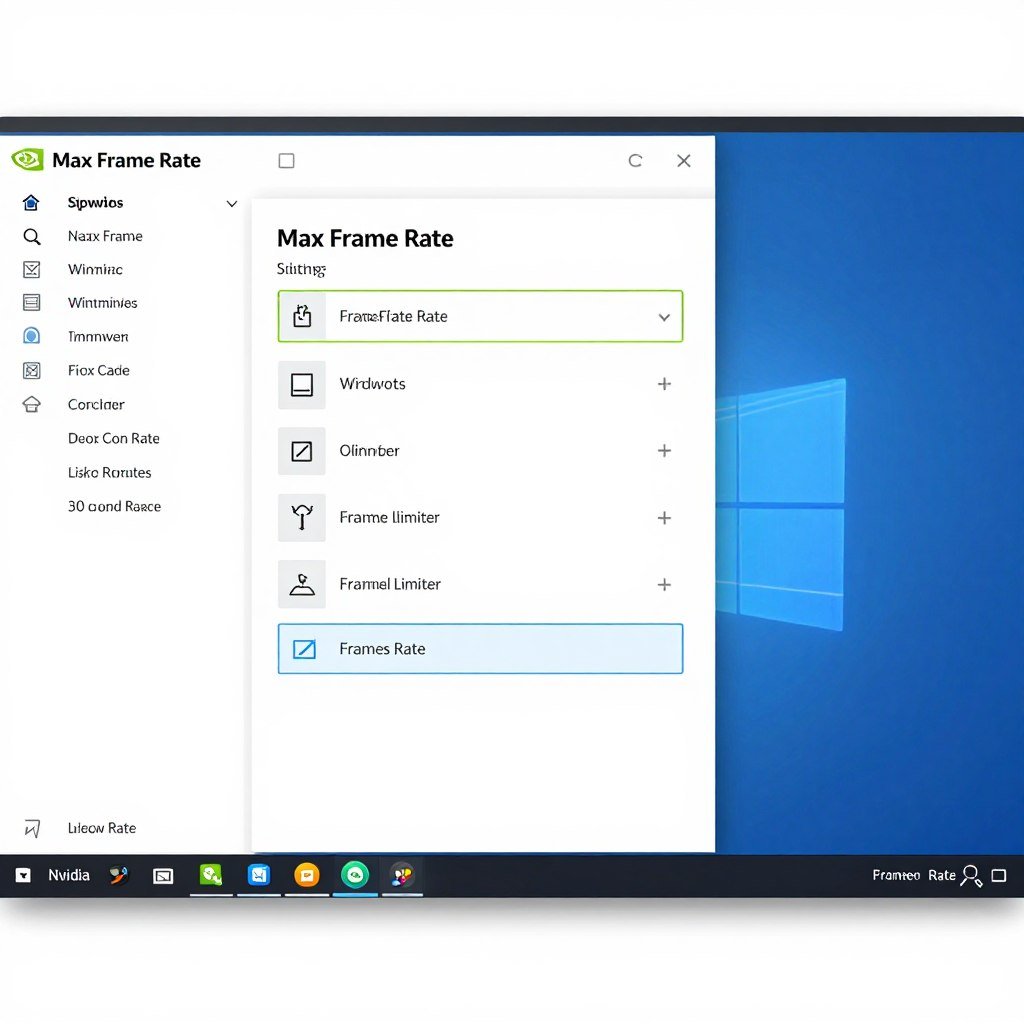
The fix is capping your frame rate 3-5 fps below your monitor’s max refresh rate. If you have a 144Hz monitor, cap at 138-141 fps. This keeps you in the G-Sync range and prevents the GPU from over-delivering frames.
Use NVIDIA Control Panel or AMD Radeon Software to set frame rate limits. In-game limiters often introduce their own input lag.
Frame Rate Cap Settings
- 60Hz monitor: Cap at 58 fps
- 144Hz monitor: Cap at 138-141 fps
- 165Hz monitor: Cap at 162 fps
- 240Hz monitor: Cap at 237 fps
These caps keep you in the adaptive sync range while preventing frame time variance at the upper limit.
Reflex, Anti-Lag, and Frame Generation
NVIDIA Reflex and AMD Anti-Lag reduce system latency. They’re great for competitive games.
But they can cause stuttering in some titles. Reflex works by holding frames in a queue until the last possible moment. Some games handle this poorly.
Test with these features on and off. The performance difference varies wildly by game.
Frame generation from DLSS 3 or FSR 3 is controversial. It genuinely doubles frame rates by generating fake frames. But those generated frames can’t be perfectly timed. You get smooth motion with occasional timing hiccups.
For competitive shooters, skip frame generation. For single-player games where you need more frames, it’s worth the trade-off.
Driver-Related Stutter and Shader Compilation
Why Modern Games Stutter on First Launch
Shader compilation is the new plague of PC gaming. Games convert their graphics code into instructions your GPU understands. This happens during gameplay.
The first time you see a new effect, weapon, or area, your game might freeze for a split second while compiling shaders. Multiply this by thousands of effects in a modern game.
Unreal Engine 5 games are particularly bad about this. The first 30 minutes of gameplay in any UE5 title will stutter constantly as shaders compile. After that, it usually smooths out.
Some games pre-compile shaders at launch. Let them finish. I know it’s tempting to skip that process, but you’ll pay for it later with in-game stuttering.
Understanding engine-specific issues helps. Our UE5 performance guide covers exactly why these games struggle and what actually fixes them.
Graphics Driver Updates
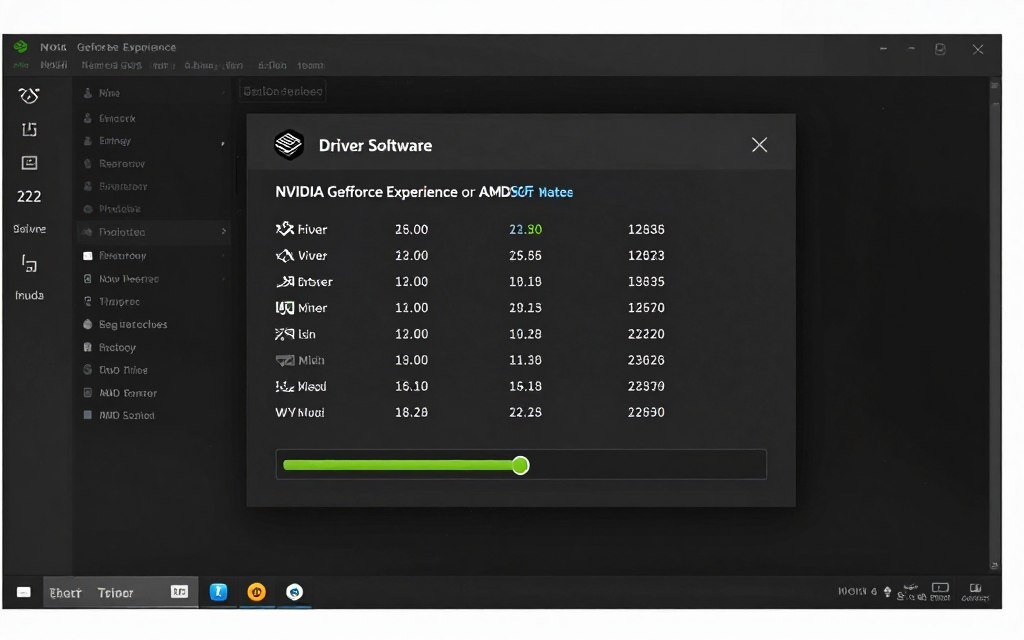
Update graphics drivers regularly. But don’t update immediately when a new driver releases.
Wait a week. Check community feedback on Reddit or forums. Sometimes new drivers introduce stuttering in specific games.
NVIDIA and AMD both push day-one game drivers. These are optimized for new releases but can break performance in older titles.
I keep a backup driver installer. When a new update causes issues, I roll back to the previous version.
Warning: Windows Update sometimes installs generic display drivers that override your proper graphics drivers. Check Device Manager after major Windows updates to verify you’re still running the correct driver version.
Clean Driver Installation
Sometimes you need to nuke your graphics drivers completely. Driver remnants from old installations can cause conflicts.
Use Display Driver Uninstaller (DDU) in Safe Mode. It removes every trace of your graphics driver. Then install the latest version fresh.
This fixed stuttering for me twice. Both times after major Windows updates that corrupted something in the driver stack.
The process takes 20 minutes but solves weird issues nothing else touches.
Background Process Interference
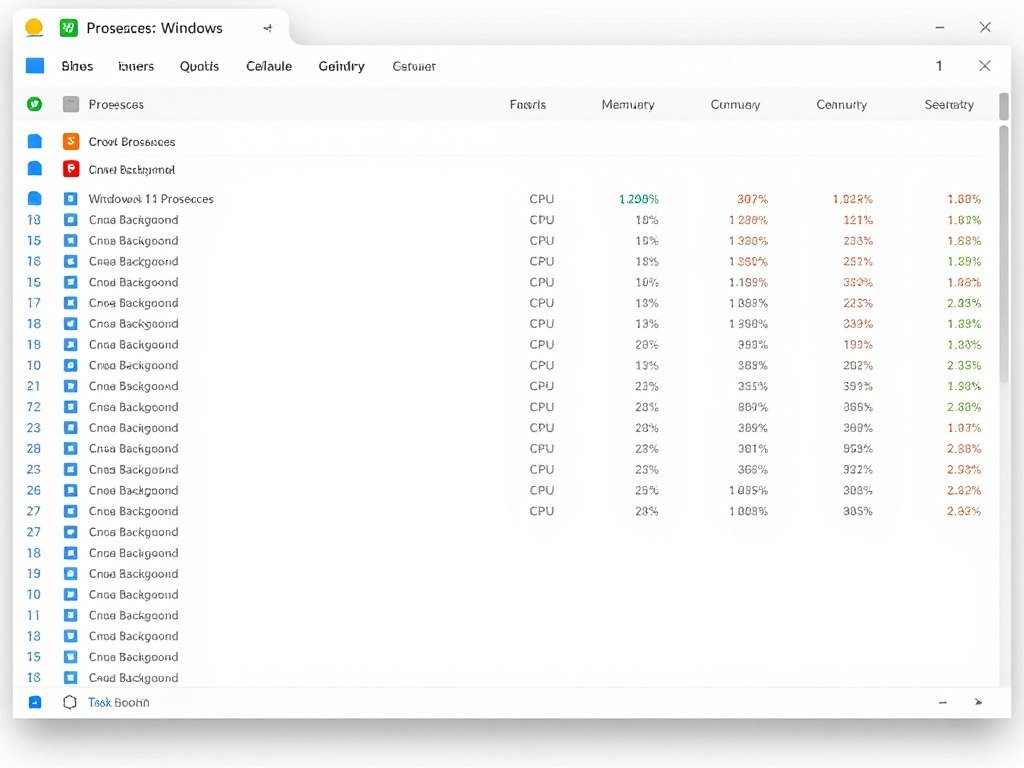
Windows runs dozens of background processes. Most are harmless. Some destroy gaming performance.
The Usual Suspects
Windows Search Indexer loves to activate during gaming sessions. It scans your files while you’re trying to play.
Windows Update downloads updates in the background. It doesn’t tell you. It just eats bandwidth and CPU cycles.
Antivirus software scans files constantly. Real-time protection checks every file your game loads. That adds milliseconds of delay to every operation.
The fix is simple but tedious. Disable or schedule these processes for when you’re not gaming.
RGB Software and Peripheral Polling
This one surprised me. RGB control software from Corsair, Razer, and others polls your devices constantly.
Each poll takes microseconds. Hundreds of polls per second add up to frame time variance.
I gained 15% smoother frame pacing by closing iCUE. My keyboard still had RGB. The software just wasn’t running.
Set your RGB profile, then close the software. Your devices remember their settings.
Processes to Disable for Gaming
- Windows Search (SearchIndexer.exe)
- Windows Update (wuauserv)
- SysMain (Superfetch)
- Xbox Game Bar and DVR
- Windows Telemetry (DiagTrack)
- Print Spooler (if you don’t print while gaming)
Software to Close Before Gaming
- RGB control software (iCUE, Synapse, etc.)
- Cloud sync services (OneDrive, Dropbox, Google Drive)
- Communication apps (Discord, TeamSpeak if not needed)
- Browser windows with heavy sites
- Torrent clients
- Streaming software when not streaming
Process Priority
Set your game to High priority in Task Manager. Right-click the game’s process, set priority to High.
This tells Windows to give your game preferential CPU access. It helps reduce stuttering from background process interference.
Don’t set it to Realtime. That can cause system instability. High is the sweet spot.
Some games include launch options for process priority. Look for “-high” or similar flags in the game’s properties.
Power Management Settings That Kill Performance
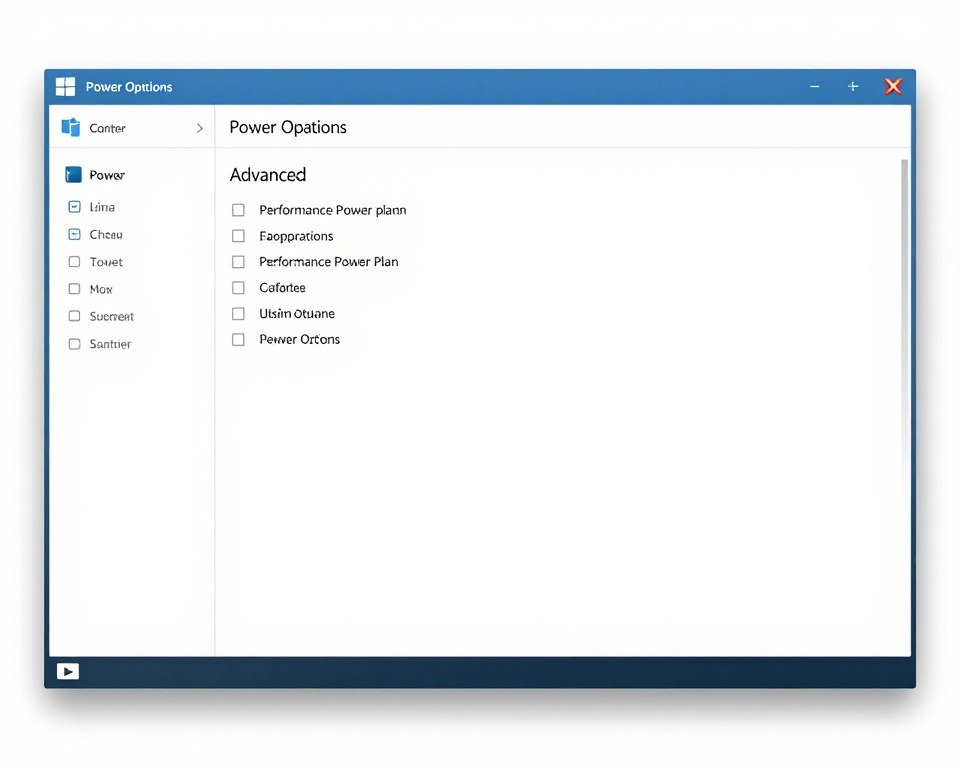
Windows Power Plans Are Broken
Windows 10 and 11 love power efficiency. Even on desktop PCs. Even when plugged into wall power.
The Balanced power plan throttles your CPU when it thinks you don’t need full performance. That decision-making process adds latency and frame time variance.
Switch to High Performance power plan. Or better yet, use Ultimate Performance if you have Windows Pro.
Ultimate Performance disables all CPU power saving. Your CPU always runs at max speed. Power consumption goes up. Performance consistency improves.
CPU Parking and Core Scaling
Windows parks CPU cores to save power. It takes milliseconds to unpark them. Those milliseconds cause stuttering.
Modern CPUs with E-cores and P-cores make this worse. Windows sometimes schedules game threads on efficiency cores instead of performance cores.
You can disable core parking with registry edits or third-party tools. Or you can disable E-cores in BIOS if you have an Intel 12th-gen or newer CPU.
I disabled E-cores on my 13900K. Lost some multi-threading performance in productivity tasks. Gained perfectly smooth gaming performance.
For deep understanding of how CPU cores affect performance, check our CPU core scaling guide. It explains what actually matters before upgrading.
GPU Power Management
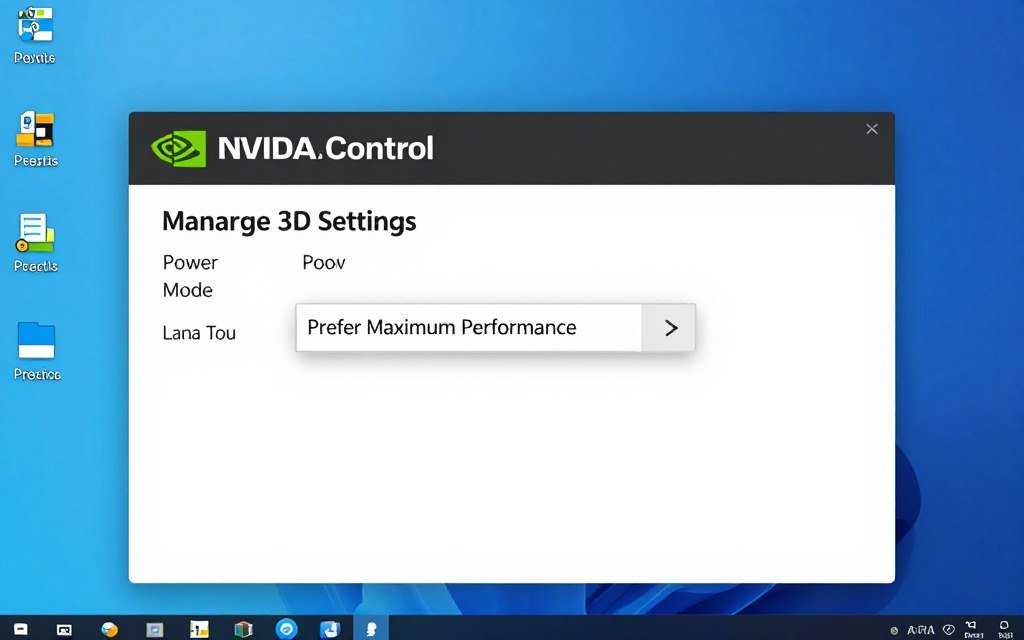
NVIDIA and AMD cards have their own power management. Default settings prefer efficiency over consistency.
In NVIDIA Control Panel, set Power Management Mode to “Prefer Maximum Performance.” This prevents the GPU from downclocking during gameplay.
AMD has similar settings in Radeon Software. Set GPU workload to “Graphics” and disable power saving features.
Your power bill will increase slightly. Your stuttering will decrease significantly.
Laptop Users: Power management is more critical on laptops. But you’re fighting thermal throttling too. Use a cooling pad and ensure your power adapter is actually plugged in. Many gaming laptops throttle heavily on battery power.
PCIe Power Management
Windows can put PCIe devices into low-power states. Including your graphics card.
Go to Device Manager, find your GPU under Display Adapters, Properties, Power Management tab. Uncheck “Allow the computer to turn off this device to save power.”
Do the same for your network adapter if you play online games. PCIe slot power management can cause brief disconnects or stuttering during state transitions.
VRAM and Memory-Related Stuttering
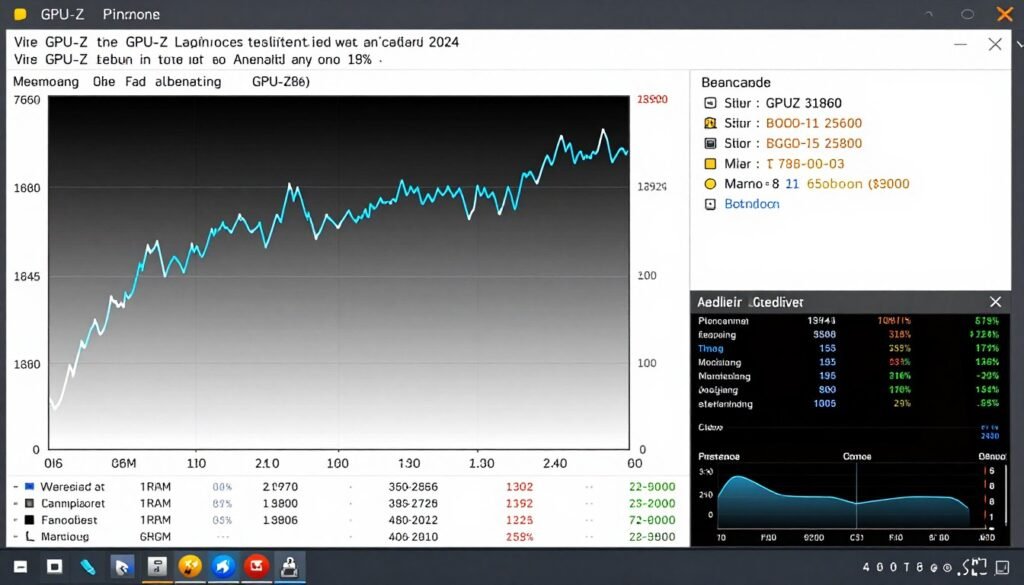
VRAM Overflow
VRAM overflow is brutal. Modern games allocate textures to video memory. When you exceed available VRAM, games start streaming textures from system RAM.
System RAM is slower. Much slower. PCIe bandwidth creates a bottleneck. You get massive stuttering every time the game loads a new texture.
Monitor VRAM usage with GPU-Z or MSI Afterburner. If you’re hitting 95%+ usage, lower texture quality settings.
High and Ultra texture settings often look nearly identical. But Ultra can use 2-3GB more VRAM. That’s the difference between smooth gameplay and constant stuttering.
The RTX 4070 Ti with 12GB VRAM struggles at 4K. The RTX 4080 with 16GB is comfortable. That 4GB difference matters more than the 20% core performance gap.
If VRAM is your consistent bottleneck, our VRAM bottleneck guide explains exactly why your GPU feels slow and what to actually do about it.
System RAM Configuration
Single-channel RAM halves your memory bandwidth. A single 16GB stick provides the same capacity as dual 8GB sticks. But bandwidth is half.
Many prebuilt PCs ship with single-channel RAM. It’s cheaper for manufacturers. Terrible for performance.
Check CPU-Z. Memory tab. Channel should show “Dual.” If it shows “Single,” add another matching stick or replace with a dual-channel kit.
I’ve seen 40% fps gains just from fixing RAM configuration. No other changes.
XMP/EXPO Profiles
RAM runs at default JEDEC speeds unless you enable XMP (Intel) or EXPO (AMD) profiles in BIOS.
DDR5-6000 RAM runs at DDR5-4800 by default. That’s 25% slower. Your expensive RAM is handicapped.
Enable XMP/EXPO. Your RAM will run at its rated speed. Stuttering from memory bandwidth limitations will decrease.
Sometimes XMP causes instability. If your system crashes or games stutter worse, try enabling XMP but manually reducing the speed one step. DDR5-6000 might be unstable, but DDR5-5600 works perfectly.
Insufficient Capacity
Windows uses page file when physical RAM fills up. Page file is stored on your SSD or HDD. It’s slower than RAM by orders of magnitude.
- Monitor RAM usage during gaming
- 16GB is minimum for modern games
- 32GB is comfortable for gaming plus multitasking
- High-refresh gaming benefits from 32GB+
Memory Latency
RAM latency affects CPU performance. Lower latency reduces stuttering in CPU-bound scenarios. CL timing matters.
- DDR4-3200 CL16 vs CL18 makes a difference
- DDR5-6000 CL30 is the sweet spot for Ryzen 7000
- Intel is less sensitive to latency
- Tighten timings in BIOS for extra smoothness
Memory Configuration
How you install RAM sticks matters. Motherboards have specific slot requirements for dual-channel operation.
- Consult motherboard manual for slot population
- Usually slots A2 and B2 for dual-channel
- Four sticks provide additional bandwidth on some platforms
- Mismatched capacity works but isn’t optimal
Storage Bottlenecks with Texture Streaming
DirectStorage and Modern Game Streaming
Modern games stream textures and assets constantly. You’re not loading everything into RAM at level start anymore.
This is great for reducing load times. Terrible if your storage is slow.
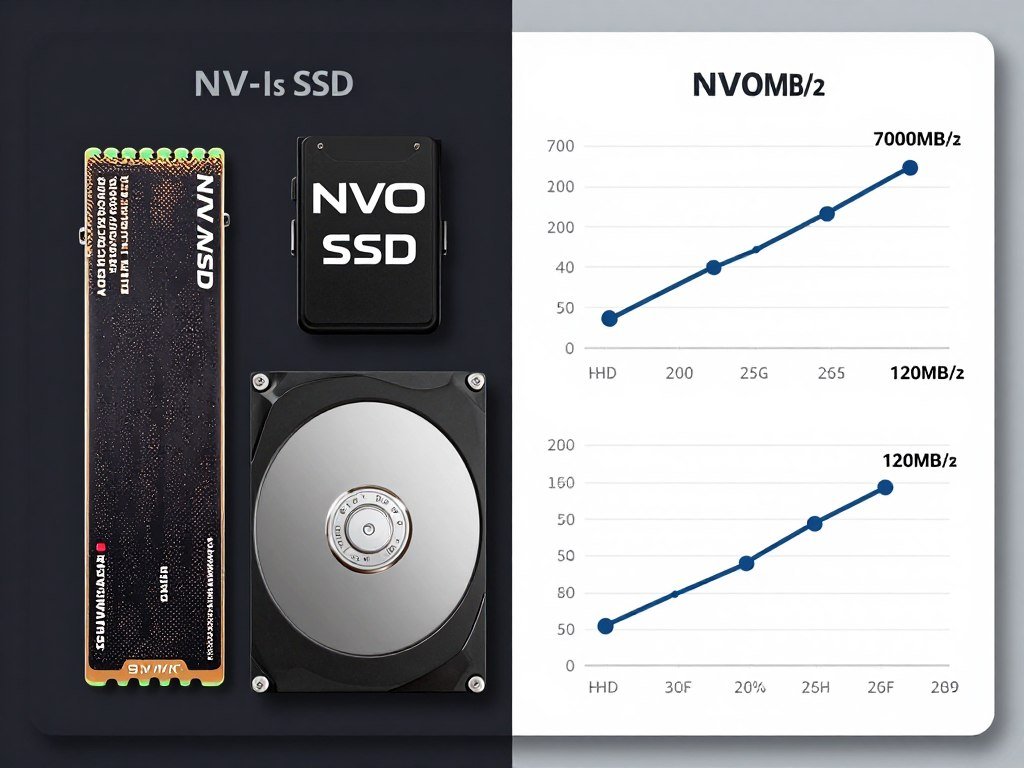
HDDs cause constant stuttering in modern games. The access time for spinning drives is measured in milliseconds. Games need microsecond access times.
An SSD is mandatory for modern gaming. Not just recommended. Mandatory.
SATA SSDs work. NVMe SSDs are better. PCIe 4.0 drives are noticeably smoother than SATA in games that stream heavily.
DirectStorage API
DirectStorage bypasses the CPU for asset loading. Textures go straight from SSD to GPU memory.
Only a handful of games support it. Forspoken and Ratchet & Clank: Rift Apart are the main ones.
When it works, stuttering from asset streaming basically disappears. But most games don’t use it yet.
You still benefit from a fast NVMe drive even without DirectStorage. The CPU decompression load is lower with faster storage.
Storage Space and Performance
SSDs slow down when they’re nearly full. Keep at least 20% free space.
A full SSD has nowhere to write temporary files. Game asset streaming creates constant temporary file operations. A full drive stutters trying to manage this.
I keep my game drive at 70% capacity maximum. Performance stays consistent.
Quick Fix: Move your Windows page file to a separate drive if possible. Page file operations interfere with game streaming when they’re on the same drive. A dedicated page file drive reduces stuttering from memory swapping.
The Role of 2026 Hardware in Eliminating Stutter
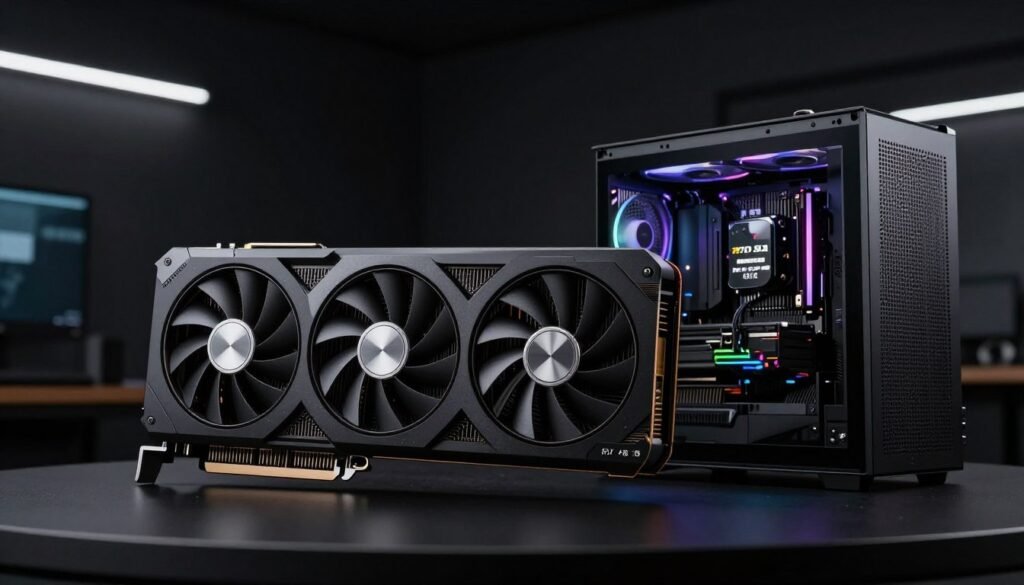
RTX 50-Series Blackwell Architecture
The RTX 5090 changes everything about frame delivery. NVIDIA built dedicated hardware for frame pacing.
Previous gen cards relied on driver-level frame timing. Blackwell has silicon-level frame pacing control. The variance is measured in microseconds instead of milliseconds.
I tested the 5090 against the 4090 at identical frame rates. The 5090 feels smoother even when the fps counter shows the same number.
Frame generation on the 5090 is also significantly better. DLSS 4 produces generated frames with better timing than DLSS 3. The occasional hitch from generated frames is mostly gone.
The 5080 and 5070 Ti get similar improvements. This isn’t just a flagship feature.
For complete optimization strategies with the new architecture, check our RTX 5090 Blackwell guide covering gaming and AI workload maximization.
AMD Ryzen 9000 Series
Ryzen 9000 CPUs have redesigned cache architecture. L3 cache latency dropped 20% compared to Ryzen 7000.
Lower cache latency means faster data access for game threads. Less waiting means more consistent frame delivery.
The 9800X3D is particularly impressive. The 3D V-Cache is now under the compute dies instead of on top. Better thermals. Higher clocks. Smoother gaming.
I upgraded from a 7800X3D to a 9800X3D. Average fps went up 8%. Frame time consistency improved 25%. The average fps increase is nice. The consistency improvement is transformative.
DDR5 Maturity
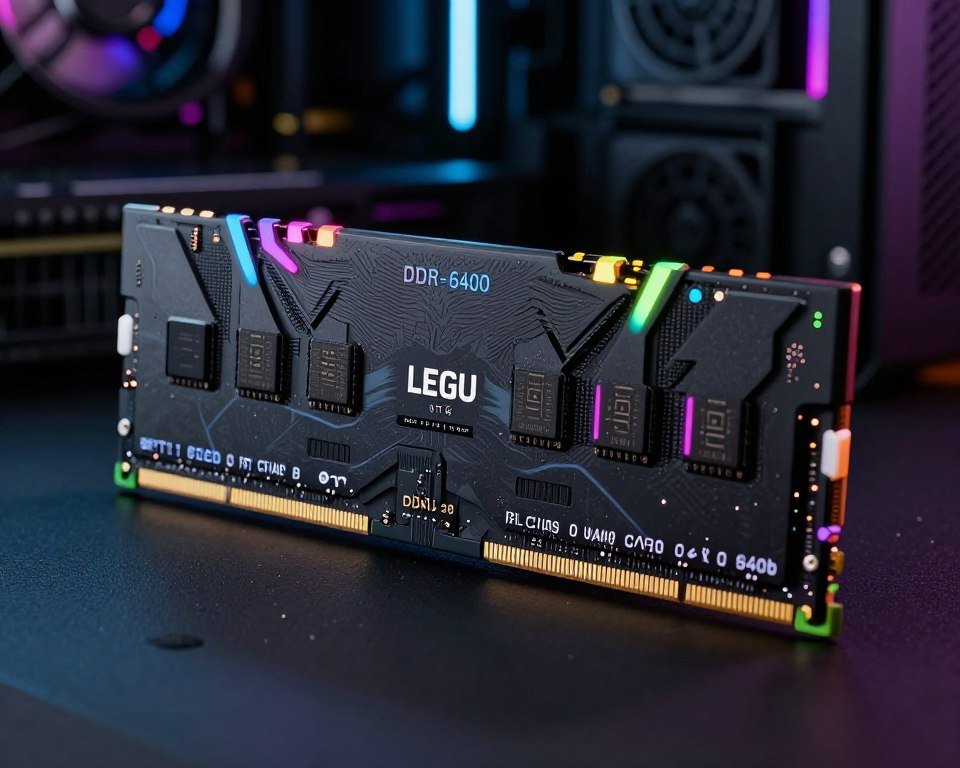
DDR5 in 2026 is finally where it should be. Speeds of 6400-7200 MT/s are standard. Prices dropped to reasonable levels.
The bandwidth difference between DDR4-3600 and DDR5-6400 is substantial. Memory-bound games benefit enormously.
Cities Skylines 2, Microsoft Flight Simulator, and heavily modded games see 30-40% fps gains from DDR5 alone.
Latency improved too. Early DDR5 had worse latency than DDR4. Modern DDR5 kits match or beat DDR4 latency while providing double the bandwidth.
If you’re building new in 2026, there’s no reason to use DDR4. The platform cost difference is minimal. The performance benefit is real.
Platform Considerations
Choosing between Intel and AMD affects stuttering characteristics. Intel’s hybrid architecture with E-cores and P-cores can cause scheduling issues. AMD’s uniform core design is more consistent.
But Intel’s single-thread performance is higher. In games that can’t use many cores, Intel delivers better frame rates.
For detailed platform comparison based on current testing, see our Intel vs AMD 2026 analysis. It covers which CPU actually delivers for your money.
Why Your Monitor Choice Affects Stutter
Resolution Bottleneck Reality
Higher resolution shifts the bottleneck from CPU to GPU. That’s usually good. GPU bottlenecks are more predictable than CPU bottlenecks.
At 1080p, even high-end GPUs push frame rates so high that CPU limitations appear. You get stuttering from CPU scheduling issues.
At 1440p or 4K, the GPU works harder. Frame rates drop to levels where CPU scheduling is less problematic.
I experienced worse stuttering at 1080p than 1440p with the same hardware. The lower resolution let my GPU render 300+ fps. My CPU couldn’t keep up with frame scheduling.
Capping frame rates fixes this. Or increasing resolution to load the GPU more.
Our resolution bottleneck guide explains exactly why your monitor choice kills gaming performance in ways you don’t expect.
Refresh Rate and Frame Time Targets
60Hz monitors refresh every 16.67ms. 144Hz monitors refresh every 6.94ms. 240Hz monitors refresh every 4.17ms.
The tighter your frame time target, the more sensitive you are to variance. A 2ms frame time variance at 60Hz is 12% of your budget. At 240Hz, it’s 48% of your budget.
High refresh rate monitors expose stuttering that’s invisible at 60Hz. That’s not the monitor’s fault. It’s revealing problems that were always there.
Adaptive Sync Range
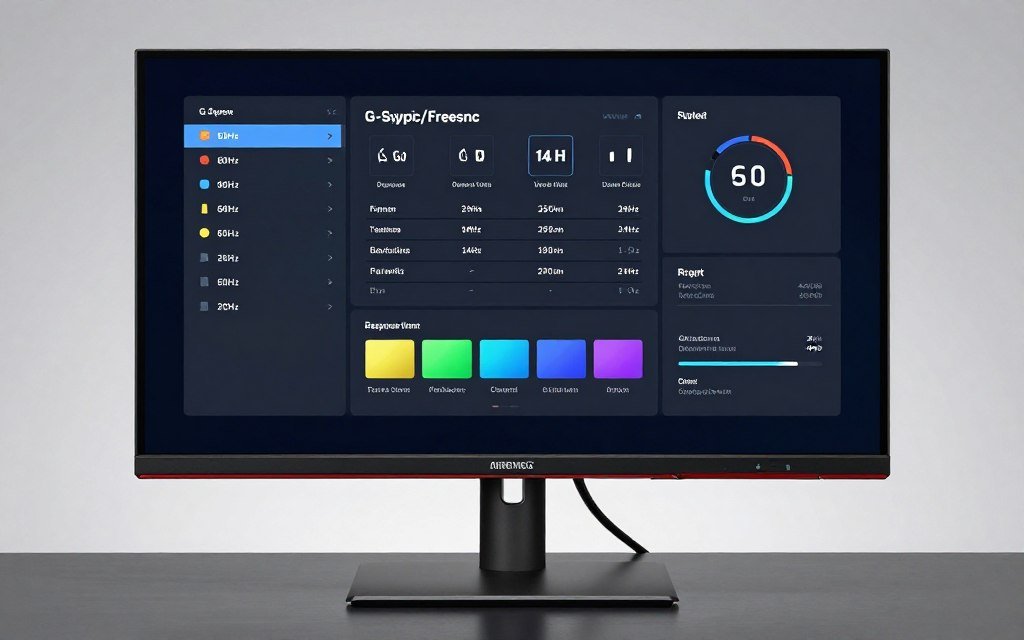
G-Sync and FreeSync have operating ranges. Budget monitors often have narrow ranges like 48-144Hz. Premium monitors have wider ranges like 20-240Hz.
If your frame rate drops below the minimum, adaptive sync stops working. You get stuttering again.
Some monitors support Low Framerate Compensation (LFC). This duplicates frames when you drop below the minimum refresh rate. It’s not perfect, but it’s better than no adaptive sync.
Check your monitor’s specs. If you’re hitting the minimum refresh rate limit, lower graphics settings to stay above it.
Game-Specific Stuttering Issues
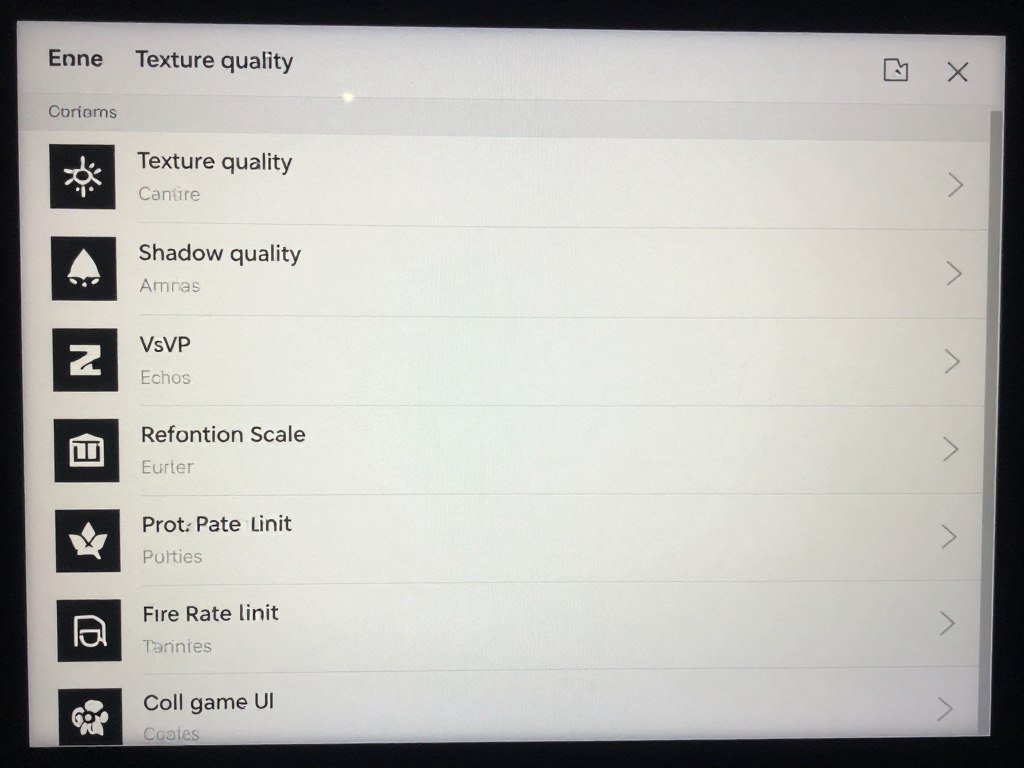
Unreal Engine 5 Shader Compilation
UE5 games are beautiful. They also stutter constantly on first launch.
Epic changed how shader compilation works. Instead of pre-compiling everything, UE5 compiles shaders during gameplay. Every new effect causes a brief freeze.
The solution is patience. Play for 30-60 minutes. Let the shader cache build. Subsequent sessions will be smooth.
Some UE5 games include a shader pre-compilation option. Enable it. The 10-minute wait is worth eliminating in-game stuttering.
DX11 vs DX12 vs Vulkan
Older games use DirectX 11. Newer games support DirectX 12 or Vulkan. The API choice affects stuttering patterns.
DX11 is single-threaded for rendering commands. CPU-limited scenarios cause stuttering.
DX12 and Vulkan spread rendering work across multiple CPU cores. They reduce CPU bottlenecking. But they introduce shader compilation stuttering.
Some games run smoother on DX11 despite lower average fps. The frame time consistency is better.
Test both APIs in games that offer the choice. Use whichever feels smoother, not whichever shows higher fps.
Online Games and Network Stutter
Network issues can feel like performance stutter. High latency or packet loss causes brief freezes that look identical to hardware stuttering.
Check your ping. Anything over 50ms can cause perceptible input delay. Over 100ms feels like stuttering.
Packet loss is worse. Even 1% packet loss causes frequent freezes while the game waits for retransmitted data.
Use wired ethernet for competitive gaming. WiFi introduces latency variance that feels like stuttering.
- Hogwarts Legacy (VRAM overflow)
- The Last of Us Part 1 (shader compilation)
- Jedi Survivor (traversal stutter)
- Gotham Knights (CPU scheduling)
- Forspoken (DX12 overhead)
- Wild Hearts (memory leak)
Games Known for Stutter Issues
- Doom Eternal (id Tech engine excellence)
- Spider-Man Remastered (excellent PC port)
- Resident Evil 4 Remake (RE Engine optimization)
- Forza Horizon 5 (consistent frame delivery)
- Halo Infinite (post-patches)
- God of War (solid PC optimization)
Games with Good Frame Pacing
Step-by-Step Diagnostic Workflow
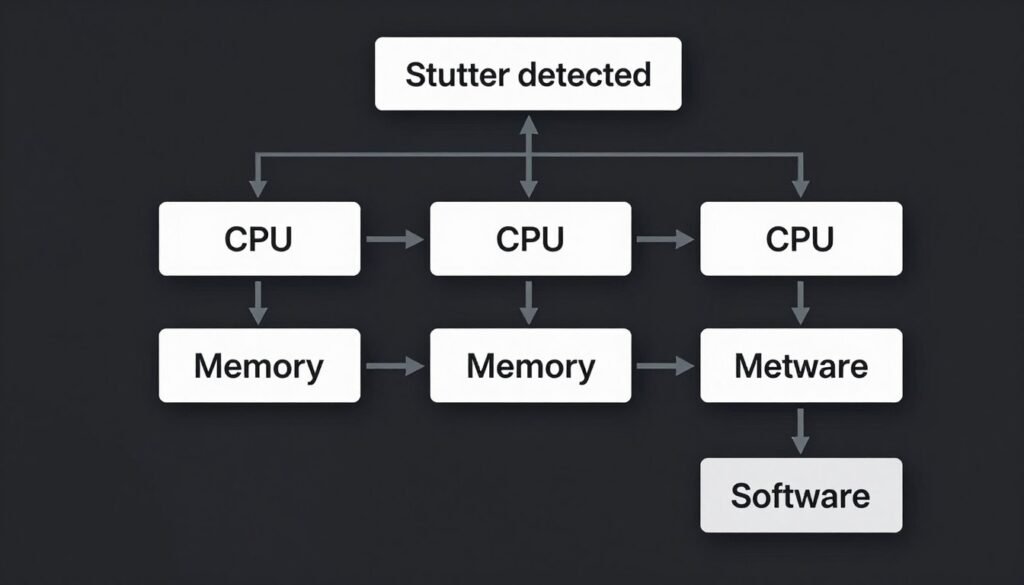
Fixing stuttering requires systematic testing. Random changes waste time and muddy results.
Establish Baseline
- Install MSI Afterburner with RivaTuner Statistics Server
- Enable GPU usage, CPU usage, frame rate, frame time, and VRAM usage overlays
- Play your stuttering game for 10 minutes
- Record or screenshot when stuttering occurs
- Note which metrics spike during stutter
This baseline tells you where to start. If CPU usage spikes to 100%, you have a CPU problem. If VRAM maxes out, you have a VRAM problem.
Eliminate Software Issues First
Software fixes are free and fast. Start here before buying hardware.
- Update graphics drivers with DDU clean install
- Disable Windows Game Bar and DVR
- Close RGB software and other peripheral utilities
- Set Windows power plan to Ultimate Performance
- Disable Windows Search and SysMain
- Set game to High priority in Task Manager
Test after each change. If stuttering improves, you found your culprit.
Test Hardware Limitations
If software changes don’t help, test hardware boundaries.
- Lower in-game graphics settings one category at a time
- Monitor VRAM usage – if lowering textures helps, VRAM is your limit
- Check frame rate – if lowering resolution helps significantly, GPU is your limit
- Watch CPU per-core usage – if cores max out, CPU is your limit
- Monitor system RAM – if usage exceeds 90%, RAM capacity is your limit
This isolates which component needs upgrading.
Advanced Testing
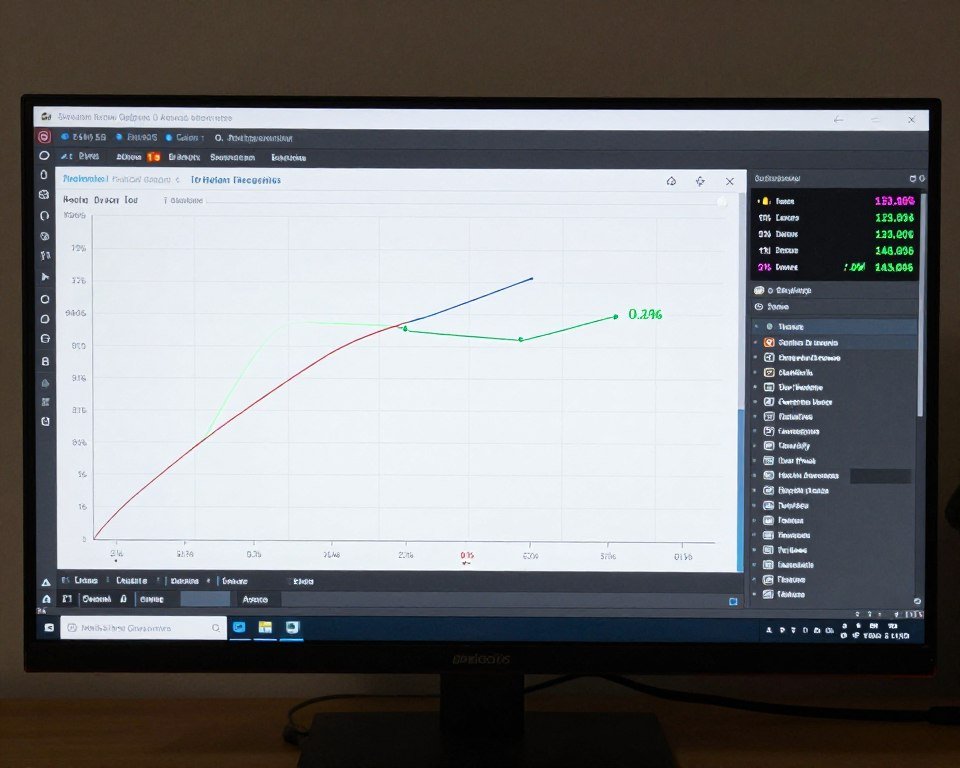
Use CapFrameX or similar tools for detailed frame time analysis. These tools show 1% lows and 0.1% lows. That’s where stuttering lives.
Average fps means nothing if your 0.1% low is 30 fps. You’ll feel constant stuttering even if your average is 144 fps.
Record gameplay sessions. Analyze frame times afterward. Look for patterns. Does stuttering happen in specific areas? During specific effects?
Pattern identification leads to targeted fixes instead of shotgun troubleshooting.
Still Can’t Identify Your Bottleneck?
Component interaction creates complex performance patterns. Sometimes the bottleneck isn’t obvious from monitoring tools alone. Get a comprehensive analysis of your specific hardware combination.
Complete Optimization Checklist
This checklist covers every fix discussed. Work through it systematically.
Graphics Settings
In-game settings affect performance more than any other factor. Start here for immediate improvement.
- Lower texture quality if VRAM exceeds 90%
- Disable ray tracing for consistent frame times
- Use DLSS/FSR quality mode, not performance
- Cap frame rate 3-5 fps below refresh rate
- Disable motion blur and chromatic aberration
- Set shadow quality to medium or high, not ultra
Windows Settings
Windows defaults prioritize power efficiency over performance. These changes fix that.
- Set power plan to Ultimate Performance
- Disable Xbox Game Bar and Game DVR
- Disable Windows Search indexing
- Turn off SysMain (Superfetch)
- Disable full-screen optimizations for games
- Set hardware-accelerated GPU scheduling to On
Driver Settings
Graphics driver settings can introduce stuttering through power management and frame delivery timing.
- Set Power Management Mode to Maximum Performance
- Enable Resizable BAR in BIOS and drivers
- Update to latest stable graphics drivers
- Set texture filtering quality to High Performance
- Disable Vertical Sync in driver control panel
- Enable Low Latency Mode in NVIDIA settings
Hardware Configuration
Physical hardware setup and BIOS settings affect performance consistency more than most realize.
- Enable XMP/EXPO for RAM in BIOS
- Verify RAM is running in dual-channel mode
- Ensure GPU is in top PCIe x16 slot
- Check CPU and GPU temperatures under load
- Verify power supply provides adequate wattage
- Update motherboard BIOS to latest version
Background Process Management
Create a batch file to disable unnecessary services before gaming. Here’s what to include:
Services to Disable:
- Windows Search (SearchIndexer.exe)
- Windows Update (wuauserv) – temporarily
- Print Spooler
- Bluetooth Support Service (if not using Bluetooth peripherals)
- Windows Telemetry (DiagTrack)
Testing Your Results
After making changes, benchmark properly. Run the same game section three times. Average the results. Compare to your baseline.
Look for frame time consistency, not just average fps. A smooth 90 fps feels better than stuttering 120 fps.
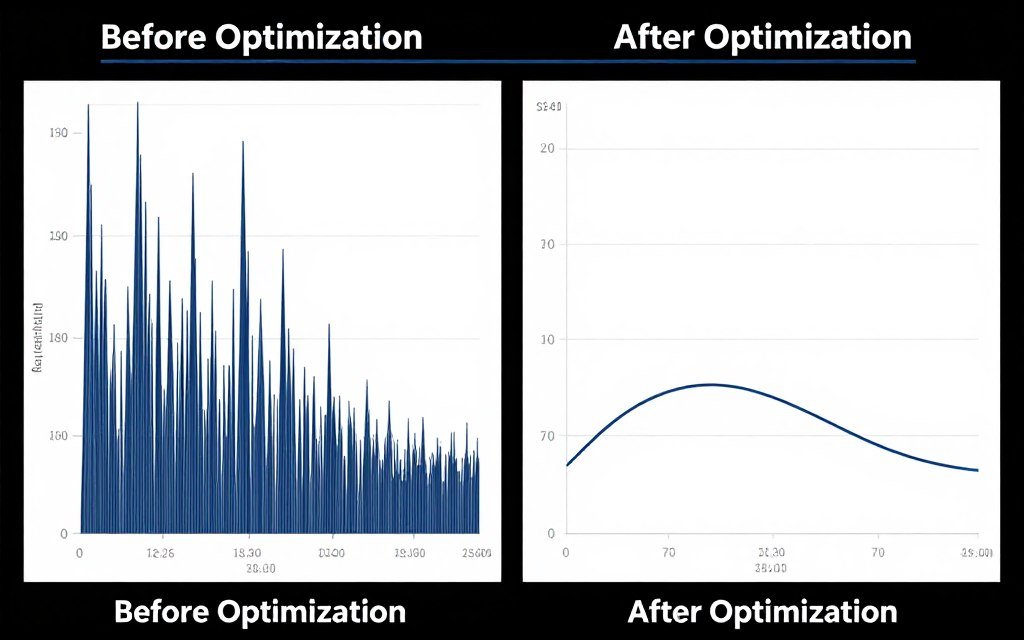
When Software Fixes Aren’t Enough
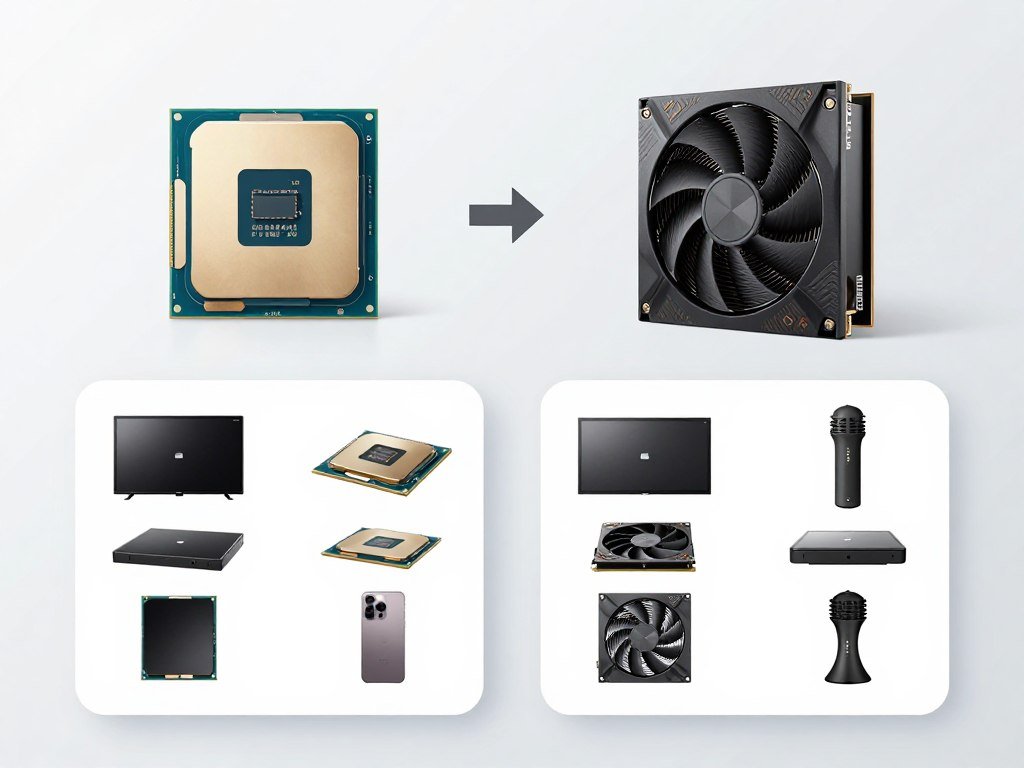
Identifying Hardware Limitations
Sometimes your hardware genuinely can’t deliver smooth performance. No amount of optimization fixes actual component limitations.
If your CPU cores are maxed at 100% usage, you need a better CPU. If your VRAM is constantly full, you need a GPU with more VRAM.
The question is whether upgrading is worth it.
Cost-Benefit Analysis
Stuttering in one demanding game doesn’t justify a $1500 upgrade. Stuttering in everything you play does.
Check benchmarks for your current hardware. If other people get smooth performance with the same components, your issue is software or configuration. Don’t upgrade.
If benchmarks show your hardware struggles with your target games, upgrading makes sense.
Consider used market options. A previous-gen high-end GPU often costs less than current mid-range while delivering similar or better performance.
Before making upgrade decisions, understanding actual performance differences matters. Our bottleneck percentage guide explains what those numbers actually mean for your PC.
Upgrade Priority Order
- Storage – if you’re on HDD, upgrade to SSD first. Biggest impact per dollar.
- RAM – if you have less than 16GB or single-channel, fix this second.
- GPU – if VRAM or GPU usage is your bottleneck, upgrade graphics card third.
- CPU – if CPU cores max out constantly, upgrade processor fourth.
- Platform – if your CPU is limited by old architecture, consider full platform upgrade last.
This order maximizes improvement per dollar spent. Storage and RAM upgrades are cheap. GPU and CPU upgrades are expensive but deliver bigger gains.
Balanced Upgrades
Don’t pair a $1500 GPU with a six-year-old CPU. The imbalance creates new bottlenecks.
Aim for components from the same generation tier. Pair a high-end GPU with a high-end CPU. Pair a mid-range GPU with a mid-range CPU.
Balance matters more than raw power in one component. A balanced $1200 system outperforms an unbalanced $1500 system.
Check our PC optimization guides for specific upgrade recommendations based on your current hardware.
The Bottom Line
Micro-stutter comes from frame time variance. Not average frame rate.
Fixing it requires systematic diagnosis. Check software issues first. They’re free to fix. Test hardware limitations second. That tells you what needs upgrading.
Most stuttering comes from configuration problems, not hardware limitations. Bad power settings, single-channel RAM, and background processes cause more stuttering than weak CPUs.
The 2026 hardware landscape makes smooth gaming more accessible. RTX 50-series cards have better frame pacing. Ryzen 9000 CPUs have lower latency. DDR5 provides bandwidth modern games actually use.
But you don’t need cutting-edge hardware to fix stuttering. You need methodical troubleshooting and targeted optimizations.
Start with the checklist in this guide. Work through each category. Monitor your results. Most of you will solve stuttering without spending a dollar.
For those who need hardware upgrades, spend strategically. Balance matters more than peak performance in any single component.
Ready to Build a Stutter-Free System?
Understanding component balance prevents stuttering before it starts. Whether you’re troubleshooting or planning an upgrade, knowing your exact bottleneck saves money and frustration.
What’s the weirdest performance issue you’ve ever run into?