
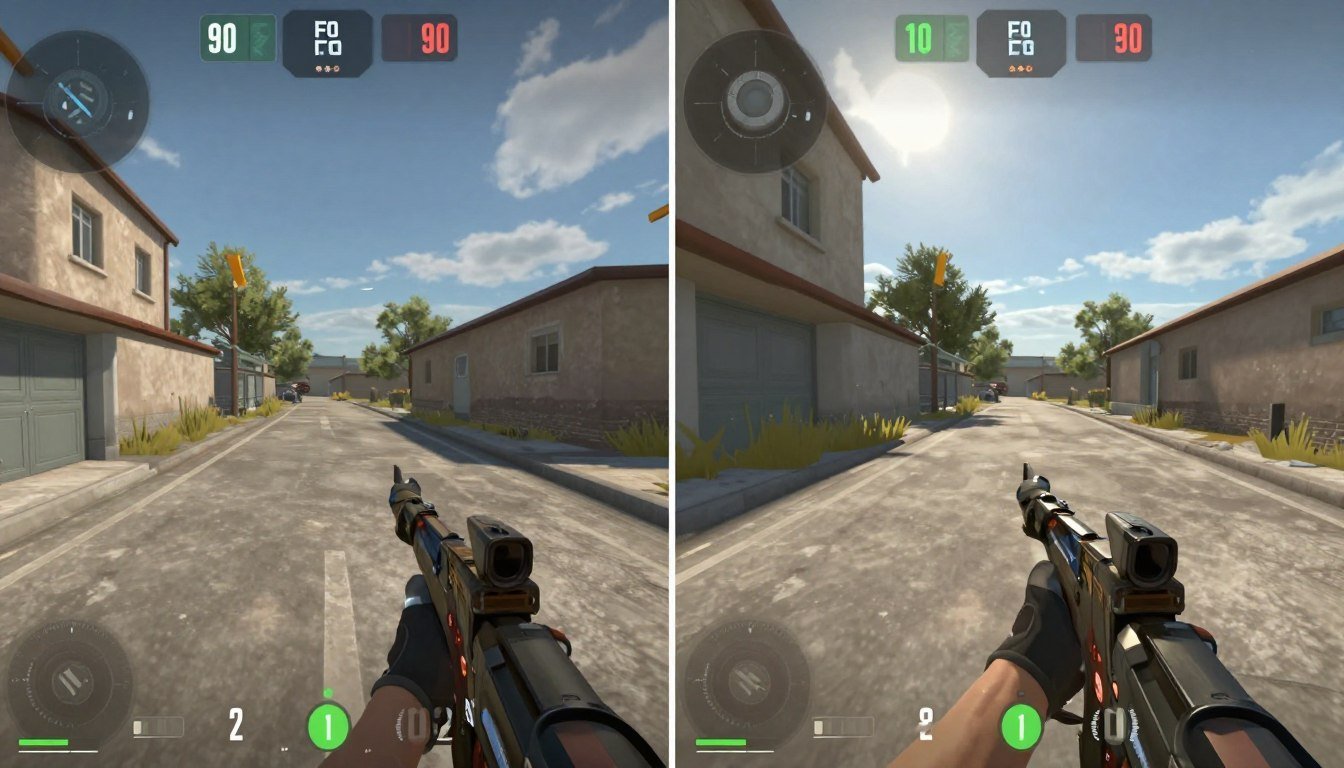
I cranked my FOV to 110 in Cyberpunk 2077 last month, expecting that sweet peripheral awareness. Instead, my RTX 4070 Ti went from a smooth 120 FPS down to 68. The game felt like it was running through mud.
Turns out, I’d accidentally doubled my GPU’s workload. Every degree you push that field of view slider adds more objects to render, more draw calls to process, and more strain on your hardware.
This guide breaks down exactly why FOV performance hit happens, how your GPU calculates those extra draw calls, and what you can actually do about it. I’ll show you the real numbers behind FOV scaling and share fixes that don’t require buying new hardware.
What FOV Actually Does to Your GPU
Field of view determines how much of the game world your screen shows at once. Think of it like a flashlight beam. A narrow FOV is a focused spotlight. A wide FOV is a floodlight.
Your GPU doesn’t care about philosophy. It cares about geometry. When you increase FOV from 90 to 120, you’re not just seeing more. You’re forcing the engine to render 30-40% more objects.
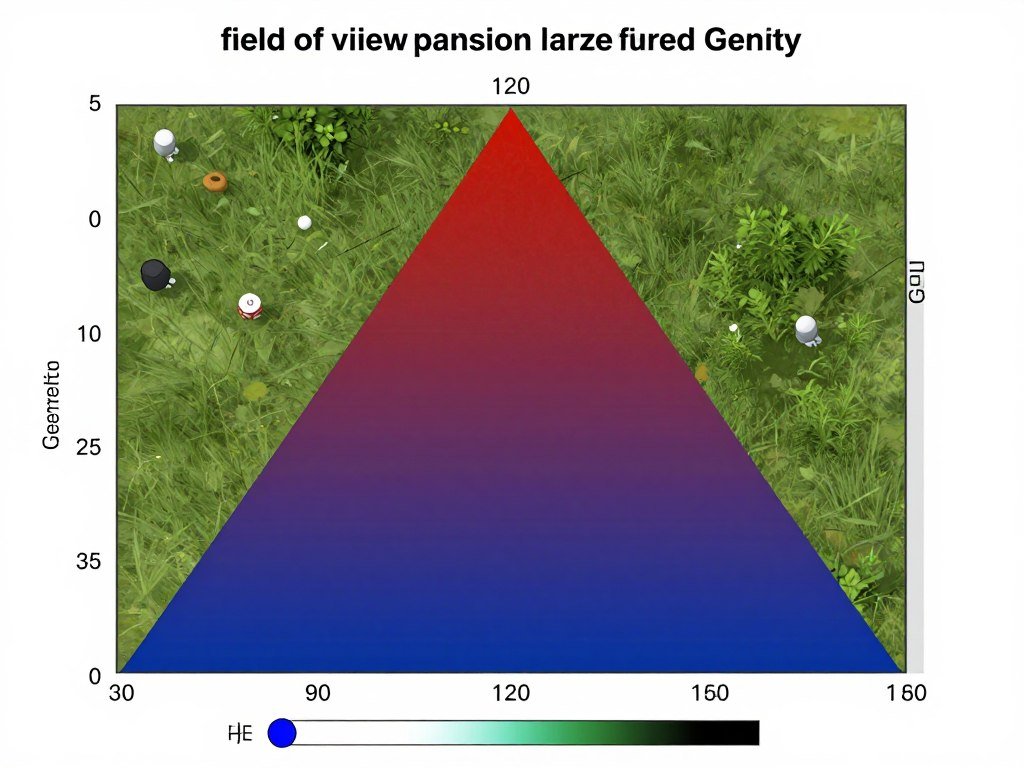
Every tree, character, building, and particle effect in that expanded view creates a draw call. A draw call is basically your CPU telling your GPU to render something.
The Draw Call Problem
Modern games already push 2,000 to 10,000 draw calls per frame. Increase your FOV by 20 degrees, and you might add 500-2,000 more. That’s per frame. At 60 FPS, you’re talking 30,000 to 120,000 additional GPU instructions every second.
The math gets worse with Unreal Engine 5 games because Nanite and Lumen add their own overhead. You’re not just rendering more stuff. You’re rendering more complex stuff.
Real Talk: The FOV performance hit isn’t about the view being “wider.” It’s about exponential geometry scaling. A 10-degree FOV increase doesn’t add 10% more work. It often adds 25-35% more because objects appear in your peripheral vision that the engine would otherwise cull.
Why Higher FOV Drops Your Frame Rates
The FPS drops happen because of three compounding factors: object culling failure, shader complexity, and memory bandwidth.
Object Culling Breaks Down
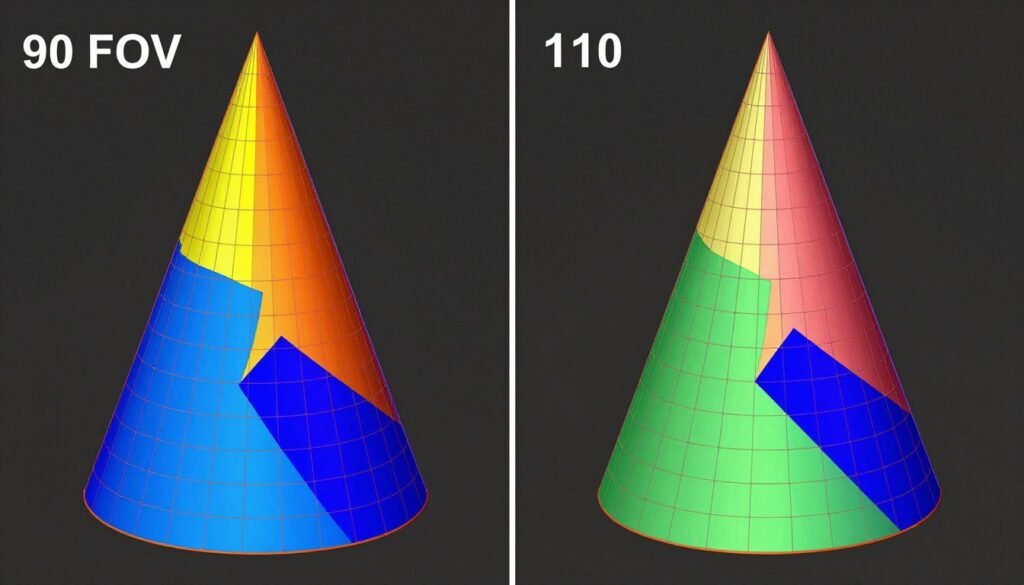
Game engines use frustum culling. Imagine your camera view as a pyramid extending from your screen. Anything outside that pyramid doesn’t render. Smart, right?
Except when you widen FOV, that pyramid becomes a wide-angle cone. Suddenly, objects that were safely outside the render zone are now barely visible on screen edges. The engine can’t cull them anymore.
I tested this in CS2. At default FOV, my CPU usage sat at 45%. Cranked to max FOV, it jumped to 68%. Same map, same spot, just more geometry in frame.
Shader Complexity Multiplies
Every pixel on your screen runs a shader program. More FOV means more pixels covering more complex surfaces. Your GPU has to calculate lighting, shadows, and reflections for all of them.
At 1440p with 120 FOV, you’re pushing your GPU to shade 30-40% more pixels than at 90 FOV. That’s the difference between 60 FPS and 45 FPS on mid-range hardware.
Low FOV Impact (90°)
- Fewer objects in frustum
- Better culling efficiency
- Lower draw call count
- Reduced shader load
High FOV Impact (120°)
- 25-40% more geometry
- Culling struggles with edges
- Draw calls spike dramatically
- Shader complexity increases
Memory Bandwidth Gets Destroyed
Higher FOV means more textures loaded into VRAM simultaneously. If you’re already close to your VRAM capacity, increasing FOV forces texture streaming to work overtime.
This creates stuttering. The game loads, unloads, and reloads textures as you turn your camera. On an 8GB GPU in 2026, this is a real problem in open-world games.
How to Actually Measure FOV Performance Hit
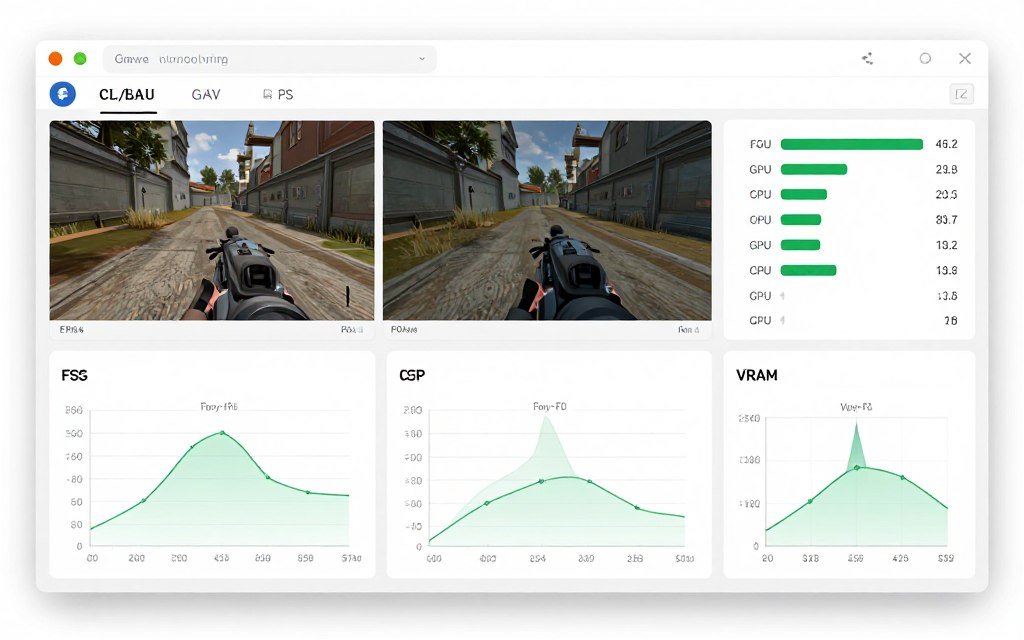
You need hard numbers, not feelings. Here’s how I test FOV impact on any game.
The Testing Method
- Load a complex scene (cities, forests, anything with dense geometry)
- Set FOV to default (usually 90 for 16:9 aspect ratio monitors)
- Record average FPS for 60 seconds while moving camera
- Increase FOV by 10 degrees
- Repeat test in exact same location
- Compare FPS drops and GPU usage
Use MSI Afterburner or RTSS to monitor frame time consistency. FPS averages lie. Frame time shows the real stuttering.
Not Sure If FOV Is Your Real Problem?
Before you change settings, identify whether your CPU or GPU is actually the bottleneck. Our calculator shows you exactly where your system balance breaks.
What the Numbers Tell You
If FPS drops more than 15% from a 20-degree FOV increase, you’re hitting a GPU bottleneck. If frame times become inconsistent (10ms variance or more), you’re seeing CPU draw call limitations.
On Ryzen 9000 series CPUs with RTX 5070 cards, the sweet spot is usually 100-110 FOV at 1440p. Push beyond that, and you’re asking for trouble without serious optimization.
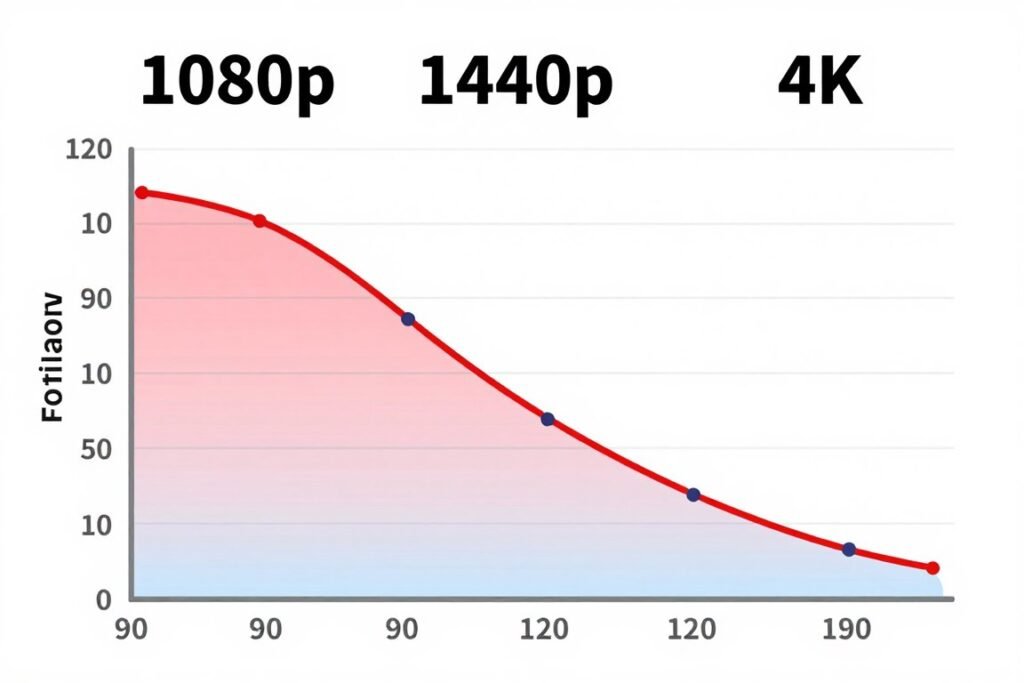
Why Resolution Multiplies the FOV Problem
FOV performance hit isn’t linear. It scales exponentially with resolution. Here’s why nobody talks about this.
At 1080p, a 120 FOV might cost you 10 FPS. Same FOV at 4K can cost 35 FPS. You’re not just rendering more objects. You’re rendering them at 4x the pixel density.
Aspect Ratio Changes Everything
Ultrawide monitors (21:9) already render more horizontal geometry. Add high FOV on top, and you’re doubling the problem. A 34-inch ultrawide at 120 FOV can show 50% more world geometry than a standard 16:9 aspect ratio monitor at 90 FOV.
This is why competitive players stick to standard monitors and lower FOV values. Every degree costs frames. In esports titles, that matters.
Quick Test: Drop your resolution by one step (4K to 1440p, 1440p to 1080p) and retest FOV impact. If FPS recovers significantly, your GPU can’t handle the pixel count, not the draw calls. Different problem, different solution.
Understanding resolution bottlenecks helps you decide whether to lower FOV or decrease resolution. Sometimes you need both.
Different Engines Handle FOV Performance Differently
Not all game engines suffer equally from FOV performance hit. Some are optimized for it. Others fall apart.
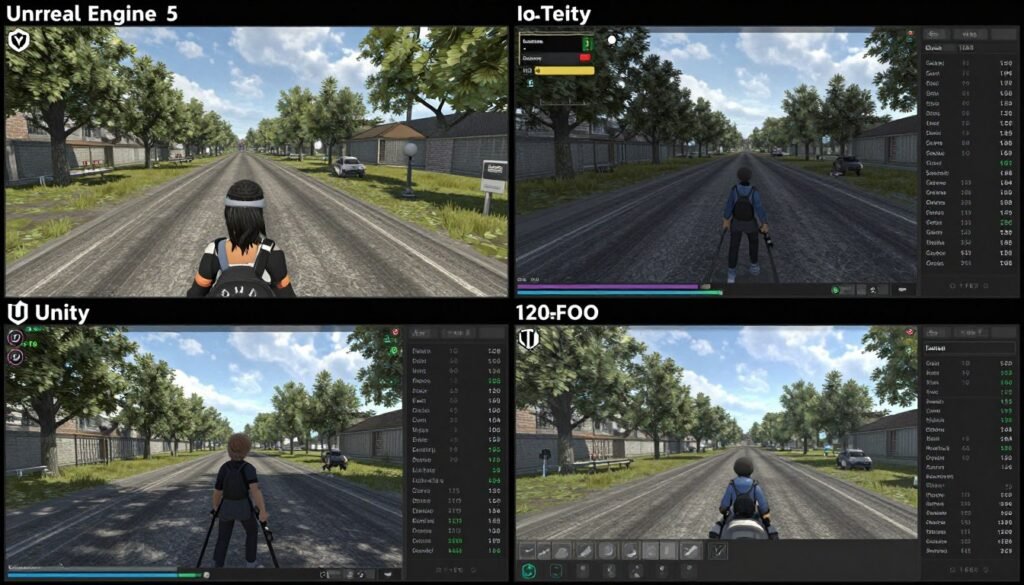
Unreal Engine 5 and Nanite
UE5’s Nanite technology was supposed to fix LOD transitions and reduce draw call overhead. In practice, high FOV still kills performance because Nanite increases shader complexity. You’re trading draw call problems for compute problems.
Games like Fortnite handle it well because Epic optimized the engine for their own game. Third-party UE5 titles struggle. The engine gives developers powerful tools, but most don’t know how to optimize for wide FOV scenarios.
Source 2 and Valve’s Approach
CS2 runs on Source 2, which handles FOV changes more gracefully than most engines. Valve built aggressive culling and optimized draw call batching. Even at max FOV, CS2 rarely drops below 200 FPS on decent hardware.
The difference is architectural. Source 2 was designed for competitive gaming where players demand high FPS and custom FOV values. Most engines were designed for console gaming with fixed FOV and 60 FPS targets.
FOV-Optimized Engines
- Source 2 (CS2, Dota 2)
- idTech (DOOM Eternal)
- Frostbite (Battlefield)
- Proprietary esports engines
FOV-Struggling Engines
- Unreal Engine 4/5 (varies by dev)
- Unity (heavy optimization needed)
- REDengine (Cyberpunk 2077)
- Most AA/indie engines
Which Hardware Gets Hit Hardest by FOV Changes
FOV performance hit affects different hardware in different ways. Your bottleneck determines your pain points.
GPU-Bound Systems
If your GPU is already maxed out, increasing FOV will crater FPS. You’re asking it to render more without giving it more resources. This hits mid-range cards (RTX 4060, RX 7600) hardest at 1440p and above.
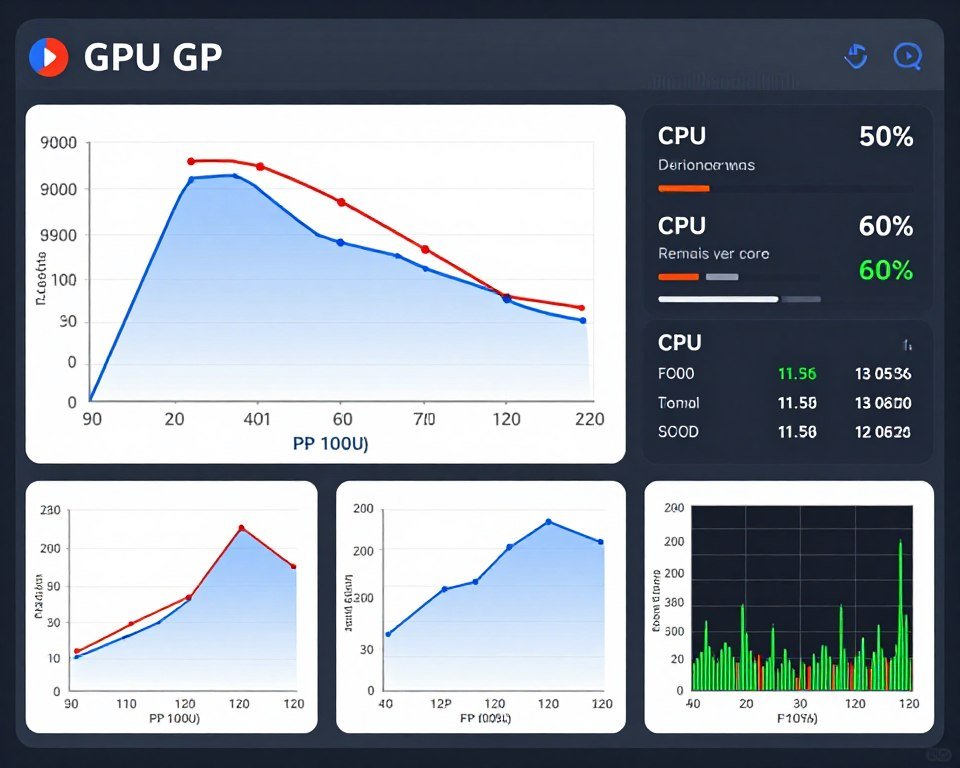
The RTX 5090 and high-end GPUs can brute-force through FOV penalties because they have excess compute power. But even those cards will see 15-20% FPS drops on demanding titles at 4K with maxed FOV.
CPU-Bound Systems
High FOV increases draw calls, which is CPU work. If your processor is already bottlenecking your GPU, wide FOV will make it worse. This is common with older CPUs (pre-Ryzen 5000 or Intel 10th gen) paired with modern GPUs.
I’ve seen systems with RTX 4070 Ti cards limited to 80 FPS because the CPU can’t submit draw calls fast enough at high FOV. The GPU sits at 70% usage while the CPU screams at 100% on one core.
Check your system balance before you blame FOV. Sometimes the issue is component mismatch, not the FOV setting itself.
Memory Bandwidth Limitations
VRAM capacity and memory bandwidth both matter. Higher FOV loads more textures. If you’re on an 8GB GPU trying to run 4K with ultra textures and 120 FOV, you’ll hit VRAM limits.
The game starts swapping textures in and out of VRAM constantly. This creates microstuttering even if your average FPS looks fine. It’s invisible in benchmarks but noticeable during gameplay.
Practical Ways to Fix FOV Performance Hit
You don’t have to accept poor performance or abandon your preferred FOV. Here are actual solutions that work.
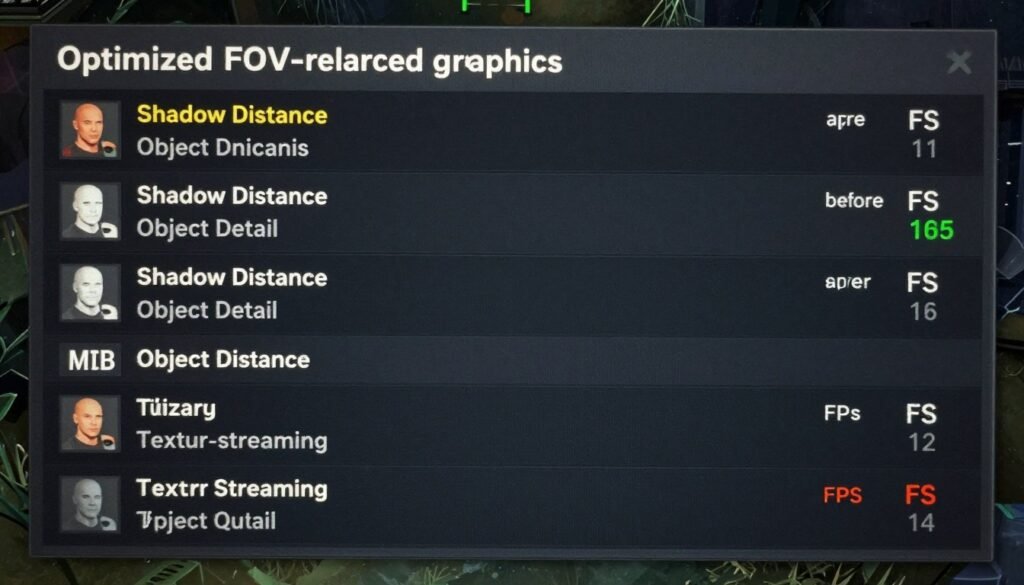
Reduce Shadow Distance and Quality
Shadows are exponentially expensive at high FOV because the engine casts shadows for every visible object. Drop shadow distance by 25-50%. You won’t notice in gameplay, but you’ll gain 10-20 FPS.
Shadow quality can often drop from ultra to high without visible difference. The performance gain is massive because shadow maps scale with screen resolution and FOV.
Lower Object Detail and Draw Distance
Object detail controls how many small props (grass, rocks, debris) appear. At high FOV, these multiply like crazy. Dropping from ultra to high can reduce draw calls by 1,000+ per frame.
Draw distance determines when distant objects appear. Lower it slightly, and the engine culls objects earlier. You lose some visual fidelity but gain significant performance at wide FOV angles.
Optimize Anti-Aliasing
TAA and MSAA cost more at high FOV because they work on a per-pixel basis. Switch to FXAA or TSR (Temporal Super Resolution) for better performance with minimal quality loss.
DLSS and FSR are game-changers here. They render at lower internal resolution, which directly counters FOV performance hit. Quality mode DLSS at 120 FOV often matches native 90 FOV performance.
Settings That Help FOV Performance
- Reduce shadow distance by 30-50%
- Lower object detail to medium/high
- Enable DLSS/FSR Quality mode
- Decrease particle effects quality
- Reduce reflection quality
- Disable motion blur (helps frame time)
Settings That Don’t Help
- Texture quality (VRAM issue, not FOV)
- Anisotropic filtering (minimal impact)
- Chromatic aberration (cosmetic only)
- Film grain (no performance cost)
- Depth of field (slight cost, not FOV-related)
Hardware Upgrades That Actually Matter
If optimization isn’t enough, targeted upgrades help. Focus on the actual bottleneck, not just buying the most expensive parts.
For GPU bottlenecks, upgrading to a card with 30-40% more compute power solves FOV issues. Going from RTX 4060 to 4070 Super gives you headroom for high FOV at 1440p.
For CPU bottlenecks, check if your processor supports better core scaling. Modern games with high FOV benefit from CPUs with strong single-core performance and high cache (like AMD X3D chips).
Find Your Actual Performance Bottleneck
Stop guessing which component limits your FPS. Our bottleneck calculator shows you whether FOV changes will help or if you need different optimizations entirely.
The FOV Preference Debate: Competitive vs. Immersive Gaming
FOV isn’t just about performance. It’s about preference and gameplay style. The tradeoff between awareness and frame rate matters differently depending on your goals.
Competitive Players and Low FOV
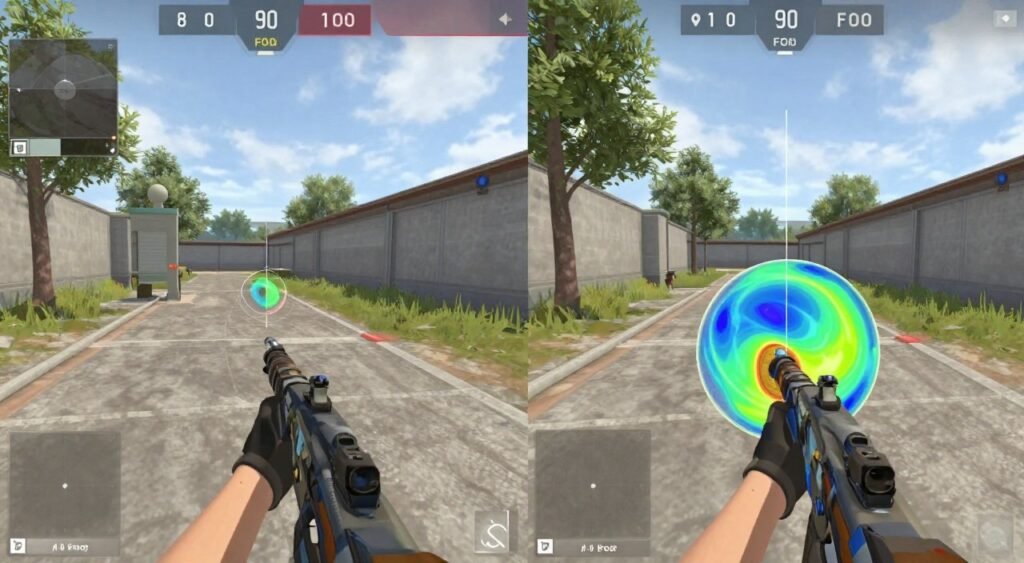
Most esports players run 90-103 FOV despite having high-end hardware. The reason isn’t performance. It’s aim precision.
Lower FOV makes targets appear larger on screen. Your mouse movements translate to smaller view changes. This improves aim consistency in games like Valorant and CS2.
High FOV stretches your view, making distant targets smaller and harder to hit. You gain awareness but lose precision. That’s why you rarely see pro players above 105 FOV.
Casual Players and High FOV
If you’re not competing for money, high FOV improves immersion. You see more world, feel faster movement, and get better spatial awareness in open-world games.
The performance hit matters less if you’re targeting 60 FPS instead of 240 FPS. At 1440p with a mid-range GPU, 100-110 FOV hits a good balance between immersion and playable frame rates.
Personal Take: I run 105 FOV in single-player games and 95 in competitive shooters. The extra awareness isn’t worth the aim penalty in ranked matches. But in Cyberpunk or Elden Ring? Max that slider. The experience is worth 15 FPS.
How to Find Your Optimal FOV Setting
Stop copying streamer settings. Your hardware, monitor, and game choice all affect the ideal FOV for your setup.
The Step-by-Step Process
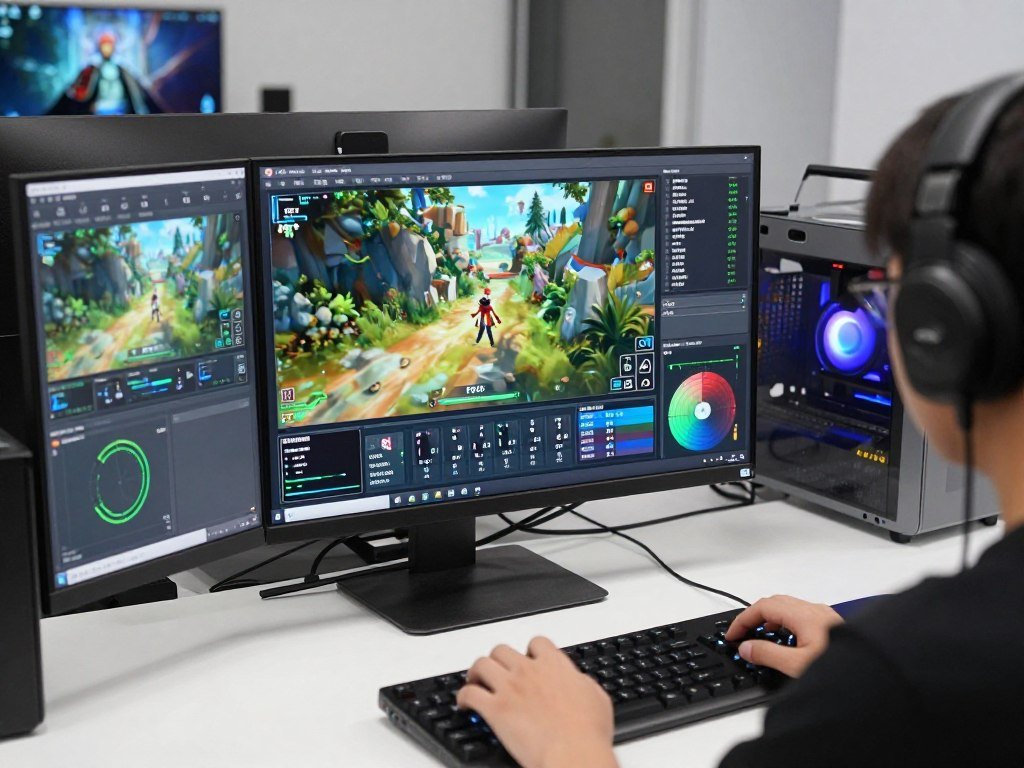
- Start at default FOV (usually 90 for most games)
- Play for 30 minutes to establish baseline comfort
- Increase by 5 degrees, play for another 15 minutes
- Note when FPS drops below your target (60, 120, 144, etc.)
- Note when motion sickness or distortion becomes noticeable
- Back down 5-10 degrees from your limit
Your optimal FOV is where performance, comfort, and preference intersect. Don’t force max FOV just because you can. Don’t restrict yourself to default just because streamers do.
Monitor Distance Matters
Sit closer to your monitor? Lower FOV feels more natural. Sit farther back? Higher FOV prevents tunnel vision. This is why console games default to 65-75 FOV while PC games use 90-95.
A good rule is: FOV should match your horizontal field of view of the actual monitor from your seating position. Most people sit 24-30 inches from their screen, which maps to roughly 90-100 FOV.
The Bottom Line on FOV Performance Hit
FOV performance hit is real, measurable, and fixable. Every degree you increase FOV adds exponential rendering load through more draw calls, extended frustum culling, and increased shader complexity.
The impact scales with resolution. What costs 10 FPS at 1080p can cost 35 FPS at 4K. Your hardware matters. Modern GPUs handle it better than older ones, but even the RTX 5090 will see drops at maxed settings.
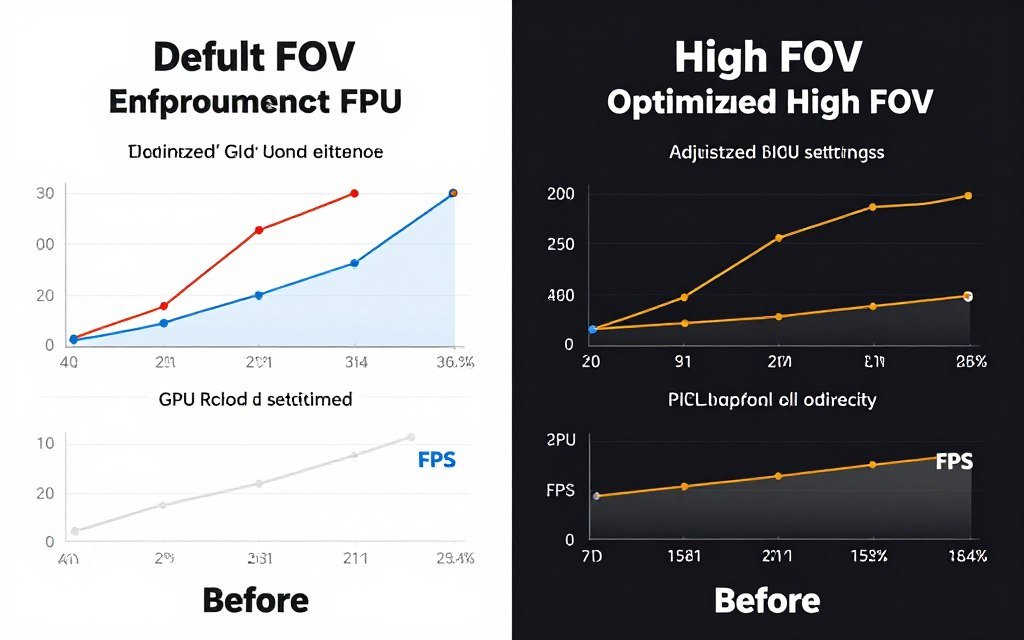
The fix isn’t always lowering FOV. Optimize shadow distance, object detail, and enable upscaling technologies. Test your specific hardware to find the balance that works for your setup.
Most importantly, FOV is personal. Competitive players benefit from lower values. Immersion seekers should maximize within their performance budget. There’s no universal “best” FOV, only the right FOV for your games, hardware, and preference.
Ready to Diagnose Your Real Performance Issues?
FOV is just one piece of the performance puzzle. Find out if your CPU, GPU, or system balance is actually holding you back. Our gaming performance calculator gives you the complete picture in under 60 seconds.
For more deep dives on gaming performance optimization, check out our PC optimization guides. We cover everything from hardware upgrades to emerging tech that actually matters.
Frequently Asked Questions About FOV Performance Hit
Does higher FOV always reduce FPS?
Yes, higher FOV almost always reduces FPS because it forces your GPU to render more objects and your CPU to process more draw calls. The impact varies by game engine and hardware, but expect 10-30% FPS loss when increasing FOV from 90 to 120 degrees.
What is the best FOV for gaming performance?
For competitive gaming, 90-100 FOV offers the best balance of awareness and performance. For single-player immersion, 100-110 FOV is ideal if your hardware can maintain your target frame rate. The “best” FOV depends on your monitor size, distance, and hardware capabilities.
Does FOV affect CPU or GPU more?
FOV affects both, but differently. Higher FOV increases CPU load through more draw calls and object calculations. It increases GPU load through more pixels to render and more complex shaders. On balanced systems, GPU bottleneck appears first at high FOV and resolution.
Why do professional gamers use low FOV?
Professional players use lower FOV (90-103 degrees) because it makes targets appear larger on screen, improving aim precision. The peripheral vision benefit of high FOV doesn’t outweigh the accuracy advantage of lower FOV in competitive scenarios where every millisecond matters.
Can DLSS or FSR fix FOV performance issues?
Yes, DLSS and FSR significantly help FOV performance by rendering at lower internal resolution. Quality mode DLSS at 120 FOV can match native resolution performance at 90 FOV while maintaining visual quality. These upscaling technologies are the most effective solution for high FOV performance.
Does FOV affect VRAM usage?
Yes, higher FOV increases VRAM usage by 15-30% because the engine must keep more textures loaded for visible objects. This becomes a problem on 8GB GPUs at 4K with high FOV, causing texture streaming stutters even if average FPS seems acceptable.
Is 120 FOV too much for most games?
For most players on mid-range hardware at 1440p or higher, 120 FOV is too demanding. It creates performance issues and can cause motion sickness or fisheye distortion. Sweet spot for most gamers is 100-110 FOV, which balances awareness, performance, and visual comfort.