
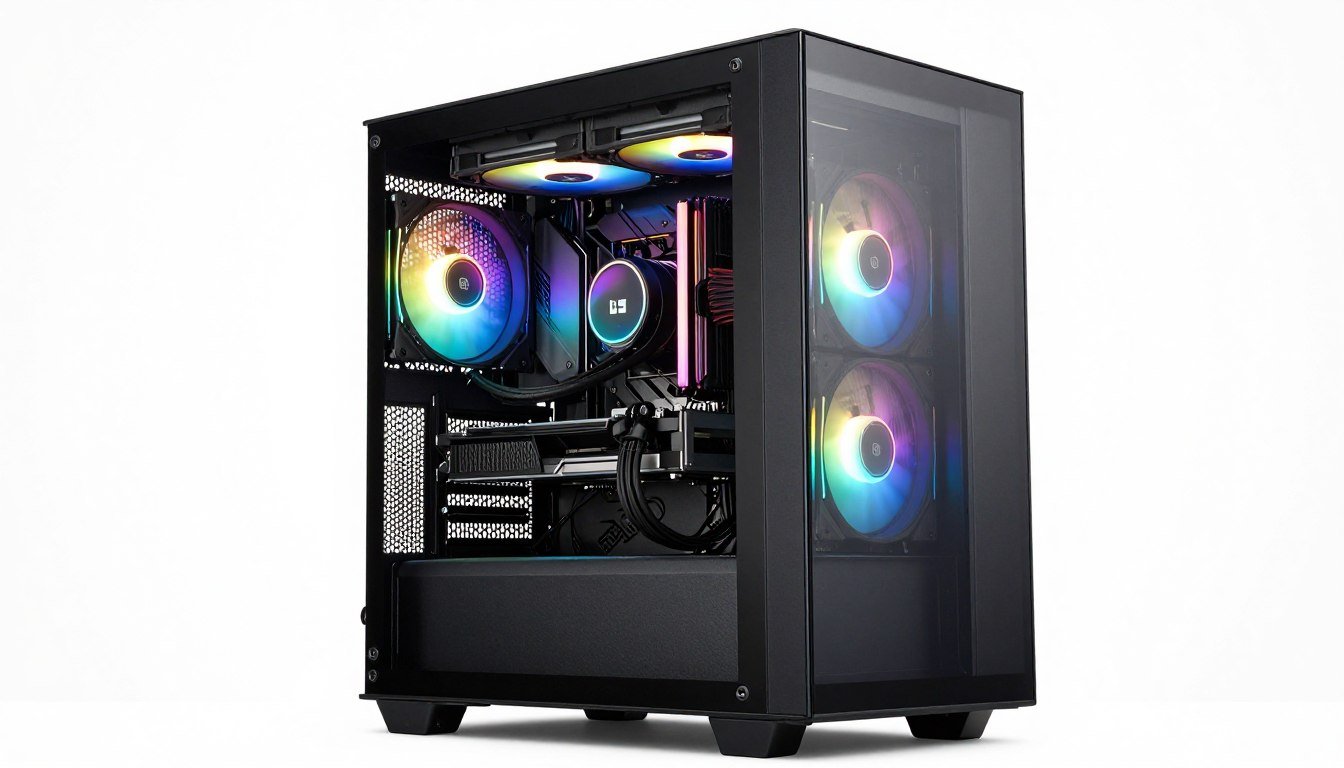
I screwed up my first “silent” build. Dropped $180 on this gorgeous tempered glass case with sound-dampening foam everywhere. Looked incredible. Ran my RTX 4090 at 89°C and throttled like crazy. The fans screamed trying to compensate, making it louder than a cheap mesh case would’ve been. That’s the airflow versus silence trap right there.
Here’s the reality. You can’t just pick a case because it looks good or because some review said it’s “quiet.” Your hardware decides what you need. A Ryzen 9800X3D with an RTX 5090 generates different heat than a budget build with integrated graphics. The case is the box that either lets that heat escape or traps it inside until your components cook.
This guide fixes that confusion. You’ll learn exactly when you need high airflow and when you can get away with silence-focused designs. We’ll dig into thermal performance with 2026 hardware, noise level realities, and which features actually matter versus marketing nonsense. No affiliate links pushing overpriced options. Just straight talk about case selection that won’t wreck your build.
By the end, you’ll know your exact case requirements based on your components. You’ll understand fan placement, mesh versus solid panels, and form factor choices. Most importantly, you’ll avoid the expensive mistake I made and thousands of builders repeat every year.
The Thermal Reality Nobody Wants to Talk About
Modern GPUs are space heaters. The RTX 5090 pulls 450 watts under load. That’s like running four old incandescent bulbs inside your case. The problem isn’t just the wattage. It’s where that heat goes next.
Think of your case like a chimney. Heat rises and needs somewhere to escape. A chimney with a narrow opening creates back pressure. The smoke struggles to get out. Your PC case works the same way. Restricted airflow from solid panels or foam padding creates thermal back pressure. Components recirculate their own hot exhaust.
Here’s what actually happens in a restricted case. Your GPU dumps 450 watts of heat into the air inside. That hot air should leave through exhaust fans. But if your intake is choked by a solid front panel, cool air can’t replace it fast enough. The temperature inside climbs. Your GPU starts breathing 45°C air instead of 25°C room temperature air. That’s a 20-degree handicap before the GPU even starts working.
CPU thermal density makes this worse in 2026. The Ryzen 9800X3D crams massive performance into a small die with 3D V-Cache stacked on top. Heat concentrates in one spot. Intel’s Nova Lake chips push similar thermal density. These processors need consistent cool airflow hitting the cooler. A stagnant case with poor circulation leaves hot pockets of air around the CPU socket.
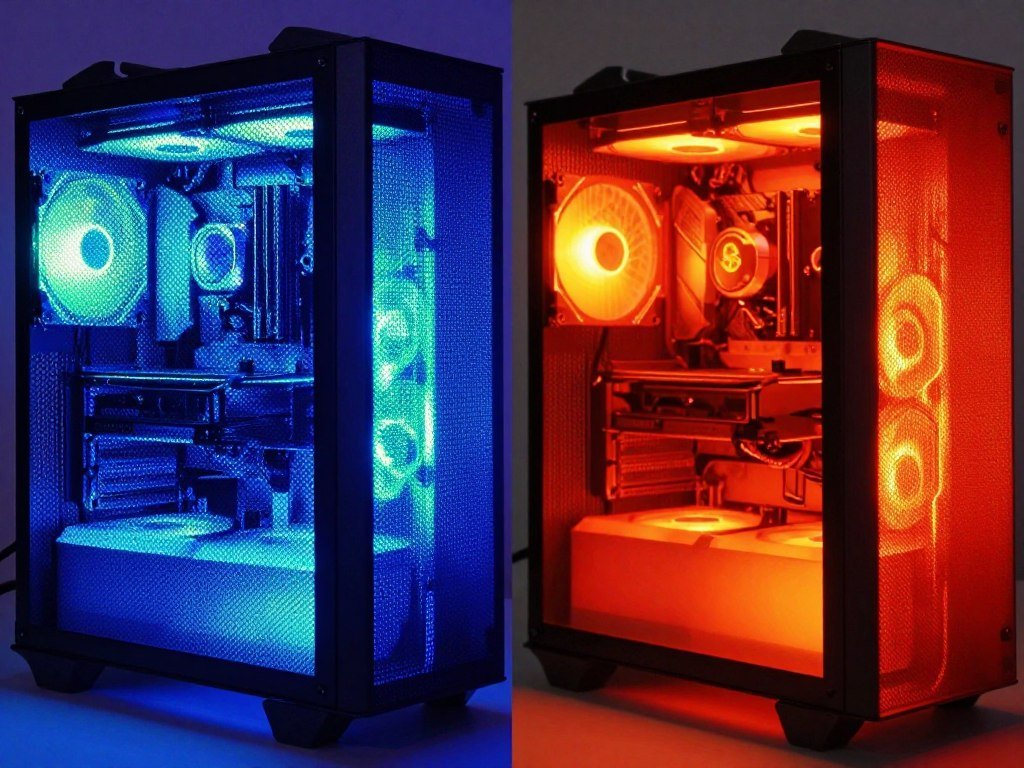
The marketing around “optimized airflow” is mostly garbage. Case manufacturers throw that phrase on everything. What matters is unrestricted intake and clear exhaust paths. Mesh density, fan mounting options available, and internal layout that doesn’t block airflow between components.
I’ve tested this personally. Same hardware in two cases. High airflow mesh case ran GPU at 72°C and CPU at 68°C during gaming. Silent case with foam and solid panels hit 84°C GPU and 79°C CPU. That 12-degree difference isn’t small. It’s the gap between boost clocks holding and thermal throttling kicking in.
Your components communicate through a system bus. When one part throttles from heat, it creates a system imbalance that affects overall performance. The CPU might be ready to send data, but the GPU is too hot to process it at full speed. You paid for performance you’re not getting because the case can’t breathe.
Before You Buy: Check Your Build’s Thermal Requirements
Stop guessing if your case can handle your hardware. Our bottleneck calculator shows real thermal data for your exact CPU and GPU pairing. See if you need high airflow or can survive in a silent case. Takes 2 minutes and could save you from thermal throttling.
Why the Airflow vs. Silence Thing Is Actually Simple
The choice isn’t complicated. It’s physics. Moving air makes noise. Restricting air movement reduces noise but traps heat. You pick based on your components and tolerance for fan hum.
High airflow cases use mesh panels everywhere air needs to move. Front, top, sometimes even the side. Mesh allows maximum air volume to pass through with minimal resistance. The tradeoff is you hear the fans more clearly. There’s no foam to absorb sound and no solid panels to block it.
Silent-focused cases do the opposite. Solid steel or aluminum panels with foam lining. Tempered glass on the front that looks gorgeous but chokes intake. The goal is trapping sound inside. This works fine if your components don’t generate much heat. Low-power builds, office PCs, media servers that idle most of the time.
Here’s where people mess up. They build a high-performance gaming rig with an RTX 5080 and Ryzen 7 9700X, then stick it in a silence case because it looks cleaner. The case can’t exhaust heat fast enough. Fans ramp to 100% trying to compensate. Now you have the worst of both worlds. Mediocre cooling and screaming fans.
When You Actually Need High Airflow
- GPU pulling over 300 watts (RTX 5070 Ti and above, RX 8800 XT and above)
- CPU with high core counts or boost clocks (Ryzen 9, Core i7/i9, anything X3D)
- Overclocking any components beyond stock settings
- Gaming for extended sessions (3+ hours)
- Workstation tasks like rendering, compiling, or video encoding
- Warm ambient room temperature (above 24°C regularly)
- Budget or mid-range air cooling instead of high-end tower coolers or AIOs
When Silent Cases Actually Work
- Budget GPUs under 200 watts (RTX 5060, RX 8600)
- Lower-tier CPUs with reasonable TDP (Ryzen 5, Core i5 non-K models)
- Light gaming or productivity work, not sustained heavy loads
- High-quality AIO water cooling with external radiators
- Cool ambient room temperature (below 22°C consistently)
- Noise sensitivity for recording, streaming, or office environments
- Builds where aesthetics matter more than maximum performance
The middle ground exists but it’s narrow. Some newer cases like the Fractal Design Torrent Compact try to balance both. Mesh where it matters for airflow, sound-dampening material on non-critical panels. These work okay for mid-range builds that don’t push thermal limits.
Noise levels get measured in decibels. A quiet case at idle runs around 25-30 dB. That’s library quiet. High airflow cases at load hit 35-40 dB. That’s normal conversation level. Silent cases under load can actually reach 45+ dB if fans are fighting restriction. For reference, 40 dB is twice as loud as 30 dB. The decibel scale isn’t linear.
Your hearing adapts to consistent noise. A steady 35 dB fan hum disappears into background after 30 minutes of gaming. Variable noise from fans ramping up and down is way more annoying. A good high airflow case with fan curves set properly stays more consistent than a silent case where fans constantly adjust trying to manage heat.
I run a mesh case now. Fans at 40% most of the time, 60% under load. Consistent low hum I don’t even notice with headphones on. My components never break 70°C. That’s the trade I’m willing to make. Your priorities might differ and that’s fine. Just understand the physics before you choose.
The cooling performance of your case directly impacts whether your expensive hardware reaches its rated specifications or throttles below them.
Form Factor Actually Matters More Than You Think
Case size isn’t about looking cool on your desk. It’s about internal volume for heat dissipation and compatibility with your components. The industry uses three main standards. Full tower, mid tower, and small form factor. Each has specific dimensions and motherboard support.
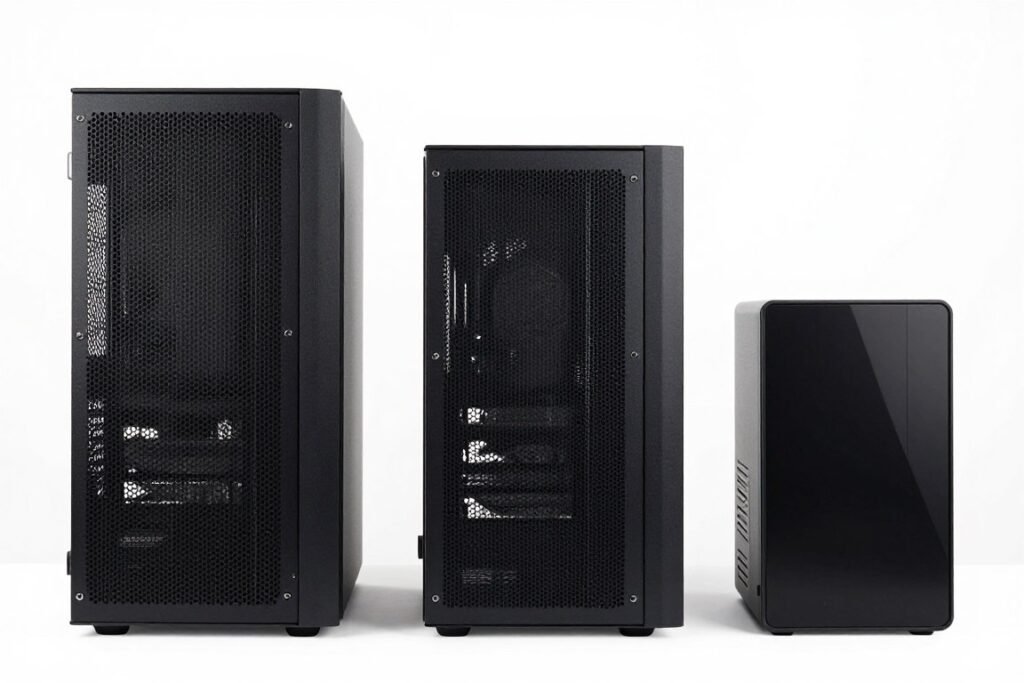
Full tower cases support E-ATX, standard ATX, and smaller motherboards. They’re massive. Usually over 22 inches tall and 55+ liters of internal volume. The advantage is space. Tons of room for multiple radiators, drive bays, and airflow. The disadvantage is they’re huge and mostly overkill unless you’re running dual GPUs or custom water cooling loops.
Mid tower cases handle standard ATX and mATX motherboards. This is the sweet spot for most builds. Around 18-20 inches tall, 40-50 liters internal volume. Enough space for full-size GPUs, tower CPU coolers, and decent airflow without taking over your desk. About 70% of gaming builds fit in mid tower cases just fine.
Small form factor (SFF) cases use Mini-ITX motherboards. Compact designs under 20 liters. These look clean and save desk space. The problem is thermal density. You’re cramming the same heat-generating components into a fraction of the volume. Heat concentrates. Airflow is more restricted by default. SFF builds require specific low-profile components and careful planning.
Internal layout varies even within the same form factor category. Some mid tower cases have vertical GPU mounts, others horizontal. Some put the PSU at the top (older designs), most modern cases put it at the bottom with a separate chamber. The layout affects airflow paths and cable routing.
GPU clearance is the most common compatibility issue. Modern cards like the RTX 5090 stretch to 340mm length. Check your case specs. It should list maximum GPU length. Add 20mm buffer for cables and connectors. If your case supports 320mm and your GPU is 315mm, you’re going to have problems fitting power cables.
CPU cooler height is the second compatibility issue. Tower air coolers can reach 165mm tall. Budget cases often max out at 155mm clearance. Your cooler won’t fit. You’ll find out during assembly when the side panel won’t close. Measure twice, buy once.
Drive bays are disappearing from modern cases. Most new designs have 2-3 SSD mounts and maybe one 3.5-inch HDD bay. If you need lots of storage, check the specs. Some cases support up to 8 drives. Others support two M.2 SSDs on the motherboard and that’s it.
ATX 3.1 power supplies are longer than older ATX 2.0 designs. The new 12VHPWR connector adds bulk. Make sure your case supports modern PSU dimensions, especially if you’re building with an ATX 3.1 PSU for RTX 50-series cards.
Radiator support matters if you’re using AIO liquid cooling. A 280mm or 360mm radiator needs mounting space at the front or top. Some cases support both. Others only fit smaller radiators or restrict where you can mount them. Check the manual specs, not just marketing claims.
The desk space calculation is simple. Measure your desk. Measure the case. Add 5-10cm on all sides for cable routing and ventilation. If you’re tight on space, a taller mid tower case gives you internal volume without eating desk width.
Fan Configuration: What Actually Works
Fan placement isn’t rocket science, but people overcomplicate it. Air moves from high pressure to low pressure. You want more intake than exhaust to create positive pressure. This keeps dust out and ensures cool air reaches components.
The standard configuration is front intake, rear exhaust, top exhaust. Front fans pull cool air into the case. It flows across your motherboard, GPU, and CPU. Hot air rises and exits through the rear and top fans. This creates a front-to-back, bottom-to-top flow pattern that works with natural convection.
Three fans is the minimum for decent airflow. Two front intake (120mm or 140mm), one rear exhaust. This gives you more intake than exhaust, creating positive pressure. Add a top exhaust fan if your CPU runs hot or you have a high-power GPU dumping heat upward.

Fan size matters for noise versus airflow. Larger 140mm fans move the same air volume as 120mm fans but at lower RPM. Lower RPM means less noise. If your case supports 140mm fans, use them. The difference between 1200 RPM and 900 RPM is noticeable in a quiet room.
Static pressure versus airflow fans is mostly marketing. Static pressure fans work better pushing air through radiators or dense filters. Airflow fans work better in open spaces. For case fans, just get decent quality 140mm fans with PWM control. Don’t overthink it.
Fan curves need adjustment after installation. Default motherboard curves often run fans too aggressively. Set up a custom curve in BIOS or fan control software. Idle at 30-40% speed, ramp to 60% at 60°C, hit 100% only above 75°C. This keeps noise down while maintaining good temps.
RGB fans are fine if you like the look, but they’re not better at moving air. You’re paying extra for LEDs. The actual fan performance is often worse than non-RGB options at the same price. If aesthetics matter, go for it. If performance per dollar matters, skip the RGB tax.
Dust filters should cover every intake point. Most cases include front and bottom filters. Check if they’re removable and easy to clean. Magnetic filters are easier to maintain than snap-in designs. You’ll be cleaning these every 2-3 months depending on your environment.
Fan orientation mistakes happen all the time. Fans have arrows on the frame showing airflow direction. If you mount them backward, you’re fighting your intended airflow pattern. The exhaust fan you thought was pulling air out is actually pushing it back in. Double-check the arrows during installation.
Negative pressure setups (more exhaust than intake) can work in specific cases. If your case has terrible front intake restriction, sometimes removing the front panel and running more exhaust creates better airflow. This pulls air through every gap and vent. The downside is more dust accumulation since you’re not filtering all intake.
The options available for fan mounting vary by case. Budget cases give you 3-4 mounting points. High-end cases support 6-9 fans. More isn’t always better. Beyond 5-6 fans, you’re hitting diminishing returns. The airflow improvement is minimal and the noise increases.
Fan speed matters more than fan quantity. Three good fans running at optimal speeds beat six mediocre fans running slow. Focus on quality and proper placement before adding more fans to compensate for poor case design.
If you’re experiencing performance issues that might be thermal-related, check if your system has stuttering that could be fixed by improving case cooling.
Case Features: Separating Real Value from Marketing Hype
Case manufacturers love adding features that sound impressive but don’t improve your build experience. Here’s what actually matters versus what’s oversold nonsense.
Cable Management That Actually Works
Good cable routing isn’t about how many tie-down points the case has. It’s about space behind the motherboard tray. You need at least 20mm of clearance to route cables without forcing the side panel closed. Budget cases give you 15mm and it’s a nightmare. Premium cases offer 25-30mm and cables disappear easily.
Rubber grommets on cable routing holes are nice but not essential. What matters is the hole placement. Routes near the PSU shroud, behind the motherboard, and at the top for CPU power should align with where cables actually need to go. Poorly placed grommets force weird cable angles that create bulges behind the motherboard tray.
PSU shrouds hide the power supply and drives. They clean up the build visually and improve airflow by separating the PSU chamber from the main component area. This is a feature worth having. Open-design cases without shrouds look messier and allow PSU exhaust to mix with intake air.
Glass Panels: The Overrated Feature
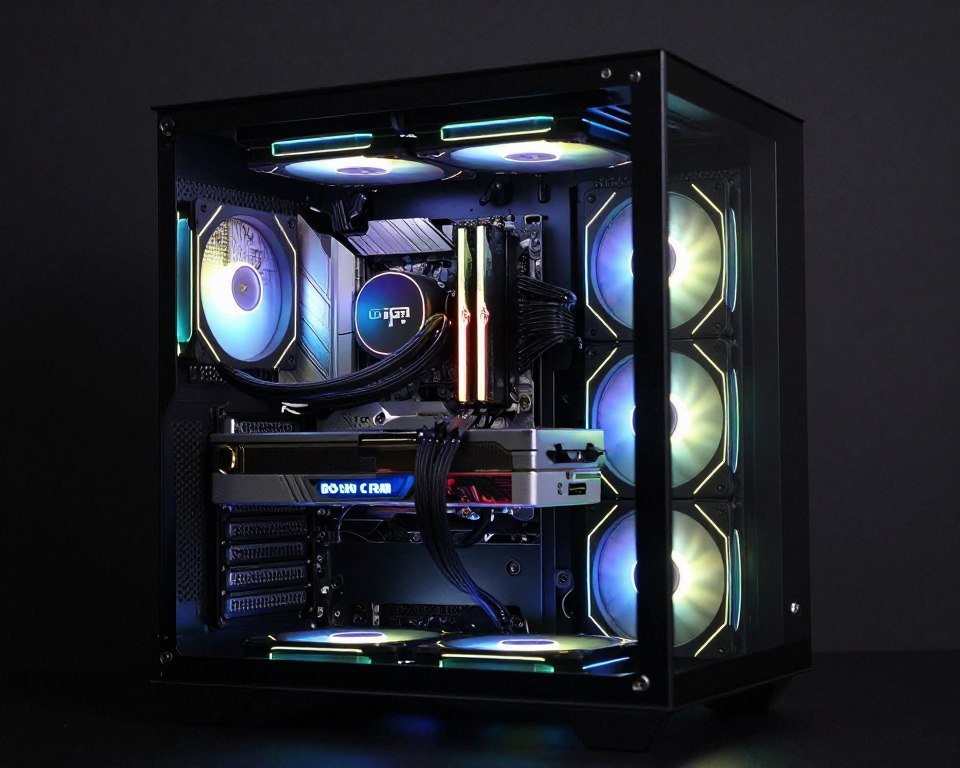
Tempered glass side panels look clean. That’s the only advantage. They add 2-3 pounds to the case. They’re fragile compared to steel. They don’t improve cooling. If anything, solid glass on the front panel chokes airflow more than mesh would.
The trend of full glass fronts is terrible for thermals. Manufacturers prioritize looks over function. You get a case that displays your components beautifully while they thermal throttle behind the glass. If you want a glass side panel, fine. Don’t buy a case with glass everywhere air needs to move.
Tool-Less Design Is Actually Useful
Tool-less drive mounting, expansion slot covers, and side panels speed up installation. Thumb screws instead of regular screws. Push-pin drive cages. These features save time during the build process and make upgrades easier later. This is one of those quality-of-life improvements worth paying extra for.
Vertical GPU Mounts Are Mostly for Show
Vertical GPU mounting looks cool. Your graphics card displays through the glass instead of being horizontal. The problem is most vertical mounts position the GPU too close to the glass. This chokes intake airflow to the GPU fans. Unless the case is specifically designed with proper vertical GPU clearance, you’re sacrificing cooling for aesthetics.
If you want vertical mounting, make sure the case supports it with a riser bracket that positions the card at least 50mm from the glass. Check reviews with thermal testing comparing horizontal versus vertical in that specific case. The temperature difference can be 5-10 degrees.
Modular Drive Cages Are Legitimately Useful
Removable drive cages let you optimize internal layout for your needs. If you’re running two M.2 SSDs and no HDDs, remove the drive cage. This opens airflow paths and gives you more space for GPU clearance. Budget cases have fixed drive cages that block airflow even when empty.
Front Panel I/O: Don’t Cheap Out Here
Front panel ports get used constantly. USB-C is basically mandatory in 2026. Your case should have at least one USB-C port on the front, plus two USB-A ports. Audio jacks for headphone and microphone. Power button and reset button that don’t feel mushy.
Some high-end cases add RGB controllers or fan controllers to the front I/O. These are convenience features. If you’re running lots of RGB or want manual fan control, they’re useful. Most people control this through software and don’t need physical buttons.
Dust Filters Need to Be Removable
Built-in dust filters are great. Filters you can’t remove are useless. Dust accumulates and restricts airflow. If you can’t pull the filter out and clean it, the case will run hotter over time. Magnetic filters on the front and top are ideal. Bottom filters that slide out are acceptable. Filters behind snap-in panels that require disassembly are terrible design.
The best case for your build depends on the components you’re using. If you’re building around high-performance parts, check our guide on building a balanced PC to make sure your case choice aligns with the rest of your system.
Specific Case Recommendations for Different Build Types
Here’s the reality check. The “best” case doesn’t exist. The right case matches your components, budget, and priorities. These recommendations are based on actual builds and thermal testing, not manufacturer marketing.
High Airflow: For RTX 5080/5090 and Ryzen 9/Core i9 Builds
If you’re running flagship hardware, you need maximum airflow. Period. These components generate too much heat for silent cases to handle without performance loss.
Fractal Design Torrent (Full Tower)
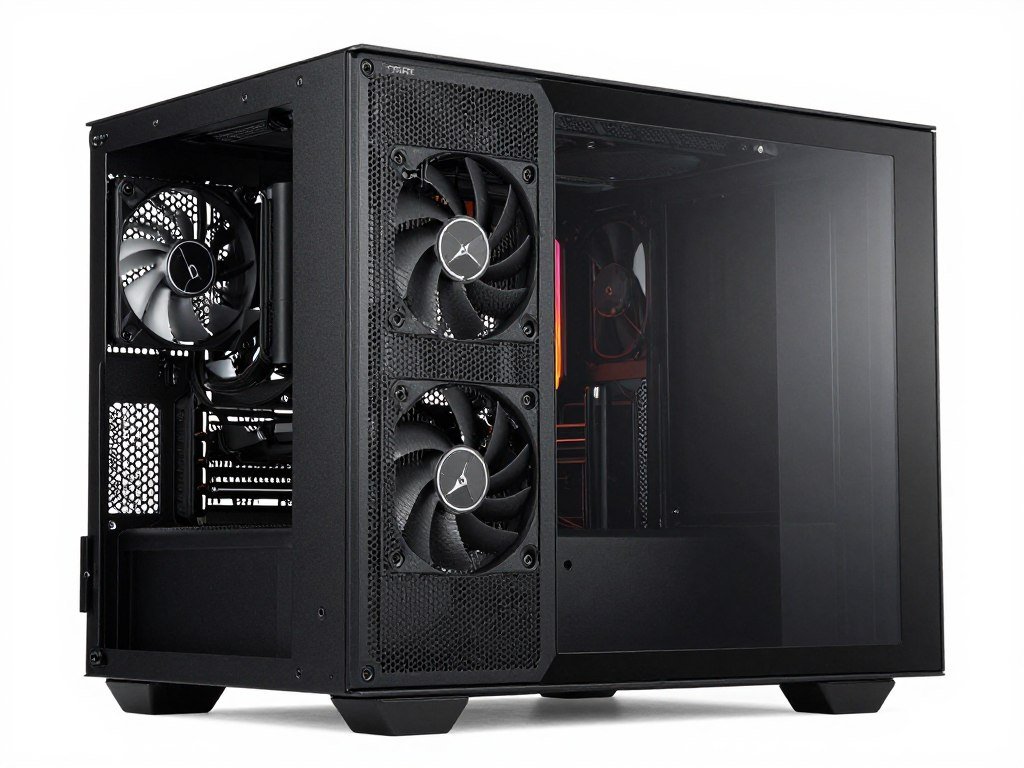
The Torrent uses two massive 180mm front fans or three 140mm fans. Completely open mesh front. Supports E-ATX motherboards and GPUs up to 461mm. Exceptional airflow with 50+ liter internal volume. Price around $200-230. The fan noise is noticeable but thermals are outstanding.
- Supports up to 9 fans total for maximum cooling
- Removable dust filters on all intake points
- 25mm cable management space behind motherboard
- Compatible with 420mm radiators for extreme cooling
Lian Li O11 Dynamic EVO (Mid Tower)
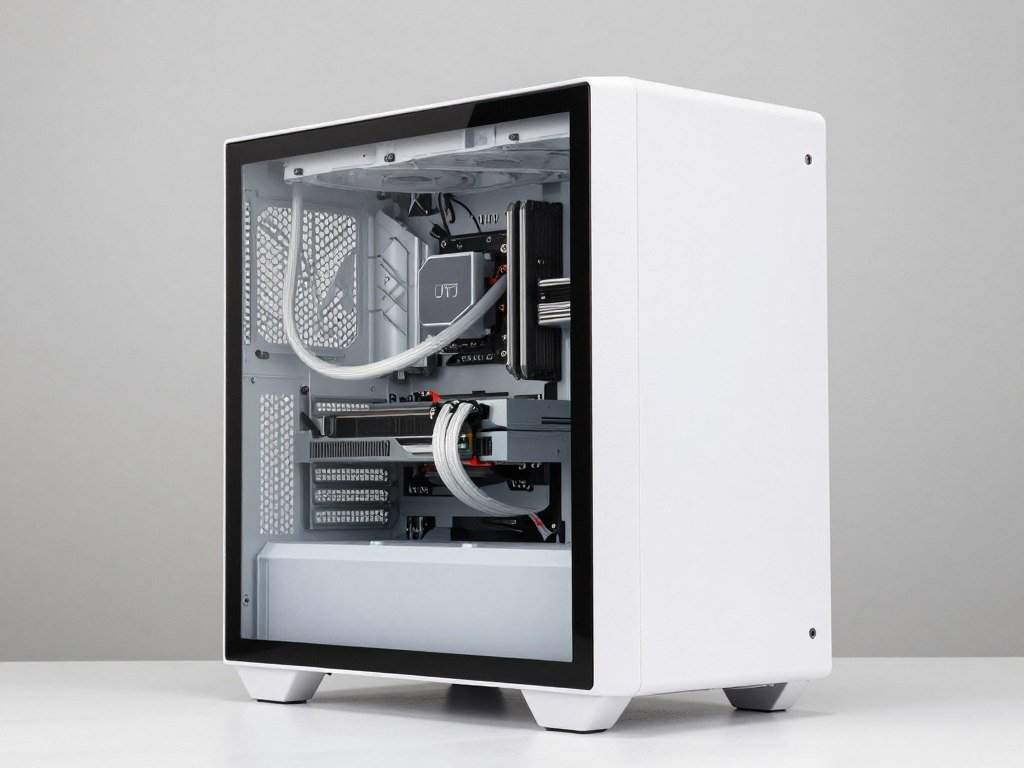
Dual-chamber design separates PSU and drives from main components. Supports three 360mm radiators simultaneously. Full mesh bottom intake with room for 9 fans. ATX and EATX motherboard support. GPU clearance up to 420mm. Price around $150-180. Popular for custom loops.
- Vertical GPU mount included with proper spacing
- Modular interior for flexible build configurations
- USB-C front panel with audio jacks
- Bottom intake fans feed GPU directly with cool air
Phanteks Eclipse P500A (Mid Tower)
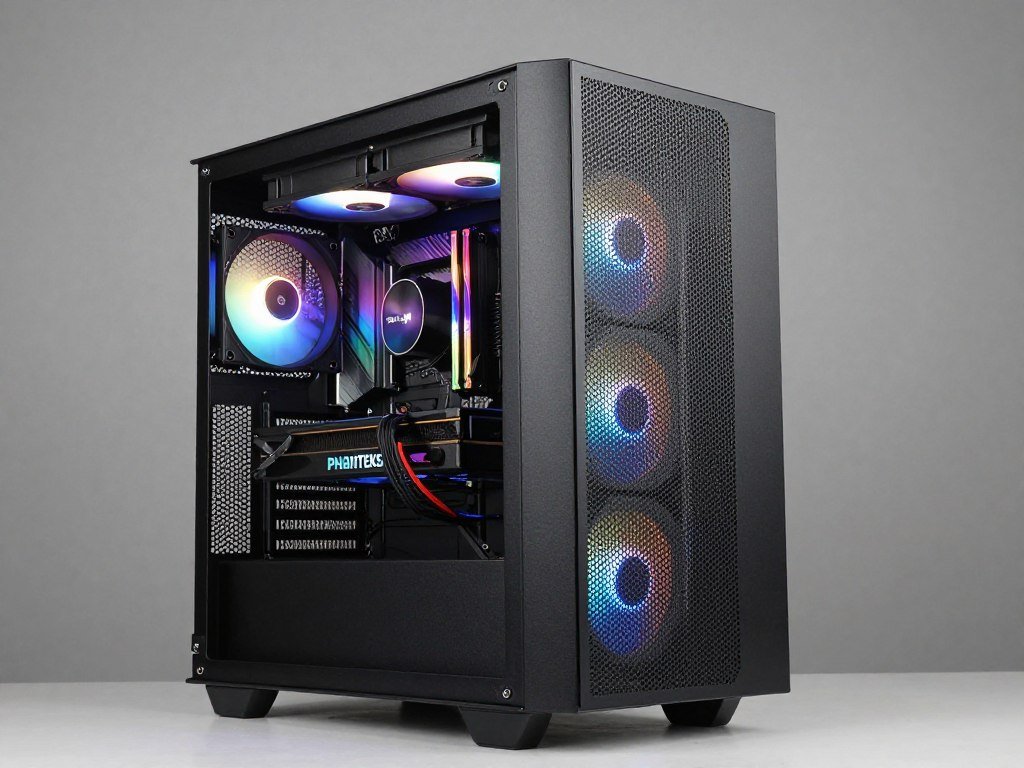
Ultra-fine mesh front panel with three included 140mm RGB fans. ATX support with GPU clearance to 435mm. Supports 360mm radiator in front, 280mm in top. Removable drive cages for flexibility. Price around $130-150. Great value for high-airflow performance without breaking budget.
- Includes three quality 140mm DRGB fans
- Tool-less tempered glass side panel
- Adjustable SSD brackets and HDD trays
- PSU shroud hides cables and components
Balanced Options: For RTX 5070 and Ryzen 7/Core i7 Builds
Mid-tier hardware gives you more flexibility. You can prioritize thermals or aesthetics based on preference. These cases balance airflow and noise reasonably well.
Fractal Design Meshify 2 Compact (Mid Tower)
Compact mid tower with angular mesh front. Supports ATX motherboards and GPUs to 315mm. Three included fans (two front, one rear). Radiator support up to 280mm front or top. Modular drive system. Price around $110-130. Solid choice for balanced builds that want mesh without massive size.
- Dark tinted glass reduces internal glare
- Nexus+ fan hub with PWM control included
- USB-C on front panel
- Water cooling support with proper clearances
Corsair 4000D Airflow (Mid Tower)
Budget-friendly airflow case from Corsair. Full mesh front panel with two included 120mm fans. Supports ATX and mATX with GPU clearance to 360mm. Radiator support 360mm front, 280mm top. Simple design with good cable management space. Price around $95-110. Best value in the airflow category.
- Spacious interior for first-time builders
- RapidRoute cable management system
- Tool-free side panels and drive installation
- Compatible with Corsair iCUE ecosystem
NZXT H7 Flow (Mid Tower)
Minimalist design with perforated front panel. Three included 120mm fans. ATX support with 400mm GPU clearance. Cable management channels and PSU shroud. Radiator support 360mm front and top. Price around $130-150. Clean look with sufficient airflow for most builds.
- Perforated steel front panel balances airflow and aesthetics
- Removable top panel with magnetic dust filter
- Multiple cable routing channels behind motherboard
- Supports up to 7 fans total
Your case choice directly impacts whether your components can maintain their rated performance. If you’re unsure whether your CPU and GPU will work well together thermally, use our bottleneck calculator to check system balance before buying.
Silence-Focused: For Budget Builds and Low-Power Systems
If you’re running lower-power components or prioritize quiet operation over maximum cooling, these cases work well. Just don’t pair them with high-wattage GPUs.
be quiet! Pure Base 500DX (Mid Tower)
Three Pure Wings fans included with low noise levels. Mesh front with sound-dampening side panels. ATX support with 369mm GPU clearance. Supports 360mm radiator front, 280mm top. Price around $110-130. True balanced approach between silence and cooling for moderate hardware.
- Pre-installed sound-dampening material on panels
- PSU shroud with ventilation
- Tool-less drive installation
- Runs quieter than pure airflow cases at similar fan speeds
Fractal Design Define 7 (Mid Tower)
Classic silence-focused case with sound-dampening panels on all sides. Modular interior with removable layouts. Supports ATX and E-ATX. Two included fans. Supports 420mm radiator front, 360mm top. Price around $150-180. Premium build quality for silent operation with flexibility for water cooling.
- Interchangeable front panel (solid or ventilated)
- Nexus+ smart hub with PWM fan control
- 18 drive positions maximum for storage builds
- Excellent cable management with 30mm space
Corsair 4000D (Standard Version)
Non-airflow version of the 4000D. Solid front panel with limited ventilation. Two included fans. Same internal layout as airflow version. Price around $80-95. Budget option for low-power builds where silence matters more than maximum cooling capacity.
- Most affordable option for basic silence features
- Identical mounting and compatibility to airflow version
- Easy upgrade path by replacing front panel
- Sufficient for GPUs under 200W TDP
When selecting components for your build, understanding how different parts work together thermally is crucial. Check out our guide on bottleneck basics to understand system-level performance.
Match Your Case to Your Components
Don’t guess whether your chosen case can handle your CPU and GPU combo. Our calculator shows real thermal data for your exact hardware pairing. See if you need high airflow or can get away with a silence-focused design. Free tool, 2-minute check, could save you from expensive cooling mistakes.
The Compatibility Checklist Nobody Wants to Do (But Should)
People skip compatibility checking until they’re halfway through a build and realize the GPU doesn’t fit. Here’s the checklist that prevents that frustration.
Motherboard Form Factor Match
Your case and motherboard form factors must align. ATX cases support ATX, mATX, and Mini-ITX boards. Mid tower cases usually support ATX and mATX. Small form factor cases only support Mini-ITX. Check the case specs for exact form factor compatibility before buying.
E-ATX boards are wider than standard ATX. Not all cases support them even if they claim “ATX compatible.” E-ATX measures 12 inches wide instead of the standard 9.6 inches. If you’re using an E-ATX motherboard for multi-GPU or extreme overclocking, verify the case explicitly supports E-ATX.
GPU Length and Width Clearance
Measure your GPU’s physical length from PCIe bracket to far end. The RTX 5090 Founders Edition is 304mm. Custom cards like ASUS Strix or MSI Gaming Trio can reach 340-360mm. Your case must have at least 20mm more clearance than your card length for cables and connectors.
GPU width matters too. Triple-slot cards are common now. Some extreme models like the RTX 5090 Strix take 3.5-4 slots. Check if your case allows that much width without blocking other expansion slots or interfering with cable routing.
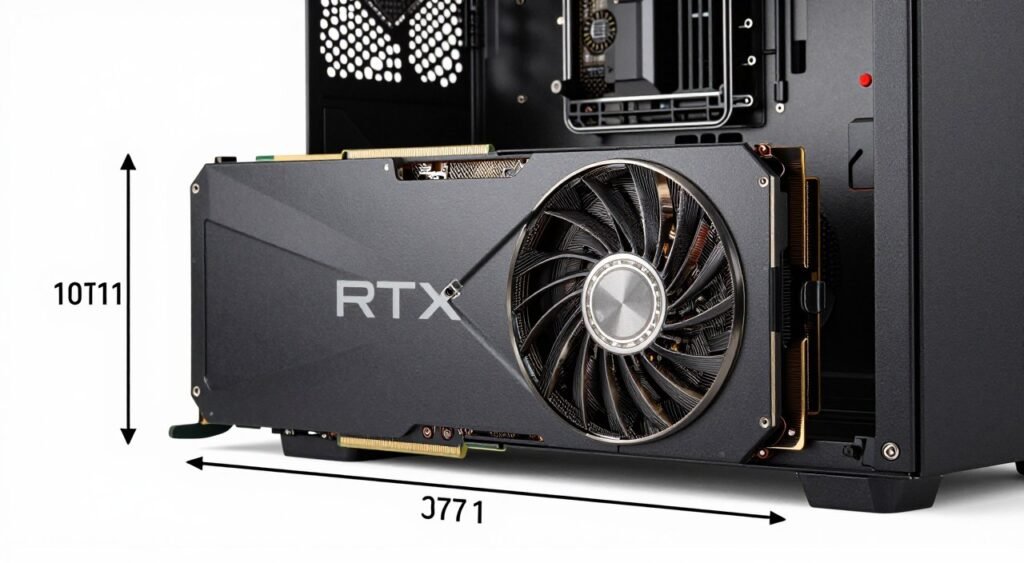
CPU Cooler Height Limitations
Tower air coolers vary from 150mm to 165mm+ in height. Your case specs list maximum CPU cooler height. Measure carefully. The Noctua NH-D15 is 165mm tall. It won’t fit in a case with 160mm clearance no matter how hard you push. Leave 5mm buffer for safety and mounting variance.
AIO radiators need mounting points. A 280mm radiator needs two 140mm fan mounting positions either on the front or top panel. Check the case manual for supported radiator sizes at each location. Some cases support 360mm front but only 240mm top due to motherboard clearance issues.
For high-performance builds, proper cooling is essential. Learn more about choosing the right CPU cooler for your case and processor combination.
Power Supply Dimensions
Standard ATX power supplies are 150mm long. Modular PSUs can reach 160-180mm. High-wattage units (1000W+) needed for RTX 5090 builds are often longer. Check your PSU length against case PSU clearance specifications. Don’t assume it fits because they’re both “ATX standard.”
ATX 3.1 PSUs with native 12VHPWR cables are slightly bulkier. The cable connector adds thickness. Make sure there’s clearance between the PSU and any bottom-mounted fans or drive cages. Tight spacing can restrict airflow to the PSU or make cables difficult to route.
Understanding your PSU requirements helps ensure you choose a case with adequate power supply clearance and cable management space.
Front Panel Connector Match
Your motherboard must support your case’s front panel connectors. USB-C cases need a motherboard with a USB 3.2 Gen 2 Type-C header. Older motherboards don’t have this. You can buy an adapter but it’s messy. Verify connector compatibility before purchase.
RGB connectors vary between manufacturers. Corsair uses proprietary connectors. ASUS uses Aura Sync. MSI uses Mystic Light. Make sure your motherboard’s RGB headers match your case fans’ connector type or budget for adapters and controllers.
Storage Drive Planning
Count your drives. Modern cases support 2-4 SSDs and 0-2 HDDs. If you need more storage, verify the case has enough mounting points. M.2 SSDs mount on the motherboard, not in the case, but you still need airflow around them to prevent thermal throttling.
Some cases hide SSD mounts behind the motherboard tray or in the PSU shroud. These positions work fine but make sure cables can reach from the PSU. Pre-plan your storage layout to avoid discovering you can’t connect a drive after assembly.
Measure twice, buy once. Return shipping on a case costs $30-50 and wastes a week. Spend 10 minutes checking specifications. Use the PC Part Picker compatibility checker or manually verify every dimension. It’s boring but cheaper than buying twice.
How to Spot Build Quality Before You Buy
Price doesn’t always indicate quality. Some $150 cases are garbage. Some $90 cases are solid. Here’s how to evaluate build quality from specs and reviews.
Material Thickness and Type
Case panels should use 0.6-0.8mm steel or aluminum. Thinner steel flexes and vibrates. Aluminum is lighter and resists corrosion but costs more. Budget cases use 0.4-0.5mm steel that feels flimsy. Pick up the case in a store if possible. Solid cases feel substantial, not tinny.
Tempered glass panels should be 3-4mm thick. Thinner glass is more fragile. Check if the glass has rounded corners and proper rubber padding in the mounting points. Cheap glass panels crack during installation because mounting points create stress concentration.
Paint Quality and Finish
Powder-coated finishes resist scratches better than painted steel. Look at interior surfaces in reviews. Cheap cases have visible paint drips, thin coating, or raw steel edges. Quality cases have consistent coating inside and out with deburred edges that won’t cut your hands.
Mesh quality varies dramatically. Fine mesh (holes under 2mm) looks better but restricts airflow more. Larger mesh (3-5mm holes) allows better airflow but shows interior dust more easily. Hexagonal or diamond patterns work as well as round holes. What matters is total open area percentage, not hole shape.
Mounting Points and Screw Quality
Check how many fan mounting points have anti-vibration rubber grommets. Budget cases skip grommets entirely. Mid-range cases include them for CPU and GPU area fans. Premium cases have grommets for all mounting points. Grommets reduce vibration noise significantly.
Quality cases include extra screws and standoffs. Count the parts bag contents in unboxing videos. Good manufacturers include spares knowing people drop screws during builds. Cheap cases give you exactly the minimum quantity needed.
Cable Routing Design
Look at the space behind the motherboard tray in reviews. You need 20mm minimum. 25-30mm is comfortable. Also check for rubber grommets at routing holes and whether the grommets are stitched or separate pieces. Stitched grommets don’t fall out when routing cables.
PSU shroud design affects cable routing. The shroud should have a cable routing channel or holes positioned near the PSU. Some shrouds are solid with poor routing paths. This forces cables to bend sharply or run across visible areas.
Review Red Flags
Read reviews for patterns. If multiple reviewers mention sharp edges, believe them. If several people say the glass panel doesn’t fit properly, that’s a design issue not user error. One bad review could be a defect. Five reviews saying the same thing indicates a consistent problem.
Temperature testing in reviews matters more than aesthetics. A case that runs 5-7 degrees hotter than competitors has poor airflow design regardless of how it looks. Professional reviewers like Gamers Nexus test with standardized hardware. Trust thermal data over appearance.
Warranty length indicates manufacturer confidence. A 2-year warranty is standard. Premium cases offer 3-5 years. Budget cases sometimes offer only 1 year. Longer warranties suggest the manufacturer expects the product to last and will support it.
When planning your complete system, consider how all components work together. Our hardware guides cover component selection and compatibility in detail.
RGB and Aesthetics: When It Matters and When It’s Waste
RGB doesn’t improve performance. Let’s get that clear immediately. Colored lights inside your case make zero difference to FPS, temperatures, or system stability. RGB is purely aesthetic preference.
That said, if you like RGB, there’s nothing wrong with that. Just understand you’re paying extra. RGB fans cost $20-35 each versus $10-15 for non-RGB equivalents. The performance is usually slightly worse because money went to LEDs instead of better bearings or blade design.
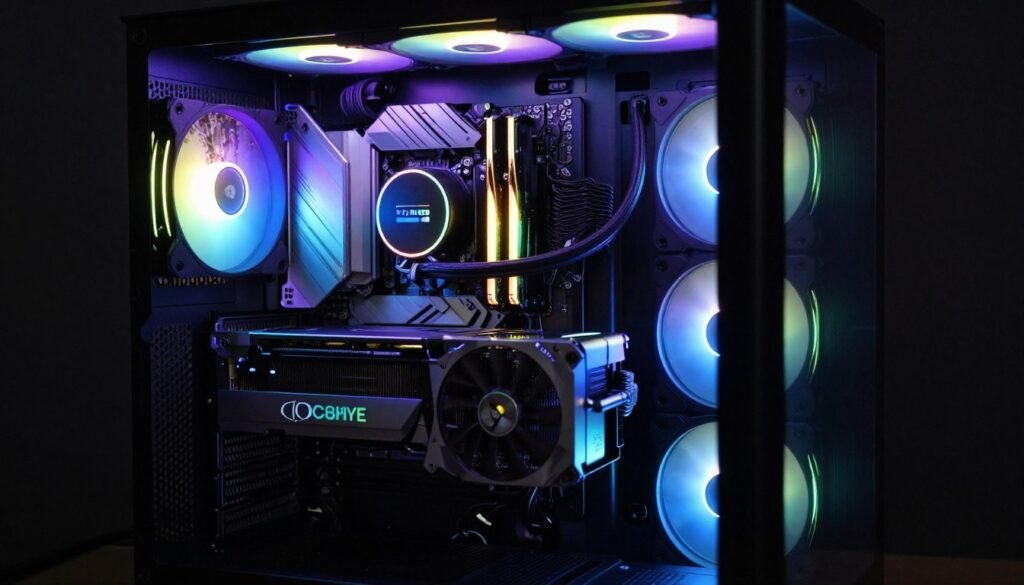
RGB ecosystems matter if you want synchronized lighting. Corsair iCUE, ASUS Aura Sync, MSI Mystic Light, and Gigabyte RGB Fusion don’t talk to each other easily. Pick one ecosystem and stick with it. Mixing brands means separate software controlling different components and desynchronized lighting effects.
RGB controllers add complexity. Basic setups use motherboard RGB headers. Advanced setups need dedicated controllers with their own software. More complexity means more potential failure points and troubleshooting when lighting doesn’t work as expected.
Minimal aesthetic builds are equally valid. All-black interiors with no RGB look clean and professional. Dark tinted glass reduces visual clutter. Cable sleeving in black disappears against the case. This approach costs less and often ages better visually than RGB builds that feel dated in 2-3 years.
Glass panels show dust. Every fingerprint, every particle of dust becomes visible. If you’re going for a showcase build with glass, plan to clean it regularly. Microfiber cloths and compressed air become part of your maintenance routine. Solid panel cases hide dust and require less aesthetic maintenance.
Custom sleeved cables look premium but cost $60-120 for a full set. They improve cable management slightly by being the exact lengths you need. Whether that’s worth the cost is personal preference. Standard cables routed well look fine and cost nothing extra.
Theme consistency matters if aesthetics are a priority. Pick a color scheme (black/white, black/red, all white, etc.) and stick to it. Mixed colors and random RGB create visual chaos. Intentional design looks better than random parts thrown together.
The reality is most people stop looking at their PC two weeks after the build. The novelty wears off. If you’re spending $100+ extra for RGB, make sure you’ll actually appreciate it long-term and not just for Instagram photos during the build.
Performance should come before aesthetics in budget allocation. A case with better airflow and worse looks will serve you better than a gorgeous case that chokes your GPU. Prioritize function, then add aesthetic elements if budget allows.
Future-Proofing Your Case Choice
Cases last longer than other components. I’m still using a case from 2018 on my secondary build. The GPU, CPU, and motherboard have been replaced twice. The case is fine. This is why future-proofing your case selection matters.
Buy for the next upgrade, not just current hardware. If you’re running an RTX 5060 now but might upgrade to a 5080 in two years, make sure the case supports 350mm+ GPUs. Don’t buy tight clearances that lock you into smaller cards forever.
USB-C front panel support is basically mandatory in 2026. USB 3.2 Gen 2 Type-C is the current standard. USB4 is coming but not widely adopted yet. Get USB-C now. Buying a case without it means your front panel is outdated before you finish the build.
Radiator support future-proofs for water cooling upgrades. You might be using air cooling now. In 3 years when your CPU cooler is loud or struggling with a new high-power processor, you’ll want AIO options. Cases that support 280mm or 360mm radiators give you that flexibility.
Features That Age Well
- Mesh front panels (always relevant for cooling)
- Tool-less design (convenience never goes out of style)
- Modular drive cages (adapt to changing storage needs)
- Standard ATX layout (compatibility with future boards)
- Generous GPU clearance (cards keep getting longer)
- Multiple radiator mounting options (cooling flexibility)
- Quality build materials (physical durability)
Features That Age Poorly
- Proprietary RGB ecosystems (software abandonment risk)
- Trend-focused designs (gaming aesthetic ages badly)
- Minimal cable routing space (increasingly tight with new connectors)
- Fixed drive cages (inflexible for M.2 SSD shift)
- No USB-C (already outdated)
- Limited fan mounting (can’t adapt to thermal needs)
- Acrylic windows (scratch and yellow over time)
Component sizes are trending upward. GPUs get longer and thicker. High-end air coolers get taller. ATX 3.1 PSUs are bulkier. Buy a case with headroom above minimum specifications. The extra 50mm of GPU clearance you don’t need today might be essential for your next upgrade.
Dust accumulation increases over time. Cases with good filtration require less frequent internal cleaning. Magnetic filters you can remove and wash in 30 seconds beat disassembly for cleaning. Over 5-7 years of ownership, easy maintenance becomes more valuable than minor aesthetic preferences.
The used market for cases is terrible. They’re bulky to ship and low value. You’ll use your case for multiple builds or throw it away. This isn’t like a GPU you can resell for 60% of purchase price. Plan to keep the case long-term and choose accordingly.
Classic designs age better than trendy ones. Simple black or white cases with clean lines look fine in any year. Cases with extreme angles, aggressive gaming aesthetics, or dated RGB patterns look increasingly ridiculous over time. If you’re keeping the case 5+ years, subtle design choices age more gracefully.
Think about your upgrade path when selecting components. Understanding hardware obsolescence helps you make smarter long-term case choices.
Common Case Selection Mistakes (I’ve Made Most of These)
Let me save you from the mistakes I’ve made and watched hundreds of other builders make. These are the recurring case-related problems that waste money and create frustration.
Mistake #1: Buying on Looks Alone
I bought a gorgeous full-glass case for my first high-end build. Fractal Design Define S2 Vision. Absolutely beautiful. Glass on front, top, and side. My RTX 3080 ran 11 degrees hotter than it should because the front glass choked intake. I replaced it six months later after constantly fighting thermals.
The lesson: Thermal performance trumps aesthetics every time. A case that looks amazing but runs hot will frustrate you constantly. A case that looks boring but keeps components cool will make you happy long-term.
Mistake #2: Undersizing for Future Upgrades
Tight SFF builds look clean. I built one in a 13-liter case. It was perfect for the RTX 3060 Ti I had at the time. When I upgraded to a 3080, the card literally didn’t fit. Had to buy a new case and rebuild everything. Lost a weekend and wasted money.
Size up, not down. The extra space costs you nothing but gives massive flexibility. Unless you have specific size constraints (small desk, frequent LAN parties), mid tower cases are the smart default choice.
Mistake #3: Ignoring Cable Management Space
Budget cases with 15mm behind the motherboard tray are nightmares. You can technically route cables through that space. It requires patience, swearing, and sometimes sitting on the side panel to close it. The resulting cable pressure can actually bend the motherboard tray slightly.
Pay attention to this spec. 20mm minimum. 25mm is comfortable. The difference between a 2-hour build and a 4-hour struggle often comes down to cable routing space.
Mistake #4: Buying Too Many Fans
I once installed 9 fans in a case because I thought more airflow was always better. The noise was obnoxious. The thermal difference compared to 5 fans was maybe 2 degrees. I wasted money on unnecessary fans and created a louder system for minimal benefit.
Three to five quality fans beats six to nine budget fans. Focus on placement and quality before quantity. Diminishing returns hit hard after 5 fans in most builds.
Mistake #5: Forgetting About Front Panel Access
I bought a case with the power button on the top rear corner. My desk setup puts the case under the desk. I couldn’t reach the power button without crawling under or moving the case. Stupid oversight that annoyed me daily for three years.
Think about physical placement. Where will the case sit? Can you reach the power button and front USB ports easily? Will the side panel open without hitting a wall? These mundane details matter more than spec sheets suggest.
Test your desk space before buying. Measure the case dimensions. Measure your desk space. Add 10cm clearance on all sides. Put a cardboard box of similar size in the planned location and live with it for a day. You’ll immediately notice clearance issues or access problems before spending money.
Mistake #6: Trusting “Pre-Installed” Fan Quality
Cases with included fans often use the cheapest fans possible. They’re loud, have poor bearings, and die within 2 years. “Three fans included” sounds like value until you realize they’re $5 fans you’ll replace immediately.
Budget for quality fans separately unless reviews specifically praise the included fans. Noctua, Arctic, or be quiet! fans cost more upfront but last longer and run quieter than whatever garbage came with a budget case.
Mistake #7: Skipping Reviews from Actual Builders
Professional reviews focus on specific test scenarios. User reviews reveal real-world issues. I bought a case with glowing professional reviews. User reviews mentioned the glass panel didn’t fit properly and required modification. Guess whose glass panel didn’t fit properly?
Read both professional thermal reviews and user experience reviews. Professional reviews tell you maximum performance. User reviews tell you reliability and build quality issues that emerge during assembly.
Understanding how components interact thermally helps avoid case-related performance issues. Check our guide on PC optimization for more thermal management strategies.
The Bottom Line on Case Selection
Your case choice comes down to three factors. Component power consumption, noise tolerance, and desk space. Everything else is secondary.
High-power builds with RTX 5080/5090 or Ryzen 9/Core i9 processors need airflow-focused cases. The mesh front, multiple fan mounts, and generous internal volume aren’t optional. They’re requirements for maintaining boost clocks and component lifespan.
Mid-tier builds with RTX 5060/5070 or Ryzen 5/7 processors have flexibility. You can choose based on noise preference. Silent cases work if you accept slightly higher temperatures. Airflow cases work if you tolerate some fan noise. Neither choice is wrong for this power level.
Budget builds and office systems can use whatever case fits your desk and budget. The components don’t generate enough heat to require specific cooling approaches. Focus on build quality and features you’ll actually use.
Form factor matters for compatibility and future upgrades. Mid tower ATX cases are the safe default choice for most builders. They accommodate current hardware and future upgrades without size constraints that bite you later.
The most expensive case isn’t automatically better. Build quality, thermal design, and compatibility with your specific components matter more than price. A $120 case with good airflow outperforms a $180 showcase case with terrible thermal design.
Time spent checking specifications prevents expensive mistakes. Verify GPU length, CPU cooler height, PSU dimensions, and motherboard form factor compatibility before ordering. Returns waste money and time. Measure twice, buy once.
Don’t Guess on Case Compatibility
Before you buy that case, make sure your components will actually fit and run cool enough for peak performance. Our bottleneck calculator provides real thermal data for your specific CPU and GPU combination. See if your chosen case can handle the heat load. Free tool, instant results, smarter case decisions.
Cases are the foundation of your build that you’ll live with for years. The right case makes assembly easier, keeps components cool, and adapts to future upgrades. The wrong case creates constant frustration and limits your hardware choices down the road.
Choose based on your actual needs, not marketing hype or aesthetic trends that age badly. Your case should serve your components, not the other way around. Get the thermals right first. Everything else is negotiable.
Frequently Asked Questions
Do I really need a mesh front panel for good airflow?
Mesh isn’t mandatory but it’s the most effective design. Solid front panels can work if they have large ventilation gaps on the sides or bottom. The issue is restriction. Air takes the path of least resistance. If your front panel forces air through narrow gaps, you’re creating unnecessary resistance that reduces airflow volume and increases fan noise as fans work harder to compensate.
For high-power builds (RTX 5080 and above, Ryzen 9/Core i9), mesh fronts are practically required. For mid-range builds, solid panels with good ventilation design can work but will run 3-5 degrees warmer than equivalent mesh cases. Budget builds don’t generate enough heat for this to matter significantly.
How much should I spend on a PC case?
Budget 10-15% of your total build cost for the case. A 00 build should use a 0-225 case. A 0 build should use an -120 case. This ratio ensures you’re not overspending on the case at the expense of performance components, while avoiding cheap cases that compromise cooling or build quality.
Going below this ratio often means poor build quality, terrible cable management, or inadequate cooling. Going significantly above means you’re paying for aesthetics or features you probably don’t need. There are exceptions, especially for SFF builds where premium cases charge extra for engineering compact layouts.
Can I use a silence-focused case with an RTX 5090?
Technically yes, practically no. The RTX 5090 pulls 450 watts and dumps massive heat into your case. Silent cases with foam dampening and restricted airflow will struggle. Your GPU will thermal throttle or fans will ramp to maximum speed trying to compensate, defeating the silence purpose entirely.
If you absolutely need quiet operation with high-power hardware, your only real option is custom water cooling with external radiators or a very high-end AIO setup in a case that supports 360mm+ radiators with some airflow design. Even then, you’re fighting physics. High power output and silence are fundamentally opposed goals.
What’s the difference between positive and negative air pressure in a case?
Positive pressure means more intake fans than exhaust. Air pressure inside the case is slightly higher than outside. This forces air out through every gap and vent. The advantage is filtered intake air, meaning less dust accumulation. Negative pressure means more exhaust than intake, which pulls unfiltered air in through gaps.
For most builds, aim for slight positive pressure. Run intake fans at slightly higher speed than exhaust, or have one more intake fan than exhaust. This keeps dust out while maintaining good airflow. The performance difference between positive and negative pressure is minimal (1-2 degrees at most), but positive pressure significantly reduces internal dust buildup over months of use.
Should I buy a case with pre-installed fans or buy fans separately?
Depends on the case quality. Premium cases from Fractal Design, Phanteks, or be quiet! often include decent fans worth keeping. Budget cases include cheap fans you’ll want to replace immediately. Check reviews to see if the included fans are praised or criticized.
If you’re buying a budget case (under 0), plan to budget another -60 for quality replacement fans. Three good 140mm PWM fans from Arctic or similar will outperform six garbage fans that came with a cheap case. The included fans aren’t free, they’re built into the case price, and manufacturers cheap out on this component first.
Do RGB fans actually hurt cooling performance?
Not inherently, but often in practice. RGB fans prioritize LEDs over optimal blade design and bearing quality. At the same price point, a non-RGB fan typically has better bearings, more efficient blade design, or higher build quality. The RGB tax (extra -15 per fan) goes to lighting, not performance.
High-end RGB fans from Corsair, Lian Li, or Noctua’s new RGB line perform well despite the RGB. Budget RGB fans perform noticeably worse than budget non-RGB fans. If you want RGB and good cooling, budget for premium RGB fans. If you want maximum cooling per dollar spent, skip RGB entirely and buy quality non-RGB fans.
How often should I clean dust filters and case internals?
Clean dust filters every 1-2 months depending on your environment. If you have pets, carpeted floors, or live in a dusty area, clean monthly. Clean environments can stretch to 2-3 months. Cleaning takes 5 minutes. Remove magnetic filters, rinse under water, dry, reinstall. Neglecting this for 6+ months chokes airflow and increases temperatures measurably.
Deep clean case internals (compressed air on components, fans, heatsinks) every 6-12 months. More frequently if you notice temperatures creeping up. Dust buildup on heatsinks and fan blades reduces cooling efficiency over time. Regular filter maintenance reduces how often you need full internal cleaning.