
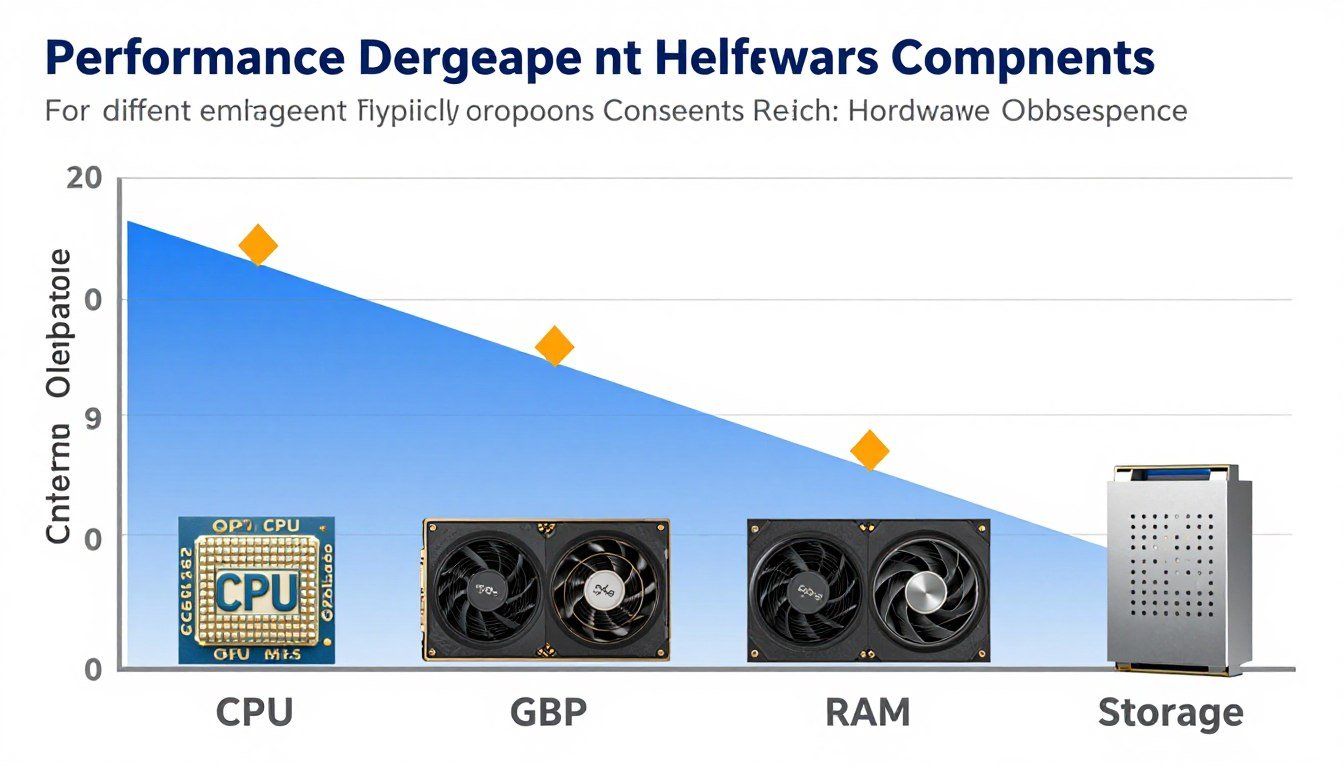
Last month, I watched a friend drop $1,200 on a new GPU because his five-year-old system “felt slow.” Turned out his ancient SATA SSD was the actual problem. A $120 NVMe drive would’ve fixed everything. That’s hardware obsolescence in action—but not the way most people think.
Here’s the reality. Hardware obsolescence isn’t about age. It’s about whether your components can still do the job you need them to do. A GTX 1080 Ti from 2017 might be “obsolete” on paper, but it still crushes 1080p gaming in 2026. Meanwhile, that brand-new budget GPU you just bought might already bottleneck your workload.
This guide cuts through the marketing noise. I’ll show you the actual signs that your hardware has hit the end of its useful life. You’ll learn when to upgrade versus when to optimize. And you’ll understand the real cost of obsolescence—not just money, but performance, security, and productivity.
I’ve been building and upgrading PCs for fifteen years. I’ve made every mistake. Upgraded too early. Waited too long. Bought the wrong component. This is the guide I wish I’d had when I started. Let’s dig into when it actually makes sense to call it quits on your hardware.
What Hardware Obsolescence Actually Means (And What It Doesn’t)
The technology industry loves throwing around the term “obsolete” the second new hardware drops. RTX 5090 launches, and suddenly your RTX 4080 is “obsolete.” That’s advertising, not reality. True hardware obsolescence happens when your components can’t perform their function anymore—not when something faster exists.
Let me break down the three actual types of obsolescence that matter. Functional obsolescence means your hardware physically can’t run the software you need. Example: trying to game on a GTX 750 Ti with only 2GB VRAM in 2026. You’ll hit texture pop-in and crashes because games now require 6GB minimum. That’s functional obsolescence.
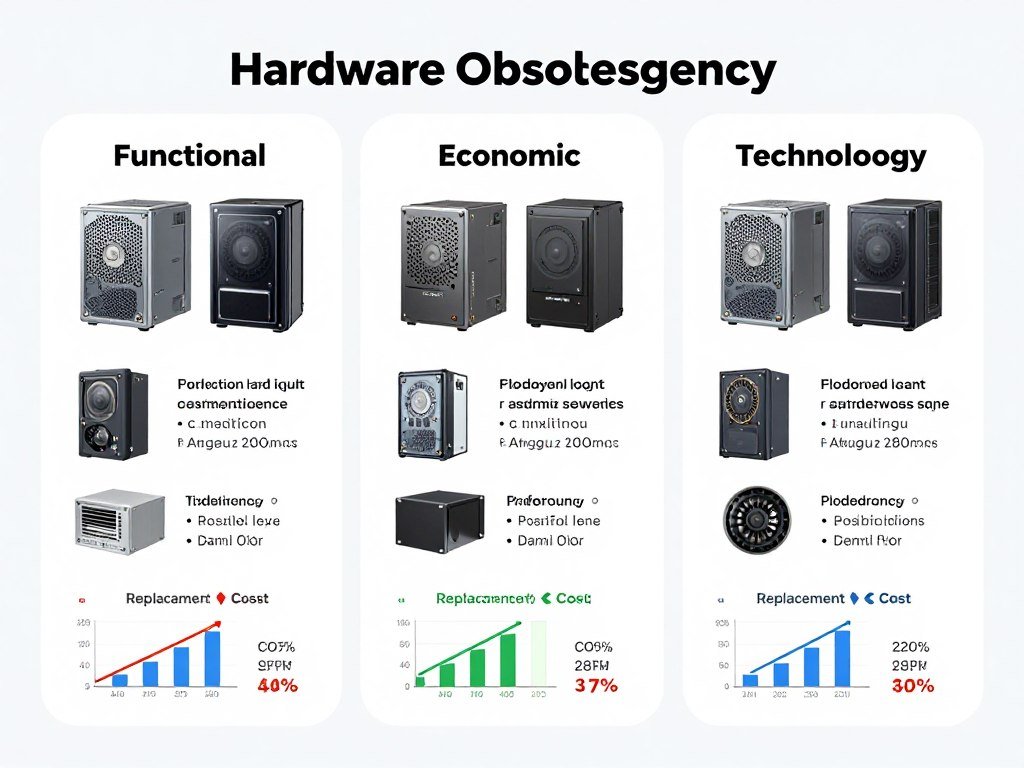
Economic obsolescence is different. Your hardware still works fine, but the cost to maintain it exceeds replacement value. I kept a dying hard drive alive for six months before the backup strategy and stress became more expensive than a new SSD. That’s when economics force the decision.
Then there’s technological obsolescence. Your component works, but lacks features that fundamentally change how you work. PCIe 3.0 versus PCIe 5.0 SSDs is the perfect example. Your old drive still moves data fast, but DirectStorage in modern games requires PCIe 4.0 minimum for the intended experience. The technology itself has moved past your hardware’s capabilities.
Here’s what obsolescence is NOT: Your CPU being one generation old. Your GPU scoring 15% lower in synthetic benchmarks. Your RAM running at 3200MHz instead of 6000MHz. Those are preference differences, not obsolescence. The concept gets misused by manufacturers who profit from constant upgrades.
Understanding Product Lifecycle
Every hardware component follows a predictable lifecycle. Introduction phase lasts about six months where early adopters pay premium prices. Then comes the growth phase where production scales up and prices normalize. This is usually the sweet spot for value.
Maturity phase stretches the longest—sometimes three to five years for GPUs and CPUs. Your hardware performs well, receives driver updates, and stays relevant. This is where most people should live. The decline phase starts when manufacturers announce EOL (end of life) and stop support. That’s when obsolescence begins accelerating.
I track this lifecycle for major components. My Ryzen 7 5800X3D is in late maturity now. Still crushes gaming. Still gets updates. But AMD’s focus has shifted to Ryzen 9000 series. In 12-18 months, it’ll enter decline phase. That’s when I start planning replacement, not immediately buying.
Planned Versus Natural Obsolescence
Planned obsolescence is when manufacturers deliberately limit hardware lifespan. Apple throttling old iPhones became infamous, but PC component makers do it too—just more subtly. Driver support ends. BIOS updates stop. Security patches disappear. The hardware could keep working, but software support creates artificial obsolescence.
Natural obsolescence happens organically. Software demands increase. New standards emerge. Your 8GB of RAM was perfect in 2020 but struggles with Chrome tabs in 2026. Nobody planned that—the market just evolved. Understanding this difference helps you make better decisions about when upgrades are actually necessary.
The reality is both types exist simultaneously. My GTX 1080 Ti faces natural obsolescence from VRAM capacity limits and planned obsolescence from Nvidia ending driver optimizations. Separating these factors helps me decide if the replacement is urgent (security risk from no updates) or optional (just want better ray tracing).
For most PC builders, understanding these distinctions prevents premature upgrades. When someone says their hardware is obsolete, I ask: obsolete for what? Obsolete compared to what? Obsolete based on whose definition? Those questions usually reveal the truth. Your hardware might be behind current generation, but that’s different from being unable to function.
The management of hardware obsolescence starts with accurate assessment. Before you decide anything is obsolete, you need to measure actual performance limitations. That’s where tools like a PC bottleneck calculator become essential. They show you real data instead of speculation.
The Seven Real Signs Your Hardware Has Actually Hit Obsolescence
Knowing when hardware crosses from “getting old” to “legitimately obsolete” requires looking at specific symptoms. I’ve identified seven reliable indicators that signal true obsolescence rather than just normal aging. These are the markers I watch in my own builds and recommend to others.

Sign #1: Software Compatibility Walls
The clearest signal is when software you need simply won’t run. Not “runs slowly”—won’t launch at all. Windows 11 requiring TPM 2.0 is the perfect example. Millions of perfectly functional PCs can’t install it because of a single security chip. That’s a hard compatibility wall.
I hit this with DaVinci Resolve 19. Tried to install it on my old editing rig with a GTX 980. Got an error: “GPU does not support required features.” The software checks for specific CUDA compute capabilities. My card literally couldn’t run the code. That’s functional obsolescence—no workaround exists.
Games do this too. Fortnite Chapter 5 dropped support for DX11 entirely. If your GPU only supports DX11, you’re done. No amount of optimization helps. The business decision to abandon older standards creates instant obsolescence for affected hardware. Watch for these walls in your critical software.
Check Your Current Software Requirements: Open your most-used programs and look up their system requirements page. Many now list minimum GPU compute capability, DirectX version, or specific instruction set support. If your hardware is listed in the “no longer supported” section, you’re facing a compatibility wall.
Sign #2: Performance Falls Below Acceptable Minimums
This one’s subjective, but there are objective markers. If you’re a competitive gamer and your system can’t maintain 144fps in esports titles at low settings, that’s obsolescence for your use case. If you’re a video editor and a 5-minute 4K export takes 45 minutes, same thing.
I define acceptable minimums by workload. For gaming, it’s 60fps average with 1% lows above 45fps. For productivity, it’s responsive UI with no waiting for basic operations. For content creation, it’s render times under 2x the content length. When you consistently fall below these thresholds, performance obsolescence has arrived.
The key word is “consistently.” One demanding game running poorly doesn’t mean obsolescence. But when your entire game library struggles, or every video export crawls, or even web browsing feels sluggish, you’ve crossed the line. Use gaming performance guides to establish realistic baselines for your components.
Sign #3: Security Updates Stop
This is the most underrated obsolescence signal. When manufacturers stop releasing security patches, your hardware becomes a liability. Intel’s Management Engine vulnerabilities kept getting patched for 6th gen CPUs but not 4th gen. That means 4th gen chips have known, unpatched security holes.
GPU drivers follow the same pattern. Nvidia “legacy” driver branches receive critical fixes for about two years, then nothing. You’re stuck with whatever vulnerabilities exist in that final driver. For business use or anything touching sensitive data, that’s unacceptable obsolescence regardless of performance.
I track EOL (end-of-life) announcements religiously. When a manufacturer declares EOL, the security update clock starts ticking. Usually you get 12-24 months of continued support, then silence. Plan replacements before support ends, not after. The cost of a security breach far exceeds a preemptive upgrade.
Sign #4: Repair Costs Approach Replacement Value
Economic obsolescence kicks in when fixing your hardware costs more than replacing it. I had a motherboard with a dying VRM section. Repair quote: $180. Cost of a new B550 board with better features: $140. Easy decision. The old board wasn’t functionally dead yet, but economically it was obsolete.
This applies to whole systems too. When your PC needs a new PSU, motherboard, and RAM simultaneously, you’re basically rebuilding. At that point, evaluate the total cost against a fresh build. Often the new system delivers better value while avoiding the cascade of aging-component failures.
I use a simple rule: if repair/upgrade costs exceed 60% of a comparable replacement’s price, replacement wins. That accounts for the fact that new components include warranty and won’t fail immediately like old parts might. Don’t throw good money after bad hardware.
Quick Economic Check: Add up what you’d spend fixing or upgrading your current system. Compare that to building a new budget PC that meets your needs. If the difference is less than 40%, you’re better off replacing. Check budget PC build guides for current baseline costs.
Sign #5: Feature Gap Creates Real Limitations
Sometimes obsolescence isn’t about speed—it’s about missing features. HDMI 2.1 support matters if you have a 4K 120Hz TV. PCIe 4.0 matters for DirectStorage gaming. USB-C matters for modern peripherals. When your hardware lacks features your ecosystem requires, that’s technological obsolescence.
I experienced this with my old motherboard’s lack of built-in WiFi 6. As my home moved to WiFi 6E, I needed a PCIe adapter. Then I needed another USB hub because the adapter took a slot. Then cable management became a nightmare. The missing feature created a cascade of compromises.
Look for feature gaps that force workarounds. If you’re constantly adding adapters, using external solutions, or compromising on new peripherals because your system lacks support, you’re managing obsolescence. Those workarounds add cost and complexity that often exceed just upgrading the core component.
Sign #6: Power Consumption Becomes Unreasonable
Older hardware often uses significantly more power for equivalent performance. My old FX-8350 build pulled 320W at idle for tasks my current Ryzen 5 7600 handles at 85W. Over a year, that’s $200+ in wasted electricity. At that point, efficiency obsolescence makes economic sense even if the old CPU still functions.
This matters more in 2026 with energy costs rising. Calculate your system’s annual power cost using real wattage measurements. Compare that to a modern equivalent. If you’d save $150+ annually on electricity, a $500 upgrade pays for itself in 3-4 years while delivering better performance. That’s sound economics.
Gaming GPUs show this dramatically. A GTX 780 Ti pulls 250W for performance a modern RTX 4060 delivers at 115W. That 135W difference costs roughly $100/year if you game 20 hours weekly. Over the card’s remaining lifespan, you’d pay more in electricity than a replacement costs. Power efficiency matters for obsolescence.
Sign #7: You’re Constantly Troubleshooting
The hidden cost of aging hardware is time spent troubleshooting. When I found myself spending 2-3 hours weekly fixing crashes, clearing errors, and working around bugs, I realized my time had value. That troubleshooting time was obsolescence too—the system had become unreliable enough to waste my resources.
Reliability degradation is real. Capacitors age. Thermal paste dries. Solder joints crack. Memory cells die. A system that worked flawlessly in 2020 might crash weekly in 2026 even at the same workload. When your time spent maintaining exceeds time productively using the hardware, practical obsolescence has arrived.
Track your troubleshooting hours honestly. If you’re losing 4+ hours monthly to hardware issues, that’s a part-time job maintaining obsolete equipment. Your time is worth money. Sometimes the smartest upgrade is the one that buys back your time, even if the old hardware could theoretically keep limping along.
These seven signs rarely appear in isolation. Usually you’ll see 2-3 simultaneously. When my old editing rig hit compatibility walls (sign #1), needed expensive RAM replacement (sign #4), and ate 30% more power than necessary (sign #6), the combined evidence made the decision obvious. Watch for clusters of symptoms.
The key is honest assessment. Don’t justify keeping obsolete hardware because you’re emotionally attached or hate spending money. But also don’t upgrade prematurely because marketing convinced you last year’s model is trash. Use these seven objective signs as your guide. When you see three or more, it’s time to seriously plan replacement.
Measuring Actual Performance Degradation (Not Guessing)
Most people decide their PC is obsolete based on feelings. “It feels slow.” “Games don’t feel smooth.” That’s not data—that’s guesswork. Before declaring your hardware obsolete, measure its actual performance. Real numbers tell you if you have a hardware problem or a software problem.
I learned this after nearly upgrading my entire system because Cyberpunk 2077 ran poorly. Turns out my GPU drivers were corrupted. A clean reinstall fixed everything. If I’d trusted my gut instead of checking metrics, I’d have wasted $1,500. Always measure before replacing.
Tools That Actually Tell You What’s Wrong
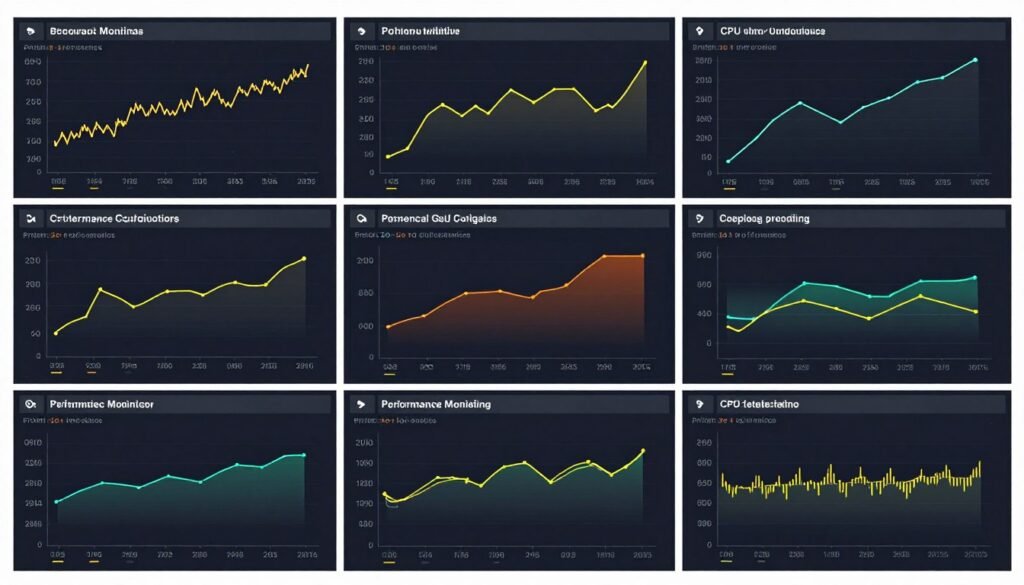
Start with MSI Afterburner and RTSS (RivaTuner Statistics Server). These show real-time GPU usage, CPU usage, VRAM consumption, RAM usage, and frame times while gaming. The data reveals exactly what component is maxing out. If your GPU sits at 99% usage while CPU is at 45%, you have a GPU bottleneck—not CPU obsolescence.
HWiNFO64 goes deeper. It logs every sensor on your system. I use it to track temperatures, clock speeds, power draw, and thermal throttling over time. This shows degradation patterns. If your CPU used to boost to 4.8GHz but now maxes at 4.3GHz under the same conditions, you’ve found physical degradation.
For storage, CrystalDiskMark and CrystalDiskInfo tell the complete story. DiskMark shows current speeds versus rated specifications. DiskInfo shows total writes, power-on hours, and SMART health status. An SSD with 95% life remaining that still hits rated speeds isn’t obsolete. One with 12% life remaining and speed degradation is.
Not Sure If Your Hardware Is Actually Obsolete?
Before you drop $800 on new components, check if your current setup is actually bottlenecked. I always verify my system balance before upgrading—it’s saved me from countless unnecessary purchases.
Benchmark Comparison: Then Versus Now
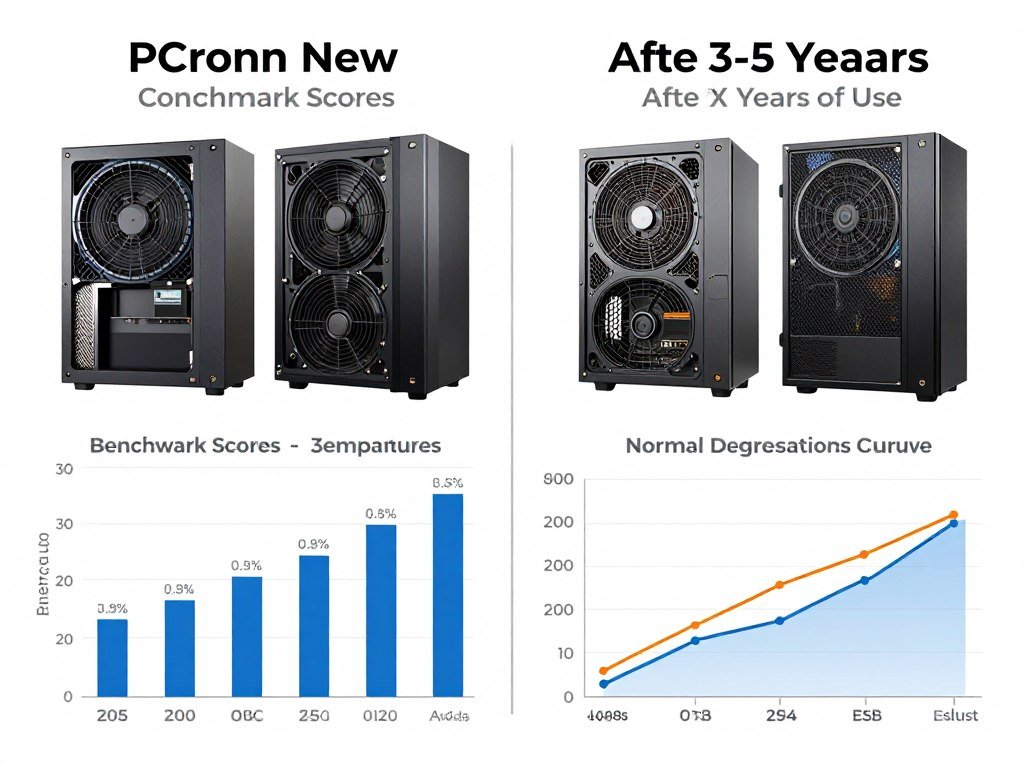
This is my favorite diagnostic method. Find reviews of your components from when they launched. Those reviews include benchmark scores. Run the exact same benchmarks now. Compare your current scores to the original scores. The delta tells you how much performance you’ve actually lost.
Example: My RTX 3070 originally scored about 11,500 in 3DMark Time Spy Graphics. After three years of heavy use, I scored 11,320. That’s 1.5% degradation—basically nothing. My card hasn’t become obsolete through wear. It’s simply aging normally. That data prevented a premature $600 GPU upgrade.
Do this systematically. Benchmark your CPU with Cinebench R23. GPU with 3DMark or Unigine Superposition. Storage with CrystalDiskMark. RAM with AIDA64 Memory. Compare each result to launch reviews. If you’re within 5% of original performance, your hardware is aging well. If you’re down 20%+ across multiple components, degradation might justify replacement.
Frame Time Analysis Reveals Hidden Problems
Average FPS lies. You can have 60fps average with terrible stuttering because frame times are inconsistent. That’s why I focus on 1% and 0.1% low frame rates. These metrics show your worst-performing moments. A game averaging 90fps but dropping to 25fps for 1% of frames feels awful to play.
CapFrameX and MSI Afterburner both track frame times. Look for spikes. Consistent frame times mean smooth gameplay even at lower average FPS. Erratic frame times indicate a problem—often RAM, storage, or background processes rather than GPU/CPU obsolescence. I’ve “fixed” obsolescence by simply optimizing Windows many times.
When my frame times showed massive spikes every 30 seconds, I assumed my GPU was dying. Nope—Windows was running disk defragmentation on my gaming SSD. Disabled that, spikes disappeared. Check your PC stutter fixes before blaming hardware age.
Temperature and Thermal Throttling
Components throttle when they overheat. Your CPU might be obsolete—or it might just need new thermal paste. I’ve seen “obsolete” CPUs gain 20% performance after a repaste and cooler cleaning. Always check temperatures under load before declaring thermal limits as obsolescence.
HWiNFO64 shows thermal throttling events. If your CPU or GPU is hitting throttle temperature (usually 95-100°C for CPUs, 80-90°C for GPUs), you have a cooling problem, not an obsolescence problem. A $40 cooler upgrade might deliver the performance you wanted from a $400 CPU replacement.
Memory and Storage Health Checks
RAM doesn’t degrade much, but it can develop errors. Run Windows Memory Diagnostic or MemTest86. If you get errors, your RAM is failing—that’s hardware defect, not obsolescence. Replace the faulty stick instead of the whole system.
Storage is different. SSDs have finite write endurance. Use CrystalDiskInfo to check total bytes written versus rated endurance. Most consumer SSDs are rated for 150-600 TBW (terabytes written). If you’ve written 140TB on a 150TBW drive, replacement is wise. But if you’ve written 45TB, you have years left.
Real-World Usage Patterns Matter Most
Here’s the thing benchmarks miss: your actual usage. A CPU might crush synthetic benchmarks but choke on your specific workflow. I always test with real workloads. For gaming, I test the actual games I play. For video editing, I export actual projects. For streaming, I stream an actual session.
This revealed that my “obsolete” Ryzen 5 3600 still delivered 1% lows above 60fps in every game I actually play at 1440p. All the benchmarks and YouTube videos said I needed an upgrade. Real-world testing with my monitor and game library said otherwise. Trust your use case over synthetic tests.
Document your real-world performance now. Record frame rates, export times, compile times—whatever matters to you. Save these numbers. Check them quarterly. When they degrade 25%+ from your baseline, investigate why. Often it’s software bloat or Windows updates, not hardware age. But when it IS hardware, you’ll have the data to prove it.
The biggest mistake I see is replacing perfectly functional hardware because someone didn’t measure actual performance. They felt it was slow, read some marketing about new GPUs being 60% faster, and upgraded. Then discovered their “obsolete” GPU was being bottlenecked by their old HDD, not actually failing.
Measure first. Upgrade second. Use monitoring tools to identify the actual bottleneck. Check our bottleneck basics guide to understand how to interpret the data. Real measurements prevent expensive mistakes and ensure you upgrade the right component when the time actually comes.
The Upgrade Versus Optimize Decision Framework
Every time my PC feels slow, I face the same question: upgrade hardware or optimize software? The wrong choice wastes money or leaves problems unsolved. I’ve developed a systematic framework for making this decision. It’s saved me thousands of dollars in unnecessary hardware purchases.
The framework is simple: try every optimization first. Only upgrade when optimization can’t fix the problem. That sounds obvious, but most people skip optimization entirely. They jump straight from “my PC is slow” to “I need a new GPU.” That’s exactly how you waste money on upgrades that don’t solve the actual issue.

The Optimization Checklist (Always Do This First)
Start with Windows cleanup. Disable startup programs you don’t need. I had 23 things launching with Windows. Really needed 6. That freed up 2GB of RAM and reduced boot time by 40 seconds. Check Task Manager’s Startup tab right now and be honest about what actually needs to run.
Update all drivers. Not just GPU drivers—chipset, audio, network, everything. I once spent a week troubleshooting “obsolete” RAM that couldn’t hit rated speeds. Problem was a year-old chipset driver. Updated it, RAM worked perfectly. Outdated drivers cause more performance problems than aging hardware.
Clean your PC physically. Dust buildup causes thermal throttling. I pulled a GTX 1080 Ti from someone’s build that was running 20% slower than it should. The heatsink fins were packed solid with dust. Cleaned it, temps dropped 18°C, performance returned to normal. Your hardware isn’t obsolete if it just needs compressed air.
- Disable unnecessary startup programs and background services
- Update all drivers (GPU, chipset, audio, network, storage)
- Clean dust from all heatsinks and fans
- Replace thermal paste on CPU and GPU if over 2-3 years old
- Run disk cleanup and defragmentation (HDD only, never SSDs)
- Disable Windows visual effects and animations
- Check for malware and background mining software
- Optimize in-game graphics settings to match hardware capabilities
- Enable XMP/DOCP for RAM to run at rated speeds
- Update BIOS to latest stable version
- Check power plan settings (High Performance mode)
- Verify storage has adequate free space (20%+ recommended)
If you’ve done all twelve items on that list and your PC still underperforms, THEN consider hardware replacement. But I’d bet money at least four of those items are currently wrong on your system. Fix them first. Our PC optimization guides walk through each step in detail.
When Optimization Actually Beats Upgrading
Optimization wins when your bottleneck is artificial. Artificial bottlenecks come from software, settings, or configuration—not hardware limits. Example: your GPU running at PCIe 3.0 x8 instead of x16 because you plugged it into the wrong motherboard slot. That’s a 10-15% performance loss from slot choice, not GPU age.
RAM running at 2133MHz when it’s rated for 3600MHz. That’s another huge artificial bottleneck. Enabling XMP in BIOS takes 30 seconds and can boost gaming performance 15-20% in CPU-bound scenarios. I’ve “upgraded” dozens of systems by literally just turning on XMP. No money spent. Instant performance gain.
Background processes eating CPU cycles. I found someone mining cryptocurrency through malware without knowing it. Their “obsolete” CPU was actually being stolen by hidden mining software. Removed the malware, performance returned. Always check Task Manager for unknown processes using significant resources.
Quick Optimization Test: Open Task Manager while your PC is idle. Sort by CPU usage. If anything uses more than 5% CPU while you’re not actively using it, investigate what that process is and whether you need it. Same for RAM—check what’s eating memory when nothing is open.
When Upgrading Beats Optimization
Upgrade when you hit hard hardware limits. No amount of optimization increases VRAM capacity. If your GPU has 4GB VRAM and your games need 8GB, you’re done. That’s a physical hardware limitation that software can’t fix. Time to upgrade.
CPU core count is another hard limit. Some workloads need physical cores. Video rendering, 3D modeling, compilation—these parallelize across cores. My old 4-core CPU couldn’t render 4K video acceptably no matter how optimized. Upgraded to 8 cores, render times dropped 60%. That’s a hardware limitation requiring hardware solution.
Storage type matters too. An HDD will never match SSD performance. If you’re loading games from a mechanical drive, no amount of optimization changes the physics of spinning platters. A $100 NVMe SSD upgrade delivers massive real-world improvements for game loading and system responsiveness.
Cost-Benefit Analysis Framework
I use a simple formula. Divide the upgrade cost by expected years of use. That’s your annual cost. Compare to annual value gained. If annual value exceeds annual cost, upgrade makes sense. If not, optimize or wait.
Example: $500 GPU upgrade. Expected 4-year lifespan. That’s $125/year. If it saves me 2 hours weekly of frustration (8 hours monthly) at $30/hour value of my time, that’s $240/month value, or $2,880/year. Easy decision—$125 annual cost for $2,880 annual value. Upgrade wins.
But a $200 RAM upgrade from 16GB to 32GB when I never use more than 12GB? That delivers zero value for $50/year cost over 4 years. Terrible decision. The money would sit unused. That’s when optimization (closing unnecessary programs) costs nothing and solves the occasional memory issues.
Component-Specific Decision Points
CPU: Optimize if usage stays under 80% in your workloads. Upgrade if constantly at 100% with stuttering. Check if your motherboard supports better CPUs before replacing both components.
GPU: Optimize settings first (lower resolution, texture quality, ray tracing). Upgrade if you must play at minimum settings and still hit unplayable frame rates. Consider used market for value.
RAM: Optimize by closing background apps. Upgrade only if usage consistently exceeds 90% in normal use. Going from 16GB to 32GB rarely helps gaming but transforms content creation.
Storage: Optimize by cleaning files and uninstalling unused programs. Upgrade from HDD to SSD is always worthwhile. Upgrading SSD to faster SSD rarely noticeable outside specific workloads.
The 3-Month Rule
When I can’t decide, I wait three months. Track performance during that time. Document actual problems. If the issues are consistent and measurable, upgrade afterward. If they’re intermittent or hard to quantify, keep optimizing.
This waiting period prevents emotional purchases. That new GPU looks amazing the day after launch. Three months later, prices drop 15%, driver bugs get fixed, and you have real-world reviews. Patience saves money and prevents regret.
I also use the three-month window to save specifically for the upgrade. If I can’t comfortably save the cost in three months, I probably shouldn’t spend that much. This financial reality check has prevented many purchases that would’ve strained my budget.
Make Upgrade Decisions Based on Real Data
When my PC started struggling with Cyberpunk 2077’s path tracing, our calculator showed my RTX 3070 was maxed out while my CPU was barely working. That data saved me from buying the wrong component and wasting $500.
Common Mistakes I See Repeatedly
Biggest mistake: upgrading GPUs when CPU bottlenecked. I can’t count how many times someone bought a $600 GPU to pair with their 6-year-old CPU. The new GPU sat at 40% usage because the CPU couldn’t feed it. Always use a hardware bottleneck test before upgrading anything.
Second mistake: buying more RAM when storage is the problem. Slow loading doesn’t always mean insufficient RAM. Often it’s a slow HDD. I’ve seen people go from 16GB to 64GB RAM and still have slow loading because they’re reading from a 5400RPM hard drive. Fix the actual bottleneck.
Third mistake: upgrading everything when one component is the issue. Whole-system upgrades make sense when multiple components are obsolete. But upgrading CPU, motherboard, RAM, GPU, and storage when only your GPU is actually limiting you wastes massive money on parts that were fine.
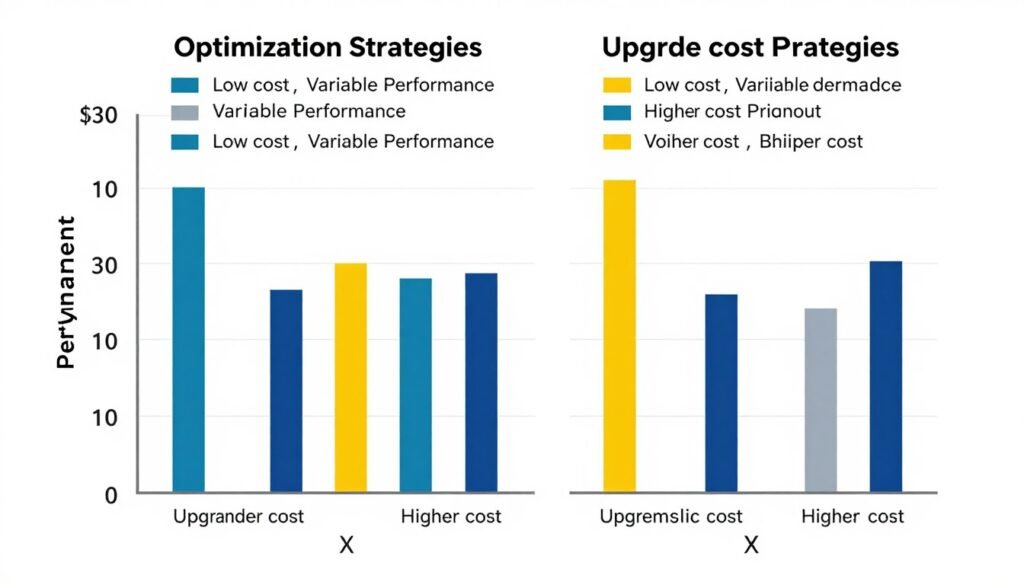
The decision framework ultimately comes down to this: measure your actual problem, try optimization first, calculate real costs and benefits, then upgrade the specific bottleneck if optimization can’t solve it. This systematic approach prevents both premature upgrades and suffering with obsolete hardware longer than necessary.
I revisit this framework every time I feel my system struggling. Sometimes optimization wins. Sometimes upgrade wins. But making the decision based on data instead of feelings has consistently delivered better outcomes and saved me money that I’ve invested in upgrades that actually matter.
Component-Specific Lifespan Expectations (The Reality Nobody Tells You)
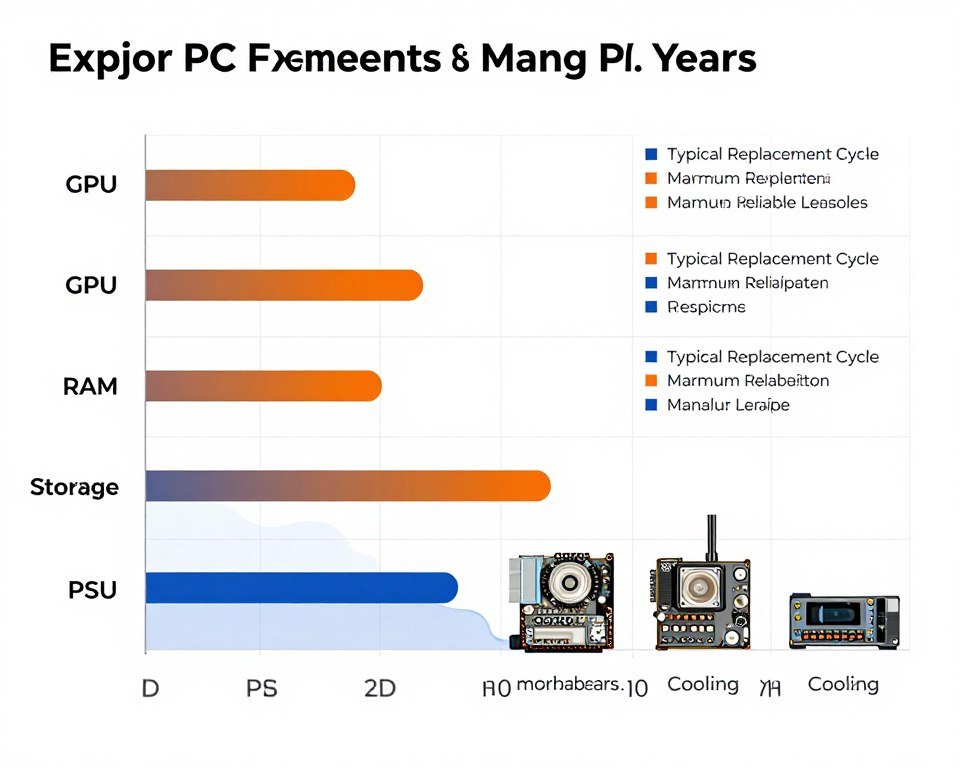
Not all components age at the same rate. Your SSD might be obsolete in three years while your CPU still crushes workloads after eight. Understanding realistic lifespans prevents both premature replacement and waiting too long. Here’s what actually happens to each component over time.
I track this obsessively because I buy components at different times. Knowing a GPU typically lasts 4-5 years while a PSU lasts 8-10 years helps me plan replacement schedules. It also explains why some parts of my build feel dated while others still perform like new.
CPUs: 7-10 Year Lifespan
CPUs age the slowest of any component. They don’t degrade much physically. My Sandy Bridge i7-2600K from 2011 still runs—it’s just slow by modern standards. The limitation is performance, not failure. CPUs become obsolete when software demands exceed their capabilities, not when they break.
For gaming, expect 5-7 years of strong performance, then 2-3 years of acceptable performance at lower settings or resolutions. My Ryzen 7 3700X launched in 2019, still handles gaming well in 2026, but struggles with new CPU-heavy titles at high frame rates. It’s entering the “acceptable but limiting” phase.
Productivity work extends CPU life. My video editing rig uses a Ryzen 9 5900X from 2020. It’ll probably last until 2028-2030 for 4K editing because render times are acceptable and improving. The performance needs plateau, unlike gaming which always wants more frames. Check our CPU comparison guide for current generation expectations.
CPU Upgrade Trigger: When your CPU consistently hits 100% usage during normal workloads and causes stuttering or slowdowns, it’s time. Before that, you’re probably fine. Use monitoring tools to verify this—don’t guess based on age alone.
GPUs: 4-6 Year Lifespan
GPUs obsolete faster than CPUs because games push graphics harder each generation. VRAM capacity becomes the hard limit. My GTX 1080 Ti with 11GB VRAM lasted longer than friends’ GTX 1080s with 8GB. That extra VRAM bought two more years of viability.
Expect 3-4 years of “max settings” performance at your target resolution. Then 2-3 years of “medium settings” performance. After that, you’re dropping to low settings or lower resolution. My RTX 2070 Super from 2020 still crushes 1080p high settings but struggles with 1440p ultra in 2026 titles. Right on schedule.
The used market extends GPU life economically. A $600 GPU becomes a $200 used card after four years. That $200 investment buys someone else 2-3 years of acceptable gaming. I’ve bought and sold used GPUs successfully by understanding this depreciation curve. Just verify the card wasn’t mining 24/7.
VRAM requirements jumped in 2024-2026. Games now often need 10-12GB for high settings at 1440p. Cards with 6-8GB are hitting obsolescence faster than previous generations. Check our VRAM capacity guide to understand current needs.
RAM: 8-12 Year Lifespan
RAM doesn’t degrade much. I’m still using DDR4 sticks from 2017 in a secondary build. They run at rated speeds with zero errors. RAM becomes obsolete when capacity is insufficient or when standards change (DDR4 to DDR5), not when it fails.
Capacity obsolescence hits before standard obsolescence. 8GB was fine for gaming in 2018. Marginal in 2022. Insufficient in 2026. 16GB is the current gaming standard. 32GB for content creation. But that same 8GB stick from 2018 physically works perfectly—it’s just not enough anymore.
Standard changes force obsolescence. DDR5 motherboards don’t accept DDR4. When you upgrade CPU/motherboard to a platform requiring DDR5, perfectly functional DDR4 becomes obsolete for that build. But you can repurpose it in other systems. I keep old RAM for troubleshooting and backup builds.
Storage: 3-7 Year Lifespan
SSDs have finite write endurance. Consumer drives typically last 3-5 years of heavy use or 5-7 years of normal use before approaching their rated TBW (terabytes written). Check CrystalDiskInfo regularly. When you hit 80% of rated endurance, start planning replacement. At 95%, replace immediately.
HDDs last 3-5 years statistically. Some die in two years. Some run for a decade. The variance makes them unreliable for critical data without backups. I had a Seagate drive fail at 18 months and a Western Digital run for 9 years. It’s a gamble. Plan for 3-4 year replacement and be happy if you get more.
Performance obsolescence hits storage fast. A PCIe 3.0 NVMe from 2019 still works great but PCIe 4.0 drives are 2x faster and PCIe 5.0 drives are 4x faster. For system drives, upgrading every 4-5 years to the current standard makes sense even if the old drive still functions. Game loading and system responsiveness improve dramatically.
SSD Health Monitoring
Download CrystalDiskInfo and check these metrics quarterly:
- Total Host Writes (compare to rated TBW)
- Power-On Hours (30,000+ hours suggests aging)
- Health Status (should show “Good”)
- Reallocated Sectors Count (0 is ideal)
HDD Warning Signs
Replace HDDs immediately if you notice:
- Clicking or grinding noises
- Frequent read/write errors
- Dramatically slower speeds than normal
- SMART errors in diagnostic tools
Power Supplies: 8-12 Year Lifespan
Quality PSUs last. My Corsair RMx from 2015 still runs perfectly after 11 years. Cheap PSUs die in 3-5 years. This is the component where buying quality actually matters for longevity. A good 80+ Gold unit should deliver 8-10 years. 80+ Platinum or Titanium units often hit 10-12 years.
Capacitor aging causes PSU death. Over years, capacitors lose capacity and voltage regulation gets worse. This shows up as system instability under load—crashes during gaming, unexpected reboots. If your PC is unstable only under heavy load, test with a different PSU before replacing other components.
PSU obsolescence also comes from efficiency and connector standards. An old 80+ Bronze unit wastes more power as electricity costs rise. And if it lacks PCIe 5.0 power connectors for new GPUs, you’re forced to use adapters. When buying PSUs, plan for 10-year service life and buy accordingly. Check our PSU buying guide for current recommendations.
Motherboards: 6-10 Year Lifespan
Motherboards either work or they don’t. I rarely see partial motherboard failures. They tend to die suddenly—usually from VRM failure, blown capacitors, or BIOS corruption. But if they don’t die, they run for a decade easily. My X370 board from 2017 still works perfectly in a spare build.
Feature obsolescence hits motherboards hard. My X370 board lacks PCIe 4.0, USB-C headers, WiFi 6, and modern audio codecs. It works fine but lacks every modern feature. When you upgrade CPU and that forces a motherboard change, the old board becomes obsolete even if it still functions.
BIOS support determines CPU upgrade paths. AMD’s AM4 platform supported CPUs from 2017 through 2022 on the same motherboards with BIOS updates. That’s exceptional. Intel typically supports 2-3 generations per socket before forcing motherboard upgrades. Consider platform longevity when choosing which ecosystem to invest in.
Cooling Systems: 5-10 Year Lifespan
Air coolers last forever. The heatsink doesn’t degrade. Fans might die after 5-7 years, but replacing a fan costs $15. My Noctua NH-D15 from 2016 still performs identically to day one after a single fan replacement. Air coolers are the most reliable PC component.
AIO liquid coolers have 5-7 year lifespans. Pump failure is the common death mode. Evaporation slowly reduces coolant volume. After 5 years, performance degrades noticeably. After 7 years, failure risk increases sharply. I replace AIOs at 6 years regardless of performance to avoid catastrophic pump failure mid-use.
Thermal paste needs replacement every 2-3 years. Dried paste increases temperatures 5-10°C. That causes thermal throttling which looks like obsolescence but is actually maintenance. Repasting a CPU takes 20 minutes and costs $10. Do this before buying new cooling or blaming component age for heat issues.

The Platform Obsolescence Factor
Individual components might work fine but the platform becomes obsolete. DDR4, PCIe 3.0, SATA, and USB 3.0 are all “last-gen” now. They work perfectly but lack features. When enough of your components hit platform obsolescence simultaneously, a complete rebuild makes more sense than incremental upgrades.
I track this with my builds. When 3+ major components need replacing within 12 months, I plan a full rebuild. Trying to upgrade piecemeal on an obsolete platform wastes money on compatibility adapters and compromises. Better to start fresh with current standards and have a modern platform for 5+ years.
This is why I stagger component purchases. Buy CPU/motherboard/RAM together when needed. GPU separately when that bottlenecks. Storage as needed. PSU lasts across builds. This prevents the “everything is old simultaneously” situation that forces expensive complete rebuilds on short notice.
Understanding component-specific lifespans lets you plan and budget appropriately. You’re not surprised when your 6-year-old GPU struggles with new games. You’re prepared when your 4-year-old SSD approaches its write endurance. And you don’t waste money replacing components that still have years of service life remaining.
The Financial Reality of Hardware Replacement (What Actually Makes Sense)
Hardware replacement isn’t just about performance—it’s about money. I’ve made expensive mistakes by ignoring economics. Spent $1,200 upgrading a system worth $800. Replaced components that had 80% performance left to chase 15% gains. The financial side of obsolescence matters as much as the technical side.
The tech industry wants you focused on performance numbers. They don’t want you thinking about depreciation, resale value, or total cost of ownership. But those factors determine whether an upgrade makes financial sense or just makes you feel better. Let’s look at the real economics.
Depreciation Curves You Need to Understand
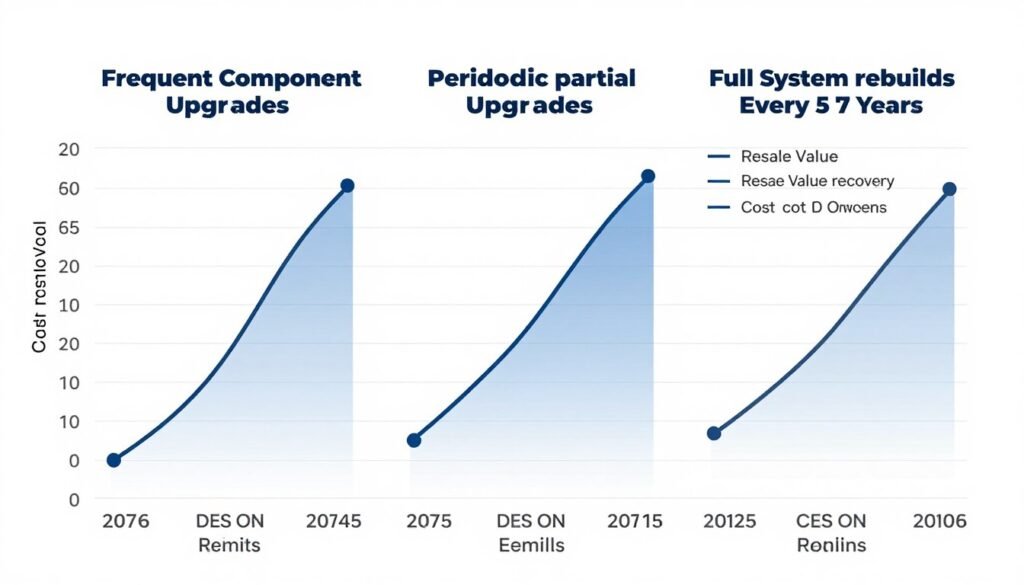
GPUs lose 30-40% of their value in the first year. I bought an RTX 3080 for $850 in 2022. Worth about $425 used in 2026. That’s 50% value loss over four years. But most of that loss happened in year one ($850 to $550). Understanding this curve changes buying strategy.
Buy previous-generation hardware when new releases drop. RTX 5080 launched and RTX 4080 prices crashed 25% overnight. That 4080 performs 95% as well but costs 35% less. You’re buying performance at massive discount by accepting “last-gen” status. I’ve saved thousands using this strategy.
CPUs depreciate slower. A Ryzen 7 5800X3D cost $450 new in 2022, worth about $275 used in 2026. That’s 39% depreciation over four years—better than GPUs. CPUs hold value because performance gaps between generations are smaller. This makes used CPUs better value than used GPUs usually.
Best Times to Buy: GPUs depreciate fastest 2-3 months after new generation launches. CPUs depreciate fastest when new socket/platform releases. RAM and storage depreciate when new standards arrive. Time your purchases around these events for 20-40% savings on last-gen hardware that performs nearly identically.
The Used Market Strategy
I sell components before they’re worthless. My rule: sell when resale value hits 35% of purchase price. Below that, depreciation accelerates and selling becomes impractical. Example: $600 GPU worth $210 used? Sell now. Wait another year and it’ll be worth $90—not worth the effort.
This strategy funds new purchases. Sold my RTX 3070 for $320. Applied that to a $580 RTX 4070. Net cost: $260 for a 40% performance upgrade. Versus holding the 3070 until it’s worthless and paying full $580. The used market is part of upgrade strategy, not something to ignore.
Facebook Marketplace and Reddit’s hardware swap forums are my go-to. eBay takes 12-15% in fees. Craigslist attracts lowballers. Marketplace and Reddit connect you with local enthusiasts who understand component value. I’ve bought and sold 30+ components this way with zero issues.
Full Replacement vs. Incremental Upgrades
Sometimes building new is cheaper than upgrading. If you need new CPU, motherboard, RAM, and PSU, that’s $800+ in components plus selling old parts for $200. Net cost: $600. A full budget build might cost $900 but gives you completely modern platform with warranty. Only $300 more for huge advantage.
I calculate total upgrade cost versus new build cost every time. Include the value of parts you’re removing. If you can sell them for 25%+ of upgrade cost, do incremental. If not, full rebuild often makes more sense. The mental accounting trick is including resale value in the math.
Opportunity Cost of Waiting
Waiting costs money too. If your slow PC wastes 5 hours monthly of your time, and your time is worth $30/hour, that’s $150/month in lost productivity. A $500 upgrade that saves that time pays for itself in 3.3 months. Then delivers 3+ years of continued time savings.
I see people suffering with obsolete hardware to “save money” while wasting hours weekly fighting performance issues. They’re penny-wise and pound-foolish. Sometimes the financially smart decision is spending money to buy back your time. Calculate your actual hourly value and use it in upgrade decisions.
The “Good Enough” Philosophy
You don’t always need the best. My media PC uses an RX 6600 instead of an RTX 4080. It plays everything I want at 1080p 60fps. That’s good enough. I saved $900 versus buying top-tier. That $900 went into other upgrades that actually mattered to me.
Define “good enough” for each use case. Gaming at 1080p 144fps? RX 7700 XT is good enough. 4K 60fps? RTX 4070 Ti is good enough. Esports at 360fps? Needs top-tier. But most people chase specs they don’t need because YouTubers and forums push high-end hardware. Our gaming performance guides help define realistic targets.
I’ve personally tested this. Played the same games on my RTX 4090 system and my RX 6600 system. Couldn’t tell the difference at 1080p once both exceeded 60fps. The $1,200 price gap delivered zero real-world improvement for my use case. Good enough is often actually good enough.
Total Cost of Ownership Analysis
Calculate what hardware actually costs per year of service. My RTX 3070 cost $650, sold for $320 after 3 years. Net cost $330 over 3 years = $110/year. My friend bought an RTX 3090 for $1,800, sold for $750 after 3 years. Net cost $1,050 over 3 years = $350/year. Three times the annual cost for 30% more performance.
This analysis reveals which components deliver value. High-end GPUs have terrible cost-per-year because depreciation is brutal. Mid-range GPUs optimize the curve. CPUs generally have good cost-per-year if you hold them 5+ years. This is why I buy mid-range GPUs but splurge on CPUs.
Include electricity costs in TCO. My old 300W system cost $240/year in electricity. New 150W system costs $120/year. That’s $120 annual savings. Over 5 years, that’s $600 in electricity costs avoided. The efficiency improvement paid for part of the upgrade. Factor power consumption into obsolescence decisions.
Start With a System Check
The reality is most people upgrade the wrong component first because they’re guessing at bottlenecks. A quick bottleneck analysis shows you exactly where your system is actually limited, which saves money by ensuring you upgrade what actually matters.
Budget Allocation Strategy
I allocate upgrade budget by impact. 50% goes to the component that’s actually bottlenecking me. 30% goes to addressing the next likely bottleneck. 20% goes to quality-of-life improvements. This ensures money goes where it matters most first.
Example budget: $800 total. My GPU is the bottleneck, so $400 for a new GPU. CPU is aging, so $240 for a CPU upgrade. $160 for a better monitor to actually enjoy the performance. Every dollar has a purpose tied to real performance improvement or quality enhancement.
I see people split budget equally across all components. $800 becomes $200 for GPU, $200 for CPU, $200 for RAM, $200 for storage. They improve everything marginally instead of fixing the actual bottleneck substantially. That’s inefficient spending. Fix the bottleneck first, then address secondary concerns.
Financing and Payment Strategies
I never finance PC hardware. Credit card interest turns a $600 GPU into an $850 GPU if you carry the balance for a year. That’s 42% premium for impatience. Instead, I save $100-150/month in a dedicated “PC upgrade fund” and pay cash when I have enough.
This forced saving period creates a natural cooling-off window. Often I change my mind about what I actually need by the time I’ve saved enough. The initial “I must have an RTX 5090” becomes “an RTX 4070 actually meets my needs” after three months of research. Saving prevents impulse purchases.
If you absolutely must finance, use 0% APR offers like PayPal Credit or credit card promotional rates. But set up automatic payments to clear the balance before interest kicks in. Treat it like a payment plan, not real credit. One missed payment and you’re paying 25% interest retroactively.
When Expensive Makes Sense
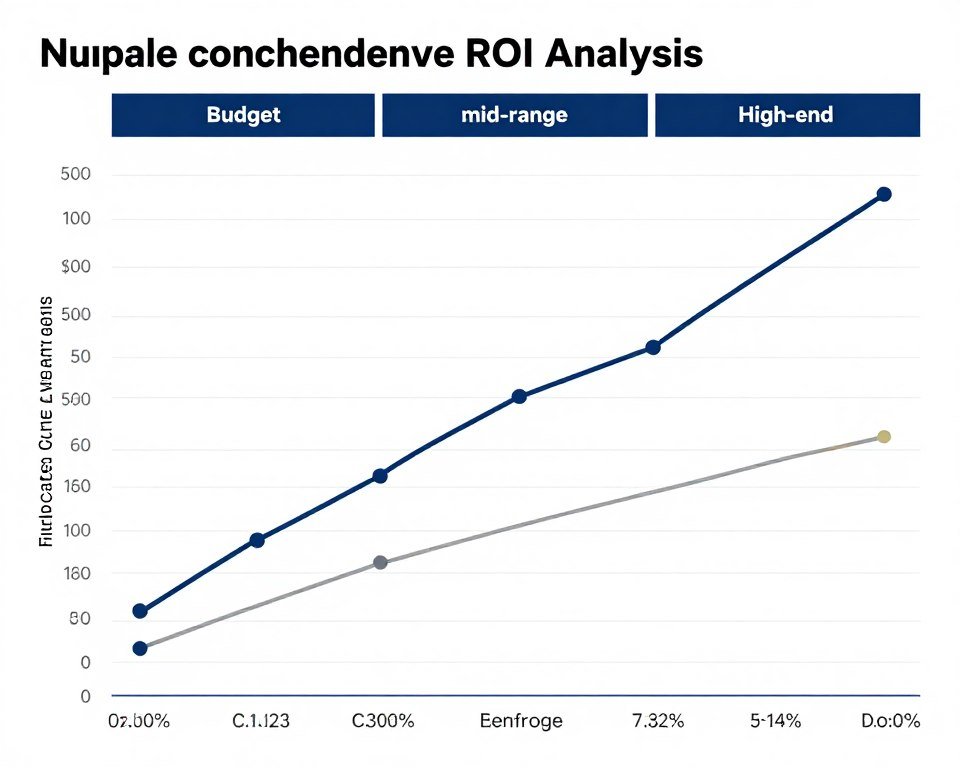
Sometimes premium hardware is the financially smart choice. I bought a $180 Seasonic PSU instead of a $70 generic unit. That Seasonic has a 10-year warranty and will outlast three cheap PSUs. Over 10 years, I save $210 and avoid the hassle of two replacements. Premium quality beats budget price here.
Same logic for cases and cooling. A $120 case with excellent airflow and build quality lasts 10-15 years across multiple builds. A $40 case with poor airflow causes thermal throttling and component stress. The cheap case costs more long-term through reduced component life and more frequent upgrades due to heat issues.
I also splurge on components I won’t upgrade often. My monitor cost $800 but I’ll use it for 7-10 years. That’s $80-115/year for something I look at 40+ hours weekly. Meanwhile, I bought a budget keyboard for $35 because I’ll probably replace it in 2-3 years. Allocate budget to lifespan and use frequency.
The financial reality is that smart upgrade strategy, timing, and budgeting matters as much as component selection. You can have the perfect technical upgrade plan but destroy its value through poor financial execution. Plan the economics as carefully as the hardware specs.
Environmental and Sustainability Considerations (Yeah, This Actually Matters)
I used to throw out old components without thinking. Then I realized my trash bin had $300 of resellable parts and perfectly functional hardware headed to a landfill. Hardware obsolescence has environmental consequences we ignore because they’re not our immediate problem. But they should factor into replacement decisions.
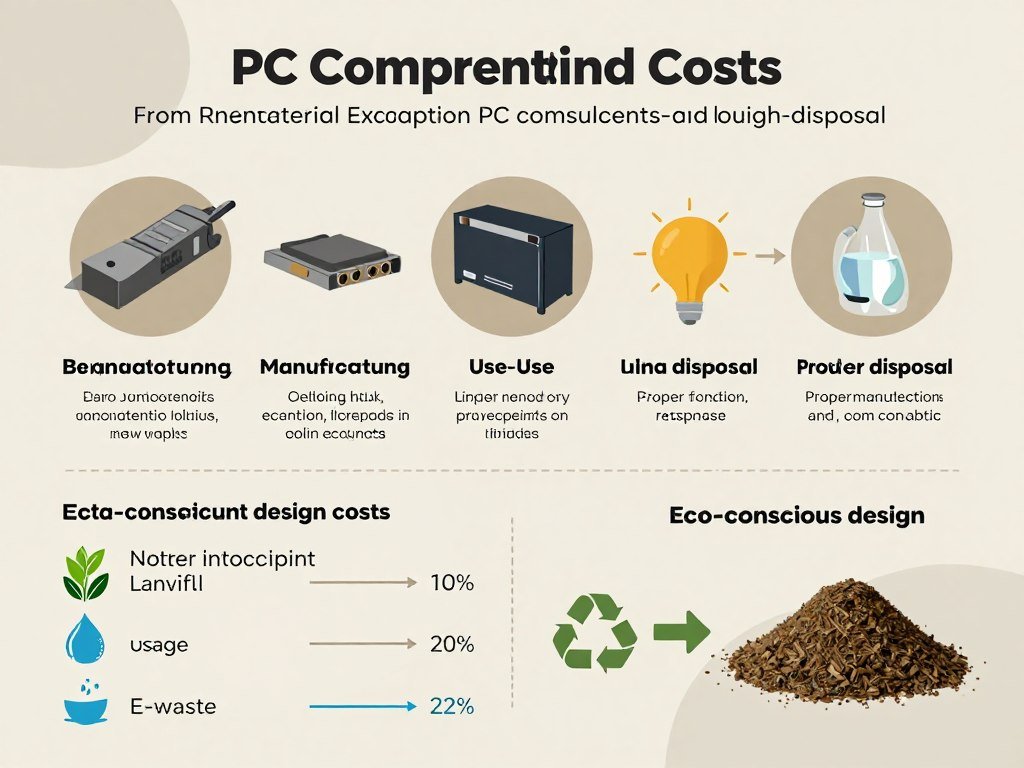
E-waste is the fastest-growing waste stream globally. PC components contain rare earth metals, toxic materials, and plastics that take centuries to break down. A single GPU contains gold, copper, aluminum, and various plastics—all of which required mining, refining, and manufacturing. Throwing that away wastes all that resource investment.
The Real Cost of New Hardware
Manufacturing a single GPU generates approximately 150-300kg of CO2 equivalent. That’s similar to driving a car 600-1,200 miles. A complete PC build generates about 400-600kg CO2e—equivalent to driving 1,500-2,500 miles. This is before you even turn the thing on. Every upgrade has an environmental price tag.
Water consumption in semiconductor manufacturing is massive. Producing a single CPU chip uses approximately 2,000-8,000 liters of ultra-pure water. Taiwan’s semiconductor fabs compete with agriculture for water resources during droughts. When you buy that new CPU, you’re indirectly consuming thousands of gallons of water from stressed ecosystems.
Rare earth mining for components destroys local environments. Neodymium for motors and speakers, cobalt for storage, gold for connectors—all require mining operations that damage landscapes and ecosystems. The environmental cost isn’t visible when you click “buy now,” but it’s real. This doesn’t mean don’t upgrade, but factor it into the decision.
Extending Component Life Reduces Impact
Using hardware one additional year avoids the manufacturing impact of replacement. If you can get 5 years from a GPU instead of 4, you’ve reduced the annual environmental cost by 20%. Multiply that across millions of PC enthusiasts and the impact becomes significant. Small extensions in lifespan create large environmental benefits.
Proper maintenance extends life. Cleaning dust prevents overheating. Replacing thermal paste prevents thermal degradation. Updating drivers prevents software-induced obsolescence. I’ve added 1-2 years to multiple components just through basic maintenance. That’s 1-2 years of avoided manufacturing impact per component.
Optimization before replacement is an environmental strategy too. If tweaking settings or upgrading software solves your problem, you’ve avoided the environmental cost of new hardware. Every optimization that delays replacement is a small environmental win. This aligns financial and environmental interests—both favor maximizing existing hardware life.
Reduce Strategies
- Buy only what you actually need, not what marketing suggests
- Optimize and maintain before replacing
- Choose quality components that last longer
- Avoid chasing marginal performance improvements
- Plan upgrades strategically instead of impulsively
Reuse Strategies
- Repurpose old components in secondary builds
- Sell functional parts to extend their total lifespan
- Donate working hardware to schools or nonprofits
- Use old drives for backups or media storage
- Convert old PCs into home servers or streaming boxes
Responsible Disposal and Recycling
When components truly reach end-of-life, recycle them properly. Best Buy, Staples, and local e-waste programs accept PC components. Some even pay for valuable materials like gold-bearing circuit boards. Never throw electronics in regular trash—they contain toxic materials that contaminate landfills and groundwater.
I use a local e-waste recycler that properly processes components. They recover copper, gold, aluminum, and other materials for reuse. This closes the loop—materials from old components become raw materials for new ones. It’s not perfect, but it’s far better than landfilling.
Some manufacturers offer trade-in or recycling programs. EVGA had a step-up program where you could trade old GPUs toward new ones. Corsair accepts old PSUs for recycling. These programs make responsible disposal easy while sometimes offering financial incentives. Check manufacturer websites before buying—recycling programs can influence purchase decisions.
The Repurposing Strategy
My “obsolete” hardware rarely goes to waste. Old GPUs become secondary build components. Old SSDs become backup drives. Old cases become project builds for friends or family. I’ve built complete functional PCs from parts I considered obsolete for my main gaming rig. Those PCs serve perfectly fine for office work or light gaming.
A great example: My RTX 2060 was obsolete for 1440p gaming in my main build. Moved it to a 1080p secondary PC where it crushes everything. That GPU will serve 3+ more years in the new role. Same with my Ryzen 5 3600—obsolete for high-refresh gaming but perfect for a media center PC.
Schools and nonprofits need hardware. I’ve donated multiple old builds to local schools for student use. A 2018-era PC with an RX 580 might be obsolete for my gaming needs but runs modern productivity software perfectly for a classroom. Check local organizations—your trash is often their treasure.
Buying Strategies That Reduce Waste
Buy previous-generation hardware at a discount instead of always buying latest-gen. This creates less demand for new manufacturing while getting great value. When RTX 5080 launches, buying discounted RTX 4080 stock reduces waste—that inventory exists regardless, might as well use it efficiently.
Consider used markets. A used GPU avoided one new GPU being manufactured. The used market extends total component lifespan across multiple users. I’ve bought used RAM, SSDs, and even a CPU without issues. Saved money and reduced environmental impact simultaneously. Just verify the seller’s reputation and component condition.
Choose quality over budget when environmental impact matters to you. A $180 PSU that lasts 10 years creates less waste than three $60 PSUs replaced every 3 years. Same total cost, far less environmental impact. This principle applies across components—longevity reduces waste.

Corporate Responsibility and Consumer Pressure
Manufacturers could design for longevity but often don’t because planned obsolescence drives sales. This is changing slowly due to consumer pressure and regulations. The EU’s “right to repair” laws force manufacturers to support products longer and provide repair parts. Supporting these efforts matters.
Vote with your wallet. Buy from manufacturers that offer long warranty periods, recycling programs, and repair support. Avoid companies that use proprietary parts, prevent repairs, or deliberately limit product life. Framework laptops, for example, are designed for easy repair and upgrades. That business model deserves support.
I prioritize manufacturers with better environmental records when choosing between similar products. It’s not the only factor, but it’s a factor. If an AMD and Intel CPU perform similarly at similar prices, I’ll check which company has better sustainability practices. Small consumer choices aggregate into market pressure.
The reality is hardware obsolescence creates massive environmental impact that we rarely consider. You don’t have to become an extreme environmentalist to make more sustainable choices. Simply extending component life by one year, properly recycling when replacing, and repurposing where possible makes a measurable difference.
I’m not perfect at this. I still buy new hardware more often than absolutely necessary. But I’ve shifted from thoughtless consumption to intentional decisions. That shift has simultaneously saved me money (using hardware longer, buying used, selling old parts) and reduced my environmental footprint. Financial and environmental interests align more often than people realize.
Building a Personal Hardware Replacement Roadmap (Planning Beats Panic)
I used to reactive-upgrade. GPU died, panic-bought a replacement. RAM slots failed, scrambled to find compatible sticks. This approach costs more, delivers worse value, and creates stress. Now I plan replacements 6-12 months ahead. It’s transformed my upgrade experience and saved thousands of dollars.
A hardware roadmap isn’t complicated. You track what you have, predict when it’ll need replacing, and plan purchases around sales and new releases. This proactive approach means you’re never caught off-guard by failures or forced into panic purchases at terrible prices.

Creating Your Component Inventory
Start with a complete list of what you have. Not just CPU and GPU—everything. I use a simple spreadsheet with these columns: Component, Model, Purchase Date, Purchase Price, Expected Lifespan, Replacement Priority, Estimated Replacement Cost. This takes 15 minutes and provides complete visibility.
Update the spreadsheet quarterly. Note any issues: higher temps, slower speeds, strange noises. This creates a health log. When my SSD started showing occasional stutters in Q3 2025, I noted it. By Q4, stutters were worse. In January 2026, I planned replacement for March. The early warning let me shop sales and avoid panic.
Track warranty periods too. Many components have 2-3 year warranties. If your GPU is going to fail, it’ll likely happen during warranty period. Knowing when warranty expires helps you decide whether to RMA or replace. I’ve caught two component failures just before warranty expiration because I tracked dates.
Quick Inventory Template: List each component with purchase date, original price, and expected replacement year. Add notes on current condition. Review this list every 3-4 months. When a component hits 70% of expected lifespan or shows degradation, add it to your “watch list” for potential replacement within 12 months.
Predicting Replacement Windows
Use the component lifespans from earlier sections as baselines. GPU: 4-6 years. CPU: 7-10 years. Storage: 3-7 years. But adjust based on your usage. Heavy gaming shortens GPU life. Heavy writes shorten SSD life. Light use extends everything. Be honest about how you actually use your system.
I categorize components into replacement windows. “Soon” is within 12 months. “Medium” is 1-3 years. “Long” is 3+ years. This helps prioritize budget. Example: GPU showing age (Soon category), CPU still strong (Long category). That tells me to allocate budget to GPU, not CPU.
Build in buffer time. Don’t wait until something breaks to replace it. When a component hits 80% of expected lifespan, start planning replacement. You want to replace proactively, not reactively. Reactive replacement means paying whatever the current price is. Proactive replacement means waiting for sales and deals.
Budget Planning and Savings Strategy
I allocate $100-150/month to a dedicated hardware fund. That’s $1,200-1,800/year for upgrades. Some years I don’t spend it all—that builds a buffer for expensive upgrades like GPUs. Some years I spend more—drawing from the buffer. This smooths the financial impact instead of sudden $600 hits.
Track annual hardware budgets versus actual spending. In 2024, I budgeted $1,500 for hardware. Spent $890 on a GPU upgrade and $180 on new storage. That left $430 that rolled into 2025’s budget. Now I have $1,930 available for 2025 upgrades. This rollover system prevents waste and accumulates for big purchases.
Align savings with expected replacements. If I know I’ll need a GPU in Q4 2026, I allocate $60/month starting Q4 2025. That’s $720 by replacement time. If the GPU I want costs $650, I’m covered with buffer. If it costs $850, I draw $130 from the general hardware fund. This matching prevents budget surprises.
Timing Purchases Around Market Cycles
New GPU generations launch Q4 typically. Wait for launch, then buy previous-gen at 20-30% discounts. I bought an RTX 4070 for $480 in December 2025 when RTX 5070 launched at $600. Saved $120 for 95% of the performance. This timing strategy requires planning ahead.
Black Friday and Prime Day offer deals but not always on what you need. Better strategy: set price alerts on PC Part Picker or Honey. When your target component hits your target price, buy regardless of “sale event.” I’ve found better deals in random March sales than Black Friday because I was patient and watching.
Contingency Planning
Components fail unexpectedly. I keep a $300 emergency hardware buffer for these situations. When my PSU died suddenly, I had budget to replace it immediately instead of waiting for payday or using credit. This buffer has saved me multiple times from forced poor decisions.
Also identify acceptable “emergency replacements.” If my RTX 4080 died tomorrow, what GPU could I get immediately at local stores? Maybe an RTX 4070 for $500. Not my first choice, but acceptable until I can buy my preferred replacement. Having this contingency prevents panic purchases of overpriced or wrong components.
The Rolling Upgrade Strategy
Instead of complete rebuilds every 5-7 years, I upgrade one major component every 12-18 months. This spreads cost over time and keeps the system modern without massive one-time expenses. Example timeline:
- 2024: GPU upgrade ($650)
- 2025: CPU/Mobo/RAM upgrade ($700)
- 2026: Storage and monitor upgrade ($500)
- 2027: GPU upgrade ($700)
- 2028: Case and cooling upgrade ($350)
This costs $2,900 over 5 years instead of $2,000 for two complete rebuilds. But it maintains higher average performance because components are never more than 2-3 generations old. The continuous minor upgrades beat periodic complete rebuilds for my use case. Check our build and buying advice for strategies.
Tracking Performance Metrics Over Time
Run benchmarks quarterly and log results. This creates a performance history. When scores start declining 10%+, you have objective evidence of degradation. I track 3DMark scores, game benchmarks, and render times. Declining trends signal approaching obsolescence before it becomes a problem.
Monitor temperatures and clock speeds too. My GPU used to boost to 2.1GHz at 72°C. Now it boosts to 1.95GHz at 78°C. That’s thermal degradation from aging thermal paste and dust. Caught early, a repaste fixes it. Caught late, I’d blame the GPU and buy a replacement unnecessarily.
Integration with Your Overall Tech Ecosystem
PC upgrades don’t exist in isolation. Your monitor matters. Your peripherals matter. Your use case matters. I plan PC upgrades around ecosystem needs. When I upgraded to a 1440p 165Hz monitor, I knew I’d need a GPU upgrade within 12 months to fully utilize it. The monitor purchase started a predictable chain.
Same with software needs. When I started video editing seriously, I knew I’d need more RAM and storage within 6 months. The software change predicted the hardware need. Plan hardware around how your usage is evolving, not just current needs. Forward-looking planning prevents reactive purchases.
Flexibility and Adjustment
Roadmaps aren’t rigid. I adjust mine every 3-4 months based on actual performance, market conditions, and budget changes. Maybe my GPU is aging better than expected—push replacement out 6 months. Maybe GPU prices dropped 30%—pull replacement forward. The plan serves you, you don’t serve the plan.
Build in decision points. At each planned replacement window, ask: “Do I actually need to replace this now, or can it wait 6 more months?” Often the answer is wait. Just because you planned a replacement doesn’t mean you must execute it. Reassess at each decision point using current data.
I review my roadmap in January, April, July, and October. Each review considers: component health, performance metrics, budget status, market prices, and upcoming releases. Based on these factors, I adjust the roadmap. This quarterly review prevents the plan from becoming outdated or irrelevant.
Start Your Roadmap Today: Open a spreadsheet or document. List every component in your PC with purchase date and rough price. Estimate when each will need replacement. Allocate monthly budget to a hardware fund. That’s it—you now have a basic roadmap you can refine over time. Even a simple plan beats no plan.
The roadmap approach transforms hardware obsolescence from a crisis into a managed process. You’re never surprised. You’re never forced into bad decisions. You optimize value because you shop sales and time purchases well. And you reduce stress because you’re in control of the process instead of reacting to failures.
I’ve used this system for five years now. It’s eliminated panic purchases entirely. My average cost per upgrade has dropped about 25% because I buy during sales and avoid rush purchases. And my system stays more consistently optimized because I’m replacing things at the right time based on data, not guesses or emergencies.
The Bottom Line
Hardware obsolescence is real, but it’s not what the marketing tells you. Your components become obsolete when they can’t do your specific job anymore—not when something newer exists. A GPU from 2019 might be obsolete for 4K ray tracing but perfect for 1080p gaming. Context matters more than age.
The seven signs of true obsolescence are your guide: compatibility walls, performance below minimums, stopped security updates, repair costs approaching replacement value, feature gaps creating real limitations, unreasonable power consumption, and constant troubleshooting. When you see three or more simultaneously, it’s time to seriously plan replacement.
Before replacing anything, measure actual performance. Use monitoring tools, run benchmarks, track metrics over time. Most “obsolete” hardware is just poorly optimized or needs maintenance. I’ve saved thousands by verifying actual bottlenecks instead of guessing. Try every optimization before spending money on upgrades.
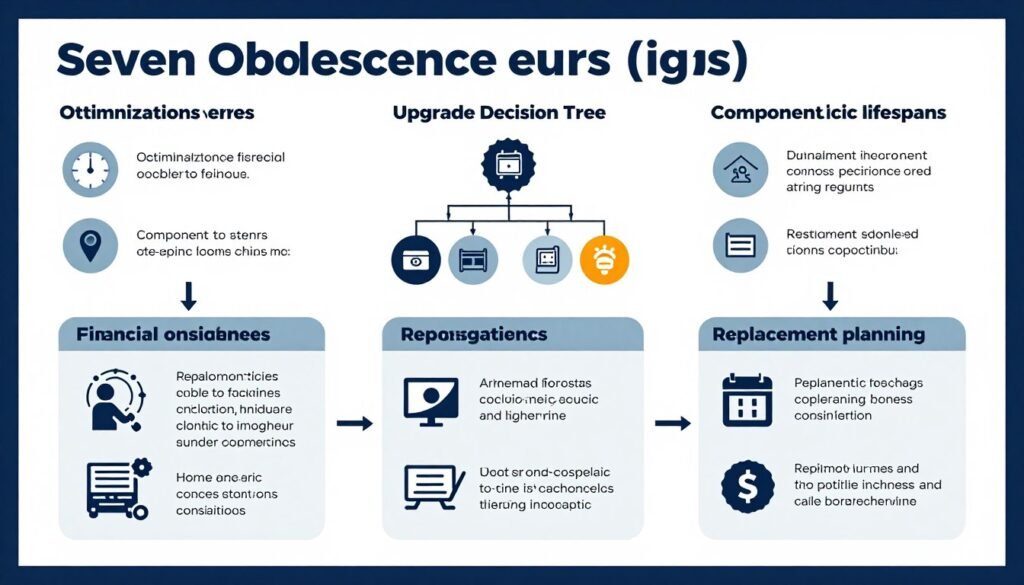
Component lifespans vary dramatically. CPUs last 7-10 years. GPUs last 4-6 years. Storage lasts 3-7 years depending on type. PSUs last 8-12 years if quality. Understanding these timelines prevents both premature replacement and dangerous over-use of aging components.
The financial side matters as much as the technical side. Calculate total cost of ownership. Use the used market to recover value. Time purchases around sales and new releases. Build a hardware fund so you’re never forced into panic purchases at bad prices. Smart financial planning multiplies the value of every upgrade dollar.
Environmental impact is real even if we ignore it. Extending component life, properly recycling, and repurposing old hardware reduces waste. These choices align with financial interests—using hardware longer saves money. You don’t have to be an environmentalist to make more sustainable choices that also save cash.
Build a personal replacement roadmap. Track what you have, predict when it needs replacing, and plan purchases proactively. This eliminates panic, optimizes value, and keeps your system performing well without massive sudden expenses. Even a simple spreadsheet beats reactive upgrades.
The reality is that most people replace hardware too early because marketing convinced them last year’s model is trash, or too late because they’re afraid of spending money. Neither extreme is optimal. Use objective data, realistic lifespans, and strategic planning to hit the sweet spot.
Your hardware isn’t obsolete just because something newer exists. It’s obsolete when it can’t do your job at acceptable performance, when support ends creating security risks, when repair costs exceed replacement value, or when missing features fundamentally limit your workflow. Everything else is marketing noise.
Know Your Limits, Upgrade Smart
I still have a GTX 1080 Ti in a secondary build. It’s seven years old. By marketing standards, it’s ancient. By actual performance standards in its current role, it’s perfectly adequate for 1080p gaming. That’s the difference between theoretical obsolescence and real-world obsolescence.
The best upgrade is the one you make at the right time for the right reasons with the right budget. Not too early because someone said you should. Not too late because you’re stubbornly avoiding spending. Right when the data says performance has degraded enough to justify the cost.
Start tracking your hardware today. Run benchmarks. Monitor temperatures. Check component health. Build awareness of what you actually have and how it’s actually performing. That awareness transforms you from reactive to proactive. You’ll upgrade smarter, spend less, and maintain better performance.
Hardware obsolescence doesn’t have to be frustrating or expensive. With the right approach—measuring instead of guessing, optimizing before replacing, planning instead of panicking—you can keep your system performing well for years while controlling costs and reducing waste.
Your hardware will eventually become obsolete. That’s inevitable. But you control when, how, and why you replace it. Use the strategies in this guide to make those decisions deliberately instead of desperately. The difference between good and bad upgrade timing is often thousands of dollars and years of performance.
Now go check your system’s actual bottlenecks, track what you have, and plan your next upgrade strategically. Your future self will thank you when you’re not panic-buying overpriced components because something died unexpectedly or suffering with inadequate hardware because you waited too long.