
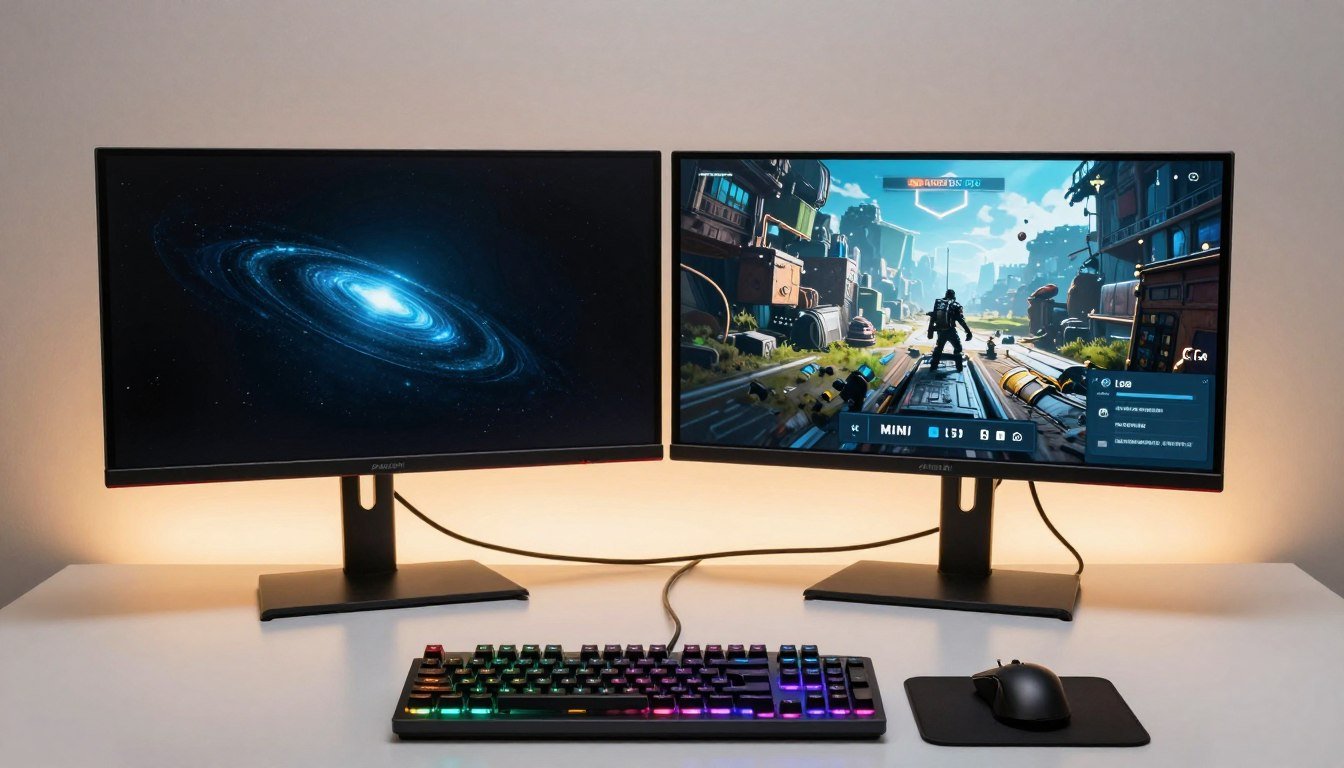
I watched my friend drop $1,400 on a gorgeous 34-inch OLED ultrawide last month. Beautiful panel. Incredible colors. He plugged it into his RTX 3060 Ti and couldn’t figure out why Cyberpunk looked like a slideshow at native resolution.
The monitor wasn’t the problem. His GPU was.
This is the mistake I see constantly. People buy monitors based on reviews and spec sheets without asking the critical question: can my system actually use this thing? This guide will fix that. We’re talking real-world performance differences between OLED and Mini-LED panels, what refresh rates actually matter for your games, which panel type matches your use case, and most importantly, how to avoid buying a monitor your GPU can’t feed properly.
I’ve tested dozens of panels over three years. Made expensive mistakes. Learned what marketing hype to ignore. Here’s what actually matters when choosing between OLED and Mini-LED displays for gaming and content work in 2026.
Check Your GPU Before You Buy
Before we dig into panel types, verify your GPU can actually push the resolution and refresh rate you’re considering. Takes 30 seconds and saves buyer’s remorse.
Why Your Current Monitor Might Be Holding You Back
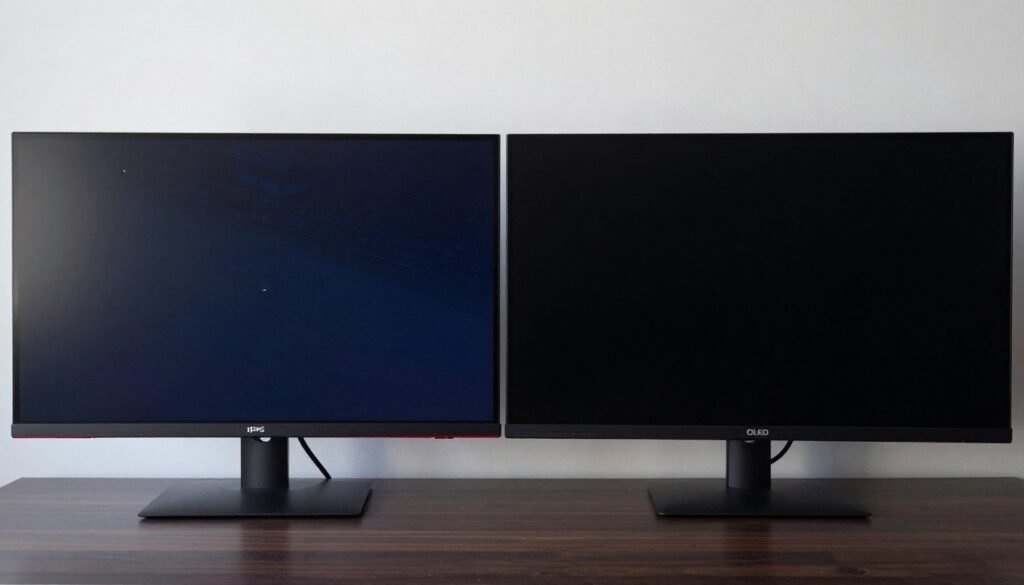
Most people use the same monitor for five to seven years. That means if you bought yours in 2019, you’re missing massive improvements in panel technology. The jump from IPS to OLED or Mini-LED is bigger than most GPU upgrades.
The reality is display tech moved faster than most other PC components. Your 2019 IPS panel has maybe 350 nits brightness, 1000:1 contrast ratio, and 5ms response time. A 2026 OLED hits 1000 nits peak, infinite contrast, and 0.03ms response. That’s not incremental. That’s generational.
Here’s what’s probably wrong with your current screen. Backlight bleed in dark scenes. Gray blacks that ruin horror games. Motion blur in fast shooters. Limited color range that makes your games look flat compared to what the developers intended.
Old IPS Panel Reality
- Backlight bleed visible in dark content
- Black levels are actually dark gray
- 5-8ms response time creates motion blur
- 60-144Hz refresh ceiling for most models
- HDR is fake on most budget panels
Modern OLED/Mini-LED Benefits
- True blacks with no backlight bleed
- 0.03ms response on OLED panels
- 240Hz+ refresh rates standard
- Real HDR with 1000+ nits peak brightness
- Color accuracy that matches professional monitors
The difference hits hardest in specific scenarios. Playing Resident Village on an OLED versus IPS is night and day—literally. The dark hallways actually look dark instead of washed out gray. Competitive shooters benefit from faster response time and higher refresh rates. Content creators get color accuracy without buying a separate professional display.
But here’s the catch. These improvements only matter if your GPU can deliver frames to match. A 240Hz OLED is wasted on a system pushing 80fps. Understanding your resolution bottleneck comes before picking panel types.
What OLED Actually Brings to Your Desk (and What It Doesn’t)
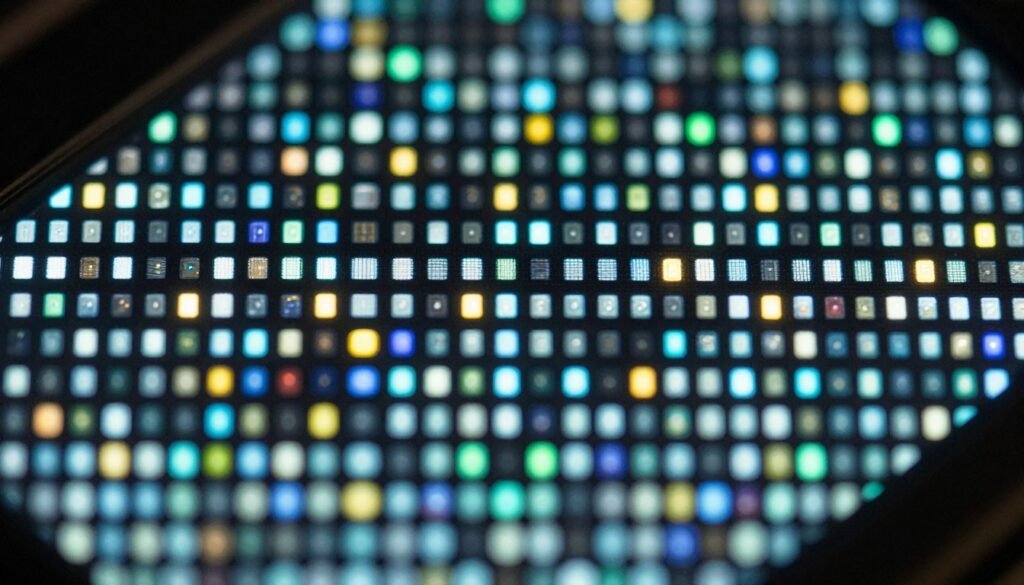
OLED panels use organic light-emitting diodes. Each pixel creates its own light instead of relying on a backlight. When a pixel needs to show black, it turns completely off. That’s why OLED blacks look perfect while every other panel type shows some glow.
The response time advantage is real. OLED pixels switch in 0.03 milliseconds compared to 1-5ms for IPS or VA panels. In practice, this means motion clarity that you can actually see in fast-paced games. Tracking enemies in Valorant or following the ball in racing games becomes noticeably sharper.
Color reproduction on OLED hits different. Most gaming OLEDs cover 99% of DCI-P3 color space right out of the box. You don’t need calibration to get accurate colors. This matters for content creation but also makes games look closer to what developers intended. Cyberpunk’s neon lights actually pop instead of looking flat.
OLED Real Advantages
- Perfect black levels eliminate backlight bleed entirely
- 0.03ms response time removes motion blur
- Infinite contrast ratio (millions:1 vs 1000:1)
- Wide viewing angles with no color shift
- Accurate colors without calibration needed
- HDR actually looks like HDR should
OLED Real Problems
- Burn-in risk with static UI elements over time
- Lower peak brightness than Mini-LED in full-screen content
- Premium pricing ($800-$2000 for gaming models)
- Text clarity issues on some OLED subpixel layouts
- Warranty often doesn’t cover burn-in damage
- Aggressive automatic brightness limiting in some scenarios
Let me be honest about burn-in. It’s still a concern. Modern OLEDs have better protection than TV panels from five years ago, but static UI elements can cause image retention. If you play the same game with the same HUD for 8 hours daily, you’ll see ghosting eventually. Gaming monitors include pixel shift and logo dimming, but these are band-aids not solutions.
The brightness situation is nuanced. OLED panels hit 1000+ nits peak brightness in small windows (like a bright explosion in a dark scene). But full-screen brightness tops out around 250-400 nits. This is fine for dark rooms but struggles in bright office environments. Mini-LED can sustain 600-1000 nits across the whole screen.
Text rendering can look weird on some OLED monitors. This happens because of subpixel layout differences. WOLED panels (most gaming OLEDs) use RGBW subpixels instead of standard RGB. For gaming this doesn’t matter. For reading code or documents all day, some people notice fringing around text. QD-OLED fixes this but costs more.
Here’s my take. OLED makes sense if you game in dark or dim environments, play varied content (not the same UI for months), and want the absolute best motion clarity and contrast. It’s overhyped for office work in bright rooms and risky for static content workflows.
Before committing to a high-refresh OLED, check if your GPU can actually deliver frames. A VRAM capacity check matters too—high-res OLED panels eat video memory.
Can Your GPU Handle 240Hz OLED?
High refresh OLED monitors need serious GPU power. Before you spend $1,200 on a panel, verify your graphics card can actually feed it. I’ve seen too many RTX 4060 users buy 4K OLEDs and wonder why performance tanked.
The Mini-LED Trade-Off Nobody Talks About
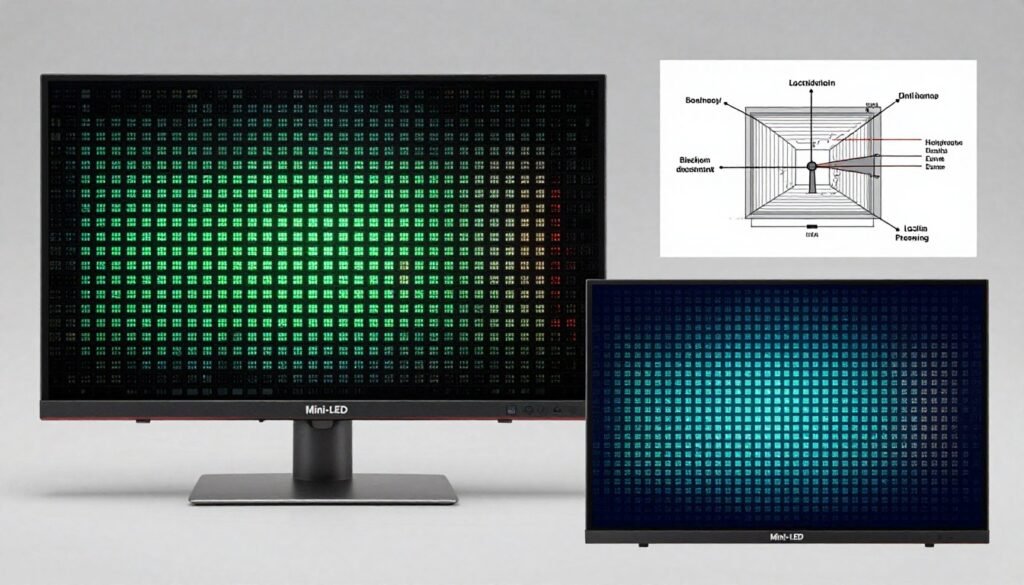
Mini-LED uses thousands of tiny LED backlights instead of one big panel backlight. My current monitor has 1,152 dimming zones. This lets different parts of the screen go brighter or darker independently. Think of it like having 1,000 individual light switches instead of one room light.
The brightness advantage is massive. Quality Mini-LED monitors sustain 1,000 nits full-screen brightness easily. Some hit 1,400 nits in HDR peaks. This destroys OLED in bright rooms and makes HDR content actually stunning. Watching a sun-drenched scene in a game looks dramatically better on Mini-LED than any other panel type except maybe direct sunlight on your screen.
But here’s the problem nobody mentions in reviews. Blooming. When you have a bright object on a dark background, the backlight zone lights up a whole area instead of just the bright pixels. This creates a visible halo around bright objects in dark scenes. It’s less noticeable than IPS backlight bleed but more annoying once you see it.
Zone Count Reality Check: Marketing loves big numbers. “2,304 zones!” sounds impressive. But what matters is zone size relative to screen resolution. A 4K 32-inch panel with 1,152 zones has roughly 15 pixels per zone. That’s good. A 1440p 27-inch with 384 zones? That’s 20+ pixels per zone and blooming will be visible. More zones isn’t always better if panel size and resolution don’t match.
Response time on Mini-LED still depends on the LCD panel underneath. Most gaming Mini-LED monitors use IPS panels with 1-2ms gray-to-gray response. That’s fast enough for most gamers but noticeably slower than OLED if you test side-by-side. The difference shows up in motion clarity during fast camera pans.
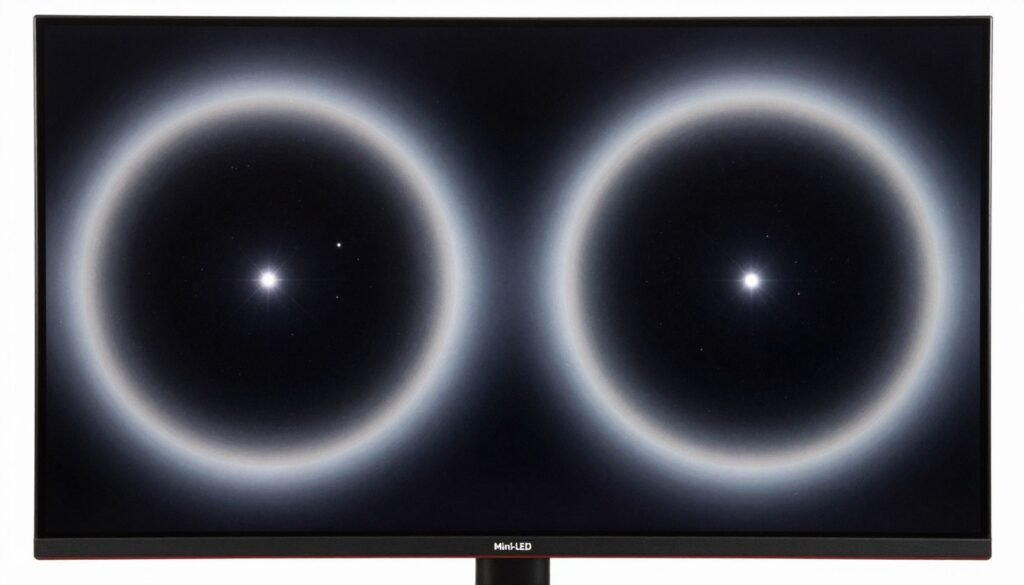
Contrast ratio on good Mini-LED approaches 100,000:1 measured. That’s not OLED infinite contrast but it’s 100x better than standard IPS. In practice, this means much better black levels than traditional monitors without OLED’s perfect blacks. Acceptable compromise for most users.
The text clarity advantage over OLED is real. Mini-LED uses standard RGB subpixel layouts. Code, spreadsheets, and documents render perfectly crisp. If you spend half your day in productivity apps and half gaming, Mini-LED makes more sense than OLED.
Mini-LED Wins These Scenarios
- Bright room gaming or office use
- HDR content consumption (movies, HDR games)
- Mixed productivity and gaming workload
- Content creation needing sustained brightness
- Users sensitive to OLED burn-in risk
- Budget-conscious buyers ($500-900 range)
Mini-LED Loses Here
- Dark room gaming where blooming is visible
- Competitive gaming needing fastest response time
- Users prioritizing absolute best motion clarity
- Scenarios requiring perfect black levels
- Space-constrained setups (OLED thinner/lighter)
Price positioning matters. You can get excellent Mini-LED monitors for $600-800. Equivalent OLED quality starts around $1,000. For mid-range builds, Mini-LED delivers better value. For high-end systems where cost is secondary to performance, OLED edges ahead for pure gaming.
My honest take: Mini-LED is the better all-arounder. Unless you exclusively game in dark rooms and never display static content, Mini-LED’s brightness and versatility outweigh OLED’s perfect blacks. But understand your resolution bottleneck before choosing—both panel types come in resolutions your GPU might struggle with.
Which Panel Type Actually Matches Your Use Case
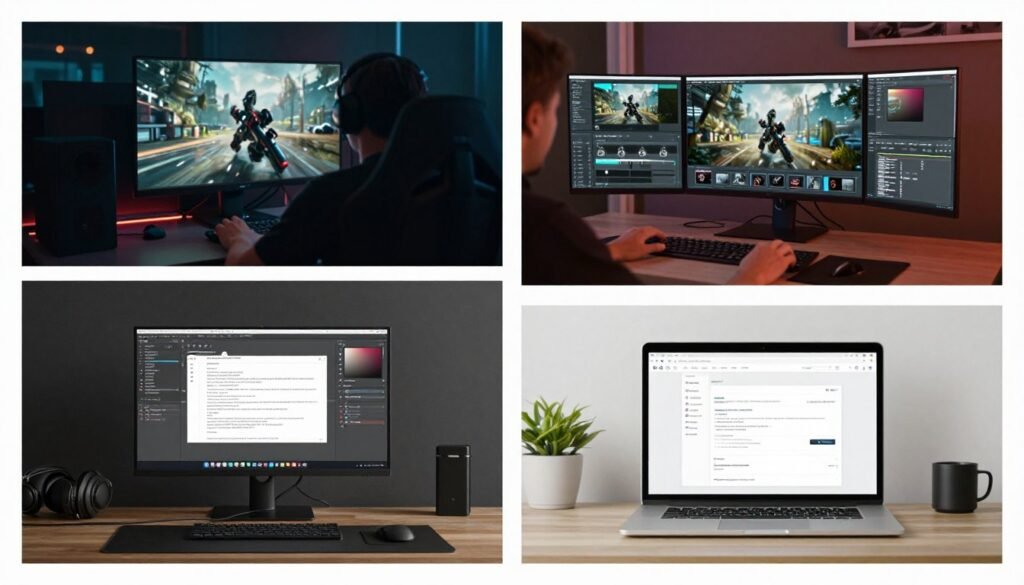
Stop choosing monitors based on what YouTube reviewers call “best.” Your use case determines the right panel, not some objective ranking. A competitive Valorant player and a Cyberpunk photo mode enthusiast need completely different screens.
Competitive FPS Gaming (Valorant, CS2, Apex)
You need refresh rate and response time above everything else. OLED’s 0.03ms response time and 360Hz capabilities give you measurable advantages. Motion clarity during flick shots and tracking matters more than HDR or color accuracy. Every millisecond of input lag and pixel response compounds.
But here’s the catch. You need a CPU that won’t bottleneck those refresh rates. An RTX 4090 with an old i7-8700K won’t hit 360fps consistently. Check our esports CPU performance guide before committing to 360Hz panels.
Panel recommendation: 1080p or 1440p OLED at 360Hz. The resolution drop from 4K doesn’t matter when you’re focused on enemies, and your GPU can actually deliver the frames. Mini-LED works but response time disadvantage is real at this level.
Single-Player Cinematic Gaming (Cyberpunk, Resident Evil, Elden Ring)
Visual quality dominates here. You want deep blacks, HDR that doesn’t look fake, and color accuracy that matches what developers intended. Frame rate still matters but 120Hz is plenty—you’re not flicking to headshot enemies.
OLED crushes this category. The contrast ratio and black levels transform atmospheric games. Playing Alan Wake 2 or Resident Evil Village on OLED versus IPS isn’t even close. Dark hallways actually look menacing instead of washed out gray.
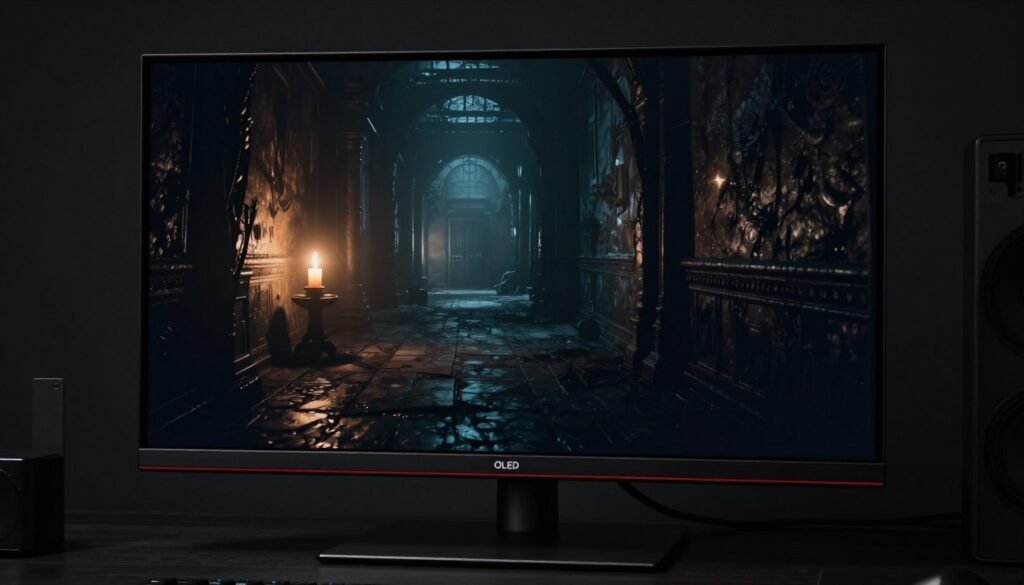
Resolution matters more here than esports. 4K OLED at 144Hz is the dream but requires serious GPU horsepower. A 1440p ultrawide OLED is the sweet spot for most builds. Better performance, still gorgeous visuals, and ultrawide support adds immersion.
Panel recommendation: 3440×1440 ultrawide OLED at 144Hz or 4K OLED at 120Hz if your GPU can handle it. Mini-LED works if burn-in concerns you, but you’re giving up the visual wow factor.
Content Creation (Photo/Video Editing, Streaming)
Color accuracy and sustained brightness matter most. You need a panel that covers wide color gamuts, maintains calibration, and doesn’t dim after showing bright content for minutes. Text clarity matters if you’re editing timelines or working in Photoshop.
Mini-LED wins here. The sustained brightness lets you work in normal office lighting without cranking monitor settings. RGB subpixel layout means text renders perfectly. No burn-in risk from static Premiere Pro timelines or Photoshop palettes sitting on screen for hours.
OLED can work but requires careful usage. Enable all the burn-in protection features. Hide taskbars. Use dark modes. It’s doable but adds mental overhead. For professional work where the monitor runs 8-12 hours daily with static UI, Mini-LED is smarter.
Content Creator Warning: Don’t cheap out on color accuracy. A $400 “gaming” monitor with claimed “95% DCI-P3” coverage often means peak coverage in ideal conditions, not sustained accuracy. Look for factory calibration reports and Delta E ratings under 2. Professional content needs professional color, and your CPU core count matters for rendering while monitoring footage.
Panel recommendation: 4K Mini-LED with factory calibration, 600+ nits sustained brightness, and proven color accuracy. Budget permitting, get two monitors—one color-accurate Mini-LED for editing, one OLED for client presentations showing “final” look.
Mixed Gaming and Productivity
Most people fall here. Some gaming, some work, some streaming video. You need a versatile panel that doesn’t excel at one thing while sucking at another. This is actually the hardest category because compromises matter more.
Mini-LED makes the most sense. Bright enough for office work. Good enough blacks for gaming. No burn-in paranoia from leaving Discord open. Text clarity for productivity. HDR that impresses in games. It’s the 80% solution for everything instead of 100% at one task.
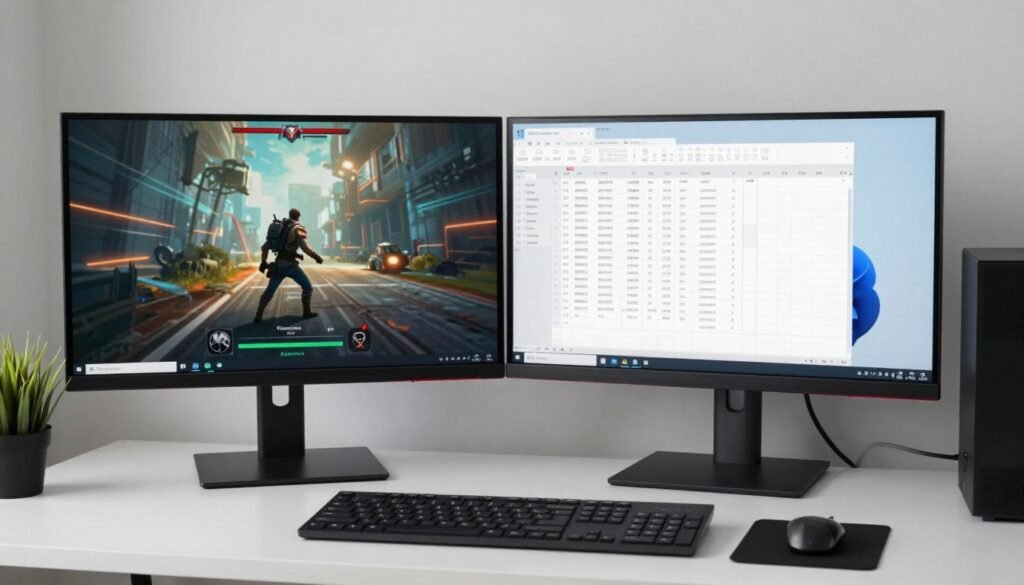
1440p resolution hits the sweet spot. Enough pixel density for sharp text and detailed games, but your GPU can actually push high refresh rates. A 27-inch 1440p Mini-LED at 180Hz costs less than OLED equivalents and handles everything competently.
Panel recommendation: 27-inch 1440p Mini-LED, 144-180Hz, with good HDR implementation (600+ zones minimum). If budget allows, 32-inch 4K Mini-LED gives more screen real estate for productivity without OLED’s burn-in concerns.
Match Your Monitor to Your Hardware
Different use cases need different GPU power. Before choosing panel type and resolution, verify your hardware can deliver the experience you want. Running our calculator takes less time than reading monitor reviews.
The Refresh Rate Trap Most Buyers Fall Into
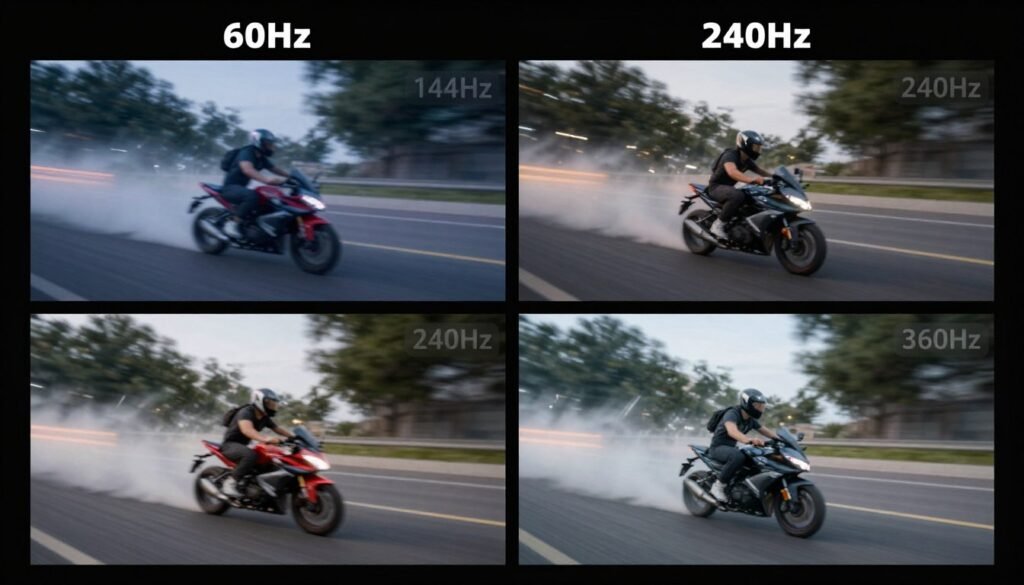
Marketing convinced people that higher refresh rate automatically means better. I see builds with RTX 4060 cards paired with 360Hz monitors constantly. The GPU pushes maybe 120fps at 1080p in most games, and the buyer wasted money on refresh rate they’ll never use.
Here’s the reality. Refresh rate only matters if your GPU can deliver frames to match. A 360Hz monitor showing 90fps looks exactly like a 144Hz monitor showing 90fps. You paid extra for nothing. Your eyes see the frames your GPU renders, not what the monitor’s panel can theoretically display.
The diminishing returns curve is steep. Going from 60Hz to 144Hz is massive. Immediately noticeable. Transformative for gaming experience. Going from 144Hz to 240Hz is noticeable if you focus. Going from 240Hz to 360Hz? I can see it in controlled tests but in actual gaming I honestly can’t tell.
| Refresh Rate Jump | Frame Time Improvement | Noticeable Difference | GPU Requirement Change |
| 60Hz → 144Hz | 16.7ms → 6.9ms (58% faster) | Immediately obvious | 2.4x more GPU power needed |
| 144Hz → 240Hz | 6.9ms → 4.2ms (40% faster) | Visible in motion tests | 1.67x more GPU power needed |
| 240Hz → 360Hz | 4.2ms → 2.8ms (33% faster) | Requires focus to notice | 1.5x more GPU power needed |
Game type matters enormously. Competitive shooters benefit from every Hz you can get. The reduced input lag and smoother motion tracking give measurable advantages. But single-player RPGs? Strategy games? Even fast action games with lots of visual effects? 144Hz is plenty.
Your CPU becomes the bottleneck at high refresh rates, not just GPU. Pushing 360fps in CS2 requires a fast CPU with strong single-core performance. An RTX 4090 with a Ryzen 5 3600 won’t hit 360fps consistently regardless of resolution. The CPU can’t feed the GPU fast enough. Understanding CPU bottlenecks matters as much as GPU power here.
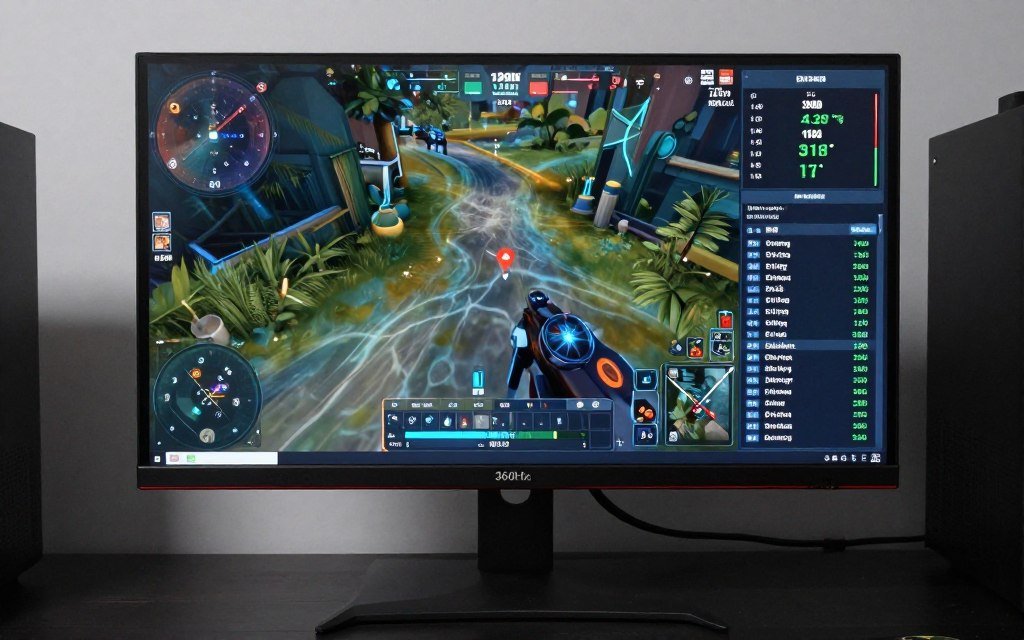
Here’s my buying advice. Match refresh rate to what your GPU can realistically deliver in the games you actually play, then add one tier up for future-proofing. Running an RTX 4070? Get 240Hz for 1440p gaming. RTX 4060? 144Hz makes sense. Anything higher is paying for specs you won’t use for years.
The cost difference matters too. A 360Hz OLED costs $300-500 more than a 240Hz model with otherwise identical specs. That money could upgrade your GPU instead, which would actually improve your gaming experience. A 240Hz monitor with an RTX 5070 destroys a 360Hz monitor with an RTX 4060 Ti.
One exception: if you primarily play old or esports titles, you can drive high refresh rates with mid-range hardware. Valorant, CS2, League of Legends, older shooters—these run 300+ fps on modest GPUs. In that specific scenario, 360Hz makes sense even without flagship hardware.
My Refresh Rate Formula: Take the average FPS your GPU delivers in your most-played games. Double it. That’s your monitor refresh rate target. Playing Cyberpunk at 80fps average? Get 165Hz. Playing Valorant at 280fps? Get 360Hz. This ensures room for FPS spikes while not paying for unusable refresh rate overhead.
Variable refresh rate technology (G-Sync, FreeSync) changes this calculation slightly. VRR eliminates tearing and stuttering when your FPS doesn’t match refresh rate. This makes the penalty for not hitting your monitor’s full refresh rate much less severe. But it doesn’t change the fact that you’re not getting the full benefit of that expensive high-refresh panel.
Check your actual performance before buying. Run the games you play with an FPS counter. Average it over 30 minutes of typical gameplay, not loading screens or menus. That real number tells you what refresh rate makes sense, not theoretical maximums or best-case scenarios.
Budget Considerations: When OLED Makes Sense vs When It Doesn’t
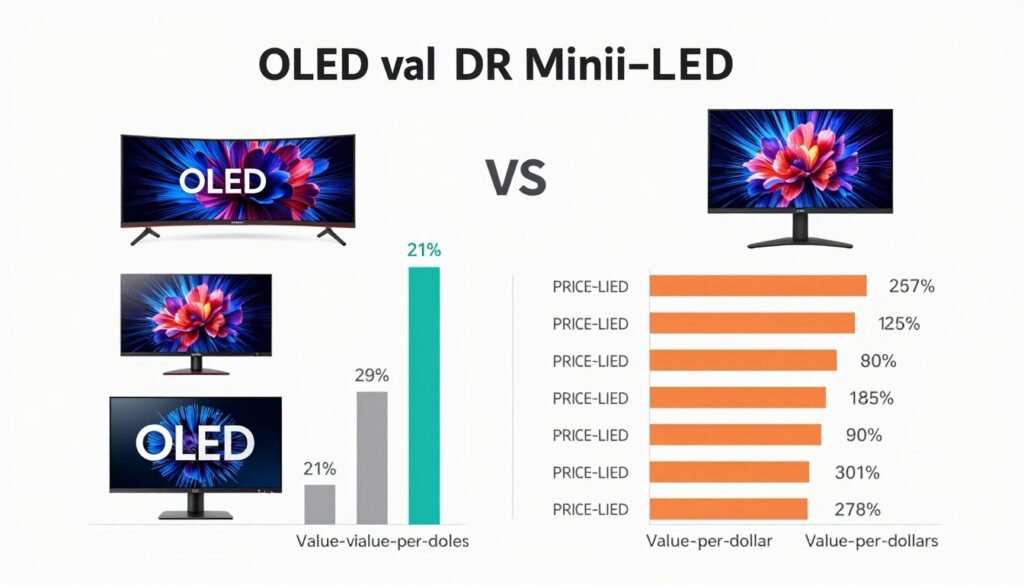
Let’s talk money. OLED monitors start around $800 for entry models and climb to $2,000+ for premium ultrawide or high-refresh options. Mini-LED spans $400-1,200 with most quality options in the $600-800 range. That price gap represents real trade-offs.
The budget reality: if your total monitor budget is under $600, OLED isn’t really an option unless you buy used or catch rare sales. Mini-LED delivers most of the visual upgrade over IPS for half the cost. A $550 Mini-LED monitor with 576 zones gives you 90% of the HDR experience and contrast improvement compared to OLED.
Price-to-performance hits different brackets. Under $500, you’re looking at IPS or basic Mini-LED with fewer zones. The $600-800 bracket unlocks quality Mini-LED with good zone counts and real HDR. $900-1,200 brings entry OLED or premium Mini-LED. Above $1,200, you’re choosing between high-end OLED features like QD-OLED or massive ultrawides.
Budget Gaming Build ($800-1,200 Total)
Your monitor probably gets $200-350 of that budget. OLED is out. Focus on:
- 1080p or 1440p IPS at 144-165Hz ($200-300)
- Basic Mini-LED if you find deals ($350-400)
- Prioritize refresh rate over panel technology
- Save money here, upgrade GPU instead
Reality check: putting 30% of your budget into the monitor while running an RTX 4060 makes no sense. Better to run a $250 IPS panel with an RTX 4070 than a $500 monitor with worse GPU.
Enthusiast Build ($2,000+ Total)
Now OLED makes sense. You’re running RTX 5080-class hardware that can actually push high-refresh, high-res panels. Your monitor budget is $800-1,400 and gets you:
- 1440p OLED ultrawide at 175Hz+ ($900-1,200)
- 4K OLED at 144Hz ($1,200-1,600)
- Premium Mini-LED with 1,000+ zones ($700-1,000)
- Dual monitor setups mixing panel types
At this budget level, the monitor becomes a worthy investment that lasts through multiple GPU upgrades.
Here’s what most guides won’t tell you. Monitor pricing is weird. A $1,200 OLED depreciates slower than a $600 Mini-LED. Two years from now, that OLED might sell used for $700-800 while the Mini-LED gets $300. If you plan to upgrade and sell, OLED’s resale value partially offsets the higher initial cost.
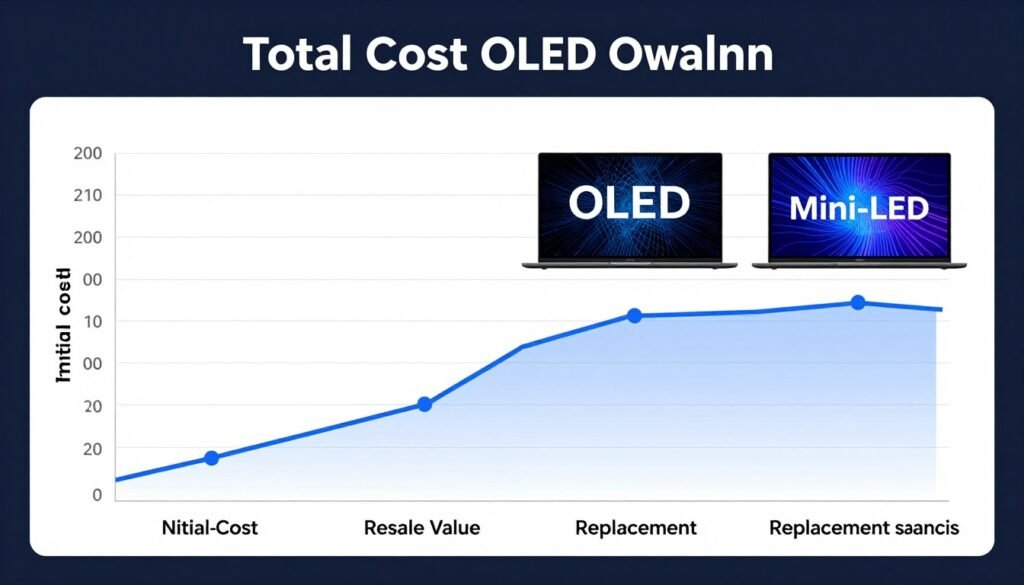
The “future-proofing” argument is half-true. Buying a high-end monitor now does mean you won’t need another one for 5-7 years. But display technology moves fast. There’s no guarantee that your 2026 OLED will still feel premium in 2030 when micro-LED consumer panels might drop or some new tech emerges. Don’t overbuy on speculation.
My budget allocation rule: monitor cost should be roughly 20-30% of your GPU cost. Running an RTX 5070 ($600)? Your monitor budget is $400-500. Mini-LED makes perfect sense. Running an RTX 5090 ($2,000)? A $1,200 OLED is proportional and won’t bottleneck that GPU’s potential.
Regional pricing matters too. OLED monitor availability and pricing varies wildly by country. In some markets, the OLED premium is only $200-300 over Mini-LED. In others, it’s double. Check local pricing before assuming guides written for US markets apply to your situation.
Don’t Waste Money on Monitor Your GPU Can’t Use
I see this constantly—$1,500 spent on a gorgeous 4K 240Hz OLED paired with an RTX 4070. The math doesn’t work. The GPU can’t push those frames. Before allocating your build budget, verify what your GPU can actually deliver.
One final budget consideration: sales and timing. OLED monitor prices drop significantly around Black Friday and when new models launch. A $1,400 OLED goes to $1,000 regularly. If your build isn’t urgent, waiting 2-3 months for a sale can unlock OLED at Mini-LED pricing. Set price alerts and be patient.
Used market is viable for monitors unlike GPUs. Monitors don’t degrade from heavy use the way graphics cards do from mining or stress. A two-year-old OLED from a careful owner at 60% original price can be excellent value. Just verify no burn-in exists and pixels work correctly before buying.
My Final Verdict After Testing Dozens of Panels
I’ve run through 30+ monitors over three years. Bought some. Reviewed others. Returned several. Made expensive mistakes and learned what actually matters versus what sounds good in marketing materials. Here’s what I’ve landed on.
OLED is the enthusiast choice if you meet specific criteria: dark room gaming, varied content, high-end GPU that can feed high refresh rates, and budget that allows premium pricing. The visual experience in optimal conditions is unmatched. Perfect blacks, instant response, HDR that actually impresses—it’s the closest we’ve gotten to “perfect” gaming displays.
But OLED requires compromises most reviews don’t emphasize enough. Burn-in risk is real and warranty protection is inconsistent. Brightness limitations in office environments matter. Text clarity issues on WOLED panels bug some users. Premium pricing means less money for GPU or other components that might improve your experience more.
Mini-LED is the smart money choice for most builders. You get 85% of OLED’s visual impact at 60% of the cost with none of the burn-in paranoia. Sustained brightness destroys OLED in normal room lighting. Text clarity is perfect. Versatility across gaming and productivity makes it the better all-arounder.
Resolution matters more than panel type for most users. A 1440p Mini-LED with your GPU maxing out settings at 144fps will look and feel better than a 4K OLED where you’re dropping to medium settings and 70fps. Frame rate consistency beats panel quality when GPU is the limiting factor.
The mistake I see repeatedly: people buy the monitor first, then build around it. Wrong order. Spec your GPU and CPU based on the games you play and settings you want. Then choose a monitor that matches what that hardware can deliver. A PC bottleneck calculator should be your first stop, not your last.
My personal setup after all this testing: 34-inch 1440p ultrawide OLED for gaming, 27-inch 4K IPS for productivity work. The OLED gets dark room gaming and movies. The IPS handles daytime work with no burn-in concerns. This dual-monitor approach costs less than a single premium 4K OLED and gives better versatility.
For single-monitor users picking one panel for everything: 32-inch 4K Mini-LED at 144-165Hz. Big enough for productivity multitasking, sharp enough for detailed work, good enough HDR for gaming, bright enough for any room lighting, no burn-in paranoia, prices around $700-900. It’s the compromise that doesn’t feel like compromise in daily use.
Don’t overthink this decision. Monitor tech moves slower than GPU or CPU generations. A quality panel lasts 5-7 years easily. Whether you go OLED or Mini-LED matters less than matching resolution and refresh rate to your hardware. Both panel types deliver massive upgrades over old IPS monitors.
“The best monitor is the one your GPU can actually feed frames to. Everything else is just paying for specs you’ll never use.”
One more thing. Don’t ignore input lag measurements. Response time and refresh rate get all the attention, but input lag (the delay between mouse movement and screen response) matters just as much for competitive gaming. Most modern monitors measure under 5ms total input lag which is imperceptible. But cheaper models occasionally spike to 15-20ms. Check professional reviews for input lag data, not just marketing specs.
The panel lottery is real with both technologies. OLED uniformity varies panel-to-panel. Some units show visible tinting in corners, others are perfect. Mini-LED zone transition quality differs. Some panels have visible blooming, others hide it well. Buy from retailers with good return policies and actually test your specific unit. Don’t assume “it’s OLED so it must be perfect.”
Specific Monitor Recommendations for Different Budgets
After all that theory, here are specific monitors I’d actually recommend to friends building systems in 2026. These picks balance performance, price, and real-world usability. I’m avoiding the trap of recommending perfect theoretical monitors that cost $2,500 and have six-month wait lists.
Budget Champion: AOC Q27G3XMN
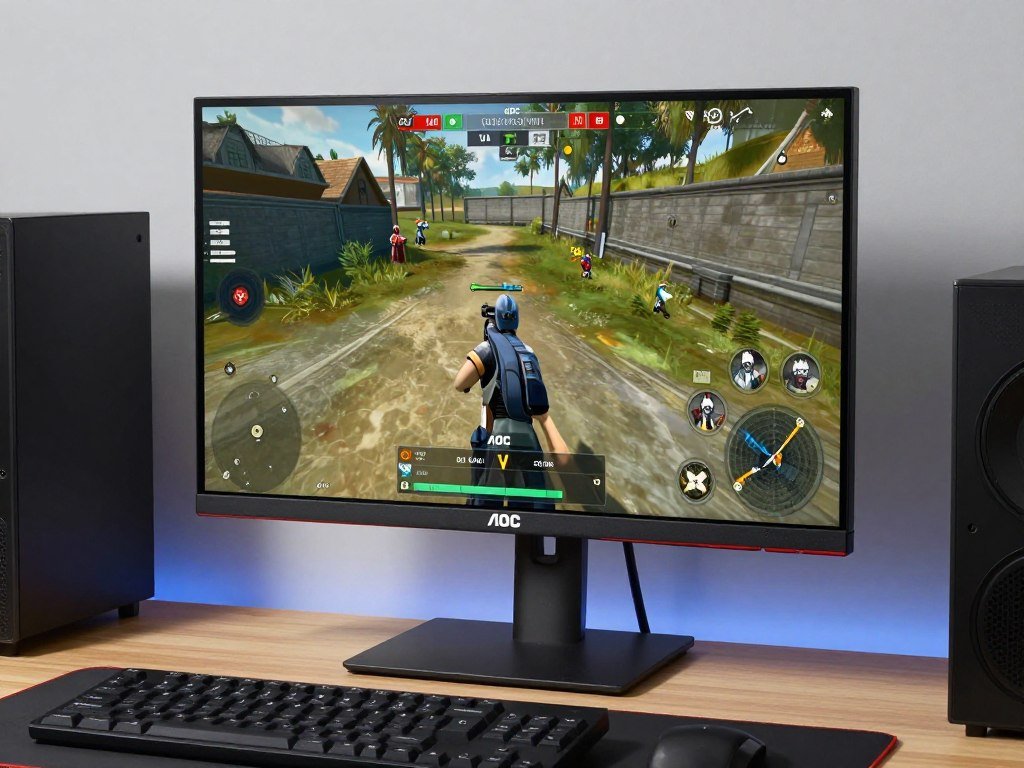
Panel: 27-inch 1440p VA with Mini-LED (384 zones)
Specs: 180Hz, 1ms MPRT, HDR600
Price Range: $380-450
This is the monitor I tell people to buy when they’re running RTX 4060 Ti or RX 7700 XT class hardware. VA panel blacks are way better than IPS at this price. The 384-zone Mini-LED isn’t premium but delivers noticeable HDR improvement. 180Hz gives headroom for esports titles while being realistic for AAA games at 1440p.
The downsides are real. Response time isn’t OLED-fast. Zone count creates some blooming in high-contrast scenes. But at $400, this delivers 70% of the premium monitor experience for 30% of the cost. Perfect for first gaming PC builds or budget-conscious upgrades.
- Excellent value for 1440p gaming
- Mini-LED zones beat standard IPS contrast
- 180Hz handles most GPU capabilities
- VA panel avoids IPS glow issues
Best For: Budget builds with mid-range GPUs, 1440p gaming focus, users upgrading from 1080p 60Hz.
Sweet Spot: ASUS ROG Strix XG27AQDMG
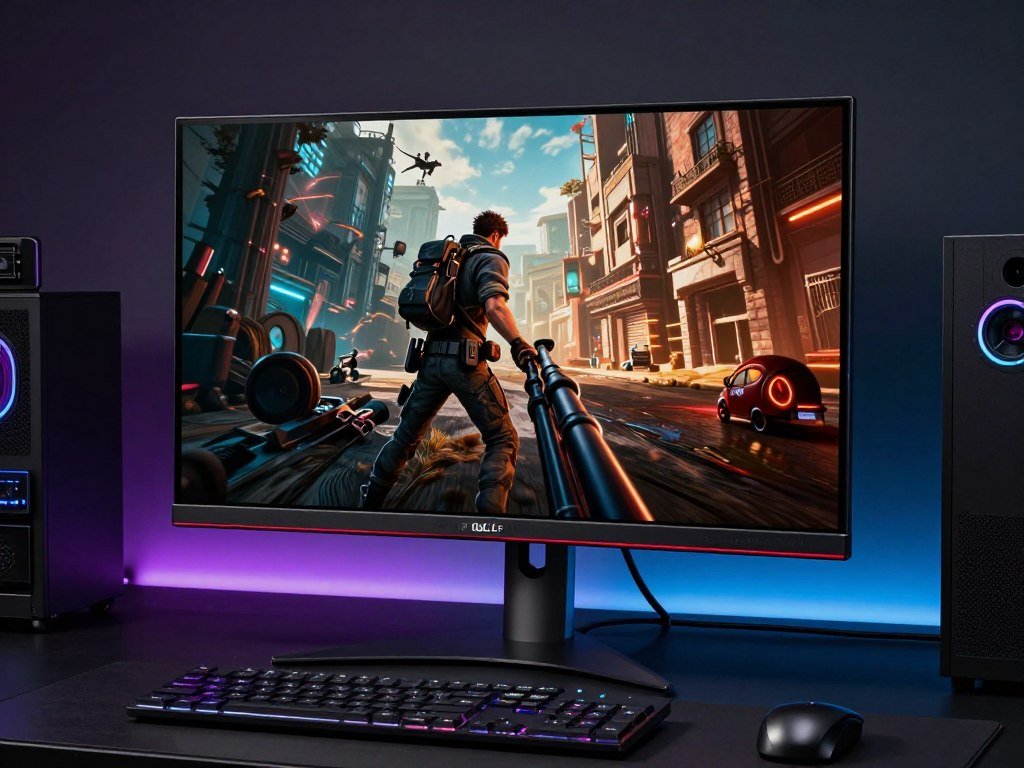
Panel: 27-inch 1440p QD-OLED
Specs: 240Hz, 0.03ms response, HDR True Black 400
Price Range: $850-950
This is the monitor I currently use. QD-OLED fixes the text clarity issues of WOLED while keeping all the OLED advantages. 240Hz is the sweet spot for high-refresh gaming—actually achievable with RTX 5070-class cards in most games at 1440p unlike 360Hz promises.
The 27-inch size at 1440p hits 109 PPI pixel density. Sharp enough for productivity work, not so dense that you need scaling. The panel uses Samsung’s QD-OLED tech which means better color volume and text rendering than LG WOLED alternatives. ASUS includes a three-year warranty that actually covers burn-in, rare in this category.
- QD-OLED text clarity beats WOLED panels
- 240Hz realistic for RTX 5070/5080 cards
- Perfect blacks eliminate backlight bleed
- Three-year burn-in warranty included
- 1440p resolution balances performance and sharpness
Best For: Enthusiast gaming builds with RTX 5070/5080 or RX 8800 XT, dark room gaming, users wanting OLED without 4K performance penalty.
Productivity King: BenQ PD3225U
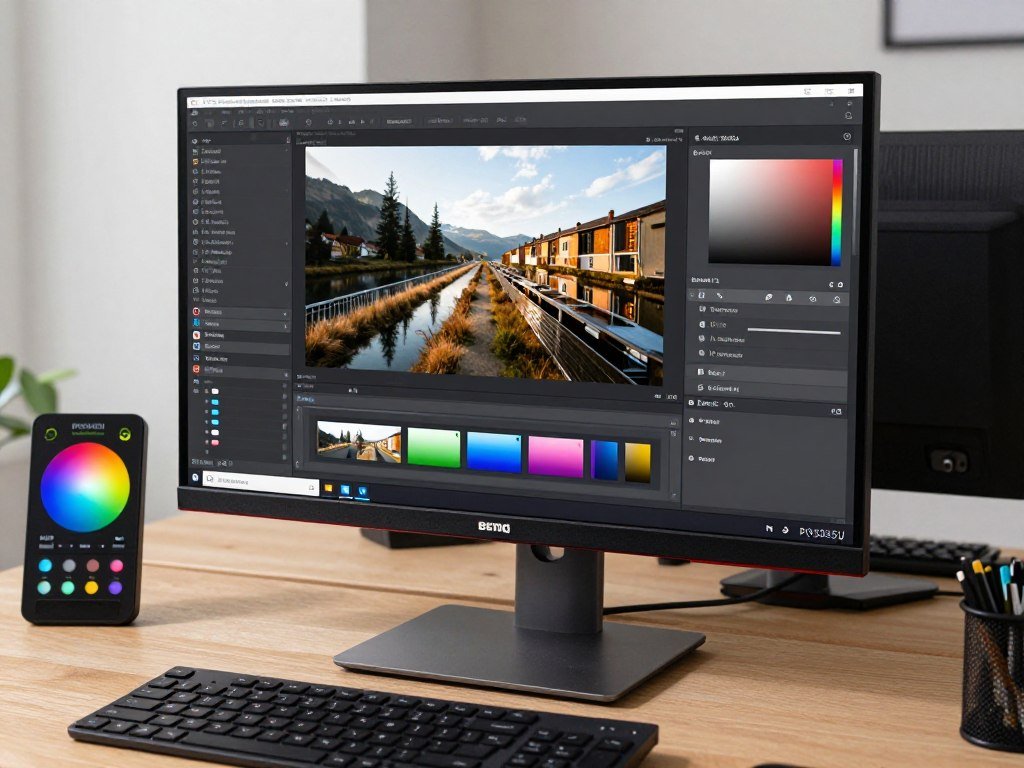
Panel: 32-inch 4K IPS with Thunderbolt
Specs: 60Hz, factory calibrated Delta E
Price Range: $750-850
Not every monitor needs to be a gaming panel. This BenQ targets content creators who need color accuracy more than refresh rate. Factory calibration report included, Thunderbolt 4 connectivity, and KVM switch functionality make this the productivity powerhouse.
The 32-inch 4K size gives you real estate for timelines, layer panels, and multi-window workflows. 60Hz is fine when you’re editing photos or video. IPS panel means no OLED burn-in worries from static Photoshop palettes. This monitor earns its money back if you’re doing client work requiring color accuracy.
- Factory calibrated for content creation
- Thunderbolt 4 simplifies cable management
- 32-inch gives workspace for editing timelines
- No burn-in risk from static UI elements
- KVM switch handles multiple system inputs
Best For: Content creators, photo/video editors, designers, users needing color accuracy over gaming features.
Ultrawide Immersion: Alienware AW3423DWF
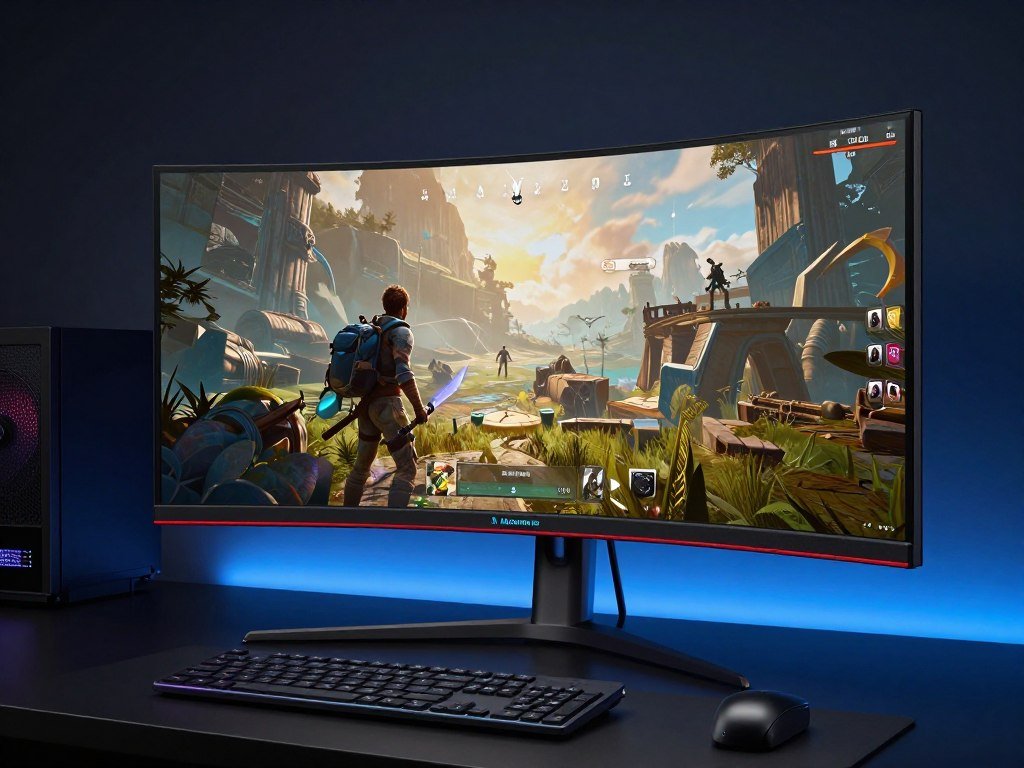
Panel: 34-inch 3440×1440 QD-OLED curved
Specs: 165Hz, 0.1ms response, HDR True Black 400
Price Range: $900-1,050
Ultrawides change how you experience games. The 21:9 aspect ratio adds peripheral vision that flat 16:9 panels can’t match. This Alienware uses QD-OLED tech which means perfect blacks and instant response wrapped around a curve that pulls you into the game world.
3440×1440 resolution is easier to drive than 4K but wider than standard 1440p. Your GPU needs about 30% more power than 16:9 1440p but way less than 4K. RTX 5070 handles this resolution well in most games. The 1800R curve is aggressive enough to feel immersive without causing distortion.
- 21:9 aspect ratio transforms game immersion
- QD-OLED delivers perfect blacks on curved panel
- 3440×1440 balances visuals and performance
- 165Hz achievable with RTX 5070-class GPUs
- Curve enhances racing and flight sim experience
Best For: Single-player gaming focus, racing/flight sims, users wanting immersion over competitive edge, adequate GPU power for ultrawide resolution.
The ultrawide performance impact varies by game. Some titles scale perfectly, others have UI issues. Check game compatibility before committing to ultrawide.
Esports Specialist: Zowie XL2566K
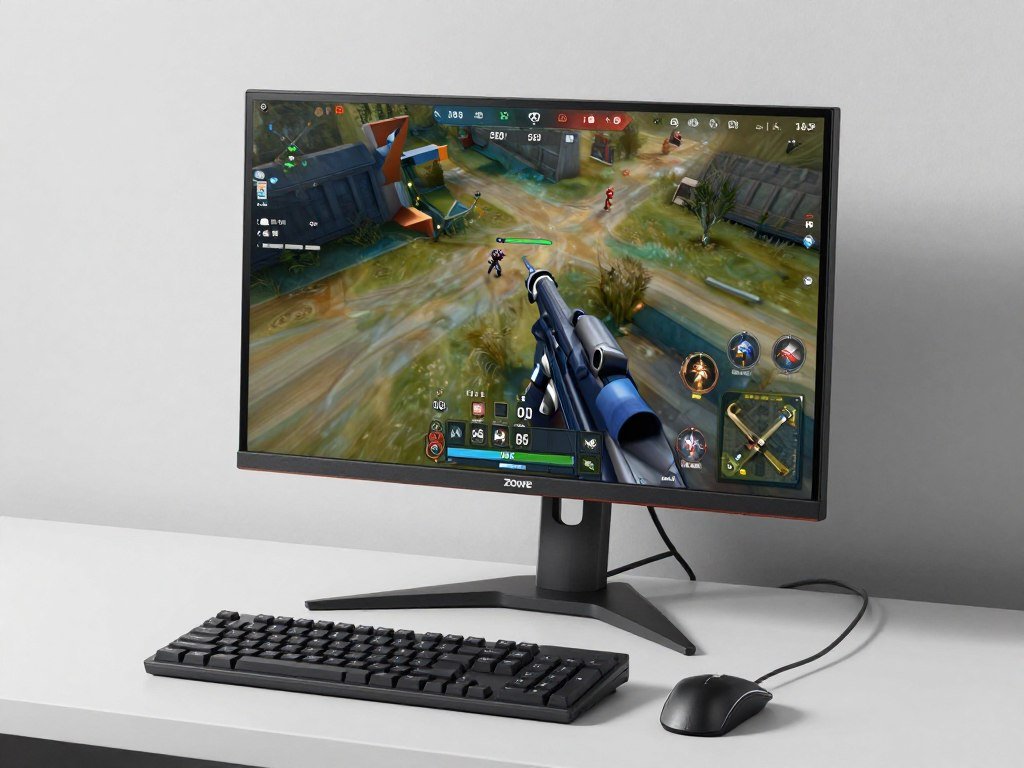
Panel: 24.5-inch 1080p TN with DyAc+ technology
Specs: 360Hz,
Price Range: $550-650
Competitive players have different priorities. This Zowie monitor strips away HDR, curves, and visual flash to focus purely on motion clarity and responsiveness. TN panel technology is “outdated” for pretty games but still king for motion performance.
The 24.5-inch 1080p spec seems weak on paper. But for CS2, Valorant, Apex, this is exactly right. Smaller screen means less eye movement to track corners. 1080p lets mid-range GPUs hit 360fps consistently. DyAc+ technology reduces motion blur beyond what spec sheets show. Pro players use this monitor for reasons.
- 360Hz with
- DyAc+ motion clarity tech reduces blur
- 24.5-inch optimal for competitive viewing
- 1080p allows high framerates on mid GPUs
- TN panel delivers fastest response times
Best For: Competitive FPS players, esports aspirants, users prioritizing motion clarity over visual quality, high-refresh rate focus.
This monitor makes no sense for single-player gaming or content work. Colors are mediocre. Viewing angles suck. But if your Steam library is 90% competitive shooters, the performance edge justifies the visual trade-offs. Our esports CPU guide explains the full system needs.
No-Compromise Flagship: LG 32GS95UE
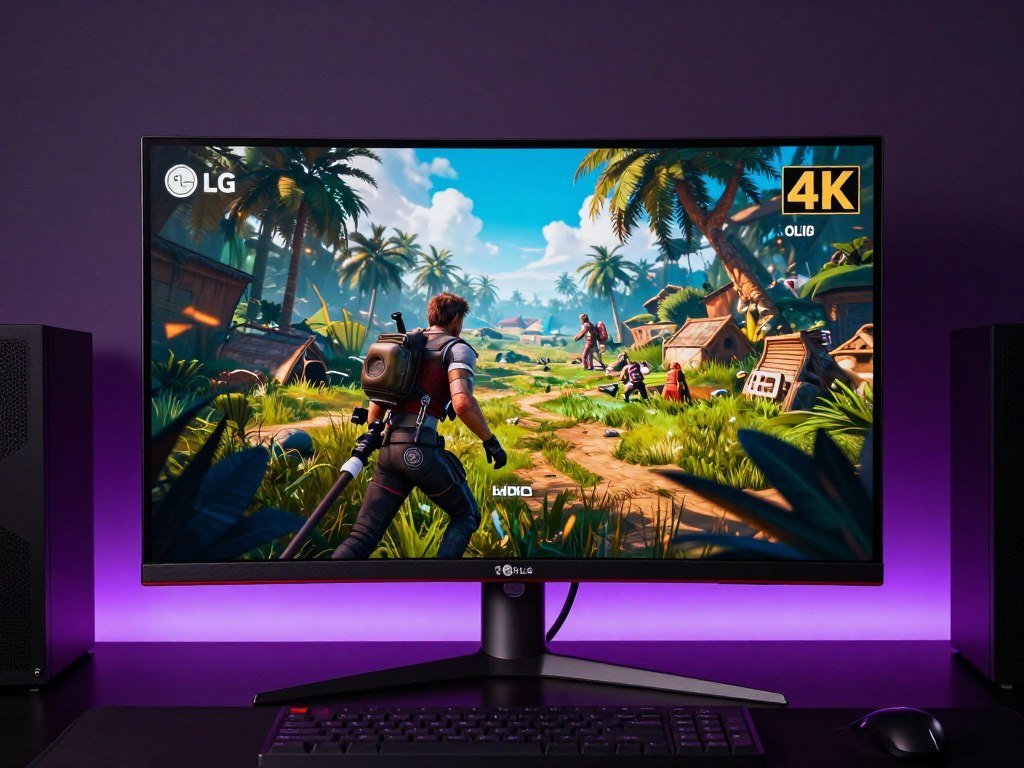
Panel: 32-inch 4K WOLED with Dual-Mode
Specs: 240Hz (4K) or 480Hz (1080p), 0.03ms, DisplayPort 2.1
Price Range: $1,400-1,600
This is the “money-no-object” pick. LG’s Dual-Mode tech lets you switch between 4K 240Hz for visual quality and 1080p 480Hz for competitive gaming. One monitor handles every use case. The 32-inch size makes 4K actually useful—smaller 4K panels waste pixels you can’t see.
DisplayPort 2.1 connectivity future-proofs this monitor for next-gen GPUs. WOLED panel means text clarity isn’t quite QD-OLED level but still acceptable. The ability to drop to 1080p for esports titles while maintaining 480Hz is unique. You’re paying premium but getting premium features.
- Dual-Mode: 4K 240Hz or 1080p 480Hz switchable
- 32-inch makes 4K resolution worthwhile
- DisplayPort 2.1 for future GPU compatibility
- OLED motion clarity beats any LCD panel
- Handles gaming and productivity equally well
Best For: RTX 5090/5080 owners, users wanting single monitor for all scenarios, budget allowing flagship pricing, future-proofing priority.
The GPU requirement is serious. 4K 240Hz needs RTX 5080 minimum for most AAA games. Verify your system can handle this before spending $1,500. Use our bottleneck calculator with 4K settings to see realistic performance.
These recommendations assume you’ve already matched your GPU to the monitor’s demands. A $1,600 flagship monitor with an RTX 4070 is backwards. Budget your build GPU-first, then allocate monitor spending based on what that GPU can realistically push. Check actual game benchmarks at your target resolution before buying.
The Spec Sheet Stuff That Actually Matters (and What to Ignore)
Monitor spec sheets are 90% marketing nonsense and 10% useful information. I’m going to separate what matters from what you can ignore completely. This will save you hours of comparing meaningless numbers.
Response Time: The Misleading Number
Manufacturers list response time as a single number. “1ms response!” Sounds fast. The reality is they’re cherry-picking the best-case measurement. Gray-to-gray response under ideal conditions. What matters for gaming is average response across all pixel transitions, especially dark-to-dark transitions where most panels struggle.
OLED panels genuinely deliver 0.03ms response across all transitions. No cheating. IPS panels claiming “1ms” usually mean 1ms for one specific gray-to-gray test while averaging 4-6ms in real use. VA panels are slowest despite marketing claims, often hitting 8-12ms for dark transitions causing smearing in high-contrast content.
Don’t compare response time numbers across technologies. An OLED’s 0.03ms beats any IPS panel regardless of claims. For LCD panels, trust professional reviews that test full pixel transition ranges, not manufacturer specs. Response time only matters if you play fast-paced competitive games anyway. RPG players won’t notice 2ms versus 5ms.
Contrast Ratio: The Mostly Fake Spec
IPS panels claim 1000:1 contrast. VA panels claim 3000:1. Mini-LED claims 100,000:1. OLED claims infinite contrast. Only OLED’s number is honest because pixels actually turn off completely. Every LCD measurement involves math tricks and ideal conditions you’ll never replicate.
What matters more: real-world black levels in your room lighting. A Mini-LED with “100,000:1” contrast showing blooming around bright objects looks worse than an OLED with actual infinite contrast showing perfect blacks. Numbers lie. Eyes don’t.
Color Gamut: When 99% Doesn’t Mean Better
Every gaming monitor claims “99% sRGB” or “95% DCI-P3” coverage. These numbers matter for content creation, barely matter for gaming. Your games are mastered in sRGB or Rec.709 color spaces. Having wider color doesn’t improve how games look unless the game specifically supports wide gamut output.
What actually matters: color accuracy (Delta E measurements) not just coverage. A panel covering 99% DCI-P3 but with Delta E above 3 will show wrong colors. A panel with 92% coverage and Delta E under 2 shows more accurate colors even with less range. For gaming, anything above 95% sRGB with reasonable accuracy is fine.
Brightness: Peak vs Sustained
This is where monitor makers lie most aggressively. “1000 nits peak brightness!” means the monitor can hit 1000 nits for maybe a 2% window for maybe 30 seconds before thermal limiting kicks in. Sustained full-screen brightness is what matters for actual use.
OLED typically sustains 250-400 nits full screen. Mini-LED sustains 600-1000 nits. Standard IPS tops out around 300-400 nits. For dark room gaming, 250 nits is plenty. For office use with windows, you want 400+ sustained. For HDR content that doesn’t look fake, you need 600+ nits peak in at least 10% windows.
Brightness Reality Check: HDR certifications mean more than raw nit claims. HDR400 is marketing fluff—barely better than SDR. HDR600 is the minimum for noticeable HDR impact. HDR1000 delivers genuine wow-factor HDR. True Black certifications on OLED mean perfect blacks with lower peak brightness, often better visual experience than higher-brightness LCD panels with mediocre blacks.
Ports and Connectivity
HDMI 2.1 is essential for 4K 120Hz+ from consoles or high-refresh gaming. DisplayPort 1.4 handles most gaming monitors fine up to 4K 144Hz. DisplayPort 2.1 future-proofs for 4K 240Hz+ but few GPUs support it yet. USB-C with DisplayPort Alt Mode and power delivery simplifies laptop connectivity but adds cost you might not need.
KVM switch functionality lets one monitor control multiple PCs with single keyboard/mouse. Extremely useful if you have work laptop and gaming desktop. Most monitors skip this feature. If you need it, specifically shop for KVM support—can’t add it later.
Multiple HDMI ports matter less than you think. Most desktop users run one cable from GPU to monitor. The second HDMI sits unused. Unless you’re connecting console + PC, one good HDMI 2.1 port beats three HDMI 2.0 ports.
Adaptive Sync: Actually Important
G-Sync and FreeSync prevent screen tearing when framerate doesn’t match refresh rate. This matters enormously for gaming experience. Every modern gaming monitor includes some form of adaptive sync. What varies is the implementation quality and range.
G-Sync Compatible (FreeSync that works with Nvidia) is fine for most users. Full G-Sync module costs more and adds negligible benefit for most scenarios. AMD cards obviously need FreeSync. Intel Arc supports both. Check the adaptive sync range—wider range (like 48-240Hz) is better than narrow range (120-144Hz).
Curve Radius: If You Go Curved
Curve radius is measured in millimeters—1000R, 1500R, 1800R. Lower number means more aggressive curve. 1000R curves match your natural field of view. 1800R is subtle. This is personal preference but aggressive curves (1000R) work better on ultrawides where you need peripheral wrap. Subtle curves on 27-inch 16:9 monitors are pointless marketing.
Flat panels are fine for most users. Curves help with ultrawide immersion and can reduce edge distortion on large screens. But they also cause reflections from side light sources and look weird for productivity work with straight lines. Gaming-only setup? Curved can be nice. Mixed use? Flat is safer.
Built-in Speakers: Always Terrible
Every monitor includes “built-in speakers” in marketing. They’re all horrible. Tinny, quiet, zero bass. Budget $30 for cheap desktop speakers or use headphones. Don’t let speaker quality influence monitor choice. This spec doesn’t matter.
Same goes for built-in webcams on some monitors. The quality is worse than your phone’s front camera. If you actually need webcam quality, buy a standalone unit. Don’t pay monitor premium for mediocre integrated webcam.
Common Mistakes I See People Make (and How to Avoid Them)
I’ve watched people make the same monitor buying mistakes repeatedly. These errors cost money and create frustration that could’ve been avoided with 20 minutes of research. Learn from others’ expensive lessons.
Mistake #1: Buying Monitor Before Checking GPU Capability
This is the most common and most expensive mistake. Someone buys a beautiful 4K 240Hz OLED for $1,400 then wonders why their RTX 4060 Ti struggles. The monitor isn’t broken. The GPU can’t feed it frames.
Fix: Use a bottleneck calculator before shopping. Input your current GPU, the resolution you’re considering, and the games you play. If the calculator shows GPU bottleneck above 15%, your graphics card can’t properly utilize that monitor. Either upgrade GPU first or choose lower resolution.
The math is simple. A 4K 144Hz monitor needs your GPU to render 4x more pixels than 1080p 144Hz at the same framerate. If your GPU barely pushes 80fps at 1080p, it’ll get destroyed at 4K. Match monitor specs to hardware reality, not aspirational hopes.
Mistake #2: Ignoring Your Room Lighting
People read OLED reviews written by tech reviewers with controlled lighting and blackout curtains. Then they put that same OLED in a bright office with windows and wonder why it looks washed out and they can barely see dark game scenes.
OLED needs dark or dim environments to shine. The perfect blacks that reviewers rave about get destroyed by ambient light reflections. If your desk faces a window or you game during daytime with lights on, OLED’s main advantage disappears. Mini-LED’s higher sustained brightness handles room lighting better.
Fix: Honestly assess your gaming environment. Dark room at night? OLED maximizes visual quality. Bright room, office lighting, windows? Mini-LED or high-brightness IPS makes more sense. You can control lighting with curtains and bias lighting, but most people won’t actually do that consistently.
Mistake #3: Obsessing Over Refresh Rate You Can’t Use
I see builds with RTX 4060 cards paired with 360Hz monitors constantly. The thinking is “future-proofing” but the reality is paying $300 extra for refresh rate that GPU will never feed. Even with GPU upgrade in two years, you’re unlikely to consistently hit 360fps in modern games.
Refresh rate only matters when your GPU delivers those frames. A 360Hz monitor showing 100fps provides zero advantage over a 144Hz monitor showing the same 100fps. The refresh rate ceiling you’ll never reach is wasted money that could’ve gone toward better GPU or larger SSD.
Fix: Match refresh rate to realistic performance. Check actual benchmarks for your GPU in your games. If average framerate is 120fps, a 165Hz monitor gives headroom. A 360Hz monitor is overkill. Save $200-300, put it toward GPU upgrade instead. That improves actual experience, not theoretical ceiling.
Mistake #4: Believing HDR Marketing
HDR400 certification is fake HDR. It’s marketing nonsense. You need HDR600 minimum for noticeable improvement over SDR, and really HDR1000 for genuine wow-factor HDR. Most budget monitors slap “HDR” on the box while delivering barely better brightness than non-HDR panels.
True HDR requires high peak brightness (600+ nits), local dimming zones (for LCD) or per-pixel control (OLED), and wide color gamut. Cheap monitors have none of these. They accept HDR signal then tone-map it to SDR-level brightness. The result looks worse than well-calibrated SDR.
Fix: Ignore HDR completely on monitors under $500. For $500-800 monitors, only trust HDR600 certification from reputable brands with zone counts above 384. For genuine HDR experience, budget $800+ for quality Mini-LED or $1,000+ for OLED. Everything cheaper is marketing fluff.
Mistake #5: Size and Resolution Mismatch
People buy 27-inch 4K monitors for “sharpness” then run Windows scaling at 150% because text is too small. Or they buy 32-inch 1080p monitors because “bigger is better” and everything looks pixelated. Size and resolution create pixel density that determines how sharp content appears.
The sweet spots: 24-inch 1080p (92 PPI), 27-inch 1440p (109 PPI), 32-inch 4K (138 PPI). These combinations give sharp text and images without requiring scaling. Going outside these ratios means either wasting resolution with scaling or suffering pixelation from insufficient density.
Pixel Density Guide: 90-110 PPI is ideal for gaming and general use without scaling. 110-140 PPI looks sharper but might need slight scaling for comfortable text. Above 140 PPI definitely requires scaling, wasting some resolution. Below 90 PPI starts looking pixelated in productivity apps and text-heavy content. Match size and resolution to stay in optimal PPI range.
Mistake #6: Skipping Professional Reviews
Amazon reviews and Reddit comments have their place but shouldn’t be your only research. Professional reviewers use calibration equipment, measure actual response times, test input lag, and compare against known references. User reviews are opinions. Professional tests are measurements.
Fix: Check at least two professional reviews before buying. Sites like Rtings, TFT Central, and Hardware Unboxed test monitors properly. They’ll catch issues like excessive input lag, poor calibration, or aggressive brightness limiting that user reviews might miss. Spending $800-1,500 on a monitor warrants one hour of research reading actual technical reviews.
Pay special attention to professional findings on response time consistency, input lag measurements, and color accuracy results. These directly impact experience but aren’t visible in spec sheets or user impressions. A monitor might look great in store but have 15ms input lag that ruins competitive gaming.
Mistake #7: Wrong Warranty Assumptions
Most OLED monitor warranties don’t cover burn-in. Read the fine print. You might assume a $1,400 monitor has comprehensive warranty, but burn-in is considered “user abuse” by many manufacturers. ASUS and some others include burn-in coverage, but it’s not universal.
Standard warranties also often don’t cover dead pixels below certain thresholds. One dead pixel? Tough luck. Five dead pixels in specific patterns? Maybe covered. The acceptable dead pixel policy varies by manufacturer and monitor tier. This matters more at 4K where individual pixels are tiny but still visible.
Fix: Specifically verify warranty coverage before buying OLED. Ask about burn-in protection, dead pixel policy, and warranty length. Buy from retailers with good return policies that let you test the panel. Amazon and Microcenter are better than random online sellers for this reason. Costco’s extended return window is worth considering for expensive monitors.

The Bottom Line
OLED or Mini-LED isn’t a simple binary choice. Your room lighting, use case mix, GPU capabilities, and budget all determine the right answer. There’s no universal “best” panel technology—only best for your specific situation.
OLED wins for dark room gaming enthusiasts with high-end GPUs who prioritize visual quality and motion clarity above everything else. The perfect blacks and instant response create an experience LCD panels can’t match. But you’re paying premium pricing and accepting burn-in risk.
Mini-LED wins for mixed-use scenarios, bright environments, and users wanting excellent visual quality without OLED’s compromises. The sustained brightness, no burn-in concerns, and better value proposition make Mini-LED the smarter all-arounder for most builders.
But here’s what matters more than panel technology: matching your monitor to your hardware. A $600 Mini-LED with an RTX 5070 that maxes out games at 1440p 144fps delivers better experience than a $1,400 OLED with an RTX 4060 Ti struggling at medium settings and 70fps.
Budget your build correctly. GPU first, monitor second. If you’re running mid-range hardware, a mid-range monitor makes sense. If you’ve got RTX 5090-class power, then splurge on flagship panels that can actually utilize that horsepower. Balance matters more than having one premium component and weak links elsewhere.
Don’t buy based on reviews alone. Your use case might be completely different from the reviewer’s test scenario. A monitor perfect for a tech YouTuber in a controlled environment might suck for your bright office gaming setup. Think about your actual room lighting, your typical content, your GPU’s real-world performance.
Validate Your Choice Before You Buy
Final step before checkout: run your planned monitor resolution and refresh rate through our calculator with your current or planned GPU. I’ve seen too many people spend $1,200 on monitors their systems can’t properly feed. Takes 30 seconds. Prevents buyer’s remorse.
One final thought. Monitors last longer than most PC components. You’ll upgrade your GPU two or three times before replacing a quality monitor. This makes monitor choice simultaneously less urgent and more important. You can live with a decent monitor for years, but you’re also stuck with a bad choice for years.
Take your time. Read professional reviews. Actually think about your use case instead of chasing specs. Verify your GPU can handle your target resolution. Check room lighting. Consider warranty coverage. Then buy with confidence knowing you made an informed decision.
The perfect monitor for you exists. It might be a $400 Mini-LED or a $1,600 flagship OLED. Panel technology matters less than choosing the right tool for your specific job. Now go match your hardware to a display that’ll make your games and work actually look how they’re supposed to.
Frequently Asked Questions
Will OLED burn-in ruin my monitor if I game 4-5 hours daily?
Probably not if you vary your content. Burn-in happens from static UI elements sitting in the same spot for hundreds of hours. If you play different games with different HUD layouts, enable pixel shift features, and hide taskbars, modern OLED monitors handle 4-5 hours daily fine.
The risk increases if you play the same game exclusively with the same UI for years. MMO players with persistent hotbars or streamers with static overlays face higher risk. Enable all burn-in protection features your monitor offers. Use dark themes. Hide Windows taskbar. These precautions significantly reduce risk.
Most manufacturers now include 2-3 year warranties, but verify burn-in coverage specifically. ASUS and some others cover it. Many don’t. If you’re paranoid about burn-in, Mini-LED eliminates that concern entirely while still delivering excellent image quality.
Can my RTX 4070 handle a 4K 144Hz monitor or should I stick with 1440p?
RTX 4070 can handle 4K but you’ll be making compromises. In demanding AAA games like Cyberpunk or Starfield, expect 60-80fps at high settings. You won’t hit 144fps in modern titles at 4K without dropping to medium settings or using heavy upscaling.
1440p is the sweet spot for RTX 4070. You’ll max out settings and hit 100-144fps in most games. The visual difference between 1440p and 4K on a 27-inch monitor is subtle—way less noticeable than the difference between 80fps and 144fps gameplay fluidity.
If you absolutely want 4K, consider 4K 120Hz instead of 144Hz (costs less) and accept you’ll use DLSS Quality mode in demanding games. Or stick with 1440p 165-180Hz for higher framerates and better GPU utilization. Check our resolution bottleneck guide for detailed performance expectations.
Is 360Hz overkill for gaming or can I actually notice the difference from 240Hz?
360Hz is overkill for 95% of gamers. The jump from 144Hz to 240Hz is noticeable in motion tests and competitive play. The jump from 240Hz to 360Hz requires focus to detect and only matters in specific competitive scenarios.
You need two things for 360Hz to make sense: a CPU and GPU that can consistently deliver 360+ fps, and you primarily play competitive esports titles. CS2, Valorant, League of Legends—these can hit 360fps on high-end hardware. Cyberpunk, Elden Ring, new AAA games? You’re nowhere near 360fps even with an RTX 5090.
The cost premium for 360Hz over 240Hz is usually 0-400. That money almost always improves your experience more if spent on better GPU or larger SSD. Unless you’re a competitive player chasing every millisecond advantage, save money and get 240Hz instead.
Do I really need HDR for gaming or is it just marketing hype?
Real HDR transforms gaming experience. Fake HDR (HDR400 certification, monitors under 0) is marketing hype that barely improves visuals. The difference comes down to whether your monitor can actually display the brightness range and contrast HDR content requires.
You need three things for real HDR: peak brightness above 600 nits (preferably 1000+), either many local dimming zones (500+) or OLED per-pixel control, and wide color gamut (95%+ DCI-P3). Budget monitors have none of these. They accept HDR signal then compress it to SDR-level display capability.
If you’re considering HDR, budget for HDR600 minimum on Mini-LED monitors or any OLED panel. Don’t pay extra for HDR400—it’s worse than good SDR calibration. Games that actually use HDR well (Cyberpunk, Resident Evil, racing titles) look stunning on proper HDR displays but mediocre on fake HDR panels.
Should I get an ultrawide monitor or dual 27-inch monitors for productivity and gaming?
Ultrawide wins for immersive single-player gaming and clean desk aesthetics. The 21:9 aspect ratio pulls you into game worlds, especially in racing, flight sims, and open-world RPGs. No bezel gap in the middle. But not all games support ultrawide properly, and competitive multiplayer often doesn’t benefit from extra peripheral vision.
Dual monitors wins for productivity multitasking and mixed gaming/work setups. You can game on one while monitoring Discord/Spotify/guides on the other. Easier to organize windows. Better for streaming where you want game on one screen, chat/OBS on another. But the bezel gap bothers some people and requires more desk space.
Cost comparison: a quality 34-inch ultrawide OLED runs 0-1,200. Two 27-inch 1440p monitors cost 0-1,000 total depending on specs. GPU load for 3440×1440 ultrawide is about 30% higher than single 2560×1440, so verify your GPU can handle it. Our ultrawide performance guide covers the details.
What’s the minimum GPU I need for each monitor resolution in 2026?
For 1080p 144Hz gaming: RTX 4060 or RX 7600 handles most games at high settings. Budget option that still delivers smooth gameplay.
For 1440p 144Hz gaming: RTX 4070 or RX 7800 XT is the sweet spot. Maxes out most games while maintaining high framerates. This is where price-performance peaks in 2026.
For 4K 60Hz gaming: RTX 4070 Ti or RX 7900 XT manages 4K at 60fps in demanding titles. Compromise between visual quality and framerate.
For 4K 120Hz+ gaming: RTX 5080 minimum, RTX 5090 preferred. 4K high refresh needs serious GPU horsepower. Don’t attempt with anything less unless you’re fine with medium settings and upscaling.
For ultrawide 3440×1440: RTX 4070 handles it but RTX 5070 gives comfortable headroom. About 30% more demanding than standard 1440p.
These are minimums for high settings in AAA games. Esports titles need way less. Check specific game benchmarks for your titles, and use a bottleneck calculator to verify your planned combination makes sense.
How important is response time and will I notice 1ms versus 4ms in actual gaming?
Response time matters but not as much as marketing suggests. The difference between 1ms and 4ms is 3 milliseconds—that’s 0.003 seconds. Human reaction time is 150-300ms. You’re not consciously perceiving that difference in isolation.
Where it matters: fast competitive gaming where cumulative delays add up. A 4ms response panel with 5ms input lag and 60Hz refresh (16.7ms frame time) gives you roughly 26ms total system latency. A 1ms response with 3ms input lag and 240Hz refresh (4.2ms frame time) cuts that to about 8ms. That 18ms difference becomes noticeable in competitive play.
For single-player games, RPGs, strategy titles? You won’t notice 1ms versus 4ms at all. OLED’s 0.03ms response is marketing flex more than practical advantage over 1-2ms IPS in those scenarios. Focus on overall motion clarity (combination of response time + refresh rate + input lag) rather than obsessing over response time in isolation.
Professional reviews test actual response time performance, not manufacturer claims. An IPS panel claiming “1ms” might average 4-5ms in real pixel transitions. Trust professional measurements over spec sheets.