How to Clean Your PC for Better Cooling
Ever wondered why your computer sounds like a jet engine? Dust buildup is often the silent culprit behind overheating. When debris clogs our vents, it blocks the natural airflow needed to keep parts cool.
Learning how to clean your PC is a simple yet effective way to protect our hardware. By removing this unwanted layer of grime, we can lower the internal temperature of our system. This practice not only boosts performance but also extends the lifespan of our expensive components.
Key Takeaways
- Dust accumulation is the primary cause of thermal throttling in modern systems.
- Proper maintenance ensures consistent performance during heavy workloads.
- Regular cleaning prevents permanent hardware damage from excessive heat.
- Improved ventilation leads to a quieter and more efficient computing experience.
- Simple maintenance routines can save us money on costly repairs or replacements.
Why Regular Cleaning is Important for Our PC
Most of us forget that our computers attract a lot of dust. While we update our software, we often ignore our hardware’s condition. Learning how to clean your PC is essential for any computer owner.
Benefits of a Clean PC
Regular maintenance helps our components work better. By removing dust, we let air flow well through the system. This keeps our expensive parts, like the CPU and GPU, cool and working longer.
“A clean machine is a happy machine; proper airflow is the lifeblood of any high-performance computer system.”
A clean system also runs quieter. Fans spin more efficiently without dust, making our work environment better. This also protects our computer from overheating.
Common Issues Caused by Dust and Dirt
Ignoring our hardware leads to dust buildup. It traps heat, making components work too hard. This can cause the computer to slow down to avoid damage.
If we don’t clean our PC, we might face bigger problems. System crashes and sudden shutdowns show our cooling system is failing. Knowing how to clean your PC helps avoid these issues and keeps our work smooth.
Essential Tools for Cleaning Our PC
Before we open our computer cases, we need to gather the right tools. This ensures a safe and effective cleaning process. The right equipment helps us manage our system temperature and protect delicate hardware from harm.
Recommended Cleaning Supplies
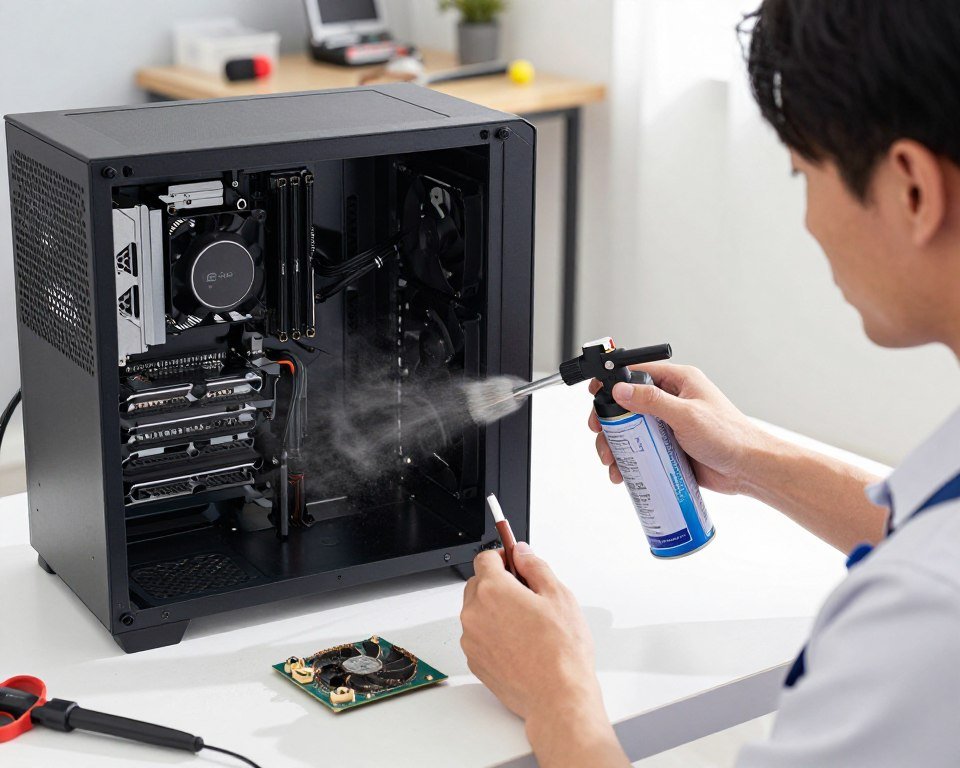
The most important item in our kit is high-quality Canned Air. It lets us blow away stubborn dust from tight corners and heat sinks without touching sensitive circuits.
We also recommend using lint-free microfiber cloths for wiping down flat surfaces. For more stubborn grime, a small amount of high-percentage isopropyl alcohol on a cotton swab works wonders to clean fan blades and plastic housing.
Tools We Should Avoid
We must be very careful about what we bring near our internal components. Some common household items can cause static discharge, which might permanently fry our motherboard or graphics card.
For instance, we should never use a standard household vacuum cleaner inside the case. The static electricity generated by the nozzle can be catastrophic for our hardware. Also, avoid using water or abrasive paper towels, as these can leave behind moisture or scratches that negatively impact our long-term system temperature.
| Tool Category | Recommended Item | Item to Avoid |
|---|---|---|
| Dust Removal | Canned Air | Household Vacuum |
| Surface Cleaning | Microfiber Cloth | Paper Towels |
| Precision Work | Isopropyl Alcohol | Water or Soap |
Step-by-Step Guide: Opening Our PC Case
First, we safely remove the side panel to clean our machine. This is a key part of maintenance. It lets us get to every part of the chassis without harming it.
Safety First: Disconnecting Power
Before we start, we must disconnect the power supply. We unplug the power cable from the wall and the computer. This makes sure there’s zero electrical current in the system.
This step is very important for our safety and the health of our PC. We should always check that the power switch is off.
How to Properly Open the Case
With the power off, we can remove the side panel. Most cases use thumbscrews, but some need a Phillips-head screwdriver.
We need to be careful with the panels to avoid losing screws or damaging the mounts. It’s smart to put all screws in a bowl or tray to keep them organized.
Slide the panel back until it comes loose from the frame. This way, we avoid putting too much stress on the chassis. It helps keep our PC in great shape for a long time.
Cleaning Components: What We Should Focus On
Now that our PC case is open, we can start cleaning the internal hardware. We need to be careful to remove all dust from tight spots and electronic paths.
Dusting the Interior and Fans
The fans and heatsinks block airflow in our system. We should use canned air to clean these areas. It works well because it doesn’t touch anything.
- Hold the canned air canister upright to prevent liquid propellant from spraying.
- Use short, controlled bursts to dislodge stubborn dust from fan blades.
- Always hold the fan blades steady so they do not spin rapidly while being cleaned.
Cleaning the CPU and GPU
The CPU and GPU need gentle cleaning to keep them cool. If there’s old thermal paste, we should remove it with isopropyl alcohol and a soft cloth.
This keeps the processor cool, which is important for gaming and work. Clean surfaces help our hardware perform better.
Wiping Down Other Components
Next, we should clean the rest of our system. Use a soft, anti-static cloth to wipe down the motherboard, RAM sticks, and case walls.
This thorough approach keeps our system dust-free. A clean system runs cooler and lasts longer, making our work easier.
Reassembling Our PC After Cleaning
Reassembling our PC needs the same care as cleaning it. We must put everything back with care and precision. This ensures our hardware works well and stays stable.
Ensuring Connections Are Secure
Before we put the side panel back, we check all cables. It’s easy for wires to get moved during cleaning. So, we make sure every cable is in place.
Also, we check RAM sticks and the GPU. A little press on the edges shows they’re in right. This step helps avoid system crashes later.
Closing the Case Properly
It’s important to close the case right to keep airflow. We align the side panel carefully to avoid damaging wires. Then, we tighten the screws to keep things quiet and stable.
By doing these steps, we make sure our PC is quiet, cool, and reliable. Here’s a checklist to make sure everything is ready.
| Component | Action Required | Status Check |
|---|---|---|
| Power Cables | Verify tight fit | Secure |
| Data Cables | Check SATA/NVMe | Connected |
| Side Panel | Align and screw | Closed |
| System Fans | Clear of wires | Verified |
These steps finish our maintenance cycle. Now, we can turn on our PC, knowing it’s ready to go.
Maintaining a Clean PC: Best Practices
To keep our computer in top shape, we need to stay proactive. It’s not just about cleaning it every now and then. We must create a routine to stop dust buildup before it hurts our computer’s performance.
Establishing a Cleaning Schedule
It’s wise to check our system every three to six months. Regular checks help us see how much dust is inside. This simple habit stops dust from harming our computer’s sensitive parts.
Preventive Measures for Success
Using top-notch filters from brands like SilverStone or Noctua helps a lot. We can also put our tower on a desk instead of the floor. These steps help keep our computer cool and running well.
Monitoring System Health
Tools like HWMonitor help us watch our computer’s temperature during heavy use. If we see the temperature go up, it’s time for a quick clean. Taking care of our computer keeps it quiet and reliable for a long time. We encourage our readers to share their own tips to help everyone keep their computers running smoothly.
FAQ
Why should we prioritize regular maintenance for our computers?
Regular maintenance keeps dust from clogging our heatsinks and fans. This ensures good airflow and keeps our computer’s internal temperature stable. Without it, our computer’s sensitive parts might overheat or get damaged.
What are the safest tools for us to use when cleaning internal components?
For cleaning, we suggest using high-quality Canned Air, like Falcon Dust-Off. It safely removes debris without touching the circuits. For tough grime, a lint-free microfiber cloth works well. But, we should avoid vacuum cleaners and feather dusters to prevent static damage.
How often should we perform a deep clean of our PC?
Most of us need to deep clean our PC every three to six months. If our PC is on the floor or near pets, we might need to clean it more often. Regular cleaning keeps our fans quiet and efficient.
Does the placement of our PC affect how much dust it collects?
Yes, it does. Keeping our PC off the floor reduces dust intake. Using magnetic dust filters and ensuring good ventilation also helps. These steps lower our PC’s operating temperature and extend its life.
What is the most important safety step we should take before opening our case?
Before starting, we must shut down our computer and unplug it. Pressing the power button once more after unplugging helps discharge electricity. Using an anti-static wrist strap from iFixit protects our hardware from static.
How can we tell if our PC is running too hot due to dirt?
Monitoring our system temperature with software like HWMonitor or MSI Afterburner helps. If our fans run non-stop or our game performance drops, it’s a sign of overheating. A quick clean with Canned Air can fix these problems.