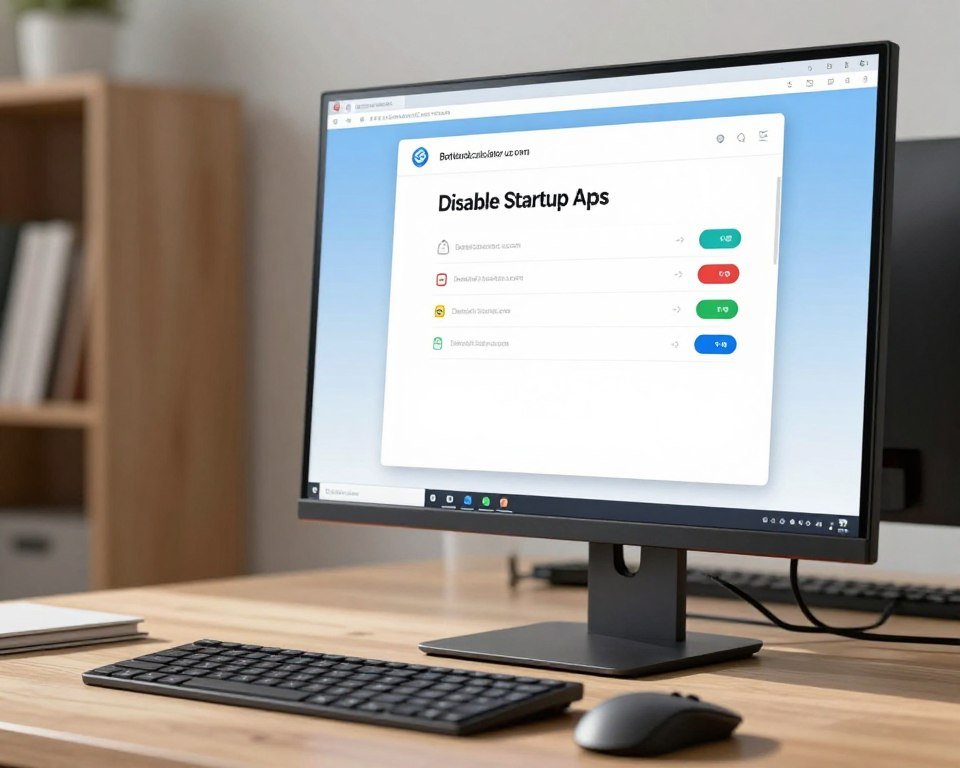
Disable Startup Apps to Boot Your PC Faster
Ever wondered why your computer takes forever to start? It’s really frustrating waiting for it to load. But, you’re not alone, and there’s a way to speed things up.
Many programs start automatically when you log in. This slows down your computer a lot. By disabling startup apps, you can make your computer start up faster. This guide will show you how to remove unnecessary programs that slow you down.
We’ll guide you through simple steps to make your computer faster. Let’s clean up your machine so you can start work quickly.
Key Takeaways
- Identify which programs slow down your computer during the boot process.
- Learn how to manage background tasks to improve overall system responsiveness.
- Follow our easy steps to optimize your machine for a faster start.
- Understand the difference between essential system files and optional software.
- Enjoy a cleaner, more efficient desktop environment every single day.
Understanding Startup Apps and Their Impact on Performance
When we start our PCs, a secret race starts that affects how quickly we can use our computers. Many programs fight for our computer’s attention when we log in. This can make our boot time longer. By learning to manage these processes, we can get back to work faster.
What Are Startup Apps?
Startup apps are programs that start automatically when we turn on our computers. Some are needed for our systems to work right, but many are just for convenience. These apps run quietly in the background, waiting for us to use them.
How Do They Affect Boot Time?
Every app that starts at boot time uses some of our computer’s memory and power. If too many apps want these resources at once, our computer takes longer to start. This is why our boot time can feel slow.
“The most efficient computer is one that only runs the processes you explicitly request, not those that start automatically.”
To see how these background processes affect our work, let’s look at a comparison:
| Application Type | Resource Impact | Performance Effect |
|---|---|---|
| Cloud Sync Tools | High | Delayed Desktop Load |
| Messaging Clients | Medium | Increased Latency |
| System Drivers | Low | Essential Stability |
Common Startup Apps That Slow Down Your PC
Messaging apps like Skype or Discord often slow us down. Cloud storage services like OneDrive or Dropbox also use a lot of bandwidth and power. If we disable startup apps that aren’t essential, our computers will start up faster.
Why Should We Disable Unnecessary Startup Apps?
Controlling your startup environment is a simple yet powerful step toward system optimization. Many of us don’t realize how many programs run in the background when we turn on our computers. By cutting down on these programs, we can make sure our machines work the way we want them to.
Benefits of a Faster Boot Time
Managing your startup items leads to a big speed boost. With fewer programs competing for attention at startup, your desktop loads much faster. You’ll find your computer ready to go almost as soon as you log in.
Impact on System Resources
Every app that starts at startup uses up CPU and RAM. When too many programs run in the background, it slows down your whole machine. By turning off apps we don’t need, we make sure our computer has the resources it needs for our daily tasks.
Enhancing Overall Performance
Keeping your startup list lean is key to long-term boot time efficiency. When your system isn’t slowed down by background tasks, your main apps run better. This approach helps keep your computer feeling new for years.
| Performance Metric | High Startup Load | Optimized Startup |
|---|---|---|
| Boot Time | Slow (60+ seconds) | Fast (15-20 seconds) |
| RAM Usage | High (70%+) | Low (30-40%) |
| System Responsiveness | Laggy | Snappy |
| Background Processes | Numerous | Minimal |
How to Identify Startup Apps on Windows
Knowing which programs start automatically is key to a faster computer. By seeing what starts when we turn on our computer, we can choose wisely. This is important for keeping our Windows 11 system healthy.
Accessing the Task Manager
The Task Manager is the best tool for checking startup items. Press Ctrl + Shift + Esc to open it quickly. Then, go to the “Startup apps” tab to see a list of programs that start when you log in.
This tool shows if each app is on or off. In Windows 11, there’s also a “Startup impact” column. It tells you how much each app slows down your start-up. This info helps you know which apps to fix first.
Using System Configuration Tools
There’s more to see than just the list. The classic System Configuration tool gives a wider view. Type “msconfig” in the search bar to open it.
These tools let you control your system fully without extra software. By checking these lists, we can find hidden services that slow us down. It’s a simple way to keep your computer running well.
Third-Party Applications for Analysis
At times, the Task Manager might not show all background processes. For a deeper look, tools like Sysinternals Autoruns are great. They show every registry key and startup location that could start an app.
These advanced apps help us find programs that hide from basic tools. While they’re complex, they give unmatched visibility into startup behavior. We suggest them for those who are comfortable with technical system files.
Step-by-Step Guide to Disable Startup Apps on Windows
Controlling your computer’s startup can make it run faster. By picking which apps start automatically, you keep your system focused on important tasks. Let’s show you how to disable startup apps easily.
Disabling via Task Manager
The Task Manager is a top choice for disabling apps. On Windows 11, press Ctrl + Shift + Esc to open it quickly. Then, go to the “Startup apps” tab on the left.
Here, you’ll see apps set to start at boot. Right-click any you don’t need and choose “Disable.” This stops the app from starting until you open it yourself.
“Efficiency is doing things right; effectiveness is doing the right things.”
Using System Configuration (msconfig)
Some prefer the System Configuration utility over Task Manager. Press Windows key + R, type “msconfig,” and press Enter. It offers a detailed look at your system’s startup.
In Windows 11, the startup tab leads to the main manager. But, the “Services” tab is key for hiding unnecessary background tasks. Remember to check “Hide all Microsoft services” before making changes to avoid problems.
Utilizing Third-Party Software Solutions
For more control, third-party software is a good option. These tools give detailed insights into why apps start automatically. They also find tasks that standard tools miss.
When picking a third-party tool, look for ones with a simple design. They’re great for users who want to:
- See how each app affects boot time.
- Choose when to start specific apps for better system readiness.
- Quickly undo changes if you accidentally disable startup apps you need.
How to Manage Startup Apps on macOS
Many of our readers focus on Windows 11, but Mac users also want a fast computer. Too many apps starting at once can slow down your Mac. Cleaning up your login items can make your Mac start up faster.
Accessing System Preferences
To start, click the Apple menu in the top-left corner and choose System Settings. Then, go to the General tab and click on Login Items. This shows all apps and processes that start automatically when you log in.
Identifying and Removing Unnecessary Apps
In the Login Items list, find apps you don’t need right away. To remove one, select it and click the minus (-) button below the list. Be careful not to remove important system services.
“Efficiency is doing things right; effectiveness is doing the right things to keep your digital workspace clutter-free.”
If you’re not sure about an app, try disabling it first. If everything works fine, you can remove it to save resources.
Other Helpful Tips for Mac Users
Keeping your macOS updated is key for speed. Also, check your Activity Monitor to see which apps use the most energy or memory. The table below shows how managing startup apps differs between platforms.
| Feature | macOS Login Items | Windows 11 Startup |
|---|---|---|
| Primary Access | System Settings | Task Manager |
| Ease of Use | Very High | High |
| Impact | Reduces CPU Load | Improves Boot Time |
By keeping your startup list clean, your computer stays fast. Whether you use a Mac or Windows 11, less clutter means better performance.
Checking Your Changes After Disabling Startup Apps
Now that you’ve cleaned up your startup list, let’s see how it’s improved things. It’s essential to check if your efforts have made your computer faster. By watching your system, you can see if it’s running better than before.
Monitoring Boot Time Improvements
One easy way to check your progress is by timing how long it takes to get to your desktop. Use a stopwatch or your phone to record the seconds. A quicker boot time is what you’re aiming for.
If your desktop appears much faster, you’ve optimized your startup sequence well. Consistency is important, so test this a few times to get a good average.
Keeping Track of Resource Usage
It’s also important to watch how your system resources use during daily tasks. Open the Task Manager to see CPU and memory usage by background processes. You’ll likely find your computer more responsive because fewer programs are using resources.
If your system is slow despite these changes, you might need to look at other background services. Monitoring these metrics helps you understand what’s happening in your operating system.
Knowing When to Revisit Startup App Settings
It’s good to know when to check these settings again, like after installing new software. Many apps add themselves to your startup list without asking. If your boot time gets slower, it’s time to check your settings again.
Doing a quick audit of your startup items after major software updates is a good habit. This keeps your computer running well for your daily tasks.
| Metric | Before Optimization | After Optimization |
|---|---|---|
| Average Boot Time | 60-90 Seconds | 20-35 Seconds |
| System Speed | Noticeably Laggy | Highly Responsive |
| Background RAM Usage | High | Low |
Best Practices for Managing Startup Apps Going Forward
To keep your computer fast, you need to stay on top of it. Add these habits to your daily routine. This will help your computer run smoothly for a long time.
Regular Maintenance Tips
Make a habit of checking your software every few months. This simple step stops clutter from building up on your computer. Keeping your system optimized ensures it runs at its best.
Balancing Functionality and Performance
Some apps are essential for your work. Keep important ones like Microsoft OneDrive or Slack open when you start your computer. But, turn off apps you don’t need right away to free up resources.
Staying Up-to-Date with Software Changes
App developers often update their software to use less resources. Always check your settings after a big update. This way, you can avoid letting new features start up automatically. It’s a smart way to keep your computer running well.
We hope this guide helps you take charge of your computer. Enjoy a faster, more responsive PC every day.
FAQ
What is the fastest way for us to access the Task Manager in Windows 11?
Pressing Ctrl + Shift + Esc is the quickest way to open the Task Manager. This shortcut takes us straight to the Startup apps tab. From there, we can start making our system faster.
Which specific applications are known to significantly increase our Boot Time?
Programs like Discord, Slack, and Microsoft Teams slow us down. Cloud services like Dropbox and Microsoft OneDrive also add seconds to our Boot Time if they start automatically.
Is it safe for us to disable every program listed in the startup tab?
Disabling third-party software like Spotify or Steam is usually safe. But, we should not disable essential system drivers. It’s best to keep drivers for your hardware, like Realtek Audio Manager, enabled for proper function.
How do we manage startup items if we are using a Mac instead of Windows 11?
On macOS, go to System Settings, then General, and click on Login Items. Here, we can remove apps like Adobe Creative Cloud or Zoom that slow down our Mac at startup.
Does disabling a startup app mean we are uninstalling the program?
No! Disabling an app just stops it from starting automatically when we log in. The app is not uninstalled. We can open it manually whenever we need it.
How can we tell if our optimization efforts actually improved our Boot Time?
The Task Manager shows us this. Look at the “Last BIOS time” in the Startup apps tab. This tells us how long it took for our hardware to start up, helping us see our progress.
How often should we revisit our startup settings to maintain peak speed?
Check our startup apps at least once a month. New software, like Skype or gaming launchers, can sneak into our startup without us noticing. Regular checks keep our Windows 11 fast.
Can we use the System Configuration tool instead of the Task Manager?
Yes, we can. Type msconfig in the Windows search bar to open the System Configuration utility. This tool is great for advanced optimization and fixing boot issues.