How to Speed Up Windows 11 in 5 Minutes
Ever felt your heart sink waiting for your computer to load a simple file? We get it. A slow machine can really slow you down when you’re trying to get work done.
But here’s the good news: you can make your PC Speed better without being a computer expert. We’ve got some easy tips to make your system fast again in just a few minutes. Follow these steps and your computer will be as quick as the day you bought it.
Small changes often lead to big results when it comes to your computer. Let’s go over these quick tips so you can get back to what’s important. Learning How to Speed Up Windows is simpler than you might think.
Key Takeaways
- Identify background processes that drain system resources.
- Disable unnecessary startup apps to improve boot times.
- Clear temporary files to free up valuable storage space.
- Adjust visual effects for a snappier interface experience.
- Maintain optimal performance with regular system updates.
Understanding Windows 11 Performance Challenges
Let’s look at what slows down your Windows 11. Before we dive into fixes, we must know why it feels slow. Finding these slowdowns is the first step to better system optimization and a smoother day.
Common Issues That Slow Down Performance
Many users see a drop in performance due to background processes. Apps you installed long ago run silently, using up CPU without you knowing.
Bloatware and unnecessary startup programs are big problems. When too many apps start at once, your system can’t handle your tasks. Managing these resources is key to keeping your machine fast.
The Importance of System Updates
Regular software updates are often overlooked but are very important. They do more than add new features; they fix bugs and improve stability.
Keeping your operating system up to date ensures your hardware works well with the latest software. Consistent updates keep your computer fast and secure for years.
Quick Tips to Enhance Speed
We often overlook small tweaks that boost our daily computing. By focusing on simple optimization strategies, we can speed up without needing tech skills. These tweaks offer the biggest improvements in the shortest time.
Disable Unnecessary Startup Programs
Many users don’t know that programs launching at startup slow down their computers. When too many apps open at once, it overloads your system.
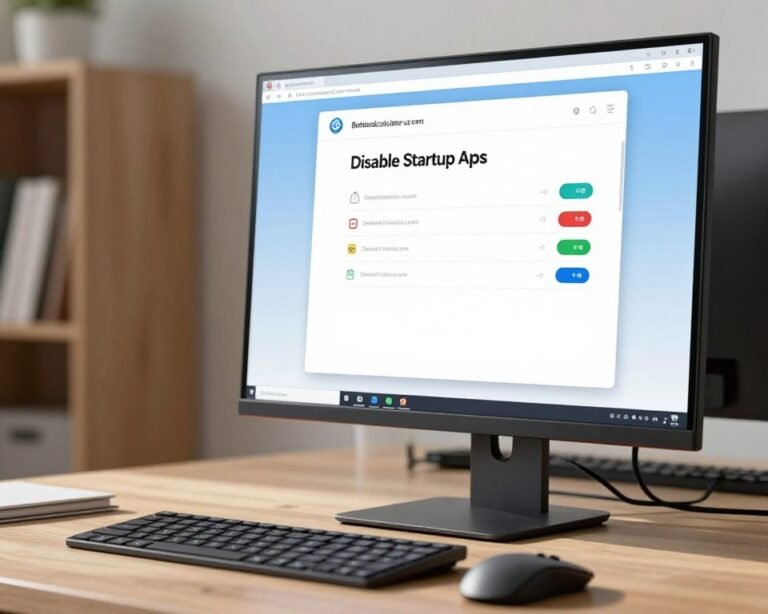
To fix this, open the Task Manager by pressing Ctrl + Shift + Esc. Go to the “Startup” tab to see apps launching with your computer. You can easily turn off non-essential apps to free up resources and speed up your computer.
Adjust Visual Effects for Better Performance
Windows 11 has beautiful animations and shadows, but they can slow down older computers. Changing these settings helps focus on performance over looks.
Search for “Adjust the appearance and performance of Windows” in your start menu. Open the settings window. Then, choose “Adjust for best performance” or turn off animations like shadows and smooth edges. This simple change makes your interface more responsive, showing that optimization doesn’t mean sacrificing your experience.
Utilizing Built-in Troubleshooting Tools
If your computer feels slow, Windows 11’s built-in tools can help. We can keep our system healthy without third-party software. These built-in utilities help our machine run smoothly.
Access the Windows 11 Troubleshooter
To start, find the diagnostic menu. Open the Start menu and click the gear icon for Settings. Then, go to “System” and choose “Troubleshoot.”
In this menu, you’ll see common problems Windows can fix. Click “Other troubleshooters” for more tools. Here, we find hidden errors that slow us down.
Running a Performance Troubleshooter
Next, target what slows you down. Windows 11 does many tasks automatically. But, a manual check finds and fixes system conflicts.
Choose the right tool and let Windows scan for problems. Follow the prompts to fix them. This keeps your system running well for a long time.
Optimizing Storage Space
A cluttered hard drive can slow down your computer. When it’s full, your system can’t handle temporary files well. This hurts your PC speed.
It’s key to keep your system free for daily tasks. This ensures it runs smoothly.
Clean Up Unwanted Files
Your computer collects a lot of digital junk over time. This includes files you don’t need anymore. Getting rid of them can really help your computer.
Go to your settings to see how much space you’re using. Find big files or folders that don’t help you. Delete them to keep your drive clean and fast.
Using Storage Sense for Automatic Management
Windows has a tool called Storage Sense for easy cleaning. It removes temporary files and empties the recycle bin for you. It’s a great way to avoid slowdowns without doing it yourself.
Turn on Storage Sense to keep your system in top shape. It lets you work without worrying about your computer’s speed. It’s a simple way to keep your computer running well.
Managing Background Applications
Many processes run in the background without us knowing, using up our system’s resources. These hidden tasks can slow down our computers, making them feel slow without a clear reason. By controlling these background tasks, we can make sure our main programs run smoothly.
Identifying Resource-Heavy Apps
To speed up your computer, first find out what’s using up your CPU and memory. The Task Manager is a great tool for this. Press Ctrl + Shift + Esc to open it and check the Processes tab.
Look for apps with high CPU or Memory usage. It’s surprising how much a simple browser tab or a forgotten utility can consume. Once you find these, decide if they’re needed for your daily tasks.
“Efficiency is doing things right; effectiveness is doing the right things.”
Limiting Background Processes
After finding the apps that use too much, it’s time to limit their impact. Go to your system settings to manage background apps. Disabling unnecessary ones can speed up your startup and keep your system fast.
You don’t have to turn off everything. Only disable apps you rarely use or don’t need to run all the time. By cutting down on background processes, you free up resources for what’s important to you.
Enhancing Internet Speed
Many think slow computers are due to hardware. But, it’s often the internet connection that’s the real problem. By tweaking your Settings, you can boost your speed and make online tasks smoother.
Checking Your Network Settings
First, check if your network adapter is set up right. You can find advanced Settings in the Control Panel. Here, you can fix issues that slow down your internet.
Here are some tips to improve your connection:
- Update your network adapter drivers to the latest version.
- Flush your DNS cache to resolve connectivity issues.
- Turn off any proxy Settings that slow you down.
Using a Wired Connection vs. Wi-Fi
Wi-Fi is convenient, but wired connections are more stable. For tasks needing lots of bandwidth, a wired Ethernet cable is better. It avoids the problems of wireless networks.
Choose a wired connection for these situations:
- Streaming high-definition video content without buffering.
- Participating in professional video conferences.
- Downloading large files or software updates.
If you must use Wi-Fi, place your router in an open area. Also, update your router Settings regularly. This keeps your connection fast and secure. Consistency is key for a reliable online experience.
Regular Maintenance Practices
Consistency is key to a smooth Windows 11 experience. Simple habits can stop performance issues before they start. A few minutes each month can keep our system running smoothly.
Importance of Keeping Drivers Updated
Drivers connect our hardware to the operating system. Outdated drivers can slow down our computer. We should check our Settings often to keep everything up to date.
Updating drivers helps us use Windows 11’s latest features. Staying current boosts efficiency and prevents crashes. A quick manual check can give us extra peace of mind.
Scheduling Disk Cleanup
Clutter slows down our computers. We can use Settings to clean up storage drives automatically. This keeps our drives fast and healthy.
Regular maintenance is important for our system’s health. We should check these tasks often to make sure they fit our needs. Here’s a suggested maintenance schedule:
| Task | Frequency | Primary Benefit |
|---|---|---|
| Driver Updates | Monthly | System Stability |
| Disk Cleanup | Bi-Weekly | Storage Efficiency |
| Security Scans | Weekly | Data Protection |
| System Backups | Monthly | Data Recovery |
Can Disabling Startup Apps Help Speed Up Windows 11 in Just 5 Minutes?
Disabling unnecessary startup apps can significantly enhance your computer’s boot time and overall efficiency. For users looking to optimize their experience, a simple five-minute adjustment can lead to noticeable improvements. Many users find they can effectively boost pc performance by disabling apps that slow down system startup and operation.
Considering Hardware Upgrades
Software tweaks can make your PC faster right away. But if your PC is not fast enough after these changes, you might need to upgrade your hardware.
Expanding Memory Capacity
Today’s apps need lots of resources to work well. If your PC freezes when you’re doing many things at once, it might be because of low RAM. Adding more RAM helps your processor handle tough tasks better.
Upgrading to Solid State Drives
Changing to a Samsung or Western Digital SSD from a mechanical hard drive makes a big difference. These drives make your PC start up fast and access files quickly. This change can make your PC much faster.
Think about what hardware you need based on how you use your PC every day. Upgrading parts can be more effective than buying a new computer. Share your experiences with these upgrades in the discussion area below to help others in our community improve their computing power.
FAQ
How can we quickly increase our PC Speed in just a few minutes?
To boost our PC speed quickly, focus on Startup programs. Open the Microsoft Task Manager. Disable apps that start automatically. This cuts down boot times and makes Windows 11 faster right after startup.
Why does our system experience performance bottlenecks after regular use?
Performance drops due to background processes and outdated software. Regularly check for Windows Updates. Microsoft often releases patches that fix bugs and enhance system performance.
Will adjusting visual effects really help our computer’s responsiveness?
Yes, it helps a lot, even on older hardware. Go to “Adjust for best performance” in Settings. This reduces graphical load, making the system feel faster without needing new hardware.
What built-in tools can we use to fix hidden speed issues in Windows 11?
Use the Windows 11 Troubleshooter in System Settings. It scans for errors and fixes them automatically. This tool boosts PC speed without third-party software.
How does Storage Sense help us maintain a healthy computing environment?
Storage Sense deletes temporary files and clears the recycle bin. Enable it in Settings. This keeps your drive free for optimal performance, whether it’s a Western Digital HDD or Samsung SSD.
How do we identify which applications are draining our system resources?
Use Task Manager to watch CPU and memory usage. Find out which apps, like Google Chrome or Adobe Creative Cloud, use a lot of resources. Limit their activity to speed up your active windows.
Can our network configuration affect how fast our computer feels?
Yes, it can. Slow web tools like Microsoft Teams or Slack might be due to connectivity issues. Check your network Settings or switch to Ethernet for a faster, more stable connection.
Why is it critical for us to keep our hardware drivers updated?
Updated drivers ensure compatibility with Windows 11 features. Regular updates prevent performance drops. This keeps your PC speed consistent over time.
When should we consider upgrading our RAM or moving to an SSD?
If software tweaks don’t help, it’s time for hardware upgrades. Get at least 16GB of Crucial RAM for better multitasking. Switching to a Samsung 990 Pro SSD will dramatically improve performance and startup speed.