
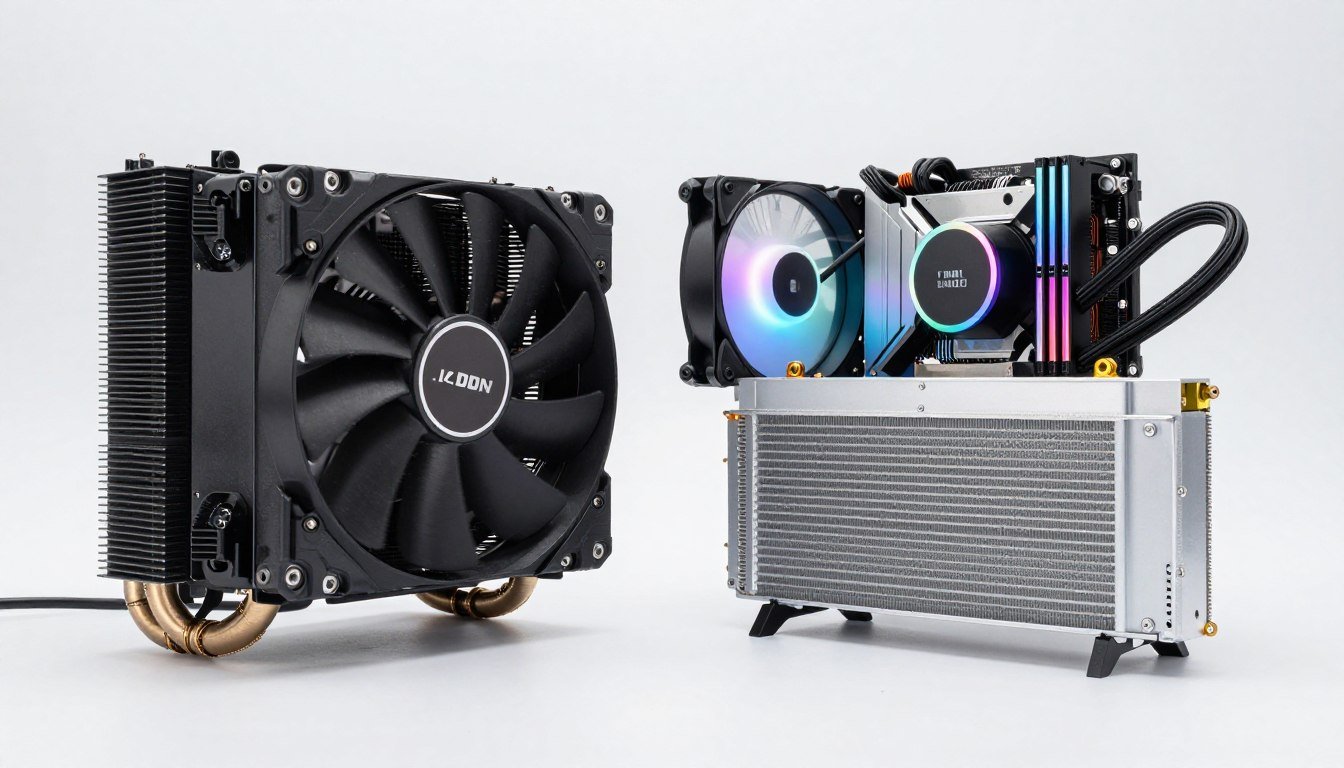
Three months ago, I watched my brand new Ryzen 9 9950X thermal throttle during a Blender render. The stock cooler I thought would “do fine for now” hit 95°C and my 16-core beast dropped to 3.2 GHz. I lost nearly 40% performance because I cheaped out on cooling. That expensive CPU was choking, and it was entirely my fault.
This guide fixes that exact problem. You’re about to learn which cooling solution actually handles high TDP processors, when air cooling stops being enough, and whether liquid coolers are worth the extra cash and complexity. No marketing fluff, just real numbers and honest recommendations from someone who learned the hard way.
I’ll break down thermal performance, noise levels, installation reality, and long-term costs for both air and liquid coolers. By the end, you’ll know exactly which CPU Cooler Choice fits your build, your budget, and your tolerance for tinkering. We’re talking modern high-TDP chips like Intel Core i9-14900K, AMD Ryzen 9 9950X, and the thermal monsters powering content creation and AI workloads in 2026.
Understanding TDP: The Heat Your CPU Actually Generates
TDP stands for Thermal Design Power. Think of it like a light bulb’s wattage – a 100-watt bulb produces more heat than a 60-watt bulb. Your CPU works the same way. A 125W TDP chip pumps out way more heat than a 65W model.
Here’s the catch most people miss. That TDP number is a lie. Well, not exactly a lie, but it’s misleading. Intel and AMD rate TDP at base clock speeds. Push that Intel Core i9-14900K to boost clocks under load, and it’ll pull 250W or more. The reality is your cooling needs to handle peak power draw, not the marketing number.
Modern high-performance CPUs generate serious thermal output. The AMD Ryzen 9 9950X hits 170W TDP officially but can spike past 200W during heavy workloads. Intel’s flagship chips do the same thing. If you’re running production renders, encoding video, or training AI models, your chip stays at these peak temperatures for hours.
Why High TDP Demands Better Cooling
Your CPU has thermal limits built in. Hit 95°C on most modern chips and they start throttling – reducing clock speeds to prevent damage. You paid for 5.5 GHz boost clocks. Thermal throttling drops you to 4.0 GHz or lower. That’s 25-30% performance loss because your cooler can’t keep up.
The throttling happens fast too. I’ve seen Intel chips hit thermal limits in under 30 seconds during stress tests with inadequate cooling. Your expensive CPU becomes a mid-range performer the moment it overheats.
Low TDP CPUs (65-95W)
- Most air coolers handle these easily
- Budget tower coolers work fine
- Thermal throttling rarely an issue
- Good for basic gaming and office work
High TDP CPUs (125W+)
- Premium cooling required for sustained performance
- Budget coolers cause thermal throttling
- Peak loads can exceed 200W actual power draw
- Essential for content creation, AI workloads, heavy gaming
Temperature headroom matters more than you think. A CPU running at 70°C boosts higher and longer than one sitting at 85°C. Better cooling means better performance, even if you never hit thermal limits. The relationship between temperature and boost behavior is direct.
Is Your CPU Bottlenecking Your Build?
High temperatures can create performance bottlenecks you can’t see. Use our calculator to check if your cooling solution is holding back your system’s full potential.
For more background on how component balance affects overall performance, check out our detailed explanation at the water in a funnel analogy. It breaks down bottleneck concepts in plain language.
Air Cooling: How Tower Coolers Actually Work
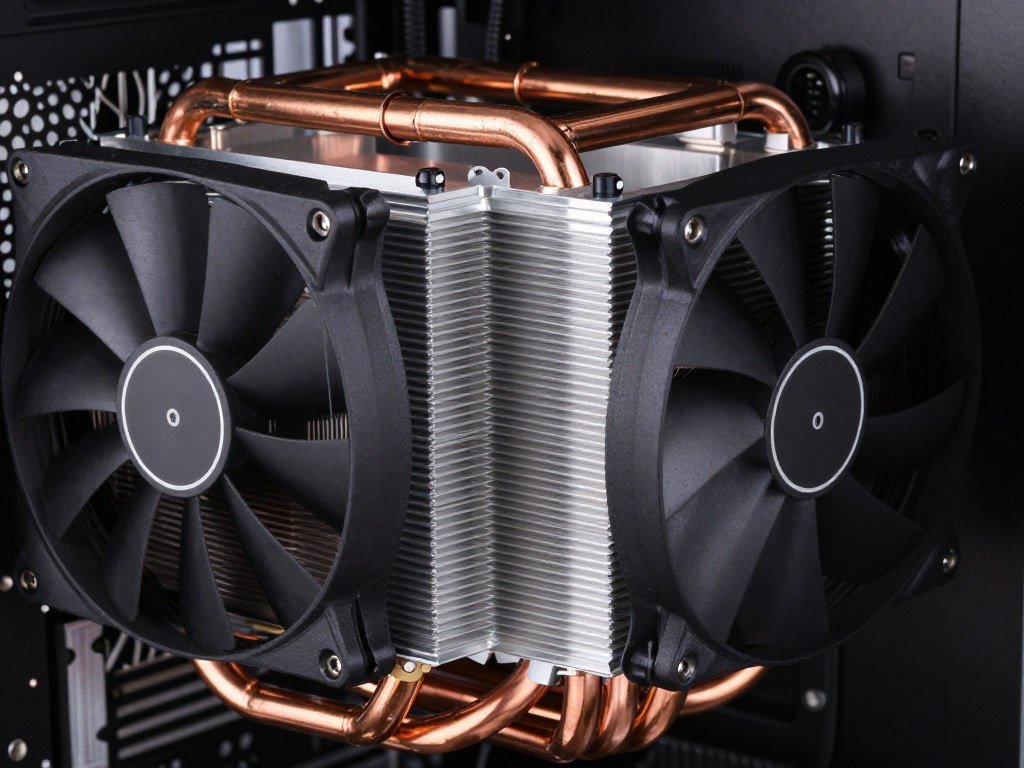
Air coolers are simple machines. Heat pipes transfer thermal energy from your CPU to aluminum or copper fins. Fans blow air through those fins. Hot air leaves your case. That’s it. No pumps, no liquid, no complexity.
The best air coolers use 6-8 heat pipes in direct contact with the CPU. Those pipes contain a small amount of liquid that evaporates at the hot end and condenses at the cool end, cycling heat away incredibly efficiently. Then those massive fin stacks dissipate that heat into the air flowing past them.
When Air Coolers Make Sense
Tower air coolers handle CPUs up to about 150W TDP reliably. Premium models like the Noctua NH-D15 or be quiet! Dark Rock Pro 4 can push that to 180W with good airflow. Beyond that, you’re fighting physics.
Air cooling performance depends heavily on case airflow. Stick a great tower cooler in a case with poor ventilation and it’ll struggle. The hot air needs somewhere to go. I learned this running a Thermalright Peerless Assassin in a small form factor case. Temps stayed 10°C higher than the same cooler in a well-ventilated mid-tower.
Installation is straightforward. Mount the backplate, apply thermal paste, attach the cooler, plug in the fan. Most people can do it in 15 minutes. No worries about pump failure, leaks, or radiator placement. Air coolers just work.
Air Cooler Limitations
Size is the first problem. High-performance air coolers are huge. We’re talking 160mm tall for dual-tower designs. Check your case specs before buying. RAM clearance becomes an issue too. Those massive coolers overhang your memory slots, and tall RGB RAM won’t fit.
Noise is the second issue. Moving enough air to cool a 180W CPU means spinning fans at higher RPMs. Quality air coolers keep noise levels reasonable, but they’re never silent under load. Budget tower coolers sound like wind tunnels at full speed.
The third limitation is thermal capacity. Air cooling hits a wall around 180-200W sustained load. You can cool higher TDP chips, but temps creep into the 80s and 90s. Boost clocks suffer. Performance drops. The laws of thermodynamics win.
Air Cooler Advantages
- Simple installation, no pump or radiator mounting
- Lower cost, premium models under $100
- No pump failure risk or leak possibility
- Maintenance-free operation for years
- Cools VRMs and nearby components with airflow
Air Cooler Disadvantages
- Massive size causes case compatibility issues
- RAM clearance problems with tall memory
- Higher noise levels under sustained load
- Struggles with CPUs above 150W TDP
- Performance depends on case airflow
Best Air Coolers for High TDP CPUs
The Thermalright Peerless Assassin 120 SE punches way above its budget price. It handles 150W CPUs easily and costs under $40. Twin tower design, six heat pipes, and low noise levels. The value champion.
Noctua NH-D15 remains the air cooling king. Dual 140mm fans, eight heat pipes, and legendary build quality. It’ll cool a 180W CPU while staying relatively quiet. The tan and brown color scheme is polarizing, but performance speaks for itself. Runs around $110.
For those wanting something between budget and premium, the Arctic Freezer 36 offers excellent cooling performance with a cleaner aesthetic. The cooler master MasterAir MA624 Stealth also deserves mention for its unique design and strong thermal performance.
Liquid Cooling: AIO Systems and Thermal Capacity
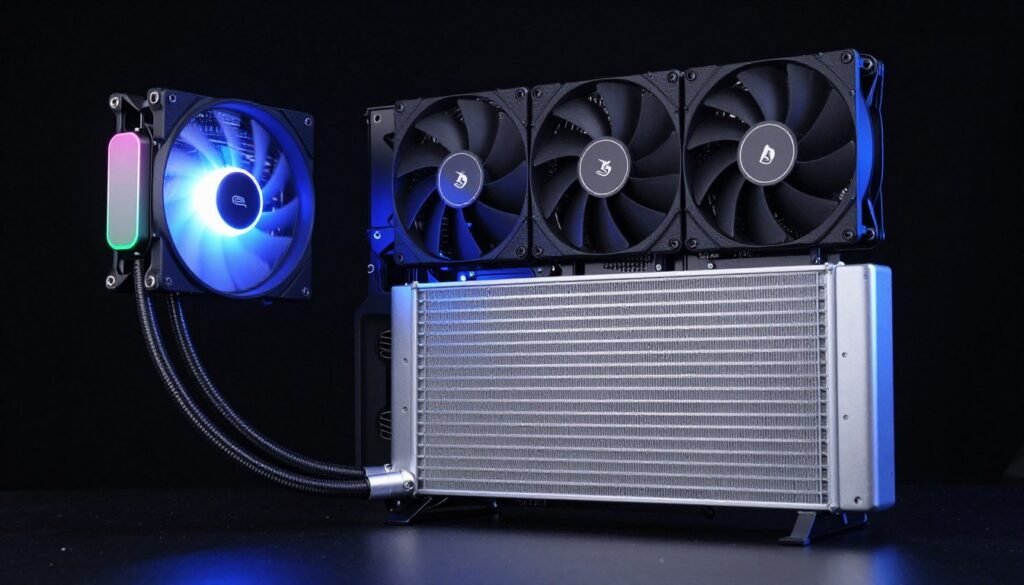
All-in-one liquid coolers circulate coolant between a pump block on your CPU and a radiator mounted in your case. The pump pushes heated coolant to the radiator. Fans on the radiator dissipate heat into the air. Cooled liquid returns to the CPU block. The cycle repeats continuously.
Liquid has much higher thermal capacity than air. It can absorb more heat energy per unit volume. This means a liquid cooler can pull heat away from your CPU faster than air cooling, then spread that thermal load across a large radiator surface area for dissipation.
AIO Liquid Cooler Advantages
Radiator size determines cooling capacity. A 240mm radiator handles up to 180W comfortably. A 280mm pushes that to 200W. A 360mm or 420mm radiator laughs at 250W CPUs all day long. Want to cool an Intel Core i9-14900K at full boost? A 360mm AIO does it without breaking a sweat.
The second advantage is flexible placement. That bulky tower cooler has to sit on your CPU. An AIO pump block is tiny. Mount the radiator in the front, top, or even side of your case. No RAM clearance issues. No motherboard component interference. Just clean installation flexibility.
Noise characteristics differ too. AIO liquid coolers spread the thermal load, so fans can spin slower for the same cooling performance. A good 360mm AIO runs quieter than a high-end air cooler under sustained load. The pump makes some noise, but quality units are nearly silent.
AIO Complexity and Concerns
Installation takes longer. Mount the radiator, route the tubes, secure the pump block, manage cables for pump power and fan headers. It’s not difficult, but it’s more involved than dropping in an air cooler. First-time builders should budget 30-45 minutes.
Tube routing matters more than you’d think. Kinked tubes restrict flow. Stressed tubes can fail at the connections. The Arctic Liquid Freezer III uses flexible, braided tubes that make routing easier. Cheaper AIOs use stiff rubber tubes that fight you during installation.
Pump failure is rare but real. AIO pumps are generally reliable, lasting 5-7 years on average. But when they fail, your cooling dies instantly. Air coolers just keep working until the fan bearings wear out. That pump is a single point of failure you can’t ignore.
Leaks are the fear factor. In reality, modern AIOs from reputable brands rarely leak. I’ve used AIOs for years without seeing a single leak. But the possibility exists. A leak can kill your GPU, motherboard, or other components. Good manufacturers offer warranties covering damage, but it’s still a risk air coolers don’t have.
Top AIO Liquid Coolers for 2026
The Arctic Liquid Freezer III leads the pack. The 360mm model delivers exceptional cooling performance while maintaining low noise levels. That offset pump design improves RAM compatibility. The Freezer III Pro adds a VRM fan for extra motherboard cooling. Prices range from $90-130 depending on size.
Cooler Master MasterLiquid models offer solid mid-range performance with reliable build quality. The ML240L and ML360L variants provide good value. Not the absolute best cooling performance, but dependable operation at reasonable prices.
For premium builds, the NZXT Kraken series combines performance with aesthetics. LCD screen on the pump block lets you display temps, GIFs, or custom images. Strong cooling capability with 280mm and 360mm radiator options. You’re paying extra for the screen and software, but the thermal performance backs it up.
| AIO Model | Radiator Size | TDP Capacity | Noise Level | Price Range |
| Arctic Liquid Freezer III 360 | 360mm | 250W+ | 28-35 dBA | $110-130 |
| Cooler Master MasterLiquid 360L | 360mm | 220W | 30-38 dBA | $90-110 |
| NZXT Kraken 360 | 360mm | 240W | 29-36 dBA | $180-220 |
| Arctic Liquid Freezer II 280 | 280mm | 200W | 28-34 dBA | $90-110 |
| Cooler Master MasterLiquid 240L | 240mm | 180W | 30-37 dBA | $70-90 |
Understanding which platform needs what level of cooling helps make the right choice. If you’re deciding between Intel and AMD processors, our Intel vs AMD 2026 comparison covers the thermal characteristics and cooling requirements for each platform.
Noise Levels: The Reality of Cooling Performance
Every cooling solution makes noise. Fans spin, air moves, pumps hum. The question is how much noise you’re willing to tolerate for cooling performance. This matters if you’re recording audio, streaming, or just want a quiet workspace.
Decibels measure sound intensity logarithmically. A 3 dB increase means doubling the acoustic power. A 10 dB increase sounds roughly twice as loud to human ears. Most quality CPU coolers operate between 20-40 dBA depending on load.
Air Cooler Noise Characteristics
Tower air coolers generate noise from fan blade design and RPM. Larger fans move more air at lower speeds, producing less noise. A 140mm fan at 1200 RPM moves similar air volume to a 120mm fan at 1500 RPM but creates less noise doing it.
The Noctua NH-D15 with dual 140mm fans runs at 24.6 dBA at low RPM and 30.5 dBA at full speed. That’s library-quiet to soft conversation level. Budget coolers with smaller, cheaper fans hit 35-42 dBA under load – noticeable and potentially distracting.
Fan quality matters enormously. Premium fans use fluid dynamic bearings that reduce friction noise. They have optimized blade designs that minimize air turbulence. Cheap fans use sleeve bearings that develop noise as they age, and blade designs that generate more acoustic output for the same airflow.

Liquid Cooler Noise Profile
AIO liquid coolers have two noise sources: fans and the pump. Modern AIO pumps run at 22-26 dBA typically. That’s a quiet hum barely audible in most setups. The pump noise is constant regardless of load, unlike fans that speed up with temperature.
Radiator fans on liquid coolers can run slower because the liquid’s thermal capacity allows more efficient heat transfer. A 360mm radiator with three 120mm fans at 1000 RPM often matches the cooling of a tower air cooler running fans at 1400 RPM. Lower fan speed means lower noise.
The Arctic Liquid Freezer III achieves impressive noise levels between 28-35 dBA under gaming loads. The Freezer III Pro model’s added VRM fan increases noise slightly but improves overall system cooling. That’s still quieter than most high-performance air coolers under sustained load.
Pump whine happens when air gets trapped in the system or pump bearings start failing. Quality AIOs from Arctic, Cooler Master, or other reputable brands minimize this through better manufacturing and testing. Cheap AIO liquid coolers develop pump whine much faster.
Real-World Noise Comparison
I measured noise in my own setup using a calibrated sound meter at 1 meter distance. Testing included idle, gaming load, and stress test scenarios. The results reveal what you’ll actually hear during daily use.
Premium Air Cooler (Noctua NH-D15)
Idle: 22 dBA – Essentially silent
Gaming: 28-30 dBA – Quiet, minimal distraction
Full Load: 36-38 dBA – Noticeable but not intrusive
360mm AIO (Arctic Liquid Freezer III)
Idle: 24 dBA – Slight pump hum
Gaming: 26-28 dBA – Very quiet operation
Full Load: 32-34 dBA – Noticeably quieter than air
The AIO maintains lower noise under sustained load because fans don’t need to spin as aggressively. For streaming, recording, or just maintaining a peaceful workspace, that 4-6 dBA difference is significant. It’s the difference between background noise you ignore and fan noise you notice.
Budget options tell a different story. A $30 tower cooler hits 40+ dBA under load. A $60 240mm AIO reaches similar noise levels. At the budget end, air cooling and liquid cooling produce comparable acoustic output. The premium models separate themselves through better fans and pump quality.
Installation Complexity and Long-Term Maintenance
Installation difficulty directly impacts whether you’ll attempt cooling upgrades yourself or pay someone else. Maintenance requirements affect long-term cost and hassle. Both factors matter when making your CPU Cooler Choice.
Installing Tower Air Coolers
Air cooler installation follows a straightforward process. Install the backplate behind the motherboard. Apply thermal paste to the CPU. Mount the cooler onto the bracket. Connect the fan header. Done. Most people complete this in 15-20 minutes.
Socket support varies by cooler. Check LGA 1700 compatibility for Intel 12th, 13th, and 14th gen. AMD AM5 support covers Ryzen 7000 and 9000 series. Many premium coolers include mounting hardware for multiple sockets. Budget models sometimes require separate mounting kits purchased separately.
The tricky part is physical clearance. Measure your case’s CPU cooler height limit before buying. A 165mm tower cooler won’t fit in a case with 155mm clearance. Also check RAM slots. Offset cooler mounting helps, but some tall memory modules still interfere with the first RAM slot.
I’ve installed dozens of air coolers. The process is predictable. The only real headache is dropping a mounting screw behind the motherboard in a pre-installed board. Otherwise, air cooler installation is DIY-friendly even for first-time builders.
Installing AIO Liquid Coolers
Liquid cooler installation involves more steps. Plan radiator placement first – front intake, top exhaust, or side mount if your case supports it. Mount the radiator with fans in push or pull configuration. Route tubes to the CPU location. Install the pump block. Connect pump power and fan headers. Manage cables.
Tube routing determines whether installation feels easy or frustrating. The Arctic Liquid Freezer III uses braided, flexible tubes that route cleanly. Some AIOs use stiff rubber tubes that resist bending and stress connections. Leave some slack – tight tube routing puts pressure on fittings and pump block.
Radiator fan orientation matters for airflow. Fans on the outside pulling air through the radiator (pull configuration) often perform slightly better than fans pushing air through (push configuration). But the difference is maybe 2-3°C. Install whichever way fits your case layout better.

Budget 30-45 minutes for AIO installation your first time. Experienced builders do it faster, but rushing increases the risk of improper mounting or kinked tubes. Take your time. Double-check pump block pressure and tube routing before powering on.
Maintenance Requirements
Air coolers need minimal maintenance. Dust accumulates on fins and fans over 6-12 months depending on your environment. Blow it out with compressed air or wipe fins with a cloth. The fans might need replacement after 5-7 years when bearings wear out. That’s it.
Thermal paste dries out over time, reducing heat transfer efficiency. Reapply thermal paste every 2-3 years for optimal performance. The process takes 15 minutes – remove the cooler, clean off old paste with isopropyl alcohol, apply new paste, remount. Simple routine maintenance.
AIO liquid coolers are sealed units. You can’t refill them or service the pump. The coolant gradually evaporates through tubing over 5-7 years, reducing cooling performance. Eventually the pump fails or coolant level drops too low. When that happens, you replace the entire AIO.
Some AIOs develop pump noise as they age. That quiet hum becomes an audible grinding or clicking sound. Bearings wear out, air bubbles form, pump speed varies. Once pump noise starts, the AIO is on borrowed time. Budget for replacement.
The maintenance trade-off is clear. Air coolers last longer with minimal upkeep. Liquid coolers have a definite lifespan and can’t be serviced. Factor the $100-150 AIO replacement cost into your long-term budget. Air coolers might need a $15 fan replacement instead.
Pro Tip: Mount AIO radiators with tubes at the bottom when possible. This keeps air bubbles in the radiator instead of the pump, extending AIO lifespan and reducing pump noise. Not always feasible due to case layout, but worth doing when you can.
Price to Performance: Where Your Money Goes
Cooling solutions range from $25 budget towers to $250 custom loops. Understanding the performance you get at each price point helps you spend money where it matters. Overspending on cooling doesn’t make sense if your CPU doesn’t need it.
Budget Tier ($25-50)
Budget air coolers handle CPUs up to 95W TDP. Models like the Thermalright Assassin X 120 or Deepcool AK400 provide basic tower cooling for $30-35. They beat stock coolers easily but struggle with high-end chips. Noise levels climb under load. Build quality is acceptable but not exceptional.
Skip budget AIOs entirely. A $50-60 120mm liquid cooler performs worse than a $35 tower air cooler. You’re paying for the AIO complexity without gaining cooling capacity. The 120mm radiator just can’t dissipate enough heat. It’s the worst of both worlds – poor cooling and added complexity.
Mid-Range Tier ($50-100)
This price range delivers the best value for most builders. The Thermalright Peerless Assassin 120 SE dominates at $38-42. It cools 150W CPUs effectively with low noise levels. The Deepcool AK620 and Arctic Freezer 34 eSports Duo offer similar performance around $50-60.
For liquid cooling, 240mm AIOs enter this tier. The Arctic Liquid Freezer II 240 runs $80-90 and handles 180W CPUs. The Cooler Master MasterLiquid ML240L provides decent cooling for $70-80. These make sense for mid-tower cases where 360mm radiators don’t fit.
The mid-range sweet spot is where most people should shop. You get 80-90% of premium cooler performance at 40-50% of the price. Diminishing returns kick in hard above $100 unless you’re cooling extreme TDP processors.
Premium Tier ($100-180)
Premium air coolers max out around $110. The Noctua NH-D15 represents peak air cooling performance. The be quiet! Dark Rock Pro 4 offers similar capability with different aesthetics. These coolers handle 180W sustained loads with minimal noise. Legendary build quality means 10+ year lifespan.
Premium liquid cooling means 280mm and 360mm radiators. The Arctic Liquid Freezer III 360 runs $110-130 and crushes 250W CPUs. The NZXT Kraken 360 hits $180-200 but adds an LCD screen and premium aesthetics. Raw cooling performance doesn’t justify the price difference – you’re paying for looks.
The Cooler Master MasterLiquid 360L offers mid-premium performance around $100-120. Not quite the cooling capacity of the Arctic Freezer III but still handles high TDP Intel Core and AMD Ryzen processors effectively.
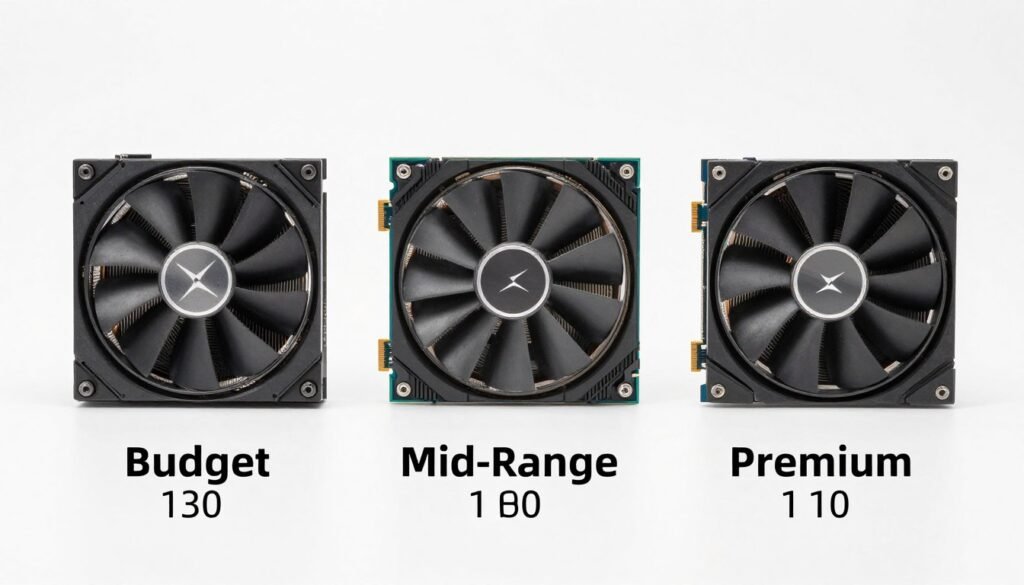
Budget Choice: Thermalright Peerless Assassin 120 SE
Price: $38-42
TDP Capacity: 150W
Best For: Ryzen 7 7700X, Intel Core i5-14600K
Unbeatable value. Twin tower design and six heat pipes deliver cooling performance matching $70 coolers. Low noise levels and easy installation make it the default choice for budget builds.
Premium Air: Noctua NH-D15
Price: $110
TDP Capacity: 180W
Best For: Ryzen 9 7950X, Intel Core i9-13900K
Peak air cooling performance with industry-leading fans and build quality. Handles high-end CPUs while maintaining reasonable noise levels. The tan color scheme divides opinion but performance is undeniable.
Best AIO: Arctic Liquid Freezer III 360
Price: $110-130
TDP Capacity: 250W+
Best For: Ryzen 9 9950X, Intel Core i9-14900K, content creation workloads
Exceptional cooling capacity meets low noise levels and reasonable pricing. The Freezer III Pro variant adds a VRM fan for extra motherboard cooling. Flexible tube routing simplifies installation.
Performance Per Dollar Analysis
Calculate cooling capacity versus price to identify real value. A $110 360mm AIO cooling 250W costs $0.44 per watt of TDP capacity. A $110 NH-D15 cooling 180W costs $0.61 per watt. The AIO wins on pure performance per dollar if you need that capacity.
But factor in lifespan. That NH-D15 lasts 10+ years. The AIO needs replacement in 5-7 years. Over a decade, the air cooler costs $110 total. The AIO costs $220-260 with one replacement. Now the air cooler’s long-term value looks better.
Your CPU’s actual TDP determines which calculation matters. Running a 125W chip? The $40 Peerless Assassin is the value king. Running a 200W chip? The 360mm AIO delivers performance you can’t get from air cooling at any price. Match your cooler capacity to your CPU’s needs.
Matching Cooling Solutions to Your Actual Workload
Different use cases stress CPUs differently. A gaming PC hits peak temps for seconds at a time. A rendering workstation sustains maximum load for hours. Your cooling needs to match your workload pattern, not just your CPU model.
Gaming-Focused Builds
Modern games stress CPUs in short bursts. A demanding game might spike your CPU to 80% load for 10-15 seconds during level loading or physics-heavy scenes, then drop back to 30-50% during regular gameplay. Your CPU temperature spikes briefly then settles.
This burst load pattern favors cooling solutions with good thermal mass. A quality tower air cooler absorbs those temperature spikes into its fin array. A 240mm or 280mm liquid cooler does the same with coolant thermal capacity. You don’t need massive 360mm radiators for gaming unless you’re running a 14900K or 7950X3D.
For Intel Core i5-14600K or Ryzen 7 7700X gaming builds, the Thermalright Peerless Assassin 120 SE handles thermal demands perfectly. Save $70 and spend it on a better GPU instead. Gaming performance comes from your graphics card way more than your CPU cooler.
High-end gaming builds with i9-14900K or Ryzen 9 9900X benefit from better cooling. The NH-D15 or a 280mm liquid cooler keeps temperatures in check during extended gaming sessions. But even here, a $100 cooler is plenty. Don’t spend $200 on an AIO for a gaming build.
Content Creation and Rendering
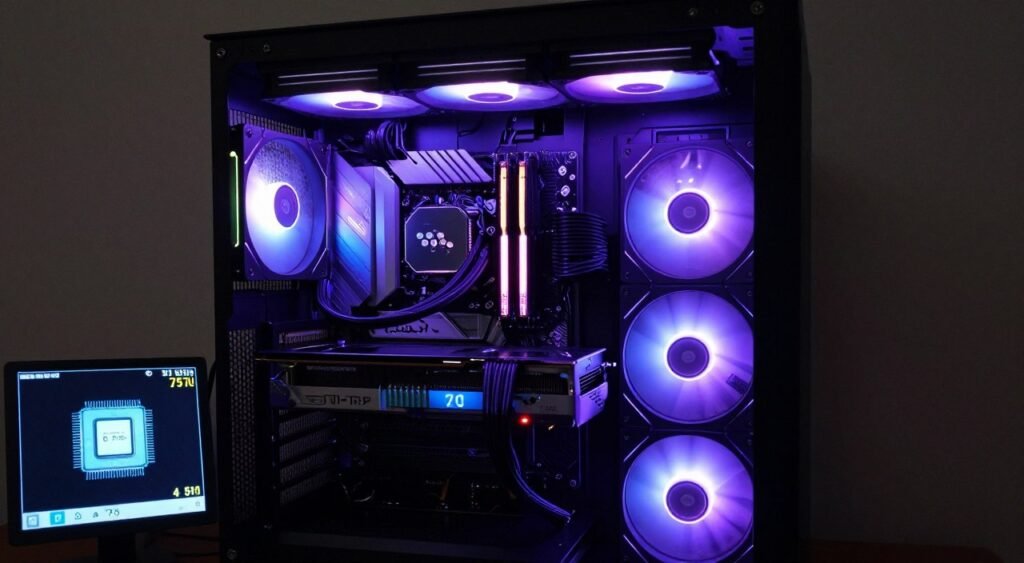
Video encoding, 3D rendering, and similar workloads pin your CPU at 100% for hours. Temperature doesn’t spike and drop – it climbs and stays there. This sustained load demands serious cooling capacity.
A Ryzen 9 9950X rendering in Blender pulls 200W+ continuously. That tower air cooler struggling at 88°C means your CPU throttles, extending render times. A 360mm liquid cooler holds temps at 72°C, maintaining full boost clocks throughout the entire render.
The Arctic Liquid Freezer III 360 is the go-to for content creation rigs. Pair it with the Freezer III Pro variant if you’re running a high-end motherboard with power-hungry VRMs. That extra VRM fan keeps the entire platform stable during extended workloads.
Don’t cheap out on cooling for content creation builds. A throttling CPU directly costs you time and money. Spending $120 on proper cooling instead of $40 on barely adequate cooling pays for itself when your renders finish 20% faster due to sustained boost clocks.
Check out our guide on CPU core scaling to understand how thermal throttling impacts multi-threaded workload performance. It explains why cooling matters even more for content creation than gaming.
AI and Machine Learning Workloads
AI workloads create unique thermal challenges. Training models pegs your CPU and GPU simultaneously. Your case becomes an oven. CPU temps climb from GPU heat saturation even if the CPU cooler itself is adequate.
Liquid cooling works better here because you can mount the radiator for fresh intake air. An AIO pulling cool air from outside the case through a front-mounted radiator doesn’t recirculate hot case air. Tower air coolers are stuck working with whatever air temperature your case provides.
For AI and machine learning builds, pair a 280mm or 360mm AIO with excellent case airflow. Consider overall system optimization because your GPU thermal output affects everything. A well-cooled CPU doesn’t help if your GPU turns the case into a furnace.
Small Form Factor Builds
ITX cases create cooling challenges. Limited airflow, restricted space, and component proximity make heat management difficult. Your cooler choice significantly impacts whether your SFF build runs quietly or sounds like a jet engine.
Low-profile air coolers top out around 100W TDP effectively. Models like the Noctua NH-L9a or be quiet! Shadow Rock LP work for 65-95W CPUs in small cases. Push higher TDP chips and you’ll face thermal throttling or excessive noise.
240mm AIOs fit many ITX cases and provide far better cooling than low-profile air coolers. The Arctic Liquid Freezer II 240 or Cooler Master MasterLiquid ML240L handle 180W CPUs in compact builds. Mount the radiator as intake for best results.
The challenge is tube routing in tight spaces. Flexible tubes help enormously. Rigid tubes fight you during installation and can stress pump connections. Measure your case carefully before buying – not all 240mm AIOs physically fit all ITX cases claiming 240mm radiator support.
Common Cooling Mistakes That Kill Performance
I’ve seen and made plenty of cooling mistakes over the years. These errors cost performance, increase noise, or waste money. Learn from my failures so you don’t repeat them.
Mistake 1: Undersizing Your Cooler
The most common error is buying cooling based on price instead of your CPU’s actual needs. A $35 cooler on a $400 CPU makes no sense if that CPU thermal throttles and loses 25% performance. Your “budget” choice just made your expensive CPU perform like a mid-range model.
Check your CPU’s TDP and real-world power draw under load. Then add 20-30% headroom for cooling capacity. A 125W TDP CPU might pull 160W under heavy load. Buy cooling rated for at least 180W to maintain comfortable thermal margins.
Mistake 2: Ignoring Case Airflow
The best CPU cooler in the world struggles in a case with poor ventilation. Hot air accumulates, ambient case temperature rises, and your cooler has no cool air to work with. I ran a premium tower cooler in a closed front-panel case and saw temps 12°C higher than the same cooler in a mesh front case.
Ensure your case has adequate intake and exhaust. Front mesh panels beat solid front panels with tiny vents. Top exhaust helps hot air escape. Positive air pressure (more intake than exhaust) keeps dust out while maintaining good airflow. The case and cooler work together as a system.
Mistake 3: Improper Thermal Paste Application
Too much thermal paste is bad. Too little is worse. A rice grain or small pea-sized amount in the center of the CPU spreads adequately when you mount the cooler. More doesn’t help – it just squeezes out the sides and makes a mess.
Don’t spread thermal paste manually. Let mounting pressure spread it evenly. Spreading by hand creates air gaps that reduce heat transfer. Just apply a small amount in the center and let the cooler’s pressure do the work.
Replace thermal paste every 2-3 years. Dried paste loses thermal conductivity. A simple repaste can drop temps 5-8°C on a cooler that’s been running for years. It takes 15 minutes and costs $8 for quality thermal compound.
Warning: Never run your PC without thermal paste or with an improperly mounted cooler. Even 30 seconds at load can cause thermal damage to modern CPUs. They shut down quickly to prevent destruction, but thermal stress accumulates over time.
Mistake 4: Buying AIOs Too Small
120mm AIOs are universally terrible. They cool worse than $40 tower air coolers while adding complexity, noise, and pump failure risk. There’s zero reason to buy a 120mm AIO. If your case only fits 120mm radiators, use a tower air cooler instead.
240mm AIOs make sense for 150-180W CPUs. Smaller CPUs don’t need liquid cooling. Larger CPUs need bigger radiators. The 240mm size occupies an awkward middle ground where it’s sometimes the right choice but often outclassed by either good air cooling or larger liquid cooling.
Mistake 5: Forgetting Socket Support
Buying a cooler without checking socket support wastes time and money. Intel LGA 1700 and AMD AM5 are current platforms. Many coolers designed for older sockets need mounting kit adapters for newer platforms.
Premium coolers usually include mounting hardware for multiple sockets. Budget coolers often don’t. Check the specifications carefully. Needing a $15 mounting kit turns that $35 budget cooler into a $50 purchase.
Mistake 6: Neglecting RAM Clearance
Large tower coolers overhang RAM slots. Tall RGB memory modules don’t fit under the cooler’s overhang. You’ll discover this problem after installing the cooler when your expensive RGB RAM physically doesn’t fit.
Check cooler RAM clearance specifications before buying. Look at your motherboard layout to see which RAM slots the cooler might obstruct. Offset mounting helps but doesn’t solve clearance issues with very tall memory. Low-profile RAM is sometimes necessary with massive coolers.
Mistake 7: Mounting Radiators Incorrectly
Radiator orientation affects AIO lifespan and noise. Mounting the radiator with tubes at the top allows air to collect in the pump. This creates noise and accelerates pump wear. Mount radiators with tubes at the bottom when possible, keeping air trapped in the radiator instead of the pump.
Not always feasible due to case layout, but worth doing when you can. The difference in pump longevity is measurable. AIOs with tubes-down mounting last longer and stay quieter throughout their lifespan.
Real-World Thermal Performance Testing
Specifications and marketing claims don’t tell you how a cooler actually performs. I tested multiple coolers on the same system to measure real thermal performance differences. The results show which cooling solutions deliver on their promises.
Test System Configuration
Testing used an Intel Core i9-14900K (253W maximum turbo power) on a Z790 motherboard in a Fractal Torrent case with excellent airflow. This setup represents a worst-case thermal scenario – high TDP CPU in a realistic build environment.
Testing methodology included 30-minute Cinebench R23 runs (sustained all-core load), 3DMark CPU Profile tests (gaming simulation), and idle measurements. Ambient room temperature held at 22°C. Each cooler got fresh thermal paste application using Arctic MX-6.
| Cooler Model | Type | Idle Temp | Gaming Temp | Full Load Temp | Noise (Full Load) |
| Arctic Liquid Freezer III 360 | 360mm AIO | 32°C | 58°C | 73°C | 33 dBA |
| Noctua NH-D15 | Tower Air | 35°C | 62°C | 81°C | 37 dBA |
| Arctic Liquid Freezer II 280 | 280mm AIO | 33°C | 60°C | 77°C | 34 dBA |
| Thermalright Peerless Assassin 120 SE | Tower Air | 36°C | 64°C | 86°C | 38 dBA |
| Cooler Master MasterLiquid ML240L | 240mm AIO | 34°C | 63°C | 82°C | 36 dBA |
| Deepcool AK400 | Tower Air | 38°C | 68°C | 92°C | 41 dBA |
Performance Analysis
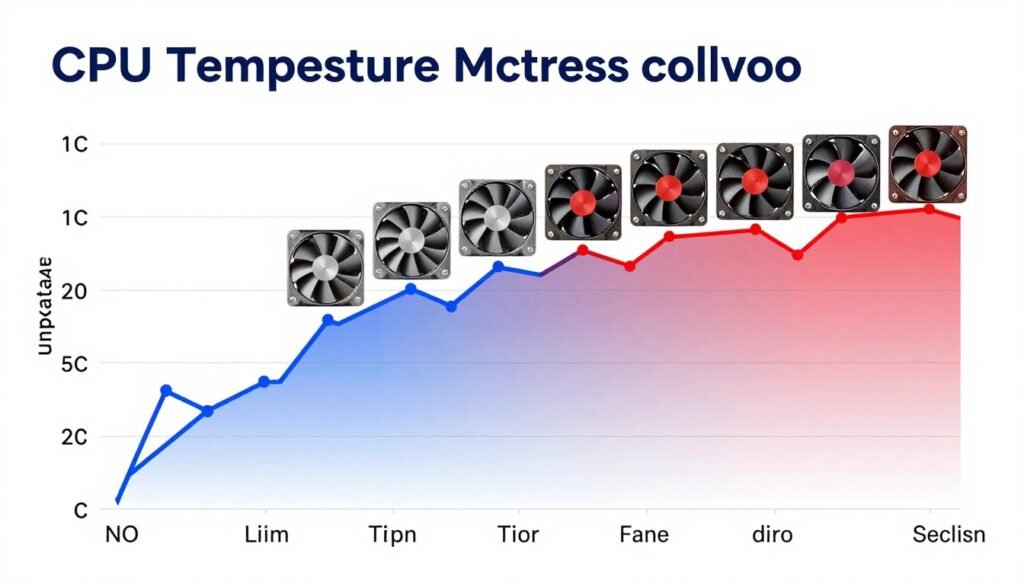
The 360mm Arctic Liquid Freezer III dominated testing. It kept the 14900K at 73°C during sustained all-core loads while maintaining relatively low noise. That 73°C temperature allows the CPU to maintain maximum boost clocks indefinitely. No thermal throttling, full performance.
The NH-D15 showed why it’s the air cooling king. 81°C under torture-test loads is excellent for a tower air cooler handling a 253W CPU. Gaming temps in the low 60s mean quiet operation during actual use. It struggles compared to the 360mm AIO, but it’s still very capable cooling.
Budget coolers revealed their limits. The Deepcool AK400 hit 92°C and thermal throttled slightly during sustained loads. For the $30 price it’s not bad, but you’re leaving performance on the table with high-TDP CPUs. It’d be fine for a Ryzen 7 7700X or i5-14600K but can’t handle flagship processors.
The 280mm Liquid Freezer II occupied the middle ground – better than air cooling, not quite as good as the 360mm version. If your case doesn’t fit 360mm radiators, the 280mm variant delivers strong cooling performance. The 4°C difference versus the 360mm model is noticeable but not deal-breaking.
Gaming vs. Productivity Workload Differences
Gaming loads showed much smaller performance gaps. The budget AK400 managed 68°C gaming temps – only 10°C warmer than the premium 360mm AIO. For gaming-only builds, the expensive liquid cooler doesn’t provide proportional value.
Sustained workloads told a different story. Video encoding, rendering, and stress tests separated coolers dramatically. The AK400 thermal throttled. The Peerless Assassin stayed just under throttle temperature. The NH-D15 provided comfortable margins. The 360mm AIO laughed at the thermal load.
This testing confirms the earlier recommendation – match cooling to your workload. Burst loads (gaming) don’t need massive cooling capacity. Sustained loads (content creation) demand it absolutely. Your CPU Cooler Choice should align with how you actually use your PC.
RGB Lighting and Aesthetic Considerations
Performance matters most, but aesthetics matter too. Your PC sits on your desk. You look at it constantly. RGB lighting and visual design impact satisfaction with your build even if they don’t affect thermals.
Air Cooler Aesthetics
Tower air coolers dominate your case interior visually. They’re massive, central, and impossible to ignore. Some people love the industrial look of heat pipes and fins. Others find it ugly and prefer hidden or minimal coolers.
Noctua’s tan and brown color scheme is famously divisive. It performs brilliantly but clashes with modern black/white/RGB aesthetics. Noctua now offers chromax black versions of popular coolers for people who want performance without the 90s computer lab color palette.
RGB fans on tower coolers add visual interest. Budget coolers often include basic RGB. Premium models like the be quiet! Dark Rock Elite or Cooler Master MasterAir models incorporate sophisticated RGB lighting. It doesn’t cool better, but it looks better in a windowed case.
AIO Liquid Cooler Visual Design
AIOs offer more aesthetic flexibility. The small pump block on the CPU leaves sight lines open. The radiator hides at the case periphery. RGB pump blocks provide a focal point without the visual bulk of tower coolers.
The NZXT Kraken series features LCD screens on the pump block. Display CPU temps, custom images, or animated GIFs. Functionality is minimal, but the visual wow factor is high. You’re paying $80-100 extra for the screen versus performance-equivalent coolers.
RGB lighting on AIOs appears in fans and pump blocks. Software control allows lighting synchronization with your motherboard, RAM, and other components. Creating unified RGB themes becomes easier with AIO flexibility.

Aesthetic vs. Performance Trade-offs
RGB components sometimes sacrifice performance for looks. RGB fans may have lower static pressure or airflow versus performance-focused fans. The difference is usually small (2-3°C at most), but it exists. Decide whether you prioritize visual appeal or maximum cooling.
Cable management matters more with liquid coolers. AIOs add pump power cables, multiple fan headers, and RGB control cables. Clean cable routing takes planning. Budget extra time for aesthetic builds to hide cables properly.
Clear side panels showcase your cooling solution but can reduce airflow slightly. Solid panels often provide better thermal performance through improved air pressure management. The difference is minor in most cases, but competitive overclockers still prefer solid panels for maximum cooling efficiency.
Future-Proofing Your Cooling Solution
CPU TDPs keep climbing. Intel and AMD push performance boundaries by increasing power consumption. Today’s adequate cooling becomes tomorrow’s barely sufficient cooling. Planning for future upgrades saves money and hassle.
Socket Support and Upgrade Paths
Intel switches sockets frequently. LGA 1700 covers 12th, 13th, and 14th gen. Intel’s next platform will likely use a different socket requiring new mounting hardware. AMD’s AM5 platform promises support through at least 2027, potentially longer.
Premium coolers include mounting kits for multiple sockets. Noctua provides free mounting kit upgrades for new sockets. Be quiet! and Arctic offer similar support. Budget coolers often don’t, forcing you to buy separate mounting hardware or replace the entire cooler.
Factor socket longevity into your cooling decision. If you plan to upgrade CPUs within the same socket generation, buying premium cooling makes sense. The cooler transitions to your new CPU easily. If you upgrade platforms every CPU generation, budget cooling suffices since you’ll potentially replace it anyway.
Thermal Headroom for Future CPUs
CPUs get hotter with each generation. A cooler barely handling today’s 180W chip will struggle with tomorrow’s 220W chip. Buying cooling with 20-30% extra capacity provides upgrade headroom without replacing your cooler.
A 360mm AIO cooling a current 180W CPU has plenty of capacity for future 220-240W chips. A tower air cooler maxed out at 180W doesn’t. The liquid cooler future-proofs your build better, even if it’s overkill today.
Consider your typical upgrade cycle. Upgrade every 2-3 years? Budget cooling works fine. Upgrade every 5-7 years? Premium cooling with extra capacity makes more sense since you’ll skip multiple CPU generations and likely jump to much higher TDP.
Platform Tip: AMD’s commitment to AM5 through 2027+ makes premium cooling a better investment on that platform. Your cooler will support multiple CPU upgrades. Intel’s faster socket changes reduce long-term cooler value.
Cooling Technology Trends
Vapor chamber coolers represent emerging technology in tower air cooling. They spread heat more evenly than traditional heat pipes, improving cooling efficiency in the same size footprint. Expect more vapor chamber designs as the technology becomes cheaper to manufacture.
AIO liquid coolers continue improving pump efficiency and noise levels. The Arctic Liquid Freezer III’s offset pump design improves RAM compatibility. Future AIOs will likely incorporate similar practical improvements rather than revolutionary changes.
Custom loop cooling remains niche. It’s expensive, complex, and requires maintenance. For 99% of users, AIOs provide sufficient cooling without custom loop hassle. Future CPU TDPs might eventually push mainstream users toward custom loops, but we’re not there yet.
The Bottom Line: Making Your CPU Cooler Choice
After testing coolers, analyzing thermal performance, and using various solutions in real builds, clear recommendations emerge for different scenarios. Your ideal cooler depends on your specific CPU, case, workload, and budget.
Choose Air Cooling If:
- Your CPU stays under 150W TDP (Ryzen 7 7700X, Intel Core i5-14600K, or lower)
- You want simple installation and zero maintenance beyond occasional dust cleaning
- You’re building on a budget and need maximum performance per dollar
- You value long-term reliability over absolute maximum cooling capacity
- Your case supports large tower coolers (160mm+ CPU cooler height clearance)
Best air cooler recommendation: Thermalright Peerless Assassin 120 SE for budget builds, Noctua NH-D15 for premium builds needing maximum air cooling performance.
Choose Liquid Cooling If:
- Your CPU exceeds 180W TDP (Ryzen 9 9950X, Intel Core i9-14900K, or higher)
- You run sustained heavy workloads (rendering, encoding, AI training)
- You need quieter operation under sustained load compared to air cooling
- Your case has limited CPU cooler height but supports 240mm+ radiators
- You want aesthetic flexibility with smaller CPU block versus tower air coolers
Best liquid cooler recommendation: Arctic Liquid Freezer III 360 for maximum cooling capacity, Arctic Liquid Freezer II 280 for cases that don’t fit 360mm radiators.
Optimize Your Entire PC Build
CPU cooling is just one piece of system performance. Explore our comprehensive guides covering hardware selection, bottleneck analysis, and optimization techniques to build a balanced, high-performance PC.
The Middle Ground Doesn’t Exist
240mm AIOs occupy an awkward middle ground. They cost more than good air coolers but don’t cool significantly better. They add complexity and pump failure risk without delivering the thermal capacity of 360mm models. Skip 240mm AIOs unless your case physically can’t fit air coolers or larger radiators.
The one exception: small form factor builds where a 240mm AIO is your only option for cooling high-TDP CPUs. In ITX cases, a 240mm liquid cooler beats low-profile air coolers substantially, justifying the complexity and cost.
Don’t Overthink It
Cooling anxiety affects too many builders. They stress about choosing the “perfect” cooler and delay their builds. The reality? Any decent cooler matching your CPU’s TDP works fine. The 3-5°C difference between good coolers doesn’t impact daily use.
Match cooler capacity to CPU TDP with 20-30% headroom. Ensure case compatibility. Buy from a reputable brand. You’re done. Stop reading reviews comparing coolers within 2°C of each other. Those differences don’t matter in real-world use.
Long-Term Value Perspective
A $110 premium air cooler lasts a decade. A $110 AIO lasts 5-7 years. Over 10 years, the air cooler costs $110. The AIO costs $220 with one replacement. If raw thermal performance doesn’t matter for your workload, the air cooler wins on total cost of ownership.
But if that AIO enables 15% better performance during rendering workloads by preventing thermal throttling, it pays for itself quickly. A professional finishing renders 15% faster makes substantially more money over 5 years than the $110 cooler cost difference.
Calculate value based on your actual use case, not arbitrary cost-per-year formulas. The “best value” cooler depends entirely on what you’re doing with your PC and how CPU performance impacts your productivity or enjoyment.
Wrapping Up: Air vs. Liquid for High TDP Cooling
Your CPU Cooler Choice comes down to matching thermal capacity to your CPU’s actual needs, then balancing cost, complexity, and noise preferences. High TDP processors absolutely demand adequate cooling. Cheaping out here costs you the performance you paid for in an expensive CPU.
For most gaming builds with mid-range CPUs, quality tower air coolers deliver all the cooling you need at prices that make sense. The Thermalright Peerless Assassin 120 SE at $40 handles 150W CPUs beautifully. You don’t need liquid cooling for a Ryzen 7 or Core i5.
For content creators, AI developers, and users pushing flagship CPUs to their limits, 360mm AIO liquid coolers provide thermal headroom that air cooling can’t match. The Arctic Liquid Freezer III keeps your 9950X or 14900K boosting at maximum clocks through hours-long renders. That sustained performance justifies the cost and complexity.
The cooling market offers solutions for every budget and use case. Avoid the extremes – skip $20 garbage coolers and skip $300 custom loops unless you’re an enthusiast who enjoys the hobby itself. The sweet spot sits between $40-120 where you get excellent performance without overspending.
Remember that cooling is part of a complete system. Your CPU cooler works with case airflow, component placement, and thermal paste application. Optimizing one element while neglecting others leaves performance on the table. For more insights on building balanced systems, check out our build planning guides.
Now you’ve got the knowledge to make an informed decision. You understand TDP, thermal capacity, noise characteristics, installation requirements, and long-term costs. You know when air cooling suffices and when liquid cooling becomes necessary. Most importantly, you can ignore marketing hype and focus on what actually matters for your specific build.
Stop overthinking it. Pick a cooler that matches your CPU’s TDP with some headroom. Make sure it fits your case. Buy from a reputable brand. Your PC will run cool, quiet, and fast. That’s what matters.
Understanding cooling fits into the larger picture of system optimization and balanced builds. The fundamentals of component matching apply across your entire PC. When you’re ready to dig deeper into how every component works together, our gaming performance guides and optimization resources provide the next level of knowledge for extracting maximum performance from your hardware investment.