
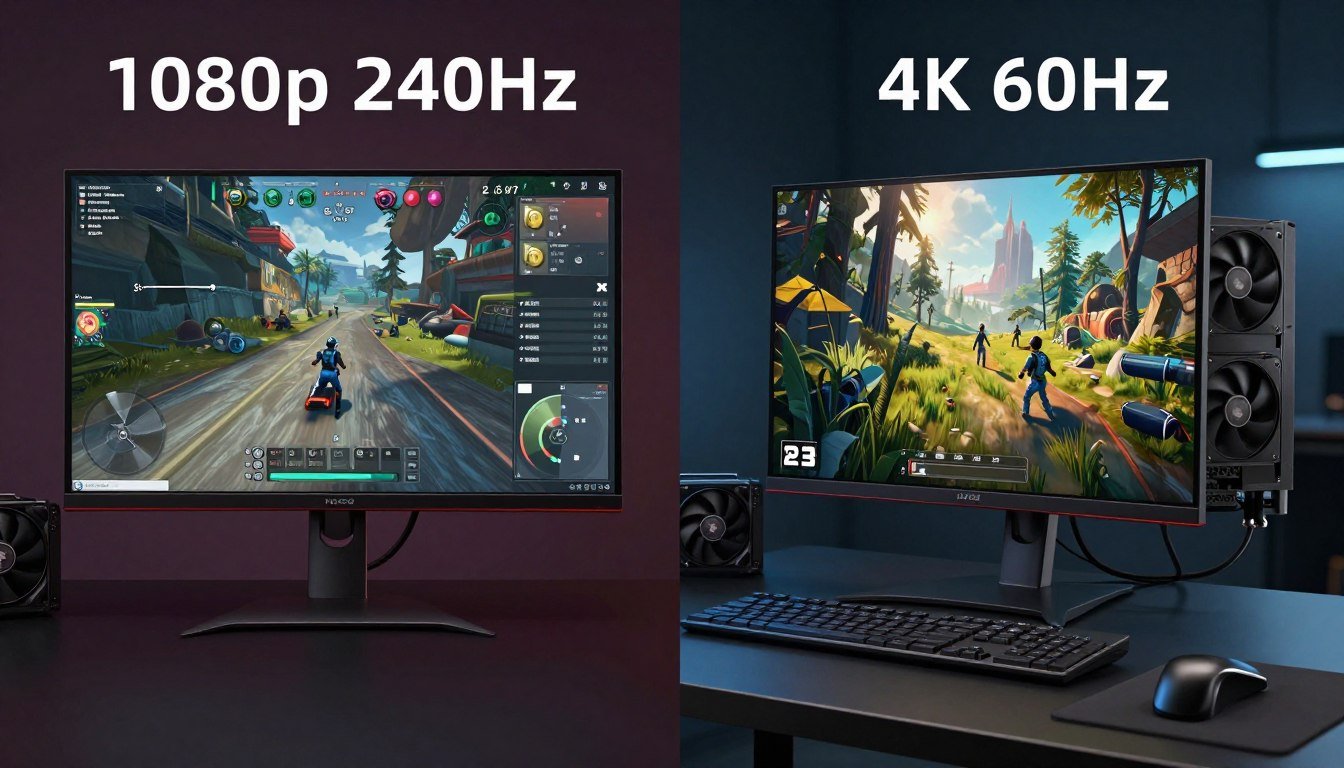
I spent two years running a Ryzen 5 3600 with an RTX 3080, wondering why my expensive graphics card felt sluggish in some games but flew in others. The answer wasn’t a faulty GPU or bad drivers. It was my monitor.
Here’s the thing most people miss. Your screen resolution creates a specific type of bottleneck that shifts between your CPU and GPU. At 1080p, your processor works overtime. At 4K, your graphics card carries the load. Pick the wrong resolution for your hardware, and you’re leaving performance on the table.
This guide cuts through the confusion. You’ll learn exactly how resolution affects CPU and GPU usage. You’ll understand why 1080p high-refresh gaming demands different hardware than 4K ultra settings. And you’ll walk away knowing which setup actually makes sense for your budget and the games you play.
No marketing speak. No “it depends” answers. Just the reality of how resolution bottleneck works and what to do about it.
What Actually Happens When Resolution Creates a Bottleneck
A bottleneck means one component in your PC limits the performance of another. Think of it like a funnel. Data flows through your system, but one part becomes too narrow. Everything backs up behind it.
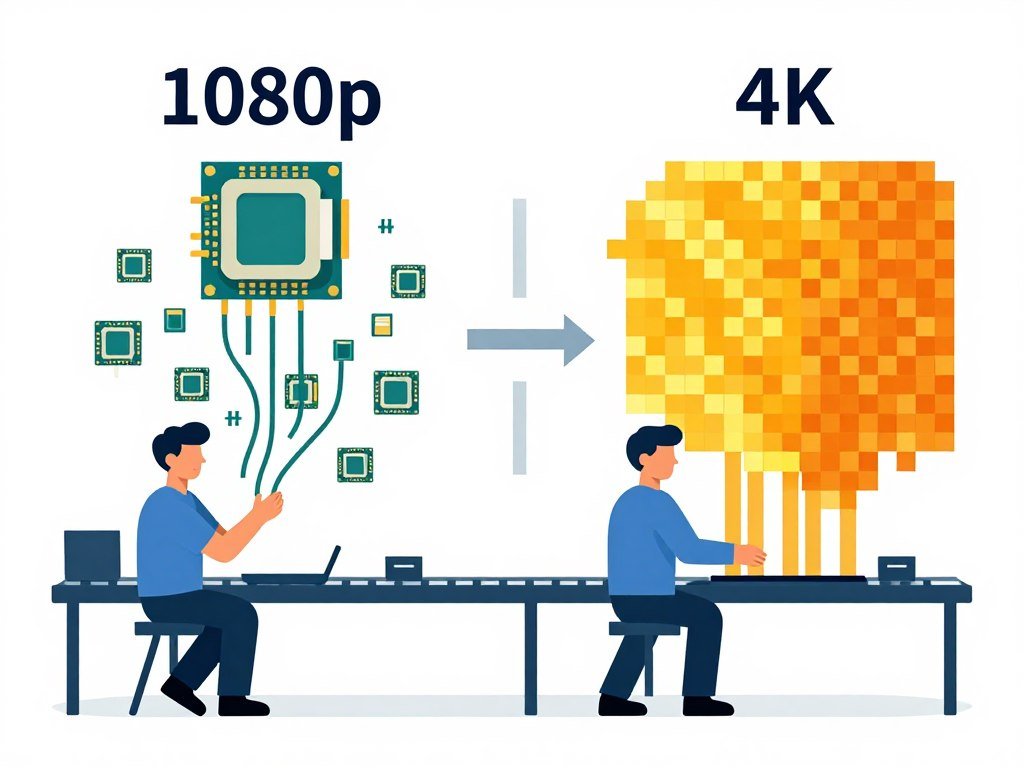
Resolution changes where that narrow point appears. At lower resolutions like 1080p, your GPU renders fewer pixels. It finishes frames quickly and asks your CPU for more work. If your processor can’t keep up, you get a CPU bottleneck.
At higher resolutions like 4K, your GPU renders millions more pixels per frame. The graphics card works harder and longer on each frame. Your CPU might be ready with more data, but your GPU hasn’t finished the current frame yet. That’s a GPU bottleneck.
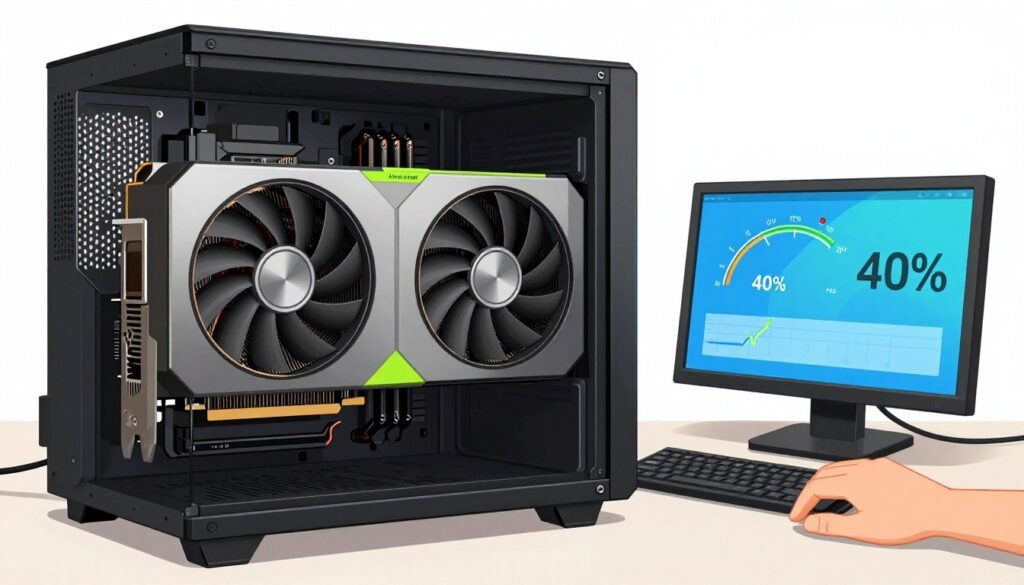
Here’s the part that confuses people. The same PC can have different bottlenecks at different resolutions. Your RTX 5080 might max out at 4K while your Ryzen 7 9800X3D sits at 40% usage. Drop to 1080p in the same game, and suddenly your CPU hits 100% while the GPU coasts at 60%.
The Pixel Math That Changes Everything
Let’s talk numbers. 1080p means 1920×1080 pixels. That’s about 2 million pixels per frame. 1440p jumps to 3.7 million pixels. 4K reaches 8.3 million pixels. Your GPU has to process, shade, and light every single one.
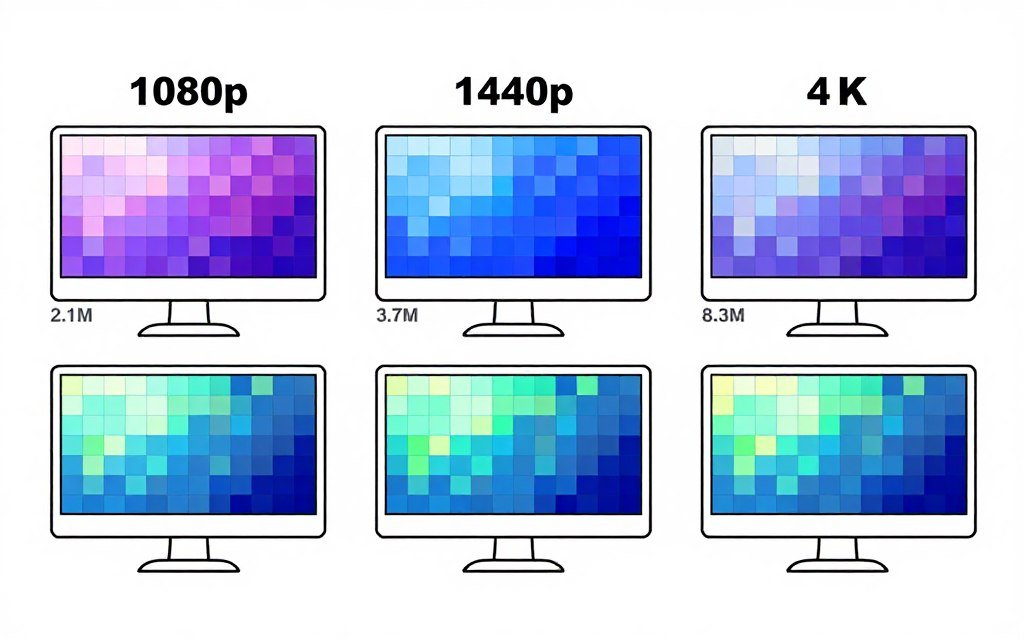
When you double the resolution from 1080p to 4K, you don’t double the GPU work. You quadruple it. Same game, same graphics settings, four times more pixels to render. That’s why a graphics card that pushes 240 FPS at 1080p might only hit 60 FPS at 4K.
Meanwhile, your CPU’s workload barely changes. It still tracks the same number of enemies, physics calculations, and game logic. Resolution doesn’t add CPU work the way it adds GPU work. This mismatch creates the bottleneck shift.
Not Sure Where Your Bottleneck Actually Is?
Before you upgrade anything, check your current system balance. Our calculator shows you exactly which component limits your performance at different resolutions.
Frame Rate vs. Frame Time: Why Both Matter
Most people focus on FPS numbers. But frame time tells you more about bottlenecks. Frame time measures how long your system takes to render one complete frame. Lower is better. 16.67ms equals 60 FPS. 8.33ms equals 120 FPS.
When your CPU bottlenecks, frame times spike unpredictably. You might see 100 FPS average, but some frames take 20ms while others take 8ms. This creates stuttering. The experience feels worse than the FPS number suggests.
GPU bottlenecks typically create more consistent frame times. Your graphics card works at full capacity on every frame. FPS drops, but the experience stays smooth. You can predict performance. That’s why many competitive players prefer consistent 144 FPS over inconsistent 200 FPS.
1080p High-Refresh Gaming: When Your CPU Becomes the Problem
I learned this the hard way playing Valorant at 1080p. My RTX 3080 barely broke a sweat. GPU usage hovered around 40%. But my older Ryzen 5 3600 maxed out every core. Frame rate capped at 180 FPS even though my monitor did 240Hz.
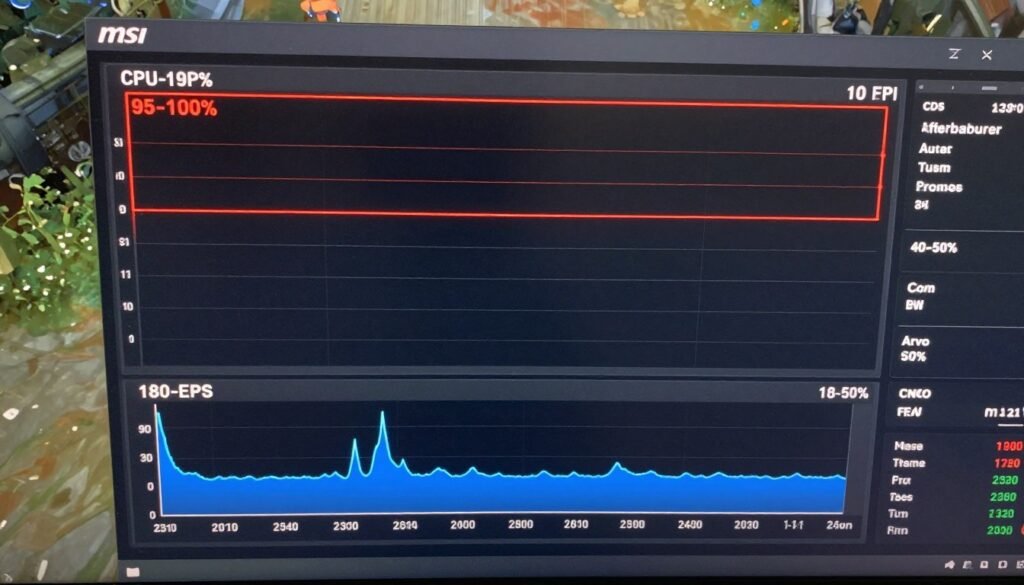
This happens because at 1080p, your GPU finishes frames fast. Really fast. A high-end graphics card like the RTX 5090 or RX 7900 XTX can render 1080p frames in just a few milliseconds. It immediately asks your CPU for the next frame’s data.
Your processor has to keep up. It needs to calculate physics, AI behavior, player positions, and game state for every frame. In fast-paced games like Counter-Strike 2, Valorant, or Overwatch 2, these calculations pile up. Your CPU becomes the limit.
What Actually Fixes 1080p CPU Bottlenecks
Upgrading your GPU won’t help. I see this mistake constantly. Someone has a solid CPU like a Ryzen 5 7600 and hits a CPU bottleneck at 1080p. They buy an RTX 5080 thinking it’ll boost FPS. It doesn’t. The new card also sits at 40% usage because the CPU can’t feed it data faster.
Solutions That Work
- Upgrade to a CPU with higher single-core speed (Ryzen 7 9800X3D, Intel Core Ultra 9 285K)
- Increase resolution to shift load to GPU
- Enable graphics settings that stress GPU more (max anti-aliasing, ray tracing)
- Check background processes eating CPU time
- Verify RAM runs at XMP/EXPO speeds
Solutions That Don’t Work
- Buying a more expensive graphics card
- Lowering graphics settings (makes it worse)
- Updating GPU drivers (won’t change CPU limit)
- Overclocking GPU (already underutilized)
- Adding more system RAM beyond 16GB for gaming
The resolution shift strategy actually works. If you bump from 1080p to 1440p, you triple the pixels your GPU processes. Suddenly your graphics card works harder. Your CPU gets more breathing room. You might lose 20% FPS, but you gain visual quality and smoother frame times.
The 1080p Sweet Spot for Different Hardware
Not all 1080p gaming creates CPU bottlenecks. The limit depends on your target frame rate and game type. Here’s what I’ve seen work across different system tiers in 2026.
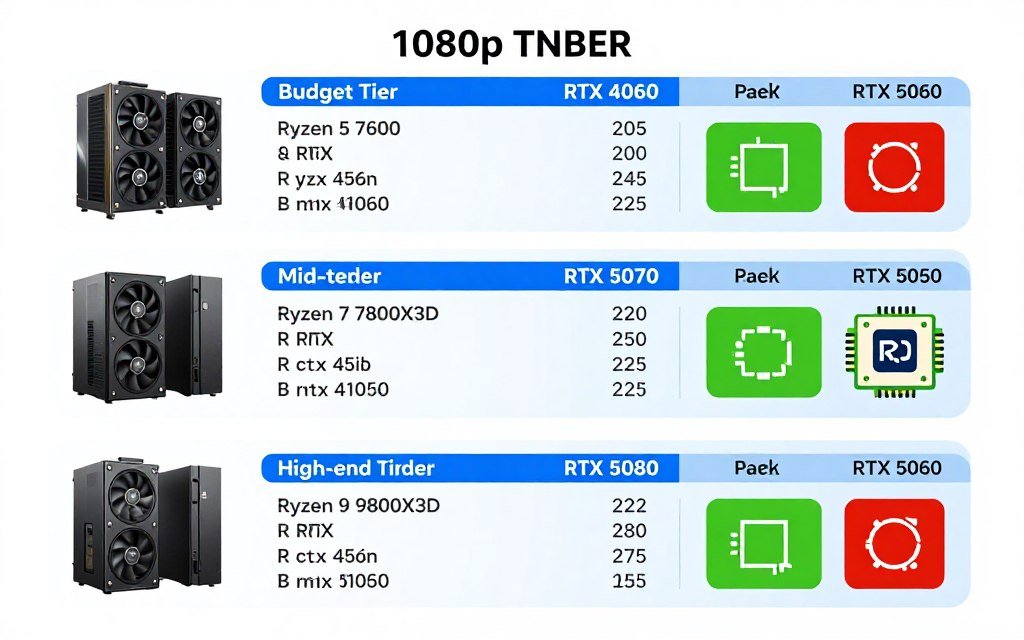
Budget builds targeting 1080p 144Hz pair well with mid-range CPUs like the Ryzen 5 7600 or Intel Core i5-14400F. These processors handle most games at this frame rate without becoming the limit. Match them with an RTX 4060 or RX 7600 XT.
High-refresh 1080p 240Hz+ setups need premium CPUs. The Ryzen 7 9800X3D dominates here with its massive cache. Intel’s Core Ultra 9 285K also works. But honestly, at this performance tier, you should consider 1440p instead. You’ll get better visual quality with similar frame rates.
Competitive esports titles like CS2 and Valorant stress CPUs more than AAA games. These titles prioritize frame rate over graphics. You’ll need a strong processor even at 1080p. Story-driven games like Cyberpunk 2077 or Microsoft Flight Simulator stress the GPU more. Lower-tier CPUs work fine.
Building a Balanced 1080p System?
Our hardware guides break down the best CPU and GPU combinations for different resolutions and budgets. See what actually works in real games.
4K Ultra Gaming: When Your GPU Hits the Wall
4K gaming flips the bottleneck equation completely. Your graphics card becomes the limiting factor in almost every scenario. Even the RTX 5090 struggles to maintain 120 FPS at 4K ultra settings in demanding titles.
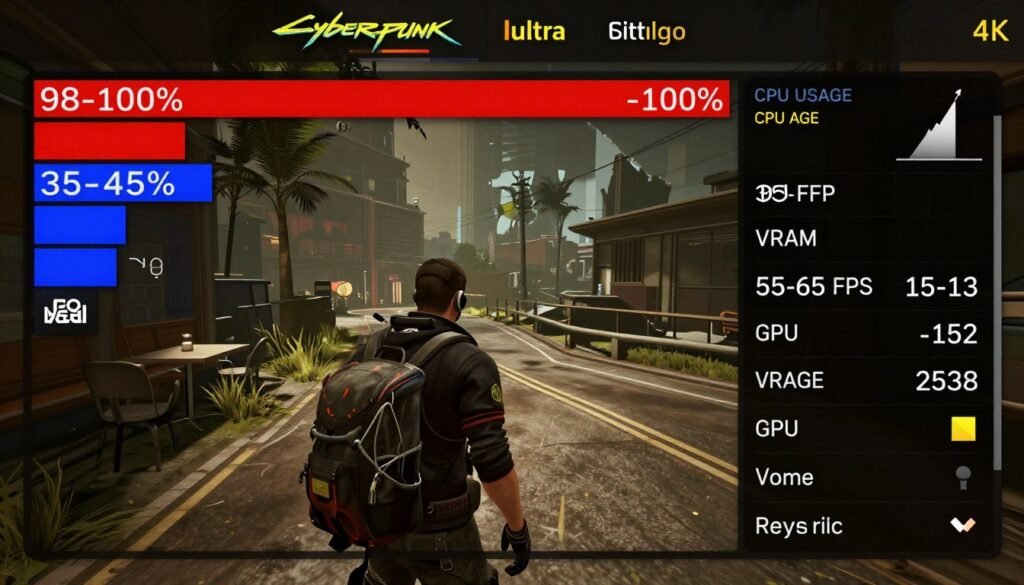
I upgraded to a 4K monitor last year. My CPU usage in every game dropped by 30-40%. My GPU usage maxed out constantly. Frame rates cut in half compared to 1440p. This is normal. 4K rendering is brutally demanding on graphics hardware.
The pixel count jump from 1080p to 4K means your GPU has four times more work per frame. Add ray tracing, high-resolution textures, and complex shaders, and modern graphics cards struggle. This is why most 4K gamers target 60 FPS rather than 144 FPS.
VRAM Becomes Critical at 4K
Here’s something that caught me off guard. VRAM usage spikes at 4K. Games load higher resolution textures. They store more frame buffer data. 8GB VRAM cards struggle or fail entirely at 4K ultra settings.
I’ve seen RTX 4060 Ti cards with 8GB VRAM hit limits in modern games at 4K. FPS tanks when VRAM fills up because the GPU starts swapping data with system RAM. That’s way slower than using VRAM directly. Stuttering gets severe.
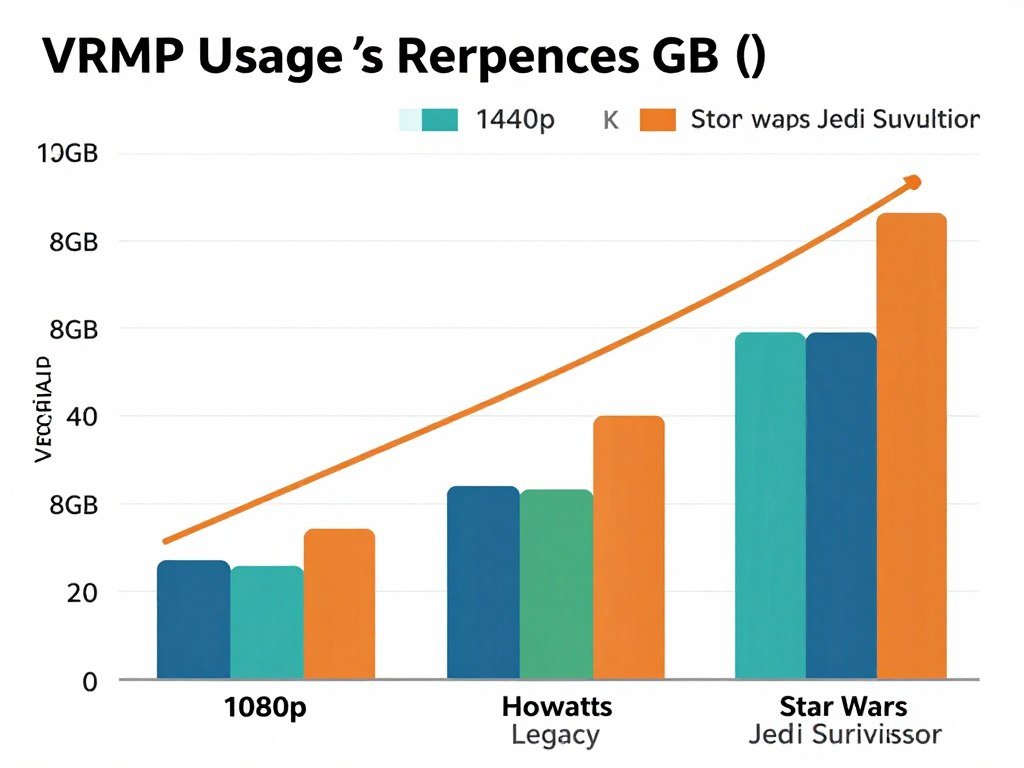
For 4K gaming in 2026, treat 12GB VRAM as the minimum. 16GB is better for future-proofing. The RTX 5070 with 12GB handles most current titles at 4K. The RTX 5080 with 16GB provides more headroom. AMD’s RX 7900 XT and 7900 XTX also pack sufficient VRAM for 4K.
Graphics Settings That Actually Matter at 4K
Not all graphics settings impact performance equally at 4K. Some options tank frame rates for minimal visual improvement. Others provide huge quality boosts with small performance costs. Here’s what I adjust first when frame rates drop.
| Graphics Setting | Performance Impact at 4K | Visual Quality Impact | Recommended Setting |
| Ray Tracing Quality | Very High (30-50% FPS loss) | High in specific scenes | Medium or Off unless you have RTX 5080+ |
| Anti-Aliasing | Low (5-10% FPS loss) | Low at 4K native | TAA or off – pixel density handles aliasing |
| Texture Quality | Medium (VRAM-dependent) | Very High | Ultra if you have 12GB+ VRAM |
| Shadow Quality | Medium (10-15% FPS loss) | Medium | High – Ultra rarely worth the cost |
| Volumetric Effects | High (15-25% FPS loss) | Medium | Medium – High kills FPS in foggy scenes |
| Ambient Occlusion | Low (3-7% FPS loss) | Medium-High | SSAO or HBAO+ on High |
Ray tracing deserves special attention. It’s the biggest FPS killer at 4K. Full path-traced games like Cyberpunk 2077 with RT Overdrive mode can cut frame rates by 60% or more. Unless you’re running an RTX 5090, consider selective ray tracing or turning it off entirely.
The DLSS and FSR Solution
Upscaling technologies changed 4K gaming completely. DLSS (NVIDIA) and FSR (AMD) render games at lower internal resolutions, then upscale to 4K using AI or algorithms. The quality difference from native 4K is minimal. The performance gain is massive.
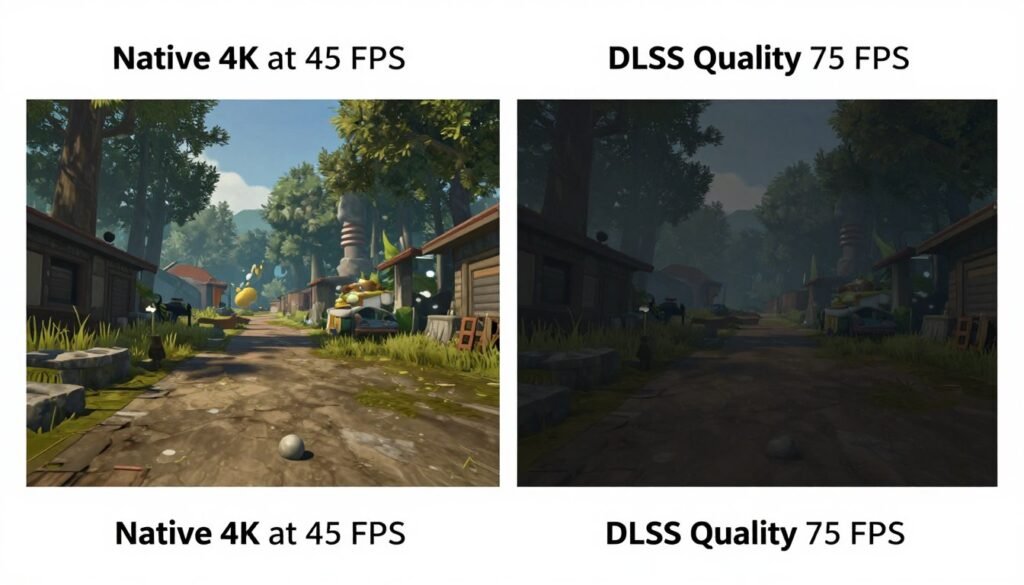
DLSS Quality mode renders at approximately 67% of native resolution, then upscales. At 4K, you’re actually rendering at about 1440p internally. This typically boosts frame rates by 40-60%. Visual quality remains excellent. Most players can’t tell the difference in motion.
I run DLSS Quality in every supported game at 4K. It’s free performance with negligible quality loss. DLSS Balanced and Performance modes push the internal resolution lower for even bigger FPS gains, but image quality starts to suffer. Quality mode hits the sweet spot.
FSR works similarly but uses different algorithms. FSR 3.0 with frame generation can double or triple frame rates in supported titles. It introduces slightly more latency than DLSS, but the difference is minimal for single-player games. Competitive players might notice it.
Turn DLSS or FSR on. Seriously. Native 4K rendering is wasteful when upscaling delivers 90% of the visual quality at 150% of the performance. The only exception is if you’re GPU shopping and want to see how cards perform without upscaling assistance.
Optimizing 4K Performance on Your Current GPU?
Our optimization guides cover exactly which settings to adjust for maximum FPS without sacrificing visual quality. Game-specific tweaks included.
Pairing Hardware to Your Resolution: What Actually Makes Sense
Here’s the mistake I see constantly on PC building forums. Someone plans a build around a specific GPU, then picks a monitor afterward. That’s backward. Your target resolution should determine your entire component balance.
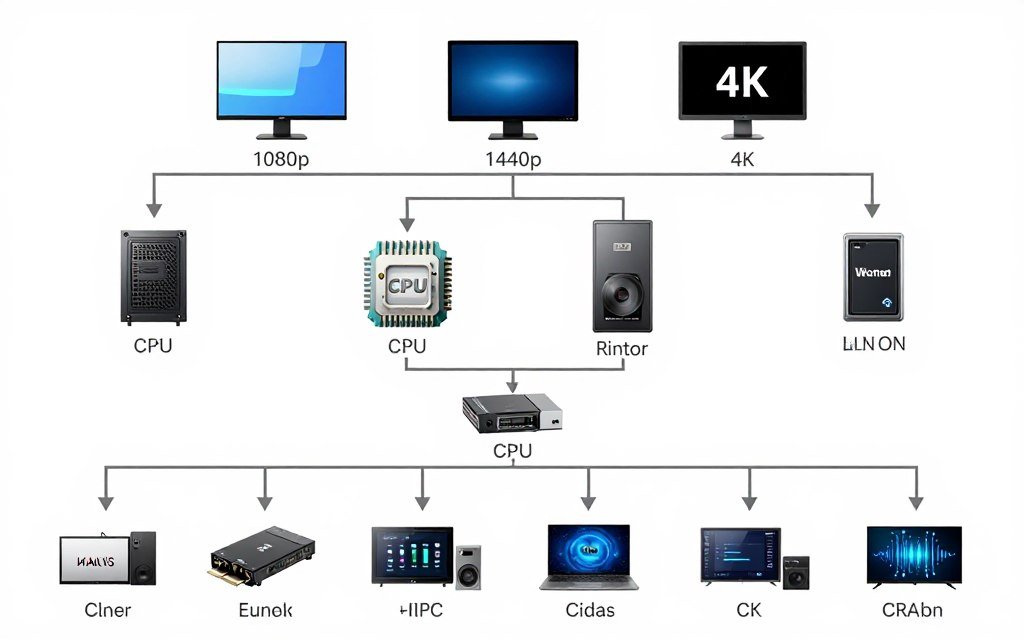
Start with the resolution you want to play at. Then work backward to the GPU tier you need for that resolution at your target frame rate. Finally, match a CPU that won’t bottleneck that GPU at that resolution. This approach prevents imbalanced builds.
The 1080p 240Hz Build Strategy
For 1080p high-refresh gaming, your CPU matters more than your GPU. I’d rather have a Ryzen 7 9800X3D with an RTX 5070 than a Ryzen 5 7600 with an RTX 5080. The strong CPU delivers consistent high frame rates. The overkill GPU sits underutilized.
Here’s my recommended balance for 1080p 240Hz competitive gaming in 2026. This setup targets 240+ FPS in esports titles like Valorant, CS2, and Overwatch 2. It also handles AAA games at 144+ FPS with adjusted settings.
Premium 1080p 240Hz Build
- CPU: AMD Ryzen 7 9800X3D or Intel Core Ultra 7 265K
- GPU: NVIDIA RTX 5070 or AMD RX 7800 XT
- RAM: 32GB DDR5-6000 CL30 (overkill for most, 16GB works)
- Monitor: 1080p 240Hz+ IPS with good response time
This combo lets your CPU stretch its legs. The GPU never becomes the limit in competitive titles. You’ll maintain high frame rates consistently.
Budget 1080p 144Hz Build
- CPU: AMD Ryzen 5 7600 or Intel Core i5-14400F
- GPU: NVIDIA RTX 4060 or AMD RX 7600
- RAM: 16GB DDR5-5600 or DDR4-3600
- Monitor: 1080p 144Hz IPS or VA panel
This balance works for 144Hz gaming in most titles. You’ll hit CPU limits in some competitive games but stay above 144 FPS where it matters.
Enthusiast 1080p 360Hz Build
- CPU: AMD Ryzen 9 9950X or Intel Core Ultra 9 285K
- GPU: NVIDIA RTX 5070 Ti or RTX 5080
- RAM: 32GB DDR5-6400 CL30 with tight timings
- Monitor: 1080p 360Hz+ TN or IPS with 1ms response
This tier is for serious competitive players. The high-end CPU pushes frame rates above 300 in esports titles. Honestly, most people don’t need this.
The 4K 60Hz Build Strategy
4K at 60 FPS focuses entirely on GPU power. Your CPU can be mid-range. Even a Ryzen 5 7600 rarely bottlenecks at 4K because the GPU does most of the heavy lifting. Spend your budget on the best graphics card you can afford.
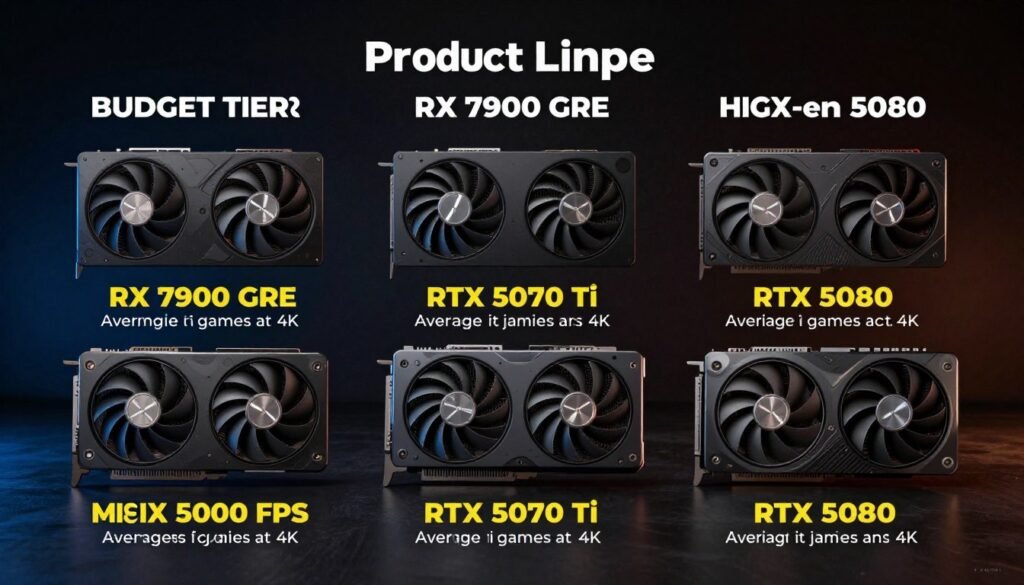
Here’s where VRAM really matters. You need at least 12GB for comfortable 4K gaming. 16GB provides headroom for future titles. The 8GB cards simply don’t cut it at 4K anymore, even with DLSS or FSR enabled.
4K 60Hz Build Recommendations
- CPU: Ryzen 5 7600 or Core i5-14400F (sufficient)
- GPU: RTX 5070 Ti (12GB) minimum, RTX 5080 (16GB) preferred
- RAM: 16GB DDR5-5600 works fine, 32GB if you multitask
- Monitor: 4K 60Hz IPS for image quality
This setup handles most games at 4K 60 FPS with high to ultra settings. Enable DLSS Quality for demanding titles. Your CPU won’t limit performance.
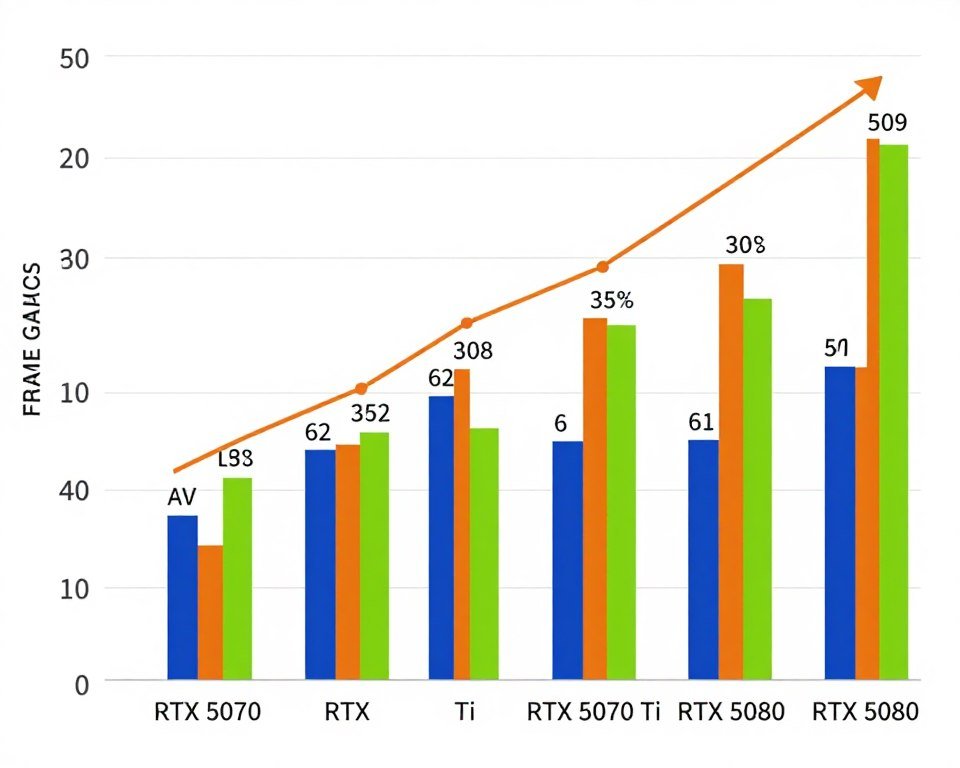
The 4K 120Hz+ Build Strategy
Now we’re talking premium territory. 4K at 120+ FPS requires top-tier hardware across the board. This is where you pair the RTX 5090 with a high-end CPU like the Ryzen 9 9950X.
Even with flagship hardware, you’ll need DLSS or FSR in demanding games. Native 4K 120 FPS is extremely difficult to achieve in modern AAA titles. Path-traced games? Forget it. You’re looking at 60-80 FPS even on an RTX 5090 with DLSS.
Flagship 4K 120Hz+ Build
- CPU: AMD Ryzen 9 9950X or Intel Core Ultra 9 285K
- GPU: NVIDIA RTX 5090 24GB (only realistic option)
- RAM: 32GB DDR5-6400 CL30, consider 64GB for content creation
- Monitor: 4K 144Hz or 165Hz IPS with G-Sync Ultimate
- Storage: 2TB+ PCIe 5.0 NVMe for fast loading in modern games
- PSU: 1000W+ 80+ Platinum, RTX 5090 has high power draw
This is a $3,000+ GPU and CPU combo alone. You’ll get the best possible 4K gaming experience, but the value proposition is questionable compared to a 4K 60Hz or 1440p 240Hz setup.
Honestly, I think 4K 120Hz is still a bit ahead of its time even in 2026. The hardware exists, but you’re paying massive premiums for frame rates most people can’t consistently achieve. 1440p 240Hz or 4K 60Hz delivers better value for most gamers.
How to Actually Diagnose Your Resolution Bottleneck
Knowing the theory is one thing. Figuring out which component limits your specific system at your specific resolution requires testing. Here’s how I approach bottleneck diagnosis without guessing.
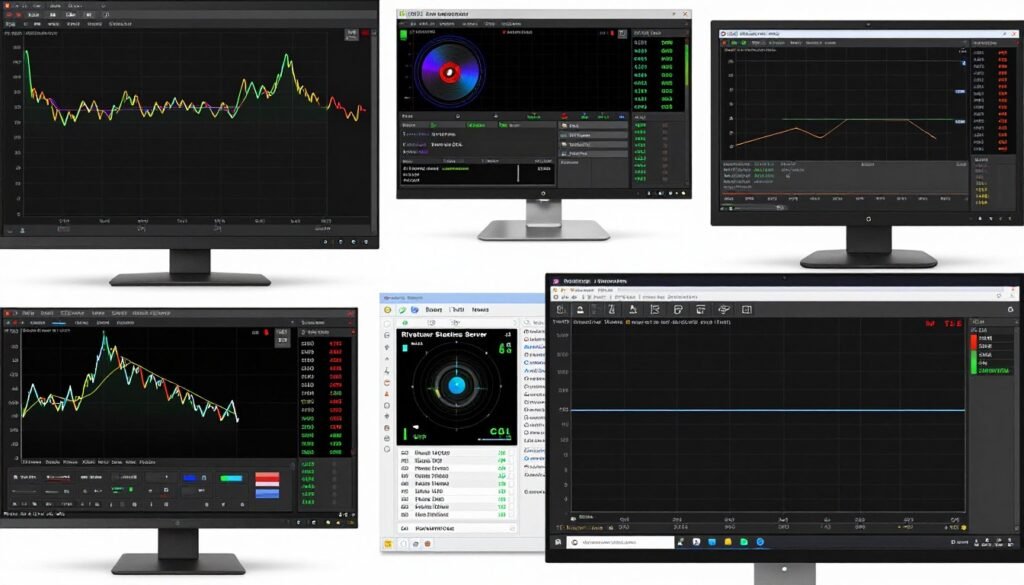
First, get monitoring tools running. I use MSI Afterburner with Rivatuner Statistics Server for in-game overlays. This shows real-time CPU usage, GPU usage, frame rate, and frame times. HWiNFO64 provides more detailed sensor data if you need it.
The Quick Bottleneck Test
Launch a game and enable your monitoring overlay. Play normally for a few minutes. Then check your CPU and GPU usage percentages. The component running at or near 100% is your bottleneck.
CPU Bottleneck Signs
- CPU usage at 90-100% on one or more cores
- GPU usage below 90%
- Frame rate doesn’t increase when you lower graphics settings
- Frame times vary significantly (stuttering)
- Fast-paced games like CS2 or Valorant hit FPS caps
GPU Bottleneck Signs
- GPU usage at 95-100% consistently
- CPU usage below 80% across all cores
- Frame rate increases significantly when you lower graphics settings or resolution
- Frame times stay consistent
- Even though GPU is maxed, FPS feels smooth
Remember, a GPU bottleneck at 4K isn’t necessarily a problem. It means you’re getting maximum performance from your graphics card. The system is balanced. A CPU bottleneck at 1080p, however, means your GPU isn’t reaching its potential.
The Resolution Scaling Test
This test confirms where your bottleneck shifts. Run the same game at three different resolutions: 1080p, 1440p, and 4K. Record your FPS and component usage at each resolution with identical graphics settings.
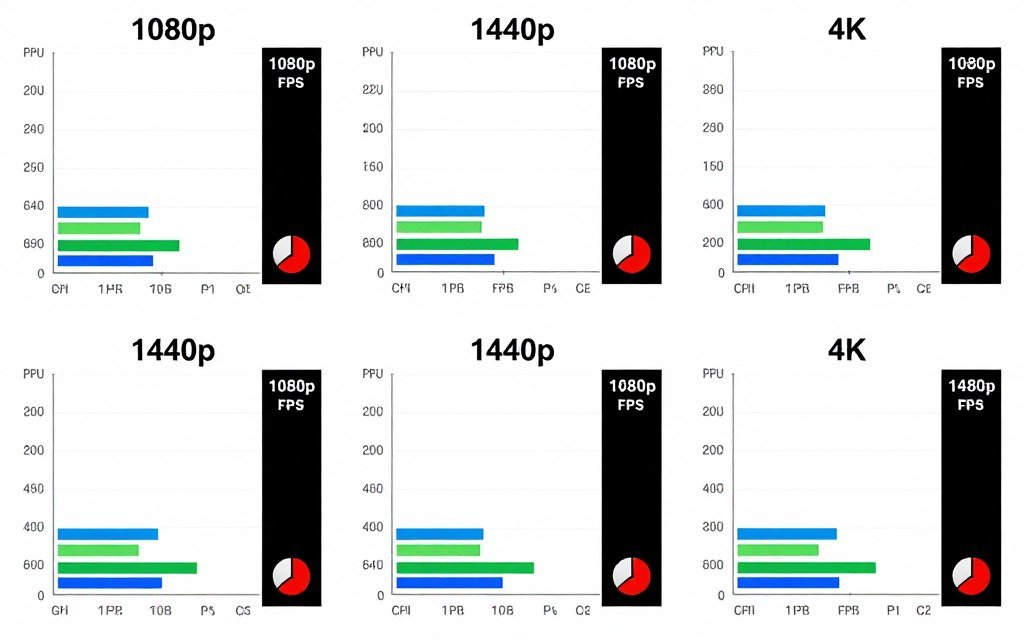
If FPS barely changes between 1080p and 1440p, you have a CPU bottleneck. The higher resolution should stress the GPU more and drop FPS. If FPS barely changes, your CPU was already the limit at 1080p, and moving to 1440p didn’t change that.
If FPS drops proportionally as you increase resolution (roughly 30% drop from 1080p to 1440p, 50% drop from 1080p to 4K), your GPU is the bottleneck across all resolutions. This is normal for high-end CPUs paired with mid-range GPUs.
The Graphics Settings Test
Drop all your graphics settings to Low. Run the game and note your FPS. Now max everything to Ultra. Run again and compare FPS.
Big FPS drop when maxing settings? GPU bottleneck. Graphics settings primarily impact your graphics card. If changing them dramatically affects performance, your GPU is the limiting factor.
Small or no FPS change when maxing settings? CPU bottleneck. Your processor can’t deliver frames faster regardless of how hard your GPU works. Lowering graphics settings might even reduce FPS slightly because your GPU finishes frames even faster and waits for CPU data.
I’ve seen this confuse people. They have a CPU bottleneck, lower graphics settings thinking it’ll help, and FPS actually drops or stays the same. That’s because the CPU was already maxed out. Making the GPU faster doesn’t help when the CPU can’t keep up.
Need Help Interpreting Your Results?
Our bottleneck basics guide explains exactly what different usage patterns mean and how to fix them. Includes troubleshooting steps for common issues.
Fixing Resolution Bottlenecks: The Practical Approach
Once you’ve identified your bottleneck, you have several options. Not all require spending money on new hardware. Some fixes work immediately. Others involve compromise. Here’s what actually works based on my experience and extensive testing.
Free Fixes to Try First
Before buying anything, exhaust the zero-cost solutions. These won’t eliminate severe bottlenecks, but they can improve performance by 10-20% in some scenarios. That might be enough to hit your target frame rate.
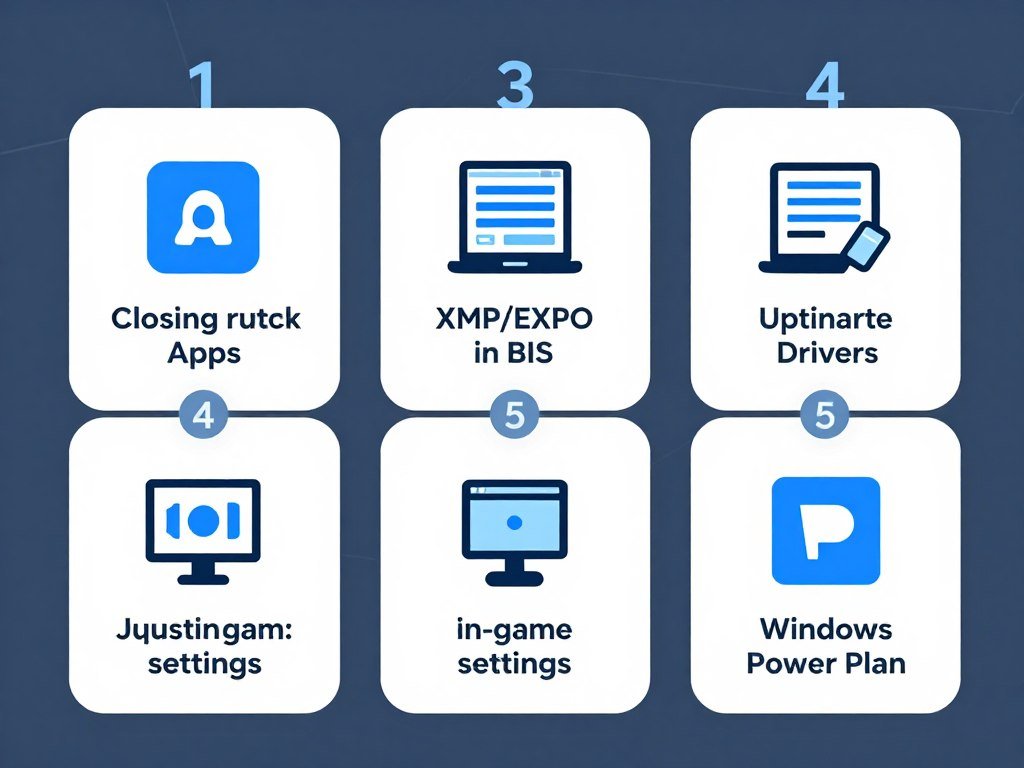
- Close all background applications stealing CPU cycles (Discord, Chrome, Spotify)
- Enable XMP/EXPO in BIOS for faster RAM speeds
- Turn off unnecessary Windows background services
- Update your motherboard BIOS (can improve CPU performance)
- Verify your CPU cooler works properly – thermal throttling kills performance
- Set Windows power plan to High Performance or Ultimate Performance
- Disable fullscreen optimizations in Windows for your games
For CPU Bottlenecks
- Enable DLSS or FSR (massive FPS boost at minimal quality loss)
- Turn down or disable ray tracing
- Lower shadow quality from Ultra to High
- Reduce volumetric effects quality
- Update GPU drivers to latest version
- Verify GPU isn’t thermal throttling (clean dust, improve case airflow)
- Use GPU overclocking tools for 5-10% extra performance
For GPU Bottlenecks
RAM speed matters more than most people think for CPU bottlenecks. If you have DDR4-2400 or DDR5-4800 RAM, enabling XMP/EXPO to run at rated speeds can boost FPS by 15-20% in CPU-limited scenarios. The CPU gets data faster from RAM, reducing bottleneck severity.
For GPU bottlenecks, DLSS or FSR provides the biggest immediate improvement. I can’t stress this enough. A 40-60% FPS boost with minimal visual compromise is incredible. If your game supports it, use it.
Settings Adjustments That Balance Performance and Quality
Not ready to upgrade hardware? Strategic graphics settings adjustments can shift the bottleneck balance. The goal is reducing GPU load without making the game look terrible.
| Setting | GPU Load Reduction | Visual Impact | Recommendation |
| Resolution Scale | Very High | High | Use DLSS/FSR instead of manually reducing |
| Ray Tracing | Very High | Medium | Disable or use lowest RT setting |
| Anti-Aliasing | Medium | Low at 1440p+ | Use TAA or disable at 4K |
| Shadow Quality | Medium | Low to Medium | High instead of Ultra saves FPS |
| Reflections | High | Medium | Medium or disable screen-space reflections |
| Volumetric Fog/Clouds | High | Low to Medium | Medium – you rarely notice the difference |
| View Distance | Medium | Low | High is usually sufficient |
| Texture Quality | Low (VRAM-dependent) | Very High | Max it if you have VRAM headroom |
Focus on high-cost, low-impact settings first. Ray tracing, volumetric effects, and shadow quality hit FPS hard without proportional visual improvements. Texture quality, on the other hand, dramatically affects visuals but has minimal FPS impact if you have sufficient VRAM.
When You Actually Need to Upgrade
Sometimes optimization isn’t enough. Your hardware genuinely can’t deliver the performance you want at your target resolution. Here’s my hierarchy for upgrade decisions based on bottleneck type and severity.
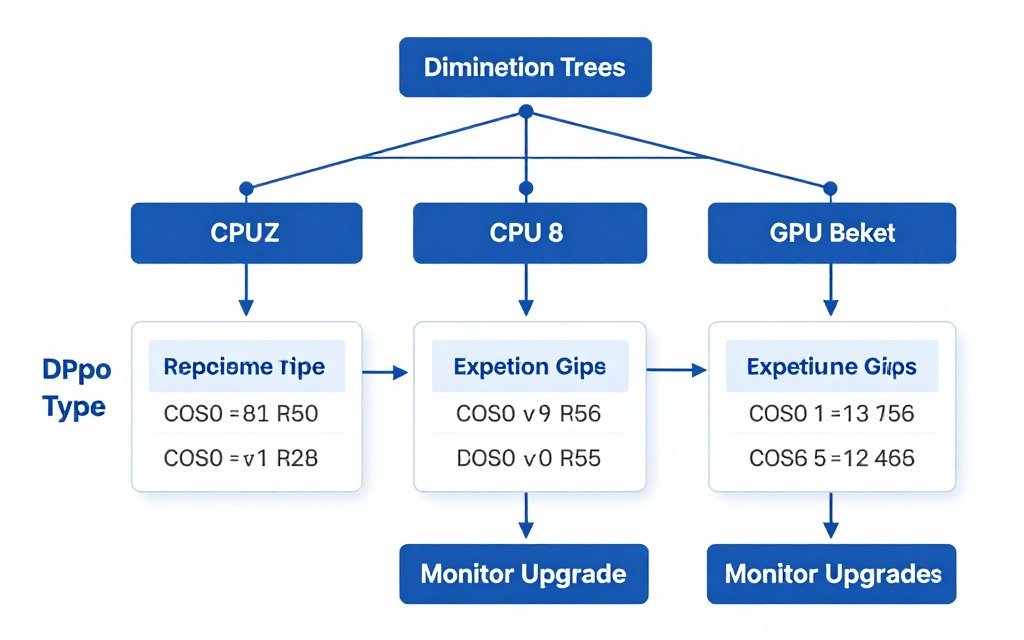
For CPU bottlenecks at 1080p high-refresh, upgrading your CPU is the only real solution. Moving from a Ryzen 5 5600 to a Ryzen 7 9800X3D can boost FPS by 40-60% in CPU-limited games. But this also requires a motherboard upgrade if you’re on an older platform.
For GPU bottlenecks at 4K, a new graphics card is the obvious path. But consider whether dropping to 1440p with your current GPU might deliver a better experience. 1440p at 144 FPS often looks and feels better than 4K at 45 FPS.
Here’s my upgrade priority list:
- If CPU-bottlenecked: Upgrade CPU first, ensure motherboard compatibility, verify RAM is fast enough
- If GPU-bottlenecked at desired resolution: Either upgrade GPU or reduce resolution target
- If VRAM-limited: Must upgrade GPU – no other fix exists
- If balanced but not hitting targets: Consider if your resolution target is realistic for your hardware budget
- If monitor doesn’t match hardware: Sometimes the monitor is the problem – 4K display with mid-range GPU creates frustration
The monitor upgrade consideration matters more than people realize. I’ve talked to builders running RTX 4060 cards with 4K monitors. They’re constantly disappointed by low FPS. Switching to a 1440p monitor would transform their experience without hardware changes.
Planning Your Next Upgrade?
Use our calculator to test different upgrade scenarios before spending money. See exactly how a new CPU or GPU would affect your performance at different resolutions.
Real-World Scenarios: Which Bottleneck You’ll Actually Hit
Theory is nice. Real-world behavior is what matters. Different game genres stress your system differently. Fast-paced competitive titles behave differently than beautiful single-player experiences. Here’s what I’ve learned from years of testing.
Competitive Esports Titles at 1080p
Games like Valorant, CS2, Overwatch 2, and League of Legends prioritize frame rate over visual fidelity. These titles run on modest hardware but reward high FPS. They’re almost always CPU-bottlenecked at 1080p on modern systems.
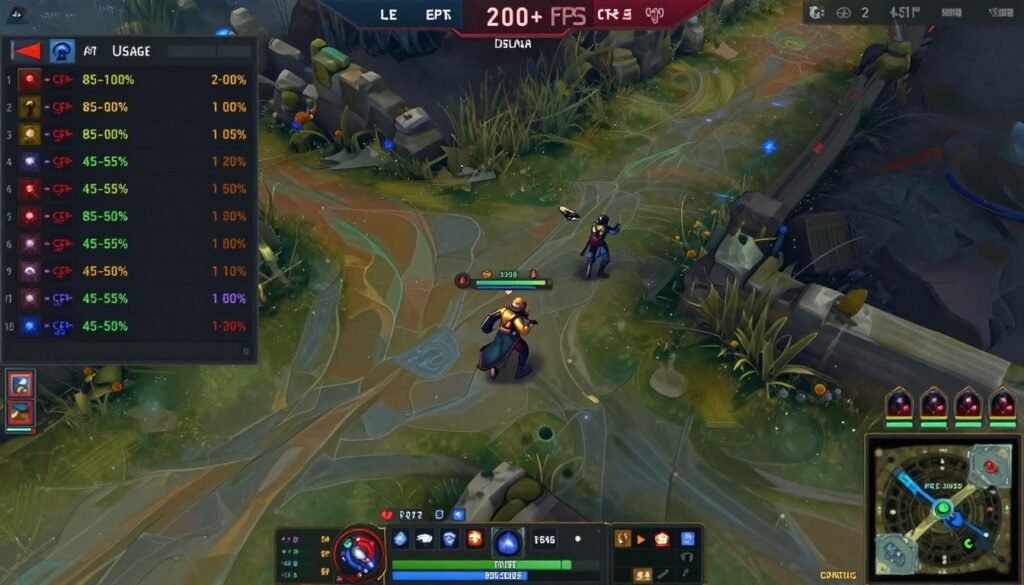
I tested CS2 on a Ryzen 7 7800X3D with an RTX 5070. At 1080p Low settings, I got 400+ FPS. CPU usage maxed out. GPU usage sat at 35%. Upgrading to an RTX 5080 changed nothing. The CPU was the limit.
For these games, buy the best CPU you can afford. The GPU can be mid-range. An RTX 4060 or RX 7600 is sufficient. Save money on the graphics card and put it toward a Ryzen 7 9800X3D or Core Ultra 9 285K.
AAA Single-Player Games at 4K
Story-driven games like Cyberpunk 2077, Starfield, and Hogwarts Legacy emphasize visual quality. They’re GPU-bound at 4K on virtually every system. Your CPU rarely matters once you hit 4K resolution in these titles.
I ran Cyberpunk 2077 with path tracing at 4K on both a Ryzen 5 7600 and a Ryzen 9 9950X. Both systems used an RTX 5080. FPS was identical within margin of error. The GPU bottleneck was absolute. The CPU just didn’t matter at that resolution.
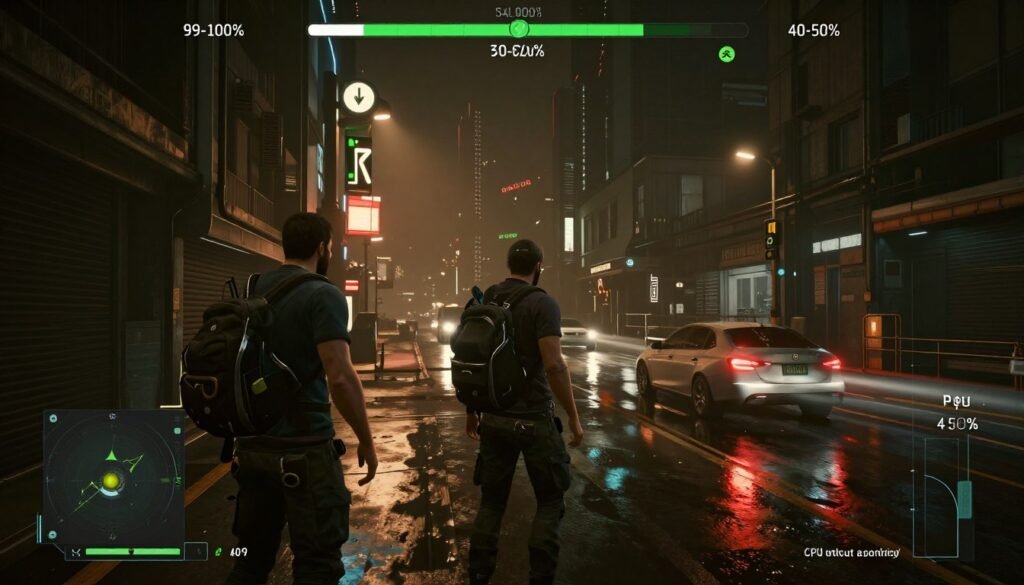
This is where VRAM becomes critical. Path-traced Cyberpunk at 4K uses over 16GB VRAM with high-res textures. Cards with 12GB or less struggle. You need the RTX 5080 (16GB) or RTX 5090 (24GB) for comfortable 4K ultra gaming in 2026’s most demanding titles.
Open-World Games: The Mixed Bottleneck
Games like Microsoft Flight Simulator, Star Citizen, and some Unreal Engine 5 titles stress both CPU and GPU heavily. These games simulate complex worlds with many moving parts. They bottleneck differently in different scenes.
Flight Simulator over dense cities is CPU-bound. It’s calculating buildings, traffic, and physics. GPU usage drops. Flying over empty ocean shifts to GPU-bound as the system renders water and weather effects. Your bottleneck moves dynamically.
For these titles, you need balance. Don’t cheap out on either component. A Ryzen 7 9800X3D or Core Ultra 7 265K paired with an RTX 5070 Ti or better handles them well at 1440p. 4K requires stepping up to an RTX 5080.
Simulation and Strategy Games
Cities: Skylines II, Total War games, and Civilization VII hit the CPU hard regardless of resolution. These games simulate thousands of entities with complex AI. Graphics are often simple, but the simulation is demanding.
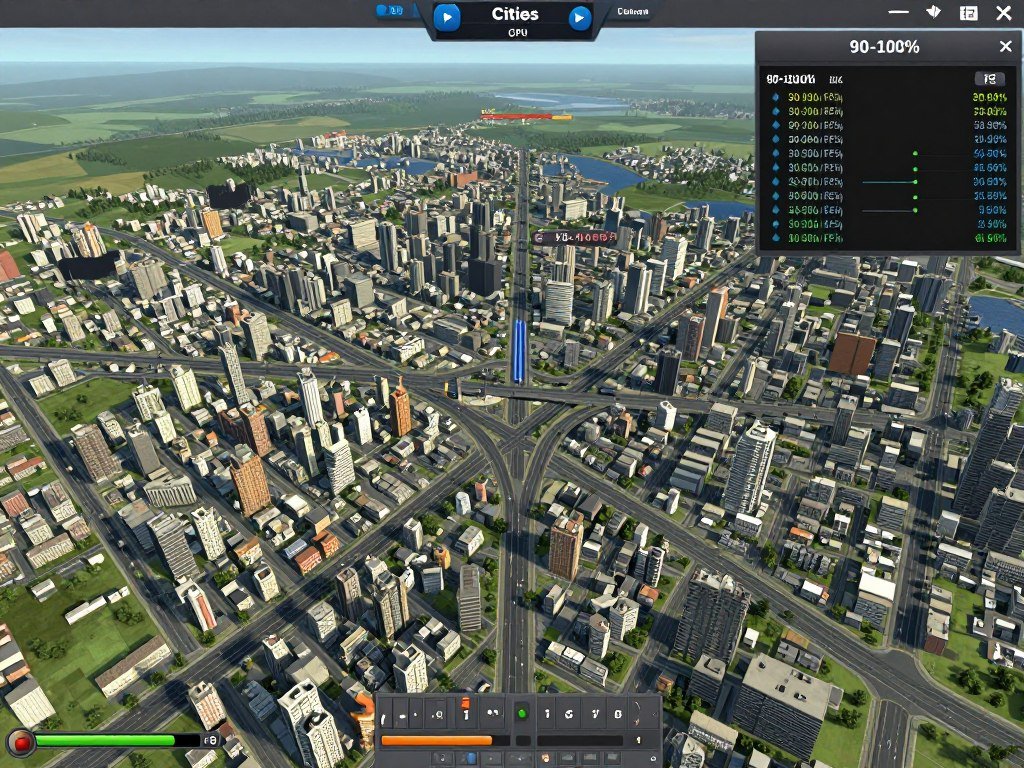
I’ve seen Cities: Skylines II bring a Ryzen 9 9950X to its knees while an RTX 4060 barely breaks a sweat. The game simulates every citizen, every vehicle, every building. Resolution doesn’t matter. The CPU is always the limit in large cities.
If you play simulation games heavily, prioritize CPU. Get the fastest single-core performance you can afford. The GPU is secondary. Even a budget graphics card works fine for these titles.
Future-Proofing: How Resolution Impacts Long-Term Hardware Value
Here’s something most people don’t consider when building a PC. Your resolution choice affects how long your hardware stays relevant. Lower resolutions stress older components differently than higher resolutions. This impacts when you’ll need to upgrade.
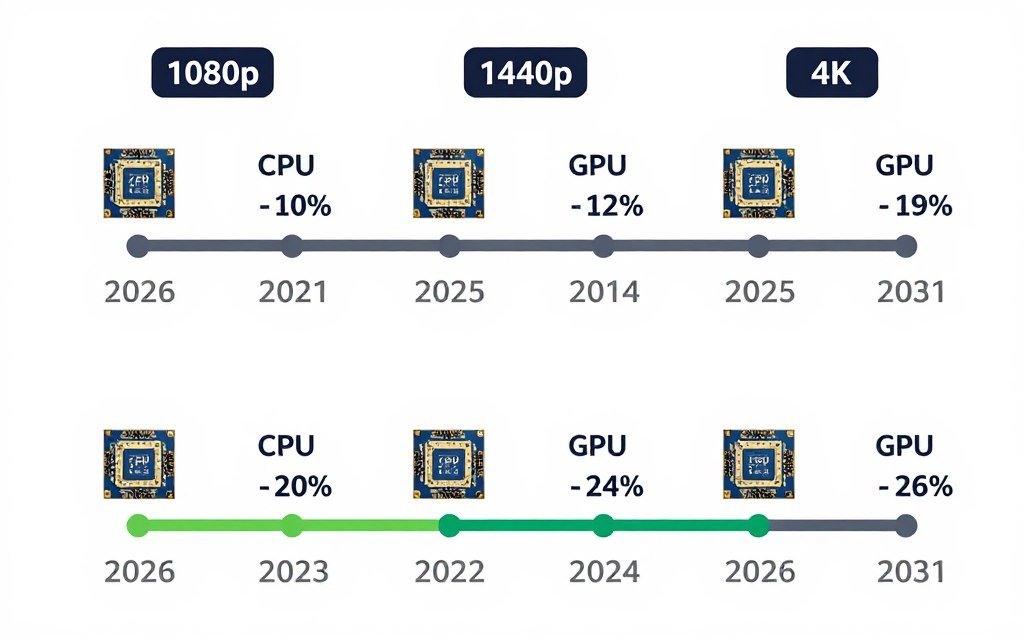
A high-end GPU bought in 2026 will stay relevant longer at 1080p than at 4K. Think about it. Game requirements increase over time. In three years, an RTX 5070 might struggle at 4K but still crush 1080p. Your lower resolution target extends hardware life.
But CPU longevity works differently. A top-tier CPU like the Ryzen 7 9800X3D stays relevant at 1080p high-refresh for years. The gaming industry doesn’t dramatically increase CPU requirements as fast as GPU requirements. Your CPU investment lasts longer.
The 1080p Longevity Strategy
If you want hardware to last five years at high refresh rates, 1080p is your target. Buy a premium CPU now (Ryzen 7 9800X3D tier). Pair it with a mid-range GPU that delivers your target frame rate today. Plan to upgrade the GPU in 2-3 years when new titles stress it.
This strategy works because:
- CPUs improve slowly generation to generation (10-15% performance gains)
- GPUs improve faster generation to generation (30-50% gains)
- 1080p gaming doesn’t stress GPUs as hard, extending their useful life
- Your strong CPU won’t bottleneck future mid-range GPU upgrades
- You spread upgrade costs over time instead of replacing everything at once
I’ve been running this strategy. My Ryzen 7 7800X3D from 2023 still doesn’t bottleneck at 1080p in 2026. I upgraded from an RTX 3080 to an RTX 5070 Ti in 2025. That GPU will last another 2-3 years before I consider upgrading again. The CPU? It’ll probably survive until 2028 or beyond.
The 4K Longevity Challenge
4K future-proofing is expensive. Game requirements at 4K increase faster than hardware can keep up. What runs at 60 FPS today might hit 40 FPS in two years as new titles raise the bar.
If you’re committed to 4K, buy the strongest GPU you can justify. The RTX 5080 or RTX 5090 in 2026 will struggle with 4K ultra settings in 2029. That’s just reality. But they’ll drop to 4K high settings and maintain playable frame rates longer than mid-range cards.
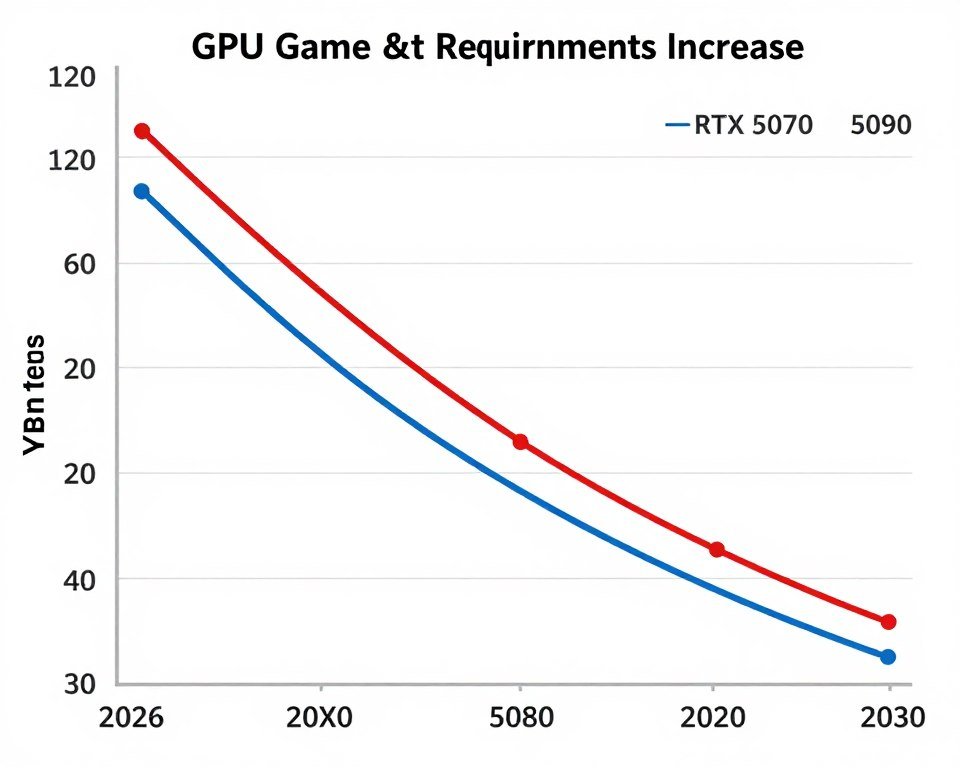
Your CPU choice matters less for 4K longevity. Even a Ryzen 5 7600 won’t bottleneck 4K gaming in five years. Games just don’t stress CPUs proportionally with how they stress GPUs at 4K. Save money on the processor if 4K is your only target.
The 1440p Sweet Spot
I think 1440p offers the best balance for longevity in 2026. It’s demanding enough that you see visual improvements over 1080p. But it’s not so demanding that hardware becomes obsolete quickly.
A well-balanced 1440p system from 2026 should handle high settings at 100+ FPS for 3-4 years. Drop to medium settings in year 5, and you’re still above 60 FPS. Compare that to 4K, where you might need to drop to 1440p entirely after 3 years to maintain frame rates.
For 1440p longevity:
- Buy a strong mid-tier CPU (Ryzen 7 9800X3D or Core Ultra 7 265K)
- Match it with a high-tier GPU (RTX 5070 Ti or RTX 5080)
- Ensure 16GB+ VRAM for future texture requirements
- Get at least 32GB system RAM to avoid upgrades
- Choose a 1440p 240Hz monitor for flexibility
This combo gives you high frame rates now and room to adjust settings as games evolve. You won’t need to touch CPU or RAM for five years. GPU might need upgrading in year 4-5 if you want to maintain ultra settings.
Common Mistakes That Make Resolution Bottlenecks Worse
I’ve seen these mistakes repeatedly on forums and in client builds. They’re easy to make. They waste money and create frustration. Here’s what to avoid when building or upgrading a system with specific resolution targets.
Mistake 1: Buying Based on Headlines Instead of Use Case
People see “RTX 5090 Destroys Games!” headlines and buy the card without considering their monitor. Then they wonder why their 1080p 144Hz experience isn’t much better than their old RTX 4070.
I watched someone spend $2,400 on an RTX 5090 for 1080p Valorant. Their FPS went from 300 to 310. Their Ryzen 5 7600 was the bottleneck before and after. They wasted $2,000 compared to keeping their old card.
Match your GPU to your resolution and frame rate target. Don’t buy more GPU than your monitor can utilize. A $600 RTX 5070 maxes out most 1080p 240Hz scenarios. The $2,000 RTX 5090 does nothing extra at that resolution.
Mistake 2: Ignoring VRAM Requirements at 4K
8GB VRAM cards can’t handle 4K ultra settings anymore. Yet I still see people buying RTX 4060 Ti 8GB cards for 4K builds because they’re “good value.” They’re not good value if they can’t run your games properly.
Modern titles at 4K with high textures use 10-12GB VRAM minimum. Path-traced games hit 14-16GB. An 8GB card either runs out of VRAM and stutters, or forces you to lower texture quality significantly. That defeats the point of 4K gaming.
For 4K in 2026, treat 12GB VRAM as absolute minimum. Prefer 16GB for comfort. The price difference is worth it to actually enjoy 4K visuals without compromises.
Mistake 3: Skimping on CPU for 1080p High-Refresh
This is the opposite mistake. People build 1080p 240Hz systems with budget CPUs thinking “the GPU does the gaming work.” Then they wonder why their expensive RTX 5070 Ti only delivers 180 FPS in competitive games.
At 1080p high-refresh, your CPU is the star. It determines your frame rate ceiling. A Ryzen 5 7600 might bottleneck at 200 FPS. A Ryzen 7 9800X3D pushes past 400 FPS in the same scenario. That’s the difference between hitting your 240Hz target and falling short.
If 1080p 240Hz+ is your goal, allocate at least 30-40% of your total budget to the CPU and motherboard. The GPU can be mid-range. This balance actually delivers the performance you want.
Mistake 4: Not Testing Before Upgrading
People assume they have a GPU bottleneck and buy a new graphics card. Then they discover their CPU was the limit. Now they’ve spent $800 and seen zero FPS improvement.
Always diagnose before upgrading. Use the monitoring tools I mentioned earlier. Confirm which component actually limits performance. Test at different resolutions and settings. Know your bottleneck before spending money.
I almost made this mistake myself. I thought my RTX 3080 was limiting my frame rates in Warzone. Monitoring revealed my CPU was at 100% while the GPU sat at 65%. Saved myself from wasting $1,000 on a GPU upgrade I didn’t need.
Mistake 5: Forgetting About System Balance
I’ve seen systems with an RTX 5090 paired with 16GB of slow DDR4-2666 RAM and a SATA SSD. Or a Ryzen 9 9950X with an RTX 4060. These systems have obvious weak points that sabotage overall performance.
System balance matters. Your PC is only as fast as its slowest component. Fast RAM helps CPU-bound scenarios. Fast storage reduces loading times and eliminates texture streaming stutters. A good PSU prevents power-related crashes under load.
Build balanced systems. If you’re spending $1,500 on a GPU, don’t pair it with $60 RAM or a $40 PSU. Allocate budget proportionally across all components.
Avoid Expensive Mistakes
Test your build before buying. Our calculator identifies imbalanced component pairings and suggests adjustments for better performance per dollar.
The Bottom Line on Resolution Bottlenecks
Resolution choice fundamentally changes which component limits your gaming performance. 1080p high-refresh gaming stresses your CPU. 4K ultra gaming stresses your GPU. 1440p sits in the middle, offering the best balance for most gamers.
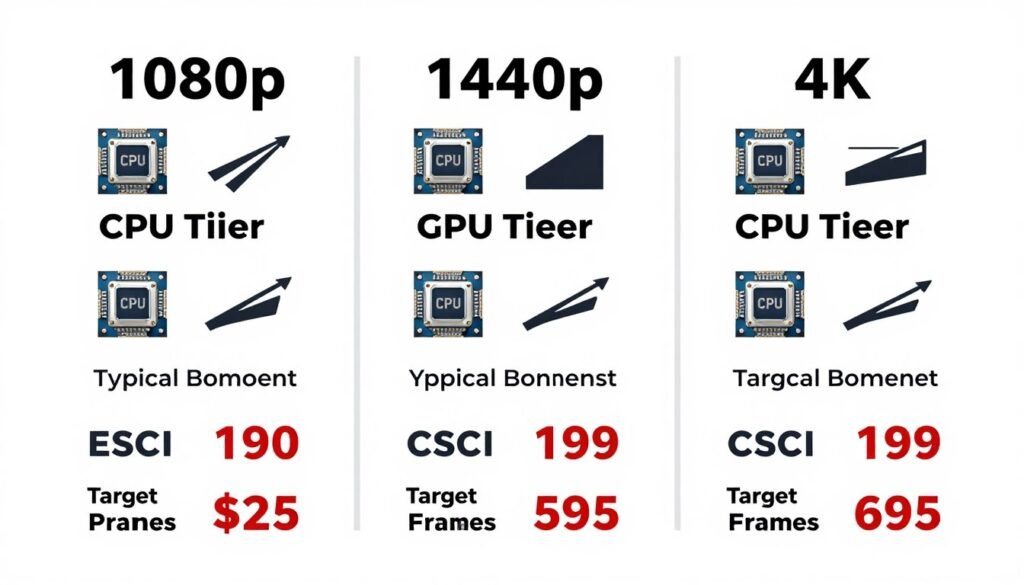
Your monitor should drive your component choices, not the other way around. Pick your target resolution and frame rate first. Then select a GPU that delivers that performance. Finally, match a CPU that won’t bottleneck that GPU at that resolution.
For most people in 2026, I recommend 1440p 144-165Hz. It’s demanding enough to showcase modern graphics cards. But it’s not so demanding that you need flagship hardware to hit reasonable frame rates. The experience scales well across multiple budget tiers.
If you’re serious about competitive gaming, 1080p 240Hz with a premium CPU makes sense. If you want the absolute best visuals and have the budget, 4K 60-120Hz with a top-tier GPU delivers stunning image quality.
But whatever you choose, understand the trade-offs. Build your system around your monitor and your goals. Test and diagnose before upgrading. And remember that the best gaming experience comes from balanced systems, not from maxing out one component while ignoring others.
Use the tools available to check your system balance. Learn to spot bottlenecks. Make informed upgrade decisions. That’s how you build a PC that actually delivers the performance you want at the resolution you care about.
Ready to Build or Upgrade Your System?
Start with our bottleneck calculator to test different component combinations at your target resolution. Then explore our knowledge base for detailed build guides, optimization tips, and hardware recommendations.
What’s the weirdest performance issue you’ve ever run into? Drop a comment with your strangest bottleneck story or a question about your own system balance.