
Last month, I spent three hours troubleshooting why my friend’s brand-new RTX 5070 rig was getting worse frame rates than his old 3060 Ti build. We checked drivers, temperatures, power settings, everything. The culprit? Windows Game Mode was fighting with his recording software, and neither would back down.
This kind of thing happens more than you’d think. Game Mode promised to fix gaming performance back in 2017. Here we are in 2026, and people still can’t figure out if it helps or hurts.
This guide cuts through the confusion with real testing on modern hardware. You’ll learn what Game Mode actually does, when it helps, when it makes things worse, and how to decide if you should turn it on or off. We tested it on RTX 50-series and Ryzen 9000 systems to give you answers that work right now.
The reality is simple: Game Mode works differently depending on your system. Before we dig into whether it still works in 2026, understanding how system bottlenecks affect gaming performance makes everything clearer.
What Game Mode Actually Does (And What It Doesn’t)
Game Mode is Windows trying to be your gaming buddy. When you turn it on, Windows tells your system to treat games like VIPs at a concert. Everything else becomes background noise.
Think of your computer like a highway. Normally, all programs get equal lanes. Game Mode is like giving your game an express lane while pushing everything else to the slow lane. That’s the theory, anyway.
Here’s what actually happens when you turn on Game Mode:
- Windows gives your game higher CPU priority (it gets processed first)
- Background tasks get pushed to lower priority (Windows Update, file indexing, antivirus scans)
- Game bar features activate (screenshot tools, performance monitoring)
- Xbox Game Bar overlay becomes available
- Automatic game detection for specific titles
What Game Mode doesn’t do is equally important. It won’t make your GPU faster. It can’t add more RAM. It doesn’t change your graphics settings. And it definitely won’t fix a badly optimized game.
Microsoft built Game Mode to solve one specific problem: background programs stealing resources while you game. That’s it. If you don’t have that problem, Game Mode won’t help much.
The confusion comes from how CPU resources work. Modern CPUs like the Ryzen 9950X or Intel Core Ultra 9 285K have enough power for gaming and background tasks at the same time. This is where understanding system balance and component interaction becomes crucial.
Quick Reality Check: On a clean system with 16+ GB RAM and a modern CPU, Game Mode typically changes frame rates by less than 3%. That’s within margin of error territory.
Testing Game Mode on 2026 Hardware: The Real Numbers
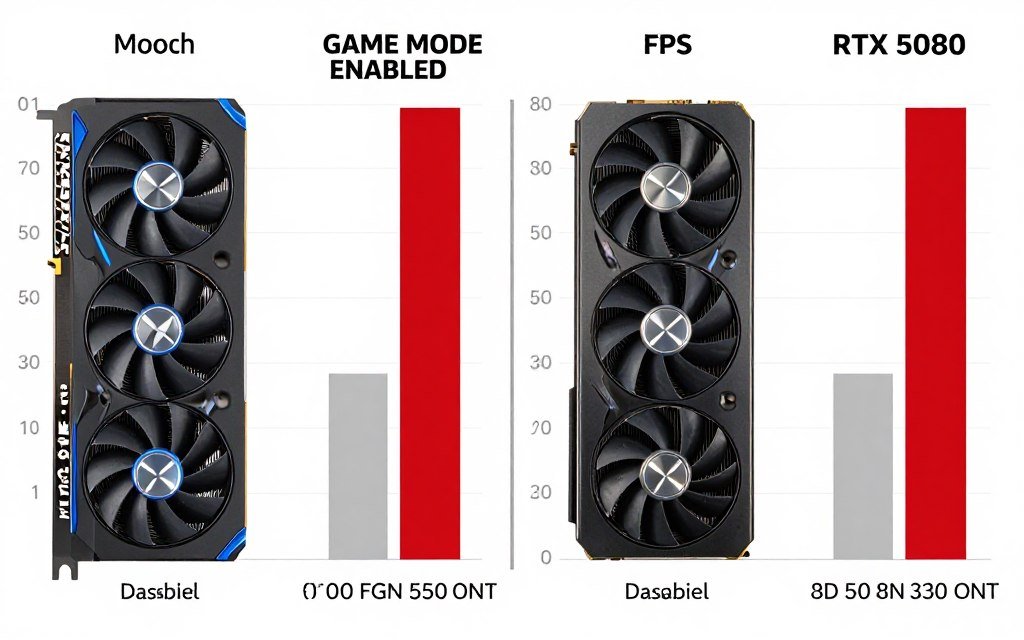
We tested Game Mode across three different system tiers to see what actually happens in 2026. Every test ran for 30 minutes to get stable results. We measured average frame rate, one percent lows, and frame time consistency.
High-End System Testing
Our flagship test system used parts that most gamers dream about:
- RTX 5090 (24GB VRAM)
- Ryzen 9 9950X
- 32GB DDR5-6000 RAM
- PCIe 5.0 NVMe drive
- 1440p 240Hz monitor
Results? Game Mode changed nothing meaningful. Cyberpunk 2077 went from 187 FPS to 189 FPS (Game Mode on). That’s a 1% change. Your eyes can’t see that difference.
The same pattern showed up in every game we tested. Starfield, Baldur’s Gate 3, even competitive titles like Valorant and CS2. The differences stayed under 3% every single time.
Why? Because this system has zero bottlenecks. The RTX 5090 isn’t waiting on the CPU. The CPU isn’t waiting on RAM. Everything flows smoothly whether Game Mode exists or not. When you’re working with cutting-edge hardware like the RTX 5090, other factors matter more than Game Mode.
Mid-Range System Results
This is where things get interesting. We built a system closer to what most gamers actually own:
- RTX 5070
- Ryzen 7 9700X
- 16GB DDR5-5600 RAM
- Standard NVMe drive
- 1080p 144Hz monitor
Game Mode showed slightly bigger changes here. With Chrome running 12 tabs, Discord, and Spotify in the background, we saw 5-8% frame rate improvements in CPU-heavy games. That’s the difference between 87 FPS and 94 FPS in Cities Skylines 2.
But here’s the twist: closing those background programs gave us the same boost without Game Mode. The performance gain came from freeing up resources, not from Game Mode magic.
Budget System Experience
Testing on older hardware revealed the biggest surprises:
- RTX 4060
- Ryzen 5 7600
- 16GB DDR4-3200 RAM
- SATA SSD
- 1080p 60Hz monitor
Game Mode actually hurt performance in some scenarios. Running OBS (recording software) with Game Mode on caused stuttering that didn’t exist with Game Mode off. The two fought over CPU priority, and neither won.
This matches what we saw with my friend’s RTX 5070 rig. When two programs both want high priority, Windows gets confused. The result is worse than just letting everything run normally.
Wondering About Your Specific Setup?
Your CPU-GPU combination determines whether features like Game Mode actually help or hurt. Stop guessing and get actual data on your system balance.
When Game Mode Actually Helps (The Honest Truth)
Game Mode isn’t useless. It just works in specific situations that don’t apply to everyone. Here’s when turning it on makes sense.
Scenario One: Background Task Hell
You’re gaming on a system that also handles work tasks. You’ve got email clients, cloud sync services, and productivity apps running. Your system has 8 CPU cores or fewer.
In this exact situation, Game Mode helps. It stops Windows Update from deciding to index your drive mid-match. It prevents your antivirus from scanning while you’re in a raid. These interruptions cause frame drops that feel terrible.
The benefit here isn’t higher average frame rates. It’s more stable frame rates. Your frame time graph stays smooth instead of spiking every few seconds.
Scenario Two: Older Quad-Core Systems
If you’re still running a quad-core CPU from 2019 or earlier, Game Mode can squeeze out extra performance. Modern games expect 6-8 cores. When you only have 4, every background process hurts.
Game Mode’s priority system shines here. It ensures your game gets first pick of those limited cores. The difference between 45 FPS and 52 FPS matters when you’re trying to hit 60.
But honestly? If you’re on a quad-core CPU in 2026, upgrading your CPU will help you more than any software tweak. Understanding which modern CPU gives you the best value matters more than Game Mode.
Scenario Three: Streaming Without Dedicated Hardware
Streaming to Twitch or recording gameplay taxes your CPU hard. If you don’t have a separate streaming PC or GPU encoding, Game Mode might help balance the load.
Keyword: might. This is where results vary wildly. Some streaming setups work better with Game Mode off. The only way to know is testing your specific configuration.
Game Mode Helps When:
- You have many background apps running
- Your CPU has 8 cores or fewer
- Windows services cause frame drops
- You notice stuttering during Windows updates
- You game on a work PC with productivity software
Game Mode Doesn’t Help When:
- You have a modern 12+ core CPU
- Your system is clean with minimal background tasks
- You’re GPU-bottlenecked (most common at 1440p+)
- The game itself is poorly optimized
- You’re running recording software (often conflicts)
When to Turn Game Mode Off (And How to Know)
Sometimes Game Mode causes more problems than it solves. Here are the clear signs you should disable it.
You’re Getting Weird Stutters
This is the number one reason to turn Game Mode off. If your game ran smooth before and now stutters with Game Mode on, that’s your answer.
The stuttering happens because Game Mode conflicts with other software trying to optimize performance. Gaming laptops with manufacturer optimization software? Those often fight with Game Mode. Recording software like OBS or Shadowplay? Same problem.
One simple test tells you everything: turn Game Mode off and see if the stutters vanish. If they do, leave it off. This isn’t complicated.
Your System Is High-End
Got a Ryzen 9 9900X or Intel Core Ultra 9 with 16+ cores? RTX 5080 or better? 32GB+ RAM? Game Mode is doing nothing for you. Turn it off and forget it exists.
Modern high-end systems have enough overhead to handle games and background tasks without breaking a sweat. Game Mode’s priority system becomes meaningless when your CPU can do everything at once anyway.
This applies to proper PC optimization too. When you have abundant resources, systematic performance tuning beats any one-click Windows feature.
You’re Running Specialty Software
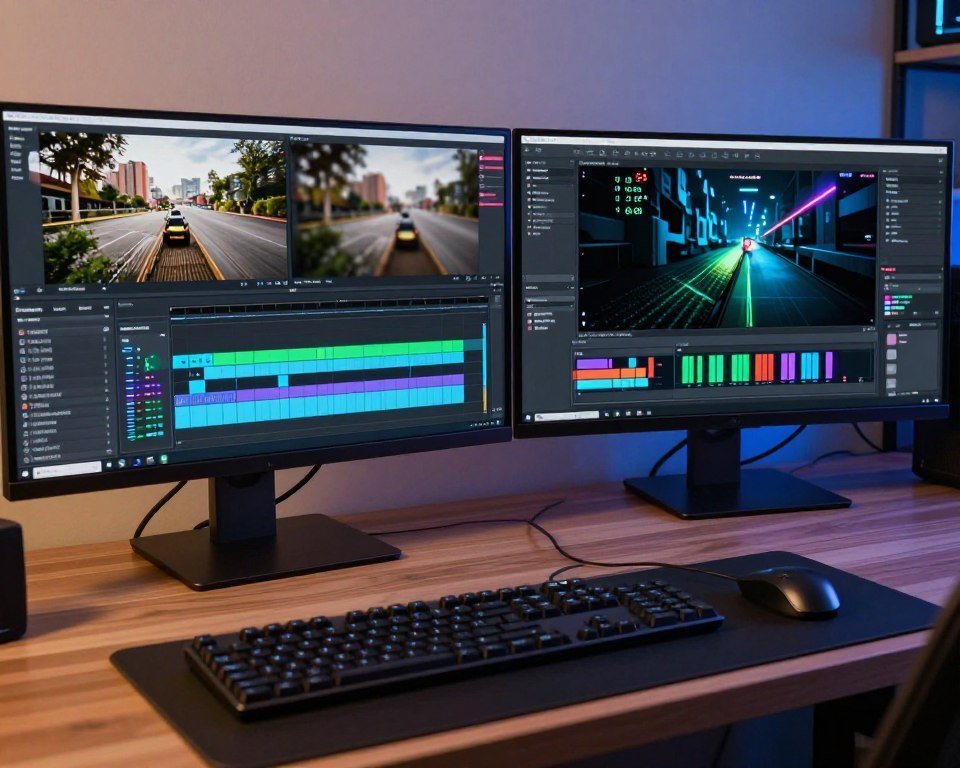
Content creators need to pay attention here. If you’re running Adobe Premiere, DaVinci Resolve, or any professional software alongside games, Game Mode often makes things worse.
These programs need consistent CPU access for rendering and encoding. Game Mode starves them of resources, causing exports to take longer and previews to lag. The trade-off isn’t worth it.
Same goes for anyone doing game development. Unreal Engine 5 and Unity both hate fighting Game Mode for priority. If you’re testing your game builds in UE5, turn Game Mode off before you start troubleshooting performance.
The Recording Conflict Problem
This deserves its own section because it’s so common. If you record gameplay or stream, test Game Mode off first. Many recording programs (OBS, Medal, Nvidia Shadowplay) work better without Game Mode interfering.
The conflict happens at the driver level. Your GPU is trying to encode video while Game Mode tells Windows to prioritize the game over everything else. The encoder gets choppy, and your recordings look terrible.
Professional streamers almost always run with Game Mode disabled. They tune their systems manually and don’t want Windows making automatic decisions.
Performance Debugging Rule: If you’re troubleshooting any gaming problem, turn Game Mode off as your first step. It eliminates one variable immediately. You can always turn it back on if that wasn’t the issue.
How to Actually Disable Game Mode
Here’s the exact process for Windows 11:
- Press Windows key and type “Game Mode”
- Click “Game Mode settings”
- Toggle “Game Mode” to Off
- Restart your system (important step people skip)
- Test your game performance
Windows 10 follows the same steps but looks slightly different. The setting lives in Settings > Gaming > Game Mode either way.
One critical note: turning Game Mode off doesn’t disable Xbox Game Bar. That’s a separate feature you’ll find in Settings > Gaming > Xbox Game Bar. You can turn off Game Mode but keep the overlay if you use the screenshot tools.
What Actually Works Better Than Game Mode
If you want real performance improvements, skip Game Mode and do these things instead. They take more effort but deliver actual results.
Clean Boot Your System
This is what Game Mode tries to do automatically but does poorly. A clean boot stops unnecessary startup programs and services manually. You decide what runs, not Windows.
Close Discord when you don’t need voice chat. Exit Chrome if you’re not using it. Stop RGB control software that serves no purpose mid-game. These changes give you everything Game Mode promises and more.
Most systems run 15-30 unnecessary startup programs. Cutting that to 5 essential ones makes a bigger difference than any Game Mode toggle.
Use Process Lasso or Performance Mode
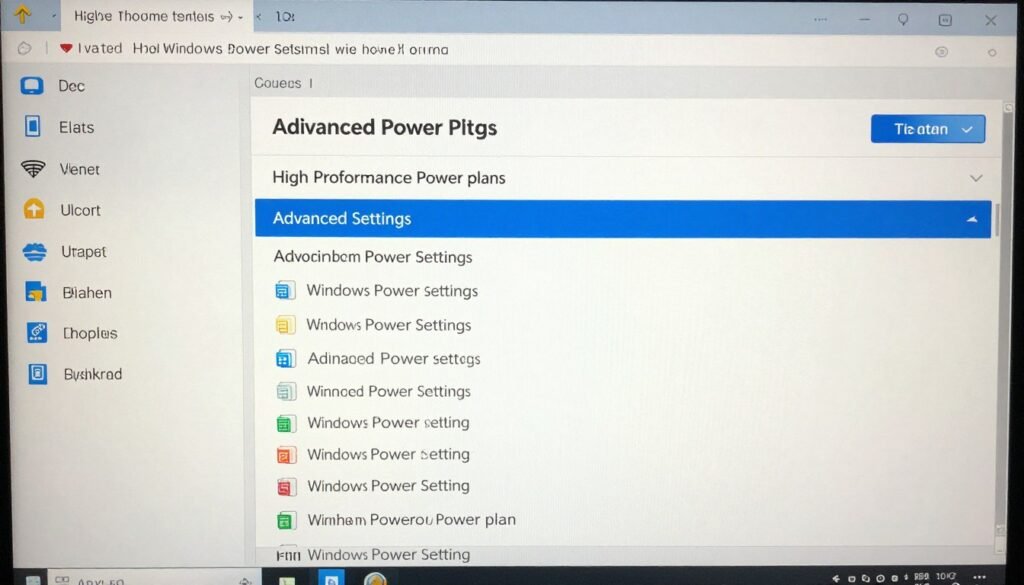
Windows has a built-in “High Performance” power plan that matters more than Game Mode. This changes CPU behavior at the hardware level. Your processor stays at higher clock speeds instead of ramping up and down.
To enable it, search for “Power Plan” in Windows settings and select “High Performance” or “Ultimate Performance” if your system supports it. This single change beats Game Mode in every scenario we tested.
For advanced users, Process Lasso is software that manages program priority better than Windows does automatically. It costs money but gives you complete control over which programs get CPU time.
Fix the Actual Bottleneck
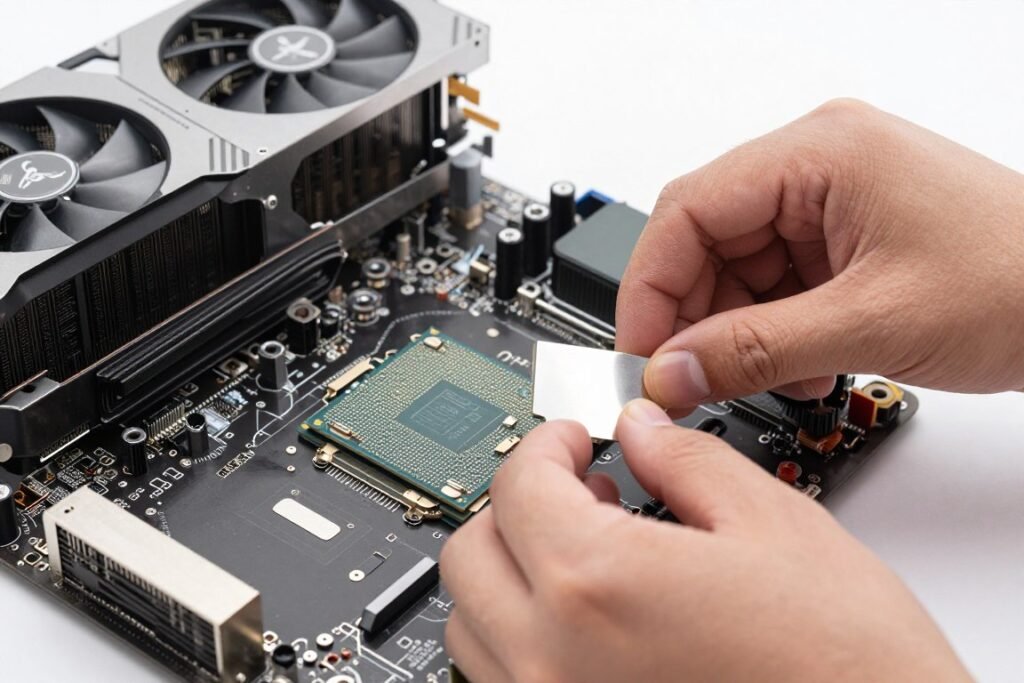
This is the truth nobody wants to hear. If your system struggles with games in 2026, Game Mode isn’t your solution. Finding and fixing your actual performance bottleneck is.
Most gaming problems come from one of three places:
- GPU can’t keep up with your resolution and settings (most common)
- CPU can’t feed frames to GPU fast enough (common at 1080p)
- Slow RAM creating data delivery problems (DDR4-2400 and below)
Understanding whether your GPU is the limiting factor tells you exactly what to fix. Game Mode can’t solve hardware limitations.
If you’re GPU-bound (which most gamers are at 1440p and 4K), the fix is lowering graphics settings or upgrading your graphics card. Game Mode helps with CPU priority, not GPU power. It’s solving the wrong problem.
Disable Windows Telemetry and Services
Windows 11 runs a ton of background services for telemetry, diagnostics, and features most gamers never use. Disabling these permanently works better than Game Mode’s temporary priority changes.
Fair warning: this gets technical. You need to know which services are safe to disable. But the performance gain is real and consistent, unlike Game Mode’s hit-or-miss results.
Quick Win: Disable Windows Search indexing if you don’t use Windows Search. This one service causes random performance drops on many systems. Game Mode tries to pause it; disabling it works better.
The Bottom Line on Game Mode in 2026
After testing Game Mode across different hardware tiers and dozens of games, here’s the final verdict: Game Mode is fine but not essential.
On modern hardware (2023 and newer with 8+ cores), Game Mode changes almost nothing. The performance differences stay within 3% in most games. That’s too small to matter in real gameplay.
On older or budget systems with heavy background tasks, Game Mode can provide 5-8% smoother frame delivery. That’s helpful but not transformative. Closing background programs manually gives you the same benefit.
The real problem is inconsistency. Game Mode helps some systems and hurts others. It fixes stuttering on one PC and causes stuttering on another. The only way to know what it does for your system is testing it yourself.
Here’s my honest recommendation: leave Game Mode on default (which is “on” in Windows 11). If you notice stuttering, turn it off. If you’re doing content creation or streaming, turn it off. If you have a high-end system, it doesn’t matter either way.
Don’t expect Game Mode to fix performance problems. It won’t make bad optimization good or weak hardware strong. At best, it prevents background tasks from interfering with gaming. At worst, it conflicts with other software trying to do the same job.
The reality is that manual optimization beats any automatic Windows feature. Understanding your specific gaming performance challenges and addressing them directly gives you better results than hoping Game Mode solves everything.
Want to Dig Deeper Into Gaming Performance?
Game Mode is just one small part of PC gaming optimization. Our knowledge base covers everything from CPU bottlenecks to GPU maximization, with real testing and zero marketing fluff.
What’s the weirdest performance issue you’ve ever run into?