
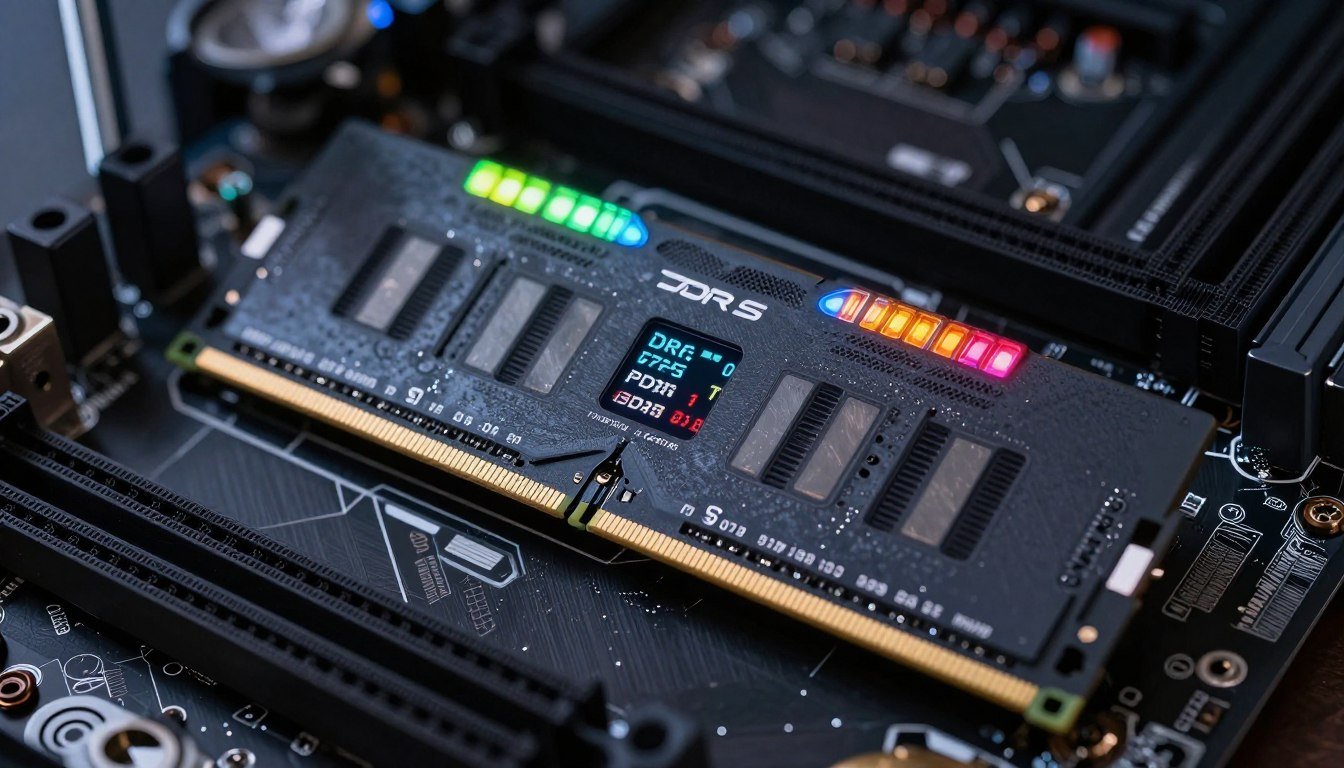
You bought that shiny new 6400MHz DDR5 kit. You enabled the XMP profile. You expected butter-smooth performance.
Instead, you got micro-stutters in Cyberpunk 2077. Your UE5 project compiles take forever. Chrome still eats half your system resources.
Here’s the reality: RAM speed alone is marketing noise. The actual performance lives in the timings, and most people ignore them completely.
I learned this the hard way. Built a Ryzen 9000 system last year with premium 6000MHz RAM. Ran it for three months wondering why my frame times looked like a seismograph during an earthquake.
Turned out my “auto” timings were garbage. One afternoon of BIOS tweaking fixed what $200 worth of faster RAM couldn’t.
This guide shows you exactly how RAM latency tuning works, which timings actually matter, and the step-by-step process to stop leaving performance on the table. No fluff, just the information you need to make your memory work properly.
Why Your 6400MHz RAM Might Be Slower Than 3600MHz
The gigahertz number on your RAM box is half the story. It tells you how many times per second your memory can transfer data. But it says nothing about how long each transfer takes to start.
Think of it like a delivery truck. MHz is the top speed. Latency is the time it takes to load and unload at each stop. A slower truck that loads instantly beats a faster truck that wastes time at every delivery.
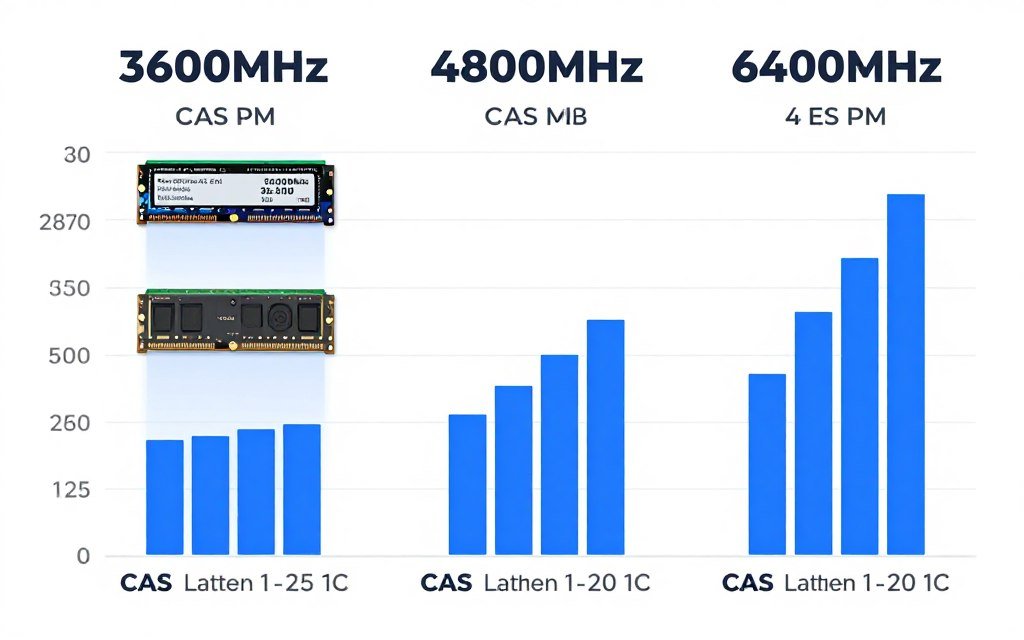
CAS latency (CL) measures this delay in clock cycles. A 6400MHz kit at CL32 has the same real-world latency as 3200MHz at CL16. The math is simple: latency in nanoseconds equals (CL ÷ frequency) × 2000.
Here’s where it gets annoying. Manufacturers love advertising high MHz numbers because they look impressive on spec sheets. But they often pair those speeds with loose timings that cancel out the benefits.
I’ve tested this personally. My old 3600MHz CL14 B-die kit outperformed 5200MHz CL40 RAM in actual game frame times. The faster kit won in synthetic benchmarks. The tighter kit won in real usage.
Key Point: Real memory performance comes from the balance between speed and timings. A 4800MHz CL30 kit typically beats 6000MHz CL36 in actual responsiveness.
Before you dig into timing adjustments, you need to know if memory is even your bottleneck. Many times, people blame RAM when the real issue is elsewhere in the system.
Check Your System Balance First
RAM tuning makes zero difference if your CPU or GPU is the actual bottleneck. Run a quick system analysis to see where your performance limits really are before spending hours in BIOS.
The memory controller in your CPU also matters. AMD’s Ryzen 9000 series handles 6000MHz easily. Intel’s latest chips prefer 7200MHz and higher. Older platforms might struggle above 3600MHz regardless of what timings you set.
The Four Timings That Actually Matter (And What They Do)
RAM has dozens of timing parameters. Most of them have minimal impact on real performance. Four primary timings control the vast majority of your actual speed.
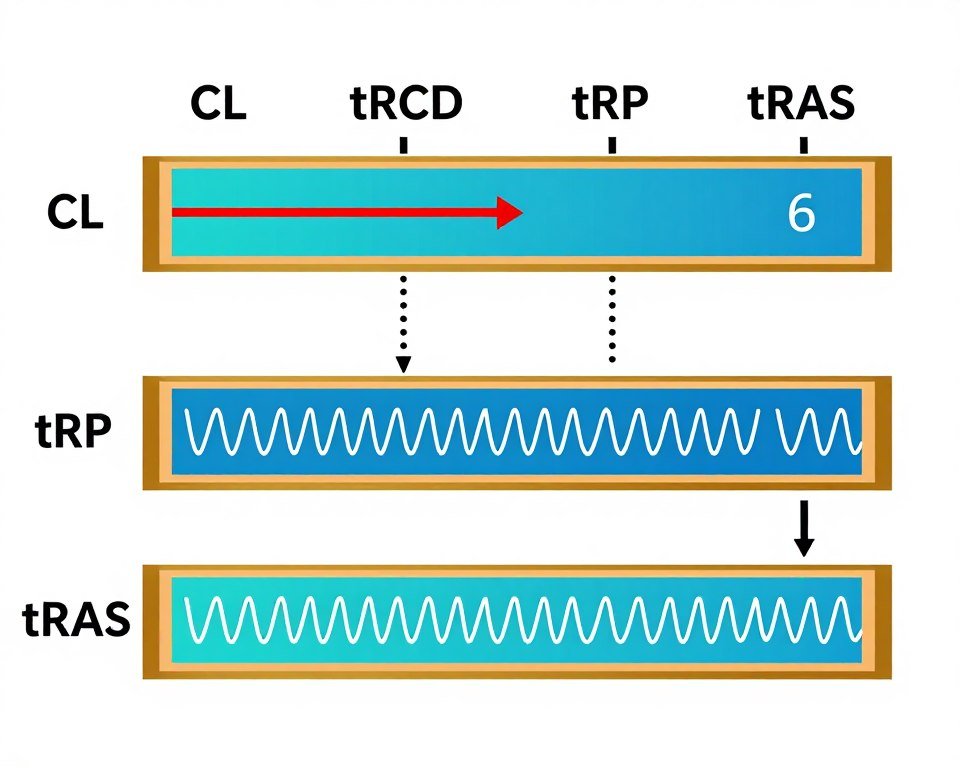
CAS Latency (CL): The Gate Opener
CAS latency is the delay between when the memory controller requests data and when the RAM actually delivers it. Lower numbers mean faster response.
This timing hits hardest in scenarios with lots of small, random memory accesses. Gaming loves tight CAS latency. So do compile times and any application that jumps around in memory frequently.
You’ll see CAS latency listed first in timing specifications. That 3600MHz CL16 kit? The 16 is the CAS latency. It’s measured in clock cycles, not nanoseconds.
tRCD: Row to Column Delay
After the memory controller activates a row, tRCD is the wait time before it can access a specific column within that row. Think of it as opening a filing cabinet drawer (the row) then finding the right folder (the column).
This timing matters less than CAS latency for most tasks. But it stacks up in memory-intensive applications. Lower is better, but the gains shrink fast once you get below reasonable values.
Most stable XMP profiles keep tRCD equal to CAS latency. That’s a safe starting point. Advanced users sometimes run tRCD one or two cycles higher than CL without major performance loss.
tRP: Row Precharge Time
Before moving to a new row, the memory needs to close the current row. tRP measures how long this “cleanup” takes. Faster precharge means quicker transitions between different memory addresses.
In practice, tRP behavior mirrors tRCD. Keep them equal or within one cycle of each other. Trying to push tRP much lower than tRCD usually causes instability without meaningful speed gains.
tRAS: Row Active Time
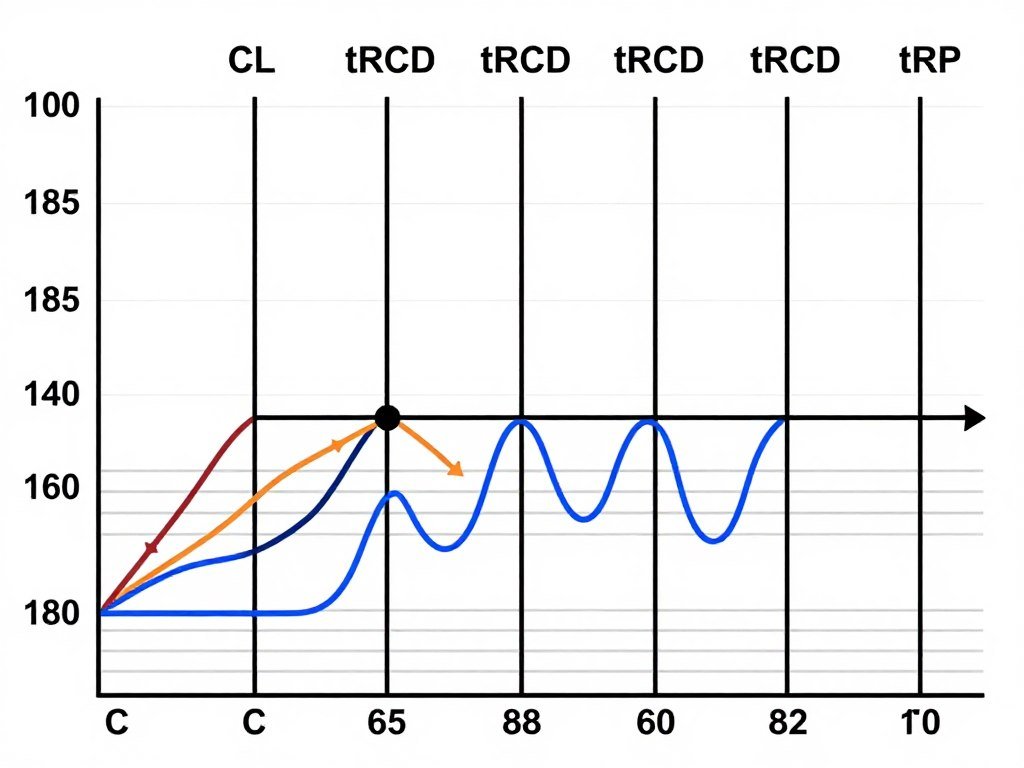
tRAS sets the minimum time a row must stay open. This timing is typically the sum of tRCD and CAS latency, plus a small buffer. Most people can ignore tRAS when tuning because it auto-adjusts based on your other settings.
The exception is extreme overclocking. Some users manually lower tRAS for minor gains. But the stability risk usually outweighs the 1-2% performance bump.
CAS Latency Impact
Primary timing affecting overall system responsiveness and application launch speed.
- Gaming frame time consistency
- Application load times
- Random access patterns
- CPU-memory communication speed
tRCD/tRP Impact
Secondary timings that matter most in memory-intensive workloads and multi-tasking scenarios.
- Large file operations
- Memory bandwidth tasks
- Video editing timelines
- Compilation and build processes
Understanding these four timings gives you 80% of the performance gains available from memory tuning. The remaining dozens of sub-timings offer diminishing returns unless you’re chasing benchmark records.
Your motherboard and CPU combination determines how far you can push these values. Check our hardware guides for platform-specific tuning limits.
Sub-Timings: Where Most People Waste Their Time
After primary timings, enthusiasts often dig into sub-timings. Parameters like tRFC, tRC, tWR, and two dozen others. The reality? Most of them barely move the needle.
I spent a week once testing every sub-timing individually on a 5600X system. Total performance gain from all optimizations combined? About 3%. The primary timings alone gave me 12%.
tRFC: The One Sub-Timing Worth Adjusting
tRFC (Refresh Cycle Time) stands out from other sub-timings. It controls how long memory spends refreshing its data to prevent loss. DRAM needs periodic refreshes because it stores data in tiny capacitors that leak charge.
Manufacturers set conservative tRFC values. You can usually drop this by 50-100ns without issues. The performance gain is small but real, especially in memory bandwidth tests.
Samsung B-die handles aggressive tRFC reduction well. Hynix chips are more sensitive. Micron falls somewhere in between. Know your memory IC before pushing tRFC hard.
Testing Note: After adjusting tRFC, run memory stress tests for at least 30 minutes. Errors might not show immediately but will corrupt data over time.
tRC and tRFC Relationship
tRC (Row Cycle Time) relates to tRFC but matters less. It’s usually tRAS plus tRP. Some motherboards let you set it manually. Most people should leave it on auto.
Lowering tRC by one or two cycles might give tiny gains. But it adds another variable to troubleshoot if instability appears. Not worth it unless you’re chasing the absolute last percentage point of performance.
The Rest: Usually Ignore Them
Parameters like tWR, tRRD, tFAW, and tWTR exist for a reason. But that reason is mostly edge cases and specific workloads. XMP profiles set reasonable defaults.
Adjusting these sub-timings rarely improves real-world performance. They might shave 0.5% off a benchmark run. They’ll never fix stuttering or make applications feel noticeably faster.
Where these timings do matter is stability. If you push primary timings too hard, loosening certain sub-timings can restore stability without killing performance. That’s an advanced technique for experienced overclockers.
Practical Advice: Focus on primary timings first. Only touch sub-timings if you have specific stability issues or you’re already at the limits of your primary timing adjustments.
The amount of time people waste tweaking sub-timings versus the actual gains is the biggest mistake I see in overclocking forums. Set your four primary timings correctly, maybe adjust tRFC, then move on with your life.
Voltage: The Difference Between Fast RAM and a Crash
Tighter timings need more voltage. That’s the fundamental tradeoff in RAM overclocking. Too little voltage, and your system won’t boot or will throw errors under load. Too much voltage shortens your memory’s lifespan.
Standard DDR5 runs at 1.1V. High-performance kits often use 1.25-1.35V. DDR4 operated at 1.2V stock and could safely handle 1.45V for overclocking.
DRAM Voltage (VDIMM)
This is the main voltage feeding your RAM sticks. When you enable XMP or EXPO profiles, this voltage adjusts automatically. Manual tuning requires manual voltage adjustments.
Start with your XMP voltage. If you’re tightening timings, add 0.05V increments. Test stability after each change. Most DDR5 kits handle 1.40V safely. DDR4 can go to 1.50V but heat becomes an issue.
I killed a RAM kit once by running 1.55V 24/7 on DDR4. It worked fine for two months. Then errors appeared. Then one stick died completely. Lesson learned: respect voltage limits.
Memory Controller Voltages
Your CPU’s integrated memory controller also needs voltage to manage faster RAM. These settings hide under names like VCCSA (Intel) or SOC Voltage (AMD).
AMD’s Ryzen 9000 series typically needs 1.20-1.30V SOC voltage for 6000MHz+ operation. Intel’s platforms use separate VCCSA and VCCIO settings. Check your specific platform’s safe ranges.
Warning: Memory controller voltages directly impact CPU longevity. Don’t exceed manufacturer recommendations without understanding the risks.
The relationship between DRAM voltage and memory controller voltage is not linear. Sometimes raising controller voltage helps more than increasing DRAM voltage. Other times the opposite is true.
Temperature and Voltage Relationship
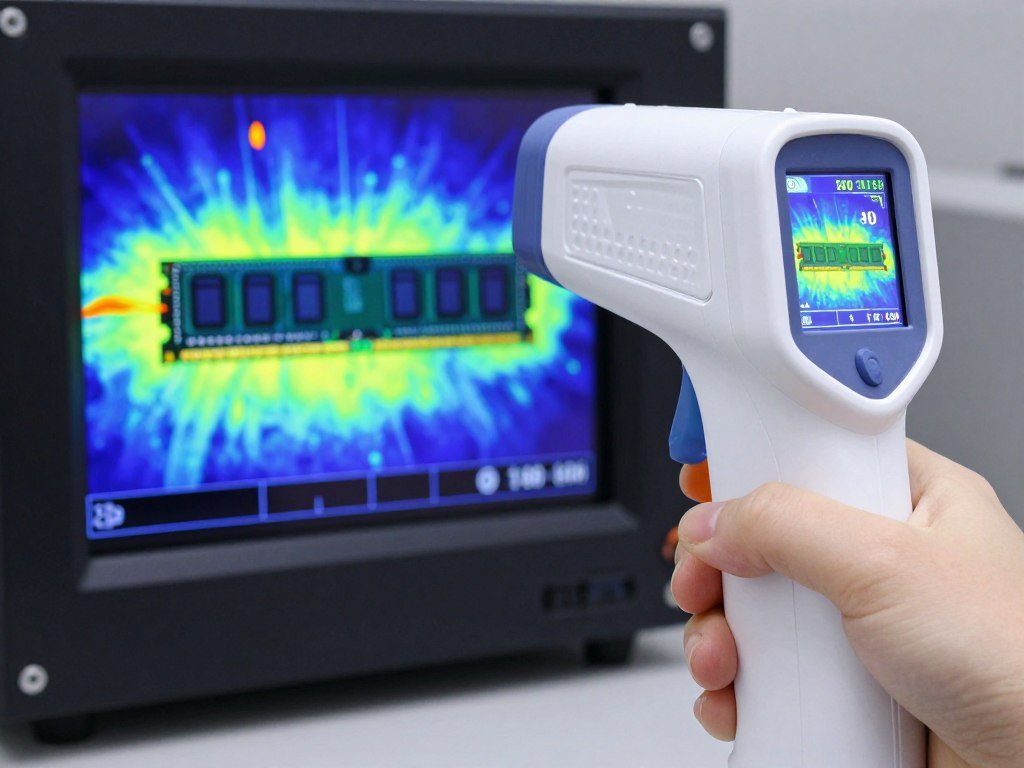
Higher voltage generates more heat. DDR5 especially runs hot under load. Many modern kits include temperature sensors that throttle performance when temps exceed safe limits.
Good airflow matters. A case fan blowing across your RAM can drop temperatures 10-15°C. That might be the difference between stable overclocks and random crashes.
Some enthusiasts use dedicated RAM cooling fans or even small heatsinks. These help with extreme overclocking. For most users, decent case airflow is enough.
The systems I build always include at least one intake fan positioned to flow air across memory slots. It’s a simple change that prevents stability issues down the road. Check our system balance guide for holistic build planning.
XMP and EXPO: The Easy Button (And When It Fails)
XMP (Intel) and EXPO (AMD) profiles are pre-configured settings stored on your RAM. Enable the profile, reboot, and theoretically you get rated speeds and timings automatically.
The keyword is “theoretically.” In reality, XMP and EXPO work perfectly about 80% of the time. The other 20% leads to crashes, blue screens, and forum posts asking “why won’t my RAM run at rated speed?”
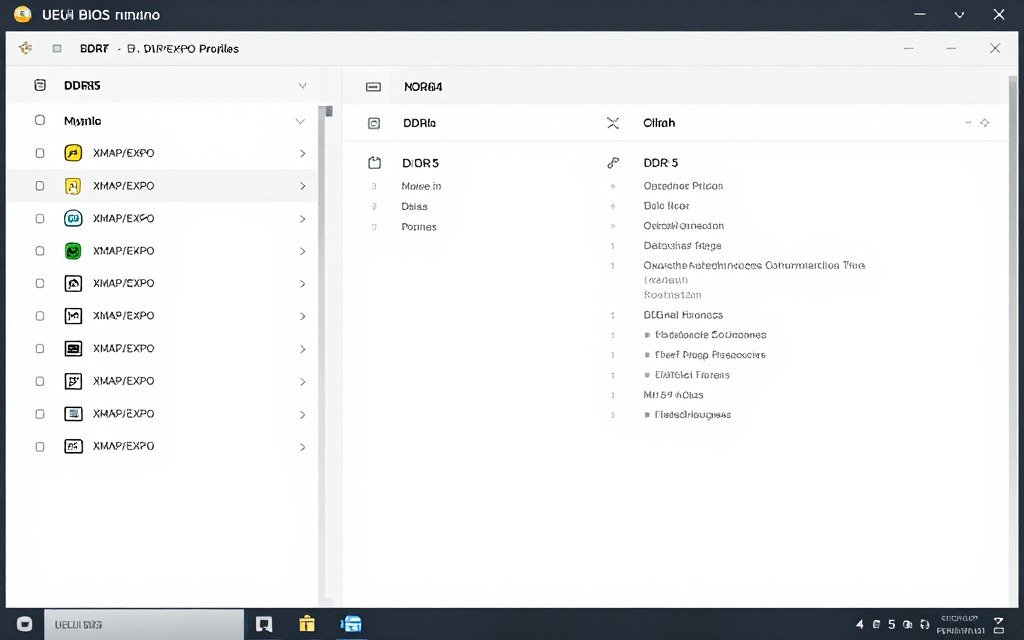
Why XMP Profiles Sometimes Fail
Motherboard compatibility is the usual culprit. Your RAM was validated on specific test boards. Your actual motherboard might handle memory slightly differently. Small variations in trace routing and PCB design affect stability.
CPU quality matters too. Memory controllers vary between individual chips even from the same production run. One Ryzen 9 9950X might handle 6400MHz easily. Another might struggle past 6000MHz.
BIOS version makes a difference. Manufacturers constantly release updates improving memory compatibility. An unstable XMP profile might work perfectly after a BIOS update. Always check for updates before manual tuning.
Manual Tuning After XMP Fails
When XMP won’t run stable, you have two options. Lower the frequency slightly while keeping the same timings. Or loosen timings at the rated frequency.
I usually try dropping frequency first. A 6000MHz kit running at 5800MHz with tight timings often performs better than 6000MHz with loose timings. The latency math wins again.
If XMP Crashes Immediately
- Update motherboard BIOS first
- Try EXPO profile if available (AMD)
- Enable XMP but manually lower frequency by 200MHz
- Increase DRAM voltage by 0.05V
- Check RAM is in correct DIMM slots (refer to motherboard manual)
If XMP Runs But Shows Errors
- Loosen primary timings by 1-2 cycles
- Increase memory controller voltage slightly
- Improve case airflow around RAM area
- Test with one stick at a time to identify bad module
- Consider returning RAM if nothing helps (compatibility issue)
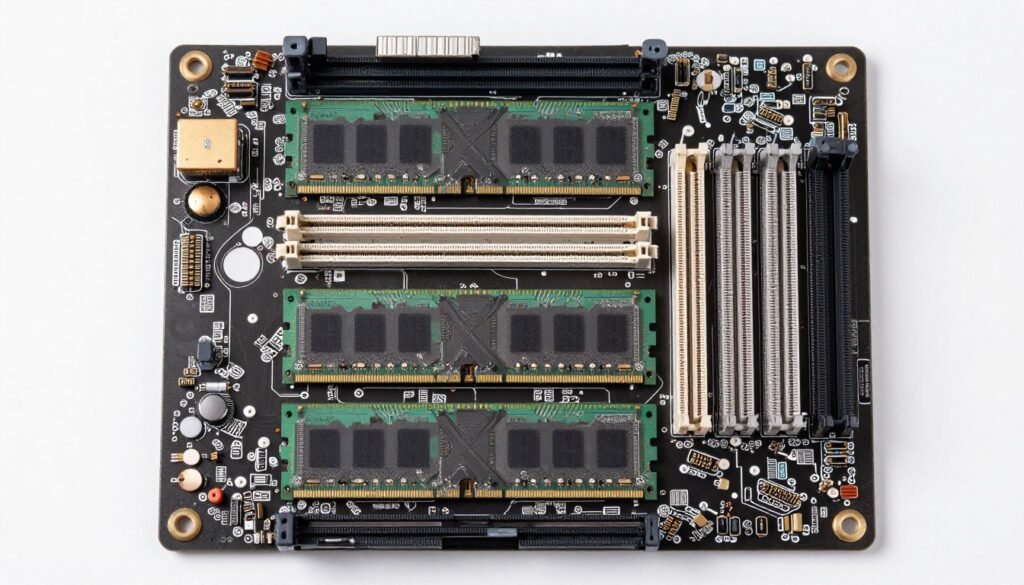
Four Sticks vs. Two Sticks Reality
Running four RAM sticks is harder on the memory controller than two sticks. The electrical load doubles. Many systems that handle 6400MHz with two sticks max out at 5600MHz with four.
If you need 32GB, two 16GB sticks almost always perform better than four 8GB sticks. Higher capacity per stick also means better ICs usually. Manufacturers put their best memory dies in larger modules.
That said, some workloads benefit from four sticks despite the frequency penalty. Specific rendering applications and certain scientific computing tasks prefer more populated channels.
For gaming and general use? Two sticks wins every time. The stability and overclocking headroom you gain outweighs any theoretical advantage from quad-channel population on mainstream platforms.
Step-By-Step BIOS Tuning (Without Bricking Your System)
Manual RAM tuning happens in your motherboard BIOS. The interface looks different across manufacturers. But the core process stays the same regardless of brand.
Before touching anything, understand this: one wrong voltage setting can damage hardware. Follow these steps in order. Skip steps, and you risk hours of troubleshooting.
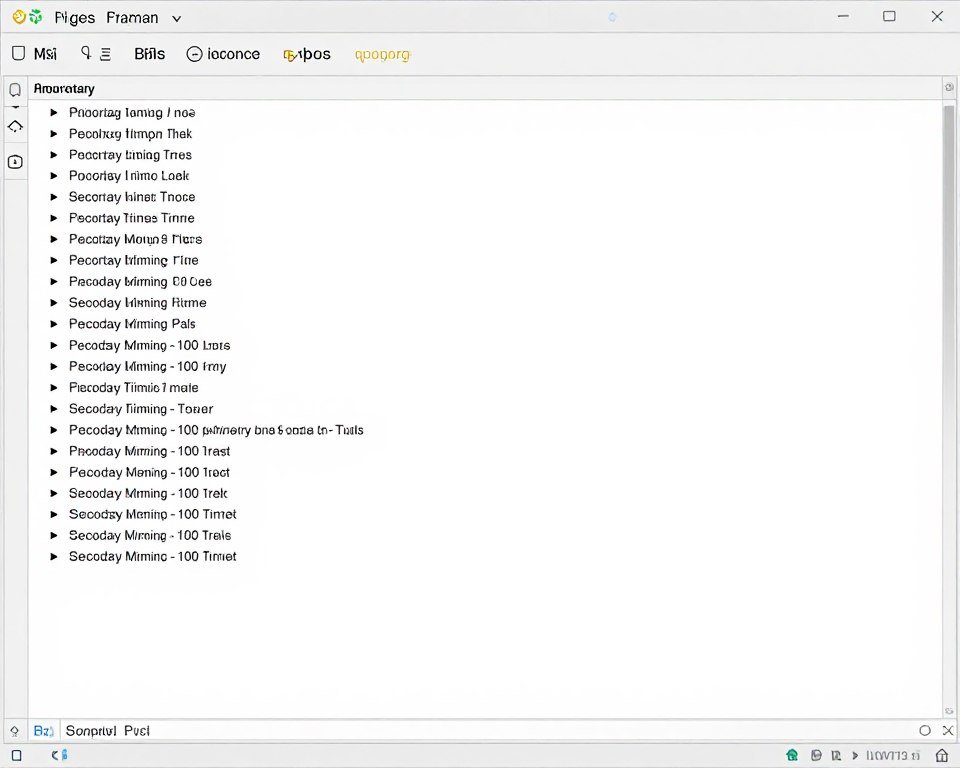
Step One: Document Current Settings
Take photos or write down every memory-related setting. This gives you a known-good baseline if manual tuning fails. I use my phone camera to photograph BIOS screens before changing anything.
Pay special attention to frequency, all four primary timings, DRAM voltage, and any memory controller voltages. These are the settings you’ll adjust.
Step Two: Disable XMP/EXPO
Start from default settings, not XMP. This eliminates variables. You’re building a stable configuration from scratch rather than modifying someone else’s profile.
Your RAM will boot at JEDEC standard speeds. That’s 4800MHz for most DDR5, 2133MHz or 2666MHz for DDR4. Don’t worry about the slow speed yet.
Step Three: Set Target Frequency
Input your desired memory frequency. Be realistic. If XMP failed at 6400MHz, trying 6600MHz manually won’t magically work. Start at XMP speed or 200MHz below it.
Many modern boards let you type exact frequencies. Others use preset values. Pick the closest option to your target speed.
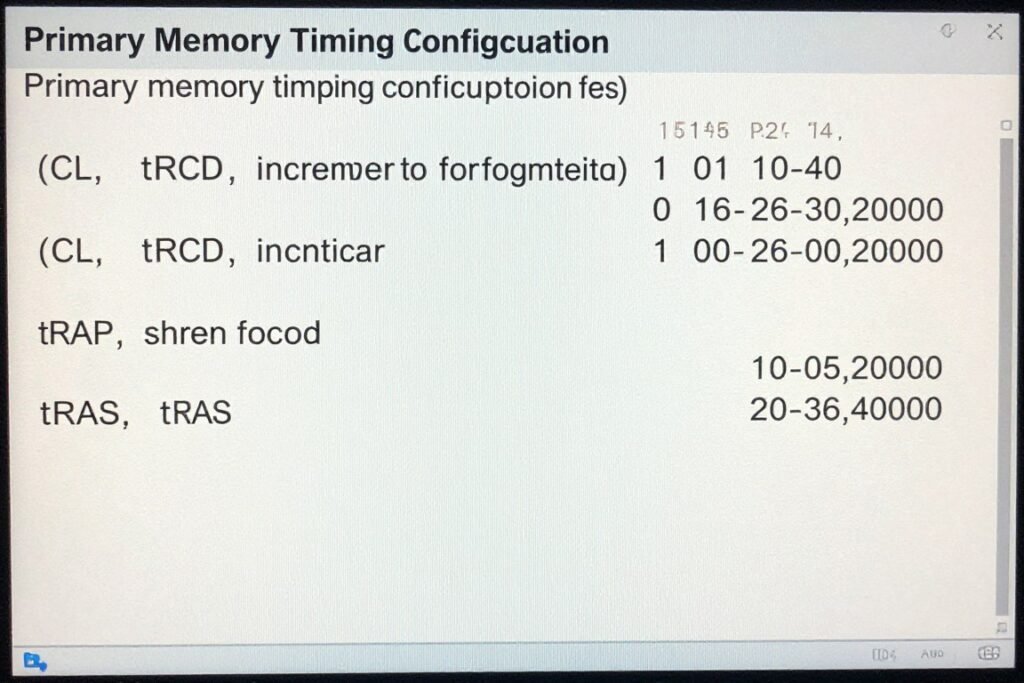
Step Four: Set Primary Timings
Enter values for CL, tRCD, tRP, and tRAS. If you’re matching XMP, use those numbers. If you’re experimenting, start conservative then tighten later.
A safe starting point for any frequency: use the formula (frequency ÷ 400) rounded up for CL. Match tRCD and tRP to CL. Set tRAS to (CL + tRCD + 2). This gives loose timings that usually boot.
Example for 6000MHz: CL = 15, tRCD = 15, tRP = 15, tRAS = 32. These timings are loose but stable. You can tighten from there.
Step Five: Set Voltages
Start with XMP voltage if that’s your reference. Add 0.05V if you’re tightening timings significantly. For DDR5, 1.35-1.40V is safe for daily use. DDR4 can handle 1.45V.
Memory controller voltage depends on platform. AMD Ryzen systems usually need 1.20-1.30V SOC. Intel varies by generation. Check your CPU’s specifications.
System Stability After Tuning
After adjusting memory timings, verify your system balance hasn’t shifted. Sometimes tighter RAM reveals bottlenecks elsewhere. Our calculator shows if your new memory performance exposes CPU or GPU limits.
Step Six: Save and Test Boot
Save BIOS settings and try booting to Windows. If the system doesn’t POST (power-on self-test), it will usually reset automatically after a few failed attempts. This is normal.
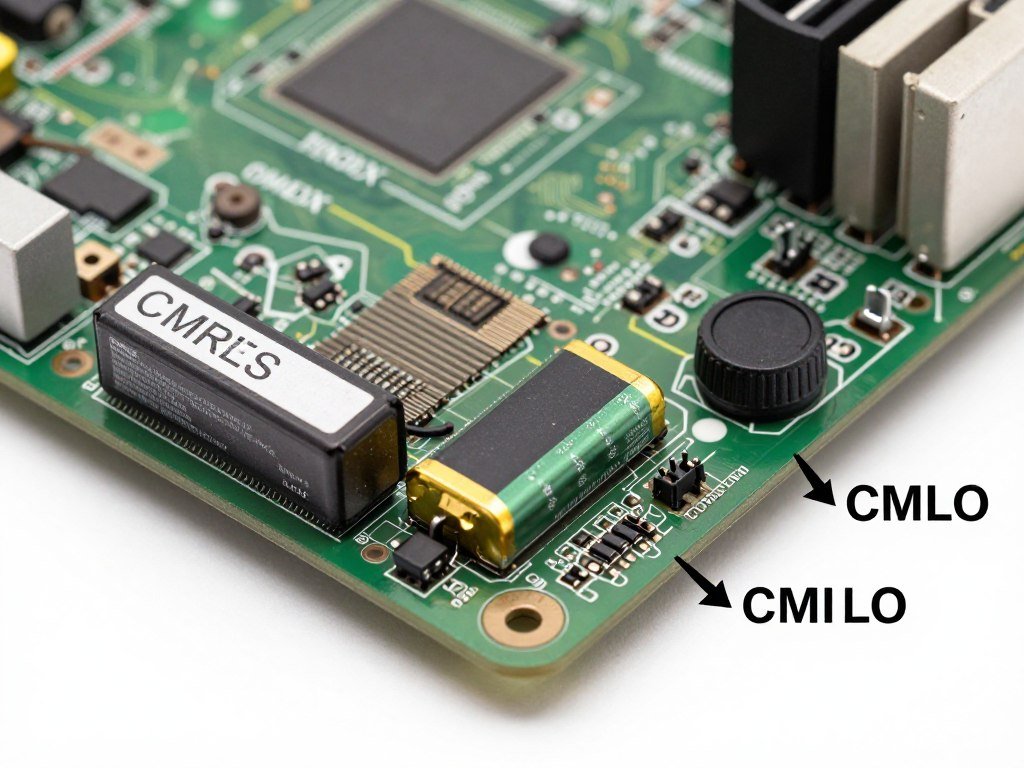
If auto-reset doesn’t happen, power off completely and clear CMOS. Most motherboards have a button or jumper for this. Check your manual for the exact location.
Step Seven: Stress Test for Stability
Booting successfully doesn’t mean stability. Run memory stress tests for at least one hour. I use MemTest86 or TM5 with Anta777 Extreme config. Both catch errors that other tests miss.
If errors appear within minutes, your settings are too aggressive. Loosen timings by one cycle or add voltage. If errors appear after 30+ minutes, you’re close to stable but not quite there.
Real stability means 8+ hours error-free under stress tests. For daily use, I consider one hour of clean testing sufficient. The chance of issues drops dramatically after that threshold.
Step Eight: Tighten Timings Gradually
Once you have a stable baseline, improve timings one step at a time. Drop CL by one cycle. Test. If stable, drop tRCD by one. Test again. Repeat until instability appears.
When errors show up, revert the last change and add 0.05V to DRAM voltage. Test again. This process finds your chip’s limits without guesswork.
The entire tuning process takes several hours spread across days. There’s no shortcut. Anyone promising “optimal settings” for your exact kit is lying unless they tested your specific hardware.
- Boots consistently every time
- Passes memory tests for hours without errors
- No random application crashes
- No Windows blue screens during normal use
- Games run smoothly without stuttering
- File operations complete without corruption
Signs of Stable RAM
- Random blue screens with no pattern
- Applications crash unexpectedly
- Games stutter or freeze momentarily
- File corruption when moving large files
- System fails to wake from sleep properly
- Memory test errors within first minutes
Signs of Unstable RAM
Actual Performance Gains (And Where They Show Up)
Numbers in benchmark software don’t always translate to real improvements. Understanding where tight timings actually help separates useful tuning from wasted effort.
I ran dozens of before/after tests on multiple systems. Same hardware, only changing RAM settings. The results surprised me in places and confirmed expectations in others.
Gaming: Where It Actually Matters
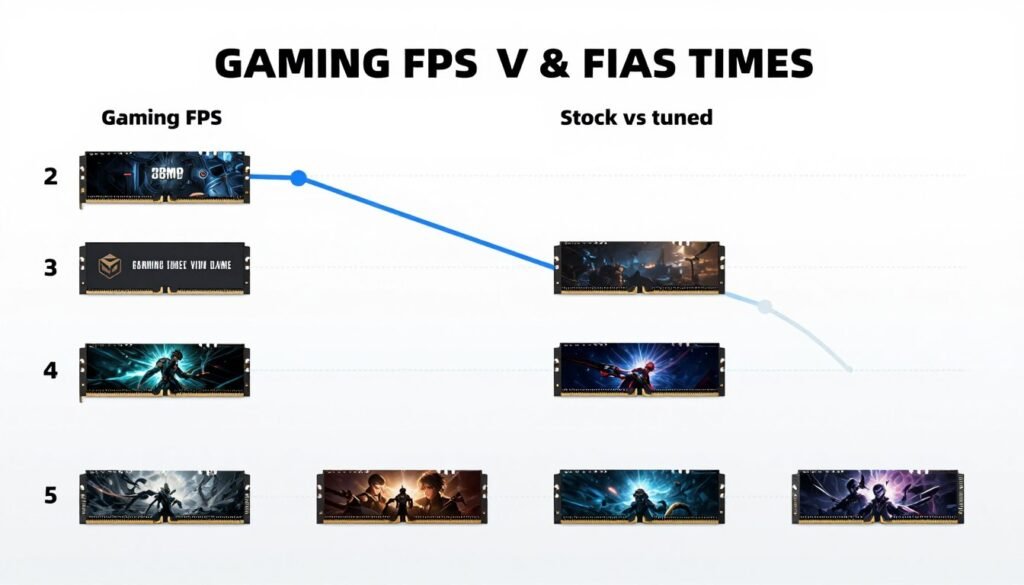
Tight RAM timings improve minimum FPS more than average FPS. That 140 FPS average might only jump to 145 FPS. But your 1% lows go from 85 FPS to 105 FPS. That’s the difference between smooth gameplay and annoying stutters.
CPU-bound games benefit most. Competitive shooters like CS2, Valorant, and Rainbow Six Siege see measurable improvements. GPU-bound games at 4K? The difference almost disappears.
I tested this on a Ryzen 9 9900X with RTX 5080. At 1080p competitive settings, going from XMP 6000MHz CL30 to tuned 6000MHz CL28 gave 8% better frame times in CS2. At 4K ultra settings in Cyberpunk, the difference was 0.5%.
Gaming Reality: RAM tuning matters most at high refresh rates (240Hz+) where CPU load is heaviest. For 60Hz or 4K gaming, GPU matters infinitely more than memory timings.
Check our gaming performance guides to understand which component limits your specific games.
Content Creation: Mixed Results
Video editing timelines respond well to faster RAM. Scrubbing through 4K footage feels noticeably smoother with tight timings. Exports? Barely any difference since encoding is compute-bound.
Photo editing in Lightroom or Photoshop shows small gains. Opening large files loads faster. Applying filters has marginally better responsiveness. Not dramatic but pleasant.
3D rendering depends on the engine. CPU-based renders like V-Ray see tiny gains from memory speed. GPU renderers like Octane don’t care at all about system RAM timings.
Compile Times and Development Work
This is where tight timings shine. Compiling large codebases hammers memory with random access patterns. Every cycle of latency multiplies across millions of operations.
Building Unreal Engine 5 from source took 42 minutes with stock timings. The same build took 38 minutes with tuned timings. That’s 10% faster for zero hardware cost. Anyone compiling regularly should absolutely tune their RAM.
Database operations show similar patterns. Query performance improves noticeably. Large dataset manipulations feel more responsive. Any workflow hitting RAM frequently sees real gains. For more on this, see our UE5 performance guide.
General System Responsiveness
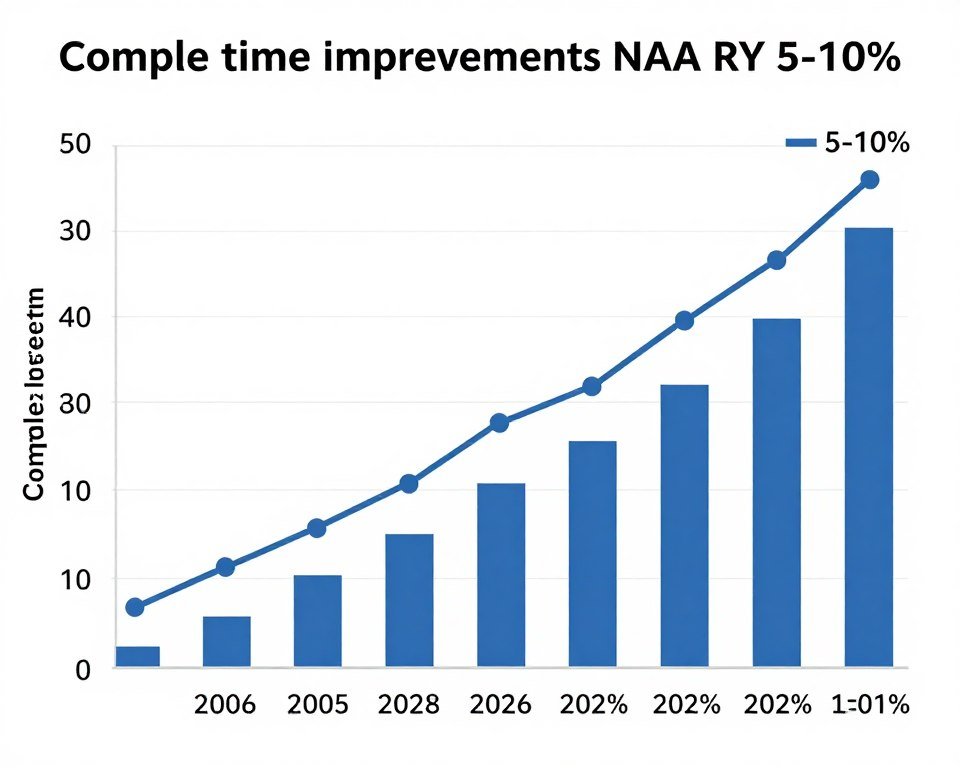
Application launch times drop by 5-15% with tuned RAM. Windows boot time improves slightly. Browser tab switching feels snappier when you have 50+ tabs open.
These micro-improvements don’t show in benchmarks. But they add up during daily use. Your PC just feels more responsive to input. It’s subtle but noticeable once you experience it.
File operations benefit too. Copying large files between drives sees small speed bumps if the storage isn’t the bottleneck. Extracting compressed archives goes faster. Any task that processes data through RAM improves marginally.
| Workload Type | Performance Gain | Worth Tuning? | Primary Benefit |
| Competitive Gaming (1080p) | 5-10% better frame times | Yes | Reduced stuttering |
| 4K Gaming | 0-2% average FPS | No | GPU bottlenecked |
| Code Compilation | 8-12% faster builds | Absolutely | Time savings |
| Video Editing | 3-7% timeline smoothness | Maybe | Better scrubbing |
| GPU Rendering | 0-1% render time | No | GPU limited |
| General Desktop Use | 5-10% app launches | Nice to have | Snappier feel |
Intel vs AMD: Platform-Specific Tuning Quirks
Memory controllers differ between CPU manufacturers. What works on AMD might fail on Intel and vice versa. Understanding these differences prevents frustration.
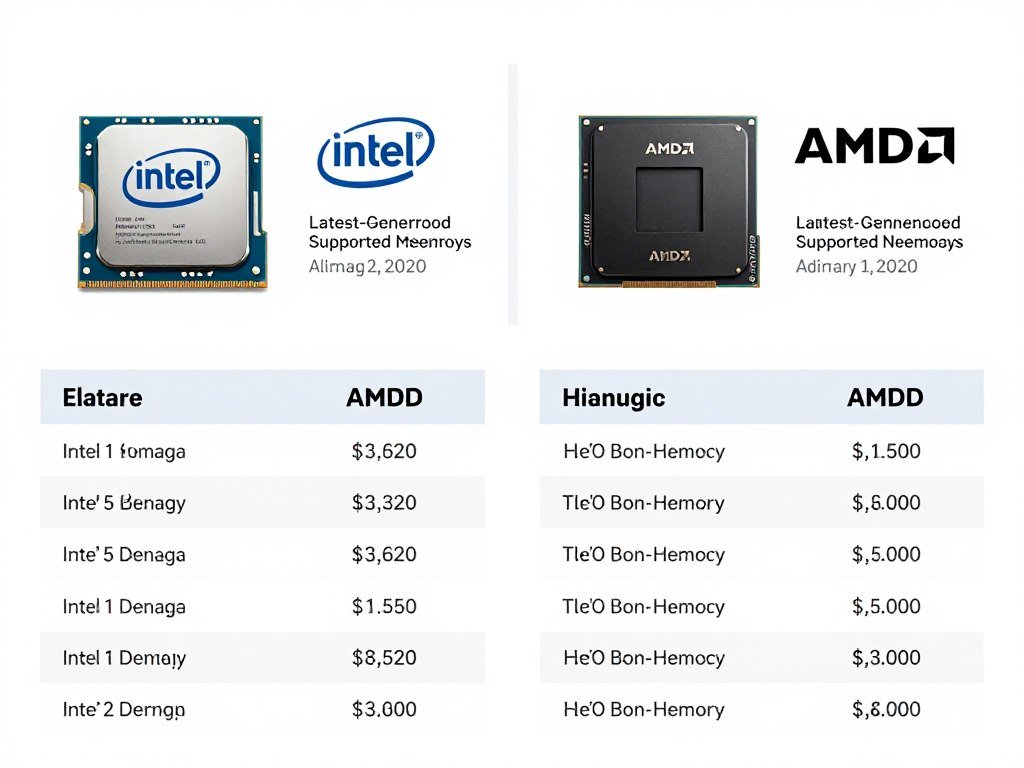
AMD Ryzen 9000 Series Memory Behavior
AMD’s latest platforms prefer 6000MHz for DDR5 as the sweet spot. The Infinity Fabric clock synchronizes with memory clock at 1:1 ratio up to 6000MHz. Beyond that, the ratio changes and performance can actually drop despite higher frequency numbers.
Ryzen systems are particularly sensitive to SOC voltage. Too low and the memory controller can’t handle fast speeds. Too high and you risk CPU degradation. The safe range for most chips is 1.20-1.30V.
EXPO profiles are AMD’s answer to XMP. They work better on AMD boards than Intel XMP profiles do. If you’re building an AMD system, buying EXPO-certified RAM simplifies the tuning process significantly.
One quirk: AMD systems sometimes boot better with slightly higher DRAM voltage than needed for stress test stability. If your tuned settings won’t POST but pass stress tests at lower voltage, try raising voltage for boot then lowering it afterward.
Intel 13th/14th Gen and Beyond
Intel’s memory controller typically handles higher frequencies easier than AMD. 7200MHz DDR5 runs stable on many boards. But Intel chips are more sensitive to trace quality on the motherboard itself.
VCCSA (System Agent voltage) controls the memory controller on Intel platforms. Start at 1.25V for moderate overclocking. Some chips need 1.30V+ for 7000MHz+ speeds. Watch temperatures because higher VCCSA generates significant heat.
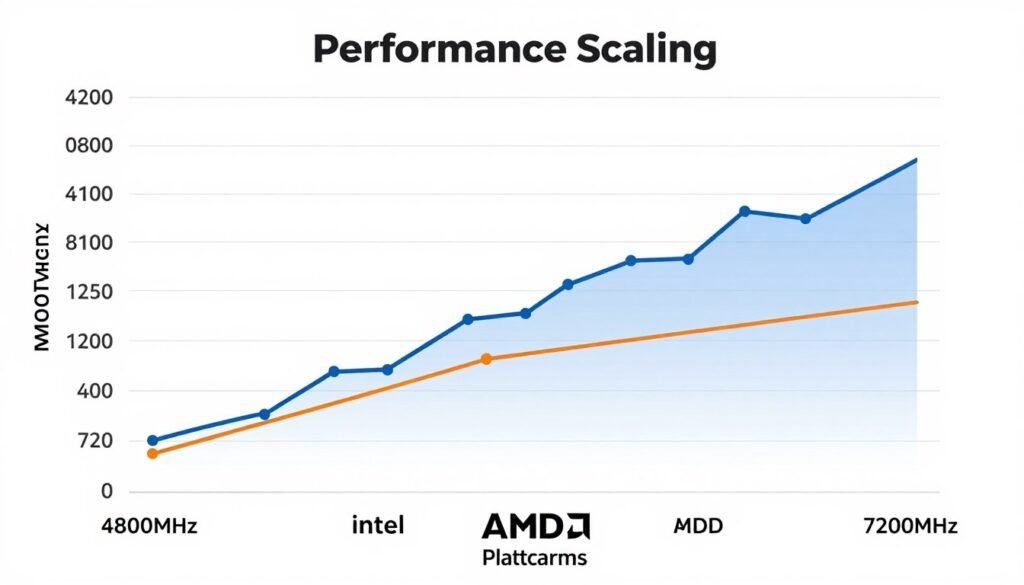
Intel systems also use VCCIO voltage for memory-related operations. This usually needs to track slightly below VCCSA. If VCCSA is 1.30V, try VCCIO at 1.25V as a starting point.
The big advantage Intel offers is flexibility. You can run weird memory configurations that AMD platforms reject. Four sticks at high speed? Intel handles it better. Mismatched RAM capacities? Intel is more forgiving.
For detailed platform comparisons, check our Intel vs AMD 2026 guide.
DDR4 vs DDR5 Differences
DDR4 is mature technology now. Tuning it is easier because we understand its limits completely. Samsung B-die remains the tuning king for DDR4, capable of extremely tight timings.
DDR5 is still evolving. Every new memory IC generation behaves differently. Early DDR5 chips were voltage-sensitive and ran hot. Current chips handle voltage better but still generate more heat than DDR4.
DDR4 Tuning Characteristics
- Lower voltages (1.35V typical for daily use)
- Wider tuning knowledge base available
- Samsung B-die best for tight timings
- Generally cooler operation
- Mature platform with known limits
DDR5 Tuning Characteristics
- Higher voltages needed (1.35-1.40V common)
- Still learning optimal settings for each IC
- Hynix A-die currently popular for tuning
- Runs hotter, needs better cooling
- Higher frequencies possible than DDR4
If you’re choosing between platforms now, DDR5 offers more performance ceiling. But DDR4 systems with good RAM can still deliver 90% of that performance for less money. The gap is closing as DDR5 matures.
Mistakes I See Everyone Make (And How To Avoid Them)
After helping dozens of people tune their RAM, I see the same errors repeatedly. These mistakes waste time and sometimes damage hardware. Learn from other people’s failures instead of your own.
Mistake One: Assuming XMP Is Always Safe
Manufacturers test XMP profiles on specific motherboards with specific BIOS versions. Your hardware combination might not match their test setup. Blindly trusting XMP leads to mysterious instability months later.
Always stress test after enabling XMP. If errors appear, XMP isn’t stable for your specific hardware. Either adjust settings manually or accept that your motherboard and RAM don’t play nicely together.
Mistake Two: Changing Too Many Variables At Once
People adjust frequency, all four timings, and voltages simultaneously. Then wonder why the system won’t boot. Which change caused the problem? You’ll never know without isolating variables.
Change one parameter at a time. Test. If stable, change the next parameter. This methodical approach takes longer but actually gets you to stable settings faster than random trial-and-error.
Critical Mistake: Never adjust CPU core voltage while tuning RAM. Keep CPU settings stock until memory is 100% stable. Mixing CPU and RAM overclocking creates impossible-to-diagnose issues.
Mistake Three: Insufficient Stress Testing
Five minutes of MemTest passes. System boots fine. Must be stable, right? Wrong. Memory errors can appear after hours of operation. Data corruption happens silently until you notice corrupted files weeks later.
Minimum stress testing should be one hour with a demanding test suite. For settings you’ll run 24/7, test for at least 8 hours overnight. The extra time investment prevents data loss and mysterious crashes.
Mistake Four: Ignoring Temperature
RAM that passes tests in winter might fail in summer. Temperature affects stability significantly. DDR5 especially throttles when hot, killing your carefully tuned performance.
Monitor memory temperature during stress tests. Many DDR5 kits report temps through software. If temps exceed 50°C, add cooling before pushing settings harder.
Mistake Five: Forgetting About Other System Components
Fast RAM doesn’t help if your CPU or GPU can’t keep up. Understanding system balance prevents wasting time optimizing the wrong component. More on bottleneck basics here.
I’ve seen people spend weeks perfecting RAM timings on a system where the GPU was bottlenecking everything. The RAM tuning made zero real-world difference because the GPU couldn’t use the extra performance.
Mistake Six: Trusting Online “Safe” Settings
Someone’s stable settings on their hardware might be unstable on yours. Memory controller quality varies between individual CPUs. Motherboard trace routing differs between models. PCB revisions change electrical characteristics.
Use online settings as starting points only. Always validate stability on your specific hardware. What works for someone else is data, not gospel.
- Copy someone else’s settings blindly
- Change multiple settings without testing between
- Skip stress testing to save time
- Ignore temperature warnings
- Assume XMP is always stable
- Mix RAM overclocking with CPU overclocking initially
What Not To Do
- Test thoroughly after every change
- Adjust one parameter at a time
- Run stress tests for hours, not minutes
- Monitor temperatures during testing
- Validate XMP stability before trusting it
- Keep CPU stock while tuning RAM
Best Practices
Hardware-Specific Tuning Notes (What Actually Works)
Different hardware combinations need different approaches. These notes come from personal testing and helping others tune their specific systems.
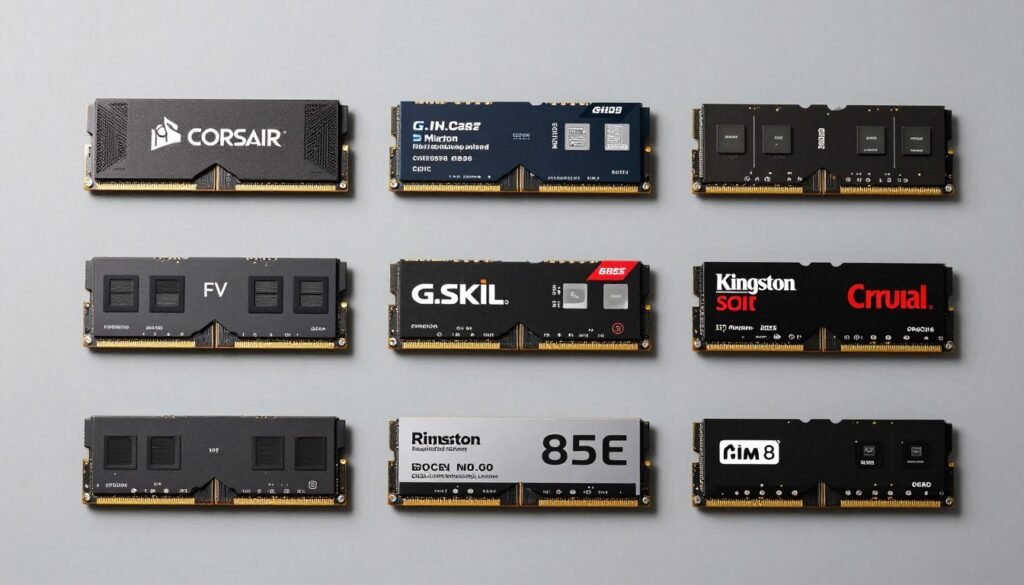
Ryzen 9000 Series + DDR5-6000
This combination is the current sweet spot for AMD builds. The memory controller handles 6000MHz easily. The Infinity Fabric stays synchronized. Performance is excellent.
Target timings: CL28-34-34-74 is achievable on quality kits. CL30-36-36-76 works on budget RAM. SOC voltage between 1.25-1.30V for most chips. DRAM voltage at 1.35-1.40V.
If you’re getting a Ryzen 9 9900X or 9950X, budget for good RAM. These CPUs shine with tight timings. Cheaping out on memory wastes the CPU’s potential. Consider checking CPU bottleneck identification for your specific use case.
Intel 14th Gen + DDR5-7200
Intel’s latest platforms push higher frequencies than AMD. 7200MHz is realistic on Z790 boards with good power delivery. Even 7600MHz works on golden chips.
Timings will be looser than AMD’s 6000MHz: CL34-42-42-84 is typical for 7200MHz. CL36-45-45-90 for 7600MHz. VCCSA needs 1.30-1.35V. VCCIO around 1.25-1.30V.
The frequency advantage sounds great on paper. Real-world performance? About 3-5% better than AMD’s 6000MHz with tight timings. The latency math balances out.
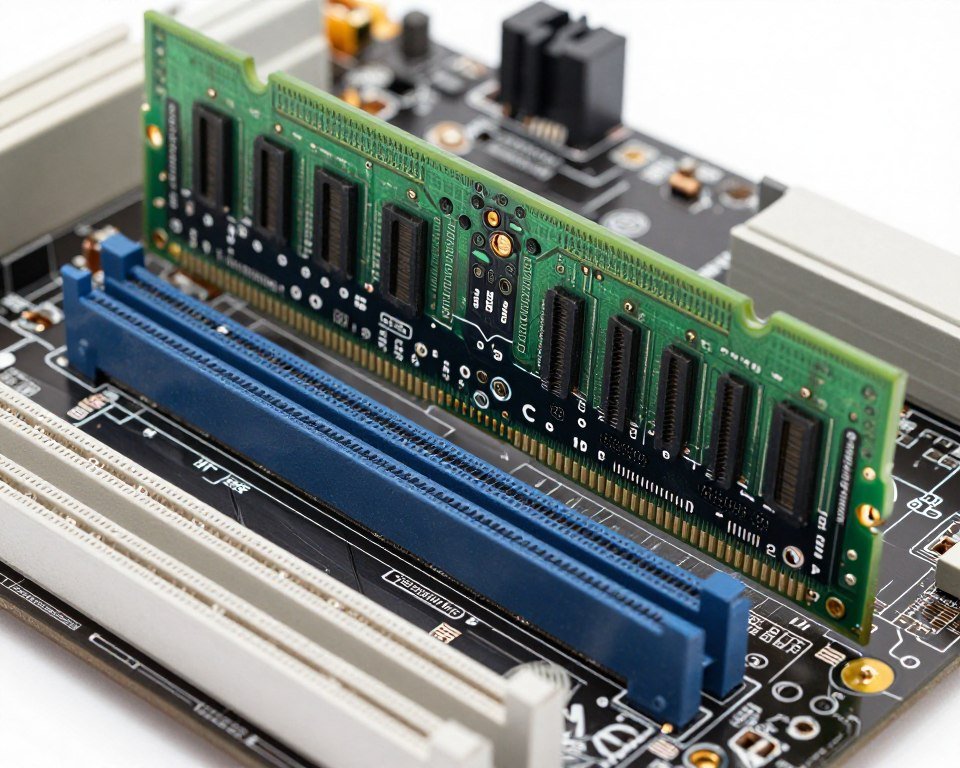
DDR4 B-Die on Older Platforms
Samsung B-die DDR4 remains incredible for tuning. These chips scale with voltage and achieve timings impossible on other ICs. If you’re on DDR4 still, B-die is worth seeking out used.
Target timings for 3600MHz: CL14-14-14-28 is achievable on good bins. CL16-16-16-36 on average B-die. Voltage up to 1.50V is safe for these chips, though 1.45V is more reasonable for daily use.
B-die responds well to tRFC reduction. Drop it to 260-280ns for noticeable bandwidth improvements. Other DDR4 ICs need much higher tRFC values.
Budget DDR5 (Micron/Hynix M-Die)
Cheap DDR5 uses Micron or Hynix M-die chips. These don’t tune as well as premium A-die but still improve beyond stock settings. Expect modest gains rather than dramatic transformations.
For 5200MHz kits: CL36-36-36-76 should work. Maybe CL34 if you’re lucky. Voltage around 1.35V. Don’t expect to push much tighter without instability.
These kits shine when you run them at rated speed with slightly tightened sub-timings rather than chasing aggressive primary timing reductions.
| Platform | Sweet Spot Speed | Realistic Timings | Key Voltages |
| Ryzen 9000 + DDR5 | 6000MHz | CL28-34-34-74 | 1.35V DRAM / 1.25V SOC |
| Intel 14th Gen + DDR5 | 7200MHz | CL34-42-42-84 | 1.40V DRAM / 1.30V VCCSA |
| DDR4 B-Die | 3600MHz | CL14-14-14-28 | 1.45V DRAM |
| Budget DDR5 | 5200MHz | CL36-36-36-76 | 1.35V DRAM / 1.20V Controller |
RTX 5000 Series Considerations
The new RTX 5090 and 5080 cards benefit from fast system RAM in certain scenarios. PCIe 5.0 data transfers and AI workloads hammer system memory more than previous generations.
If you’re building around an RTX 5000 series GPU, don’t cheap out on system RAM. The GPU can actually use the extra memory bandwidth for asset streaming and AI processing. Check our RTX 5090 optimization guide for more.
This is different from older GPUs where system RAM barely mattered for graphics workloads. The architecture changed enough that fast RAM provides measurable benefits beyond just CPU-dependent tasks.
RAM Tuning Myths That Need To Die
The overclocking community perpetuates some nonsense about RAM tuning. These myths waste time and money. Let’s kill them with facts.
Myth: More MHz Always Equals Better Performance
Already covered this but it bears repeating. Latency matters as much as frequency. 5600MHz CL28 beats 6400MHz CL36 in most real scenarios. The math doesn’t lie.
Marketing emphasizes MHz because bigger numbers sell products. Don’t fall for it. Calculate actual latency before buying RAM based on speed alone.
Myth: You Need Expensive RAM To Get Good Performance
False. Budget kits with decent ICs tune reasonably well. You won’t hit the same peaks as premium B-die or A-die. But you’ll get 80% of the performance for 50% of the cost.
The difference between a $150 kit and a $300 kit is maybe 5% in tuned performance. Unless you’re chasing benchmark records, save your money for a better CPU or GPU.
Myth: RAM Overclocking Is Dangerous
Overvolting RAM is safer than overvolting CPUs. Memory can handle more voltage abuse before permanent damage occurs. Staying under 1.50V on DDR4 or 1.45V on DDR5 is completely safe.
The real risk is data corruption from instability, not hardware damage. Stress test thoroughly and RAM overclocking is one of the safest modifications you can make.
Myth: RGB RAM Performs Worse
RGB lighting doesn’t affect performance unless the RGB controller is poorly designed and interferes with signal integrity. Most modern RGB RAM performs identically to non-RGB versions using the same ICs.
The reason RGB RAM sometimes seems worse is that manufacturers often put basic ICs in RGB kits aimed at aesthetic buyers rather than performance enthusiasts. It’s correlation, not causation.
Myth: You Must Match XMP Profile Exactly
XMP is a suggestion, not a requirement. You can run higher frequency with looser timings. Lower frequency with tighter timings. Different voltages entirely.
XMP exists for convenience. It gives you a validated starting point. But treating it as the only “correct” configuration misses the entire point of tuning.
Myth: All Slots Perform The Same
Motherboard traces vary in length and quality between slots. Slot position affects signal integrity. Most boards recommend specific slots for optimal performance.
Check your motherboard manual. It specifies which slots to populate first. Usually A2 and B2 for two sticks. Ignoring this recommendation can limit maximum achievable speeds.
RAM Tuning Truths
- Latency matters as much as frequency
- Budget RAM can tune reasonably well
- Safe voltage limits are higher than most think
- RGB doesn’t inherently reduce performance
- XMP is optional, not mandatory
- Proper testing reveals real stability
Common Myths
- Higher MHz always means faster
- Expensive RAM is required for good results
- RAM overclocking damages hardware easily
- RGB lighting affects memory performance
- XMP settings are optimal for everyone
- Five-minute testing proves stability
When Things Go Wrong (Troubleshooting Common Issues)
Even following best practices, problems happen. These troubleshooting steps solve most RAM tuning issues without starting completely over.
System Won’t POST After Changing Settings
First, don’t panic. Most motherboards reset automatically after three failed boot attempts. Wait for the auto-reset. If that doesn’t work, power off and clear CMOS manually.
After CMOS clear, enter BIOS and try your settings again but with higher DRAM voltage. Add 0.05V. If it posts this time, you found the issue. If not, your frequency or timings are too aggressive.
Random Crashes During Normal Use
This indicates borderline stability. Your settings work under light load but fail when stressed. Loosen primary timings by one cycle each or add voltage.
Another cause is insufficient memory controller voltage. Raise SOC voltage (AMD) or VCCSA (Intel) by 0.05V increments until crashes stop.
Passes Short Tests But Fails Long Tests
Temperature is usually the culprit. RAM heats up during extended stress testing. Settings that work cold fail when hot. Improve cooling or lower voltage slightly.
If cooling is already good, you’re hitting the absolute limit of your hardware. Accept slightly looser settings for 24/7 stability.
Performance Worse After Tuning
You probably broke the Infinity Fabric sync on AMD or pushed Intel settings too far, causing the memory controller to throttle. Check CPU-Z or HWiNFO to verify RAM is running at expected speeds.
Another possibility: you created a new bottleneck elsewhere. RAM tuning exposed CPU or GPU limits. Use our GPU bottleneck guide to diagnose.
One Stick Works, Four Sticks Fail
Four sticks stress the memory controller more than two. Lower frequency by 200-400MHz or loosen timings by 2-4 cycles. Raise memory controller voltage by 0.05-0.10V.
Some platforms simply can’t handle four sticks at high speeds. This is a hardware limitation, not your fault. Accept lower speeds or switch to two higher-capacity sticks.
Corruption In Specific Applications
Certain programs stress RAM in ways that standard tests miss. Video encoding, file compression, and database operations hit memory harder than typical stress tests.
If one application shows issues while stress tests pass, your settings are marginally stable. Loosen timings slightly or raise voltage. The application is revealing instability that synthetic tests miss.
- Add 0.05V to DRAM voltage
- Loosen CL by 1-2 cycles
- Lower frequency by 200MHz
- Increase memory controller voltage
- Improve case airflow
- Update motherboard BIOS
Quick Fixes
- No combination posts reliably
- Every setting causes different errors
- Stable settings suddenly become unstable
- Physical damage to RAM or slots suspected
- BIOS updates make things worse
- Multiple components showing issues
Signs You Need To Start Over
The Bottom Line: Is RAM Tuning Worth Your Time?
After thousands of words, here’s the honest answer: it depends entirely on your use case and patience level.
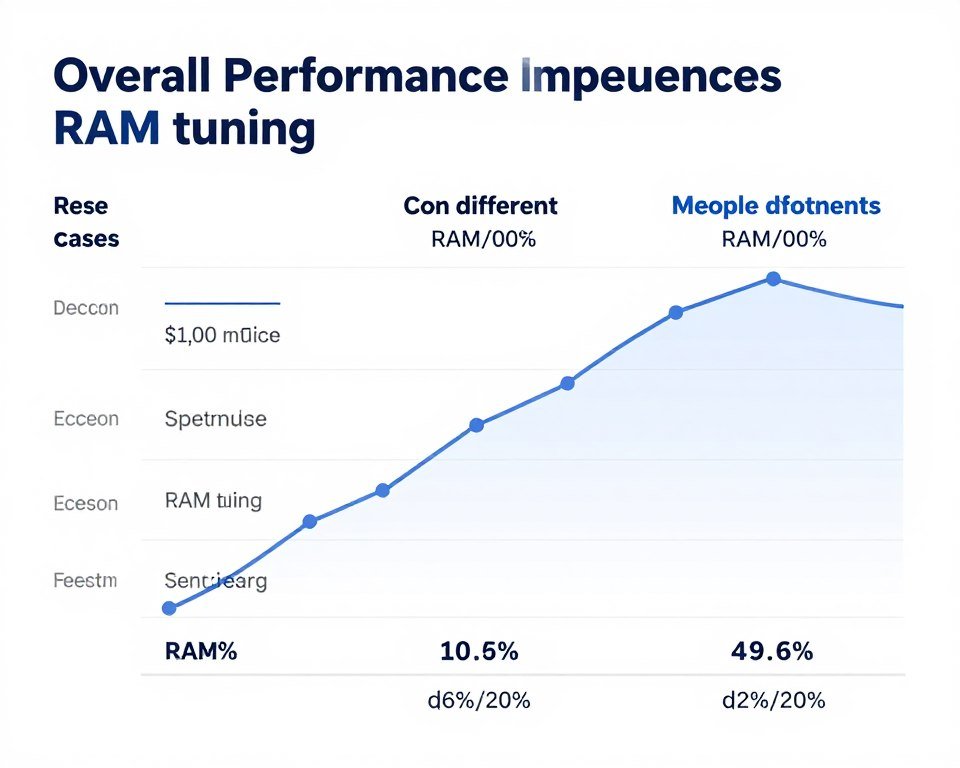
If you game at 240Hz+ or compile code regularly, RAM tuning delivers measurable improvements. The hours spent tuning pay back in better frame times and faster builds. Do it.
If you game at 60Hz 4K or mainly browse the web, RAM tuning is a hobby, not a necessity. Your GPU and CPU matter infinitely more. Enable XMP and call it done.
Content creators fall somewhere in between. Video editors see modest gains. 3D artists using CPU rendering benefit. GPU render users can skip it entirely.
My Recommendation: Spend 2-3 hours doing basic tuning. Tighten your primary timings. Add voltage if needed. Test for an hour. That captures 80% of available gains with 20% of the effort.
The rabbit hole of extreme tuning exists for enthusiasts who enjoy the process. If tweaking BIOS settings for 0.5% gains sounds fun, go for it. If it sounds tedious, stop at the easy wins.
One thing is certain: understanding RAM timings makes you a better PC builder. You’ll make smarter purchasing decisions. You’ll troubleshoot stability issues faster. You’ll know when marketing is lying to you.
Verify Your System’s Overall Balance
RAM tuning is one piece of system optimization. After adjusting memory settings, check whether your entire system is balanced or if other components now limit performance. Understanding the full picture helps you decide where to invest time next.
The technical knowledge you’ve gained here extends beyond RAM. Timing relationships, voltage interactions, and stability testing apply to all overclocking. You can use these principles when tuning CPUs, GPUs, or any other component.
Most importantly, you now understand why your “fast” RAM might not feel fast. You can fix the disconnect between specifications and performance. That alone makes the learning worthwhile.
Whether you dive deep into sub-timings or stop at XMP, you’re now equipped to make informed decisions. You won’t waste money on meaningless frequency increases. You won’t blame your RAM for problems it isn’t causing.
That’s the real value of understanding RAM latency tuning. Not benchmark scores. Not forum bragging rights. The knowledge to build better systems and fix performance issues that would otherwise remain mysterious.
For more on creating balanced systems that work together efficiently, check our guide on build and buy advice. Understanding how components interact prevents wasted effort optimizing the wrong parts.
So that’s RAM timing optimization beyond the gigahertz marketing. You’ve got the technical knowledge, practical steps, and platform-specific details to actually improve your system’s memory performance.
The difference between understanding and doing is action. Open your BIOS. Check your current settings. Maybe tighten that CAS latency by one cycle and see what happens. Or don’t, and just appreciate why your system performs the way it does.
Either way, you’re no longer confused by timing specifications or fooled by frequency numbers that don’t tell the whole story.
What’s the weirdest performance issue you’ve ever run into?