
You dropped serious cash on that RTX 5090 or Radeon RX 7900 XTX. The box promised massive frame rates. You installed it, fired up your favorite game, and something feels… off. The GPU usage sits at 80%, but performance isn’t where it should be. Welcome to the club.
Here’s the reality: most gaming PCs are leaving 5-15% performance on the table because of one BIOS setting that takes three minutes to enable. That setting is called Resizable BAR, and odds are good it’s sitting there disabled on your motherboard right now.
I learned this the hard way after upgrading to an RTX 4090 and wondering why my Cyberpunk 2077 frame times were inconsistent. Turned out my three-year-old motherboard needed a BIOS update and one simple toggle. The difference? Instant 8-12 FPS boost in CPU-limited scenarios. No new hardware. No overclocking. Just properly configured data pathways.
This guide walks you through exactly what Resizable BAR actually does, how to check if your system supports it, and the step-by-step process to enable it. We’re talking BIOS menus, compatibility requirements, and real-world performance impacts. No corporate marketing speak. Just straight information from someone who’s enabled this feature across a dozen different builds.
What Resizable BAR Actually Does (And Why Your GPU Cares)
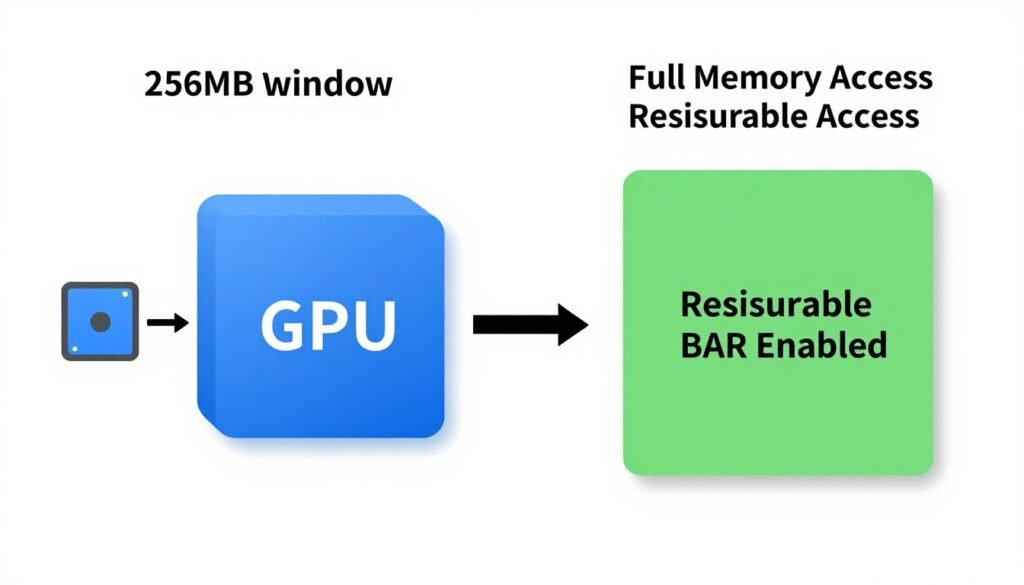
Think of your graphics card memory like a warehouse full of texture data, 3D models, and shader information. Traditionally, your CPU could only peek through a tiny 256MB window into that warehouse at any given time. Need something from a different section? You’d have to close that window, open another one, grab the data, close it, repeat.
This limitation comes from decades-old PCI Express standards. Back when GPUs had 64MB or 128MB of memory, a 256MB access window was generous. But modern graphics cards pack 12GB, 16GB, or even 24GB of VRAM. That tiny window became a serious bottleneck.
Resizable BAR changes the rules. It lets your CPU access the entire GPU memory space at once. All of it. No more shuffling windows around. Your processor can see the whole warehouse and grab whatever it needs instantly.
The technical term is Base Address Register resizing. PCI Express specification 4.0 and newer includes this capability, though some PCIe 3.0 systems support it through motherboard firmware updates. AMD calls it Smart Access Memory when paired with their GPUs. NVIDIA uses the Resizable BAR terminology. Intel refers to it as Resizable BAR support. They all describe the same underlying technology.
Does it matter for every game? No. Open-world titles with massive texture streaming see the biggest gains. Games built on Unreal Engine 5 benefit significantly. Older DirectX 11 games might see zero improvement. But when it works, it works without any performance penalty. That’s free performance sitting in your BIOS right now.
Understanding how your system components work together is crucial for avoiding common bottleneck issues that limit your gaming experience. The CPU-GPU communication pathway that Resizable BAR improves is just one piece of overall system balance.
The Compatibility Checklist: Will Your System Even Support This?
Not every PC can enable Resizable BAR. You need three things working together: compatible CPU, compatible motherboard BIOS, and compatible graphics card. Miss one, and you’re stuck with traditional memory access.
CPU Requirements
Intel systems need 10th generation Core processors or newer. That means Core i5-10400, i7-10700K, i9-10900K and everything released after. The 11th, 12th, 13th, and 14th generation chips all support Resizable BAR natively.
AMD requires Ryzen 3000 series or newer. Ryzen 5 3600, Ryzen 7 3700X, Ryzen 9 3900X – these all work. The Ryzen 5000, 7000, and new 9000 series have full support built in. Older Ryzen 1000 and 2000 series chips don’t support the feature regardless of motherboard updates.
The choice between Intel and AMD platforms involves multiple factors beyond just Resizable BAR support, but it’s worth considering if you’re planning a system upgrade.
Motherboard Requirements
This is where things get messy. Your motherboard needs a BIOS update that includes Resizable BAR support. Some manufacturers rolled this out quickly. Others dragged their feet for months or never updated older boards at all.
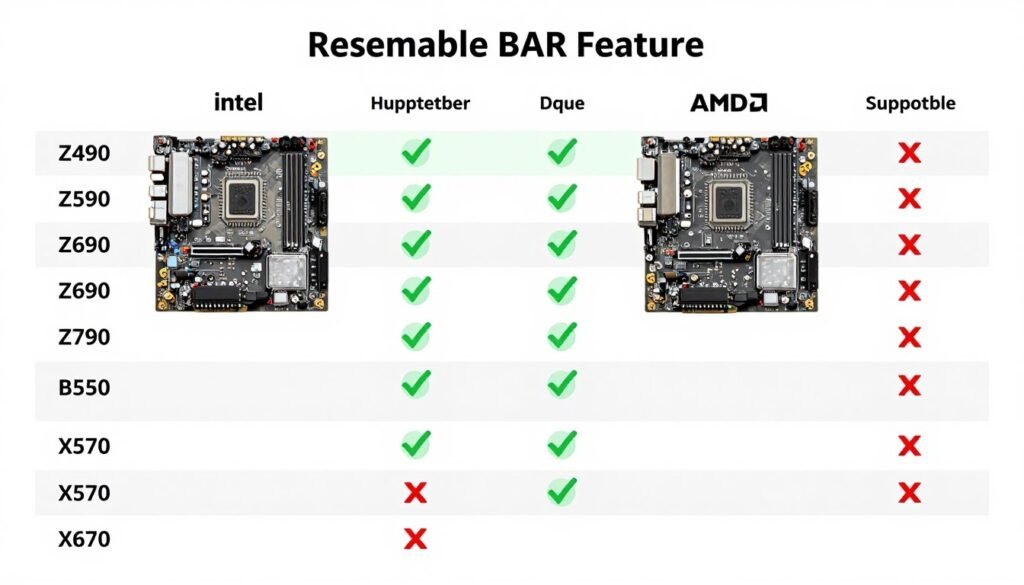
Intel 400-series chipsets and newer officially support Resizable BAR. That includes Z490, B460, H410 and everything that came after. Some Z390 boards received updates, but not all. AMD 500-series chipsets (X570, B550) had the smoothest rollout. Select 400-series boards (X470, B450) got updates, though compatibility varies by manufacturer.
You’ll need to visit your motherboard manufacturer website and check the BIOS update notes. Look for terms like “Resizable BAR support,” “Above 4G Decoding,” or “Smart Access Memory.” Download the latest BIOS version. Flashing BIOS carries risk, so read the instructions carefully and don’t interrupt the update process.
Graphics Card Requirements
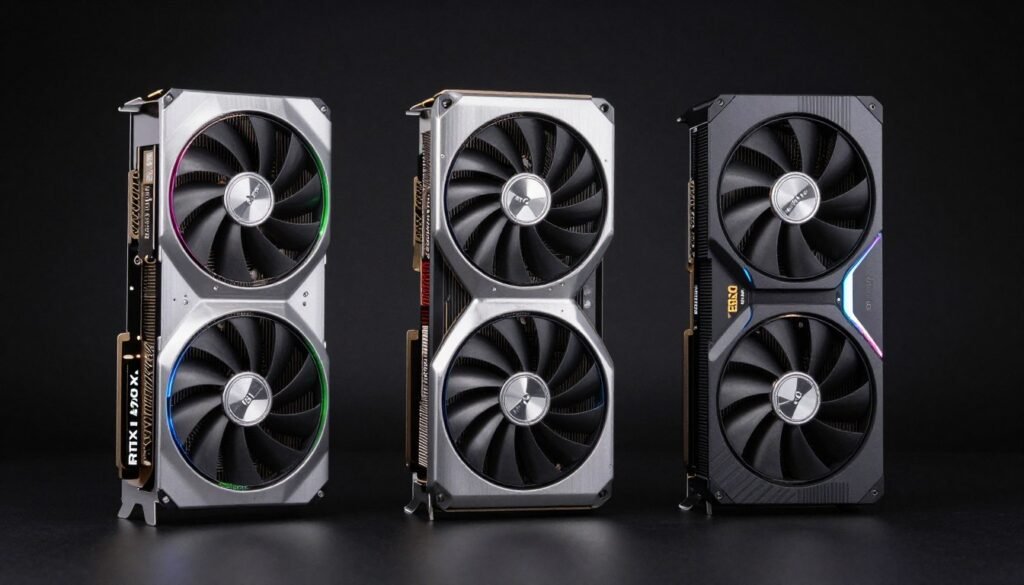
NVIDIA GeForce RTX 3060, 3060 Ti, 3070, 3070 Ti, 3080, 3080 Ti, 3090, and 3090 Ti all support Resizable BAR through driver updates. The RTX 4000 series (4060, 4060 Ti, 4070, 4070 Ti, 4080, 4090) includes native support. The new RTX 5000 series has it enabled by default.
AMD Radeon RX 6000 series cards were the first consumer GPUs with Smart Access Memory support. The RX 6600, 6600 XT, 6700 XT, 6800, 6800 XT, and 6900 XT all work with the feature. The RX 7000 series carries full support across all models.
For NVIDIA cards, you’ll need GeForce Game Ready Driver version 465.89 or newer. AMD users need Radeon Software Adrenalin 21.4.1 or later. Check your current driver version through the NVIDIA Control Panel or AMD Radeon Software interface.
Check Your System Compatibility Now
Before diving into BIOS settings, verify your CPU and GPU are actually balanced for optimal performance. Our calculator identifies bottlenecks and shows whether Resizable BAR will make a real difference for your specific hardware combination.
Enabling Resizable BAR: The Actual Steps That Work
The process involves BIOS configuration and driver verification. Don’t rush this. One wrong setting and your PC might not boot properly. Follow these steps in order.
Step 1: Update Your Motherboard BIOS
Visit your motherboard manufacturer website. ASUS, MSI, Gigabyte, ASRock – each has a support section where you can download BIOS files. You’ll need your exact motherboard model. Check the BIOS update notes to confirm Resizable BAR support is included.
Download the BIOS file to a USB flash drive formatted as FAT32. Most motherboards include a built-in BIOS flash utility accessible during boot. Common methods include pressing F7 for ASUS boards, M-Flash for MSI, Q-Flash for Gigabyte. Consult your motherboard manual for specific instructions.
Follow the on-screen prompts. Don’t power off your PC during the update. The process typically takes 3-5 minutes. Your system will restart automatically when complete.
Step 2: Enable Required BIOS Settings
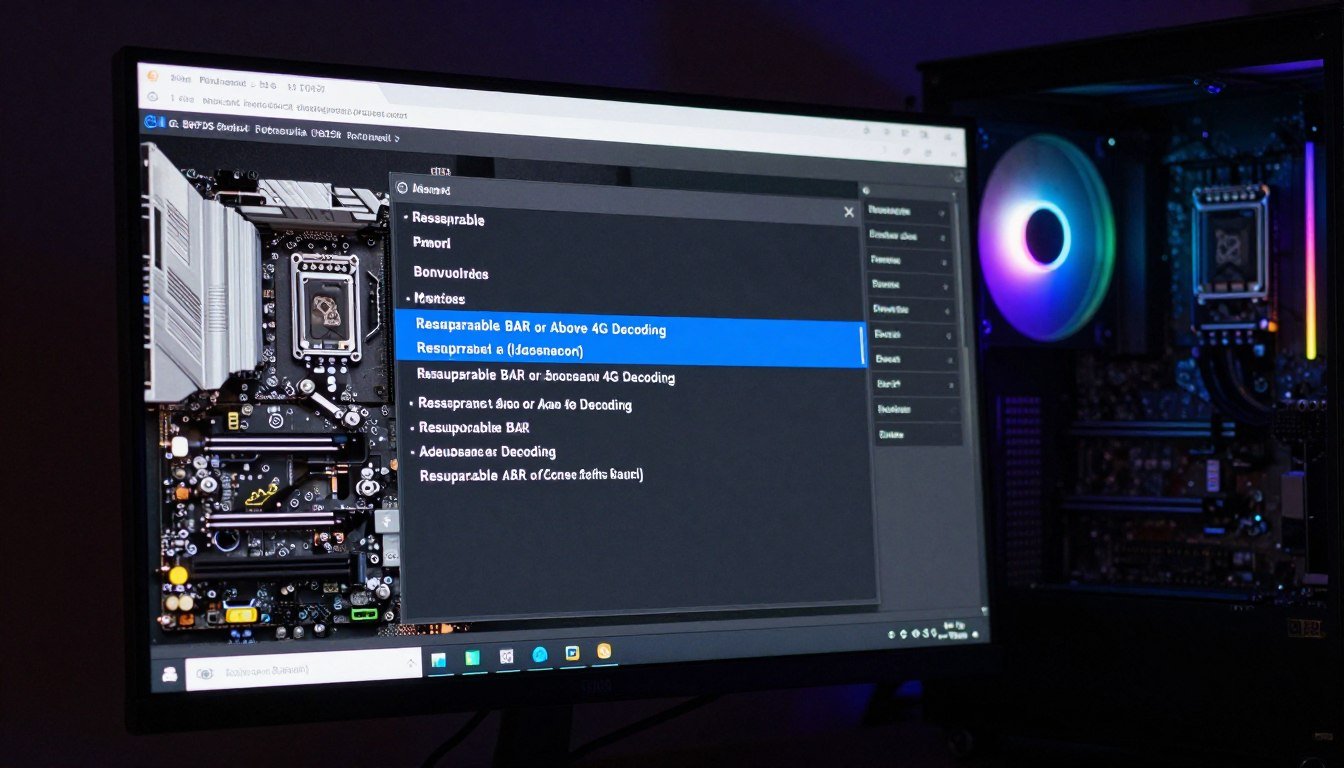
Restart your PC and enter BIOS setup. The key varies by manufacturer – typically Delete, F2, or F10 during the initial boot screen. Look for these specific settings, though menu names differ across brands:
- Above 4G Decoding: Must be enabled. Usually found under Advanced, PCI Subsystem, or Boot settings.
- Resizable BAR Support: Enable this setting. Some BIOS versions call it “Re-Size BAR” or list it as “Enabled/Auto/Disabled.”
- CSM (Compatibility Support Module): Must be disabled. This legacy boot option conflicts with Resizable BAR.
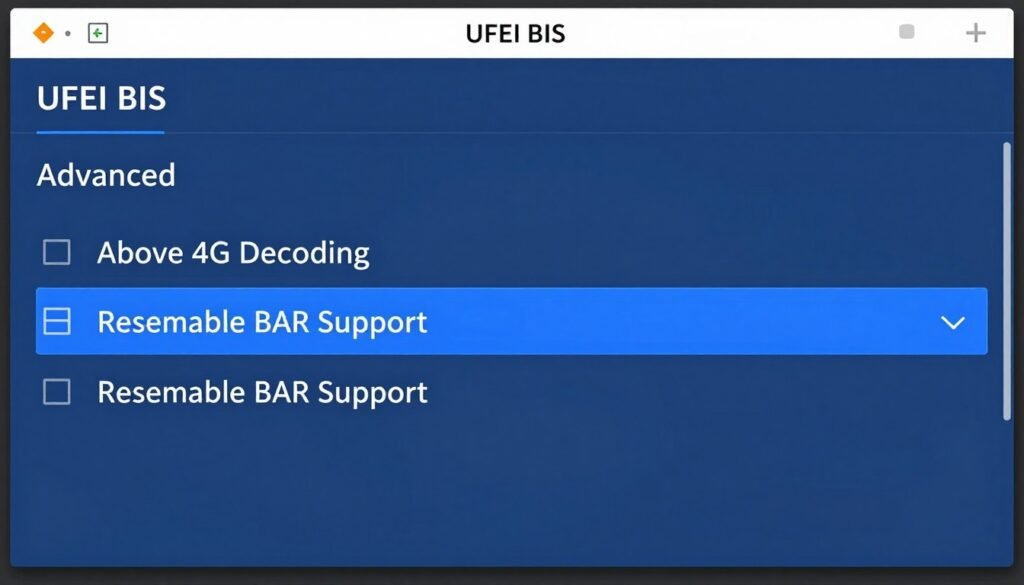
ASUS motherboards typically place these settings under Advanced → PCI Subsystem Settings. MSI boards often use Settings → Advanced → PCI Subsystem. Gigabyte locations vary between Settings → IO Ports and Settings → Miscellaneous. Check your manual if you’re stuck.
Save changes and exit BIOS. Your system will restart. If Windows fails to boot, you may need to re-enable CSM temporarily, switch Windows to UEFI boot mode, then disable CSM again. This is a common issue with older Windows installations.
Step 3: Update Your Graphics Drivers
Boot into Windows and update your graphics card drivers to the latest version. NVIDIA users should download GeForce Game Ready Drivers from the NVIDIA website or through the GeForce Experience utility. AMD users can grab Radeon Software directly from AMD’s driver page.
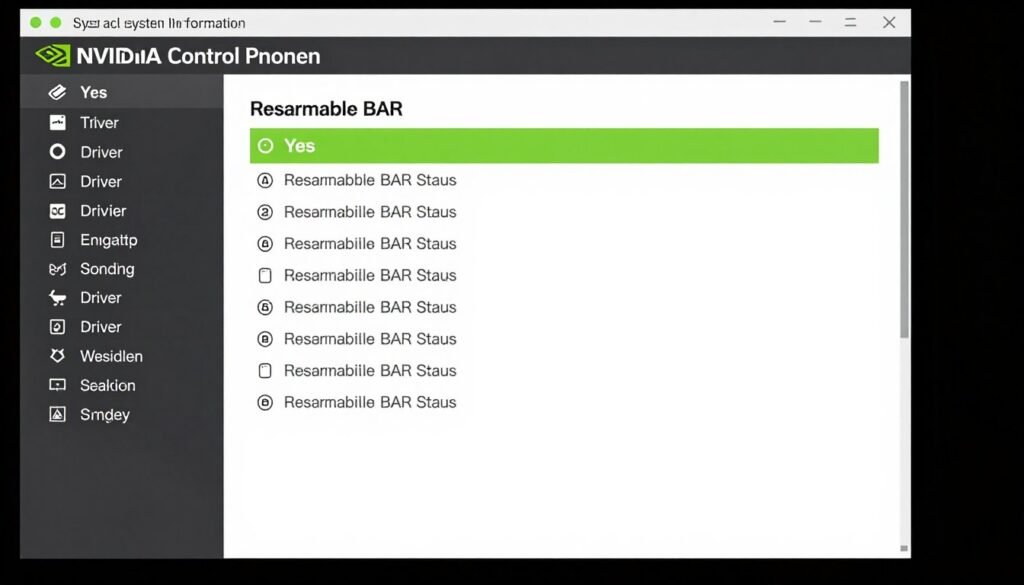
For NVIDIA cards, open NVIDIA Control Panel, navigate to System Information, and check for “Resizable BAR: Yes” in the system details. AMD users can verify through Radeon Software by checking the Graphics tab under System in settings.
Step 4: Verify Everything Works
Download GPU-Z, a free utility that displays detailed graphics card information. Run the program and check the Advanced tab. Under the Bus Interface section, you should see “Resizable BAR” listed as “Enabled.” If it shows “Disabled,” something in the chain isn’t configured correctly.
Common issues include outdated BIOS versions, CSM still enabled, or incompatible hardware. Double-check each requirement. Some systems need specific boot modes or have hidden BIOS options that must be adjusted.
Performance Reality Check
Now that Resizable BAR is enabled, you might be wondering if it actually made a difference. The honest answer: it depends on your specific games and hardware balance. GPU bottlenecks and other system limitations can mask the benefits. Run some benchmarks in your most-played games to see real-world impact on your rig.
Which Games Actually Benefit From Resizable BAR?
Performance gains vary wildly depending on game engine, graphics API, and how the game handles memory streaming. Some titles see double-digit percentage improvements. Others show zero difference. Let’s dig into what actually matters.
Big Winners
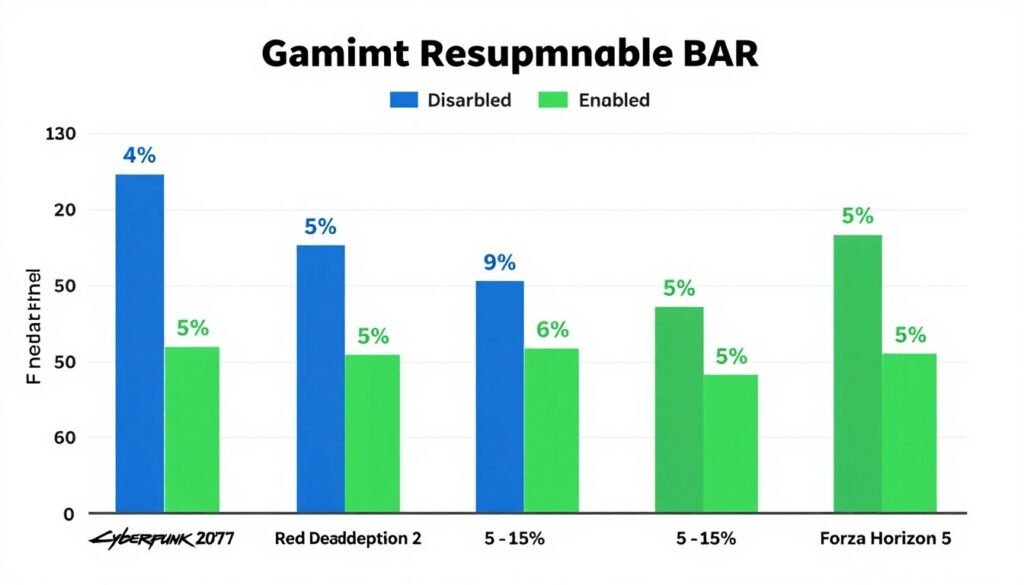
Open-world games with aggressive texture streaming benefit most. Forza Horizon 5 shows 10-15% frame rate improvements with Resizable BAR enabled. Cyberpunk 2077 sees 8-12% gains, particularly in dense city areas where the game constantly loads new assets.
Red Dead Redemption 2 gains 5-8% average FPS with Resizable BAR active. Assassin’s Creed Valhalla picks up 6-10% depending on GPU model. Far Cry 6 sees modest 4-6% improvements in GPU-limited scenarios.
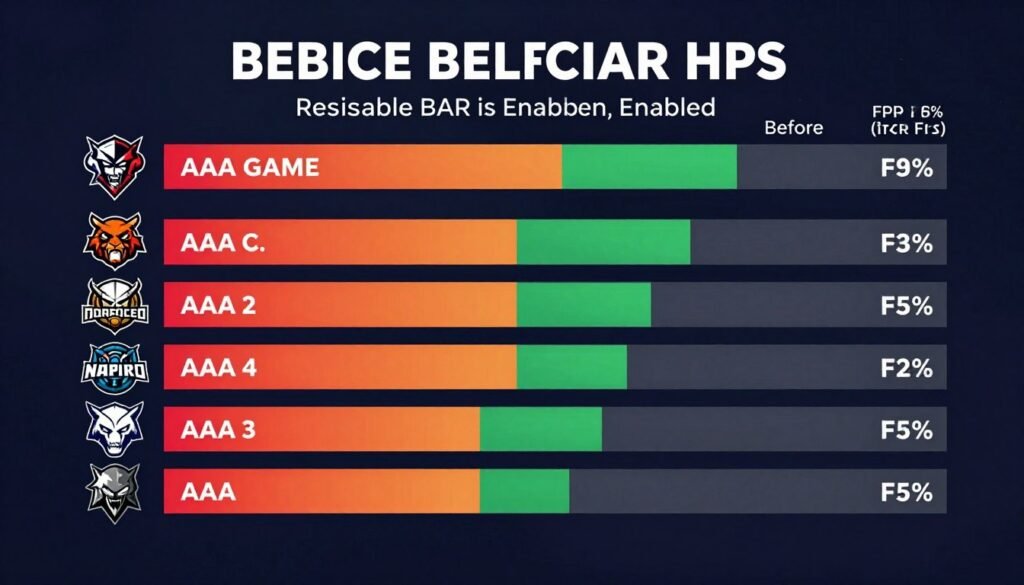
Games built on Unreal Engine 5 show variable results. The engine’s Nanite virtualized geometry system theoretically benefits from faster memory access, but actual gains depend on implementation. Early UE5 titles like Fortnite Chapter 3 see 3-7% improvements in CPU-limited situations.
For context on why some UE5 games struggle on even powerful PCs, the issue often goes beyond just memory bandwidth. But Resizable BAR helps reduce one bottleneck in the data pipeline.
Moderate Gainers
DirectX 12 and Vulkan API games show inconsistent results. Shadow of the Tomb Raider gains 3-5% with Resizable BAR. Doom Eternal picks up 2-4% in certain levels. Microsoft Flight Simulator sees variable improvements ranging from 0-8% depending on scenery complexity and draw distance settings.
Competitive multiplayer games rarely benefit significantly. Valorant, Counter-Strike 2, and Rainbow Six Siege show minimal to zero improvement because they’re typically CPU-bound or already running at high frame rates where the memory access window isn’t the limiting factor.
No Difference Zone
Older DirectX 11 games show little to no benefit from Resizable BAR. The Grand Theft Auto V, The Witcher 3, and Overwatch see essentially zero FPS change. These games were designed before the technology existed and don’t leverage the expanded memory window.
Esports titles running at 300+ FPS see no meaningful change. When you’re already GPU-limited at extreme frame rates, the CPU memory access pathway isn’t your bottleneck. Resolution choice matters more here, as higher resolutions shift bottlenecks entirely.
GPU and Resolution Dependencies
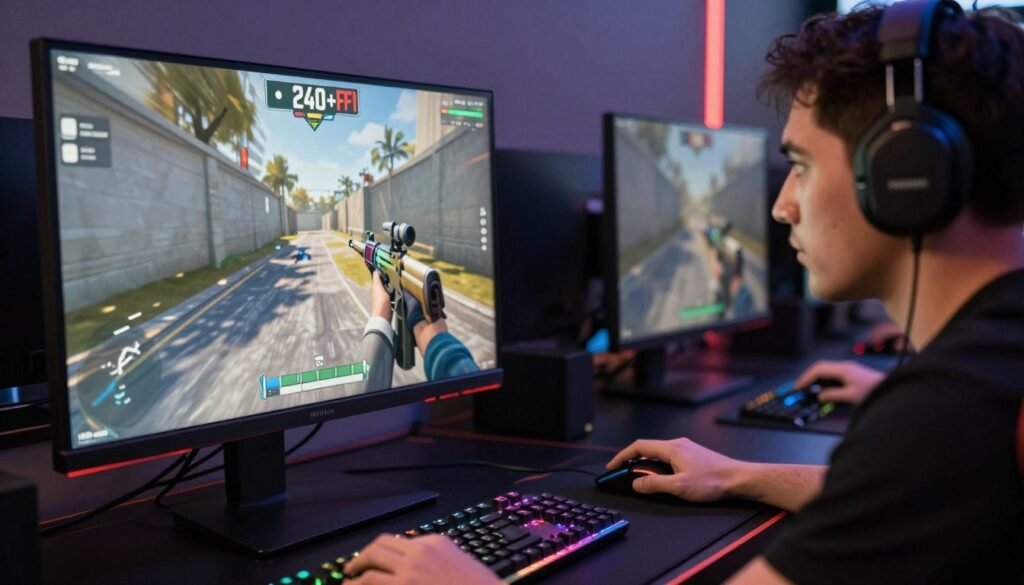
Resizable BAR impact scales with GPU memory bandwidth constraints. High-end cards like the RTX 4090 or Radeon RX 7900 XTX show smaller percentage gains because they’re already so fast. Mid-range cards (RTX 4070, RX 7700 XT) often see more noticeable improvements.
Resolution affects results significantly. At 1080p, CPU limitations often dominate, so Resizable BAR helps less. At 4K, GPU memory bandwidth becomes crucial, and the expanded access window provides more benefit. The sweet spot for noticeable gains is typically 1440p gaming where both CPU and GPU work hard.
The reality is that overall system balance matters more than any single feature. Resizable BAR is one optimization among many. Pair it with proper VRAM allocation, appropriate CPU performance, and matched memory speeds for best results.
When Resizable BAR Refuses to Enable (And How to Fix It)
You followed every step. Updated BIOS. Enabled the settings. But GPU-Z still shows Resizable BAR disabled. Here’s what’s probably wrong and how to actually fix it.
Issue: BIOS Settings Don’t Stick
Some motherboards reset certain PCIe settings after saving. This particularly affects boards that received Resizable BAR support through later BIOS updates rather than having it from launch. The fix involves disabling Fast Boot and checking the exact boot order.
Enter BIOS and disable Fast Boot completely. Look under Boot settings or Boot Configuration. Some boards call this Quick Boot or Fast Startup. Set it to disabled. Next, verify your boot drive is set to UEFI mode, not Legacy or CSM mode. Save and exit.
If settings still won’t stick, try clearing CMOS. Power down, unplug the system, locate the CMOS battery on your motherboard, remove it for 30 seconds, replace it, then reconfigure BIOS from scratch. Annoying, but effective for stubborn boards.
Issue: Windows Won’t Boot After Enabling
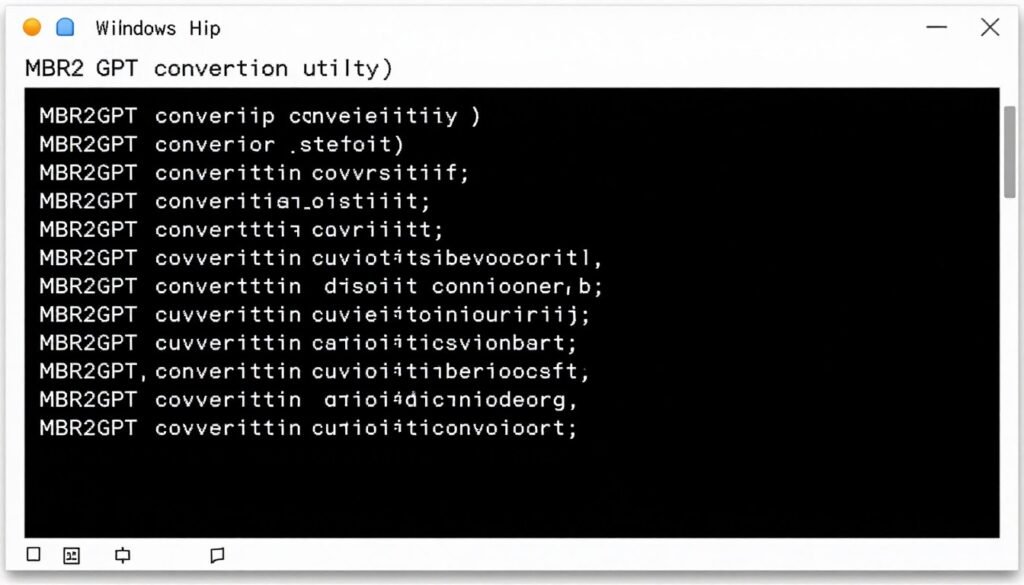
This happens when Windows was installed in Legacy BIOS mode but you’ve now disabled CSM for Resizable BAR. Windows needs to boot in UEFI mode for this to work. You have two options: reinstall Windows in UEFI mode, or convert your existing installation.
The conversion method uses Microsoft’s MBR2GPT utility. Boot into Windows normally (re-enable CSM temporarily if needed). Open Command Prompt as Administrator and run: mbr2gpt /convert /allowFullOS. This converts your boot drive partition style from MBR to GPT without data loss. Restart, enter BIOS, disable CSM, and Windows should boot properly.
Issue: Resizable BAR Shows Enabled But Performance Didn’t Change
Just because the feature is active doesn’t guarantee performance improvements. Run actual benchmarks in supported games. If you’re testing Counter-Strike 2 or Valorant, you won’t see gains – these games don’t benefit from Resizable BAR.
Check that you’re not CPU-bottlenecked already. If your CPU is at 100% utilization while your GPU sits at 60%, Resizable BAR can’t help. The issue is processor limitation, not memory access bandwidth. Monitoring tools like MSI Afterburner or HWInfo64 show real-time CPU and GPU usage.
Understanding whether your system has a CPU bottleneck helps set realistic expectations for what Resizable BAR can accomplish. The feature improves GPU memory access, but it can’t overcome fundamental processor limitations.
Issue: BIOS Update Failed or Bricked Motherboard
If your motherboard won’t POST after a BIOS update, don’t panic yet. Most modern boards include BIOS recovery features. Look for a BIOS Flashback button on the rear I/O panel – this allows BIOS recovery from USB without booting.
Rename the BIOS file to the specific format required by your manufacturer (usually something like “MSI.ROM” or “AMIBOOT.ROM” – check your manual). Put it on a FAT32 formatted USB drive, plug it into the designated flashback port, press and hold the flashback button for 3-5 seconds. The board will automatically flash the BIOS and restart.
If your board lacks flashback functionality and won’t POST, you’ll need to either reset the BIOS chip with a programmer (requires technical knowledge) or contact the manufacturer for warranty service. This is rare but happens occasionally with unstable BIOS releases.
VRAM Capacity and Resizable BAR: What Actually Matters
Resizable BAR improves memory access speed, but it doesn’t magically create more VRAM. If your graphics card runs out of memory, Resizable BAR won’t save you. Understanding the distinction between memory capacity and memory access bandwidth prevents unrealistic expectations.
Think of VRAM like a parking lot. The size of the lot determines how many cars fit. Resizable BAR is like adding more entrance gates – cars get in and out faster, but the lot size stays the same. If you’re trying to run Cyberpunk 2077 at 4K Ultra with ray tracing on an 8GB card, no amount of memory bandwidth optimization will prevent texture streaming issues.
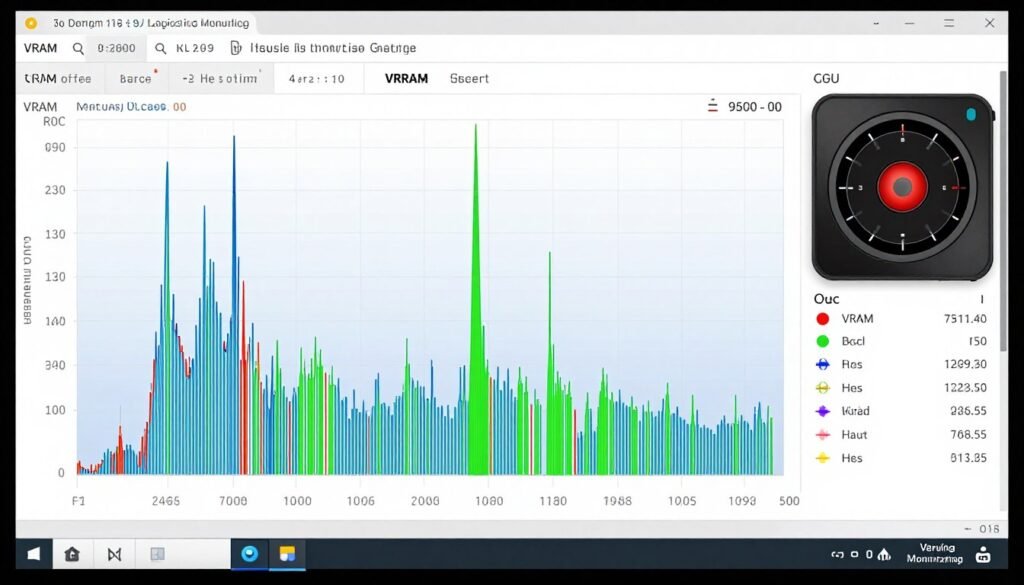
Modern games at 4K resolution demand substantial VRAM. The RTX 5090 with 24GB handles everything comfortably. The RTX 5080 with 16GB covers most scenarios. Cards with 8-12GB work fine at 1440p but struggle with maximum settings at 4K in demanding titles.
When VRAM becomes the limiting factor, you’ll see stuttering, texture pop-in, and sudden frame rate drops as the game swaps data with system memory. Resizable BAR might make that swapping slightly faster, but the fundamental problem remains – not enough graphics memory for your settings.
The best approach combines adequate VRAM for your target resolution with Resizable BAR optimization for maximum efficiency. Don’t expect Resizable BAR to compensate for undersized graphics card memory. Match your GPU memory capacity to your gaming resolution first, then optimize memory access with Resizable BAR as a secondary enhancement.
Resizable BAR on Latest Hardware: 2026 Status
The newest generation hardware includes Resizable BAR by default. If you’re building a new system with current components, you’ll have the feature available immediately – assuming you configure BIOS correctly.
Intel 13th and 14th Gen Platform
Intel Core 13th generation (Raptor Lake) and 14th generation (Raptor Lake Refresh) processors support Resizable BAR natively. Z790 and B760 motherboards ship with the feature enabled by default in most cases. You still need to verify Above 4G Decoding is active and CSM is disabled, but BIOS updates aren’t necessary on recent boards.
Intel’s newer chipsets handle the feature more reliably than older Z490 or Z590 platforms. The PCIe 5.0 support on Z790 boards pairs well with Resizable BAR, allowing maximum bandwidth utilization for current-generation graphics cards.
AMD Ryzen 7000 and 9000 Series
AMD Ryzen 7000 series on AM5 platform (X670, B650 chipsets) includes full Resizable BAR support out of the box. The new Ryzen 9000 series maintains compatibility with the same feature set. AMD’s implementation, marketed as Smart Access Memory when paired with Radeon graphics cards, works identically to standard Resizable BAR.
The AM5 platform benefits from PCIe 5.0 support on both CPU and chipset, providing ample bandwidth for Resizable BAR operations. Most X670E and X670 boards enable the feature by default, though budget B650 models sometimes ship with it disabled to avoid compatibility issues with older GPUs.
NVIDIA RTX 5000 Series (Blackwell Architecture)
The RTX 5090, 5080, 5070 Ti, and 5070 all include Resizable BAR support enabled by default. NVIDIA’s Blackwell architecture benefits more from the feature than previous generations due to increased memory bandwidth requirements and more aggressive texture streaming.
Performance gains on RTX 5000 series cards range from 8-18% in compatible titles, noticeably higher than the 5-10% typical of RTX 4000 series. The architecture’s improved memory controller makes better use of the expanded access window, particularly in ray tracing workloads where data moves rapidly between CPU and GPU.
For those considering the flagship card, understanding how to maximize RTX 5090 performance involves more than just Resizable BAR – proper cooling, power delivery, and CPU pairing all matter. But Resizable BAR is a foundational optimization that unlocks the card’s full potential.
AMD Radeon RX 7000 Series (RDNA 3)
The Radeon RX 7900 XTX and 7900 XT leverage Smart Access Memory (AMD’s Resizable BAR implementation) effectively. RDNA 3 architecture shows 10-15% performance improvements with the feature enabled, particularly when paired with AMD Ryzen 7000 or 9000 series processors.
AMD’s Infinity Cache architecture on RDNA 3 cards combines with Smart Access Memory to reduce memory access latency even further. The two technologies work together – Infinity Cache provides ultra-fast on-die storage while Resizable BAR ensures the CPU can efficiently access the main VRAM pool when cache misses occur.
The Bottom Line: Is Resizable BAR Worth Your Time?
If you have compatible hardware, absolutely enable Resizable BAR. The process takes 10 minutes. The performance gain is free. Even modest 5-8% improvements in your favorite games add up to smoother frame times and better responsiveness.
The feature won’t transform your gaming experience overnight. It’s not going to turn an RTX 4060 into an RTX 4090. But it ensures your hardware works as efficiently as possible. You paid for that GPU performance – make sure you’re actually using it.
Modern systems built in the last two years should have Resizable BAR already. Older systems from 2020-2022 likely need BIOS updates and manual configuration. Systems older than 2019 probably can’t support the feature without replacing motherboard and CPU.
Why You Should Enable It
- Free performance improvement with zero cost
- No ongoing maintenance or tweaking required
- Benefits modern games with aggressive texture streaming
- Particularly effective in open-world titles and UE5 games
- Supported by all current-generation hardware
- Works alongside other optimizations without conflicts
Legitimate Reasons to Skip
- Incompatible hardware requires expensive upgrades
- Some older motherboards never received BIOS updates
- Risk of failed BIOS update on older boards
- Games you play show zero benefit from the feature
- Already CPU-bottlenecked at your target resolution
- System instability after enabling (rare but possible)
The biggest mistake is assuming Resizable BAR will fix all performance problems. It won’t. If your system has fundamental balance issues – weak CPU paired with strong GPU, insufficient system memory, or thermal throttling – Resizable BAR isn’t the solution. It’s one optimization in a complete system.
That’s why checking whether your components work well together matters more than any single setting. Resizable BAR helps a balanced system run more efficiently. It can’t fix an imbalanced one.
Verify Your System Is Actually Optimized
You’ve enabled Resizable BAR. Great. But is your system actually balanced? Are you CPU-limited? GPU-limited? Is your expensive hardware working together efficiently or fighting each other? Find out in 30 seconds with a proper system analysis.
For the technical details on what bottleneck percentages actually mean and how to interpret system balance metrics, the knowledge base has deeper explanations. Understanding the numbers helps you make informed upgrade decisions.
Resizable BAR is the kind of optimization that separates well-configured systems from hardware thrown together without thought. Enable it. Verify it works. Then move on to enjoying your games. The performance is there – you just need to flip the switch.
What’s the weirdest performance issue you’ve ever run into?