
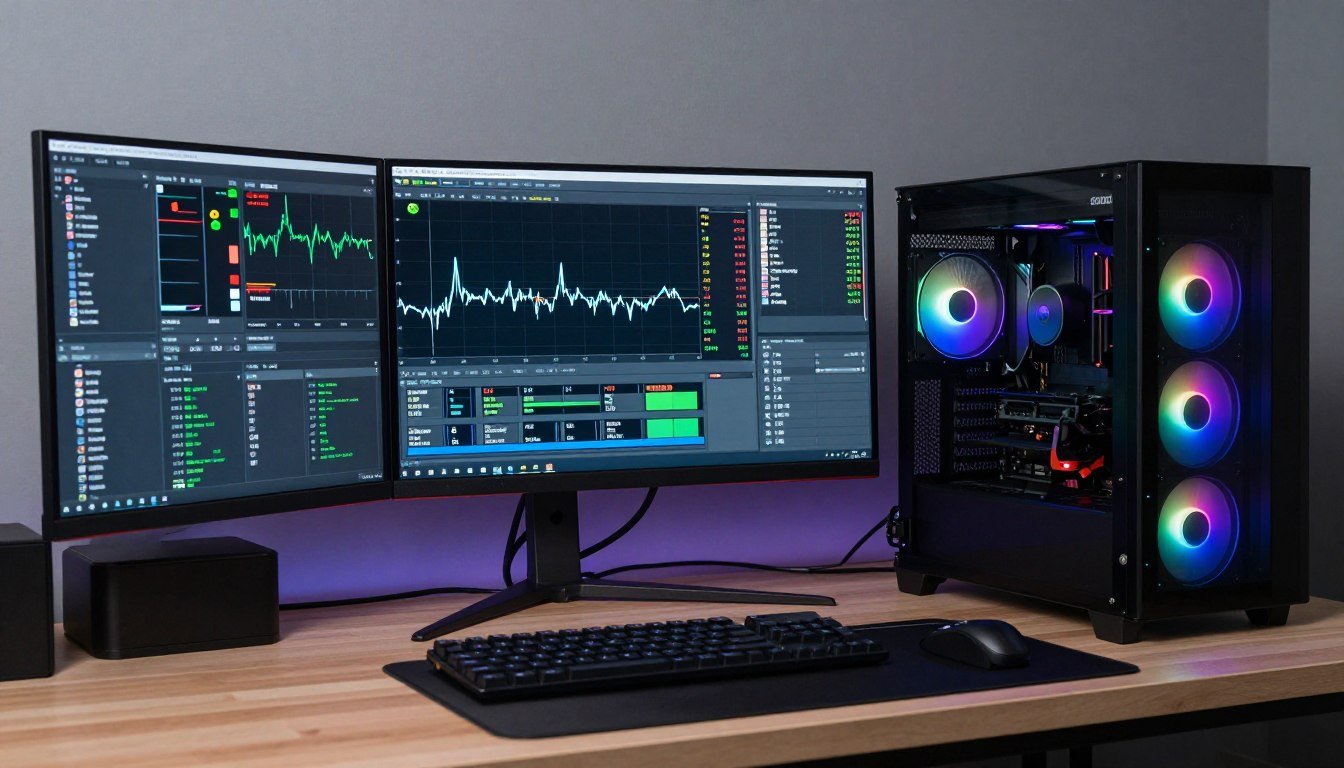
You boot up your favorite game. Your FPS counter screams 144 frames per second. Your expensive GPU is purring along. Yet somehow your gameplay feels like you’re watching a slideshow through a strobe light. The screen tears. The game stutters. Your shots miss because the screen doesn’t move when you think it should.
I’ve been there. Three years ago I built what I thought was the perfect rig. RTX 3080. Ryzen 5800X. Everything maxed out. Yet somehow games felt worse than my buddy’s budget build running at 90 FPS.
The problem wasn’t my hardware. It was something most people never check: frame time consistency.
This guide shows you exactly what frame time consistency means. Why it destroys your gaming experience. And most importantly, how to fix it. No fluff. No corporate speak. Just the reality of what makes games actually feel smooth.
What FPS Numbers Don’t Tell You
Here’s what most people think FPS means. Your GPU pumps out 120 frames per second. That should mean smooth gameplay, right?
Wrong.
FPS is just an average. It’s like saying your commute averages 60 mph. Sure, that sounds great until you realize you spent 20 minutes stuck in traffic and then drove 90 mph to make up for it.
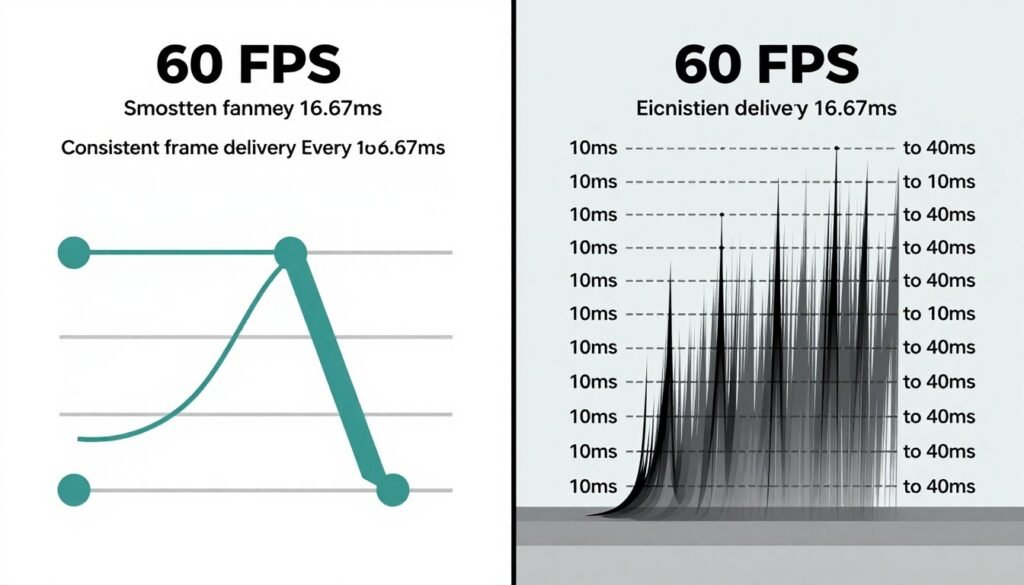
Frame time measures something different. It tracks how long each individual frame takes to appear on your screen. One frame might take 8 milliseconds. The next takes 25 milliseconds. Your FPS counter still shows 120. But your game feels terrible.
Think of it like a water pipe. FPS tells you how much water flows per minute. Frame time tells you whether that water comes out in steady drops or random spurts. You want the steady drops.
Is Your PC Creating Frame Time Issues?
Inconsistent frame times often point to hardware bottlenecks. Check if your CPU and GPU are properly balanced before diving into software fixes.
The Math That Actually Matters
At 60 FPS, each frame should take exactly 16.67 milliseconds. That’s your target. Your refresh rate monitor expects frames to arrive at that exact interval.
When frame time consistency breaks down, frames show up whenever they feel like it. One frame at 12ms. Next at 28ms. Another at 15ms. Your monitor can’t sync with this chaos.
The result? Stuttering. Screen tearing. That weird feeling where mouse movement doesn’t match what you see on screen.
Why High FPS Can Still Feel Awful
I see this constantly. Someone drops two grand on a PC. They brag about hitting 200 FPS in every game. Then they complain their old console felt smoother.
They’re not wrong.
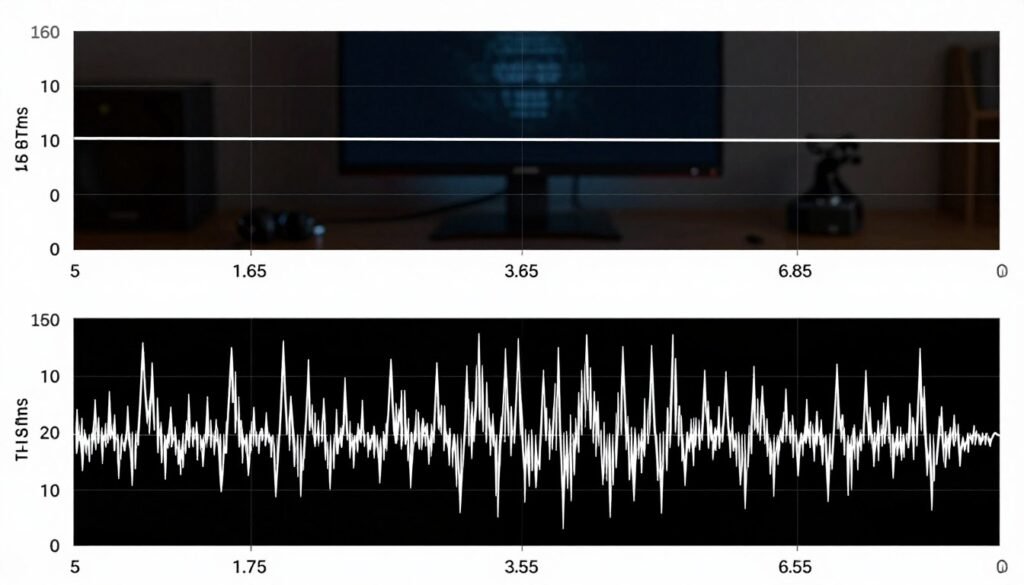
A console running at locked 60 FPS with perfect frame time consistency feels better than a PC bouncing between 150 and 250 FPS with wild frame time variance.
The CPU and GPU Tug-of-War
Most frame time problems come from CPU and GPU not working together properly. Your GPU might scream along rendering frames. But your CPU chokes feeding it data.
Or the opposite happens. Your CPU queues up work faster than your GPU can handle. Frames pile up. Some get delayed. Others rush through. The whole system becomes a mess.
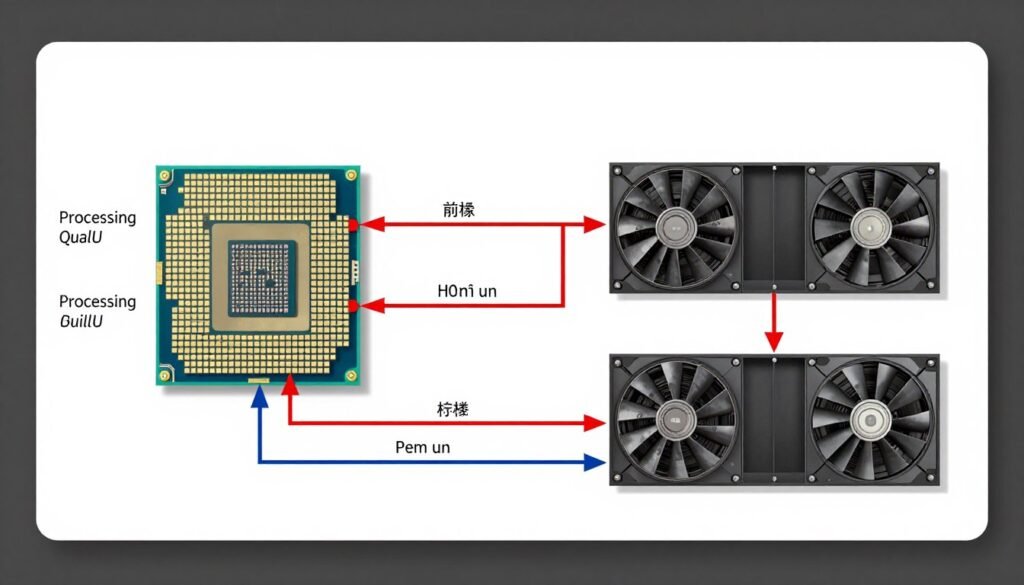
This is exactly what CPU bottleneck identification helps you spot. When your processor can’t keep up, frame times go haywire.
Background Process Chaos
Windows doesn’t care about your game. While you’re trying to land that perfect headshot, Windows Update decides now is the perfect time to scan for malware. Your frame time spikes. You miss the shot.
Every background process steals tiny chunks of CPU time. Each theft disrupts frame delivery. Chrome with 47 tabs open? That’s killing your frame time consistency.
RGB control software running on startup? Frame time destroyer. Discord overlay? Same problem. Each program adds tiny stutters that compound into noticeable gameplay issues.
The Hardware That Makes or Breaks Frame Timing
Not all hardware handles frame time equally. Some components are frame time consistency champions. Others are frame pacing disasters waiting to happen.
RTX 50-Series and Frame Generation Reality
NVIDIA’s new RTX 5090 and 5080 cards promise incredible FPS numbers through frame generation. The marketing shows 400 FPS in every game. The reality is more complicated.
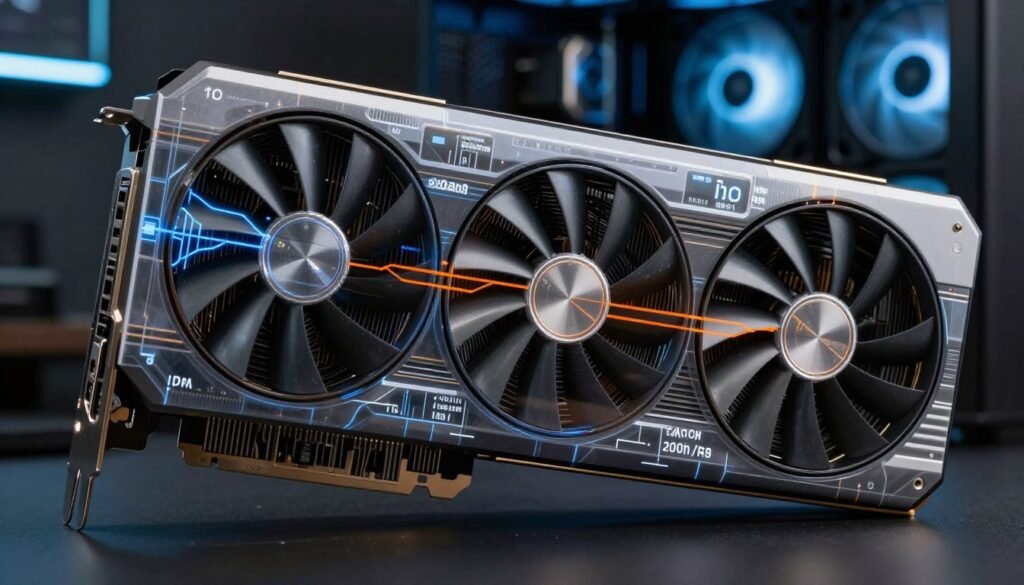
Frame generation creates artificial frames between real rendered frames. When it works perfectly, you get higher FPS with consistent frame time. When it doesn’t, you get weird motion artifacts and input lag.
The RTX 5090 optimization guide covers this in detail. Frame generation only helps frame time consistency when your base frame rate is already stable.
You can’t polish garbage. If your native frame time is inconsistent, frame generation multiplies those inconsistencies. You need solid baseline performance first.
Ryzen 9000 and Frame Time Improvements
AMD’s Ryzen 9000 series changed the frame time game. The new architecture delivers more consistent frame delivery than previous generations.
The reason comes down to cache improvements and better thread scheduling. Games get the CPU resources they need exactly when they need them. Fewer delays. More consistent frame time.
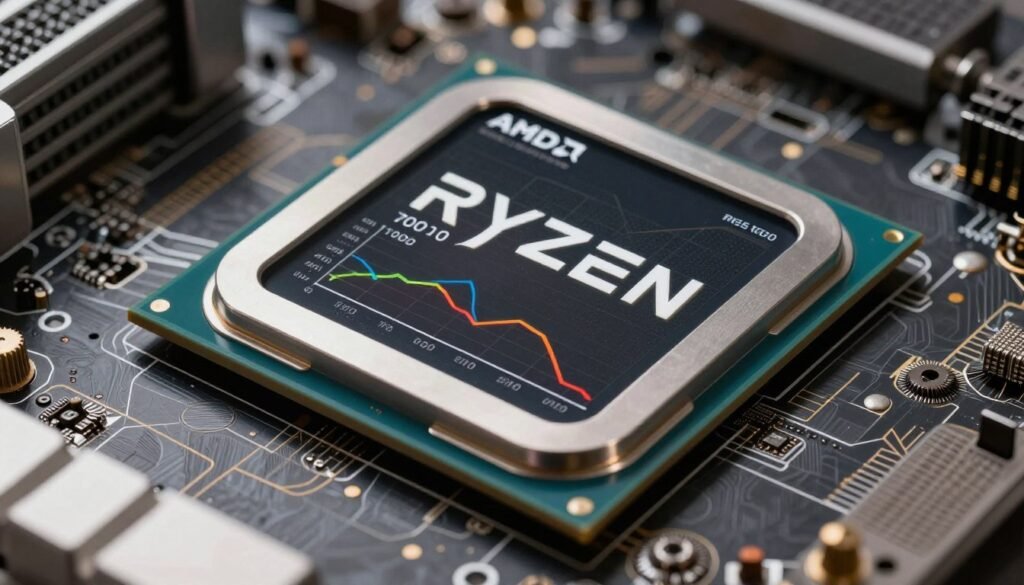
But here’s the catch. You need proper system balance to see these benefits. Pair a Ryzen 9950X with a budget GPU and you’ve wasted money. The frame time improvements require matched hardware.
RAM Speed Matters More Than You Think
I’ve tested this extensively. Moving from DDR4-3200 to DDR5-6000 can cut frame time variance by 30 percent in some games.
Why? Modern games pull massive amounts of data from RAM every frame. Slow RAM creates tiny delays. Those delays stack up. Your frame time becomes inconsistent.
The sweet spot for 2026 is DDR5-6000 CL30. Faster exists, but diminishing returns kick in hard. The performance gap between 6000 and 8000 MHz is minimal for frame time consistency.
Software Settings That Destroy Frame Timing
Hardware matters. But software settings can ruin frame time consistency faster than bad hardware.
VSync: The Necessary Evil
Everyone loves to hate VSync. It adds input lag. It caps your FPS. It feels bad in competitive games.
But VSync does one thing perfectly. It forces consistent frame delivery that matches your refresh rate monitor.
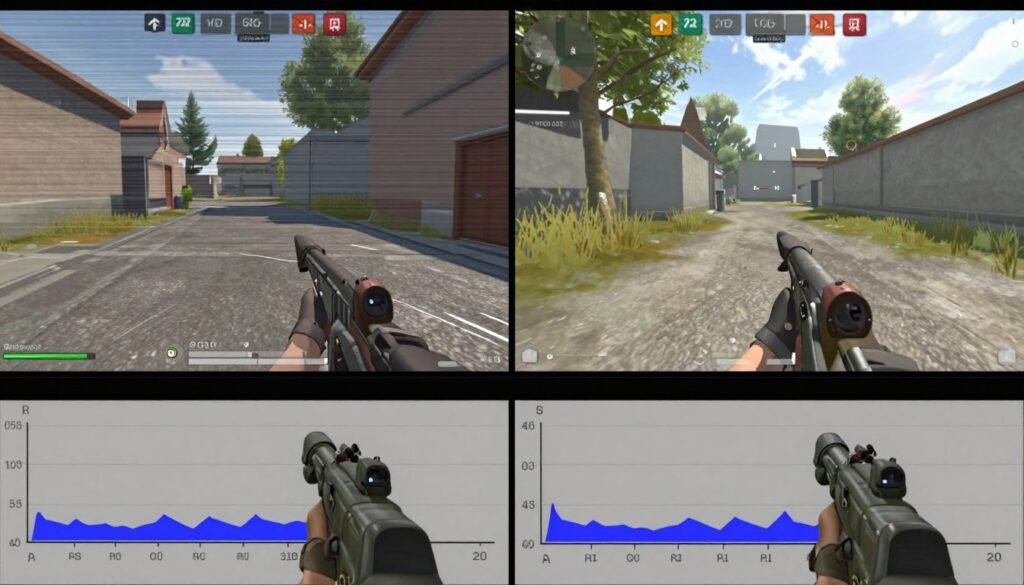
Without VSync, your GPU might pump out 157 FPS on a 144Hz monitor. Those extra frames create timing mismatches. Some frames never display. Others show for too long. The result feels worse than locked 144 FPS.
The modern solution is GSync or FreeSync. These technologies give you VSync’s consistency without the input lag penalty. If your monitor supports either, use it. Your frame time will thank you.
Frame Rate Caps Stop the Chaos
Here’s something counterintuitive. Capping your FPS often makes games feel smoother than running unlimited.
When you cap FPS to your refresh rate, your GPU has consistent frame time targets. No wild fluctuations. No frames racing to finish before others. Just steady, predictable frame delivery.
I run every game with a 141 FPS cap on my 144Hz monitor. The three frame buffer prevents occasional drops below the refresh rate. Frame time stays rock solid.
Hardware-Accelerated GPU Scheduling
Windows 10 and 11 include hardware-accelerated GPU scheduling. This setting moves GPU task scheduling from CPU to GPU.
For frame time consistency, this is huge. The CPU no longer needs to micromanage every GPU task. That frees up CPU resources for actual game logic. Frame delivery becomes more consistent.
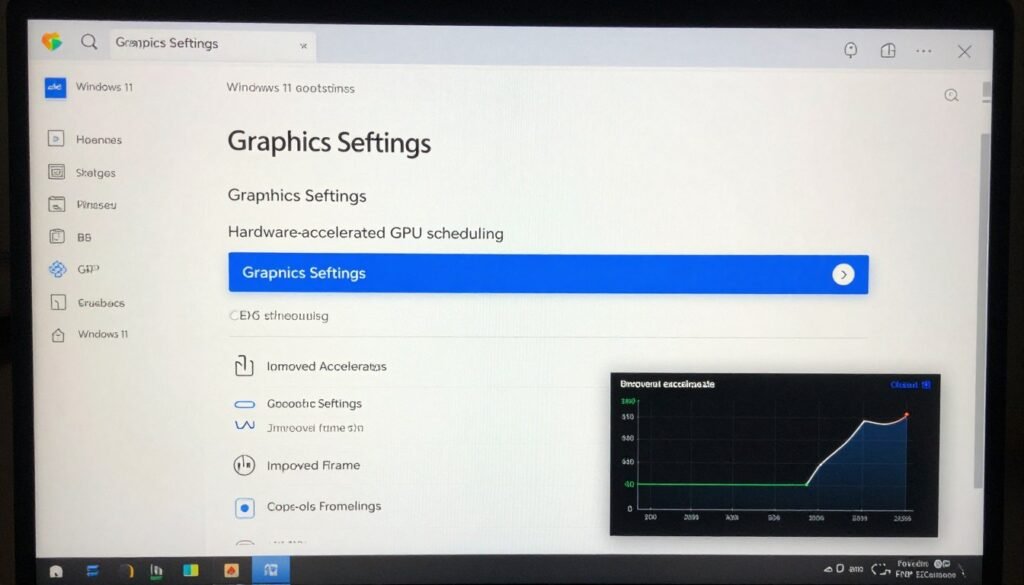
Turn this on in Windows Settings. Graphics Settings. Hardware-Accelerated GPU Scheduling. The performance improvement isn’t massive, but every bit of frame time consistency helps.
Some older GPUs don’t support this feature. Anything from GTX 1000-series or newer works fine. If you’re running ancient hardware, this setting won’t appear.
Testing and Monitoring Your Frame Time
You can’t fix what you can’t measure. Monitoring frame time requires the right tools and knowing what numbers actually matter.
MSI Afterburner Setup
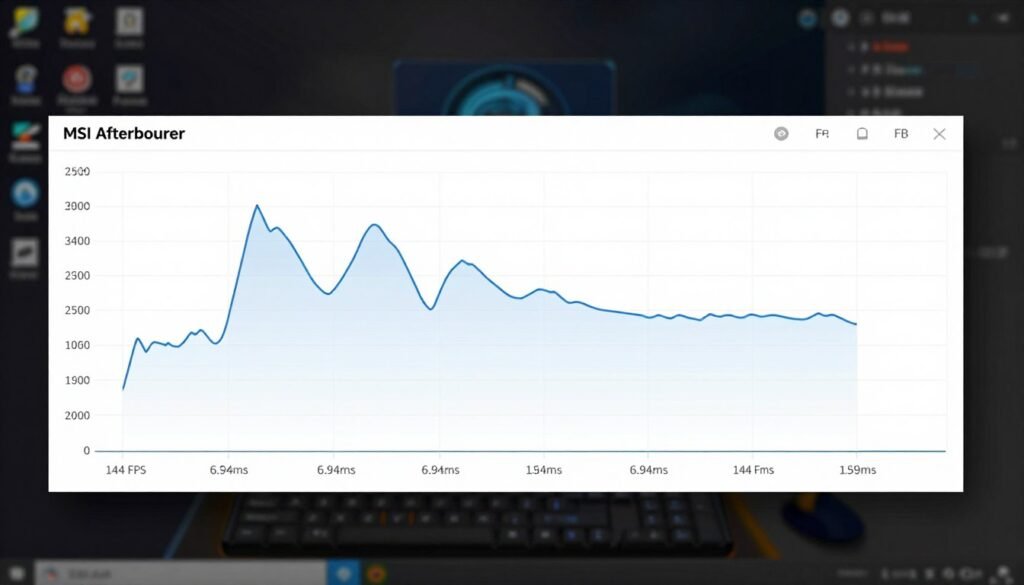
MSI Afterburner remains the gold standard for frame time monitoring. Free, reliable, and packed with features.
Download Afterburner. Install it. Open settings. Enable on-screen display. Add frame time to your monitoring overlay.
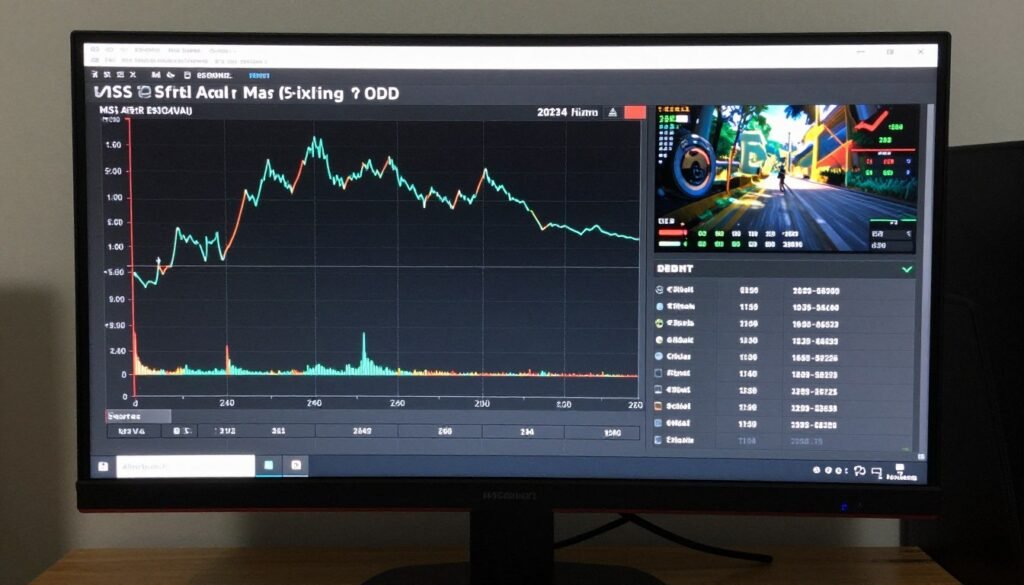
The frame time graph shows you exactly what’s happening. Consistent frame time looks like a flat line. Stuttering shows up as spikes. The visual feedback makes problems obvious.
Target frame time depends on your target FPS. At 60 FPS, you want 16.67ms consistently. At 120 FPS, you want 8.33ms. At 144 FPS, you want 6.94ms.
What the Numbers Mean
Frame time variance is the critical metric. Single frame time matters less than consistency across frames.
Good frame time consistency means 95 percent of frames fall within 2ms of your target. Excellent consistency means 99 percent within 1ms. Anything worse means you have problems to fix.
Acceptable Frame Time Metrics
- Average frame time matches your target (16.67ms for 60 FPS)
- 95th percentile within 2ms of average
- 99th percentile within 4ms of average
- No spikes above 2x average frame time
Problem Frame Time Metrics
- Average frame time varies by more than 3ms
- Regular spikes above 2x average frame time
- 99th percentile exceeds 10ms variance
- Visible stuttering matches graph spikes
In-Game Testing Methodology
Testing frame time requires consistency. You need repeatable test scenarios that stress your system the same way every time.
Pick a demanding game scene. Maybe a crowded multiplayer map. Or a specific story mission with known performance challenges. Run that scene five times. Record frame time data each run.
Compare the results. Consistent frame time means your five runs look similar. Inconsistent results mean something is interfering with performance. Maybe background processes. Maybe thermal throttling. Maybe a GPU bottleneck.
Fixing Frame Time Problems: The Actual Solutions
Identifying frame time problems is step one. Fixing them requires a systematic approach. Start with easy fixes. Move to harder ones only if needed.
Settings Changes That Actually Work
Start with in-game settings. Lower settings that stress your CPU. Things like draw distance, NPC density, and physics simulation quality.
These settings force your CPU to process more objects every frame. When your CPU can’t keep up, frame time spikes. Reducing these settings smooths frame delivery without destroying visual quality.
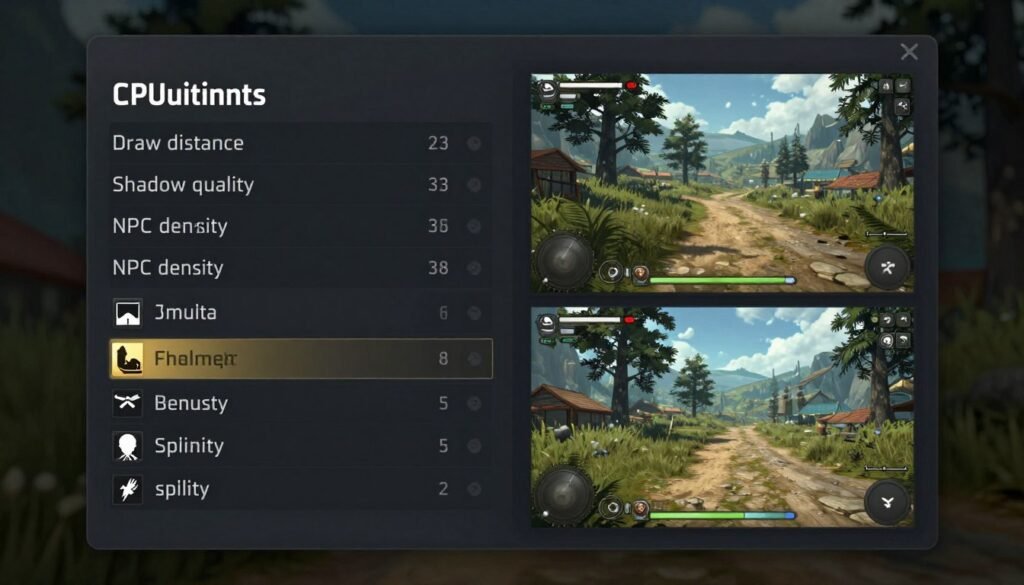
Motion blur deserves special mention. This setting tries to hide frame time inconsistencies. But it often makes problems worse by adding processing overhead. Turn it off. Deal with the real problem instead of masking it.
Windows Optimization Steps
Windows runs tons of background junk that kills frame time consistency. Most of it serves no purpose for gaming.
First: Disable Windows Game DVR. This feature records gameplay in the background. It’s a frame time destroyer. Turn it off in Xbox Game Bar settings.
Second: Set your power plan to High Performance. Windows balanced mode constantly adjusts CPU speed. Those adjustments cause frame time variance.
Third: Close everything you don’t need. Browser tabs. Chat apps. Spotify. Each program competes for system resources. Each one adds frame time variance.
Still Experiencing Stuttering?
Frame time issues often stem from deeper system imbalances. Check if your PC components are working together efficiently or fighting each other.
Driver Updates and Clean Installs
GPU drivers impact frame time more than most people realize. Old drivers contain bugs. New drivers fix them. But sometimes new drivers introduce different bugs.
The safest approach is staying one version behind the latest. Let others beta test the newest drivers. Update when the driver has been out for two weeks without major complaints.
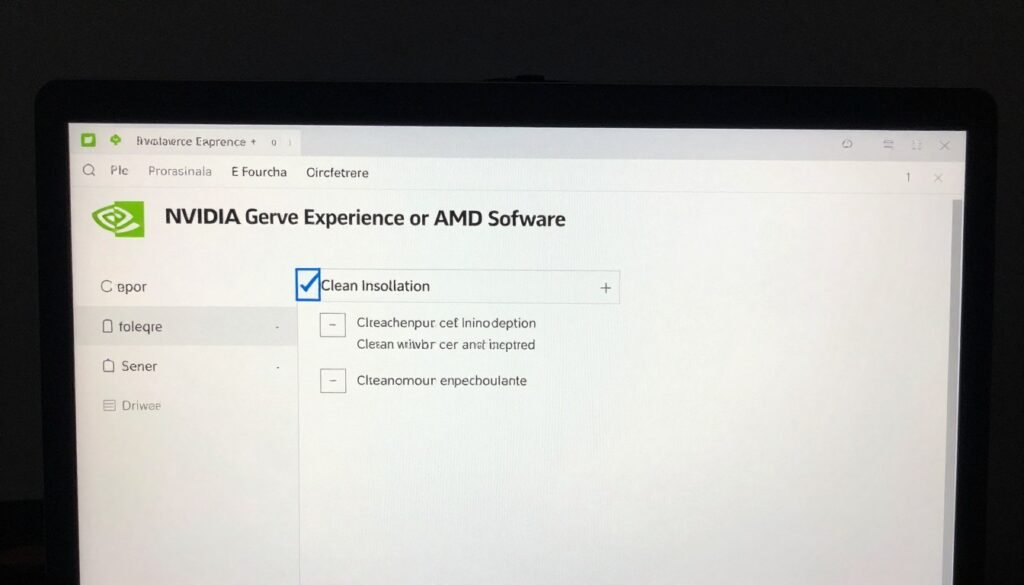
When you do update, use DDU (Display Driver Uninstaller) first. Boot to safe mode. Run DDU. Completely remove old drivers. Then install fresh drivers. This prevents conflicts between driver versions.
Hardware Upgrades That Matter
Sometimes software fixes aren’t enough. Your hardware simply can’t deliver consistent frame time.
The most impactful upgrade for frame time is usually CPU. A faster processor with more cores handles game logic more consistently. Less stuttering. Better frame time.
But CPU upgrades get expensive fast. Before dropping six hundred dollars on a new processor, check if you actually have a CPU bottleneck. Tools exist to verify your actual limitation.
RAM upgrades help if you’re running less than 16GB or using slow DDR4. Moving to 32GB DDR5-6000 eliminated frame time spikes in my system. Games pull data from RAM constantly. Faster access means more consistent frame delivery.
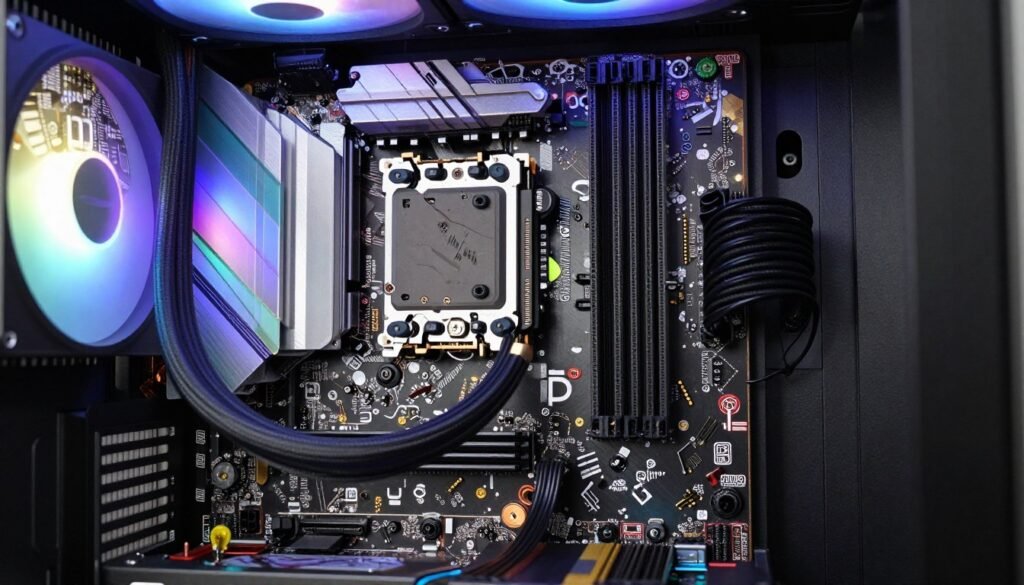
Storage matters for open-world games. If you’re still using a hard drive, upgrade to NVMe SSD immediately. Slow storage creates stuttering when games stream new areas. SSD eliminates those hitches.
Game-Specific Frame Time Challenges
Different games stress systems differently. What works for one game might fail for another.
Unreal Engine 5 and Shader Compilation
UE5 games have become notorious for frame time problems. The first time you play, shader compilation happens in the background. Your frame time goes crazy.
The solution is pre-compiling shaders. Most UE5 games now include this option. Run it before playing. It takes five to ten minutes. But your frame time stays consistent during actual gameplay.
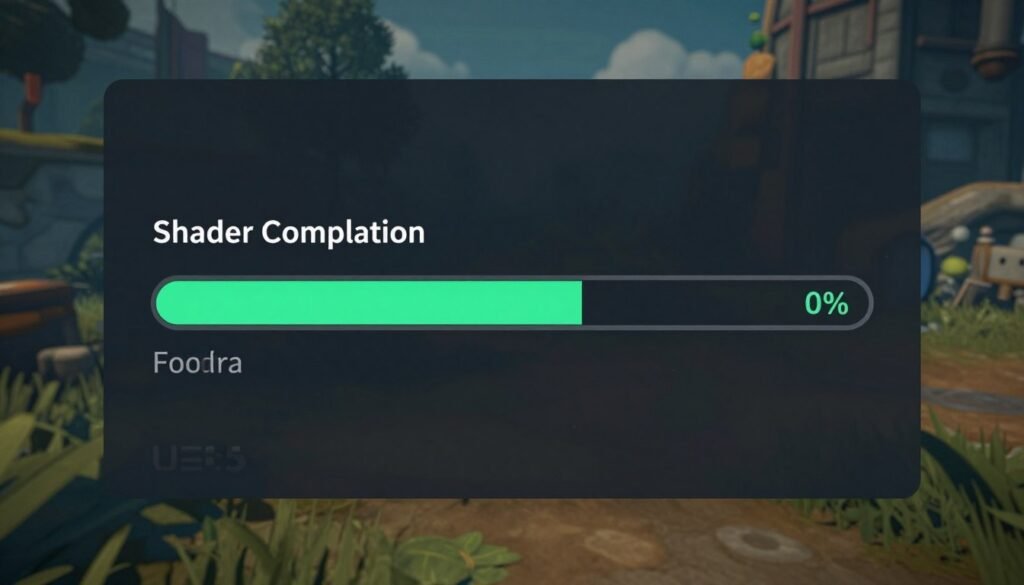
Some UE5 games still stutter even after shader compilation. That’s usually a symptom of the game itself, not your hardware. Check if UE5 performance fixes exist for your specific game.
Competitive Games and Input Lag
Competitive shooters prioritize different metrics than single player games. Frame time consistency matters. But input lag matters more.
Competitive players often disable VSync entirely. They accept some frame time variance in exchange for lower input lag. The trade-off works for fast-paced games where reaction time beats visual smoothness.
Reflex technology from NVIDIA helps here. It reduces input lag while maintaining better frame time consistency than raw VSync disable. If your game supports Reflex, use it.
Open World Streaming Stutters
Games like Cyberpunk 2077 and Red Dead Redemption 2 stream massive worlds. When you move between areas, the game loads new data. That loading causes frame time spikes.
The fix is faster storage and more RAM. NVMe SSD reduces load time. Extra RAM lets games preload more data. Together they minimize streaming stutters.
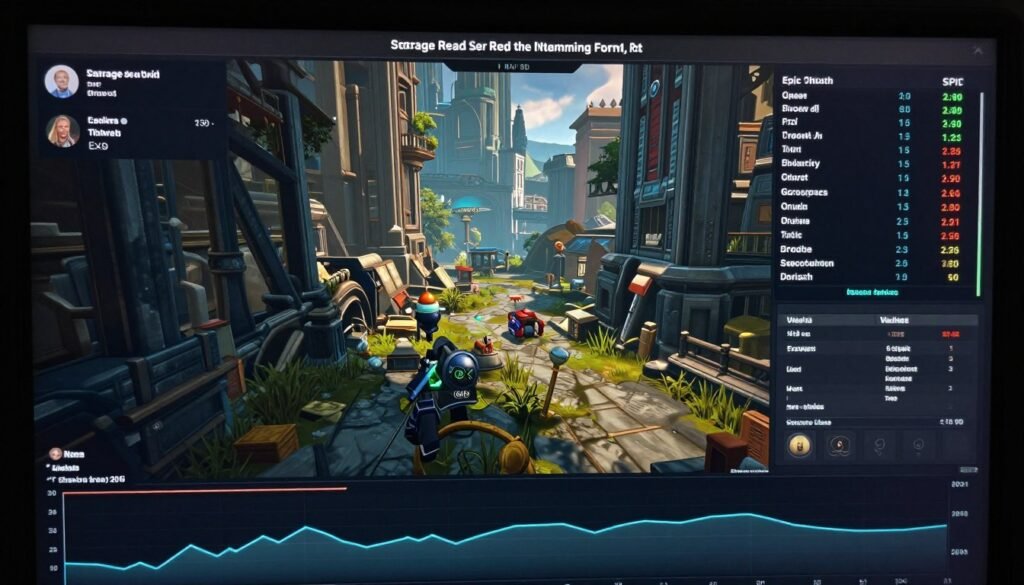
Some games let you adjust texture streaming quality. Lower settings reduce data streaming requirements. Your frame time becomes more consistent at the cost of slightly lower texture quality at distance.
Monitoring Tools Beyond the Basics
MSI Afterburner covers basic frame time monitoring. But deeper analysis requires additional tools.
CapFrameX for Advanced Analysis
CapFrameX takes frame time monitoring to the next level. It records detailed metrics during gameplay. Then it gives you comprehensive analysis after your session.
The tool shows you percentile frame times. Average tells you nothing. But knowing your 99th percentile frame time reveals your worst-case performance.
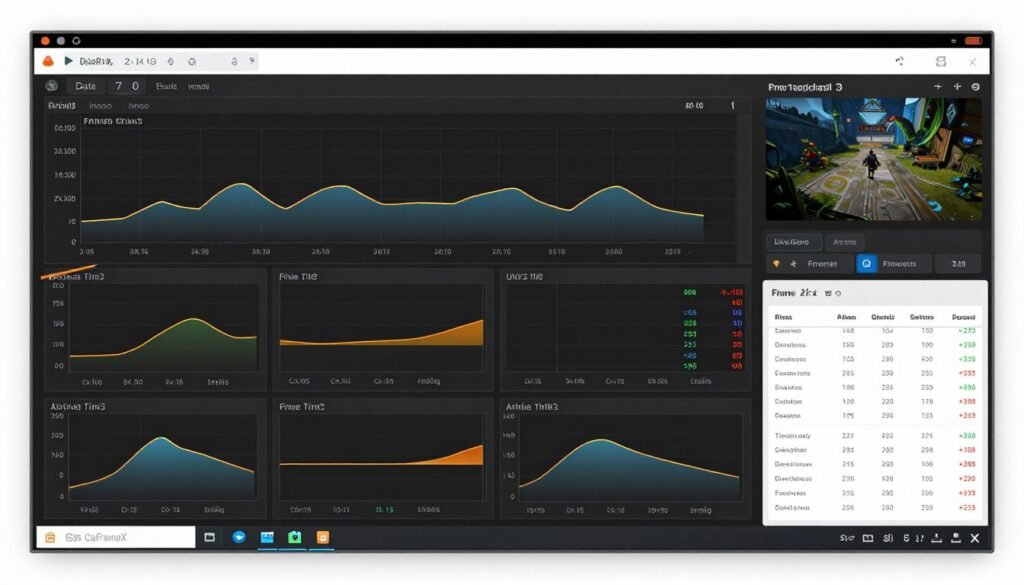
CapFrameX also calculates frame time variance automatically. You don’t need to guess if your performance is good. The numbers tell you exactly where you stand.
NVIDIA FrameView
NVIDIA’s FrameView tool focuses specifically on frame time metrics. It’s designed for serious testing and benchmarking.
The tool logs everything to CSV files. You can analyze data in Excel or other tools. Perfect for comparing different settings or driver versions.
Intel PresentMon
PresentMon is the underlying technology many monitoring tools use. It captures frame time data directly from Windows presentation APIs.
Running PresentMon yourself gives you raw data without any overlay performance impact. The command line interface takes getting used to. But the data accuracy is unmatched.
Future-Proofing Your Frame Time Consistency
Games keep getting more demanding. Hardware keeps evolving. Maintaining frame time consistency requires forward thinking.
The Move to Higher Refresh Rates
Monitor refresh rate determines your frame time requirements. Moving from 60Hz to 144Hz cuts your frame time budget by more than half.
At 60Hz, you have 16.67ms per frame. At 144Hz, you have only 6.94ms. Your entire system must respond faster. Any delay that was invisible at 60Hz becomes obvious at 144Hz.
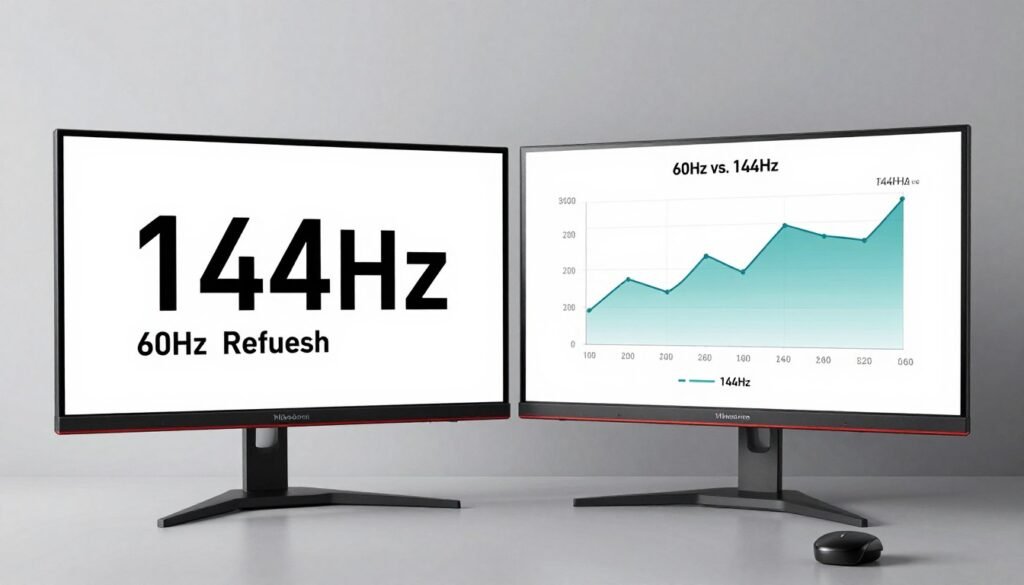
This is why monitor choice affects performance so dramatically. Your refresh rate monitor sets the pace your entire PC must match.
Resolution Impact on Frame Time
Higher resolution means more pixels to process. More pixels mean more GPU work. More work means potentially less consistent frame time.
4K gaming sounds great until you realize your GPU struggles to maintain consistent frame delivery. Dropping to 1440p often provides better frame time consistency than 4K with wildly varying frame rates.
The sweet spot for 2026 is 1440p at 144Hz or higher. Modern GPUs handle this resolution with consistent frame time. You get sharp visuals without sacrificing smoothness.
Planning Your Next Build
When building a new PC for consistent frame time, balance matters more than raw power.
A mid-range CPU paired with a mid-range GPU delivers better frame time consistency than a flagship GPU bottlenecked by a weak CPU. The system works together smoothly instead of fighting itself.
Planning a Balanced Build?
Frame time consistency starts with proper component matching. Use our calculator to ensure your next build delivers smooth performance.
Check current CPU comparisons before buying. The fastest CPU on paper might not deliver the best frame time in actual games. Real-world testing reveals what marketing slides hide.
Common Frame Time Myths Debunked
Frame time discussion breeds misconceptions. Let’s kill the most common myths.
Myth: More FPS Always Means Smoother Gameplay
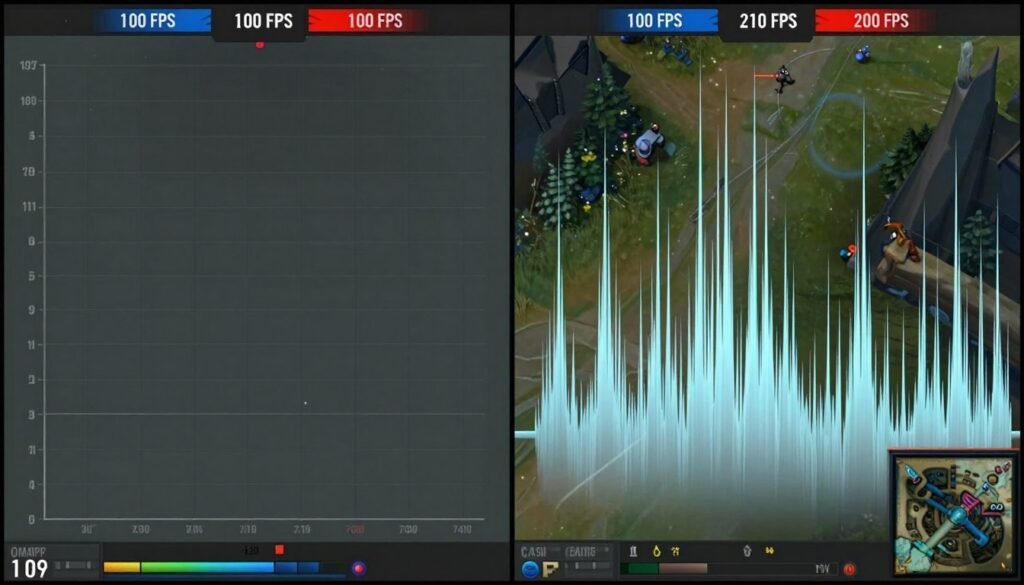
Wrong. 200 FPS with inconsistent frame time feels worse than 100 FPS with rock-solid delivery.
Your brain notices frame time variance more than absolute FPS. A stuttery 200 FPS experience triggers more motion sickness and eye strain than smooth 100 FPS.
Myth: Frame Time Only Matters for Competitive Gaming
Everyone benefits from consistent frame time. Single player games become more immersive. Your actions feel more connected to on-screen results. Exploration flows smoothly.
Poor frame time breaks immersion in any game. Story-driven experiences suffer just as much as competitive shooters. The impact just manifests differently.
Myth: Expensive Hardware Automatically Fixes Frame Time
I’ve seen too many expensive builds with terrible frame time. Price doesn’t guarantee performance.
A $3000 PC with poor settings, driver issues, or background process problems still stutters. Hardware provides potential. Configuration and optimization deliver results.
The knowledge base covers dozens of optimization techniques that cost nothing but deliver measurable frame time improvements.
Advanced Techniques for Enthusiasts
You’ve mastered the basics. Here’s where things get interesting.
Process Affinity and Priority
Windows Task Manager lets you assign specific CPU cores to your game. This prevents Windows from bouncing your game between cores, which adds frame time variance.
Set your game to High priority in Task Manager. This tells Windows to favor your game over background tasks when allocating CPU time.
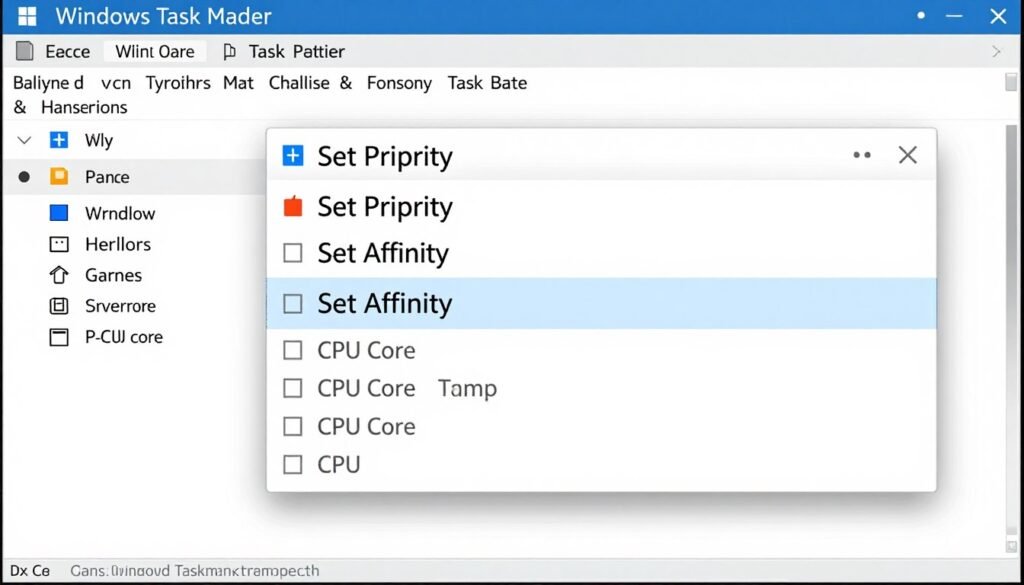
Be careful with this. Setting too many processes to high priority defeats the purpose. Only prioritize your game and essential gaming services.
Custom Fan Curves for Thermal Consistency
Thermal throttling destroys frame time consistency. Your GPU or CPU hits thermal limits. Clock speeds drop. Frame time spikes.
Custom fan curves prevent throttling by maintaining lower temperatures. Slightly louder fans are worth the frame time improvement.
Use MSI Afterburner to create a fan curve that keeps GPU temperature under 75C. For CPU, BIOS fan controls or software like Fan Control work well.
Overclocking for Frame Time
Overclocking can improve frame time consistency. Not because of higher clocks, but because of locked clocks.
Modern GPUs and CPUs boost dynamically. They constantly adjust clock speeds based on temperature and load. Each adjustment creates tiny performance variations.
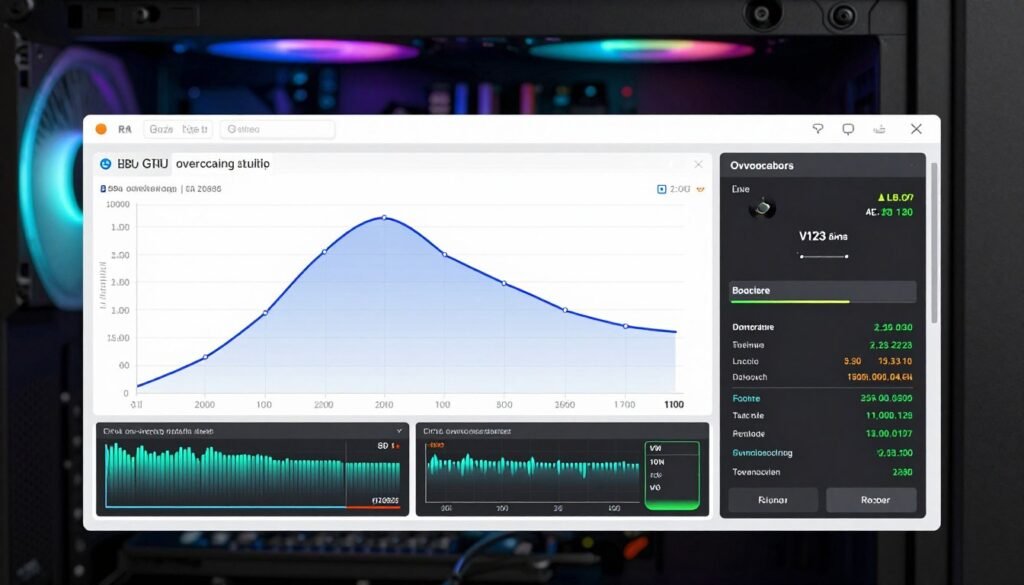
When you overclock and lock clocks, you eliminate that variation. Your hardware runs at consistent speed. Frame time becomes more predictable.
This comes with risks. Overclocking requires good cooling. It might reduce hardware lifespan. Only attempt if you understand the trade-offs.
The Bottom Line
Frame time consistency beats high FPS numbers every time. Your game can show 200 frames per second. But if those frames arrive inconsistently, your experience suffers.
Focus on consistent frame delivery. Cap your FPS to match your refresh rate monitor. Enable adaptive sync technologies. Optimize Windows. Close background processes. Monitor your actual frame time, not just FPS.
Hardware matters, but optimization matters more. A mid-range system properly configured delivers better frame time than a flagship system running poorly.
Test your frame time. Identify your bottlenecks. Fix them systematically. The difference between choppy and smooth gameplay often comes down to a few settings changes and better monitoring.
Master Your PC’s Performance
Frame time consistency is just one piece of overall system optimization. Explore our complete guides on building, optimizing, and maintaining balanced gaming PCs.
What’s the weirdest performance issue you’ve ever run into?