You have 32GB of RAM installed. Task Manager shows 18GB sitting there doing nothing. Yet your game stutters every few seconds like someone is yanking the handbrake. You check your CPU usage. Normal. GPU usage looks fine. But those frame drops keep happening. Welcome to the bizarre reality of Windows memory management.
This happens because Windows holds onto memory it thinks you might need later. It is called standby memory. The system fills this standby list with cached data from programs and games. When you actually need that RAM for something else, Windows is supposed to release it instantly. Except it does not always work that way. Sometimes Windows hesitates. Sometimes it refuses to let go fast enough. The result? Your game stutters while Windows slowly decides to free up memory you already paid for.
I learned this the hard way during a competitive match. My system had 64GB of RAM. I was running a game that needed maybe 12GB. Yet every time the map loaded a new area, my game would freeze for half a second. I spent two days tweaking graphics settings, updating drivers, and reinstalling the game. Nothing worked. Then I found Intelligent Standby List Cleaner, and the problem vanished in five minutes.
This complete ISLC guide walks you through everything. You will understand exactly what standby memory does, why Windows sometimes mismanages it, and how ISLC fixes the problem without breaking anything. We cover installation, configuration, real-world testing with modern hardware like the RTX 5090 and Ryzen 9000 series, and how this fits into your broader PC optimization strategy. By the end, you will know whether your system needs ISLC and exactly how to set it up properly.
What Actually Is Standby Memory and Why Does Windows Hoard It?
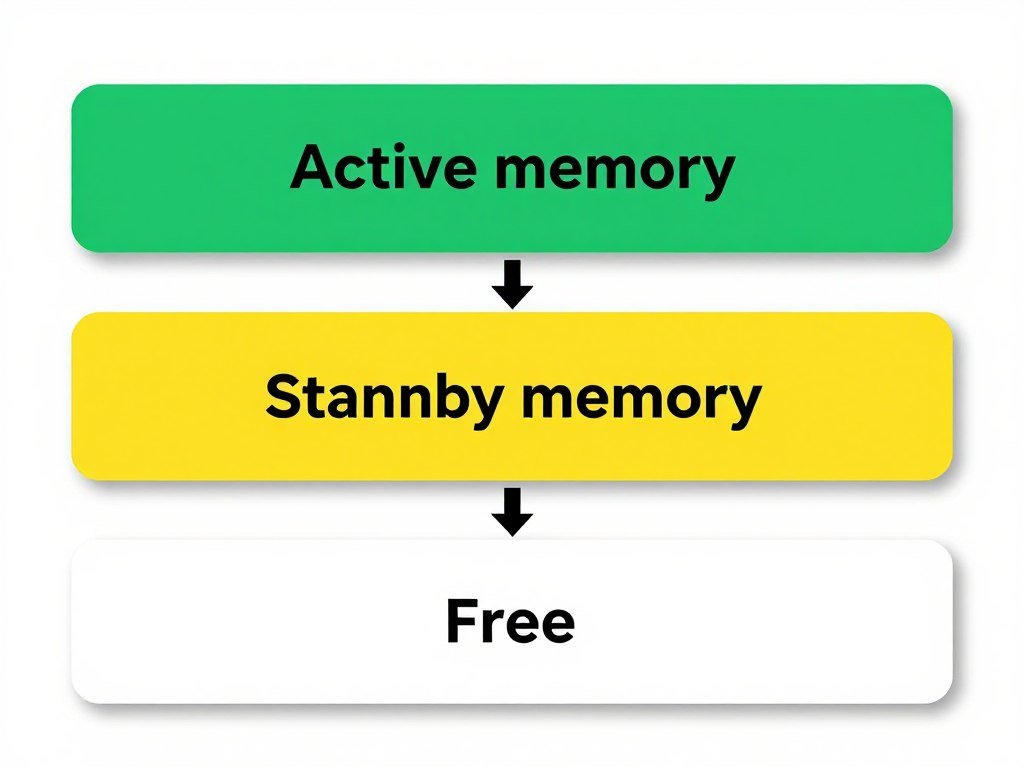
Think of your RAM like a desk. Active memory is the papers you are working on right now. They sit directly in front of you. Standby memory is like papers you finished with but left on the corner of your desk, just in case you need them again. Free memory is the empty desk space.
Windows keeps recently used data in standby memory. When you close a program, Windows does not immediately erase that data from RAM. It marks it as standby. If you reopen that same program, boom, instant load because the data never left. Smart idea, right? The problem starts when Windows gets too attached to keeping everything on the desk.
Modern games need to load massive textures, models, and sound files constantly. When a game requests 8GB of RAM and Windows sees 12GB sitting in standby, it should instantly convert that standby memory to available memory. The handoff should take milliseconds. But sometimes Windows pauses to decide what standby data to keep and what to toss. That pause creates the stutter you feel.
This issue hits hardest on systems with 16GB or less of RAM. If you have 32GB or more, you might never notice it. But on a 16GB system running a modern game like Cyberpunk 2077 with Chrome open in the background, Windows constantly juggles what to keep in standby. Each juggling act causes micro-stutters. Understanding this interaction helps explain why system balance matters beyond just CPU and GPU.
The Standby List Size Problem
Windows maintains different priority levels for standby memory. Some data gets marked as high priority because Windows thinks you will need it soon. Other data sits in low-priority standby. The total standby list can grow to consume most of your RAM. On my test system with 32GB, I have seen the standby list hit 22GB while a game stuttered trying to get 4GB for a level load.
The real trouble starts when applications request memory faster than Windows releases standby memory. The memory manager has to empty enough standby list space before the application can proceed. This creates a bottleneck where your RAM sits mostly full of old cached data while new programs wait for space. It is like having a parking lot full of cars that nobody is using, while new customers circle looking for a spot.
Why This Got Worse Recently
Windows 10 and 11 manage memory more aggressively than Windows 7 did. Microsoft designed the modern memory manager for typical office work and web browsing. It works great for those use cases. Opening Word a second time loads instantly because everything stayed in standby. The system anticipated correctly.
But gaming throws unpredictable workloads at Windows. One second you need 3GB for the current area. Five seconds later the game streams in 6GB of new assets for the next area. Windows memory manager was not designed for this pattern. It tries to be helpful by caching game data, but games rarely revisit the same assets within the timeframe where standby caching helps. You end up with a standby list full of level data from 20 minutes ago that you will never need again, while the game stutters loading new content.
What Is ISLC and How Does It Actually Work?
Intelligent Standby List Cleaner is a free utility program that monitors your standby memory and forces Windows to release it when needed. Think of it as a firm desk organizer who walks by every few seconds and asks “Are you actually using these papers?” If not, they get filed away to make room.
The program was created by a developer who goes by Wagnardsoft. Same person behind Display Driver Uninstaller, if you have used that tool before. ISLC runs in the background and watches how much memory sits in standby. When standby memory crosses a threshold you set, ISLC tells Windows to convert that standby memory back to free memory. The process takes milliseconds. Your game suddenly has the RAM it needed. The stutter disappears.
Here is what makes ISLC different from just manually clearing standby memory. You could open Task Manager and clear standby yourself. But you would need to do that every 30 seconds while gaming. ISLC automates the process and does it intelligently based on your system’s actual memory pressure. It is not just blindly clearing standby every few seconds. It monitors, evaluates, and acts only when necessary.
The Free Memory Threshold Mechanism
ISLC works on a simple principle. You tell it “keep at least X amount of memory free at all times.” When your free memory drops below that threshold, ISLC purges standby memory to restore the free memory level. This prevents Windows from ever entering that state where it is frantically trying to free up standby memory while your game waits.
For example, you set ISLC to maintain 4GB of free memory. You are gaming and using 20GB of your 32GB RAM. Your free memory sits at 6GB, so ISLC does nothing. Suddenly the game loads a new area and needs 8GB fast. Your free memory drops to 2GB. ISLC detects this instantly and purges 4GB from standby. Free memory jumps back to 6GB. The game gets what it needs without stuttering.
The program also includes a timer resolution feature, though that is a separate function. Wanted Timer Resolution changes how frequently Windows updates its internal timers. Some games benefit from this. Others see no difference. We will cover whether you should enable it later. This optimization ties into broader stuttering solutions beyond just memory management.
Why It Is Called Intelligent
The intelligent part comes from how ISLC monitors your system. It is not just a blunt hammer clearing standby constantly. The program checks memory status every half second by default. It evaluates whether memory pressure exists. It considers how much standby memory is present. Only when specific conditions align does it act.
This matters because constantly purging standby memory would hurt performance in other scenarios. If you are doing video editing and switching between clips, you want that clip data in standby for quick access. ISLC smart enough to leave standby alone when your free memory sits above your threshold. It intervenes only when the system faces actual memory pressure.
Do You Actually Need ISLC or Is Your Problem Something Else?
Not every stuttering problem comes from memory management. I see people install ISLC hoping it will fix stutters that actually come from a CPU bottleneck or thermal throttling. Let’s figure out if standby memory is really your issue before you change anything.
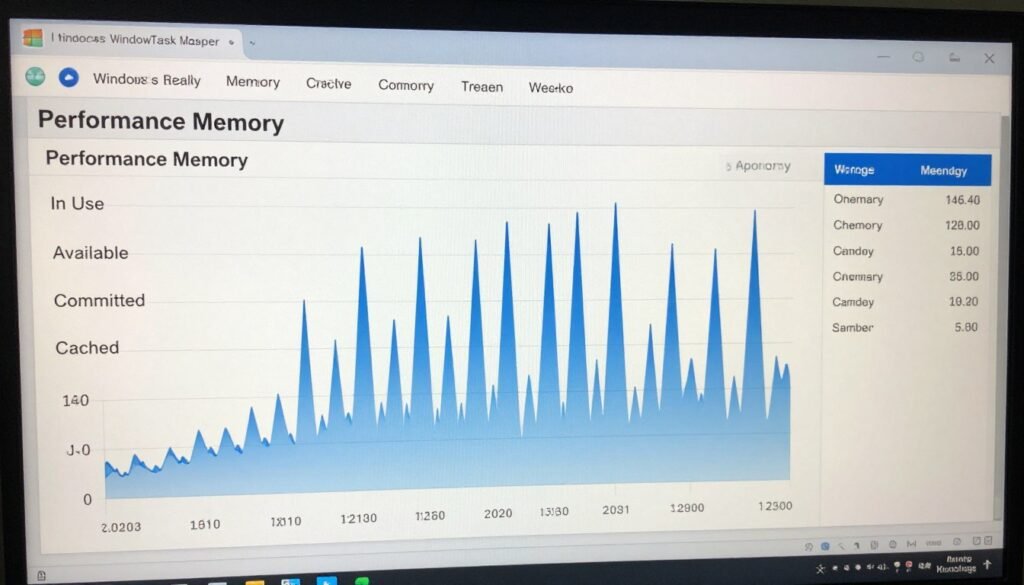
First, open Task Manager while your game runs. Click the Performance tab. Look at Memory. You should see four numbers: In Use, Available, Committed, and Cached. If your Cached number sits high while Available sits low and you experience stutters, standby memory might be your problem. Specifically, if you see Available memory drop suddenly right when a stutter happens, that is a strong signal.
Second consideration: how much RAM do you have? Systems with 32GB or more rarely need ISLC. You have enough headroom that Windows memory management quirks do not matter. Most games top out around 12-16GB usage. If you have 32GB, Windows has plenty of room to keep standby memory around without impacting performance. Systems with 16GB often benefit from ISLC. Systems with 8GB definitely need it, but honestly, 8GB is below the minimum for modern gaming anyway. Before tweaking memory management, verify your overall system balance makes sense.
Testing for Memory-Related Stutters
Here is a simple test. Open Resource Monitor, not Task Manager. Go to the Memory tab. Sort by Commit. Now launch your game. Play for a few minutes. When you get a stutter, tab out and check Resource Monitor. Look at the Standby number. If it is high and your Free number is low, memory management is likely contributing to your stutters.
Compare this to other potential causes. Check your CPU and GPU usage during those stutters. If your CPU hits 100 percent on all cores during stutters, you have a CPU bottleneck, not a memory issue. If your GPU usage drops from 98 percent down to 30 percent during stutters, you might have a CPU bottleneck, driver issue, or yes, possibly a memory issue. The key is isolating the actual cause.
Another giveaway: stutters that happen specifically during level loads, fast travel, or area transitions point toward memory management. These are moments when games request large chunks of RAM quickly. If your stutters happen randomly during normal gameplay, memory probably is not the issue. That pattern suggests CPU, GPU, or game engine problems. Understanding whether you face a CPU bottleneck versus memory pressure helps target the real fix.
Signs ISLC Will Help Your System
You are a good candidate for ISLC if you match these points. You have 16GB of RAM. You game with a browser open in the background. Your stutters happen during loading or transitions. Task Manager shows high cached memory with low available memory during those stutters. You have tried other fixes like updating drivers and adjusting game settings without success.
You probably do not need ISLC if you have 32GB or more RAM. Your stutters happen constantly during gameplay, not just during loads. Task Manager shows plenty of available memory when stutters occur. Your CPU or GPU hits 100 percent during stutters. You are running on old hardware that struggles with modern games anyway.
Related Resource: Memory issues often interact with other system bottlenecks. Our bottleneck calculator helps identify if your CPU, GPU, or RAM capacity is the limiting factor in your specific build. Worth checking before tweaking memory management settings.
How to Download and Install ISLC Without Breaking Anything
ISLC is completely free and safe, but you need to get it from the right place. The official source is the Wagnardsoft website. Do not download it from random software hosting sites. Those versions might bundle extra junk you do not want.
Go to the Wagnardsoft website and find the ISLC download page. You will get a ZIP file. Extract it anywhere on your system. The program does not need installation. It runs directly from the extracted folder. I keep mine in a folder called C:\Tools\ISLC, but anywhere works fine. Just avoid putting it somewhere Windows might delete it, like your Downloads folder.
When you first run ISLC, Windows Defender might flag it. This happens with system utilities because they access low-level Windows functions. ISLC is not malware. It has been around for years and gets recommended by every major tech forum. Add an exception in Windows Defender if needed. Right-click the ISLC.exe file, go to Properties, and make sure Unblock is checked if you see that option.
First Launch and Interface Overview
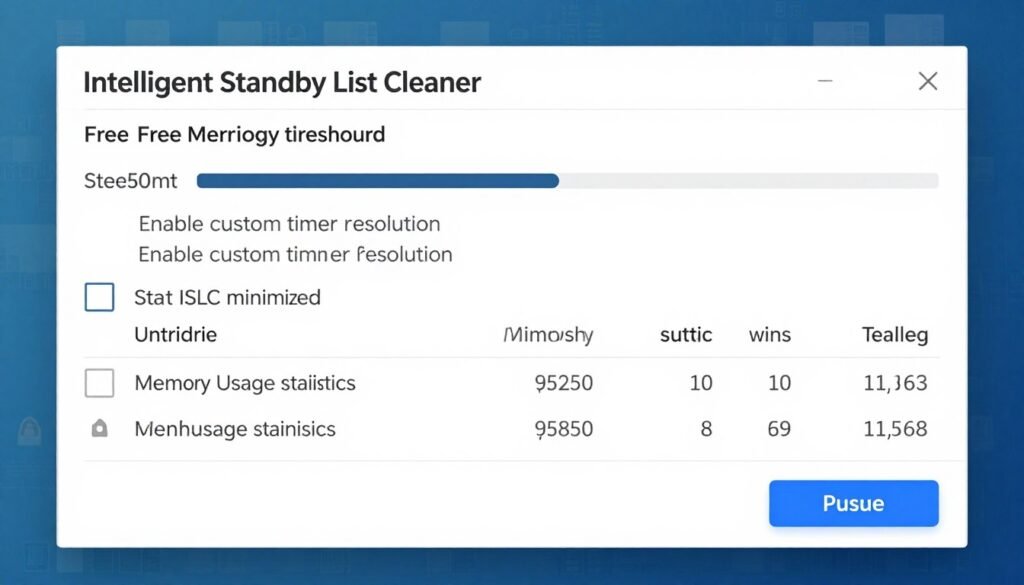
Double-click ISLC.exe to start it. The interface is simple. You will see a few checkboxes, a slider, some buttons, and a log window. Do not get overwhelmed. We only need to adjust three settings for most users. The program is deliberately minimal because it does one job and does it well.
At the top, you see “The list size is” with a number. This shows your current standby memory size. Below that is the most important control: “Start ISLC minimized to tray.” Check this if you want ISLC to launch with Windows. We will set that up in a minute. The “Enable Custom Timer Resolution” checkbox is something we will discuss separately. Leave it unchecked for now.
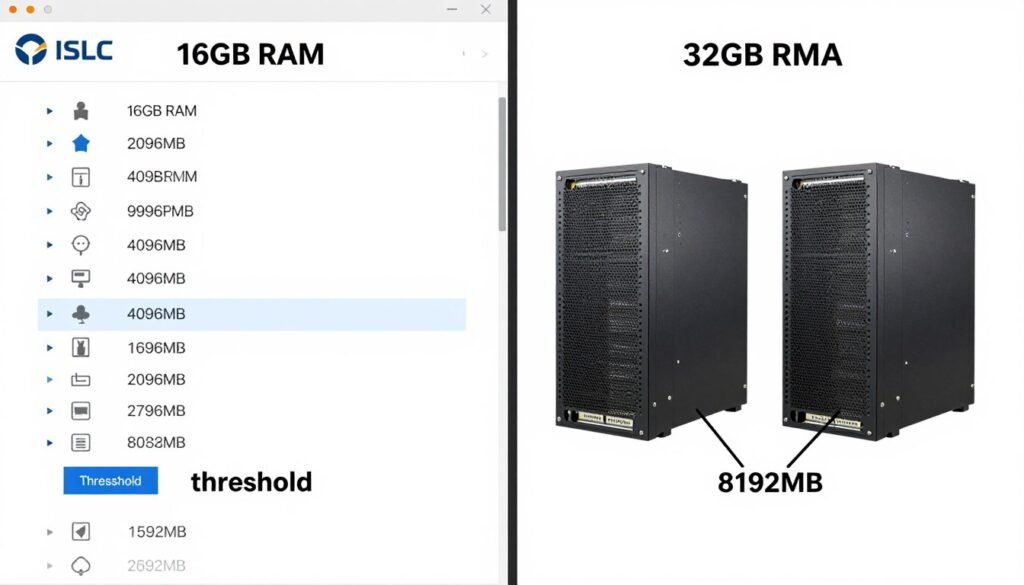
The big slider in the middle is your free memory threshold. This is measured in megabytes. If you have 16GB of RAM, setting this to 4096MB (4GB) makes sense. If you have 32GB, you might set it to 8192MB (8GB). The goal is keeping enough free memory that Windows never hesitates when programs need RAM. This is similar to ensuring sufficient headroom in your VRAM allocation to prevent stuttering.
Creating a Startup Shortcut
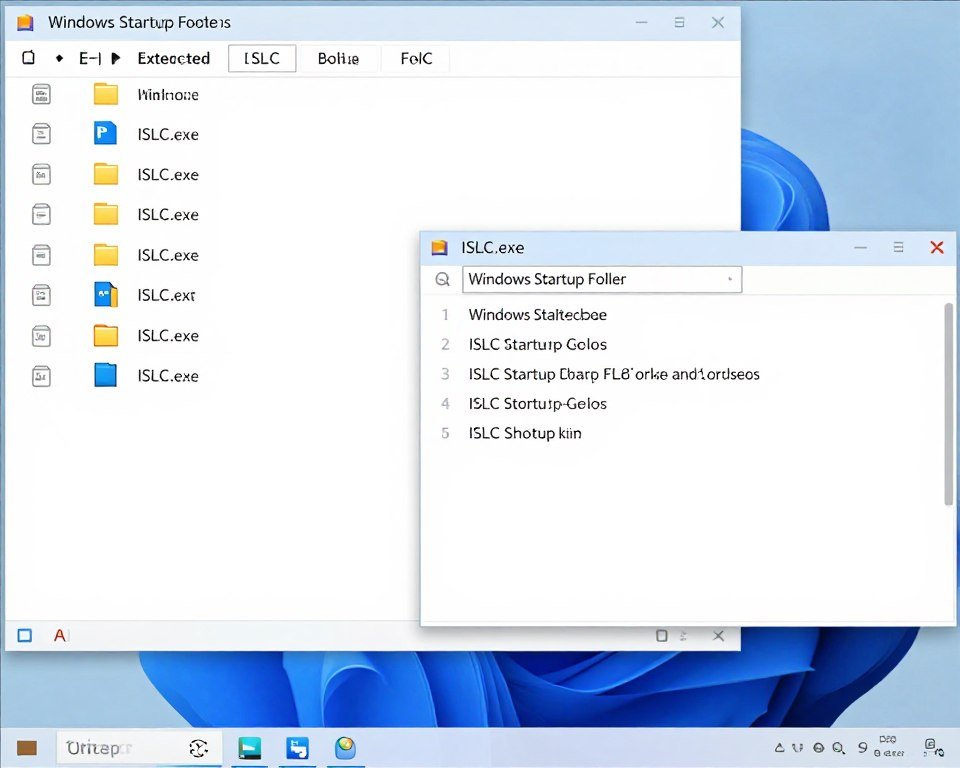
You want ISLC to start automatically when Windows boots. Otherwise you will forget to launch it and wonder why your games stutter again. Here is how to set that up. Press Windows Key + R to open Run. Type shell:startup and hit Enter. This opens your Startup folder. Create a shortcut to ISLC.exe in this folder.
Right-click inside the Startup folder. Choose New, then Shortcut. Browse to wherever you extracted ISLC and select ISLC.exe. Name the shortcut something obvious like “ISLC Memory Manager.” Now ISLC will launch every time Windows starts. Combined with the “Start ISLC minimized to tray” option, it will run silently in your system tray.
ISLC Settings That Actually Matter for Gaming in 2026
Most people overthink ISLC configuration. You need to adjust three settings. Everything else can stay at defaults. Let’s go through what matters and what does not. The goal is preventing memory-related stutters without creating new problems.
First setting: the free memory threshold. This is the amount of free RAM you want available at all times. On a 16GB system, set this between 3072MB and 4096MB. On a 32GB system, anywhere from 6144MB to 8192MB works. The exact number depends on what you run simultaneously. If you game with Discord, a browser, and streaming software open, aim for the higher end. If you game with nothing else running, the lower end is fine.
Why not just set it super high? If you tell ISLC to keep 12GB free on a 16GB system, you force it to constantly purge standby memory even when no memory pressure exists. This prevents Windows from caching anything useful. Your system will feel slower for everyday tasks. You want balance. Enough free memory to prevent gaming stutters, but not so much that you lose all caching benefits. This mirrors the need for balanced component selection in any PC build strategy.
The Timer Resolution Question
ISLC includes “Wanted Timer Resolution” and “Enable Custom Timer Resolution” options. This changes Windows internal timer from 15.6ms to 0.5ms or 1.0ms. Some competitive gamers swear this reduces input lag. Others see no difference. The science is complicated, and results vary by system and game.
My take: try your games without enabling timer resolution first. If your performance is good, leave it disabled. If you play competitive shooters and want every possible input lag reduction, enable it and set Wanted Timer Resolution to 0.5. Be aware this can slightly increase power consumption. On modern CPUs like Ryzen 9000 series or Intel Core Ultra, the power impact is negligible. On older systems or laptops, it might reduce battery life.
One caveat: some games force their own timer resolution when they launch. If a game already sets timer resolution to 1ms, ISLC’s setting does not matter. You can check your current timer resolution with a utility called ClockRes from Microsoft. But honestly, unless you are chasing every millisecond in esports, the default timer is fine. Focus on the memory management aspect first. If you want to dive deeper into competitive performance optimization, check out guides on gaming performance tuning for esports.
Purge Standby List Settings
You will see options for “ISLC polling rate” and when to purge standby list. Polling rate determines how often ISLC checks your memory status. The default is 1000ms, meaning once per second. You can safely lower this to 500ms for more responsive purging. Going lower than 500ms does not help and just wastes CPU cycles.
The “Purge standby list when exceeds” option adds an additional trigger. If your standby list grows above this value, ISLC purges it even if free memory has not dropped below your threshold yet. On a 16GB system, setting this to 8192MB makes sense. On a 32GB system, 12288MB or 16384MB works. This prevents the standby list from growing so large that purging it causes a noticeable delay.
Start ISLC Minimized to Tray
Always enable this. You do not need ISLC window open while you game. The program does its job silently from the system tray. When enabled, ISLC appears as a small icon next to your clock. You can right-click it anytime to show the window and check what is happening. Double-clicking the tray icon shows the full interface again.
This is especially important if you set ISLC to start with Windows. Nobody wants a utility window popping up every time they boot their PC. The minimized mode keeps things clean. The program still logs everything and still purges memory exactly as configured. You just do not see it unless you choose to look.
Testing If ISLC Actually Fixed Your Stuttering Problem
You configured ISLC. Now you need to verify it actually works. Do not just assume it helped because you want it to help. Let’s test properly and measure the difference. This is the only way to know if memory management was your actual problem.
Before changing anything, record your baseline. Run your problem game for 10-15 minutes. Note how often stutters happen and when they occur. If the game has a benchmark mode, run it and record your frame times. Frame times matter more than average FPS. Consistent frame times mean smooth gameplay. Erratic frame times equal stutters, even if average FPS looks fine. Understanding frame time consistency helps interpret whether ISLC actually improved your experience.
Now enable ISLC with the settings we discussed. Restart your PC to ensure ISLC launches properly from startup. Run the same test again. Same game, same duration, same benchmark if applicable. Compare the results. If stutters decreased noticeably or frame times became more consistent, ISLC helped. If you see no difference, memory management was not your problem.
What Good Results Look Like
A successful ISLC implementation shows specific patterns. Stutters during level loads or fast travel mostly disappear. Frame times become more consistent across gaming sessions. Your minimum FPS increases even if maximum FPS stays similar. You see fewer frame drops below your target refresh rate.
You should also notice ISLC actually working. Open the ISLC window while gaming. The log at the bottom shows when it purges memory. You should see entries like “Purged X MB of standby memory” every few minutes during active gameplay. If you never see these log entries, one of two things is happening. Either you set your free memory threshold too low, or your system does not accumulate enough standby memory to trigger purging.
Troubleshooting When ISLC Does Not Help
If you see no improvement, your stutters come from something else. Common causes include CPU bottlenecks, where your processor cannot keep up with frame rendering. GPU bottlenecks, where your graphics card maxes out. Storage bottlenecks, where the game streams data from a slow hard drive. Driver issues, where outdated or buggy drivers cause hitching. Game engine problems, where the game itself is poorly optimized.
Check your CPU and GPU usage during stutters. If either hits 100 percent, you found your bottleneck. No amount of memory management will fix hardware that is simply too slow for the workload. This is where tools like our bottleneck calculator help identify whether your CPU and GPU pairing makes sense for your target resolution and settings.
Storage also matters more than people realize. If your game installs on a slow hard drive and stutters happen when the game loads assets, upgrading to an SSD will help far more than ISLC ever could. Modern games stream gigabytes of data constantly. A hard drive simply cannot keep up. Memory management cannot fix a storage bottleneck. For more on this interaction, see our deep-dive on hardware bottlenecks across different components.
Monitoring Tools to Verify Performance
MSI Afterburner with RivaTuner Statistics Server shows real-time frame times and hardware usage while you game. Enable the frame time graph overlay. Smooth consistent lines mean good performance. Spiky erratic lines mean stutters. Watch this graph before and after enabling ISLC.
Windows Performance Monitor can record memory metrics over time. Set it to log Standby List size, Available Memory, and Page Faults per second. Run this while gaming with and without ISLC. Compare the graphs. You should see more stable Available Memory with ISLC enabled. Standby List size should never grow excessively large. Page Faults should decrease or stay consistent.
ISLC on Modern Hardware: RTX 5090, Ryzen 9000, and DDR5 Systems
Does ISLC still matter on cutting-edge 2026 systems? The answer is more nuanced than “yes” or “no.” Modern hardware changes the memory management equation, but does not eliminate the underlying Windows behavior that causes issues.
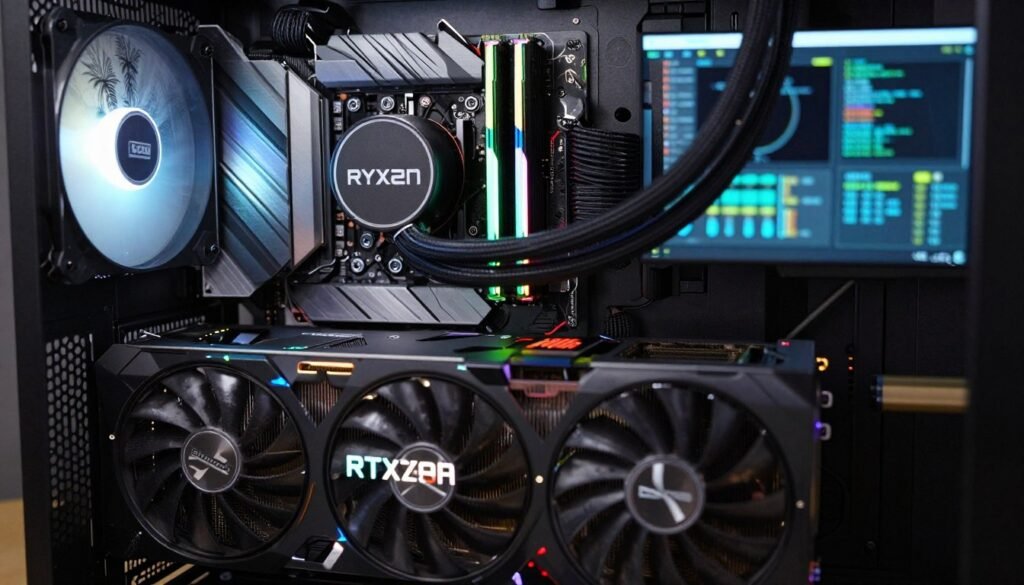
RTX 5090 systems with 32GB of GDDR7 VRAM shift some pressure away from system RAM. Games that hammer system memory less aggressively because so much data fits in VRAM reduce the need for constant memory management. But you are still running Windows, and Windows still manages standby memory the same way regardless of your GPU. If your system RAM management struggles, your gameplay experience still suffers even with a top-tier GPU. The interaction between RTX 5090 performance and system-level optimization matters for maximizing your investment.
Ryzen 9000 series CPUs, particularly the X3D variants with massive L3 cache, also reduce memory pressure in interesting ways. More cache means the CPU accesses system RAM less frequently. Data the CPU needs repeatedly stays in cache. This does not prevent Windows standby list issues, but it reduces how often those issues impact gaming performance. On a Ryzen 9 9800X3D with 96MB of L3 cache, you might not notice memory management problems that would cripple a Ryzen 5 5600X.
DDR5 Speed and Capacity Considerations
DDR5-6000 or DDR5-7200 RAM provides massive bandwidth compared to older DDR4. When Windows finally decides to purge standby memory, DDR5 completes the operation faster. The delay between “game needs memory” and “memory becomes available” shrinks. This masks the problem somewhat. But it does not eliminate the problem. Windows still hesitates. The hesitation just causes a shorter stutter on fast DDR5 versus longer stutters on DDR4.
More interesting is capacity. If you run 64GB or 96GB of DDR5, you have so much headroom that standby memory management almost never matters. Your active programs might use 24GB. Games take another 16GB. That leaves 24-56GB for standby and free memory. Windows has room to keep everything cached without ever facing memory pressure. ISLC becomes pointless at this capacity level. You are paying for enough RAM that Windows memory management quirks never create bottlenecks.
But here is the thing: most people do not run 64GB. The sweet spot remains 32GB for gaming systems. At 32GB, especially with multiple background programs, ISLC can still provide value. Modern games targeting consoles with unified memory architectures increasingly expect 16GB available for game assets alone. Add Windows, Discord, Chrome, and streaming software, and a 32GB system faces memory pressure regularly. For guidance on optimal RAM amounts, our build advice covers current recommendations.
When Modern Hardware Makes ISLC Unnecessary
You can probably skip ISLC if you match this profile: 64GB or more DDR5 RAM, modern high-end CPU with large cache, games installed on fast Gen4 or Gen5 NVMe SSD, minimal background applications while gaming. At this configuration level, your hardware overwhelms any memory management inefficiency Windows creates.
You should still consider ISLC if you have: 32GB RAM, any amount of DDR4 RAM, older CPU with smaller cache, multiple programs running with games, or specific games known for high RAM usage. The Unreal Engine 5 titles releasing in 2026 push memory harder than previous generations. Games built for PS5 Pro target having 16GB available just for game assets. Your 32GB needs to cover that plus Windows overhead.
Advanced ISLC Tweaks Most Guides Skip
The basic ISLC setup fixes memory stutters for most people. But the program includes additional options worth understanding. These are not necessary for everyone. If your games run smoothly with the basic configuration, ignore this section. But if you want to optimize further or handle specific edge cases, these tweaks help.
Combining ISLC with Windows Memory Compression
Windows 10 and 11 include memory compression. When RAM fills up, Windows compresses some data instead of paging it to disk. This is faster than traditional virtual memory. The compressed data still counts as “in use” memory, not standby. ISLC and memory compression work together. ISLC manages standby list size. Memory compression handles active data when you push your RAM capacity.
Memory compression runs automatically. You do not need to enable it manually. But you can disable it if needed. Some users report slightly lower latency with compression disabled on systems with plenty of RAM. To disable it, open PowerShell as admin and run: Disable-MMAgent -mc. To re-enable later: Enable-MMAgent -mc. Test your games both ways. Most people see no difference, but some competitive gamers prefer compression disabled on 32GB+ systems. This relates to broader Windows optimization strategies for performance.
ISLC for Specific Game Engines
Different game engines behave differently with memory. Unity games often allocate memory in chunks and hold it. Unreal Engine dynamically streams assets and releases memory more aggressively. Source Engine games from Valve barely use any RAM. Your ISLC configuration can adjust based on what you play.
For UE5 games like those built on Nanite and Lumen, set your free memory threshold higher. UE5 aggressively streams high-detail geometry. These games benefit from having 6-8GB free at all times on a 32GB system. For older games or less memory-intensive titles, 4GB free suffices. You can create different ISLC profiles if you want, though manually adjusting the slider before launching different games works fine too.
Some games include their own memory management. Cyberpunk 2077, for example, has settings for memory pool budget. If a game offers memory configuration options, tune those first before relying entirely on ISLC. Game-level optimization works better than system-level fixes when available. Games like Cyberpunk 2077 with path tracing push both VRAM and system RAM hard, making proper configuration critical. See our Cyberpunk path tracing guide for engine-specific memory optimization.
ISLC and Content Creation Workloads
ISLC is not just for gaming. Video editing, 3D rendering, and other memory-intensive creative work benefits from proper memory management. The difference is you configure ISLC differently for these workloads. Content creation often benefits from keeping more standby memory around. When you scrub through video timeline, having recently accessed clips in standby means instant playback.
For content creation, lower your free memory threshold to 2-3GB on a 32GB system. You want Windows to keep more in standby because you frequently revisit the same data. Enable ISLC primarily to prevent standby from growing so large it causes issues, not to constantly purge it. The goal shifts from “always have free memory ready” to “prevent standby from getting out of control.”
Additionally, adjust polling rate to 2000ms or even 3000ms for content work. You do not need instant purging like gaming demands. Slower polling reduces CPU overhead. ISLC still prevents standby from ballooning but does so less aggressively. This represents the balance between system responsiveness and efficiency, similar to finding optimal settings for different workload types.
The Standby List Priority Hack
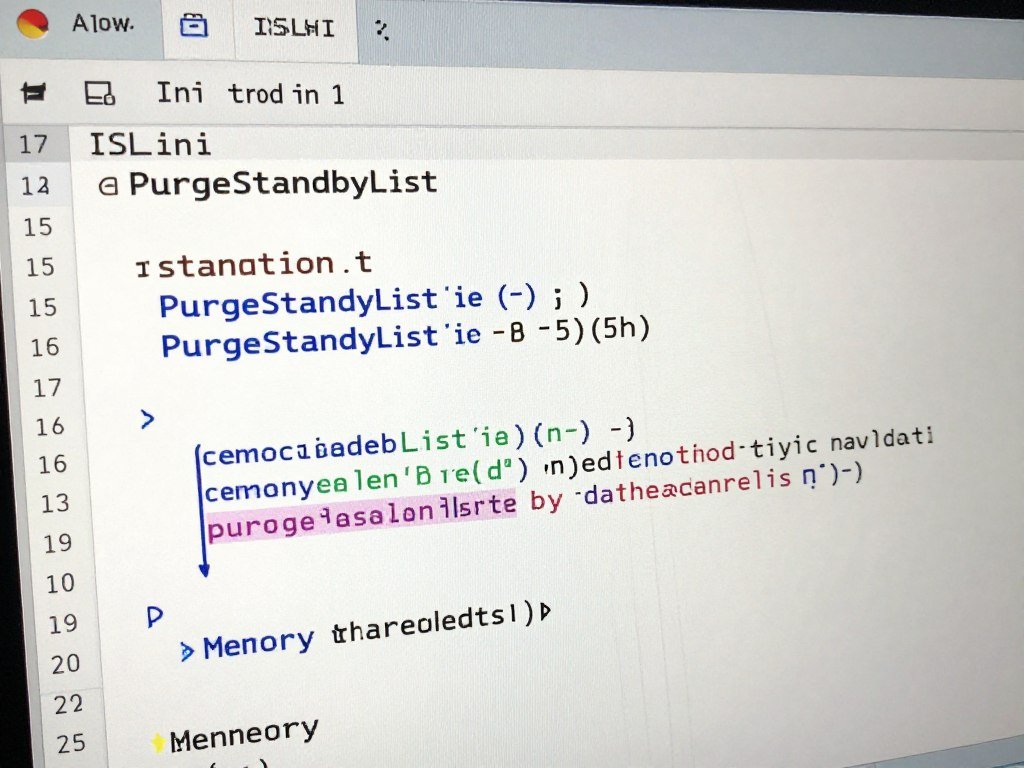
Windows maintains multiple priority levels within the standby list. ISLC normally purges the entire list when triggered. You can configure it to only purge low-priority standby memory first. This is more complicated and requires editing ISLC’s configuration file. For 99 percent of users, it is not worth the effort. But if you obsess over optimization, the option exists.
To enable priority-based purging, close ISLC. Navigate to where you extracted it. Open ISLC.ini in a text editor. Find the line PurgeStandbyList. Change it to PurgeStandbyListLowPriority. Save the file. Relaunch ISLC. Now it only purges low-priority standby first, leaving high-priority cached data intact longer. This theoretically improves performance for frequently accessed data. In practice, most people notice no difference.
Common ISLC Problems and How to Actually Fix Them
Even though ISLC is simple, people still run into issues. Let’s address the problems that come up most often and their solutions. Most of these stem from misconfiguration or misunderstanding what ISLC can and cannot do.
ISLC Does Not Start with Windows
You created a startup shortcut, but ISLC does not launch when Windows boots. First, verify your shortcut is actually in the Startup folder. Press Windows Key + R, type shell:startup, and check. If the shortcut exists, right-click it and select Properties. Make sure the Target path points to ISLC.exe correctly. If you moved ISLC after creating the shortcut, it will not work.
Another cause: Windows User Account Control blocks startup programs sometimes. Right-click your ISLC shortcut in the Startup folder. Choose Properties, then Advanced. Check “Run as administrator.” This ensures ISLC has the permissions it needs to manage memory. Some systems require this, others do not. Worth trying if your shortcut does not launch.
ISLC Shows Zero Megabytes Purged
You run ISLC, but the log never shows any memory purged. This means your free memory never dropped below your threshold. Either you set the threshold too low, or your system genuinely does not face memory pressure. Open Task Manager while gaming. Check Available memory. If it stays well above your ISLC threshold, the program has nothing to do.
Try lowering your polling rate to 500ms and temporarily lowering your free memory threshold. Launch a memory-intensive game. If ISLC still shows zero purges, your stutters come from something other than memory management. You might have a CPU, GPU, or storage bottleneck. Run our hardware bottleneck test to identify what component limits your system performance.
Game Performance Got Worse After Enabling ISLC
This happens rarely but it does happen. If performance decreased after enabling ISLC, you probably set your free memory threshold too high. When ISLC constantly purges standby memory, Windows cannot cache anything. Every time you revisit an area in a game, the assets reload from disk instead of pulling from cache. This creates stutters where none existed before.
Lower your free memory threshold by half. If you had it at 8GB on a 32GB system, drop it to 4GB. Test again. The goal is purging standby only when actual memory pressure exists, not constantly. Aggressive purging hurts performance as much as never purging at all. Balance is key, similar to balancing hardware component capabilities in your build.
ISLC Causes System Instability
Very rarely, ISLC interacts badly with specific system configurations. If you experience crashes, freezes, or blue screens after enabling ISLC, disable it immediately. Try updating to the latest ISLC version first. If problems persist, your system might have deeper issues. RAM instability, driver conflicts, or hardware problems could be the real cause.
Test your RAM with MemTest86. Run it overnight. If errors appear, your RAM is unstable. No amount of software tweaking fixes bad hardware. Check your XMP/DOCP profile. Sometimes aggressive RAM overclocks cause instability that only shows up when software actively manages memory. Try running RAM at JEDEC default speeds and see if ISLC works without issues. For RAM stability testing and tuning, see guides on memory configuration.
Timer Resolution Causing Issues
If you enabled custom timer resolution and experience problems, disable it. Not all systems handle 0.5ms timer resolution well. Some motherboards or chipsets have timer implementation quirks. Stick to memory management only. The timer resolution feature is optional and not necessary for fixing memory-related stutters.
To test if timer resolution causes your issue, disable it in ISLC but keep the memory management active. If problems disappear, timer resolution was the culprit. If problems persist, something else is wrong. Timer resolution mainly matters for competitive gaming where every millisecond counts. For general gaming and content creation, leave it disabled.
ISLC Alternatives and Why They Mostly Suck
People ask about ISLC alternatives. Options exist, but most are worse. Let’s cover what else is out there and why ISLC remains the best choice for managing Windows standby memory in 2026.
Empty Standby List Application
This is a command-line tool from Microsoft Sysinternals. It manually purges standby memory when you run it. The problem: you need to run it manually every time. No automation exists. No intelligent monitoring. You would need to alt-tab out of your game and run the command whenever stutters happen. Completely impractical for gaming.
Empty Standby List works fine for one-time purges when troubleshooting. But as a permanent solution, it fails. You want automated monitoring that acts when needed. ISLC provides this. Empty Standby List does not. The tool has its place in a tech’s toolkit for diagnosing memory issues, but not for ongoing use.
Memory Cleaner and Similar Utilities
Various “memory cleaner” and “RAM optimizer” programs claim to boost performance. Most are garbage. They either do nothing useful or actively hurt performance by constantly interfering with Windows memory management. Some are straight-up malware disguised as system utilities.
The ones that are not malware typically just purge all memory on a timer. They clear standby, empty working sets, and flush various caches every 30 seconds. This constant disruption makes your system slower, not faster. Windows memory management works well for most tasks. The issue is specific scenarios where standby list grows too large. Blanket memory purging every few seconds is the wrong solution. Similar to how overclocking requires targeted adjustments rather than blindly maxing every setting, memory management needs intelligent intervention. See our guide on proper PC optimization approaches.
Registry Tweaks and System Settings
Some guides recommend registry tweaks to change Windows memory management behavior. Options like DisablePagingExecutive or LargeSystemCache exist. These are blunt instruments that change how Windows manages all memory, not just standby. Most users should not touch these settings.
DisablePagingExecutive forces Windows to keep all kernel memory in RAM. On a 16GB system, this reduces available memory for games and programs. Only servers with huge RAM amounts benefit. LargeSystemCache tells Windows to cache file data aggressively. This helps file servers. It hurts gaming by filling standby with file cache instead of game assets. These tweaks solve different problems than ISLC addresses.
Just Buying More RAM
The simplest alternative: buy more RAM. If you have 16GB and struggle with memory management, upgrading to 32GB fixes the problem permanently. More RAM means Windows never faces the memory pressure that causes aggressive standby list management. This is the hardware solution versus the software workaround.
For current pricing, 32GB DDR5 costs around $90-120. If your motherboard supports it, this upgrade eliminates the need for ISLC entirely. You also get better performance in memory-hungry games and creative applications. RAM is one of the easiest upgrades to install. If your budget allows, it is better than any software solution. That said, even on 32GB systems, ISLC can help in specific scenarios, especially with UE5-based games or heavy multitasking. For comprehensive upgrade planning, check our hardware upgrade recommendations.
Situations Where You Should Skip ISLC Completely
ISLC is not universal solution. Some scenarios exist where you should not use it. Knowing when to skip ISLC saves you time and prevents potential issues. Let’s identify those situations clearly.
Systems with Abundant RAM
If you run 64GB or more of RAM, forget about ISLC. You have so much capacity that Windows memory management never becomes a bottleneck. Your active programs, games, and background applications will not fill 64GB. Windows can keep everything it wants in standby without impacting available memory. ISLC serves no purpose here.
Even with the most aggressive multitasking and memory-hungry games, 64GB provides massive headroom. The time spent configuring ISLC could be better spent elsewhere. Focus on actual performance bottlenecks. At this RAM capacity, your bottlenecks exist in CPU, GPU, or storage, not memory management. Tools like our bottleneck analysis calculator help identify where your money is best spent upgrading.
Laptop Users with Aggressive Power Management
Laptops run different power profiles than desktops. ISLC adds background activity that wakes the CPU regularly to check memory status. On a plugged-in laptop, this does not matter. On battery power, this constant monitoring reduces battery life. If you game on a laptop, you are probably plugged in anyway. But for general laptop use, ISLC is not worth the battery drain.
Additionally, many gaming laptops already run tight on thermal limits. Adding another background process increases CPU usage slightly. While ISLC uses minimal resources, every bit counts when you are trying to prevent thermal throttling in a thin laptop chassis. Save ISLC for desktop systems where power and cooling are not constraints. For laptop-specific optimization, different strategies apply as covered in mobile gaming guides.
When Your Game Stutters Come from Other Causes
If you diagnosed your stutters and they clearly stem from CPU, GPU, or storage limitations, ISLC will not help. A CPU running at 100 percent causes stutters. No memory management tool fixes that. A GPU maxed out at 4K resolution with ray tracing causes stutters. Adding ISLC changes nothing. An HDD struggling to stream game assets causes stutters. You need an SSD, not memory management.
Test your actual bottleneck before assuming memory is the problem. Tools like MSI Afterburner show real-time hardware usage. If your stutters correspond with CPU or GPU spikes to 100 percent, memory is not your issue. If disk usage shows constant activity during stutters, storage is your issue. ISLC only helps when available memory drops suddenly during stutters while CPU and GPU usage looks normal.
Professional Workstation Use Cases
Some professional applications manage their own memory pools. CAD software, video editing suites, and 3D rendering packages often allocate large chunks of RAM and manage it internally. These programs bypass Windows memory management to some degree. ISLC can interfere with their internal memory management.
If you run professional software, check whether ISLC causes issues before leaving it enabled permanently. Some users report problems with Premiere Pro, After Effects, or SolidWorks when ISLC aggressively purges standby. The professional app tries to access cached data that ISLC just removed. This causes momentary hitches. For professional workstations, test thoroughly or skip ISLC unless you specifically identify standby list issues. Different workload types benefit from different optimization approaches.
Server Environments
Do not run ISLC on servers. Server memory management priorities differ completely from desktop systems. Servers benefit from aggressive file caching. They want data in standby for fast retrieval. Purging standby memory constantly would hurt server performance for file serving, database queries, and web hosting.
Windows Server editions manage memory differently than Windows 10 or 11 desktop anyway. The standby list behavior that causes gaming stutters rarely impacts server workloads. If you experience memory issues on a server, the solution involves adjusting system cache settings, not installing ISLC. This tool is specifically designed for desktop gaming and content creation scenarios.
How to Properly Remove ISLC If You Do Not Need It
Maybe you tried ISLC and it did not help. Maybe you upgraded your RAM and no longer need it. Maybe you just want to remove it and move on. Here is how to uninstall ISLC properly without leaving traces behind.
ISLC does not install like normal programs. It runs as a portable application. No registry entries exist beyond what you manually configured. No system files get installed. This makes removal simple. Just delete the folder and remove the startup entry.
First, make sure ISLC is not currently running. Right-click the system tray icon and choose Exit. If you do not see it in the tray, open Task Manager and check if ISLC.exe appears in the Processes tab. End the task if present. With ISLC stopped, you can safely delete it.
Removing the Startup Entry
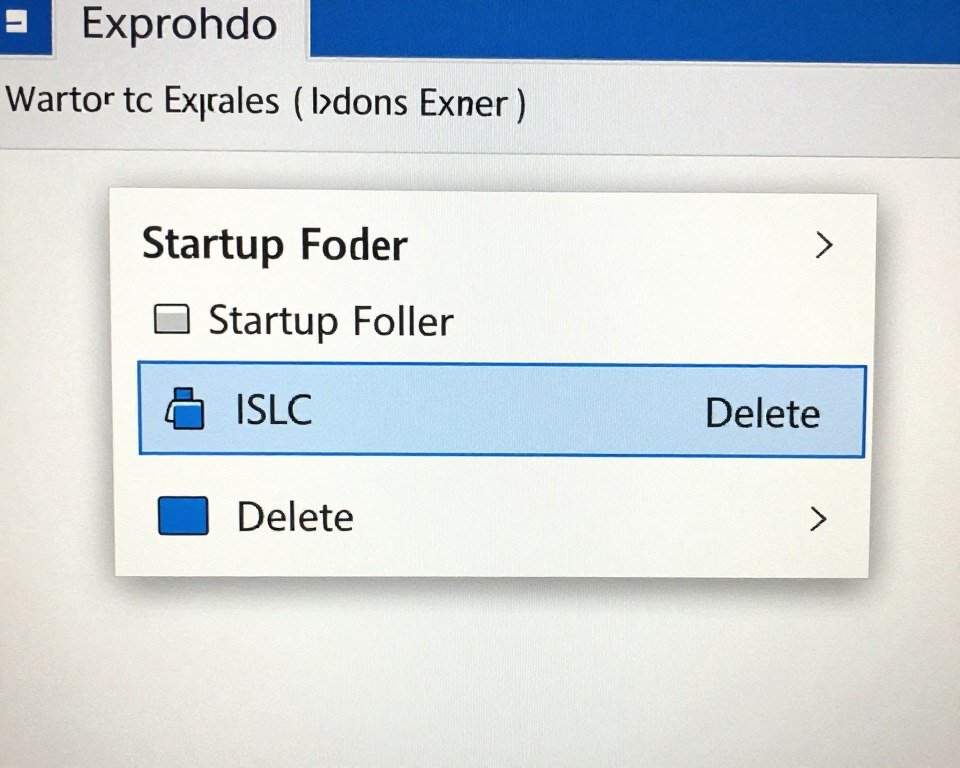
Press Windows Key + R to open Run. Type shell:startup and hit Enter. This opens your Startup folder. Find the ISLC shortcut you created earlier. Delete it. Now ISLC will not launch automatically when Windows boots. This is the most important step. Without removing this shortcut, Windows will try to launch ISLC every time you boot and show an error when it cannot find the program.
Check your Task Scheduler too. Some users create scheduled tasks for ISLC instead of using the Startup folder. Open Task Scheduler by searching for it in the Start menu. Look through your task list for anything related to ISLC. Delete any tasks you find. This ensures ISLC will not get launched through a scheduled task you forgot about.
Deleting the Program Files
Navigate to wherever you extracted ISLC originally. This is likely somewhere like C:\Tools\ISLC or your Downloads folder. Delete the entire ISLC folder. That removes the executable and any configuration files. ISLC is now completely gone from your system.
If you want to be thorough, search your entire C drive for any remaining ISLC files. Open File Explorer, go to C:\, and search for “ISLC” in the search box. Delete anything that comes up. Most users will find nothing because ISLC does not scatter files across your system. Everything stays in the folder you extracted it to.
Resetting Windows Memory Management
After removing ISLC, Windows memory management returns to default behavior immediately. You do not need to change any settings or restart your PC. The standby list will start filling up again based on your usage patterns. If you modified any Windows registry settings related to memory management, consider reverting those changes too.
To verify everything is back to normal, restart your PC and check Task Manager memory usage. You should see your standby memory growing over time as you use programs and games. This is normal Windows behavior. If you experience stutters again after removing ISLC, you know memory management was helping and might want to reinstall it.
ISLC Myths and Misconceptions That Need to Die
Like any popular tech utility, ISLC attracts misinformation. People make claims about what it does, how it works, and what problems it solves. Let’s kill some persistent myths that confuse users and set realistic expectations.
Myth: ISLC Boosts FPS
No. ISLC does not increase your average FPS. If you get 60 FPS before ISLC, you will still get 60 FPS after. What ISLC fixes is consistency. It reduces frame time spikes and eliminates stutters. Your minimum FPS might improve because you avoid drops during memory pressure moments. But maximum and average FPS stay the same.
This matters because some users install ISLC expecting their game to suddenly run at higher framerates. That is not how it works. ISLC prevents specific stutters caused by memory management delays. It cannot make your CPU faster, your GPU more powerful, or your game better optimized. It fixes one specific problem. If you need more FPS, you need better hardware or lower graphics settings. Understanding the difference between average FPS and frame time consistency helps set correct expectations.
Myth: ISLC Damages Your RAM
Some people believe that constantly clearing memory wears out RAM faster. This is completely false. RAM is solid-state memory. It does not wear out from being read or written to. ISLC does not even write to RAM. It just tells Windows to change memory state from standby to free. The data stays in RAM. Just the classification changes.
RAM will outlast your entire PC. Modern DDR5 has no practical wear limit for typical use. Even if ISLC somehow stressed your RAM, which it does not, your RAM would still last decades. This myth probably comes from confusion with SSDs, which do have limited write endurance. RAM is different. Use ISLC without worrying about hardware damage.
Myth: You Need to Run ISLC as Administrator
ISLC works fine without administrator privileges in most cases. The program accesses memory management APIs that are available to normal user processes. You only need administrator rights if you enable custom timer resolution. That feature requires elevated privileges. Memory management itself does not.
Running programs as administrator unnecessarily is bad security practice. Only elevate privileges when actually needed. For basic ISLC usage with just memory management, run it as a normal user. The program will request elevation if it needs it for specific features. This is safer than blindly running everything as admin.
Myth: ISLC is Only for Gaming
While gaming is the most common use case, ISLC helps any scenario where programs need RAM quickly and Windows hesitates to provide it. Video editing with timeline scrubbing, 3D rendering with viewport previews, running multiple virtual machines, and compiling large codebases all benefit from proper memory management.
The configuration differs for non-gaming use. You want less aggressive purging for creative work. But the core principle remains the same. Prevent standby list from growing so large that Windows struggles to free memory when applications actually need it. ISLC is a memory management tool, not exclusively a gaming tool. Any performance-sensitive workload can benefit.
Myth: ISLC Makes Windows Unstable
This myth stems from people installing ISLC along with a dozen other system tweaks and then blaming ISLC when something breaks. ISLC itself is extremely stable. It has been around since 2016 and tested on millions of systems. If ISLC causes crashes, something else is wrong. Bad RAM, unstable overclocks, driver conflicts, or other system issues are the real culprits.
Test ISLC in isolation. Install it on a clean system or disable all other tweaks first. If problems appear, systematically identify the cause. Usually it is not ISLC. The program does one thing and does it safely. Windows provides APIs for memory management specifically for utilities like this. ISLC uses those APIs correctly. If your system is already unstable, ISLC might expose existing problems by changing memory access patterns. But it does not cause instability on healthy systems.
The Future of Memory Management: Will We Still Need ISLC in 2027?
Windows 12 development is underway. Hardware continues evolving rapidly. Will ISLC remain relevant, or will Microsoft fix the underlying memory management issues? Let’s look at where things are heading and what that means for users dealing with standby list problems today.
Microsoft’s Memory Management Evolution
Microsoft knows about standby list issues. Developers have discussed it in forums and GitHub issues for years. Windows 11 22H2 and 23H2 included some memory management improvements. The system now releases standby memory slightly faster under heavy load. But the core behavior remains the same. Windows still aggressively caches data in standby, and sometimes hesitates to release it.
Windows 12 might bring changes. Rumors suggest Microsoft is rewriting parts of the memory manager to better handle gaming workloads. They are looking at how Xbox manages memory and potentially borrowing ideas. But we do not know specifics yet. Even if Microsoft improves things, Windows needs to maintain backward compatibility. Aggressive changes to memory management could break existing applications.
My bet: Windows 12 will improve standby list handling, but not eliminate the need for ISLC entirely. The problem is fundamental to how Windows caching works. Removing it would require a complete memory manager redesign. That level of change is risky. Microsoft might tweak the behavior to be less aggressive, reducing the severity of stutters, but probably will not eliminate them completely. Similar to how operating system optimizations evolve gradually rather than through revolutionary changes.
Hardware Trends and Memory Capacity
As RAM becomes cheaper, the default gaming system configuration shifts upward. In 2026, 32GB is standard for mid-range builds. By 2027-2028, 64GB might become the norm. If most systems run 64GB or more, standby list issues affect fewer people. When you have that much headroom, Windows can cache everything it wants without causing problems.
DDR5 speeds also keep increasing. DDR5-8000 is common now. DDR5-10000 is coming. Faster memory means the time Windows spends moving data between standby and available states shrinks. Stutters that lasted 50ms with DDR4-3200 might only last 10ms with DDR5-10000. Still noticeable, but less painful. Hardware improvements mask the software problem without solving it.
On the flip side, games keep demanding more RAM. Unreal Engine 5 titles target 16GB just for game assets. Add Windows overhead and background apps, and 32GB fills up quickly. The race between RAM capacity and game requirements continues. ISLC remains relevant as long as some users run systems where RAM capacity and game requirements are closely matched. For guidance on future-proofing your RAM choices, see our analysis of memory capacity recommendations for 2026-2027.
Alternative Solutions on the Horizon
Game developers are becoming more aware of memory management issues. Some newer engines include their own memory managers that work around Windows standby list problems. These games handle memory allocation internally and minimize reliance on Windows cached memory. As more games adopt this approach, ISLC becomes less necessary for those specific titles.
Graphics API improvements might also help. DirectX 12 Ultimate and Vulkan give games more control over memory allocation. Games can specifically request memory that Windows will not put in standby. If developers use these features correctly, the game itself manages memory better than Windows would. This shifts responsibility from the OS to the application, which makes sense for performance-critical software like games.
Another possibility: PC manufacturers might start including memory management utilities in their control software. ASUS, MSI, and other brands already ship various system utilities. Adding standby list management to those packages would provide ISLC-like functionality with manufacturer support. Users would not need to find and configure third-party tools. This is speculative, but it makes sense as manufacturers compete to offer the smoothest gaming experience.
Should You Wait or Use ISLC Now?
Do not wait for perfect solutions. If you experience memory-related stutters today, ISLC fixes them today. Windows 12 might improve things next year. Games might handle memory better in 2027. You might upgrade to 64GB eventually. But none of that helps your current gaming experience right now.
Use ISLC if you need it. When future changes make it unnecessary, uninstall it. The program does not commit you to anything. It is a free utility that takes five minutes to configure. The risk is minimal. The potential benefit is smooth gameplay instead of frustrating stutters. Stop overthinking it and just try it if you match the user profile we described earlier.
The Bottom Line on ISLC for Windows Memory Management
ISLC solves a specific problem. Windows sometimes holds onto standby memory too aggressively, causing stutters when games need RAM quickly. For users with 16-32GB of RAM running modern games, especially those with background applications open, ISLC can eliminate those stutters completely. It is free, simple to configure, and safe to use.
You do not need ISLC if you have abundant RAM, minimal background apps, or stutters that clearly stem from other bottlenecks. Test your system first. Identify whether memory management actually causes your issues. If Task Manager shows memory pressure during stutters, ISLC will likely help. If your CPU or GPU max out during stutters, you need different solutions.
Configuration is straightforward. Set free memory threshold based on your RAM amount. Enable start minimized to tray. Set ISLC to launch with Windows. That is everything most users need. Advanced options exist for edge cases, but start simple. Test your games. Measure whether stutters improved. If ISLC helps, keep using it. If not, uninstall cleanly and investigate other causes. Our knowledge base covers those other potential performance issues comprehensively.
The reality is Windows memory management works great for typical use. Web browsing, office work, and casual computing benefit from aggressive standby caching. Gaming represents an edge case where those same caching strategies sometimes backfire. ISLC bridges that gap until Microsoft, hardware manufacturers, or game developers solve the problem properly. Use it as the practical tool it is, not a magic performance booster, and your expectations will align with what it actually delivers.
Optimize Your Entire System for Maximum Performance
Memory management is just one piece of PC optimization. Make sure your CPU and GPU pairing makes sense, your settings align with your hardware, and your build has balanced components. Our bottleneck calculator and knowledge base help identify every performance issue holding your system back.
Related Performance Optimization Resources
Fix PC Stuttering Completely
Memory leaks cause stuttering, but so do CPU bottlenecks, driver issues, and improper settings. Our comprehensive stuttering guide covers every cause and solution to get smooth gameplay.
System Balance Fundamentals
RAM works alongside your CPU and GPU. Understanding how these components interact helps you build balanced systems that avoid bottlenecks at every level.
Complete Windows Optimization
ISLC handles memory management. But Windows has dozens of other settings affecting gaming performance. Our optimization guide covers everything from background processes to power plans.