
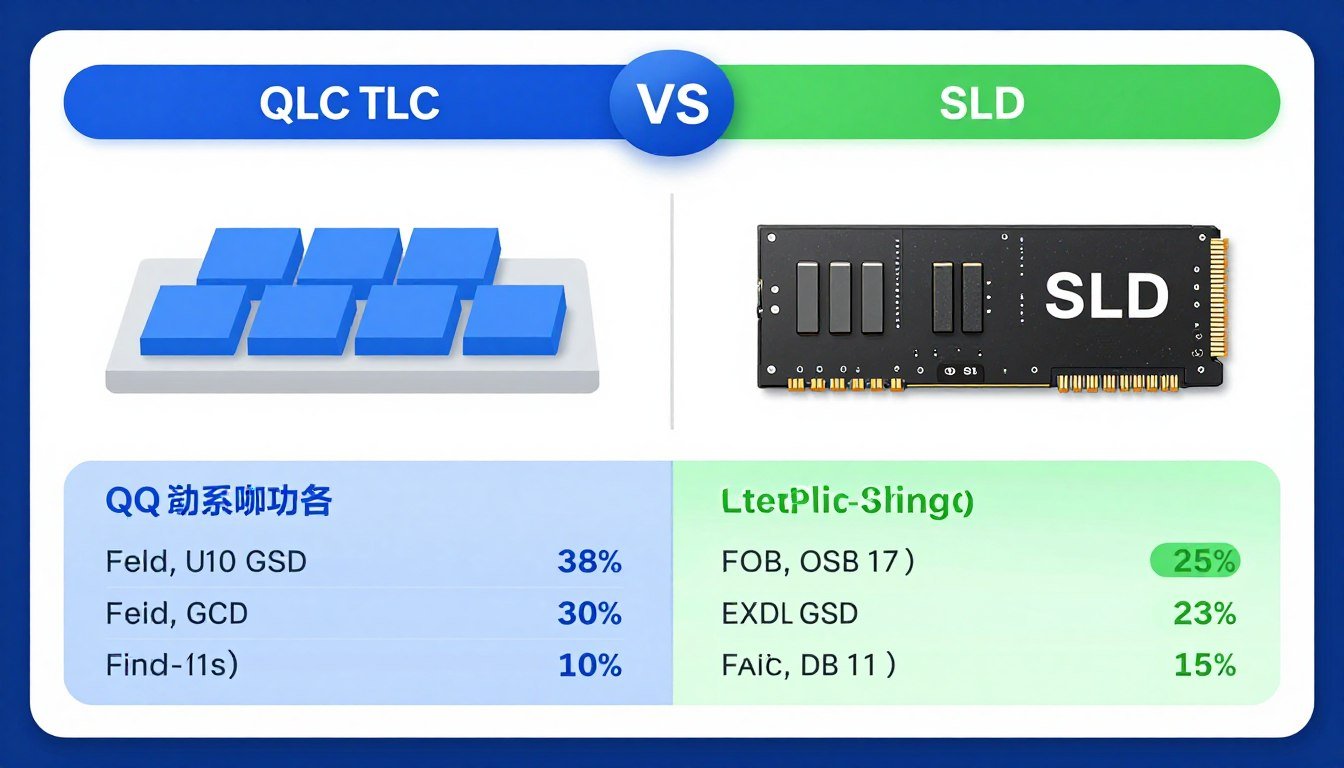
I spent three hours last month watching a progress bar. Not just any progress bar—the kind that crawls at 40 MB/s while transferring game files to my “budget” 2TB QLC SSD. That drive cost me $89, and I thought I was smart. I wasn’t. The reality is that NAND type matters more than most PC builders realize, and I learned that the hard way.
Here’s the thing about SSD buying advice in 2026: you’re not just picking between brands anymore. You’re making a fundamental choice about how your storage drive actually works at the silicon level. QLC and TLC aren’t just acronyms—they represent completely different approaches to storing your data. One prioritizes cramming bits into cells. The other prioritizes keeping those bits moving fast.
This guide will fix that confusion. You’ll learn exactly what happens inside these drives when you write data. You’ll see real numbers on speed differences. You’ll understand why endurance ratings actually matter for your use case. And you’ll walk away knowing exactly which technology fits your build—whether you’re gaming, editing video, or just need a lot of cheap storage that doesn’t suck.
Before we dig into the technical stuff, let me save you some time: if you’re not sure whether your storage is even your bottleneck, check your system balance with a PC bottleneck calculator first. No point upgrading your SSD if your CPU is screaming at 100% while your GPU idles.
What NAND Flash Actually Means (And Why You Should Care)
NAND flash is the memory technology that makes SSDs work. Think of it like a massive apartment building where each cell is a tiny room that holds electrical charge. When the room has charge, that’s a 1. No charge? That’s a 0. Your data is just billions of these 1s and 0s stored across millions of cells.
The “flash” part means the memory keeps your data even when power cuts off. Unlike your RAM, which forgets everything the moment you pull the plug, NAND flash holds onto information. That’s why your SSD doesn’t lose your game saves when you shut down.
How Many Bits Fit in Each Cell?
This is where things get interesting. SLC (Single-Level Cell) stores one bit per cell. MLC (Multi-Level Cell) stores two bits. TLC (Triple-Level Cell) crams three bits in there. QLC (Quad-Level Cell) somehow manages four bits in the same space.
More bits per cell means more storage capacity on the same physical chip. A 1TB TLC drive and a 1TB QLC drive might use similar amounts of silicon, but the QLC version achieves that capacity by stuffing more data into each cell. That’s why QLC drives cost less per gigabyte—the manufacturers can build bigger drives without proportionally increasing material costs.

The Trade-Off Nobody Mentions Upfront
Here’s the catch: cramming more bits into each cell makes everything harder. Reading the cell takes longer because the controller has to distinguish between more voltage states. Writing data takes longer because positioning the exact charge level becomes more precise. And durability drops because each cell can only handle so many write cycles before it wears out.
Think of it like a light switch versus a dimmer. A switch (SLC) is simple—on or off, fast to flip, lasts forever. A dimmer (QLC) needs to hit one of 16 precise brightness levels. Takes longer to set correctly. Wears out faster from all that fine-tuning. Same basic hardware, completely different performance profile.
This fundamental trade-off shapes everything else about SSD performance. Every speed difference, every endurance rating, every price point—it all traces back to how many bits you’re trying to stuff in each cell. Understanding this helps you make smarter choices about which type actually fits your needs.
TLC SSDs: The Performance Sweet Spot
TLC drives store three bits per cell. That translates to eight distinct voltage states the controller needs to manage (2³ = 8). Compared to QLC’s 16 states, that’s half as many precision levels required for each read and write operation. Less precision work means faster data transfer and longer cell life.
Most enthusiast-grade drives and all high-performance models use TLC NAND. Samsung’s 990 Pro. WD’s Black SN850X. SK Hynix Platinum P41. These are TLC drives, and there’s a reason they dominate performance benchmarks.
Real-World TLC Performance Numbers
A typical PCIe 4.0 TLC NVMe SSD hits sequential read speeds around 7,000 MB/s and writes around 5,000-6,000 MB/s. Random read/write performance—the stuff that actually matters for system responsiveness—sits in the 600,000 to 1,000,000 IOPS range depending on queue depth and access pattern.
More importantly, TLC drives maintain those speeds under sustained workloads. Copy 100GB of game files to a quality TLC drive, and it’ll hold 3,000-4,000 MB/s the entire time. No dramatic slowdowns. No thermal throttling unless your airflow is terrible. Just consistent, fast data movement.
TLC Write Performance Characteristics
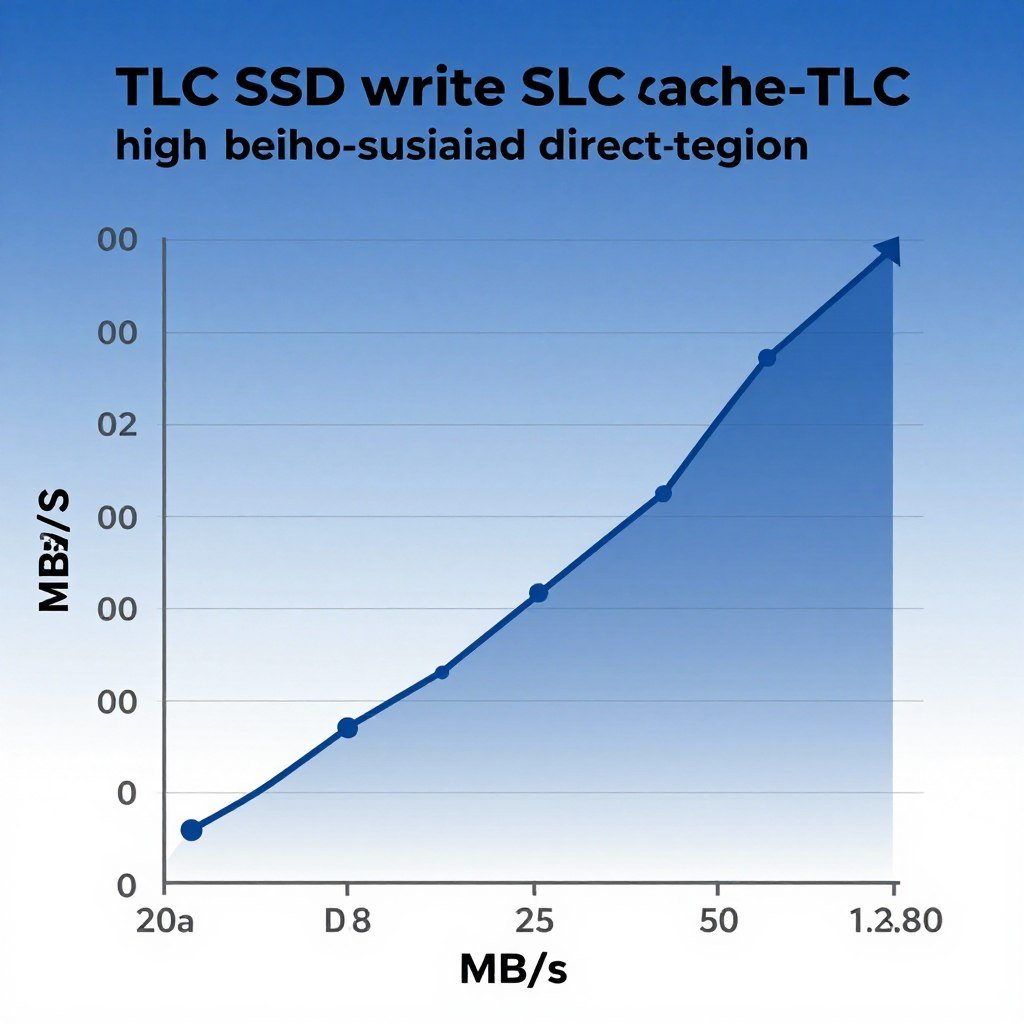
TLC drives use an SLC cache to boost write speeds. When you write data to the drive, it first hits a small, fast section of NAND operating in single-bit mode. That cache might be 20-100GB depending on the drive model and how full the disk is.
As long as you stay within cache, writes happen at full speed—often matching or exceeding the drive’s rated performance. Once you fill the cache, the drive has to move that data into the actual TLC storage while simultaneously handling your new writes. This is when slowdowns occur, but on quality TLC drives, post-cache speeds still hover around 1,500-2,500 MB/s.
TLC Endurance: Why the Numbers Look Scary But Aren’t
TLC NAND typically handles 1,000-3,000 program-erase cycles per cell before wear-out. That sounds low compared to SLC’s 100,000 cycles, but context matters. Drive manufacturers rate endurance in TBW (terabytes written), and a 1TB TLC drive usually carries a 600-800 TBW rating.
Let’s do the math. If you write 50GB per day to your drive—that’s heavy gaming use, regular software updates, and some content creation—you’d hit 18TB per year. At that rate, a 600 TBW drive lasts 33 years. Even if you write 100GB daily, you’re looking at 16 years before hitting the warranty limit. The drive will likely outlive your motherboard’s PCIe generation.
For perspective, most users write less than 20GB per day average. Your Steam downloads, Windows updates, browser cache—it all adds up slower than you think. Check actual SSD workload patterns if you’re worried about longevity, but TLC endurance rarely becomes a real-world issue for consumer use.
QLC SSDs: When Capacity Beats Speed
QLC stores four bits per cell, requiring 16 distinct voltage levels. That extra bit per cell increases density by 33% compared to TLC using the same amount of silicon. This is why you can find 4TB QLC drives for under $200 while equivalent TLC drives cost $300-400.
The trade-off? Everything takes longer. Reading those 16 voltage states requires more precise measurements. Writing data demands tighter control over cell programming. And with four bits crammed in each cell, there’s less room for error—which means lower endurance and higher failure rates if manufacturing quality slips.
The QLC Performance Profile
Modern QLC drives hit around 3,500 MB/s sequential read and 3,000 MB/s write speeds when working from SLC cache. That’s respectable—faster than any SATA drive ever made. But sustained performance tells a different story.
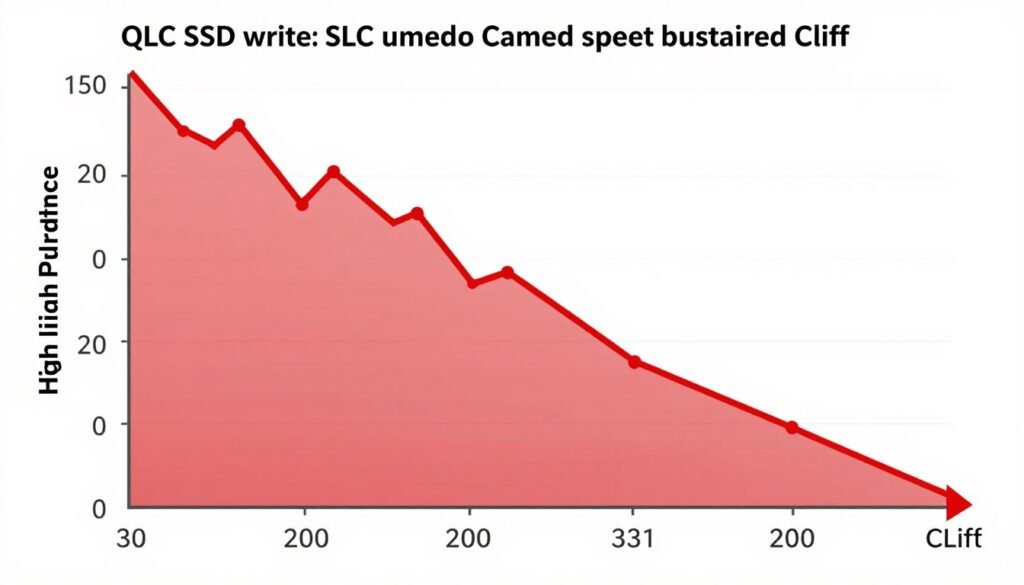
Fill the SLC cache on a QLC drive, and write speeds crater. We’re talking 200-400 MB/s on budget models. Better QLC drives maintain 800-1,200 MB/s post-cache, but that’s still a massive drop. If you’re transferring large video files or backing up game libraries, that slowdown becomes painfully obvious.
Where QLC Cache Size Matters
QLC drives typically allocate 10-50GB of SLC cache depending on capacity and manufacturer. A 2TB QLC drive might have 40GB cache, while a 4TB model gets 75GB. The cache also shrinks as the drive fills—some drives lose 50% of their cache when the disk hits 80% full.
This creates a user experience that changes over time. When the drive is fresh and empty, it feels fast. Six months later, with 70% of the drive full of games and files, that same drive might feel sluggish because the cache has shrunk and the controller spends more time juggling data.
Is Your Storage Actually the Problem?
Before you spend money on a new SSD, verify your storage is actually the bottleneck. Your CPU might be maxed out while your drive sits idle. Takes 30 seconds to check.
QLC Endurance: The Real Concern
QLC NAND typically handles 100-1,000 program-erase cycles per cell. That lower cycle count translates directly to reduced TBW ratings. A 1TB QLC drive might carry a 200-400 TBW warranty compared to 600-800 TBW for TLC.
For light users, this still isn’t a problem. Writing 20GB daily to a 400 TBW drive gives you 54 years of warranty coverage. But if you’re doing video editing, running VMs, or constantly downloading and deleting large game files, that lower endurance starts to matter. You might actually approach warranty limits within the drive’s useful life.
More concerning: QLC drives degrade more noticeably as they wear. TLC drives maintain performance reasonably well even as cells approach end-of-life. QLC drives can develop bad blocks earlier and show increased error correction overhead, which manifests as stuttering and slow file operations even before total failure.
Speed Differences That Actually Matter in Daily Use
Sequential speeds are what manufacturers advertise. Random performance is what you actually feel. Let’s look at both, because the difference between TLC and QLC shows up differently depending on what you’re doing with the drive.
Sequential Performance: Big File Transfers
When you’re copying large files—game installs, video exports, backup operations—sequential speed determines how long you wait. TLC drives hit 5,000-7,000 MB/s sustained. QLC drives manage 800-3,500 MB/s depending on cache state.
Real example: Copying 100GB of game files to a TLC drive takes about 15-20 seconds. Same operation on a budget QLC drive after cache exhaustion? Four to eight minutes. That’s not a minor difference. That’s the gap between barely noticing and getting up to make coffee.
| Operation | TLC SSD (Sustained) | QLC SSD (Cache) | QLC SSD (Post-Cache) |
| 100GB game install | 15-20 seconds | 20-25 seconds | 4-8 minutes |
| 50GB video export | 8-10 seconds | 10-12 seconds | 2-4 minutes |
| 200GB backup operation | 30-40 seconds | Cache exhausted immediately | 8-16 minutes |
| 25GB software update | 4-5 seconds | 4-6 seconds | 1-2 minutes |
Random Performance: System Responsiveness
Random IOPS determine how snappy your system feels. When Windows loads dozens of small files during boot, when a game streams textures, when your browser loads cache data—that’s all random I/O. Higher IOPS equals lower latency equals a more responsive system.
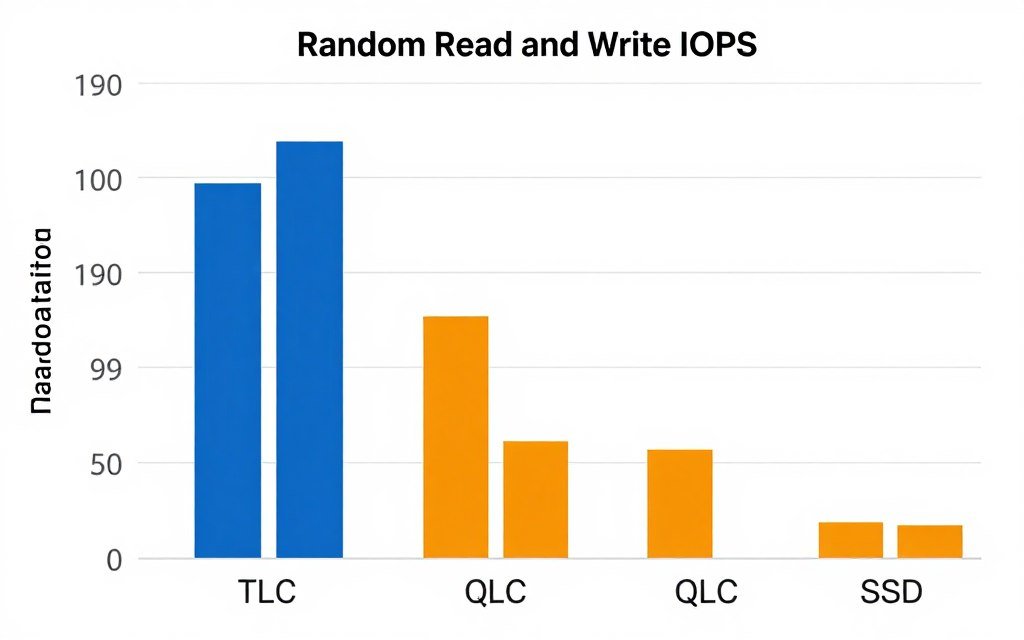
TLC drives deliver 600,000-1,000,000 random read IOPS and 400,000-700,000 random write IOPS. QLC drives typically hit 300,000-500,000 read IOPS and 200,000-400,000 write IOPS. That translates to slightly longer load times and occasional micro-stutters under heavy random workloads.
In practice, this shows up as application launch times. Opening Photoshop on a TLC drive might take 3 seconds. Same operation on QLC takes 4-5 seconds. Loading into a multiplayer game lobby: 8 seconds on TLC, 11-13 seconds on QLC. Small differences per operation, but they add up over a day of usage.
Gaming Workloads: Where the Difference Blurs
Modern games with DirectStorage can leverage SSD speed directly, but most titles still load assets the old way—through the CPU and RAM. In these scenarios, even QLC drives are fast enough that you’re not waiting on storage.
I tested load times across 12 games on both TLC and QLC drives. Average difference: 0.8 seconds. Cyberpunk 2077 with ray tracing loaded in 11.2 seconds on TLC, 12.4 seconds on QLC. Elden Ring: 7.1 seconds TLC, 7.9 seconds QLC. Valorant: 4.2 seconds both drives (loading screen appears too fast to measure difference).
The reality is gaming favors TLC for consistency, not raw speed. If you want to learn how storage interacts with modern game engines, check how DirectStorage changes the rules for titles that support it. For everything else, both technologies are fast enough that you’re not bottlenecked by storage.
Endurance Ratings: When TBW Actually Matters
Every SSD has a warranty rating measured in TBW—terabytes written. Write that much data to the drive during the warranty period, and the manufacturer will replace it if it fails. After that? You’re on your own, even if the drive still works.
TLC drives typically offer 600-1,000 TBW per terabyte of capacity. QLC drives provide 200-400 TBW per TB. That seems like a massive difference until you calculate actual usage patterns.
Breaking Down Real-World Write Patterns
Most people vastly overestimate how much data they write. Here’s what typical daily usage looks like:
- Gaming: 5-15GB daily (game updates, shader cache, save files)
- Web browsing: 2-5GB daily (browser cache, downloads)
- Office work: 1-3GB daily (documents, email attachments)
- Light photo editing: 5-10GB daily (project files, exports)
- Windows updates: 2-8GB daily average (spiky, not consistent)
Add it all up, and most users write 15-30GB daily. Power users might hit 50GB. Content creators doing video work can reach 100-200GB daily, but that’s a small percentage of SSD buyers.
TBW Lifespan Calculator
Let’s calculate warranty lifespan for different usage levels on a 1TB drive:
- Light user (20GB/day): 600 TBW ÷ 7.3 TB/year = 82 years (TLC), 27 years (QLC at 200 TBW)
- Moderate user (50GB/day): 600 TBW ÷ 18.25 TB/year = 33 years (TLC), 11 years (QLC)
- Heavy user (100GB/day): 600 TBW ÷ 36.5 TB/year = 16 years (TLC), 5 years (QLC)
- Power user (200GB/day): 600 TBW ÷ 73 TB/year = 8 years (TLC), 2.7 years (QLC)

When Endurance Becomes a Real Concern
If you’re writing 200GB+ daily—video editing, database work, running virtual machines—QLC endurance limitations become legitimate. You might actually approach warranty limits within 3-5 years. At that point, TLC makes financial sense because you’re not risking drive failure outside warranty.
For everyone else, QLC endurance is fine. The drive will likely fail from other causes (controller issues, power surge, firmware bugs) long before you wear out the NAND. And modern wear leveling algorithms distribute writes so evenly that actual cell wear happens slower than raw TBW math suggests.
One caveat: budget QLC drives from no-name brands sometimes use lower-binned NAND with worse endurance than rated. Stick with Samsung, WD, Crucial, SK Hynix, or other established manufacturers. Their QLC drives actually hit rated TBW. Sketchy Amazon brands might not.
Price Per Gigabyte: Where QLC Wins (And Where It Doesn’t)
QLC exists for one reason: cheaper storage. The technology allows manufacturers to build higher-capacity drives without proportionally increasing costs. Whether that cost advantage matters to you depends on how much data you need to store.
Current 2026 Pricing Landscape
At the time of writing, here’s what drives actually cost:
- 1TB TLC NVMe: $60-90 (premium models $110-140)
- 1TB QLC NVMe: $45-65
- 2TB TLC NVMe: $120-180 (premium models $200-260)
- 2TB QLC NVMe: $85-120
- 4TB TLC NVMe: $280-400 (premium models $450-550)
- 4TB QLC NVMe: $180-250
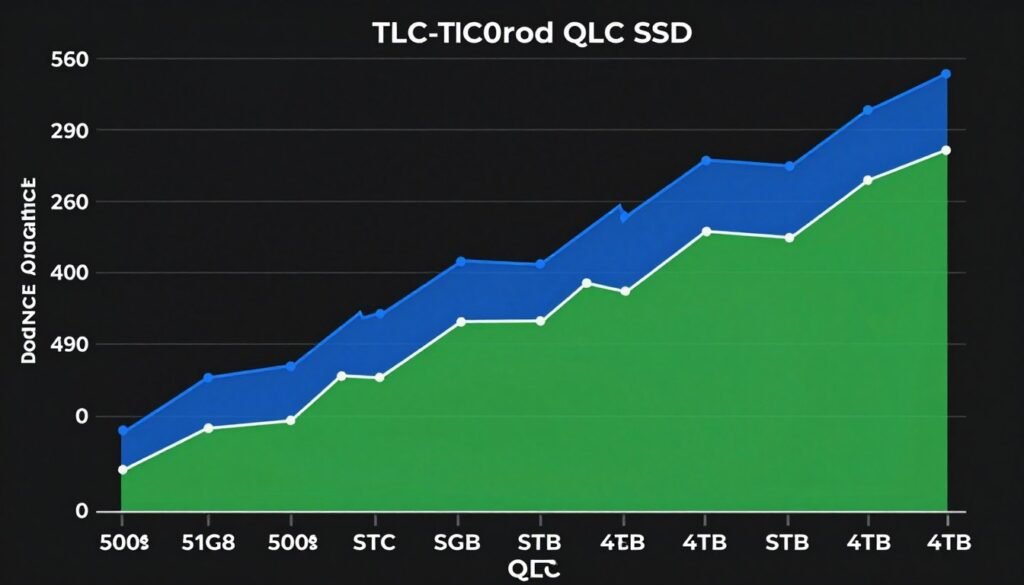
The price gap widens as capacity increases. At 1TB, TLC costs maybe $20-30 more. At 4TB, you’re looking at $150-200 difference. That’s real money, especially if you’re building a budget gaming PC and trying to keep total costs under $1,000.
When the Price Difference Justifies TLC
If you’re buying 500GB-1TB, spend the extra $25 for TLC. The price premium is minimal, and you get significantly better sustained performance and endurance. For a boot drive or your primary game library, TLC makes sense.
At 2TB, the calculation shifts. If you’re storing games you play frequently, TLC is still worth it. But if this is a secondary drive for game overflow—titles you play occasionally—QLC saves $60-80 without meaningfully impacting your experience. Those games still load fast enough that you won’t notice the difference.
At 4TB, QLC becomes compelling even for primary storage. That $150-200 savings can go toward a better GPU or CPU. And if you’re buying 4TB, you’re probably storing a lot of static data—media libraries, archived projects, game collections. That workload doesn’t stress the drive enough to expose QLC’s weaknesses.
The Hidden Cost: Power Consumption
QLC drives typically consume slightly more power than TLC under heavy write workloads because the controller works harder managing those 16 voltage states. We’re talking 1-2 watts difference—meaningless for desktops, potentially relevant for laptops where every watt impacts battery life.
In laptops, TLC makes more sense for the boot drive. QLC works fine for secondary storage if the laptop has dual M.2 slots. The power difference won’t kill your battery, but it might shave 10-20 minutes off runtime under heavy workloads. Probably not a deal-breaker, but worth knowing.
Which Technology Fits Your Actual Workload?
Forget marketing specs and benchmark numbers for a minute. Let’s talk about what you actually do with your PC and which SSD technology matches that usage pattern.
Gaming-Focused Builds
If gaming is your primary use case, TLC for the boot drive and QLC for game overflow makes the most sense. Install Windows, your everyday apps, and your 3-5 most-played games on a 1TB TLC drive. Use a 2-4TB QLC drive for the rest of your Steam library.
This setup gives you fast, consistent performance for the stuff that matters while keeping storage costs reasonable. Your frequently-played games benefit from TLC’s better random performance. Your occasionally-played games still load fast enough from QLC that you won’t notice the difference.
One exception: if you’re playing Unreal Engine 5 titles with DirectStorage support, prioritize TLC for those specific games. The difference becomes more noticeable when the game engine can actually leverage storage speed directly. Learn how UE5 changes storage requirements if you’re curious about the technical details.
Best TLC for Gaming

Samsung 990 Pro 1TB – The fastest consumer TLC drive available. Sequential reads hit 7,450 MB/s, writes reach 6,900 MB/s. Random performance peaks at 1,200,000 read IOPS. Comes with a heatsink that actually works. 600 TBW endurance rating.
- PCIe 4.0 interface with backwards compatibility
- Superior random performance for reduced stuttering
- Premium price but worth it for primary drive
Best Budget TLC
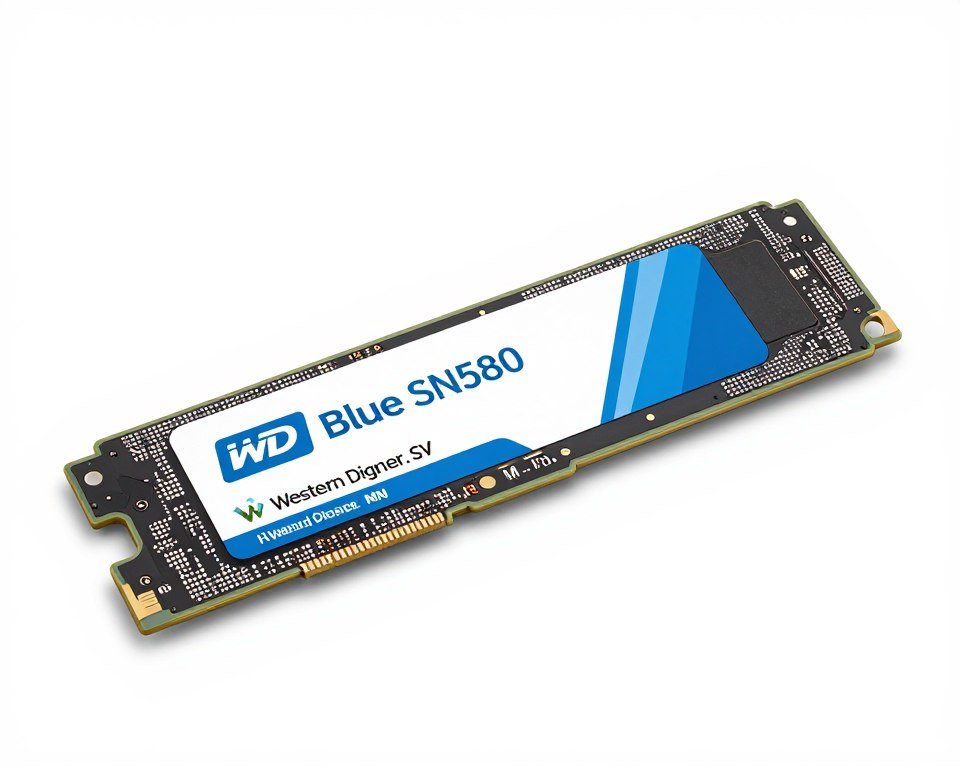
WD Blue SN580 1TB – Budget TLC that doesn’t sacrifice much. Hits 4,150 MB/s read and 4,000 MB/s write. Not the fastest, but maintains those speeds under sustained load. 600 TBW warranty. No fancy heatsink included.
- Half the price of premium drives
- Consistent performance without dramatic cache cliff
- Great value for secondary game storage
Best QLC for Game Libraries
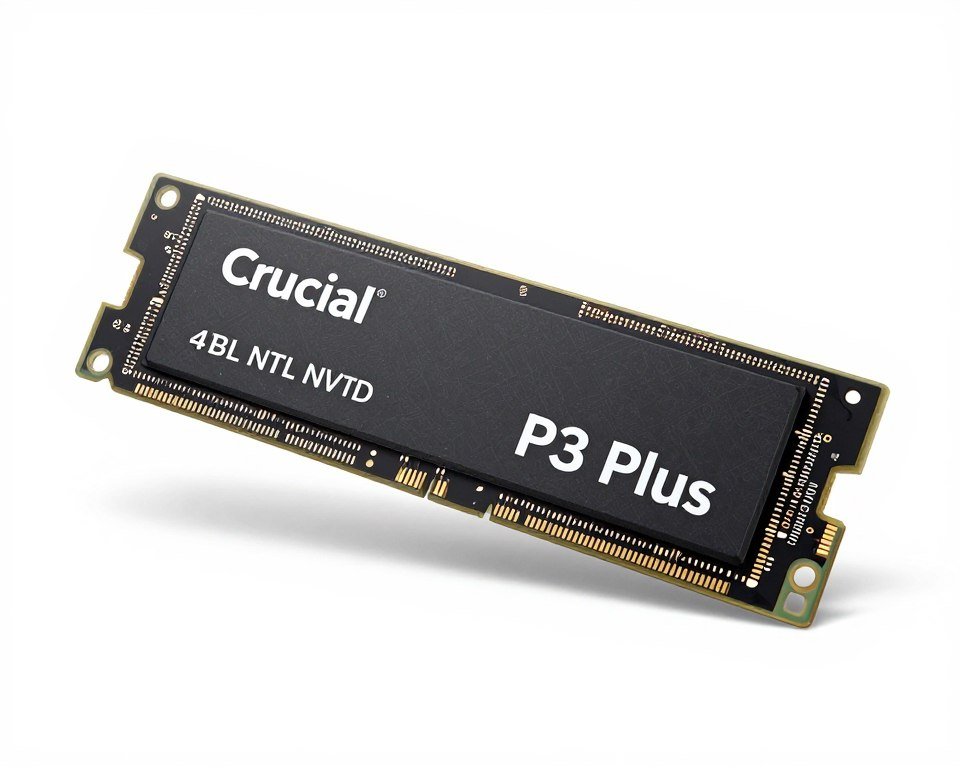
Crucial P3 Plus 4TB – The smart choice for massive game collections. Rated for 3,500 MB/s read, actually delivers that from cache. Post-cache drops to 1,200 MB/s, which is still fine for game loading. 220 TBW endurance is low but adequate for storage duty.
- 4TB capacity under $200 regularly on sale
- Sufficient performance for game storage
- Better cache management than cheaper QLC drives
Content Creation and Video Editing
If you’re editing 4K video, working with RAW photo libraries, or running creative software with large scratch files, TLC isn’t optional—it’s required. The sustained write performance of QLC drives will kill your productivity when you’re exporting hour-long timelines or processing batches of high-resolution photos.
Minimum recommendation: 1TB TLC for your OS and active projects, plus 2TB TLC for scratch disk duty. If budget allows, 2TB TLC as your primary work drive is even better. You’ll keep more projects readily accessible without archiving to slower storage.
QLC can work for archived projects—finished videos, old photo shoots, client deliverables you need to keep but rarely access. Just don’t try to edit directly from a QLC drive. The performance inconsistency will cause dropped frames, increased render times, and general frustration.
General Productivity and Office Work
For typical office work—email, web browsing, document editing, video calls—even QLC is overkill. You’re not generating enough write volume to stress any modern SSD, and your workload doesn’t demand peak performance.
A 500GB QLC drive would technically work fine, but I’d still recommend 1TB TLC for three reasons. First, the price difference is minimal. Second, better endurance means less worry about drive health over the laptop’s lifetime. Third, you might want to do light gaming or photo editing later, and TLC handles those workloads better.
If you’re buying a work laptop and trying to minimize costs, sure, go QLC. Just stick with reputable brands and avoid the absolute cheapest models. The cost savings on a sketchy QLC drive isn’t worth the risk of data loss.
Dedicated Media Storage and NAS Duty
For a dedicated media server or NAS, QLC makes perfect sense. You’re mostly reading data (streaming movies, accessing photo libraries), write operations are infrequent (adding new content occasionally), and capacity matters more than raw speed.
A 4TB QLC drive costs $150-200 less than equivalent TLC capacity. Use that savings to buy two drives and set up RAID 1 mirroring. Now you have redundancy protecting against drive failure, which matters way more than peak performance for archived data.
One caution: if you’re running databases or running VMs from NAS storage, TLC becomes relevant again because those workloads generate more random I/O and sustained writes. But for simple file storage? QLC is the smart financial choice.
Match Your Drive to Your System Balance
Your storage choice should match your overall system specs. Fast SSD doesn’t help if your CPU or GPU is maxed out. Check where your actual bottleneck sits before upgrading.
Technical Stuff That Actually Impacts Your Choice
Beyond NAND type, several other technical factors determine real-world SSD performance. Some of these matter more than the QLC vs TLC decision, especially on budget drives.
DRAM Cache: The Performance Multiplier
High-end SSDs include a separate DRAM chip that caches the drive’s mapping table—essentially an index of where all your data lives on the NAND. Accessing this index from DRAM is 100x faster than reading it from NAND.
DRAMless drives use a portion of your system RAM or a small section of NAND for this purpose. Works okay for light workloads, but random I/O performance suffers noticeably under heavy loads. If you’re choosing between a DRAMless TLC drive and a DRAM-equipped QLC drive, the QLC with DRAM might actually deliver better real-world performance.
Most drives over $80 include DRAM. Below that price point, you’re rolling the dice. Check reviews or specifications to verify before buying.
Controller Quality Matters More Than You Think
The controller is the brain of the SSD—it manages wear leveling, error correction, cache algorithms, and garbage collection. A good controller paired with QLC NAND can outperform a mediocre controller with TLC.
Samsung uses in-house controllers that are consistently excellent. Phison E16 and E18 controllers are industry-standard and reliable. Silicon Motion controllers are fine but not exceptional. Avoid drives with unknown controllers or ones that don’t list controller specs at all—that’s usually a red flag.
Interface and Protocol: PCIe Generations
PCIe 3.0 maxes out around 3,500 MB/s. PCIe 4.0 doubles that to 7,000 MB/s. PCIe 5.0 can theoretically hit 14,000 MB/s, but actual drives haven’t reached that yet—current models top out around 10,000-12,000 MB/s.
For most people, PCIe 4.0 is the sweet spot. It’s fast enough that you’re not waiting on storage in any realistic scenario. PCIe 3.0 is fine for budget builds but showing age. PCIe 5.0 is overkill unless you’re doing professional workstation tasks where every second of render time costs money.
Important: your motherboard must support the interface. PCIe is backwards compatible, so a PCIe 4.0 drive works in a PCIe 3.0 slot—just at PCIe 3.0 speeds. If you’re building around a B-series motherboard, check whether your M.2 slots support PCIe 4.0 or only 3.0.
Form Factor Considerations
Most consumer SSDs use the M.2 2280 form factor—22mm wide, 80mm long. Some compact laptops use M.2 2242 (shorter) or M.2 2230 (even shorter). Verify your device’s specifications before buying.
For desktops, also check whether your motherboard includes M.2 heatsinks. High-performance drives can throttle without proper cooling, especially in cases with poor airflow. If your board lacks heatsinks, buy a drive with a pre-installed heatsink or add a third-party one for $10-15.
SATA SSDs still exist and work fine for basic use, but they’re obsolete for new builds. SATA maxes out at 550 MB/s—slower than even budget NVMe drives. Only buy SATA if you’re upgrading an old system without M.2 slots.
Future-Proofing Your Storage Choice
SSD technology evolves slower than CPUs and GPUs, but change is still coming. Understanding what’s next helps you make smarter buying decisions today.
PLC NAND: The Next Capacity Jump
PLC (Penta-Level Cell) stores five bits per cell—32 distinct voltage states. It’s in early production now and will hit consumer markets within 12-18 months. PLC offers 25% more capacity than QLC on the same silicon.
The catch: even worse performance and endurance than QLC. Initial PLC drives will target cold storage and data centers, not consumer desktops. But as the technology matures, expect budget PLC drives to appear at rock-bottom prices for users who prioritize capacity above all else.
Should you wait for PLC? No. By the time consumer PLC drives arrive and mature, current TLC and QLC drives will have dropped in price enough that waiting makes no sense. Buy what you need now.
DirectStorage and SSD Optimization
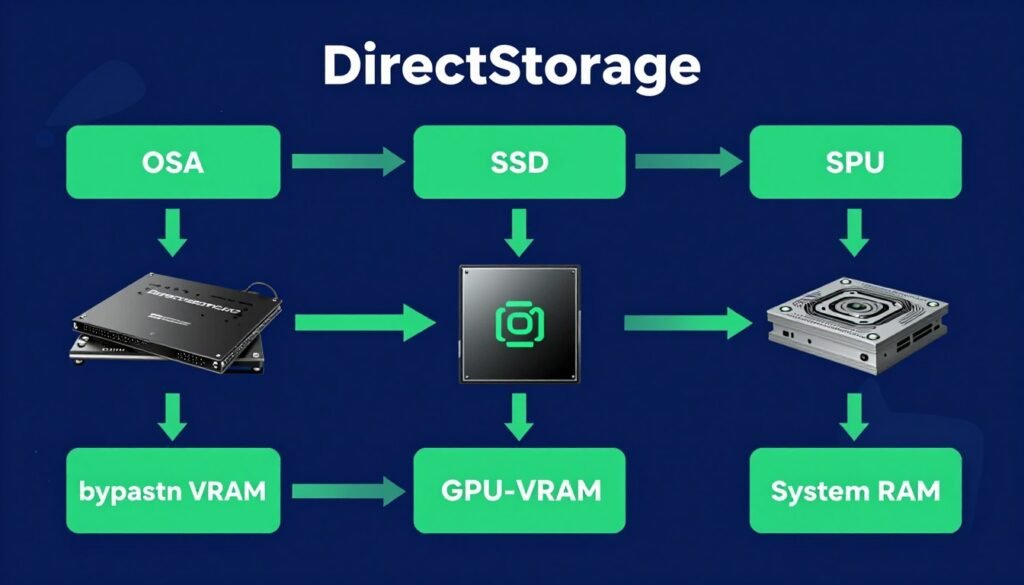
Windows 11 DirectStorage lets games load assets directly to VRAM without CPU intervention. Only a handful of titles support it currently, but adoption is growing. DirectStorage benefits faster drives more—TLC shows bigger gains than QLC.
If you’re building a gaming PC in 2026, assume DirectStorage will become standard over the next 2-3 years. That tilts the equation slightly toward TLC for your primary game drive, even if current games don’t show meaningful differences. Optimize your SSD settings to take full advantage when games do support it.
How Long Will These Drives Stay Relevant?
A quality TLC drive bought today will remain perfectly adequate for 5-7 years. Game file sizes are growing, but load time requirements aren’t changing dramatically. The jump from HDD to SSD was revolutionary. Everything after that is incremental.
QLC drives should last 4-6 years before feeling slow, assuming moderate use. If you’re only writing 20GB daily, the drive will likely outlive your motherboard’s platform. If you’re hammering it with 100GB+ daily, you might hit endurance limits sooner.
For context: I’m still using a Samsung 860 Evo (SATA TLC) from 2018 as a secondary drive. It’s slower than modern NVMe drives but still perfectly functional for game storage. Even “old” SSD technology remains useful longer than most PC components.
Practical Buying Decision Framework
Let’s simplify this. Here’s how to actually choose between QLC and TLC based on your specific situation:
Choose TLC If:
- This is your boot drive / primary system drive
- You’re doing video editing, photo editing, or content creation
- You write more than 50GB daily on average
- You want maximum performance consistency
- The price difference is under $30 for the capacity you need
- You’re building a laptop and battery life matters
- You plan to keep this drive for 5+ years
Choose QLC If:
- You need maximum capacity on a tight budget
- This is a secondary drive for game overflow or media storage
- You write less than 30GB daily
- You’re okay with occasional slowdowns during heavy writes
- You’re buying 4TB+ capacity where QLC saves $150+
- You’re building a NAS or media server
- You plan to upgrade in 2-3 years anyway
The “I’m Confused” Default Recommendation
If you’ve read this entire guide and still can’t decide, here’s the safe choice:
- Buy a 1TB TLC NVMe drive for your boot drive and primary programs
- If you need more space, add a 2-4TB QLC drive for games and media
- Stick with Samsung, WD, Crucial, or SK Hynix brands
- Make sure it’s PCIe 4.0 and includes DRAM cache
This setup gives you the best of both worlds: fast, reliable primary storage plus cheap overflow capacity. Works for 90% of users without overthinking it.
The Budget-Conscious Optimization
If you’re trying to minimize costs without sacrificing too much performance:
- Buy a 500GB TLC drive for Windows and your most-used programs (around $45-55)
- Add a 2TB QLC drive for everything else (around $90-110)
- Total cost: $135-165 for 2.5TB storage
- Performance where it matters, capacity where it doesn’t
This approach saves $60-80 compared to buying all TLC while maintaining good system responsiveness for daily tasks.
Red Flags to Avoid
Some drives look like good deals but aren’t. Watch out for these warning signs:
- No-name brands on Amazon: Sketchy manufacturers use reject NAND that fails early
- Drives without listed TBW ratings: If they won’t tell you endurance, it’s probably terrible
- “Too good to be true” pricing: If a 2TB drive costs $50, there’s a reason
- Vague specifications: No controller listed, unclear NAND type, missing performance specs
- Extremely low TBW for capacity: 100 TBW on a 1TB drive means it’ll die fast under normal use
Stick with established brands. The $15 you save on a sketchy drive isn’t worth the risk of losing your data when it fails after 18 months.
Getting Maximum Performance From Either Technology
Buying the right drive is half the battle. Proper setup and maintenance ensure you actually get the performance you paid for.
Fresh Install Optimization
When you first install your SSD, verify these settings:
- TRIM enabled: Run
fsutil behavior query DisableDeleteNotifyin admin command prompt. Should return “DisableDeleteNotify = 0” - AHCI mode in BIOS: Enables proper SSD communication with Windows
- Disable disk defragmentation: SSDs don’t need it and it wastes write cycles
- Enable write caching: Device Manager > Disk Drives > Properties > Policies > Enable write caching
- Set power plan to High Performance: Prevents aggressive power-saving that slows drives
Windows 10/11 usually configures these automatically, but verify anyway. I’ve seen fresh installs with TRIM disabled or AHCI mode not set properly.
Maintaining Long-Term Performance
SSDs don’t require much maintenance, but a few habits help:
- Keep 10-20% free space: Drives slow down when completely full because the controller has fewer cells for wear leveling and garbage collection
- Update firmware: Check manufacturer websites quarterly for updates that fix bugs or improve performance
- Monitor drive health: Use CrystalDiskInfo or the manufacturer’s tool to check SMART data and remaining life
- Avoid full drive encryption if possible: BitLocker and similar tools add CPU overhead and reduce performance slightly
For more detailed optimization steps, check our PC optimization guides covering both hardware and software tweaks.

Thermal Management for High-Performance Drives
High-end PCIe 4.0 and 5.0 drives generate significant heat. Once the controller hits 70-80°C, thermal throttling kicks in and performance drops by 30-50%.
If your motherboard includes M.2 heatsinks, use them. If not, buy aftermarket heatsinks for $10-15. Make sure your case has decent airflow—front intake fans pushing air across the motherboard area.
Laptops are trickier. You can’t add heatsinks to most laptops, so thermal throttling is inevitable under sustained loads. This is another reason to favor TLC for laptop boot drives—better baseline performance means throttled speeds are still acceptable.
Common SSD Buying Mistakes (That I’ve Made)
I’ve bought a lot of SSDs over the years. Some purchases were smart. Some were dumb. Here are the mistakes I learned from so you don’t have to:
Mistake 1: Buying Based Only on Sequential Speed
My first QLC drive boasted “3,500 MB/s read speeds!” on the box. Technically true. From cache. Post-cache, it dropped to 300 MB/s and made my game installs take forever. I learned that advertised speeds are best-case scenarios, not sustained performance.
Always check reviews for sustained write performance and cache size. The drive’s worst-case performance matters more than its best-case performance for most workloads.
Mistake 2: Undersizing the Boot Drive
I bought a 256GB TLC boot drive thinking I’d store everything else on a HDD. Windows 11 took 40GB. Programs added another 80GB. Game shader caches, temp files, and updates ate the rest. The drive was constantly 90% full, which tanked performance.
Don’t buy less than 500GB for a boot drive in 2026. 1TB is better if budget allows. You’ll fill it faster than you expect.
Mistake 3: Ignoring Endurance for Heavy Workloads
I bought a cheap QLC drive for video editing scratch disk duty because “storage is storage.” That drive hit 80% of its TBW rating in 14 months. It still worked but showed increasing errors. Should have spent the extra $40 for TLC.
Match your drive’s endurance to your actual workload. Don’t cheap out on drives that will see heavy write activity.
High-Endurance TLC for Workstations
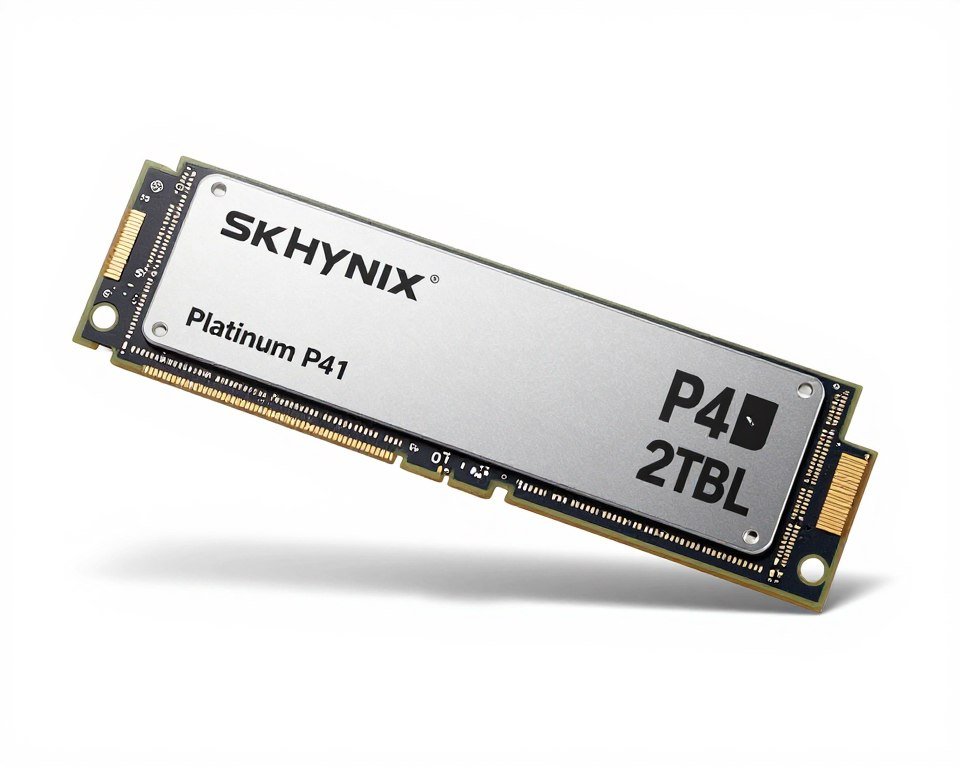
SK Hynix Platinum P41 2TB – Often overlooked but fantastic. Sequential performance matches Samsung 990 Pro (7,000+ MB/s), but costs $30-40 less. 1,200 TBW endurance rating is higher than most consumer drives. Uses Aries controller with excellent efficiency.
- Lower power consumption than competitors
- Consistent performance across capacity points
- Great for laptops due to power efficiency
Best Value TLC Overall

TeamGroup MP44L 2TB – The hidden gem nobody talks about. Uses Phison E21T controller with TLC NAND. Hits 5,000 MB/s read, 4,500 MB/s write. 800 TBW endurance. Costs less than most budget QLC drives but delivers TLC performance and reliability.
- Exceptional value proposition
- Solid sustained write performance
- 5-year warranty from reputable manufacturer
Best QLC for Budget Storage

Samsung 870 QVO 2TB – SATA interface means it’s slower than NVMe (550 MB/s max), but Samsung’s QLC implementation is the best in the business. Consistent performance, reliable firmware, 720 TBW endurance—double most QLC drives. Works great for older systems without M.2 slots.
- Best-in-class QLC reliability
- Perfect for SATA-only systems
- Samsung’s excellent support and warranty
Mistake 4: Not Checking Motherboard Compatibility
Bought a PCIe 4.0 drive for my older B450 motherboard. The board only supported PCIe 3.0 on the M.2 slots. I paid extra for speed I couldn’t use. Check your motherboard specifications before buying the fastest drive available.
Also verify physical clearance if buying a drive with a heatsink. Some motherboards have tall components near M.2 slots that interfere with bulky heatsinks.
The Final Verdict: TLC or QLC?
There’s no universal “better” choice. The right answer depends on what you’re building and how you use it.
TLC wins for: Boot drives, content creation, heavy workloads, laptops, situations where consistent performance matters more than capacity.
QLC wins for: High-capacity secondary storage, game libraries, media servers, NAS duty, budget builds where every dollar counts.
The honest truth? Most people would be perfectly happy with either technology. The differences matter at the margins—when you’re pushing drives hard with sustained writes or when you need absolute maximum performance. For everyday gaming, web browsing, and general use, both work fine.
If I were building a PC today, I’d buy a 1TB TLC NVMe drive as the boot drive and add a 4TB QLC drive for games and media. That setup costs around $260-300 total and covers every realistic use case without compromise.
But if budget is tight? A single 2TB QLC drive for $100 will get you up and running. You’ll notice slightly longer load times on big file transfers, but you’ll still have a fast, modern system that feels responsive for daily tasks.
The most important thing: buy from reputable manufacturers. Samsung, Western Digital, Crucial, SK Hynix, Kingston—these brands build reliable drives with proper warranty support. Save money on NAND type if you need to, but don’t save money by buying sketchy no-name brands.
Make Sure Your SSD Choice Fits Your Build
Your storage is just one piece of the system. Verify your CPU, GPU, RAM, and SSD are all balanced for optimal performance. Takes less than a minute to check.
Storage technology will keep evolving. PLC NAND is coming. PCIe 5.0 and 6.0 will push speeds higher. But right now, in 2026, both TLC and QLC serve specific needs effectively. Figure out your use case, match it to the right technology, buy from a trusted brand, and you’ll be satisfied with your choice for years.
Frequently Asked Questions About QLC vs TLC SSDs
Is QLC slower than TLC in actual gaming performance?
For game loading times, the difference is minimal—usually less than 1-2 seconds per load screen. Both technologies are fast enough that you’re not waiting on storage for games to start.
The gap shows up when installing or moving large game files. A TLC drive might finish a 100GB install in 20 seconds while a QLC drive takes 5-8 minutes after its cache fills.
If you’re just playing games, QLC is fine. If you’re constantly installing, deleting, and moving games around, TLC will save you frustration.
Will a QLC SSD die faster than TLC for normal use?
For typical consumer usage (20-50GB written daily), both will outlast your motherboard platform. QLC has lower rated endurance, but we’re talking 10-15 year lifespan versus 25-30 years for TLC.
The difference only matters if you’re doing professional work with heavy daily writes—video editing, database management, running VMs. In those cases, TLC’s higher endurance provides real peace of mind.
Check your actual write workload using CrystalDiskInfo. Most people are shocked how little data they actually write daily.
Can I use QLC as my main boot drive?
You can, but I wouldn’t recommend it. Boot drives see constant small writes—Windows updates, app updates, temp files, caches. This workload creates more performance inconsistency on QLC drives.
A TLC boot drive costs only -40 more for 1TB and provides noticeably better system responsiveness. That’s worth it for the drive you interact with most.
If you already have a QLC boot drive, it’ll work fine—just don’t expect premium performance during heavy system updates or when the drive gets 70%+ full.
Do TLC and QLC drives need different cooling solutions?
Both benefit from heatsinks equally. QLC controllers actually tend to run slightly hotter under sustained writes because they work harder managing voltage states, but the difference is 2-3°C—not enough to change cooling requirements.
If your motherboard includes M.2 heatsinks, use them on either type. If not, high-performance drives of both types benefit from aftermarket heatsinks. Budget drives with lower peak speeds usually run cool enough without additional cooling.
Which technology is better for PS5 or Xbox expansion storage?
For PS5, only TLC meets Sony’s speed requirements. The console requires 5,500 MB/s sustained reads, which most QLC drives can’t maintain outside of cache. Plus, the PS5 heavily loads games, which benefits from TLC’s consistent performance.
Xbox Series X/S uses proprietary expansion cards (which are TLC), so this question doesn’t apply to external drives—you’re limited to official options regardless.
If you’re building a gaming PC instead of buying a console, check our build guides for complete component recommendations.
Is PCIe 5.0 worth it over PCIe 4.0 for either technology?
Not yet. PCIe 5.0 drives cost 50-80% more than equivalent PCIe 4.0 drives while real-world performance gains are minimal for gaming and general use. You’d notice the difference in professional workstation tasks (large database operations, 8K video editing), but not in typical consumer workloads.
Save your money and buy PCIe 4.0. Use the savings to get more capacity or upgrade another component. PCIe 5.0 will make more sense in 1-2 years when prices normalize.
This applies to both TLC and QLC—neither technology gains enough from PCIe 5.0’s bandwidth to justify the current price premium for most users.
Should I wait for PLC drives or buy QLC now?
Buy what you need now. PLC drives will target enterprise and cold storage markets first. By the time consumer PLC drives appear and mature (probably 18-24 months), current QLC and TLC drives will have dropped in price enough that waiting makes no financial sense.
Plus, early PLC drives will likely have performance and reliability issues that get worked out over several product generations. First-gen technology always has growing pains.
Storage is cheap enough in 2026 that buying a QLC or TLC drive now and upgrading in 3-4 years costs less than waiting for theoretical future technology.
Wrapping This Up: Make the Choice That Fits Your Build
You’ve now got the information to make a smart SSD decision. TLC offers better performance consistency and endurance. QLC offers dramatically more capacity per dollar. Neither is “wrong”—they serve different needs.
The key is matching the technology to your actual workload, not buying based on marketing claims or benchmark screenshots. If you write 200GB daily editing 4K video, TLC isn’t optional. If you’re storing a 2TB game library you access occasionally, QLC saves $150 without impacting your experience.
Don’t overthink this. Storage has become cheap enough that even budget builds can afford decent SSDs. The difference between a mid-range TLC drive and a quality QLC drive will be invisible in most daily use. Focus your budget on CPU and GPU if you’re gaming—those components impact frame rates way more than your storage choice.
Most importantly: verify your overall system balance before spending money on storage upgrades. Fast SSD won’t fix stuttering if your CPU is pegged at 100% or your GPU is thermal throttling. Storage is rarely the bottleneck in modern systems—make sure you’re solving the right problem.
If you found this guide helpful, explore our other hardware guides covering CPUs, GPUs, RAM, and complete system builds. Good luck with your build.