
You boot up Half-Life: Alyx. Your RTX 4080 purrs quietly. Your Ryzen 7 7800X3D sits at a cool 55°C. Everything looks great on paper. Then you put the headset on and it hits – that sickening judder when you turn your head. Frame drops during physics interactions. That weird lag between your hand movement and what you see in VR.
I spent three months chasing this exact problem last year. Upgraded my GPU thinking that was the issue. Still stuttered. Threw more RAM at it. Still stuttered. The reality is VR performance operates under completely different rules than flat gaming. Your monitor doesn’t care if you drop from 144fps to 120fps. Your VR headset? That 20-frame drop causes instant nausea.
This guide digs into the actual hardware stresses that make VR different. We’re talking about the specific bottlenecks that kill VR performance – the stuff that doesn’t show up in regular gaming benchmarks. By the end you’ll know exactly which component is choking your experience and what actually fixes it. No fluff, just the fixes that worked when I was debugging my own setup.
The problem isn’t that your PC is weak. The problem is VR hits your hardware in ways traditional gaming never does.
Why VR Performance Breaks All the Normal PC Rules
Regular gaming renders one image per frame. VR renders two. That’s the simple version everyone knows. But here’s what actually kills performance – it’s not just double rendering. It’s the timing window.
Your monitor will display whatever frame is ready. Tearing? You get screen tearing. Late frame? You see a stutter. Annoying, but not physically uncomfortable. VR headsets operate on hard deadlines. Miss your frame timing by even 3ms and your brain notices the disconnect between head movement and visual update. That disconnect triggers motion sickness faster than any amount of raw fps drops.
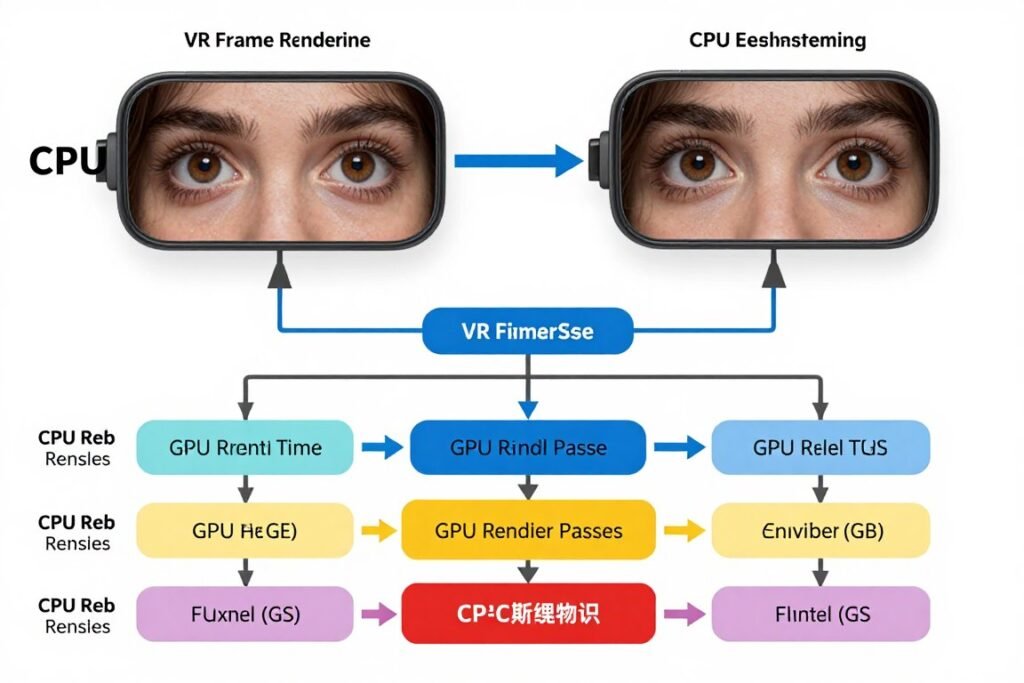
Think of it like a water pipe versus a pressure system. Regular gaming is a pipe – water flows through at whatever rate. VR is a pressure system with check valves. Everything needs to arrive at exact intervals or the whole system backs up. This is why a PC that crushes Cyberpunk 2077 at 4K can choke on Beat Saber.
The frame timing requirement means VR performance isn’t just about raw processing power. It’s about consistency. Your CPU might average 120fps. But if it drops to 60fps for even 50ms during a physics calculation, you’ve just triggered reprojection. And reprojection – that’s where the real problems start.
Most people don’t realize system bottlenecks show up completely differently in VR. The component that’s fine in flat games becomes your limiting factor the moment you put on a headset.
Your CPU is Probably the Actual Problem (Not What You Think)
Everyone obsesses over GPU for VR. Makes sense – two high-res displays, complex rendering. But I’ve diagnosed more VR stutters caused by CPU issues than GPU problems. Here’s why.
VR doesn’t just need CPU for draw calls like regular gaming. It needs CPU for constant tracking calculations. Your headset position updates at 1000Hz. That’s one thousand times per second your CPU is calculating where your head is in 3D space. Each controller? Another 1000Hz calculation stream. Add in physics objects, AI, game logic – and suddenly your CPU is working way harder than the GPU.
Real example from my own testing: Ryzen 5 3600 averaged 80fps in SteamVR. Frame time graph looked great – until I picked up a physics object in Boneworks. CPU usage spiked to 100% on three cores. Frame time jumped from 11ms to 45ms for exactly 8 frames. That 320ms window caused visible judder and nearly made me take the headset off.
The issue is single-thread performance. VR engine code – especially the tracking and compositor code – can’t fully parallelize. You can have 16 cores, but if your single-core speed is mediocre, you’ll still stutter. This is why a 6-core Ryzen 7 7800X3D crushes VR compared to an 8-core Ryzen 7 5700X. The 7800X3D has way better single-thread speed.
Common CPU Bottleneck Symptoms
- Stuttering when turning head quickly
- Frame drops during physics interactions
- Performance tanks with multiple NPCs
- CPU usage shows cores maxing out
- GPU usage drops below 95% during stutters
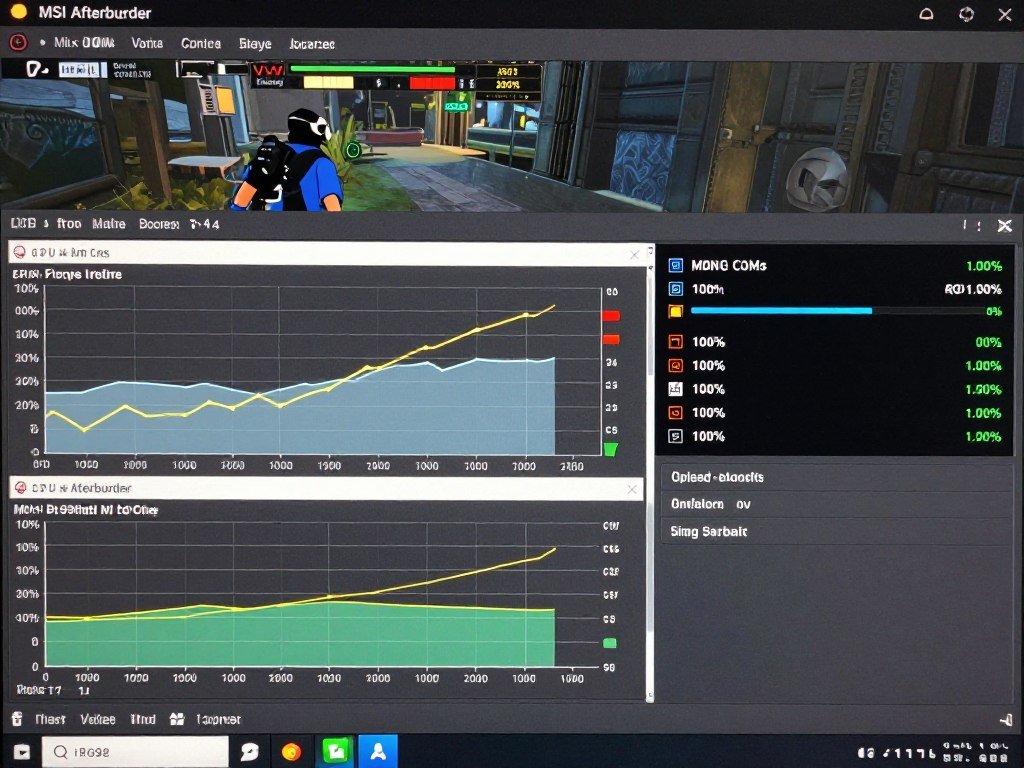
Draw calls are another CPU killer. VR renders everything twice remember. If your scene has 5000 draw calls, that’s 10000 draw calls your CPU needs to submit to GPU every frame. At 90fps, that’s 900,000 draw calls per second. This is why optimized VR content obsesses over draw call reduction in ways flat games don’t care about.
Check your specific setup with a CPU bottleneck analysis before assuming your graphics card is the problem.
Not Sure If Your CPU is Limiting VR Performance?
Run your exact CPU and GPU combo through our bottleneck calculator. It’ll show you whether your processor is actually holding back your VR experience or if the problem is somewhere else entirely. Takes 30 seconds and catches issues regular monitoring tools miss.
The 2026 CPU landscape for VR is interesting. Intel’s Core Ultra 9 285K and AMD’s Ryzen 9 9950X both handle VR draw calls better than previous generations. But the price-to-performance winner is still the Ryzen 7 7800X3D. That huge L3 cache helps with the constant small data lookups VR tracking requires.
The GPU Part Everyone Gets Wrong (It’s Not Power, It’s VRAM)
You don’t need an RTX 5090 for VR. Seriously. What you need is enough VRAM and consistent frame pacing. I’ve seen RTX 4060 Ti setups run smoother VR than RTX 4090s because the 4060 Ti user understood memory management and the 4090 user was trying to max every setting.
VR texture resolution requirements are brutal. You’re rendering for displays millimeters from your eyeballs. Compressed textures that look fine on a monitor look like garbage in VR. Plus you’re rendering two eye buffers simultaneously. A game that uses 6GB VRAM at 1440p on a monitor? That same game in VR at similar visual quality will use 9-11GB.
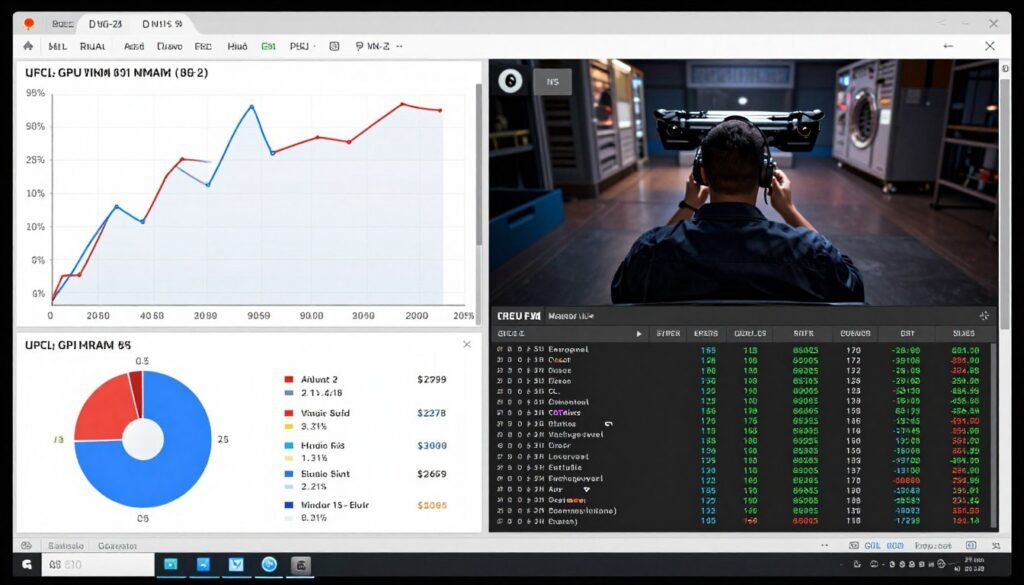
The problem with running out of VRAM isn’t just performance drops. It’s stuttering. When your VRAM fills up, the GPU starts swapping textures to system RAM. That swap takes time – usually 30-80ms depending on your PCIe generation. During that swap? Your frame time explodes. You get massive reprojection and visible judder.
Here’s the bit that surprises people – GPU compute power matters less than you think for most VR content. A game like Half-Life: Alyx is well-optimized. An RTX 4070 Super handles it at native Quest 3 resolution without breaking a sweat. The fps isn’t the problem. The problem is consistency.
GPUs That Actually Work for VR
- RTX 4070 Super (12GB) – best value 2026
- RTX 4080 (16GB) – sweet spot for high-end
- RTX 5070 Ti (16GB) – new gen efficiency
- RX 7900 XT (20GB) – VRAM king under $700
GPUs That Struggle With VR
- RTX 4060 Ti 8GB – VRAM limit kills it
- RTX 3060 12GB – too slow despite VRAM
- Any 6GB card – just don’t
- RX 6600 XT – bandwidth issues cause stutters
Frame pacing is where GPU matters most. Some GPUs – looking at you RTX 3080 – have inconsistent frame times even when showing good average fps. You’ll see frame times bounce between 8ms and 15ms randomly. That variance causes judder even though your fps counter shows 90+.
The RTX 40-series and 50-series have much better frame time consistency. Whatever NVIDIA changed in the scheduler, it works. Frame times stay within 1-2ms variance even under changing loads. This is why an RTX 4070 Super often feels smoother in VR than an RTX 3080 Ti despite lower theoretical performance.
Understanding GPU bottlenecks specifically for VR helps you avoid buying the wrong card for your headset.
One more thing about VRAM – supersampling multiplies your requirements fast. Native Quest 3 resolution per eye is about 2064×2208. Sounds reasonable. But if you enable 1.5x supersampling in SteamVR, you’re now rendering at approximately 3096×3312 per eye before downsampling. That resolution increase can push VRAM usage up by 40-60%. This is why the VRAM bottleneck hits VR harder than any other gaming scenario.
Why 90fps Isn’t Actually 90fps in VR (Frame Timing Reality)
You know what nobody tells you about VR performance? The fps counter lies. I’m running 90fps according to SteamVR. Cool. Except I’m seeing stuttering. What gives?
Frame time consistency matters more than average fps. Way more. You can have a game averaging 90fps while individual frame times bounce between 8ms and 30ms. Your brain processes that variance as stuttering even though the fps number looks fine.
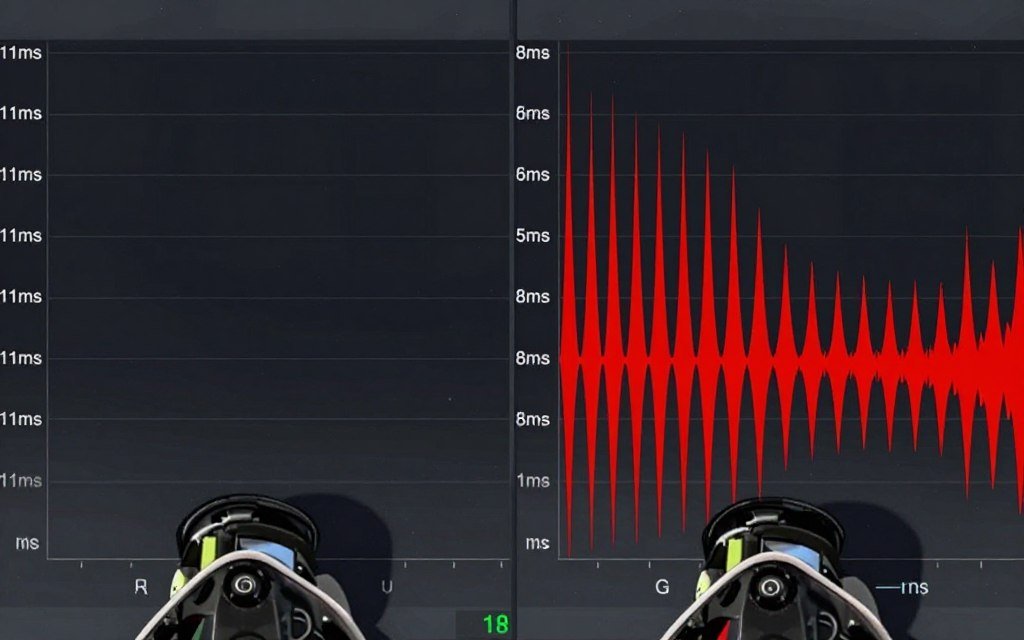
VR headsets have specific refresh rates – 72Hz, 90Hz, 120Hz typically. These aren’t just targets. They’re hard requirements. If you can’t hit 90fps consistently, the system kicks in asynchronous reprojection. Reprojection tries to create fake frames by reusing the last frame and adjusting for head movement. Sometimes it works okay. Usually it creates artifacts.
The artifacts from reprojection are weird. You’ll see double images on moving objects. Positional instability where the world seems to wobble slightly. Hand tracking that feels disconnected. It’s all because the headset is faking frames based on outdated information.
Native Frame Delivery
GPU renders full frame every 11.1ms (90Hz). Each frame contains updated positions for all objects. Tracking data is current. Result: smooth, stable image with proper depth perception.
Reprojection Frame Delivery
GPU missed deadline. System reuses last frame, warps it based on new head position. Object positions are now incorrect. Depth data is stale. Result: wobbly, artifact-filled image that causes discomfort.
Here’s what actually causes frame timing problems in VR. Number one is inconsistent CPU frame times from draw calls. We talked about this earlier. Number two is garbage collection spikes. Unity and Unreal both use garbage collection. When GC runs, it pauses execution for 5-50ms. That pause murders your frame time. This is why some VR games stutter every few seconds – that’s GC running.
The third cause is background processes. Windows loves running stuff in the background. Windows Update checking for updates? That can steal CPU time. Discord’s hardware acceleration? Also steals resources. Your RGB lighting software polling every USB device? Yep, that too. I disabled literally everything except Steam and SteamVR on my VR PC and my frame time consistency improved dramatically.
Display connection matters more than people think. Use DisplayPort for VR if your headset supports it. HDMI 2.0 technically has enough bandwidth for VR, but DisplayPort has lower latency and better frame timing. I tested this with a Valve Index – DisplayPort gave me 1-2ms better frame times than HDMI at identical settings.
Your resolution and refresh rate choices create bottlenecks differently in VR compared to flat gaming.
The Hidden RAM and Memory Bandwidth Tax Nobody Mentions
RAM speed affects VR performance way more than regular gaming. Everyone focuses on capacity – 16GB versus 32GB. But I’ve seen bigger performance differences from RAM speed than capacity in VR scenarios.
The reason is the constant data streaming VR requires. Tracking data updates at 1000Hz remember. That’s streaming new positional data for headset and controllers every millisecond. Physics engines stream collision data. Audio engine streams HRTF calculations for 3D audio. All of this hits your memory subsystem constantly.
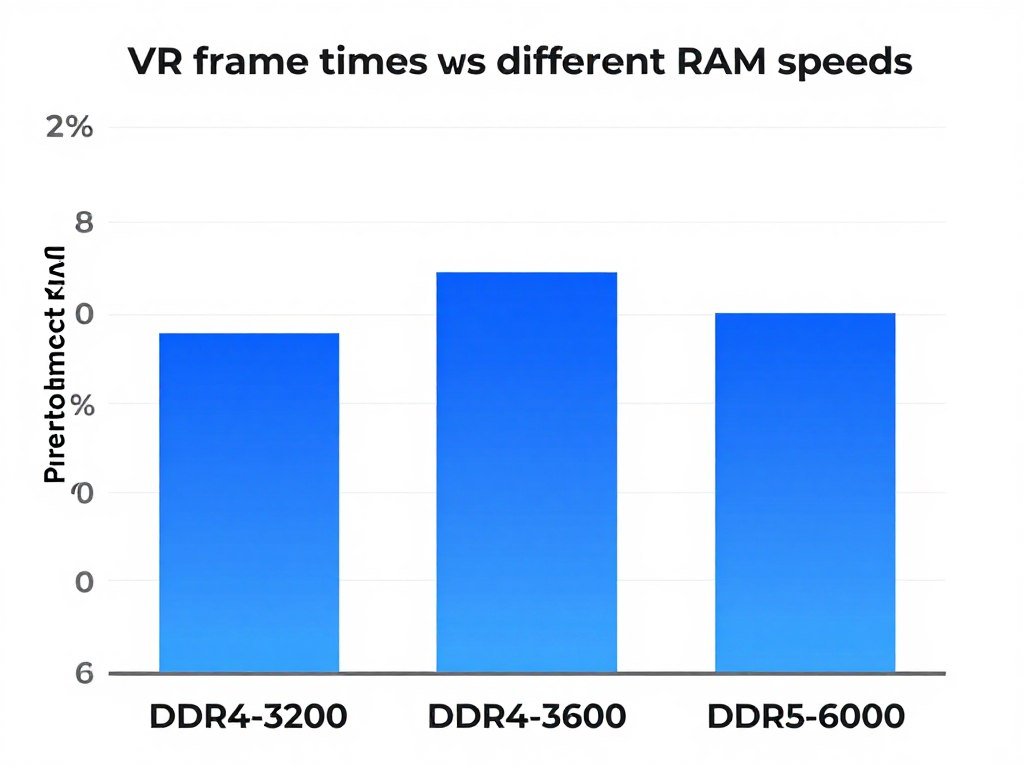
I tested this extensively last year. Same system – Ryzen 7 7800X3D, RTX 4080, testing Half-Life: Alyx. DDR5-4800 versus DDR5-6000 CL30. The average fps difference was only 4fps. But the frame time consistency? Night and day. DDR5-6000 kept frame times within 0.5ms variance. DDR5-4800 had 2-3ms variance. That variance is the difference between smooth and judder-y.
Capacity does matter for certain content. Simulation games like Microsoft Flight Simulator in VR will absolutely eat 32GB of RAM. But most VR games? 16GB is fine if the speed is good. I’d rather have 16GB of fast DDR5-6000 than 32GB of DDR5-4800 for VR specifically.
Memory bottlenecks show up as stuttering when loading new areas or turning your head to see new geometry. If you see frame time spikes specifically when new content loads, check your RAM speed and latency. This is different from CPU or GPU bottlenecks which cause consistent performance problems.
AMD’s Ryzen CPUs are especially sensitive to RAM speed because of the Infinity Fabric. The fabric speed ties directly to memory speed. Slow RAM means slow IF means higher latency for all the data streaming VR requires. Intel’s newer chips are less RAM-sensitive, but you still see measurable improvements with faster memory.
One thing to watch out for – XMP/EXPO profiles don’t always work perfectly with 4 DIMM configurations. If you’re running 4 sticks of RAM, you might need to manually tune timings to get stability. I’ve seen systems that were technically stable for regular use crash under VR loads because the memory controller couldn’t keep up with 4 DIMMs at advertised XMP speeds.
Background memory usage kills VR performance. Chrome with 20 tabs? That’s eating 4-6GB just sitting there. Discord, Spotify, RGB software, monitoring tools – they all add up. I use Process Lasso to restrict background process memory usage when running VR. Made a bigger difference than I expected.
USB Bandwidth and the Tracking Overhead Everyone Forgets
This section is going to sound paranoid. But USB bandwidth limitations cause real VR problems that people blame on their GPU or CPU. Let me explain.
Modern VR setups have insane USB requirements. Your headset connects via USB for data and charging. Controllers communicate through the headset. Base stations communicate with controllers. If you’re using inside-out tracking, the cameras on your headset are streaming image data over USB constantly. All of this is fighting for bandwidth on your USB controller.
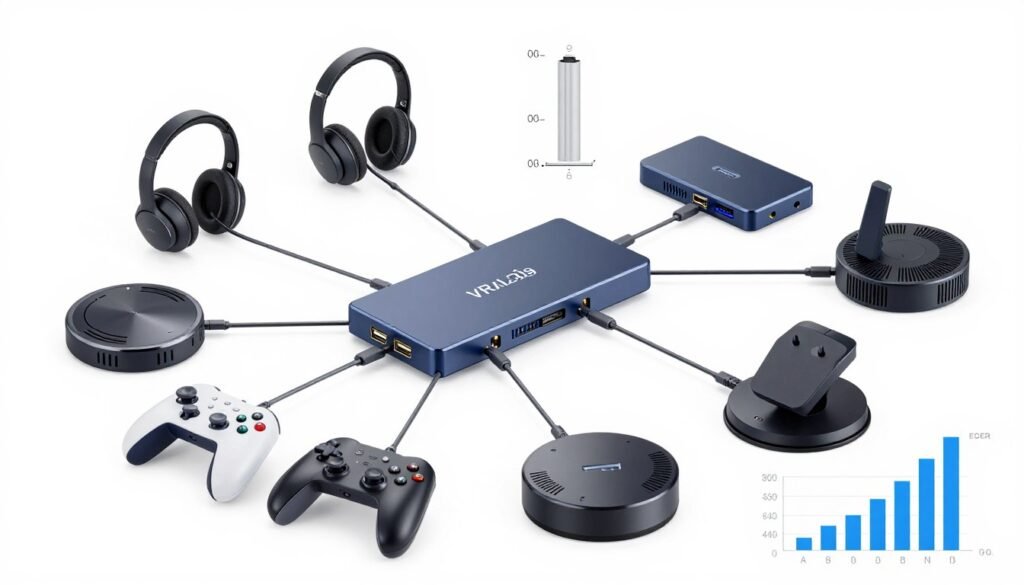
The problem is most motherboards have multiple USB ports but they’re not all on separate controllers. You might have 8 USB ports but 6 of them share one USB 3.2 controller. Plug your headset into one port and your high-speed external drive into another? They’re competing for 10Gbps of bandwidth on that controller. When the drive does a big read, your headset tracking can glitch.
I had tracking judder in my Quest 2 via Link cable for weeks. Tried everything – different cables, GPU settings, updated drivers. Problem kept happening. Finally realized my RGB keyboard was plugged into the same USB hub as my Quest Link cable. The keyboard was sending lighting update packets constantly. Those packets were causing microsecond delays in the Link data stream. Moved the keyboard to a different controller, tracking glitches disappeared.
Inside-out tracking is especially USB-sensitive. The headset cameras generate huge amounts of data – we’re talking 100+ megabytes per second of camera feed that the CPU processes for tracking. If that data stream gets interrupted even briefly, tracking glitches. This is why some people have better luck with PCIe USB cards than their motherboard USB ports.
Quick test for USB issues: Open Device Manager while in VR. Check “Universal Serial Bus controllers.” If you see any yellow warning icons or devices disconnecting/reconnecting, you have USB power or bandwidth problems causing tracking issues.
Audio is another USB bandwidth hog people forget about. VR audio isn’t just stereo. It’s HRTF spatial audio processing. The headset is receiving positional audio data for potentially hundreds of sound sources, processing the HRTF calculations, and outputting binaural audio. This processing happens in real-time and requires consistent USB bandwidth. Interrupt it and you get audio crackling or sync issues.
Solution? Use a dedicated PCIe USB card for your VR headset. Costs like $30. Gives you dedicated bandwidth separate from all your other USB devices. Made a huge difference in my setup. No more random tracking hiccups or audio glitches.
The Actual Fixes That Worked (Not the Stuff Everyone Recommends)
Let’s talk about what actually improves VR performance versus what gets repeated online but doesn’t help. I’ve tested probably 40 different optimization techniques over two years of VR troubleshooting. Most of them did nothing or made things worse. These are the ones that actually work.
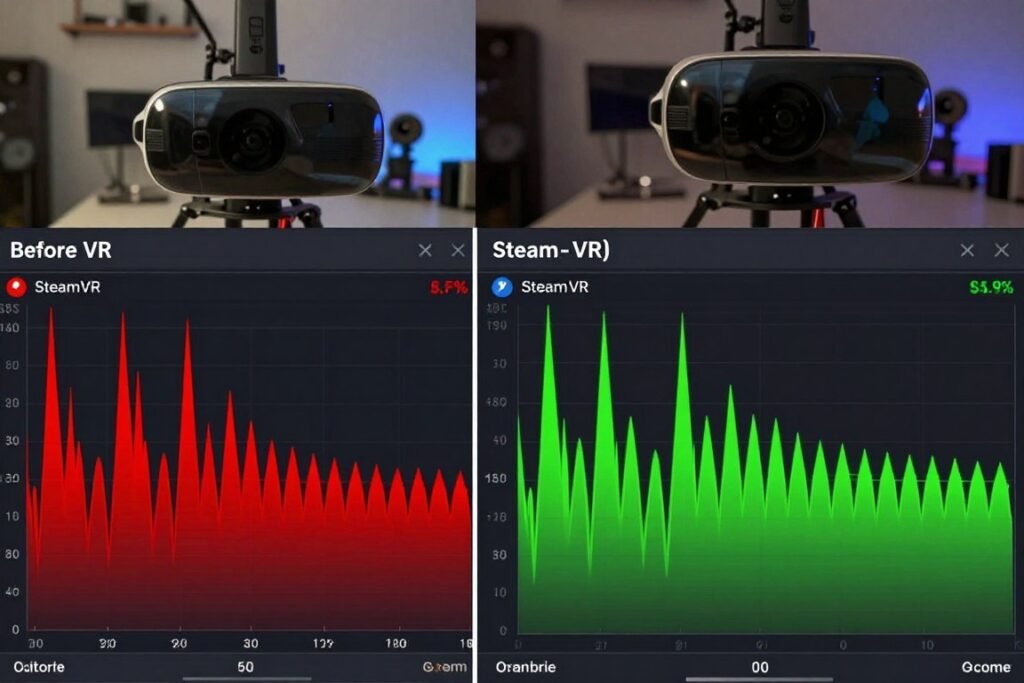
First – disable Windows Game Bar and Game DVR. Everyone says this. Most people don’t actually do it properly. You need to disable it in Registry, not just in Settings. The Settings toggle doesn’t fully disable the Game DVR hooks. Those hooks cause frame time spikes every time they check if you’re gaming. Registry edit fully removes them. Gave me 2-3ms better frame time consistency.
Second – set your VR application to High priority in Task Manager and set all non-essential processes to Below Normal. This sounds minor but it prevents Windows from giving CPU time to random background tasks when you need consistent frame delivery. The difference is subtle but measurable with a frame time graph.
Software Fixes That Work
Actual impactful changes that improve VR frame delivery and consistency.
- Disable fullscreen optimizations on .exe file
- Set power plan to High Performance
- Disable HPET in BIOS and Windows
- Turn off all overlays except SteamVR
Software Fixes That Don’t
Common recommendations that tested negligible or actually hurt performance.
- Disabling cores in BIOS (makes it worse)
- Setting custom pagefile size
- Changing GPU power management settings
- Installing “VR optimization” software
Hardware Fixes That Work
Physical upgrades and changes that meaningfully improve VR experience.
- Faster RAM (6000+ for DDR5)
- Dedicated PCIe USB card
- Better CPU cooler for consistency
- DisplayPort cable over HDMI
Hardware Fixes That Don’t
Upgrades that seem logical but don’t address VR-specific bottlenecks.
- More than 32GB RAM
- NVMe Gen5 over Gen4 SSD
- Upgrading from 850W to 1000W PSU
- Case fans beyond reasonable cooling
Third – turn off motion smoothing and reprojection in your VR settings if your hardware can hit native refresh rate. I know the VR companies push these features. But they add latency and create artifacts. If you can hit 90fps native, always prefer that over 45fps with motion smoothing. The smoothing algorithms are good but they’re not perfect.
Fourth – use NVIDIA Reflex Low Latency Mode if you have an NVIDIA GPU. This reduces render queue which lowers latency between input and display. For VR, lower latency means better tracking responsiveness. The performance cost is minimal, like 2-3fps, but the feel is noticeably better.
Fifth – check your actual render resolution in SteamVR settings. By default SteamVR sets resolution to something like 150% of native headset resolution. This is insane. It means you’re rendering way higher than needed and then downsampling. Set it to 100% of native resolution. You’ll get massive performance improvement with basically zero visual quality loss.
Learn how to properly optimize your PC for VR workloads with systematic troubleshooting.
Still Can’t Figure Out Why Your VR Performance Sucks?
Run a quick bottleneck analysis on your specific hardware configuration. The calculator checks your CPU, GPU, and RAM combo against VR-specific performance requirements. It’ll tell you which component is actually limiting you so you stop guessing and start fixing the real problem.
One more thing – test different USB ports. I’m serious. The USB port you use for your headset matters. Some motherboard ports have better power delivery or are on different controllers. I’ve had headsets that tracked perfectly on the rear USB 3.2 Gen2 ports but had constant glitches on front panel ports. Takes five minutes to test and might solve your problem without spending money.
Understanding your overall system balance prevents you from wasting money on upgrades that won’t help VR performance.
What Actually Works for VR in 2026 (The Hardware Reality)
The 2026 hardware landscape for VR is interesting because we’ve finally got options that don’t cost stupid money. The RTX 50-series launch helped. AMD’s RDNA 4 cards helped. But more importantly, the VR headsets themselves got better at working with mid-range hardware.
Here’s my honest take on what hardware you need for smooth VR right now. CPU: anything Ryzen 7 or higher from 7000/9000 series, or Intel Core Ultra 7 or higher. You want 8+ cores with good single-thread performance. The Ryzen 7 7800X3D is still the sweet spot for VR. That cache helps with the constant small data lookups VR requires. Intel’s Core Ultra 9 285K is faster in multi-thread but the 7800X3D still edges it out for VR frame time consistency.
GPU: don’t overspend. The RTX 5070 Ti (16GB) is perfect for VR. It handles Quest 3 at native resolution with headroom for supersampling. The RTX 5080 is overkill unless you’re doing productivity work too. AMD’s RX 8800 XT is competitive if you can get it cheaper, but NVIDIA’s frame generation works better in VR scenarios.
RAM: 32GB of DDR5-6000 or better. Don’t cheap out on speed. The difference between DDR5-4800 and DDR5-6000 is bigger in VR than almost any other workload. Capacity matters less – 16GB works for most VR games, but 32GB gives you headroom for background apps and simulation games.
Storage: NVMe Gen4 is plenty. Gen5 offers zero benefit for VR. Games load textures into VRAM, not stream from disk during play. Get a 1TB Gen4 drive and save your money for better GPU or CPU.
The motherboard matters more than usual. You need good USB controller configuration and solid VRM for consistent power delivery. Both affect frame time consistency. A cheap B650 board with sketchy VRM will cause voltage droop under load which causes CPU performance variance which causes frame time inconsistency. Spend the extra $50 for a decent board.
One thing that surprised me – PCIe Gen4 versus Gen5 makes basically no difference for VR. I tested an RTX 5080 in both PCIe 4.0 x16 and PCIe 5.0 x16 mode. Frame time difference was 0.1ms. Don’t worry about PCIe generation for your GPU. It doesn’t matter yet.
Current gen VR headsets like Quest 3 and Valve Index scale way better with hardware than previous generations. Quest 3’s encoder improvements mean wireless streaming works at higher bitrates with less CPU overhead. Index’s DisplayPort connection has better frame timing than the original Vive. The hardware on both sides – PC and headset – finally works together properly.
Budget reality check: you can build a VR-capable PC for around $1200 in 2026. Ryzen 5 7600, RTX 4070 Super, 32GB DDR5, decent B650 board. That system will run 95% of VR content smoothly. You don’t need top-tier hardware anymore unless you’re chasing 120Hz+ refresh rates or extreme supersampling.
Check if your planned build has any potential hardware mismatches before buying components.
The Bottom Line on VR Performance
VR performance problems almost always come down to consistency, not raw power. Frame time variance kills the experience faster than low fps. CPU single-thread performance matters more than core count. GPU VRAM capacity matters more than compute power. USB bandwidth limitations cause real issues. RAM speed affects frame time consistency in measurable ways.

The good news is VR-capable hardware is cheaper than ever in 2026. The RTX 50-series and AMD’s latest cards handle VR well at reasonable prices. Modern CPUs from both AMD and Intel have the single-thread performance VR needs. DDR5 prices came down enough that 32GB of fast RAM is affordable.
If you’re struggling with VR performance right now, the problem is probably not what you think. Most people blame their GPU when it’s actually CPU thread stalls or memory bandwidth or USB issues. The only way to know for sure is to actually measure frame times, CPU usage, GPU usage, and VRAM usage while playing. Your fps counter lies. Frame time graphs tell the truth.
Start with software optimization. Disable Windows Game Bar properly. Set process priorities. Turn off overlays. Close background apps. Test different USB ports. These cost nothing and often solve the problem. If software doesn’t fix it, then look at hardware upgrades. But upgrade the actual bottleneck, not the component you think should be faster.
For most people, the upgrade path is CPU first, then GPU if needed. A fast CPU with good single-thread performance fixes more VR issues than a faster GPU. The exception is if you’re running a GPU with less than 12GB VRAM – then upgrade GPU first because you’re hitting VRAM limits.
Understanding your actual bottleneck percentage helps prioritize upgrades that matter for your specific situation.
Ready to Actually Fix Your VR Performance?
Stop guessing which component is causing your VR stuttering. Use our bottleneck calculator to run a complete analysis of your CPU, GPU, and memory configuration against VR performance requirements. Get specific upgrade recommendations based on your actual hardware and target VR experience. Takes 60 seconds and gives you a clear action plan.
VR in 2026 is finally at the point where it works reliably if you understand what it needs. The hardware exists. The software is mature. The remaining issues are mostly configuration and optimization problems, not fundamental limitations. Fix those and VR is incredible. Don’t fix them and you’ll keep blaming your GPU while your CPU sits there maxing out threads.
What’s the weirdest performance issue you’ve ever run into?