What is a Motherboard? The Foundation of Your PC
Ever wondered how your computer turns electrical signals into smooth gaming or work? We often look at the processor or graphics card. But there’s one silent hero that keeps everything running.So, what is a motherboard? It’s like the brain of your machine. It connects all key parts, from your CPU to storage drives. This lets them work together seamlessly.Without this key part, your PC is just a bunch of parts that don’t talk to each other. Learning about it helps us appreciate how our computers work. Let’s see how this board keeps your digital world in order.
By checking these essential compatibility points, we ensure our storage and memory work as they should. Good connectivity is key for a fast and stable computer. Taking the time to check these specs makes building more enjoyable.
Key Takeaways
- The main circuit board serves as the central nervous system for all PC hardware.
- It provides the physical connections necessary for components to communicate.
- Power distribution across the system relies entirely on this core component.
- Choosing the right board determines your future upgrade options and compatibility.
- Understanding this foundation helps you troubleshoot and maintain your computer effectively.
Understanding the Basics of a Motherboard
When we open our computer, we see a complex piece called the motherboard. It connects all parts of our desktop, letting them talk to each other smoothly.Definition and Purpose
The motherboard is a big circuit board. It helps data move between hardware. It’s the base of our PC, making sure everything works together right.“The motherboard is the silent conductor of the digital orchestra, ensuring every component plays its part in perfect harmony.”
Key Functions of a Motherboard
Managing power is a big job for the motherboard. The VRM, or Voltage Regulator Module, changes the power supply’s voltage to what our processor needs.This is key for tasks like gaming or video editing. Without stable power, our system might crash or not work right.Common Components Found on a Motherboard
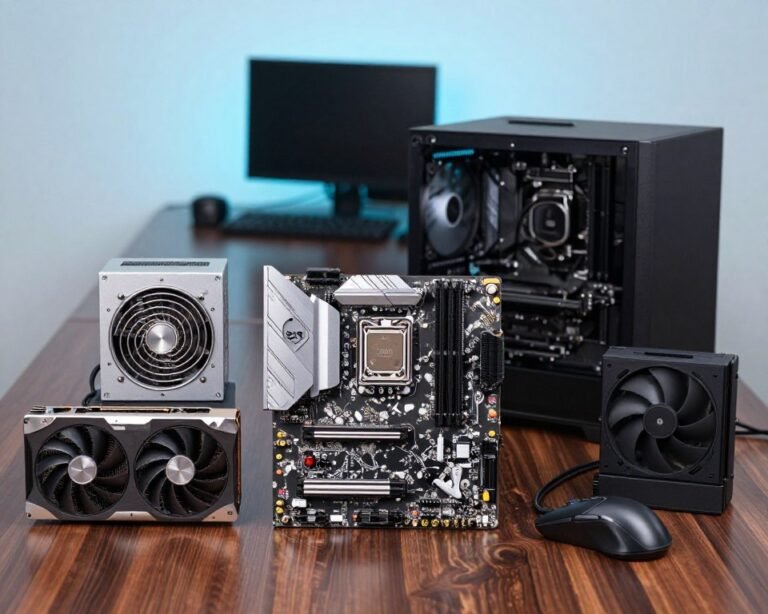
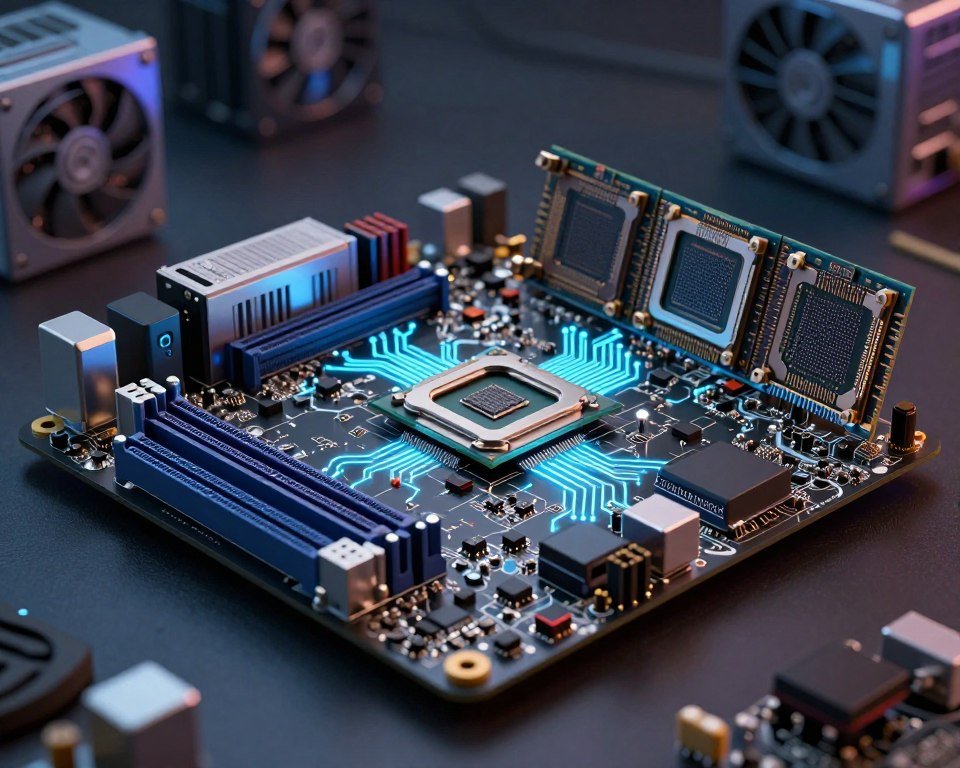
A motherboard is laid out for efficiency and to work with different hardware. Key parts help our system perform well and what we can add:- CPU Socket: This is where our processor goes. The socket type is key for compatibility, telling us which CPUs we can use.
- Memory Slots: These are for RAM modules, helping us multitask.
- Expansion Slots: These are for graphics cards and other special hardware.
- Chipset: It controls data flow between the CPU and other parts.
Types of Motherboards Available
Our PC build journey starts with understanding the different motherboard sizes. The size of the board affects the system’s size and the computer case we need. Picking the right size ensures all parts fit well in the case.ATX vs. MicroATX vs. Mini-ITX
The ATX motherboard is the most common and offers lots of space for components. It has the most Expansion Slots, letting us add many graphics cards or special sound and network cards. It’s perfect for a full-featured desktop.For those who prefer a smaller build, MicroATX and Mini-ITX boards are great. MicroATX has fewer Expansion Slots than ATX but fits in many mid-tower cases. Mini-ITX is the smallest, ideal for compact builds where space is limited.Specialized Motherboards for Gaming and Workstations
There are boards made for specific tasks, like gaming and workstations. Gaming boards have enhanced cooling solutions and strong Expansion Slots for heavy graphics cards. They ensure our games run smoothly.Workstation boards are for professionals needing reliability and high data throughput. They support multiple processors and lots of memory, more than regular consumer boards. Choosing a specialized board means investing in long-term durability and future upgrades.The Importance of Motherboard Compatibility
Our custom build’s success depends on how well parts work with the motherboard. We must check that all components fit the board’s specs to avoid frustrating hardware mismatches. This planning helps our system boot right the first time.CPU Compatibility
The processor is our computer’s brain. It only works if it fits the motherboard’s socket. We should visit the manufacturer’s website to confirm our CPU model is supported by the board’s chipset. Socket types, like LGA or AM5, must match for a good connection.It’s also important to check the BIOS version. A newer processor might need a software update to work with an older motherboard. Doing this early can save us from big problems later.RAM and Storage Compatibility
Memory modules and storage drives need specific standards to work well. We must make sure our RAM type, like DDR4 or DDR5, fits the motherboard’s slots. Mixing these standards is not possible because they are designed to fit only one way.For storage, we have many options like SATA headers and M.2 slots. These ports let us easily add solid-state drives and hard disks. Here’s a table showing common interfaces we might find:| Interface Type | Primary Use | Speed |
|---|---|---|
| SATA III | Hard Drives/SSDs | Up to 6 Gbps |
| M.2 NVMe | High-Speed SSDs | Up to 7000+ MB/s |
| USB 3.2 | External Devices | Up to 20 Gbps |
How to Choose the Right Motherboard for Our Needs
Finding the right motherboard can seem tough, but it’s easier when we know what we need. We look for a balance between high-end performance and our budget. This way, our PC will be reliable for many years.Factors to Consider
The first thing to think about is the motherboard’s size, or form factor. It must fit our case to avoid installation problems. Also, it should support our chosen processor socket type.The chipset is another key factor. It affects how fast our system can be. We need to decide if the extra cost is worth it for our needs.Evaluating Features and Specifications
After narrowing down the basics, we look at the extra features. Integrated audio quality is important for gamers and media creators. We should check if the onboard sound is good enough or if we need a separate sound card.Networking options are also critical for a stable connection. We need to decide if built-in Wi-Fi or a fast Ethernet port is better for our setup. Modern boards often have multiple M.2 slots for more storage.Lastly, we check the rear I/O panel for USB ports. Having plenty of connectivity options saves us from buying extra adapters later. By carefully checking these specs, we make a smart choice for our PC.Installing and Setting Up Our Motherboard
Let’s go through the key steps to safely mount and connect our new motherboard. Building a computer is rewarding but needs patience and precision. A structured approach helps avoid mistakes and protects our components.Preparation Steps Before Installation
First, we must create a static-free environment to prevent damage. Work on a non-conductive surface like a wooden table. Avoid carpeted areas. Use an anti-static wrist strap to ground yourself.Next, gather your tools, including a magnetic Phillips-head screwdriver. Check your motherboard manual for the correct standoff locations. Proper preparation prevents damage to the board’s delicate circuitry.Common Installation Tips
Start by installing the I/O shield into the back of the chassis. Align the motherboard with the standoffs carefully to avoid scratches. Gently lower the motherboard to keep holes aligned.Secure the board with screws, then connect power cables. Follow these best practices for a clean and safe build:- Do not overtighten screws to avoid cracking the motherboard PCB.
- Ensure the 24-pin ATX and CPU power cables are fully seated until they click.
- Route cables behind the motherboard tray for better airflow and a tidy interior.
- Double-check for loose screws or metal debris before powering on.
How Does RAM Function in Relation to the Motherboard of a PC?
Understanding computer memory concepts is crucial for grasping how RAM functions with a motherboard. RAM acts as a temporary storage space that the CPU accesses quickly, allowing for rapid data retrieval and processing. The motherboard connects these components, facilitating communication that ultimately enhances overall system performance and efficiency.
Troubleshooting Common Motherboard Issues
Building a high-performance PC is very satisfying. But, sometimes technical problems can slow us down. A quick check of the BIOS settings often fixes many startup issues. Learning to use this interface helps us manage our hardware’s health confidently.Diagnosing Boot Problems
System startup failures often come from simple mistakes. We can enter the BIOS to check if our storage drives are in the right order. Changing these settings usually fixes the problem without needing new parts from brands like ASUS or MSI.Identifying Hardware Conflicts
Hardware conflicts can happen when we add new parts that don’t work well with what’s already there. We should look at the BIOS logs to find specific errors related to memory or power. Keeping our firmware updated helps our system stay stable under heavy use.Learning these diagnostic steps helps our machines run smoothly for years. We encourage readers to explore their system settings and share their success stories. Building a reliable computer is a journey, and we’re now ready for any challenge.FAQ
Why is the motherboard considered the central nervous system of our computer?
The motherboard is key because it connects all parts of our computer. Without it, our Intel processor, NVIDIA graphics card, and Corsair RAM can’t talk to each other. It’s the backbone that makes our computer work smoothly.
How do we determine if a specific CPU is compatible with our motherboard’s Socket?
Checking the Socket is the first step. For example, a 14th Gen Intel Core processor needs an LGA 1700 socket. AMD Ryzen chips must match with AM4 or AM5 sockets for the best fit.
What role does the VRM play in our system’s overall stability?
The VRM converts power from our power supply into clean voltage for our CPU. High-quality VRMs, like those in MSI MAG Tomahawk or ASUS ROG series, keep our system stable. They prevent drops in voltage and overheating, even during intense use.
How do we choose between ATX, MicroATX, and Mini-ITX form factors?
Our choice depends on our case size and how many components we need. ATX boards have more room for extras. Mini-ITX is good for small PCs but has fewer slots and RAM headers.
What should we look for regarding Connectivity when selecting a new board?
We focus on Connectivity for fast external device use. Look for USB 3.2 or USB-C ports and integrated Wi-Fi 6E or 2.5Gb Ethernet. Also, check for M.2 slots for fast storage expansion.
How does the BIOS help us troubleshoot hardware issues?
The BIOS is the first thing our PC runs. It helps us see if hardware is recognized or to adjust settings like “XMP” for RAM. Modern boards from Gigabyte or ASRock have features like “FlashBack” for firmware updates.
What are the most important steps we should take to avoid damage during installation?
Install in a static-free area to protect the board. Make sure brass standoffs match mounting holes. Be gentle with components and double-check power cables to avoid damage.