
I watched my friend drop $450 on a flagship Z790 board last month. Three weeks later, his PC still crashes during Cyberpunk 2077. The problem? His board was fine. His RAM configuration was garbage, and he never checked if his components actually worked together.
That situation taught me something. Z-series motherboards get all the hype and attention. Manufacturers throw every marketing term at you. But most builders never use half the features they pay for.
Here’s the reality. You need a Z-series board for one primary reason: overclocking your Intel CPU. Everything else is secondary. Sure, you get more PCIe lanes and USB ports. Those matter for specific builds. But the core value is CPU tuning freedom.
This guide cuts through the marketing noise. I’ll show you what actually matters when picking a Z-series motherboard. You’ll learn which features justify higher prices and which are pure RGB tax. I’ve tested dozens of these boards over the past three years. Some performed way above their price point. Others disappointed despite premium badges.
The goal is simple. By the end of this article, you’ll know exactly which Z-series board fits your build. You’ll understand VRM quality, chipset differences, and BIOS features that actually impact performance. No fluff. No corporate talking points. Just practical advice from someone who’s burned through enough boards to know what works.
What Z-Series Actually Means for Your Build
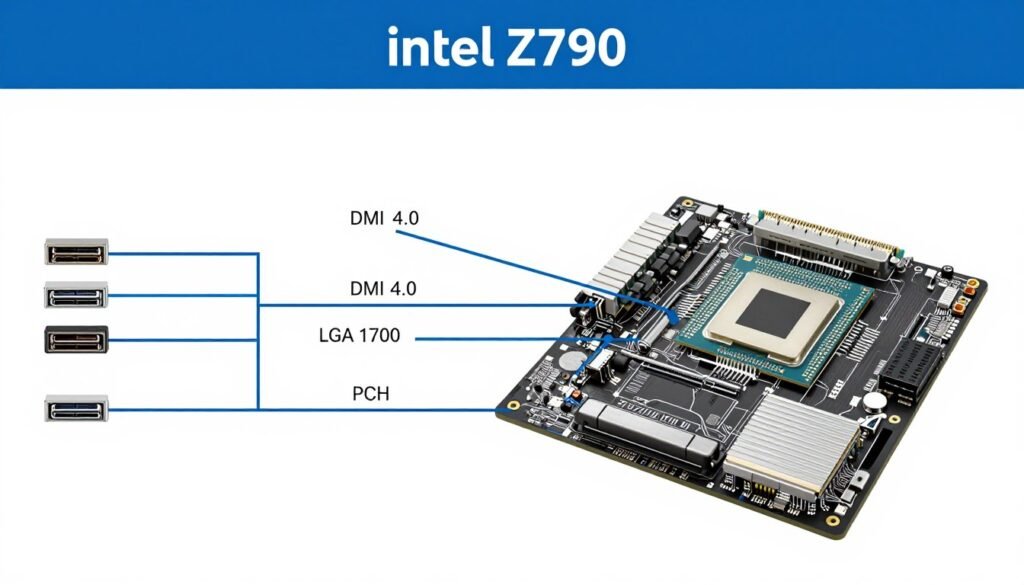
Z-series boards sit at the top of Intel’s consumer chipset hierarchy. The letter Z stands for one thing: unlocked overclocking. That’s the primary difference between Z-series and cheaper B-series or H-series boards.
Think of your motherboard chipset like a traffic controller. It manages data flow between your CPU, RAM, storage, and peripherals. The Z designation gives you the most flexible traffic rules. You can push more power through to your CPU. You can adjust clock speeds beyond Intel’s factory settings. Other chipsets lock these controls.
Current Z-series options include Z790 for 12th, 13th, and 14th gen Intel Core processors. The previous Z690 still works for 12th and 13th gen chips. These boards share similar capabilities but differ in connectivity features. Z790 added more PCIe 4.0 lanes and USB 3.2 Gen 2×2 ports compared to Z690.
The real question is whether you need these features. Most gamers don’t actually overclock their CPUs. Modern Intel chips already boost close to their thermal limits. If you’re not planning to push clock speeds, a B760 board saves you $100 or more.
Here’s where Z-series makes sense. You bought a K-series CPU like the 14900K or 13600K. You want maximum gaming performance through overclocking. You need multiple M.2 slots running at full PCIe 4.0 speed. You’re running memory faster than DDR5-5600. You need more than six USB ports and multiple SATA connections.
For everyone else, the Z premium might be wasted money. I’ve seen builds where people pair a locked i5-14400 with a $400 Z790 board. That’s like buying a sports car but never leaving second gear. The motherboard can’t unlock what Intel already locked in the CPU.
Z-Series Benefits
- Full CPU overclocking support for K-series processors
- Maximum PCIe lane allocation (typically 20+ lanes)
- Higher memory overclocking headroom (DDR5-7200+)
- More USB 3.2 Gen 2×2 ports (20 Gbps speeds)
- Better power delivery for sustained loads
- Advanced BIOS features for tuning
When B-Series Is Smarter
- Using locked (non-K) Intel processors
- No plans to overclock CPU or memory
- Budget builds under $1500 total
- Single GPU gaming setups
- Standard connectivity needs (4-6 USB ports)
- Gaming at 1080p or 1440p with mid-range GPUs
The chipset also controls storage pathways. Z-series boards typically support four or five M.2 slots with direct CPU or chipset lanes. This prevents bandwidth sharing that slows down your SSDs. Chipset choice impacts FPS when storage bottlenecks create stuttering.
PCIe lane distribution matters more than most reviews mention. Your GPU demands 16 lanes. Each M.2 SSD needs four lanes. USB controllers, network adapters, and RGB controllers all consume lanes. Z-series boards provide enough lanes to run everything at full speed. Cheaper chipsets force devices to share bandwidth.
The reality check comes down to your actual usage. If you’re building a high-end gaming PC with a 14900K and RTX 5090, Z-series makes sense. You’re paying for performance parts. The motherboard shouldn’t limit them. But pairing budget components with expensive boards creates imbalance. Your money goes further with matched components across the build.
Quick Reality Check: Z-series boards cost $200-$700. B-series alternatives run $120-$250. That $150+ difference could upgrade your GPU or add more RAM. Only spend the premium if you’ll actually use overclocking and need the extra connectivity. Otherwise, you’re funding features that collect dust.
VRM and Power Delivery: Why This Actually Matters
VRM stands for Voltage Regulator Module. It’s the unglamorous part of your motherboard that prevents your CPU from catching fire or starving for power. Most marketing materials skip VRM quality because it’s not sexy. But this component determines whether your overclock stays stable or crashes during gaming sessions.
Think of VRM like a water pipe feeding your house. A narrow pipe restricts flow during peak demand. Your shower pressure drops when someone flushes the toilet. Similarly, weak VRM phases can’t deliver clean, stable power when your CPU demands maximum performance. This causes crashes, thermal throttling, or reduced boost clocks.
Modern Intel CPUs pull serious wattage. The 14900K can spike to 250+ watts during all-core loads. The 14900KS pushes even higher. Your VRM needs sufficient phases and quality components to handle these demands without overheating. Budget boards with 8-phase VRMs struggle with flagship CPUs. Premium boards pack 16 to 20 phases for smooth power delivery.
Phase count tells part of the story. Each phase handles a portion of power conversion from your 12V PSU to the 1.2V or lower that your CPU needs. More phases mean each component works less hard and runs cooler. But phase count alone doesn’t guarantee quality. A 16-phase VRM using cheap MOSFETs performs worse than a 12-phase design with premium components.
Here’s what actually matters for VRM assessment. Look for boards with proper heatsinks covering the power delivery section. These heatsinks need good surface contact with thermal pads, not air gaps. Check if the board includes integrated or add-on VRM fans for extreme overclocking. Read reviews that measure VRM temperatures under sustained load. Anything above 90°C under stress indicates potential problems.

Power stages quality varies wildly between manufacturers. Top-tier boards use components rated for 90+ amps per phase. Budget alternatives cut corners with 60-amp stages. This difference matters during overclocking or sustained high-current scenarios. The weaker stages heat up faster and provide less stable voltage under load.
Real-world testing reveals problems that specs hide. I tested a $180 Z790 board that claimed 14 phases. Under sustained CPU load with a 14900K, VRM temperatures hit 105°C. The board throttled the CPU to protect itself. Meanwhile, a $220 competitor with 16 true phases stayed at 72°C under identical conditions. That $40 difference bought thermal headroom and stability.
CPU power connectors tell you about expected TDP. Most Z-series boards include dual 8-pin CPU power inputs. This provides up to 336 watts of clean power delivery. Some extreme overclocking boards add a third 8-pin connector. If you see only a single 8-pin connector on a Z-series board, that’s a red flag for flagship CPU support.
| VRM Configuration | Suitable CPUs | OC Headroom | Typical Price |
| 8-10 Phase Budget | i5-14600K, i7-14700K stock | Minimal (5-7%) | $180-$220 |
| 12-14 Phase Mid-Range | i7-14700K, i9-14900K moderate OC | Good (8-12%) | $220-$320 |
| 16-18 Phase Premium | i9-14900K/KS aggressive OC | Excellent (12-15%) | $320-$500 |
| 20+ Phase Extreme | LN2/Competitive OC | Maximum (15%+) | $500-$700 |
Manufacturers love marketing “doubled” or “teamed” phases. This means two lower-power stages work together to act like one higher-power phase. There’s nothing inherently wrong with this approach if implemented properly. But it’s misleading when boards advertise 16 phases but actually run eight doubled phases. True phase count matters for thermal distribution across the board.
Pay attention to cooling performance across your entire system. VRM heat contributes to case temperatures. Poor VRM cooling forces your case fans to work harder. This creates more noise and can indirectly affect GPU thermals if hot air circulates poorly. Good VRM design with substantial heatsinks makes the whole system run quieter and cooler.
The bottom line on VRM quality: match your power delivery to your CPU and overclocking plans. A 14600K running stock speeds works fine on budget VRMs. A 14900KS pushed to 6.0 GHz all-core needs premium power delivery. Skimping on VRM quality for high-end CPUs causes instability, shortened component life, and disappointing performance. This is one area where the extra $50-100 pays dividends in reliability.
Match Your Motherboard to Your CPU
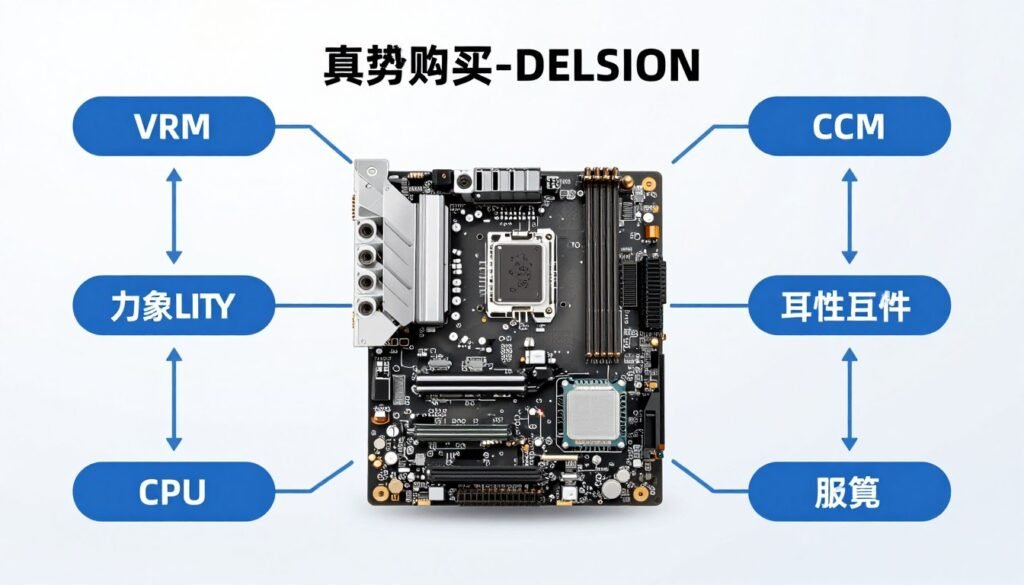
VRM mismatches cause crashes, throttling, and instability. Check if your planned components work together without bottlenecks.
Connectivity That Actually Matters in 2026
USB ports seem basic until you run out. Modern builds need connections for keyboard, mouse, headset, webcam, external storage, RGB controllers, and charging cables. Budget boards give you four or five rear USB ports. That’s barely enough. Z-series boards typically provide eight to twelve ports with better speed standards.
USB 3.2 Gen 2×2 delivers 20 Gbps transfer speeds. That matters when you’re moving large files to external SSDs or capturing 4K video. Lower-spec USB 3.2 Gen 2 runs at 10 Gbps, which is still decent for most peripherals. USB 3.2 Gen 1 (previously called USB 3.0) provides 5 Gbps. The naming scheme is confusing by design, but higher generation numbers mean faster transfers.
Type-C ports add versatility. Modern cases include front-panel USB-C connections. Your motherboard needs the proper header to support this. Z-series boards typically include at least one USB 3.2 Gen 2 Type-C header for the front panel, plus one or two Type-C ports on the rear IO. This becomes important as more peripherals and storage devices adopt USB-C exclusively.
Ethernet connections range from basic 1 GbE to 2.5 GbE, 5 GbE, or even 10 GbE on enthusiast boards. Unless you have a multi-gig internet connection or transfer large files across your home network frequently, standard 2.5 GbE suffices. Some boards include Intel I225-V or I226-V controllers, which had early driver issues but work fine now with updated BIOS and drivers.
WiFi capability divides Z-series boards into wired-only and wireless-enabled models. WiFi 6E (802.11ax) support adds $20-30 to board cost but provides built-in wireless networking and Bluetooth 5.2 or 5.3. This makes sense if your PC location prevents Ethernet runs or you need wireless peripherals. WiFi 7 (802.11be) just started appearing on late 2025 and 2026 boards, offering lower latency for competitive gaming.
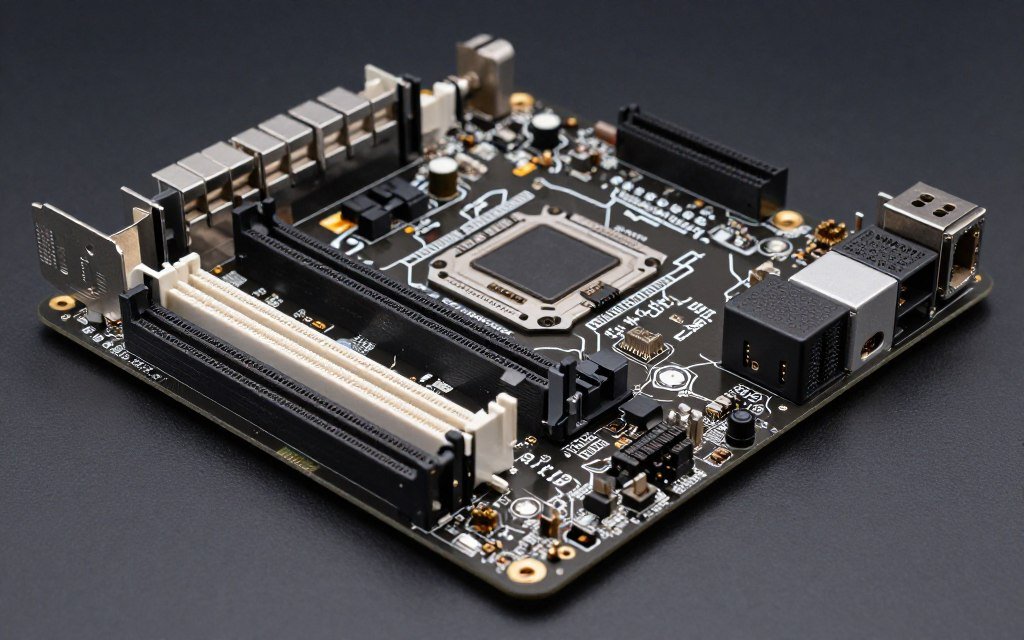
M.2 storage slots determine your SSD configuration options. Entry Z-series boards provide three M.2 slots. Mid-range options offer four slots. Premium boards pack five M.2 connections. Check which slots connect directly to the CPU versus running through the chipset. CPU-connected slots provide the best performance and won’t share bandwidth with other devices.
PCIe 4.0 versus PCIe 5.0 creates confusion in storage discussions. Current Gen 4 SSDs already saturate most gaming needs at 7000 MB/s sequential reads. PCIe 5.0 SSDs exist but cost significantly more while providing minimal real-world gaming benefits. The exception is DirectStorage gaming, which may leverage faster SSDs in future titles. For now, having four PCIe 4.0 M.2 slots matters more than having one PCIe 5.0 slot.
Audio implementations vary from basic Realtek ALC897 codecs to premium ALC4080 or ESS Sabre solutions. Most gamers won’t hear differences through gaming headsets. Audiophiles using studio monitors or high-impedance headphones benefit from better onboard audio or should invest in dedicated DACs anyway. Don’t overpay for audio features unless you have equipment that reveals the difference.
SATA ports still matter despite M.2 dominance. Large storage arrays for media libraries, backup drives, or older SSDs need SATA connections. Z-series boards typically include four to eight SATA ports. Some boards disable SATA ports when certain M.2 slots are populated due to shared chipset lanes. Check the manual for your specific board to understand these limitations before planning storage.
Essential Connectivity for Most Builds
- 8+ USB ports (mix of Type-A and Type-C)
- At least 2x USB 3.2 Gen 2 (10 Gbps) ports
- 1x USB 3.2 Gen 2 front-panel header
- 2.5 GbE Ethernet (Intel preferred)
- WiFi 6E if wireless needed
- 3-4 M.2 PCIe 4.0 slots with heatsinks
- 4+ SATA ports for legacy storage
- Realtek ALC1220 or better audio
Premium Features Worth Paying For
- USB 3.2 Gen 2×2 (20 Gbps) rear ports
- Multiple front-panel USB-C headers
- WiFi 7 for future-proofing
- 5+ M.2 slots for extensive storage
- 10 GbE Ethernet for home lab setups
- Premium audio (ESS Sabre, ALC4080)
- Thunderbolt 4 support (rare on AMD, select Intel)
- Additional fan and RGB headers
Fan headers and RGB connectors often get overlooked until you’re building. Z-series boards should include at least six 4-pin PWM fan headers for comprehensive cooling control. RGB lighting needs matching headers: 4-pin 12V RGB for standard strips, or 3-pin 5V ARGB for addressable RGB. Premium boards include six or more fan headers and multiple RGB headers to eliminate splitters.
Thunderbolt 4 support appears on select Z-series boards, mostly from Gigabyte and ASRock. This provides 40 Gbps connectivity for high-speed external storage, eGPU enclosures, or docking stations. Unless you specifically need Thunderbolt devices, this feature adds cost without benefit. Most users confuse Thunderbolt with USB4, which offers similar speeds but isn’t widely adopted yet on motherboards.
Front-panel connectivity standards matter when choosing cases. Modern cases include USB-C, audio, and USB 3.0 connections. Your motherboard needs matching headers for all front-panel features. Check case specs against motherboard headers before purchasing. Some budget Z-series boards skip the USB 3.2 Gen 2 front-panel header, forcing you to leave your case’s Type-C port unconnected.
The connectivity sweet spot sits around $250-300 for most gaming builds. Boards in this range provide sufficient USB 3.2 ports, four M.2 slots, WiFi 6E, and 2.5 GbE Ethernet. Spending more brings diminishing returns unless you need specific features like 10 GbE, five M.2 slots, or Thunderbolt 4. Don’t pay for ports and connections you’ll never use.
One last consideration: future expansion. Will you add more storage next year? Planning a capture card for streaming? Need additional USB devices for VR or sim racing? Buy slightly more connectivity than current needs demand. Upgrading motherboards later costs more than buying adequate connectivity upfront. But don’t go overboard buying eight M.2 slots if you’ll use three at most.
Chipset Features Beyond the Marketing Slides

Chipsets control the communication pathways between your CPU and everything else in your system. Intel’s current Z790 chipset supports 12th, 13th, and 14th generation Core processors. The previous Z690 works with 12th and 13th gen chips but lacks official 14th gen support on most boards. This matters when you plan future CPU upgrades.
PCIe lane allocation determines device bandwidth. The CPU provides 20 PCIe lanes: 16 for your GPU and four for primary M.2 storage. The Z790 chipset adds up to 20 PCIe 4.0 and 8 PCIe 3.0 lanes for additional devices. These lanes connect to secondary M.2 slots, expansion cards, USB controllers, and network adapters. Z690 offered similar specs but with slightly fewer USB options.
DMI 4.0 serves as the highway between CPU and chipset, running at 8 GT/s. This connection can become a bottleneck if you simultaneously max out multiple chipset-connected devices. Running four M.2 SSDs at full speed plus USB transfers plus network traffic can saturate DMI bandwidth. Most gaming scenarios never hit this limit, but content creators moving large files across multiple drives might notice slowdowns.
Memory support officially caps at DDR5-5600 for Intel 13th and 14th gen CPUs. Z-series boards enable XMP 3.0 profiles that push DDR5-6000, DDR5-6400, or even DDR5-7200+ speeds. This overclocking happens through the motherboard’s BIOS and VRM quality. Cheaper boards struggle maintaining stability above DDR5-6400. Premium boards with better memory trace layouts and VRM handle DDR5-7000+ without issues.
Check if your board lists T-topology or daisy-chain memory layout. T-topology works better with four RAM sticks but slightly reduces maximum memory speeds. Daisy-chain excels with two sticks, reaching higher frequencies but potentially unstable with four sticks. Most gaming builds use two 16GB or two 32GB sticks, making daisy-chain layouts more common and acceptable.
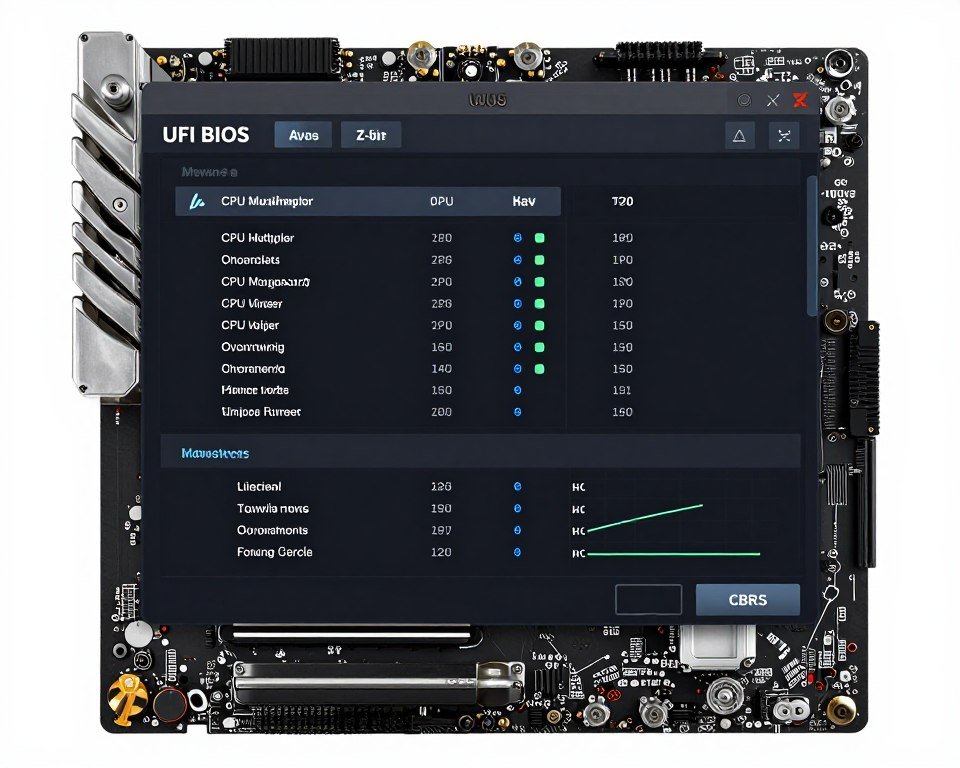
BIOS implementations range from basic to feature-rich depending on manufacturer. ASUS boards use UEFI BIOS with AI overclocking and extensive manual tuning. MSI provides Click BIOS with similar features but different layouts. Gigabyte and ASRock each have distinct interfaces. BIOS quality matters more than most reviews emphasize. A buggy BIOS creates frustrating troubleshooting sessions and limits overclocking potential.
CPU and memory overclocking features separate Z-series from cheaper chipsets. You can adjust CPU multipliers, voltages, power limits, and loadline calibration. Memory timing control includes primary, secondary, and tertiary timings plus voltage adjustments. These features require research to use safely, but they unlock performance that reviews using stock settings never reveal.
Resizable BAR (ReBAR) and Above 4G Decoding should be enabled by default on modern boards. These settings let your CPU access full GPU memory, providing 3-10% performance increases in many games. Some budget boards ship with ReBAR disabled, requiring manual BIOS changes. Verify your board supports and enables these features, especially when pairing with modern GPUs for free performance gains.
PCIe bifurcation allows splitting a single x16 slot into multiple x8 or x4 slots for expansion cards. This matters for niche setups running multiple GPUs, capture cards, or NVMe adapter cards. Most gaming builds never need bifurcation, but it’s nice to have for future expansion flexibility. Check if your board supports bifurcation in BIOS if you plan specialized configurations.
Some Z-series boards include diagnostic features like POST code displays, debug LEDs, or even small OLED screens showing temperatures and codes. These additions help troubleshooting but add $20-50 to cost. For first-time builders or troubleshooting enthusiasts, POST code displays prove invaluable. Experienced builders who rarely have issues may skip these features.
Driver and BIOS Updates Matter: Z-series boards receive regular BIOS updates adding CPU support, fixing bugs, and improving memory compatibility. Check manufacturer support before buying. ASUS, MSI, and Gigabyte typically provide updates for 3-4 years. Budget brands may abandon boards after 18 months. Long-term support matters if you plan to upgrade your CPU later.
Intel Management Engine (ME) runs in the background handling security and remote management features. Most home users can disable or minimize ME in BIOS to reduce potential security surfaces. Enthusiast boards provide more ME control options. This matters more for privacy-conscious users than gaming performance, but it’s worth mentioning since it’s rarely discussed in reviews.
Chipset differences between Z790 and B760 highlight why the Z premium exists. B760 boards lock CPU overclocking but support memory overclocking. They provide fewer PCIe lanes and USB ports. If you’re not overclocking your CPU, B760 often delivers 98% of Z790 gaming performance at lower cost. The chipset choice should match your build goals, not default to Z because it’s “better.”
RGB control software varies by manufacturer. ASUS Aura Sync, MSI Mystic Light, Gigabyte RGB Fusion, and ASRock Polychrome RGB each control onboard and connected RGB devices. These software suites range from functional to buggy nightmares. Check recent user reviews about RGB software if you care about synchronized lighting. Some brands integrate RGB control better than others.
The chipset provides the foundation for your system’s capabilities. But the motherboard manufacturer’s implementation determines actual performance and features. Two Z790 boards can perform very differently based on VRM quality, BIOS optimization, and component selection. Don’t assume all Z790 boards deliver identical results just because they share the same chipset.
Form Factors: ATX, mATX, and ITX Reality Check
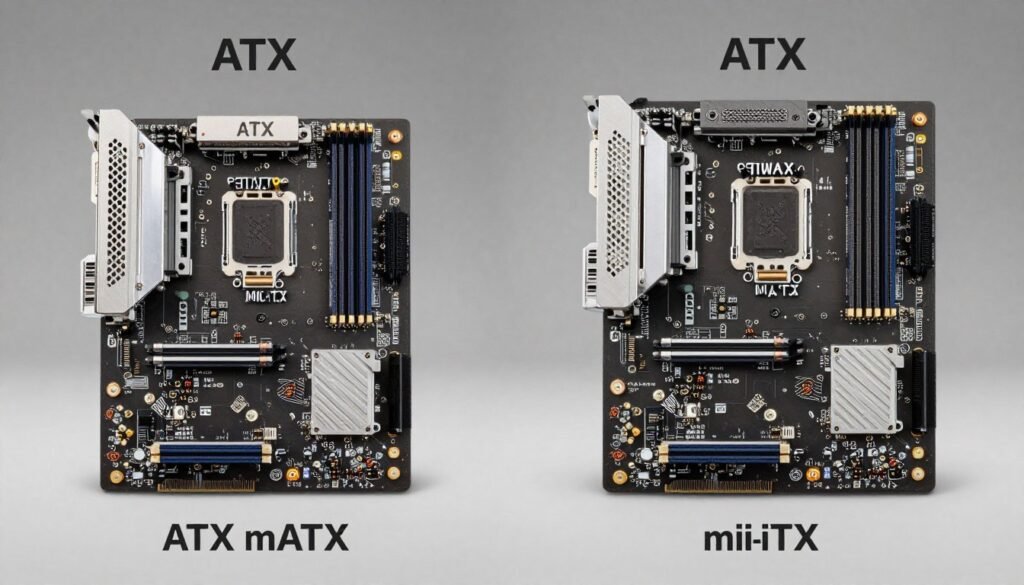
Form factor determines your motherboard’s physical size and expansion slot layout. ATX is the standard 12 x 9.6 inch format most people use. Micro-ATX (mATX) measures 9.6 x 9.6 inches with fewer expansion slots. Mini-ITX shrinks to 6.7 x 6.7 inches for compact builds. Each size creates different compromises in features, cooling, and upgradeability.
ATX boards provide the most flexibility. You get four or more PCIe slots, five or six M.2 slots on premium models, extensive fan headers, and larger VRM heatsinks. The extra space allows better component spacing for airflow. If your case supports ATX and you have the desk space, this format makes the most sense for high-performance builds.
Micro-ATX used to be the budget option. That’s changed in recent years. Several manufacturers produce high-quality mATX Z-series boards with robust VRM and full feature sets. The limitation is expansion: typically two PCIe slots and four M.2 slots maximum. If you’re running a single GPU without capture cards or other expansion, mATX saves case space without sacrificing performance.
Mini-ITX creates the biggest compromises but rewards you with incredibly compact builds. ITX boards fit only one PCIe slot, limit M.2 slots to two or three, and constrain VRM heatsink size. Cooling becomes critical in ITX builds since cramped spacing traps heat. But the resulting PC can fit in a shoebox-sized case on your desk or in your living room entertainment center.
Z-series boards exist in all three form factors. ATX dominates the market with the most options across all price ranges. mATX selection is limited but growing. ITX has the smallest selection with higher prices due to engineering challenges fitting full Z-series features into tiny footprints. Budget around $50-75 more for ITX compared to equivalent ATX boards.
Heat management differs dramatically by form factor. ATX boards spread VRM, chipset, and M.2 devices across more area. Air circulates better around components. mATX boards pack components tighter but usually manage heat adequately with proper case airflow. ITX boards run hottest, often requiring active cooling for VRM and M.2 slots under sustained loads.
Case compatibility matters more than people realize. Verify your case supports your chosen form factor before buying. ATX cases fit ATX, mATX, and ITX boards. mATX cases fit mATX and ITX. ITX cases only fit ITX boards. Also check clearance around the CPU socket for your cooler, RAM clearance for tall heatsinks, and GPU length limits in smaller cases.
ATX Advantages
- Maximum expansion slots (4-7 PCIe)
- Most M.2 slots (up to 6)
- Better VRM cooling with larger heatsinks
- More fan headers and RGB connectors
- Easier cable management with more space
- Widest selection of models and prices
- Best for multi-GPU, capture cards, lots of storage
ATX Disadvantages
- Requires larger cases (mid-tower minimum)
- Takes more desk/floor space
- Higher material costs (though not always reflected in price)
- Wasted space if not using expansion slots
mATX Advantages
- Smaller footprint than ATX
- Fits smaller cases (compact mid-tower)
- Usually costs less than ATX equivalent
- Adequate expansion for most gaming builds
- Still supports full-size CPU coolers and GPUs
mATX Disadvantages
- Limited to 2-4 PCIe slots
- Typically 3-4 M.2 slots maximum
- Fewer fan and RGB headers
- Less premium model selection
- Tighter component spacing may affect airflow
ITX Advantages
- Extremely compact footprint
- Perfect for living room PCs or LAN parties
- Encourages efficient, focused builds
- Forces consideration of every component choice
- Impressive performance in tiny packages
ITX Disadvantages
- Single PCIe slot (GPU only)
- Limited to 2-3 M.2 slots
- Higher prices than ATX equivalents
- Challenging thermals require careful planning
- Limited CPU cooler height clearance
- More difficult cable management
- Fewer fan headers and connectivity
RAM slot configuration also varies by form factor. ATX and mATX boards provide four DIMM slots for memory. ITX boards typically include only two slots, limiting maximum capacity to 64GB with current consumer DDR5 modules. If you need 128GB RAM for workstation tasks, ITX isn’t viable. Gaming builds rarely exceed 32GB, making ITX’s two slots sufficient.
Build difficulty scales with size reduction. ATX builds are straightforward with ample working space. mATX requires slight cable management attention but remains manageable. ITX builds demand careful planning of component order, creative cable routing, and often custom or modular PSUs. First-time builders should stick with ATX or mATX until gaining experience.
The “right” form factor depends on your specific situation. Got a spacious desk and plan for multiple SSDs and capture cards? ATX makes sense. Want a cleaner desk with less bulk? mATX balances size and features well. Building a living room PC or frequently moving your rig? ITX is worth the compromises. Match the form factor to your actual needs, not what looks cool in Reddit build posts.
One often-missed consideration: PSU selection differs by form factor. ATX and mATX use standard ATX power supplies. ITX builds often require SFX or SFX-L PSUs that cost $20-50 more for equivalent wattage and efficiency. Factor this PSU premium into your ITX budget planning alongside the more expensive motherboard.
Manufacturers treat different form factors unequally. ASUS, MSI, and Gigabyte focus heavily on ATX with strong mATX alternatives. ASRock produces excellent mATX and ITX options that often undercut competitors. If you’re set on mATX or ITX, research ASRock models first. Their smaller boards frequently offer better value than the big three’s equivalents.
BIOS Features That Actually Impact Your Experience
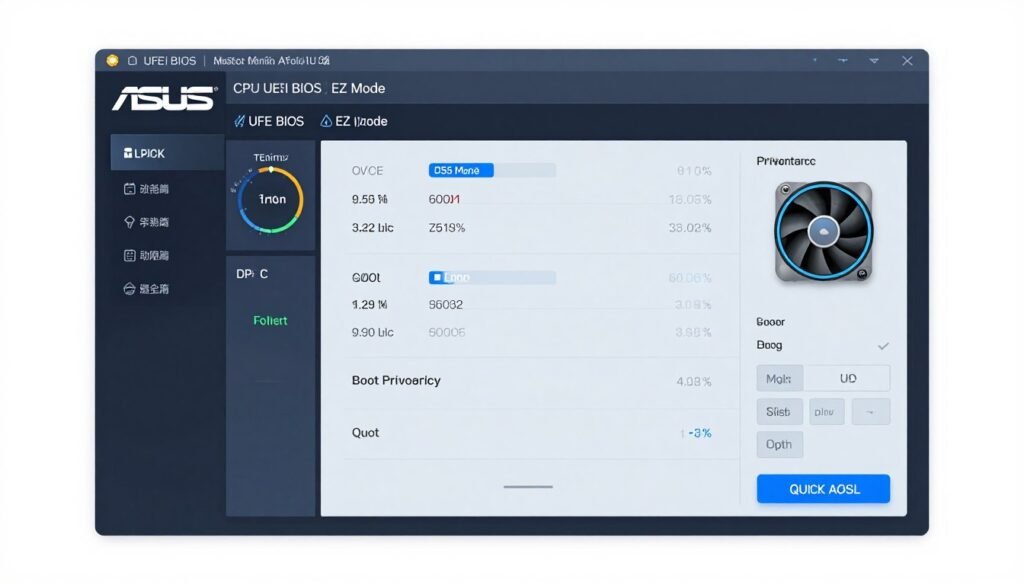
BIOS quality determines whether your motherboard frustrates you or fades into the background doing its job. Modern UEFI BIOS interfaces vary from clean and intuitive to cluttered nightmares. I’ve used boards where changing fan curves required navigating seven menus. Others put everything in logical tabs with search functions.
ASUS leads BIOS design with their UEFI interface. The EZ Mode dashboard shows key information clearly. Advanced mode organizes overclocking, fan control, and settings into logical categories. Their AI Overclocking feature actually works reasonably well for automatic CPU tuning. The BIOS includes built-in descriptions for most settings, helping newcomers understand options.
MSI’s Click BIOS 5 provides similar functionality with a different layout. Some users prefer MSI’s approach, others favor ASUS. Both companies regularly update BIOS to add features and improve stability. MSI’s Game Boost provides one-click overclocking, though manual tuning always performs better. The interface works fine once you learn where everything lives.
Gigabyte BIOS has improved dramatically in recent generations. Earlier versions were clunky and confusing. Current BIOS includes better organization and clearer option descriptions. Gigabyte’s Q-Flash Plus lets you update BIOS without installing CPU or RAM, which proves helpful for recovering from bad BIOS flashes or enabling newer CPU support before first boot.
ASRock BIOS tends toward function over form. The interface looks dated but includes comprehensive options for overclocking and system tuning. ASRock doesn’t polish their BIOS like ASUS does, but experienced users appreciate the direct access to advanced settings. Budget ASRock boards sometimes include features locked behind paywalls on competing brands.

Fan control flexibility matters for quiet or performance-focused builds. Good BIOS provides separate curves for each fan header, multiple temperature source options (CPU, motherboard, GPU if supported), and both DC and PWM modes. Some boards limit all fans to CPU temperature, which makes little sense for case fans that should respond to overall system heat.
The ability to customize fan curves based on specific sensors helps tremendously. Point your VRM fan at chipset temperature. Set case fans to a motherboard temperature sensor. Link CPU fan exclusively to CPU temperature. This granular control keeps noise low during light loads while ramping cooling when needed. Budget boards often lack this flexibility, forcing all fans to follow identical curves.
Memory overclocking interfaces range from helpful to hostile. The best implementations include XMP profile selection, manual timing entry with preset templates, and memory testing tools. RAM profiles significantly impact performance, especially on Intel platforms where RAM speed affects CPU-to-system communication.
Some boards include memory training diagnostics that show which timings or voltages cause instability. This speeds up troubleshooting when pushing memory beyond XMP specifications. Budget boards provide basic timing adjustment but little diagnostic help, making advanced memory overclocking frustrating trial-and-error.
BIOS profiles let you save multiple configurations for different use cases. Save one profile optimized for gaming with aggressive overclocking. Create another for 24/7 stability with conservative settings. Keep a third stock configuration for troubleshooting. This feature seems minor until you’re troubleshooting stability issues and need to quickly revert to known-good settings.
BIOS Update Process: Check how each manufacturer handles updates before buying. ASUS and MSI include Windows-based update utilities plus in-BIOS update tools. Gigabyte’s Q-Flash works without OS. ASRock offers similar functionality. Some budget boards require USB flash drive boot processes that feel dated. Regular BIOS updates fix bugs and add CPU support, so easy updates matter for long-term ownership.
Boot time optimization includes Fast Boot modes that skip certain hardware checks. These save 5-10 seconds on startup but can complicate accessing BIOS if something goes wrong. Good implementations allow holding Delete key to force full POST for BIOS access even with Fast Boot enabled. Poor implementations lock you out, requiring CMOS clears to access BIOS again.
Security features like Secure Boot and TPM 2.0 matter for Windows 11 compatibility. Modern boards include firmware TPM (fTPM) built into the chipset. Verify your board supports these features if running Windows 11 or planning to upgrade from Windows 10. Some older Z690 boards needed BIOS updates to enable proper TPM support.
Hardware monitoring and logging help diagnose problems. The best BIOS includes voltage monitoring for all rails, current sensing for CPU and GPU power, and temperature readouts for every sensor on the board. Logging these values helps identify stability issues over time. Budget implementations show basic voltages and temperatures without historical data or detailed current monitoring.
RGB control through BIOS provides an alternative to OS-based software. Some users prefer setting lighting effects in BIOS to avoid running manufacturer software in Windows. This works for basic color and effect selection but lacks the complexity of full RGB suites. If you use lots of RGB, you’ll eventually need the Windows software despite BIOS options.
Recovery features separate premium boards from budget options. Dual BIOS chips let you recover from failed updates by switching to backup BIOS. BIOS Flashback allows updating or recovering BIOS using only power supply and USB drive, no CPU or RAM required. These features rarely get used, but they’re invaluable when needed. Budget boards skip these safety nets to cut costs.
Clear CMOS options range from rear-panel buttons to internal jumpers or button cells you remove and reinstall. Rear-panel CMOS buttons make resetting BIOS settings trivial when troubleshooting. Internal jumpers require opening the case and finding tiny pins to bridge. Quality-of-life features like CMOS buttons separate polished motherboards from bare-minimum offerings.
The BIOS you’ll use hundreds of times throughout a motherboard’s life deserves consideration during selection. Read reviews specifically discussing BIOS quality and update support. Check manufacturer forums to see how responsive companies are to BIOS bugs. A $50 savings on a board with garbage BIOS becomes expensive when every setting change frustrates you. Spend the extra money for better BIOS implementation on boards you’ll keep for years.
Budget Z-Series Boards That Don’t Compromise Essentials
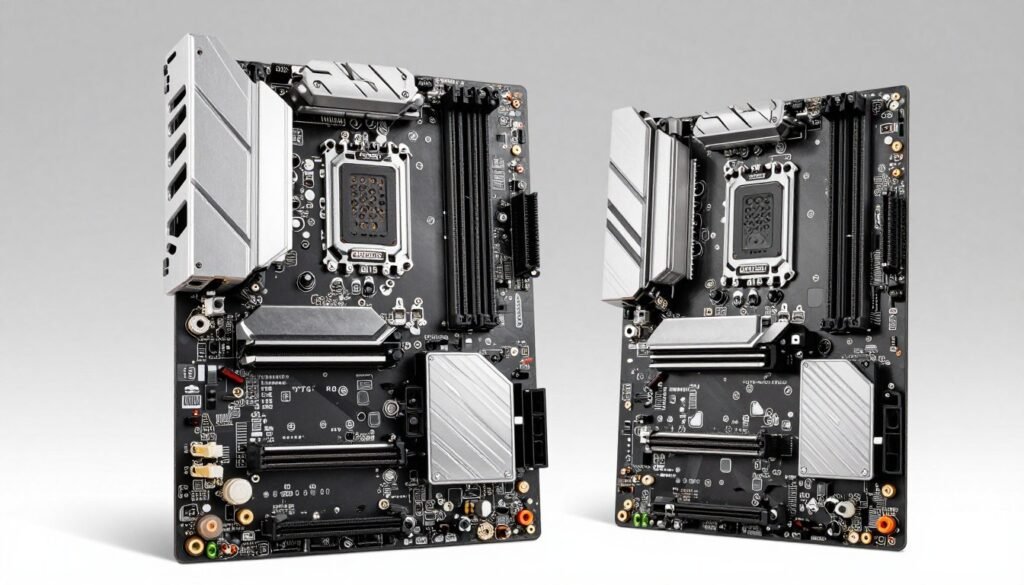
Budget Z-series boards exist between $180-250. This segment requires careful evaluation because cost-cutting happens in specific areas. Some boards skip WiFi. Others use smaller VRM heatsinks or fewer M.2 slots. The key is finding boards that cut features you don’t need while retaining essentials for your specific build.
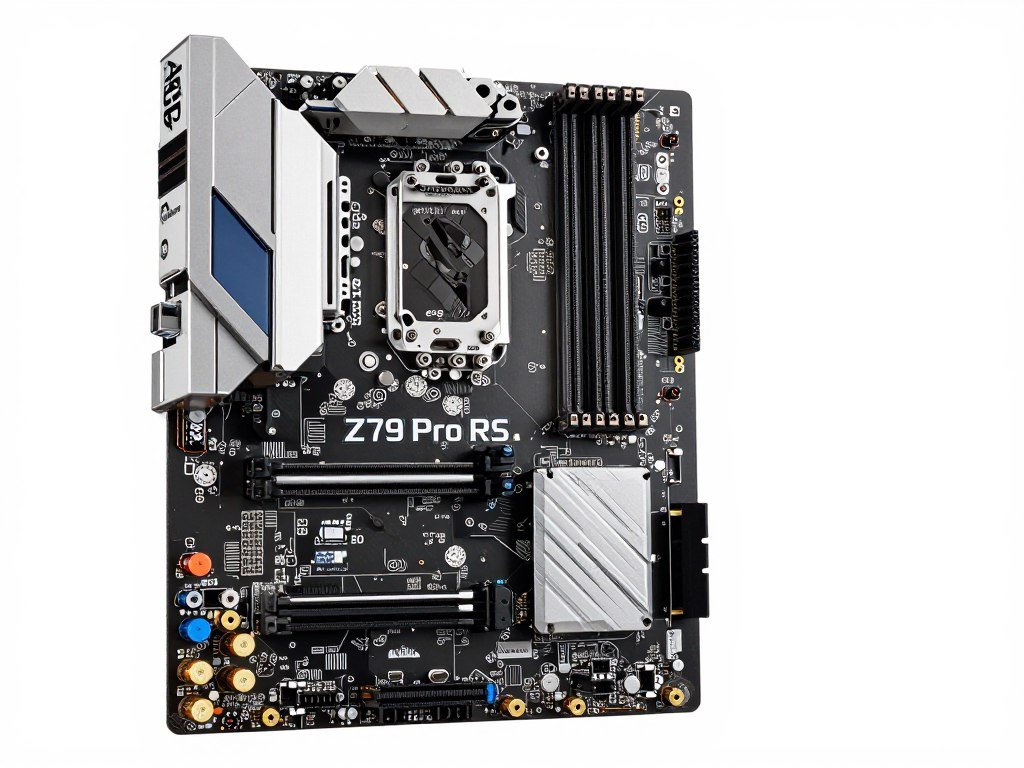
ASRock Z790 Pro RS sits around $180-200 and offers surprising value. It includes a 14-phase VRM that handles 14600K and 14700K without thermal issues. You get four M.2 slots with heatsinks, 2.5 GbE Ethernet, and eight USB ports including two USB 3.2 Gen 2 connections. The trade-offs: no WiFi, basic audio codec, and no fancy RGB lighting. For wired gaming builds, these cuts don’t matter.
The board supports DDR5-6400+ with decent memory overclocking headroom. BIOS updates have improved stability since launch. ASRock’s BIOS isn’t the prettiest but includes necessary overclocking options. If you’re building a performance-focused gaming PC and don’t care about aesthetics or wireless connectivity, this board delivers Z-series functionality without waste.
ASRock Z790 Pro RS
Strengths
- Excellent VRM for the price (14-phase)
- Four M.2 slots with heatsinks
- Handles 14700K overclocking adequately
- 2.5 GbE Ethernet included
- Good memory overclocking support
Limitations
- No WiFi or Bluetooth
- Basic Realtek ALC897 audio
- Minimal RGB lighting
- Only six fan headers
- Limited USB 3.2 Gen 2 ports
Best For: Budget gaming builds with 14600K or 14700K CPUs, wired network setups, users who don’t care about aesthetics or WiFi.
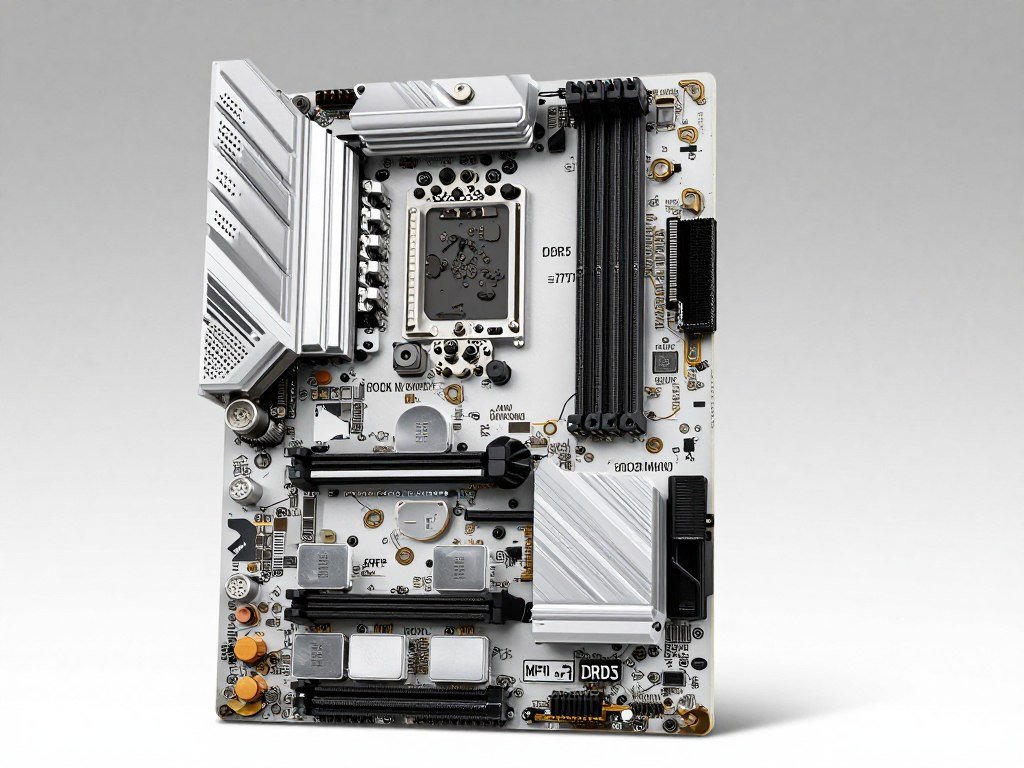
MSI PRO Z790-A WiFi typically sells for $220-240 and adds wireless connectivity to the budget segment. The 16-phase VRM handles most CPUs well, though 14900K overclocking pushes thermal limits. You get WiFi 6E, Bluetooth 5.3, four M.2 slots, and better audio than the ASRock option. MSI’s Click BIOS provides a cleaner interface than ASRock.
This board makes sense if you need WiFi without jumping to $300+ options. The white PCB color scheme looks clean in builds with windowed cases. MSI includes more USB 3.2 Gen 2 ports than ASRock and better RGB header selection for lighting enthusiasts. It’s a solid all-around board without a specific weakness, though it doesn’t excel in any particular area either.
MSI PRO Z790-A WiFi
Strengths
- 16-phase VRM with good thermals
- WiFi 6E and Bluetooth 5.3 included
- Clean white PCB aesthetic
- Four M.2 slots with heatsinks
- Better audio (Realtek ALC4080)
- Comprehensive USB selection
Limitations
- VRM struggles with 14900K heavy OC
- No POST code display
- Only 2.5 GbE Ethernet (not 5/10G)
- Basic RGB implementation
Best For: WiFi-dependent builds, users wanting clean white aesthetics, all-around gaming with 14600K through 14900K at moderate overclocks.
Gigabyte Z790 UD AC falls around $200-230 and competes directly with the MSI option. It includes WiFi 6E, four M.2 slots, and 16+1+2 phase VRM that stays reasonably cool. Gigabyte’s Q-Flash Plus feature allows BIOS updates without CPU installation, which helps when enabling support for newer processors. The board uses a black PCB with minimal RGB for understated builds.
Where Gigabyte cuts costs: fewer USB ports than competitors, basic audio implementation, and less comprehensive BIOS options for advanced memory tuning. For straightforward gaming builds without extreme overclocking ambitions, these limitations rarely impact actual usage. The board reliably runs 14th gen CPUs at stock or light overclocks without drama.
Gigabyte Z790 UD AC

Strengths
- 16+1+2 phase VRM with adequate cooling
- WiFi 6E and Bluetooth 5.3
- Q-Flash Plus for easy updates
- Four M.2 slots
- Competitive pricing
Limitations
- Fewer USB ports than rivals
- Basic audio codec
- Limited advanced memory tuning
- Plain aesthetics
- Only six fan headers
Best For: Budget-conscious builders needing WiFi, users who value Q-Flash Plus for easier maintenance, straightforward gaming builds without aggressive overclocking.
When shopping budget Z-series, verify VRM specifications in detailed reviews. Marketing materials lie or obfuscate phase counts. Hardware Unboxed, Gamers Nexus, and TechPowerUp provide VRM analysis in their motherboard reviews. A budget board with genuinely good VRM outperforms a premium board with oversold but underwhelming power delivery.
Memory compatibility matters in this price range. Budget boards sometimes struggle with higher-end DDR5 kits above 6400 MT/s. Check your board’s QVL (Qualified Vendor List) if you’re buying expensive DDR5-7200 RAM. Faster memory might not POST or require manual tuning to reach advertised speeds. Mid-range and premium boards handle memory overclocking more reliably.
The budget segment works well for gaming-focused builds with 14600K or 14700K CPUs. These chips don’t pull extreme wattage like the 14900K. You can overclock them moderately on budget VRMs without thermal issues. Pair these boards with adequate CPU cooling for stable long-term operation.
Avoid pairing budget Z-series boards with flagship CPUs like 14900KS unless you’re running stock settings. The VRM can technically supply enough power, but temperatures and voltage stability suffer under sustained loads. Save $50 on the motherboard but lose performance from thermal throttling makes no sense. Match your board’s VRM capability to your CPU’s power demands.
Mid-Range Z-Series: The Sweet Spot for Most Builders
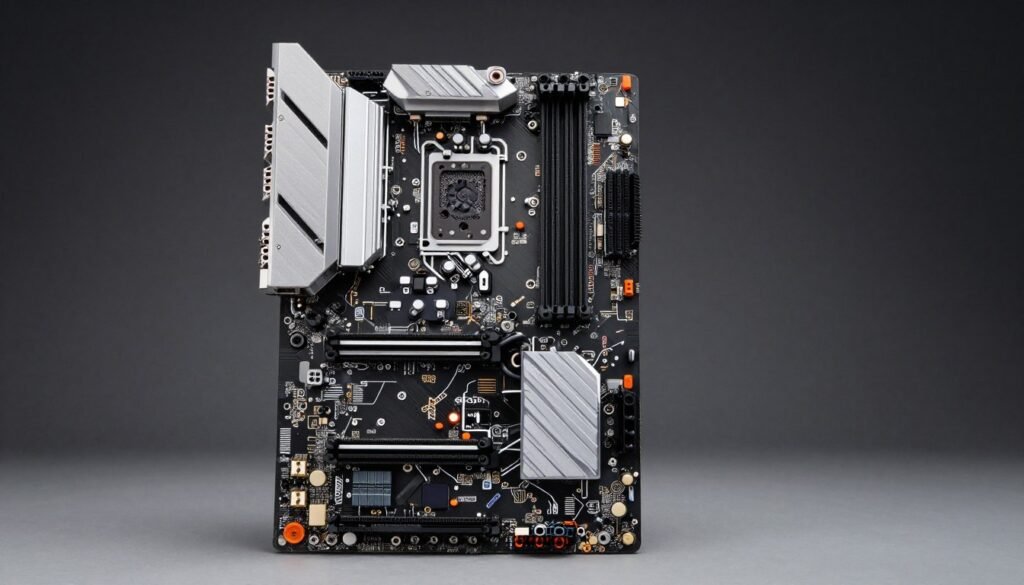
The $250-350 price range delivers the best value in Z-series motherboards. Boards here include robust VRM, comprehensive connectivity, and quality BIOS implementations without flagship pricing. Most gaming builds benefit more from this tier than budget or premium options. You get features you’ll actually use without paying for extreme overclocking capabilities most people never exploit.
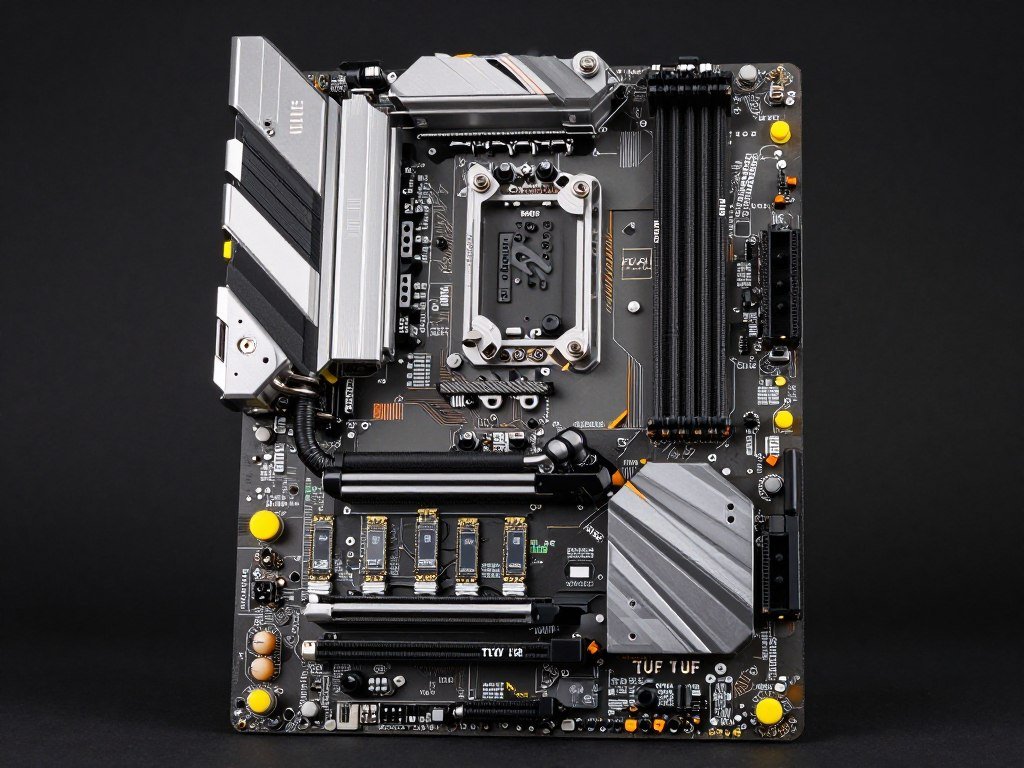
ASUS TUF Gaming Z790-Plus WiFi typically sells around $280-300 and represents what $300 should buy. The 16+1 phase VRM handles 14900K overclocking comfortably with excellent heatsink design. You get WiFi 6E, 2.5 GbE Ethernet, five M.2 slots with heatsinks, and comprehensive USB 3.2 options including Gen 2×2 Type-C. The TUF series focuses on durability and performance over RGB excess.
ASUS includes PCIe 5.0 support for the primary M.2 slot, though current SSDs don’t utilize this bandwidth. The board features eight fan headers with individual curve control and robust BIOS with AI overclocking and extensive manual options. Build quality feels substantial with thick PCB and quality components throughout. This board handles everything from gaming to content creation without complaints.
ASUS TUF Gaming Z790-Plus WiFi
Strengths
- Excellent 16+1 phase VRM with great thermals
- Five M.2 slots (one PCIe 5.0)
- WiFi 6E and 2.5 GbE included
- Superior ASUS BIOS implementation
- Eight fan headers with granular control
- Handles 14900K OC without thermal issues
- Robust build quality and thick PCB
Limitations
- No 10 GbE Ethernet option
- RGB implementation is minimal
- No POST code display
- Costs $30-50 more than competitors
Best For: All-around gaming and productivity builds, users wanting proven reliability, 14th gen CPUs from 14600K through 14900K with moderate to aggressive overclocking.
MSI MAG Z790 Tomahawk WiFi sits around $260-290 and offers different strengths than the ASUS board. MSI uses 16+1+1 phase VRM with dual 8-pin CPU power for stable high-wattage delivery. The board includes WiFi 6E, five M.2 slots, and MSI’s M.2 Shield Frozr heatsinks that actually improve SSD thermals measurably. RGB integration works well with MSI Mystic Light if you care about synchronized lighting.
The Tomahawk series emphasizes value without sacrificing critical features. You get DDR5 support up to 7200+ MT/s with good memory overclocking stability. The BIOS includes helpful profiles and monitoring tools. MSI added USB 3.2 Gen 2×2 front-panel header support, which many boards in this price range skip. Overall component selection and layout make this an excellent choice for balanced builds.
MSI MAG Z790 Tomahawk WiFi

Strengths
- 16+1+1 phase VRM with dual 8-pin power
- Five M.2 slots with effective heatsinks
- WiFi 6E and 2.5 GbE Ethernet
- Excellent DDR5 overclocking support
- USB 3.2 Gen 2×2 front-panel header
- Good RGB implementation
- Competitive pricing for features offered
Limitations
- BIOS less polished than ASUS
- No PCIe 5.0 M.2 support
- Seven fan headers (one fewer than ASUS)
- MSI software can be buggy
Best For: Value-focused builds needing comprehensive features, RGB enthusiasts, users wanting excellent memory overclocking support, builds emphasizing connectivity.
Gigabyte Z790 Aorus Elite AX falls around $250-270 and brings Gigabyte’s improved BIOS and build quality to the mid-range. The 16+1+2 phase VRM stays cool under load with substantial heatsinks and heatpipe design. WiFi 6E, five M.2 slots, and comprehensive USB selection match competitors. Gigabyte includes Q-Flash Plus for easy BIOS updates and recovery.
The Aorus Elite series sits below flagship Aorus Master boards but delivers 90% of the performance at significant savings. RGB Fusion 2.0 software works better than previous versions though still trails ASUS and MSI implementations. The board supports DDR5-6600 comfortably with potential for higher speeds through manual tuning. For Gigabyte fans or users wanting Q-Flash Plus convenience, this represents solid value.
Gigabyte Z790 Aorus Elite AX

Strengths
- 16+1+2 phase VRM with heatpipe cooling
- Q-Flash Plus for easy updates
- WiFi 6E and 2.5 GbE
- Five M.2 slots
- Competitive pricing
- Good DDR5 support
- Improved BIOS over earlier Gigabyte boards
Limitations
- RGB software still improving
- BIOS less intuitive than ASUS
- Audio implementation basic
- Only seven fan headers
- No PCIe 5.0 M.2 slot
Best For: Budget-conscious mid-range builds, users valuing Q-Flash Plus feature, Gigabyte ecosystem users, balanced gaming and productivity systems.
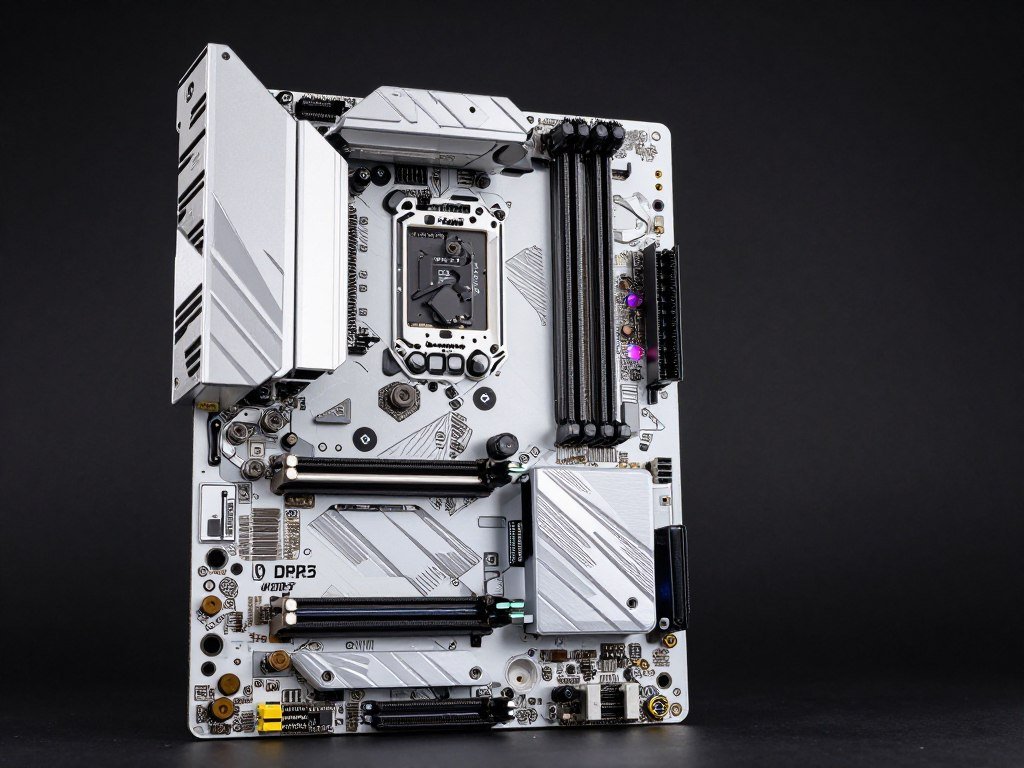
ASRock Z790 Steel Legend WiFi deserves mention around $250-280 for users wanting distinctive aesthetics. The white and silver color scheme stands out in builds with matching components. ASRock includes 14+1+1 phase VRM that performs adequately for most CPUs, though it runs slightly warmer than competitor designs under heavy 14900K loads. WiFi 6E, four M.2 slots, and comprehensive USB make this competitive feature-wise.
The Steel Legend series targets aesthetics-focused builders without extreme premium pricing. RGB lighting integration works well if you’re building a white-themed system. ASRock’s BIOS provides comprehensive options though the interface looks dated compared to ASUS or MSI. This board works well for 14600K through 14700K builds where VRM thermal limits won’t be reached frequently.
ASRock Z790 Steel Legend WiFi
Strengths
- Distinctive white and silver aesthetics
- WiFi 6E and 2.5 GbE included
- Four M.2 slots with heatsinks
- Good RGB integration
- Competitive pricing for aesthetics
- Comprehensive USB selection
Limitations
- 14+1+1 phase VRM runs warmer
- Not ideal for 14900K heavy overclocking
- BIOS interface dated
- Only four M.2 slots vs five on competitors
- Audio implementation basic
Best For: White-themed aesthetic builds, users wanting distinctive looks without flagship pricing, 14600K and 14700K gaming systems, builds prioritizing appearance.
The mid-range segment delivers 95% of premium board performance at 60-70% of the cost. Unless you need specific flagship features like 10 GbE networking, six M.2 slots, or extreme overclocking capability, spending beyond $350 brings diminishing returns. Match your board choice to your CPU and actual usage rather than buying the most expensive option because reviews praise it.
Consider how system balance affects overall performance. A $300 motherboard with a $250 GPU creates imbalance. Your money goes further upgrading the GPU to $400 and using a $200 board. Motherboard choice matters, but it’s not where most gaming performance comes from. Balance your budget across all components for optimal results.
Verify Your Component Compatibility
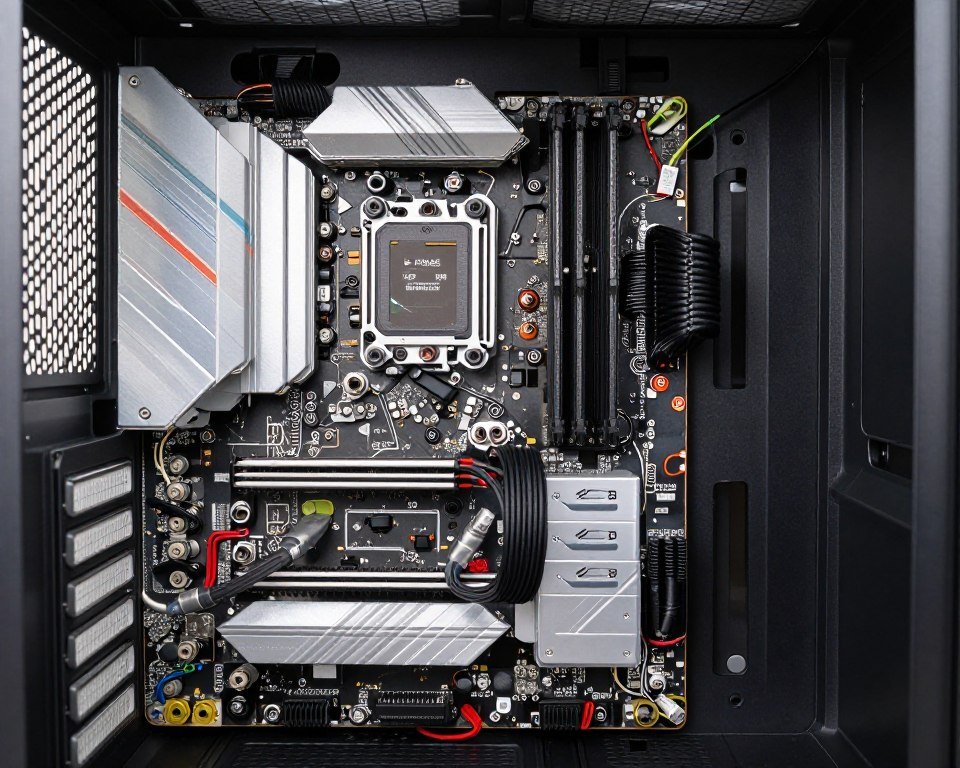
Even mid-range boards can bottleneck high-end CPUs if VRM quality doesn’t match power demands. Test your planned configuration before purchasing.
High-End Z-Series for Flagship Builds
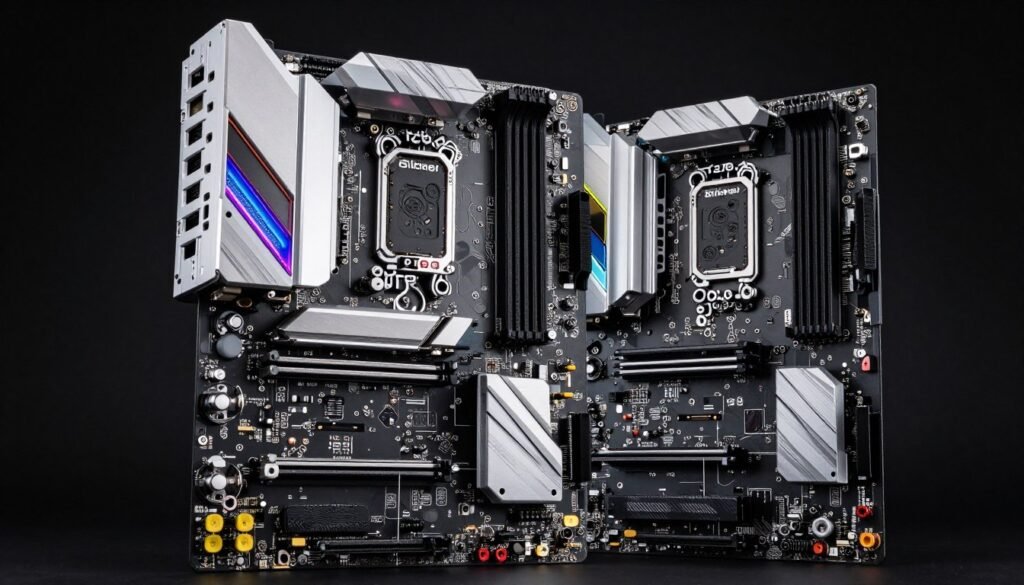
Premium Z-series boards cost $350-700 and target enthusiasts building flagship systems. These boards justify higher prices through superior VRM implementations, additional connectivity, premium audio, and extensive BIOS features for extreme overclocking. The question isn’t whether these boards perform better – they do. It’s whether you’ll actually use the extra capability.
ASUS ROG Strix Z790-E Gaming WiFi sits around $380-420 and represents what premium money buys without entering extreme territory. The board uses 18+1 phase VRM with ProCool II power connectors and substantial heatsinks. You get WiFi 6E, 2.5 GbE Ethernet, five M.2 slots with PCIe 5.0 support on the primary slot, and comprehensive USB 3.2 Gen 2×2 connectivity. ASUS includes premium audio with ESS Sabre codec and SupremeFX shielding.
The ROG Strix E boards deliver excellent overclocking capability for 14900K and 14900KS chips. VRM temperatures stay comfortable even during extended stress testing at aggressive voltages. BIOS implementation is ASUS’s best consumer offering with AI tuning that actually works and comprehensive manual options for experienced overclockers. The board includes POST code display, BIOS flashback button, and clear CMOS button on rear IO for easier troubleshooting.
ASUS ROG Strix Z790-E Gaming WiFi
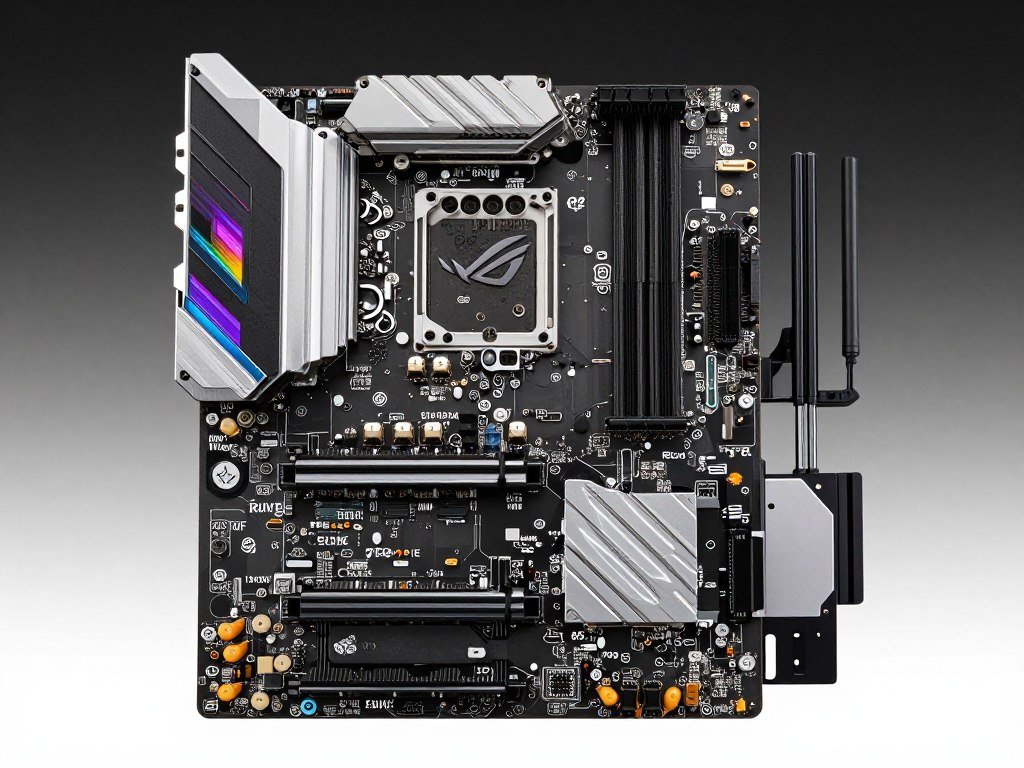
Strengths
- Excellent 18+1 phase VRM for flagship CPUs
- Five M.2 slots (one PCIe 5.0)
- WiFi 6E and 2.5 GbE networking
- Premium ESS Sabre audio codec
- Superior ASUS BIOS with AI tuning
- Comprehensive USB 3.2 Gen 2×2 options
- POST code display and debug features
- Excellent DDR5 overclocking support
Limitations
- No 10 GbE Ethernet (on lower tier)
- RGB can be excessive for some tastes
- Premium pricing versus mid-range
- Aura Sync software occasionally buggy
Best For: Flagship gaming builds with 14900K/KS, enthusiast overclockers, users wanting premium audio and connectivity, builds emphasizing BIOS quality and long-term support.
MSI MPG Z790 Carbon WiFi sells around $350-390 and offers different strengths than the ASUS board. MSI uses 19+1+1 phase VRM with excellent power delivery characteristics. The board includes WiFi 6E, 2.5 GbE Ethernet, and five M.2 slots with effective thermal solutions. Carbon series emphasizes aesthetics with integrated RGB lighting and carbon fiber-style heatsink designs.
Memory overclocking on the Carbon WiFi exceeds most competitors. Users regularly achieve DDR5-7200+ with appropriate kits. MSI’s Click BIOS includes comprehensive memory timing options and helpful presets. The board supports front-panel USB 3.2 Gen 2×2 and includes numerous USB ports on rear IO. For users prioritizing memory performance and aesthetics over absolute VRM overkill, the Carbon represents solid value in the premium segment.
MSI MPG Z790 Carbon WiFi
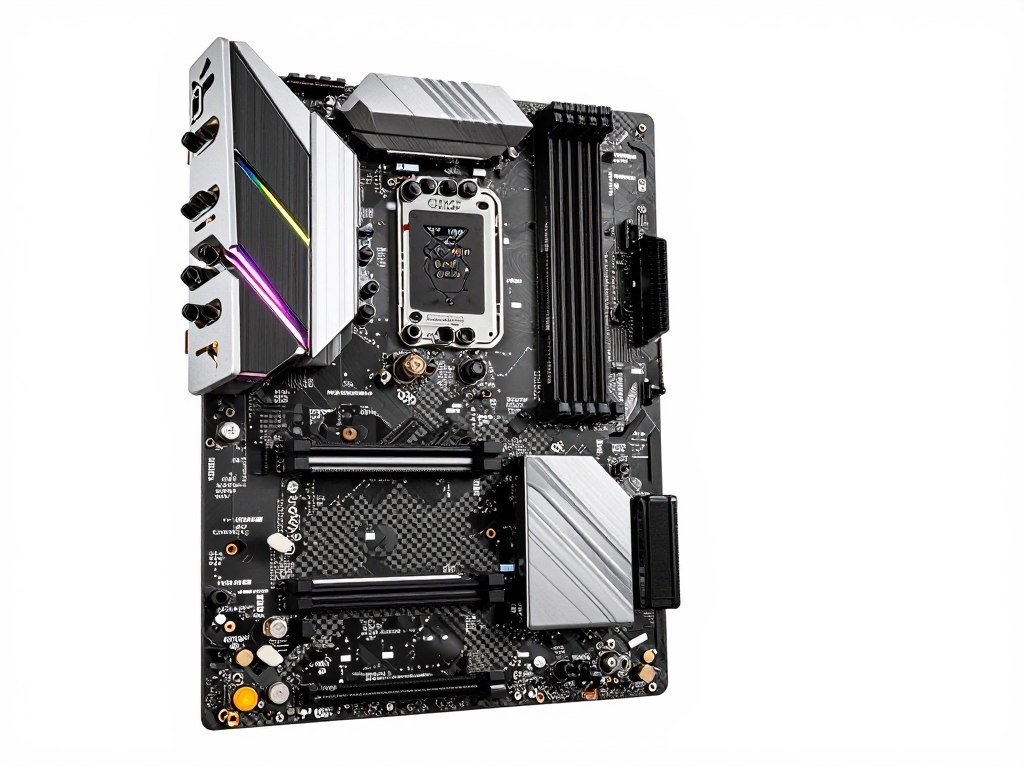
Strengths
- 19+1+1 phase VRM with excellent delivery
- Outstanding memory overclocking capability
- Five M.2 slots with effective cooling
- WiFi 6E and 2.5 GbE included
- Integrated RGB lighting design
- Comprehensive USB 3.2 Gen 2×2 support
- Premium audio implementation
- Good value in premium segment
Limitations
- BIOS less polished than ASUS
- MSI Center software can be problematic
- No 10 GbE option
- Only 2.5 GbE networking
Best For: Memory overclocking enthusiasts, aesthetics-focused premium builds, users wanting excellent VRM without top-tier pricing, DDR5-7000+ builds.
ASUS ROG Maximus Z790 Hero enters true flagship territory around $550-600. The 20+1 phase VRM handles anything you throw at it, including extreme overclocking with exotic cooling. ASUS includes 10 GbE Ethernet alongside WiFi 6E for maximum networking flexibility. The board features five M.2 slots with PCIe 5.0 support, premium ESS Sabre audio, and comprehensive debug features including OLED POST display.
The Maximus Hero series represents ASUS’s high-end consumer offering before entering extreme overclocking territory. You get every feature ASUS offers except for the absolute highest-end VRM and niche additions on Formula/Apex boards. The BIOS includes extensive overclocking profiles, per-core tuning, and memory training features that enthusiasts appreciate. This board makes sense for users building $3000+ systems where $600 motherboard cost represents reasonable budget allocation.
ASUS ROG Maximus Z790 Hero
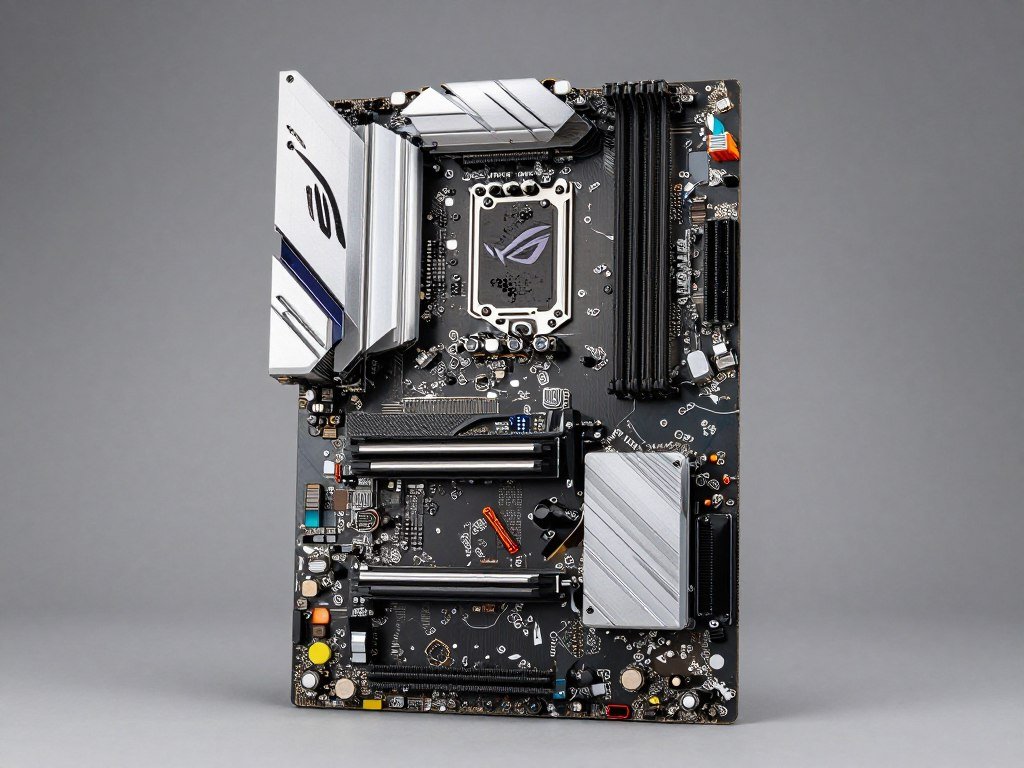
Strengths
- 20+1 phase VRM for extreme overclocking
- 10 GbE Ethernet and WiFi 6E
- Five M.2 slots with PCIe 5.0 support
- OLED POST display for diagnostics
- Best-in-class ASUS BIOS
- Premium ESS Sabre audio
- Comprehensive debug features
- Extensive fan and RGB control
- Long-term BIOS support guaranteed
Limitations
- Expensive versus mid-range performance
- Features exceed most users’ needs
- 10 GbE requires compatible networking
- RGB can be excessive
- Overkill for non-overclocking builds
Best For: Extreme enthusiast builds, flagship CPU overclocking, professional content creation with gaming, builds where $600 motherboard makes sense in overall budget, users wanting maximum features and future-proofing.
When considering premium boards, honestly assess whether you’ll use the additional features. A 14900K running at moderate overclock doesn’t need $600 board VRM. That same system benefits more from better GPU, faster storage, or additional RAM. Premium boards make sense in specific scenarios: extreme overclocking, professional workloads requiring 10 GbE networking, builds where aesthetics justify premium, or systems you plan to keep for 5+ years.
One practical consideration: premium boards receive longer support and more BIOS updates than budget alternatives. ASUS ROG and MSI MPG series typically get updates for 4-5 years including new CPU support, stability improvements, and feature additions. Budget boards might see support drop after 2-3 years. If you plan to upgrade your CPU in 2027 to whatever Intel releases, premium board investment makes more sense than budget boards that might not receive BIOS updates.
Premium doesn’t always mean better value. Sometimes you’re paying for aesthetics, brand prestige, or niche features you’ll never use. The ROG Strix E boards deliver 95% of Maximus Hero performance at 65% of the price. Unless you specifically need 10 GbE or plan extreme overclocking, the extra $200 brings minimal practical benefit. Build within your budget rather than stretching for premium boards that don’t improve actual gaming performance.
Understanding where motherboards fit in performance hierarchy helps with purchasing decisions. Your motherboard enables your CPU and other components to perform but doesn’t directly increase FPS like GPU upgrades do. CPU selection matters more for gaming than motherboard tier once you’re above budget boards with adequate VRM.
What Actually Matters When Buying Z-Series
Start with your CPU choice. Your processor determines minimum motherboard requirements. A 14600K needs less VRM capability than a 14900KS. Match your board’s power delivery to your CPU’s demands plus modest headroom for overclocking if planned. Buying a $400 board for a 14600K wastes money that could improve other components.
Consider your actual overclocking plans. Many enthusiasts buy Z-series boards intending to overclock but never actually do it. Modern Intel CPUs already boost aggressively at stock settings. The performance gain from manual overclocking ranges from 3-8% while increasing power consumption and heat significantly. If you’re unsure about overclocking, maybe B-series saves you money without sacrificing gaming performance.
Connectivity needs determine which tier makes sense. Count your current peripherals and storage devices plus what you might add later. Need WiFi? That narrows options or adds $20-30 for WiFi models. Planning multiple NVMe drives? You need four or five M.2 slots. Running capture card for streaming? Make sure you have sufficient PCIe slots after installing your GPU.
Form factor choice impacts motherboard selection significantly. ATX provides maximum flexibility. Micro-ATX works well for most gaming builds with less bulk. ITX demands careful planning but rewards with compact size. Choose form factor based on case preference and available desk space, then select boards within that constraint.
RAM compatibility deserves attention when buying higher-speed memory. Budget boards struggle with DDR5-7000+ kits. Mid-range options handle DDR5-6400 to DDR5-6800 reliably. Premium boards excel at DDR5-7200+ if you’re chasing maximum memory performance. Check motherboard QVL lists if buying expensive RAM to verify compatibility before purchasing.
Ask Yourself These Questions
- What CPU am I using? (determines VRM needs)
- Will I actually overclock? (justifies Z-series premium)
- Do I need WiFi or only wired Ethernet?
- How many M.2 drives will I use? (2, 4, or 5+ slots)
- What case size do I want? (determines form factor)
- What’s my total build budget? (motherboard should be 12-18%)
- Am I keeping this board for 2, 4, or 6+ years?
- Do I need specific features like Thunderbolt, 10GbE, premium audio?
Budget Allocation Guidelines
Your motherboard cost should scale with total system budget and CPU tier. Here are practical allocation ranges:
- $1200-1500 build: $180-220 board (14600K class)
- $1500-2000 build: $220-300 board (14700K class)
- $2000-2500 build: $280-380 board (14900K class)
- $2500-3500 build: $350-500 board (14900K/KS OC builds)
- $3500+ build: $400-700 board (flagship everything)
These ranges assume balanced builds. Workstation or special-purpose systems may justify different allocations.
BIOS quality matters more than most reviews emphasize. You’ll interact with BIOS for initial setup, troubleshooting, and tuning throughout ownership. Read reviews specifically mentioning BIOS ease-of-use, update frequency, and stability. A buggy BIOS turns every adjustment into frustration. Polished BIOS makes system tuning straightforward and even enjoyable.
Future upgrade plans influence purchase decisions. Planning to upgrade CPU in 18-24 months? Buy a board with good BIOS support history from manufacturers who update regularly. ASUS, MSI, and Gigabyte typically support boards longer than budget manufacturers. This extra support means your 2026 board will likely work with 2028 CPUs through BIOS updates.
Aesthetics matter if you care about appearance. RGB lighting, color-matched heatsinks, and cable covers add $20-50 to board cost. These features don’t improve performance but make your build look cohesive. If you’re using a solid-panel case or don’t care about appearance, save money on a plain board and spend it where performance matters.
Check manufacturer warranty and support quality before buying. Most boards include 3-year warranties, but support quality varies. ASUS and MSI have more comprehensive support networks than smaller brands. ASRock and Gigabyte fall somewhere in middle. Budget brands may have limited support or slow RMA processes. Factor this into purchase if you value support access.
Read recent user reviews, not just professional reviews from launch day. Motherboard BIOS and stability improve or degrade over months based on updates. A board with problems at launch might work perfectly after three BIOS updates. Conversely, a stable board can develop issues from bad BIOS releases. Recent user feedback reveals current state better than launch-day professional reviews.
Consider sales and deals when timing purchases. Motherboard prices fluctuate significantly around major shopping events. A $300 board might hit $240 during Black Friday or Prime Day sales. If you’re not building immediately, monitor prices and buy during sales periods. The same board for $60 less leaves budget for better GPU or additional storage.
One often-overlooked aspect: included accessories and software. Some boards bundle WiFi adapters, SATA cables, RGB controllers, or premium software licenses. Others include bare minimums. Check what’s included before assuming you need to buy cables or accessories separately. Premium boards usually include more useful extras than budget alternatives.
The “best” Z-series motherboard is the one that matches your specific needs and budget. There’s no universal recommendation that works for everyone. A $200 board serves budget-conscious gamers perfectly. A $400 board makes sense for enthusiast builds. A $600 board might be justified for extreme overclocking or professional workloads. Match the board to your situation rather than blindly following “best” lists that might not reflect your needs.
Common Z-Series Buying Mistakes and How to Avoid Them
Overbuying motherboard features ranks as the most common mistake. New builders see reviews praising flagship boards and assume expensive equals better. They buy $500 boards for $200 CPUs, then complain about tight budgets for GPU upgrades. Your motherboard enables performance but doesn’t create it. Balance spending across all components rather than blowing budget on one part.
Ignoring VRM quality causes problems down the road. Some buyers focus on brand names or aesthetics while overlooking power delivery specifications. They pair budget boards with power-hungry CPUs like 14900K, then wonder why their system crashes during gaming or throttles under load. Research VRM reviews from Hardware Unboxed or Gamers Nexus before buying boards for high-end CPUs.
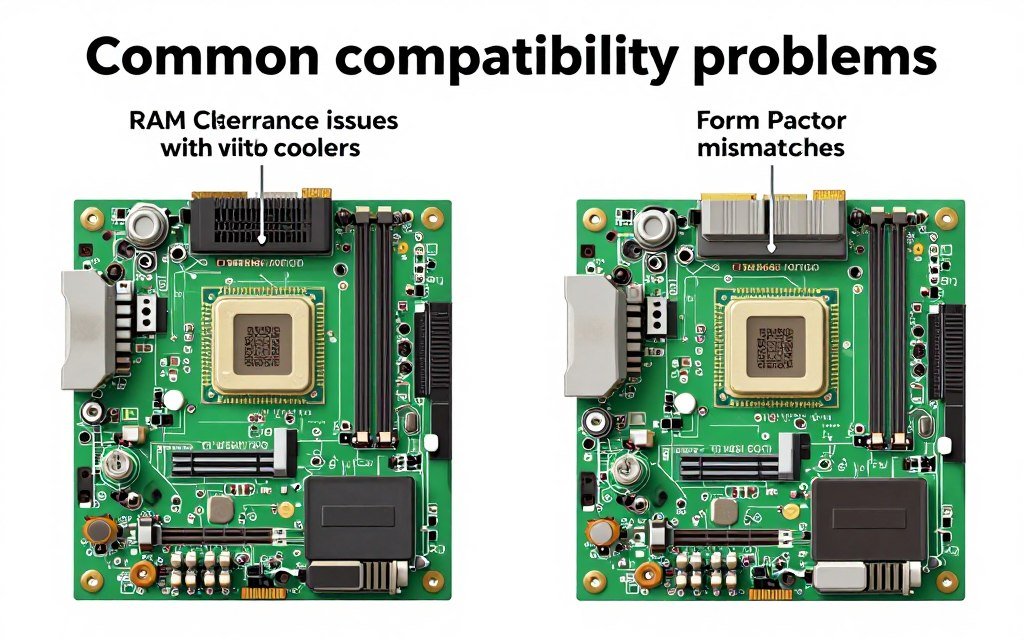
Mismatching form factors between board and case wastes time and money. Buyers purchase ATX boards then realize their case only supports mATX. Or they buy ITX boards but have ATX cases with most mounting holes unused. Verify case and motherboard form factor compatibility before ordering. This seems obvious but accounts for surprising numbers of return requests.
Neglecting connectivity needs creates frustration after building. You discover your board lacks front-panel USB-C header for your new case. Or you need four M.2 drives but only have three slots. Count your peripherals, storage devices, and expansion cards before buying. Purchase boards with at least one extra slot or port beyond current needs for future additions.
Assuming all Z790 boards perform identically because they share chipsets leads to disappointment. Two Z790 boards can deliver vastly different experiences based on VRM quality, BIOS implementation, and component selection. Research specific board models rather than assuming chipset specifications determine everything. Implementation quality varies significantly between manufacturers and price tiers.
Critical Compatibility Mistake: Buying Z690 boards for 14th gen CPUs without checking BIOS support. While Z690 officially supports 12th and 13th gen Intel, manufacturers added 14th gen support through BIOS updates. However, not all Z690 boards received updates, and some require updating with older CPU installed first. Verify specific board BIOS support for your CPU generation before purchasing older chipset boards on sale.
Focusing exclusively on price leads to buyer’s remorse. The cheapest Z-series option often cuts corners that matter: basic audio codec, fewer fan headers, minimal USB ports, or poor BIOS. Saving $40 on motherboard then spending $30 on USB hub plus $25 on fan splitter defeats the purpose. Sometimes paying $50 more upfront prevents buying accessories later.
Buying boards before checking case clearances causes headaches during assembly. Some boards have connectors positioned where they interfere with certain cases. Others have tall heatsinks that block cable routing or interfere with large CPU coolers. Check case reviews and motherboard dimensions before ordering, especially for compact mATX or ITX builds where millimeters matter.
Ignoring RAM slot configuration relative to memory plans creates limitations. You buy a board with four DIMM slots planning to install 32GB now and upgrade to 64GB later. But you buy four 8GB sticks instead of two 16GB sticks. Now you’re stuck with 32GB maximum unless you replace all four sticks. Plan memory configuration based on current needs and upgrade paths.
Failing to research manufacturer support quality leads to frustrating experiences when problems occur. Some brands respond quickly to support tickets and RMA issues. Others take weeks or deny legitimate claims. Read user experiences with manufacturer support before buying. ASUS and MSI generally receive better support ratings than smaller brands. This matters when hardware fails.
Not checking BIOS version before purchasing causes confusion during initial build. Some boards ship with older BIOS that doesn’t support your CPU generation even though the board chipset technically works. You’ll need another CPU to boot and update BIOS, or use BIOS Flashback features if available. Always check current BIOS version compatibility for your specific CPU before buying, especially with older board inventory.
Overlooking PCIe lane sharing creates unexpected limitations. Many boards share lanes between M.2 slots and SATA ports. Installing an M.2 drive in slot 3 might disable SATA ports 5 and 6. Read the manual’s block diagram showing lane sharing before planning storage configuration. This prevents discovering you can’t use all slots simultaneously after purchasing.
Buying boards with integrated WiFi then never using it wastes $20-30. Many users buy WiFi-equipped boards “just in case” but only use Ethernet. If you know you’ll use wired networking exclusively, save money on non-WiFi versions. Those savings accumulate across build budgets. Only pay for features you’ll actually use.
Skipping reviews from multiple sources leads to misinformed purchases. One glowing review might miss problems other reviewers found. Read at least three professional reviews plus recent user reviews on retailer sites. Look for consistent issues across reviews: BIOS bugs, VRM thermals, memory compatibility. Multiple sources reveal problems single reviews might miss.
Comparing specifications without understanding their implications causes confusion. Two boards list “14 phase VRM” but one uses true independent phases while the other doubles seven phases. Spec sheets don’t reveal these differences. You need detailed reviews that analyze component quality and actual implementation rather than trusting marketing materials.
The biggest mistake: buying motherboard first then building around it. This backwards approach locks you into specific CPU sockets, RAM types, and expansion limitations. Instead, plan your entire build considering all components together. Choose CPU first based on performance needs and budget. Then select motherboard supporting that CPU with necessary features. The motherboard serves the build, not vice versa. Understanding how components communicate helps avoid compatibility mistakes.
Final Recommendations by Use Case
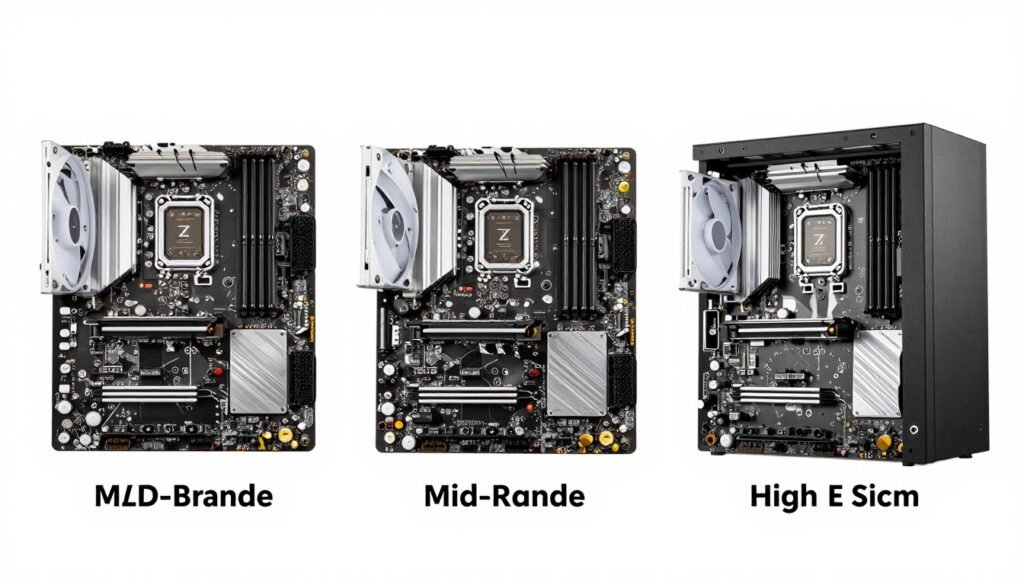
Your specific use case determines which Z-series board makes sense. Gaming needs differ from content creation. Budget builds prioritize differently than flagship systems. Here are practical recommendations based on common scenarios, not generic “best overall” claims that ignore individual needs.
Budget Gaming Build ($1200-1500 Total)
Target a $180-240 Z-series board paired with 14600K. Focus on boards with adequate VRM (12+ phases), WiFi if needed, and four M.2 slots. Skip premium audio, excessive RGB, and features like 10 GbE. Recommendations: ASRock Z790 Pro RS for wired setups, MSI PRO Z790-A WiFi for wireless needs. These boards deliver Z-series functionality without wasting budget on unused features.
Prioritize spending on GPU and RAM in this budget tier. Your motherboard should be 12-15% of total budget. Every dollar saved on motherboard moves to RTX 5070 instead of RTX 5060 Ti, or 32GB RAM instead of 16GB. The performance difference matters more than motherboard features you’ll never use.
Mainstream Gaming Build ($1500-2000 Total)
Target mid-range boards $250-320 paired with 14700K or 14900K. Look for 16+ phase VRM, five M.2 slots, WiFi 6E, and polished BIOS implementations. Recommendations: ASUS TUF Gaming Z790-Plus WiFi for reliability, MSI MAG Z790 Tomahawk WiFi for value, Gigabyte Z790 Aorus Elite AX for Gigabyte ecosystem users.
This sweet spot delivers excellent performance without premium pricing. These boards handle moderate CPU overclocking, support high-speed DDR5, and include comprehensive connectivity. Most gamers’ needs stop here. Spending more brings diminishing returns unless specific features like premium audio or 10 GbE networking matter for your usage.
Enthusiast Gaming Build ($2000-3000 Total)
Consider premium boards $350-450 with 14900K or 14900KS. Look for 18+ phase VRM, PCIe 5.0 support, premium audio, and superior BIOS features. Recommendations: ASUS ROG Strix Z790-E Gaming WiFi for overall excellence, MSI MPG Z790 Carbon WiFi for memory overclocking, ASUS ROG Maximus Z790 Hero if budget allows.
At this budget level, motherboard cost represents 15-18% of total. Premium boards justify their cost through better VRM thermals, longer support lifecycles, and quality-of-life features that improve ownership experience. These boards handle aggressive overclocking and extreme DDR5 speeds without thermal or stability issues.
Content Creation and Gaming Hybrid
Prioritize boards with robust VRM, extensive M.2 slots for storage, and premium audio if recording. The 14900K’s 24 cores benefit from excellent power delivery during rendering workloads. Look for boards with 2.5 GbE minimum, ideally 10 GbE if transferring large video files across network. USB 3.2 Gen 2×2 ports speed up external storage workflows.
Recommendations depend on budget. Mid-range: ASUS TUF Gaming Z790-Plus WiFi provides five M.2 slots and good VRM. Premium: ASUS ROG Maximus Z790 Hero adds 10 GbE and superior VRM for sustained heavy loads. Content creators benefit more from premium boards than pure gamers due to prolonged high-CPU-usage workloads.
Compact ITX Build
ITX Z-series selection is limited and expensive. Look for boards with adequate VRM for your CPU, two M.2 slots minimum, and WiFi (since ITX cases often lack easy Ethernet routing). Key considerations: ensure board supports your case’s specific ITX layout, verify CPU cooler clearance, and plan cooling carefully since ITX VRMs run hotter.
Recommendations: ASUS ROG Strix Z790-I Gaming WiFi offers the best ITX implementation with strong VRM and features. MSI MPG Z790I Edge WiFi provides good value alternative. Budget around $350-450 for ITX boards due to engineering challenges fitting Z-series features into tiny footprints.
Extreme Overclocking Build
If you’re serious about pushing limits with exotic cooling, flagship boards make sense. Look for 20+ phase VRM, dual BIOS chips, extensive voltage control in BIOS, and diagnostic features like POST code displays. ASUS ROG Maximus Z790 Apex targets overclocking specifically with two-DIMM layout optimized for maximum memory frequencies.
This niche doesn’t apply to most builders. If you’re questioning whether you need extreme overclocking boards, you probably don’t. These boards target competitive overclockers and enthusiasts who understand advanced tuning. For everyone else, premium boards like Strix E or Carbon WiFi provide sufficient overclocking capability without extreme pricing.
Budget-Conscious Upgrader
If upgrading from older platform and keeping peripherals, storage, and case, consider whether Z-series justifies cost. If you won’t overclock, B760 boards save $80-150 while delivering 95% of gaming performance. That savings could upgrade GPU or add storage instead.
If committed to Z-series, target sales on previous-generation boards. Z690 boards support 12th and 13th gen CPUs and often appear at deep discounts. Verify BIOS support for your specific CPU generation before purchasing. This approach works well when building with 13th gen CPUs still offering excellent value versus latest generation.
Ensure Your Build is Properly Balanced
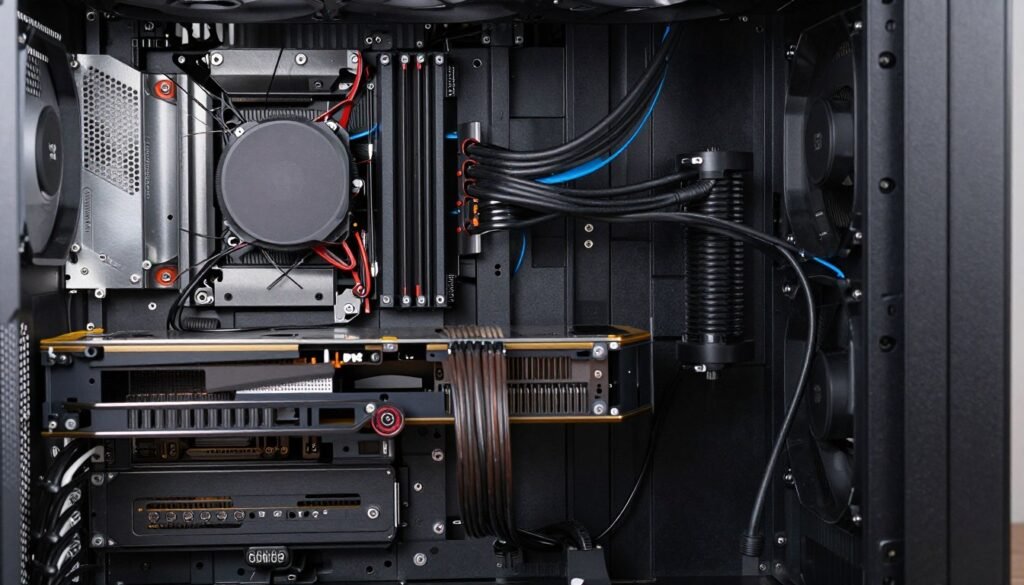
Even the best Z-series motherboard can’t fix bottlenecks elsewhere in your system. Verify all components work together efficiently before finalizing purchases.
One final consideration across all use cases: building a balanced system matters more than any single component. A $500 motherboard with a budget GPU creates imbalance. A $200 board with excellent GPU provides better gaming experience. Match component tiers across your build rather than splurging on one part while skimping on others.
The Bottom Line on Z-Series Motherboards
Z-series boards exist for one primary reason: CPU overclocking freedom. Everything else – extra M.2 slots, premium audio, extensive USB ports – represents secondary benefits. If you’re not overclocking a K-series Intel CPU, question whether Z-series justifies its premium over B-series alternatives.
Most builders benefit from mid-range boards between $250-350. These options deliver robust VRM, comprehensive connectivity, and quality BIOS implementations without flagship pricing. Budget boards under $220 work well for 14600K builds with modest overclocking. Premium boards above $400 make sense for enthusiast builds with flagship CPUs and aggressive tuning plans.
The “best” motherboard depends entirely on your specific build. There’s no universal recommendation. Match your board’s VRM capability to your CPU’s power demands. Count your connectivity needs and buy adequate slots and ports without excess. Choose form factor based on case and space preferences. Balance motherboard cost against total build budget, allocating 12-18% depending on system tier.
Pay attention to often-overlooked factors. BIOS quality impacts ownership experience more than reviews emphasize. Manufacturer support matters when hardware fails. Memory compatibility affects whether expensive RAM reaches advertised speeds. These considerations influence long-term satisfaction beyond initial specifications.
Avoid common mistakes: overbuying features you’ll never use, mismatching VRM to CPU power demands, ignoring connectivity for future expansion, and focusing solely on price while ignoring quality compromises. Research multiple reviews from professional and user sources. Verify compatibility across your entire build before purchasing.
The reality is that motherboards enable performance but don’t create it. Your CPU determines processing power. Your GPU drives gaming frame rates. Your RAM affects system responsiveness. The motherboard connects everything and should do so reliably without becoming a bottleneck. Spending appropriately on a motherboard that matches your needs makes more sense than chasing flagship features you’ll never utilize.
Z-series boards in 2026 offer excellent options across all price ranges. Whether you’re building a $1200 gaming PC or a $3500enthusiast system, there’s a board that fits. The key is honest assessment of your needs, realistic evaluation of your overclocking plans, and balanced budgeting across all components. Do that, and your Z-series motherboard will serve reliably for years while enabling your components to perform at their potential.
Frequently Asked Questions About Z-Series Motherboards
Do I really need a Z-series motherboard for gaming, or will B-series work just as well?
It depends on your CPU and whether you plan to overclock. Z-series boards are necessary if you have a K-series Intel CPU (like 14600K, 14700K, or 14900K) and want to overclock it. The performance gain from overclocking typically ranges from 3-8% in gaming scenarios.
If you’re using a locked (non-K) CPU or don’t plan to overclock, B760 boards deliver essentially identical gaming performance at -150 less cost. That money goes further upgrading your GPU, which has much larger impact on gaming frame rates. B-series boards also support memory overclocking, so you’re not losing much unless CPU overclocking specifically matters for your build.
The exception is if you need specific Z-series features like more PCIe lanes for multiple expansion cards, five or more M.2 slots, or premium connectivity options. For pure gaming with a single GPU and normal storage needs, B760 often makes more financial sense unless you’re committed to CPU overclocking.
How do I know if a motherboard’s VRM is good enough for my CPU?
VRM quality assessment requires research beyond manufacturer specifications. Marketing materials often exaggerate or obscure actual capability. Look for reviews from Hardware Unboxed, Gamers Nexus, or TechPowerUp that test VRM temperatures under sustained load with your specific CPU or similar.
As a general guideline: 8-10 phase VRM handles 14600K adequately. 12-14 phases work well for 14700K with moderate overclocking. 16-18 phases support 14900K with aggressive overclocking. 20+ phases target extreme overclocking or flagship CPUs like 14900KS. These are approximations – actual component quality matters as much as phase count.
Check reviews for VRM temperature measurements. Anything consistently above 90°C under load indicates potential thermal issues. Good boards keep VRM below 80°C even during stress testing. Also verify the board includes substantial heatsinks with proper thermal pad contact, not just decorative plastic covers.
If you can’t find specific VRM testing for a board you’re considering, choose boards from series known for good power delivery: ASUS TUF, MSI Tomahawk/Carbon, Gigabyte Aorus. These product lines consistently deliver solid VRM implementations across price points.
What’s the real difference between PCIe 4.0 and PCIe 5.0 M.2 slots for gaming?
For gaming in 2026, the difference between PCIe 4.0 and 5.0 M.2 SSDs is minimal to nonexistent. Current PCIe 4.0 drives deliver 7000 MB/s sequential reads, which already exceeds what games can utilize. Loading time differences measure in fractions of a second for most titles.
PCIe 5.0 SSDs can reach 10,000-14,000 MB/s, but this bandwidth benefits specific professional workflows (large video editing, database operations) more than gaming. The real-world gaming impact won’t become significant until DirectStorage technology matures in games and titles are designed to leverage ultra-fast storage.
That might change in 2-3 years as more games implement advanced DirectStorage features. If you’re planning to keep your motherboard for 4-5 years, having one PCIe 5.0 M.2 slot provides future-proofing. But don’t pay significant premium for PCIe 5.0 support if it means sacrificing other features or VRM quality that impact performance today.
Focus on having sufficient M.2 slots (4-5) running at PCIe 4.0 rather than worrying about PCIe 5.0. Slot quantity matters more than having the latest generation when most users need 2-4 drives maximum.
Should I buy a Z690 board on sale or pay more for newer Z790?
Z690 makes sense if you’re using 12th or 13th gen Intel CPUs and find significant savings. These boards work perfectly well and often appear at 30-40% discounts as retailers clear inventory. For 14th gen CPUs, the situation becomes complicated.
Some Z690 boards received BIOS updates adding 14th gen support, but not all did. You must verify your specific board model supports your specific CPU through BIOS updates before purchasing. Even with support, you might need to update BIOS using an older CPU before the 14th gen chip will boot.
Z790 brings some improvements over Z690: typically more USB 3.2 Gen 2×2 ports, sometimes an additional PCIe 4.0 M.2 slot, and guaranteed 14th gen support out of box. The real question is whether these improvements justify the price difference for your specific build.
If you’re building with a 14700K or higher and planning to keep the system for 4+ years, Z790 makes more sense for better future support. For budget builds with 14600K where you found a Z690 board 0 cheaper, the savings could upgrade other components with larger performance impact. Just absolutely verify CPU compatibility before purchasing older chipset boards.
Is WiFi 6E worth paying extra for, or is WiFi 6 good enough?
WiFi 6E adds support for the 6 GHz band alongside 2.4 GHz and 5 GHz that WiFi 6 uses. This matters primarily in congested environments where the 6 GHz band offers cleaner airspace with less interference. For gaming, the benefit is lower latency and more consistent speeds in crowded wireless environments.
If you live in an apartment building or dense area with dozens of visible networks, WiFi 6E provides measurable improvement in connection stability and latency. The 6 GHz band has fewer devices competing for airspace since it’s newer. This translates to better gaming experience over wireless.
However, you need a WiFi 6E router to take advantage of the 6 GHz band. If you’re using an older WiFi 5 or WiFi 6 router, the 6E capability in your motherboard doesn’t help. Also consider that wired Ethernet always delivers better gaming performance than any wireless solution.
Price difference between WiFi 6 and WiFi 6E boards typically runs -20. If you need wireless connectivity and have or plan to upgrade to a WiFi 6E router, it’s worth the small premium. If you’re using wired Ethernet exclusively, skip wireless entirely and save -30 buying non-WiFi boards. WiFi 7 is just arriving in 2026 motherboards but costs significantly more and requires WiFi 7 routers that are still expensive.
How much does RAM speed actually matter with Z-series boards and should I pay for DDR5-7200+?
RAM speed impact on gaming varies by CPU and game type. Intel 12th through 14th gen CPUs benefit from faster DDR5, but gains diminish past DDR5-6400. Testing shows DDR5-5600 to DDR5-6400 provides 2-5% FPS improvement in CPU-limited scenarios. Going from DDR5-6400 to DDR5-7200 adds maybe another 1-3%, with gains mostly in specific CPU-bound titles.
The real consideration is cost versus benefit. DDR5-5600 CL36 kits (Intel’s official spec) cost around -120 for 32GB. DDR5-6400 CL32 kits run 0-160. DDR5-7200+ kits jump to 0-250+. That -130 premium for faster RAM could instead upgrade your GPU from RTX 5070 to RTX 5070 Ti, which delivers far larger FPS improvements.
For balanced gaming builds, DDR5-6000 or DDR5-6400 represents the sweet spot. These speeds are stable on mid-range boards, provide most of the performance benefit, and cost reasonably. Going beyond DDR5-6400 makes sense primarily for enthusiast builds where you’re already running flagship components and want to extract every last percentage of performance.
Also remember that achieving DDR5-7000+ reliably requires premium motherboards with excellent memory trace layouts and VRM. Budget boards struggle maintaining stability at extreme speeds. If you’re buying DDR5-7200 RAM, pair it with a 0+ board that can actually run those speeds stable, not a 0 board that will force you to downclock the memory anyway.
What’s the real-world benefit of spending 0 more on a premium motherboard versus mid-range?
Premium boards (0-600) provide several advantages over mid-range (0-300) options, but whether they matter depends on your specific usage. Better VRM means lower temperatures and more stable voltages during overclocking. You might gain an extra 100-200 MHz on CPU overclock, translating to perhaps 2-3% performance difference.
Premium boards typically include better audio (ESS Sabre vs. Realtek ALC), but you won’t hear the difference through gaming headsets. If you’re using studio monitors or high-impedance headphones, the improvement becomes noticeable. Otherwise, it’s wasted money you could spend on dedicated DAC that sounds better than any motherboard audio.
Additional connectivity like 10 GbE Ethernet only matters if you have multi-gig networking infrastructure. Most home internet tops out at 1-2 Gbps anyway. More M.2 slots (5-6 vs 4) help if you need extensive storage, but most gaming builds use 2-3 drives maximum. Extra USB ports and RGB headers provide convenience but don’t affect performance.
The biggest premium board advantage is superior BIOS implementation and longer support. Flagship boards receive updates for 4-5 years versus 2-3 for budget options. Better BIOS makes tuning easier and more stable. If you plan to keep your motherboard for 5+ years and regularly tweak settings, premium boards justify their cost through better ownership experience.
For most gaming-focused builds, mid-range boards deliver 95%+ of premium board performance. That extra 0 moves your GPU from RTX 5070 Ti to RTX 5080, which provides 15-20% more gaming performance. Premium boards make sense in flagship builds (00+) where component tiers are already maximized. In mainstream builds (00-2500), mid-range boards offer better overall value.