
I spent $900 on a Meta Quest 3 last year. Plugged it into my “capable” gaming PC. Loaded up Half-Life: Alyx.
Three minutes later, I yanked the headset off, fighting nausea from stuttering frames. My GPU was cooking at 95°C. Task Manager showed my CPU pegged at 100%. The experience felt like watching a slideshow through a View-Master.
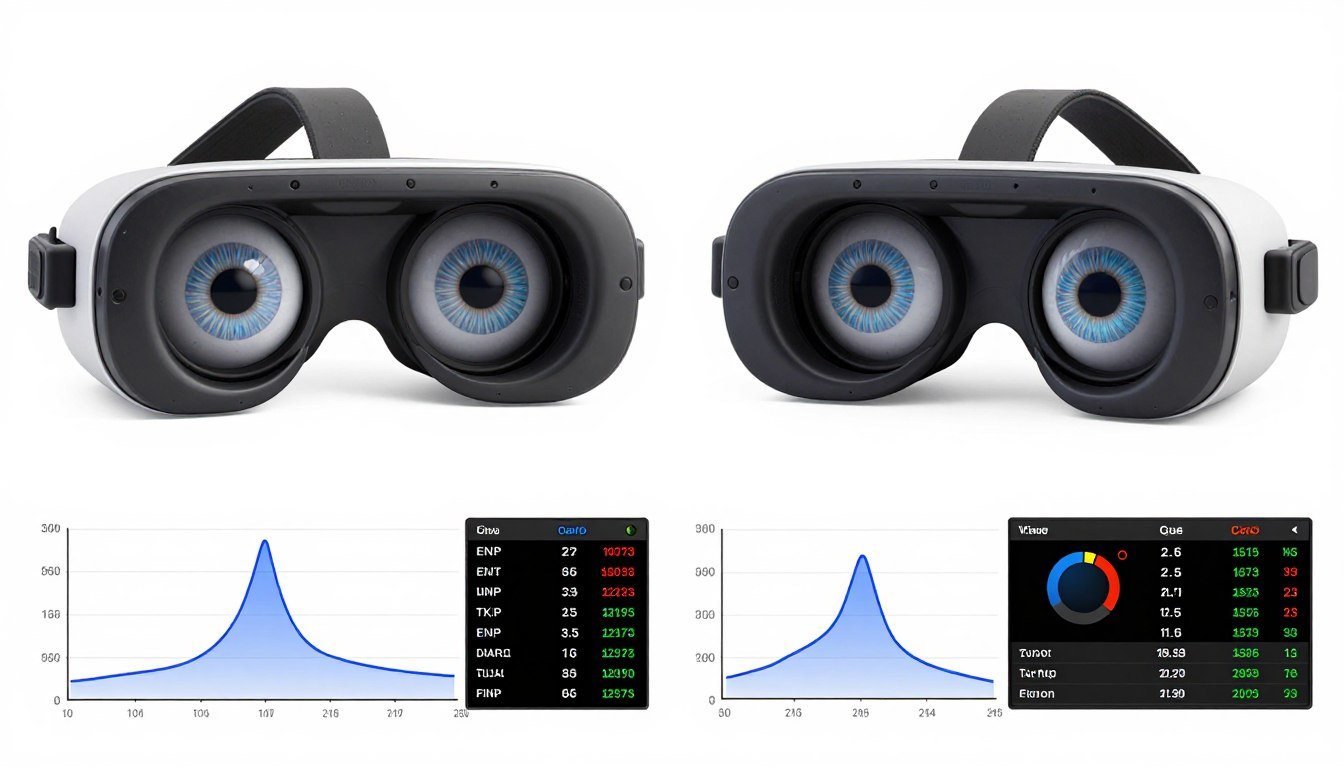
The reality is VR performance isn’t like regular gaming. Your PC isn’t rendering one screen anymore. It’s rendering two separate displays simultaneously, each requiring different perspective calculations. That’s double the pixel pushing with zero room for error.
This guide will dig into exactly why VR crushes even powerful PCs. You’ll learn the specific hardware demands of dual-display rendering. I’ll show you which components actually matter and which specs are overhyped marketing noise. By the end, you’ll know precisely what your system needs to deliver smooth VR without the motion sickness.
Why Your GPU Is Screaming: The Dual-Display Reality
Standard gaming renders one viewport. Your GPU calculates what one camera sees. It’s like taking one photograph.
VR changes everything. Your headset needs two completely different images. One for your left eye. One for your right eye. Each positioned slightly apart to create depth perception.
Think of it like this: Regular gaming is one water pipe filling a bucket. VR is two pipes filling two buckets simultaneously, both needing perfect flow rate. If one pipe slows down, the whole system feels broken.
Your GPU must render both viewpoints every single frame. At 90Hz minimum. That’s 90 complete dual-image sets per second. Miss even one frame and your brain notices immediately through stuttering or that awful swimmy feeling.
The math gets brutal fast. A Quest 3 runs at 2064×2208 per eye. That’s 9.1 million pixels per frame. Times two eyes. Times 90 frames per second. Your GPU pushes 1.6 billion pixels every second just for VR.
Is Your PC Ready for Dual-Display Rendering?
Before spending hundreds on a VR headset, find out if your current hardware can actually handle the demands of rendering two separate displays at 90+ FPS. Check your system’s VR performance capability in under 2 minutes.
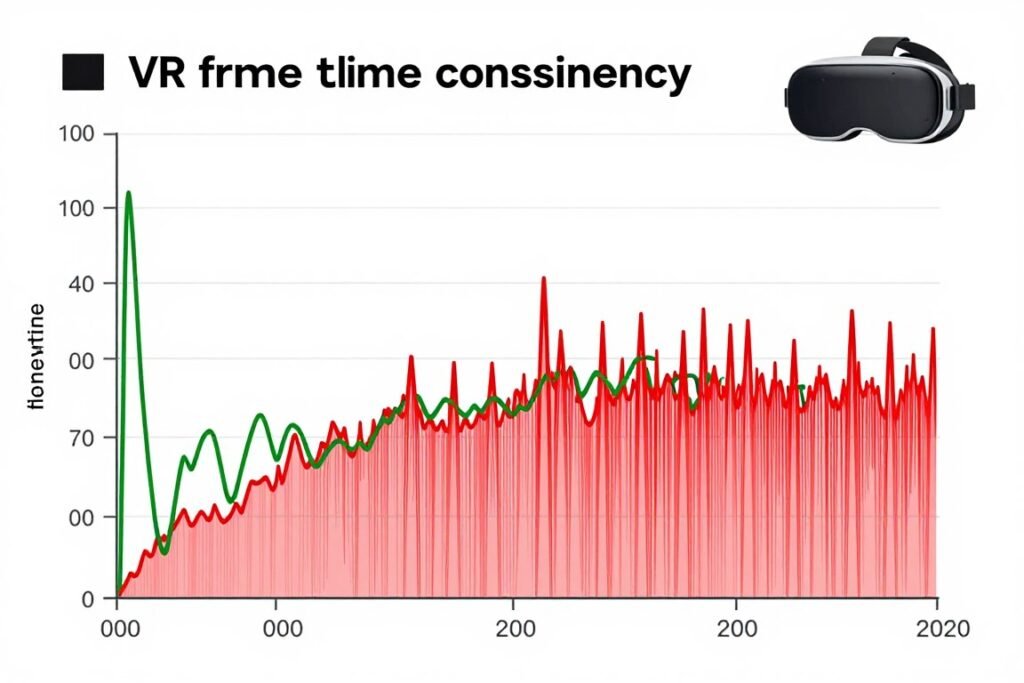
Most people think VR is about resolution. Wrong. Frame time consistency matters way more. Your GPU delivering 90 FPS average means nothing if frame times spike from 11ms to 25ms randomly.
Those spikes create judder. Judder creates motion sickness. Motion sickness ends your VR session in minutes.
GPU Requirements: Separating Hype from Reality
Every VR headset manufacturer lies about minimum specs. They list GPUs that technically meet the lowest possible bar. Then you buy one and wonder why your experience feels awful.
Meta says Quest 3 needs an RTX 2060. Sure, it’ll launch games. But you’ll be locked to low settings, struggling to hit 72Hz, watching your GPU bottleneck destroy immersion.
The Real Minimum for 2026 VR
For actual smooth VR performance, here’s what you need:
Entry VR Gaming (Quest 2/3)
- RTX 4060 Ti (16GB) or RX 7700 XT
- 12GB VRAM minimum
- Medium settings, 90Hz stable
- Good for: Beat Saber, simple titles
High-End VR (Index, PSVR2 on PC)
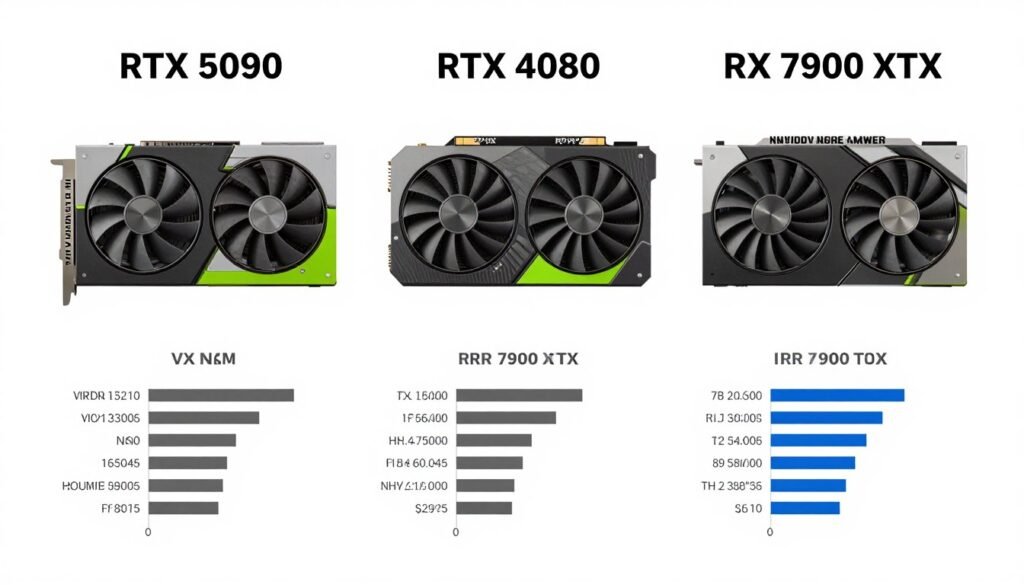
- RTX 4080 Super or RX 7900 XTX
- 16GB+ VRAM required
- High settings, 120Hz capable
- Handles: Half-Life: Alyx maxed
VRAM is the real killer. Regular 1440p gaming uses 8-10GB. VR dual-display rendering eats 12-16GB on demanding titles. Check any VRAM bottleneck guide and you’ll see the same pattern.
Why Memory Bandwidth Actually Matters
Your GPU needs to shuttle texture data between VRAM and processing cores constantly. VR doubles that traffic because of dual displays.
An RTX 4070 has 504 GB/s bandwidth. Sounds high. But VR uses it differently than flat gaming. The GPU must fetch two separate texture sets, calculate two lighting solutions, output two complete frames.
Think of bandwidth like a highway. Regular gaming is one lane of cars. VR is two lanes that must move at identical speeds with zero slowdowns. Any traffic jam creates frame drops.
The RTX 5090 pushes this to 1,792 GB/s. That’s why it dominates VR performance. Not just because of raw compute power, but bandwidth headroom for dual-display demands.
Want to see how your GPU handles this? Hardware guides show real-world VR benchmarks across current generation cards.
The CPU Bottleneck Nobody Talks About
Everyone obsesses over GPUs for VR. Makes sense—graphics cards do the heavy rendering. But I’ve watched countless VR builds fail because of CPU choices.
VR needs more from your processor than regular gaming. The CPU calculates physics for both eyes. It handles tracking data from controllers. It manages audio positioning. It runs game logic while coordinating with the GPU’s dual rendering pipeline.
Why Single-Core Speed Beats Core Count
Here’s the thing most builders miss: VR game engines aren’t great at spreading work across cores. Unreal Engine runs main game logic on 2-4 threads max.
A 16-core CPU sounds impressive. But if each core runs at 3.8GHz, it’ll struggle more than an 8-core chip running 5.2GHz. That’s why the Ryzen 9800X3D dominates VR performance charts.
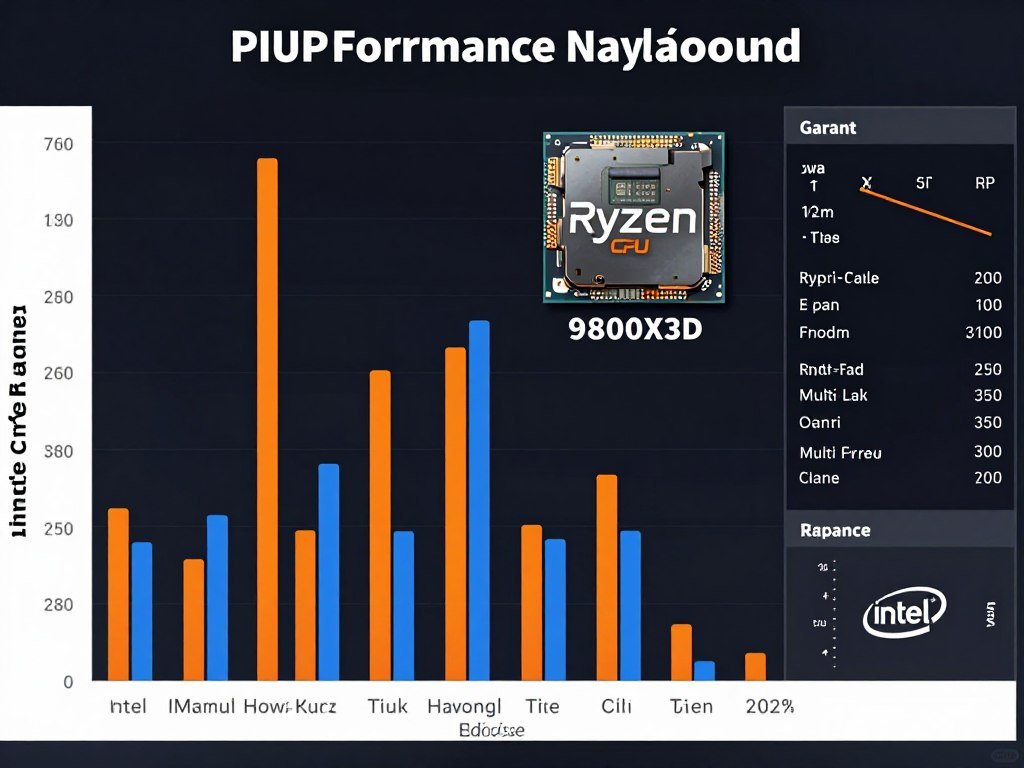
The 3D V-Cache on AMD’s X3D chips helps too. VR needs quick access to game data, physics calculations, and tracking information. Extra cache reduces memory latency, which directly improves CPU bottleneck scenarios.
Real-World VR CPU Requirements
- Minimum: 6 cores, 4.5GHz+ boost
- Recommended: 8 cores, 5.0GHz+ with 3D V-Cache
- Avoid: High core count, low clock chips
- Sweet spot: Ryzen 7 7800X3D or Intel i7-14700K
Check your current CPU against VR demands using system balance tools before buying a headset. A mismatched processor will choke even the best GPU.
Find Your CPU’s VR Bottleneck
Your processor might be holding back VR performance more than you think. Calculate exactly how your CPU pairs with your GPU for dual-display rendering workloads.
Frame Time Consistency: The Secret VR Killer
Average FPS is a lie in VR. Your system can show 90 FPS average while feeling absolutely terrible to use.
The problem is frame time variance. One frame might take 10ms. The next takes 18ms. Then 9ms. Then 23ms. Your brain expects consistent delivery, like a metronome. Any variation creates judder.
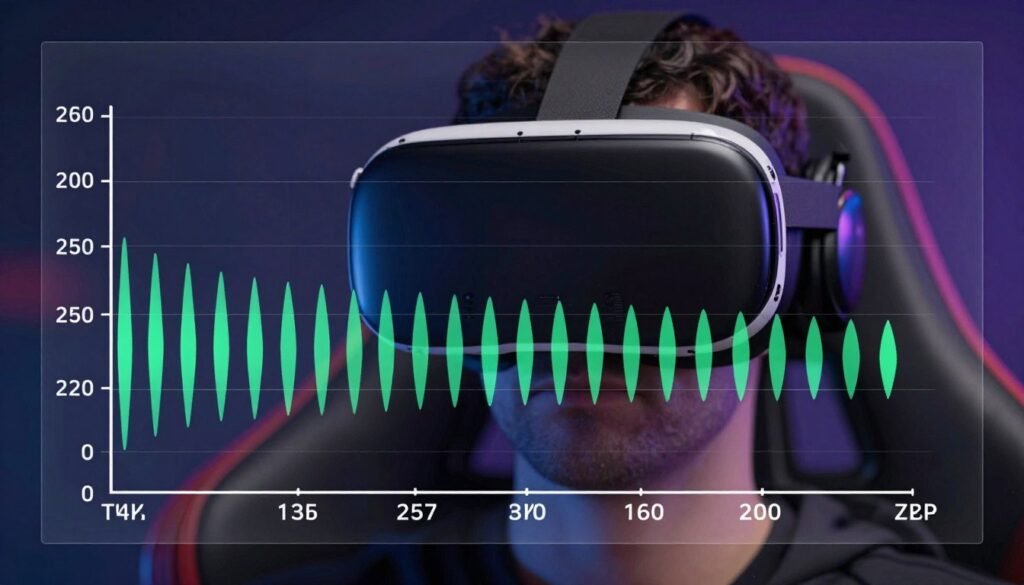
Think of it like watching a movie where the projector randomly speeds up and slows down. Even if the average playback rate is correct, the experience feels broken.
What Causes Frame Time Spikes?
Multiple culprits destroy frame time consistency:
- Background processes stealing CPU cycles
- GPU thermal throttling mid-session
- Insufficient VRAM causing texture streaming stutters
- Windows scheduling interruptions
- Storage bottlenecks loading new areas
I fixed my original VR stutter problem by tackling thermal throttling. My RTX 3080 was hitting 83°C and downclocking to prevent damage. Lost 200MHz on the core clock randomly during intense scenes.
Added better case fans. Undervolted the GPU slightly. Dropped temps to 72°C max. Frame times went from chaos to rock solid. Same hardware, completely different experience.
For deep optimization help, check stutter fixing guides that cover Windows tweaks and hardware solutions.
Monitoring Tools That Actually Help
Use these to diagnose frame time problems:
- MSI Afterburner + RivaTuner for frame time graphs
- OpenVR Advanced Settings for in-headset monitoring
- HWiNFO64 for thermal and clock tracking
- LatencyMon for Windows interrupt analysis
The goal is 1% lows matching your average FPS. If you’re running 90 FPS average but 1% lows drop to 45 FPS, your VR experience will feel awful despite good average numbers.
Resolution and Refresh Rate: Where VR Gets Expensive
VR resolution works differently than monitor gaming. You’re sitting millimeters from the display panels. Every pixel matters because your eyes can see individual pixels through the lenses.
Quest 3 runs 2064×2208 per eye. That’s 4.5 million pixels per eye. Multiply by two eyes. Then multiply by 90Hz refresh rate. Your GPU is processing over 800 million pixels every second.
Refresh Rate Is Not Negotiable
Unlike flat gaming where 60Hz is acceptable, VR needs minimum 90Hz. Preferably 120Hz. Lower refresh creates two problems:
Problem One: Motion Sickness
Your inner ear senses movement. Your eyes see delayed visual updates. This mismatch triggers nausea. Higher refresh rates reduce the delay between physical movement and visual feedback.
Problem Two: Presence Breaking
Low refresh makes VR feel like a screen strapped to your face instead of a real environment. The illusion shatters. 120Hz creates believable immersion that 60Hz never achieves.
This is why VR crushes your hardware. A regular 1440p 144Hz monitor pushes 530 million pixels per second. Quest 3 at 90Hz pushes 820 million pixels per second. And each pixel needs separate calculations for each eye.
Foveated Rendering: The Future Fix
New VR headsets use foveated rendering to reduce GPU load. The headset tracks where you’re looking using eye tracking. It renders that area in full resolution. Everything in peripheral vision gets reduced quality.
Think of it like human vision. You only see sharp detail in the center of your view. Your periphery is blurry naturally. Foveated rendering mimics this.
Quest Pro supports this. PSVR2 uses it. Future PC headsets will adopt it universally. The performance gain is massive—up to 40% less GPU load with minimal visual quality loss.
Until then, you need brute force hardware to hit high resolution at high refresh rates. See resolution bottleneck analysis for specifics on GPU requirements at different VR resolutions.
Optimization Strategies That Actually Work
You don’t need to upgrade hardware immediately. Several software fixes deliver real performance gains for VR.
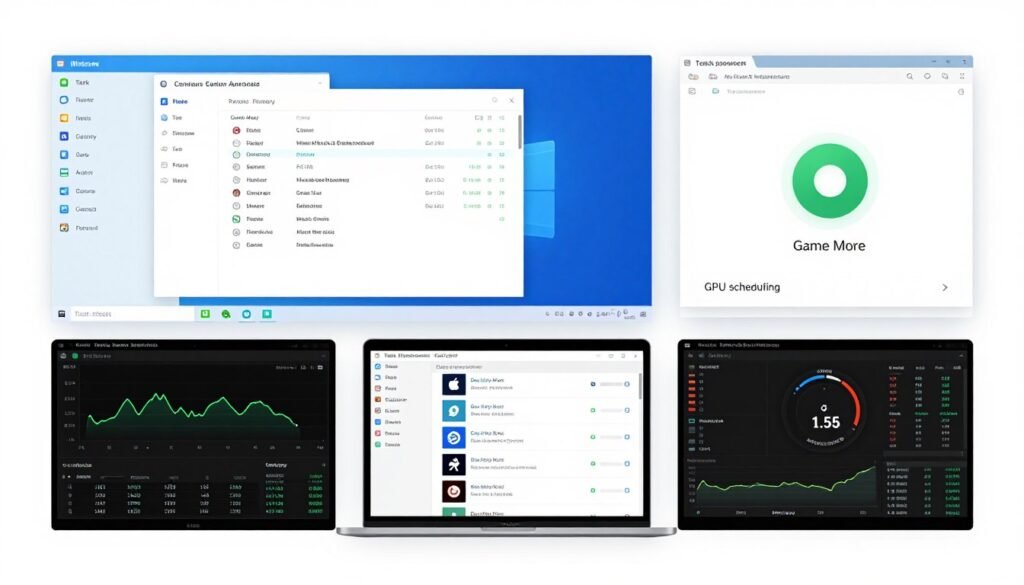
Windows Optimization
Windows loves running background garbage that steals VR performance. Fix these first:
- Disable Windows Game Bar and DVR
- Set VR games to High Priority in Task Manager
- Disable fullscreen optimizations for VR runtimes
- Turn off hardware-accelerated GPU scheduling (controversial but helps some systems)
- Use Process Lasso to prevent background apps from CPU interrupts
Complete guide here: Windows optimization for gaming
Graphics Driver Settings
Both NVIDIA and AMD have VR-specific settings most people ignore:
- Enable Low Latency Mode (Ultra)
- Set Power Management to Maximum Performance
- Disable Vertical Sync in control panel
- Use NVIDIA Reflex where supported
NVIDIA Settings
- Enable Anti-Lag
- Set Texture Filtering to Performance
- Disable Radeon Chill
- Use AMD Anti-Lag+ in supported games
AMD Settings
Check NVIDIA optimization guides or AMD Adrenalin settings for complete walkthroughs.
In-Game Settings Priority
Not all graphics settings impact VR performance equally. Lower these first:
- Shadows (massive CPU and GPU impact)
- Anti-aliasing (VR needs less due to high pixel density)
- Post-processing effects (motion blur, bloom)
- View distance (especially in open world games)
Keep these high if possible:
- Texture quality (affects immersion heavily)
- Model detail (close objects matter in VR)
- Lighting quality (critical for presence)
SSD Requirements
Underrated for VR but critical. Games stream textures constantly as you look around. A slow hard drive causes stutters when loading new areas or turning quickly.
Minimum NVMe SSD required. Preferably PCIe 4.0 with 5,000+ MB/s read speeds. This eliminates storage bottlenecks during texture streaming.
For more on this: SSD bottleneck guide
2026 Hardware Recommendations for VR Builds
Let’s get specific about what actually works right now.
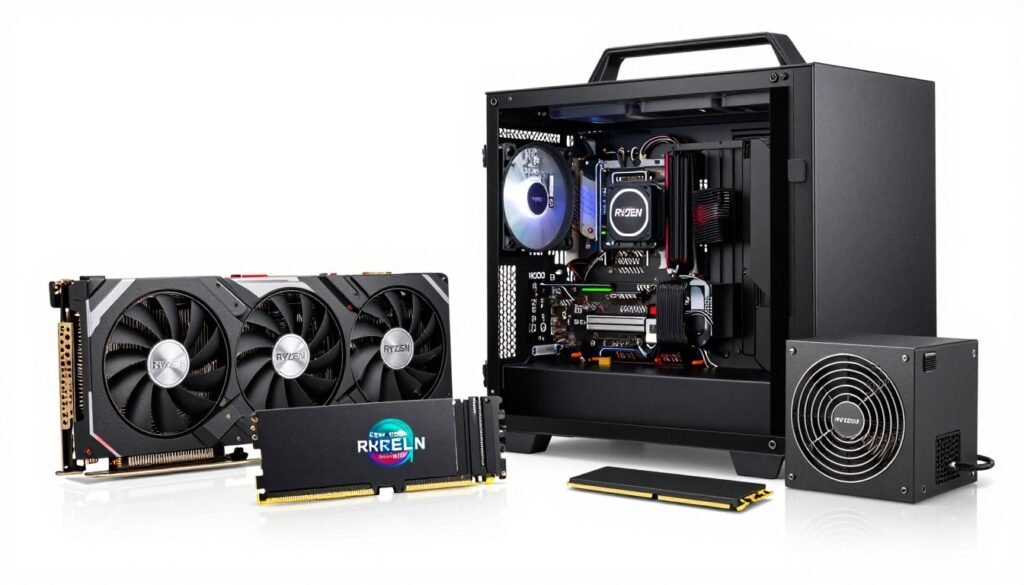
Budget VR Build ($1,200-$1,500)
Entry VR Gaming System
- CPU: Ryzen 7 7700X or Intel i5-14600K
- GPU: RTX 4060 Ti 16GB or RX 7700 XT
- RAM: 32GB DDR5-6000 CL30
- Storage: 1TB NVMe PCIe 4.0
- PSU: 750W 80+ Gold
This handles Quest 3 at medium-high settings, 90Hz stable. Good for most VR games except the most demanding titles like Microsoft Flight Simulator VR.
Enthusiast VR Build ($2,500-$3,000)
High-End VR System
- CPU: Ryzen 9 9800X3D or Intel i9-14900K
- GPU: RTX 5080 or RX 7900 XTX
- RAM: 32GB DDR5-6400 CL32
- Storage: 2TB NVMe PCIe 5.0
- PSU: 1000W 80+ Platinum
Handles everything. Quest 3 maxed at 120Hz. Valve Index at full resolution. Flight sims with high detail. This is the sweet spot for serious VR.
Extreme VR Build ($4,000+)
For the people who want zero compromises:
- CPU: Ryzen 9 9950X3D (when released) or i9-14900KS
- GPU: RTX 5090 24GB
- RAM: 64GB DDR5-6800 CL34
- Storage: 4TB NVMe PCIe 5.0 RAID 0
- Cooling: Custom water loop
- PSU: 1600W 80+ Titanium
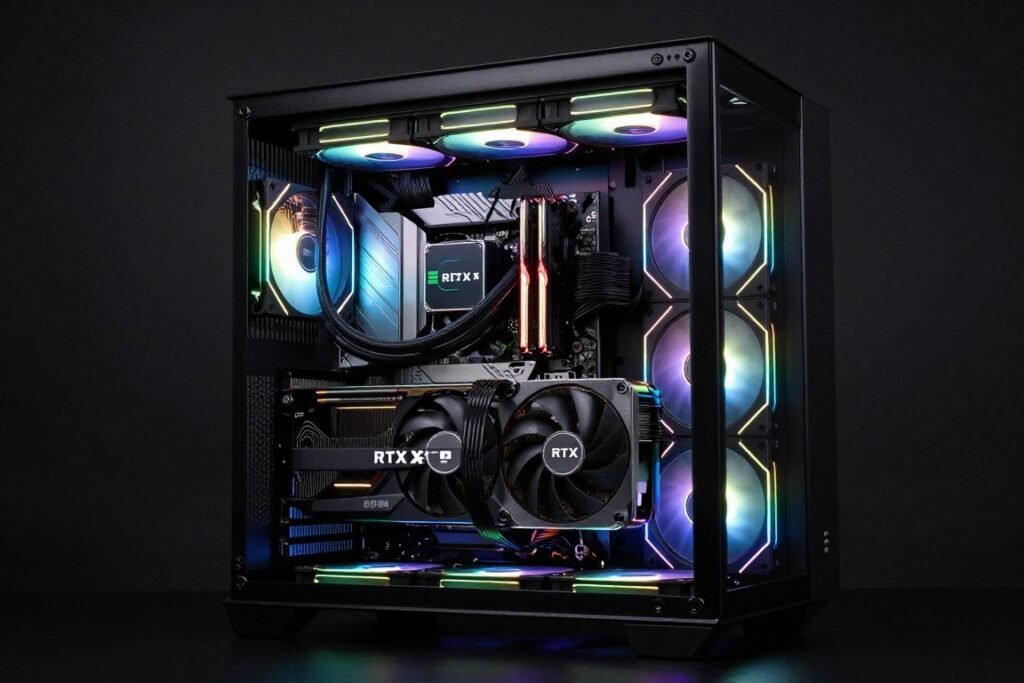
This runs everything maxed with headroom for future headsets. The RTX 5090 guide shows why this GPU dominates VR workloads.
Common VR Problems and Real Fixes
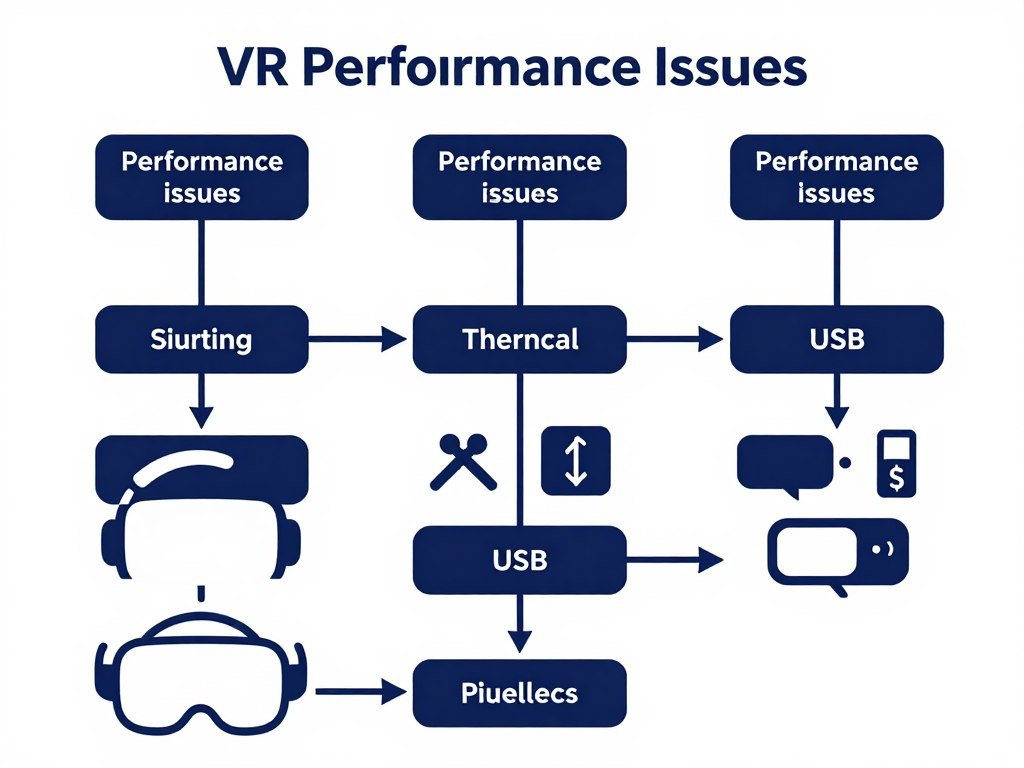
Problem: Stuttering Despite Good FPS
You’re hitting 90 FPS average but experience constant judder. This is frame time inconsistency.
Fix: Enable Oculus Debug Tool and set ASW (Asynchronous Spacewarp) to Auto. This creates synthetic frames when your PC can’t maintain full frame rate, smoothing out stutters.
Also check: DPC latency issues that cause Windows to interrupt VR rendering.
Problem: Motion Sickness After 20 Minutes
Your frame rate is dropping over time as components heat up. Thermal throttling kills VR comfort.
Fix: Monitor GPU and CPU temps. If either exceeds 80°C during VR, improve cooling. Add case fans. Check thermal paste. Undervolt your GPU slightly using MSI Afterburner.
Problem: Blurry Visuals
Could be render resolution, not actual headset resolution. SteamVR defaults to 100% render scale, but your GPU might be dropping that dynamically.
Fix: Lock render resolution in SteamVR settings. Start at 80% if struggling. Increase to 100% only if frame times stay consistent. Some games look better at 120% if your GPU can handle it.
Problem: Tracking Stutters
USB bandwidth issues. VR headsets need tons of bandwidth for tracking data plus video feed.
Fix: Use USB 3.2 ports directly on motherboard. Avoid hubs. Disable USB power saving in Windows Device Manager. Some motherboards have better USB controllers than others—check motherboard impact guides.
Before You Buy: Complete VR System Validation
Don’t guess whether your hardware can handle VR. Test it.
Your system needs balanced components. A monster GPU paired with a weak CPU fails in VR. Too little RAM causes stutters. Slow storage creates texture pop-in.
Get Your Complete VR Readiness Report
Calculate your exact bottlenecks for VR workloads. Find out which component is limiting your dual-display rendering performance. Get specific upgrade recommendations based on your current build and VR headset choice.
The calculator analyzes your CPU-GPU pairing specifically for VR demands. It accounts for dual-display rendering overhead, frame time consistency requirements, and VRAM pressure that regular gaming benchmarks ignore.
You’ll see exactly where your system struggles. Maybe your GPU is fine but CPU single-core speed limits frame times. Maybe you have enough power but thermal throttling kills sustained performance.
For component-specific deep dives, check these resources:
External validation from Meta’s official VR performance documentation and NVIDIA’s VR technology page confirms these hardware requirements align with developer recommendations.
The Bottom Line on VR Performance
VR performance is different from regular gaming. You need more power, better cooling, and consistent frame delivery. Average FPS doesn’t matter if frame times spike. High-end specs don’t help if thermal throttling kicks in after 15 minutes.
Here’s what actually matters:
- GPU with 12GB+ VRAM and high memory bandwidth
- CPU with strong single-core performance (5GHz+)
- Fast NVMe storage for texture streaming
- Solid cooling to prevent throttling
- 32GB RAM minimum for modern VR titles
Don’t buy a VR headset without validating your hardware first. The disappointment of stuttery, nausea-inducing VR isn’t worth it. Test your system, fix bottlenecks, then enjoy smooth VR gaming.
VR is incredible when it works right. You just need hardware that can actually handle dual-display rendering at 90+ FPS without compromise. Plan your build carefully, optimize ruthlessly, and the immersion pays off.