
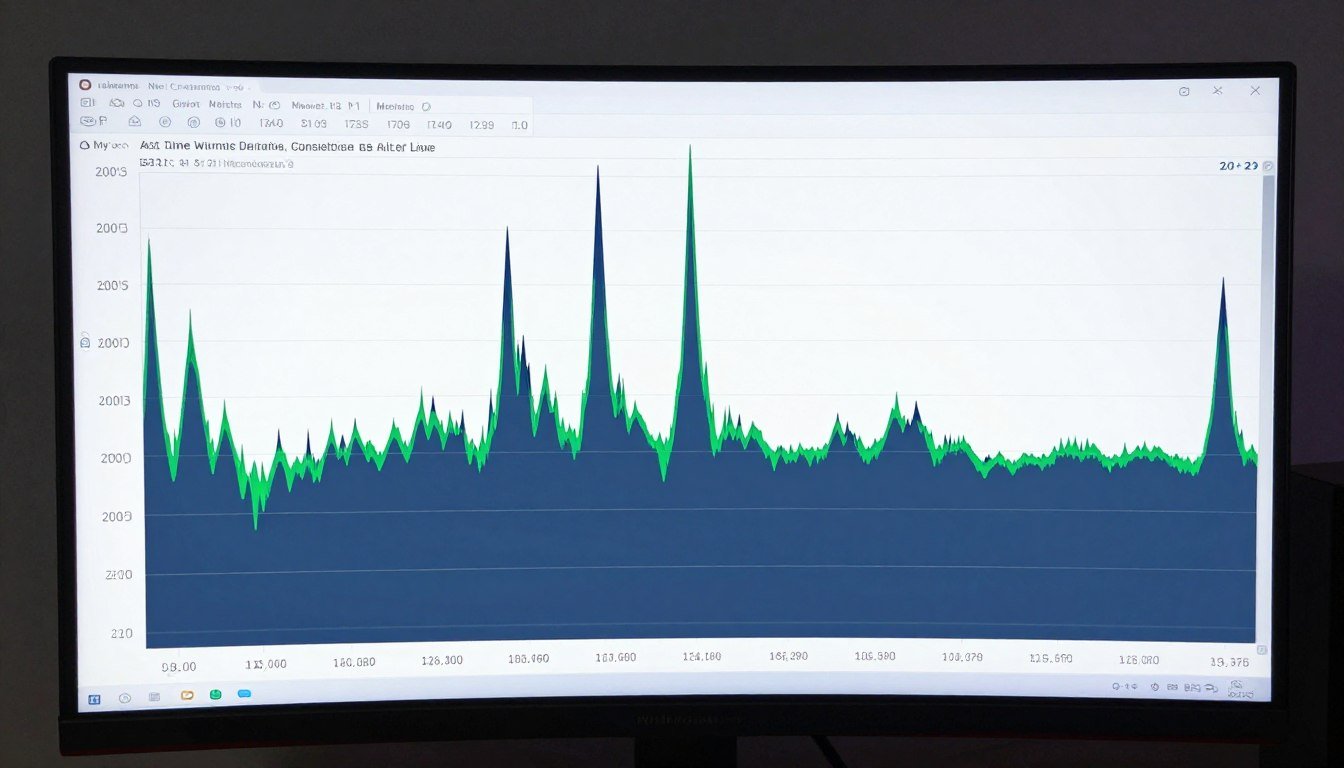
You hit 60 fps. Your frame counter says everything is fine. But the game feels like garbage.
I spent three weeks chasing this exact problem last year. Solid frame rates on paper. Micro-stutters that made competitive gaming impossible. The reality is that average fps tells you almost nothing about how smooth your game actually feels.
Frame time consistency matters more than your fps counter. This guide breaks down what frame time actually means. How to measure it properly. And the real fixes that work in 2026.
We’ll dig into monitoring tools, Windows settings that kill smoothness, and hardware issues that cause inconsistent frame delivery. By the end, you’ll know exactly why your game stutters and how to fix it.
Before we dig into fixes, check your system balance with our PC bottleneck calculator to identify potential hardware mismatches that might be causing frame time issues.
What Frame Time Actually Means (And Why It’s Not Just FPS)
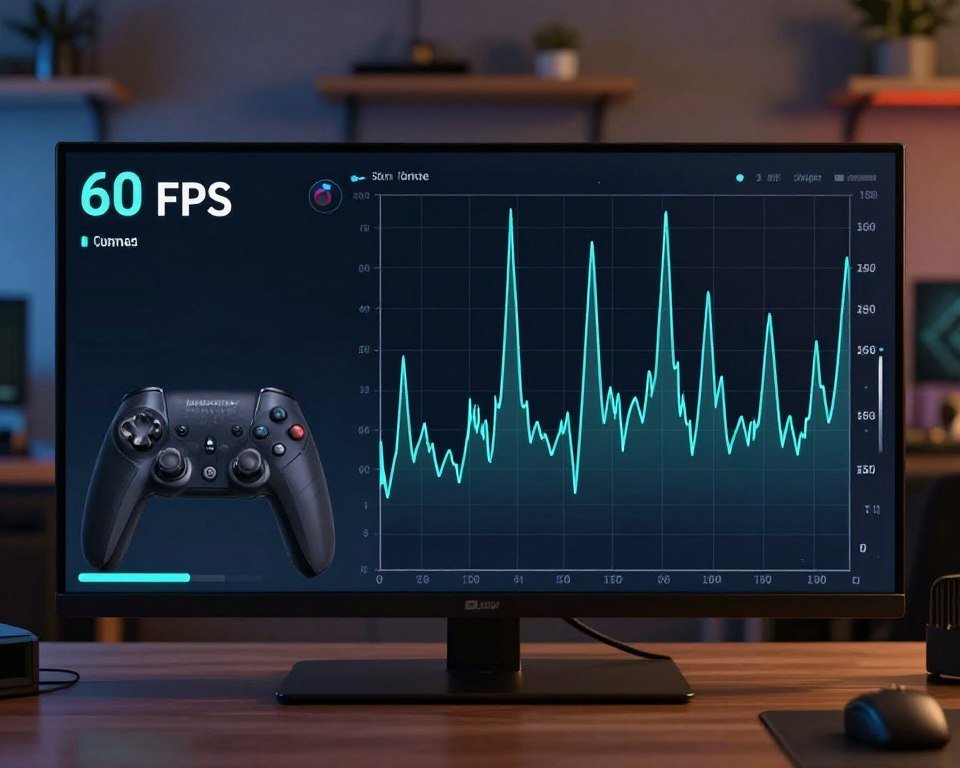
Frame time measures how long it takes your PC to render each frame. Think of it like a heartbeat. A steady rhythm feels smooth. An irregular rhythm feels janky.
Your fps counter shows averages. 60 fps means one frame every 16.67 milliseconds on average. But average doesn’t tell you if some frames took 10 milliseconds and others took 30 milliseconds.
That variation is what you feel as stutter. Your eye notices when one frame lingers too long. The game freezes for a split second. Then speeds up to catch up.
FPS vs Frame Time: The Real Difference
FPS is just the inverse of frame time. At 60 fps, each frame should take 16.67 milliseconds. At 144 fps, each frame should take 6.94 milliseconds.
But consistent frame time matters more than high fps. A locked 60 fps with perfect 16.67ms frame times feels better than 100 fps that bounces between 8ms and 15ms.
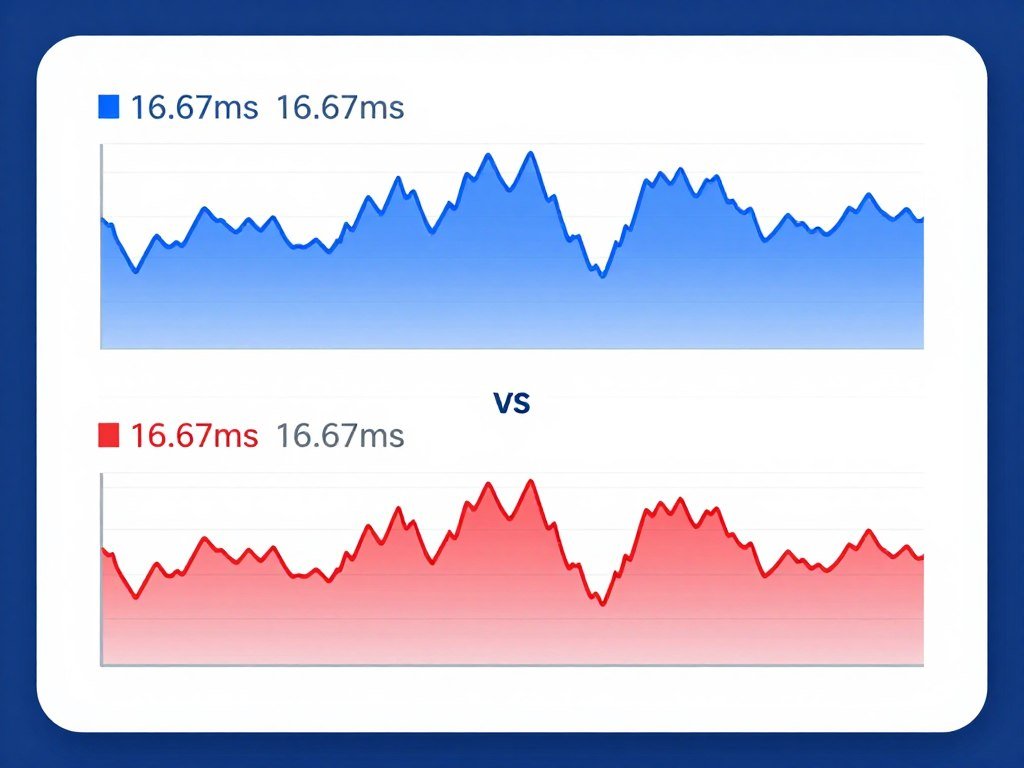
Your gaming performance depends on frame delivery consistency. High average fps with poor frame time consistency creates a worse experience than lower fps with perfect consistency.
How Frame Time Affects Gameplay
Inconsistent frame times cause several problems. Input lag varies between frames. Aiming feels floaty. Fast camera movements stutter.
In competitive games like Valorant or CS2, frame time variance kills your muscle memory. Your brain can’t adapt to constantly changing input timing.
Open world games suffer differently. Camera pans across detailed scenes create frame time spikes. One frame takes 40ms instead of 16ms. The game hitches visibly.
How to Actually Measure Frame Time (Tools That Work)
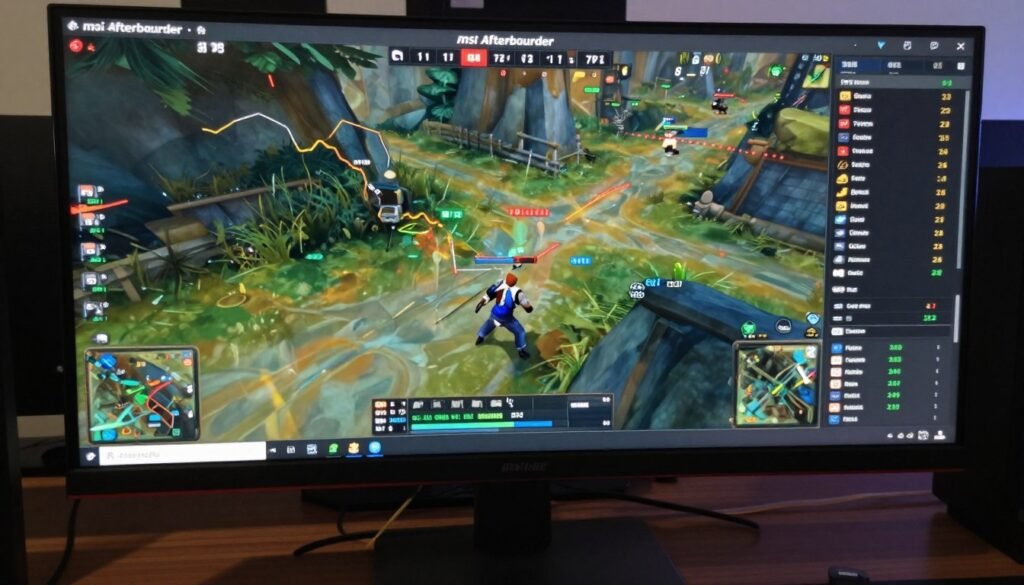
You need proper monitoring software. Your game’s built-in fps counter won’t show frame time consistency.
MSI Afterburner + RTSS (The Best Option)
MSI Afterburner with RivaTuner Statistics Server shows frame time graphs in real-time. This combo gives you the most detailed view of what’s happening.
Download both tools. Install Afterburner first, then RTSS. Open Afterburner and enable on-screen display statistics.
In the monitoring tab, select frame time to display. Set it to show as a graph, not just a number. The graph reveals patterns you’d miss with numbers alone.
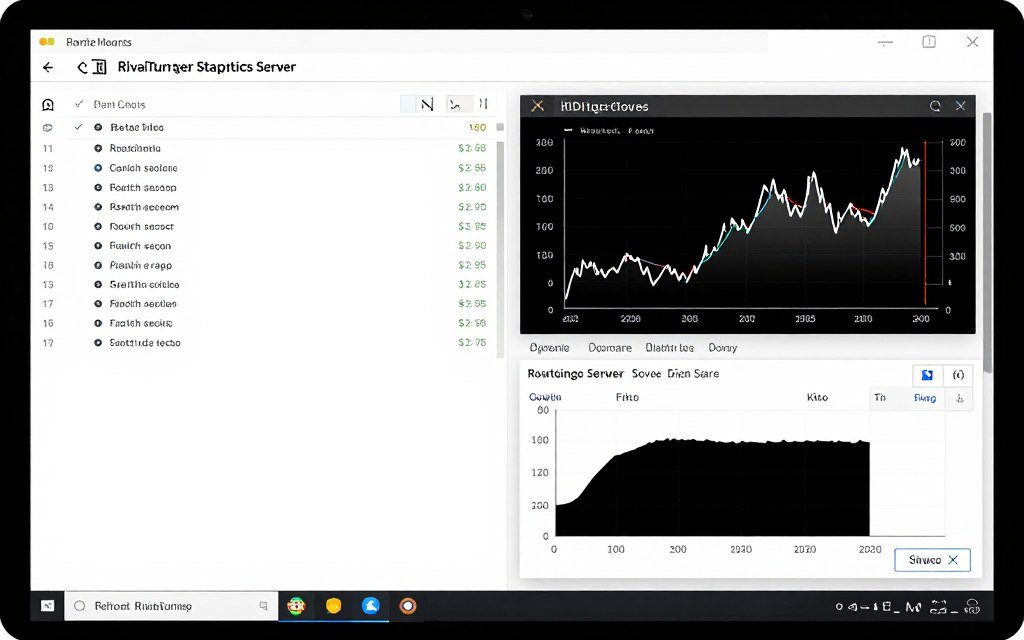
RTSS also lets you cap frame rates properly. This is critical for frame time consistency. Windows’ built-in fps caps add input lag. RTSS doesn’t.
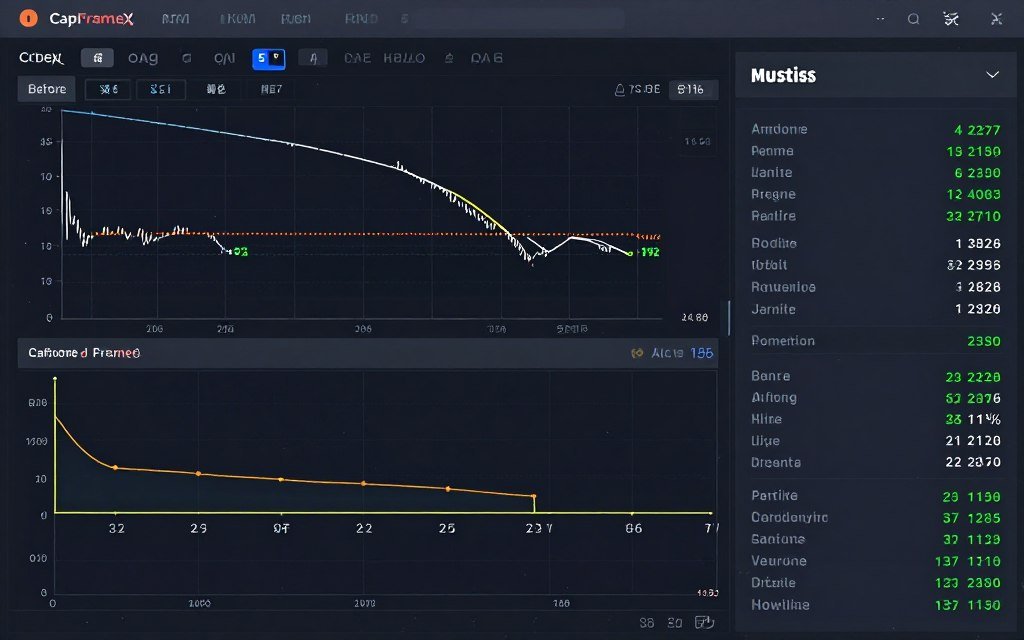
CapFrameX (For Deep Analysis)
CapFrameX records frame time data for analysis. It’s overkill for most people. But if you’re chasing specific stuttering issues, it helps.
The software captures detailed frame time data during gameplay. You can review it afterward to find exactly when stutters occur.
It shows percentiles too. The 1% low and 0.1% low metrics reveal your worst frame times. These matter more than averages for perceived smoothness.
What to Look For in Frame Time Graphs
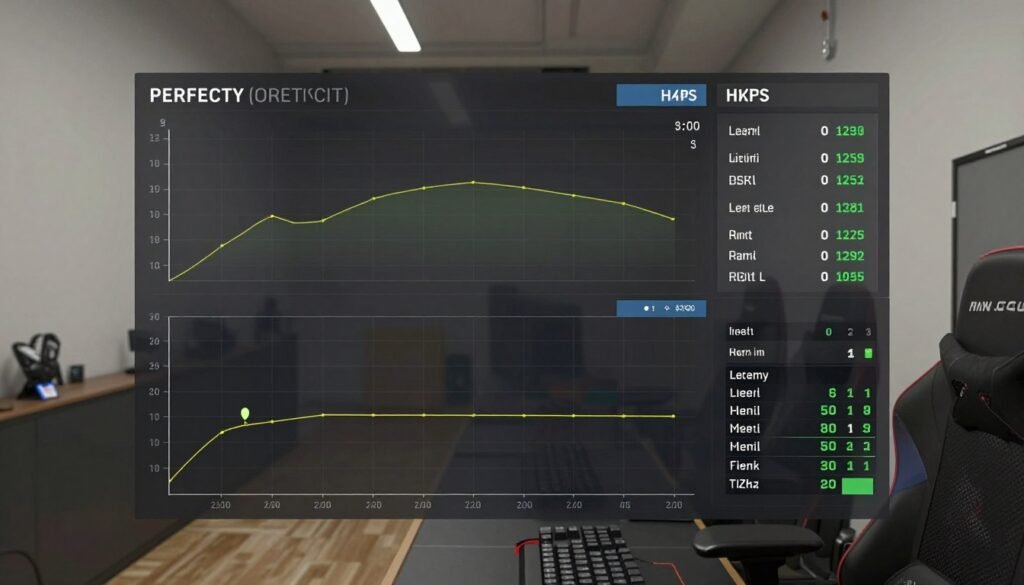
A good frame time graph looks flat. Small variations are normal. Big spikes mean problems.
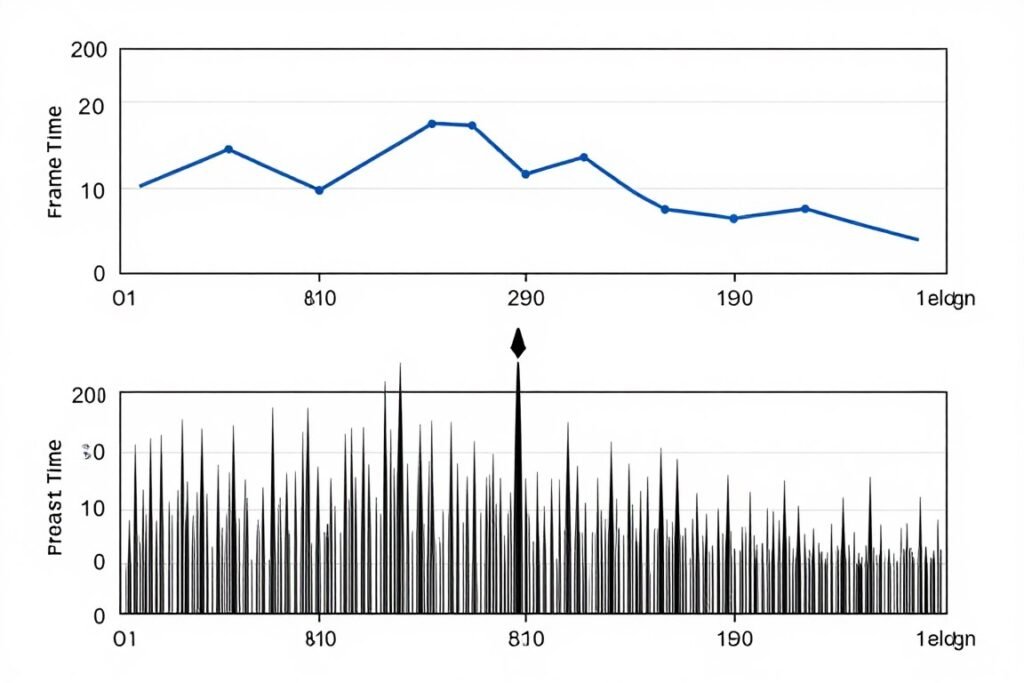
At 60 fps, frame time should stay around 16-17 milliseconds. Spikes above 20ms are noticeable. Spikes above 30ms feel terrible.
Regular patterns suggest specific problems. Spikes every few seconds point to background processes. Random spikes suggest hardware or driver issues.
Check your system for CPU bottlenecks or GPU bottlenecks that might cause frame time spikes.
Why Your Frame Times Are Inconsistent (The Usual Suspects)
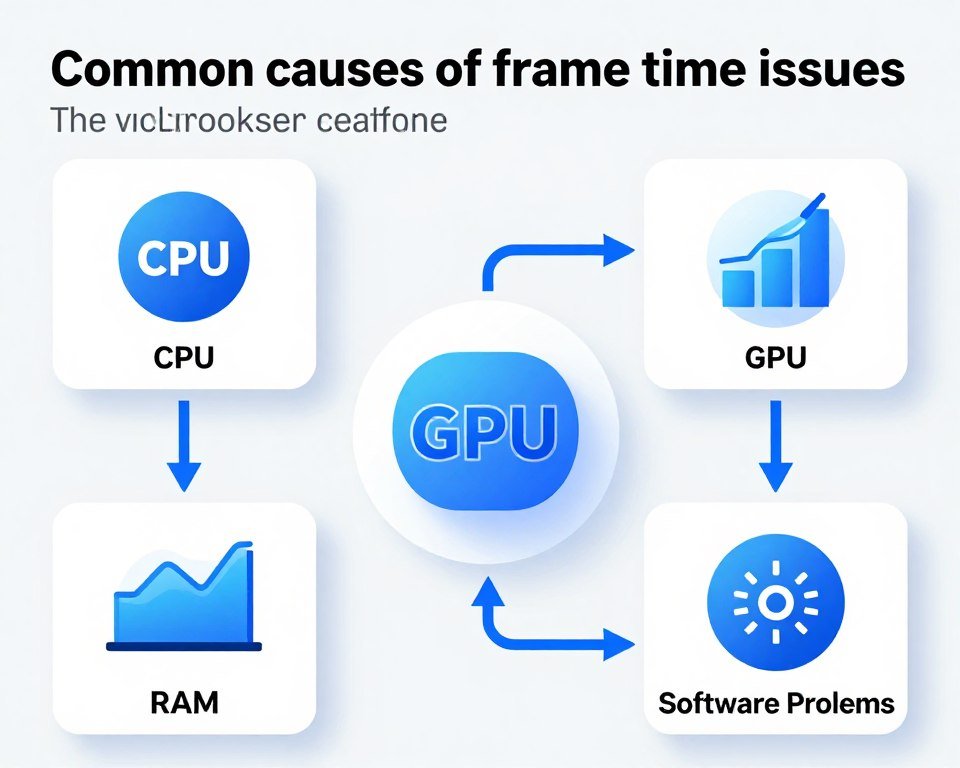
Frame time issues come from predictable sources. Let’s break down the most common problems.
CPU Bottlenecks Creating Frame Time Spikes
When your CPU can’t keep up, frame times spike irregularly. One frame takes 12ms. The next takes 25ms. Back to 14ms. The pattern is chaos.
This happens in CPU-heavy games. Strategy games with lots of units. Open world games loading new areas. Multiplayer games with many players on screen.
Your GPU sits idle waiting for the CPU to finish. GPU usage drops below 95%. Frame times bounce all over the place.
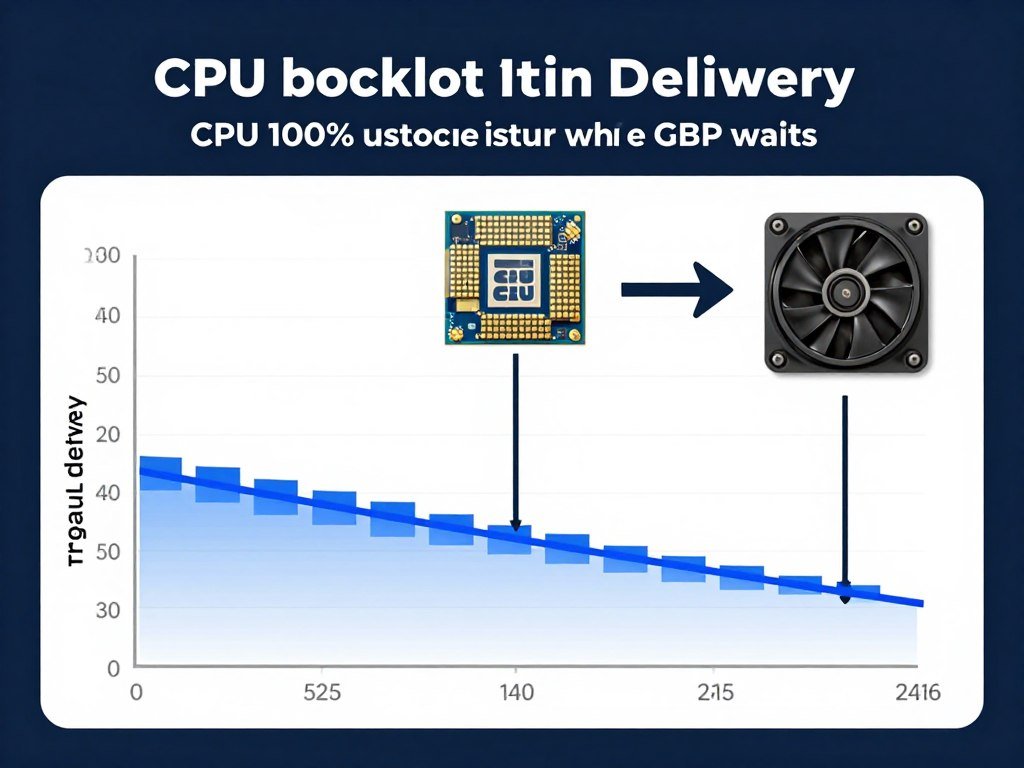
Modern CPUs with fewer cores struggle more. Games in 2026 use 8+ cores efficiently. A 4-core CPU, even a fast one, creates frame time problems in demanding titles.
GPU Memory and VRAM Issues
VRAM overflow kills frame time consistency. When a game needs more VRAM than your GPU has, it starts swapping to system RAM.
That swap is slow. Really slow. One frame might take 100+ milliseconds while textures load from system memory.
You’ll see massive spikes in your frame time graph. These spikes happen when the game loads new areas or detailed textures.
Understanding VRAM bottlenecks helps diagnose this specific problem. Modern games in 2026 often need 12GB+ VRAM at high settings.
Background Processes and Windows Nonsense
Windows loves to interrupt your game at the worst times. Windows Update checks in the background. Antivirus scans randomly. Cloud sync services upload files.
Each interruption steals CPU time from your game. Frame time spikes appear. The game stutters.
Game Mode in Windows is supposed to help. It doesn’t always work. Sometimes it makes things worse.
The fix involves manually disabling services. We’ll cover that in the optimization section. For now, know that Windows itself often causes frame time problems.
RAM Speed and Latency Problems
Slow RAM creates subtle frame time issues. Your CPU waits for data from memory. Frame times increase slightly but inconsistently.
This is especially true on AMD Ryzen systems. Infinity Fabric speed ties directly to RAM speed. Slow RAM means slow communication between CPU cores.
RAM running at 2666 MHz instead of 3200 MHz can add 2-3 milliseconds to frame times. That doesn’t sound like much. But it adds up.
Properly configured RAM matters. Many people never enable XMP or EXPO profiles. Their RAM runs at base speeds. Performance suffers.
Find Your System’s Weak Point
Frame time issues often stem from component imbalances. Our calculator analyzes your CPU and GPU pairing to identify bottlenecks that cause stuttering and inconsistent frame delivery.
Windows Settings That Kill Frame Time Consistency
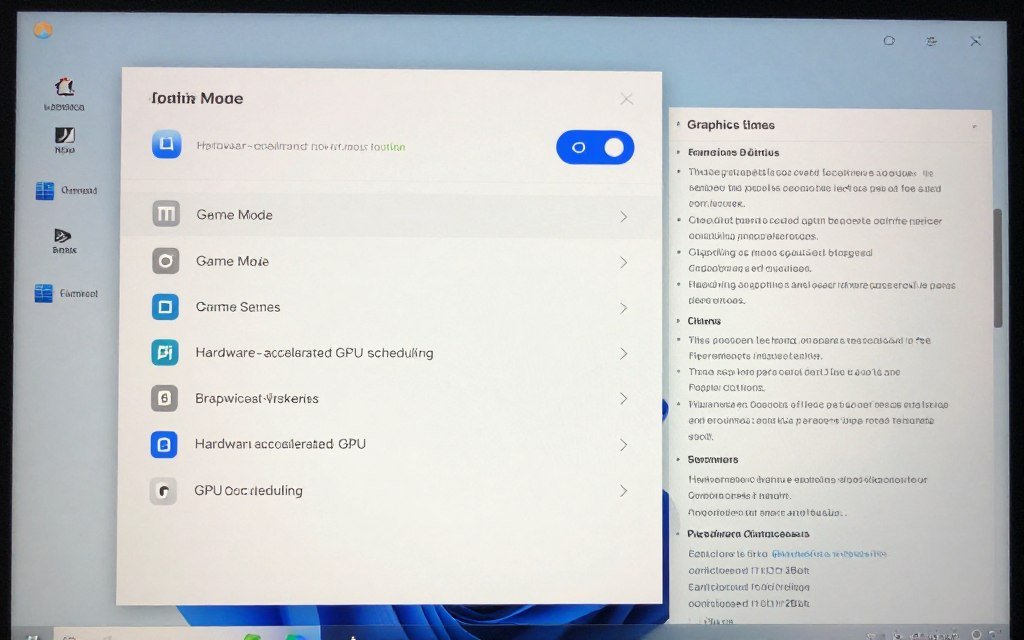
Windows 11 and even Windows 10 include settings that wreck frame times. Let’s fix them.
Game Mode (Why It’s Broken)
Game Mode should prioritize your game. In practice, it causes more problems than it solves.
Some games run better with it enabled. Others stutter more. There’s no consistent pattern.
My recommendation: test both ways. Run your game with Game Mode on. Monitor frame times. Turn it off and test again.
On my system, Game Mode caused regular frame time spikes in UE5 games. Disabling it fixed the problem completely.
More details on Windows Game Mode settings and their impact on performance.
Hardware-Accelerated GPU Scheduling
This setting changes how Windows handles GPU tasks. On newer GPUs (RTX 30-series and later, RX 6000-series and later), it can help frame times.
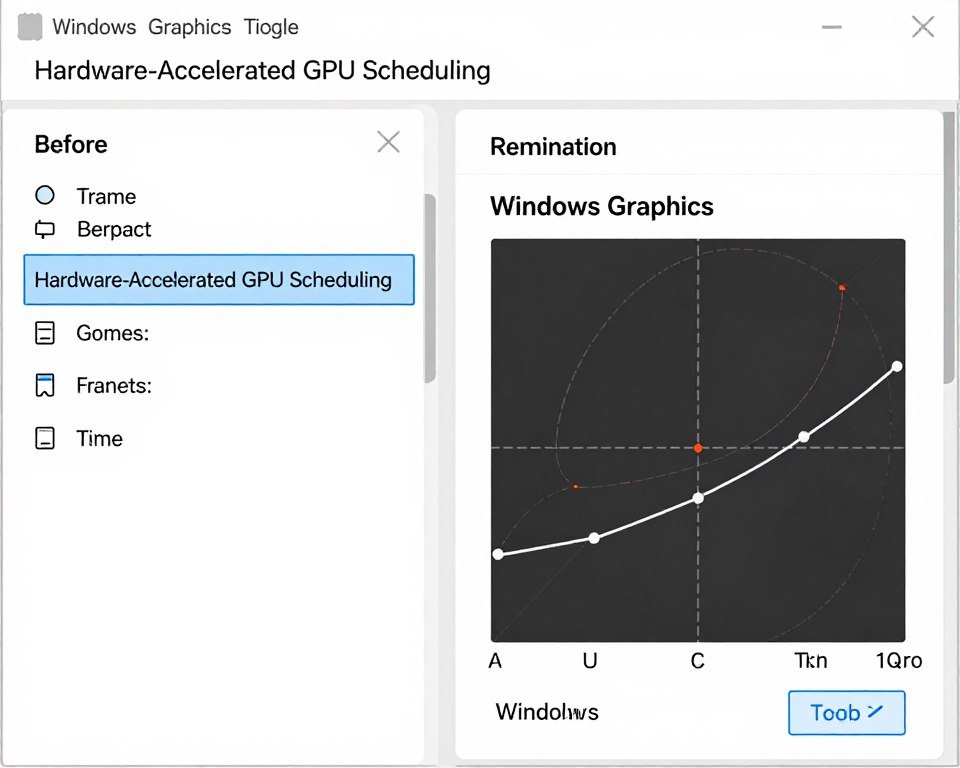
On older GPUs, it sometimes makes things worse. The setting is in Windows Settings > System > Display > Graphics.
Enable it if you have a modern GPU. Test for a few gaming sessions. If frame times get worse, disable it.
HPET (High Precision Event Timer)
HPET is a timing mechanism in Windows. It affects how the system schedules tasks.
For most modern systems, HPET should be disabled in Windows but enabled in BIOS. This combination gives the best frame time consistency.
You can check HPET status by opening Command Prompt as administrator. Type: bcdedit /enum
If you see “useplatformclock Yes”, HPET is enabled in Windows. To disable it, type: bcdedit /deletevalue useplatformclock
Restart your PC. Test frame times again. Most people see improvement.
Complete guide to HPET optimization for gaming systems.
Power Plans and CPU States
Windows power plans affect CPU behavior. The “Balanced” plan lets your CPU downclock during gaming. This causes frame time spikes.
Switch to “High Performance” power plan. This keeps your CPU at full speed constantly.
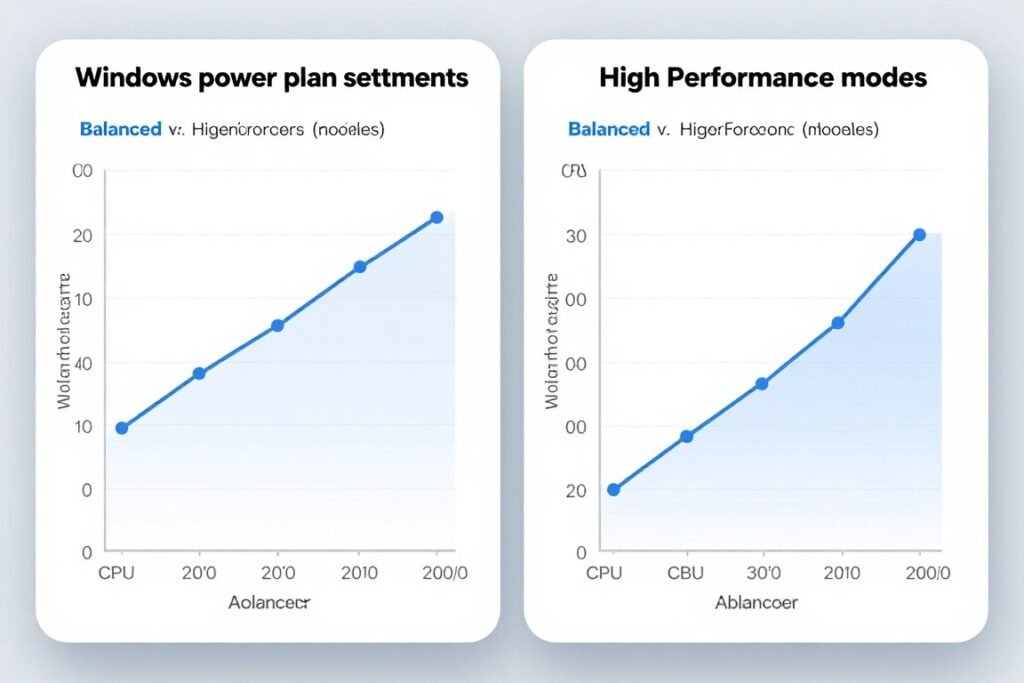
In Power Options, also check advanced settings. Set “Minimum processor state” to 100%. This prevents aggressive downclocking.
Your electricity bill might increase slightly. But frame times will be far more consistent.
GPU Driver Settings (What Actually Matters)
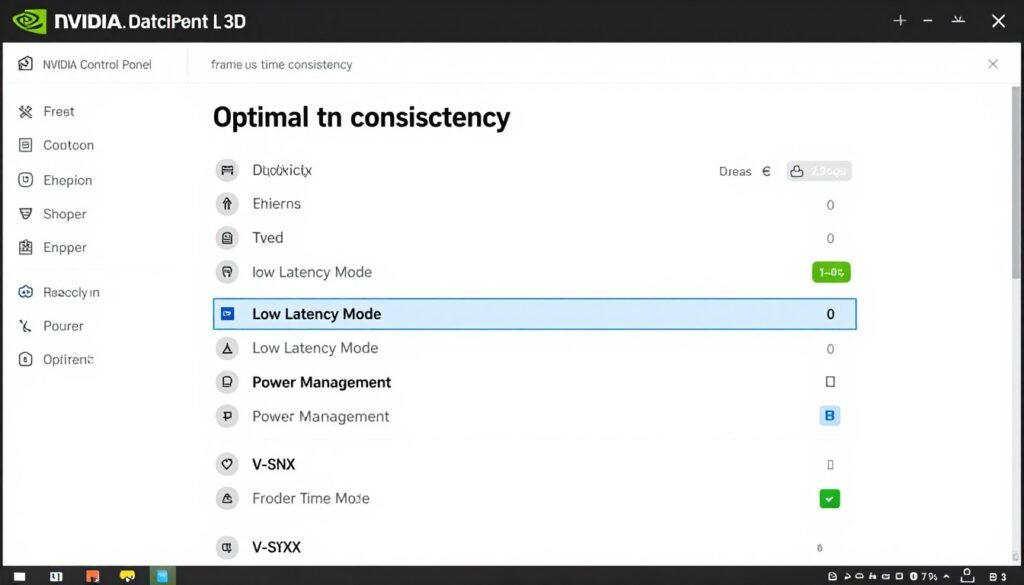
Your GPU drivers include dozens of settings. Most don’t matter. A few are critical for frame time consistency.
NVIDIA Control Panel Settings
Open NVIDIA Control Panel. Go to “Manage 3D Settings.” These are the settings that matter:
Low Latency Mode: Set to “Ultra” if your GPU can maintain high fps. This reduces frame time variance by limiting render queue depth.
Power Management Mode: Set to “Prefer Maximum Performance.” This prevents the GPU from downclocking during light scenes.
Vertical Sync: Turn OFF in control panel. We’ll handle fps caps a better way.
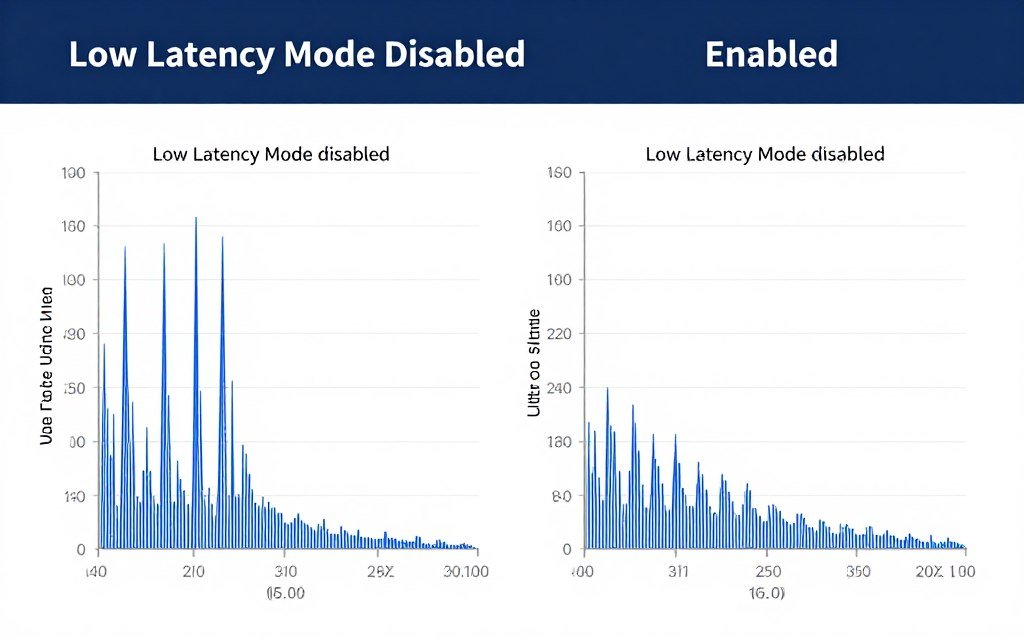
Max Frame Rate: Leave this blank for now. RTSS handles fps caps better.
Everything else can stay at default. Texture filtering quality and anisotropic filtering optimization don’t affect frame times meaningfully.
Full breakdown of NVIDIA settings for gaming optimization.
AMD Adrenalin Settings
AMD’s control panel has similar settings with different names.
Radeon Anti-Lag: Enable this. It’s AMD’s version of NVIDIA’s Low Latency Mode. Reduces render queue, improves frame time consistency.
Radeon Chill: Disable this for competitive games. It caps fps dynamically, which can create frame time variance.
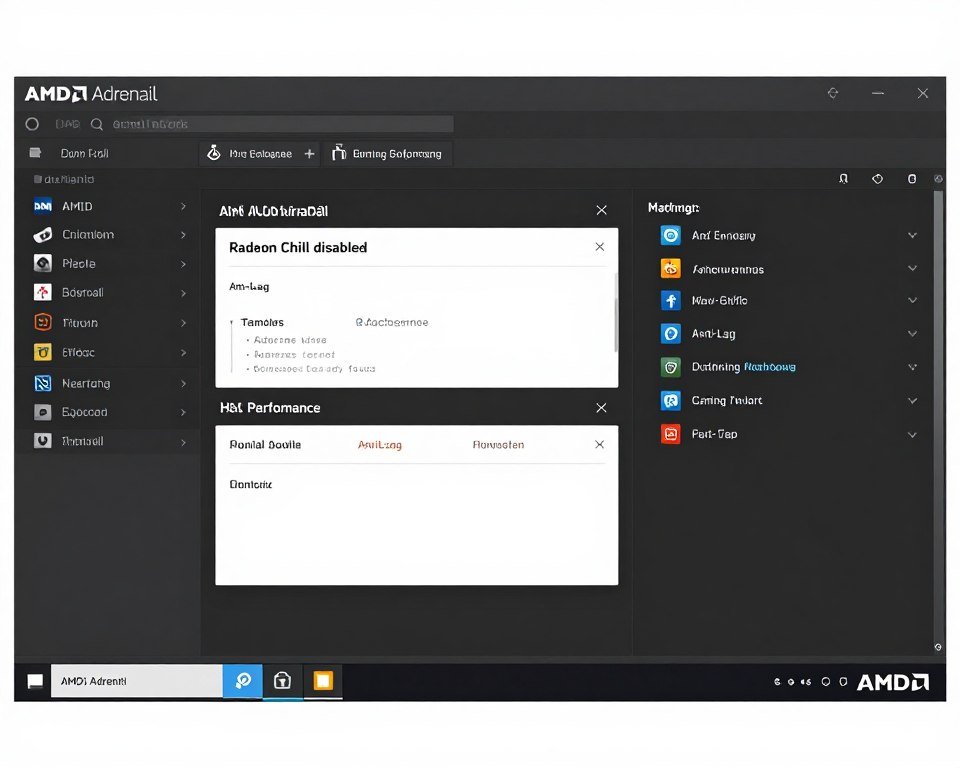
Power Tuning: Increase power limit to maximum if thermals allow. This prevents GPU throttling during demanding scenes.
FreeSync/G-Sync should stay enabled if your monitor supports it. These technologies help smooth out remaining frame time variance.
Comprehensive AMD Adrenalin guide with detailed configuration steps.
VSync and Frame Rate Caps
VSync in-game adds input lag and can cause frame time doubling. When the GPU can’t maintain max refresh rate, VSync cuts frame rate in half.
At 144Hz, you get either 144 fps or 72 fps. Nothing in between. Frame times jump from 6.9ms to 13.9ms instantly.
Better option: disable VSync everywhere. Use RTSS to cap frame rate instead.
Set your fps cap slightly below your monitor’s refresh rate. For a 144Hz monitor, cap at 141 fps. This prevents tearing while maintaining consistent frame times.
RTSS caps don’t add the input lag that in-game caps or driver-level caps add. The frame pacing is smoother.
In-Game Settings That Wreck Frame Times
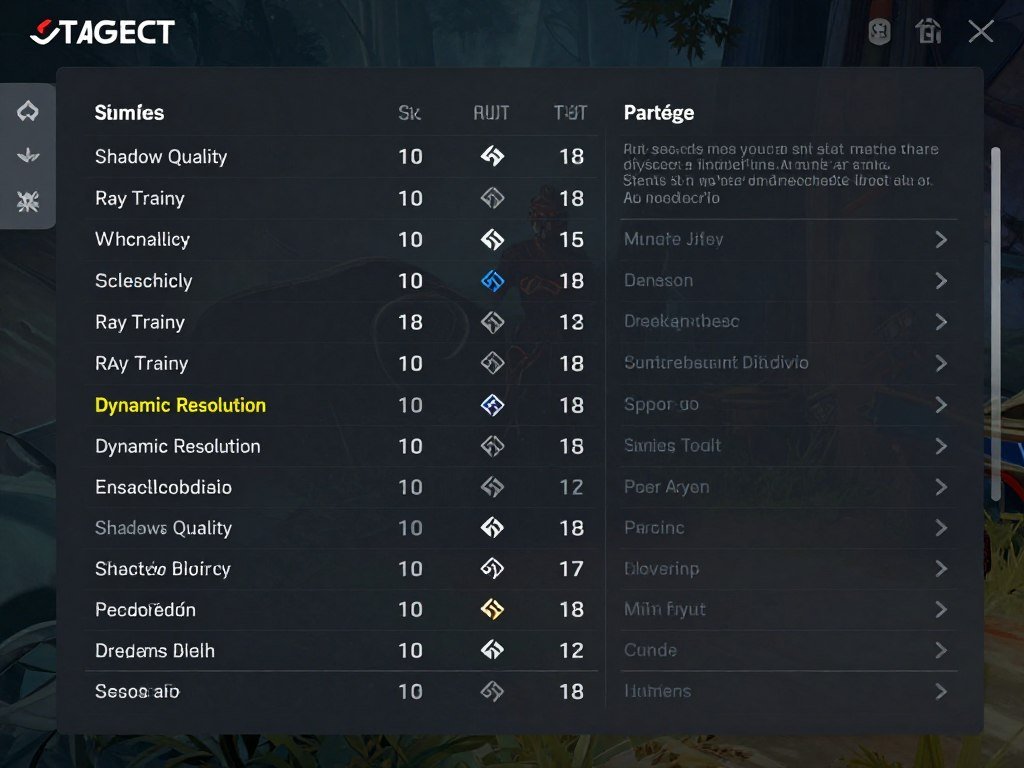
Some graphics settings cause massive frame time variance. Others barely matter.
Settings to Lower First
Shadow quality hammers frame times in most games. Ultra shadows often require tons of CPU work. High is usually fine and much more consistent.
Ray tracing creates massive frame time spikes when reflections update. Even with an RTX 5090, ray tracing can cause inconsistent frame times in demanding scenes.
Volumetric effects (fog, clouds, god rays) often cause spikes. These effects require heavy computation. Medium settings usually look nearly identical to ultra.
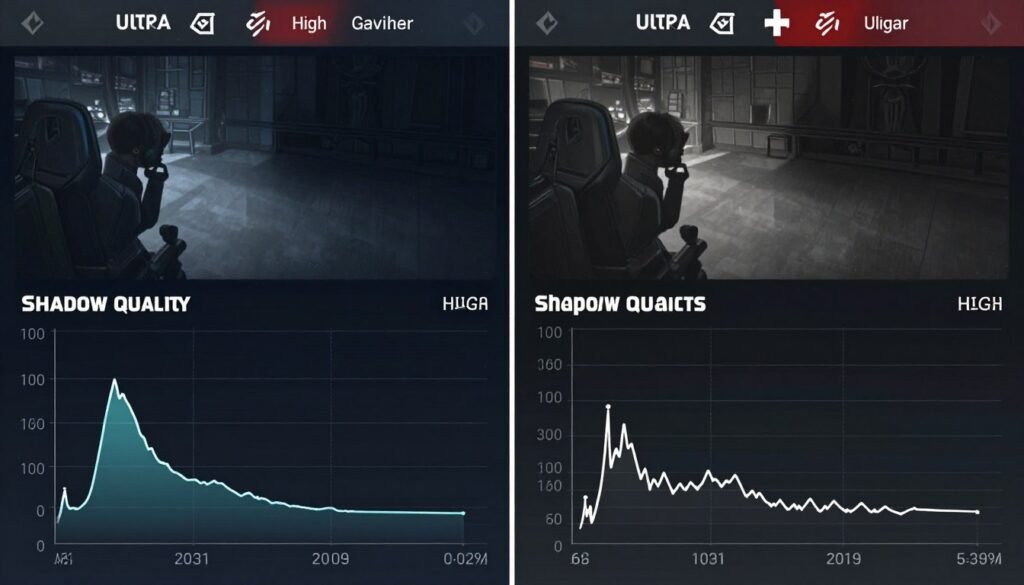
Draw distance and LOD settings matter less for frame times. They affect fps averages but rarely cause spikes.
Dynamic Resolution and Frame Generation
Dynamic resolution scales rendering resolution to maintain target fps. Sounds good in theory. Creates terrible frame time consistency in practice.
The resolution constantly changes. Frame times bounce between different render loads. The game looks blurry sometimes, sharp other times.
Better to find stable settings at fixed resolution. Your eyes adjust to slightly lower fps. They never adjust to constantly changing clarity.
Frame generation (DLSS 3, FSR 3) can improve frame times when implemented well. But not all games do it well. Test carefully.
Some UE5 games have terrible frame generation artifacts. More on UE5 performance issues and how to handle them.
Shader Compilation Stuttering
Many games compile shaders during gameplay. First time you see a new effect, the game stutters while compiling.
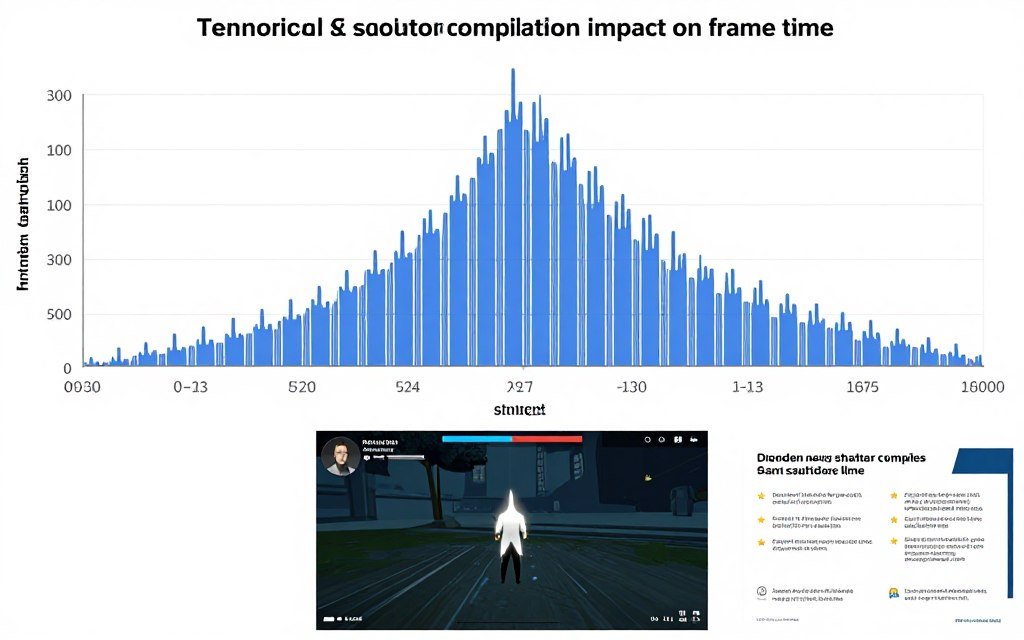
This creates one-time massive frame time spikes. Sometimes 500+ milliseconds. The game freezes completely for half a second.
Pre-compiling shaders helps. Many games offer this option now. It takes a few minutes at launch but prevents in-game stutters.
You can also use shader cache management. Details in our shader cache guide.
Hardware Changes That Actually Fix Frame Times
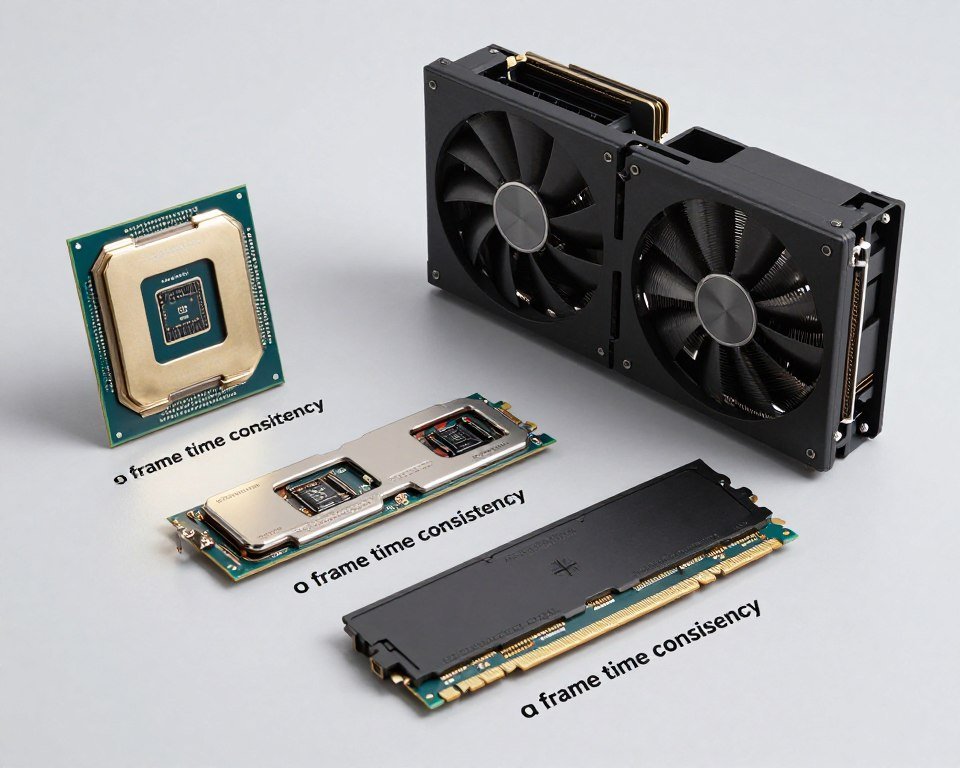
Sometimes software tweaks aren’t enough. Hardware is the problem.
RAM: Speed and Configuration Matter
Single-channel RAM creates frame time problems. Your CPU waits for memory more often. Frame times spike randomly.
Dual-channel effectively doubles memory bandwidth. This is critical for frame time consistency.
If you have one stick of RAM, add a matching stick. Make sure they’re in the right slots (check your motherboard manual for dual-channel configuration).
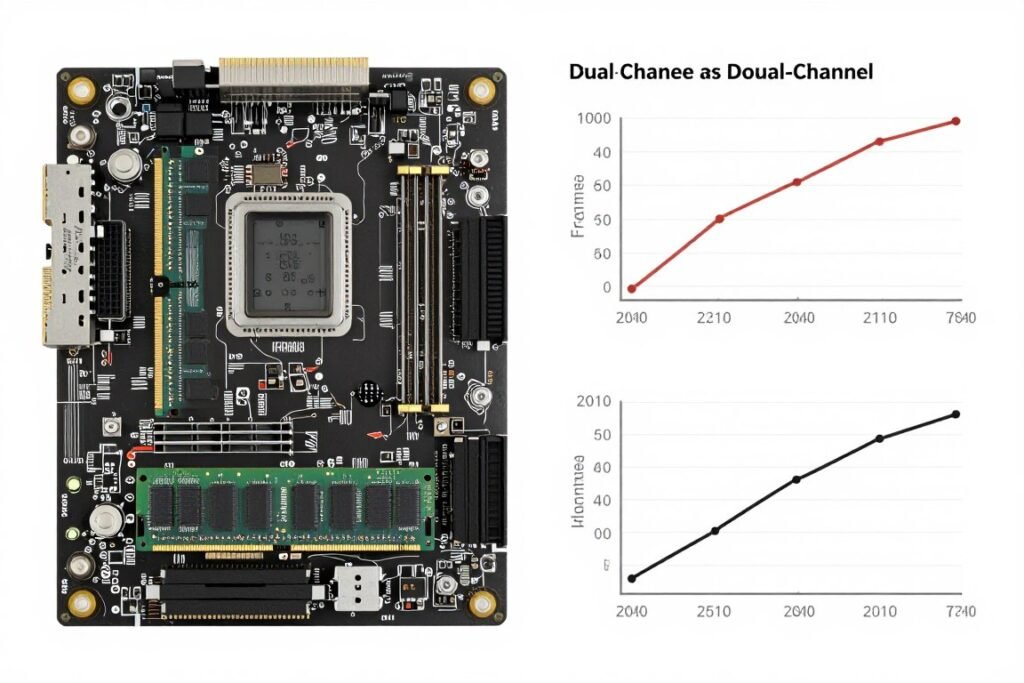
RAM speed matters too. Enable XMP or EXPO in BIOS. Your RAM probably runs at 2133 MHz by default. It should run at 3200 MHz or higher.
On Ryzen systems especially, RAM speed directly affects frame times. DDR5 systems should run at least 5600 MHz.
Proper RAM latency tuning can further improve frame time consistency.
Storage Speed and Frame Time Spikes
Slow storage causes periodic frame time spikes. When the game loads assets, your SSD speed determines how long that takes.
A slow SATA SSD or god forbid a hard drive creates regular stuttering as the game streams textures and assets.
NVMe SSDs solve this. Gen 3 NVMe is fine for most games. Gen 4 helps in open world titles with aggressive asset streaming.
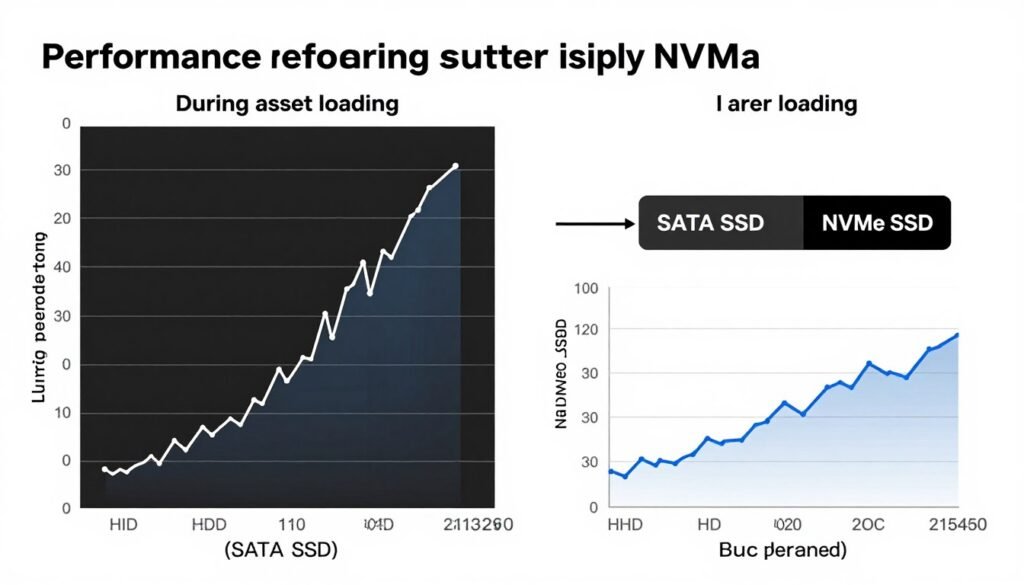
DirectStorage API in 2026 makes fast NVMe even more important. Games using DirectStorage bypass CPU decompression. This eliminates a major source of frame time spikes.
CPU Upgrades (When They’re Worth It)
If your CPU constantly runs at 100% usage, it’s the bottleneck. Frame times will be inconsistent until you upgrade.
But not all CPU upgrades help frame times equally. More cores don’t always mean better consistency.
For gaming, strong single-core performance matters most. AMD’s X3D chips (like Ryzen 9800X3D) excel at consistent frame delivery. The extra cache reduces memory latency spikes.
Intel’s latest chips also handle frame times well. The 15th gen Core processors with updated E-cores schedule gaming tasks better.
Check our Intel vs AMD comparison for 2026 recommendations.
GPU Upgrades (The Nuclear Option)
If your GPU usage constantly hits 100%, you’re GPU-bound. Frame times will spike when the GPU can’t keep up with demanding scenes.
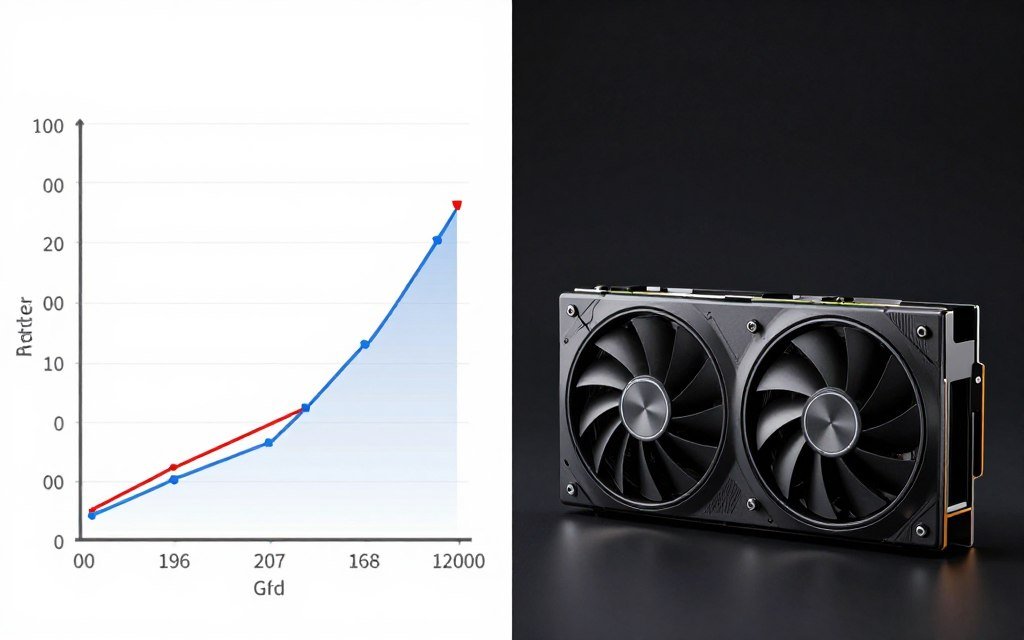
A faster GPU with more VRAM solves this. The RTX 5070 or RX 8800 XT in 2026 both deliver excellent frame time consistency in most games.
The RTX 5090 is overkill for 1080p or 1440p gaming. But it guarantees smooth frame times even in the most demanding titles at 4K.
Understanding your current system balance helps determine if a GPU upgrade will actually fix your frame time issues.
Advanced Optimizations (For When Nothing Else Works)
These fixes are more technical. They work when standard optimizations don’t.
DPC Latency Issues
Deferred Procedure Calls (DPC) are how Windows handles hardware interrupts. High DPC latency causes frame time spikes.
Download LatencyMon to check DPC latency. Run it while gaming. If you see red warnings, you have a problem.
Usually, outdated drivers cause high DPC latency. Network adapters and audio drivers are common culprits.
Update all drivers. Check motherboard manufacturer’s website for latest chipset drivers.
Our DPC latency fix guide covers detailed troubleshooting steps.
Memory Standby List Issues
Windows caches data in standby memory. Sometimes it doesn’t clear this cache when games need RAM. This causes stuttering.
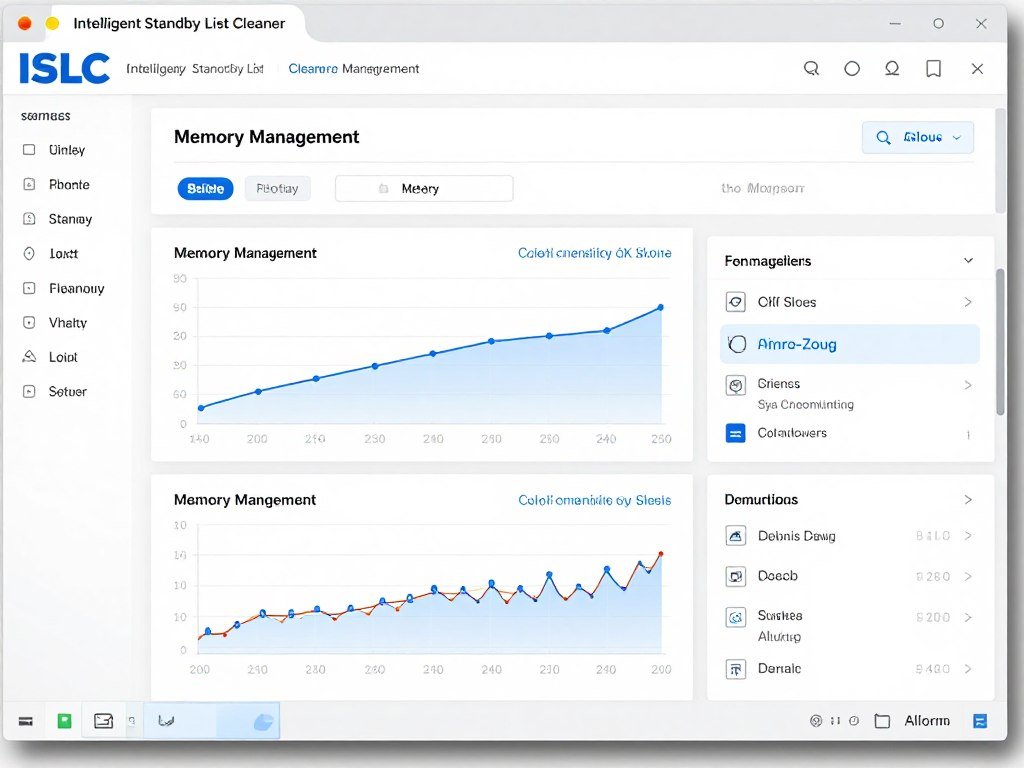
Intelligent Standby List Cleaner (ISLC) fixes this. It automatically clears standby memory when you hit a threshold.
Set it to clear standby list when free RAM drops below 4096 MB. This prevents the stutter-causing memory pressure.
Complete setup guide for ISLC with recommended settings.
Resizable BAR
Resizable BAR lets your CPU access the full GPU memory buffer. This reduces latency and improves frame time consistency.
Most systems since 2020 support it. But it’s not always enabled by default.
Enable it in BIOS (usually under PCI settings). Make sure your GPU drivers are updated. Then verify it’s working using GPU-Z.
Frame time improvements vary by game. Some titles see massive consistency improvements. Others see no change.
More details on Resizable BAR activation and its benefits.
CPU Affinity and Priority
Some games don’t handle multi-core scheduling well. Forcing them to use specific cores can improve frame time consistency.
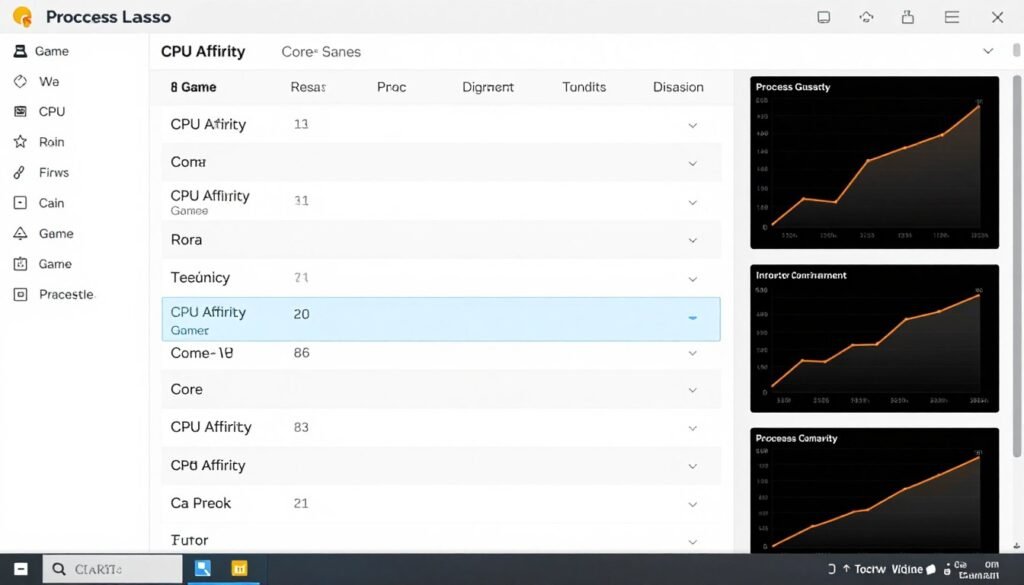
Process Lasso automates this. You can set CPU affinity and priority per executable.
For games, try disabling E-cores on Intel systems. Use only P-cores. This sometimes dramatically improves frame times.
On AMD systems with two CCDs, forcing the game to one CCD can help. This reduces cross-CCD latency.
How to Test If Your Fixes Actually Worked
Don’t trust your feelings. Measure everything.
Establishing a Baseline
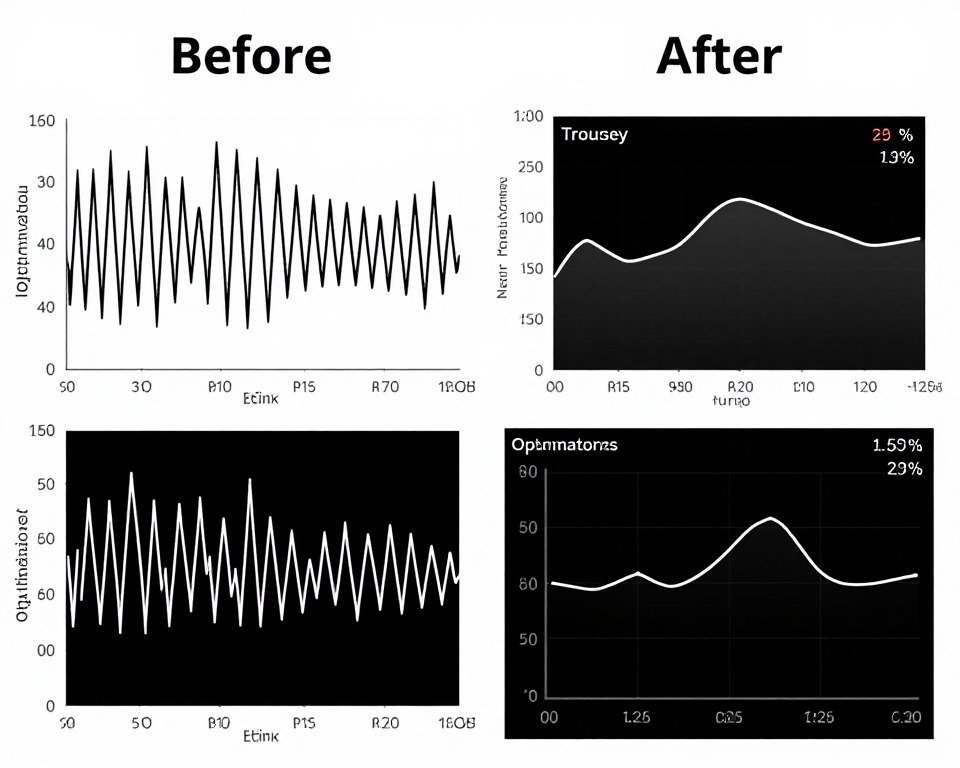
Before changing anything, record baseline frame times. Use MSI Afterburner to log data during a 10-minute gaming session.
Note average frame time, 1% lows, and 0.1% lows. The low percentiles matter most for consistency.
Take screenshots of your frame time graph during demanding scenes. You’ll compare these later.
Testing Changes Systematically
Change one thing at a time. Test for at least 30 minutes after each change.
If frame times improve, keep the change. If they get worse, revert it.
Some changes interact with others. Enabling Resizable BAR might only help if you also disable certain Windows features.
This is why systematic testing matters. You need to isolate what actually works.
Long-Term Stability Testing
A fix that works for 30 minutes might fail after 2 hours. Heat buildup causes throttling. Memory leaks develop.
Test extended gaming sessions. Monitor temperatures. Watch for frame time degradation over time.
If frame times start good but degrade, you have a thermal or memory management problem.
Game-Specific Frame Time Problems
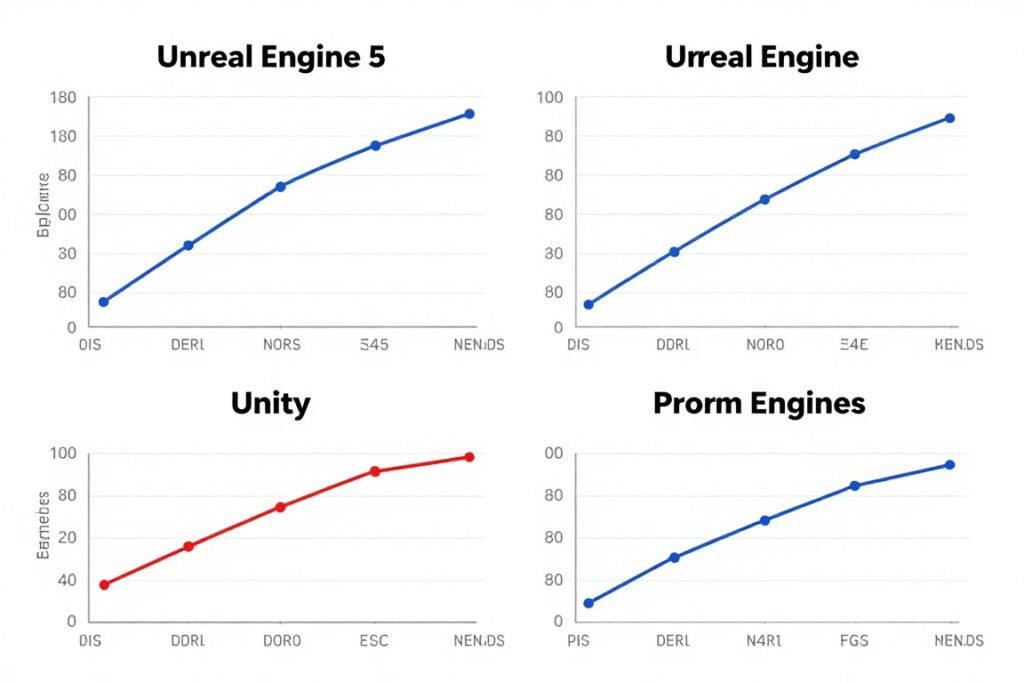
Different games have different frame time quirks. Here’s what I’ve learned.
Unreal Engine 5 Games
UE5 titles often have shader compilation stuttering. Even with pre-compilation, some stutter remains.
Nanite and Lumen technologies create frame time variance. They’re amazing but demanding.
Best settings: disable Lumen in favor of traditional lighting if frame times are bad. Nanite usually runs fine but can cause spikes in dense foliage.
Detailed UE5 performance optimization guide with specific settings.
Competitive Shooters (Valorant, CS2)
These games prioritize consistency over eye candy. Frame time variance kills competitive performance.
Lock fps at a stable value your system can maintain. For Valorant, many pros cap at 300 fps even with 360Hz monitors.
Disable ALL graphics features that aren’t required. Anti-aliasing is often the only setting worth enabling.
These games respond well to CPU optimization. More on esports CPU performance requirements.
Open World Games
Asset streaming causes frame time spikes. Fast storage is critical.
Cities or densely populated areas hammer the CPU. Expect higher frame times in these zones.
Reduce draw distance first if you see spikes. It has the biggest impact on consistency in open worlds.
Still Experiencing Stuttering?
Your hardware pairing might be the root cause. Run a quick bottleneck analysis to see if your CPU or GPU is holding back smooth frame delivery and causing the inconsistent frame times you’re experiencing.
The Bottom Line
Frame time consistency matters more than average fps. A stable 60 fps feels better than an unstable 100 fps.
Most frame time problems come from predictable sources. Windows settings. Driver configurations. Hardware bottlenecks. Background processes.
Fix them systematically. Measure your baseline. Change one thing at a time. Test thoroughly.
Start with the easy wins. Disable Game Mode. Set power plan to high performance. Enable XMP. Update GPU drivers. These take minutes and often solve 80% of problems.
If that’s not enough, dig deeper. Check DPC latency. Configure RTSS properly. Optimize in-game settings.
Hardware upgrades are the last resort. But sometimes necessary. Slow RAM or a weak CPU can’t be fixed with software tweaks alone.
The goal is consistent frame delivery. Not the highest fps number. Not the prettiest graphics. Smooth, predictable frame times that your brain doesn’t notice.
When you nail frame time consistency, gaming feels different. Better. The way it should.
Making Your Games Actually Feel Smooth
Frame time consistency separates smooth gameplay from stuttering messes. You now understand why fps averages lie. Why your 60 fps game feels terrible.
You have the tools to measure frame times properly. The knowledge to identify bottlenecks. The fixes that actually work.
Start with monitoring. Install MSI Afterburner and RTSS. Watch your frame time graph during gaming. Identify the patterns.
Then work through the fixes systematically. Windows settings first. Driver optimizations second. Hardware changes only if needed.
Test everything. Don’t trust feelings. Measure before and after. Keep what works. Revert what doesn’t.
The difference between inconsistent and consistent frame times is the difference between frustrating and enjoyable gaming. It’s worth the effort to get right.
Your games will feel smoother. Your aim will be more accurate. Fast camera movements won’t stutter. Competitive gaming becomes possible.
This is how PC gaming should feel. Frame time consistency makes it happen.