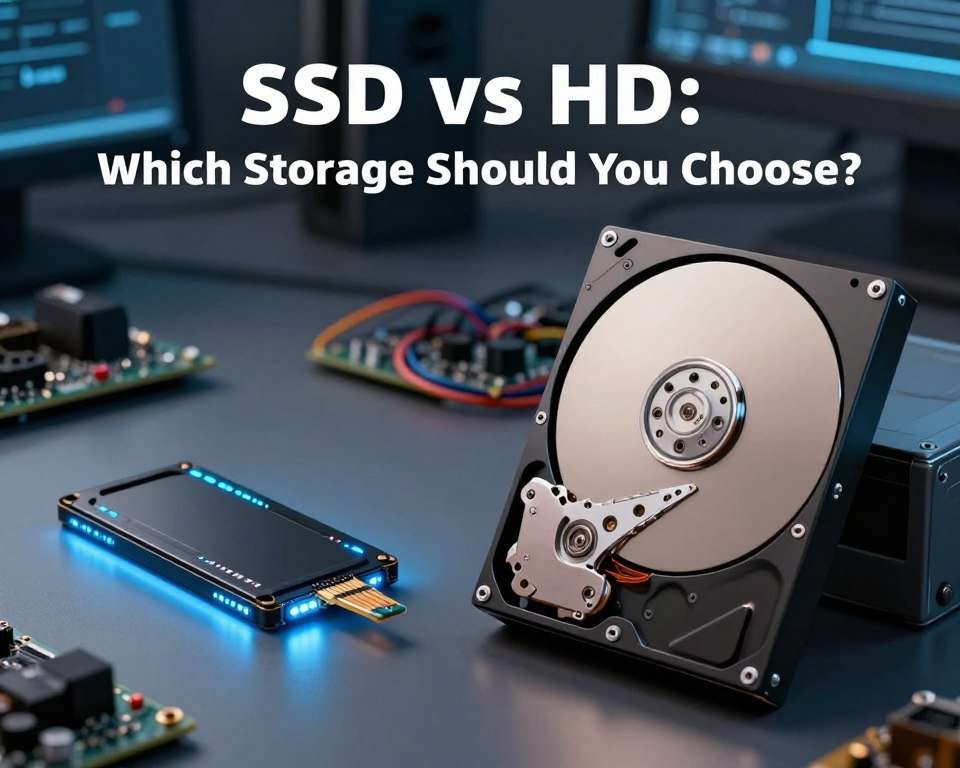
SSD vs HDD: Which Storage Should You Choose?
Ever wondered why your computer takes forever to start up? We often point fingers at our processors or memory. But the real problem is usually the storage drive inside our computers. Knowing the difference between SSD vs HDD is key to saving time and reducing frustration.
Choosing the right drive greatly affects your overall system responsiveness and boot speed. Whether you’re a gamer, creative pro, or just browsing, your hardware choices matter. We aim to simplify the tech talk, helping you find a balance between cost and performance.
In this guide, we’ll dive into the basics of these drives. We’ll compare their capacity, durability, and cost. This way, you can make a smart choice for your next upgrade.
Key Takeaways
- Storage drives are the heart of your computer’s performance and speed.
- The type of drive you choose affects how quickly your computer boots up.
- Solid-state drives are way faster than traditional spinning disks.
- Hard disk drives are a budget-friendly choice for storing lots of data.
- Picking the right storage for your needs ensures you get the best value.
Understanding the Basics of SSDs and HDDs
To make a smart choice about our hardware, we need to understand the tech behind storage drives. Whether we’re building a new PC or upgrading an old laptop, picking between an SSD vs HDD affects our daily work.
“Technology is best when it brings people together,” as the saying goes. Knowing our tools helps us work better. By looking at how these devices are built, we see why they perform differently.
What is an SSD?
A Solid State Drive, or SSD, is the modern choice for fast storage. It uses flash memory to store data electronically, unlike older tech.
SSDs are quiet and tough because they have no moving parts. They’re great for us if we travel a lot or need files quickly.
What is an HDD?
A traditional Hard Drive, or HDD, uses mechanical parts to work. Inside, magnetic platters spin fast, and a read-write head moves to access data.
This design has served us well for years. But, it’s slower than newer tech because it needs to move to find info.
Key Differences Between SSDs and HDDs
The main difference between an SSD vs HDD is how they get data. HDDs are for lots of storage at a low cost. SSDs focus on speed and quick access.
| Feature | SSD | HDD |
|---|---|---|
| Storage Method | Flash Memory | Magnetic Platters |
| Moving Parts | None | Yes |
| Speed | Very Fast | Slower |
| Durability | High | Moderate |
Our choice depends on what we value more: lots of storage or fast performance. Knowing these differences helps us pick the right hardware for our digital needs.
Performance: Speed and Efficiency
How fast our system works often depends on the storage we use. When we upgrade, we usually aim for better performance. A quicker boot speed is one of the first things we notice when switching to newer drives.
Boot and Load Times
Waiting for our computer to start can be annoying. Old hard drives make us wait for minutes before we can start using it. But, faster drives make this wait almost disappear, letting us start work or play quickly.
App load times also get a big boost. Whether it’s a big video editing program or a game, the difference is noticeable. We spend less time waiting for apps to load and more time doing what we need to do.
Read and Write Speeds
NVMe technology has changed how we transfer data. It’s much faster than older tech, allowing for quick communication between storage and processor. Moving big files is now much quicker.
This new tech makes our data more accessible. It removes old hardware bottlenecks, letting our processors work better. Here’s why these speed gains are important for our daily work:
- Instant file access for large media projects.
- Reduced system lag during background updates.
- Faster saving and exporting of complex documents.
- Improved overall system stability under heavy loads.
Daily Use Performance
When we multitask a lot, our storage’s efficiency is key. We often run many programs at once, which needs quick data access. An NVMe drive handles this well, keeping our system running smoothly.
This makes our daily tasks easier. We don’t have to worry about our computer slowing down, even with many apps open. Investing in fast storage keeps our machines running well for years.
Storage Capacity and Options
Figuring out how much storage space we need is all about our habits and what files we keep. When we look for a new drive, we have to balance cost and capacity. It’s important to choose the right size to avoid wasting money on unused space.
Common Capacities for SSDs
Solid State Drives are fast but pricey. Most people find 250GB or 500GB enough for their OS and apps. For gamers or those with lots of videos, 1TB to 4TB drives are a better choice.
Common Capacities for HDDs
For lots of storage, like for backups or media, Hard Drives are the best value. They start at 1TB and go up to 18TB for big needs. They’re great for storing lots of photos, movies, and documents.
Choosing the Right Size for Our Needs
To choose the right size, check what files you have. Most operating systems need 50GB to 100GB to run well. Add 20% extra to avoid slowdowns. Planning ahead helps avoid running out of space later.
| Drive Type | Typical Capacity | Best Use Case |
|---|---|---|
| SSD | 250GB – 4TB | OS, Apps, Gaming |
| Hard Drive | 1TB – 18TB | Media, Backups, Archives |
| Hybrid | 1TB – 8TB | General Computing |
Durability and Reliability
When we invest in storage, we want to keep our files safe for years. Reliability is key in any backup plan. So, we need to see how different hardware performs in real life.
Lifespan of SSDs vs HDDs
The life of our storage depends on its design. HDDs have spinning parts and moving heads. These parts wear out over time.
SSDs, on the other hand, use flash memory with no moving parts. They have a limited number of write cycles. But, modern controllers help them last longer. For most, an SSD will last longer than the computer it’s in.
Data Loss and Recovery Options
We should be ready for the unexpected. Knowing how drives fail helps. HDDs often warn us with sounds before they crash.
SSDs fail suddenly, without warning. But, they’re less likely to get damaged physically. If a drive fails, experts can usually get data back. But, SSD recovery is often more complex and expensive.
Environmental Resistance
Our daily habits affect our hardware’s performance. HDDs are fragile and easily damaged by drops or bumps.
SSDs are more resilient to physical stress. They’re great for laptops we carry around. They also handle temperature changes better than HDDs. Choosing the right tech improves our data storage’s reliability.
Price Comparison: SSDs vs HDDs
When we’re looking to upgrade, we face a big challenge: balancing our budget with high-performance storage. We need to think about the upfront cost and the long-term benefits. Knowing the price difference between SSD vs HDD helps us make a smart choice.
Cost per Gigabyte
Calculating the cost per gigabyte is key to making a choice. SSDs have gotten cheaper, but HDDs are better for lots of storage space. Big hard drives are often cheaper per gigabyte than SSDs.
Budget-Friendly Options
For those on a tight budget, a hybrid setup can be a good idea. We can use a small, affordable SSD for our OS and a big, cheap HDD for files. This way, we get fast boot times without spending too much on storage.
Value for Money Considerations
Whether to spend more on speed depends on our needs. If we work with big files or play games, an SSD is worth it. But for simple storage or backups, an HDD is a better deal. We should choose based on our specific needs to avoid wasting money.
| Drive Type | Cost per GB | Best Use Case | Performance |
|---|---|---|---|
| SSD | Higher | OS and Applications | Excellent |
| HDD | Lower | Massive Backups | Moderate |
| Hybrid | Balanced | General Computing | Good |
Use Cases: When to Choose SSD or HDD
Choosing the right hardware for our tasks is key to a smooth computing experience. Our digital habits vary, and picking the right drive keeps our system running smoothly.
Gaming and Multimedia Applications
For gamers and creatives, speed is everything. We use NVMe drives to cut down loading times and handle big video files smoothly.
“Performance is not just about raw power; it is about how quickly we can access the data that matters most to our workflow.”
Editing high-res videos or playing new games shows the impact of fast storage. The quick read speeds of modern storage make a big difference. These tasks need the low latency that high-end solid-state tech provides.
Everyday Computing Needs
Most of us use our computers for web browsing, document editing, and streaming. The choice between SSD vs HDD depends on budget and space needs.
- A standard SSD makes our OS and daily apps feel snappy.
- An HDD is a cost-effective way to store lots of photos and movies.
For home users, a mix of drives often works best. Keeping the OS on a fast drive and media on a larger, cheaper disk is ideal.
Business and Enterprise Solutions
In professional settings, reliability and data safety are top priorities. Businesses often use tiered storage to manage big data sets well.
Enterprise systems use NVMe for fast databases. They also use high-capacity HDDs for long-term backups and archives.
This strategy keeps companies running efficiently and saves costs. Knowing the SSD vs HDD differences helps us build systems that meet our long-term needs.
Future Trends in Storage Technology
Technology is always changing, affecting how we store our digital lives. We’re moving towards faster interfaces and smarter data management. These changes focus on speed and efficiency.
Advancements in Flash Memory
NVMe technology is changing what we expect from computers. These drives offer fast throughput, making our systems feel instant. We think these components will soon be the norm for all modern workstations.
The Evolving Legacy of Magnetic Storage
Even though flash memory is fast, traditional Hard Drives are not going away. They’re essential for storing large amounts of data where cost is key. These drives are perfect for big backups.
Making the Right Choice for Our Needs
Choosing the right storage means balancing speed with reliability. Look for brands like Samsung or Western Digital known for their quality. Staying updated with these trends helps our hardware stay current for years.
FAQ
How does choosing between an SSD and an HDD affect our boot speed?
The difference in boot speed is huge. A traditional Hard Drive can take over a minute to load Windows 11. But, a modern SSD can get us to our desktop in under 15 seconds.
This is because SSDs access data almost instantly. Mechanical drives, on the other hand, need to spin up to speed first.
What exactly is NVMe, and why should we consider it for our next build?
NVMe is a high-speed flash storage protocol. It’s much faster than older SATA SSDs. An NVMe drive like the Samsung 990 Pro plugs directly into our motherboard.
This gives us data transfer speeds up to seven times faster. It’s perfect for demanding tasks.
If we need a massive amount of storage space, which drive offers the best value?
For lots of storage on a budget, Hard Drives are the best. A mid-range 1TB SSD costs about the same as an 8TB Western Digital Blue or Seagate BarraCuda HDD.
We recommend using a “hybrid” setup. Install your OS on a fast SSD. Use a high-capacity HDD for media and archives.
Which technology provides better long-term reliability for our important files?
SSDs are more durable due to no moving parts. They’re great for laptops. But, for long-term storage, Hard Drives are better.
For daily use, we trust Crucial and Kingston to keep our files safe.
Will upgrading to an SSD improve our experience in modern video games?
Yes, it will. Modern games like Starfield and Cyberpunk 2077 need an SSD. SSDs eliminate “texture popping” and micro-stutters.
They make our gaming experience smooth and immersive.
Is it difficult for us to clone our existing data from an old HDD to a new SSD?
No, it’s easy! Most brands, like Samsung and Sabrent, offer free software. Tools like Samsung Data Migration or Acronis True Image make cloning simple.
They create an exact copy of our system, including files and settings. We don’t have to reinstall our OS.