
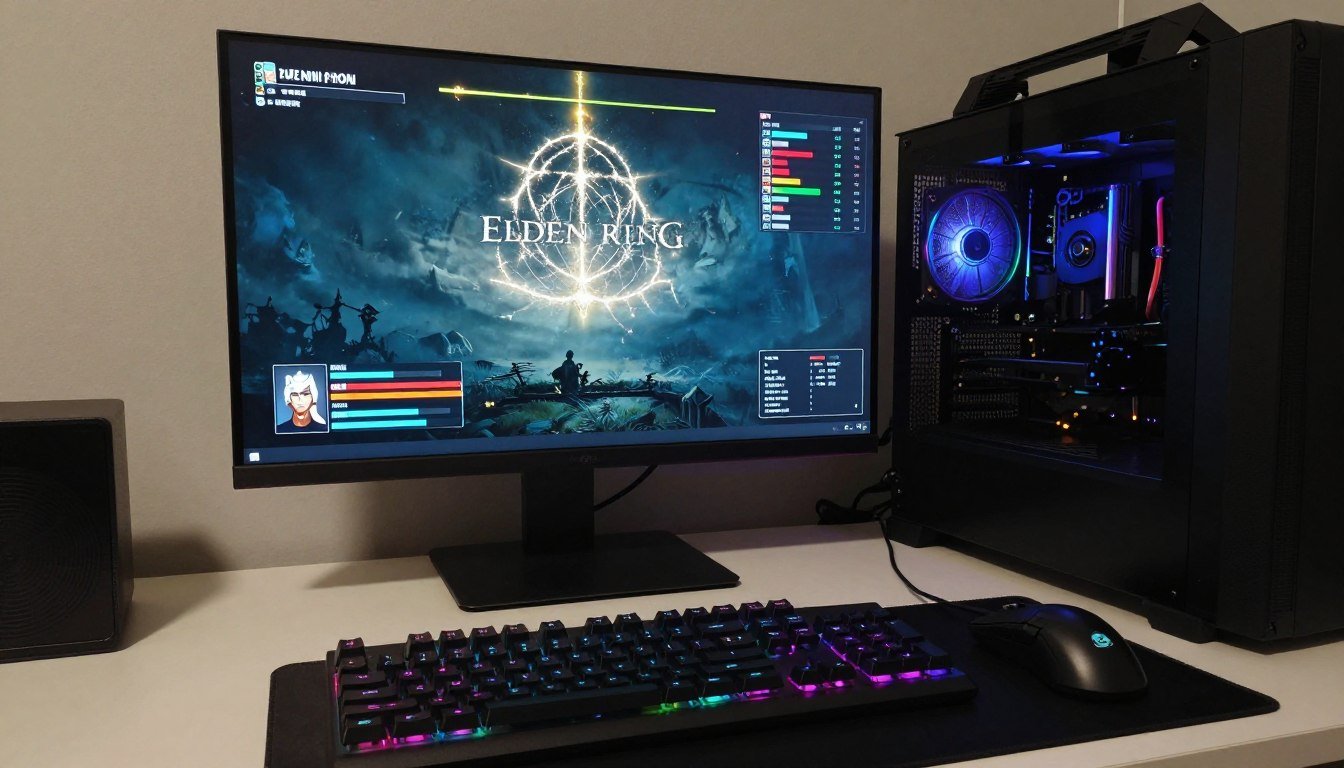
I still remember launching Elden Ring on day one. RTX 3080, Ryzen 7 5800X, 32GB RAM. Should have been perfect. Instead, I got frame drops every fifteen seconds like clockwork. The game would freeze for a split second right when I needed to dodge. I died to Margit eleven times because my PC decided to stutter during his combo attacks. Not exactly the Souls experience I wanted.
The reality is that Elden Ring has some weird quirks on PC. Even in 2026, with RTX 5090s and Ryzen 9000 chips, people still hit performance walls. This guide will walk you through every fix that actually works. No vague advice about “updating drivers” and calling it a day. We’re going to dig into the specific settings, file tweaks, and system changes that make Elden Ring run properly.
You’ll learn how to identify what’s causing your stuttering, whether it’s the game’s engine limitations or your hardware setup. By the end, you’ll know exactly which fixes to apply and why they work. This isn’t about achieving mythical 240fps. It’s about getting smooth, consistent performance so you can actually enjoy the game.
Why Elden Ring Stutters on PC (And Why Your Hardware Isn’t Always the Problem)
Elden Ring uses FromSoftware’s modified version of their Dark Souls 3 engine. That engine was built for consoles first, then adapted for PC. The problem is that this engine compiles shaders during gameplay instead of loading them all at startup. Think of shaders like the rendering instructions your GPU needs to draw specific effects. Every time you encounter a new spell effect or lighting condition, your game pauses for a microsecond to compile that shader.
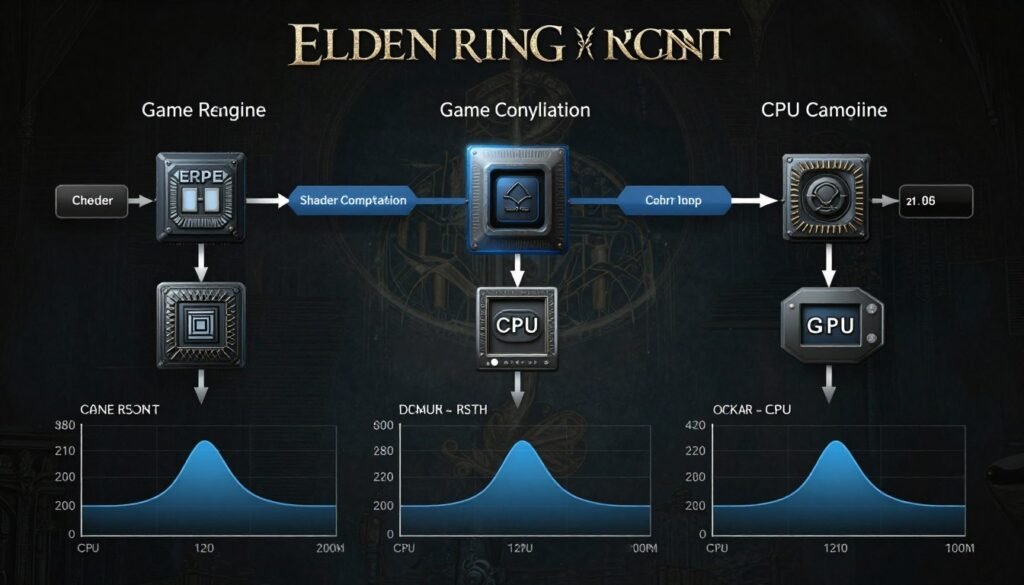
On a console, Sony or Microsoft handles this during the install process. On PC, you’re doing it live. That’s your stutter. It’s called “shader compilation stutter” and it hit basically everyone at launch.
But that’s not the only issue. The game also has a frame pacing problem tied to DirectX 12. Frame pacing is how evenly your frames are delivered. You might see “60fps” on your counter, but if those frames arrive unevenly, the game feels choppy. Imagine cars on a highway all going 60mph but randomly bunching up then spreading out. Same average speed, terrible experience.
Then there’s the PC-specific bugs. Easy Anti-Cheat can conflict with certain system processes. The Steam overlay causes microstutters for some users. Windows power management might throttle your CPU at the worst moments. Multiple things can go wrong simultaneously.
The Frame Cap Reality
Elden Ring is locked to 60fps by default. FromSoftware ties game logic to frame rate. If you force higher framerates with mods, physics break. Enemies move faster. Jump distances change. The game becomes unplayable in different ways. Some people accept this trade-off, but most just want stable 60fps without stuttering.
Hardware Check: Before blaming the game, verify your system isn’t the bottleneck. Elden Ring isn’t that demanding on paper, but an unbalanced CPU-GPU pairing can cause performance issues that look identical to engine problems. Understanding system balance helps identify if your hardware is creating artificial stutters.
What “Fixing” Actually Means
You can’t completely eliminate shader compilation stutter on your first playthrough. The game needs to compile those shaders at least once. But you can dramatically reduce it. You can fix frame pacing. You can stop your system from interfering. The goal is making Elden Ring feel smooth and responsive, not achieving some technically perfect benchmark score.
The fixes below are ordered from highest impact to most situational. Start at the top and work down. Some will apply to your setup, others won’t. Pay attention to which problems you’re actually experiencing.
Graphics Settings That Actually Fix Performance
The in-game graphics settings menu isn’t intuitive. Some options tank performance for minimal visual gain. Others are labeled poorly. Here’s what each setting actually does and what you should change.
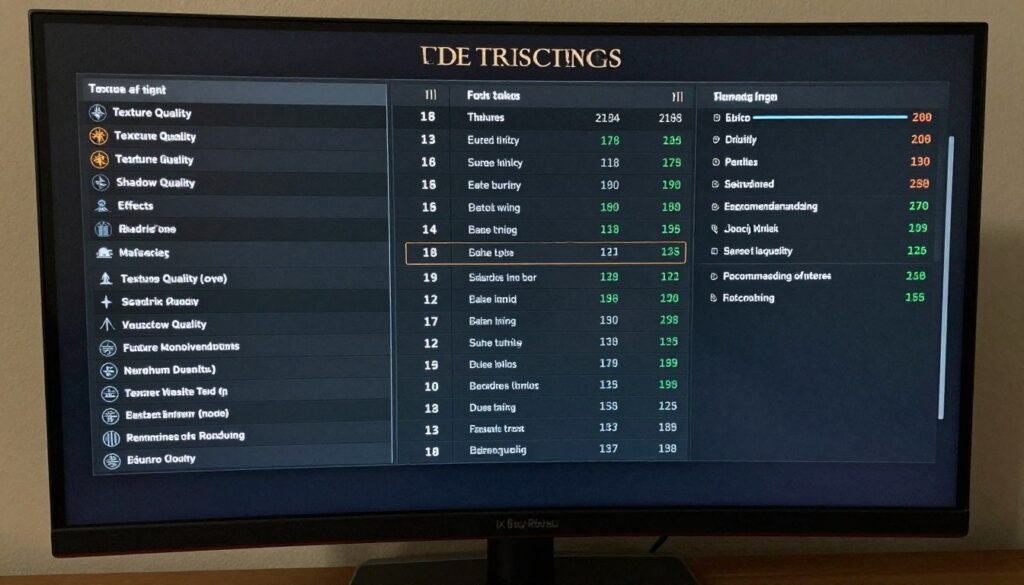
High-Impact Settings to Change First
Motion Blur: Turn it off. This doesn’t help performance but it makes stuttering more noticeable. When frames drop, motion blur smears the image in distracting ways.
Depth of Field: Set to low or off. This blurs distant objects. It costs performance and makes it harder to see enemies approaching. No benefit.
Shadow Quality: Drop from Maximum to High. The visual difference is tiny. The performance gain is 5-8fps depending on your GPU. This is the biggest single setting change you can make.
Lighting Quality: High instead of Maximum. Similar deal to shadows. Maximum uses more advanced rendering that looks nearly identical to High but costs significantly more GPU power.
Settings That Don’t Matter Much
Texture Quality: Only affects VRAM usage, not frame rate. If you have 8GB+ VRAM, keep this on Maximum. If you have 6GB or less, use High. The game loads lower resolution textures at High, which looks noticeably worse but runs the same speed.
Effects Quality: Medium to High range is fine. This controls spell effects and particle density. Low makes the game look significantly worse. High looks nearly as good as Maximum without the performance cost.
Anti-Aliasing: Use TAA (Temporal Anti-Aliasing). It’s the only option that doesn’t destroy performance. The game looks jagged without it. Some people prefer the sharper but more jagged look of no AA. That’s personal preference.
Recommended Settings for 60fps (RTX 4070 / RX 7800 XT)
- Texture Quality: Maximum
- Shadow Quality: High
- Lighting Quality: High
- Effects Quality: High
- Anti-Aliasing: TAA
- Motion Blur: Off
- Depth of Field: Low
Recommended Settings for 60fps (RTX 3060 / RX 6700 XT)
- Texture Quality: High
- Shadow Quality: Medium
- Lighting Quality: Medium
- Effects Quality: Medium
- Anti-Aliasing: TAA
- Motion Blur: Off
- Depth of Field: Off
Resolution and Display Mode
Run the game in fullscreen mode, not borderless window. Borderless adds input lag and can cause stuttering. Windows treats borderless windows differently than fullscreen applications. Fullscreen gives the game exclusive control over your display, which reduces overhead.
If you’re playing at 1440p or 4K and struggling to maintain 60fps, don’t immediately assume your GPU is the problem. Check if your CPU is maxed out. Elden Ring can be surprisingly CPU-intensive in areas with many NPCs or complex geometry. The CPU bottleneck guide explains how to identify this.
The VRAM Question
Elden Ring at maximum settings uses about 7-8GB of VRAM at 1440p. If your GPU has less, the game starts using system RAM as overflow. This is slow. Really slow. You’ll see massive stuttering in new areas as textures load. If you’re running an 8GB GPU, you’re fine at High settings. 6GB cards need Medium textures. Learn more about VRAM bottlenecks and their impact.
Driver Updates and Windows Settings That Matter
Graphics drivers impact Elden Ring more than most games because of how the engine handles DirectX 12. Nvidia and AMD both released Elden Ring-specific optimizations. If you’re running drivers from before 2023, you’re missing important fixes.
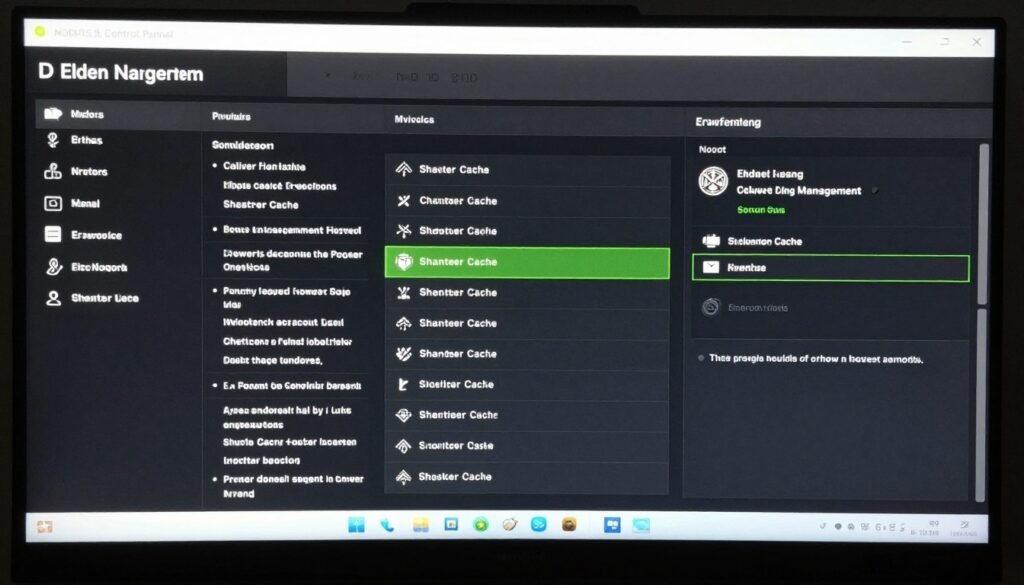
Nvidia Settings for Elden Ring
Open Nvidia Control Panel. Navigate to “Manage 3D Settings.” Click the “Program Settings” tab. Find Elden Ring in the list or add it manually. Change these specific settings:
- Power Management Mode: Set to “Prefer Maximum Performance” – This prevents your GPU from downclocking during gameplay
- Low Latency Mode: Set to “Ultra” – Reduces input lag and can help with frame pacing
- Shader Cache Size: Set to “10 GB” or higher – More cache space means fewer shader recompilations
- Threaded Optimization: On – Helps with CPU-bound scenarios
- Vertical Sync: Off in control panel, manage it in-game instead
The Shader Cache setting is particularly important. Elden Ring generates a lot of shader variants. A larger cache means the game can store more pre-compiled shaders, reducing stutter on subsequent play sessions. Check out the detailed shader cache management guide for advanced optimization.
AMD Settings for Elden Ring
Open AMD Software. Go to Gaming tab, find Elden Ring, then Graphics settings. Adjust these options:
- Anti-Lag: Enabled – Reduces input latency similar to Nvidia’s Low Latency Mode
- Radeon Boost: Disabled – This dynamically changes resolution, which causes visual inconsistency
- Image Sharpening: 80% if you want sharper image, Off for unchanged visuals
- Wait for Vertical Refresh: Off, unless you have screen tearing
AMD users should also enable SAM (Smart Access Memory) if your system supports it. This gives your CPU better access to GPU memory, which can reduce stuttering in texture-heavy areas. The Resizable BAR activation guide covers this in detail.
Windows Game Mode and Background Apps
Windows Game Mode is overhyped. It’s supposed to prioritize game performance, but in practice it can cause microstutters by interfering with scheduling. Try the game with it both on and off to see which works better for your system. You can find it in Settings > Gaming > Game Mode.
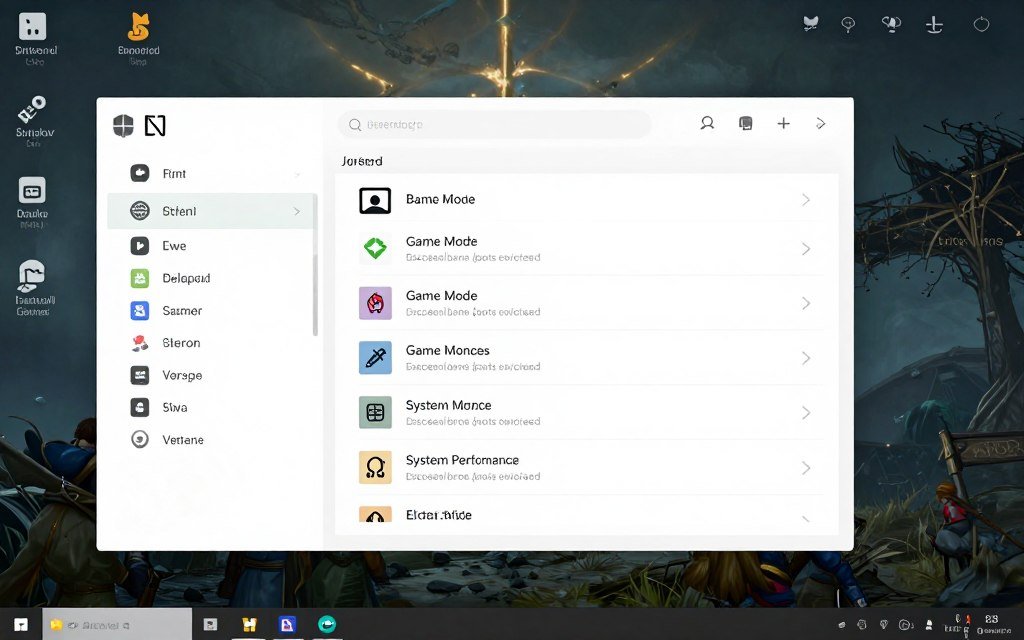
What definitely helps: disabling unnecessary startup programs and background apps. Open Task Manager, go to the Startup tab, and disable anything you don’t need launching with Windows. Discord overlay, GeForce Experience overlay, RGB control software, all of these can cause microstutters. The Windows Game Mode optimization guide explains which Windows features to adjust.
Steam Overlay Issues
The Steam overlay causes stuttering for some Elden Ring players. To disable it: Right-click Elden Ring in your Steam library, select Properties, then uncheck “Enable Steam Overlay in-game.” You lose screenshot functionality and shift-tab features, but you might gain smooth performance. Test it both ways.
Is Your Hardware Actually Balanced for Elden Ring?
Stuttering and frame drops might not be the game’s fault. An unbalanced CPU-GPU pairing can create performance issues that look exactly like engine problems. Check if your system components are working together efficiently.
Easy Anti-Cheat Conflicts
Elden Ring uses Easy Anti-Cheat. This software sometimes conflicts with system monitoring tools, RGB software, or other kernel-level programs. If you’re getting crashes or severe stuttering:
- Close all monitoring software (MSI Afterburner, HWInfo, etc.)
- Disable RGB control software temporarily
- Exit any VPN or network filtering tools
- Launch the game and test
If performance improves, add your monitoring tools back one at a time to identify the culprit. MSI Afterburner is usually safe, but some RGB apps run at kernel level and conflict with anti-cheat.
Advanced Fixes for Persistent Stuttering
If you’ve tried everything above and still get stuttering, these advanced fixes address deeper system issues. These require more technical knowledge but can solve problems that basic tweaks can’t touch.
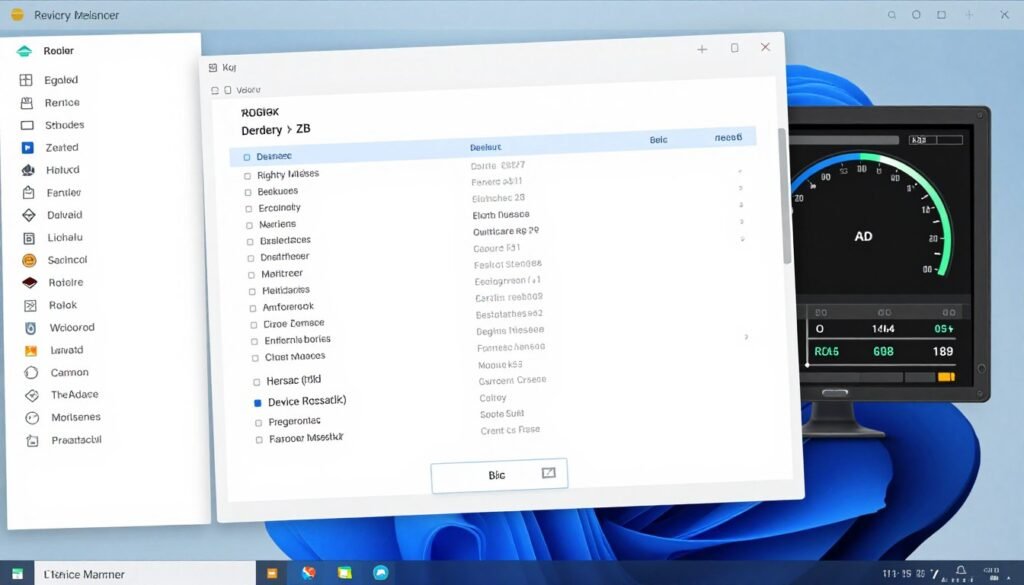
Disable Microsoft Device Association Root Enumerator
This is oddly specific but works for many people. The Microsoft Device Association Root Enumerator is a Windows component that can cause DPC latency spikes. These spikes manifest as microstutters in games. To disable it:
- Open Device Manager (search in Windows)
- Click View menu, select “Show hidden devices”
- Expand “Software devices”
- Find “Microsoft Device Association Root Enumerator”
- Right-click it, select “Disable device”
- Confirm the warning
- Restart your PC
This doesn’t affect most system functionality but can eliminate a major source of background interrupts. If you experience issues after disabling it, you can re-enable it the same way. Understanding DPC latency helps identify similar problems.
Verify Integrity of Game Files
Corrupted game files cause weird, inconsistent performance problems. To check:
- Open Steam library
- Right-click Elden Ring
- Select Properties
- Click “Installed Files” tab
- Click “Verify integrity of game files”
- Wait for the process to complete
Steam will download any corrupted or missing files. This often fixes random crashes and stuttering that appears after game updates.
Frame Time Consistency Tweaks
Frame time consistency is more important than average frame rate for smooth gameplay. You want each frame to take roughly the same amount of time to render. When frame times vary wildly, you get stuttering even if average FPS looks fine. Think of it like a metronome versus someone clapping irregularly to the same tempo.
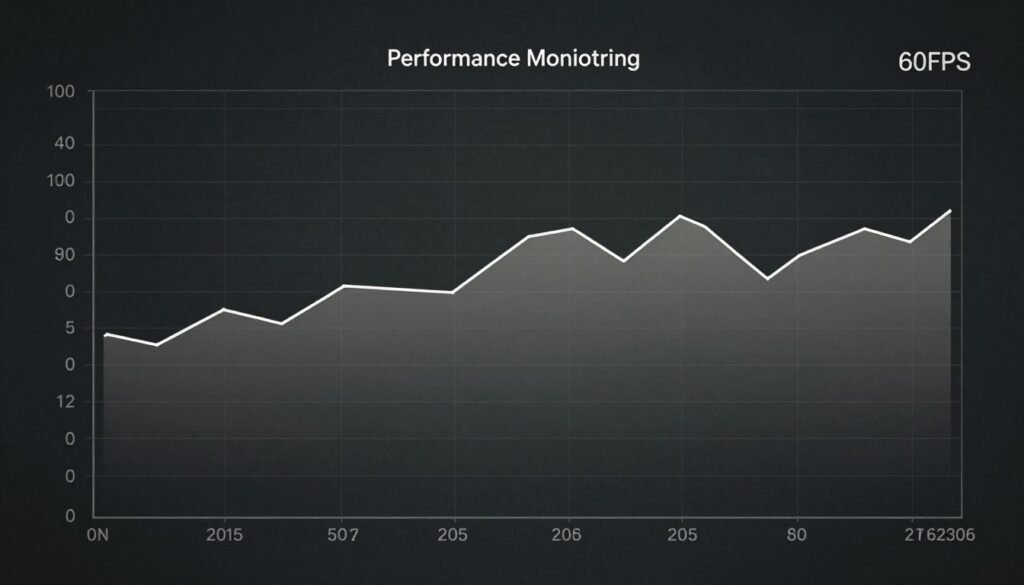
To improve frame time consistency:
- Enable VSync in-game if you’re hitting exactly 60fps constantly
- Use Nvidia Reflex or AMD Anti-Lag to reduce rendering queue
- Close browser windows with video or animations running
- Disable Windows Xbox Game Bar (Settings > Gaming > Xbox Game Bar)
The frame time consistency guide goes deeper into measurement and optimization techniques.
HPET (High Precision Event Timer) Settings
HPET is a system timer. Some systems run better with it enabled, others with it disabled. It’s worth testing both. To check your current status and change it:
- Open Command Prompt as Administrator
- Type: bcdedit /enum | findstr useplatformclock
- If you see “Yes”, it’s enabled. If you see nothing, it’s disabled.
- To disable: bcdedit /deletevalue useplatformclock
- To enable: bcdedit /set useplatformclock true
- Restart your PC and test Elden Ring
There’s no universal “correct” setting. Try it both ways and stick with whichever gives smoother performance. The HPET optimization article explains the technical details.
Keyboard and Mouse Input Fixes
Some players experience input lag or stuttering tied to their keyboard and mouse. Elden Ring can conflict with certain device drivers. To fix:
- Open Device Manager
- Expand “Keyboards” section
- Right-click your keyboard, select Properties
- Go to Power Management tab
- Uncheck “Allow computer to turn off this device”
- Repeat for your mouse under “Mice and other pointing devices”
This prevents Windows from power-managing these devices, which can cause microsecond delays that accumulate into noticeable stutter.
Pro Tip: If you’re still experiencing issues after all these fixes, your problem might be related to system bottlenecks or hardware configuration. Sometimes what looks like a game problem is actually a system-level stutter issue affecting multiple games.
When Your Hardware Is the Actual Bottleneck
Sometimes the stuttering isn’t the game’s fault. Your hardware might be creating performance problems that mimic engine issues. Here’s how to tell the difference and what to do about it.
CPU Bottleneck Symptoms in Elden Ring
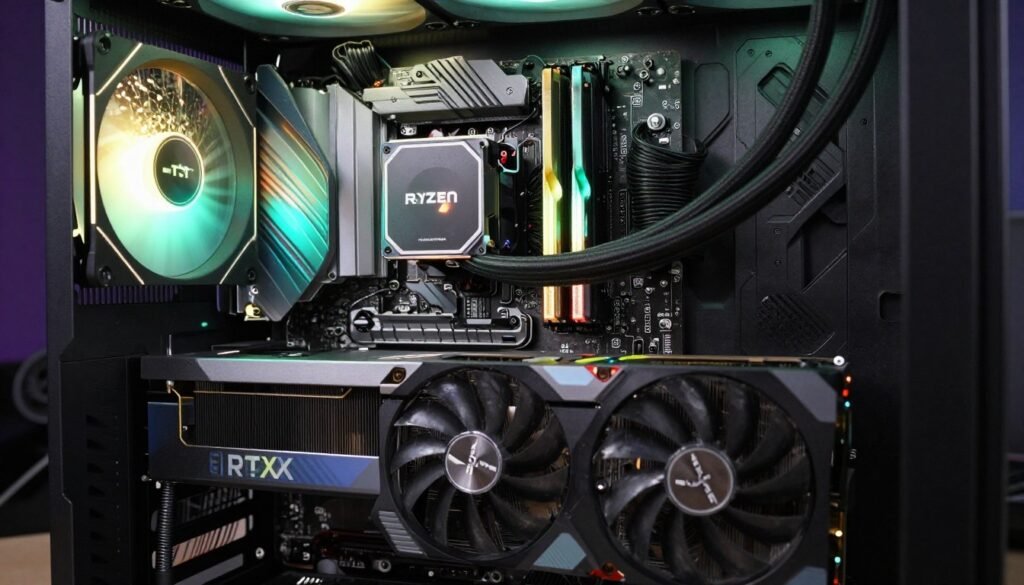
If your GPU usage sits at 70-80% while your CPU cores max out at 95-100%, you have a CPU bottleneck. This happens most often with older quad-core processors or in areas with many NPCs like Limgrave or Leyndell. The game needs to process AI, physics, and rendering calculations. If your CPU can’t keep up, your GPU sits idle waiting for data.
Signs of CPU bottleneck:
- Frame rate drops in crowded areas but runs fine in dungeons
- Lowering graphics settings doesn’t improve performance
- Task Manager shows CPU at 90%+ on multiple cores
- GPU usage never reaches 95-99%
Solutions are limited without hardware upgrade. You can try:
- Lower NPC density mods (requires playing offline)
- Close absolutely all background processes
- Overclock your CPU if you have cooling headroom
- Play at higher resolution to shift load to GPU
That last point seems backwards but it’s real. At 1080p on a weak CPU with strong GPU, you’re CPU limited. At 1440p, you shift more work to the GPU while CPU load stays roughly the same. Check the resolution bottleneck guide for details on this phenomenon.
GPU Bottleneck and VRAM Issues
GPU bottleneck is actually preferable. It means your hardware is being used efficiently. But if you have an older or lower-tier GPU struggling with Elden Ring, you need to make compromises.
For GPUs with 6GB or less VRAM:
- Drop texture quality to Medium
- Reduce shadow quality to Low
- Play at 1080p, not higher
- Monitor VRAM usage with MSI Afterburner
When VRAM maxes out, performance falls off a cliff. The game starts using system RAM which is 10-20x slower. You’ll see massive stuttering whenever you enter a new area and textures load. The VRAM capacity guide explains modern requirements.
RAM Speed and Capacity
Elden Ring uses 10-12GB of system RAM during gameplay. If you have 16GB total, Windows and background apps use 4-6GB, leaving you tight on headroom. When RAM fills up, Windows uses page file on your SSD. This is slow. You get stuttering during transitions and area loads.
Minimum: 16GB RAM at 3200MHz
Recommended: 32GB RAM at 3600MHz or higher
For AMD Ryzen systems especially, RAM speed impacts performance more than on Intel. Ryzen’s Infinity Fabric connects CPU cores through memory controller. Faster RAM means faster core communication. The difference between 3200MHz and 3600MHz can be 5-10fps in CPU-limited scenarios. Learn about AMD RAM tuning for optimization.
Storage: SSD vs HDD Reality
Elden Ring on HDD is playable but you’ll see longer load times and occasional stuttering when the game streams in new assets. On SSD, load times drop from 30-40 seconds to 5-8 seconds. More importantly, area transitions are smoother.
If you must run from HDD, make sure it’s not also your Windows drive. Windows constantly reads and writes to the OS drive. If Elden Ring and Windows compete for HDD access, you get stuttering. Dedicated game HDD separate from OS helps.
But honestly, SSDs are cheap now. A 500GB SATA SSD costs less than $40. The quality-of-life improvement is worth it. NVMe isn’t necessary for gaming yet, but if you have it, use it. The SSD bottleneck analysis covers this in depth.
Check Your System Balance
Hardware bottlenecks often look like game problems. Before upgrading components, verify whether your CPU and GPU are actually balanced for your gaming needs. A mismatched system can cause stuttering that no amount of game tweaking will fix.
Third-Party Tools and Mods (Use at Your Own Risk)
Some players use mods or third-party tools to fix Elden Ring performance. FromSoftware doesn’t officially support mods. Using them can result in bans from online play or save corruption. That said, certain tools are widely used with minimal issues.
Flawless Widescreen
This tool fixes ultrawide monitor support and can unlock the frame rate cap. The frame rate unlock is controversial because it can cause physics issues. But it works for many players who want 120fps or 144fps gameplay.
The risk: Unlocking frame rate makes the game run slightly faster. Jump distances increase marginally. Fall damage calculations change. Some players adapt, others hate it. You also risk online bans since you’re modifying game files.
If you use it, create a backup save file and test thoroughly in offline mode first.
Special K
Special K is a universal game modification tool that can improve frame pacing and reduce input lag. For Elden Ring specifically, it can:
- Force better frame pacing through frame rate limiting
- Reduce input latency with queue optimization
- Provide detailed performance metrics
Configuration is complex. You need to understand frame queues and rendering pipelines. The Special K wiki has Elden Ring-specific guides. Again, use at your own risk for online play.
Shader Pre-Compilation Mods
These mods force the game to compile all shaders at startup instead of during gameplay. You wait 2-5 minutes when launching the game, but then shader stutter is eliminated. This is the single most effective mod for stutter reduction.
The downside: These mods need updates every time FromSoftware patches the game. If you launch with an outdated shader mod, the game crashes. You have to stay on top of mod updates, which is annoying.
Performance Overlay Tools
MSI Afterburner with RivaTuner is safe and doesn’t cause bans. It shows real-time FPS, frame times, GPU/CPU usage, and temperatures. This helps you identify what’s actually causing performance problems. If frame times spike while GPU usage drops, you know it’s a CPU or system issue, not graphics settings.
Alternative: GeForce Experience overlay for Nvidia users or Adrenalin overlay for AMD. Both are official and safe.
Warning: Using mods or third-party tools violates Elden Ring’s terms of service. You may be banned from online play. Some tools can corrupt save files. Always backup your save data before modifying game files. The save location is: C:\Users\[YourName]\AppData\Roaming\EldenRing\
How Updates Changed Elden Ring Performance
FromSoftware has released multiple patches since launch. Some improved performance. Others introduced new problems. Understanding the update history helps troublesoot version-specific issues.
Launch Version (1.0)
Terrible PC performance across the board. Shader compilation stutter hit everyone. Frame pacing issues. Mouse sensitivity bugs. DX12 crashes. This version is unplayable by modern standards.
Patch 1.02-1.03
First major performance fixes. Reduced shader stutter frequency. Fixed mouse sensitivity issues. Improved DX12 stability. Still had frame pacing problems but playable.
Patch 1.04-1.06
Added ray tracing support (optional, tanks performance). Further optimized shader compilation. Fixed various crash bugs. This is when the game became actually stable for most players.
Current Version (1.12+, 2026)
Most performance issues resolved through patches and driver updates. Remaining stuttering is primarily shader compilation on first encounter and system-specific problems. The game is in the best state it’s ever been on PC.
If you’re experiencing severe stuttering on current patch, it’s likely not the game version. Check your drivers, Windows updates, and hardware configuration. The game itself is reasonably well-optimized now.
DLC Performance Considerations
Shadow of the Erdtree DLC areas are more demanding than base game. The new regions have denser geometry, more complex lighting, and additional effects. If you were running at 60fps in Limgrave but drop to 45fps in DLC areas, that’s expected. You may need to lower settings for DLC content specifically.
Complete Troubleshooting Checklist
Work through this checklist systematically. Each step addresses a specific category of problems. Don’t skip ahead thinking something doesn’t apply to you. I’ve seen weird solutions work countless times.
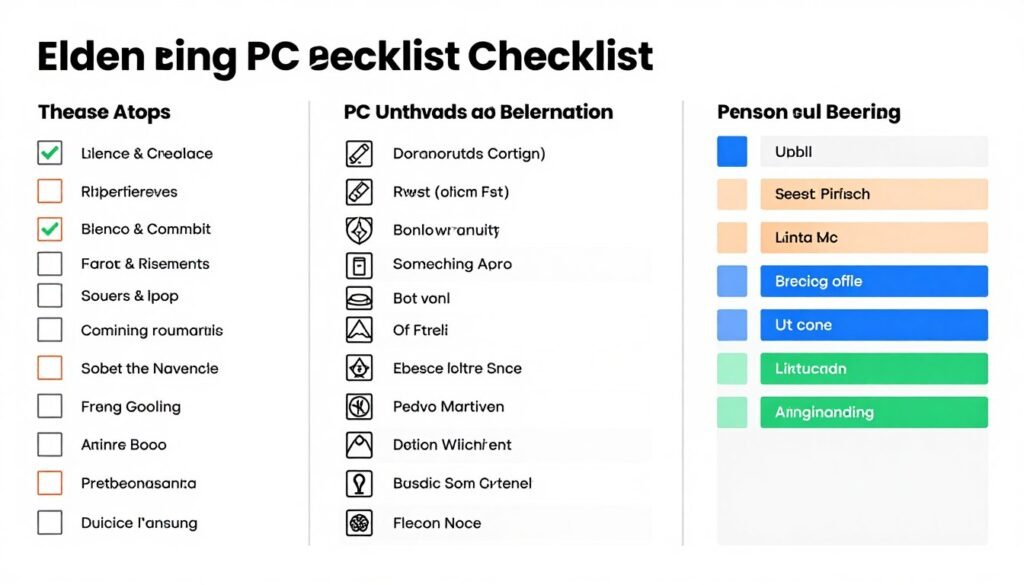
Basic Fixes (Try These First)
- Update graphics drivers to latest version
- Verify integrity of game files through Steam
- Lower shadow and lighting quality to High
- Disable motion blur and depth of field
- Run game in fullscreen mode, not borderless
- Close all background applications
- Disable Steam overlay for Elden Ring
- Restart PC (seriously, basic but effective)
Intermediate Fixes
- Configure Nvidia/AMD control panel settings
- Increase shader cache size to 10GB+
- Disable Xbox Game Bar and Game Mode
- Update Windows to latest version
- Check VRAM usage, lower textures if needed
- Disable device power management for keyboard/mouse
- Enable XMP/DOCP for RAM
- Check temperatures, clean dust if needed
Advanced Fixes
- Disable Microsoft Device Association Root Enumerator
- Test HPET enabled vs disabled
- Update motherboard chipset drivers
- Enable Resizable BAR/SAM if supported
- Scan for malware and system errors
- Reinstall Easy Anti-Cheat
- Test with/without RGB software running
- Check for BIOS updates
Last Resort Options
- Clean install graphics drivers with DDU
- Reinstall the game completely
- Test on different user account (Windows profile)
- Disable all startup programs in Task Manager
- Run memory diagnostic tool
- Check hard drive health with CrystalDiskInfo
- Consider hardware upgrade if nothing works
- Contact FromSoftware support with DxDiag file
Performance Benchmarking
After applying fixes, test in consistent locations. Good benchmark spots:
- Limgrave – First Step grace: Open area, consistent enemy spawns, good for general testing
- Raya Lucaria entrance: Intensive area with many effects and NPCs
- Leyndell capital: CPU-heavy location, tests system limits
- Caelid – Sellia: Heavy geometry and effects, GPU demanding
Use MSI Afterburner to record minimum, average, and maximum FPS plus frame times at each location. Compare before and after fixes. If you see improvement in minimum FPS and reduced frame time variance, your fixes are working.
Documentation: Keep notes on what you change. If performance gets worse, you can reverse specific changes. I use a simple text file listing each modification with date and result. Sounds tedious but saves hours when troubleshooting complex issues.
When Software Fixes Aren’t Enough
Sometimes your hardware genuinely can’t run Elden Ring smoothly. The minimum requirements are misleading. “Minimum” means the game launches, not that it’s playable. Here’s when you should consider hardware upgrades instead of endlessly tweaking settings.
Signs Your Hardware Can’t Handle It
You’ve applied every fix in this guide. Drivers are current. Settings are optimized. Game files verified. You still can’t maintain 45fps even at 1080p Low settings. At this point, the problem is hardware capability, not configuration.
Specific indicators:
- GPU usage constantly at 99% even at Low settings
- Frame rate doesn’t improve when lowering resolution
- VRAM maxed out with textures at Medium or Low
- CPU usage at 95%+ across all cores continuously
- System has less than 16GB RAM
Smart Upgrade Paths for 2026
Don’t just buy the newest, most expensive component. Upgrade strategically based on what’s actually limiting your performance. The build and buy advice section helps identify smart upgrade paths.
If GPU-limited: RTX 4060 Ti or RX 7700 XT minimum for 1080p 60fps High settings. RTX 4070 or RX 7800 XT for 1440p. These GPUs have enough VRAM (12GB+ or 16GB) to handle maximum textures without stuttering.
If CPU-limited: Ryzen 5 7600 or Intel i5-13400 minimum for smooth 60fps. The Ryzen 7 7800X3D is the current gaming king but overkill for Elden Ring alone. Six cores with decent single-thread performance is enough. The i5 vs Ryzen 5 comparison breaks down current options.
If RAM-limited: 32GB DDR4-3600 or DDR5-5600. 16GB still works but leaves no headroom for background apps or future games. RAM is cheap enough that 32GB is the smart buy in 2026.
The 2026 Reality Check
RTX 5090 and Ryzen 9000X3D chips exist but are massive overkill for Elden Ring. The game runs at 60fps locked on mid-range hardware from 2022. If you’re building specifically for Elden Ring and similar titles, $1000-1200 total system budget gets you flawless performance. More money gets you headroom for future games, not better Elden Ring experience.
Check whether your current system components are actually balanced before upgrading. Sometimes a $40 RAM upgrade or $200 GPU swap fixes what looks like a “need entire new PC” problem. The bottleneck calculator shows which component is actually limiting your system.
Used Hardware Considerations
The used market has excellent options for Elden Ring specifically. RTX 3060 Ti, RX 6700 XT, and similar cards from 2021-2022 are now cheap and perfectly capable. Just verify VRAM capacity – 8GB minimum, 12GB+ ideal. The used PC parts guide covers what to check when buying secondhand.
For CPUs, anything from Ryzen 5000 series or Intel 11th gen onward works fine. Older quad-cores struggle in crowded areas but six-core chips from 2020+ handle Elden Ring easily.
The Bottom Line on Elden Ring PC Performance
Elden Ring on PC went from “borderline broken” at launch to “reasonably optimized” in 2026. Shader stutter is still present on first encounters but dramatically reduced. Frame pacing is fixed through driver updates and patches. The remaining issues are usually system-specific or hardware-related.
The majority of performance problems can be fixed without hardware upgrades. Start with basic fixes – update drivers, verify files, adjust graphics settings. Move to intermediate fixes if needed – control panel settings, Windows optimization. Only pursue advanced fixes if you’re still having issues after the basics.
The reality is that modern mid-range hardware runs Elden Ring perfectly fine. If you have a GTX 1660 Super or better GPU, a six-core CPU from the last 4-5 years, and 16GB RAM, you can hit 60fps at 1080p High settings with proper configuration. Older or weaker hardware requires compromises, but the game is playable on surprisingly modest systems.
What Actually Worked
The highest-impact fixes across the most systems:
- Updating graphics drivers to latest version
- Lowering shadow quality from Maximum to High
- Running in fullscreen mode instead of borderless
- Disabling Steam overlay
- Increasing shader cache size
- Verifying game file integrity
Those six changes solve stuttering problems for probably 70% of players. The other 30% have system-specific issues that require the advanced fixes covered in this guide.
When to Stop Tweaking
You can spend endless hours chasing perfect performance. At some point, you need to decide if the game is playable and just enjoy it. If you’re getting stable 50-60fps with only occasional stuttering, that’s good enough. The pursuit of absolutely zero stutter might not be worth the time investment.
Elden Ring is a 60fps locked game by design. You’re not getting 144fps without mods and the physics issues they cause. Accept the frame cap. Focus on eliminating major stuttering and getting consistent frame times. That’s the realistic goal.
Optimize Your Entire System
Fixing Elden Ring is just the start. Understanding your PC’s performance characteristics helps you troubleshoot any game. Learn about system balance, component optimization, and performance tuning to get the most out of your hardware.
The Lands Between are punishing enough without technical issues getting in the way. With these fixes applied, you can focus on actually playing the game instead of fighting your PC. Good luck, Tarnished.