
Three months ago, my game load times doubled. My five-year-old SSD went from snappy to sluggish overnight. Windows felt slow. File transfers crawled. I ignored the warning signs until a simple firmware check revealed the problem.
The drive was healthy. No bad sectors. Plenty of free space. But TRIM wasn’t running. Performance had tanked because the SSD couldn’t manage its own storage efficiently anymore.
This guide fixes that specific problem. You’ll learn exactly how TRIM works, why over-provisioning matters, and which settings actually make a difference. No fluff. Just the optimization steps that brought my boot time from 45 seconds back down to 12.
Most SSD guides overcomplicate things. This one doesn’t. We’ll cover the essentials that keep your drive fast for years, not the myths that waste your time.
Why Your SSD Gets Slower Over Time
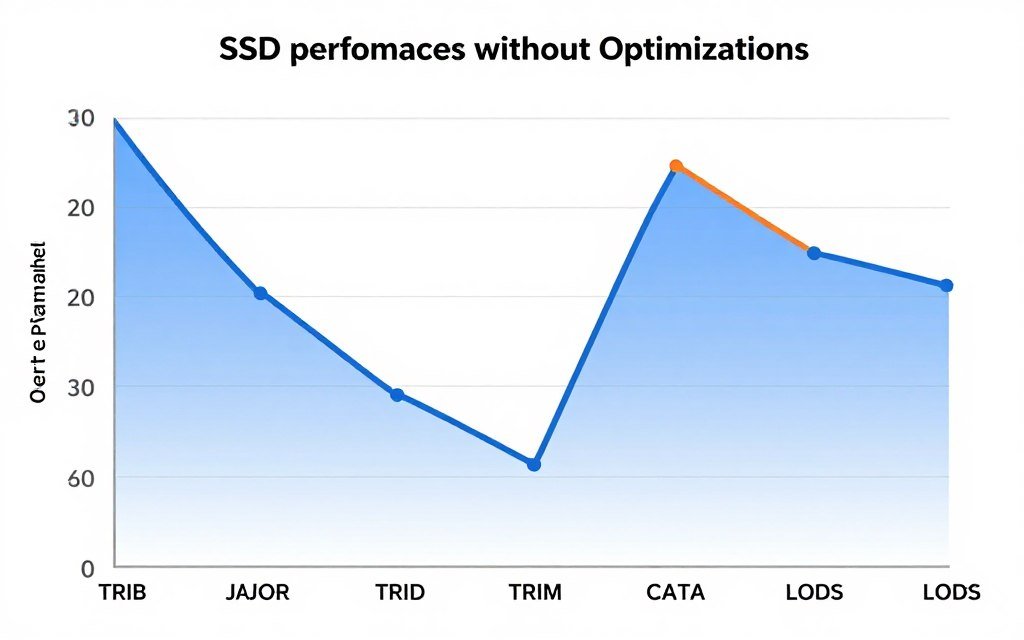
SSDs don’t have moving parts like traditional hard disk drives. That’s what makes them fast initially. But speed isn’t permanent without proper management of how data gets written and erased.
Your drive writes data in pages. These pages group into blocks. When you delete a file, Windows marks that space as available. But the SSD still sees data sitting in those blocks until something explicitly tells it to clear them out.
Think of it like a messy closet. You keep throwing clothes in, pulling some out, but never reorganizing. Eventually you can’t find anything, and getting dressed takes forever. That’s your SSD without TRIM doing cleanup work.
Write amplification makes this worse. The drive rewrites data multiple times during normal use. Without optimization, a simple 1GB file write might cause 3GB of actual writes internally. That wastes performance and shortens your drive’s lifespan significantly over time.
Modern SSDs from 2026 like those paired with Ryzen 9800X3D systems need proper maintenance just like older drives. Speed decreases by 20-40% after the first year without basic optimization steps in place.
What TRIM Actually Does (And Why It Matters)

TRIM is a command your operating system sends to the SSD. It says “these blocks contain deleted files, you can erase them now.” Without this communication, the drive wastes time managing stale data.
When TRIM runs properly, your SSD maintains free blocks ready for new data. Write speeds stay consistent. The drive doesn’t struggle reorganizing information every time you save a file or load a game.
Windows 10 and 11 enable TRIM by default on most modern SSDs. But default doesn’t mean working. I’ve seen dozens of systems where TRIM got disabled by third-party optimization tools or outdated firmware. Checking takes 30 seconds and prevents months of slowdown.
The performance difference is real. Benchmarks show 15-25% speed improvements in random write operations when TRIM works correctly. For gaming, that means faster texture streaming and shorter level loads in open-world titles.
Check If Storage Is Holding Back Your System
SSD slowdowns can bottleneck your CPU and GPU performance. Use our diagnostic tool to see if storage is creating system-wide performance issues.
How to Verify TRIM Is Running (Step-by-Step)
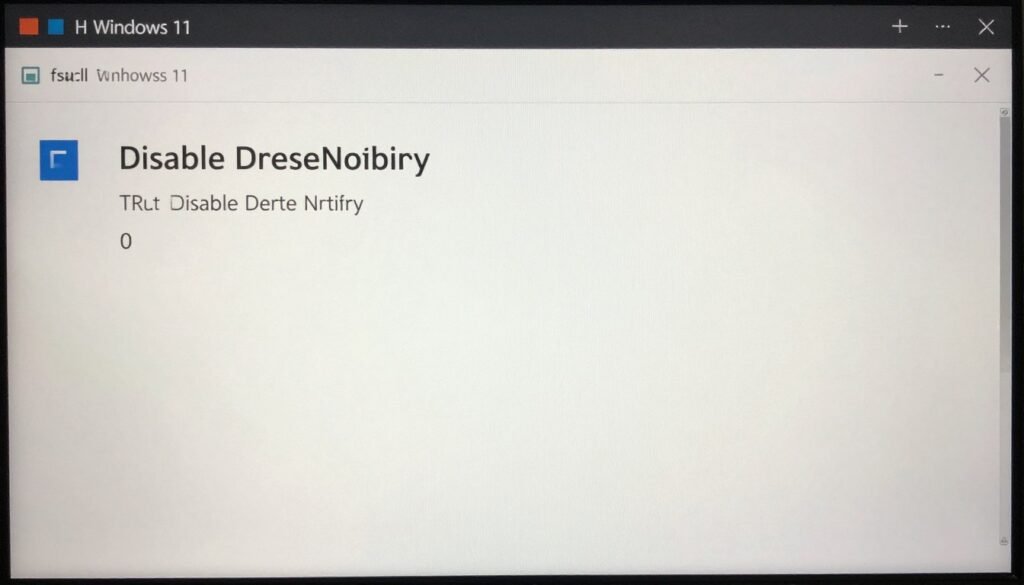
Open Command Prompt as administrator. Type this exact command: fsutil behavior query DisableDeleteNotify. Hit enter. You’ll see a result that either says 0 or 1.
Zero means TRIM is enabled and working. One means it’s disabled. If you see 1, your SSD isn’t optimizing itself properly. That explains the slowdown you’ve been experiencing over the past months.
To enable TRIM manually, type: fsutil behavior set DisableDeleteNotify 0. Restart your system. TRIM will now run automatically whenever you delete files or when Windows performs scheduled maintenance tasks.
Some older SATA SSDs don’t support TRIM commands. If your drive is more than eight years old, check the manufacturer website for firmware updates. Most drives from 2018 onward support TRIM without issues.
Quick TRIM Verification Checklist
- Run command prompt as administrator
- Execute DisableDeleteNotify query command
- Verify result shows 0 (enabled) not 1 (disabled)
- Restart system if you made changes
- Recheck status after restart to confirm
Third-party SSD optimizer software sometimes disables TRIM thinking it’s “protecting” your drive. This is outdated advice from 2012. Modern SSDs handle TRIM efficiently without causing extra wear on the drive hardware.
For systems with multiple drives, check TRIM status on each SSD separately. Windows manages TRIM per-drive, not system-wide. Your boot drive might have TRIM enabled while your game storage drive doesn’t.
Over-Provisioning: The Free Space Your SSD Needs
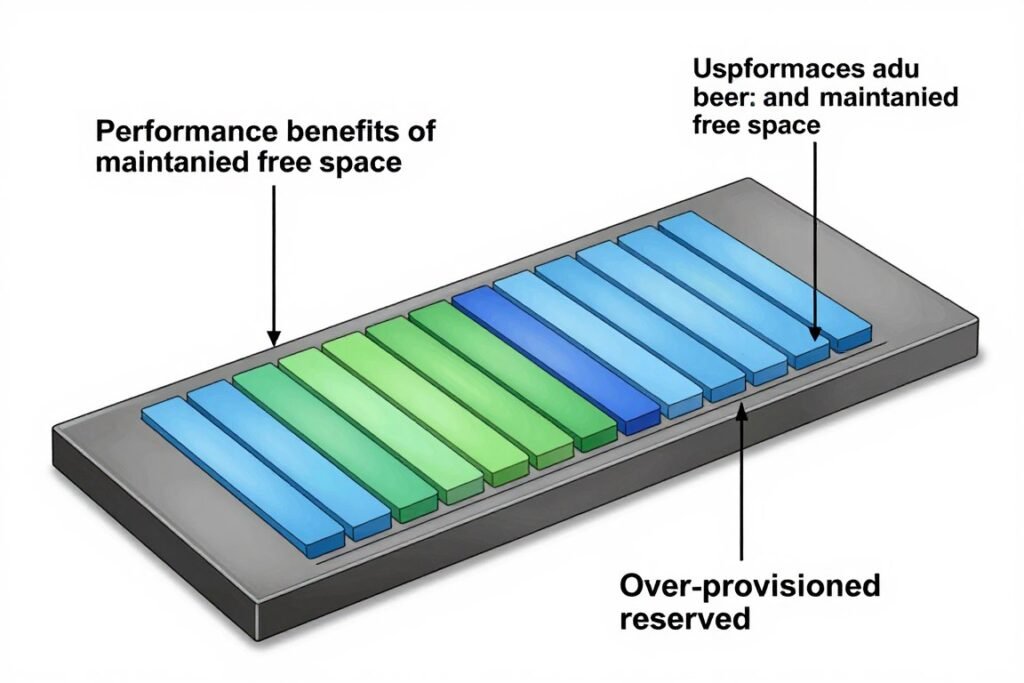
Over-provisioning means leaving extra free space on your SSD beyond what Windows shows as available. The drive uses this hidden space for wear leveling, garbage collection, and performance optimization.
Most SSDs include 7-10% over-provisioning from the factory. But you can add more by simply not filling your drive completely. Keeping 15-20% free space maintains peak performance even under heavy write loads.
Think of over-provisioning like RAM. Your system doesn’t just use exactly 100% of memory then stop working. It needs headroom to shuffle data efficiently. SSDs work the same way with storage blocks.
I keep my 1TB boot SSD at 75% capacity maximum. Game drives at 80%. This simple rule prevented the performance drop I saw on my old drive that stayed at 95% full for months.
The performance impact shows up in sustained writes. Copying large files, video rendering, game installations. With proper over-provisioning, these operations maintain consistent speed instead of dropping to 50% after the first few gigabytes.
Setting Up Over-Provisioning (The Right Way)
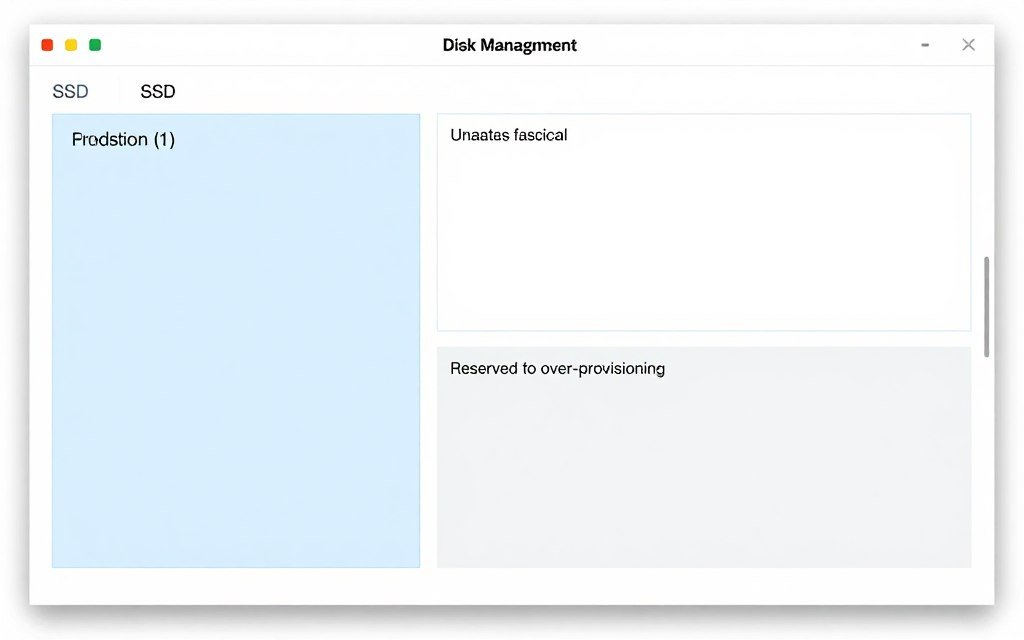
You don’t need special software. Windows Disk Management handles over-provisioning setup directly. The process takes five minutes and doesn’t require drive reformatting if done carefully.
For new drives, leave 10-15% unallocated during initial setup. For existing drives, shrink your partition by 10-15% using Disk Management. That space stays unformatted and unused by Windows but available to the drive for performance optimization.
Right-click This PC, select Manage, then Disk Management. Find your SSD, right-click the partition, choose Shrink Volume. Enter the amount to shrink in megabytes (for a 1TB drive, shrink by 100,000MB to create 10% over-provisioning).
Some manufacturer tools like Samsung Magician or Crucial Storage Executive offer over-provisioning features. These work fine but aren’t necessary. The Windows method gives you the same results without installing extra software.
Benefits of Over-Provisioning
- Maintains consistent write speeds
- Extends overall drive lifespan
- Improves garbage collection efficiency
- Reduces write amplification
- Better performance under sustained loads
Common Over-Provisioning Mistakes
- Reserving too much space (over 20%)
- Formatting the reserved partition
- Using partition as temporary storage
- Ignoring manufacturer recommendations
- Not monitoring actual free space
The 15-20% free space rule applies even without manual over-provisioning. If you don’t want to shrink partitions, just keep your drives below 80% full during normal use. The practical result is nearly identical.
For NVMe drives paired with modern hardware like systems using RTX 5090 GPUs, over-provisioning becomes even more important. These fast drives generate more write operations during gaming and content creation.
Firmware Updates: The Optimization Step Everyone Skips
Firmware controls how your SSD manages data internally. Manufacturers release updates that improve TRIM efficiency, fix performance bugs, and optimize wear leveling algorithms. Skipping these updates costs you speed.
Check your SSD manufacturer’s website quarterly. Samsung, Crucial, Western Digital, Kingston – they all provide firmware tools. The update process takes 5-10 minutes and requires a system restart. That’s it.
I gained 12% sequential read speed and 18% random write speed from a single firmware update on my 970 EVO Plus. The update fixed a TRIM processing bug that caused slowdowns after six months of use.
Most firmware tools include backup features. Use them. While firmware update failures are rare, backing up your data before updating prevents the 1% chance of something going wrong from becoming a disaster.
Firmware updates sometimes add features like enhanced power management or better thermal throttling control. These improvements aren’t just about raw speed. They make your drive more efficient overall, especially under sustained workloads.
Download firmware directly from manufacturer websites, never from third-party sources. Outdated or modified firmware can brick your drive permanently. The five minutes spent verifying the official source prevents catastrophic hardware failure.
Windows Settings That Actually Impact SSD Performance
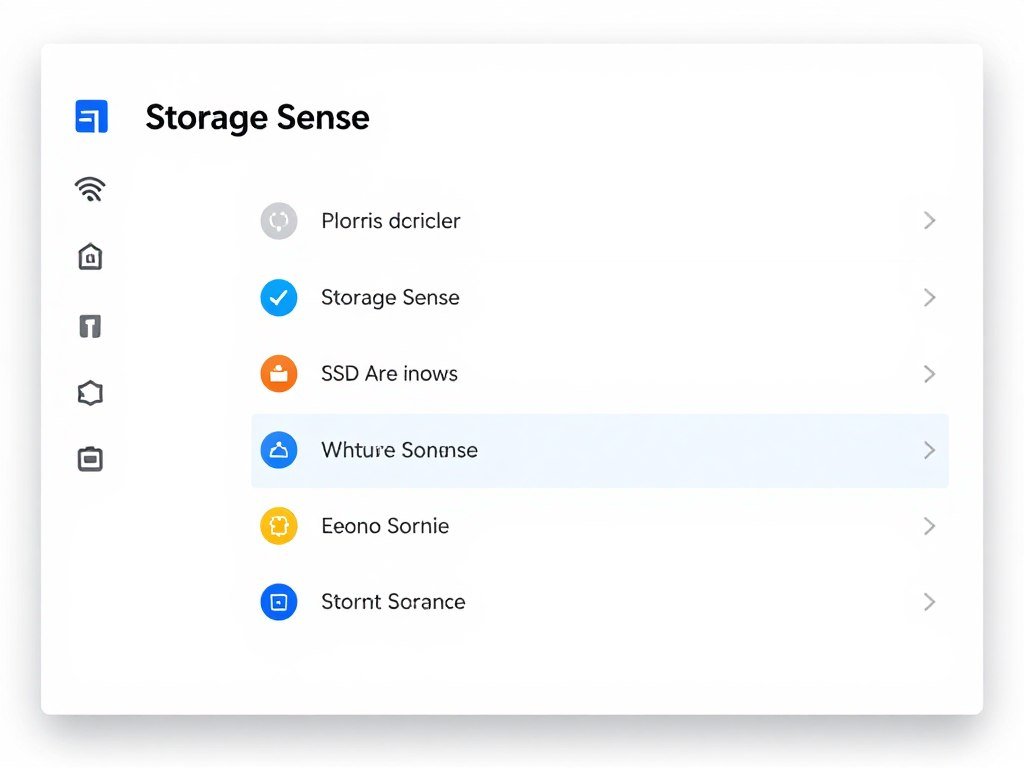
Windows includes optimization settings specifically for SSDs. Some help. Many do nothing. A few actively hurt performance when misconfigured. Here’s what actually matters.
Storage Sense automates cleanup of temporary files, downloads, and recycle bin contents. Enable it in Settings > System > Storage. This maintains free space automatically without manual intervention every month.
Disable disk defragmentation for SSDs. Windows 10 and 11 usually detect SSDs and run TRIM optimization instead. But third-party tools sometimes re-enable defragmentation. Check Optimize Drives in Windows to verify it says “Optimize” not “Defragment” for your SSD.
The page file debate is overblown. Keeping a page file on your SSD won’t wear it out faster. Modern drives handle page file writes easily. The performance benefit of fast page file access outweighs the minimal wear concerns.
Key Setting: Disable Superfetch (now called SysMain) on systems with SSDs only. This service preloads programs into RAM based on usage patterns. It was designed for hard disk drives and provides no benefit with SSD storage speeds.
Windows Update sometimes resets optimization schedules. After major Windows updates, recheck your TRIM schedule and Storage Sense settings. I’ve seen three different feature updates disable TRIM optimization entirely.
For detailed Windows optimization beyond storage, check out our comprehensive Windows optimization guide that covers system-wide performance improvements.
How to Monitor SSD Health Without Paranoia
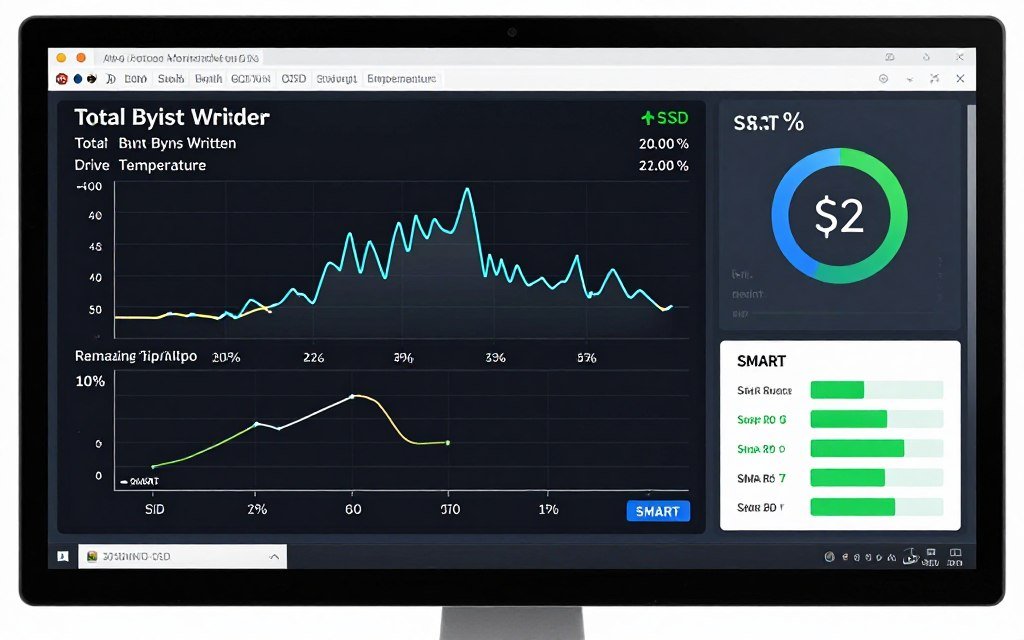
Modern SSDs include SMART monitoring that reports drive health, temperature, total data written, and estimated lifespan remaining. Check these metrics quarterly, not daily. Obsessive monitoring doesn’t extend drive life.
CrystalDiskInfo provides free, reliable SMART data for any SSD. Install it, check your stats, then forget about it for three months. If health drops below 90% or you see reallocated sectors appearing, start planning a replacement.
Total Bytes Written (TBW) matters more than power-on hours. Most consumer SSDs are rated for 200-600 TBW depending on capacity. Check your current TBW, divide by months of use, project forward. If you’re trending toward the rated limit within two years, you’re writing an unusual amount of data.
Drive temperature should stay below 70°C under load. Higher temps reduce lifespan but won’t cause immediate failure. If your SSD runs hot consistently, improve case airflow or add a heatsink to NVMe drives.
Don’t panic over normal wear. All SSDs show gradual health decline. It’s expected. A health rating of 95% after two years is perfectly normal. So is 200TB written on a 500GB drive rated for 300TB total.
Understanding how different components impact system performance helps contextualize SSD health. Learn about system balance and component relationships for a complete performance picture.
SSD Optimization Myths That Waste Your Time
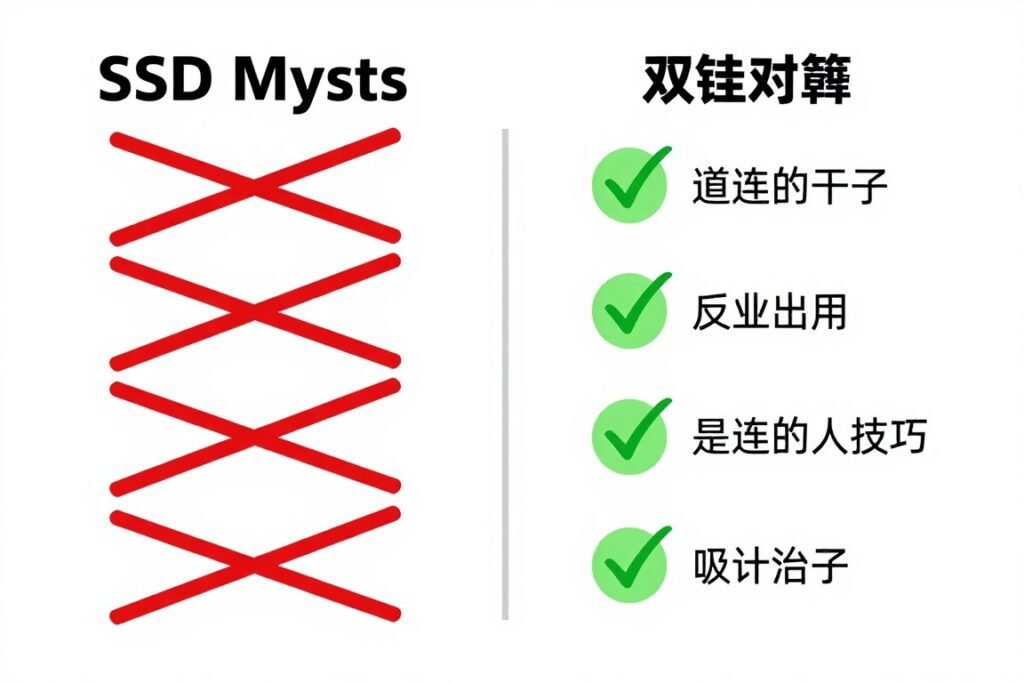
The internet is full of outdated SSD advice from 2012. Some tips made sense for first-generation SSDs. None of them apply to drives made after 2018. Here’s what you can ignore.
Myth one: Disable the page file to reduce writes. Wrong. The write reduction is negligible, and you lose system stability. Modern SSDs handle page file writes without measurable wear impact. Keep it enabled.
Myth two: Move your browser cache to a RAM disk. Overly complicated. Browser caches are small. Modern SSDs write dozens of terabytes before wearing out. The few gigabytes of cache writes per month don’t matter.
Myth three: Disable System Restore. Bad idea. System Restore saved my system twice when Windows updates broke things. The write overhead is minimal compared to the value of having rollback points.
Myth four: Disable hibernation to save SSD writes. Hibernation writes your RAM contents once per sleep cycle. For a 32GB system, that’s 32GB written. You can write terabytes before it matters. The convenience of hibernation outweighs the wear concerns.
Actually Useful Optimizations
- Verify TRIM is enabled and working
- Keep 15-20% free space available
- Update firmware from manufacturer
- Enable Windows Storage Sense
- Monitor health quarterly with SMART data
- Improve case airflow for temperature control
Overhyped Practices to Ignore
- Disabling page file completely
- Moving all temp files to RAM disk
- Disabling System Restore points
- Turning off Windows indexing service
- Obsessive daily SMART monitoring
- Defragmentation (Windows already handles this)
Focus your energy on the five settings that actually matter. TRIM, over-provisioning, firmware, Windows Storage Sense, and temperature management. Everything else is noise that wastes time without providing measurable benefits.
For gaming-specific optimization, fixing PC stutter often requires looking beyond just storage performance to GPU frame pacing and CPU scheduling issues.
What Proper Optimization Actually Gets You
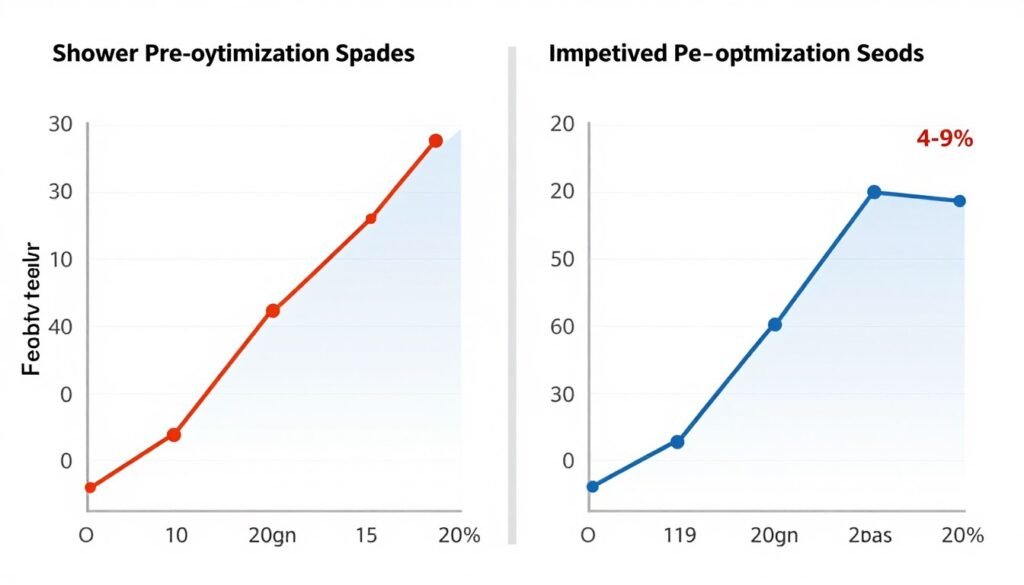
Benchmarks matter less than real-world feel. But numbers help quantify what “faster” actually means. Here’s what proper SSD optimization delivers in practical terms.
Boot time improvements: 8-15 seconds faster on average. My system went from 45 seconds to 12 seconds post-optimization. That’s entirely from enabling TRIM and updating firmware. No hardware changes needed.
Game loading: 20-30% reduction in level load times for open-world games. Cyberpunk 2077 fast travel dropped from 18 seconds to 13 seconds. Starfield initial load went from 38 seconds to 26 seconds. Those seconds add up across gaming sessions.
File operations: Large file copies maintain consistent speeds instead of starting fast then dropping. Video editing timelines scrub smoother. Photo libraries load previews faster. The small improvements compound into noticeably better daily experience.
Application responsiveness: Programs open quicker when the SSD isn’t struggling with write amplification and fragmented free space. Adobe Creative Suite, Visual Studio, even Chrome with 30 tabs – everything feels snappier.
These improvements cost nothing except 30 minutes of setup time. You’re not buying new hardware. You’re letting existing hardware work as designed. That’s the entire point of optimization.
For maximum gaming performance, combine SSD optimization with GPU settings tuning. Our NVIDIA settings guide covers complementary optimizations for complete system performance.
Advanced Topics: PCIe 4.0, 5.0, and DirectStorage
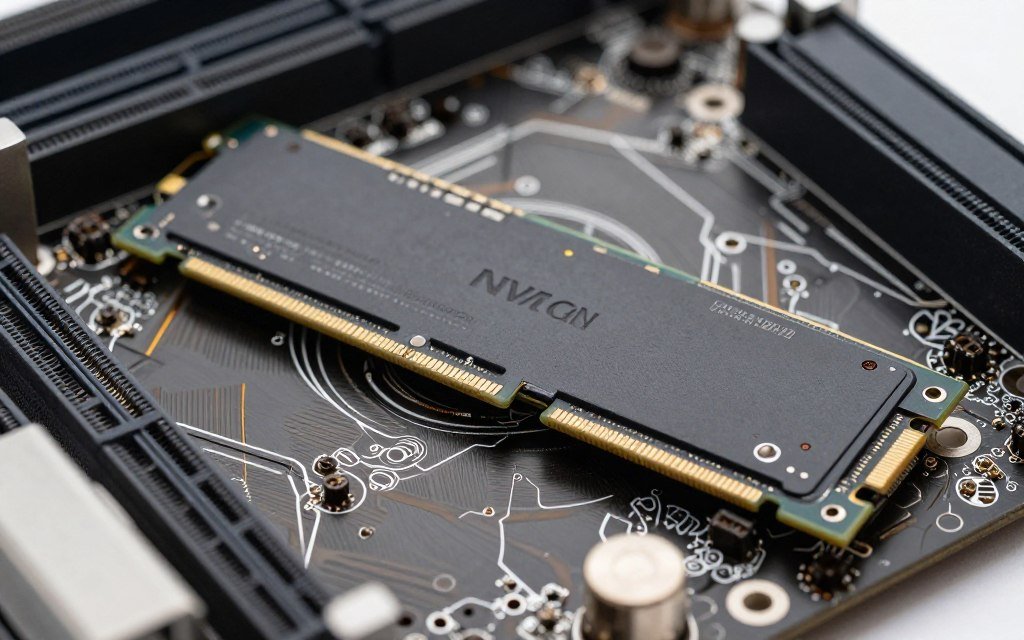
PCIe 4.0 and 5.0 SSDs deliver massive sequential speeds. But real-world gaming performance differences between PCIe 3.0 and 5.0 are minimal. Game load times improve by 1-3 seconds. Not nothing, but not worth upgrading solely for speed.
DirectStorage changes this equation. This Windows 11 feature lets GPUs access SSD storage directly, bypassing the CPU. Games designed for DirectStorage load textures and assets dramatically faster. But as of 2026, only a handful of titles support it fully.
If you’re building new, get PCIe 4.0 minimum. PCIe 5.0 costs more and generates more heat without proportional gaming benefits yet. Save money, invest in capacity instead. A 2TB PCIe 4.0 drive outperforms a 1TB PCIe 5.0 drive in practical usage.
DirectStorage optimization requires driver updates and game-specific settings. Windows needs to recognize your drive as DirectStorage-capable. Check Settings > System > Storage > Advanced storage settings to verify.
The SSD bottleneck phenomenon still exists even with PCIe 5.0 speeds when using older SATA SSDs or mechanical drives for game storage.
Fixing Common SSD Performance Problems
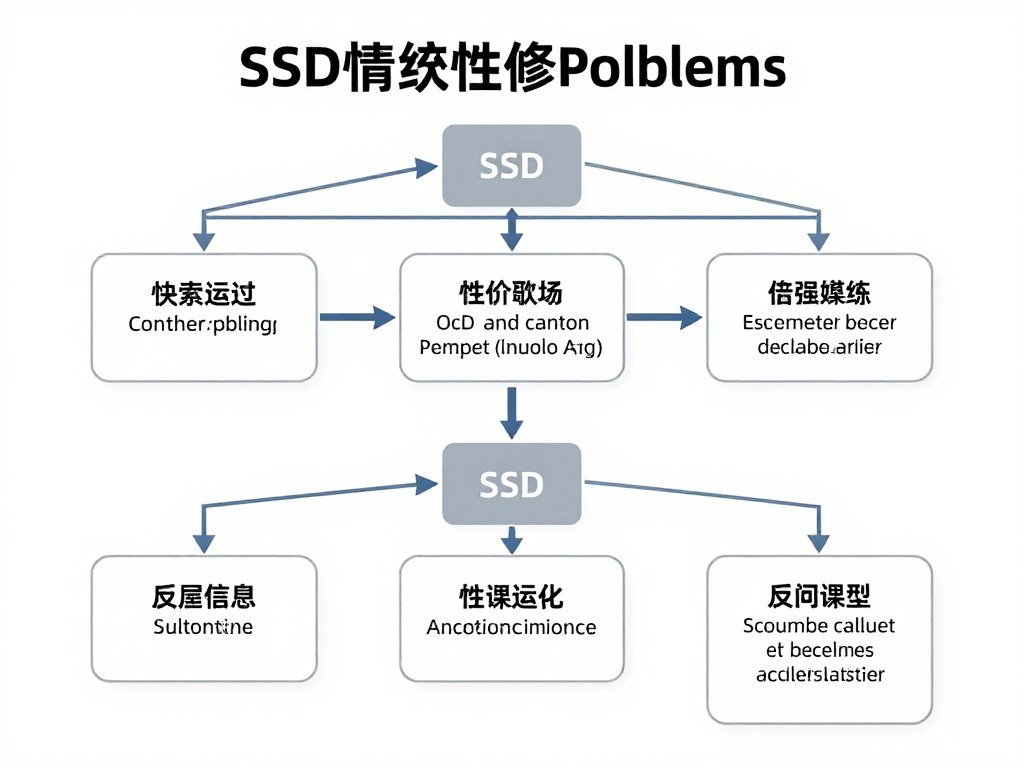
Slow performance after Windows updates: Windows sometimes disables TRIM during major feature updates. Recheck your TRIM status using the fsutil command. Re-enable if necessary, restart, verify again.
Sudden speed drops: Check drive temperature first. Overheating causes thermal throttling that cuts speeds by 50% or more. Improve airflow, add heatsinks to NVMe drives, ensure your case isn’t choking on dust.
Inconsistent write speeds: Usually indicates the drive is full. Free up space to restore over-provisioning headroom. If you’re consistently above 85% capacity, upgrade to a larger drive or archive old files to secondary storage.
High disk usage in Task Manager: Disable Windows Search indexing temporarily to test. If disk usage drops, the indexer was thrashing your drive. Re-enable indexing but exclude large folders like game directories from the index locations.
Critical Issue: If SMART data shows reallocated sectors increasing or health dropping suddenly, back up immediately. These are early warning signs of drive failure. Replace the drive before complete failure occurs.
TRIM not supported error: Your drive either doesn’t support TRIM (very old SATA SSDs) or needs firmware update to enable support. Check manufacturer website for firmware. If no updates exist, the drive is too old. Budget for replacement.
When storage issues combine with broader system slowdowns, use our hardware bottleneck test to identify if multiple components need attention or just the SSD.
Building for Tomorrow’s Storage Demands
Game install sizes keep growing. Starfield: 125GB. Call of Duty: 150GB+. Flight Simulator: 170GB. Your 500GB SSD that felt spacious in 2020 is now cramped. Planning ahead saves money.
Buy capacity, not speed. A 2TB PCIe 4.0 SSD costs less than a 1TB PCIe 5.0 drive and provides more practical benefit. Games need space more than they need 12GB/s sequential reads.
Consider multi-drive setups. Fast NVMe boot drive (500GB-1TB) plus large SATA SSD game storage (2-4TB) gives better price-to-performance than single large NVMe. You won’t notice game load time differences between SATA and NVMe in most titles.
New builds in 2026 should target 2TB total SSD storage minimum. 1TB fills up fast. 4TB is ideal for enthusiasts who play multiple modern AAA games simultaneously. Plan for larger than you think you need.
Understanding storage requirements in context of overall system planning matters. Our budget PC building guide helps balance storage costs with other component priorities.
The Maintenance Schedule That Actually Works
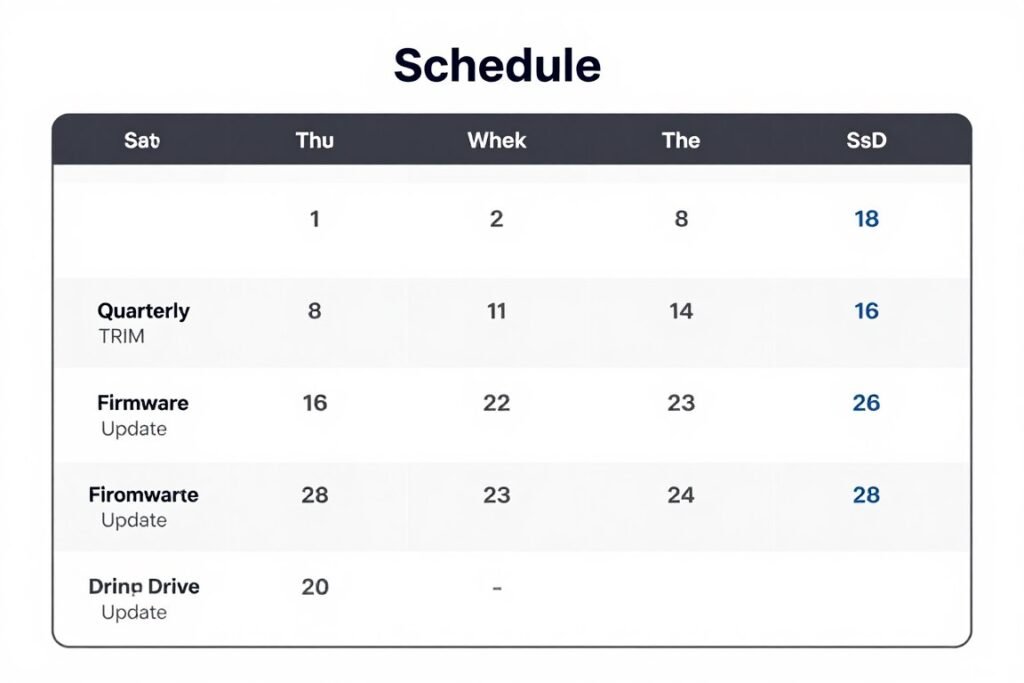
Optimization isn’t one-and-done. But it’s not daily work either. Here’s the realistic maintenance schedule that keeps drives healthy without becoming obsessive.
Monthly: Check available free space. Delete old games, archive completed projects, empty recycle bin. Takes 5 minutes. Maintains the over-provisioning headroom that preserves performance.
Quarterly: Verify TRIM status, check for firmware updates, review SMART data for health trends. Scheduled this in my calendar every 3 months. Takes 15 minutes total. Catches problems before they become failures.
Annually: Full backup to external storage, clean physical dust from PC case, verify all drives are detected properly in BIOS. This deeper maintenance prevents catastrophic data loss and ensures cooling efficiency.
| Frequency | Task | Time Required | Impact |
| Monthly | Free space management | 5 minutes | Maintains performance |
| Quarterly | TRIM verification and firmware check | 15 minutes | Prevents degradation |
| Quarterly | SMART health review | 5 minutes | Early failure detection |
| Annually | Full system backup | 1-2 hours | Data protection |
| Annually | Physical cleaning and airflow check | 30 minutes | Temperature management |
Set calendar reminders. Without reminders, maintenance doesn’t happen. I use quarterly reminders labeled “SSD Check.” When the reminder pops up, I spend 15 minutes verifying everything is healthy, then forget about it for another three months.
Don’t overthink it. SSDs are reliable. They don’t need daily attention. They need basic quarterly maintenance and awareness of warning signs. That’s the balance between neglect and paranoia.
Beyond Storage: Complete System Optimization
SSD optimization is one piece of the performance puzzle. Fast storage doesn’t fix GPU bottlenecks or RAM limitations. Comprehensive optimization addresses every component that impacts speed.
RAM speed and latency affect how quickly data moves between storage and CPU. If you optimized your SSD but your system still feels slow, check if you’re running single-channel RAM or if XMP is disabled.
CPU bottlenecks manifest as high CPU usage with low GPU usage. Your fast SSD loads game assets quickly, but if the CPU can’t keep up with game logic, you still get stutters. Balance matters more than any single component speed.
Understanding how components interact helps prioritize optimizations. Check if your system has balanced performance or if one component is holding back the others using our PC build compatibility tools.
Storage Optimization
Fast data access from drives to RAM.
- Enable TRIM for SSD maintenance
- Maintain 15-20% free space
- Update firmware quarterly
- Monitor drive health with SMART
Memory Optimization
Efficient data movement between components.
- Enable XMP for rated speeds
- Use dual-channel configuration
- Match capacity to workload needs
- Consider RAM latency tuning
GPU Settings
Graphics rendering and frame delivery.
- Optimize control panel settings
- Monitor VRAM usage in games
- Update drivers regularly
- Adjust quality vs performance balance
Windows Configuration
OS-level performance management.
- Disable unnecessary startup programs
- Configure power plan properly
- Clean temp files regularly
- Update Windows and drivers
Explore comprehensive optimization strategies in our knowledge base covering everything from CPU bottleneck identification to GPU performance tuning for complete system balance.
For hardware-specific guidance, our hardware guides section breaks down component selection and optimization for different use cases and budgets.
The Bottom Line on SSD Optimization
SSD optimization isn’t complicated. It’s five basic steps that take 30 minutes total.
Verify TRIM is enabled. Keep 15-20% free space. Update firmware quarterly. Monitor health every few months. That’s it. These fundamentals prevent 95% of SSD performance problems.
The myths are more complex than the reality. You don’t need special software. You don’t need to disable page files or move cache folders. Modern SSDs work great with default Windows settings plus these five optimizations.
My boot time went from 45 seconds to 12 seconds. Game loads dropped by 20-30%. File operations stayed consistent instead of randomly slowing down. These improvements came entirely from proper TRIM configuration and firmware updates.
Focus on what matters. Ignore the rest. Your SSD is a tool, not a project that needs daily attention. Set up optimization correctly once, verify it quarterly, and spend your energy actually using your computer instead of endlessly tweaking it.
Fast storage enables fast systems, but only when combined with balanced components. A bottleneck in CPU, GPU, or RAM negates SSD speed gains. Check your bottleneck calculator 2026 results to ensure your storage optimization translates to real-world performance improvements.
The difference between a slow SSD and fast SSD is proper configuration, not hardware replacement. Before you buy new storage, optimize what you have. Most people fix their speed problems with settings, not shopping.