
You’re in the middle of a ranked match. Everything’s smooth until your audio starts crackling like a broken radio. Or you’re tracking vocals and every three seconds there’s a pop that ruins the take. I’ve been there.
Three years ago I built what I thought was a balanced rig. Ryzen 7, solid GPU, fast SSD. Two weeks in and my audio was a mess during Cyberpunk sessions. Turns out my network adapter was throwing interrupt storms and my BIOS power settings were fighting Windows.
DPC latency isn’t some mysterious curse. It’s a real, fixable problem with your PC’s interrupt handling. This guide walks through exactly what causes those audio pops and system stutters, how to diagnose the actual culprit, and the specific fixes that work.
No vendor support runaround. No forum rabbit holes. Just the reality of what DPC latency is and how to kill it.
What Actually Is DPC Latency (And Why Your PC Has It)
DPC stands for Deferred Procedure Call. Think of it like a priority queue at a busy restaurant. Your processor is the chef, and every piece of hardware in your system is a waiter shouting orders.
When your GPU needs to render a frame, your SSD wants to write data, and your network card just received a packet, they all send interrupt requests to the CPU. The processor stops what it’s doing, handles the most critical task first, then queues up the rest as DPCs.
DPC latency happens when those queued tasks take too long to process. Your audio buffer needs fresh data every few milliseconds. If a rogue driver holds up the queue for 10 milliseconds, you get a pop or crackle.
This isn’t about raw performance. I’ve seen RTX 4090 systems with worse DPC latency than budget builds. The issue is how efficiently your hardware communicates with the processor, not how fast the processor is.
Check If Your Hardware Is Causing DPC Spikes
Before you start changing drivers and BIOS settings, identify if component conflicts are creating interrupt bottlenecks. Takes 30 seconds and shows exactly where the problem starts.
The Real-World Impact Beyond Audio
Audio pops are the most obvious symptom, but DPC latency kills system performance in other ways. Frame time consistency goes out the window. Your GPU might push 144 FPS average, but you’ll feel micro-stutters because frame delivery timing is inconsistent.
Streaming gets hit hard too. OBS drops frames not because your CPU can’t encode fast enough, but because DPC latency delays the encoder from getting the data it needs on time.
In production work, DAWs show buffer underruns even with high buffer settings. MIDI controllers feel laggy. VST plugins cause dropouts. All because some background process is hogging interrupt time.
How To Actually Diagnose What’s Causing Your DPC Issues
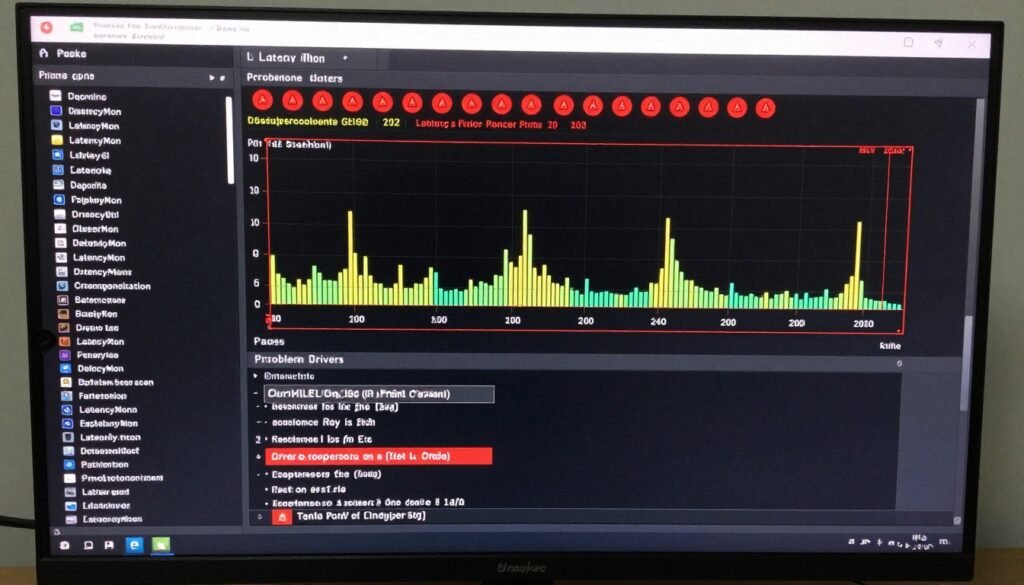
You need LatencyMon. It’s free, and it’s the only tool that actually shows which driver is causing problems. Don’t waste time guessing.
Download it, run it as administrator, and let it monitor for five minutes while you do normal tasks. If you’re getting audio issues during gaming, run a game in the background. If it happens during music production, load your DAW.
Reading LatencyMon Results
The main tab shows your DPC latency in microseconds. Anything consistently above 1000 microseconds (1 millisecond) will cause audio problems. Above 2000 and you’re in trouble.
The Drivers tab is where the real information lives. Sort by Highest Execution Time. The driver at the top is your problem. Usually it’s one of these:
- Network adapter drivers (Killer, Realtek, Intel)
- Storage controller drivers (especially NVMe or RAID)
- Audio interface drivers (ASIO, WDM, or manufacturer drivers)
- GPU drivers (less common but happens with older cards)
- Wireless adapters (Wi-Fi and Bluetooth combined chips are notorious)
I’ve found network adapters cause about 60% of DPC latency issues. Storage drivers account for another 20%. The rest is a mix of audio interfaces, USB controllers, and random hardware conflicts.
What Good Latency Looks Like
- DPC latency under 500 microseconds average
- No single driver showing execution time above 1000 microseconds
- Interrupt time below 1% during normal use
- Consistent measurements with no random spikes
Red Flags In LatencyMon
- DPC latency consistently above 2000 microseconds
- One driver showing 10x higher execution than others
- Interrupt time spiking above 5%
- Hard pagefaults during audio playback
Fix #1: Update (Or Downgrade) Your Drivers
This sounds obvious, but there’s a right way and a wrong way to handle drivers for DPC latency.
Network Adapter Driver Fix
If LatencyMon shows your network adapter causing spikes, you have options. First, try disabling features that aren’t necessary.
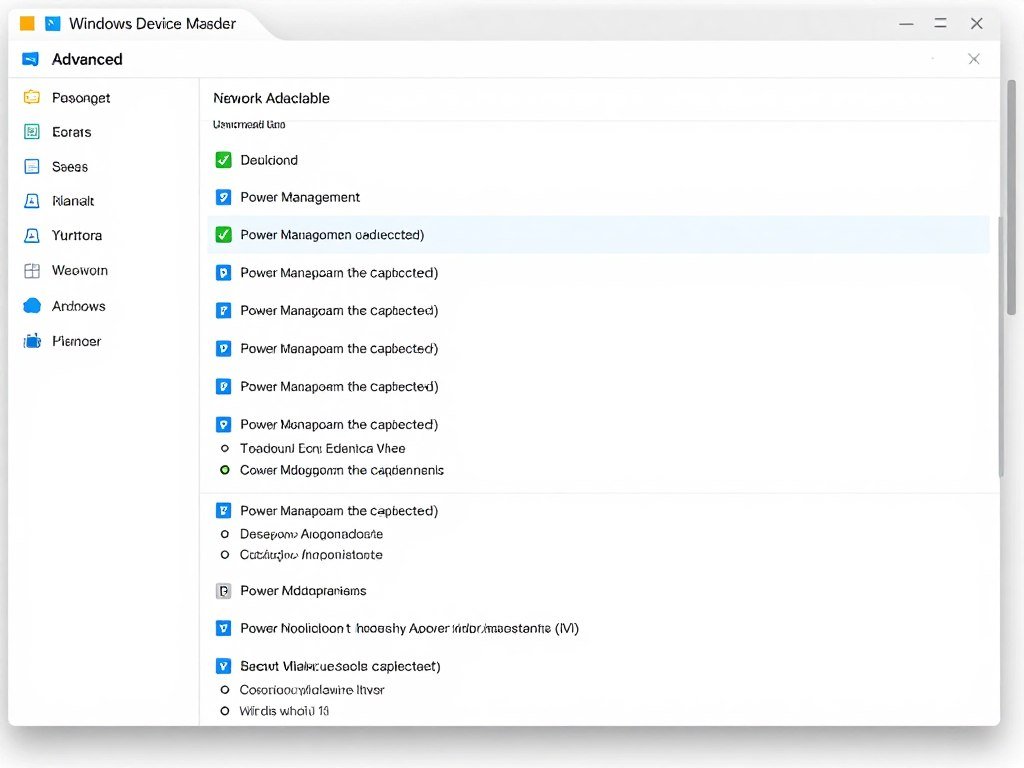
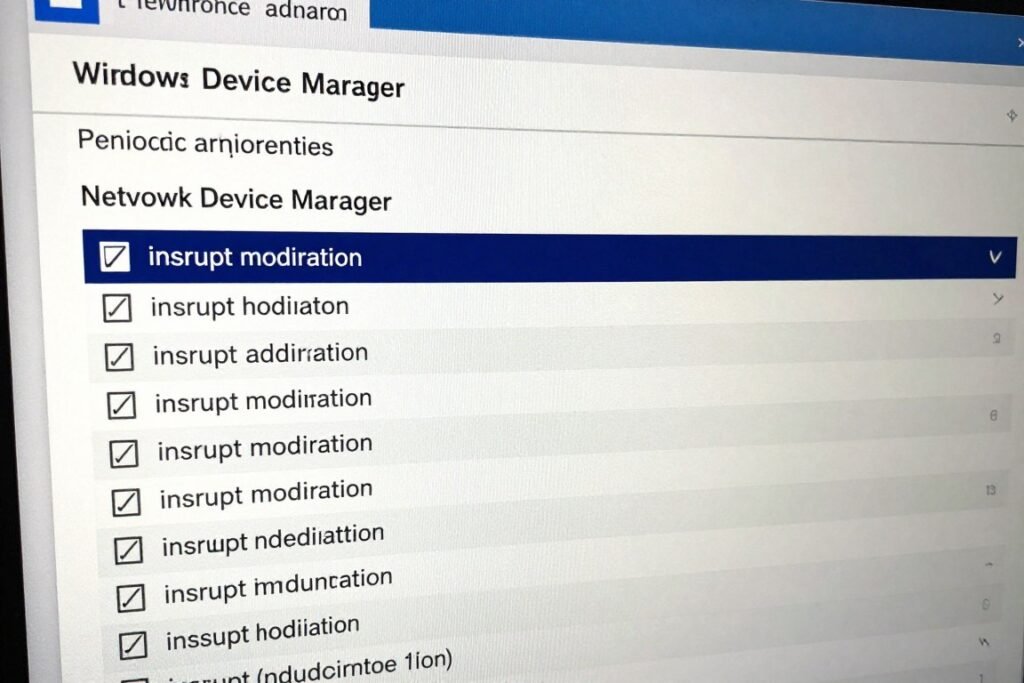
Open Device Manager, find your network adapter, right-click and select Properties. Go to the Advanced tab and disable these:
- Flow Control – set to Disabled
- Interrupt Moderation – set to Disabled
- Large Send Offload – set to Disabled
- RSS (Receive Side Scaling) – set to Disabled
These features are supposed to improve network performance by batching packets and offloading work. In reality, they cause interrupt storms that kill DPC latency. You won’t notice any network performance difference in gaming or regular use.
If that doesn’t fix it, uninstall the driver completely. Go to Device Manager, right-click the network adapter, select Uninstall Device, and check the box to delete the driver software. Reboot and let Windows install its generic driver.
Windows drivers are usually more stable than manufacturer drivers like Intel or Realtek. They don’t have all the bloat features that cause problems.
Storage Controller Driver Reality
NVMe drives can cause DPC latency if the driver is handling interrupts poorly. Check Device Manager under Storage Controllers for your NVMe drive.
If it’s using the manufacturer driver (Samsung, WD, Crucial), try the Microsoft inbox driver instead. Right-click the controller, Update Driver, Browse My Computer, Let Me Pick, and select Standard NVM Express Controller.
I’ve seen Samsung 980 PRO drives drop from 3000 microseconds to under 500 just by switching to the Microsoft driver. The Samsung driver adds features you don’t need and interrupt overhead you definitely don’t want.
Why Generic Drivers Often Work Better
Manufacturer drivers include features like monitoring software, RGB control, and performance “enhancements” that run background processes. These processes create additional interrupt requests and DPC overhead.
Windows inbox drivers are lean. They provide basic functionality without the bloat. For DPC latency purposes, basic functionality is exactly what you want.
The exception is audio interfaces. Use the manufacturer ASIO driver for those. Everything else? Windows drivers are usually cleaner.
Fix #2: BIOS Settings That Actually Matter For DPC Latency
Your motherboard BIOS has settings that directly impact how interrupts are handled. Most people never touch these. That’s a mistake.
C-States And Power Management
C-States let your CPU idle cores to save power. Sounds good, but it adds latency when the processor needs to wake cores up to handle interrupts.
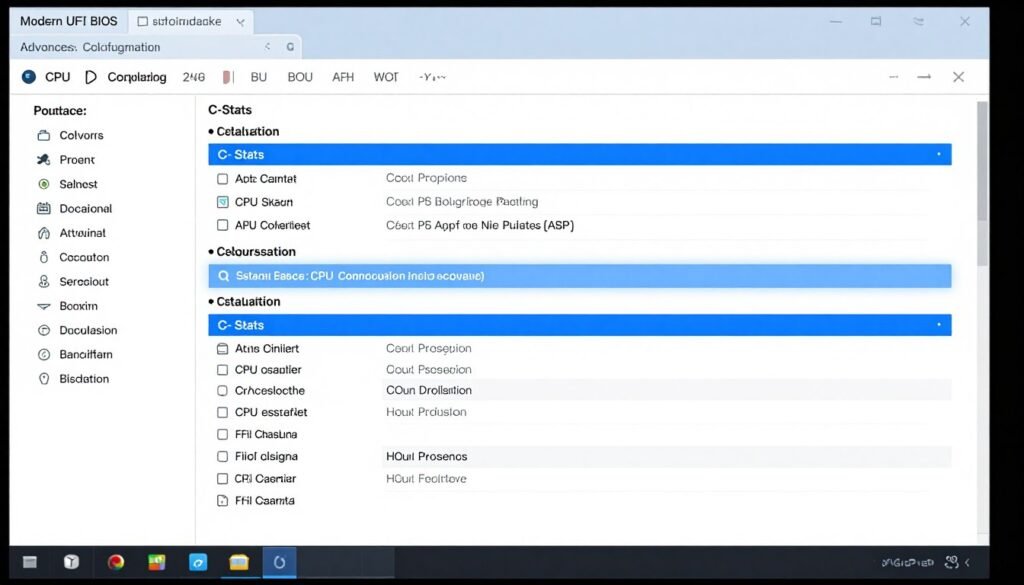
Boot into BIOS (usually DEL or F2 during startup). Find CPU Configuration or Power Management. Disable these:
- C-States (or C1E, C3, C6 individually)
- CPU Power Management
- EIST (Enhanced Intel SpeedStep) or Cool’n’Quiet for AMD
Yes, your CPU will run warmer and use more power at idle. The tradeoff is consistent interrupt handling without wake latency. On modern CPUs like Ryzen 9000 or Intel 13th/14th gen, the idle power difference is maybe 10-15 watts. Your system will feel noticeably smoother.
Disable Onboard Devices You Don’t Use
Every enabled device in BIOS gets interrupt resources allocated, even if nothing is plugged in. Check BIOS under Peripherals or Integrated Devices and disable:
- Serial/COM ports (unless you actually use them)
- Parallel/LPT ports
- Onboard audio (if you use a dedicated sound card or interface)
- Additional SATA controllers (if you only use NVMe)
Each disabled device frees up IRQ (Interrupt Request) lines that were being monitored. Fewer devices means fewer potential interrupt conflicts.
HPET (High Precision Event Timer)
This one’s controversial. Some people say disable HPET in BIOS and Windows. Others say leave it enabled. My testing shows disabling it helps on Intel platforms, but causes issues on AMD Ryzen.
On Intel systems: Disable HPET in BIOS. Then open Command Prompt as administrator and run:
bcdedit /deletevalue useplatformclock
On AMD systems: Leave HPET enabled in BIOS. Don’t touch the Windows settings.
Intel’s TSC (Time Stamp Counter) is consistent across cores and handles timing better than HPET. AMD’s TSC implementation had issues until Ryzen 3000, so HPET is still the safer bet.
Real Talk On BIOS Updates: People obsess over updating BIOS for performance gains. For DPC latency, BIOS updates can help if they include AGESA updates (AMD) or microcode fixes (Intel) that improve interrupt handling. Check your motherboard manufacturer’s release notes. If the update mentions “improved system stability” or “USB device compatibility,” it might help DPC issues. If it just says “support for new CPUs,” skip it unless you’re upgrading processors.
Fix #3: Windows Power Settings That Kill DPC Latency
Windows 11 and 10 have power management features that create DPC latency problems. The OS tries to be smart about saving power. It’s not smart.
Set Power Plan To High Performance
Open Control Panel, go to Power Options. If you don’t see High Performance as an option, open Command Prompt as administrator and run:
powercfg -duplicatescheme 8c5e7fda-e8bf-4a96-9a85-a6e23a8c635c
That command unhides the High Performance plan. Select it. This keeps your CPU at full speed constantly and disables aggressive core parking.
Balanced mode is fine for browsing and office work. For gaming, music production, or any real-time audio work, High Performance eliminates the latency from the CPU ramping up clock speeds when demand hits.
Disable USB Selective Suspend
Still in Power Options, click Change Plan Settings, then Change Advanced Power Settings. Expand USB Settings, then USB Selective Suspend Setting. Set it to Disabled for both battery and plugged in.
This feature powers down USB devices when idle. Sounds good until you realize your audio interface, MIDI controller, or gaming peripherals are constantly being suspended and woken up, causing interrupt spikes.
Device Manager Power Management Tab
Go through Device Manager and check every device under these categories:
- Network adapters
- USB controllers (especially USB Root Hubs)
- Sound, video and game controllers
For each device, right-click, Properties, Power Management tab. Uncheck “Allow the computer to turn off this device to save power.”
This is tedious. Do it anyway. I’ve fixed DPC latency on multiple systems just by disabling power management on the USB 3.0 root hub that the audio interface was plugged into.
Core Parking And Interrupt Handling
Windows parks CPU cores when they’re not in use. Parking means the core enters a deep sleep state. When an interrupt arrives, Windows has to unpark the core first, then handle the interrupt. That adds latency.
High Performance mode disables most core parking. If you want more control, use a tool like ParkControl to manually set parking preferences. For DPC latency issues, I disable parking on all cores.
Ryzen CPUs with multiple CCDs (chiplets) handle this differently. Windows doesn’t always route interrupts to the optimal CCD. Manual core parking control helps, but the bigger fix is scheduling, which Windows 11 handles better than Windows 10 for Ryzen.
Fix #4: Nuclear Option For Network Adapters
If you’ve tried everything and LatencyMon still shows your network adapter as the problem, it’s time for aggressive fixes.
Completely Disable The Adapter During Audio Work
This sounds extreme, but it works. Open Device Manager, right-click your network adapter, and select Disable Device.
Do your recording session, gaming session, whatever needs clean audio. Then re-enable the adapter when you’re done. Yes, you’ll be offline. That’s the point. Zero network interrupts means zero network-related DPC latency.
I know people who record entire albums this way. Disable network and Wi-Fi, record tracks, re-enable when done. No dropouts, no pops, no problems.
Switch To A Different Network Solution
Killer network adapters are notorious for DPC latency issues. If your motherboard has one, consider getting a cheap Intel I225-V PCIe network card. They’re $25 and have much better interrupt handling.
Realtek adapters are hit or miss. The 8125B chipset is usually fine. The older 8111 variants cause problems. Check which chipset you have in Device Manager under the adapter Properties, Details tab, Hardware IDs.
For Wi-Fi, Intel AX200/AX210 modules are the most stable I’ve tested. If you’re using a Realtek or MediaTek Wi-Fi adapter, expect DPC issues and plan accordingly.
Registry Tweaks For Interrupt Moderation
If your network adapter doesn’t show interrupt moderation in Device Manager properties, it might be controlled via registry. This is advanced and can break things. Backup your registry first.
Open Registry Editor, navigate to:
HKEY_LOCAL_MACHINE\SYSTEM\CurrentControlSet\Control\Class\{4d36e972-e325-11ce-bfc1-08002be10318}
This key contains subkeys for all network adapters. Find yours by checking the DriverDesc value. Once you find the right subkey, create or modify these DWORD values:
- *InterruptModeration = 0
- *FlowControl = 0
- *RSS = 0
Reboot after making changes. Check LatencyMon again to see if it helped.
Is Your Hardware Setup Balanced?
Network adapters aren’t the only component that needs proper system integration. Mismatched hardware creates bottlenecks that show up as DPC latency and performance issues. Check if your build has hidden conflicts.
Fix #5: Storage Drivers And Chipset Updates
Storage controller DPC latency is less common than network issues, but when it happens, it’s brutal. Every disk read or write causes an interrupt spike.
Check Your Storage Controller Driver
In Device Manager, expand Storage Controllers. If you see “Standard NVM Express Controller” or “Standard SATA AHCI Controller,” you’re using Microsoft drivers. That’s usually good.
If you see manufacturer-specific drivers (Intel RST, AMD RAID, Samsung NVMe), try switching to Microsoft drivers. Right-click the controller, Update Driver, Browse, Let Me Pick, and select the Standard option.
Intel RST (Rapid Storage Technology) is a common culprit. It adds RAID support and caching features most people don’t use. The background monitoring creates DPC overhead. Unless you actually have a RAID array, uninstall RST completely and use Microsoft drivers.
Chipset Driver Updates Matter
Chipset drivers control how your motherboard’s PCIe lanes, USB controllers, and other core functions communicate with the CPU. Outdated chipset drivers can cause interrupt routing problems.
For AMD systems, download the latest chipset driver directly from AMD’s website, not your motherboard manufacturer. AMD releases updates faster than manufacturers re-package them.
For Intel systems, get chipset drivers from Intel’s download center. Intel’s site is a mess to navigate, but the drivers are more current than motherboard vendor versions.
After installing chipset drivers, reboot twice. The first reboot installs files. The second reboot completes configuration. I’ve seen systems where DPC latency didn’t improve until after the second reboot.
NVMe Firmware Updates
NVMe drive firmware can impact DPC latency. Manufacturers occasionally release firmware that improves interrupt handling or fixes bugs that cause latency spikes.
Check your drive manufacturer’s website for firmware update tools. Samsung has Samsung Magician. Western Digital has Dashboard. Crucial has Storage Executive. These tools will show current firmware version and available updates.
Firmware updates carry risk. If the update fails or loses power mid-process, your drive could be bricked. Only update firmware if you’re experiencing actual problems or the release notes specifically mention latency or performance improvements.
Fix #6: Audio Interface And Driver Optimization
If you’re using a dedicated audio interface (Focusrite, Universal Audio, Behringer, etc.), the interface driver is probably not your DPC latency problem. But buffer settings might be.
Buffer Size And Sample Rate
Lower buffer sizes mean lower latency but higher CPU usage and more frequent interrupt requests. If your system has DPC latency issues, running a 64-sample buffer will make it worse.
During recording or real-time monitoring, keep buffer size at 128 or 256 samples. That’s 3-6 milliseconds of latency, which is imperceptible in practice. Once you’re mixing, increase buffer to 512 or 1024 samples.
Sample rate impacts CPU load. Recording at 96kHz or 192kHz sounds cool, but it doubles or quadruples the processing required. For 90% of use cases, 48kHz is fine. Save the high sample rates for mastering when you’re not worried about real-time monitoring.
Exclusive Mode In Windows
Windows has an “Exclusive Mode” setting for audio devices that bypasses the Windows audio mixer. This reduces DPC latency from the Windows audio stack.
Open Sound settings, select your audio device, click Properties, then Additional Device Properties. In the Advanced tab, check “Allow applications to take exclusive control of this device.”
This means only one application can use the audio device at a time. No system sounds, no browser audio, just your DAW or game. For production work, that’s exactly what you want.
ASIO Vs. WDM Drivers
ASIO drivers bypass Windows audio completely. If your interface supports ASIO, use it. ASIO has lower latency and fewer DPC issues than WDM (Windows Driver Model) drivers.
For gaming or general use where you need system sounds and multiple applications using audio simultaneously, you’re stuck with WDM. In that case, make sure your interface’s WDM driver is current and configure Windows power management settings properly.
Recording/Production Settings
- ASIO driver mode
- Buffer size: 128-256 samples
- Sample rate: 48kHz
- Exclusive mode enabled
- Disable network during sessions
Gaming/General Use Settings
- WDM driver mode
- Buffer size: 512+ samples
- Sample rate: 48kHz
- Exclusive mode disabled
- High Performance power plan
Fix #7: Disable Windows Services That Cause DPC Spikes
Windows runs dozens of background services. Some of them periodically create interrupt storms that spike DPC latency.
Windows Update Service
Windows Update can cause DPC spikes during background download and installation. You can’t permanently disable it (Microsoft won’t let you), but you can set it to only check for updates at specific times.
Open Services (search for services.msc), find Windows Update, right-click, Properties. Set Startup Type to Manual. This stops automatic updates but lets you manually check when convenient.
Be honest with yourself – if you set it to Manual, you need to actually check for updates once a week or so. Security updates matter.
Windows Search And Indexing
Windows Search runs constantly indexing your files. Every time it scans a file, it generates disk I/O and interrupts. If you don’t use Windows Search (you can still search manually), disable it.
In Services, find Windows Search, set Startup Type to Disabled. Your search bar will still work for launching programs. It just won’t index file contents.
Superfetch/SysMain
This service preloads applications you use frequently into RAM. Nice idea, but it runs disk I/O in the background creating DPC latency. On systems with SSDs, the benefit is minimal anyway.
In Services, find SysMain (it was called Superfetch in older Windows versions), set Startup Type to Disabled.
Windows Defender Scheduled Scans
Defender is fine as an antivirus. Scheduled scans cause massive DPC latency spikes during the scan. Configure scans to run when you’re not using the computer.
Open Windows Security, Virus & Threat Protection, Manage Settings, then click “Add or remove exclusions.” Exclude your audio sample libraries and game directories from real-time scanning. They don’t need constant monitoring and excluding them reduces background I/O.
Warning On Disabling Services: Don’t go nuclear and disable everything you don’t recognize. Some services are required for system stability. The ones listed here are safe to disable for reducing DPC latency. If you’re unsure about a service, Google it first. Random service disabling based on YouTube videos is how you break Windows.
Fix #8: Resolving IRQ And DMA Channel Conflicts
Modern motherboards use APIC (Advanced Programmable Interrupt Controller) to manage interrupts, but conflicts still happen. Usually with older hardware or poorly designed peripherals.
Check Device Manager For Conflicts
In Device Manager, click View, then “Resources by type.” Expand “Interrupt request (IRQ).” Look for any devices sharing the same IRQ number with warning icons.
Shared IRQs aren’t always a problem. PCIe devices can share interrupts without issues. But if you see USB controllers, network adapters, and audio devices all on the same IRQ, that’s a potential conflict.
Try Different PCIe Slots
If you have a dedicated sound card or network card causing DPC issues, try moving it to a different PCIe slot. Different slots route to different interrupt lines.
On most motherboards, the top PCIe x16 slot connects directly to the CPU. Lower slots often route through the chipset. For DPC-sensitive cards like audio interfaces, the CPU-connected slot usually performs better.
USB Port Mapping Matters
Not all USB ports on your motherboard use the same controller. Check your motherboard manual for the USB controller layout. Try plugging your audio interface into a different USB port that uses a separate controller.
Front panel USB usually shares a controller with some rear ports. If your interface is on a front port, try rear. Or vice versa. Sometimes it makes a huge difference.
PCIe Lane Distribution And DPC Latency
Ryzen CPUs typically have 24 PCIe lanes from the CPU: 16 for graphics, 4 for NVMe, 4 for chipset. Additional devices run through the chipset, adding hop latency.
Intel 13th/14th gen CPUs have 20 lanes: 16 for graphics, 4 for NVMe. Everything else goes through the chipset.
If your audio interface or critical peripherals are PCIe-based, check which lanes they’re using. Devices on CPU lanes will have lower latency than devices routed through the chipset.
Advanced Troubleshooting When Nothing Else Works
You’ve tried everything. LatencyMon still shows problems. Here are the nuclear options.
Clean Windows Install
Sometimes Windows accumulates driver conflicts and registry cruft that can’t be fixed. A clean install resets everything.
Use Microsoft’s Media Creation Tool to create a bootable USB drive. Boot from it, delete all partitions during installation, and install fresh. Don’t restore from a backup. Install drivers manually from manufacturer websites.
I know it’s extreme. I’ve seen systems where three months of troubleshooting got fixed by a clean install in 90 minutes. Sometimes it’s the right move.
Test With Minimal Hardware
Disconnect everything that isn’t essential. One monitor, keyboard, mouse, audio interface. No RGB controllers, no webcams, no USB hubs, no Wi-Fi adapters. Boot and test DPC latency.
If latency is fine with minimal hardware, reconnect devices one at a time until the problem returns. That tells you which device is causing the issue.
BIOS Reset And Update
Reset BIOS to defaults, then manually reconfigure only the settings that matter for DPC (C-States disabled, power management disabled). Sometimes accumulated BIOS tweaks interact poorly.
If your motherboard BIOS is more than a year old, check for updates. Look specifically for updates that mention USB, PCIe, or interrupt handling improvements.
Check For Failing Hardware
Dying SSDs, failing RAM, or flaky USB controllers can cause intermittent DPC spikes. Run diagnostics:
- CrystalDiskInfo for drive health
- MemTest86 for RAM stability
- Prime95 for CPU stability
- FurMark for GPU stability
If hardware is failing, no amount of driver tweaking will fix DPC latency. Replace the failing component.
Keeping DPC Latency Under Control Long-Term
Once you’ve fixed your DPC issues, keep them fixed.
Regular LatencyMon Checks
Run LatencyMon once a month during typical use. If you see latency creeping up, investigate before it becomes a problem. Catches driver updates that introduce issues or new hardware conflicts early.
Windows Update Management
Windows updates sometimes replace working drivers with broken ones. After major Windows updates, check LatencyMon and be ready to roll back drivers if needed.
In Device Manager, you can roll back drivers by right-clicking a device, Properties, Driver tab, Roll Back Driver. Only works if Windows kept the previous driver, which it usually does.
Document Your Working Configuration
Once your system is stable, document what you changed. BIOS settings, disabled Windows services, driver versions. When something breaks, you’ll know exactly what working looked like.
I keep a text file in Dropbox with my system configuration. Every time I change something, I update the file. Takes 30 seconds and has saved me hours of troubleshooting.
Optimize Your Entire System For Performance
DPC latency is just one piece of system optimization. Get comprehensive guides on tuning Windows, optimizing hardware, and eliminating bottlenecks across your entire build.
DPC Latency In Specific Use Cases
Gaming DPC Latency
In gaming, DPC latency shows up as frame time inconsistency and micro-stuttering. Your GPU might push 144 FPS, but you feel lag because frames aren’t delivered on time.
The main culprits for gaming DPC issues are network adapters (especially during online play) and background Windows processes. Use High Performance power plan, disable Windows Game Mode (it actually adds latency on most systems), and close everything except the game.
If you’re streaming while gaming, DPC latency gets worse. OBS encoding adds CPU load that competes with interrupt handling. Upgrade to a two-PC streaming setup if you’re serious about it.
Music Production DPC Latency
For DAW work, DPC latency directly causes audio dropouts and pops. Low buffer sizes make it worse. I run 128-sample buffers during tracking, then switch to 1024-sample buffers during mixing.
Most production DPC issues come from USB interfaces sharing controllers with other devices. Get a dedicated PCIe USB card if your interface has problems. The $30 investment eliminates the issue completely.
Streaming And Content Creation
Streaming combines the worst of both worlds – real-time encoding (like audio work) plus network activity (like gaming). You need clean interrupt handling on CPU, GPU encoder, and network simultaneously.
If you’re getting dropped frames in OBS and LatencyMon shows high DPC latency, focus on network adapter settings first. Disable interrupt moderation and RSS. Switch to wired network if you’re on Wi-Fi.
Hardware Recommendations For DPC-Sensitive Work
If you’re building or upgrading a system for audio production or streaming, specific hardware choices prevent DPC issues:
- Intel I225-V network cards over Realtek or Killer
- Samsung 990 PRO or WD SN850X NVMe drives (good firmware)
- Avoid all-in-one Wi-Fi/Bluetooth combo cards
- PCIe USB cards for audio interfaces (not motherboard USB)
- ASUS or Gigabyte motherboards (better BIOS options for power management)
Common Mistakes That Make DPC Latency Worse
I’ve seen people try to fix DPC latency and make it worse. Here’s what not to do.
Don’t Disable Core System Drivers
Some guides tell you to disable ACPI drivers or USB drivers causing latency. Don’t. You’ll break your system. The goal is to optimize drivers, not remove critical ones.
RGB Software Is Usually The Problem
Corsair iCUE, NZXT CAM, Razer Synapse – these programs run constant background polling that creates DPC overhead. If you don’t need RGB control during actual work, close them. Or better, uninstall them and set RGB to static colors in hardware.
I’ve seen systems drop from 2000 microseconds to 400 just by uninstalling iCUE. The software polls every USB device constantly looking for Corsair hardware.
Too Many Monitoring Tools
Hardware monitoring software (HWiNFO, MSI Afterburner, etc.) constantly polls sensors. That creates interrupts and DPC load. Use monitoring tools for diagnostics, then close them during real work.
Overclocking Without Stability Testing
Unstable overclocks cause random DPC spikes. If your CPU or RAM overclock isn’t 100% stable, you’ll get intermittent latency that’s impossible to diagnose. Either stabilize the overclock or return to stock settings.
Fixes That Actually Work
- Disabling network adapter features (Flow Control, RSS, Interrupt Moderation)
- Using Windows inbox drivers instead of manufacturer drivers
- High Performance power plan with USB suspend disabled
- Disabling C-States in BIOS
- Moving audio interfaces to dedicated USB controllers
- Clean Windows install when all else fails
Overhyped “Fixes” That Don’t Help
- Registry tweaks for “gaming mode” or “ultimate performance”
- Disabling Windows Defender completely (creates security risk)
- Overclocking to “speed up interrupt handling”
- Installing third-party “latency optimizer” software
- Switching to Linux (unless you’re committed to the workflow change)
- Buying “audiophile” USB cables or power conditioners
The Bottom Line On DPC Latency
DPC latency isn’t a mysterious hardware curse. It’s a specific, diagnosable problem with interrupt handling. Network adapters cause it 60% of the time. Storage drivers account for another 20%. The rest is power management settings and hardware conflicts.
The fix process is straightforward: diagnose with LatencyMon, identify the problematic driver, disable unnecessary features or switch to cleaner drivers, optimize Windows and BIOS power settings, and test to confirm improvement.
Most people will fix DPC latency by disabling interrupt moderation on their network adapter and switching Windows to High Performance mode. That solves 70% of cases. The remaining 30% require deeper troubleshooting with BIOS settings, driver replacements, or hardware changes.
The key is methodical testing. Change one thing, run LatencyMon, check if it improved. Don’t shotgun ten changes at once. You need to know what actually fixed the problem so you can maintain a stable system long-term.
Building a system that doesn’t have DPC latency issues in the first place requires thinking about interrupt handling during component selection. Avoid Killer network adapters. Use Intel I225-V network cards. Choose Samsung or WD NVMe drives with good firmware. Put audio interfaces on dedicated USB controllers. These choices prevent problems before they start.
If you’re currently fighting DPC latency, start with the network adapter fixes and Windows power settings. That’s the fastest path to clean audio and smooth system performance. If those don’t work, move to BIOS settings and driver replacements. If you’re still stuck after trying everything, consider a clean Windows install or hardware diagnostics to check for failing components.
Your system should run smoothly without audio pops, frame drops, or stuttering. DPC latency is fixable. Now you know how to actually fix it.