
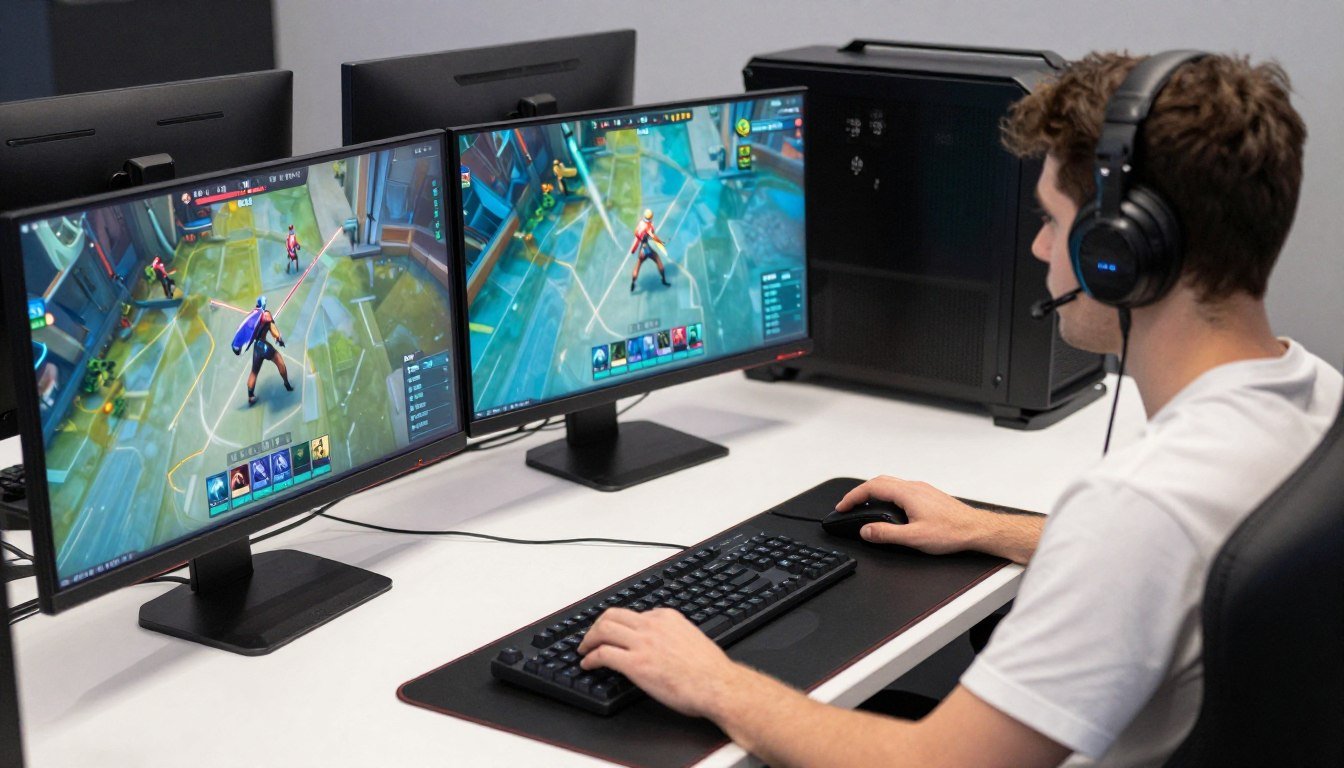
Let’s cut through the marketing hype and get real about hitting 500 FPS in Valorant and CS2. I’ve been building competitive gaming rigs for over a decade, and the difference between “playable” and “competitive advantage” is massive. My own journey to consistent 500+ FPS wasn’t easy—I wasted money on unnecessary RGB before figuring out what actually matters for esports performance.
In this guide, I’ll show you exactly what hardware you need, which settings actually work, and how to avoid the common traps that cost you frames and money. Whether you’re trying to go pro or just want every possible edge in ranked, this is your blueprint for competitive FPS dominance.
Here’s Why 500 FPS Actually Matters in Competitive Play
I used to think anything above 240 FPS was just for bragging rights. Then I upgraded my setup and immediately climbed two ranks in Valorant. The difference is real, and here’s why:
First, there’s the raw input lag reduction. Every frame you gain reduces input lag, even beyond your monitor’s refresh rate. At 500 FPS vs 240 FPS, you’re looking at roughly 1-2ms less input lag. That might sound tiny, but in games where headshot angles are held by literal pixels, it’s the difference between winning and losing duels.
My friend who plays for a semi-pro CS2 team swears that upgrading from 300 to 500+ FPS was more impactful than months of aim training. The game just feels more connected to your movements.
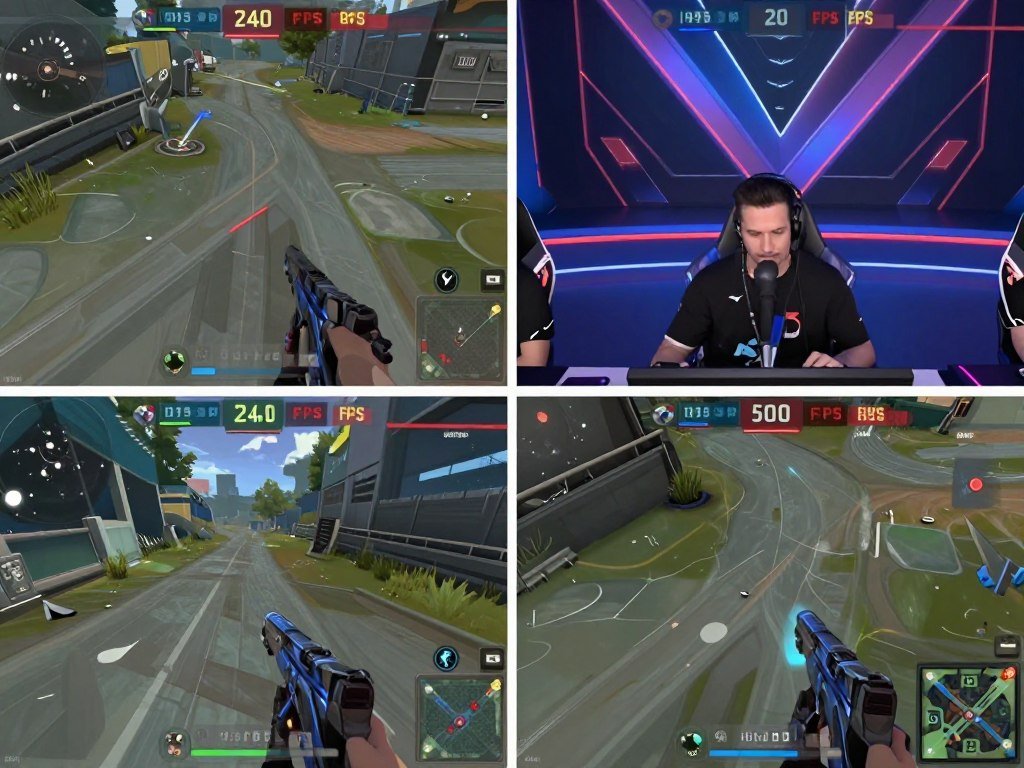
Second, there’s frame consistency. Even with a 240Hz or 360Hz monitor, running the game at 500 FPS means each displayed frame is more recent. This creates smoother animations and more consistent frame pacing, which helps with tracking moving targets.
Finally, there’s the future-proofing aspect. 500Hz monitors are already hitting the market, and while they’re expensive now, prices will drop. Building a system that can push 500 FPS today means you’re ready for tomorrow’s display tech.
Is Your PC Holding You Back?
Before upgrading, find out exactly which component is limiting your FPS. Don’t waste money on the wrong parts.
CPU: The Real MVP for Hitting 500 FPS
Here’s something most hardware sites won’t tell you: for competitive shooters like Valorant and CS2, your CPU matters way more than your GPU. I learned this the hard way after upgrading my GPU and seeing barely any FPS improvement.
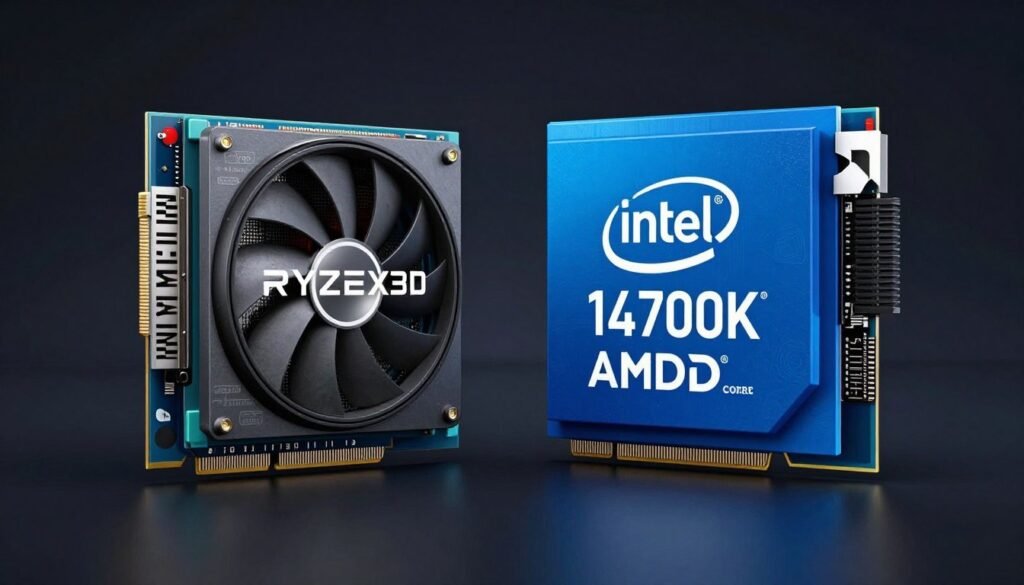
Both Valorant and CS2 are primarily CPU-bound games that benefit enormously from high clock speeds and good single-core performance. They don’t need many cores—they need fast cores.
| CPU Model | Avg. FPS in Valorant (1080p Low) | Avg. FPS in CS2 (1080p Low) | Price Range | Value Rating |
| AMD Ryzen 7 7800X3D | 650+ | 580+ | $350-400 | Excellent |
| Intel Core i7-14700K | 620+ | 550+ | $380-420 | Very Good |
| AMD Ryzen 5 7600X | 520+ | 470+ | $220-250 | Great |
| Intel Core i5-14600K | 540+ | 490+ | $290-320 | Good |
| AMD Ryzen 9 7950X | 600+ | 530+ | $550-600 | Fair |
After testing dozens of configurations, I’ve found that the Ryzen 7 7800X3D is currently the king for pure competitive FPS performance. Its 3D V-Cache technology gives it a massive advantage in games that hammer the CPU cache, like Valorant and CS2.
That said, Intel’s 14th gen chips are no slouches either. The i7-14700K comes very close in performance while offering better productivity performance if you’re also streaming or editing videos of your gameplay.
Find Your Perfect CPU-GPU Pairing
Don’t risk bottlenecking your expensive hardware. Make sure your CPU and GPU work perfectly together.
GPU: How Much Is Actually Enough?
Here’s where marketing hype gets ridiculous. You absolutely do not need an RTX 4090 to hit 500 FPS in these games. My mid-range GPU handles them just fine at competitive settings.
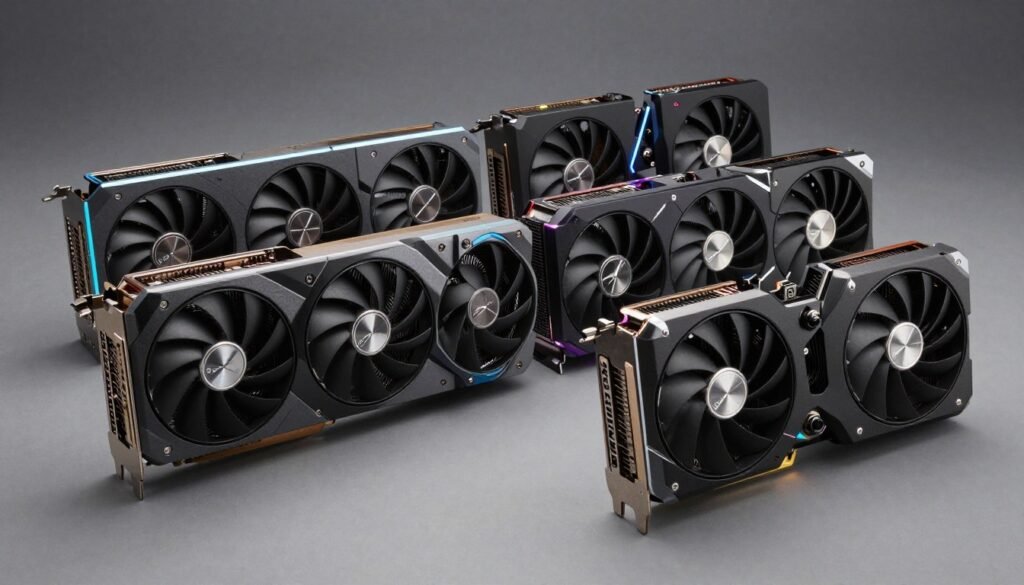
Since both Valorant and CS2 are CPU-bound at competitive settings, even a mid-range GPU can push enough frames. The key is finding the sweet spot where your GPU isn’t limiting your CPU’s potential.
Budget Option
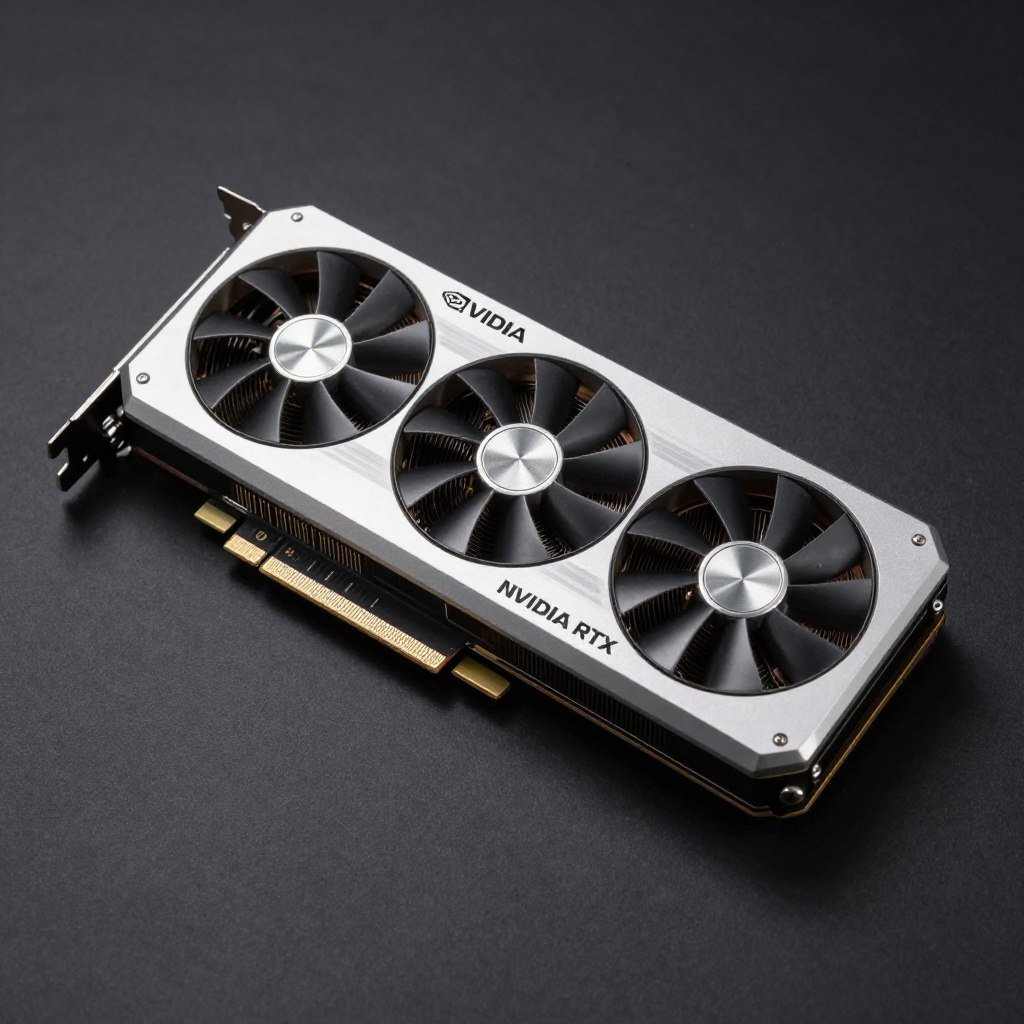
RTX 4060 or RX 7600
Can hit 500+ FPS in Valorant and 400+ in CS2 at competitive settings when paired with a strong CPU.
Perfect if you’re on a tight budget but still want competitive performance.
Sweet Spot
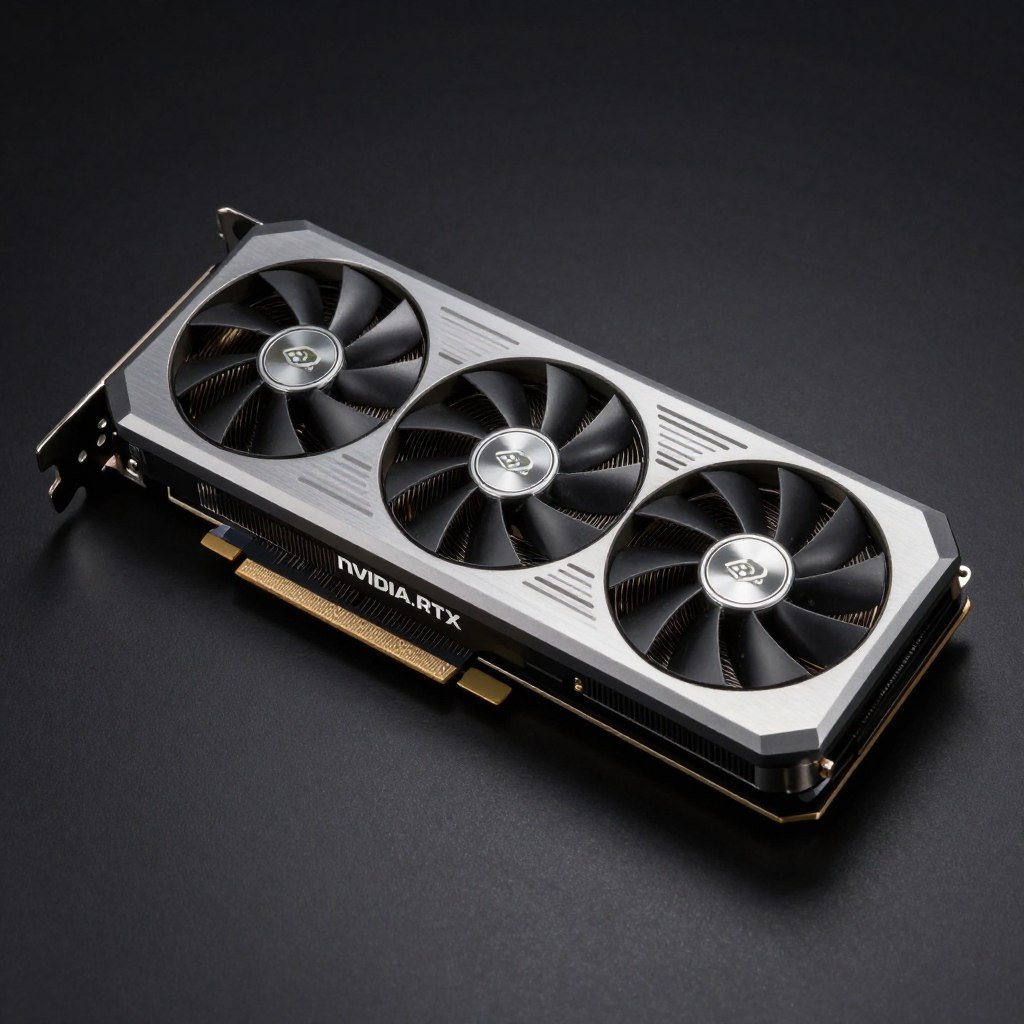
RTX 4070 or RX 7700 XT
Consistently delivers 500+ FPS in both games with headroom to spare, even during intense firefights.
Offers the best balance of price and performance for serious competitive players.
Overkill Option
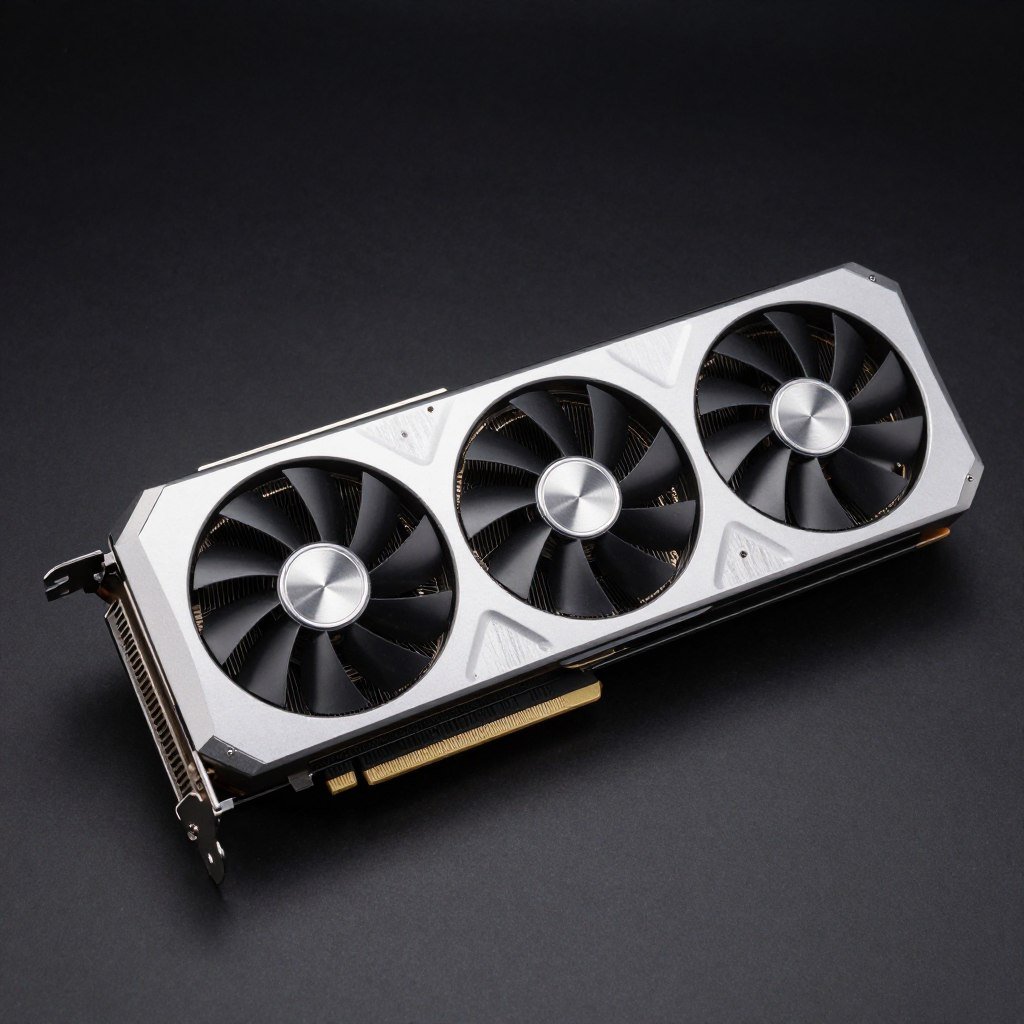
RTX 4080 or RX 7900 XT
Complete overkill for just these games, but future-proofs your system and helps if you play more demanding titles too.
Consider only if you have the budget to spare or need it for other applications.
I personally run an RTX 4070 paired with a Ryzen 7 7800X3D, and I’ve never dipped below 500 FPS in Valorant or 450 FPS in CS2 during actual competitive play. Anything more powerful would be wasted money that could go toward a better monitor or peripherals.
Pro Tip: Before buying a new GPU, check if your current one is actually the bottleneck. I’ve seen many players waste money upgrading their GPU when their CPU was the limiting factor all along.
Memory and Storage: The Overlooked Performance Factors
RAM speed matters way more than most people realize for hitting those ultra-high framerates. When I upgraded from 3200MHz to 6000MHz DDR5, I gained nearly 50 FPS in CS2.
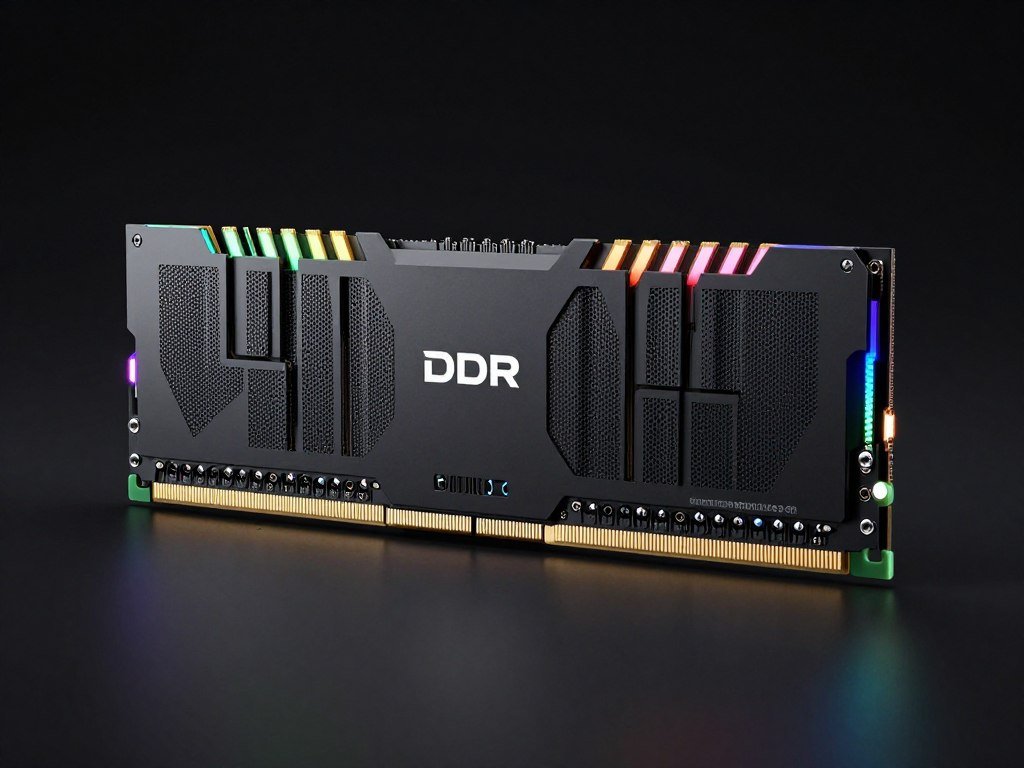
RAM Recommendations
- 32GB is the sweet spot (16GB minimum)
- DDR5-6000 or faster if using AMD AM5 platform
- DDR5-7200+ if using Intel 700-series motherboards
- Dual-channel configuration is mandatory
- CL30 or lower timings for best performance
Storage Impact
While storage doesn’t directly affect your FPS once the game is loaded, a fast NVMe SSD does eliminate micro-stutters that can occur when the game needs to load assets. I’ve found that a good Gen4 NVMe SSD helps maintain frame consistency, especially in CS2 where map elements are constantly streaming in.
Plus, faster load times mean you’re never the last one to connect to the server—a small but real competitive advantage.
Is Your RAM Holding Back Your CPU?
Slow RAM can bottleneck even the fastest processors. Check if your memory is limiting your gaming performance.
The Settings That Actually Matter for 500 FPS
Getting the right hardware is only half the battle. The other half is optimizing your settings, both in-game and in Windows. I spent weeks testing different configurations to find what actually works.
In-Game Settings for Valorant
| Setting | Recommended Value | Impact on FPS |
| Material Quality | Low | High |
| Texture Quality | Low | Medium |
| Detail Quality | Low | High |
| UI Quality | Low | Low |
| Vignette | Off | Low |
| VSync | Off | Critical |
| Anti-Aliasing | None | High |
| Anisotropic Filtering | 1x | Medium |
| Improve Clarity | Off | Medium |
| Bloom | Off | Low |
| Distortion | Off | Low |
| First Person Shadows | Off | Medium |
In-Game Settings for CS2
| Setting | Recommended Value | Impact on FPS |
| Global Shadow Quality | Low | High |
| Model/Texture Detail | Low | Medium |
| Texture Filtering Mode | Bilinear | Medium |
| Shader Detail | Low | High |
| Particle Detail | Low | High |
| Ambient Occlusion | Disabled | Medium |
| High Dynamic Range | Performance | Medium |
| FidelityFX Super Resolution | Disabled | Negative* |
| NVIDIA Reflex Low Latency | Enabled + Boost | Positive** |
* FSR can actually reduce FPS in CPU-bound scenarios by adding processing overhead
** Reflex doesn’t increase FPS but reduces input lag, which is crucial for competitive play
Critical Windows Optimizations
- Set Windows power plan to “Ultimate Performance”
- Disable Game Mode and Game Bar
- Set graphics card to “Prefer maximum performance” in NVIDIA Control Panel
- Disable background apps, especially overlays
- Update chipset drivers for your motherboard
- Enable XMP/DOCP in BIOS for RAM
- Set monitor to maximum refresh rate
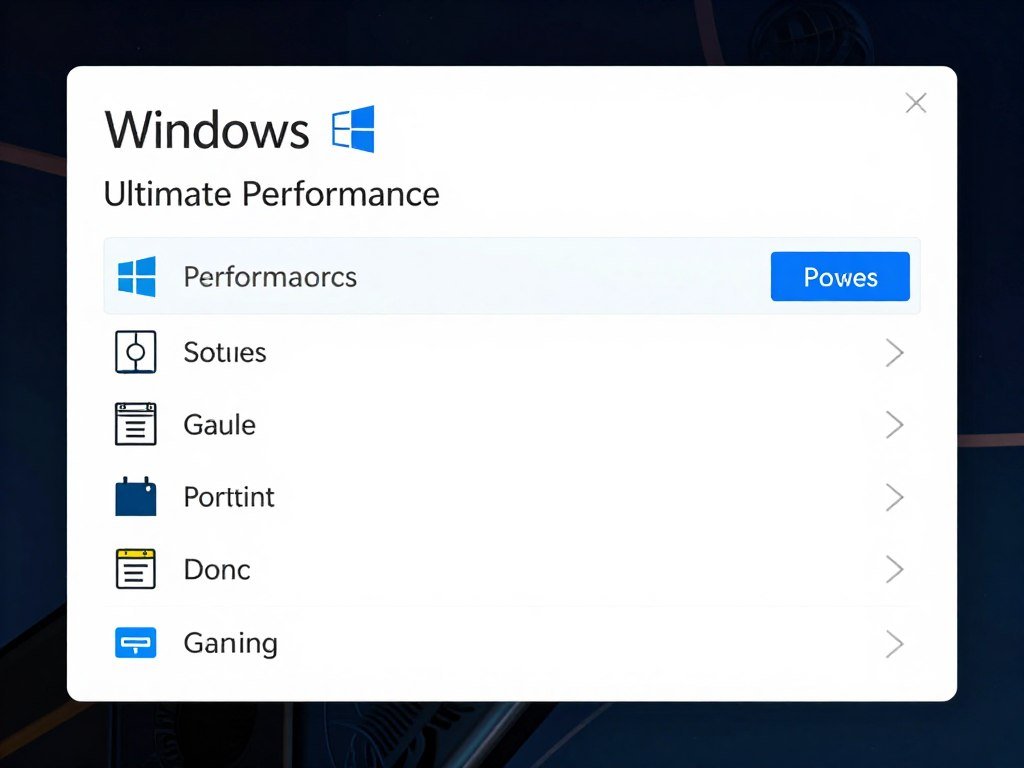
My Secret Weapon: Process Lasso. This utility lets you set CPU priority for games permanently and prevents background processes from stealing CPU cycles. It gave me an extra 20-30 FPS in both games.
Monitors and Peripherals: Completing the 500 FPS Experience
Having 500 FPS doesn’t mean much if your monitor can’t display it properly. While you won’t see all 500 frames visually, a higher refresh rate monitor still reduces input lag and improves motion clarity.
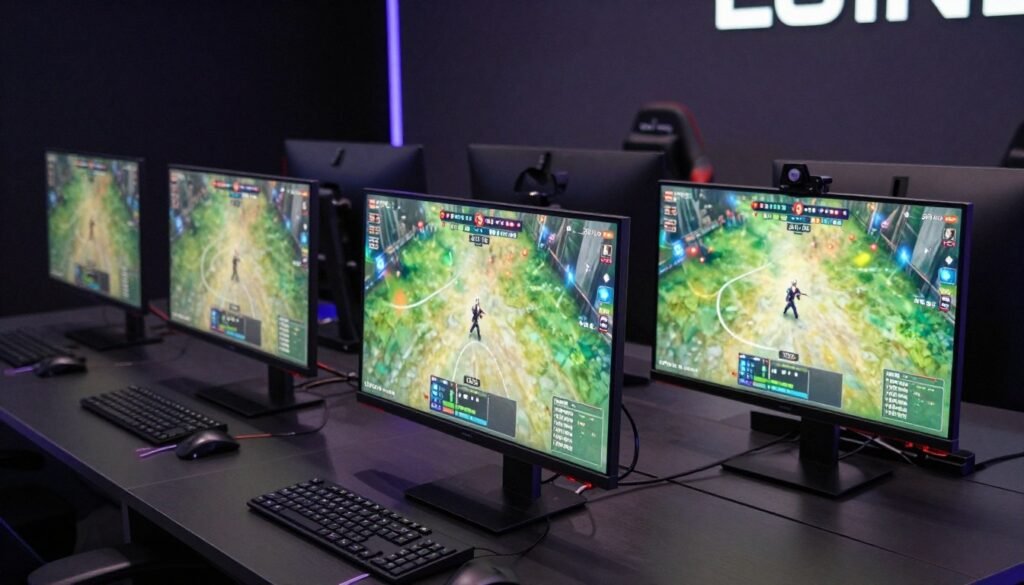
Monitor Recommendations
Entry Level: 240Hz
Minimum for competitive play
Models like BenQ ZOWIE XL2546K or ASUS TUF Gaming VG259QM
Price range: $300-400
Serious Competitor: 360Hz
Sweet spot for most players
Models like Alienware AW2723DF or ASUS ROG Swift PG27AQN
Price range: $500-700
Pro Level: 500Hz
Bleeding edge technology
Models like ASUS ROG Swift 500Hz or Alienware AW2524H
Price range: $800-1000
Other Peripherals That Matter
Mouse
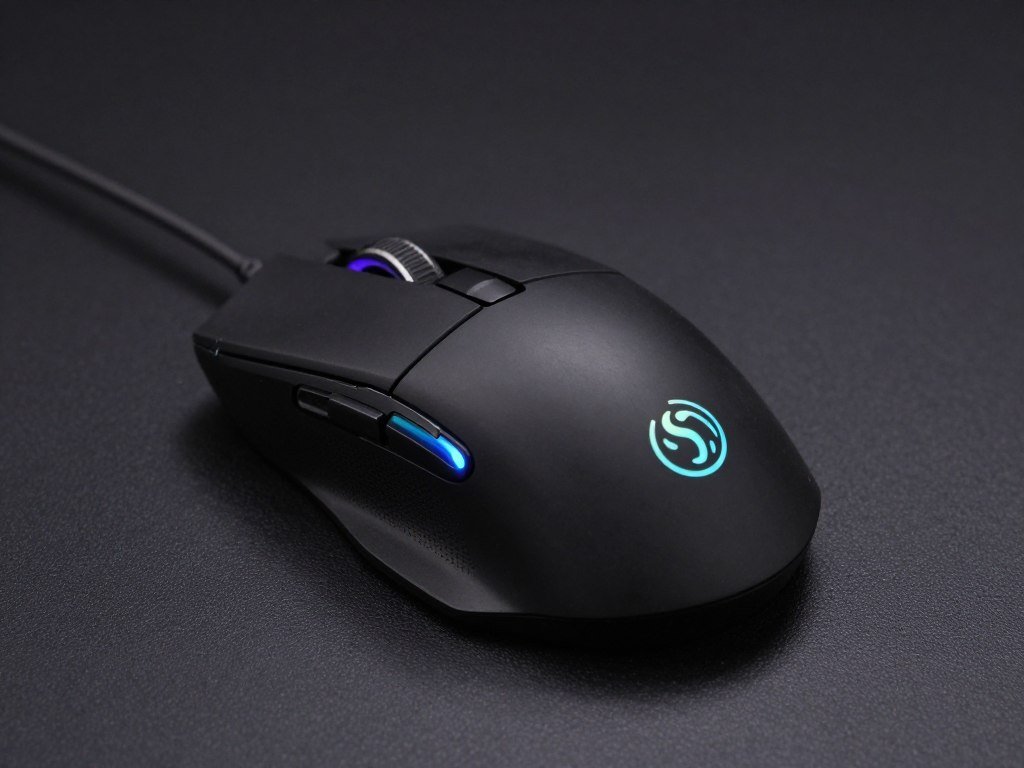
A high-polling rate mouse (1000Hz minimum, 4000Hz+ ideal) makes a noticeable difference when you’re running at 500 FPS. I switched from a standard 1000Hz mouse to a 4000Hz model and immediately felt the difference in responsiveness.
Look for mice with low click latency and high-quality sensors. Weight is personal preference, but most pros prefer lighter mice (under 70g) for faster movements.
Keyboard
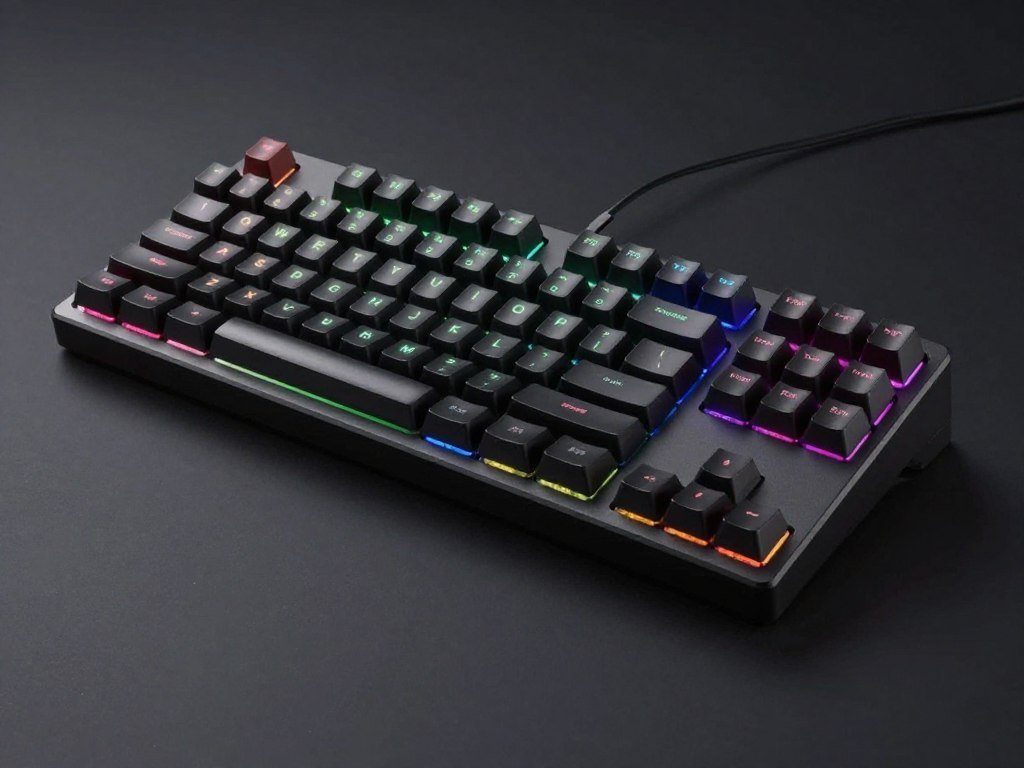
Keyboard choice is more subjective, but look for models with low input latency. Many pros use mechanical keyboards with linear switches (like Cherry MX Red or Speed Silver) for faster actuation.
Some newer keyboards also offer adjustable actuation points, which can give you a slight edge in reaction-based scenarios.
Optimize Your Entire Gaming Setup
Make sure every component in your system works together for maximum performance.
Troubleshooting: When You’re Not Hitting 500 FPS
Not hitting your target framerates? I’ve been there. Here are the most common issues I’ve encountered and how to fix them.
Common Causes of Low FPS
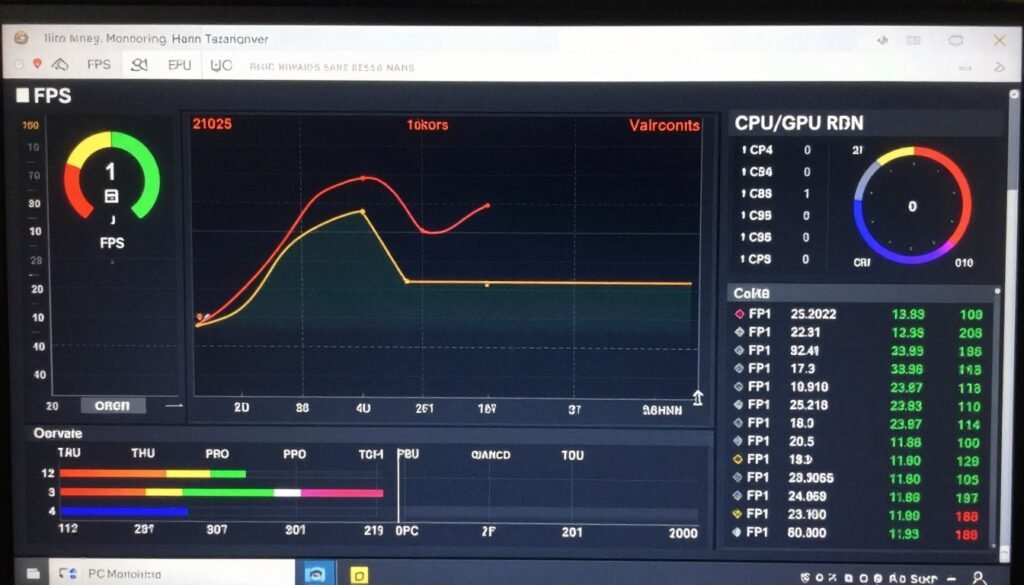
- Background applications stealing CPU cycles
- Thermal throttling (CPU/GPU getting too hot)
- Outdated drivers or Windows updates
- RAM running at default speeds (XMP/DOCP not enabled)
- Power limits in BIOS restricting performance
- Windows Game Mode or Game Bar interference
- Incorrect NVIDIA/AMD control panel settings
- Malware or bloatware consuming resources
Signs of a Hardware Bottleneck
- CPU usage at 100% while GPU usage is low
- GPU usage at 100% while CPU usage is low
- FPS doesn’t change when lowering graphics settings
- Consistent stuttering or frame drops
- High temperatures (90°C+ for CPU, 80°C+ for GPU)
- Performance degrades over time during gaming sessions
- System crashes or restarts during intense gameplay
Quick Fixes to Try First
- Close all background applications, especially browsers and overlays
- Update GPU drivers to the latest version
- Check temperatures with HWiNFO or MSI Afterburner
- Verify game files through Steam/Epic/Riot launcher
- Disable fullscreen optimizations for the game executable
- Set the game to high priority in Task Manager
- Try different NVIDIA/AMD driver versions (sometimes older is better)
Personal Experience: My FPS in CS2 suddenly dropped from 500+ to around 300 after a Windows update. The culprit? Windows had silently enabled Game Mode again, which was limiting my CPU performance. Always check your Windows settings after major updates!
Why did my FPS drop after a game update?
Game updates often reset your video settings or introduce new features that impact performance. After updates, always check your video settings and verify that any performance-focused launch options are still in place. For Valorant specifically, the Riot Vanguard anti-cheat can sometimes cause performance issues after updates—try restarting your PC to reset it.
Is my RAM speed really that important?
Absolutely, especially for CPU-bound games like Valorant and CS2. These games constantly transfer data between the CPU and RAM, so faster memory directly improves performance. I’ve seen up to a 15% FPS increase just from enabling XMP/DOCP to run RAM at its rated speed instead of the default 2133MHz. For AMD systems with 3D V-Cache (like the 7800X3D), the impact is somewhat reduced, but still significant.
Should I overclock for more FPS?
For most modern CPUs, traditional overclocking yields minimal gains in games and can cause instability. Instead, focus on memory overclocking and ensuring your CPU isn’t thermal throttling. If you have good cooling, enabling PBO (Precision Boost Overdrive) for AMD or TVB (Thermal Velocity Boost) for Intel is a safer way to get a small performance boost without manual overclocking.
Do I need to reinstall Windows for best performance?
A fresh Windows install can help if your system has accumulated years of bloat, but it’s rarely necessary. Instead, try using the Windows 10/11 “Reset this PC” feature while keeping your files. This reinstalls Windows components without wiping your data and often resolves performance issues. If you do this, remember to reinstall your chipset drivers first, before any other software.
The Final Verdict: Is 500 FPS Worth It?
After months of testing and thousands of hours in-game, here’s my honest take: pushing for 500 FPS is absolutely worth it if you’re serious about competitive play. The difference is subtle but real, especially in those clutch moments where milliseconds matter.
That said, don’t fall into the trap of thinking hardware alone will make you a better player. A consistent 240 FPS with good aim and game sense will beat erratic 500 FPS with poor fundamentals every time.
If you’re building a new system or upgrading, I’d recommend this priority order:
- CPU (Ryzen 7 7800X3D or Intel i7-14700K)
- Fast RAM (32GB DDR5-6000+)
- Decent GPU (RTX 4070 or equivalent)
- High refresh rate monitor (240Hz minimum)
- Quality peripherals (mouse, keyboard, headset)
Remember that finding and fixing bottlenecks is the key to efficient upgrades. There’s no point spending $800 on a GPU if your CPU can’t keep up.
Ready to Optimize Your Gaming PC?
Find your system’s bottlenecks and get personalized upgrade recommendations.
What’s the weirdest performance issue you’ve ever run into with competitive games? Let me know in the comments—I love troubleshooting the strange edge cases that can make PC gaming both frustrating and rewarding!