
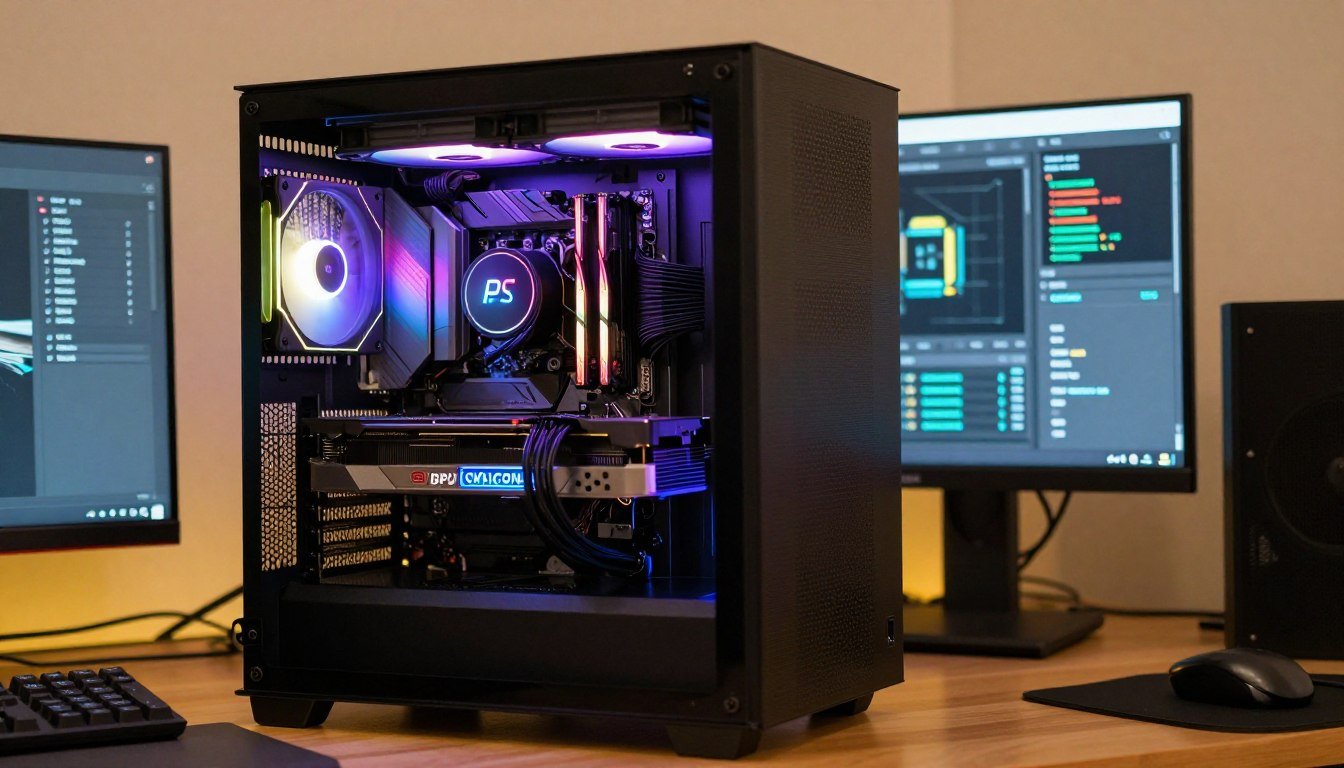
I remember the first time I ran a bottleneck calculator on my gaming rig. I was so proud of my new RTX 3070, but something felt off. My frame rates in Warzone weren’t matching what I saw in YouTube benchmarks. The calculator spit out “38% CPU bottleneck” and I stared at my screen thinking, “Okay… but what does that actually mean?”
Turns out, that percentage isn’t just some random number. It represents real performance you’re leaving on the table. But here’s the thing—most people panic when they see any number above zero. I’ve watched friends blow hundreds of dollars on upgrades they didn’t need because they misunderstood what bottleneck percentage really tells you.
Let me break down exactly what you’re looking at when you see that percentage, when you should actually worry, and what to do about it. No corporate tech speak. Just straight talk from someone who’s been there.
Here’s What Bottleneck Percentage Really Measures
When you use a bottleneck calculator and it says “15% GPU bottleneck” or “22% CPU bottleneck,” it’s telling you how much one component is limiting another. Think of it like this: your graphics card is a sports car, but your CPU is the delivery truck trying to keep up. That percentage shows the gap between them.
The calculator looks at benchmark data from thousands of tests. It compares your CPU’s processing power against your GPU’s graphics rendering capability. Then it figures out which one is working harder and by how much.
The Math Behind That Number
Most calculators use performance scores from databases like PassMark or UserBenchmark. Your CPU might score 18,000 points while your GPU scores 24,000. The calculator spots that imbalance and converts it to a percentage showing which part holds the system back.
But here’s what drives me crazy about some calculators: they don’t account for what you actually do with your PC. A 20% bottleneck for gaming at 1080p looks completely different than the same percentage for 4K video editing. Context matters, and not every tool factors that in.
Low Bottleneck (0-10%)
Your components are well-matched. This is the sweet spot. You might see tiny inefficiencies, but nothing that impacts real-world performance. I’ve never seen a perfectly balanced system hit exactly 0%, and you shouldn’t worry if you don’t either.
Moderate Bottleneck (10-20%)
You’re losing some performance, but it’s usually not dramatic. I ran a 15% CPU bottleneck for two years before upgrading, and honestly? Most games still ran great. This range is “nice to fix eventually” territory, not emergency status.
Noticeable Bottleneck (20-35%)
Now we’re talking actual problems. Frame drops become more frequent. You’ll feel stuttering in demanding games or delays when rendering video. This is where I start seriously considering upgrades.
Severe Bottleneck (35%+)
Your system is seriously lopsided. One component is basically waiting around for the other to catch up. I’ve seen people pair a brand-new RTX 4080 with a ten-year-old CPU and wonder why their FPS is trash. That’s what this looks like.
The frustrating part? Different calculators sometimes give you different numbers for the same hardware. I tested my system on three different sites once and got results ranging from 12% to 19%. They’re using slightly different benchmark data and algorithms. That’s why you should treat these percentages as estimates, not gospel.
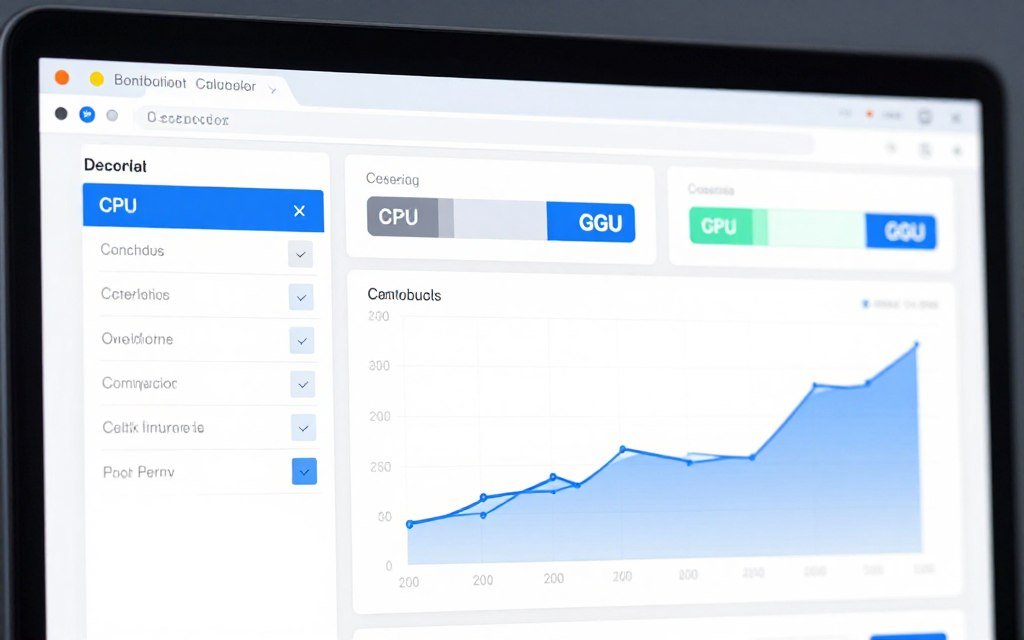
Want to know where your system stands? Running a quick bottleneck test takes about 30 seconds. Pick your CPU and GPU from the dropdown menus, and you’ll see exactly which component (if any) is holding you back. It’s way better than guessing or spending money blindly.
The CPU vs GPU Question Everyone Gets Wrong
People always ask me: “Is a CPU bottleneck worse than a GPU bottleneck?” And I always answer: it depends what you’re doing with your PC. They’re different problems that show up in different ways.
When Your CPU Can’t Keep Up
A CPU bottleneck means your processor is maxed out trying to feed data to your graphics card. I see this most often at lower resolutions like 1080p, where the GPU could easily push more frames but the CPU can’t process the game logic fast enough.
Here’s how it feels: you’re playing a game and your frame rate seems capped way below what it should be. You check your GPU usage and it’s sitting at 60% or 70%, basically taking a nap while your CPU screams at 100%. That’s the telltale sign.
- Your GPU usage stays below 90% during gaming
- CPU usage constantly hits 95-100%
- Frame rates don’t improve much when you lower graphics settings
- You experience stuttering or micro-freezes even with good average FPS
- Strategy games or open-world titles bog down more than simpler games
I had a friend running an i5-9400F with an RTX 3080. Beautiful graphics card, but that six-core CPU just couldn’t handle modern games at high refresh rates. His frame rates were all over the place—180 FPS one second, down to 90 the next. That inconsistency is worse than just having lower FPS overall because it makes everything feel jerky.
When Your Graphics Card Gives Up
A GPU bottleneck is actually more common, especially if you’re gaming at 1440p or 4K. Your CPU is doing fine, processing game logic and physics without breaking a sweat. But your graphics card is grinding away at 99% usage trying to render all those pixels.
The difference is you’ll see smoother performance if you drop the resolution or lower graphics settings. That’s how you know it’s the GPU holding things back. Turn down anti-aliasing or shadow quality, and boom—your frame rates jump up.
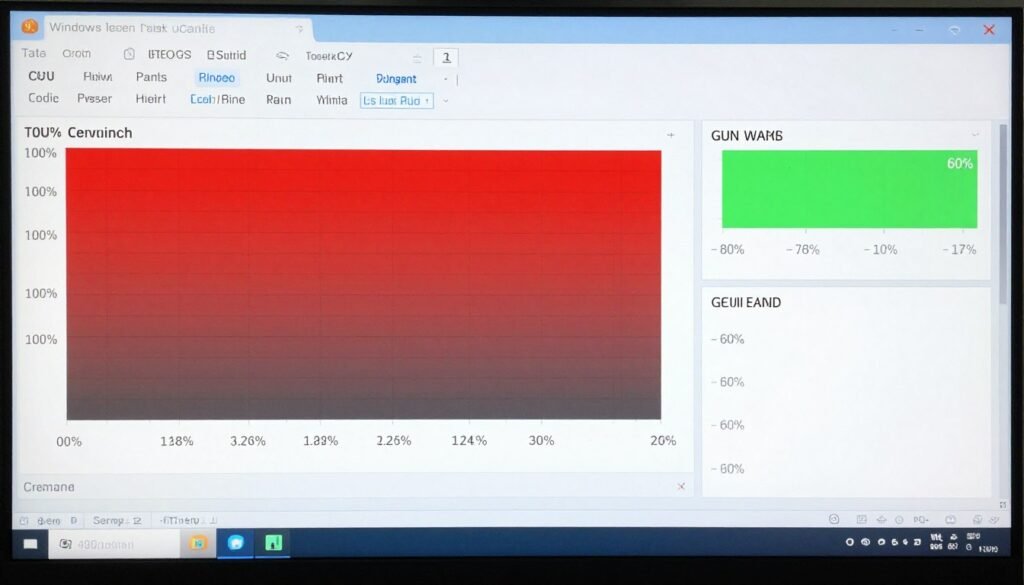
- GPU usage stays pinned at 95-100% constantly
- CPU usage sits comfortably below 80%
- Lowering graphics settings immediately boosts FPS
- Performance gets worse at higher resolutions
- Your system runs great in older or less demanding games
Here’s something that annoys me about how people talk about bottlenecks: they act like one type is always worse than the other. In reality, for gaming, a mild GPU bottleneck is usually fine. Your graphics card is supposed to be the hardest-working component in gaming scenarios. If it’s maxed out while your CPU has headroom, that’s actually efficient.
The problem comes when the imbalance is too large. Pairing a $200 CPU with a $1,500 GPU makes zero sense. You’re paying for performance you can’t actually use.
Resolution Changes Everything
One thing that caught me off guard when I first learned about bottlenecks: the same system can show completely different results at different resolutions. My setup showed a 25% CPU bottleneck at 1080p. But when I tested at 1440p on the same calculator? The bottleneck percentage dropped to 8%.
That’s because higher resolutions put more work on the GPU. At 4K, your graphics card is rendering four times as many pixels as 1080p. Suddenly the CPU isn’t the limiting factor anymore—the GPU is working so hard that the CPU has plenty of time to keep up.
This is why you’ll see competitive gamers running 1080p monitors even with high-end GPUs. They want maximum frame rates, and at lower resolutions, their powerful graphics cards can push 300+ FPS if the CPU can handle it. It’s all about matching your components to your actual use case.
| Resolution | Primary Bottleneck Type | Why It Happens | Best Component Balance |
| 1080p (1920×1080) | Usually CPU | GPU renders frames quickly, CPU struggles to keep up with game logic at high FPS | Strong CPU + Mid-range GPU |
| 1440p (2560×1440) | Balanced or slight GPU | Sweet spot where both components work hard without major imbalance | Strong CPU + Strong GPU |
| 4K (3840×2160) | Almost always GPU | Massive pixel count overwhelms graphics card while CPU waits | Mid-range CPU + Flagship GPU |
| Ultrawide (3440×1440) | GPU-leaning | More pixels than standard 1440p puts extra load on graphics card | Strong CPU + High-end GPU |
When You Should Actually Worry About That Percentage
Okay, real talk: not every bottleneck needs fixing. I see people freak out over a 12% bottleneck and start planning a $500 upgrade. That’s unnecessary. Let me tell you when it actually matters and when you can just ignore it.
If You’re Getting Good Performance, Relax
This is the part that frustrates me about bottleneck calculator culture: people obsess over the number instead of their actual experience. If your games run smoothly, you’re hitting your target frame rates, and everything feels responsive, then who cares what some calculator says?
I ran a 17% CPU bottleneck for months while playing mostly Valorant and CS2. Those games ran at 200+ FPS without any issues. Sure, technically I was “leaving performance on the table,” but I wasn’t noticing it. The numbers said I had a problem, but my experience said otherwise.
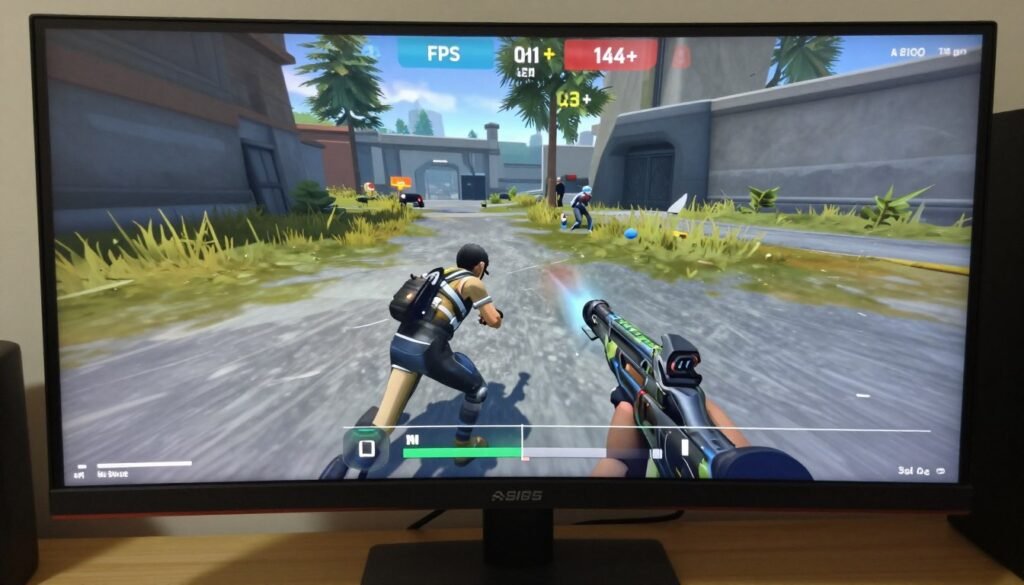
The Real Test: If you’re happy with how your PC performs, the bottleneck percentage is just trivia. It becomes a problem only when you notice stuttering, inconsistent frame rates, or can’t run games at settings you expect your hardware to handle.
Red Flags That Mean Action Time
On the flip side, some situations scream “fix this now.” I’ve learned to spot these patterns after helping friends troubleshoot their systems for years.
- Frame rates wildly inconsistent—jumping from 120 FPS to 45 FPS and back
- Stuttering every few seconds even though average FPS looks decent
- One component running hot and loud while the other barely works
- You just upgraded one part and performance actually got worse
- Rendering or encoding tasks taking way longer than benchmarks suggest they should
- Your bottleneck percentage is above 30% and you feel the pain daily
That last point about upgrading and getting worse performance? That happened to my buddy Jake. He bought an RTX 4070 to replace his old GTX 1660, thinking it would be a massive upgrade. His frame rates went up, sure, but he started getting these horrible stutters that weren’t there before. Turned out his old Ryzen 5 2600 just couldn’t feed that powerful GPU properly. The bottleneck percentage jumped from 15% to 38%, and the stuttering made games feel worse despite the higher average FPS.
The Background Apps Problem
Before you blame your hardware, check what else is running. I can’t tell you how many times I’ve seen someone with a “bottleneck” that was actually just Chrome eating 30% of their CPU in the background.
Close Discord, Spotify, that dozen browser tabs, your RGB control software, and whatever else is lurking in your system tray. Then test again. Sometimes what looks like a hardware bottleneck is really just software clutter.
I learned this the hard way when my PC started lagging during streams. I was convinced my CPU was dying. Nope—Windows Update was downloading in the background, plus I had OBS, Discord, Spotify, and Chrome all running. My poor CPU was trying to do five things at once. Closed everything except my game and suddenly my “bottleneck” vanished.
The Upgrade Math That Actually Matters
Here’s my rule: if you’re thinking about spending money to fix a bottleneck, calculate whether the performance gain justifies the cost. A $400 CPU upgrade to go from 30% bottleneck to 8% might net you 20-30% better frame rates. Is that worth it to you? For competitive gaming, maybe. For casual play, probably not.
And this is key—some bottlenecks cost way more to fix than others. CPU upgrades often mean new motherboard and RAM too. That’s not a $300 fix; that’s $600-800. GPU upgrades? Usually just swap the card. Way cheaper to address a GPU bottleneck than a CPU one in many cases.
Not sure where your system lands? The fastest way to know is running a quick check with your actual components. You might find out you’re stressing over nothing—or you might discover why your FPS has been driving you crazy. Either way, you’ll know what you’re working with.
The Parts People Usually Get Wrong
I’ve seen the same mistakes over and over. People build systems that look good on paper but have these glaring imbalances. Let me walk you through the most common scenarios I run into.
The “I Bought the Best GPU” Disaster
This is the classic move: someone saves up for a flagship graphics card but pairs it with whatever CPU they already have. I watched a friend drop $1,200 on an RTX 4080 and plug it into his system with an Intel i5-8400. That’s a six-core CPU from 2017 trying to feed a monster GPU from 2024.
The calculator showed a 42% CPU bottleneck. In practice, his new card performed only marginally better than his old RTX 2060 at 1080p. He was furious until I explained what was happening. We bumped him to 1440p resolution, which helped by putting more load on the GPU, but he still wasn’t getting anywhere near the performance he paid for.
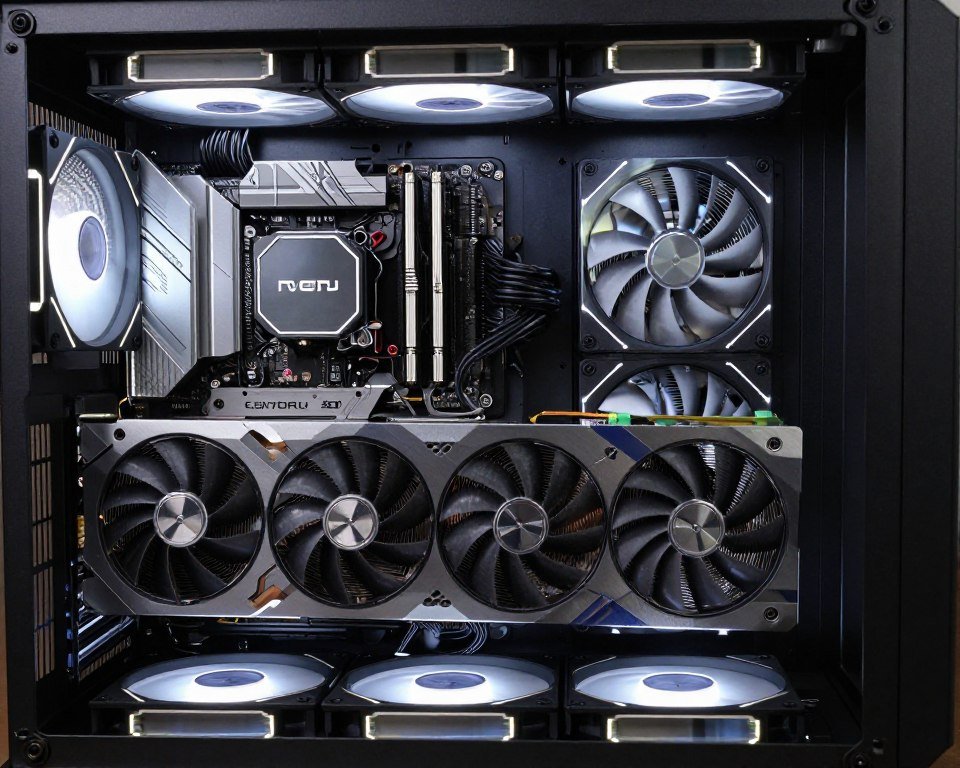
The fix cost him another $450—new CPU, motherboard, and faster RAM. That’s painful, but necessary. The lesson? Balance your budget across components, not just blow it all on one part.
The Laptop Reality Check
Laptops are where bottleneck percentages get really weird. You’ll see gaming laptops with specs that look incredible—Ryzen 9 CPU, RTX 4060 GPU, 32GB RAM. Then you run the calculator and it says everything’s balanced. Great, right?
Except in real-world use, that laptop thermal throttles after 10 minutes of gaming. The CPU drops from 4.5 GHz down to 3.2 GHz because it’s getting too hot in that thin chassis. Suddenly your “balanced” system is effectively bottlenecked by heat instead of component mismatch.
Bottleneck calculators don’t account for thermal throttling, power limits, or the fact that laptop components often run slower than their desktop counterparts. That’s why laptop results should always be taken with extra skepticism.
The RAM Confusion
People forget about RAM until it becomes a problem. You can have a perfectly balanced CPU and GPU pairing, but if you’re running 8GB of slow RAM in single-channel mode, you’re creating an artificial bottleneck that won’t show up in most calculators.
I was helping someone troubleshoot stuttering in Cyberpunk 2077. Their bottleneck calculator said they were fine—5% GPU bottleneck, totally reasonable. But the game kept hitching every few seconds. Turned out they had one stick of 16GB RAM running in single-channel, and the game was constantly waiting for memory.
We added a second identical stick to enable dual-channel, and the stuttering cut in half. The calculator never caught that issue because it was looking at CPU-GPU balance, not memory bandwidth.
When Storage Becomes the Villain
This one’s sneaky. Your CPU and GPU are balanced. Your RAM is fine. But you’re running games off a slow hard drive, and suddenly you’re dealing with texture pop-in, stuttering when the game loads new areas, and loading screens that last forever.
Most bottleneck calculators ignore storage entirely. They assume you have an SSD. If you’re still on a spinning hard drive in 2026, that’s your bottleneck, not your processor or graphics card.
I upgraded my friend from HDD to NVMe SSD, and the improvement in open-world games was massive. His FPS didn’t change, but the stuttering when driving through the city in GTA V vanished. That’s a storage bottleneck that no calculator would have flagged.
The Competitive Gaming Trap
Competitive gamers often build systems that look completely backward to normal users. They’ll pair a flagship CPU with a mid-range GPU. The calculator might show a 25% GPU bottleneck, and they don’t care at all.
Why? Because they’re playing at 1080p low settings in Valorant or CS2, chasing 400+ FPS. In those games, the CPU does most of the work. A weaker GPU can easily push high frame rates at low settings, while a strong CPU keeps those frames consistent.
That’s a deliberate choice, not a mistake. But if you don’t understand the context, you might look at their build and think they screwed up. Context matters more than the raw percentage.
| Build Type | CPU Choice | GPU Choice | Common Bottleneck % | Why It Works |
| Budget Gaming (1080p) | Mid-range 6-core | Entry-level GPU | 10-15% GPU | Balanced for 60-75 FPS at medium settings without overspending |
| Competitive Esports | High-end 8-core | Mid-range GPU | 20-30% GPU | Prioritizes CPU for maximum FPS in low-settings competitive games |
| 4K Gaming | Mid-range 6-8 core | Flagship GPU | 8-12% CPU | GPU does heavy lifting at high resolution, CPU just needs to keep up |
| Video Editing Workstation | High-end 12-16 core | Professional GPU | 5-10% either way | Both components work hard during rendering, need balance |
| Streaming PC | High-end 8-12 core | Upper mid-range GPU | 15-20% GPU | CPU handles encoding, needs extra overhead for streaming software |
Fixing Bottlenecks Without Wasting Money
Alright, so you’ve identified a bottleneck that’s actually causing problems. Now what? Let me give you the practical steps I follow, starting with the cheapest and easiest fixes first.
Software Fixes That Cost Zero Dollars
Before you touch your wallet, try these. I’ve seen these simple changes eliminate what people thought were hardware bottlenecks.
- Update your GPU drivers—seriously, do this first. I can’t count how many “bottlenecks” disappeared after a driver update
- Close background apps before gaming. Discord, Chrome, Spotify, and that RGB software are all stealing CPU cycles
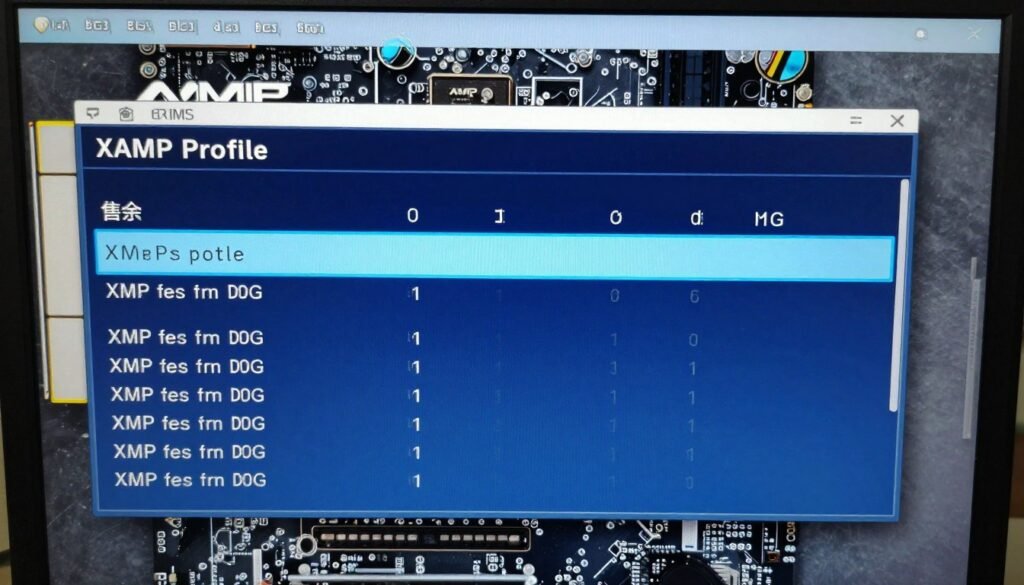
- Enable XMP/DOCP in your BIOS to make your RAM run at its rated speed. Most people leave it at default slow speeds
- Adjust in-game settings smartly—lower CPU-intensive options like shadows, view distance, and NPC density if you have a CPU bottleneck
- For GPU bottlenecks, drop resolution or use upscaling tech like DLSS or FSR. These can double your FPS overnight
- Check your power plan in Windows—make sure it’s set to High Performance, not Balanced
- Monitor your temps. If your CPU or GPU is thermal throttling, better cooling might fix it without new hardware
I had a situation where my nephew’s PC was “broken” according to him. Frame rates were terrible. I checked Task Manager and saw 40% CPU usage from Windows Update running in the background. Paused the update, closed some browser tabs, and his FPS literally doubled. Sometimes the fix is that simple.
When You Actually Need to Upgrade
If software tweaks don’t cut it and you’re still dealing with a bottleneck above 25-30% that hurts your experience, it’s time to consider hardware upgrades. But do it smart.
Fixing a CPU Bottleneck
This is usually the expensive option. CPUs don’t upgrade in isolation. You might need a new motherboard and RAM too, depending on how old your platform is.
My rule: if your motherboard supports a better CPU in the same socket, try that first. Going from a Ryzen 5 3600 to a Ryzen 7 5800X3D uses the same AM4 socket. That’s a $300 upgrade instead of $600+.
But if you’re on an old platform like Intel 8th or 9th gen, you’re probably looking at a full platform upgrade. That hurts the budget but sometimes it’s necessary. I finally bit the bullet last year and went from my trusty but ancient i7-7700K to a Ryzen 7 7800X3D. New CPU, motherboard, and DDR5 RAM cost me about $700 total. Worth it? Absolutely. Should have done it a year earlier.
Fixing a GPU Bottleneck
This one’s usually simpler and cheaper. GPUs are self-contained. You remove the old one, slot in the new one, and you’re done. No motherboard compatibility headaches (usually).
The catch is making sure your power supply can handle it. If you’re upgrading from an RTX 3060 to an RTX 4080, that’s a jump from 170W to 320W. Your PSU needs enough wattage and the right power connectors. I’ve seen people buy a new GPU only to realize their PSU doesn’t have the required cables. Check that before ordering.
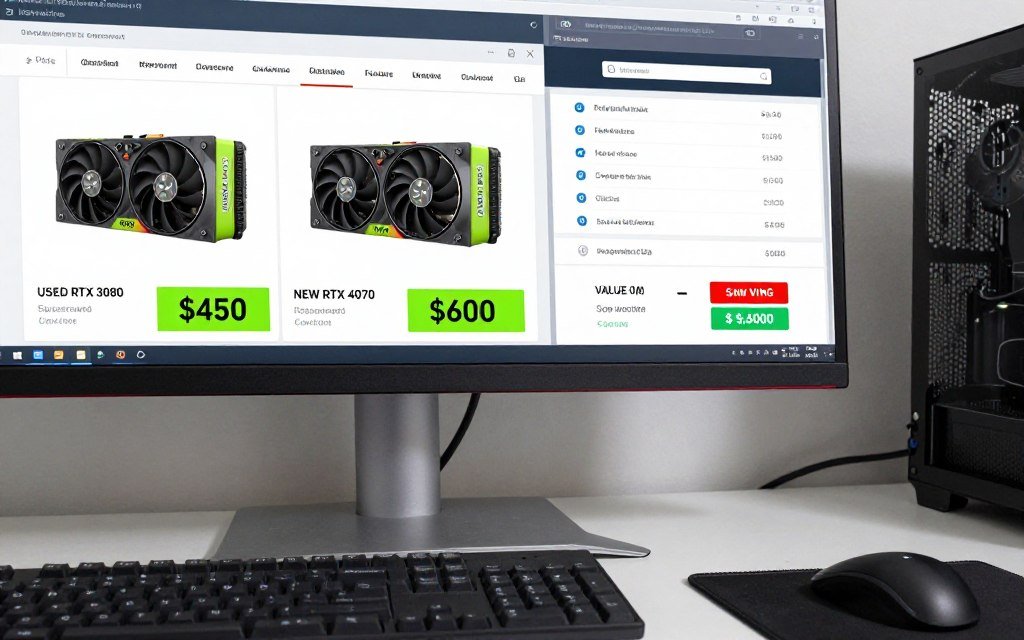
And here’s a pro tip: don’t always buy the newest generation. Sometimes last-gen cards offer incredible value. When the RTX 4000 series launched, RTX 3000 prices dropped hard. A used RTX 3080 for $450 often makes more sense than a new RTX 4060 for $500.
The Budget-Conscious Approach
If money’s tight, prioritize based on where the bottleneck hurts most. I always tell people: upgrade the component that fixes the problem you’re actually experiencing.
If You See These Issues:
- Terrible frame rates regardless of graphics settings
- CPU at 100% constantly during gaming
- Good GPU sitting mostly idle
- Streaming causes massive FPS drops
Then prioritize: CPU upgrade (and possibly motherboard + RAM)
If You See These Issues:
- Low FPS that improves when you lower settings
- GPU running at 99% all the time
- Can’t maintain 60 FPS even at medium settings
- Ray tracing or high resolutions tank performance
Then prioritize: GPU upgrade
And honestly? RAM and storage upgrades often give you more bang for your buck than people realize. Going from 8GB to 16GB RAM costs $40-50 and can eliminate stuttering. Swapping your HDD for a $60 SATA SSD makes your entire system feel faster, even if it doesn’t boost FPS directly.
The Upgrade Order That Makes Sense
When I help someone plan upgrades on a budget, I suggest this order:
- Free optimizations first (drivers, settings, background apps)
- RAM if you’re under 16GB for gaming or 32GB for content creation
- SSD if you’re still using a hard drive as your main drive
- GPU if you have a GPU bottleneck over 20% and it’s impacting your experience
- CPU if you have a CPU bottleneck over 25% and you can’t fix it with settings
- Motherboard and platform upgrade only when your current socket is dead-end
This approach spreads costs over time and fixes the most impactful problems first. And here’s the thing—each upgrade you make shifts the bottleneck. After you upgrade your GPU, suddenly your CPU might become the limit. That’s normal. You’re just finding the next weakest link.
Before you spend a dime: Check your current setup with a bottleneck calculator to see exactly what you’re working with. You might discover the upgrade you were planning won’t actually help, or you might find a cheaper component swap that solves the problem. Either way, five minutes of checking saves you from expensive mistakes.
The Truth About Calculator Accuracy
Let me be straight with you: bottleneck calculators are useful tools, but they’re not crystal balls. I’ve seen people treat the results like some kind of absolute scientific truth, and that’s where things go sideways.
What These Tools Get Right
Bottleneck calculators are pretty good at spotting obvious mismatches. If you’re pairing a $150 CPU with a $1,200 GPU, the calculator will correctly tell you that’s a problem. The general direction—whether you’re CPU-bound or GPU-bound—is usually accurate enough to guide decisions.
They’re pulling from massive databases of benchmark scores. PassMark has tested thousands of CPUs and GPUs under controlled conditions. That data is solid. When a calculator says your Ryzen 5 5600 scores 19,000 points and your RTX 4070 scores 28,000 points, those numbers are based on real testing.

Where They Fall Short
Here’s what drives me nuts: calculators can’t see your actual system. They don’t know that your CPU is thermal throttling because your cooler is clogged with dust. They don’t know you’re running 47 Chrome tabs and Discord in the background. They assume perfect conditions that don’t exist in real life.
I ran the same hardware through four different calculators once. Results ranged from 8% to 23% bottleneck for the identical components. That’s because each calculator uses slightly different algorithms, weighs factors differently, and pulls from different benchmark sources.
They also can’t predict game-specific optimization. Some games are heavily CPU-bound even with modest graphics. Others lean hard on the GPU. A calculator giving you an overall percentage can’t tell you that your setup will crush Valorant but struggle with Starfield.
The Variables They Miss
Let me list out what these calculators typically ignore, because this is important:
- RAM speed and configuration (single vs dual-channel makes a huge difference)
- Storage speed affecting load times and texture streaming
- Thermal throttling from poor cooling
- Power supply quality and stability
- Background applications stealing resources
- Game-specific optimization (or lack thereof)
- Driver versions and BIOS updates
- Monitor refresh rate and resolution combination
My buddy was convinced his CPU was bottlenecking based on calculator results. Turns out his RAM was running at 2400 MHz instead of the rated 3200 MHz because he never enabled XMP. That slower RAM was artificially limiting his CPU performance. The calculator had no way to know that.
Use Them as a Starting Point, Not the Final Word
The way I use bottleneck calculators: they tell me if I’m in the ballpark or if something’s seriously wrong. A result showing 5-15% bottleneck? I’m probably fine. A result showing 40%? I definitely have an issue to investigate.
But I never make buying decisions based solely on calculator results. I look at real-world benchmarks for the specific games or applications I use. I watch YouTube videos of people running the same hardware combination I’m considering. I read forum posts from users with similar setups.
That combination of calculator estimates plus real-world results gives me the full picture. The calculator is the quick screening tool. The research is the confirmation.
What Calculators Do Well
- Quickly identify severe imbalances in component pairings
- Give directional guidance on whether CPU or GPU is limiting factor
- Help plan balanced builds before buying components
- Provide rough performance estimates at different resolutions
- Completely free and easy to use, no technical knowledge required
Where They Fall Short
- Can’t account for real-world variables like cooling and background apps
- Different calculators give different results for same hardware
- Miss important factors like RAM speed, storage, and driver versions
- Don’t reflect game-specific optimization or workload-specific needs
- Results based on synthetic benchmarks, not your actual use case
When to Trust the Calculator vs Your Own Testing
If a calculator says you have a bottleneck but your games run great, trust your experience. The number is just an estimate. Your actual performance is reality.
On the flip side, if a calculator says you’re balanced but you’re getting terrible performance, don’t just dismiss it. That means something else is wrong—thermal issues, driver problems, or some other factor the calculator couldn’t see.
I always recommend running your own monitoring while gaming. MSI Afterburner, HWInfo, or even just Task Manager can show you real CPU and GPU usage. If your CPU is pinned at 100% while your GPU lounges at 60%, you’ve got a CPU bottleneck regardless of what any calculator said.
That real-world data beats calculator estimates every time. The calculator gives you a hypothesis. Your monitoring tools give you the proof.
Planning Upgrades the Smart Way
The worst mistake I see people make is building or upgrading without thinking two years ahead. You don’t want to spend $800 on new components just to realize six months later that you need to upgrade again.
The Bottleneck That’s Coming Next
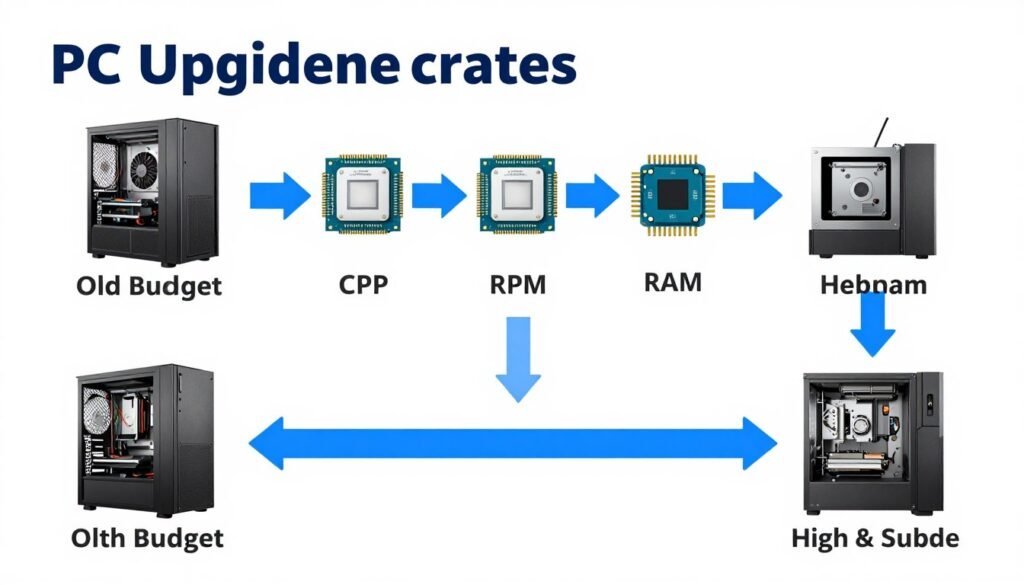
Here’s something most people don’t think about: when you fix one bottleneck, you often reveal another. I upgraded my old GTX 1070 to an RTX 3070, which fixed my GPU bottleneck. But suddenly my Ryzen 5 2600 CPU couldn’t keep up with the new card’s capabilities. I went from a 22% GPU bottleneck to an 18% CPU bottleneck.
That’s not a problem with the upgrade—that’s just how systems work. You fix the weakest link, and the next-weakest link becomes apparent. Understanding this helps you plan a realistic upgrade path instead of being surprised when the “perfect” build you just finished still has a small imbalance.
Buy for Your Next Upgrade Too
When I bought my current CPU, I didn’t just think about what GPU I had. I thought about what GPU I might buy in two years. I went with a Ryzen 7 7800X3D, which is overkill for my current RTX 3070. But when I eventually upgrade to an RTX 5080 or whatever comes out, my CPU won’t be the bottleneck.
Same logic applies to power supplies. If you’re buying a new PSU, get one that can handle a beefier GPU than what you currently own. PSUs last 7-10 years easily. Spending an extra $30 for a 750W unit instead of 650W means you won’t have to replace it when you upgrade your graphics card later.
Motherboards are another one. If you’re doing a platform upgrade, get a board with extra features you don’t need yet—more M.2 slots, better VRMs, faster networking. You’ll use those features eventually, and it’s way cheaper to buy them upfront than to replace the motherboard later.
The Balance Between Future-Proofing and Overspending
Okay, but there’s a limit. I’ve seen people buy a $500 CPU to pair with a $200 GPU “for future upgrades.” That’s just wasting money. You’re paying for performance you won’t use for years, and by the time you upgrade that GPU, there might be a better CPU option anyway.
My approach: buy one tier above what you need right now. If your current usage needs a mid-range CPU, buy an upper mid-range. If you need a 650W PSU, get a 750W. But don’t jump two or three tiers thinking you’re “future-proofing.” You’re just overspending.
The sweet spot is building a system that’s slightly unbalanced toward the component that’s harder to upgrade. For most people, that means getting a slightly better CPU and motherboard than needed, since those require more work to replace. GPUs are easy to swap, so you can buy exactly what you need now and upgrade later.
Games and Software Keep Getting Heavier
Something to keep in mind: games from 2020 run way heavier than games from 2016, and games from 2024 are even more demanding. If you’re building a system to last several years, account for that increasing demand.
I built what I thought was a beast system in 2018. By 2022, it was struggling with new releases. Hardware didn’t get worse—software just got more demanding. That’s inevitable. Plan for it.
The exception? If you mainly play esports titles or older games, you can ignore this. Valorant, CS2, League of Legends—these will run great on mid-range hardware for years. But if you want to play the latest AAA releases at high settings, expect those games to push your system harder every year.
Why Your Use Case Changes Everything
I’ve seen people stress about bottleneck percentages that literally don’t matter for what they actually do with their PC. A competitive Valorant player and a 4K video editor need completely different systems, even if they have the same budget.
Gaming Different Types of Games
Not all gaming is created equal. The “perfect” build for someone who plays Cyberpunk 2077 at max settings looks nothing like the ideal setup for someone grinding Fortnite.
Competitive Esports Gamers
These folks want maximum FPS at low settings. That means CPU matters way more than GPU. A 15-20% GPU bottleneck is totally fine because they’re not trying to push graphics quality—they’re trying to hit 240+ FPS for smooth gameplay and low input lag.
I know players running RTX 4060 cards with Ryzen 7 7800X3D CPUs. That looks unbalanced on paper, but for CS2 or Valorant at 1080p low settings, it’s perfect. Their CPU can push 400+ FPS, and the GPU has no problem keeping up at low settings.
AAA Single-Player Gamers
If you’re playing Red Dead Redemption 2, Cyberpunk, or Starfield, you want high graphics quality and resolution. That shifts the balance toward GPU. A 10-15% CPU bottleneck is acceptable because your graphics card is doing the heavy lifting anyway.
My friend plays mostly single-player RPGs at 1440p. He runs an i5-13600K with an RTX 4070 Ti. Calculator shows a slight CPU bottleneck, but in practice, his GPU stays maxed while his CPU has headroom. That’s exactly what he wants.
Content Creation and Video Editing
This is where bottleneck percentages get really context-dependent. Different editing software stresses different components.
DaVinci Resolve leans heavy on GPU for real-time effects and color grading. Adobe Premiere Pro is more CPU-intensive for encoding and timeline performance. If you’re using Resolve, a 20% CPU bottleneck might not matter much. In Premiere, that same bottleneck could double your export times.
I do some video editing as a side gig, and I learned this the hard way. I built a system thinking GPU mattered most. Got an RTX 3080 with a Ryzen 5 5600. My 4K exports in Premiere took forever because my CPU couldn’t keep up. Upgraded to a Ryzen 9 5900X and my export times dropped by 40%. The GPU barely mattered for my specific workflow.
Streaming While Gaming
Streaming adds another layer of complexity. You’re gaming AND encoding video simultaneously. That puts extra load on your CPU (if using CPU encoding) or GPU (if using GPU encoding).
Most streamers now use GPU encoding (NVENC on NVIDIA cards) because it has minimal performance impact. But that means you need a GPU strong enough to handle both the game and the encoder. A card that’s already maxed out gaming won’t have headroom for encoding.
The ideal streaming setup has a slight GPU bottleneck during gaming only. That leaves CPU headroom for OBS, Discord, and all the streaming software running in the background. If your CPU is already bottlenecked while gaming, adding streaming will murder your frame rates.
Everyday Productivity and Multitasking
If you’re not gaming or editing, bottleneck percentages barely matter. Web browsing, Office apps, video playback—these tasks don’t stress modern systems. You could have a 40% bottleneck and never notice it during regular use.
The exception is heavy multitasking. Running 50 Chrome tabs plus Slack plus Spotify plus a dozen other apps can bog down even good systems. But that’s usually a RAM issue, not a CPU-GPU balance problem.
My work laptop has an i5 with integrated graphics. Massive theoretical CPU-GPU imbalance. Doesn’t matter at all because I’m just running spreadsheets and email. Use case is everything.
| Use Case | Priority Component | Acceptable Bottleneck Range | Why This Balance Works |
| Competitive Esports (1080p) | CPU > GPU | 15-25% GPU bottleneck OK | Maximum FPS at low settings depends on strong CPU feeding frames |
| AAA Gaming (1440p-4K) | GPU > CPU | 10-15% CPU bottleneck OK | High resolution and graphics quality load the GPU primarily |
| Streaming + Gaming | Balanced, slight GPU priority | 8-12% GPU bottleneck OK | Leaves CPU headroom for encoding and streaming software |
| Video Editing (Premiere Pro) | CPU > GPU | 15-20% GPU bottleneck OK | Timeline scrubbing and effects rendering stress CPU heavily |
| Video Editing (DaVinci Resolve) | GPU > CPU | 10-15% CPU bottleneck OK | Real-time color grading and effects use GPU acceleration |
| 3D Rendering (Blender) | Depends on render engine | 10% either direction OK | CPU rendering needs strong processor, GPU rendering needs powerful card |
| General Productivity | RAM and Storage > CPU/GPU | 30%+ OK, doesn’t matter | Office apps and browsing don’t stress CPU or GPU significantly |
How to Test Your Actual Bottleneck
Calculators give you estimates. Monitoring tools show you reality. If you really want to know what’s limiting your system, you need to watch it while it’s working hard.
The Tools You Actually Need
You don’t need expensive software. These free tools show you everything:
- MSI Afterburner with RivaTuner – Shows CPU usage, GPU usage, temps, and FPS in real-time overlay while gaming. This is my go-to. Free and works with any graphics card, not just MSI.
- HWInfo64 – Detailed monitoring for temps, voltages, clock speeds, and more. Great for diagnosing thermal throttling.
- Task Manager – Built into Windows. Good enough for basic monitoring if you don’t want to install anything.
- GPU-Z and CPU-Z – Show detailed specs and real-time monitoring for your components.
I keep MSI Afterburner running pretty much always. The on-screen display shows me exactly what’s happening during gameplay. If I see my CPU at 98% and GPU at 65%, I know immediately where the limit is.

What to Look For While Testing
Load up the most demanding game or application you use. Then watch these metrics:
- CPU usage percentage – If it’s consistently 95-100%, that’s your bottleneck
- GPU usage percentage – If it’s maxed at 99%, your GPU is the limit
- CPU and GPU temperatures – Over 85°C on CPU or 80°C on GPU often means thermal throttling
- Clock speeds – If speeds drop during load, you’re thermal throttling or power limited
- RAM usage – If you’re using 90%+ of your memory, that could cause stuttering
- Frame time consistency – Spiky frame times indicate stuttering even if average FPS looks okay
The key is watching these over time, not just glancing once. Play for 15-20 minutes and see what patterns emerge. Sometimes a bottleneck only shows up after components heat up.
Interpreting What You See
Here’s how I read the results:
CPU at 100%, GPU at 60-70%: Clear CPU bottleneck. Your graphics card is waiting for the processor to catch up. This is common at 1080p with powerful GPUs.
GPU at 99%, CPU at 50-70%: GPU bottleneck, which is actually normal and good for gaming. Your graphics card is working as hard as it can while your CPU has headroom.
Both at 90-100%: Your system is well balanced and running at maximum capacity. This is ideal if you’re getting good performance.
Both under 80%: Either your FPS is capped (V-Sync, frame rate limit), you’re not running a demanding enough task, or something else is limiting performance (like RAM or storage).
CPU usage bouncing around 40-100%: This can indicate CPU bottleneck even if average usage looks lower. Games don’t load all CPU cores evenly, so one maxed-out core bottlenecks the whole system while others sit idle.
Testing Different Scenarios
Don’t just test one game at one setting. Try a few scenarios to get the full picture:
- Test at your normal resolution and settings
- Test at lower resolution (like 1080p) to see if it becomes more CPU-bound
- Test at higher settings to increase GPU load
- Test in different games—some are more CPU-intensive, others GPU-intensive
- Monitor during long sessions to catch thermal throttling that might not show up immediately
I discovered my GPU was thermal throttling this way. First 10 minutes of gaming looked perfect. After 20 minutes, GPU clock speeds dropped by 200 MHz and FPS dropped with it. Better case fans fixed that issue completely.
When Real Testing Contradicts the Calculator
This happens more than you’d think. Calculator says you have a 15% GPU bottleneck, but your monitoring shows CPU maxed and GPU idle. Trust your monitoring.
Or the opposite—calculator says you’re balanced, but you’re getting terrible stuttering. Monitoring might reveal thermal issues, RAM problems, or background app interference that the calculator couldn’t predict.
Real data beats estimates every single time. Use the calculator for initial planning. Use monitoring tools for confirmation and troubleshooting.
Expensive Mistakes I’ve Watched People Make
Let me save you some money and frustration. These are the biggest screw-ups I’ve seen people make when dealing with bottlenecks.
Upgrading the Wrong Component First
This is the most common one. Someone sees low FPS, assumes their GPU is too weak, and drops $700 on a new card. FPS improves slightly, but it’s still not great. Why? Because their CPU was the actual bottleneck.
My coworker did exactly this. He bought an RTX 4070 Ti to replace his RTX 2060. His FPS went from 65 to 80 in the games he plays. Decent improvement, but nowhere near what he expected. His i5-9400F was holding that powerful GPU back massively. He ended up spending another $500 on CPU, motherboard, and RAM. Could have saved money by testing first.
Always diagnose before you buy. Spend 30 minutes with monitoring tools watching your actual usage patterns. That $0 investment in time can save you from a $700 mistake.
Trusting Marketing Instead of Benchmarks
Marketing materials from CPU and GPU manufacturers love to cherry-pick the best possible scenarios. An ad might show “up to 40% better performance” but that’s in one specific game at one specific resolution that makes their product look amazing.
I almost fell for this with an AMD GPU. The marketing emphasized 4K gaming performance. Problem is, I play at 1080p competitive games, where that card was actually worse than the NVIDIA alternative because of lower CPU overhead. Reading real benchmarks instead of marketing fluff saved me from that mistake.
Building for Specs Instead of Use Case
People get obsessed with building “balanced” systems on paper without thinking about what they actually do. They’ll stress over a 5% bottleneck that has zero impact on their real-world usage.
I know a guy who plays exclusively older games and esports titles. He spent $1,800 building a perfectly balanced high-end gaming PC because that’s what all the YouTube build guides said to do. Total overkill for his needs. A $900 system would have given him the exact same experience in the games he actually plays.
Forgetting About Platform Limitations
You can’t just keep upgrading components forever on the same platform. Eventually, your motherboard becomes the bottleneck because it doesn’t support newer features.
I watched someone buy a PCIe 4.0 SSD for their system that only supported PCIe 3.0. They paid extra for speed they literally couldn’t use. Similarly, buying DDR5 RAM when your motherboard only supports DDR4 is money wasted.
Check your platform limitations before upgrading. Sometimes the right move is a full platform refresh, even if it costs more upfront.
Ignoring Used Component Market
Brand-new components aren’t always the smartest buy. The used market offers incredible value, especially on last-gen CPUs and GPUs.
When the RTX 4000 series launched, I grabbed a used RTX 3080 for $450. That’s half the price of an RTX 4070 with basically the same performance for my 1440p gaming. A brand-new 4070 would have been the “balanced” choice according to calculators, but the used 3080 was the smart financial choice.
Obviously, buy used carefully. Check return policies, test immediately, and avoid deals that seem too good to be true. But don’t automatically dismiss used components—they can solve bottlenecks for way less money.
The FOMO Upgrade Cycle
Fear of missing out drives people to upgrade when they don’t actually need to. New CPU or GPU launches, everyone’s hyping it up, and suddenly your perfectly fine system feels inadequate.
I felt this with the RTX 4090 launch. My RTX 3070 was running everything I played at high settings and good FPS. But the FOMO was real. I almost bought a 4090 before I stopped and asked myself: “What problem am I solving?” Answer: none. I was upgrading just to upgrade.
Before any upgrade, ask yourself: what specific problem am I fixing? If the answer is “I just want newer stuff,” you probably don’t need to upgrade yet.
Questions People Keep Asking Me
Is a 10% bottleneck bad?
No, it’s completely fine. A 10% bottleneck means your system is well-balanced with just a minor imbalance. I’ve run systems with 10-15% bottlenecks for years without issues. Perfect balance (0%) basically doesn’t exist in real-world systems. Don’t stress over single-digit percentages.
Can RAM cause a bottleneck even if the calculator says I’m fine?
Absolutely. Most bottleneck calculators focus on CPU-GPU balance and ignore RAM speed and configuration. Running 8GB of slow RAM in single-channel mode will cause stuttering and performance issues that won’t show up in calculator results. I’ve seen this countless times—upgrading to faster dual-channel RAM fixed “bottlenecks” that calculators never detected.
Why do different calculators give me different percentages?
Because they use different benchmark databases and algorithms. One might pull from PassMark, another from UserBenchmark, and a third from their own testing. They also weight factors differently. I’ve seen the same hardware show anywhere from 8% to 22% bottleneck across different calculators. That’s why you should treat the numbers as rough estimates, not precise measurements.
Does thermal throttling show up in bottleneck calculators?
Nope. Calculators assume your components run at full speed in perfect conditions. If your CPU throttles from 4.5 GHz down to 3.2 GHz because it’s overheating, the calculator has no way to know that. This is why real-world monitoring is crucial—you might have a thermal bottleneck disguised as a component mismatch.
Should I upgrade CPU or GPU first?
Upgrade whichever one is actually limiting your performance in the tasks you do most. If you’re gaming at 1440p or 4K and your GPU is maxed while your CPU has headroom, upgrade the GPU. If you’re at 1080p high refresh rate and your CPU is pegged at 100%, upgrade the CPU. Check your actual usage with monitoring tools before deciding.
Can a bottleneck damage my components?
No. A bottleneck is just an imbalance—it means one part is working harder than another. That won’t damage anything. What can cause damage is overheating from inadequate cooling or running unstable overclocks. But the bottleneck itself is just inefficiency, not a danger to your hardware.
Will lowering graphics settings fix a CPU bottleneck?
Some settings yes, others no. GPU-heavy settings like textures, shadows, and anti-aliasing won’t help a CPU bottleneck. But lowering CPU-intensive settings like draw distance, NPC density, physics quality, and simulation detail can reduce CPU load. I’ve seen 10-15% FPS improvements just from tweaking CPU-bound settings in games like Total War or Cities Skylines.
Is bottleneck percentage different for laptops?
The percentage calculation is the same, but laptop results are less reliable. Laptops have power limits and thermal constraints that desktop systems don’t. Your laptop components might throttle way below their rated speeds when gaming, creating real-world bottlenecks that calculators won’t predict. Always take laptop results with extra skepticism.
Can I use a bottleneck calculator for planning a new build?
Yes, that’s actually one of the best uses for these tools. Before you buy components, plug different combinations into a calculator to see which pairings are balanced. Just remember to also check real-world benchmarks for your specific use case. The calculator gets you in the ballpark; research confirms you’re making the right choice.
What’s the bottleneck percentage for streaming and gaming simultaneously?
Calculators typically don’t account for streaming overhead. Streaming adds extra CPU load (if using x264 encoding) or GPU load (if using NVENC). For streaming, I’d aim for a system that shows a 5-10% GPU bottleneck when just gaming. That leaves headroom for your streaming software without tanking performance.
The Bottom Line on Bottleneck Percentage
After all this, here’s what actually matters: bottleneck percentage is a useful diagnostic tool, but it’s not the whole story. It gives you a starting point for understanding your system’s balance, not a final verdict on whether you need to upgrade.
The number itself—whether it’s 5%, 15%, or 25%—means less than how your PC actually performs for the things you do with it. If your games run smoothly and you’re hitting your target frame rates, a calculator showing a 20% bottleneck doesn’t mean you have a problem. It just means one component is working harder than the other, which is completely normal.
When bottlenecks actually matter is when you’re experiencing real issues: stuttering gameplay, frame drops, slow rendering times, or performance that’s way below what you expected. That’s when you should use the calculator, pair it with real-world monitoring, and figure out which component needs attention.
I’ve made most of the mistakes I warned you about in this guide. I’ve upgraded the wrong component, trusted calculator results too much, ignored real-world testing, and spent money fixing problems that didn’t actually exist. You don’t have to repeat those mistakes.
Before you spend money on upgrades, invest 30 minutes in understanding what’s really limiting your system. Run a bottleneck calculator, sure. But also monitor your actual usage, check temps and clock speeds, look at component utilization, and figure out if your experience matches what the numbers suggest.
Sometimes the fix is a $600 GPU upgrade. Sometimes it’s closing Chrome tabs and enabling XMP in your BIOS. The only way to know is checking first instead of guessing.
And remember: perfect balance doesn’t exist. Every system has some imbalance. The goal isn’t 0% bottleneck—it’s building a setup that performs well for what you actually do with it. A competitive esports player and a 4K video editor need totally different balances, even with the same budget.
Build for your use case. Monitor your actual performance. Upgrade when you notice real problems, not just because a calculator told you to.
What to Do Next
If you’re dealing with performance issues, here’s my recommendation for what to do right now:
- Test your current system with a bottleneck calculator to get a baseline understanding of component balance
- Install MSI Afterburner or similar monitoring software to watch real usage during your typical workload
- Note which component consistently hits 95-100% usage and which one sits idle
- Check your temps to rule out thermal throttling as the cause
- Try free optimizations first—update drivers, enable XMP, close background apps, adjust settings
- If problems persist after optimization, then start planning hardware upgrades based on what monitoring showed you
Don’t rush into buying new components. Most performance issues have cheaper solutions than people realize.
And if you’re building a new system from scratch, use bottleneck calculators to test different component combinations before you buy. It’s way easier to fix an imbalance on paper than after you’ve already spent the money.
Ultimately, understanding bottleneck percentage isn’t about achieving some perfect number. It’s about building confidence that your PC is working the way it should—and knowing what to do when it isn’t.
What’s the weirdest performance issue you’ve ever run into? Sometimes the problem isn’t what you’d expect.