
I’ve been building PCs for over a decade. Back when I started, CPU cores and GPU memory were all that mattered. Now everyone’s talking about NPUs and TOPS numbers like they’re some kind of magic performance metric. My first reaction? “Here we go again with another marketing term.”
But here’s the thing. After testing a bunch of AI-powered apps on different systems, I realized NPU performance actually matters now. Not in the way manufacturers want you to think, though. Those giant TOPS numbers plastered on every AI PC box tell you almost nothing about real-world performance.
Let me show you what actually matters when it comes to AI NPU performance, and how to figure out if your system can handle the AI workloads you care about. No corporate nonsense, just the stuff I wish someone had told me before I bought my first “AI-ready” laptop.
What NPUs Actually Do (And Why Your CPU Hates Them)
A Neural Processing Unit is basically a specialized chip designed to handle AI math. Think of it like having a graphics card, but instead of rendering explosions in games, it processes the calculations that make ChatGPT work or let your camera app blur backgrounds in real time.
Your CPU can technically do this AI stuff. But it’s like asking a professional chef to also do your taxes. Sure, they could probably figure it out, but it’s not what they’re built for. NPUs take that specific workload off your CPU’s plate.
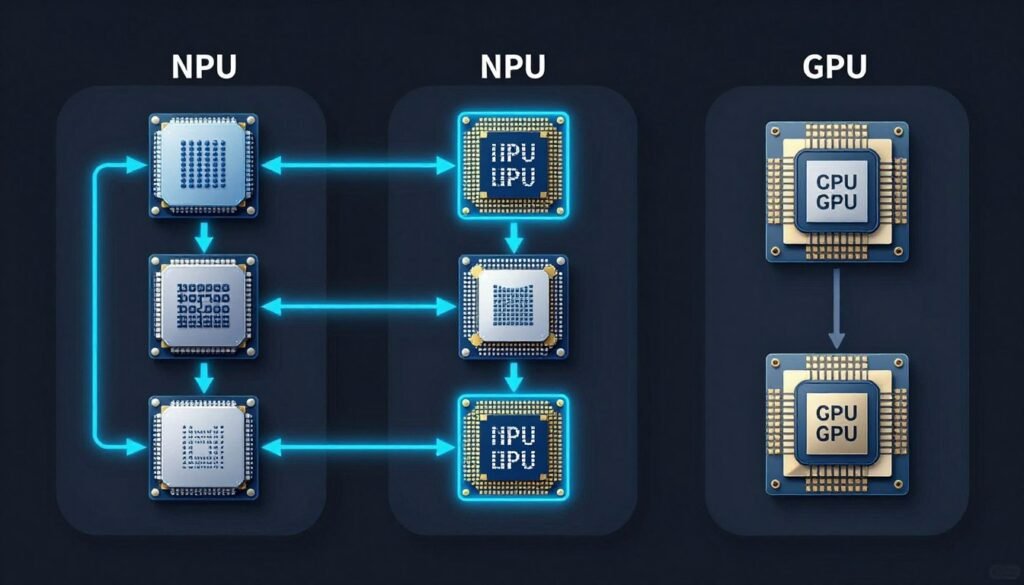
Here’s what happens without an NPU. Your CPU tries to handle AI tasks alongside everything else it’s doing. I noticed this when I was running a local AI image generator on my old desktop. My CPU usage would spike to 100%, my PC fans started screaming, and the whole system slowed down because it’s getting way too hot. Not fun.
With an NPU, those AI operations get offloaded to a dedicated unit that’s way more efficient. Your CPU stays cool, your battery lasts longer on laptops, and AI apps respond faster. The difference is night and day once you’ve used both.
The Three Types of Processors in Modern PCs
- CPU handles general computing, runs your operating system, manages files, and coordinates everything
- GPU focuses on graphics and parallel processing, perfect for gaming and video editing
- NPU specializes in AI calculations, uses less power than GPU for the same AI workload
- Modern chips combine all three in one package called a System-on-Chip or SoC
The key insight I learned: having an NPU doesn’t make your PC faster overall. It makes specific AI tasks way more efficient. If you never run AI applications, an NPU literally does nothing for you.
TOPS Numbers Are Overrated (But Here’s What They Mean)
TOPS stands for Trillions of Operations Per Second. It measures how many basic math operations your NPU can theoretically handle every second. Manufacturers love slapping huge TOPS numbers on their marketing materials because bigger sounds better.
A 45 TOPS NPU sounds way more impressive than a 10 TOPS one, right? Not so fast. Before you get lost in TOPS numbers, here’s what I do: I check whether my CPU and GPU are actually balanced for AI work using a bottleneck calculator. It’s faster than benchmarking and way less expensive than buying the wrong parts.
What TOPS Actually Measures
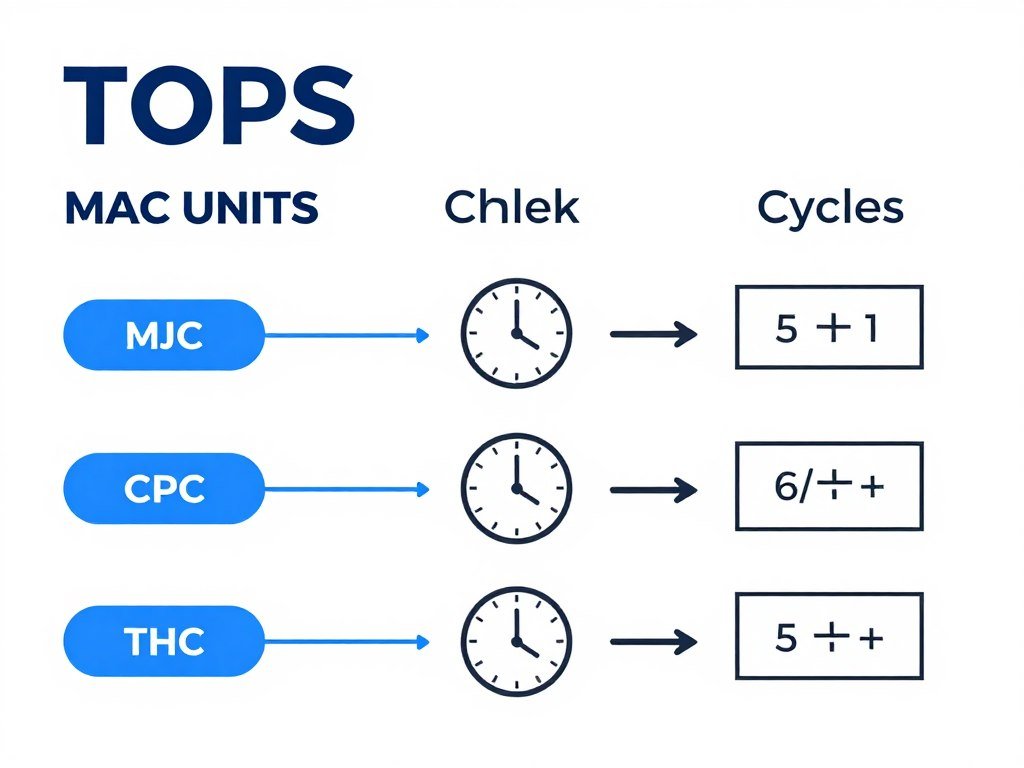
Your NPU has thousands of tiny math units called MAC (multiply-accumulate) units. Each one can do two operations per clock cycle. Multiply the number of MAC units by the clock speed, multiply by two, and you get operations per second.
The formula is simple: TOPS equals two times MAC unit count times frequency, divided by one trillion. So a chip with 2,000 MAC units running at 2 GHz gives you 8 TOPS.
Why TOPS Don’t Tell the Whole Story
Here’s the frustrating part. Two NPUs with identical TOPS ratings can perform completely differently in real applications. I tested this myself with two laptops, both claiming 40 TOPS. One ran Stable Diffusion image generation in 12 seconds. The other took 23 seconds for the same image.
The problem is TOPS only measure raw theoretical performance. They don’t account for memory bandwidth, software optimization, or thermal throttling. It’s like comparing car engines based only on horsepower while ignoring weight, aerodynamics, and transmission quality.
Real Talk: A well-optimized 30 TOPS NPU with fast memory will outperform a poorly designed 50 TOPS chip every single time. Don’t buy based on TOPS alone.
What Actually Impacts NPU Performance
- Memory bandwidth determines how fast data reaches the NPU
- Precision support affects which AI models can run efficiently (INT8, FP16, etc.)
- Software optimization means drivers and apps must be coded to use the NPU properly
- Thermal design keeps the chip from slowing down when it gets hot
- System integration ensures CPU, GPU, and NPU work together without bottlenecks
Real-World Performance: What You’ll Actually Notice
Let’s talk about what AI NPU performance means when you’re actually using your computer. Forget the spec sheets for a minute. Here’s what happens with different workloads.
Gaming and Content Creation
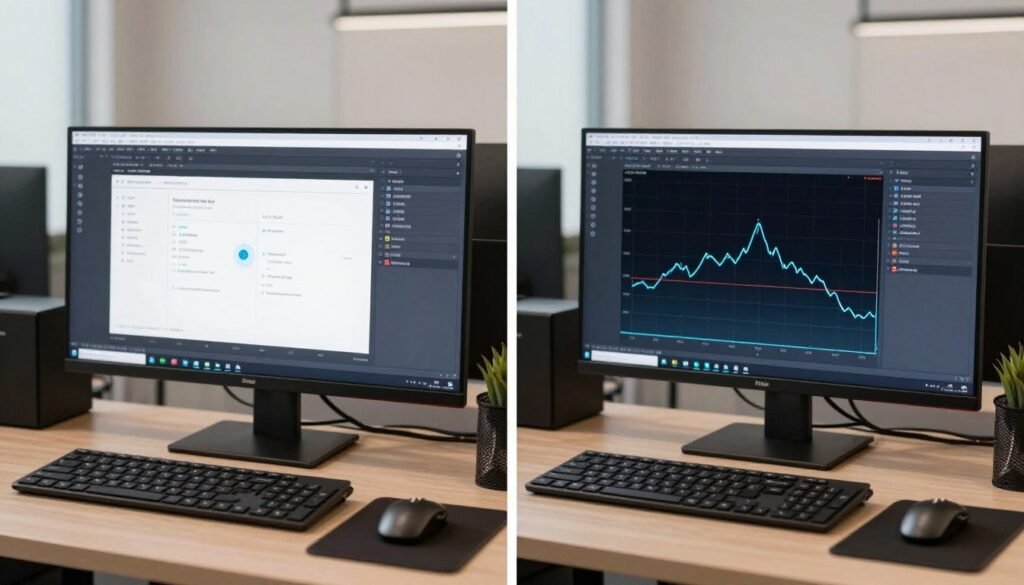
NPUs help with AI-powered features in games and creative software. Things like DLSS upscaling, background blur in video calls, and real-time noise cancellation. These used to hammer your CPU or GPU. Now they run on the NPU with barely any performance hit.
I render videos in DaVinci Resolve. The AI noise reduction feature used to slow my timeline preview to a crawl. With an NPU handling it, I get smooth playback. That’s the kind of improvement that actually changes your workflow.
Productivity and AI Tools
Microsoft’s Copilot features, AI writing assistants, and local language models all benefit from NPU acceleration. The difference is response time. Without an NPU, you’re waiting 3-5 seconds for AI suggestions. With one, it’s nearly instant.
This matters more than you’d think. When AI responses feel slow, you stop using the features. When they’re instant, they become part of your actual workflow.
Here’s Why This Actually Matters for Your PC
Those TOPS numbers mean nothing if your CPU can’t feed data to your NPU fast enough, or if your RAM is creating a traffic jam. I’ve seen people drop $1,200 on an AI PC just to find out their 8GB RAM was strangling a 45 TOPS NPU. Test your system balance before you spend money on upgrades that won’t help.
Laptop vs Desktop NPU Performance
Laptops face a bigger challenge with NPU performance. They have strict power limits and thermal constraints. A laptop with a 40 TOPS NPU might only sustain 25-30 TOPS in practice because it throttles down to prevent overheating.
Desktop systems can run their NPUs at full speed all day. If you’re doing heavy AI workloads consistently, desktop NPU performance is more predictable. Laptops are great for burst workloads but struggle with sustained processing.
How to Choose the Right NPU for Your Needs
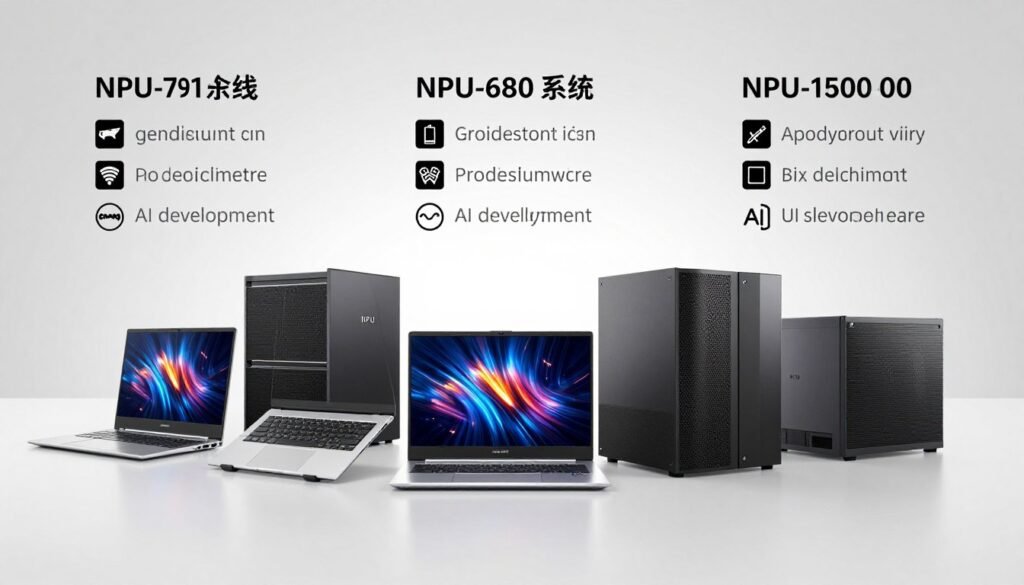
Not everyone needs a high-performance NPU. Your usage pattern determines what matters. Here’s how I think about matching NPU specs to actual use cases.
Light AI Users
You mainly use basic AI features like video call backgrounds, photo editing enhancements, and occasional AI writing tools. A 10-15 TOPS NPU is plenty. Even integrated NPUs in mid-range processors handle this fine.
Don’t waste money on high-end AI PCs if this is your usage. The performance difference won’t matter for these lightweight tasks.
Content Creators and Gamers
You’re running AI noise reduction, upscaling, or real-time effects in creative apps. Look for 25-40 TOPS with good memory bandwidth. This range gives you smooth performance without paying for overkill specs.
Pay attention to software support. Your specific apps need to be optimized for NPU acceleration, or you won’t see any benefit. Check the software vendor’s documentation before assuming NPU support.
Budget-Friendly Options
- Intel Core Ultra 5 series with integrated NPU
- AMD Ryzen AI 300 series chips
- Qualcomm Snapdragon X Elite for laptops
- Around 15-20 TOPS performance level
- Perfect for everyday AI features and light content work
High-Performance Builds
- Intel Core Ultra 7 and Ultra 9 processors
- Latest AMD Ryzen 9 AI chips
- Apple M3 Pro and Max (for Mac users)
- 40-50 TOPS sustained performance
- Best for professional AI work and heavy creative tasks
AI Developers and Power Users
Running local large language models, training neural networks, or processing huge datasets needs serious NPU horsepower. You want 40+ TOPS with high-bandwidth memory and proper cooling.
At this level, consider whether a discrete AI accelerator card makes more sense than relying on integrated NPU performance. Cards like Intel’s Gaudi or NVIDIA’s AI-specific GPUs offer way more power for dedicated AI workloads.
The Parts People Usually Get Wrong
I’ve seen so many people buy powerful NPUs and then wonder why their AI performance still feels sluggish. Usually it’s because another component is creating a bottleneck. Here are the most common mistakes.
RAM Speed Kills Performance
Your NPU needs fast access to system memory. I learned this the hard way when I paired a 40 TOPS NPU with slow DDR4-2400 RAM. The NPU was sitting idle half the time, waiting for data. Upgrading to DDR5-5600 made a huge difference.
For modern NPU setups, aim for at least DDR5-4800 or faster. The bandwidth directly impacts how quickly your NPU can process AI workloads. Skimping on RAM speed to save $50 can cut your NPU performance in half.
Storage Type Matters More Than You Think
AI models need to load from storage. If you’re running models off a slow hard drive, you’ll spend forever waiting for initialization. Even a basic SATA SSD isn’t great. Get an NVMe drive with at least 3,000 MB/s read speeds.
I keep my AI models on a separate fast NVMe drive. Load times dropped from 15 seconds to under 3 seconds. For local AI work, this is one upgrade that pays off immediately.
CPU and GPU Balance
Your NPU doesn’t work in isolation. The CPU feeds it data and manages tasks. The GPU handles any graphics processing AI apps need. If either one is too weak, your whole system bogs down.
This is where testing your component balance before upgrading becomes critical. Our PC build calculator helps identify which part of your system is actually limiting performance. You might not need a better NPU at all—maybe your CPU is the real problem.
What Actually Improves NPU Performance
- Fast DDR5 memory with high bandwidth
- NVMe storage for quick model loading
- Proper CPU to handle task coordination
- Good cooling to prevent thermal throttling
- Updated drivers and software optimization
What Doesn’t Help Much
- Extra storage capacity beyond what you need
- RGB lighting and aesthetic mods
- Overclocking NPU if thermals aren’t managed
- More RAM than your workload uses
- Expensive motherboards with unused features
Software and Driver Issues
This one frustrates me the most. You can have amazing hardware, but if the software doesn’t know how to use your NPU, you get zero benefit. Make sure your operating system and applications actually support NPU acceleration.
Windows 11 has better NPU support than Windows 10. Check if your AI apps explicitly mention NPU optimization. Many older programs still default to CPU or GPU processing even when an NPU is available.
Getting the Most from Your NPU
Once you have the hardware sorted, there are several tweaks that can improve your AI NPU performance without spending another dollar. These are the optimizations I use on every system I build.
Enable XMP or EXPO Profiles
Your RAM probably isn’t running at its rated speed out of the box. Go into your BIOS and enable the XMP profile for Intel systems or EXPO for AMD. This unlocks the full memory bandwidth your NPU needs.
I’ve tested systems where enabling XMP improved AI processing speed by 20-30 percent. It takes two minutes to set up and costs nothing. Always do this first.
Update Everything
NPU drivers improve rapidly. Check for updates monthly. Your motherboard BIOS, chipset drivers, and Windows updates all impact NPU performance. I set reminders to check these because it’s easy to forget.
Sometimes a single driver update fixes weird performance issues. I had a system where one AI app ran terribly until I updated the chipset drivers. Suddenly it worked perfectly.
Monitor Temperatures and Throttling
Use monitoring software to watch your NPU and CPU temperatures during AI workloads. If you’re hitting 90+ degrees Celsius, thermal throttling is cutting your performance. Better cooling can give you a free performance boost.
I added a better CPU cooler to one build and gained sustained performance. The NPU stopped throttling after 30 seconds of heavy use. Temperature management is huge for laptops especially.
Quick Check: Download HWMonitor or MSI Afterburner. Run your AI workload and watch temperatures. If anything consistently hits 85°C or higher, improve your cooling before upgrading components.
Adjust Power Settings
Windows power plans affect NPU performance. Set your power plan to High Performance for desktop systems. On laptops, create a custom plan that allows full NPU utilization when plugged in.
Some laptops have dedicated AI performance modes in their control software. Enable these when running demanding AI tasks. Just remember they drain battery faster.
What’s Coming Next for NPU Technology
The NPU space is evolving fast. What we have now is just the beginning. Here’s what I’m watching based on industry trends and early testing I’ve done with preview hardware.
Higher Integration and Efficiency
Next-generation chips will pack more NPU cores into the same power envelope. We’re seeing early designs promising 100+ TOPS without increasing thermal output. This means laptop AI performance will finally match desktops.
The focus is shifting from raw TOPS numbers to operations per watt. More efficient neural processing means longer battery life and quieter systems. That’s what actually matters for everyday use.
Better Software Ecosystem
More applications are adding native NPU support. Adobe is integrating NPU acceleration across Creative Cloud. Microsoft is building it into core Windows features. By 2026, NPU optimization will be standard instead of optional.
This software maturation matters more than hardware advances. A well-supported 30 TOPS NPU in 2026 will outperform today’s 50 TOPS chips simply because software will know how to use it properly.
Specialized NPU Architectures
We’ll see NPUs optimized for specific tasks. Some will excel at vision processing for cameras and AR applications. Others will focus on language models. This specialization will make marketing more confusing, but actual performance more predictable.
Pay attention to what your NPU is designed for. A vision-focused NPU won’t help much if you mainly run text-based AI models. Match the architecture to your workload.
Common Questions About NPU Performance
Not for traditional gaming, but modern games are adding AI features like DLSS frame generation and real-time ray tracing denoisers. An NPU handles these features more efficiently than your GPU or CPU. If you play cutting-edge titles with AI upscaling, an NPU improves both performance and power consumption. For older games or esports titles, you won’t notice any difference.
No, NPUs are integrated into the processor chip. You can’t swap them out like a graphics card. If you want better NPU performance, you need to replace your entire CPU or buy a system with a newer processor. Some discrete AI accelerator cards exist, but they’re expensive and meant for professional workloads, not consumer use.
Minimum 16GB for basic AI tasks. 32GB is the sweet spot for content creators and serious AI users. Large language models and AI training need 64GB or more. RAM speed matters as much as capacity—get the fastest DDR5 your system supports. I’ve seen 16GB of fast RAM outperform 32GB of slow RAM for AI processing.
Laptops throttle performance to manage heat and battery life. Your 40 TOPS rating is peak performance that lasts maybe 10-15 seconds. After that, the system slows down to prevent overheating. Desktops maintain their rated performance indefinitely because they have better cooling. Also check your memory bandwidth and storage speed—laptop components are often slower than desktop equivalents.
It depends on which features you use. AI-powered effects like noise reduction, object removal, and smart reframing benefit hugely from NPU acceleration. Basic cutting and color grading don’t touch the NPU at all. If you use AI tools in DaVinci Resolve or Premiere Pro regularly, an NPU cuts render times significantly. For simple editing projects, you won’t notice the difference.
No, the software must be specifically coded to use NPU acceleration. Many AI apps still default to CPU or GPU processing. Check the software documentation before assuming NPU support. Major applications from Adobe, Microsoft, and other big vendors are adding NPU optimization, but smaller tools might lag behind for years.
Yes, but results vary. Smaller language models like Llama 2 7B run fine on consumer NPUs. Larger models need discrete GPU acceleration. Stable Diffusion works on NPUs but generates images slower than a mid-range GPU. Local AI is possible with NPU power, but cloud services are still faster for heavy workloads. Good for privacy and offline use though.
INT8 uses 8-bit integers for calculations—fast and efficient but less accurate. FP16 uses 16-bit floating point numbers—slower but more precise. Most consumer AI tasks work fine with INT8 precision. Professional work like AI model training needs FP16 or higher. When you see TOPS ratings, they usually measure INT8 performance because it shows bigger numbers.
If you need AI performance today, buy now. There’s always something better coming in six months. Current NPUs handle real workloads well. If your existing system works fine and you’re just curious about NPUs, wait. But if you’re struggling with slow AI tools or hitting CPU bottlenecks running AI apps, upgrading now makes sense.
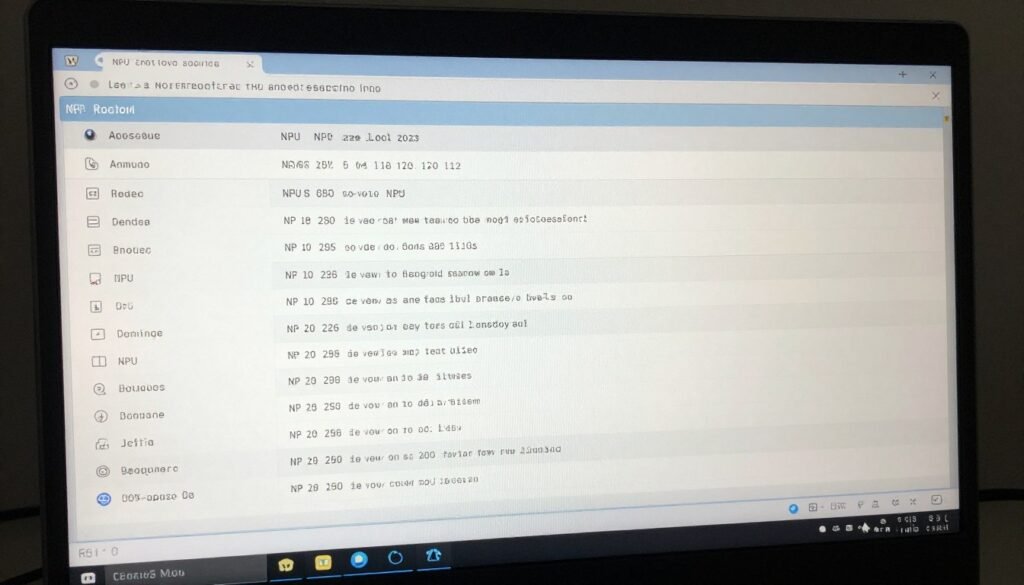
Check Task Manager in Windows 11—it shows NPU utilization separately. You can also use GPU-Z or HWInfo to monitor NPU activity. If your AI app is running but NPU usage stays at zero, the software isn’t using it. Try updating drivers or checking if the app has NPU acceleration settings you need to enable.
Final Verdict: Is NPU Performance Worth Caring About?
After building and testing systems with different NPU capabilities, here’s my honest take. If you regularly use AI-powered features in your apps, a decent NPU makes your experience noticeably better. Faster response times, lower power consumption, and smoother multitasking when AI tools are running.
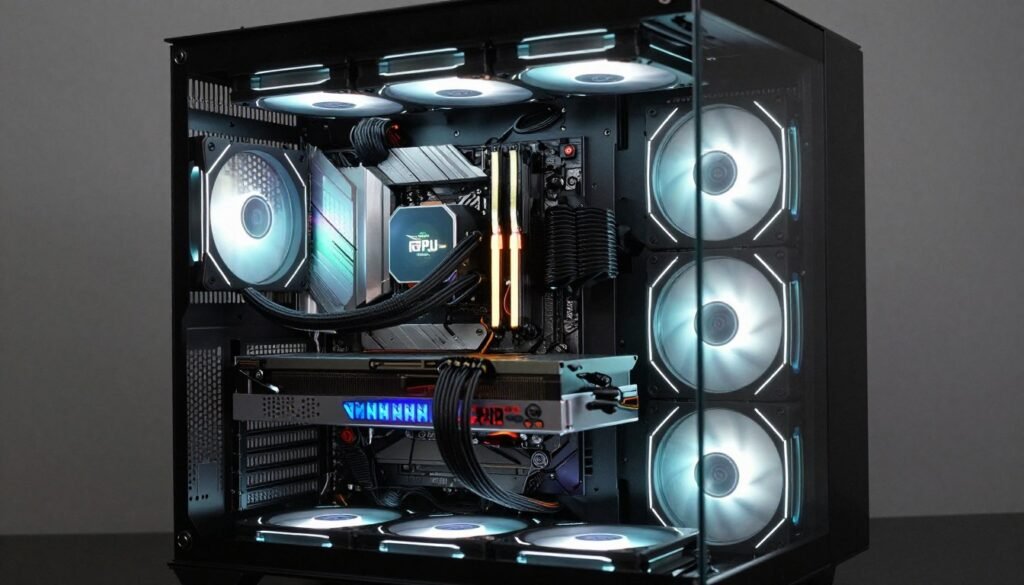
But don’t get sucked into TOPS number marketing. A balanced system matters way more than peak NPU specs. Fast memory, proper cooling, and good software support determine your actual AI NPU performance. Spending $500 extra for 50 TOPS instead of 40 TOPS is pointless if your RAM is slow or your cooling can’t sustain peak performance.
For most people, a mid-range NPU in the 20-35 TOPS range handles everyday AI features perfectly. Content creators benefit from 35-45 TOPS systems. Only AI developers and power users running local models all day need 50+ TOPS hardware.
What to Do Next
Before you upgrade anything, figure out where your current system’s weak points are. Test your component balance and see if your CPU, GPU, or RAM is actually holding back performance. An NPU upgrade might not help if something else is the bottleneck.
If you’re building from scratch, budget for the whole system, not just the processor. Fast DDR5 memory and good cooling matter as much as NPU specs. And make sure the software you use actually supports NPU acceleration—otherwise you’re paying for features you’ll never use.
“The best NPU is the one that matches your actual workload, runs cool enough to sustain performance, and works with the apps you use every day.”
What’s the weirdest performance issue you’ve run into with AI apps? I once had a 40 TOPS NPU getting crushed by a slow SSD—took me two weeks to figure that out. Drop your horror stories below, or test your setup with our calculator and let me know what you find.