
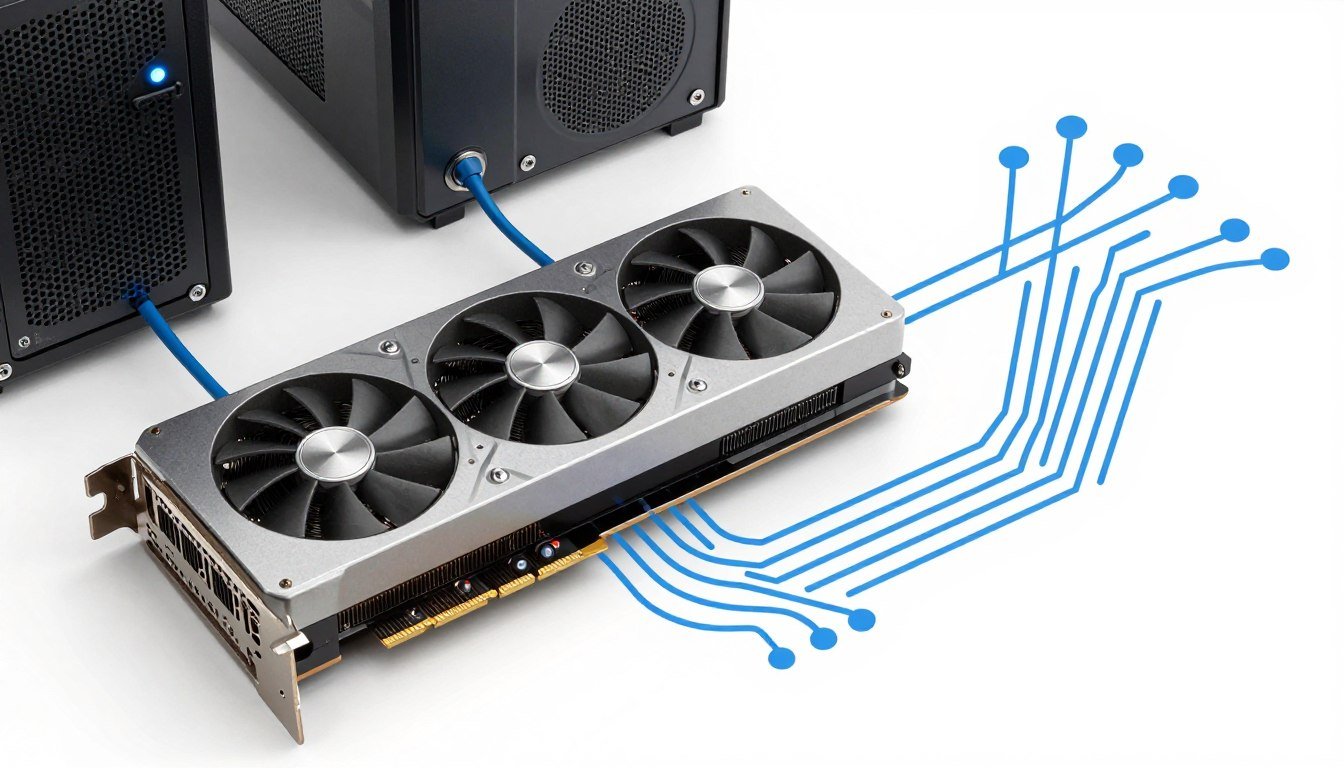
What Is a GPU Bottleneck?
A GPU bottleneck occurs when your graphics card becomes the limiting factor in your system’s performance chain. Think of your computer as an assembly line—each component processes data and passes it to the next. When your graphics card can’t keep up with the data being fed to it by your CPU and other components, it creates a processing traffic jam.
Unlike CPU bottlenecks (where your processor limits performance), a GPU bottleneck means your graphics card is struggling to render frames quickly enough to match the processing power of your other components. This results in lower frame rates, visual stuttering, and reduced overall performance—particularly in graphically demanding games or applications.
A bottleneck is simply the weakest link in your performance chain. When it comes to GPU bottlenecks, your graphics card is that weak link—unable to process visual data as quickly as it’s being supplied.
How GPU Bottlenecks Affect Your Experience
When your GPU is bottlenecked, you’ll notice several telltale signs:
- Lower than expected frame rates despite having other powerful components
- Graphics settings having a dramatic impact on performance
- GPU usage consistently at or near 100% while CPU usage remains lower
- Significant performance drops in visually complex scenes
- Minimal performance difference when upgrading other components
Understanding these symptoms is the first step toward diagnosing and resolving GPU performance limitations.
Core Causes of GPU Bottlenecks
Several factors can contribute to a GPU bottleneck, from hardware limitations to software configurations. Let’s examine the most common causes:
Outdated Graphics Architecture
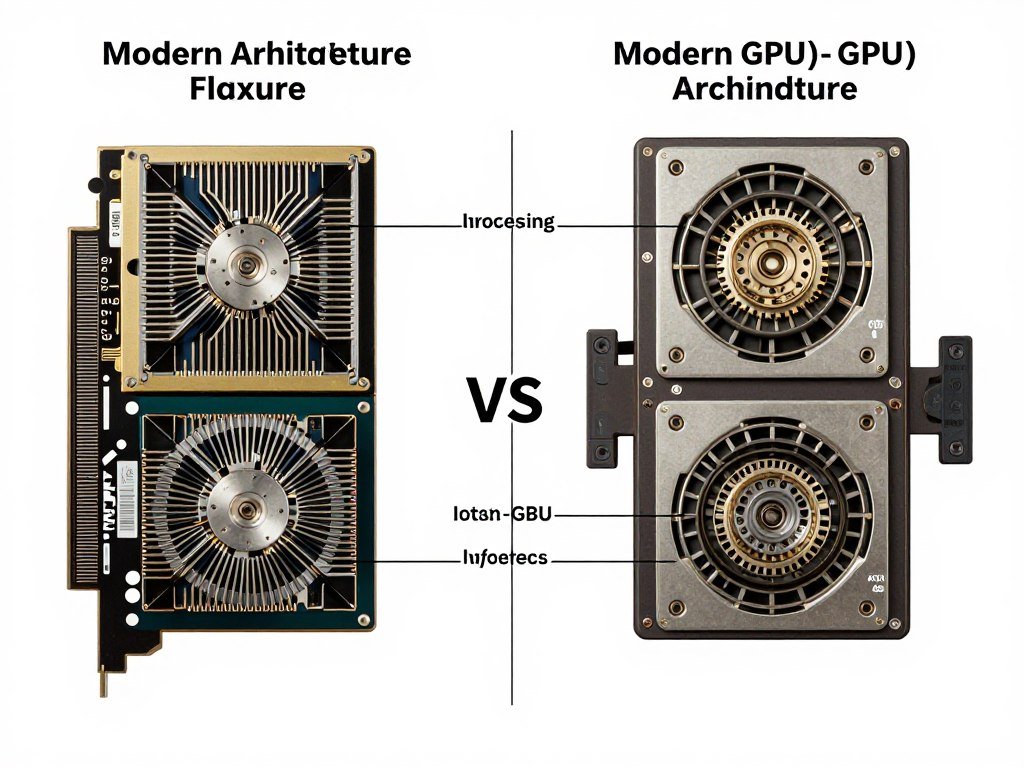
Graphics architecture refers to the fundamental design and capabilities of your GPU. Older architectures (like NVIDIA’s Pascal or AMD’s Polaris) lack the advanced features and optimizations found in newer generations (like Ampere, Ada Lovelace, or RDNA 3). This architectural gap creates inherent limitations in how efficiently your GPU can process modern rendering workloads.
Modern games and applications increasingly rely on features like ray tracing, mesh shaders, and AI-accelerated rendering—technologies that older GPU architectures either don’t support or handle inefficiently. This architectural mismatch creates a bottleneck that no amount of tweaking can fully resolve.
Insufficient VRAM (Video Memory)
VRAM serves as your GPU’s dedicated memory for storing textures, models, and frame buffers. When a game or application requires more VRAM than your graphics card provides, it must constantly swap data between system RAM and VRAM—a process that dramatically reduces performance.
Modern games at high resolutions can easily demand 8GB or more of VRAM, especially with high-resolution textures enabled. If your GPU has only 4GB or 6GB of VRAM, you’ll experience stuttering and frame drops as the system struggles to manage memory resources, creating a clear bottleneck.
Key Takeaway: VRAM requirements increase with resolution, texture quality, and anti-aliasing settings. A card with insufficient VRAM will bottleneck regardless of its processing power.
Demanding Rendering Workload
The rendering workload refers to the complexity and volume of graphical calculations your GPU must perform. Several factors can create an excessive workload that bottlenecks your graphics card:
Resolution Scaling
Each step up in resolution dramatically increases the number of pixels your GPU must render:
- 1080p: 2.1 million pixels
- 1440p: 3.7 million pixels (77% more than 1080p)
- 4K: 8.3 million pixels (295% more than 1080p)
Advanced Effects
Modern rendering techniques create significant GPU load:
- Ray tracing (realistic lighting and reflections)
- Global illumination and volumetric lighting
- High sample count anti-aliasing
- Screen space reflections and ambient occlusion
Thermal Throttling
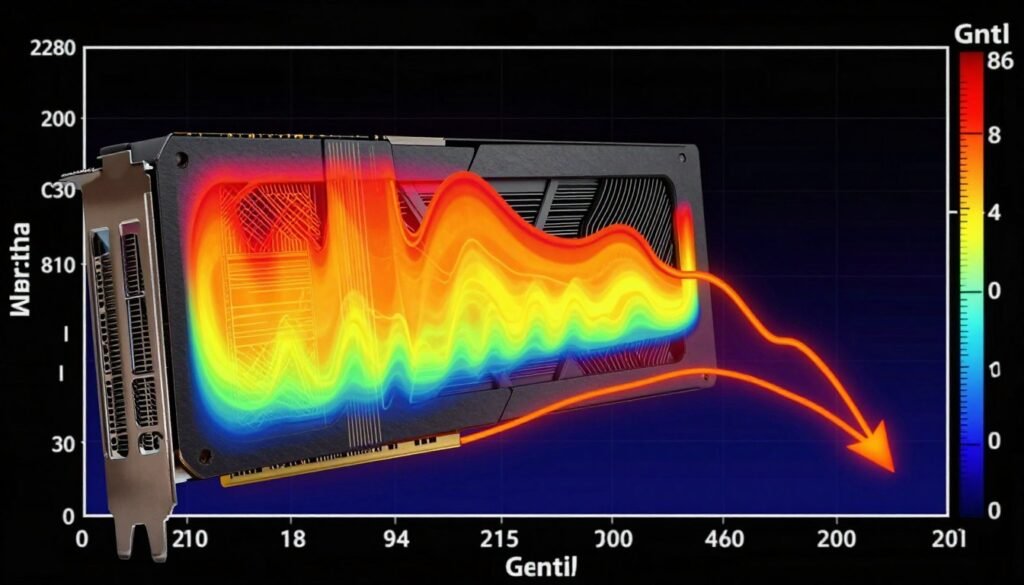
Even a powerful GPU will underperform if it can’t maintain proper operating temperatures. Modern graphics cards automatically reduce their clock speeds (thermal throttling) when they reach temperature thresholds—typically around 83-86°C. This self-preservation mechanism creates a performance bottleneck as the GPU sacrifices speed to prevent damage.
Poor case airflow, dust accumulation, inadequate cooling solutions, or aggressive factory overclocks can all contribute to thermal throttling. This is one of the most common yet overlooked causes of GPU bottlenecks.
How to Identify a GPU Bottleneck
Before you can fix a GPU bottleneck, you need to confirm it exists and understand its severity. Here’s a step-by-step diagnostic approach:
Monitor System Resource Usage
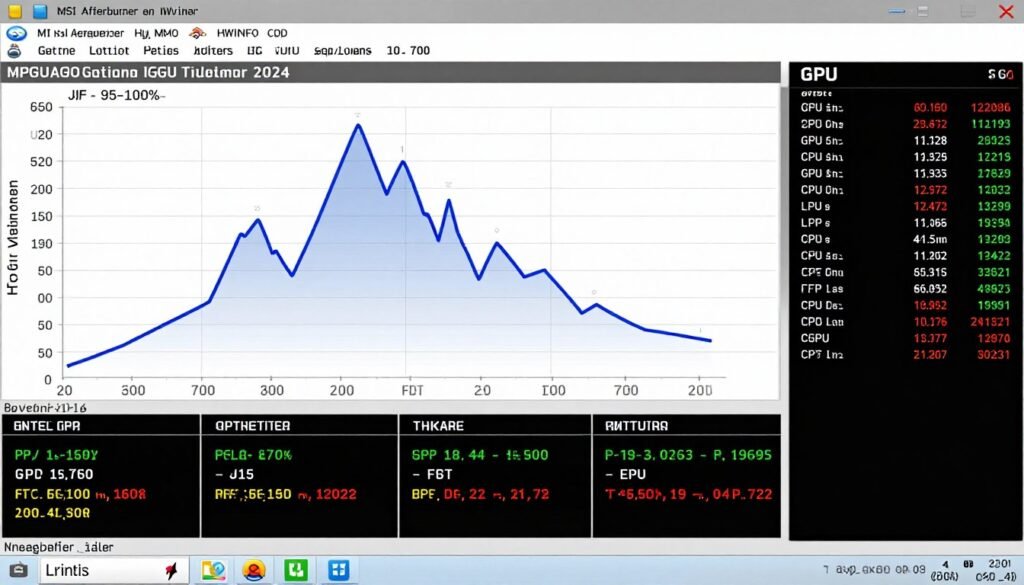
The most reliable way to identify a GPU bottleneck is by monitoring resource usage during gameplay. Several free tools can help:
Recommended Monitoring Tools
- MSI Afterburner with RTSS: Provides comprehensive on-screen display of GPU and CPU usage, temperatures, frame rates, and more
- HWiNFO: Detailed hardware monitoring with logging capabilities
- GPU-Z: GPU-specific monitoring with sensor data
When monitoring, look for these specific indicators of a GPU bottleneck:
- GPU usage consistently at 95-100% while CPU usage is notably lower (typically 50-80%)
- Frame rates that drop significantly when graphical effects or resolution are increased
- GPU temperatures approaching throttling limits (usually above 80°C)
- VRAM usage at or near maximum capacity
Run Benchmark Tests
Standardized benchmarks provide consistent workloads to evaluate your GPU’s performance relative to similar systems:
Synthetic Benchmarks
- 3DMark: Industry-standard GPU benchmark
- Unigine Heaven/Superposition: Graphics-intensive stress tests
- GFXBench: Cross-platform graphics benchmark
In-Game Benchmarks
- Built-in game benchmarks: Many modern games include benchmark tools
- CapFrameX: Capture and analyze game performance
- FRAPS: Frame rate recording and benchmarking
Compare your results with online databases or similar system configurations. If your GPU consistently underperforms relative to comparable systems with the same graphics card but different CPUs, you’re likely experiencing a GPU bottleneck.
The Resolution Test
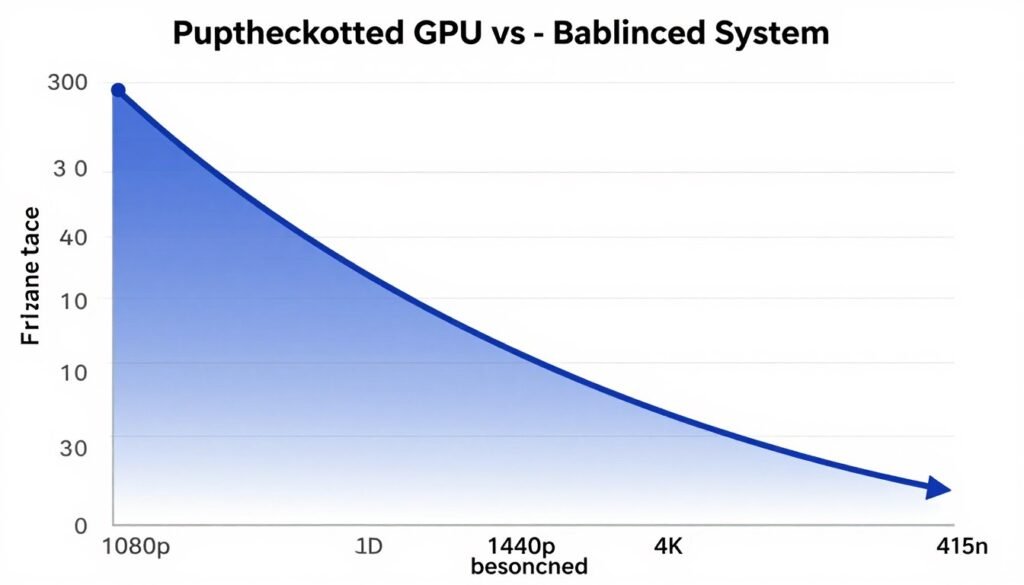
A simple but effective test for GPU bottlenecks is to run the same game at different resolutions:
- Run your game at a low resolution (e.g., 1080p) and note the frame rate
- Increase to a higher resolution (e.g., 1440p or 4K) with the same graphics settings
- Compare the performance drop
If your frame rate drops dramatically (more than 30-40%) when increasing resolution, your GPU is likely the bottleneck. This occurs because resolution increases primarily affect the GPU workload, not the CPU.
Not Sure If Your GPU Is Bottlenecked?
Use our free online calculator to analyze your system components and identify performance bottlenecks. Get personalized recommendations based on your specific hardware configuration.
Diagnosing Specific Types of GPU Bottlenecks
Different GPU bottlenecks require different solutions. Let’s examine how to identify specific types of graphics limitations:
VRAM Bottlenecks
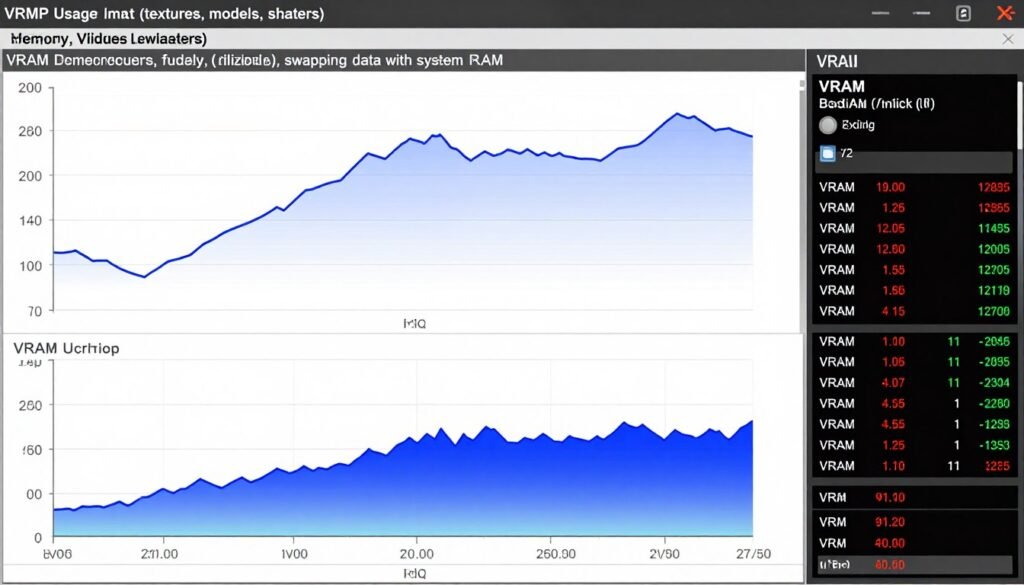
Insufficient video memory creates distinctive performance problems:
Signs of VRAM Bottleneck
- Severe stuttering when moving to new areas in games
- Texture pop-in or low-resolution textures appearing temporarily
- Performance degradation over time during a gaming session
- VRAM usage at or near maximum in monitoring tools
- Dramatic performance improvement when lowering texture quality
Common Causes
- Using ultra-high resolution textures with limited VRAM
- Gaming at 4K resolution with less than 8GB VRAM
- Excessive anti-aliasing settings (especially MSAA)
- Texture mods that exceed original game requirements
- Multiple monitors or very high resolution displays
Thermal Bottlenecks
When your GPU throttles due to heat, you’ll notice these patterns:
- Performance degradation after several minutes of gaming as the card heats up
- GPU clock speeds dropping from their maximum rated values
- Temperatures consistently above 80-85°C during gaming sessions
- Fan speeds at maximum but temperatures remaining high
- Performance improving temporarily after a break when the card cools down
Architecture Limitations
Some bottlenecks stem from fundamental limitations in your GPU’s design:
| Feature | Symptoms | Typical Affected GPUs |
| Ray Tracing Performance | Severe FPS drops when enabling ray tracing | GTX 16-series, RTX 2060/2070, RX 5000 series |
| Shader Processing | Poor performance with complex lighting effects | GTX 10-series, RX 500 series |
| Memory Bandwidth | Performance issues at high resolutions | Cards with narrow memory bus (128-bit) |
| Compute Performance | Struggles with physics simulations and particle effects | Budget GPUs with limited CUDA/Stream processors |
How to Fix GPU Bottlenecks: A Step-by-Step Guide
Once you’ve identified a GPU bottleneck, you can take several approaches to resolve it, from simple software tweaks to hardware upgrades:
Optimize Graphics Settings
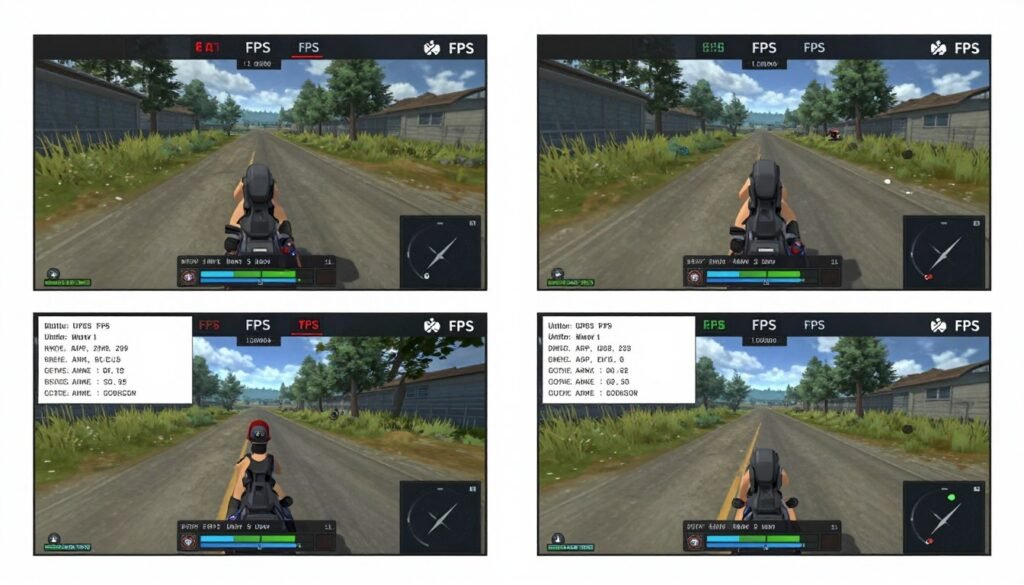
The most accessible solution is adjusting in-game settings to reduce GPU load:
High-Impact Settings to Lower
- Shadow Quality: Shadows are extremely GPU-intensive
- Anti-Aliasing: Especially MSAA and SSAA types
- Ambient Occlusion: HBAO+ and SSAO are demanding
- Volumetric Effects: Fog, clouds, and smoke
- Ray Tracing: Disable or use lower settings
Lower-Impact Visual Settings
- Texture Quality: Often minimal performance impact if VRAM is sufficient
- Anisotropic Filtering: Modern GPUs handle this well
- Model Detail: Moderate impact on most systems
- View Distance: Can be CPU-bound in many games
- Post-Processing: Varies by effect type
Pro Tip: Use NVIDIA DLSS, AMD FSR, or Intel XeSS upscaling technologies when available. These AI-enhanced scaling solutions can dramatically improve performance with minimal visual quality loss.
Improve Cooling and Power Delivery
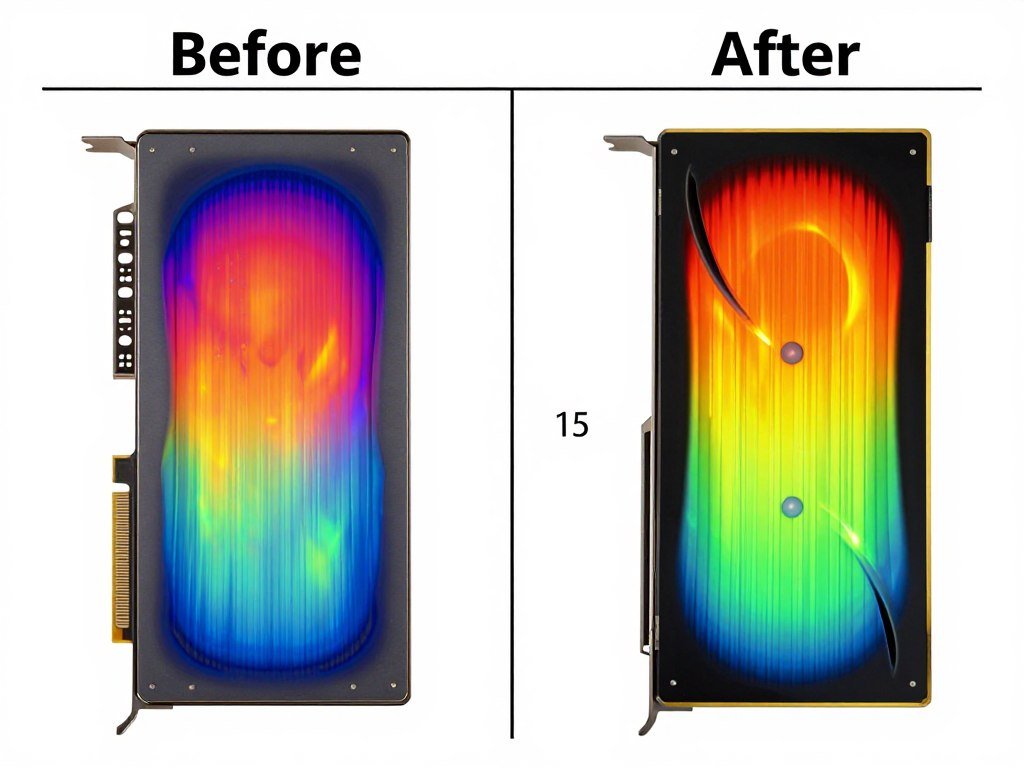
Thermal throttling is a common cause of GPU bottlenecks that can be addressed without replacing your graphics card:
- Clean your GPU and case fans to remove dust buildup that restricts airflow
- Improve case airflow by adding intake and exhaust fans in optimal positions
- Create a custom fan curve using software like MSI Afterburner to increase cooling at lower temperatures
- Replace thermal paste on older GPUs (2+ years) to improve heat transfer
- Consider aftermarket cooling solutions like GPU water blocks or hybrid coolers for extreme cases
Optimize VRAM Usage
If you’re experiencing VRAM bottlenecks, these specific adjustments can help:
- Lower texture quality to reduce VRAM demands
- Reduce render scale/resolution while maintaining display resolution
- Disable texture-heavy effects like high-resolution shadows
- Close background applications that might use GPU acceleration
- Limit texture cache size in games that offer this setting
Driver and Firmware Updates
Outdated drivers can significantly impact GPU performance:
Driver Update Resources
- NVIDIA GeForce Experience: Automated driver updates for NVIDIA GPUs
- AMD Radeon Software: Driver and firmware updates for AMD graphics cards
- Intel Arc Control: Updates for Intel discrete graphics
Modern GPU drivers often include game-specific optimizations that can significantly improve performance in newer titles. Always use the “Clean Install” option when updating drivers to prevent conflicts.
Hardware Upgrades
When software optimizations aren’t enough, hardware upgrades become necessary:
When selecting a new graphics card, consider these factors:
- VRAM capacity: 8GB minimum for 1440p gaming, 10GB+ for 4K
- Architecture generation: Newer architectures offer better performance per watt
- Specific rendering features: Ray tracing, DLSS/FSR support, AV1 encoding
- Power requirements: Ensure your PSU can handle the new card
- Physical size: Confirm the card fits in your case
Ready to Upgrade Your Graphics Card?
Use our GPU comparison tool to find the perfect graphics card for your needs and budget. Get personalized recommendations based on your current system and performance goals.
Advanced GPU Optimization Techniques
For users comfortable with more technical adjustments, these advanced techniques can help extract maximum performance:
Overclocking Your GPU

Overclocking can provide 5-15% additional performance from your existing graphics card:
Caution: Overclocking increases heat output and power consumption, and improper settings can cause system instability or reduce hardware lifespan. Always increase settings gradually and test thoroughly.
- Use MSI Afterburner or similar software to access overclocking controls
- Increase Power Limit to maximum to allow the GPU to draw more power
- Gradually increase Core Clock in small increments (25MHz steps)
- Test stability after each increase using benchmarks or games
- Once core is stable, increase Memory Clock in 50-100MHz increments
- Monitor temperatures to ensure they remain under 85°C
Custom Resolutions and Scaling
Creating custom resolutions can provide a better balance between quality and performance:
- 90% resolution scaling: Often imperceptible quality loss with 10-15% performance gain
- Custom ultrawide resolutions: For better peripheral vision without the full performance hit
- Integer scaling: For pixel-perfect upscaling of lower resolutions
API Selection and Optimization

Modern games often support multiple graphics APIs, each with different performance characteristics:
| Graphics API | Best For | GPU Bottleneck Impact |
| DirectX 11 | Older GPUs, stable performance | Higher driver overhead, more GPU-bound |
| DirectX 12 | Modern GPUs, multi-threading | Lower overhead, better CPU utilization |
| Vulkan | Cross-platform, low-level control | Lowest overhead, most efficient GPU usage |
| OpenGL | Compatibility, older titles | Higher overhead, more driver-dependent |
Experiment with different APIs in games that offer multiple options. DirectX 12 and Vulkan typically provide better performance on modern hardware but may be less stable in some implementations.
Future-Proofing Against GPU Bottlenecks
As games and applications become more demanding, staying ahead of potential bottlenecks requires understanding emerging trends:
Emerging GPU Technologies
Next-Gen Memory Solutions
- HBM3 and GDDR7: Higher bandwidth, lower latency memory
- Smart Memory Access: CPU-GPU memory sharing technologies
- Larger VRAM pools: 16GB+ becoming standard for high-end cards
Rendering Innovations
- Path tracing: Next evolution beyond ray tracing
- AI-accelerated rendering: DLSS 3.5, FSR 3.0 and beyond
- Mesh shaders: More efficient geometry processing
Long-Term GPU Investment Strategies
When planning your graphics card purchases, consider these strategies to minimize future bottlenecks:
- Prioritize VRAM over raw speed: More memory often extends usable lifespan
- Consider feature support over benchmarks: New rendering techniques may become essential
- Research architecture longevity: Some GPU designs age better than others
- Balance your system holistically: Consider monitor resolution, CPU capability, and storage speed
The most future-proof approach is buying the best GPU you can reasonably afford within a current generation, rather than purchasing a previous-generation flagship at the same price point.
Conclusion: Mastering GPU Performance
Understanding and addressing GPU bottlenecks is essential for maximizing your gaming and content creation experience. By identifying the specific limitations affecting your graphics card—whether they stem from outdated architecture, insufficient VRAM, thermal constraints, or demanding rendering workloads—you can implement targeted solutions to unlock your system’s full potential.
Remember that some level of bottlenecking is inevitable in any system; the goal is to minimize its impact and ensure your components work together efficiently. Regular monitoring, thoughtful upgrades, and optimization of in-game settings will help you maintain smooth performance as games and applications continue to evolve.
Ready to Optimize Your Gaming Experience?
Use our free system analyzer to identify bottlenecks and get personalized recommendations for improving your PC’s performance.
Frequently Asked Questions
Is a 10% GPU bottleneck bad?
A 10% GPU bottleneck is actually quite normal and generally not concerning. Most balanced systems will show some level of bottlenecking, and anything under 10-15% is considered healthy. You’ll likely not notice any significant performance issues with a bottleneck this small. It simply means your GPU is the limiting factor in your system, which is often preferable to a CPU bottleneck since graphics settings are easier to adjust.
Can a monitor cause a GPU bottleneck?
While a monitor itself doesn’t technically bottleneck your GPU, your display’s capabilities can effectively limit what your system delivers. For example, if you have a powerful GPU capable of rendering 144 FPS but use a 60Hz monitor, you’ll only see 60 FPS regardless of your GPU’s capabilities. Similarly, a low-resolution monitor paired with a high-end GPU means you’re not utilizing your card’s full potential for higher resolution rendering. For optimal performance matching, pair high-refresh-rate monitors with powerful GPUs.
How much VRAM do I need to avoid bottlenecks?
VRAM requirements depend primarily on your resolution, texture quality settings, and the games you play. As a general guideline:
- 1080p gaming: 6-8GB VRAM is typically sufficient
- 1440p gaming: 8-10GB VRAM recommended
- 4K gaming: 10-16GB VRAM for optimal performance
- Content creation: 8GB minimum, 16GB+ for professional work
Modern games with high-resolution textures and ray tracing can use more VRAM than older titles, so these requirements may increase over time.
Will overclocking fix my GPU bottleneck?
Overclocking can help reduce a GPU bottleneck but won’t eliminate it entirely if the limitation is significant. A typical GPU overclock provides around 5-15% performance improvement, which can help in borderline cases where you’re just slightly bottlenecked. However, if your GPU is severely underpowered for your needs (like trying to run 4K games on an entry-level card), overclocking won’t provide enough of a boost to resolve the issue. Additionally, overclocking increases heat output and power consumption, which may lead to thermal throttling if your cooling solution is inadequate.
How do I balance GPU and CPU to prevent bottlenecks?
Achieving a balanced system requires matching components appropriate for your use case:
- For 1080p gaming: Mid-range GPU (like RTX 3060/RX 6600 XT) with a 6-core CPU
- For 1440p gaming: Higher-end GPU (like RTX 3070/RX 6700 XT) with an 8-core CPU
- For 4K gaming: Top-tier GPU (like RTX 3080/RX 6800 XT or better) with an 8+ core CPU
The ideal balance also depends on the types of games you play. CPU-intensive games (like simulation or strategy titles) benefit from stronger processors, while visually demanding games (like open-world or ray-traced titles) need more powerful GPUs. Using online bottleneck calculators can help estimate compatibility before purchasing components.