
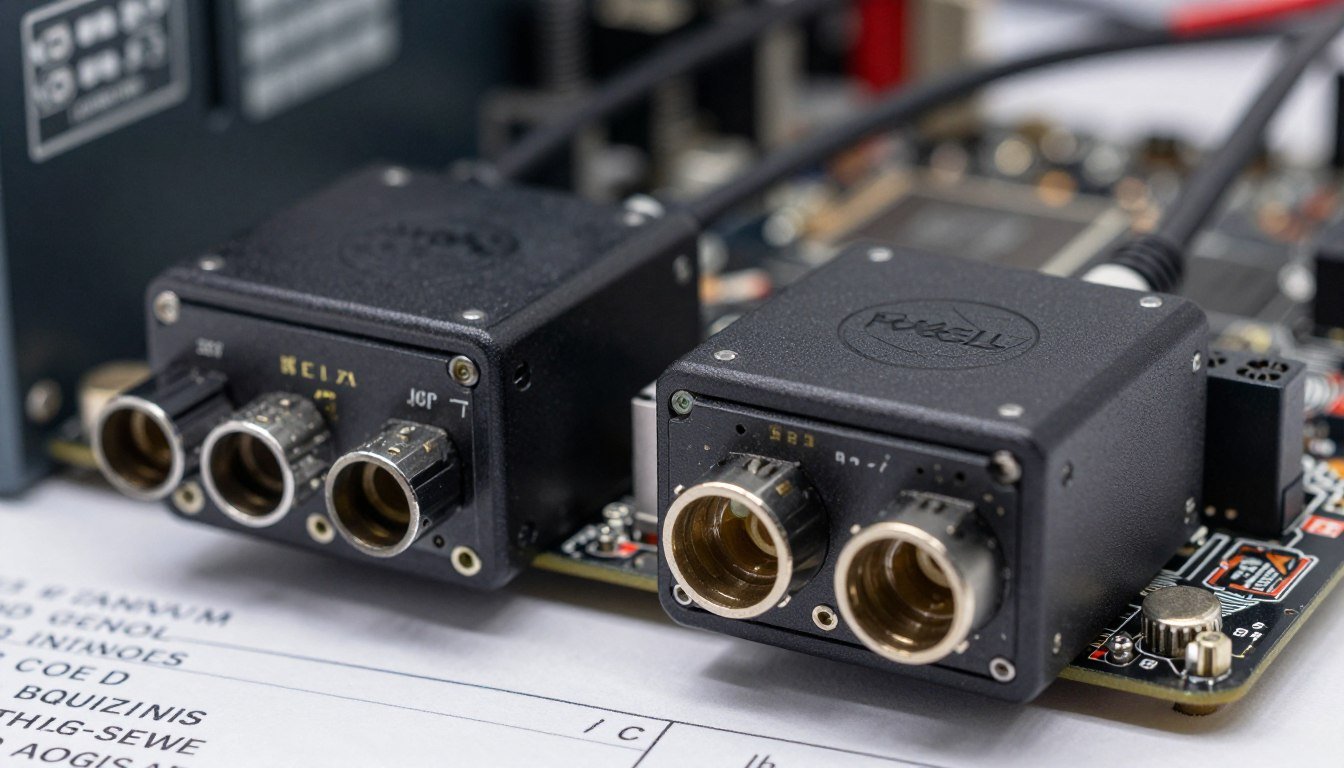
You finally saved up enough for that slick pre-built gaming system. It arrives, you unbox it, everything looks great. Six months later, you want to upgrade the GPU to an RTX 5090 because you need more power for the latest games. You pop open the case and realize the motherboard uses a weird 12-pin connector you’ve never seen before. The power supply has cables that don’t match anything standard. You’re stuck.
That’s the proprietary connector nightmare a lot of us have walked into. I learned this the hard way with an old HP system back in the day. Wanted to swap the motherboard, couldn’t use the PSU. Wanted to upgrade the cooling, the fan headers were non-standard. The whole experience taught me to look twice before buying any pre-built computer.
This guide digs into everything you need to know about proprietary connectors in pre-built PCs. We’ll cover what they are, why manufacturers use them, how to spot them before you buy, and what your options are if you already own a system with proprietary parts. By the end, you’ll know exactly what to check so you don’t get locked into a system that limits your upgrades down the road.
Quick Reality Check: Before we get into the technical details, it helps to know if your current system or planned build has any component mismatches that could cause performance issues. I always run builds through a bottleneck calculator first – it gives you a clear picture of whether your components actually work well together. Saves a lot of headaches later.
What Proprietary Connectors Actually Are (And Why They Matter)
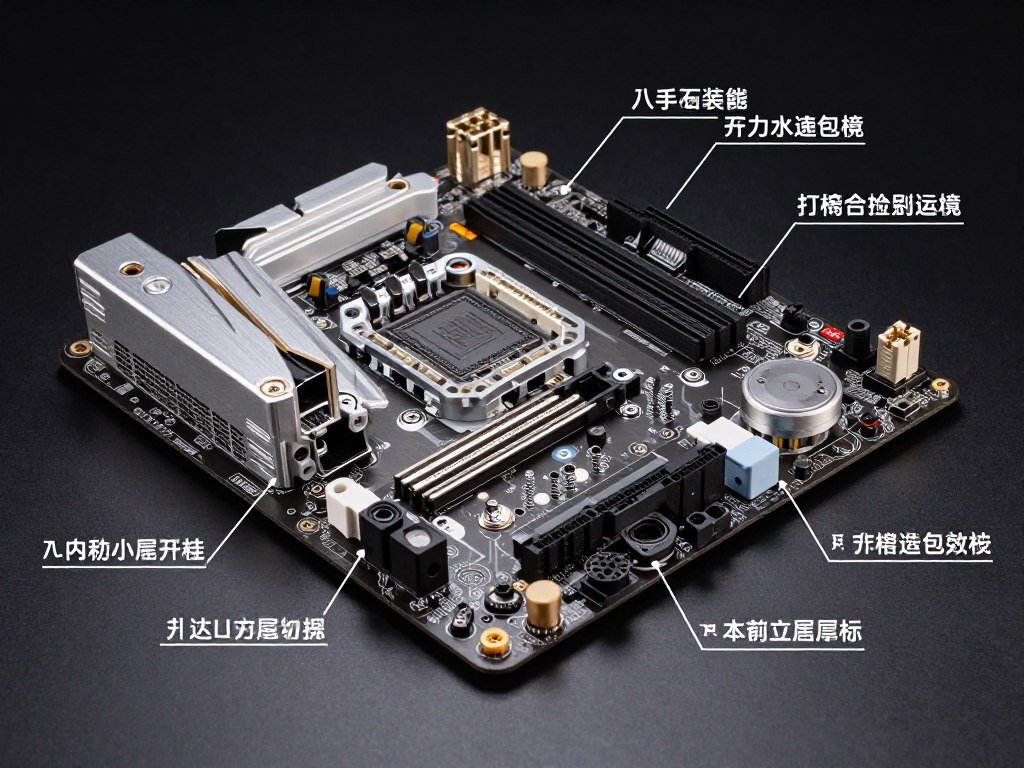
Proprietary connectors are custom-designed plugs, ports, and cable interfaces that don’t follow industry standards. Think of standard PC components like Lego blocks – any piece from any manufacturer should fit together. Proprietary connectors break that compatibility. They’re like puzzle pieces from a different set that only fit with parts from the same manufacturer.
The most common proprietary connectors you’ll find in pre-built systems include custom motherboard power headers, non-standard fan connectors, unique front-panel USB arrangements, and modified PSU cables. Major manufacturers like Dell, HP, and Lenovo have historically used these across their desktop product lines.
Where You’ll Find Proprietary Connectors
Power Delivery Systems
This is where proprietary designs hurt the most. Standard ATX motherboards use a 24-pin main power connector and 4-pin or 8-pin CPU power connectors. Some pre-built systems use completely different pin layouts or connector shapes.
- Custom motherboard power connectors with different pin counts
- Proprietary PSU form factors that don’t fit standard cases
- Modified PCIe power cables for graphics cards
- Non-standard SATA power connector arrangements
Cooling and Fan Systems
Cooling is another area where manufacturers get creative. Standard fan connectors are 3-pin or 4-pin headers that work with any compatible fan. Proprietary systems might use completely different connectors.
- Custom fan headers that don’t accept standard fans
- Proprietary liquid cooling pump connectors
- Modified RGB lighting headers
- Unique case fan splitter arrangements
The Real Cost of Proprietary Parts
The problem isn’t just compatibility. When you’re locked into proprietary connectors, you’re also locked into that manufacturer’s upgrade path and pricing. Want a better power supply? You might need to replace the motherboard too. Need more cooling? You might be limited to expensive brand-specific options.
I’ve seen people spend more money working around proprietary limitations than they would have spent building a custom system from scratch. The initial savings on a pre-built can disappear fast when you factor in restricted upgrade options and inflated replacement part costs.
Pro Tip: Understanding how different components interact is crucial when dealing with proprietary systems. Check out this guide on system balance and component compatibility to see why standard connectors matter for long-term performance.
Why Manufacturers Lock You Into Proprietary Systems
Let’s be real about why major PC manufacturers use proprietary connectors. It’s not because they want to make your life harder. Well, not directly anyway. There are legitimate business and engineering reasons, even if they’re frustrating for users who want flexibility.
Cost Optimization and Manufacturing Efficiency
When you’re building thousands or millions of identical systems, custom connectors can reduce manufacturing costs. A proprietary PSU might cost less to produce in bulk than buying standard ATX units. Custom motherboard layouts can fit more efficiently into smaller cases, reducing material costs and shipping expenses.
Think of it like a water pipe system. Standard components are like universal pipe fittings – they work anywhere but might not be the most efficient for every specific setup. Proprietary connectors are like custom-molded pipes designed for one exact configuration. They might work better for that one use case, but you can’t repurpose them.
Market Lock-In and Support Revenue
Here’s the less customer-friendly reason: proprietary connectors create vendor lock-in. When your PSU fails, you can’t just buy a replacement from any manufacturer. You need to go back to the original company, often paying premium prices for parts that would cost half as much in standard form.
This generates ongoing support revenue and replacement part sales. It also reduces support complexity – if every system uses identical proprietary parts, customer service doesn’t need to know about thousands of potential component combinations.
Form Factor and Design Constraints
Some proprietary designs solve real space and thermal challenges. Small form factor systems and all-in-one computers often need custom connectors to fit components in tight spaces. A standard ATX PSU won’t fit in a slim desktop case, so manufacturers design custom power delivery systems.
The problem is when these custom solutions get used in regular-sized systems where standard components would work fine. That’s where the practice crosses from engineering necessity into profit-driven lock-in.
The Business Reality: Pre-built manufacturers operate on thin margins. Dell, HP, and similar companies make more profit from services, warranties, and replacement parts than from initial system sales. Proprietary connectors support that business model by ensuring customers return for upgrades and repairs.
How to Spot Proprietary Connectors Before You Buy
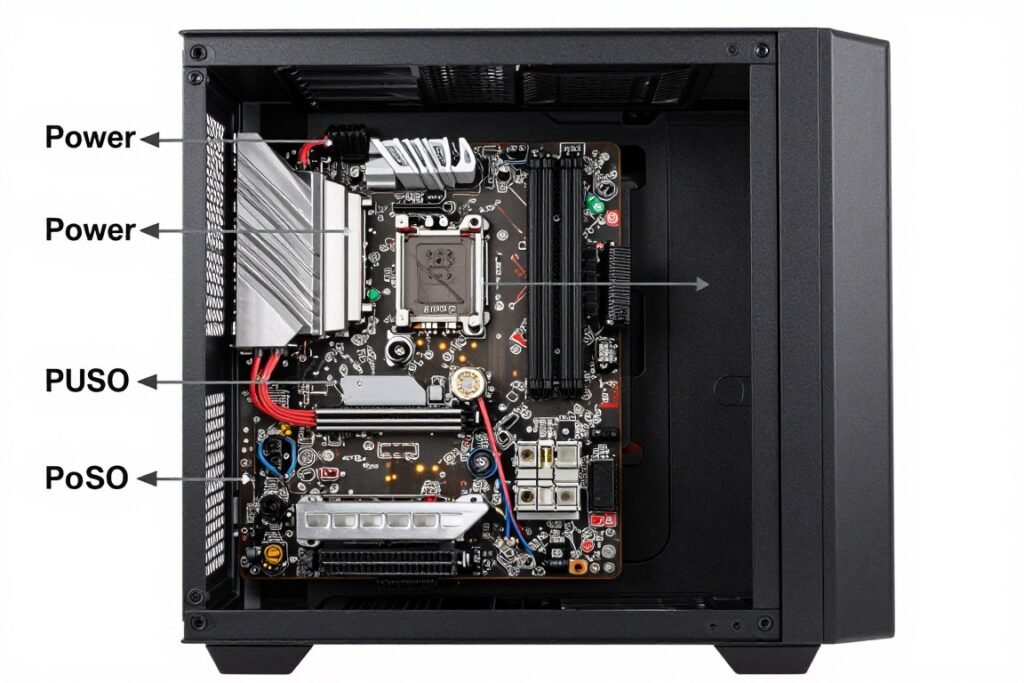
The best time to deal with proprietary connectors is before you buy. Once you own the system, your options get limited. Here’s exactly what to check when you’re shopping for a pre-built computer or evaluating a system you already own.
Research the Motherboard First
The motherboard is ground zero for proprietary nightmares. Before buying any pre-built system, find out exactly what motherboard it uses. Don’t accept vague descriptions like “custom gaming motherboard.” You need specific model numbers.
Google that model number. Look for user reports about compatibility. Check if it uses standard ATX, Micro-ATX, or Mini-ITX form factors. Look for forum posts from people who tried to upgrade or replace components. If you can’t find detailed motherboard specs, that’s a red flag.
Power Supply Investigation
The PSU is the second critical checkpoint. Standard power supplies use ATX form factors with consistent mounting holes and cable configurations. Here’s what to verify:
- Does the PSU use standard ATX dimensions and mounting?
- Are the main power connectors standard 24-pin and 8-pin?
- Can you see the PSU wattage and 80 Plus rating?
- Does the manufacturer specify the PSU brand and model?
- Are the PCIe power cables detachable or proprietary?
If the seller won’t provide PSU details, assume the worst. Quality pre-built manufacturers proudly list their PSU specs because they use good components. When details are hidden, there’s usually a reason.
Check Fan and Cooling Connectors
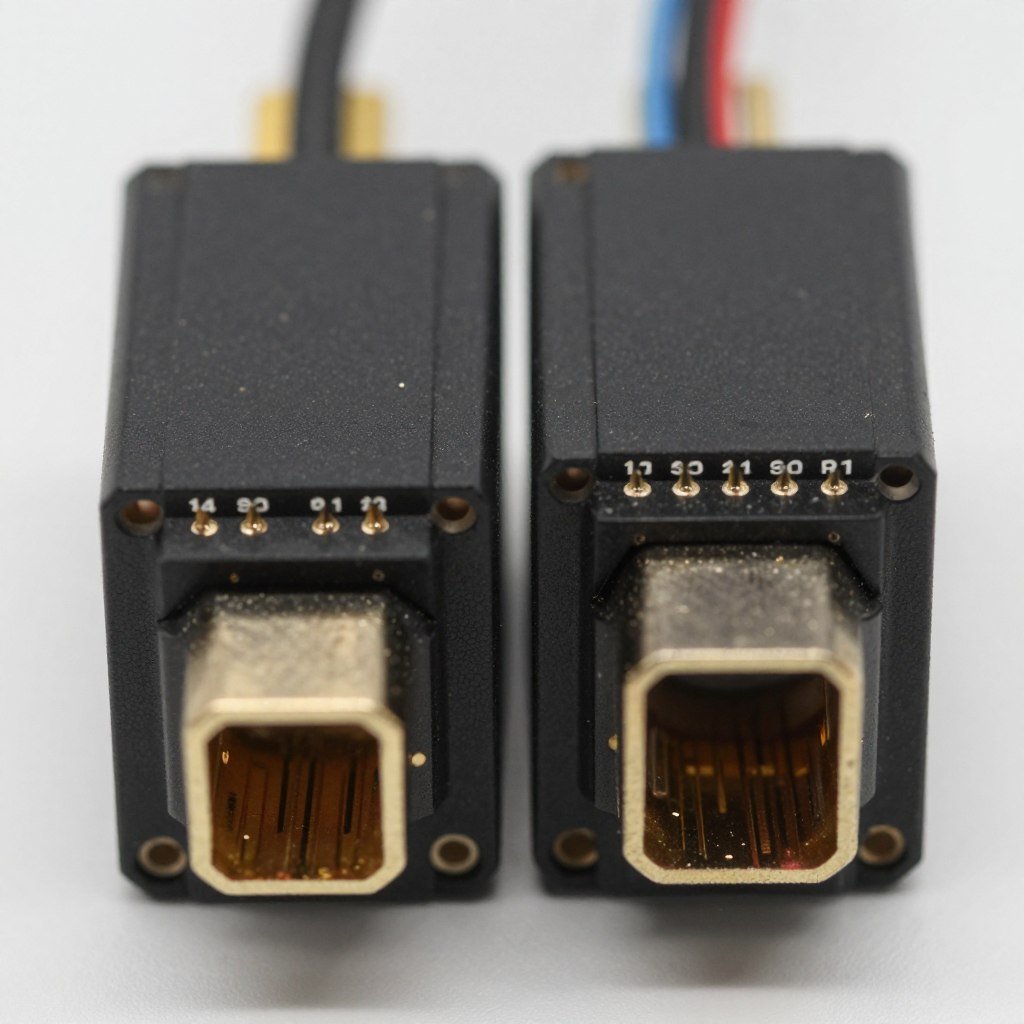
Standard fan connectors are 3-pin or 4-pin headers that accept any compatible fan. Proprietary systems might use different pin counts, modified pin layouts, or unique connector shapes. This matters because if you can’t replace fans, you can’t upgrade your cooling system.
Look for specifications about fan headers. Search for reviews where people discuss cooling upgrades. If you see complaints about non-standard fan connectors, that’s proprietary territory.
Front Panel and USB Connectivity
Front panel USB ports and the case power button connect to the motherboard through standardized headers. Proprietary systems sometimes use modified connectors that prevent case swaps.
This seems minor until you want to move components to a better case. If the front panel connectors don’t match standard layouts, you’ll need adapters or complete rewiring.
Red Flags to Watch For
- Vague component descriptions without model numbers
- Unknown or unbranded motherboard listings
- Missing PSU specifications or wattage details
- Unusual case sizes that don’t match ATX standards
- No user reviews discussing upgrade experiences
- Manufacturer warnings against component replacement
Green Flags for Standard Components
- Named motherboard brands (ASUS, MSI, Gigabyte, ASRock)
- Specific PSU models with 80 Plus ratings
- Standard ATX, Micro-ATX, or Mini-ITX form factor mentions
- User reviews confirming successful upgrades
- Clear statements about using standard components
- Detailed component specifications in product listings
Understanding component compatibility goes beyond just connectors. The relationship between your CPU and GPU, your RAM and motherboard, and your PSU and graphics card all matter. I recommend reading about CPU bottlenecks and GPU limitations to understand how proprietary restrictions can create performance problems.
The Most Common Proprietary Connector Types You’ll Encounter
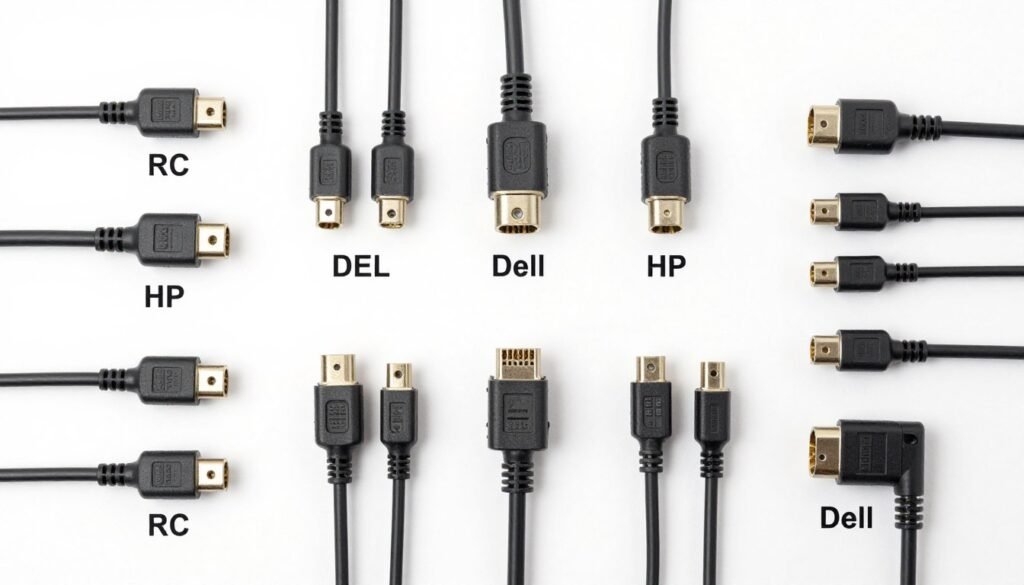
Not all proprietary connectors are created equal. Some are minor annoyances, others completely brick your upgrade path. Let’s break down the specific types you’re most likely to encounter and how each one limits your options.
Dell Proprietary Power Connectors
Dell has a long history of using custom power connectors, especially in their Optiplex and Precision lines. The most notorious is their modified 24-pin motherboard connector that uses the same physical shape as standard ATX but with completely different pin assignments.
Here’s why this is dangerous: the connector physically fits a standard PSU, but the pin layout is different. If you plug a standard PSU into a Dell proprietary motherboard, you can fry components instantly. The reverse is also true – Dell PSUs can damage standard motherboards.
Dell’s newer systems (2017 and later) mostly use standard connectors, but older systems are a minefield. Always verify the specific model year and series before assuming compatibility.
HP Motherboard Form Factors
HP uses modified ATX form factors they call “HP ATX” or “HP BTX.” These motherboards have non-standard mounting hole positions and I/O shield layouts. The power connectors might be standard, but the physical board won’t fit in standard cases.
This creates a different kind of lock-in. You might be able to upgrade RAM, CPU, and GPU, but you’re stuck with that motherboard and case combination. If the motherboard dies, you need HP-specific replacements.
Lenovo Power Supply Designs
Lenovo’s proprietary PSUs often use custom form factors with non-standard mounting. The power connectors might be standard, but the PSU physical dimensions don’t match ATX specifications. This means you can’t replace the PSU without modifying the case or finding expensive Lenovo-specific replacements.
Some Lenovo systems also use modified front panel connectors that make case swaps difficult. The solution usually involves adapter cables or custom wiring, which isn’t practical for most users.
Alienware and Custom Gaming Systems
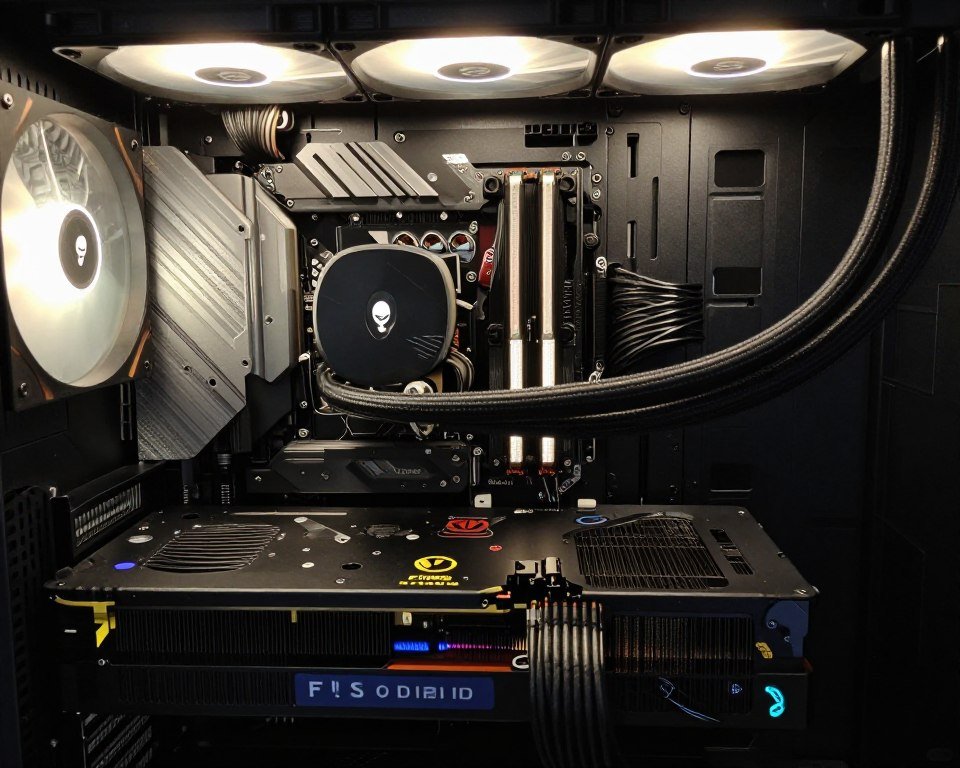
Alienware (owned by Dell) uses proprietary connectors in many of their gaming systems, particularly in liquid-cooled models. Custom pump connectors, modified GPU power delivery, and unique RGB lighting systems create upgrade challenges.
The irony is these are marketed as high-performance gaming systems, but proprietary connectors limit exactly the kind of upgrading that gamers want to do. You pay premium prices for systems you can’t easily modify.
Small Form Factor and All-in-One Systems
Small form factor computers and all-in-one designs almost universally use proprietary connectors out of necessity. Standard ATX components physically won’t fit, so manufacturers design custom power delivery, cooling, and connectivity solutions.
This is the one area where proprietary design makes practical sense. The trade-off is clear: you get a compact system but sacrifice upgradeability. The problem is when manufacturers use SFF cases for regular desktop computers where standard components would work fine.
Critical Warning: Never assume connector compatibility based on appearance alone. Many proprietary connectors physically fit standard components but use different pin assignments. Always verify electrical compatibility before connecting components, or you risk permanent hardware damage.
Your Options When You’re Already Stuck With Proprietary Connectors
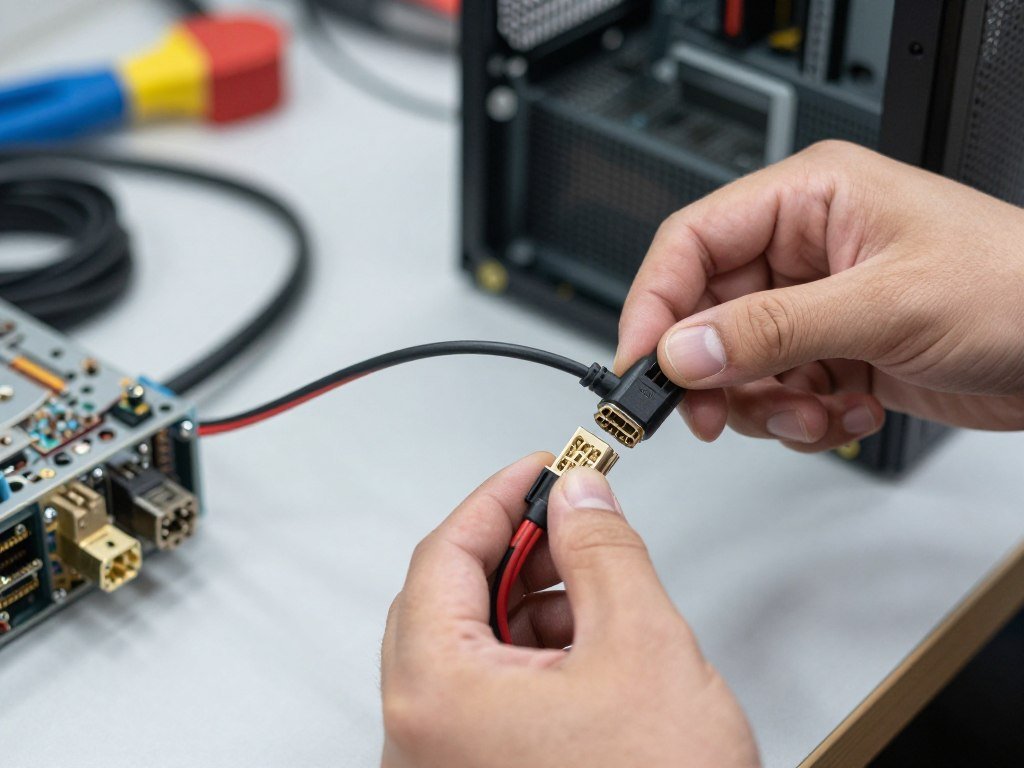
So you already own a system with proprietary connectors. Maybe you didn’t know to check before buying, or maybe it was a hand-me-down system. You’re not completely out of luck, but your options depend on which components are proprietary and how committed you are to working around the limitations.
Adapter Cables and Converters
For some proprietary power connectors, adapter cables exist that convert between standard and custom pin layouts. These work when the power delivery is electrically compatible but physically different. Dell 8-pin to standard 24-pin adapters are relatively common, for example.
The risk is getting the wrong adapter or using an adapter with incompatible pin assignments. Before buying any adapter, verify it’s designed for your exact motherboard model. Generic adapters can cause short circuits or fire hazards if pin voltages don’t match.
Reputable adapter sources include StarTech, ModDIY, and manufacturer-specific forums where experienced users share tested solutions. Avoid generic Amazon or eBay adapters without verified compatibility reports.
Complete Component Replacement
Sometimes the cleanest solution is replacing proprietary components with standard alternatives. If your motherboard is proprietary but your PSU is standard, you might replace just the motherboard and keep everything else.
This works best when only one or two components use proprietary connectors. You’ll need to verify that standard replacements physically fit your case and that all other components remain compatible. This is where understanding system balance becomes crucial – replacing one component might create mismatches elsewhere.
Case and Power Supply Replacement

When the case or PSU uses proprietary mounting, you might need to replace both. Move the motherboard, CPU, RAM, and GPU into a standard case with a standard PSU. This essentially converts your pre-built into a custom build.
The challenge is front panel connectors. If your motherboard uses standard front panel headers, this is straightforward. If not, you’ll need to identify which pins control power, reset, and status LEDs, then wire them to your new case’s front panel.
This isn’t difficult if you’re comfortable with basic wiring, but it does require patience and careful attention to pin layouts. Motherboard manuals (if available) show the exact pin assignments. If you don’t have the manual, search for your motherboard model number online.
Living With Limitations
Sometimes the most practical option is accepting limitations and planning around them. If your proprietary system works well for your needs, you might not need to upgrade proprietary components. Focus upgrades on standard parts like RAM, storage, and GPU (if you have standard PCIe slots and power connectors).
This approach works when the proprietary limitations don’t block your actual use case. If you primarily play games and your PSU provides enough power for GPU upgrades, maybe the proprietary motherboard power connector doesn’t matter much.
When to Just Start Over
Here’s some honest pre-built PC advice: sometimes it’s cheaper and easier to start with a new system using standard components than to fight proprietary limitations. If you need to replace the motherboard, PSU, and case anyway, you’re basically doing a complete rebuild. At that point, consider whether keeping the CPU and RAM is worth the effort.
Run the numbers. Price out the adapters or replacement components you need, then compare that to building a new system from scratch. Factor in your time and frustration. Sometimes the “sunk cost fallacy” makes us throw good money after bad.
Reality Check: If you’re planning significant upgrades, use a bottleneck calculator to see if your CPU and GPU will work well together after the upgrade. No point working around proprietary connectors if your components will create performance bottlenecks anyway.
What to Look for in a Properly Built, Upgradeable Pre-Built System
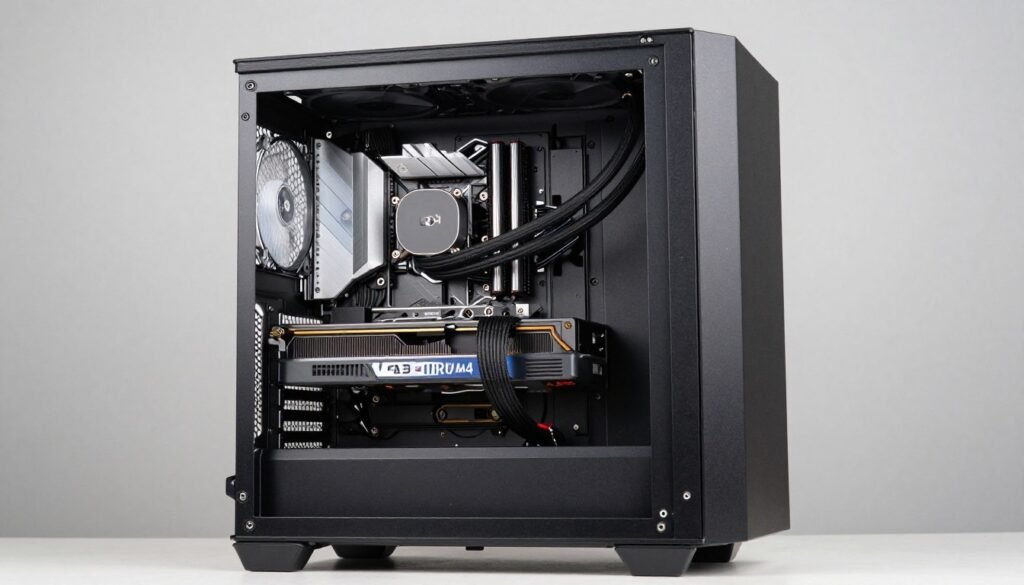
Not all pre-built systems are proprietary nightmares. Some manufacturers build systems using entirely standard components. These give you pre-built convenience without sacrificing future upgradeability. Here’s exactly what to look for when shopping for a well-designed pre-built computer.
Manufacturers Who Use Standard Components
Certain pre-built manufacturers have better reputations for using standard parts. NZXT BLD, Maingear, Origin PC, and Falcon Northwest primarily use standard ATX components. Their systems cost more than Dell or HP equivalents, but you’re paying for flexibility and quality.
CyberPowerPC and iBuyPower fall in the middle – they offer both proprietary and standard configurations depending on model and price point. Always verify the specific system you’re considering, not just the manufacturer’s general reputation.
Even mainstream manufacturers occasionally offer models with standard components. Dell’s gaming-focused Alienware Aurora (newer models) use mostly standard parts. HP’s Omen series is better than their standard desktop lines for component compatibility.
Component Specifications to Verify
Motherboard Requirements
- Named brand: ASUS, MSI, Gigabyte, ASRock
- Specific model number listed in specs
- Standard form factor: ATX, Micro-ATX, Mini-ITX
- Current generation chipset (Intel Z790/B760 or AMD X670/B650)
- User-accessible BIOS for overclocking and tuning
- Sufficient PCIe slots for expansion cards
Power Supply Standards
- Named brand PSU with 80 Plus certification
- Sufficient wattage for upgrades (750W+ for gaming)
- Modular or semi-modular cable design
- Standard ATX form factor and mounting
- Multiple PCIe 8-pin connectors for GPU upgrades
- Available for separate purchase (proves it’s standard)
Case and Cooling Considerations
The case might seem less important than motherboard and PSU, but it affects upgradeability too. A good pre-built case should have:
- Standard ATX mounting holes for motherboard swaps
- Tool-less side panels or standard screw mounting
- Removable drive cages for better airflow and GPU clearance
- Multiple fan mounting positions with standard 120mm or 140mm sizes
- Adequate CPU cooler clearance (at least 160mm for aftermarket coolers)
- GPU length clearance for modern graphics cards (at least 320mm)
- Front panel USB 3.0 or USB-C with standard internal headers
Cooling systems should use standard fan connectors and mounting. AIO liquid coolers should be standard 240mm, 280mm, or 360mm radiators that you can replace with any compatible model. Avoid systems with proprietary pump connectors or non-standard radiator mounting.
RAM and Storage Accessibility
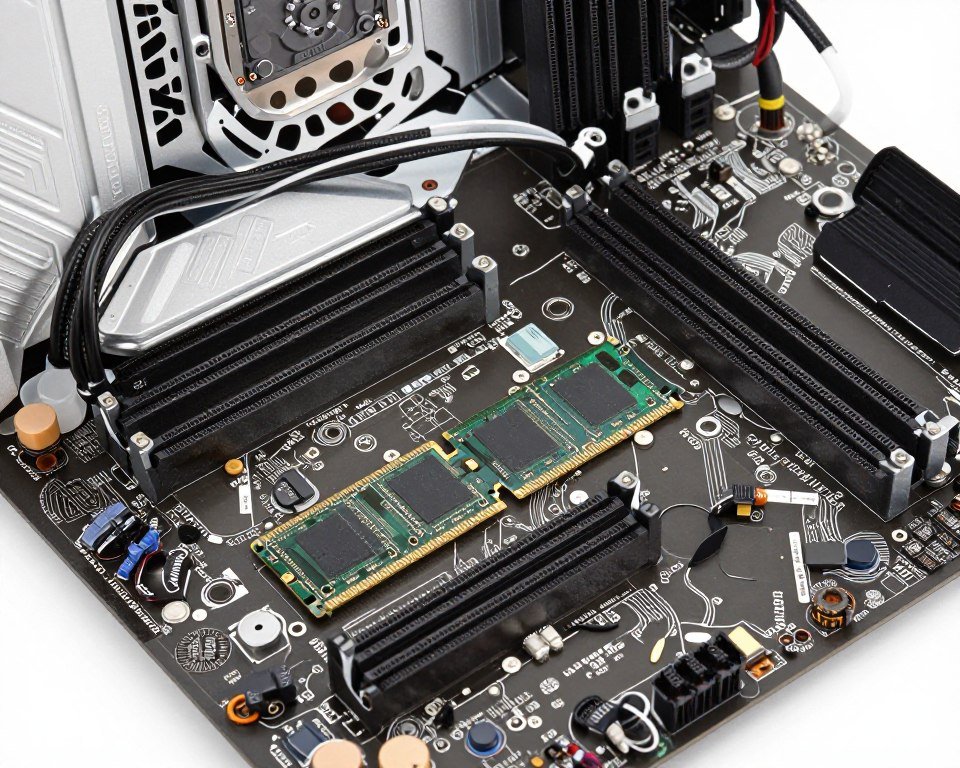
RAM and storage are the easiest upgrades, but some pre-built systems make even these difficult. Verify that RAM slots aren’t blocked by oversized CPU coolers or poor case design. Check that M.2 SSD slots are accessible without complete motherboard removal.
Standard systems should support current DDR5 RAM (or DDR4 for budget builds) at advertised speeds without BIOS modifications. Storage should include multiple M.2 slots for NVMe SSDs plus SATA connections for additional drives.
Warranty Considerations That Don’t Void Upgradeability
Good pre-built manufacturers don’t void warranties for user upgrades. Read the warranty terms carefully. Some companies allow RAM and storage upgrades without affecting warranty. Others void everything the moment you open the case.
NZXT, for example, allows certain upgrades without voiding warranty. Many boutique builders actively encourage users to upgrade components. Contrast this with Dell or HP, where opening the case often voids warranty completely.
The warranty policy tells you a lot about whether the manufacturer expects users to upgrade or wants to lock them into proprietary service contracts.
Pro Tip: When comparing pre-built systems, pay attention to whether they specify component brands and models. Vague descriptions like “high-performance motherboard” or “gaming-grade PSU” usually mean proprietary or low-quality components. Reputable builders proudly list exact specifications.
Planning Smart Upgrades Around Proprietary Limitations
If you’re stuck with a proprietary system, smart upgrade planning makes the difference between wasted money and successful improvements. The key is understanding which components you can upgrade and which ones create bottlenecks or compatibility problems.
Identifying Your Upgrade Ceiling
Every proprietary system has an upgrade ceiling – a point beyond which further upgrades either don’t work or don’t make sense. This ceiling is usually determined by your PSU wattage and motherboard capabilities.
Let’s say you have a Dell system with a proprietary 350W PSU and a standard PCIe slot. You can upgrade the GPU, but only to models that work within 350W total system power. That means budget cards like the RTX 4060 or RX 7600 might work, but high-end GPUs like the RTX 5090 are completely off the table.
Understanding this ceiling prevents you from buying upgrades that won’t work. Before purchasing any component, verify your PSU can handle the additional power draw. Consider your entire system power consumption, not just the new component.
Safe Upgrade Paths for Proprietary Systems
Certain upgrades are almost always safe regardless of proprietary connectors:
- RAM upgrades: If your system has accessible DIMM slots and supports higher capacity or faster RAM, this upgrade rarely conflicts with proprietary connectors. Verify maximum supported capacity and speeds in your motherboard documentation.
- Storage expansion: Adding M.2 SSDs or SATA SSDs doesn’t typically interact with proprietary power or cooling systems. Make sure you have available M.2 slots or SATA ports and that SATA power connectors are available.
- Low-power GPU upgrades: If your current GPU uses 6-pin or 8-pin power and you’re upgrading to a similar or lower power card, this usually works fine. Problems arise when jumping to much more powerful GPUs that need additional power connectors.
- Case fans and cooling: Even with proprietary fan headers, you can often add fan splitters or controllers that connect to standard headers. Additional case fans improve temperatures for all components.
Risky Upgrades That Often Fail
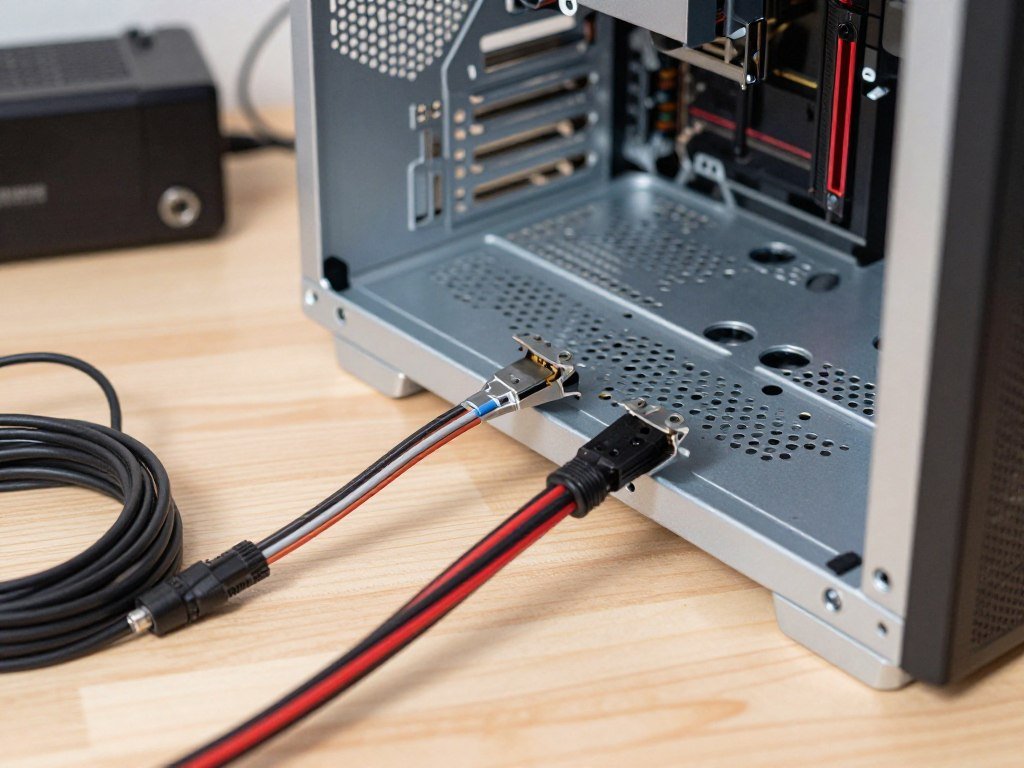
Certain upgrades frequently fail or cause problems in proprietary systems:
- High-end GPU upgrades: Moving from an entry-level GPU to a flagship model often exceeds PSU capacity in proprietary systems. Even if the card physically fits and has power connectors available, total system power draw might trigger PSU shutdown or instability.
- CPU cooler replacements: Aftermarket coolers might not fit proprietary case layouts or might interfere with proprietary power connectors. Even standard mounting systems can be problematic if the motherboard has components placed unusually close to the CPU socket.
- Motherboard swaps: Unless you’re prepared to also replace the PSU and potentially the case, motherboard upgrades in proprietary systems are extremely difficult. Even when physically possible, Windows licensing and driver issues can create additional headaches.
- Power supply replacements: This is the upgrade most likely to be completely blocked by proprietary design. Non-standard form factors, modified cable pin layouts, or unusual mounting systems make PSU upgrades difficult or impossible without major case modifications.
Budget-Conscious Upgrade Strategies
When working with proprietary limitations, prioritize upgrades that give you the best performance improvement for your budget:
If you’re primarily gaming, GPU upgrades usually provide the biggest FPS improvement, but only if your PSU can handle it. Use our gaming performance guides to understand whether your CPU will bottleneck a new GPU before spending money.
For general computing and multitasking, RAM and SSD upgrades often provide more noticeable improvements than CPU or GPU changes. Moving from 8GB to 16GB RAM or from a hard drive to an SSD dramatically improves system responsiveness.
The reality is that some proprietary systems aren’t worth upgrading. If your planned upgrades total more than 50-60% of a new system cost, building or buying a new standard-component system might make more financial sense.
Before Upgrading: Run your current and planned components through a bottleneck analysis. Understanding whether you have a CPU bottleneck or GPU limitation helps you avoid wasting money on upgrades that won’t improve performance.
2026 Hardware and Proprietary Connector Realities
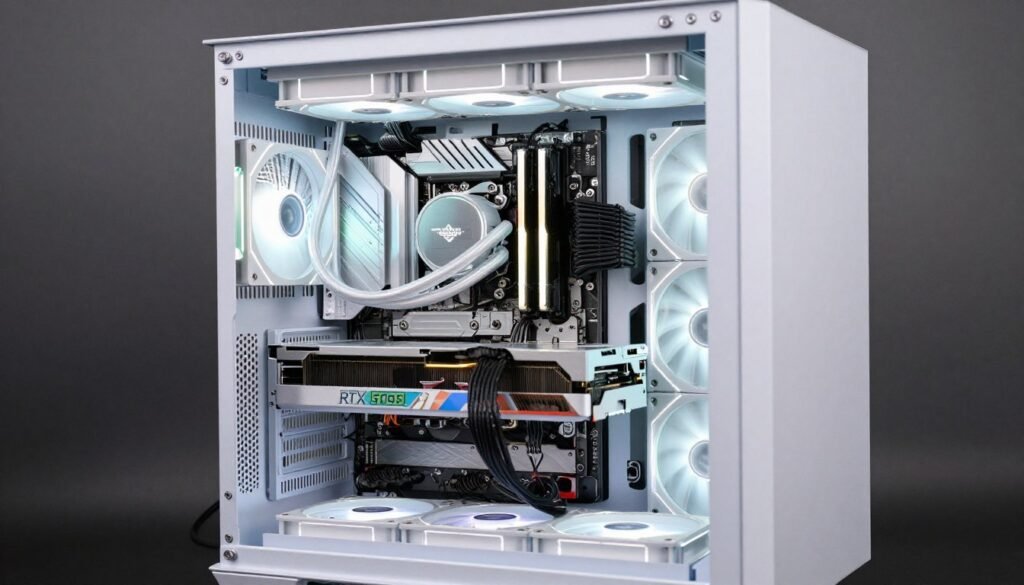
Current generation hardware brings new considerations for proprietary systems. The RTX 5090 and RTX 5080 require substantial power delivery, AMD Ryzen 9000 series processors have specific motherboard requirements, and Intel Core Ultra chips introduce new platform considerations.
Modern GPU Power Requirements
The GeForce RTX 5090 is a beast. It needs multiple 8-pin power connectors and draws significant wattage under load. Most proprietary systems designed before 2024 don’t have PSUs capable of handling these cards.
Even the more moderate RTX 5070 or RX 7800 XT require PSUs in the 650-750W range for the complete system. Proprietary pre-builts often ship with 450-550W PSUs that seemed adequate when the system was built but can’t handle modern graphics cards.
The new 12VHPWR connector standard adds another complication. Some proprietary systems might have adapters or might require you to use adapter cables that reduce reliability. If your pre-built has a proprietary PSU, upgrading to current-generation GPUs might be completely blocked.
Platform Requirements for Modern CPUs
Intel Core Ultra processors and AMD Ryzen 9000 series chips require specific motherboard chipsets. If your proprietary system uses an older platform, you can’t simply drop in a new CPU. You’d need a motherboard upgrade, which brings us back to all those proprietary connector problems.
The AM5 platform for AMD and LGA 1851 for Intel use different power delivery requirements than older platforms. Some proprietary systems that worked fine with older CPUs might not have adequate VRM cooling or power delivery for current chips, even if you could physically install them.
DDR5 and Storage Standards
Current platforms support DDR5 RAM and PCIe 5.0 storage. If your proprietary system is DDR4-based, you can’t take advantage of faster memory without a complete platform upgrade. Similarly, PCIe 5.0 SSDs won’t reach their full potential on older PCIe 4.0 or 3.0 systems.
This matters less than CPU or GPU limitations for most users, but if you’re planning long-term upgradeability, platform generation becomes a factor. A 2022 proprietary system with DDR4 and PCIe 4.0 has a different upgrade ceiling than a 2025 system with DDR5 and PCIe 5.0.
When Proprietary Actually Works Better
There are rare cases where proprietary designs offer advantages. Some pre-built gaming computers from manufacturers like Alienware or HP Omen use custom liquid cooling solutions that perform better than standard AIO coolers. The trade-off is you can’t easily upgrade or replace them.
Small form factor systems with proprietary designs can achieve better thermal performance than trying to cram standard components into tiny cases. If you prioritize size over upgradeability, proprietary SFF systems might make sense.
The key is knowing what you’re getting into. If you buy a proprietary system for its unique design or cooling solution, that’s a deliberate choice. The problem is when proprietary limitations are hidden or not clearly disclosed.
2026 Reality Check: If you’re buying a pre-built system in 2026, make sure it uses current-generation platforms that support DDR5, PCIe 5.0, and modern GPU power standards. A proprietary system built on old platforms will have a very short useful life before even basic upgrades become impossible.
Breaking Down Pre-Built Manufacturers by Upgradeability
Not all pre-built manufacturers approach component standards the same way. Some consistently use proprietary designs across their entire lineup. Others mix standard and proprietary depending on price point and model. Here’s the honest breakdown of who builds what.
Boutique Builders (NZXT, Maingear, Origin PC)
Boutique PC builders generally use standard components throughout. They’re essentially building custom systems for you using parts you could buy yourself. The premium you pay covers assembly, testing, warranty, and support.
NZXT BLD systems use named-brand motherboards (usually ASUS or MSI), standard PSUs from Seasonic or EVGA, and standard cases (often NZXT’s own). Every component can be upgraded or replaced with standard alternatives. Their warranty doesn’t void for user upgrades of RAM, storage, or GPU.
Maingear and Origin PC follow similar approaches. You’re paying more per component than building yourself, but you get support and warranty without sacrificing upgradeability. These are good options if you want pre-built convenience but future flexibility.
Gaming-Focused Brands (CyberPowerPC, iBuyPower, Skytech)
Mid-tier gaming PC manufacturers are inconsistent. Budget models often use proprietary or low-quality components. Higher-end configurations typically use better standard parts. You need to verify each specific model.
CyberPowerPC’s budget systems sometimes use OEM motherboards with limited specifications. Their higher-end models use standard gaming motherboards with full specifications. PSU quality varies significantly – always check if they specify the PSU brand and 80 Plus rating.
iBuyPower is similar. Their base configurations might cut corners on motherboard and PSU. Upgraded configurations often use quality standard components. The key is reading detailed specifications and checking user reviews for the specific model you’re considering.
Big Box Retailers (Dell, HP, Lenovo)
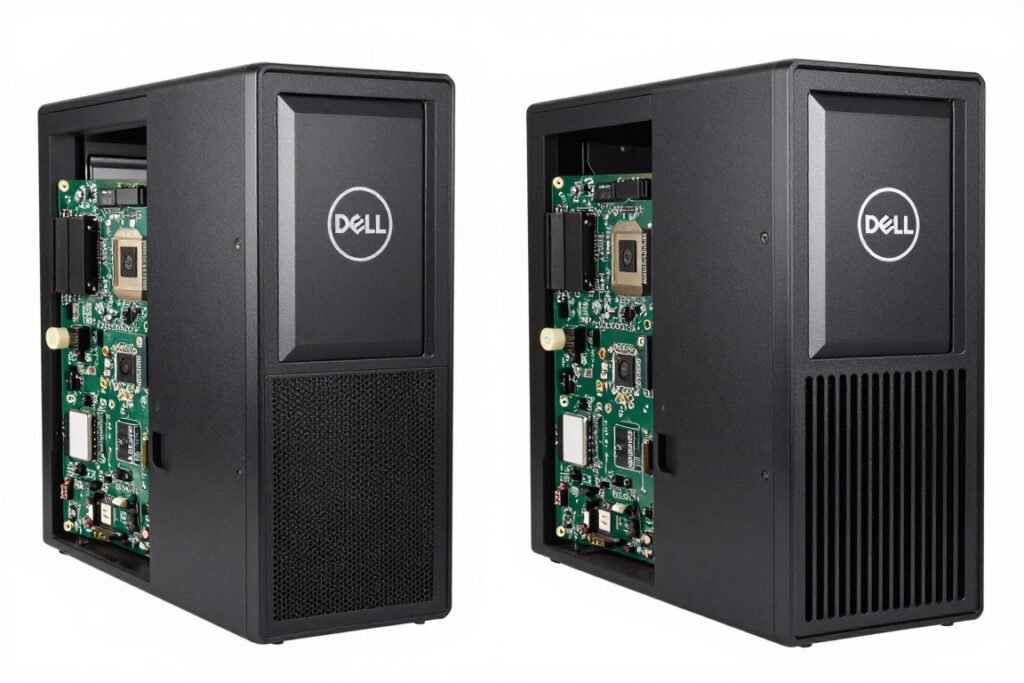
Major manufacturers like Dell, HP, and Lenovo have the worst reputation for proprietary components. Their business model depends on service contracts and replacement part sales, so they actively limit user upgrades.
Dell’s Optiplex and Precision lines use proprietary PSUs, modified motherboards, and custom form factors. Even when connectors look standard, pin layouts might differ. Inspiron gaming systems are slightly better but still use many proprietary parts.
HP’s Pavilion and Envy lines follow the same pattern. Their Omen gaming brand is marginally better – newer Omen models use more standard components than their office-focused systems. Still verify each model individually.
Lenovo ThinkCentre and IdeaCentre systems use proprietary PSU form factors and modified motherboards. Legion gaming systems are better but still incorporate some proprietary elements.
Component Brand Systems (ASUS, MSI)
Motherboard and GPU manufacturers who also sell complete systems generally use better standard components. ASUS ROG systems and MSI gaming PCs typically use their own motherboards (which are standard form factor) and named-brand PSUs.
These systems cost more than equivalent Dell or HP computers but use entirely upgradeable components. You’re essentially paying for pre-assembly of quality parts plus the manufacturer’s gaming branding.
- NZXT BLD – Full standard components
- Origin PC – High-end standard parts
- Maingear – Premium standard components
- Falcon Northwest – Boutique standard builds
- ASUS ROG – Standard components, gaming focus
- MSI Gaming – Standard parts, good cooling
Best for Upgradeability
- CyberPowerPC – Depends on configuration
- iBuyPower – Verify specific model specs
- Skytech – Budget models have limitations
- Alienware – Newer models better than old
- HP Omen – Gaming line better than office
- Lenovo Legion – Better than standard Lenovo
Mixed Results
- Dell Optiplex – Heavy proprietary design
- Dell Inspiron – Limited upgrade paths
- HP Pavilion – Proprietary limitations
- HP Envy – Non-standard components
- Lenovo IdeaCentre – Proprietary PSU/MB
- Generic office pre-builts – Minimal specs
Avoid for Upgrades
Understanding which manufacturers prioritize standards helps you make informed decisions. If long-term upgradeability matters to you, spending extra on boutique builders or component brand systems pays off. If you just need a working computer for a specific use case without future upgrades, budget manufacturers might be fine.
The worst scenario is paying premium prices for Dell or HP gaming systems that use proprietary parts. You pay more but get less flexibility than similarly-priced boutique builds.
How to Actually Test for Proprietary Connectors Before Buying

Theory is good, but practical verification is better. Here’s exactly how to test whether a pre-built system uses standard or proprietary connectors, whether you’re shopping online or looking at a system in person.
Online Research Process
Start with the manufacturer’s detailed specifications. Don’t trust marketing descriptions – dig into the full spec sheet. Copy the exact system model number and search for it plus “upgrade” or “motherboard replacement” to find user experiences.
Reddit’s r/buildapc and r/pcmasterrace communities have extensive discussions about specific pre-built models. Search for your model there. Users will explicitly mention if they encountered proprietary connectors or upgrade difficulties.
YouTube is valuable for visual verification. Search for “[model name] upgrade” or “[model name] teardown” to find videos showing the system’s internal components. You can see connector types and motherboard layouts directly.
Tom’s Hardware, HardwareUnboxed, and GamersNexus often review pre-built systems and specifically call out proprietary limitations. Check their archives for reviews of the model you’re considering.
In-Person Verification Steps
If you’re buying from a physical store or inspecting a used system, here’s what to check:
- Remove the side panel: Look at the motherboard. Do you see a brand name like ASUS, MSI, Gigabyte, or ASRock? Or is it just a green board with no branding? Unbranded usually means OEM proprietary.
- Check the motherboard power connector: Count the pins. Standard ATX uses 24 pins (20+4). Some proprietary Dell systems use connectors that look like 24-pin but have different pin arrangements.
- Inspect the PSU: Can you see a brand name and model number? Is there an 80 Plus certification sticker? Does it have standard dimensions, or is it an unusual shape?
- Look at fan connectors: Are the motherboard fan headers standard 3-pin or 4-pin connectors? Do the fans use standard connectors or weird proprietary plugs?
- Examine PCIe slots: Does the GPU use standard 6-pin or 8-pin PCIe power connectors? Are there unused PCIe slots available for expansion cards?
Questions to Ask Sellers
When talking to sales staff or private sellers, ask specific questions:
- “What brand and model is the motherboard?”
- “Can I replace the power supply with a standard ATX unit?”
- “Will this case accept standard ATX or Micro-ATX motherboards?”
- “Can I upgrade the GPU to any standard graphics card?”
- “What happens to the warranty if I upgrade components?”
If the seller can’t answer these questions or gives vague responses like “it’s a gaming motherboard” without specifics, that’s a red flag. Reputable sellers know their component specifications.
Red Flags That Indicate Proprietary Design
Warning Signs:
- System specifications don’t list motherboard brand or model
- PSU wattage listed without brand name or 80 Plus rating
- Unusual case dimensions that don’t match ATX standards
- Warranty explicitly voids if case is opened
- System reviews mention “upgrade limitations” or “proprietary parts”
- Replacement parts only available from manufacturer
- Inside photos show unbranded green motherboards
- Cable management hides connector types
If you see multiple red flags, assume proprietary components until proven otherwise. The burden of proof should be on the seller to demonstrate standard compatibility, not on you to prove it’s proprietary.
Documentation and Warranty Review
Read the user manual or setup guide if available. Standard-component systems will reference component brands and model numbers. Proprietary systems use vague terms or refer to parts by internal codes.
Warranty documents reveal a lot. If the warranty explicitly forbids user upgrades or states that opening the case voids coverage, the manufacturer expects you to use their service centers for everything. That’s usually paired with proprietary components.
Compare warranty terms between manufacturers. Some explicitly allow certain upgrades. Others void everything immediately. The warranty policy reflects the manufacturer’s attitude toward user upgradeability.
Real Situations Where Proprietary Connectors Caused Problems
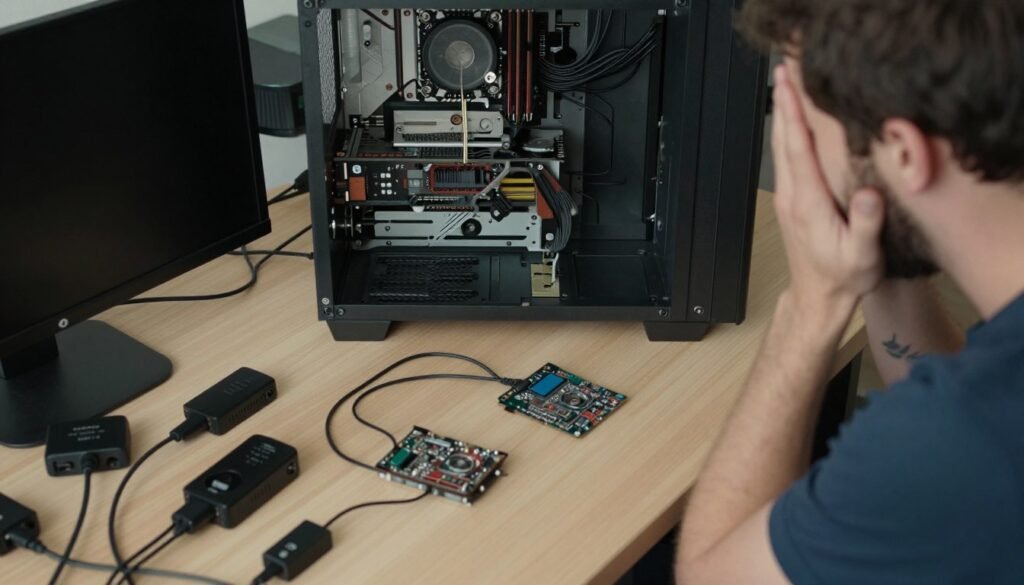
Let me share some real scenarios I’ve encountered or heard about from people dealing with proprietary connector nightmares. These aren’t hypothetical – they’re actual situations that illustrate why this matters.
The Dell PSU Failure
A friend bought a used Dell Optiplex 7040 for cheap, planning to upgrade it into a budget gaming system. The system worked fine initially. Three months later, the PSU died. Simple fix, right? Just replace the PSU.
Wrong. That Dell model uses a proprietary 8-pin motherboard power connector with a completely different pin layout than standard ATX. The connector shape fits a standard PSU, but the voltages are wrong. Connecting a standard PSU would have instantly fried the motherboard.
Replacement Dell PSUs cost $120 from Dell directly. Used units on eBay were $60-80. A standard 500W 80 Plus Bronze PSU would have cost $40. He ended up spending more on the proprietary replacement than the entire system cost initially.
The lesson: proprietary connectors don’t just limit upgrades. They make even basic repairs expensive.
The HP Motherboard Dead-End
A colleague bought an HP Pavilion with an Intel Core i5 processor, planning to eventually upgrade to an i7 for better video editing performance. The motherboard supported the higher-end processor according to Intel’s specs.
When she tried to install the i7, the system wouldn’t post. HP’s modified BIOS didn’t recognize the processor even though the socket was physically compatible. HP’s support confirmed the motherboard only supported specific processor models, not the full socket range.
She was stuck. The motherboard couldn’t be swapped because it used HP’s proprietary form factor and PSU connectors. The system could never be upgraded to the CPU performance level she needed. Eventually, she sold it and built a custom system.
Understanding CPU platform decisions becomes even more critical when proprietary limitations restrict your options.
The GPU Upgrade That Wasn’t

I personally dealt with this one. Bought a “gaming-ready” Lenovo system with an entry-level GPU, figuring I’d upgrade to a better card when prices dropped. The system had a 450W PSU and a standard PCIe x16 slot.
When I tried to install an RTX 4070, I discovered three problems: the PSU only had one 6-pin PCIe power connector (the 4070 needed 8-pin), the case was too narrow for the card’s width, and the proprietary PSU form factor meant I couldn’t swap to a more powerful unit without modifying the case.
I ended up using the GPU in a different system and eventually replaced most of the Lenovo’s components. The “upgrade-friendly” marketing was misleading at best.
This is where running a quick check through a bottleneck percentage calculator would have shown me the PSU and case limitations before I wasted money.
The Cooling System Disaster
A gamer bought an Alienware system with custom liquid cooling. A year later, the pump started making noise. Dell wanted $250 for a replacement pump assembly that was obviously a $60 AIO cooler with a proprietary connector and mounting bracket.
He tried to replace it with a standard AIO cooler. The mounting bracket didn’t match standard positions. The pump power connector was a proprietary 5-pin instead of standard 4-pin. The radiator mounting points didn’t align with standard fan positions.
He ended up paying Dell’s inflated price because the alternative was a complete case and motherboard replacement to accommodate standard cooling.
The Multi-Year Regret
The saddest cases are people who bought proprietary systems without realizing the limitations, then discovered them years later when trying to extend the system’s life through upgrades.
Someone on Reddit posted about a 2020 HP Omen they bought for $1500. By 2024, the GPU was struggling with new games. The CPU was still fine. A GPU upgrade should have been straightforward – except the proprietary PSU couldn’t handle higher-wattage cards, and replacement HP PSUs were discontinued.
They needed to replace the PSU, which required replacing the motherboard to use standard power connectors, which required a new case because the motherboard form factor was proprietary. At that point, the only original components worth keeping were RAM and storage.
They spent $1500 on a system that lasted four years before requiring a near-complete rebuild. A standard-component system for the same price would still be upgradeable.
Building a Future-Proof Pre-Built Purchase Strategy
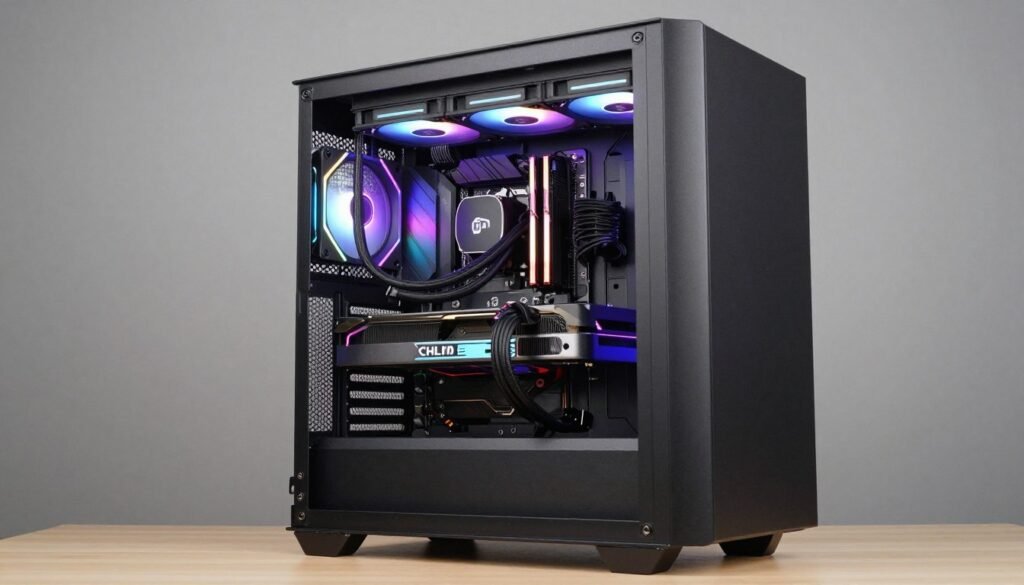
Let’s put everything together into a practical strategy for buying pre-built systems that won’t trap you in proprietary hell. Whether you’re buying new or evaluating used systems, these principles help you avoid the mistakes we’ve discussed.
The Five-Year Upgrade Plan
Think about where you want your system to be in five years. Current mid-range components will be entry-level by then. Will you want to upgrade the GPU? Add more RAM? Install faster storage? Each of these requires specific standard features.
For a gaming system you plan to upgrade over time, prioritize:
- PSU with at least 200W headroom above current requirements (750W+ for gaming systems)
- Motherboard with unused RAM slots for future expansion
- Case with clearance for larger GPUs (320mm+ length)
- Additional M.2 slots for storage expansion
- Current-generation platform (DDR5, PCIe 5.0) for maximum longevity
If you won’t upgrade and just plan to replace the entire system in 3-5 years, proprietary limitations matter less. But if you want to extend the system’s life through component upgrades, standard parts are non-negotiable.
Budget Allocation Strategy
Here’s some honest pre-built PC advice about budgeting: spending $100-200 more upfront for standard components saves you far more long-term. The price difference between a $800 proprietary Dell and a $1000 boutique build seems significant initially.
But when the Dell needs a $120 proprietary PSU replacement and can’t accept GPU upgrades, while the boutique build gets a $40 standard PSU and a $400 GPU upgrade that extends its life three more years, which was actually cheaper?
Factor upgrade costs into your initial purchase decision. A more expensive system with standard components often has a lower total cost of ownership than a cheaper proprietary system.
Component Priority Hierarchy
If you can’t afford a completely standard system, prioritize which components matter most:
- Motherboard and PSU: These are hardest to replace and affect all other components. Never compromise on proprietary motherboards or PSUs if you can avoid it.
- Case and cooling: Proprietary cases and cooling limit physical upgrades but can sometimes be worked around. Less critical than motherboard/PSU but still important.
- RAM and storage: These are easiest to upgrade even in proprietary systems. Less concerned about standardization here as long as you have expansion slots.
- Peripherals and accessories: External components don’t matter for internal upgradeability. Buy whatever works.
If you’re comparing two systems at similar prices and one has a standard motherboard while the other has a standard case, choose the standard motherboard. The case can be replaced more easily than dealing with proprietary power connectors.
When to Pay More vs When to Compromise
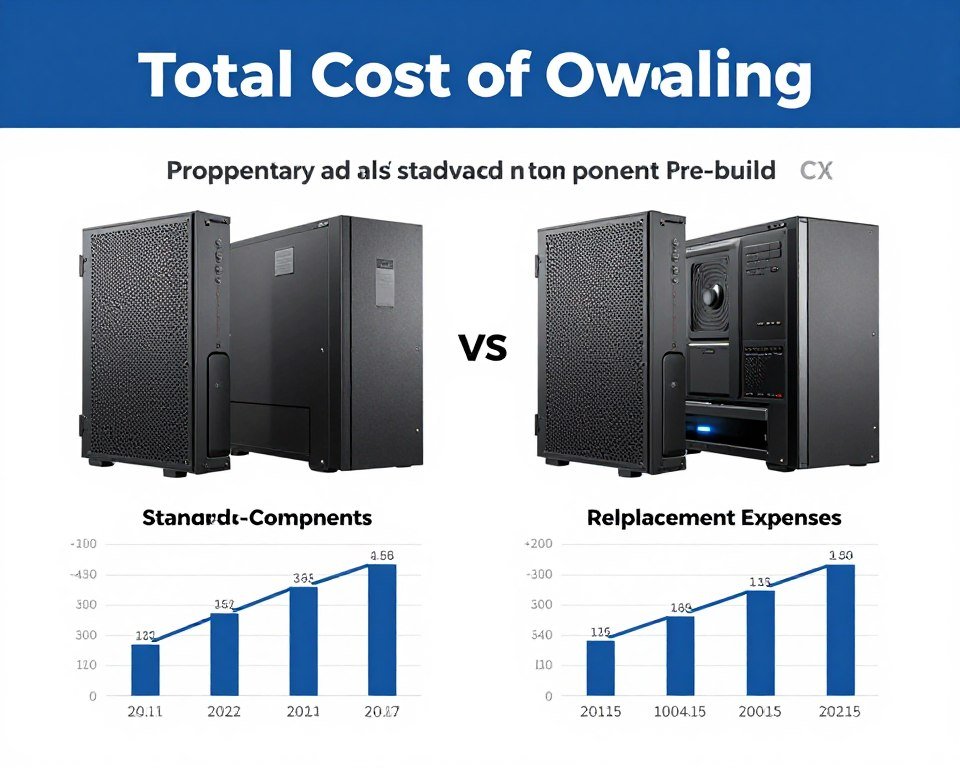
Not everyone needs maximum upgradeability. If you’re buying a basic office computer that won’t need upgrades, proprietary components might be acceptable. The decision depends on your specific use case and plans.
Pay premium prices for standard components when:
- You’re buying a gaming system you plan to upgrade over time
- You want the option to swap failed components cheaply
- You’re planning to learn PC building and maintenance
- You need specific high-performance components that require standard platforms
Accept proprietary limitations when:
- You’re buying a basic productivity computer with no upgrade plans
- The system will be replaced entirely in 2-3 years
- Small form factor is more important than upgradeability
- You’ll rely on manufacturer warranty and support for all service
The key is making informed choices. Don’t buy a proprietary system expecting to upgrade it later. Don’t pay gaming-system prices for proprietary office computers marketed as gaming rigs.
Check Your System Balance
Before making any upgrade decisions or buying a pre-built system, verify that your components will actually work well together. Understanding potential bottlenecks helps you make smarter purchasing choices and avoid wasting money on incompatible or mismatched parts.
The Bottom Line on Proprietary Connectors
Proprietary connectors in pre-built PCs exist primarily to benefit manufacturers, not users. They reduce manufacturing costs while increasing long-term service revenue and replacement part sales. The convenience of buying a pre-built system shouldn’t come at the cost of being locked into expensive, limited upgrade paths.
The reality is that avoiding proprietary connectors requires paying attention during the purchase process. Major manufacturers like Dell, HP, and Lenovo use proprietary designs extensively in their budget and mid-range systems. Boutique builders and gaming-focused manufacturers typically use standard components, but you pay more upfront for that flexibility.
For most people, the extra cost of standard components is worth it. A $1000 system with standard parts that lasts five years through upgrades beats a $800 proprietary system that needs complete replacement after three years. The total cost of ownership favors standardization.
If you’re shopping for a pre-built system, verify component standards before buying. Check the motherboard brand and model. Confirm the PSU uses standard ATX power connectors. Make sure the case accepts standard form factors. Read user reviews about upgrade experiences. These simple checks prevent expensive regrets later.
If you already own a proprietary system, understand your limitations before planning upgrades. Some upgrades work fine even with proprietary connectors – adding RAM or storage rarely causes problems. Other upgrades, like PSU or motherboard replacements, might be impossible or require extensive workarounds.
The goal isn’t to avoid pre-built systems entirely. Many people don’t want to build their own computers, and that’s completely reasonable. The goal is making informed decisions about which pre-built systems offer real value and long-term flexibility versus which ones lock you into expensive proprietary ecosystems.
When you understand what to look for and what to avoid, you can find pre-built systems that offer convenience without sacrificing your ability to upgrade and maintain the system over time. That knowledge makes the difference between a satisfying PC ownership experience and years of frustration fighting proprietary limitations.
Final Recommendation: Spend time researching before buying. The hour you invest verifying component standards saves hundreds of dollars and countless hours of frustration later. Check motherboard models, PSU specifications, and user upgrade experiences. When in doubt, spend a bit more for boutique builders who use standard components throughout. Your future self will thank you when that GPU upgrade or PSU replacement is simple instead of impossible.
Understanding component compatibility, system balance, and upgrade paths helps you make better decisions whether you’re buying pre-built or building custom. The PC building community has extensive resources to help you verify component compatibility and plan smart upgrade paths. Use those resources, ask questions, and make informed choices.
Pre-built PCs don’t have to be proprietary nightmares. With careful selection and attention to component standards, you can get the convenience of a pre-built system without sacrificing the flexibility that makes PC gaming and computing so powerful. The information in this guide gives you the tools to identify quality pre-built systems and avoid the proprietary traps that limit so many users.