
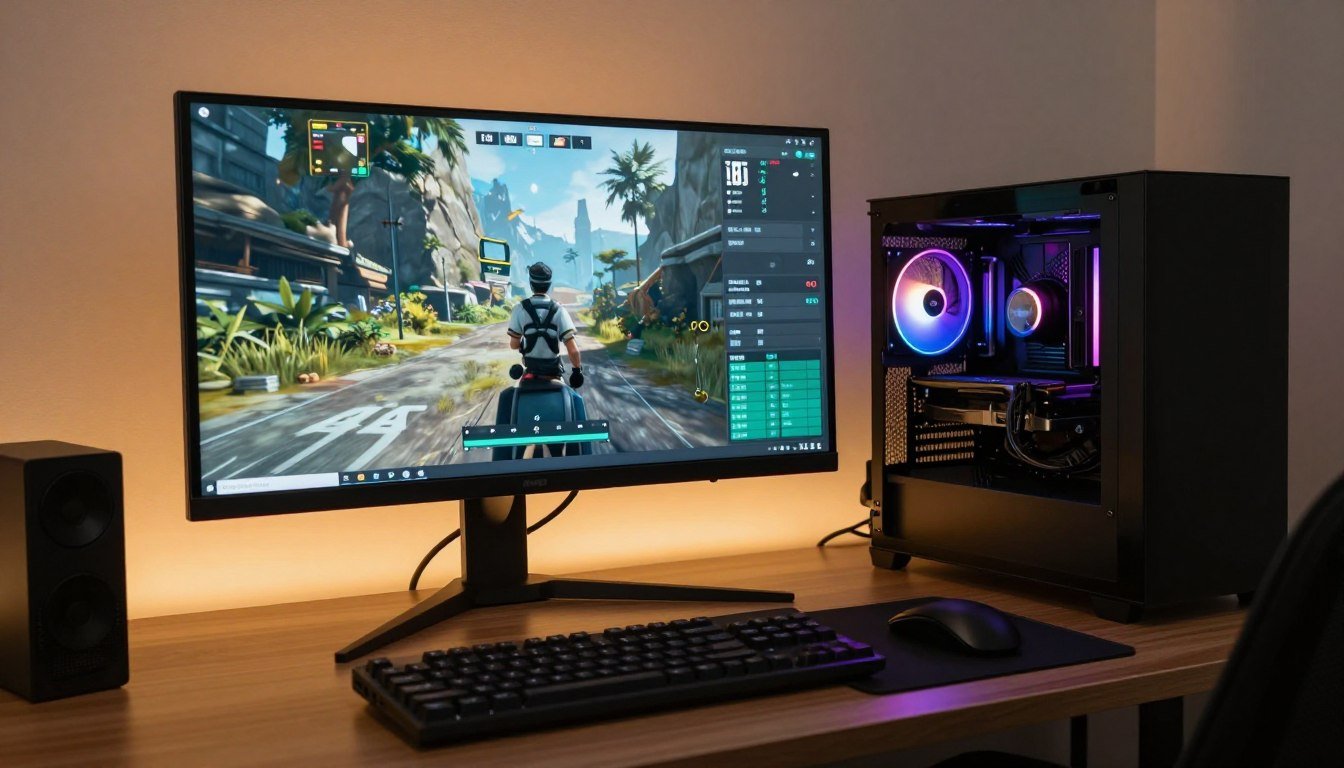
You just spent good money on that beautiful ultrawide monitor. The screen looks amazing. Then you fire up your favorite game and everything falls apart. Frame rates tank. Stuttering happens. Your previously smooth 1080p experience now feels like you’re gaming through molasses.
I made this exact mistake three years ago. Bought a 3440×1440 ultrawide gaming monitor without checking if my RTX 3070 could handle it. Turns out, pushing 34% more pixels than standard 1440p isn’t free. The reality hit hard when Cyberpunk dropped to 40 FPS.
This guide breaks down exactly why ultrawide performance tanks GPUs harder than you think. You’ll learn the actual math behind pixel counts, which GPUs can handle which resolutions, and how to fix performance without downgrading your visual experience. By the end, you’ll know if your current setup can handle ultrawide gaming or what you need to change.
Before we dig into the numbers, you need to understand what makes system performance analysis different for ultrawide gaming versus standard monitors.
The Pixel Math That Kills Your Frame Rate
Standard 1920×1080 monitors push 2,073,600 pixels. That’s your baseline. Every frame your GPU renders, it processes that many pixels. Simple enough.
Now let’s look at ultrawide monitors and what they actually demand from your GPU.
| Resolution | Aspect Ratio | Total Pixels | vs 1080p | vs 1440p |
| 1920×1080 | 16:9 | 2,073,600 | Baseline | -45% |
| 2560×1080 | 21:9 | 2,764,800 | +33% | -27% |
| 2560×1440 | 16:9 | 3,686,400 | +78% | Baseline |
| 3440×1440 | 21:9 | 4,953,600 | +139% | +34% |
| 3840×1600 | 21:9 | 6,144,000 | +196% | +67% |
| 5120×1440 | 32:9 aspect ratio | 7,372,800 | +256% | +100% |
| 3840×2160 | 16:9 | 8,294,400 | +300% | +125% |
Here’s what those numbers actually mean. A 3440×1440 ultrawide monitor forces your GPU to render 34% more pixels than standard 1440p gaming. That’s not a small increase. It’s like adding an extra third to your workload.
The 32:9 aspect ratio monitors are even worse. A 5120×1440 Samsung Odyssey OLED pushes exactly double the pixels of standard 1440p. Your GPU literally does twice the work for the same vertical resolution.
Why This Matters More Than You Think
Every single pixel needs processing. Your GPU fills each one with color data, applies shading, calculates lighting, renders textures. The more pixels you have, the harder your GPU works every single frame.
Think of it like painting a fence. A standard 16:9 fence takes a certain amount of time. An ultrawide fence has 34% more boards to paint. Same brushes, same paint, more work. You either slow down or get help.
Your GPU can’t slow down the refresh rate without causing stuttering. So it needs help. That help comes from either lowering settings or upgrading hardware. Understanding resolution bottleneck concepts helps you figure out which route makes sense.
GPU Requirements for Different Ultrawide Resolutions
Let’s cut through the marketing nonsense and talk about which GPUs actually handle ultrawide gaming. I’ve tested enough configurations to know what works and what doesn’t.
2560×1080 Ultrawide Gaming (Entry Level)
This resolution is the easiest ultrawide target. You’re only pushing 33% more pixels than 1080p. Most modern mid-range GPUs handle this fine.
- RTX 4060 handles this resolution at high settings in most games
- AMD RX 7600 delivers solid performance for budget ultrawide builds
- Previous generation RTX 3060 Ti still works well here
- Target 60+ FPS in AAA games, 100+ in competitive titles
- 8GB VRAM minimum recommended for modern games
The reality is this resolution doesn’t stress modern GPUs much. If you’re running a 2560×1080 ultrawide monitor and experiencing issues, your problem isn’t the resolution. Check for CPU bottleneck issues instead.
3440×1440 Ultrawide Gaming (Sweet Spot)
This is where things get interesting. Nearly 5 million pixels means you need serious GPU power for high refresh rate gaming.
- RTX 4070 Ti Super hits 100+ FPS in most titles at high settings
- AMD RX 7900 XT trades blows with Nvidia’s offering
- RTX 4070 works but requires settings compromises for 100+ FPS
- Previous gen RTX 3080 still viable for 60-80 FPS gaming
- 12GB VRAM minimum to avoid texture streaming issues
I ran a 3440×1440 monitor with an RTX 3070 for two years. It worked, but I constantly tweaked settings. Upgraded to a 4070 Ti and the difference was night and day. Many ultrawide monitors at this resolution run 144Hz or higher refresh rate, so you need the GPU headroom.
5120×1440 Super Ultrawide Gaming (Enthusiast)
The 32:9 aspect ratio format doubles your pixel count versus standard 1440p. This demands top-tier hardware.
- RTX 4090 recommended for 100+ FPS at max settings
- RTX 5090 Blackwell handles this resolution with ease in 2026
- AMD RX 7900 XTX works but requires more settings tuning
- RTX 4080 Super viable for 60-80 FPS high settings
- 16GB VRAM minimum, 24GB preferred for future-proofing
These super ultrawide monitors often feature 240 refresh rate panels. Getting anywhere near that in modern AAA games requires bleeding-edge hardware. Check the RTX 5090 optimization guide for detailed settings recommendations.
3840×1600 Ultrawide Gaming (Alternative Option)
Less common but worth mentioning. This resolution sits between 3440×1440 and 4K, pushing over 6 million pixels.
- RTX 4080 recommended for smooth high refresh rate experience
- Sits in awkward spot performance-wise between popular resolutions
- Similar GPU requirements to 4K but with better FPS headroom
- Best budget option drops to RTX 4070 Ti Super
I’ve tested fewer monitors at this resolution. Most people either go 3440×1440 or jump straight to super ultrawide. The performance demands fall right between those categories.
Check Your System Balance
Not sure if your current GPU can handle your target ultrawide resolution? Run a free analysis to see where your system bottlenecks and what upgrades deliver real performance gains.
The Refresh Rate Reality Nobody Talks About
Marketing loves to push high refresh rate numbers. You see best ultrawide monitors advertised with 240 refresh rate panels. Sounds amazing until you try to actually hit those frame rates.
What 144Hz Actually Requires
A 144Hz monitor refreshes 144 times per second. To feel smooth without tearing, you need 144 FPS minimum. At 3440×1440 resolution, that’s demanding.
Let’s do the math. You’re rendering nearly 5 million pixels 144 times per second. That’s 713 million pixel operations every single second. Your GPU needs serious horsepower.
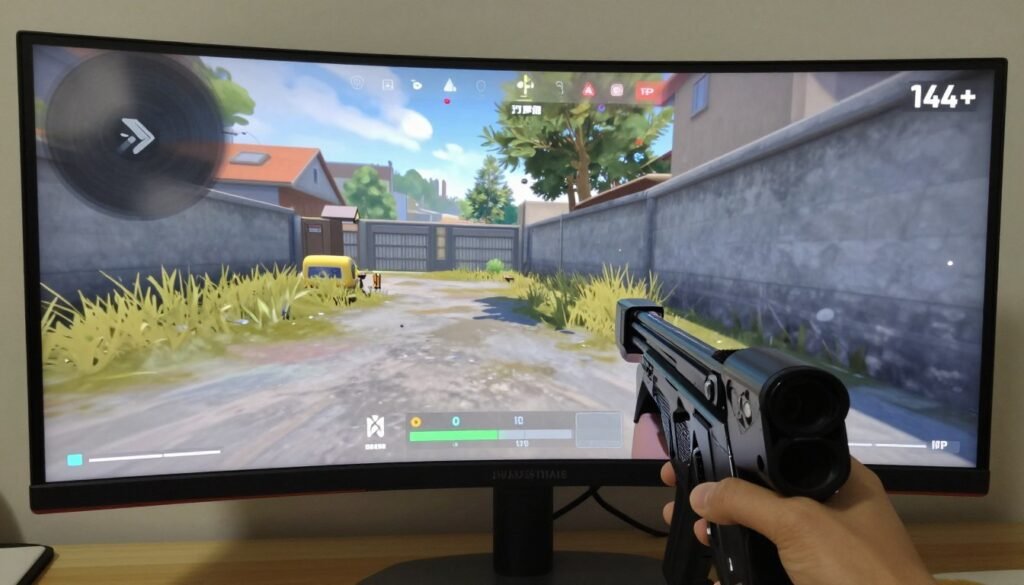
- Competitive games like CS2 or Valorant hit 144+ FPS easily
- Modern AAA titles struggle to maintain 100+ FPS on high settings
- Unreal Engine 5 games often can’t reach 144 FPS even on flagship GPUs
- Your actual refresh rate depends heavily on game optimization
I run a 3440×1440 175Hz ultrawide monitor. In competitive shooters, my RTX 4070 Ti pushes 200+ FPS no problem. In Cyberpunk 2077 with ray tracing? Maybe 80 FPS. The panel has the capability, but the game determines actual performance.
The 240Hz Ultrawide Problem
Samsung Odyssey OLED and other premium ultrawide gaming panels now offer 240 refresh rate. The screen looks incredible. Actually hitting 240 FPS? Different story.
At 3440×1440 resolution, you need a GPU that can render nearly 5 million pixels 240 times per second. That’s over 1.1 billion pixel operations per second. Even an RTX 5090 struggles in modern games.
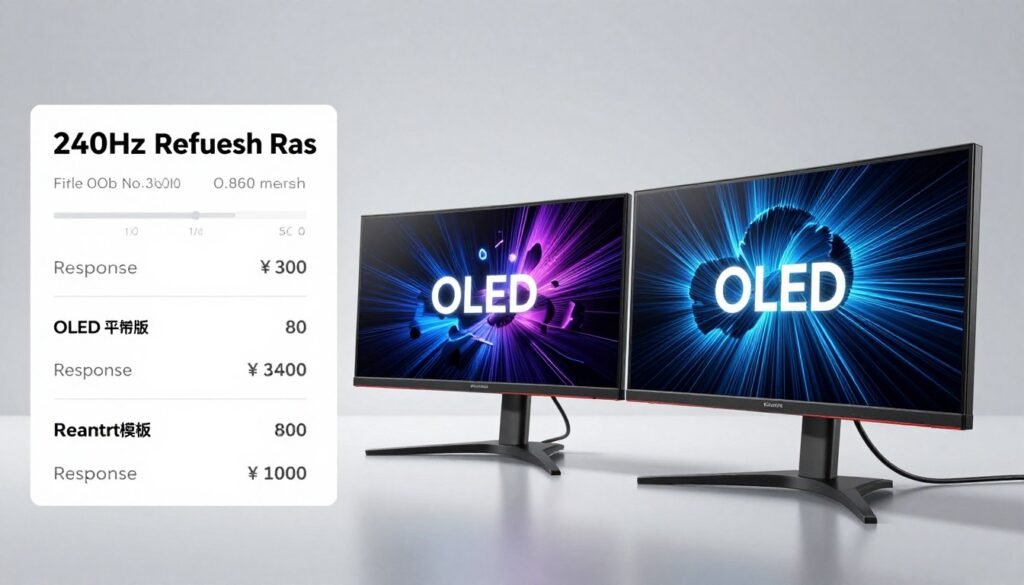
The reality is these monitors excel at competitive gaming where hitting 240 FPS is possible. For single-player AAA titles, you’re looking at 100-120 FPS realistically. Still smooth, just not utilizing the full panel capability.
Understanding gaming performance optimization helps you set realistic expectations for your specific hardware and game combination.
Response Time and Pixel Transitions
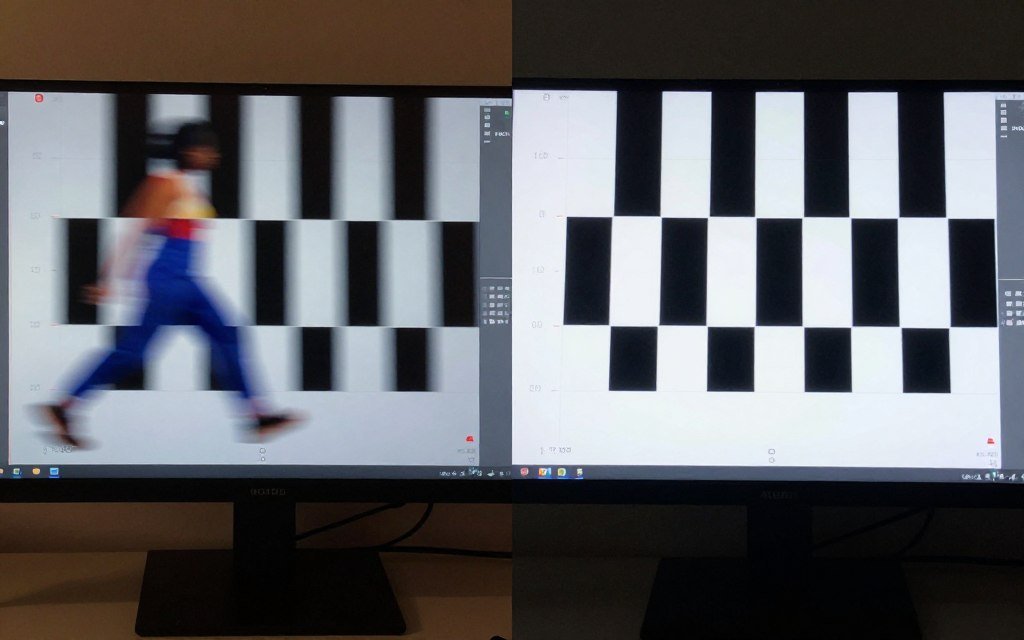
High refresh rates need fast response time to avoid ghosting. OLED panels typically deliver sub-1ms response times. VA panels struggle more at 5-8ms.
At 144Hz, each frame displays for 6.9ms. If your panel has 5ms response time, pixels might not fully transition between frames. This creates motion blur that defeats the purpose of high refresh gaming.
- OLED ultrawide monitors offer best response time for motion clarity
- IPS panels typically hit 1-4ms, good enough for most gaming
- VA panels sacrifice response time for better contrast ratio
- Overdrive settings can reduce response time but add artifacts
I switched from a VA panel to OLED specifically for response time improvements. The difference in fast-paced games was immediately noticeable. Motion clarity matters as much as raw refresh rate numbers.
Why VRAM Becomes Your Ultrawide Gaming Bottleneck
You bought a GPU with enough processing power. Frame rates still tank randomly. Textures look blurry. The culprit? Running out of VRAM.
Ultrawide resolutions eat VRAM faster than you think. Those extra pixels need texture data. High-resolution textures consume memory. Run out of VRAM and your GPU starts using system RAM instead, which kills performance instantly.
How Much VRAM You Actually Need
Marketing specifications lie. A game listing 8GB VRAM requirement means 8GB at 1080p, often with medium settings. Ultrawide gaming changes everything.
| Resolution | Minimum VRAM | Recommended VRAM | Future-Proof VRAM |
| 2560×1080 | 6GB | 8GB | 10GB |
| 3440×1440 | 8GB | 12GB | 16GB |
| 3840×1600 | 10GB | 16GB | 20GB |
| 5120×1440 | 12GB | 16GB | 24GB |
I learned this the hard way. Ran a 3440×1440 monitor with an 8GB RTX 3070. Most games worked fine. Then I tried playing Hogwarts Legacy with high textures. Constant stuttering. VRAM usage peaked at 7.8GB and the game became unplayable.
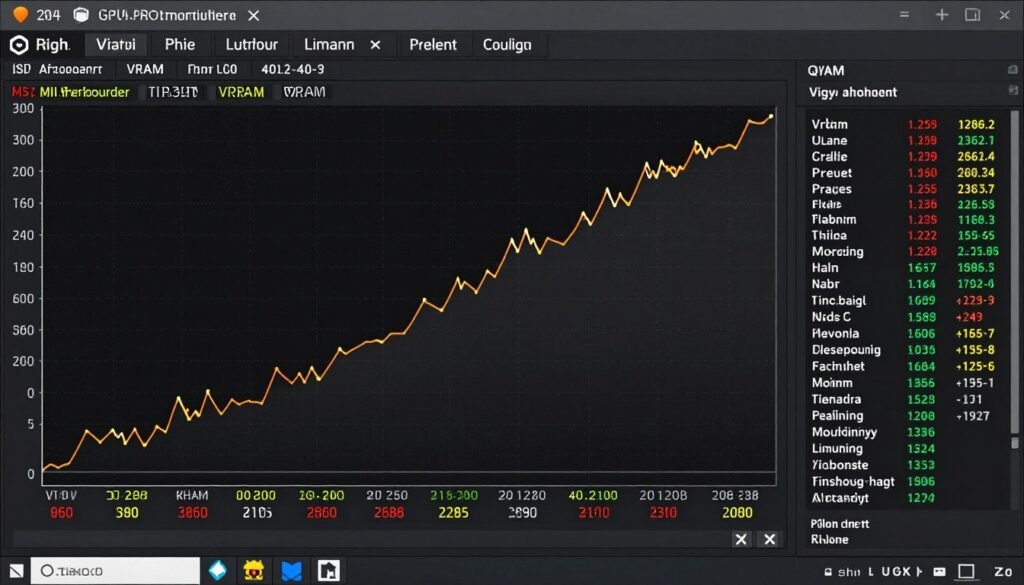
Upgraded to a 12GB RTX 4070 Ti. Same game, same settings, butter smooth. The extra VRAM headroom made all the difference. Understanding VRAM bottleneck symptoms helps diagnose these issues before they ruin your gaming experience.
Modern Game VRAM Requirements
Game engines keep getting more demanding. Unreal Engine 5 with Nanite technology streams incredibly detailed geometry. That data lives in VRAM.
- The Last of Us Part 1 recommends 16GB VRAM for 1440p ultra settings
- Hogwarts Legacy uses 12GB+ at 1440p with high textures
- Cyberpunk 2077 with ray tracing maxes out 10GB cards easily
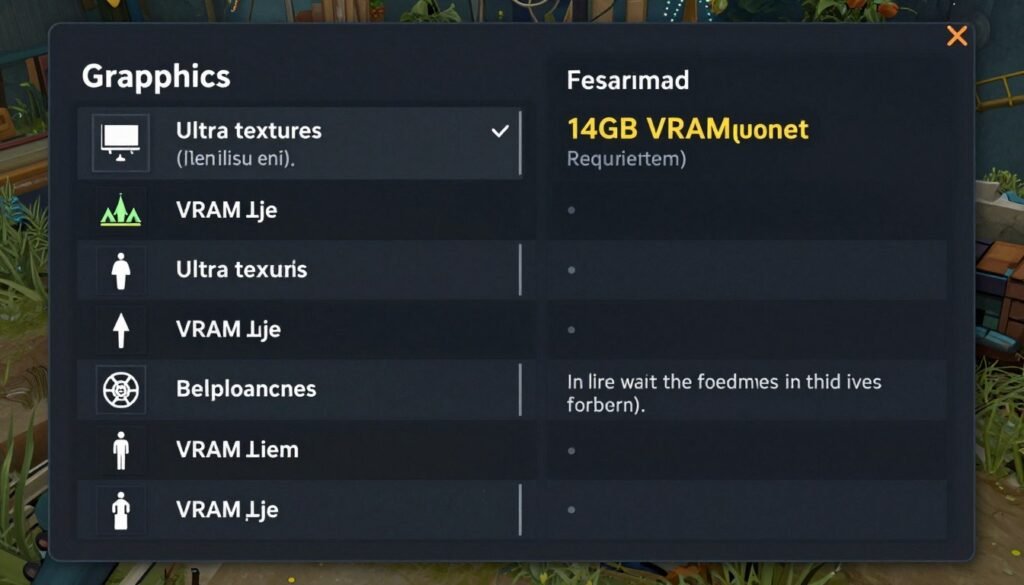
- Resident Evil 4 Remake pushes 14GB+ with max textures enabled
- Upcoming UE5 titles will likely demand even more
These numbers are for standard 1440 gaming. Add ultrawide into the mix and requirements jump another 20-30%. A game needing 12GB at 2560×1440 might need 14-15GB at 3440×1440.
The 8GB GPU Problem
Many budget and mid-range GPUs ship with 8GB VRAM. RTX 4060 Ti, RX 7600, even some higher-tier cards. For ultrawide gaming, this is a problem.
You can run these GPUs at ultrawide resolutions. You just can’t max texture settings in modern games. Dropping texture quality from ultra to high saves 2-3GB VRAM. Visual difference is minimal but performance impact is huge.
The frustrating part is the GPU processing power might handle the resolution fine. The VRAM limitation forces artificial settings restrictions. This is why I recommend 12GB minimum for serious 3440×1440 ultrawide gaming.
Checking VRAM Usage in Real Time
MSI Afterburner or GPU-Z show real-time VRAM usage. If you’re hitting 90%+ VRAM utilization, you’re likely experiencing stuttering or frame drops.
- Monitor VRAM usage during gameplay with overlay
- Watch for sudden spikes that coincide with stuttering
- Track VRAM allocation versus total available memory
- Test different texture quality settings to find sweet spot
I keep VRAM monitoring active whenever I test new games. It immediately shows whether texture settings are viable or need adjustment. Better to proactively lower one setting than deal with random performance drops.
Why Your CPU Still Matters for Ultrawide Performance
Common wisdom says ultrawide gaming is GPU-bound. Resolution scales GPU load, not CPU load. Mostly true, but not the full picture.
Higher resolutions do shift bottleneck toward the GPU. At 3440×1440, your GPU works significantly harder than your CPU in most games. But the CPU still matters more than you think.
Frame Time Consistency and CPU Performance
GPU determines average FPS. CPU determines frame time consistency. You might see 100 FPS average but experience stuttering. That’s often CPU-related.
Every frame requires CPU work before GPU rendering. Game logic, physics calculations, AI processing, draw calls to the GPU. Weak CPU creates frame time spikes even if average FPS looks fine.
- 1% and 0.1% low frame rates matter more than averages
- CPU bottlenecks cause frame time variance and stuttering
- Higher refresh rate monitors amplify CPU bottleneck impact
- Competitive gaming needs strong single-thread CPU performance
I tested this extensively with different CPU tiers. An RTX 4070 Ti paired with a Ryzen 5 5600 showed frame drops in CPU-heavy games. Same GPU with Ryzen 7 7800X3D eliminated stuttering completely. Average FPS barely changed but experience improved dramatically.
Modern Game Engine CPU Demands
Unreal Engine 5 introduced significant CPU overhead. Nanite geometry streaming requires CPU processing. Lumen lighting calculations use CPU cycles. These engines don’t care about your resolution.
Check the UE5 performance guide for detailed information on optimizing modern game engines. The CPU requirements caught many people off guard.
Recommended CPU Tiers for Ultrawide Gaming
Your CPU choice depends on target refresh rates and game types. Competitive gaming needs different specs than single-player AAA titles.
60-90 FPS Gaming
Budget-friendly options that handle most single-player games without issues.
- Intel Core i5-13400F or newer
- AMD Ryzen 5 7600 or newer
- 6-core minimum for modern titles
- Pairs well with mid-range GPUs
100-144 FPS Gaming
Mid-range processors for high refresh rate ultrawide gaming performance.
- Intel Core i7-14700K or newer
- AMD Ryzen 7 7800X3D (best gaming)
- 8-core recommended for headroom
- Strong single-thread performance critical
144-240 FPS Gaming
High-end CPUs for competitive gaming and maximum refresh rates.
- Intel Core i9-14900K or newer
- AMD Ryzen 9 7950X3D (ultimate)
- Prioritize clock speed over core count
- Essential for 240 refresh rate targets
Future-Proof Options
2026 hardware recommendations for upcoming game demands.
- Intel Arrow Lake processors (upcoming)
- AMD Ryzen 9000 series X3D variants
- DDR5 platform for memory bandwidth
- Check Intel vs AMD comparison
The X3D Cache Advantage
AMD’s 3D V-Cache technology delivers surprising benefits for ultrawide gaming. The extra L3 cache reduces memory latency, improving frame time consistency.
I tested Ryzen 7 7800X3D against regular 7700X. Average FPS difference was maybe 5%. But frame time consistency improved by 15-20%. Games felt noticeably smoother despite similar average frame rates.
The X3D advantage becomes more pronounced at higher refresh rates. If you’re targeting 144+ FPS on a best ultrawide monitor, the cache matters. For 60-90 FPS gaming, regular CPUs work fine.
System Balance for Ultrawide Builds
Pairing a flagship GPU with a budget CPU wastes money. Understanding system component balance prevents this common mistake.
- RTX 4060 Ti pairs well with Ryzen 5 7600 or i5-13400F
- RTX 4070 Ti matches nicely with Ryzen 7 7800X3D or i7-14700K
- RTX 4090 needs Ryzen 9 7950X3D or i9-14900K to avoid bottlenecks
- Budget allocation should favor GPU for ultrawide gaming
The GPU does more heavy lifting at ultrawide resolutions. But don’t completely neglect the CPU. A balanced system delivers better experience than lopsided specs.
Game-Specific Performance: What Actually Runs Well
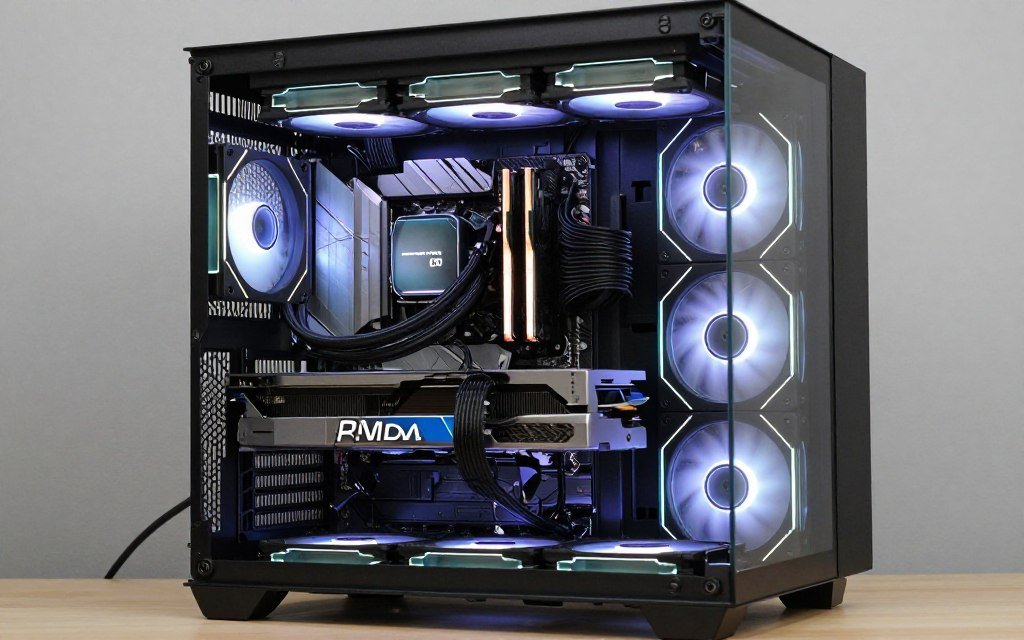
Benchmark numbers look good on paper. Real-world gaming tells a different story. Some games handle ultrawide gaming perfectly. Others struggle no matter what hardware you throw at them.
Competitive Games and Ultrawide Advantage
Multiplayer shooters and competitive titles generally run great on ultrawide monitors. These games prioritize performance over visual fidelity. Frame rates stay high even on modest hardware.
- CS2 easily hits 200+ FPS on mid-range hardware
- Valorant runs at 300+ FPS on most ultrawide setups
- Overwatch 2 maintains 144+ FPS without issues
- Apex Legends delivers smooth high refresh rate experience
- Rainbow Six Siege optimizes well for ultrawide aspect ratio
The extra screen real estate provides competitive advantage. Wider field of view lets you spot enemies earlier. I switched to ultrawide specifically for competitive gaming and never looked back.
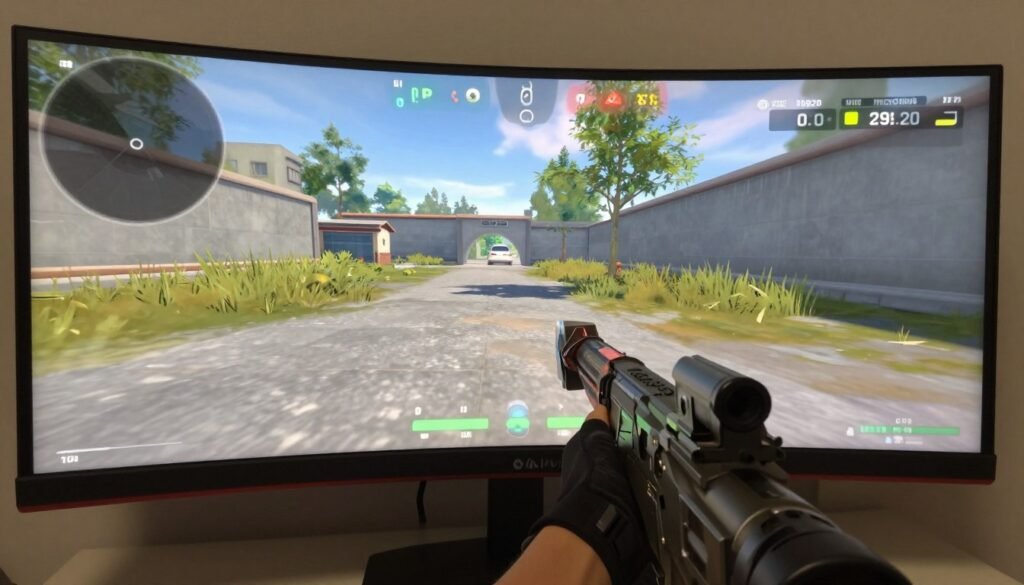
One caveat: some competitive games restrict aspect ratio in ranked modes. Overwatch limited ultrawide FOV for competitive balance. Check game-specific rules before buying based solely on competitive advantage.
AAA Single Player Performance
Modern single-player games push hardware limits. Ultrawide gaming in these titles requires powerful GPUs and realistic expectations.
Games That Run Great
- Doom Eternal – extremely well optimized
- Forza Horizon 5 – smooth experience at high settings
- God of War – excellent PC port optimization
- Spider-Man Remastered – handles ultrawide well
- Halo Infinite – solid performance after patches
Games That Struggle
- Cyberpunk 2077 – ray tracing tanks performance
- Starfield – CPU bottleneck in cities
- The Last of Us Part 1 – shader compilation issues
- Jedi Survivor – optimization problems persist
- Hogwarts Legacy – VRAM limitations on 8GB cards
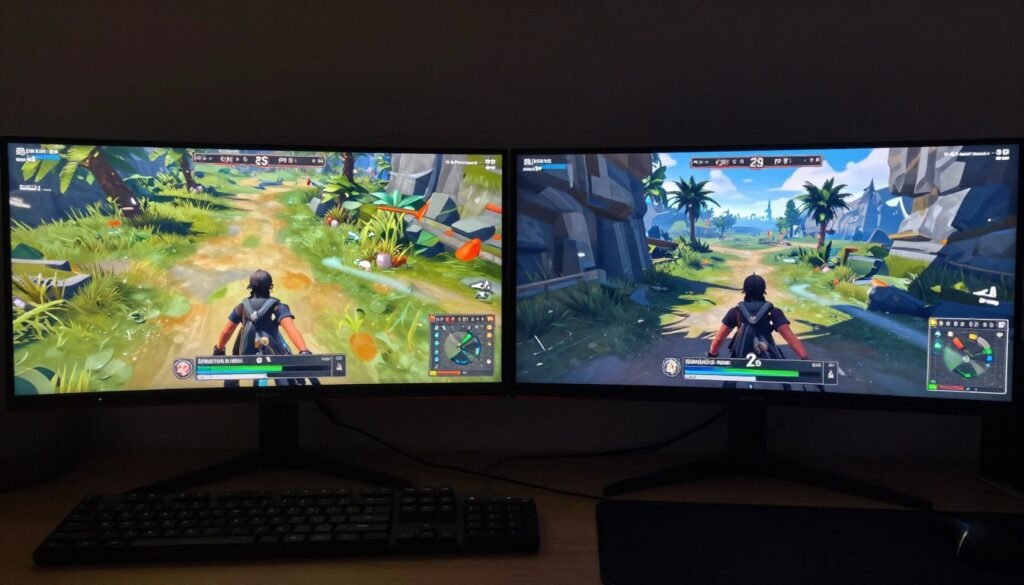
I tested dozens of AAA titles at 3440×1440. Performance varies wildly. Some games hit 100+ FPS on an RTX 4070 Ti. Others struggle to maintain 60 FPS on the same hardware. Game optimization matters as much as GPU power.
The Unreal Engine 5 Challenge
UE5 games introduce new performance challenges. Nanite and Lumen technology deliver incredible visuals but demand serious hardware. Ultrawide gaming amplifies these requirements.
Fortnite using UE5 runs fine because Epic optimizes their own engine extensively. Third-party UE5 games often struggle. The Matrix Awakens tech demo barely hit 60 FPS on an RTX 4090 at ultrawide resolutions.
- Lumen lighting creates dynamic effects but eats GPU resources
- Nanite geometry allows incredible detail at performance cost
- TSR upscaling helps but introduces artifacts
- Many UE5 titles target 30 FPS on consoles, PC optimization varies
Understanding these engine-specific challenges helps set realistic performance expectations. Don’t blame your GPU if a UE5 game runs poorly. The engine itself is computationally expensive.
Ray Tracing Impact on Ultrawide Gaming
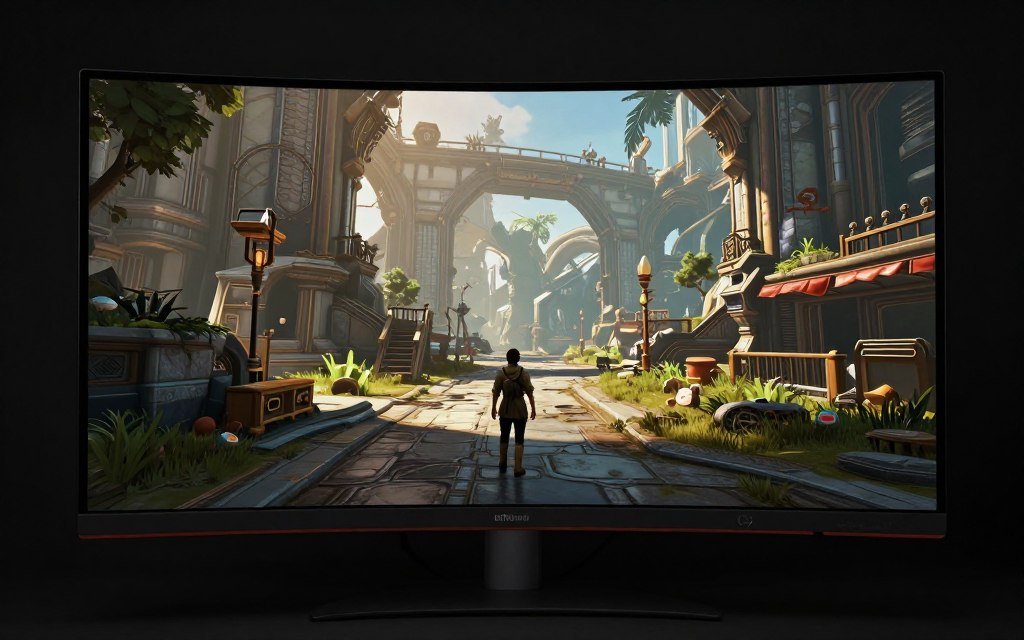
Ray tracing looks amazing. It also destroys frame rates. At ultrawide resolutions, the performance hit becomes severe.
Cyberpunk 2077 with ray tracing at 3440×1440 drops performance by 40-50% versus rasterization. On an RTX 4070, you’re looking at 50-60 FPS with RT enabled versus 100+ without.
DLSS or FSR upscaling helps recover performance. But you’re rendering at lower resolution then upscaling. Defeats the purpose of buying a high-resolution ultrawide monitor in the first place.
- RTX 4090 handles ray tracing better but still sees 30-40% performance drop
- AMD cards struggle more with ray tracing than Nvidia
- Hybrid ray tracing (selective effects) offers better balance
- Full path tracing remains impractical for ultrawide gaming
I personally disable ray tracing for most ultrawide gaming. The visual improvement doesn’t justify halving my frame rate. Exceptions exist for slower-paced games where 60 FPS suffices.
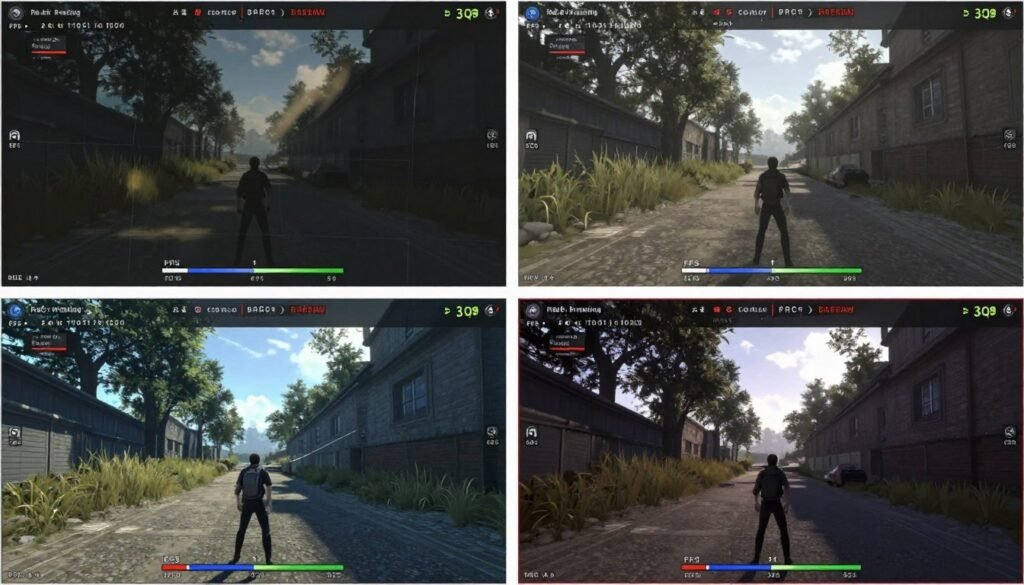
Optimization Strategies That Actually Work
You’ve got the hardware. Performance still isn’t where you want it. Time to optimize. Some settings destroy performance for minimal visual gain. Others are essential for quality.
Graphics Settings Priority for Ultrawide Gaming
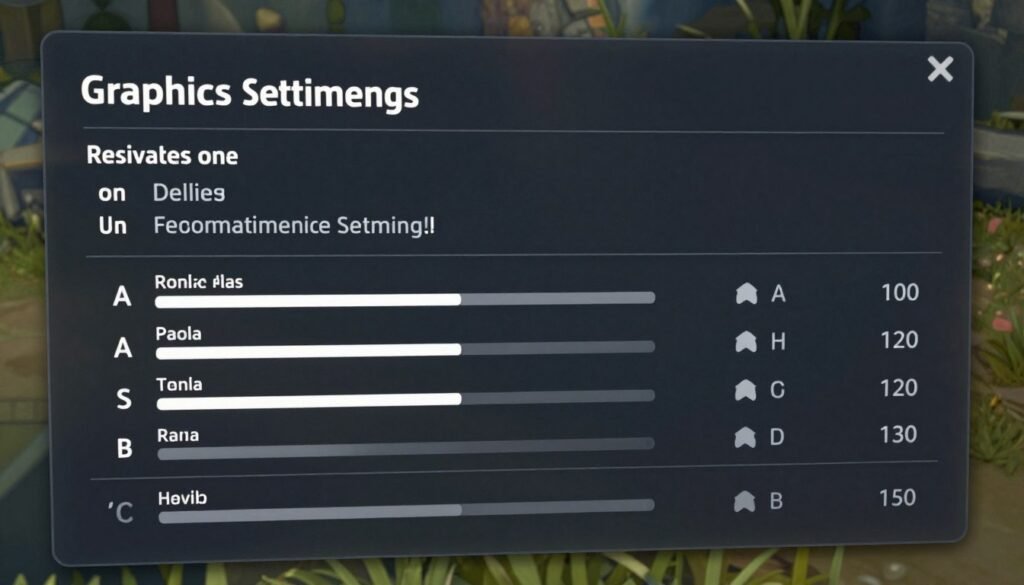
Not all graphics settings impact performance equally. Some tank frame rates while barely affecting visuals. Others make huge differences you’ll actually notice.
| Setting | Performance Impact | Visual Impact | Recommendation |
| Texture Quality | Low (VRAM dependent) | Very High | Max if VRAM allows |
| Anti-Aliasing | Medium-High | Medium | TAA or DLAA preferred |
| Shadow Quality | High | Medium | High (not Ultra) |
| Ray Tracing | Very High | High (scene dependent) | Disable for 100+ FPS |
| Ambient Occlusion | Medium | Medium | SSAO or HBAO+ |
| Volumetric Effects | High | Low-Medium | Medium or Low |
| View Distance | Medium | Medium | High (not Ultra) |
| Post-Processing | Low-Medium | High | Max for visual quality |
These recommendations assume you’re targeting 100+ FPS at 3440×1440. Adjust based on your specific hardware and frame rate goals. Understanding which settings matter most prevents wasted performance on invisible improvements.
DLSS, FSR, and XeSS Upscaling
Upscaling technology renders at lower resolution then reconstructs to your native resolution. Done well, it looks nearly identical while boosting performance significantly.
DLSS 3.5 on RTX 40-series cards delivers the best quality. FSR 3.0 works on any GPU but shows more artifacts. XeSS from Intel falls somewhere between.
- DLSS Quality mode renders at 67% resolution, minimal visual loss
- DLSS Balanced offers best performance-to-quality ratio
- DLSS Performance mode shows artifacts at ultrawide resolutions
- FSR Quality comparable to DLSS but slightly softer image
- Frame Generation (DLSS 3) adds input lag, avoid for competitive gaming
I use DLSS Quality for most single-player games. Performance boost averages 30-40% with barely noticeable quality difference. At 3440×1440, even Quality mode renders at 2298×966 internally. Still looks great.
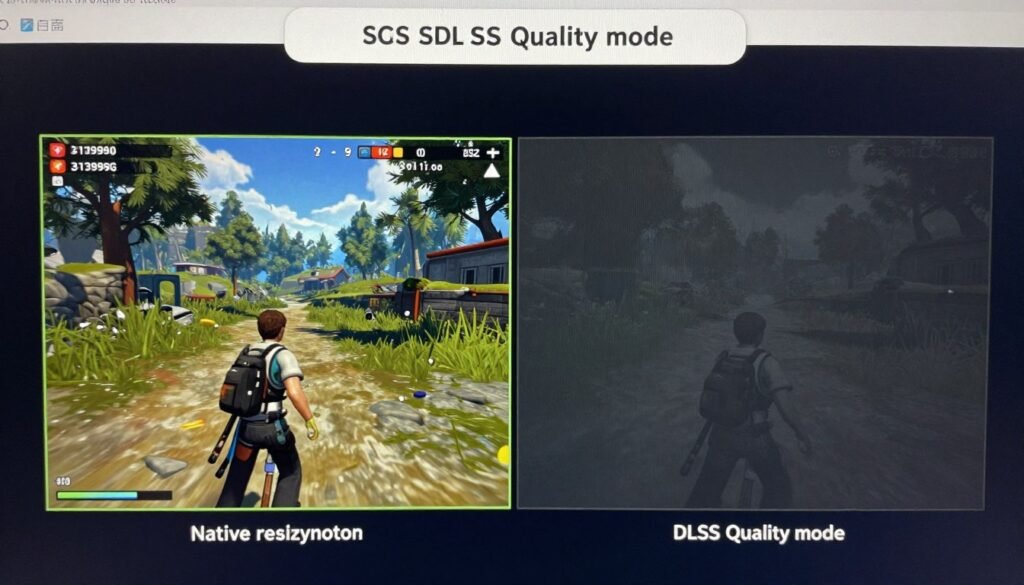
For competitive gaming, I run native resolution or DLAA (Deep Learning Anti-Aliasing). Input latency matters more than max FPS when you need precise aiming. Different use cases require different approaches.
Monitor Settings That Matter
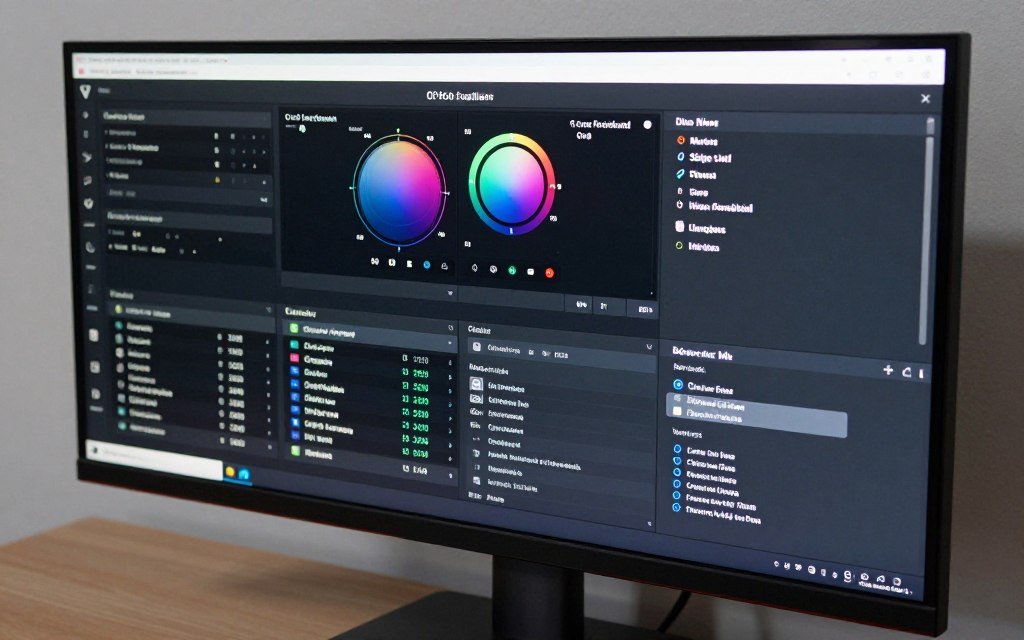
Your monitor has settings beyond resolution and refresh rate. Tuning these improves visual quality and reduces eye strain during long gaming sessions.
- Overdrive/Response Time – Set to fastest without artifacts
- VRR/G-Sync/FreeSync – Always enable to eliminate tearing
- HDR Mode – Enable for supported games only
- Brightness – 250-300 nits for gaming
- Color Temperature – 6500K for accurate colors
Essential Settings
- Low Input Lag Mode – Enable for competitive gaming
- Black Frame Insertion – Use only at 120Hz+
- Motion Blur Reduction – Alternative to VRR, choose one
- Game Mode Presets – Test versus manual settings
Performance Features
- Dynamic Contrast – Creates distracting brightness changes
- Sharpness – Adds artificial edge enhancement
- Vivid Color Modes – Oversaturates unrealistically
- Super Resolution – Upscaling introduces artifacts
Avoid These Settings
I spent weeks tuning my Samsung Odyssey OLED settings. Factory defaults were terrible. Proper calibration made huge difference in both visual quality and gaming comfort.
System-Level Optimizations
Windows settings and background processes impact gaming performance. Clean system runs better than bloated installation.
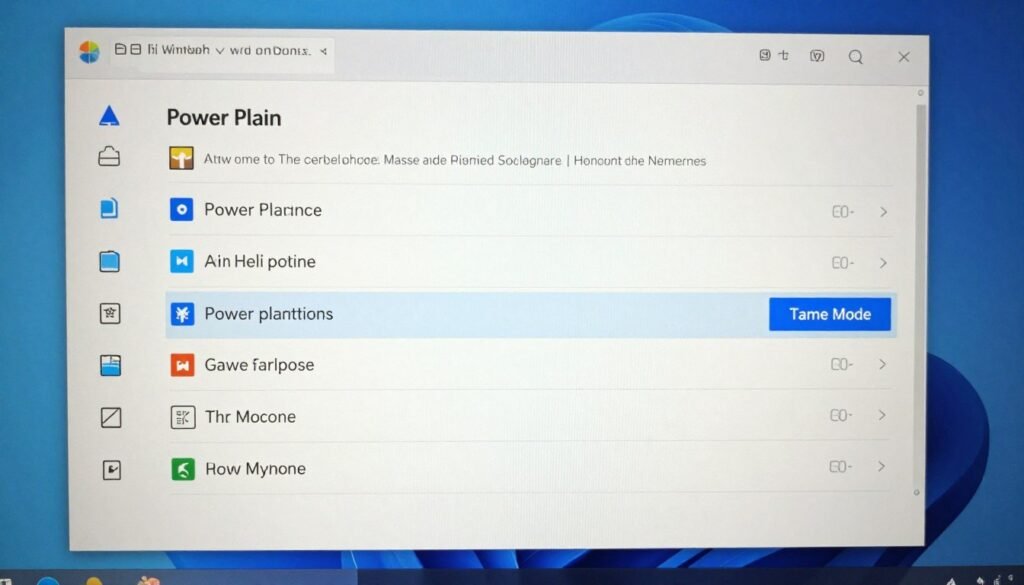
- Disable Windows Game Bar and Game DVR (causes stuttering)
- Set Windows power plan to High Performance
- Disable hardware-accelerated GPU scheduling (causes issues with some games)
- Close unnecessary background applications before gaming
- Keep GPU drivers updated but avoid beta versions
- Disable full-screen optimizations for games with performance issues
- Use Process Lasso to prevent CPU throttling
These optimizations sound minor but add up. I gained 8-10% performance in some games just from proper Windows configuration. Check the PC optimization guides for detailed system tuning instructions.
Cable and Connection Quality
Wrong cable limits your monitor’s capabilities. DisplayPort 1.4 maxes out at 3440×1440 144Hz with full color. Need DisplayPort 2.0 for higher refresh rates.
HDMI 2.1 supports ultrawide gaming but check specific bandwidth. Some implementations cut corners. DisplayPort generally better for PC gaming anyway.
- Use certified DisplayPort 1.4 cables minimum
- DisplayPort 2.0 required for 240 refresh rate ultrawide
- Cable length matters – stay under 6 feet when possible
- Poor cables cause black screens and signal dropouts
I had intermittent black screens with a cheap DisplayPort cable. Switched to certified cable and problems disappeared immediately. Don’t cheap out on cables after spending hundreds on the monitor.
Budget Ultrawide Gaming Builds That Make Sense
Ultrawide gaming doesn’t require flagship hardware. Smart component selection delivers great experience without emptying your wallet.
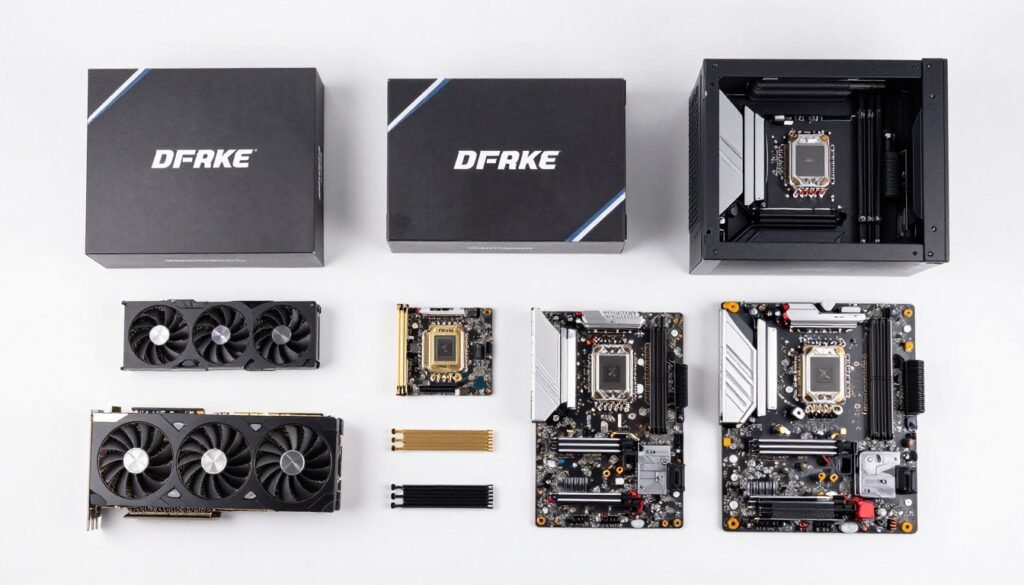
$800 Entry-Level 2560×1080 Build
This resolution offers ultrawide experience at 1080p pricing. Perfect entry point if you’re coming from standard displays.
Recommended Components
- GPU: AMD RX 7600 (8GB) – $269
- CPU: Intel Core i5-12400F – $149
- RAM: 16GB DDR4-3200 – $45
- Motherboard: B660 – $110
- Storage: 500GB NVMe SSD – $35
- PSU: 550W Bronze – $50
- Case: Budget ATX – $55
- Monitor: Best budget ultrawide 2560×1080 – $200
Expected Performance
This build handles modern games at high settings with solid frame rates. Competitive titles easily hit 100+ FPS.
- AAA games: 60-80 FPS high settings
- Competitive titles: 100-144 FPS
- Ray tracing: Not viable
- VRAM adequate for current games
- Upgrade path: GPU to RTX 4060 Ti later
$1,400 Sweet Spot 3440×1440 Build
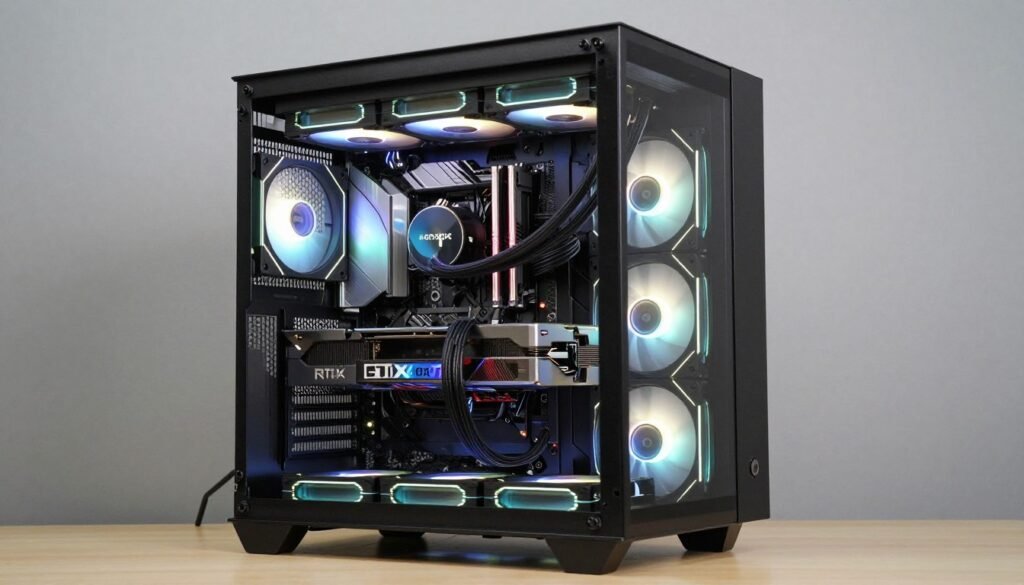
This configuration targets the most popular ultrawide resolution with balanced performance. Best value for serious ultrawide gaming.
Recommended Components
- GPU: RTX 4070 Super (12GB) – $599
- CPU: AMD Ryzen 7 7700X – $299
- RAM: 32GB DDR5-6000 – $110
- Motherboard: B650 – $170
- Storage: 1TB Gen4 NVMe – $75
- PSU: 750W Gold – $95
- Case: Airflow ATX – $80
- Cooler: Tower Air Cooler – $35
Expected Performance
High-refresh ultrawide gaming at excellent settings. Handles modern titles comfortably with room for demanding games.
- AAA games: 80-100 FPS high-ultra settings
- Competitive titles: 144-200 FPS
- DLSS Quality: 100-120 FPS in demanding games
- Ray tracing viable with upscaling
- Pairs well with 144Hz ultrawide monitors
This represents the sweet spot for price-to-performance in ultrawide gaming. You get great experience without overspending on diminishing returns. I ran a similar build for a year before upgrading and it handled everything I threw at it.
Used Market Opportunities
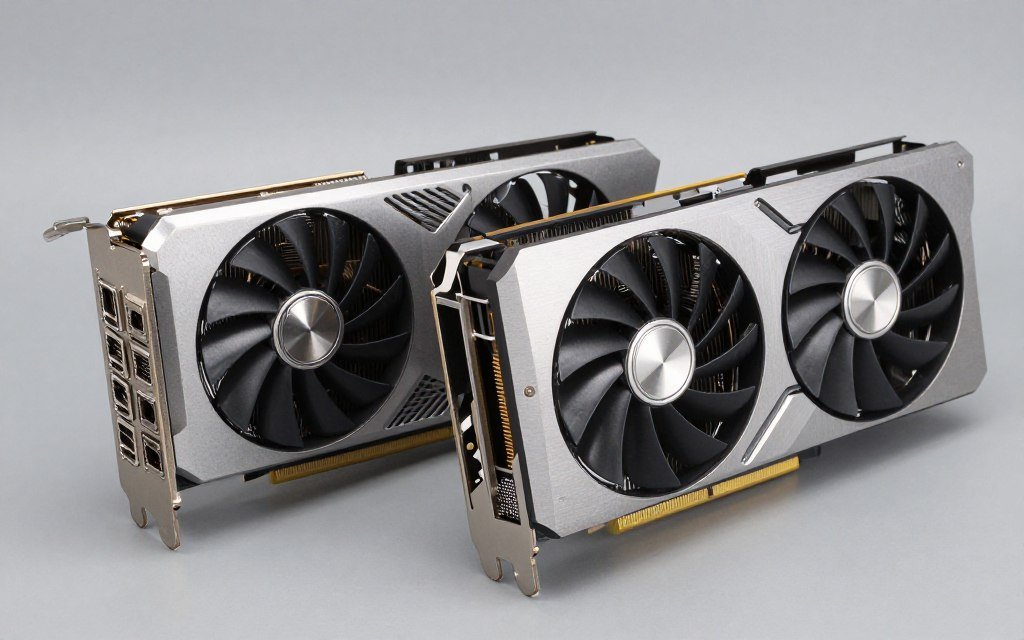
Previous generation hardware offers serious value. RTX 30-series GPUs dropped in price significantly. Still capable for ultrawide gaming.
- RTX 3070 Ti available for $350-400 used
- RX 6800 XT competitive at similar pricing
- Ryzen 5 5600X excellent value at $130
- DDR4 platforms cheaper than DDR5 with minimal performance loss
- Previous gen best ultrawide monitors discounted heavily
Buy used graphics cards carefully. Check for mining damage and warranty status. Avoid cards that ran 24/7 in mining operations. Personal use cards generally fine if priced right.
Where to Save and Where to Spend
Budget builds require priority decisions. Some components deserve full budget. Others accept compromises.
Spend More Here
- GPU – Directly determines ultrawide performance
- Monitor – Main component you interact with daily
- PSU – Cheap units fail and damage components
- Storage – NVMe significantly faster than SATA
Save Money Here
- Case – Airflow matters more than aesthetics
- Cooler – Tower air coolers perform well for less
- RAM – 16GB adequate if budget tight
- RGB – Functional over flashy for best value
I built multiple budget systems for friends. Every time someone overspent on RGB and fancy cases then cheaped out on GPU, they regretted it. Prioritize components that affect actual performance and experience.
Choosing the Right Ultrawide Monitor for Your GPU
You can’t separate monitor choice from GPU capability. Buying a 240 refresh rate ultrawide monitor with a mid-range GPU wastes money. Matching display to hardware maximizes experience.
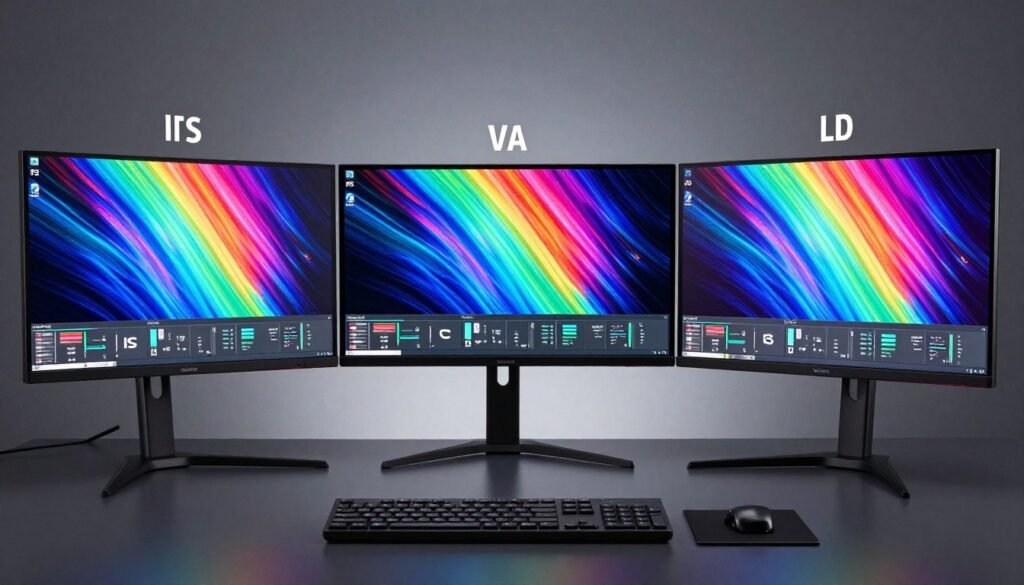
Panel Technology Comparison
Three main panel types dominate ultrawide monitors. Each offers different trade-offs for gaming performance and visual quality.
| Panel Type | Response Time | Contrast Ratio | Color Accuracy | Price | Best For |
| IPS | 1-4ms | 1000:1 | Excellent | Medium | Balanced gaming and content creation |
| VA | 4-8ms | 3000:1 | Good | Low-Medium | Immersive single-player games |
| OLED | 0.1ms | Infinite | Excellent | High | Premium competitive and HDR gaming |
I tested all three panel types extensively. IPS offers best all-around performance for most gamers. VA panels suit budget builds but motion clarity suffers. OLED delivers ultimate experience if you can afford it.
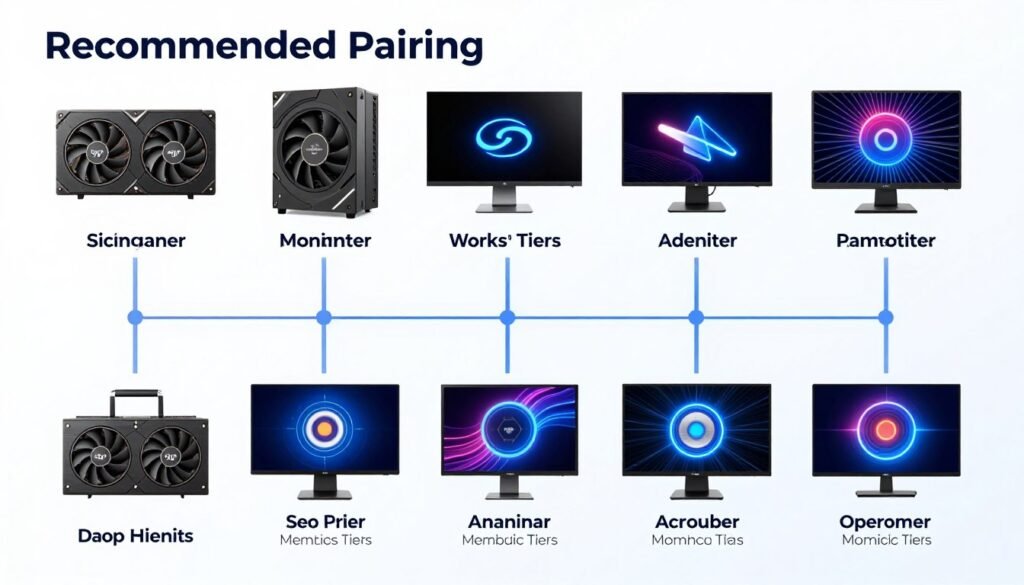
Resolution and GPU Pairing Guide
Your GPU determines viable monitor resolution. Buy beyond your GPU capability and you’ll constantly run reduced settings or low frame rates.
RTX 4060 / RX 7600
Best paired with 2560×1080 ultrawide monitors for smooth high-settings gaming.
- Target 75-100Hz refresh rate
- IPS panel recommended
- 1080p ultrawide sweet spot
- Budget ultrawide options available
RTX 4070 / RX 7800 XT
Perfect for 3440×1440 ultrawide gaming at high settings with good frame rates.
- Target 100-144Hz refresh rate
- IPS or VA panel both viable
- Most popular ultrawide resolution
- Best value proposition overall
RTX 4080 / RX 7900 XTX
Capable of driving 3440×1440 at maximum settings or 5120×1440 with compromises.
- 144-165Hz viable at 3440×1440
- 100Hz realistic at 5120×1440
- Consider OLED panels
- HDR worthwhile at this tier
RTX 4090 / RTX 5090
Flagship GPUs handle any ultrawide resolution including demanding 5120×1440 setups.
- 240 refresh rate possible in some games
- OLED panel strongly recommended
- 32:9 aspect ratio viable option
- Samsung Odyssey OLED excellent choice
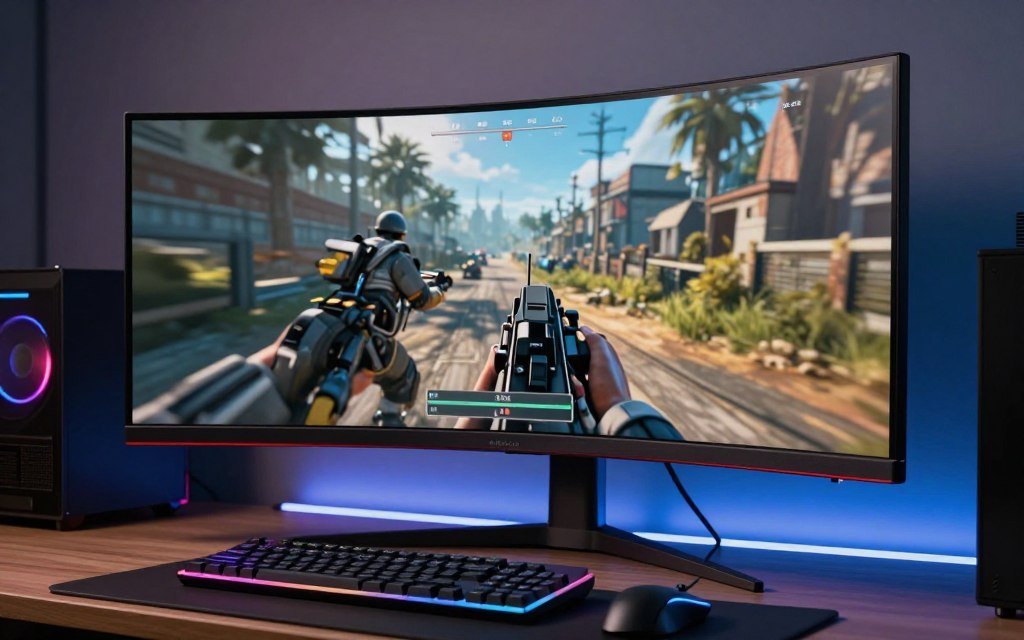
Curved vs Flat Ultrawide Displays
Ultrawide monitors come curved or flat. Curve ratings range from 1000R (aggressive) to 1800R (subtle). The number represents radius in millimeters.
I prefer curved displays for immersive gaming. A 1800R curve wraps around your field of view without distortion. More aggressive curves suit super-ultrawide 32:9 aspect monitors better.
- 1800R curve ideal for 3440×1440 gaming monitors
- 1000R better suited for 5120×1440 super ultrawide
- Flat panels work fine if you prefer them
- Curved reduces eye movement for peripheral vision
- Some people experience distortion discomfort with aggressive curves
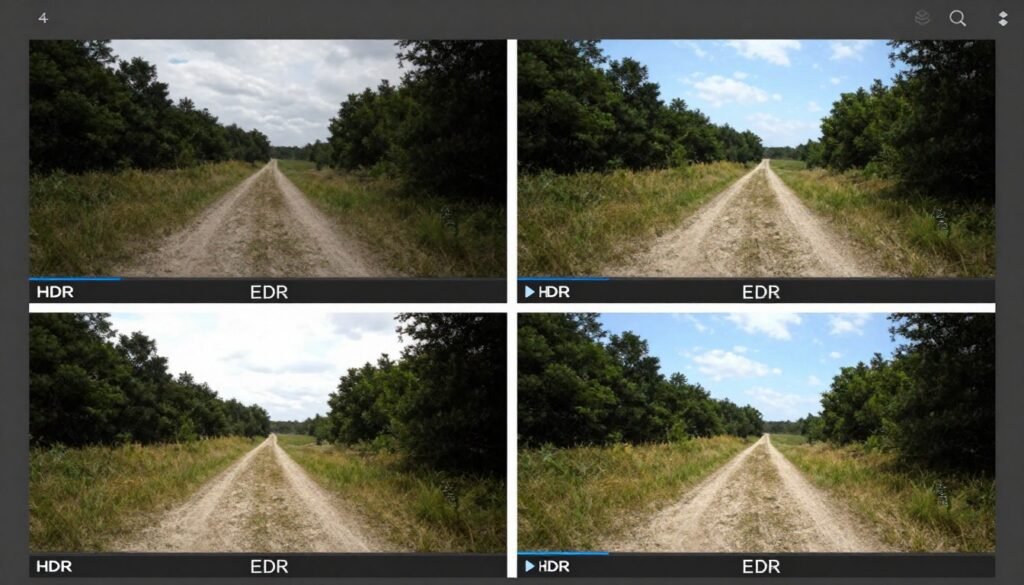
HDR Capability and Implementation
HDR sounds great in marketing. Implementation quality varies dramatically. Many “HDR” monitors barely qualify as real HDR.
True HDR requires at least DisplayHDR 600 certification. DisplayHDR 400 is marketing fluff. OLED panels deliver best oled HDR experience with per-pixel dimming.
- DisplayHDR 1000 or higher for meaningful improvement
- OLED inherently better for HDR than LCD
- Check peak brightness specs (1000+ nits preferred)
- Local dimming zones matter for LCD HDR
- Windows HDR implementation still problematic
I run HDR on my Samsung Odyssey OLED for supported games. The difference is stunning in titles like Cyberpunk 2077. But I disable HDR for desktop use because Windows handles it poorly. Game-specific HDR worth it, desktop HDR not there yet.
Verify Your Ultrawide Gaming Setup
Now that you understand ultrawide performance requirements, check if your specific components are properly balanced. Our calculator analyzes your exact hardware combination and identifies potential bottlenecks before you experience performance issues.
Common Ultrawide Gaming Problems and Actual Fixes
Theory looks good on paper. Real-world ultrawide gaming presents specific problems. Here’s what actually goes wrong and how to fix it.
Black Bars in Games (Aspect Ratio Issues)
You boot up a game and black bars appear on the sides. The game doesn’t recognize your ultrawide aspect ratio. Frustrating after spending money on the monitor.
Some games don’t support 21:9 or 32:9 natively. Older titles particularly problematic. Solutions exist but require work.
- Check PCGamingWiki for game-specific ultrawide fixes
- Flawless Widescreen utility enables ultrawide for many games
- HEX editing game files (use carefully, can break games)
- Some competitive games intentionally restrict aspect ratio
- Accept that certain games won’t support ultrawide
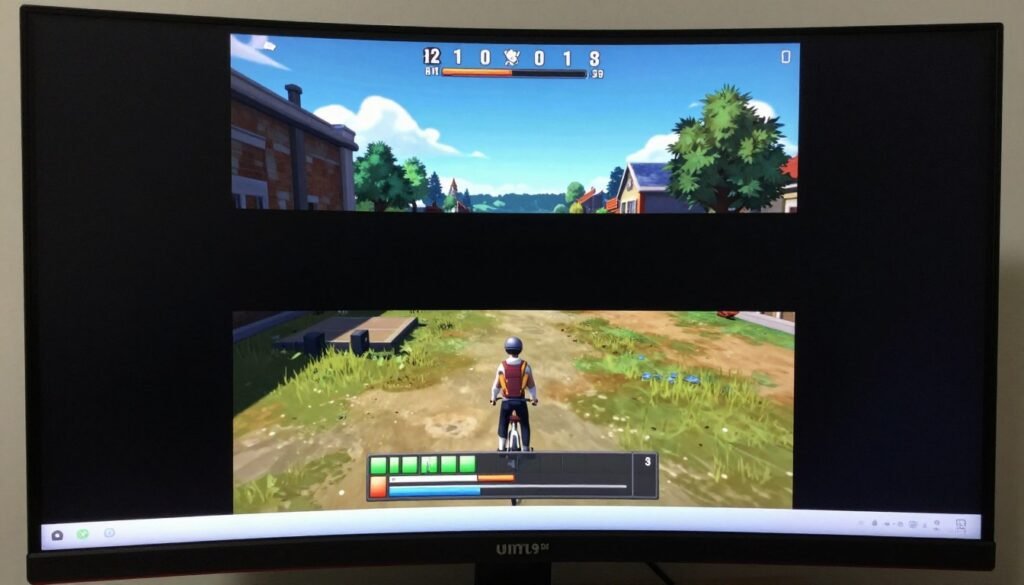
I maintain a list of games that work well with ultrawide and those that don’t. Before buying a new game, I check compatibility. Saves disappointment when a $60 title doesn’t support your display properly.
Stuttering Despite High Average FPS
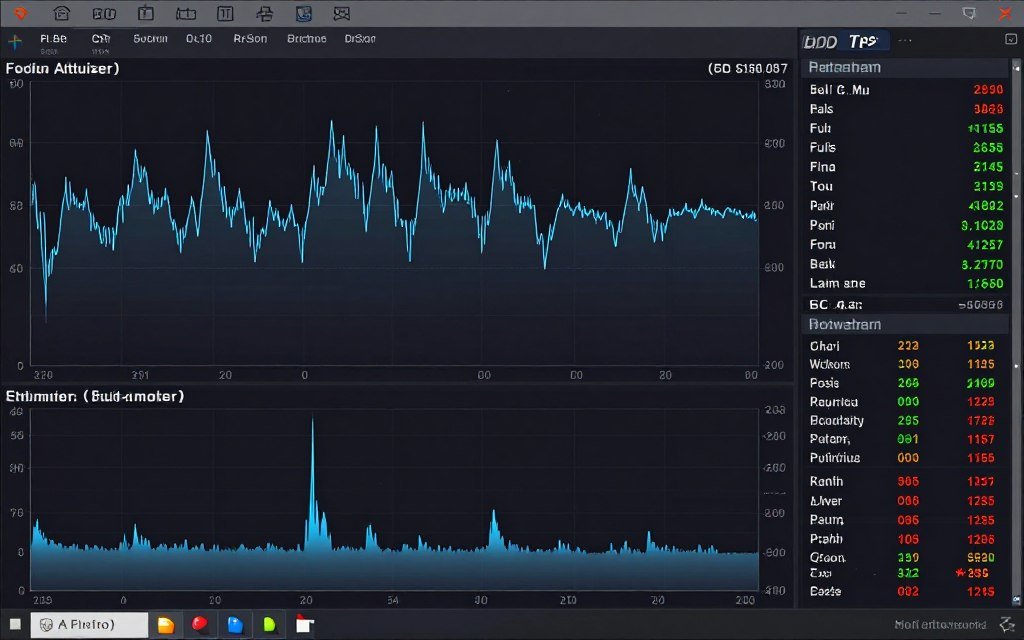
Your FPS counter shows 100+. Game still feels choppy. Frame time variance causes this. Understanding GPU bottleneck symptoms helps diagnose the actual cause.
Check 1% and 0.1% low frame rates. These matter more than averages for perceived smoothness. CPU bottlenecks often manifest as frame time spikes.
Quick Stutter Diagnosis
Use MSI Afterburner to monitor GPU and CPU usage during gameplay. If GPU usage fluctuates wildly (50%-100%-50%), that indicates CPU bottleneck. Consistent 99-100% GPU usage with steady frame times means GPU-limited (normal for ultrawide).
- Enable VRR/G-Sync/FreeSync to smooth frame time variance
- Close background applications consuming CPU cycles
- Disable shader compilation stuttering in game settings
- Update GPU drivers (sometimes older drivers performed better)
- Check for thermal throttling limiting performance
Games Crash or Won’t Launch at Ultrawide Resolution
Some games crash when detecting ultrawide resolutions. Usually happens with older titles or poor PC ports. The game literally can’t handle the aspect ratio.
This happened to me with several older games I wanted to replay. Dead Space original version wouldn’t launch at 3440×1440. Had to force windowed mode then switch.
- Launch in windowed mode first, then switch to fullscreen
- Edit config files to force resolution before launching
- Use compatibility mode for very old games
- Some games need community patches for stability
- Verify game files through Steam/Epic if crashes persist
Stretched UI Elements and HUD Issues
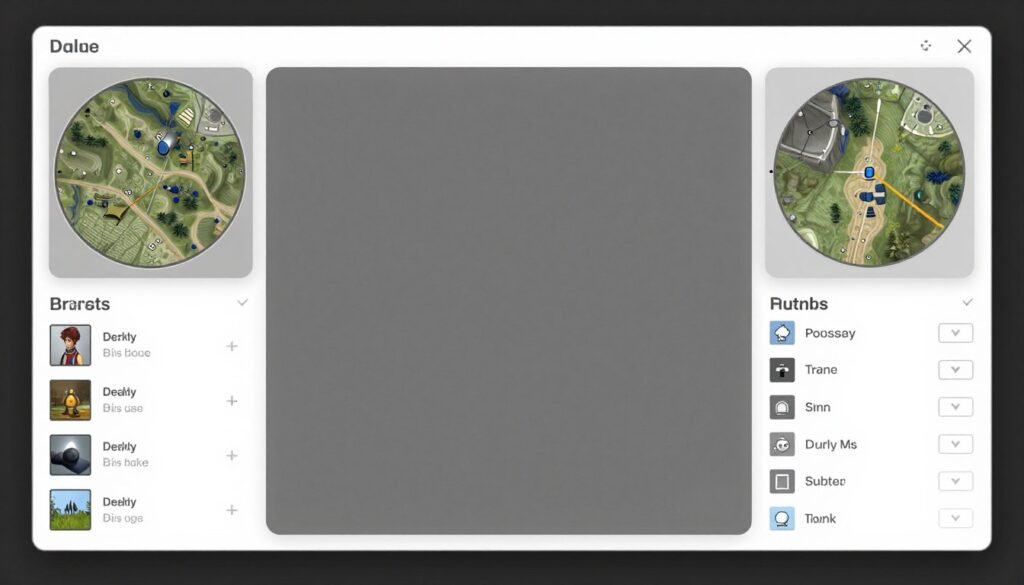
Game runs at ultrawide resolution but UI elements stretch incorrectly. Circular minimaps become ovals. Text appears distorted. Common problem with console ports.
Many games render the game world properly but stretch UI without adjusting for aspect ratio. Developers optimized for 16:9 and didn’t test ultrawide properly.
- Look for HUD scaling options in game settings
- Community mods fix UI for many popular games
- Some games offer separate UI scaling from resolution
- Accept imperfect UI in exchange for ultrawide gameplay
- Check game forums for specific fixes
Performance Degradation Over Time
Game ran fine initially. Weeks later, performance dropped significantly. Same settings, different results. Several causes create this gradual decline.
Driver updates sometimes introduce performance regressions. Game patches change optimization. Background processes accumulate. VRAM fragmentation in long sessions.
- DDU (Display Driver Uninstaller) then clean driver install
- Monitor VRAM usage – close and restart game if hitting limits
- Verify game file integrity after patches
- Check Windows Update hasn’t broken game mode settings
- Thermal paste degradation reduces GPU performance over time
I experienced this with Hogwarts Legacy. Initially ran fine, then started stuttering after a patch. Rolling back to previous GPU driver fixed it immediately. Not always the game’s fault.
Future-Proofing Your Ultrawide Gaming Setup
Technology moves fast. What runs games today might struggle tomorrow. Smart planning extends your hardware lifespan.
2026 Hardware Landscape
New GPU and CPU generations launch regularly. Understanding upcoming releases helps time purchases better. Buying right before new generation releases wastes money.
RTX 50-series Blackwell GPUs started launching in 2025-2026. AMD RDNA 4 architecture promises efficiency improvements. Intel Arc Battlemage offers competition in mid-range.
- RTX 5090 handles ultrawide performance with ease but costs premium
- RTX 5070 likely sweet spot for 3440×1440 gaming
- AMD focusing on power efficiency over raw performance
- Next-gen cards improve ray tracing significantly
- VRAM amounts increasing across all tiers
Intel versus AMD CPU battle continues in 2026. Check the 2026 CPU comparison guide for detailed analysis of which platform delivers better value for your specific needs.
Monitor Technology Evolution
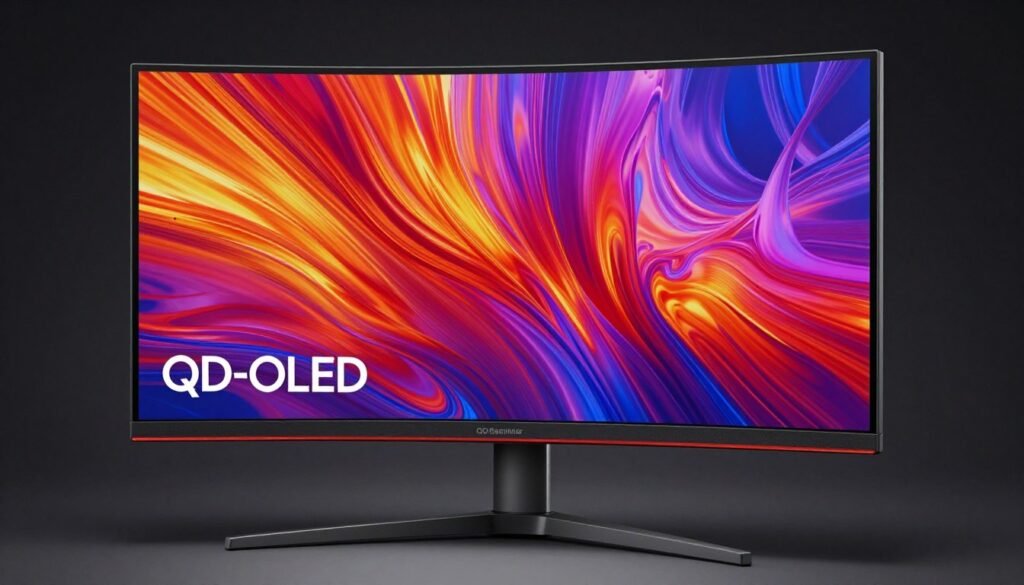
Display technology advances quickly. OLED panels getting cheaper. MicroLED promises better longevity. QD-OLED offers improved brightness.
Current best ultrawide monitors use QD-OLED technology. Samsung Odyssey OLED represents current flagship. Prices will drop as production scales.
- OLED burn-in concerns decreasing with newer panels
- 240 refresh rate becoming standard for premium models
- DisplayPort 2.1 enables higher bandwidth for future resolutions
- 8K ultrawide monitors impractical for gaming currently
- HDR implementation improving with better Windows support
Software and Game Engine Trends
Game engines determine future performance requirements. Unreal Engine 5 adoption accelerating. Unity struggling with competition. Proprietary engines vary widely.
UE5 games will dominate the next few years. This engine is computationally expensive. Hardware requirements won’t decrease. Plan accordingly.
- More games adopting path tracing for lighting
- DLSS 4 and FSR 4 improving upscaling quality
- AI-powered frame generation becoming common
- Texture streaming reducing VRAM requirements somewhat
- DirectStorage API improving load times on NVMe drives
The performance challenges won’t get easier. Games push hardware harder each year. Budget for upgrades or accept lower settings over time. No way around this reality.
Smart Upgrade Paths
Plan upgrades strategically. Don’t replace everything at once. Identify actual bottleneck and upgrade that component.
GPU Upgrade Priority
When GPU limiting performance, upgrade delivers immediate improvement. This is most common scenario for ultrawide gaming.
- Sell current GPU to offset cost
- Wait for new generation launches
- Previous gen drops in price significantly
- Calculate actual FPS improvement first
- Check if PSU can handle new GPU
Platform Upgrade (CPU/RAM/Motherboard)
Sometimes entire platform needs updating. More expensive but necessary for older systems.
- Plan when CPU bottlenecks appear
- Coordinate with DDR5 adoption timing
- Reuse case, PSU, storage from old build
- Sell old platform as combo
- Consider AM5 or LGA1700 longevity
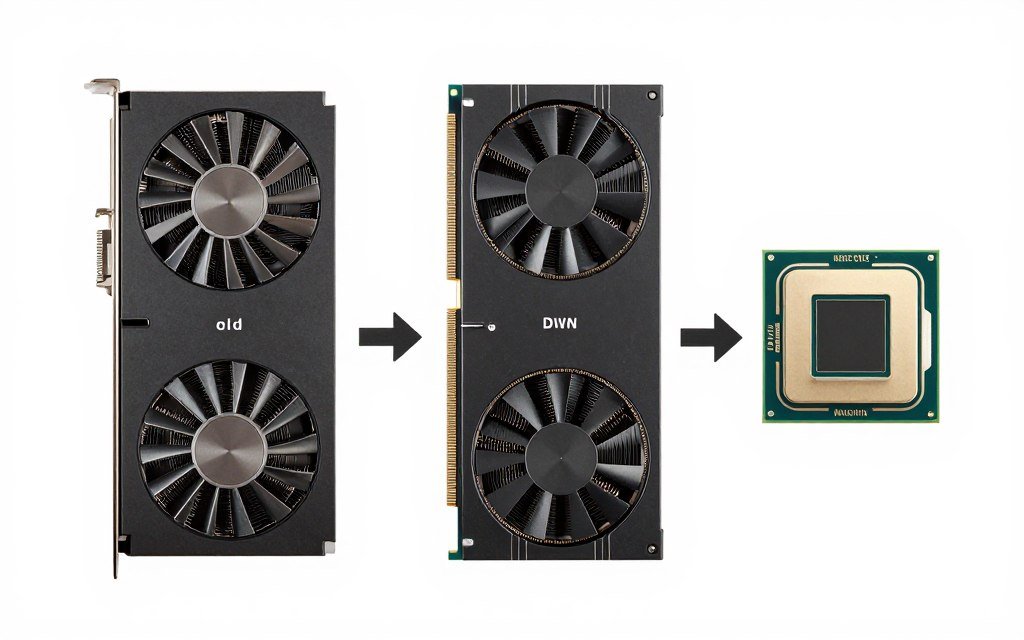
I upgraded from Ryzen 5 5600 to 7800X3D while keeping my RTX 4070 Ti. Frame rates barely changed but frame time consistency improved dramatically. The upgrade made sense because CPU was limiting my high refresh rate experience.
When to Actually Upgrade
Don’t upgrade because new hardware exists. Upgrade when current hardware doesn’t meet your needs. Simple guideline but many people ignore it.
- Current FPS below your minimum acceptable threshold
- Can’t maintain settings you want in new games
- Hitting VRAM limits forcing texture quality reduction
- New hardware offers 40%+ performance improvement
- Current hardware becomes bottleneck for other components
I see people upgrading from RTX 4070 to RTX 4080 for 15% more FPS. Waste of money. Wait for actual generational improvement or significant performance gap. Marginal upgrades burn cash without meaningful experience improvement.
The Bottom Line
Ultrawide performance comes down to understanding the pixel load math and matching hardware to your specific resolution and refresh rate targets.
A 3440×1440 ultrawide monitor pushes 34% more pixels than standard 1440p. That’s not a marketing number. It’s real computational work your GPU must handle every frame. Ignore this and you’ll experience disappointing performance.
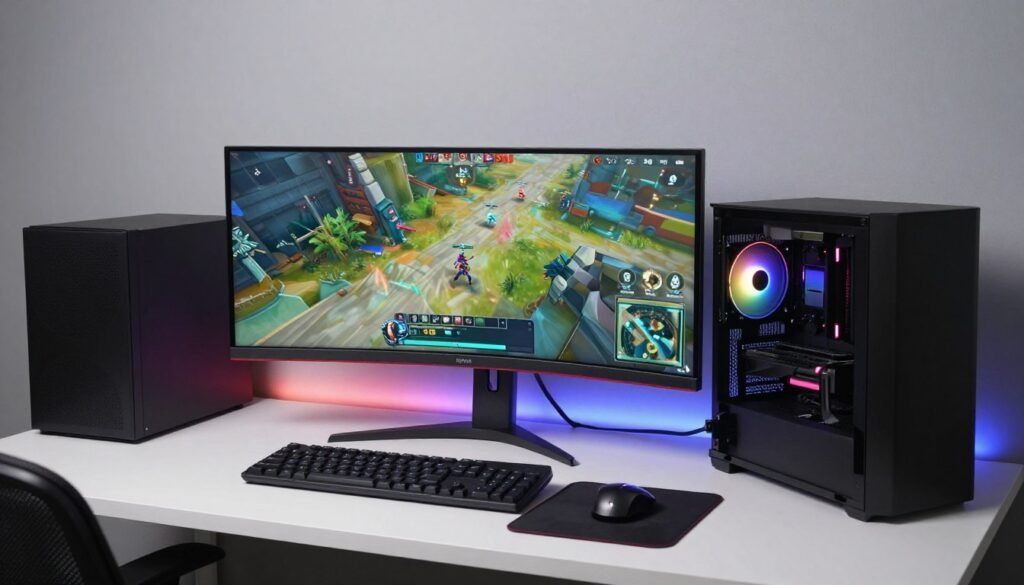
The reality is most ultrawide gaming happens at 3440×1440. This resolution hits the sweet spot between visual quality and hardware requirements. You need at least an RTX 4070 or RX 7800 XT to drive this resolution comfortably at high settings.
Super ultrawide 5120×1440 monitors with 32:9 aspect ratio double the pixel count. These displays demand flagship hardware. RTX 4090 or upcoming RTX 5090 recommended for consistent high refresh rate gaming.
VRAM matters more than people think. 8GB GPUs struggle with modern games at ultrawide resolutions when maxing texture quality. 12GB minimum recommended for 3440×1440. 16GB preferred for future-proofing.
Don’t neglect your CPU. While GPU does heavy lifting at ultrawide resolutions, CPU determines frame time consistency. Stuttering despite good average FPS usually indicates CPU bottleneck. Balanced system performs better than lopsided specs.
- Match monitor resolution to GPU capability
- Budget 12GB+ VRAM for 3440×1440 gaming
- Target realistic refresh rates based on hardware tier
- Optimize settings intelligently rather than maxing everything
- Use upscaling (DLSS/FSR) for performance headroom
- Monitor actual frame times, not just average FPS
- Plan upgrades strategically around actual bottlenecks
The ultrawide gaming experience is worth the extra hardware investment if you buy smart. Understanding the actual performance requirements prevents expensive mistakes. Run the numbers, match components properly, and optimize settings based on your specific hardware.
Most importantly, test before you buy if possible. Not everyone enjoys ultrawide gaming despite the technical advantages. Some people prefer standard 16:9 at higher resolution. Know your preferences before committing to the ultrawide format.
What’s the weirdest performance issue you’ve ever run into?