
I remember the first time I hit a VRAM bottleneck. I was deep into a modded Skyrim playthrough, cranked the texture mods way up, and suddenly my smooth 60 FPS turned into a slideshow every time I entered a new area. My GPU fans started screaming, but Task Manager showed my graphics card wasn’t even fully loaded. That’s when I learned that VRAM and GPU power are two very different things.
A VRAM bottleneck happens when your graphics card runs out of memory before it runs out of processing power. Games stutter. Frames drop. Textures pop in late or look like mush. The frustrating part? Your GPU usage might sit at 60% while your system feels like it’s dying.
This guide isn’t about specs and benchmarks. It’s about figuring out if VRAM is actually your problem, what’s causing it, and whether you need to upgrade or just tweak some settings.
Here’s Why This Actually Matters
VRAM is your graphics card’s short-term memory. It holds textures, models, frame buffers, and everything else the GPU needs right now to draw what’s on your screen. When you run out of VRAM, your system starts using regular RAM instead, which is way slower. That’s when performance falls off a cliff.
Modern games at 1440p or 4K with high texture settings can easily eat 8GB to 12GB of VRAM. If your card only has 6GB or 8GB, you’re going to hit the limit. The game doesn’t crash, but it stutters hard as data gets shuffled between GPU memory and system RAM.
The Parts People Usually Get Wrong
A lot of people assume a VRAM bottleneck means their GPU is too weak. That’s not true. You can have a powerful GPU with not enough memory, or a weak GPU with tons of memory. They’re separate specs.
- High GPU usage (95%+) usually means your GPU cores are the limit
- High VRAM usage (near max) with lower GPU usage points to a memory bottleneck
- Stuttering with inconsistent frame times is the biggest red flag
One of my friends kept complaining his RTX 3060 Ti felt slow in Cyberpunk 2077. Turns out he had ray tracing and ultra textures enabled, which pushed him over the 8GB limit. Dropping texture quality one notch fixed everything without touching ray tracing. He kept the visual quality he cared about and stopped the stuttering.
Quick Reality Check: If you’re gaming at 1080p with medium-to-high settings, 8GB is usually fine. At 1440p with max settings, you want 10GB to 12GB. Native 4K gaming or heavy rendering work? 16GB minimum. These aren’t hard rules, but they’ll save you headaches.
How Do I Actually Check My VRAM?
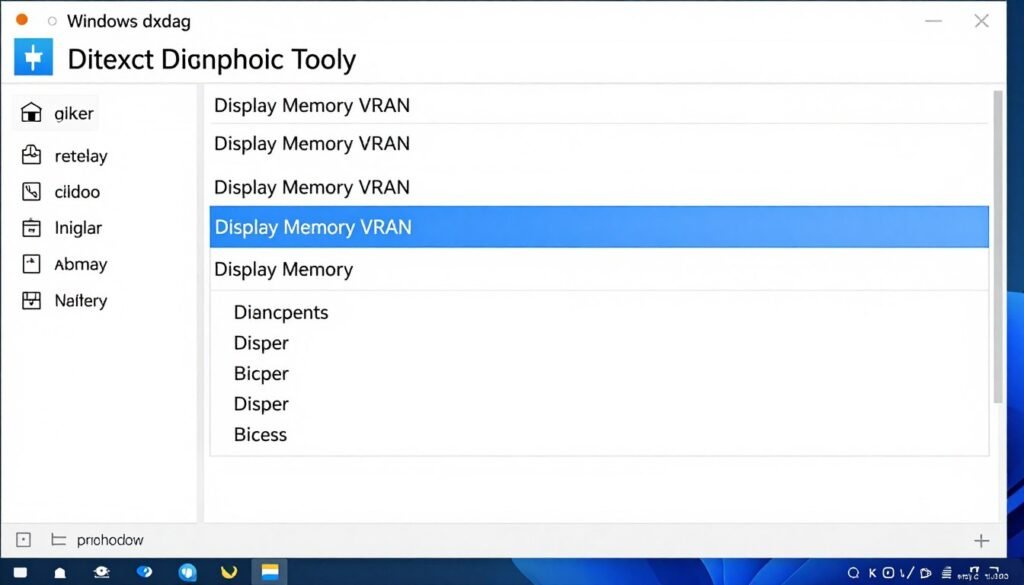
The easiest way to check how much VRAM your GPU has is to use Windows’ built-in DirectX Diagnostic tool. Hit Win+R, type dxdiag, and hit Enter. Click the “Display” tab, and scroll down to “Display Memory (VRAM).” That’s your total capacity.
But knowing your capacity doesn’t tell you how much you’re actually using. For that, you need real-time monitoring while you’re gaming or rendering.
Tools I Actually Use
Task Manager (Built Into Windows)
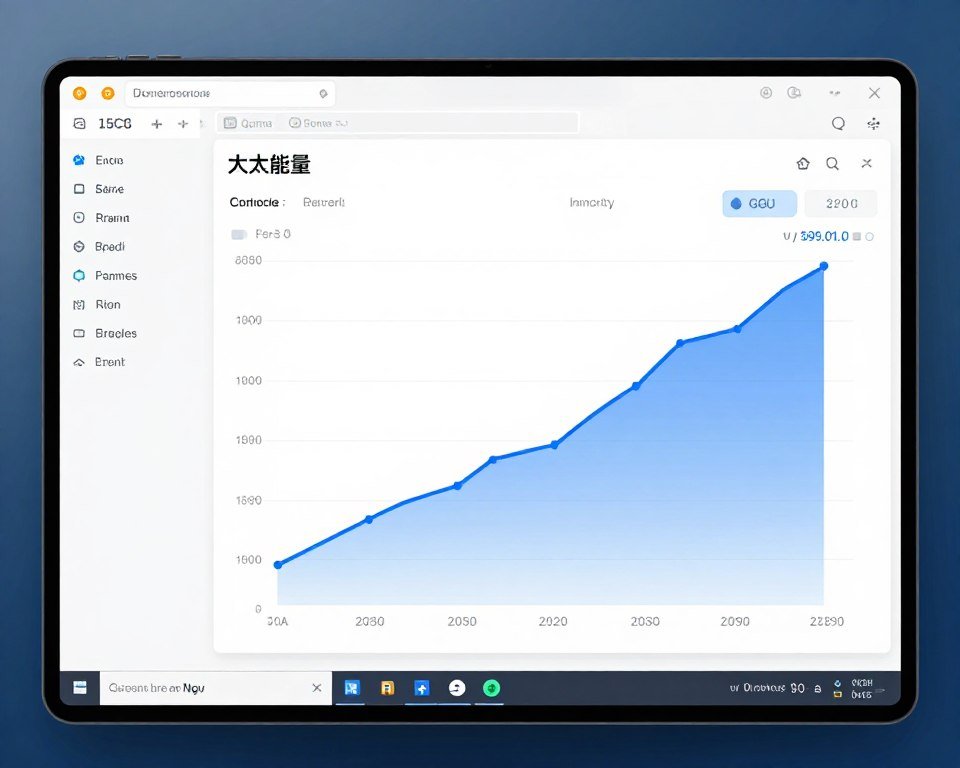
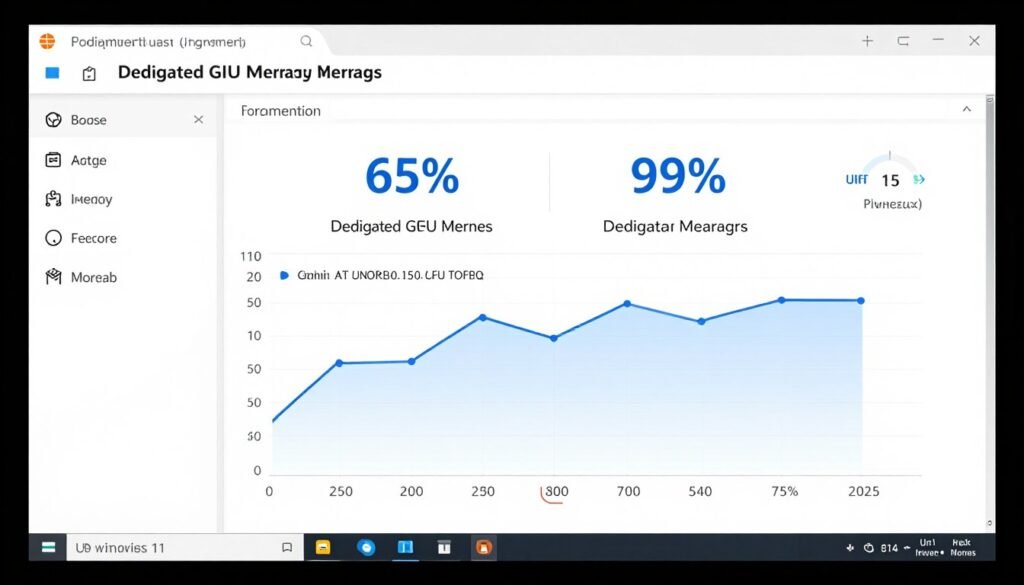
Press Ctrl+Shift+Esc, go to the Performance tab, and click “GPU.” You’ll see “Dedicated GPU memory” usage. If this hits 95% to 100% while gaming, you’re maxing out VRAM.
Task Manager is simple but a bit clunky. It doesn’t overlay on games, so you have to alt-tab out to check it. Still, it’s free and already installed.
MSI Afterburner + RivaTuner
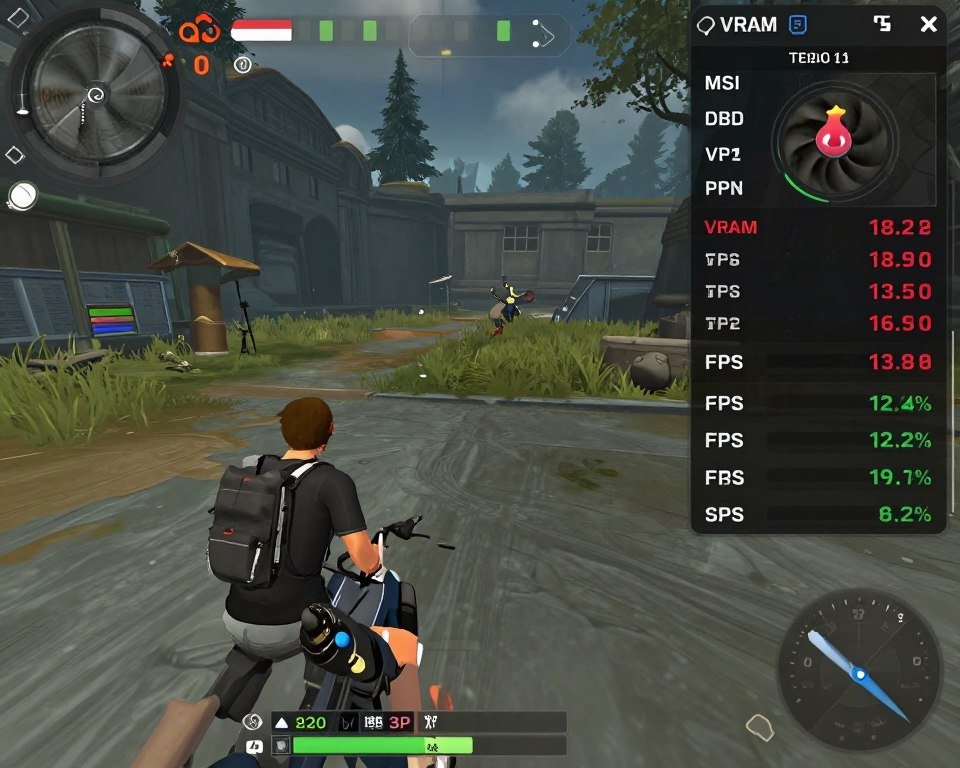
This combo is free and gives you an on-screen overlay. You can track GPU usage, VRAM usage, temps, and FPS in real time without leaving your game.
It takes five minutes to set up. Download both, enable the on-screen display in RivaTuner, and customize what stats you want to see. I keep mine minimal: FPS, GPU usage, and VRAM usage.
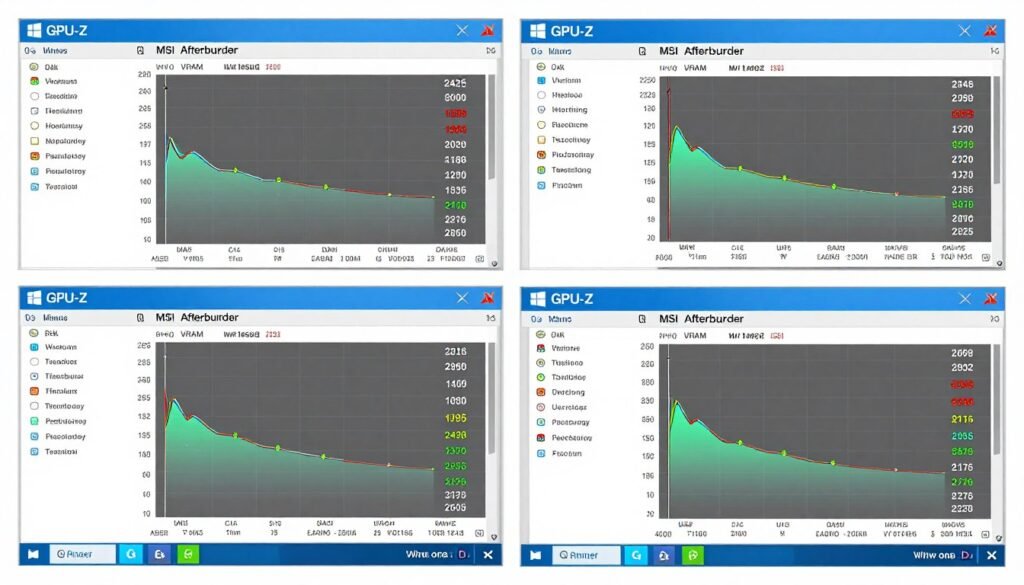
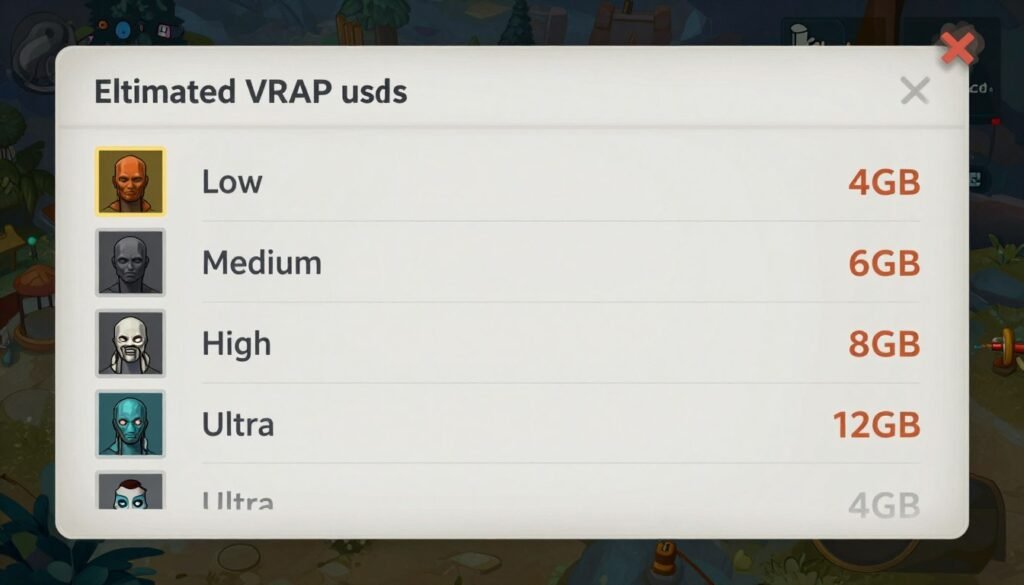
Some games also show estimated VRAM usage in their graphics settings menu. This is helpful, but it’s usually a rough guess. Real-world usage can be higher, especially if you have background apps running.
Not Sure If VRAM Is Your Problem?
Use our free bottleneck calculator to see if your GPU, CPU, or memory is holding back your system. It takes 30 seconds and gives you a clear answer.
How to Actually Spot a VRAM Bottleneck
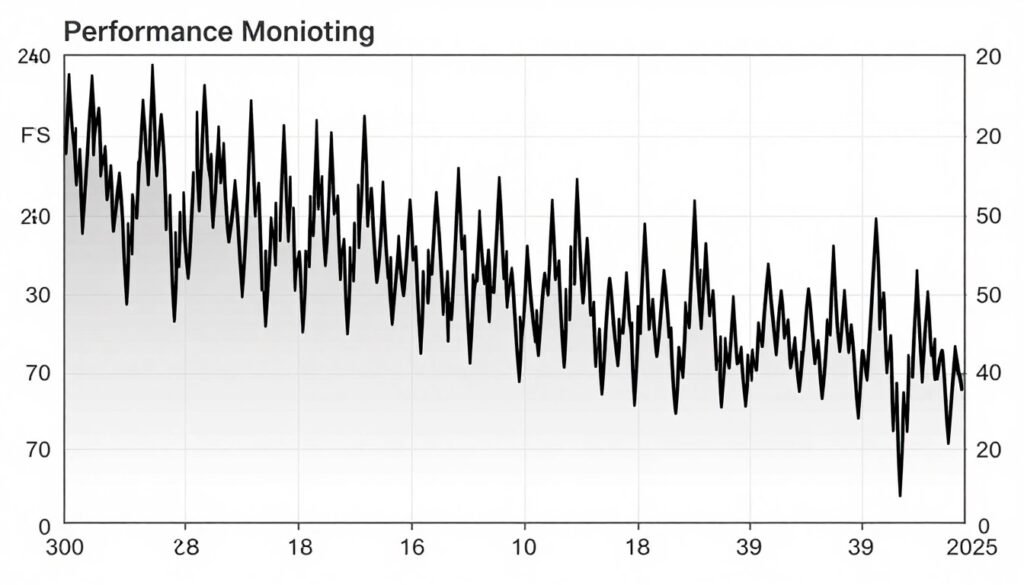
VRAM bottlenecks don’t look like regular performance drops. They’re inconsistent. Your game might run at 60 FPS for a few seconds, then suddenly freeze for half a second as new textures load. This happens when the GPU runs out of VRAM and has to pull data from system RAM.
What You’ll Actually Notice
- Sudden stutters when entering new areas or turning the camera quickly
- Textures loading in blurry, then sharpening a second or two later (texture pop-in)
- Frame drops that don’t match your GPU usage (GPU sits at 70%, but you’re still stuttering)
- Long pauses when opening inventory screens or menus in games
- Worse performance over time as you play, especially in open-world games
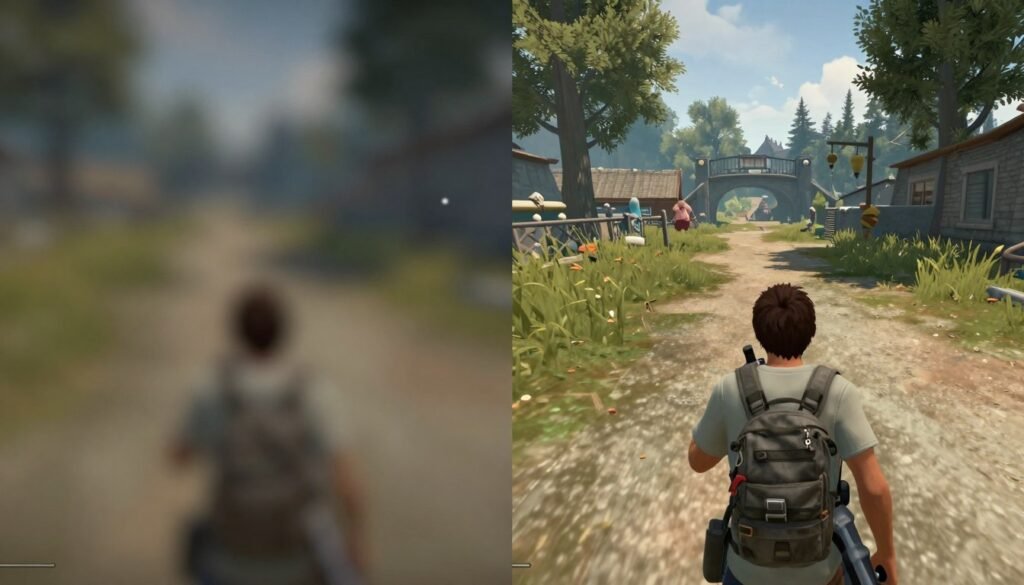
I ran into this hard when I tried playing Resident Evil Village with ray tracing enabled on my old GTX 1070. The game would run fine in small rooms, but the moment I stepped outside, everything turned into a slideshow for a few seconds. VRAM usage was pinned at 8GB, and the game was desperately trying to stream textures from my SSD.
Testing It the Right Way
The best way to confirm a VRAM bottleneck is to lower your texture quality or resolution and see what happens. If dropping textures from Ultra to High fixes the stuttering without changing anything else, VRAM was your problem.
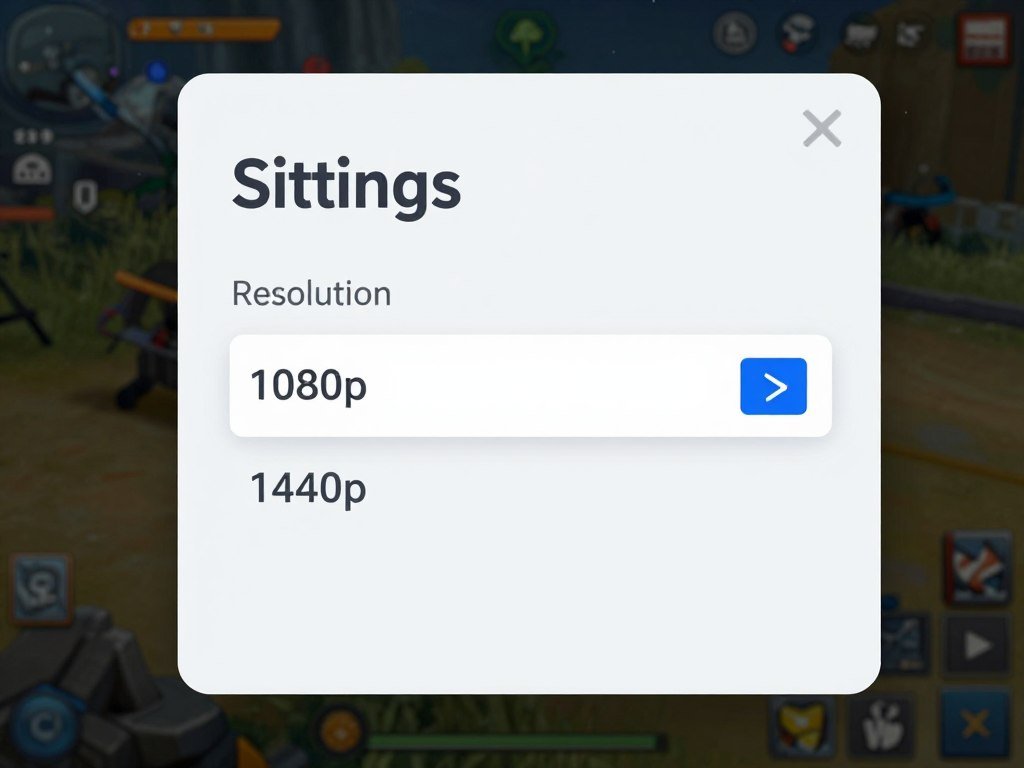
Resolution Test
Drop your resolution from 1440p to 1080p. If performance gets way smoother and stuttering stops, your GPU is probably VRAM-limited at the higher resolution. Higher resolutions need more VRAM for frame buffers and rendering.
Texture Quality Test
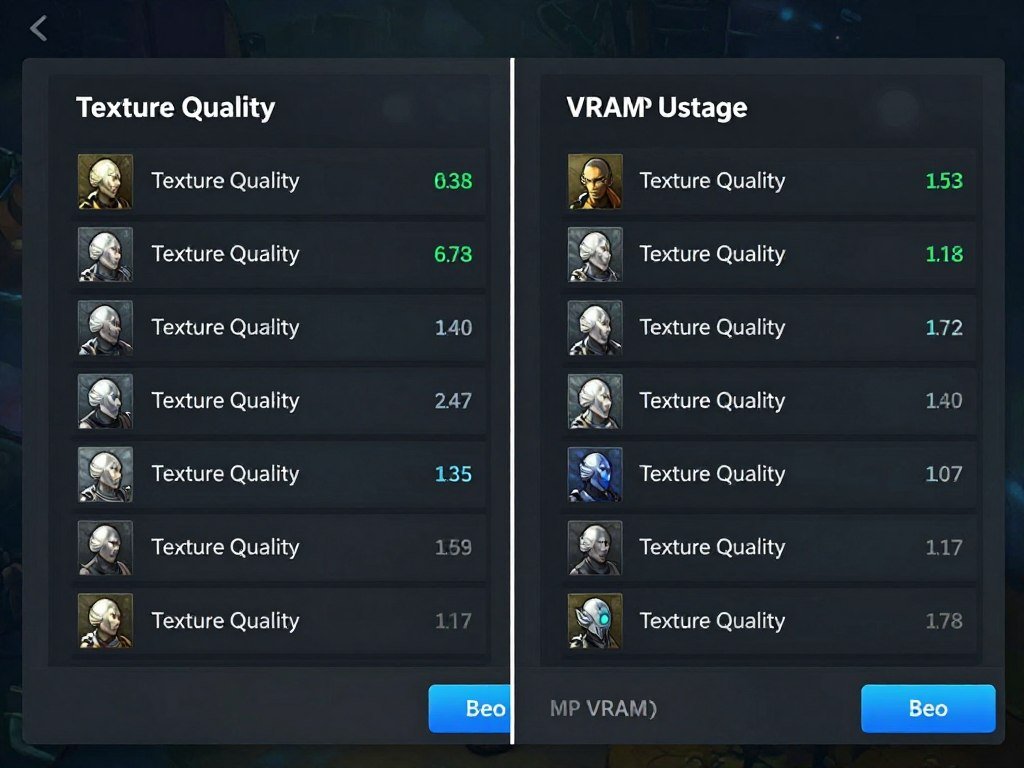
Set textures to Medium or Low. If your FPS stays the same but stuttering disappears, that’s a clear VRAM bottleneck. Texture quality has the biggest impact on VRAM usage in most games.
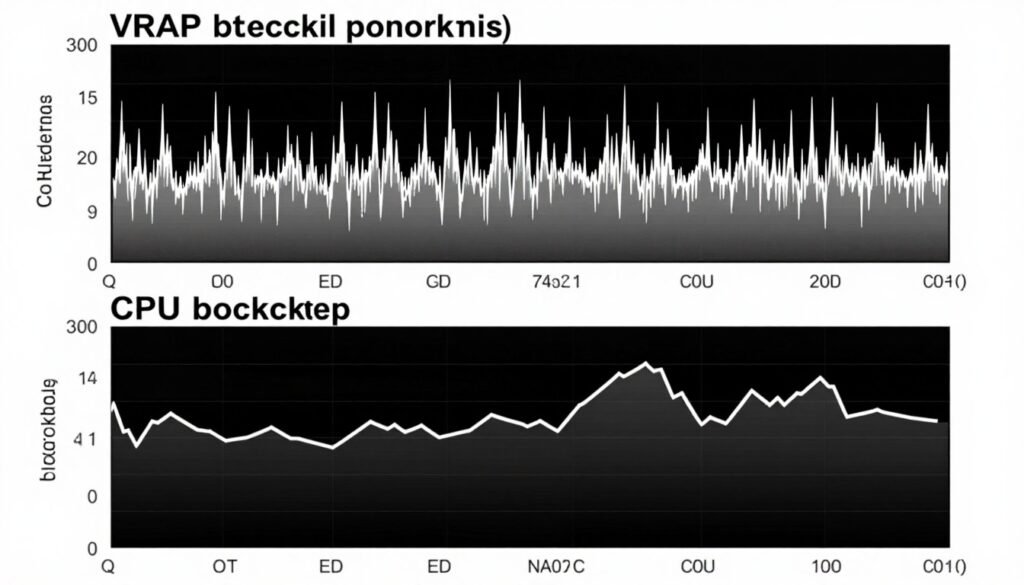
Don’t Confuse This With a CPU Bottleneck: A CPU bottleneck causes consistently low FPS with low GPU usage. A VRAM bottleneck causes stuttering and inconsistent frame times even when GPU usage fluctuates. They feel different when you’re playing.
Why Does This Even Happen?
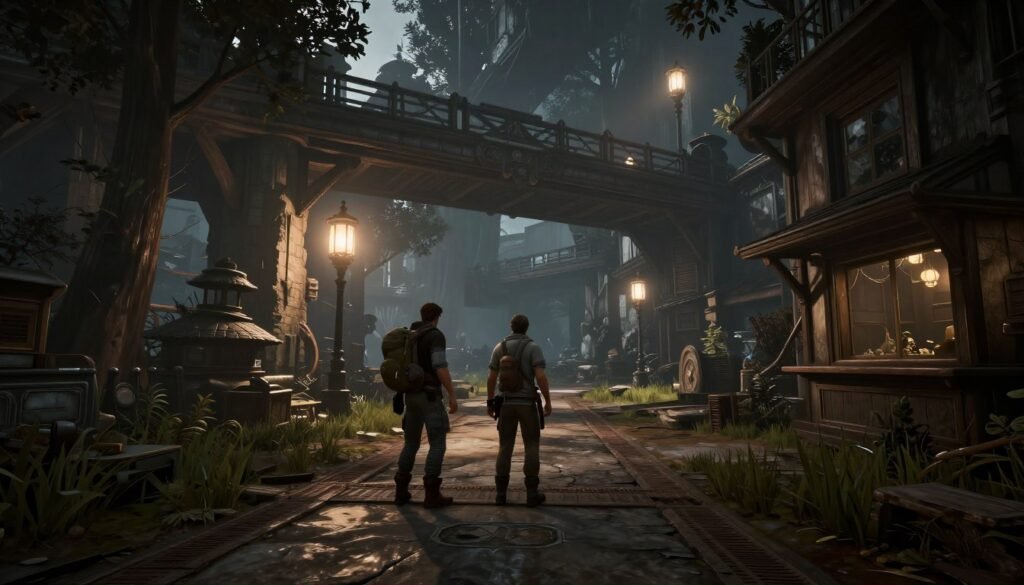
Modern games are more detailed than ever. A single 4K texture can be several megabytes. Multiply that by hundreds or thousands of textures loaded at once, and you’re looking at gigabytes of VRAM usage before you even add lighting, shadows, and effects.
The Biggest VRAM Hogs
- Texture Resolution: Ultra textures can use 2x to 3x more VRAM than High settings. The visual difference is often minimal unless you’re standing still and staring at surfaces.
- Ray Tracing: Ray tracing doesn’t just hit GPU performance. It also uses extra VRAM for acceleration structures and reflection buffers. Enabling RT can add 2GB to 4GB to your VRAM usage.
- Resolution: Rendering at 4K needs roughly 4x the VRAM for frame buffers compared to 1080p. Upscaling tech like DLSS helps, but native 4K is brutal on memory.
- Open-World Games: Games like Red Dead Redemption 2 or Assassin’s Creed Valhalla load huge amounts of data as you move through the world. They constantly stream textures in and out of VRAM.
- Mods: Texture packs and graphics mods can blow past what the game was designed for. Skyrim with 4K texture mods can easily use 10GB+ of VRAM.
One thing that surprised me was how much anti-aliasing can impact VRAM. MSAA and SSAA are memory-intensive because they render at higher resolutions internally. Switching to TAA or DLSS can save a ton of VRAM without sacrificing much visual quality.
It’s Not Just Gaming
If you’re doing 3D rendering, video editing, or working with AI models, VRAM matters even more. Rendering a complex scene in Blender can easily max out 12GB or 16GB of VRAM. Running out of VRAM in these apps doesn’t just cause stuttering—it can crash the program or force you to use your CPU, which is way slower.
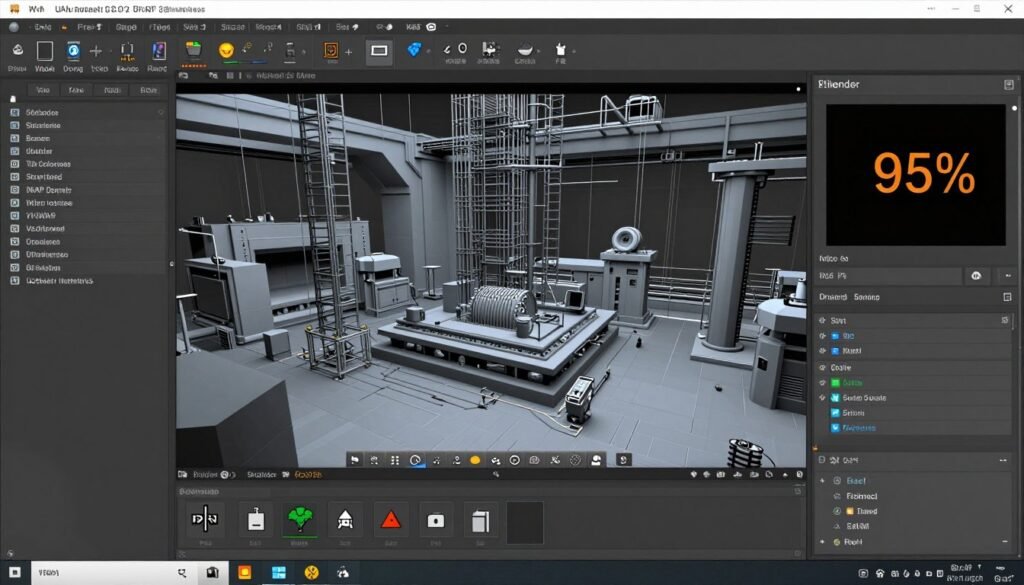
Video editing with 4K or 8K footage uses VRAM for timeline scrubbing and effects previews. I used to edit 4K drone footage on a card with 8GB of VRAM, and scrubbing through the timeline felt like moving through molasses. Upgrading to 16GB made it instant.
What You Can Actually Do About It
Fixing a VRAM bottleneck depends on whether you want to tweak settings or upgrade hardware. Settings changes are free. Hardware upgrades cost money but give you long-term headroom. I’ll cover both.
Tweaking Settings (No Money Required)
Lower Texture Quality
This is the single most effective change. Dropping from Ultra to High textures can cut VRAM usage by 30% to 40%. The visual difference is small unless you’re pixel-peeping.
In most games, High textures look nearly identical to Ultra in motion. You only notice the difference in screenshots or when you’re standing still staring at a wall.
Disable or Lower Ray Tracing
Ray tracing looks amazing, but it’s expensive in both performance and VRAM. If you’re borderline on memory, turning off RT or dropping RT quality can free up several gigabytes.
I honestly think most people won’t miss ray-traced reflections once they’re playing. Static images look incredible, but when you’re focused on gameplay, you don’t notice.

Use Upscaling Tech
DLSS, FSR, or XeSS let you render at a lower internal resolution and upscale to your display resolution. This cuts VRAM usage significantly while keeping the image sharp. It’s not magic, but it’s pretty close.
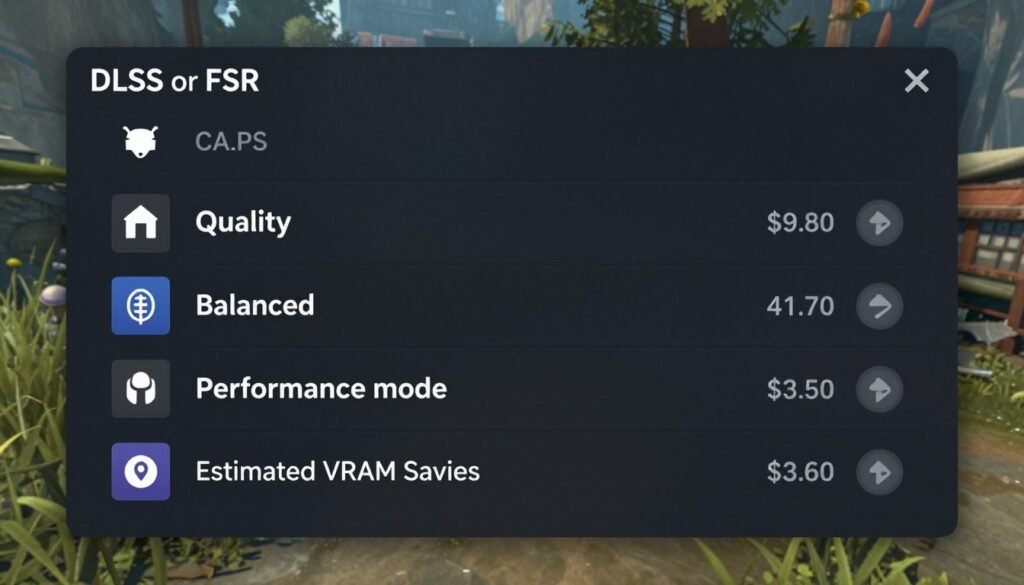
I run DLSS on Quality mode in almost every game that supports it. I get better performance, lower VRAM usage, and the image quality is nearly identical to native resolution. It’s a total game-changer if your card supports it.
Close Background Apps
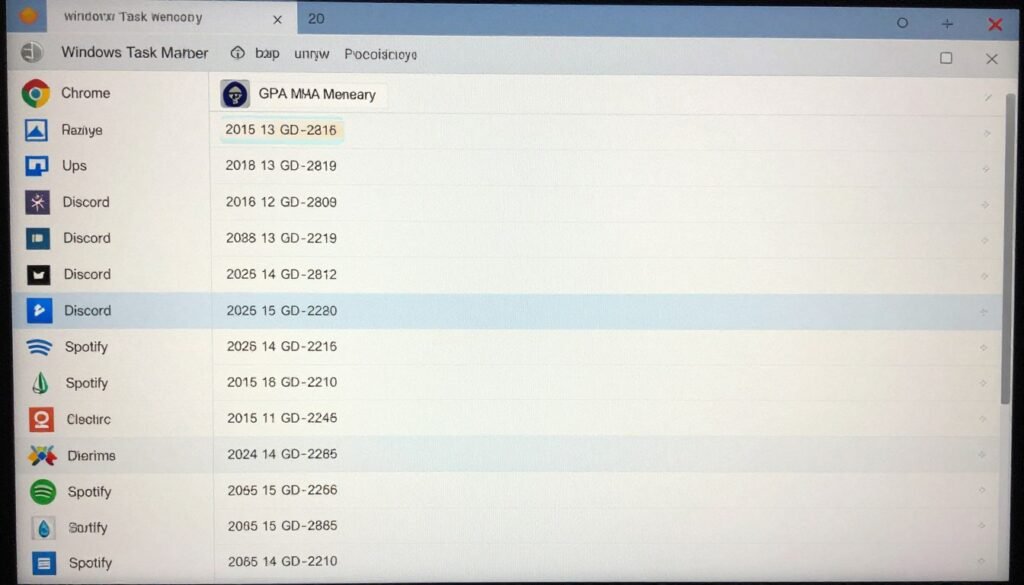
Chrome, Discord, and even Windows itself can use small amounts of VRAM. If you’re borderline on memory, closing unnecessary programs can free up 500MB to 1GB. It’s not a huge gain, but it might be enough to stop stuttering.
- Close web browsers with lots of tabs open (especially Chrome)
- Disable hardware acceleration in Discord, Spotify, and similar apps
- Turn off Windows Game Bar and Xbox Game DVR if you don’t use them
Upgrade Paths (When Settings Aren’t Enough)
If you’ve tweaked every setting and you’re still hitting VRAM limits, it’s time to consider upgrading. The good news is you don’t always need the most expensive card on the market.
What Actually Makes Sense to Buy
1080p Gaming
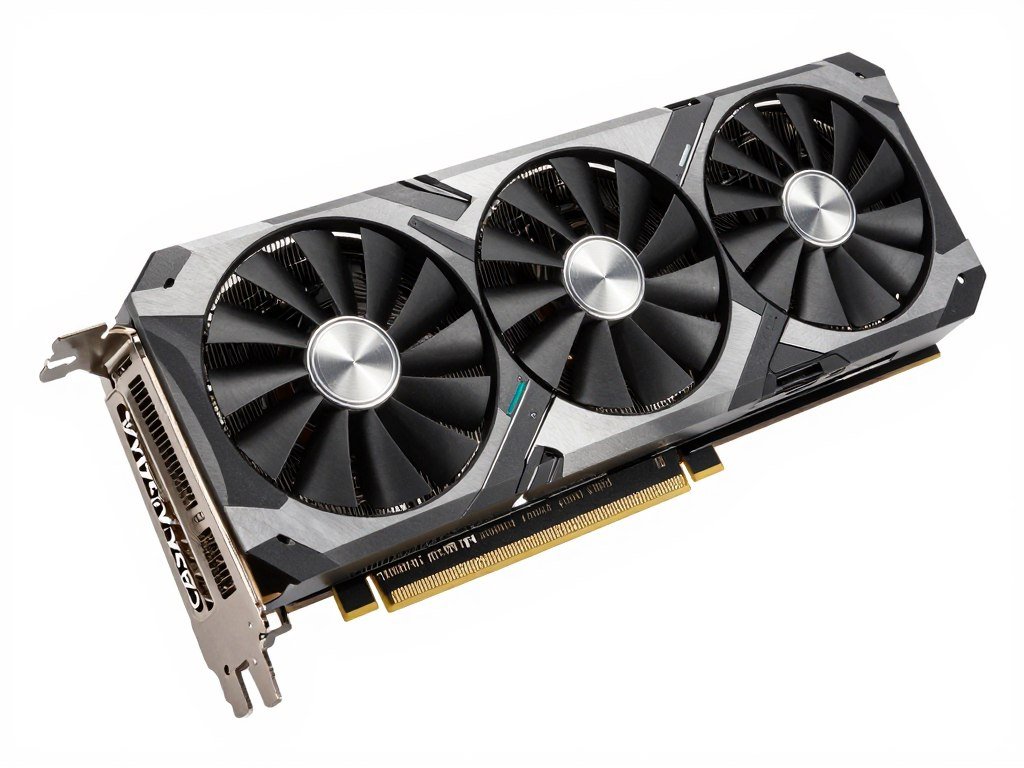
8GB is the baseline. 10GB to 12GB gives you headroom for max settings and future games. Cards like the RTX 4060 Ti 16GB or RX 7600 XT are solid picks.
1440p Gaming
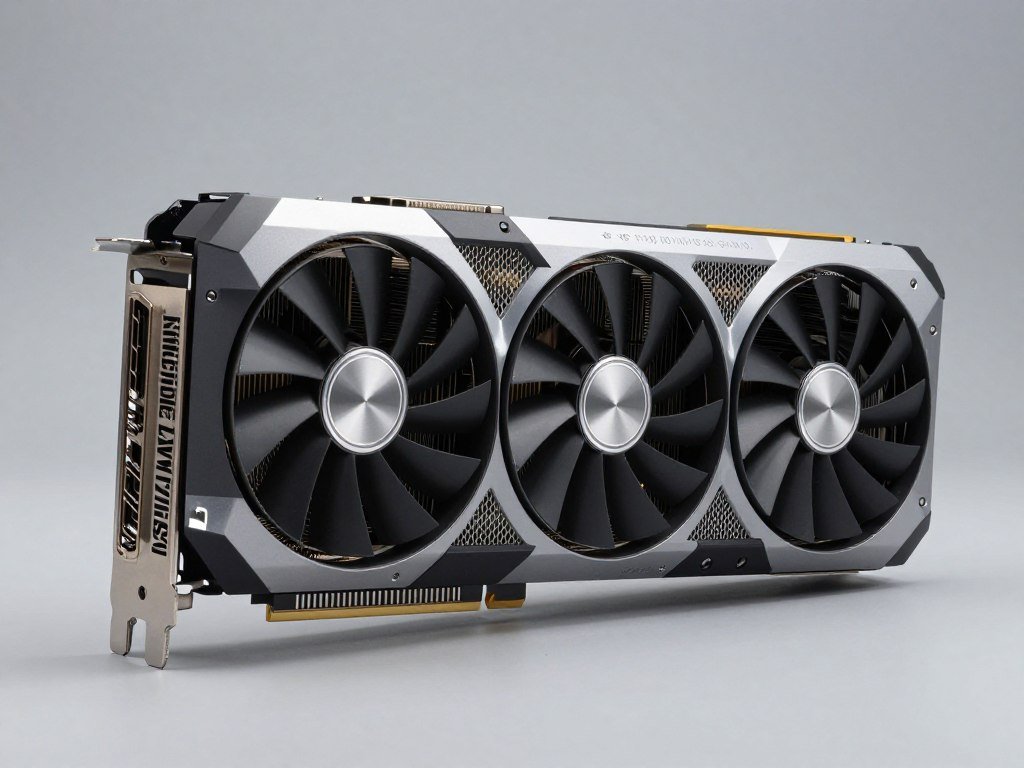
12GB minimum, 16GB preferred. You want headroom for high settings and ray tracing. The RTX 4070 Ti or RX 7800 XT are great here.
4K or Rendering
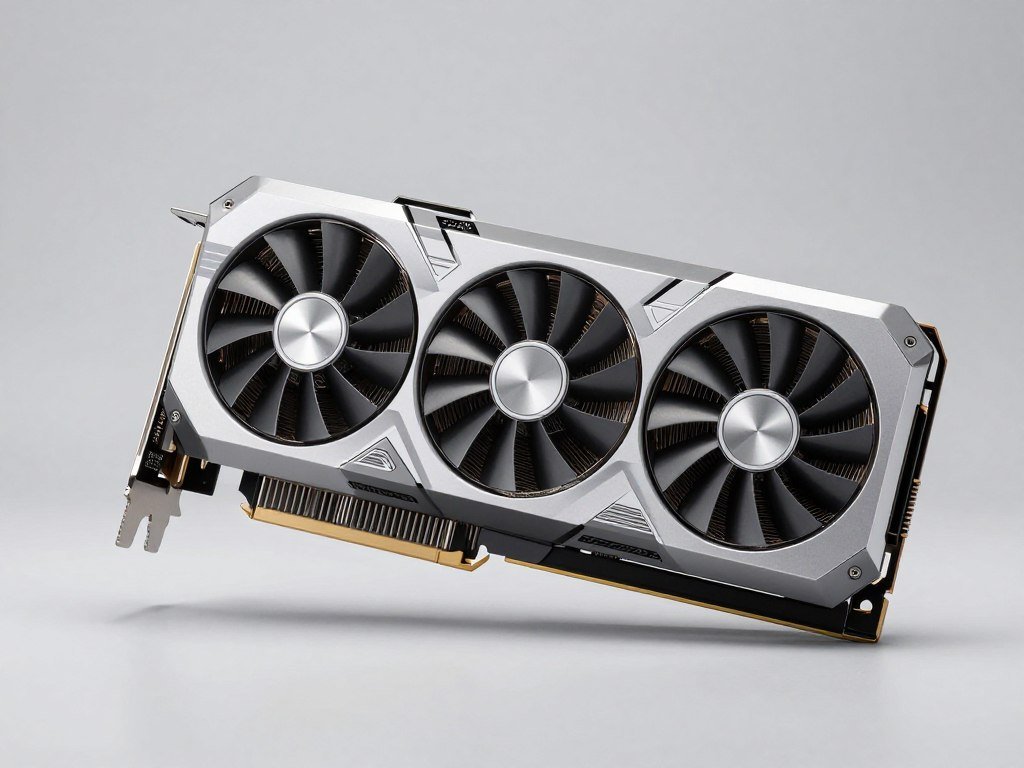
16GB bare minimum, 24GB if you can afford it. Native 4K and professional work destroy VRAM. RTX 4090 or RX 7900 XTX territory.
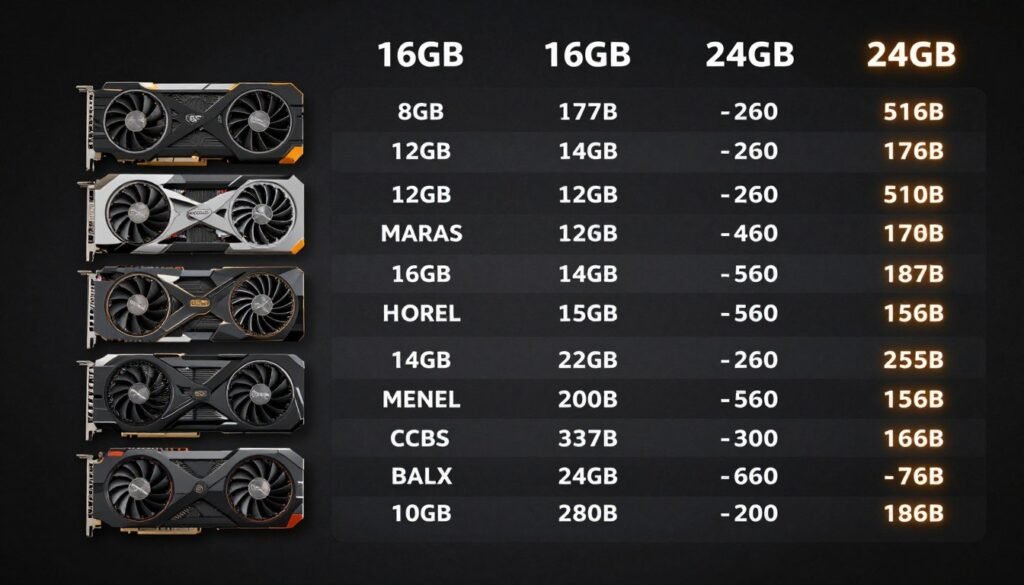
One mistake people make is buying a powerful GPU with not enough VRAM. The RTX 4080 with 16GB is a better long-term buy than a hypothetical faster card with only 12GB. VRAM doesn’t scale with driver updates—you’re stuck with what you bought.
Ready to Upgrade? Check Compatibility First
Before you buy a new GPU, use our bottleneck calculator to make sure your CPU and other components won’t hold it back. No point spending $800 if your system can’t keep up.
Don’t Forget About Storage Speed
If you’re constantly hitting VRAM limits, a fast NVMe SSD can help reduce stuttering. When your GPU runs out of memory, it pulls data from storage. A slow hard drive makes this way worse. An NVMe drive won’t fix the problem, but it makes it less painful.
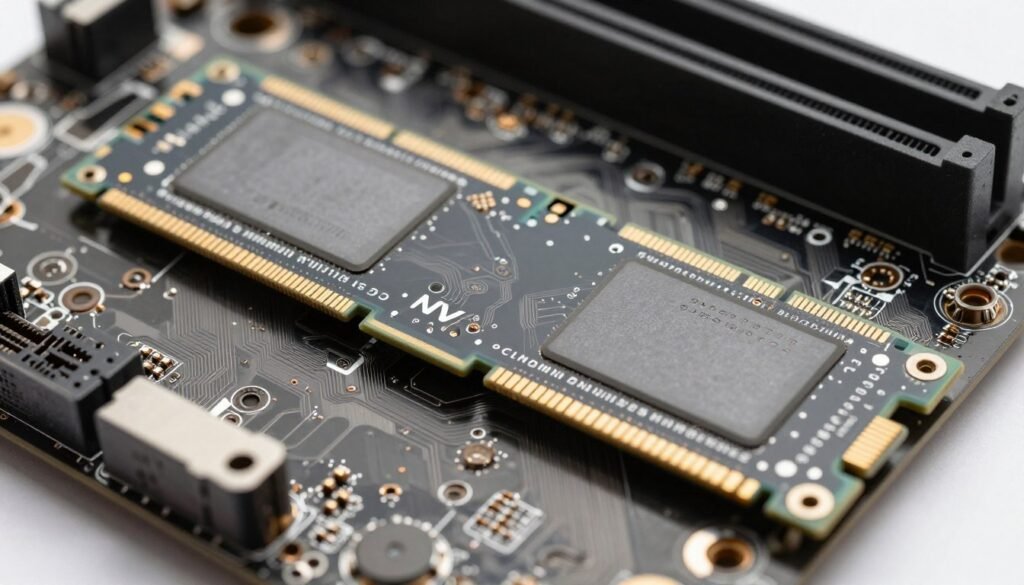
I upgraded from a SATA SSD to an NVMe Gen 4 drive, and load times dropped by half. More importantly, texture streaming became way less noticeable. It’s not a replacement for more VRAM, but it’s a nice quality-of-life improvement.
Can I Just Use More System RAM Instead?

Short answer: No, not really. VRAM and system RAM are not interchangeable. VRAM is way faster and sits right next to the GPU cores. System RAM is slower and has to go through the CPU and PCIe bus to reach the GPU.
When your GPU runs out of VRAM, it does fall back to system RAM, but performance tanks. The bandwidth difference is massive. GDDR6 VRAM on a modern GPU can hit 500GB/s to 1000GB/s. DDR5 system RAM tops out around 60GB/s to 80GB/s. That’s a 10x difference.
What About Integrated Graphics?
Integrated GPUs (like Intel’s Iris Xe or AMD’s Radeon iGPUs) don’t have dedicated VRAM. They share system RAM. You can allocate more RAM to the iGPU in your BIOS, and that can help, but you’re still limited by the slow bandwidth.
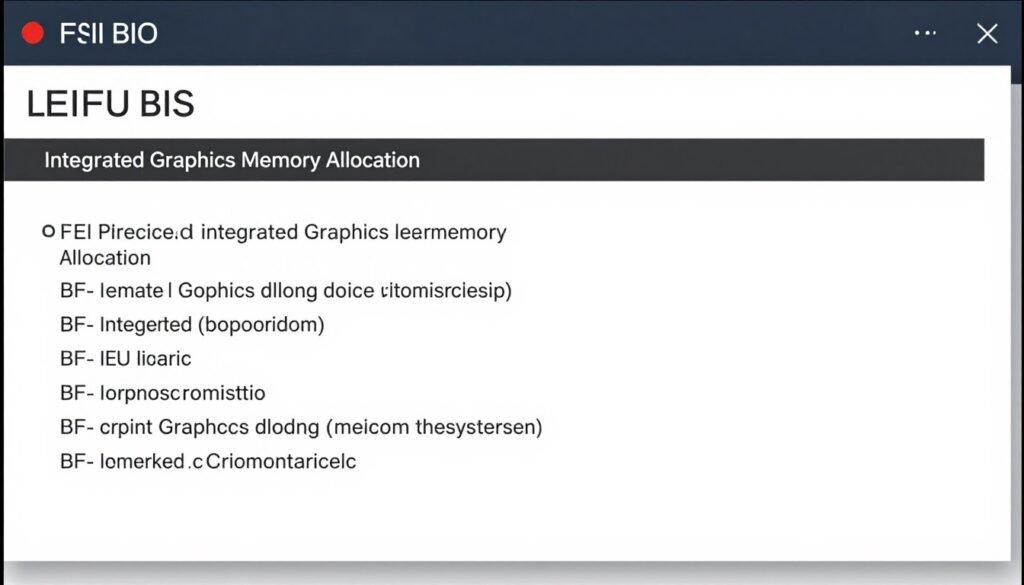
If you’re using an iGPU for light gaming or productivity, upgrading to faster RAM (like DDR5-6000) and allocating 2GB to 4GB to the iGPU can make a noticeable difference. But it’s still nowhere near a dedicated GPU with real VRAM.
Mistakes I See People Make All the Time
There’s a lot of bad advice floating around about VRAM. Here are the mistakes I see constantly, and what you should actually do instead.
Buying Based on VRAM Alone
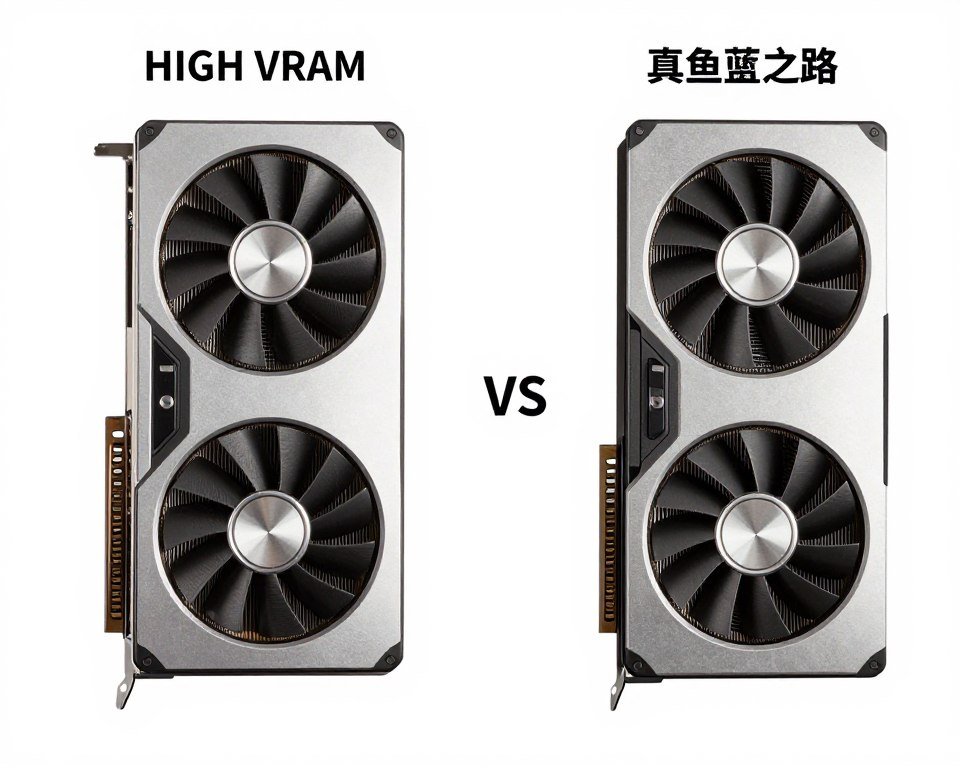
A weak GPU with 16GB of VRAM is still a weak GPU. VRAM capacity doesn’t make a card faster—it just prevents bottlenecks. You need both processing power and memory to match your workload.
Ignoring VRAM Entirely
The opposite mistake: buying a powerful GPU with too little VRAM. The RTX 4060 Ti 8GB is fast, but it’ll struggle at 1440p max settings in VRAM-heavy games. The 16GB model costs more but lasts longer.
Expecting Miracles from Settings Changes
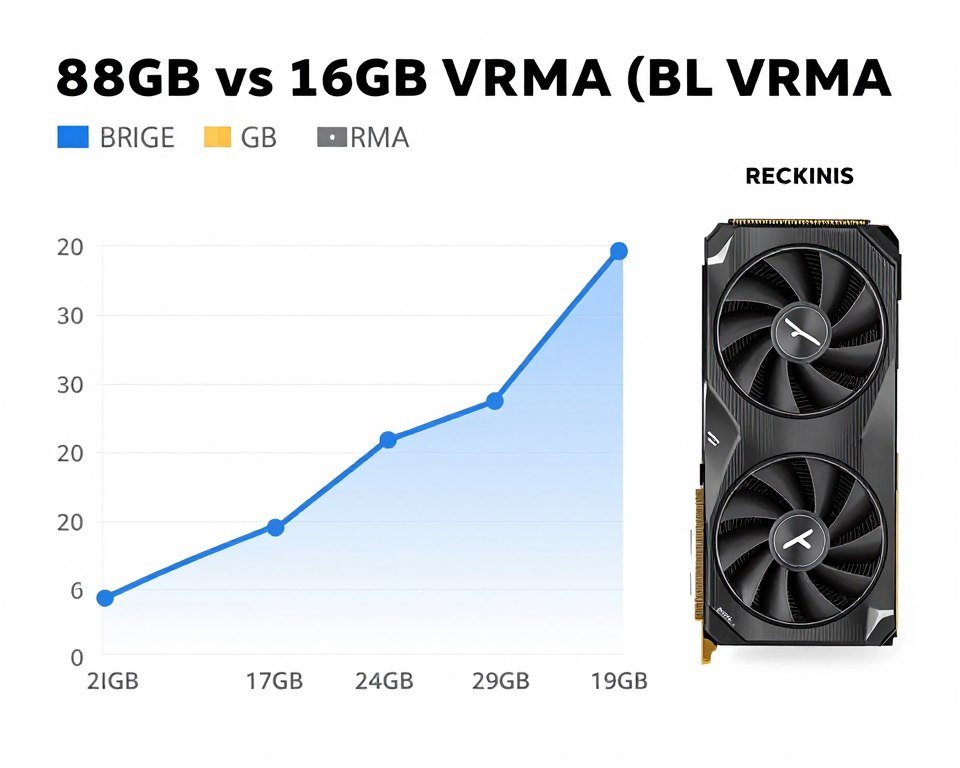
Tweaking settings helps, but if you’re 4GB over your VRAM limit, dropping texture quality one notch won’t fix it. At some point, you need more memory or you need to lower resolution significantly.
Panicking Over VRAM Usage Percentage
Seeing 90% or 95% VRAM usage doesn’t automatically mean you have a problem. Games will use as much VRAM as they can to reduce loading. The issue is when usage hits 100% and stays there, causing stuttering.
I see people freak out because Task Manager shows 7.8GB used out of 8GB. That’s fine. The game is just caching data. If you’re not stuttering, it’s working as intended.
Rule of Thumb: If your game is smooth and you’re hitting high VRAM usage, don’t worry about it. If you’re stuttering and VRAM is maxed, then you have a bottleneck.
Is More VRAM Future-Proof?
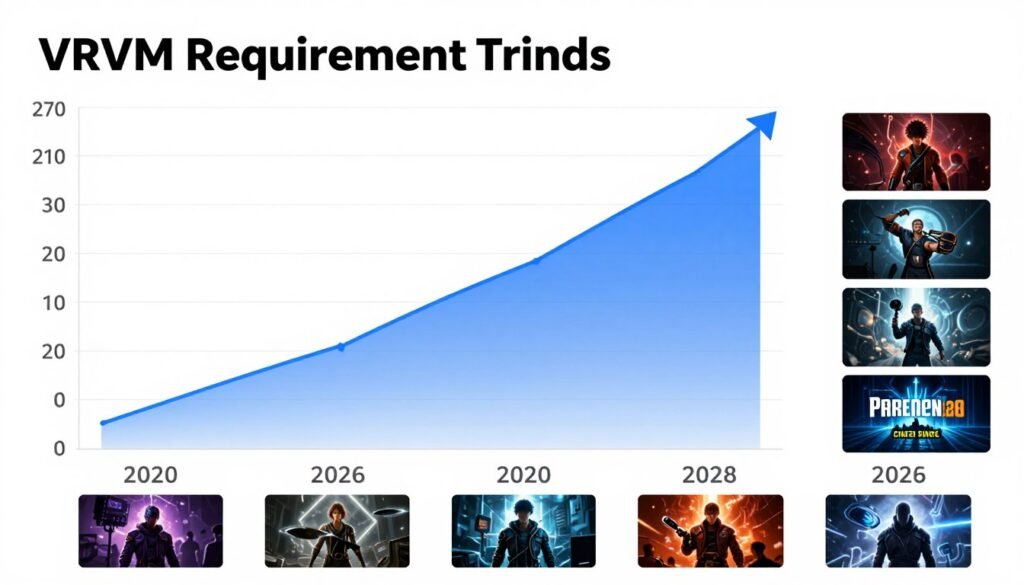
Sort of. VRAM requirements have been climbing steadily. Five years ago, 6GB was plenty for 1080p gaming. Today, 8GB is the baseline and 10GB to 12GB is preferred. In another five years, 16GB might be the standard.
That said, “future-proof” is marketing nonsense. No GPU lasts forever. The cores will age and become too slow before you run out of VRAM, especially if you buy with headroom now.
My Honest Take on Future-Proofing
Buy for what you need now, plus a little extra. If you’re gaming at 1440p today, a 12GB card is smart. A 24GB card is overkill unless you’re doing professional work or planning to keep the card for 7+ years.
The price jump from 12GB to 16GB is usually reasonable. The jump from 16GB to 24GB is massive. Unless you know you need 24GB, you’re better off saving the money and upgrading sooner when the next generation comes out.
Questions People Actually Ask
Can I add more VRAM to my graphics card?
No. VRAM is soldered directly onto the GPU’s circuit board. You can’t upgrade it like you can with system RAM. If you need more VRAM, you need a new graphics card.
Does VRAM affect FPS?
Not directly. VRAM doesn’t make your FPS higher—it prevents stuttering and frame drops when you run out of memory. If you have enough VRAM, adding more won’t improve FPS. If you don’t have enough, you’ll get terrible frame pacing.
Is 8GB of VRAM enough in 2026?
For 1080p gaming, yes, but it’s borderline for max settings in new AAA games. For 1440p or 4K, 8GB is tight. I’d recommend 10GB to 12GB minimum if you’re buying a new card now.
Why do some GPUs have way more VRAM than others?
Higher-end GPUs need more VRAM to match their processing power. A fast GPU rendering at 4K with ray tracing needs a ton of memory to keep up. Cheaper cards targeting 1080p don’t need as much. It’s about balance.
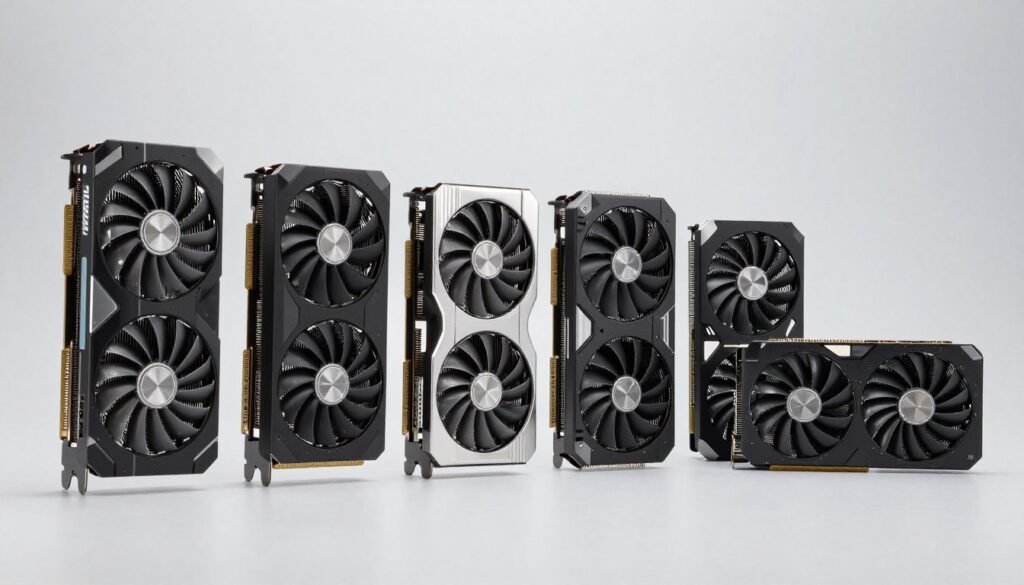
Does SLI or multi-GPU double your VRAM?
No. In most cases, VRAM doesn’t stack. Two 8GB cards in SLI still only have 8GB of usable VRAM because each card needs to hold the same data. There are some pro workloads where VRAM can pool, but gaming doesn’t work that way.
Can I use system RAM as VRAM?
Your system will automatically use system RAM when VRAM runs out, but performance tanks hard because system RAM is much slower. It’s a fallback, not a solution. You’ll get stuttering and long load times.
What’s the difference between GDDR6 and GDDR6X?
GDDR6X is faster and uses less power than regular GDDR6. It’s mostly found on high-end Nvidia cards. For most people, the difference doesn’t matter much—capacity matters more than memory type. Both are way faster than system RAM.
Will lowering resolution fix a VRAM bottleneck?
Yes, usually. Lower resolutions need smaller frame buffers and less data in memory. Dropping from 1440p to 1080p can cut VRAM usage by 30% to 40%. It’s not the fix everyone wants, but it works.
Do I need more VRAM for VR gaming?
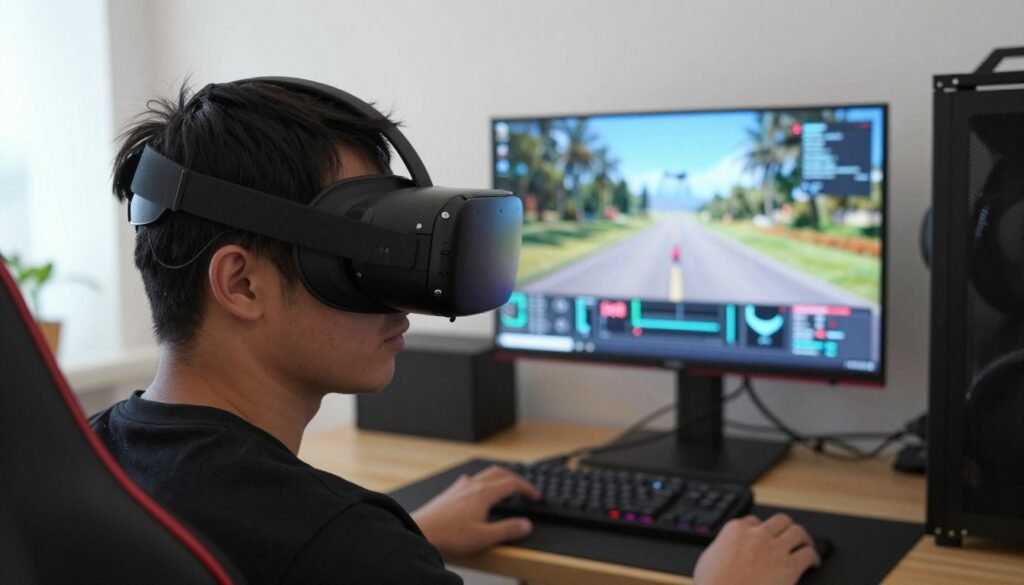
Yes. VR renders two images (one per eye) at high resolution and high refresh rates. VRAM usage is significantly higher than flat gaming. I’d say 12GB minimum for VR, 16GB preferred.
Can mods cause VRAM bottlenecks?
Absolutely. Texture mods, ENB presets, and graphics overhauls can easily double or triple VRAM usage. Skyrim and Fallout 4 modders hit this all the time. If you’re modding heavily, you need extra VRAM headroom.
The Bottom Line
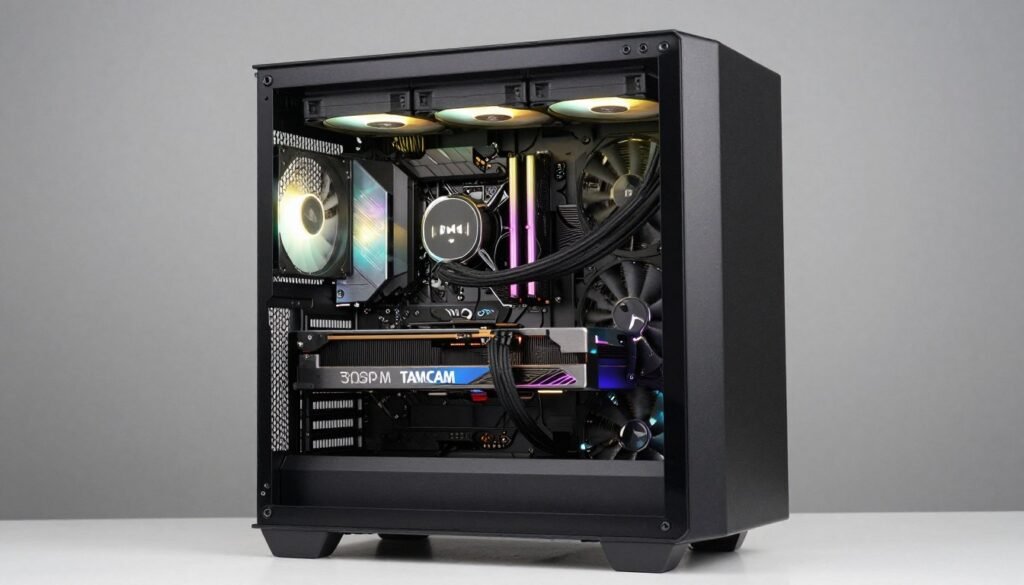
VRAM bottlenecks are frustrating because they don’t show up in GPU usage stats. Your system can look like it’s loafing while your game stutters and textures pop in late. The key is knowing what to look for: high VRAM usage near 100%, stuttering that doesn’t match GPU load, and performance that gets worse over time.
If you’re hitting this issue, start by tweaking settings. Lower texture quality, disable ray tracing, or use upscaling. These changes are free and often fix the problem without upgrading. If settings don’t help and you’re still maxing out VRAM, it’s time to consider a new card with more memory.
When you’re shopping for a new GPU, think about your resolution and settings. 1080p needs 8GB to 12GB. 1440p needs 12GB to 16GB. 4K or professional work needs 16GB or more. Balance VRAM with GPU power—don’t buy a weak card with tons of memory or a fast card with too little.
Want PC Building Tips Delivered?
I send out a weekly email with hardware advice, settings tweaks, and upgrade guides. No fluff, just useful stuff. Join a few thousand other PC builders who’ve already signed up.
VRAM isn’t the sexiest spec, but it matters more than people think. It’s the difference between smooth gameplay and constant stuttering. Pay attention to it when you’re building or upgrading, and you’ll save yourself a lot of headaches down the road.
What’s the weirdest performance issue you’ve ever run into? Was it VRAM, or did something else throw you off?